Voice FORD ESCAPE 2016 3.G Owner's Guide
[x] Cancel search | Manufacturer: FORD, Model Year: 2016, Model line: ESCAPE, Model: FORD ESCAPE 2016 3.GPages: 393, PDF Size: 5.85 MB
Page 331 of 393
![FORD ESCAPE 2016 3.G Owners Guide Description and Action
Command
Plays the current playlist in a random order.
(Not all devices support this command.)
shuffle [all] [on]
shuffle off At any time during playback, you can press
the voice](/img/11/4876/w960_4876-330.png "FORD ESCAPE 2016 3.G Owners Guide Description and Action
Command
Plays the current playlist in a random order.
(Not all devices support this command.)
shuffle [all] [on]
shuffle off At any time during playback, you can press
the voice")
Description and Action
Command
Plays the current playlist in a random order.
(Not all devices support this command.)
shuffle [all] [on]
shuffle off At any time during playback, you can press
the voice button and ask the system what is
playing. The system reads the metadata tags
(if populated) of the current track.
((who's | who is) this | who plays this |
(what's | what is) playing [now] | (what | which) (song | track | artist) is this |
(who's | who is) playing | (what's | what is) this)
___ is a dynamic listing, meaning that it
could be the name of anything, such as a
group, artist or song. For example you
could say "Play artist The Beatles".
Examples of USB Commands
SYNC provides the user with many intuitive
ways to find and play a song using voice.
For example, if we have a song called
"Penny Lane" from the album "Magical
Mystery Tour" we can say the following to
play this song:
• Play song "Penny Lane".
• Play "Penny Lane". If we wanted to play the entire album, we
can say:
•
Play album "Magical Mystery Tour".
• Play "Magical Mystery Tour".
Bluetooth Audio
The system is also capable of playing
music from your cellular phone through
Bluetooth.
To switch the Bluetooth audio on, use the
MEDIA button (next to the audio display)
or Source button, or press the voice button
and when prompted say: Voice Command
Bluetooth audio
Then any of the following: Voice Command
pause
play
next [track | title | song | file | podcast | chapter | episode]
previous [track | title | song | file | podcast | chapter | episode]
328
Escape/Kuga (TM2), enUSA, First Printing SYNC™
(If Equipped)
Page 332 of 393
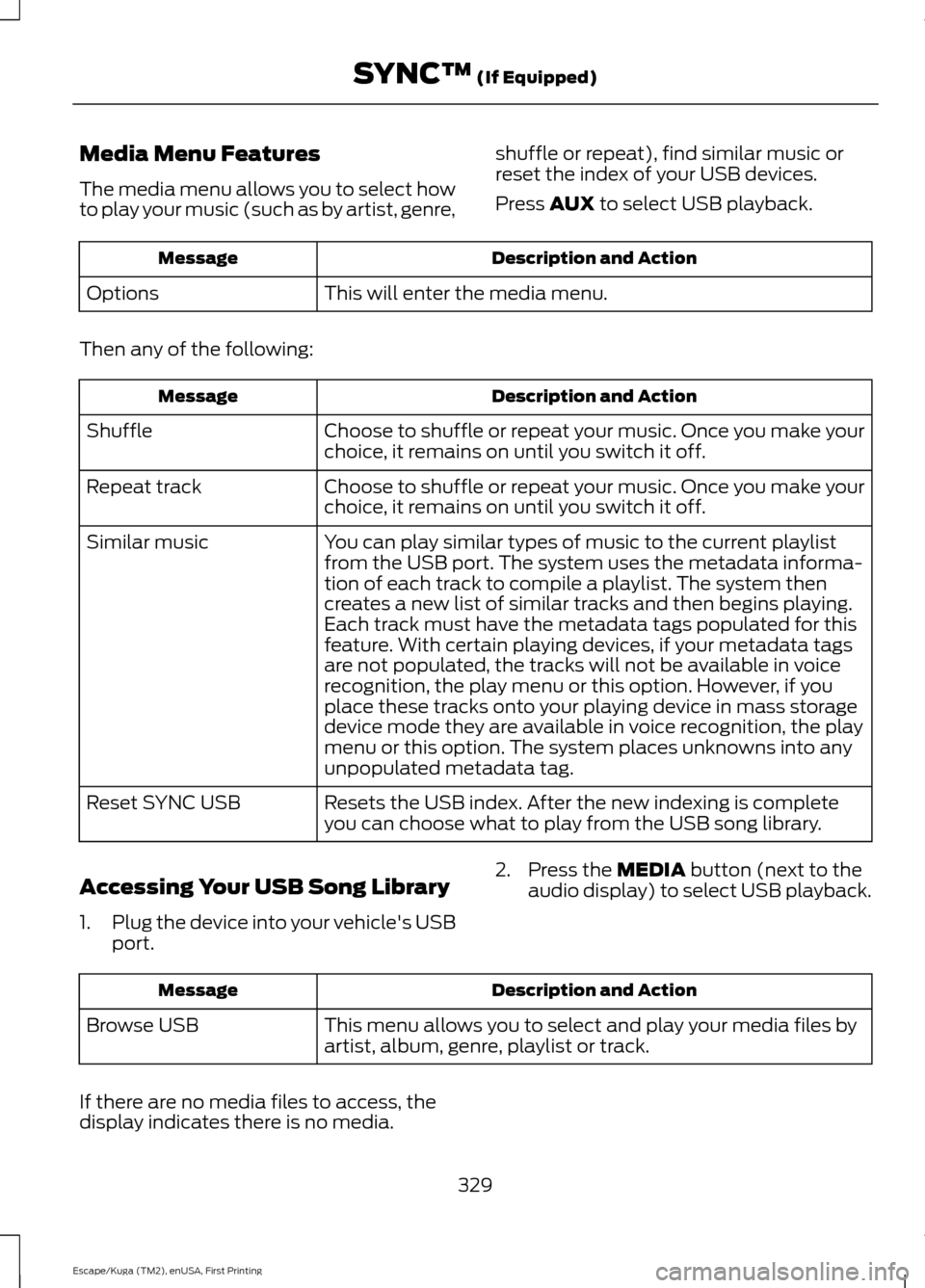
Media Menu Features
The media menu allows you to select how
to play your music (such as by artist, genre,
shuffle or repeat), find similar music or
reset the index of your USB devices.
Press AUX to select USB playback. Description and Action
Message
This will enter the media menu.
Options
Then any of the following: Description and Action
Message
Choose to shuffle or repeat your music. Once you make your
choice, it remains on until you switch it off.
Shuffle
Choose to shuffle or repeat your music. Once you make your
choice, it remains on until you switch it off.
Repeat track
You can play similar types of music to the current playlist
from the USB port. The system uses the metadata informa-
tion of each track to compile a playlist. The system then
creates a new list of similar tracks and then begins playing.
Each track must have the metadata tags populated for this
feature. With certain playing devices, if your metadata tags
Similar music
are not populated, the tracks will not be available in voice
recognition, the play menu or this option. However, if you
place these tracks onto your playing device in mass storage
device mode they are available in voice recognition, the play
menu or this option. The system places unknowns into any
unpopulated metadata tag.
Resets the USB index. After the new indexing is complete
you can choose what to play from the USB song library.
Reset SYNC USB
Accessing Your USB Song Library
1. Plug the device into your vehicle's USB
port. 2. Press the
MEDIA button (next to the
audio display) to select USB playback. Description and Action
Message
This menu allows you to select and play your media files by
artist, album, genre, playlist or track.
Browse USB
If there are no media files to access, the
display indicates there is no media. 329
Escape/Kuga (TM2), enUSA, First Printing SYNC™
(If Equipped)
Page 334 of 393
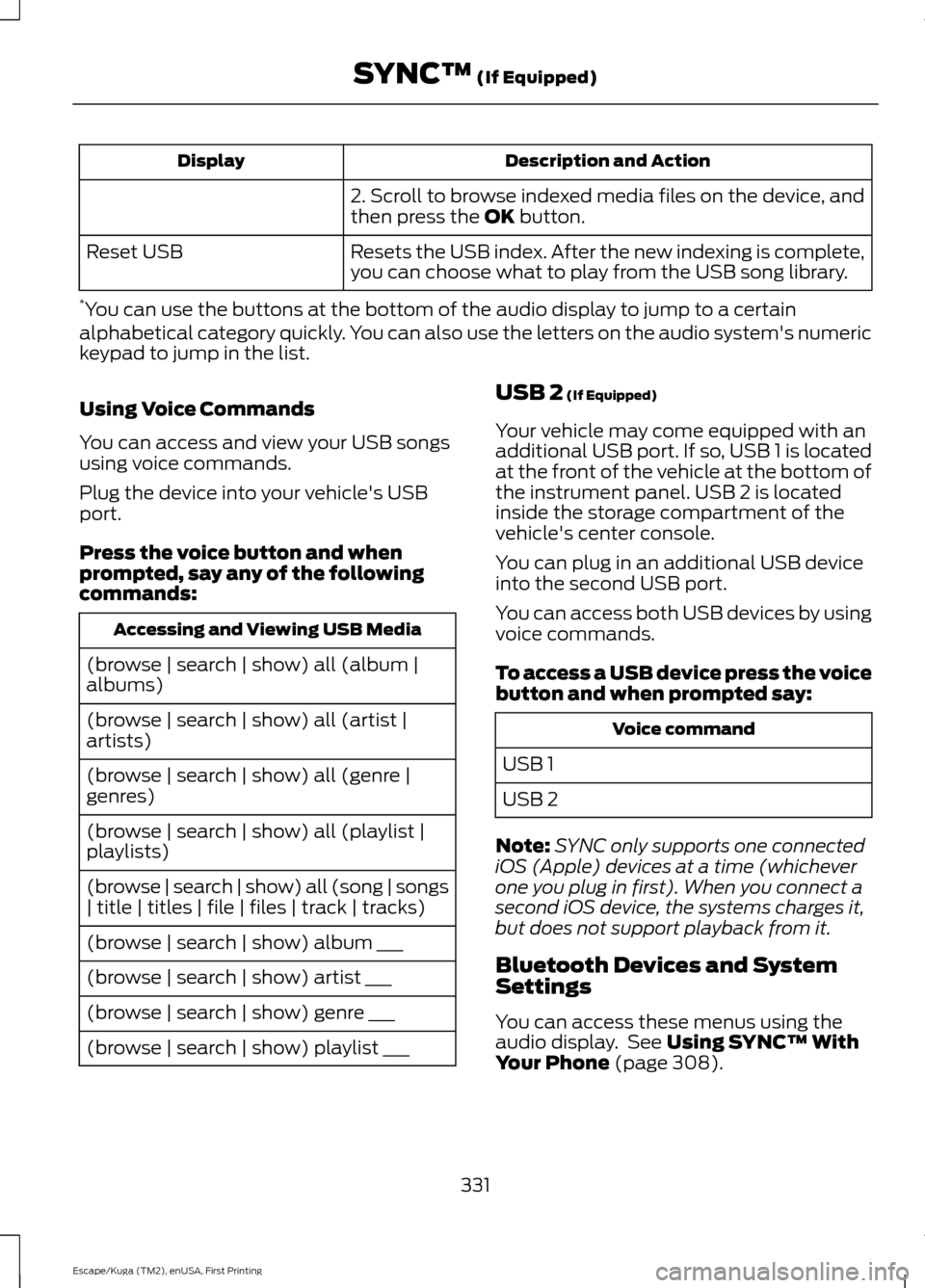
Description and Action
Display
2. Scroll to browse indexed media files on the device, and
then press the OK button.
Resets the USB index. After the new indexing is complete,
you can choose what to play from the USB song library.
Reset USB
* You can use the buttons at the bottom of the audio display to jump to a certain
alphabetical category quickly. You can also use the letters on the audio system's numeric
keypad to jump in the list.
Using Voice Commands
You can access and view your USB songs
using voice commands.
Plug the device into your vehicle's USB
port.
Press the voice button and when
prompted, say any of the following
commands: Accessing and Viewing USB Media
(browse | search | show) all (album |
albums)
(browse | search | show) all (artist |
artists)
(browse | search | show) all (genre |
genres)
(browse | search | show) all (playlist |
playlists)
(browse | search | show) all (song | songs
| title | titles | file | files | track | tracks)
(browse | search | show) album ___
(browse | search | show) artist ___
(browse | search | show) genre ___
(browse | search | show) playlist ___ USB 2
(If Equipped)
Your vehicle may come equipped with an
additional USB port. If so, USB 1 is located
at the front of the vehicle at the bottom of
the instrument panel. USB 2 is located
inside the storage compartment of the
vehicle's center console.
You can plug in an additional USB device
into the second USB port.
You can access both USB devices by using
voice commands.
To access a USB device press the voice
button and when prompted say: Voice command
USB 1
USB 2
Note: SYNC only supports one connected
iOS (Apple) devices at a time (whichever
one you plug in first). When you connect a
second iOS device, the systems charges it,
but does not support playback from it.
Bluetooth Devices and System
Settings
You can access these menus using the
audio display. See
Using SYNC™ With
Your Phone (page 308).
331
Escape/Kuga (TM2), enUSA, First Printing SYNC™
(If Equipped)
Page 335 of 393
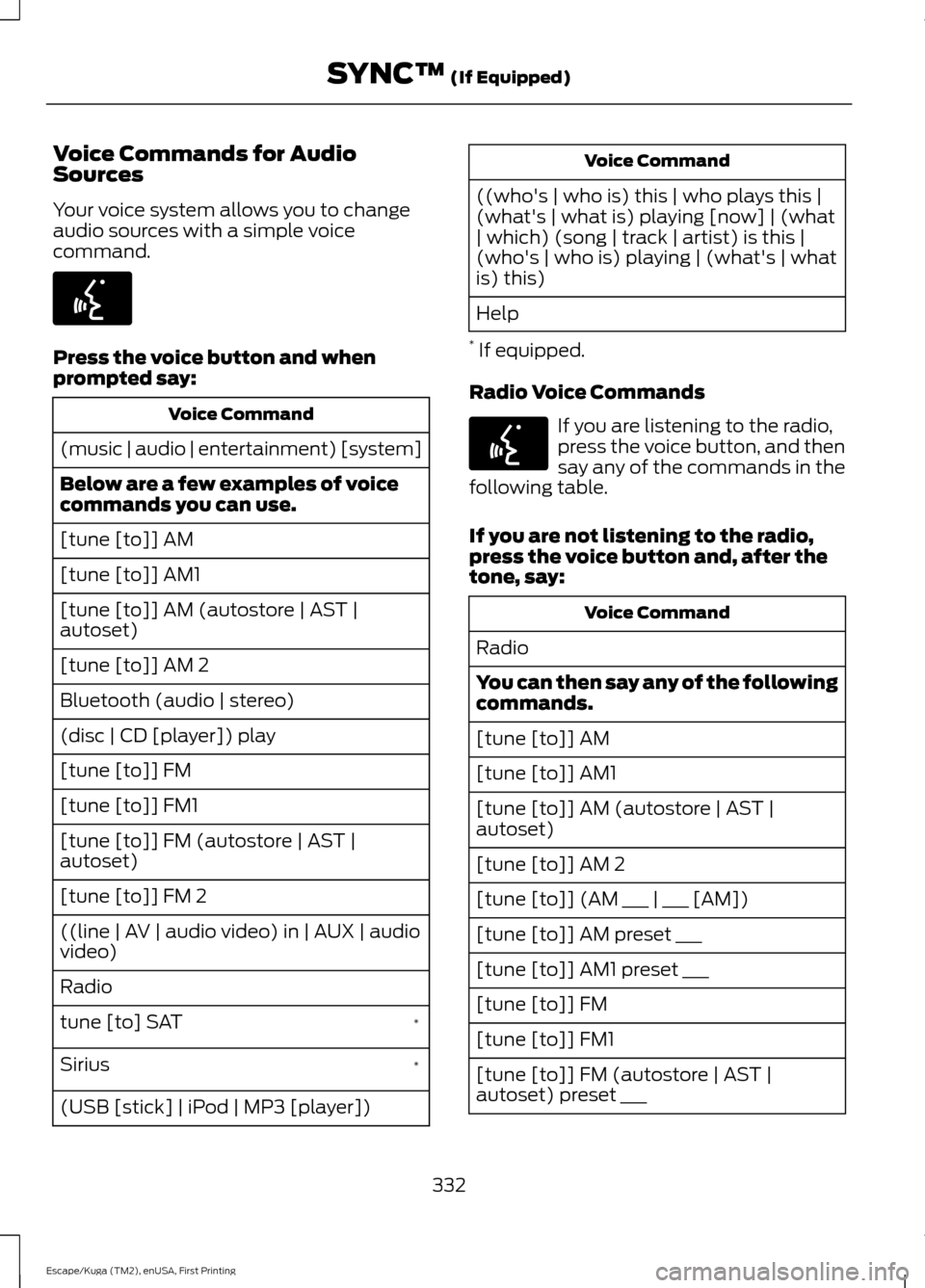
Voice Commands for Audio
Sources
Your voice system allows you to change
audio sources with a simple voice
command.
Press the voice button and when
prompted say:
Voice Command
(music | audio | entertainment) [system]
Below are a few examples of voice
commands you can use.
[tune [to]] AM
[tune [to]] AM1
[tune [to]] AM (autostore | AST |
autoset)
[tune [to]] AM 2
Bluetooth (audio | stereo)
(disc | CD [player]) play
[tune [to]] FM
[tune [to]] FM1
[tune [to]] FM (autostore | AST |
autoset)
[tune [to]] FM 2
((line | AV | audio video) in | AUX | audio
video)
Radio *
tune [to] SAT
*
Sirius
(USB [stick] | iPod | MP3 [player]) Voice Command
((who's | who is) this | who plays this |
(what's | what is) playing [now] | (what
| which) (song | track | artist) is this |
(who's | who is) playing | (what's | what
is) this)
Help
* If equipped.
Radio Voice Commands If you are listening to the radio,
press the voice button, and then
say any of the commands in the
following table.
If you are not listening to the radio,
press the voice button and, after the
tone, say: Voice Command
Radio
You can then say any of the following
commands.
[tune [to]] AM
[tune [to]] AM1
[tune [to]] AM (autostore | AST |
autoset)
[tune [to]] AM 2
[tune [to]] (AM ___ | ___ [AM])
[tune [to]] AM preset ___
[tune [to]] AM1 preset ___
[tune [to]] FM
[tune [to]] FM1
[tune [to]] FM (autostore | AST |
autoset) preset ___
332
Escape/Kuga (TM2), enUSA, First Printing SYNC™ (If Equipped)E142599 E142599
Page 336 of 393
![FORD ESCAPE 2016 3.G Owners Guide Voice Command
[tune [to]] FM 2
[tune [to]] (FM ___ | ___ [FM])
[tune [to]] FM preset ___
FM ___ HD ___
[tune [to]] FM 2 preset ___
HD ___
[tune [to]] preset ___
Tune
help
Sirius Satellite Radio Voice](/img/11/4876/w960_4876-335.png "FORD ESCAPE 2016 3.G Owners Guide Voice Command
[tune [to]] FM 2
[tune [to]] (FM ___ | ___ [FM])
[tune [to]] FM preset ___
FM ___ HD ___
[tune [to]] FM 2 preset ___
HD ___
[tune [to]] preset ___
Tune
help
Sirius Satellite Radio Voice")
Voice Command
[tune [to]] FM 2
[tune [to]] (FM ___ | ___ [FM])
[tune [to]] FM preset ___
FM ___ HD ___
[tune [to]] FM 2 preset ___
HD ___
[tune [to]] preset ___
Tune
help
Sirius Satellite Radio Voice Commands
(If equipped) To listen to Sirius satellite radio,
press the voice button and, after
the tone, say:
Voice Commands
Sirius
When you are listening to Sirius
satellite radio, you can press the voice
button, and say any of the commands
in the following table. Voice Commands
tune [to] SAT
[tune [to]] SAT 1
[tune [to]] SAT 2
[tune [to]] SAT 3
[tune [to]] preset ___
[tune [to]] SAT 1 preset ___
[tune [to]] SAT 2 preset ___ Voice Commands
[tune [to]] SAT 3 preset ___
tune [to] [Sirius]
Help You can say the
channel number (0-
233) to listen to that Sirius station.
[tune [to]] Sirius
[channel] ___
CD Voice Commands If you are listening to a CD, press
the voice button, and then say
any of the commands in the
following table.
If you are not listening to a CD, press
the voice button and, after the tone,
say: Voice Command
(disc | CD [player]) play
You can then say any of the following
commands.
pause
play
[play] next track
[play] previous track
[play | change to] track [number] ___ *
repeat (track | song) [on]
repeat folder [on]
repeat off
*
(shuffle | random | mix) [on |
(tracks | songs) [on]]
333
Escape/Kuga (TM2), enUSA, First Printing SYNC™ (If Equipped)E142599 E142599
Page 337 of 393
![FORD ESCAPE 2016 3.G Owners Guide Voice Command
(shuffle | random | mix) (CD [player] |
disc) [on]
(shuffle | random | mix) folder [on]
shuffle off
* You need to indicate to the system which
track or folder to repeat or shuffle when
u](/img/11/4876/w960_4876-336.png "FORD ESCAPE 2016 3.G Owners Guide Voice Command
(shuffle | random | mix) (CD [player] |
disc) [on]
(shuffle | random | mix) folder [on]
shuffle off
* You need to indicate to the system which
track or folder to repeat or shuffle when
u")
Voice Command
(shuffle | random | mix) (CD [player] |
disc) [on]
(shuffle | random | mix) folder [on]
shuffle off
* You need to indicate to the system which
track or folder to repeat or shuffle when
using these commands. SYNC™ TROUBLESHOOTING
Your SYNC system is easy to use. However,
should questions arise, see the tables
below.
Use the website at any time to check your
phone's compatibility, register your
account and set preferences as well as
access a customer representative via an
online chat (during certain hours). Visit
www.SYNCMyRide.com,
www.SYNCMyRide.ca or
www.syncmaroute.ca for more
information.Phone issues
Possible solution(s)
Possible cause(s)
Issue
Review your phone's manualabout audio adjustments.
The audio control settings
on your phone may be
affecting SYNC perform- ance.
There is excessive back-
ground noise during a phone call.
Try turning off the device,resetting the device,
removing the device's
battery, then trying again.
This may be a possible
phone malfunction.
During a call, I can hear the
other person but theycannot hear me.
Go to the website to reviewyour phone's compatibility.
This is a phone-dependent feature.
SYNC is not able to down- load my phonebook. Try turning off the device,
resetting the device orremoving the device's
battery, then trying again.
Try pushing your phonebook contacts to SYNC by usingthe Add Contacts feature.
This may be a possible
phone malfunction. Use the SYNCmyphone
feature available on the website.
Try pushing your phonebook contacts to SYNC by usingthe Add Contacts feature.
This may be a limitation on
your phone's capability.
The system says Phonebook
Downloaded but the
phonebook in SYNC is
empty or missing contacts.
334
Escape/Kuga (TM2), enUSA, First Printing SYNC™ (If Equipped)
Page 340 of 393
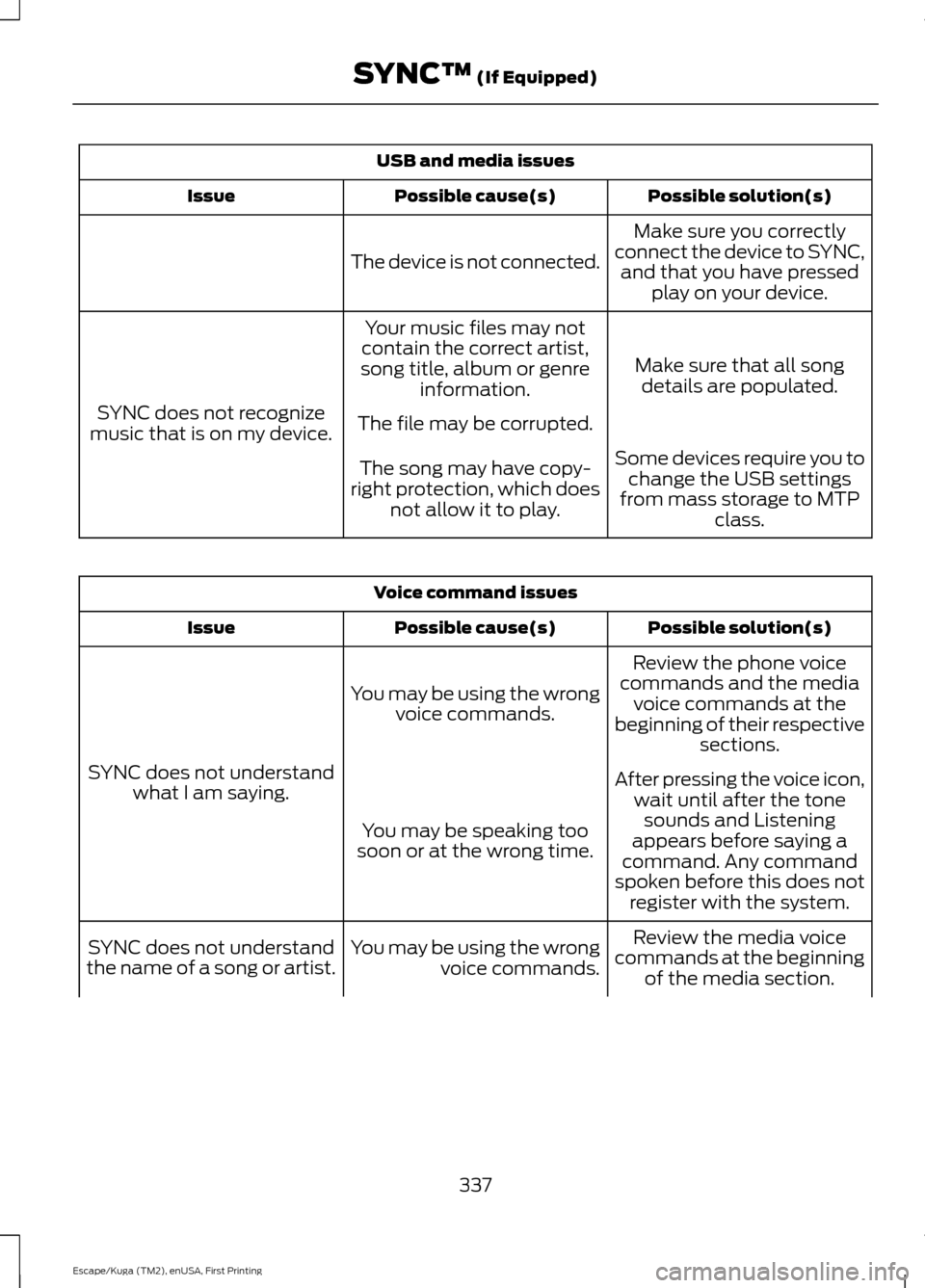
USB and media issues
Possible solution(s)
Possible cause(s)
Issue
Make sure you correctly
connect the device to SYNC, and that you have pressed play on your device.
The device is not connected.
Make sure that all songdetails are populated.
Your music files may not
contain the correct artist,
song title, album or genre information.
SYNC does not recognize
music that is on my device. The file may be corrupted.
Some devices require you tochange the USB settings
from mass storage to MTP class.
The song may have copy-
right protection, which does not allow it to play. Voice command issues
Possible solution(s)
Possible cause(s)
Issue
Review the phone voice
commands and the media voice commands at the
beginning of their respective sections.
You may be using the wrong
voice commands.
SYNC does not understand what I am saying. After pressing the voice icon,
wait until after the tonesounds and Listening
appears before saying a
command. Any command
spoken before this does not register with the system.
You may be speaking too
soon or at the wrong time.
Review the media voice
commands at the beginning of the media section.
You may be using the wrong
voice commands.
SYNC does not understand
the name of a song or artist.
337
Escape/Kuga (TM2), enUSA, First Printing SYNC™ (If Equipped)
Page 341 of 393
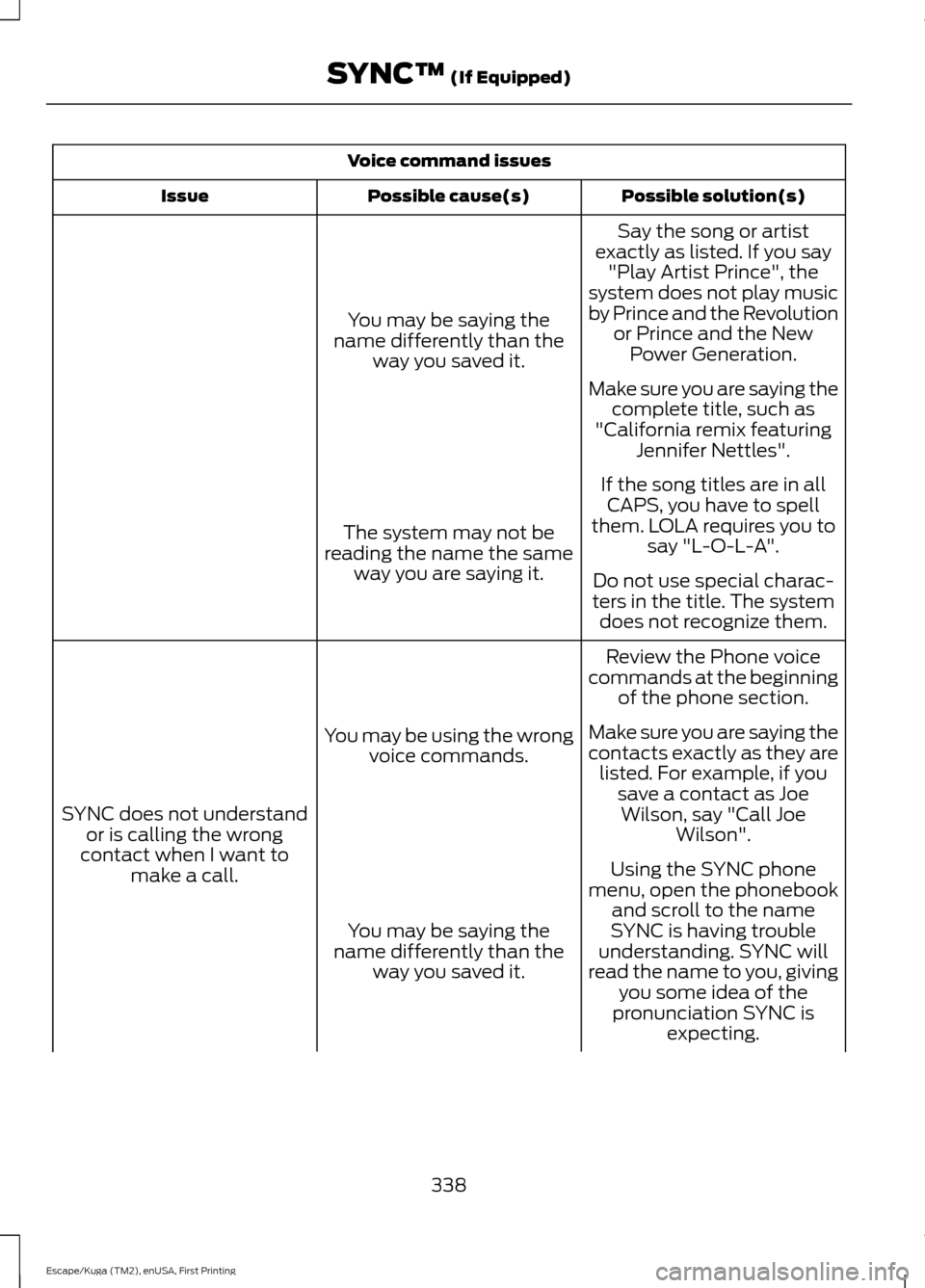
Voice command issues
Possible solution(s)
Possible cause(s)
Issue
Say the song or artist
exactly as listed. If you say "Play Artist Prince", the
system does not play music
by Prince and the Revolution or Prince and the NewPower Generation.
You may be saying the
name differently than the way you saved it.
Make sure you are saying thecomplete title, such as
"California remix featuring Jennifer Nettles".
If the song titles are in all CAPS, you have to spell
them. LOLA requires you to say "L-O-L-A".
The system may not be
reading the name the same way you are saying it. Do not use special charac-
ters in the title. The system does not recognize them.
Review the Phone voice
commands at the beginning of the phone section.
You may be using the wrong voice commands.
SYNC does not understand or is calling the wrong
contact when I want to make a call. Make sure you are saying the
contacts exactly as they are
listed. For example, if you save a contact as JoeWilson, say "Call Joe Wilson".
Using the SYNC phone
menu, open the phonebook and scroll to the name
SYNC is having trouble
understanding. SYNC will
read the name to you, giving you some idea of the
pronunciation SYNC is expecting.
You may be saying the
name differently than the way you saved it.
338
Escape/Kuga (TM2), enUSA, First Printing SYNC™ (If Equipped)
Page 342 of 393
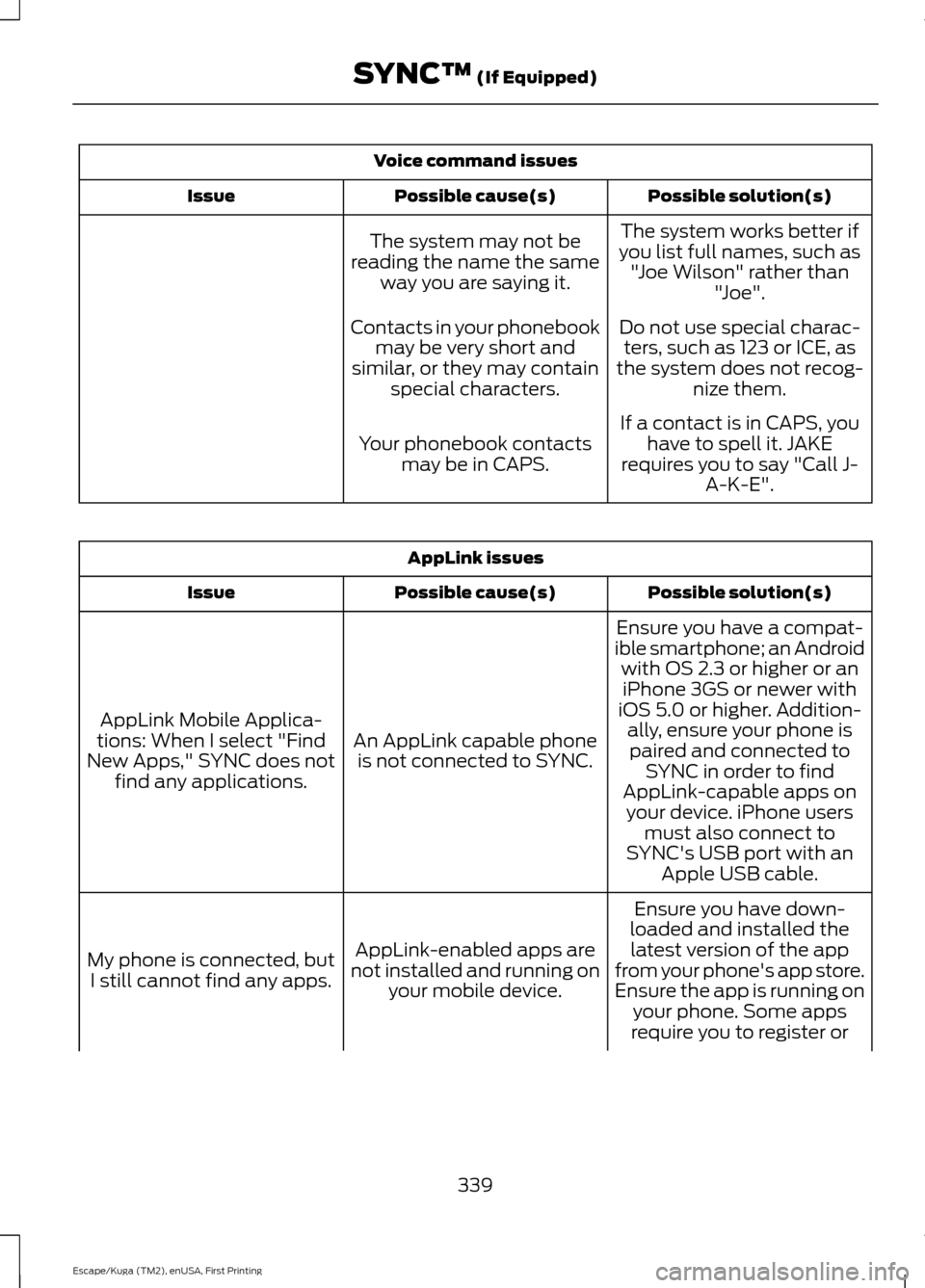
Voice command issues
Possible solution(s)
Possible cause(s)
Issue
The system works better if
you list full names, such as "Joe Wilson" rather than "Joe".
The system may not be
reading the name the same way you are saying it.
Do not use special charac-ters, such as 123 or ICE, as
the system does not recog- nize them.
Contacts in your phonebook
may be very short and
similar, or they may contain special characters.
If a contact is in CAPS, youhave to spell it. JAKE
requires you to say "Call J- A-K-E".
Your phonebook contacts
may be in CAPS. AppLink issues
Possible solution(s)
Possible cause(s)
Issue
Ensure you have a compat-
ible smartphone; an Android with OS 2.3 or higher or aniPhone 3GS or newer with
iOS 5.0 or higher. Addition- ally, ensure your phone is
An AppLink capable phone
is not connected to SYNC.
AppLink Mobile Applica-
tions: When I select "Find
New Apps," SYNC does not find any applications. paired and connected to
SYNC in order to find
AppLink-capable apps on your device. iPhone users must also connect to
SYNC's USB port with an Apple USB cable.
Ensure you have down-
loaded and installed the latest version of the app
from your phone's app store.
Ensure the app is running on your phone. Some apps
AppLink-enabled apps are
not installed and running on your mobile device.
My phone is connected, but
I still cannot find any apps.
require you to register or
339
Escape/Kuga (TM2), enUSA, First Printing SYNC™ (If Equipped)
Page 371 of 393
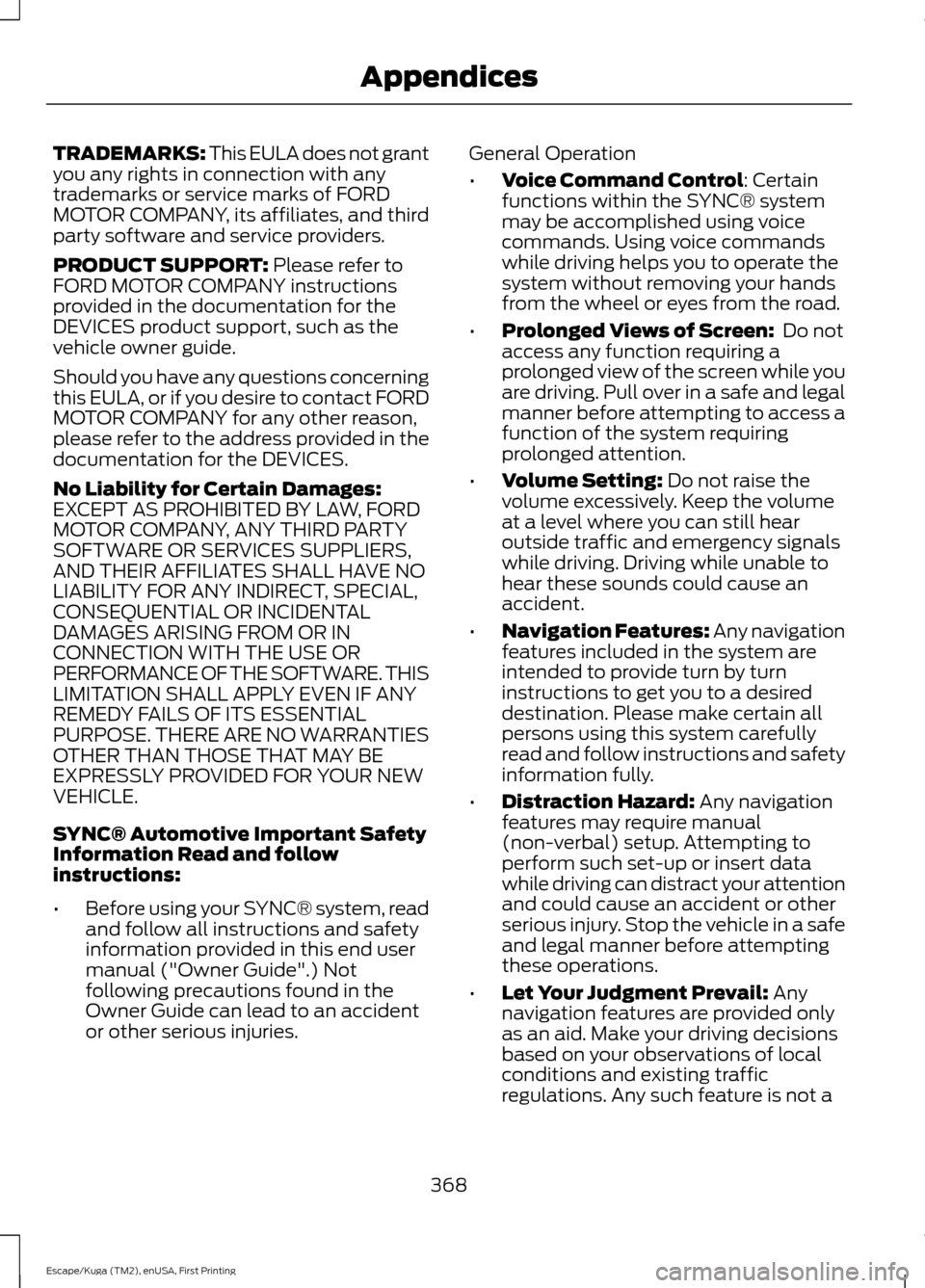
TRADEMARKS: This EULA does not grant
you any rights in connection with any
trademarks or service marks of FORD
MOTOR COMPANY, its affiliates, and third
party software and service providers.
PRODUCT SUPPORT: Please refer to
FORD MOTOR COMPANY instructions
provided in the documentation for the
DEVICES product support, such as the
vehicle owner guide.
Should you have any questions concerning
this EULA, or if you desire to contact FORD
MOTOR COMPANY for any other reason,
please refer to the address provided in the
documentation for the DEVICES.
No Liability for Certain Damages:
EXCEPT AS PROHIBITED BY LAW, FORD
MOTOR COMPANY, ANY THIRD PARTY
SOFTWARE OR SERVICES SUPPLIERS,
AND THEIR AFFILIATES SHALL HAVE NO
LIABILITY FOR ANY INDIRECT, SPECIAL,
CONSEQUENTIAL OR INCIDENTAL
DAMAGES ARISING FROM OR IN
CONNECTION WITH THE USE OR
PERFORMANCE OF THE SOFTWARE. THIS
LIMITATION SHALL APPLY EVEN IF ANY
REMEDY FAILS OF ITS ESSENTIAL
PURPOSE. THERE ARE NO WARRANTIES
OTHER THAN THOSE THAT MAY BE
EXPRESSLY PROVIDED FOR YOUR NEW
VEHICLE.
SYNC® Automotive Important Safety
Information Read and follow
instructions:
• Before using your SYNC® system, read
and follow all instructions and safety
information provided in this end user
manual ("Owner Guide".) Not
following precautions found in the
Owner Guide can lead to an accident
or other serious injuries. General Operation
•
Voice Command Control
: Certain
functions within the SYNC® system
may be accomplished using voice
commands. Using voice commands
while driving helps you to operate the
system without removing your hands
from the wheel or eyes from the road.
• Prolonged Views of Screen:
Do not
access any function requiring a
prolonged view of the screen while you
are driving. Pull over in a safe and legal
manner before attempting to access a
function of the system requiring
prolonged attention.
• Volume Setting:
Do not raise the
volume excessively. Keep the volume
at a level where you can still hear
outside traffic and emergency signals
while driving. Driving while unable to
hear these sounds could cause an
accident.
• Navigation Features:
Any navigation
features included in the system are
intended to provide turn by turn
instructions to get you to a desired
destination. Please make certain all
persons using this system carefully
read and follow instructions and safety
information fully.
• Distraction Hazard:
Any navigation
features may require manual
(non-verbal) setup. Attempting to
perform such set-up or insert data
while driving can distract your attention
and could cause an accident or other
serious injury. Stop the vehicle in a safe
and legal manner before attempting
these operations.
• Let Your Judgment Prevail:
Any
navigation features are provided only
as an aid. Make your driving decisions
based on your observations of local
conditions and existing traffic
regulations. Any such feature is not a
368
Escape/Kuga (TM2), enUSA, First Printing Appendices