reset FORD ESCAPE 2017 3.G Workshop Manual
[x] Cancel search | Manufacturer: FORD, Model Year: 2017, Model line: ESCAPE, Model: FORD ESCAPE 2017 3.GPages: 486, PDF Size: 6.34 MB
Page 393 of 486
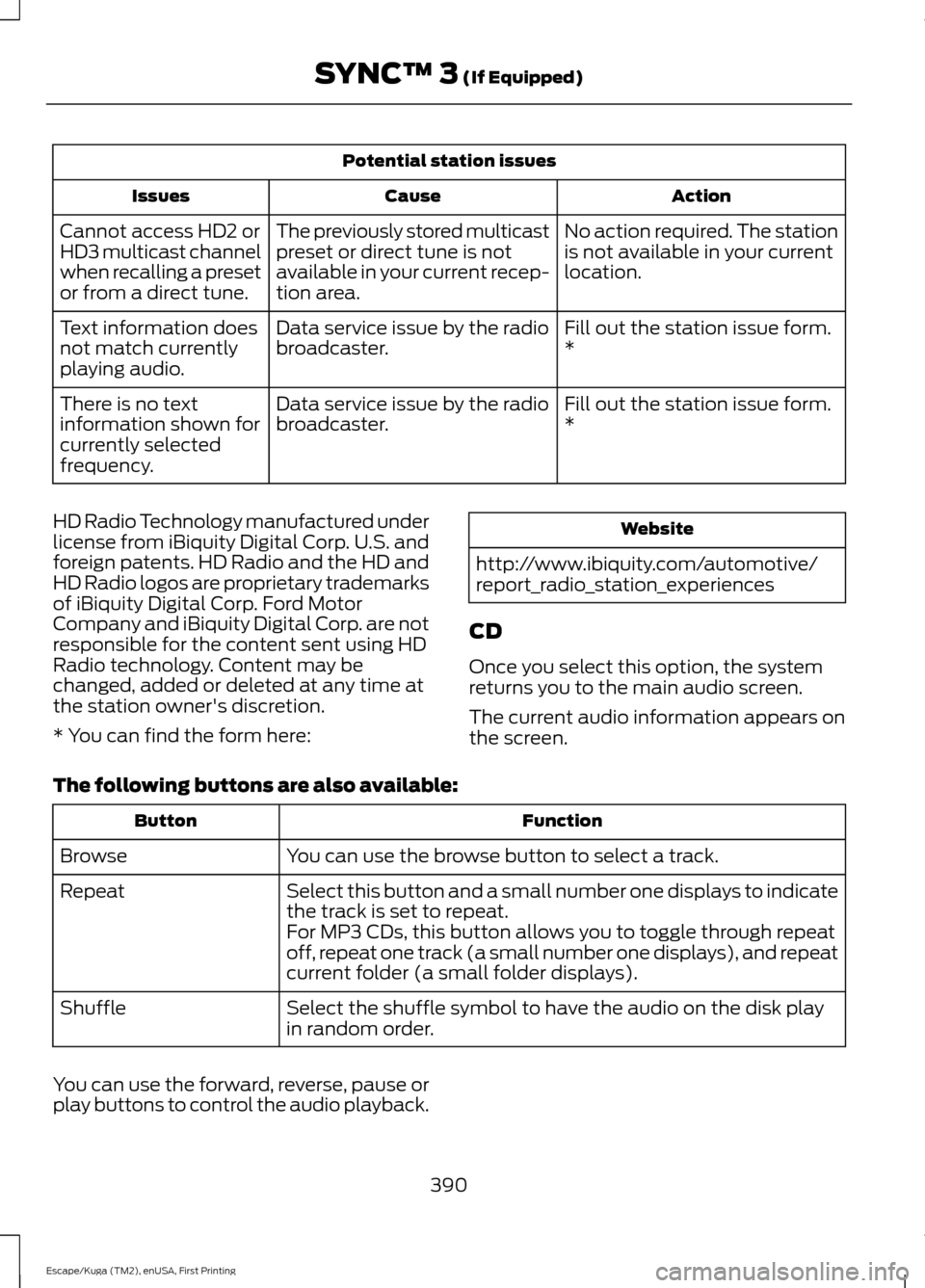
Potential station issues
Action
Cause
Issues
No action required. The station
is not available in your current
location.
The previously stored multicast
preset or direct tune is not
available in your current recep-
tion area.
Cannot access HD2 or
HD3 multicast channel
when recalling a preset
or from a direct tune.
Fill out the station issue form.
*
Data service issue by the radio
broadcaster.
Text information does
not match currently
playing audio.
Fill out the station issue form.
*
Data service issue by the radio
broadcaster.
There is no text
information shown for
currently selected
frequency.
HD Radio Technology manufactured under
license from iBiquity Digital Corp. U.S. and
foreign patents. HD Radio and the HD and
HD Radio logos are proprietary trademarks
of iBiquity Digital Corp. Ford Motor
Company and iBiquity Digital Corp. are not
responsible for the content sent using HD
Radio technology. Content may be
changed, added or deleted at any time at
the station owner's discretion.
* You can find the form here: Website
http://www.ibiquity.com/automotive/
report_radio_station_experiences
CD
Once you select this option, the system
returns you to the main audio screen.
The current audio information appears on
the screen.
The following buttons are also available: Function
Button
You can use the browse button to select a track.
Browse
Select this button and a small number one displays to indicate
the track is set to repeat.
Repeat
For MP3 CDs, this button allows you to toggle through repeat
off, repeat one track (a small number one displays), and repeat
current folder (a small folder displays).
Select the shuffle symbol to have the audio on the disk play
in random order.
Shuffle
You can use the forward, reverse, pause or
play buttons to control the audio playback.
390
Escape/Kuga (TM2), enUSA, First Printing SYNC™ 3 (If Equipped)
Page 400 of 486
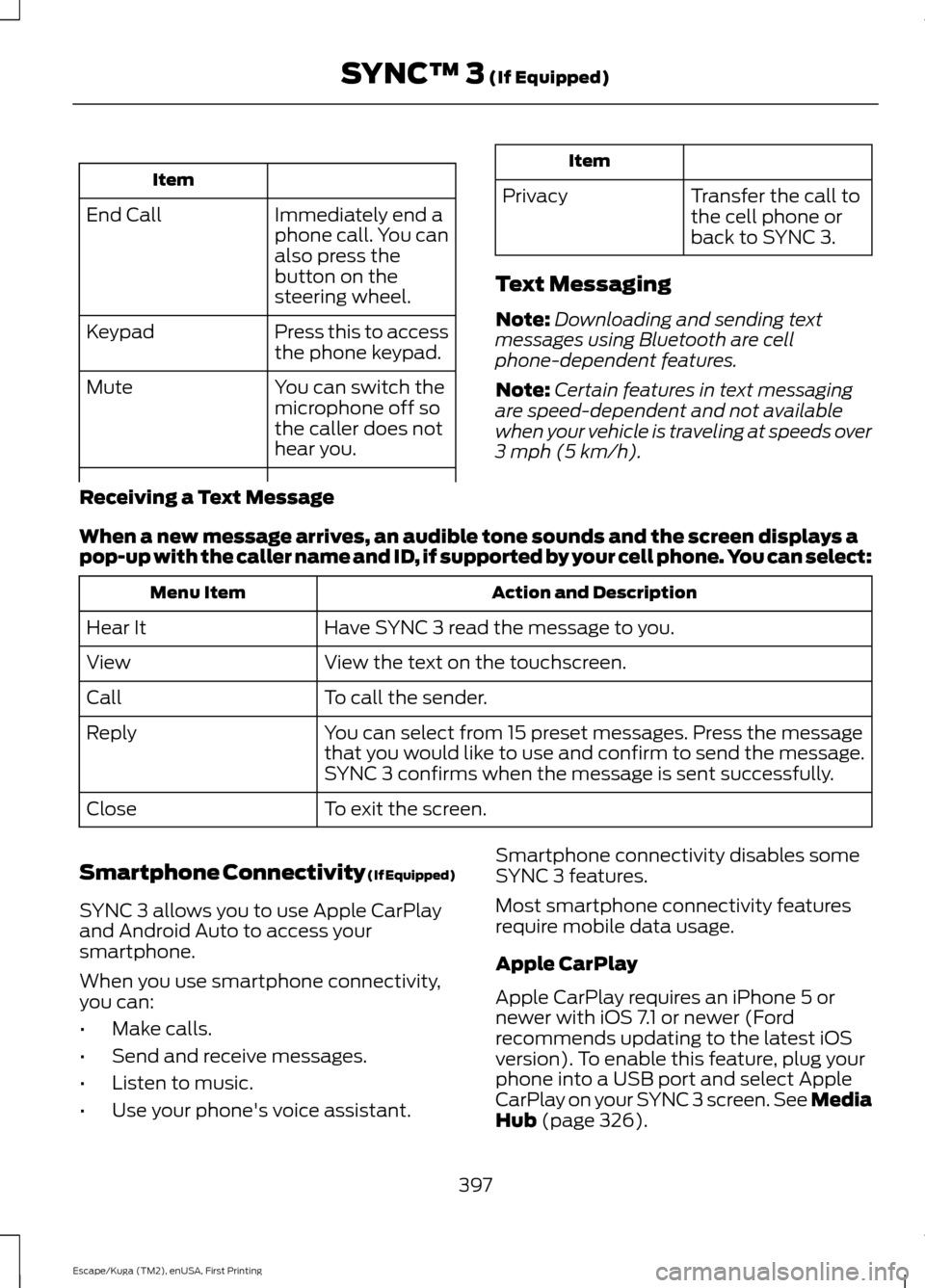
Item
Immediately end a
phone call. You can
also press the
button on the
steering wheel.
End Call
Press this to access
the phone keypad.
Keypad
You can switch the
microphone off so
the caller does not
hear you.
Mute Item
Privacy Transfer the call to
the cell phone or
back to SYNC 3.
Text Messaging
Note: Downloading and sending text
messages using Bluetooth are cell
phone-dependent features.
Note: Certain features in text messaging
are speed-dependent and not available
when your vehicle is traveling at speeds over
3 mph (5 km/h).
Receiving a Text Message
When a new message arrives, an audible tone sounds and the screen displays a
pop-up with the caller name and ID, if supported by your cell phone. You can select: Action and Description
Menu Item
Have SYNC 3 read the message to you.
Hear It
View the text on the touchscreen.
View
To call the sender.
Call
You can select from 15 preset messages. Press the message
that you would like to use and confirm to send the message.
SYNC 3 confirms when the message is sent successfully.
Reply
To exit the screen.
Close
Smartphone Connectivity (If Equipped)
SYNC 3 allows you to use Apple CarPlay
and Android Auto to access your
smartphone.
When you use smartphone connectivity,
you can:
• Make calls.
• Send and receive messages.
• Listen to music.
• Use your phone's voice assistant. Smartphone connectivity disables some
SYNC 3 features.
Most smartphone connectivity features
require mobile data usage.
Apple CarPlay
Apple CarPlay requires an iPhone 5 or
newer with iOS 7.1 or newer (Ford
recommends updating to the latest iOS
version). To enable this feature, plug your
phone into a USB port and select Apple
CarPlay on your SYNC 3 screen. See Media
Hub
(page 326).
397
Escape/Kuga (TM2), enUSA, First Printing SYNC™ 3
(If Equipped)
Page 401 of 486
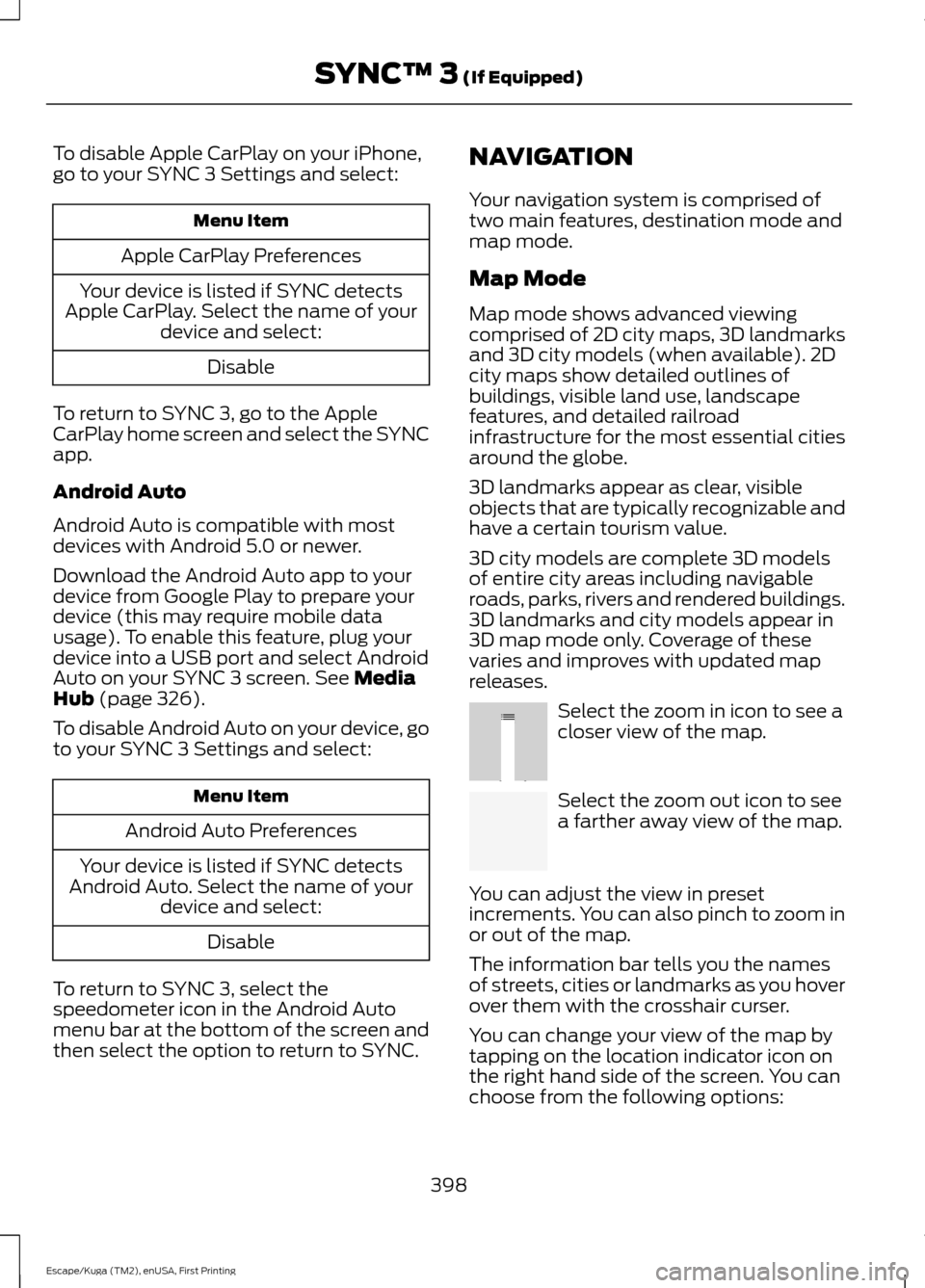
To disable Apple CarPlay on your iPhone,
go to your SYNC 3 Settings and select:
Menu Item
Apple CarPlay Preferences
Your device is listed if SYNC detects
Apple CarPlay. Select the name of your device and select:
Disable
To return to SYNC 3, go to the Apple
CarPlay home screen and select the SYNC
app.
Android Auto
Android Auto is compatible with most
devices with Android 5.0 or newer.
Download the Android Auto app to your
device from Google Play to prepare your
device (this may require mobile data
usage). To enable this feature, plug your
device into a USB port and select Android
Auto on your SYNC 3 screen. See Media
Hub (page 326).
To disable Android Auto on your device, go
to your SYNC 3 Settings and select: Menu Item
Android Auto Preferences
Your device is listed if SYNC detects
Android Auto. Select the name of your device and select:
Disable
To return to SYNC 3, select the
speedometer icon in the Android Auto
menu bar at the bottom of the screen and
then select the option to return to SYNC. NAVIGATION
Your navigation system is comprised of
two main features, destination mode and
map mode.
Map Mode
Map mode shows advanced viewing
comprised of 2D city maps, 3D landmarks
and 3D city models (when available). 2D
city maps show detailed outlines of
buildings, visible land use, landscape
features, and detailed railroad
infrastructure for the most essential cities
around the globe.
3D landmarks appear as clear, visible
objects that are typically recognizable and
have a certain tourism value.
3D city models are complete 3D models
of entire city areas including navigable
roads, parks, rivers and rendered buildings.
3D landmarks and city models appear in
3D map mode only. Coverage of these
varies and improves with updated map
releases.
Select the zoom in icon to see a
closer view of the map.
Select the zoom out icon to see
a farther away view of the map.
You can adjust the view in preset
increments. You can also pinch to zoom in
or out of the map.
The information bar tells you the names
of streets, cities or landmarks as you hover
over them with the crosshair curser.
You can change your view of the map by
tapping on the location indicator icon on
the right hand side of the screen. You can
choose from the following options:
398
Escape/Kuga (TM2), enUSA, First Printing SYNC™ 3
(If Equipped)E207752 E207753
Page 403 of 486
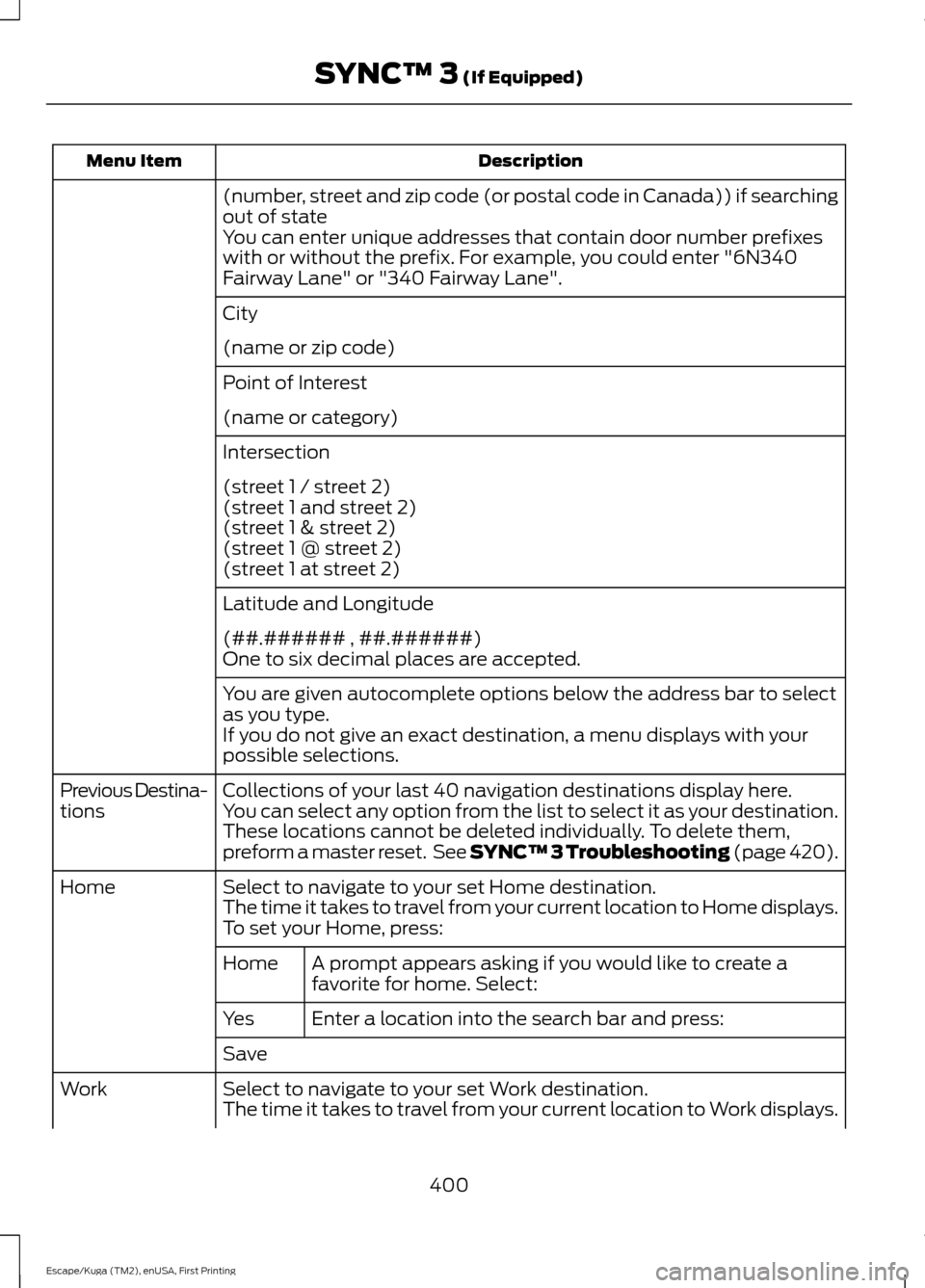
Description
Menu Item
(number, street and zip code (or postal code in Canada)) if searching
out of state
You can enter unique addresses that contain door number prefixes
with or without the prefix. For example, you could enter "6N340
Fairway Lane" or "340 Fairway Lane".
City
(name or zip code)
Point of Interest
(name or category)
Intersection
(street 1 / street 2)
(street 1 and street 2)
(street 1 & street 2)
(street 1 @ street 2)
(street 1 at street 2)
Latitude and Longitude
(##.###### , ##.######)
One to six decimal places are accepted.
You are given autocomplete options below the address bar to select
as you type.
If you do not give an exact destination, a menu displays with your
possible selections.
Collections of your last 40 navigation destinations display here.
Previous Destina-
tions You can select any option from the list to select it as your destination.
These locations cannot be deleted individually. To delete them,
preform a master reset. See SYNC™ 3 Troubleshooting (page 420).
Select to navigate to your set Home destination.
Home
The time it takes to travel from your current location to Home displays.
To set your Home, press:
A prompt appears asking if you would like to create a
favorite for home. Select:
Home
Enter a location into the search bar and press:
Yes
Save
Select to navigate to your set Work destination.
Work
The time it takes to travel from your current location to Work displays.
400
Escape/Kuga (TM2), enUSA, First Printing SYNC™ 3 (If Equipped)
Page 411 of 486
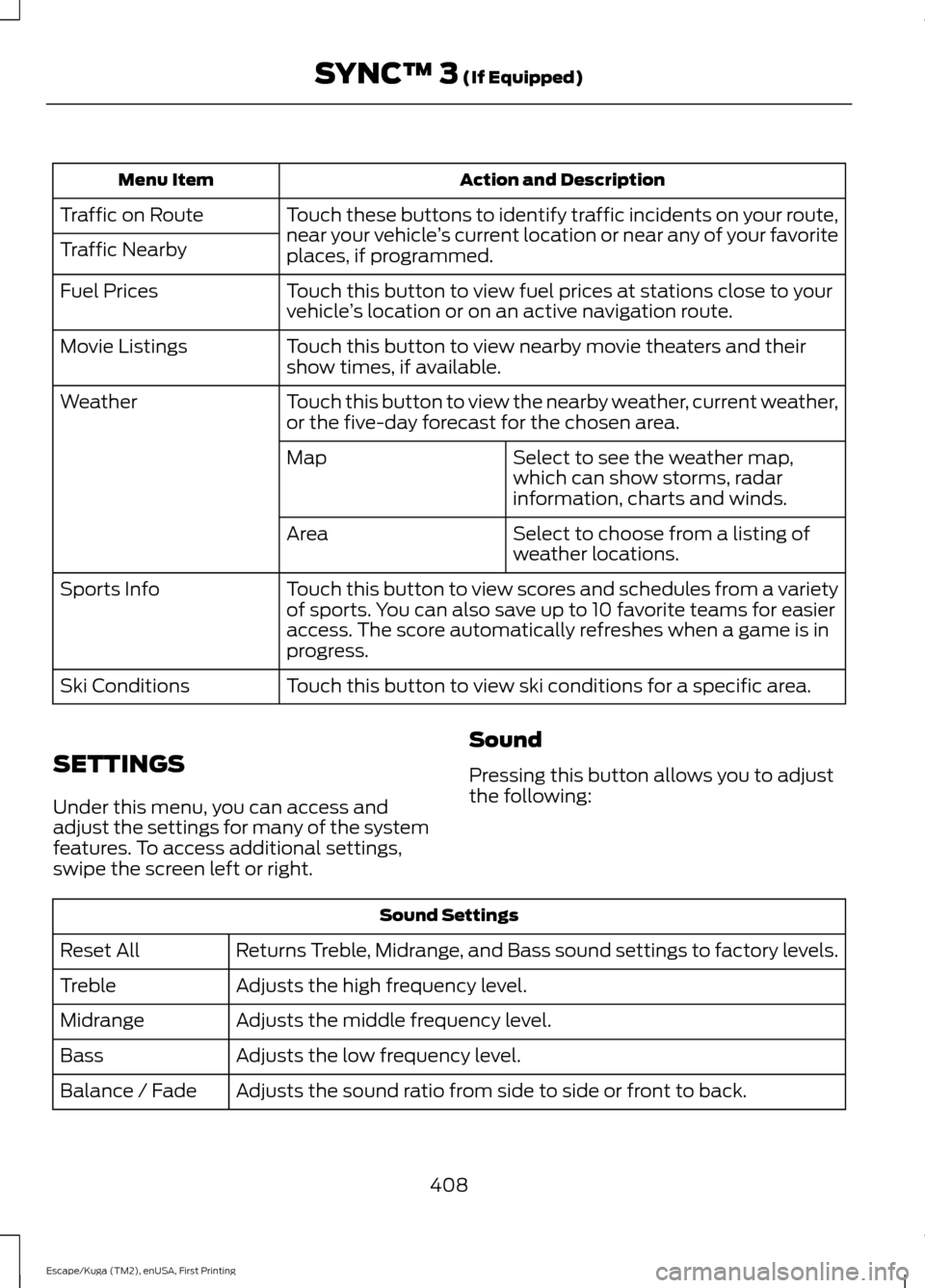
Action and Description
Menu Item
Touch these buttons to identify traffic incidents on your route,
near your vehicle’s current location or near any of your favorite
places, if programmed.
Traffic on Route
Traffic Nearby
Touch this button to view fuel prices at stations close to your
vehicle’s location or on an active navigation route.
Fuel Prices
Touch this button to view nearby movie theaters and their
show times, if available.
Movie Listings
Touch this button to view the nearby weather, current weather,
or the five-day forecast for the chosen area.
Weather
Select to see the weather map,
which can show storms, radar
information, charts and winds.
Map
Select to choose from a listing of
weather locations.
Area
Touch this button to view scores and schedules from a variety
of sports. You can also save up to 10 favorite teams for easier
access. The score automatically refreshes when a game is in
progress.
Sports Info
Touch this button to view ski conditions for a specific area.
Ski Conditions
SETTINGS
Under this menu, you can access and
adjust the settings for many of the system
features. To access additional settings,
swipe the screen left or right. Sound
Pressing this button allows you to adjust
the following:Sound Settings
Returns Treble, Midrange, and Bass sound settings to factory levels.
Reset All
Adjusts the high frequency level.
Treble
Adjusts the middle frequency level.
Midrange
Adjusts the low frequency level.
Bass
Adjusts the sound ratio from side to side or front to back.
Balance / Fade
408
Escape/Kuga (TM2), enUSA, First Printing SYNC™ 3 (If Equipped)
Page 412 of 486
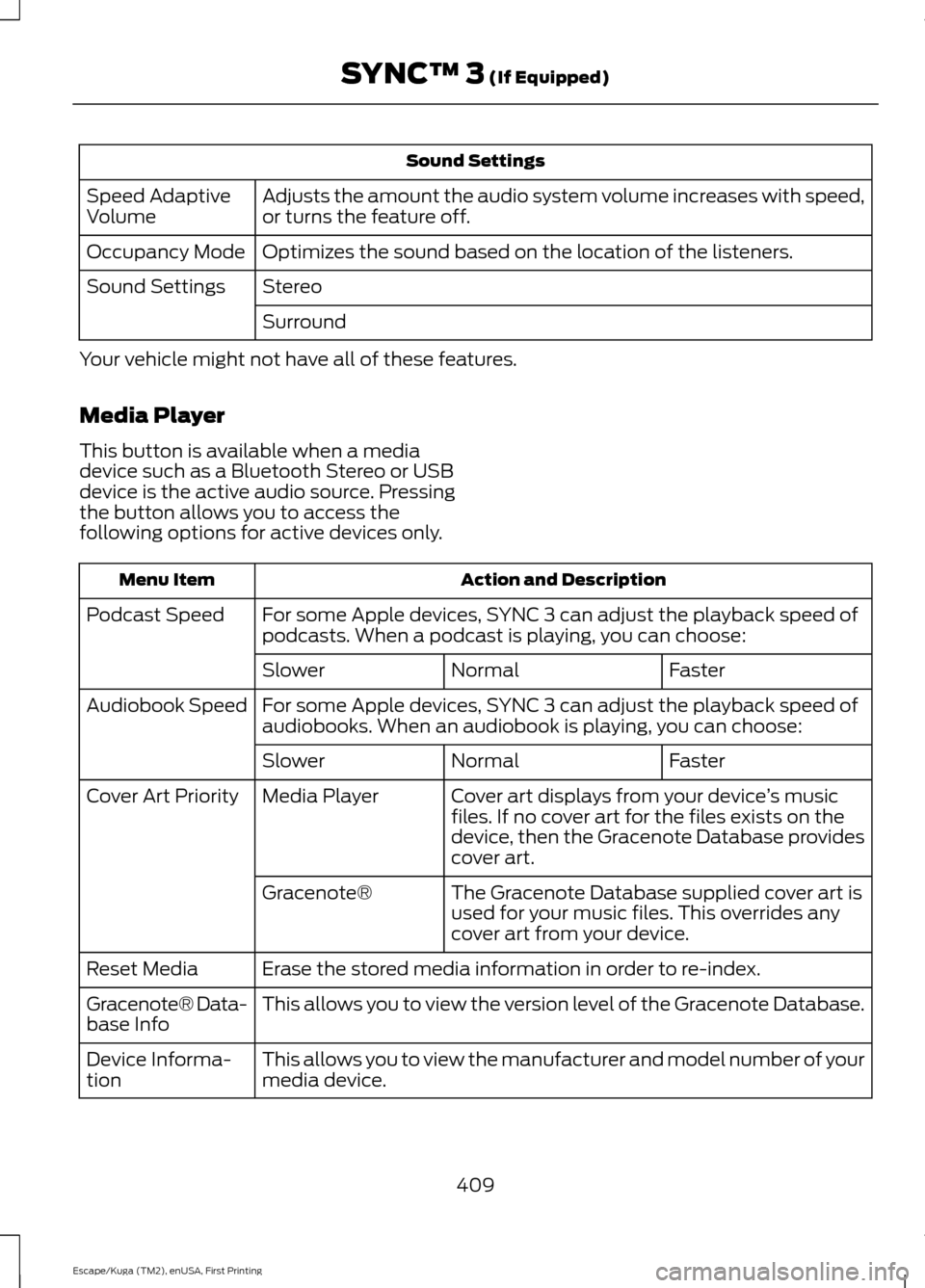
Sound Settings
Adjusts the amount the audio system volume increases with speed,
or turns the feature off.
Speed Adaptive
Volume
Optimizes the sound based on the location of the listeners.
Occupancy Mode
Stereo
Sound Settings
Surround
Your vehicle might not have all of these features.
Media Player
This button is available when a media
device such as a Bluetooth Stereo or USB
device is the active audio source. Pressing
the button allows you to access the
following options for active devices only. Action and Description
Menu Item
For some Apple devices, SYNC 3 can adjust the playback speed of
podcasts. When a podcast is playing, you can choose:
Podcast Speed
Faster
Normal
Slower
For some Apple devices, SYNC 3 can adjust the playback speed of
audiobooks. When an audiobook is playing, you can choose:
Audiobook Speed
Faster
Normal
Slower
Cover art displays from your device ’s music
files. If no cover art for the files exists on the
device, then the Gracenote Database provides
cover art.
Media Player
Cover Art Priority
The Gracenote Database supplied cover art is
used for your music files. This overrides any
cover art from your device.
Gracenote®
Erase the stored media information in order to re-index.
Reset Media
This allows you to view the version level of the Gracenote Database.
Gracenote® Data-
base Info
This allows you to view the manufacturer and model number of your
media device.
Device Informa-
tion
409
Escape/Kuga (TM2), enUSA, First Printing SYNC™ 3 (If Equipped)
Page 413 of 486
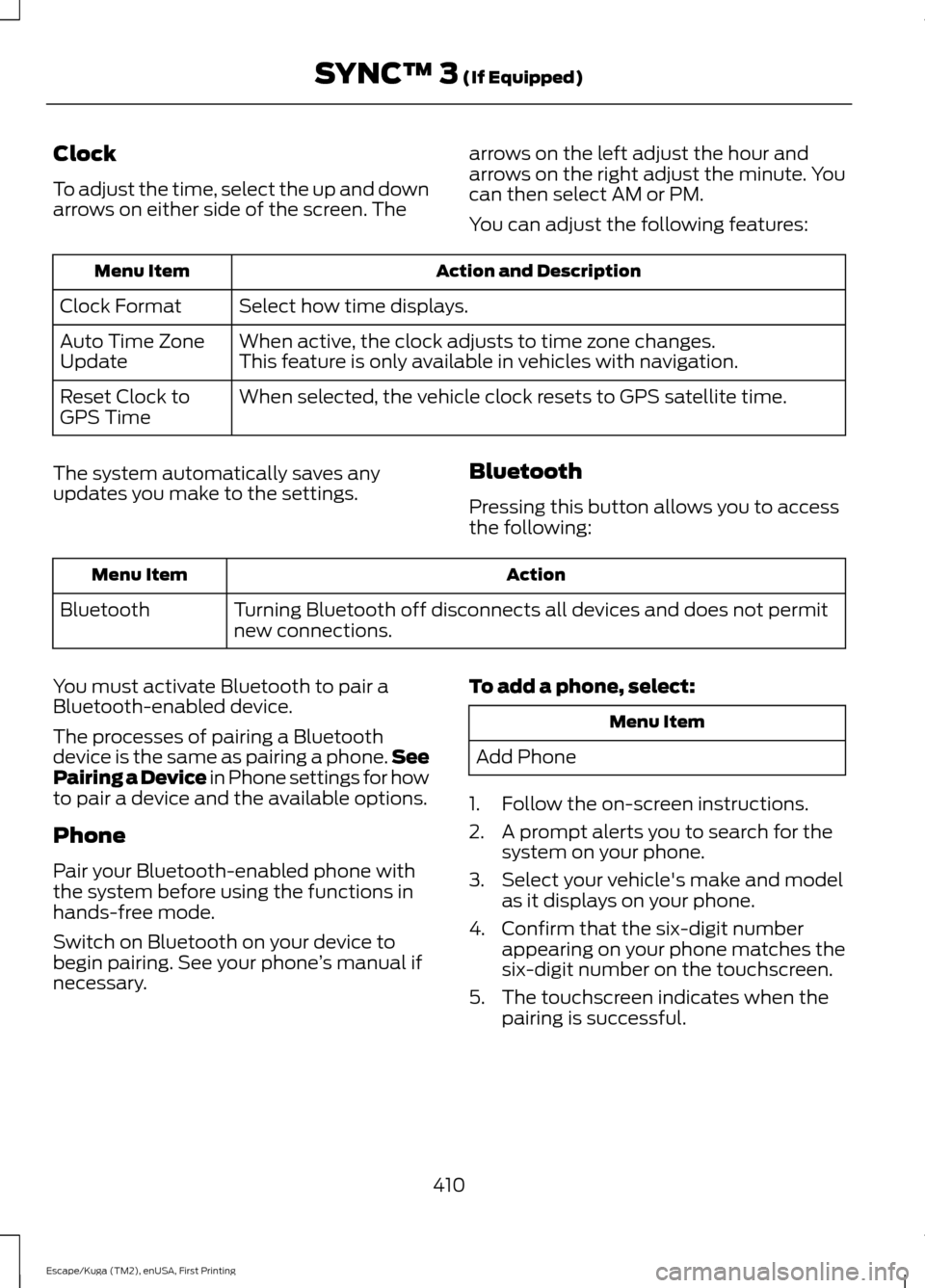
Clock
To adjust the time, select the up and down
arrows on either side of the screen. The
arrows on the left adjust the hour and
arrows on the right adjust the minute. You
can then select AM or PM.
You can adjust the following features:Action and Description
Menu Item
Select how time displays.
Clock Format
When active, the clock adjusts to time zone changes.
Auto Time Zone
Update This feature is only available in vehicles with navigation.
When selected, the vehicle clock resets to GPS satellite time.
Reset Clock to
GPS Time
The system automatically saves any
updates you make to the settings. Bluetooth
Pressing this button allows you to access
the following: Action
Menu Item
Turning Bluetooth off disconnects all devices and does not permit
new connections.
Bluetooth
You must activate Bluetooth to pair a
Bluetooth-enabled device.
The processes of pairing a Bluetooth
device is the same as pairing a phone. See
Pairing a Device in Phone settings for how
to pair a device and the available options.
Phone
Pair your Bluetooth-enabled phone with
the system before using the functions in
hands-free mode.
Switch on Bluetooth on your device to
begin pairing. See your phone ’s manual if
necessary. To add a phone, select: Menu Item
Add Phone
1. Follow the on-screen instructions.
2. A prompt alerts you to search for the system on your phone.
3. Select your vehicle's make and model as it displays on your phone.
4. Confirm that the six-digit number appearing on your phone matches the
six-digit number on the touchscreen.
5. The touchscreen indicates when the pairing is successful.
410
Escape/Kuga (TM2), enUSA, First Printing SYNC™ 3 (If Equipped)
Page 417 of 486
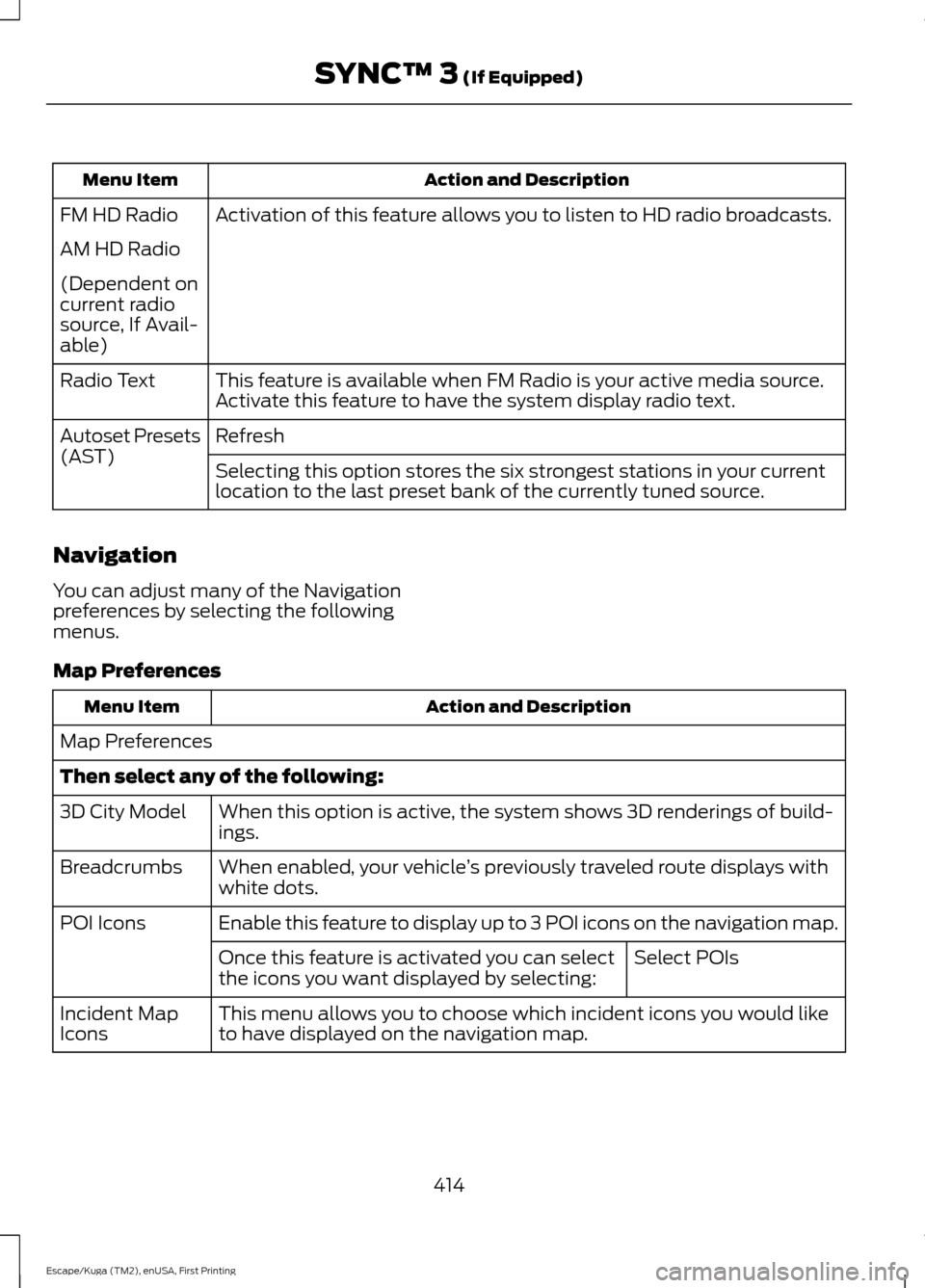
Action and Description
Menu Item
Activation of this feature allows you to listen to HD radio broadcasts.
FM HD Radio
AM HD Radio
(Dependent on
current radio
source, If Avail-
able)
This feature is available when FM Radio is your active media source.
Activate this feature to have the system display radio text.
Radio Text
Refresh
Autoset Presets
(AST)
Selecting this option stores the six strongest stations in your current
location to the last preset bank of the currently tuned source.
Navigation
You can adjust many of the Navigation
preferences by selecting the following
menus.
Map Preferences Action and Description
Menu Item
Map Preferences
Then select any of the following: When this option is active, the system shows 3D renderings of build-
ings.
3D City Model
When enabled, your vehicle ’s previously traveled route displays with
white dots.
Breadcrumbs
Enable this feature to display up to 3 POI icons on the navigation map.
POI Icons
Select POIs
Once this feature is activated you can select
the icons you want displayed by selecting:
This menu allows you to choose which incident icons you would like
to have displayed on the navigation map.
Incident Map
Icons
414
Escape/Kuga (TM2), enUSA, First Printing SYNC™ 3 (If Equipped)
Page 421 of 486
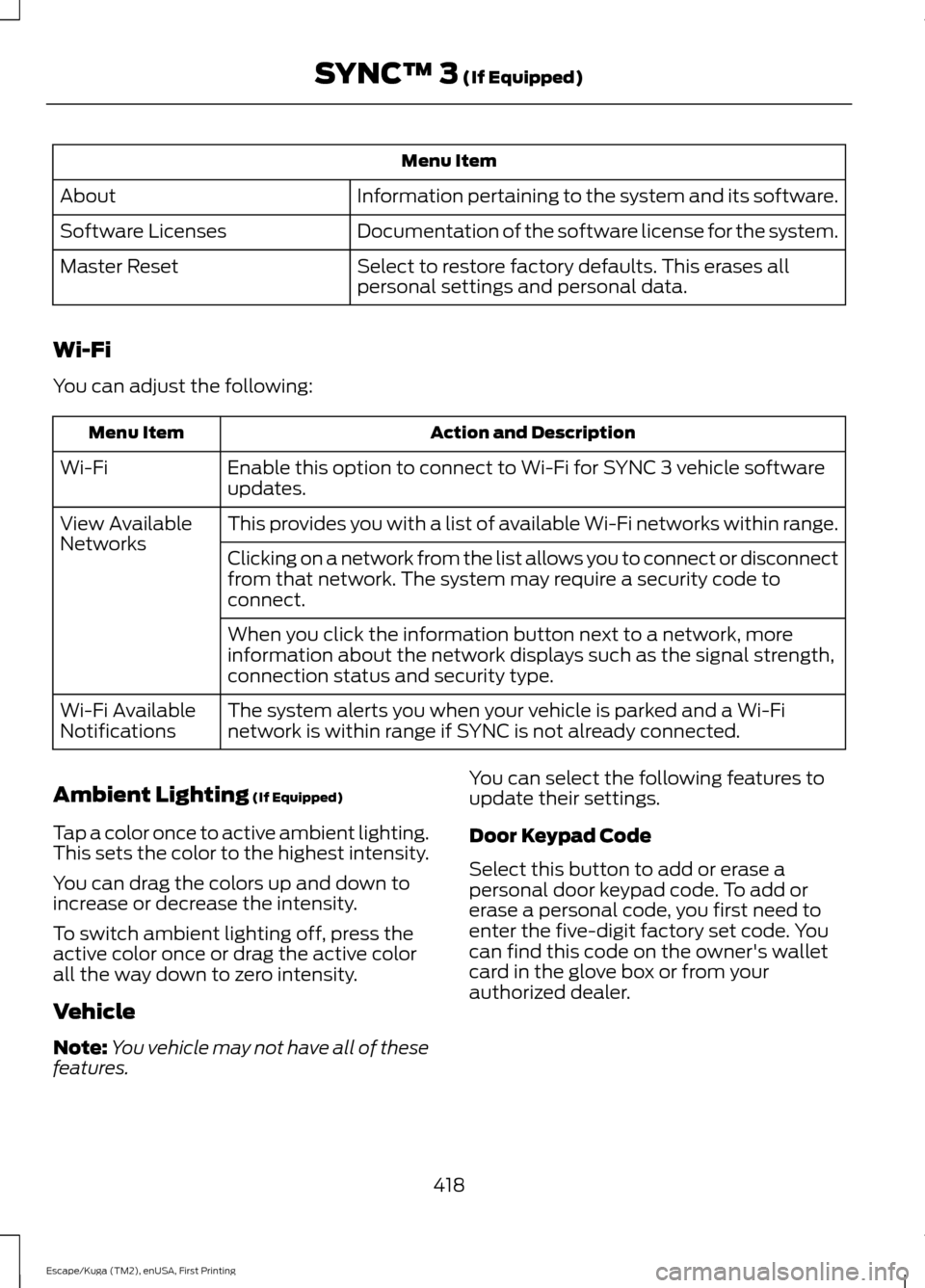
Menu Item
Information pertaining to the system and its software.
About
Documentation of the software license for the system.
Software Licenses
Select to restore factory defaults. This erases all
personal settings and personal data.
Master Reset
Wi-Fi
You can adjust the following: Action and Description
Menu Item
Enable this option to connect to Wi-Fi for SYNC 3 vehicle software
updates.
Wi-Fi
This provides you with a list of available Wi-Fi networks within range.
View Available
Networks
Clicking on a network from the list allows you to connect or disconnect
from that network. The system may require a security code to
connect.
When you click the information button next to a network, more
information about the network displays such as the signal strength,
connection status and security type.
The system alerts you when your vehicle is parked and a Wi-Fi
network is within range if SYNC is not already connected.
Wi-Fi Available
Notifications
Ambient Lighting (If Equipped)
Tap a color once to active ambient lighting.
This sets the color to the highest intensity.
You can drag the colors up and down to
increase or decrease the intensity.
To switch ambient lighting off, press the
active color once or drag the active color
all the way down to zero intensity.
Vehicle
Note: You vehicle may not have all of these
features. You can select the following features to
update their settings.
Door Keypad Code
Select this button to add or erase a
personal door keypad code. To add or
erase a personal code, you first need to
enter the five-digit factory set code. You
can find this code on the owner's wallet
card in the glove box or from your
authorized dealer.
418
Escape/Kuga (TM2), enUSA, First Printing SYNC™ 3
(If Equipped)
Page 424 of 486
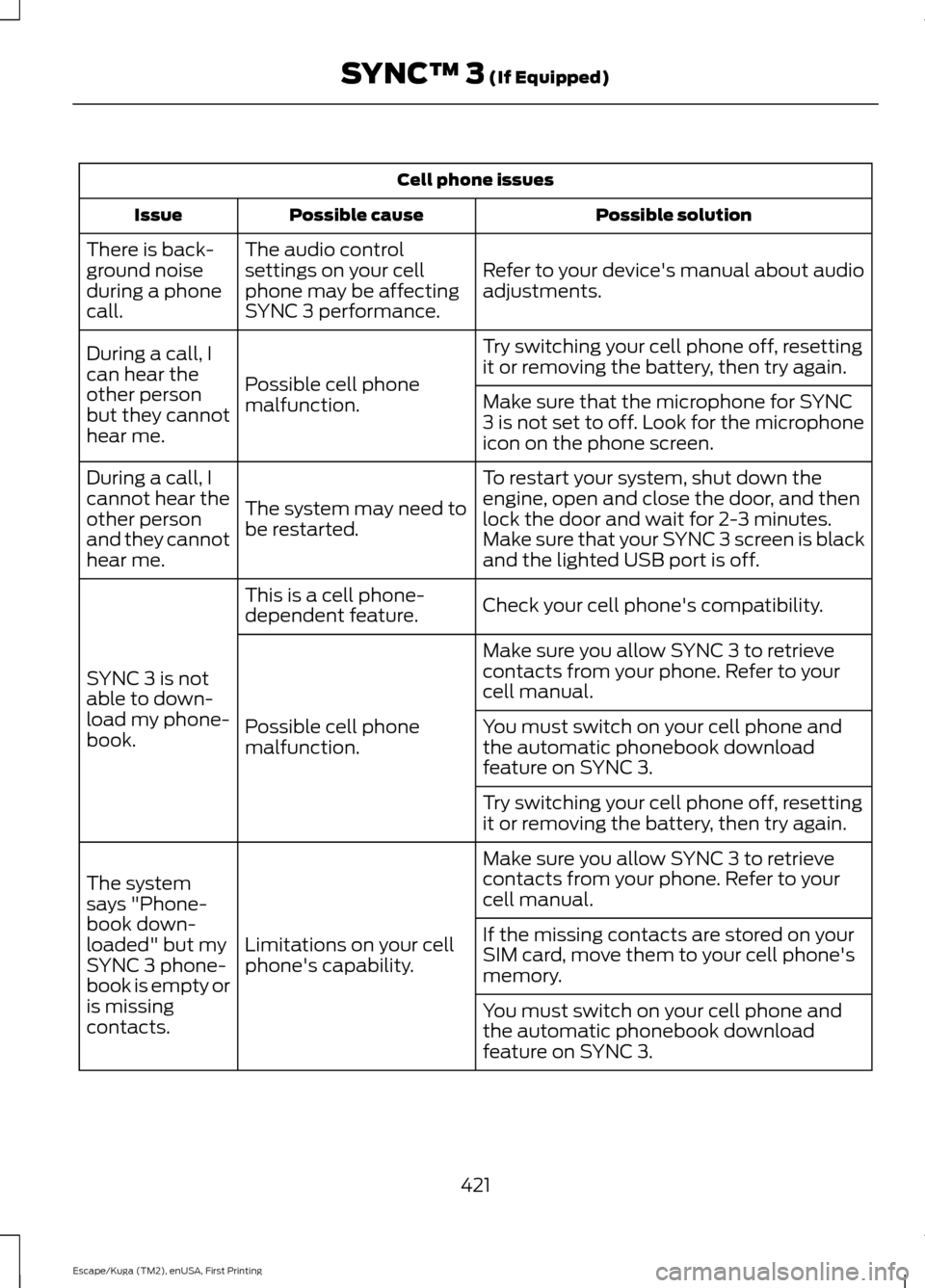
Cell phone issues
Possible solution
Possible cause
Issue
Refer to your device's manual about audio
adjustments.
The audio control
settings on your cell
phone may be affecting
SYNC 3 performance.
There is back-
ground noise
during a phone
call.
Try switching your cell phone off, resetting
it or removing the battery, then try again.
Possible cell phone
malfunction.
During a call, I
can hear the
other person
but they cannot
hear me.
Make sure that the microphone for SYNC
3 is not set to off. Look for the microphone
icon on the phone screen.
To restart your system, shut down the
engine, open and close the door, and then
lock the door and wait for 2-3 minutes.
Make sure that your SYNC 3 screen is black
and the lighted USB port is off.
The system may need to
be restarted.
During a call, I
cannot hear the
other person
and they cannot
hear me.
Check your cell phone's compatibility.
This is a cell phone-
dependent feature.
SYNC 3 is not
able to down-
load my phone-
book. Make sure you allow SYNC 3 to retrieve
contacts from your phone. Refer to your
cell manual.
Possible cell phone
malfunction. You must switch on your cell phone and
the automatic phonebook download
feature on SYNC 3.
Try switching your cell phone off, resetting
it or removing the battery, then try again.
Make sure you allow SYNC 3 to retrieve
contacts from your phone. Refer to your
cell manual.
Limitations on your cell
phone's capability.
The system
says "Phone-
book down-
loaded" but my
SYNC 3 phone-
book is empty or
is missing
contacts. If the missing contacts are stored on your
SIM card, move them to your cell phone's
memory.
You must switch on your cell phone and
the automatic phonebook download
feature on SYNC 3.
421
Escape/Kuga (TM2), enUSA, First Printing SYNC™ 3 (If Equipped)