audio FORD ESCAPE 2021 User Guide
[x] Cancel search | Manufacturer: FORD, Model Year: 2021, Model line: ESCAPE, Model: FORD ESCAPE 2021Pages: 589, PDF Size: 9.2 MB
Page 350 of 589
Note:
The engine management system has
a power hold function and remains powered
for a period of time after you switch the
ignition off. This is to allow diagnostic and
adaptive tables to be stored. Disconnecting
the battery without waiting can cause
damage not covered by the vehicle
Warranty.
4. Disconnect the negative battery cable terminal.
5. Disconnect the positive battery cable terminal.
6. Remove the battery securing clamp.
7. Remove the battery.
8. To install, reverse the removal procedure.
Note: Before reconnecting the battery,
make sure the ignition remains switched off.
Note: Make sure the battery cable terminals
are fully tightened.
Note: After cleaning or replacing the
battery, make sure you reinstall the battery
cover or shield.
If you disconnect or replace the vehicle
battery, you must reset the following
features:
• Window bounce-back. See Windows
(page 105).
• Clock Settings.
• Pre-set radio stations.
• Steering Angle Sensor.
Note: To calibrate the steering angle
sensor, drive the vehicle above
30 mph
(50 km/h) for a minimum of 1.2 mi (2 km).
Make sure to drive straight ahead for a
minimum of 30 seconds. Several vehicle
functions are disabled and a warning light
could appear until the sensor is calibrated. Battery Management System
The battery management system monitors
battery conditions and takes actions to
extend battery life. If excessive battery
drain is detected, the system temporarily
disables some of the following features:
•
Heated rear window.
• Heated seats.
• Climate control.
• Heated steering wheel.
• Audio unit.
• Navigation system.
A message may appear in the information
display to alert you that battery protection
actions are active.
After battery replacement, or in some
cases after charging the battery with an
external charger, the battery management
system requires eight hours of vehicle sleep
time to relearn the battery state of charge.
During this time your vehicle must remain
fully locked with the ignition off.
Note: If you add electrical accessories or
components to the vehicle, it may adversely
affect battery performance and durability.
This may also affect the performance of
other electrical systems in the vehicle.
Battery Disposal Make sure that you dispose of
old batteries in an
environmentally friendly way.
Seek advice from your local authority
about recycling old batteries.
347
Escape (CTC) Canada/United States of America, Vehicles Built From: 02-11-2020, enUSA, Edition date: 202011, First-Printing MaintenanceE107998
Page 417 of 589
AUDIO SYSTEM
PRECAUTIONS
WARNING: Driving while distracted
can result in loss of vehicle control, crash
and injury. We strongly recommend that
you use extreme caution when using any
device that may take your focus off the
road. Your primary responsibility is the
safe operation of your vehicle. We
recommend against the use of any
hand-held device while driving and
encourage the use of voice-operated
systems when possible. Make sure you
are aware of all applicable local laws
that may affect the use of electronic
devices while driving.
Listening to loud audio for long periods of
time could damage your hearing.
SWITCHING THE AUDIO UNIT
ON AND OFF Press the button on the volume
control.
SELECTING THE AUDIO
SOURCE
1. Press your preferred audio source.
Note: Available audio sources are listed
along the top of the radio screen.
PLAYING OR PAUSING THE
AUDIO SOURCE Press to pause playback. Press
again to resume playback.
Note: Not all sources can be paused. ADJUSTING THE VOLUME
Turn to adjust the volume.
SWITCHING SHUFFLE MODE
ON AND OFF
Press the button on the
touchscreen to switch shuffle
mode on or off.
Note: Not all sources have shuffle mode.
SWITCHING REPEAT MODE ON
AND OFF Press the button on the
touchscreen to switch repeat
mode on or off.
Note: Not all sources have repeat mode.
SETTING A MEMORY PRESET
1. Select a station or channel.
2. Press and hold a memory preset button
on the touchscreen.
414
Escape (CTC) Canada/United States of America, Vehicles Built From: 02-11-2020, enUSA, Edition date: 202011, First-Printing Audio System E265373
Page 418 of 589
Note:
The audio mutes briefly while the
system saves the preset and returns once it
is stored.
Note: You can save presets from multiple
sources to the memory preset bar.
MUTING THE AUDIO Press the button on the steering
wheel to mute the audio.
Press to mute the signal. Press
again to restore the signal.
ADJUSTING THE SOUND
SETTINGS
Balance and Fade (If Equipped)
1. Access the vehicle drawer on the touchscreen.
2. Press
SETTINGS.
3. Press
Sound.
4. Press
Balance / Fade.
5. Press the arrows to adjust the settings.
Tone Settings
1. Access the vehicle drawer on the touchscreen.
2. Press
SETTINGS.
3. Press
Sound.
4. Press
Tone Settings.
5. Use the slider bar to adjust the settings.
Speed Compensated Volume
1. Access the vehicle drawer on the touchscreen.
2. Press
SETTINGS.
3. Press
Sound.
4. Press
Speed Compensated Volume. 5. Press a setting.
Occupancy Mode
(If Equipped)
1. Access the vehicle drawer on the touchscreen.
2. Press
SETTINGS.
3. Press
Sound.
4. Press
Occupancy Mode.
5. Press a setting.
Sound Mode
(If Equipped)
1. Access the vehicle drawer on the touchscreen.
2. Press
SETTINGS.
3. Press
Sound.
4. Press
Sound Mode.
5. Press a setting.
SETTING THE CLOCK AND
DATE
1. Access the vehicle drawer on the touchscreen.
2. Press
SETTINGS.
3. Press
Clock.
4. Set the time.
Note: The
AM and PM options are not
available if 24-hour mode is on.
5. Press the arrows to adjust the settings.
Switching Automatic Time
Updates On and Off
1. Access the vehicle drawer on the touchscreen.
2. Press
SETTINGS.
3. Press
Clock.
4. Switch
Automatic time zone update
on or off.
415
Escape (CTC) Canada/United States of America, Vehicles Built From: 02-11-2020, enUSA, Edition date: 202011, First-Printing Audio System
Page 419 of 589
AM/FM RADIO
AM/FM Radio Limitations
The further you travel from an AM or FM
station, the weaker the signal and the
weaker the reception.
Hills, mountains, tall buildings, bridges,
tunnels, freeway overpasses, parking
garages, dense tree foliage and
thunderstorms can interfere with the
reception.
When you pass a ground-based broadcast
repeating tower, a stronger signal may
overtake a weaker one and result in the
audio system muting.
Selecting a Radio Station
Manually Selecting a Radio
Station
Turn to search through the radio frequency
band.
Using Direct Tune
1.
Press Direct Tune to open the number
pad.
2. Enter the station you prefer. Note:
You can only enter a valid station for
the audio source you are currently listening
to.
Using Seek Press either button. The system
stops at the first station it finds
in that direction.
Using the Station List
1. Press
Browse.
Note: Available on FM radio only.
2. Press a station.
DIGITAL RADIO
What Is Digital Radio
HD Radio ™ technology is the digital
evolution of analog AM/FM radio.
For additional information, visit
www .HDR a dio . c om .
HD Radio Technology is manufactured
under license from iBiquity Digital
Corporation and foreign patents. HD Radio
and the HD and HD Radio logos are
proprietary trademarks of DTS. The vehicle
manufacturer and DTS are not responsible
for the content sent using HD Radio
technology. Content may be changed,
added or deleted at any time at the station
owner's discretion.
How Does Digital Radio Work
Your system has a special receiver that
allows it to receive digital broadcasts in
addition to analog broadcasts.
416
Escape (CTC) Canada/United States of America, Vehicles Built From: 02-11-2020, enUSA, Edition date: 202011, First-Printing Audio SystemE270235
Page 420 of 589
HD1 signifies the main programming status
and is available in both analog and digital
broadcasts. Other multicast stations are
only available digitally and could contain
new or different content.
Note:
When the system first receives an
HD1 station, it plays the station in the analog
version until it verifies the station is an HD
Radio station. Then it shifts to the digital
version.
Note: There is an audio mute delay when
switching to an HD2 or HD3 station because
the system has to reacquire and decode the
digital signal.
Digital Radio Limitations
If you are outside the reception area, the
system could not work.
If you are on the fringe of the reception
area, the station could mute due to weak
signal strength.
Note: If you are listening to HD1, the system
changes back to the analog broadcast until
the digital broadcast is available again. If
you are listening to any other multicast
channels, the station mutes and stays
muted unless it is able to connect to the
digital signal again.
Depending on the station quality, you could
hear a slight sound change when the
station changes between analog and
digital audio.
You cannot access a saved HD station if
your vehicle is outside the station ’s
reception area.
Switching Digital Radio Reception
On and Off
1. Access the vehicle drawer on the touchscreen.
2. Press SETTINGS.
3. Press
Radio. 4. Switch
HD Radio on or off.
Digital Radio Indicators
HD Radio Indicator
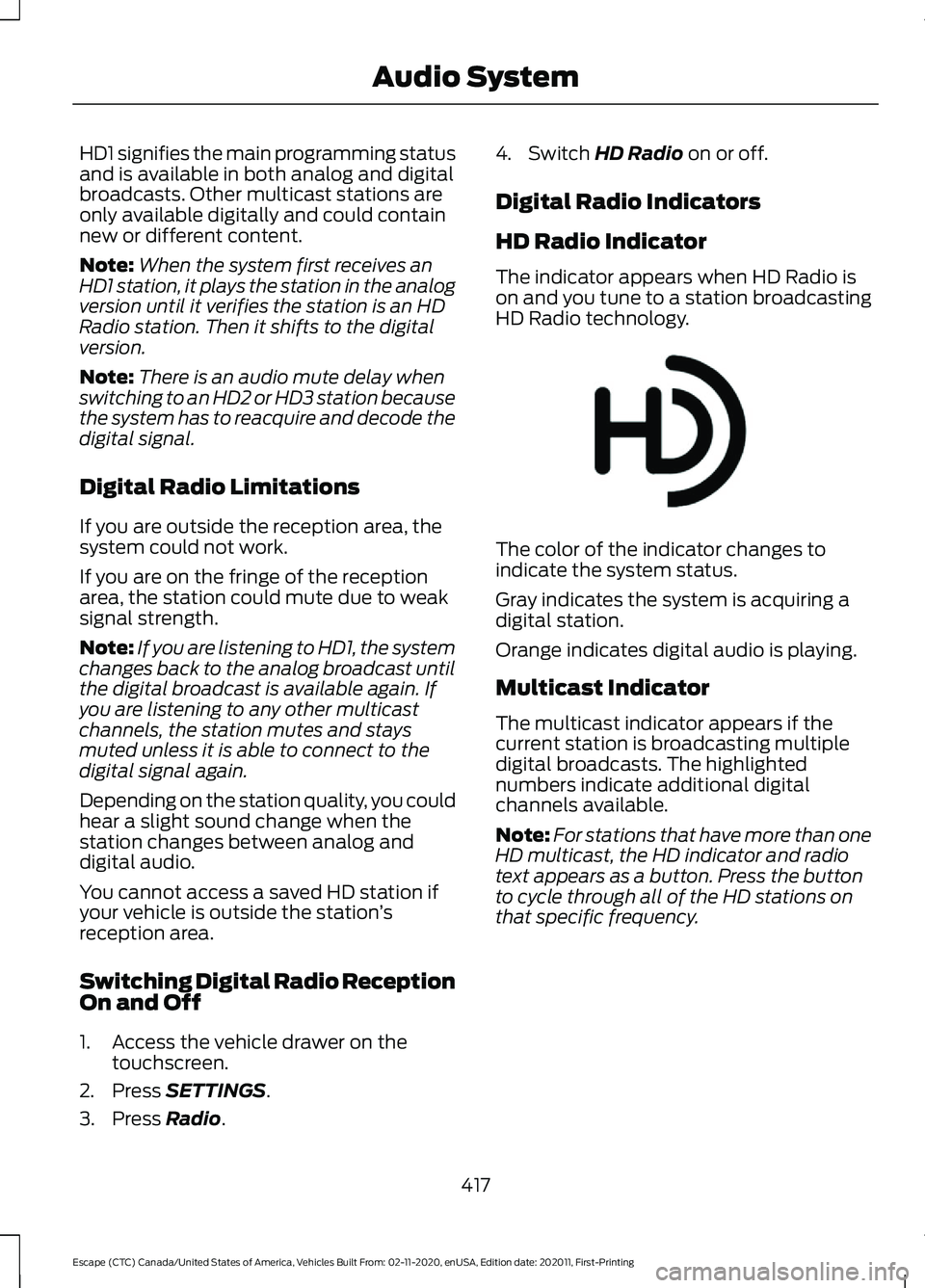
The indicator appears when HD Radio is
on and you tune to a station broadcasting
HD Radio technology. The color of the indicator changes to
indicate the system status.
Gray indicates the system is acquiring a
digital station.
Orange indicates digital audio is playing.
Multicast Indicator
The multicast indicator appears if the
current station is broadcasting multiple
digital broadcasts. The highlighted
numbers indicate additional digital
channels available.
Note:
For stations that have more than one
HD multicast, the HD indicator and radio
text appears as a button. Press the button
to cycle through all of the HD stations on
that specific frequency.
417
Escape (CTC) Canada/United States of America, Vehicles Built From: 02-11-2020, enUSA, Edition date: 202011, First-Printing Audio SystemE142616
Page 421 of 589
SATELLITE RADIO
What Is Satellite Radio
Your factory-installed SiriusXM radio
system includes a limited subscription
term, which begins on the date of sale or
lease of your vehicle. See an authorized
dealer for availability.
For additional information about extended
subscription terms, visit www
.SiriusXM. c om
in the United States,
www .SiriusXM. c a in
Canada, or call SiriusXM at
1-888-539-7474.
Note: SiriusXM reserves the unrestricted
right to change, rearrange, add or delete
programming including canceling, moving
or adding particular channels, and its prices,
at any time, with or without notice to you.
Neither SiriusXM and its affiliates nor Ford
Motor Company and its affiliates will be
liable to you or any third party for any such
modification, suspension or termination.
Satellite Radio Limitations
For optimal reception performance, keep
the antenna clear of snow and ice build-up
and keep luggage and other material as
far away from the antenna as possible.
Hills, mountains, tall buildings, bridges,
tunnels, freeway overpasses, parking
garages, dense tree foliage and
thunderstorms can interfere with your
reception.
When you pass a ground-based
broadcast-repeating tower, a stronger
signal may overtake a weaker one and
could result in the audio system muting.
Your display could show an error message
to indicate the interference. Locating the Satellite Radio
Identification Number
1. Select SiriusXM as the audio source.
2. Tune to channel 0.
418
Escape (CTC) Canada/United States of America, Vehicles Built From: 02-11-2020, enUSA, Edition date: 202011, First-Printing Audio System
Page 425 of 589
USING SYNC™ WITH YOUR
PHONE
Hands-free calling is one of the main
features of SYNC. While the system
supports a variety of features, many are
dependent on your cellular phone's
functionality. At a minimum, most cellular
phones with Bluetooth wireless technology
support the following functions:
•
Answering an incoming call.
• Ending a call.
• Dialing a number.
• Redialing.
• Call waiting notification.
• Caller identification.
Other features, such as text messaging
using Bluetooth and automatic phonebook
download, are phone-dependent features.
Pairing a Phone
Wirelessly pairing your phone with SYNC
allows you to make and receive hands-free
calls.
Note: Make sure to switch on the ignition
and the radio. Shift the transmission into
park (P) for automatic transmission or
neutral (N) for manual transmission.
Using the Audio System
Note: To scroll through the menus, press
the up and down arrows on your audio
system.
1. Make sure to switch on your phone's Bluetooth feature before starting the
search. See your device's manual if
necessary.
2. Press the Settings button.
3. Select Bluetooth from the menu.
4. Press the
OK button.
5. Select the option to add. This starts the pairing process. 6. When a message to begin pairing
appears in the audio display, search for
SYNC on your device.
Depending on your phone's capability and
your market, the system may prompt you
with questions, such as setting the current
phone as the primary phone and
downloading your phonebook.
Using Voice Commands Make sure to switch on your
phone's Bluetooth feature
before starting the search. See
your device's manual if necessary.
Press the voice button and when
prompted say: Action and Descrip-
tion
Voice Command
Follow the instruc-
tions on the audio
display.
Pair Phone
Phone Voice Commands Press the voice button. You can
do things like place a phone call
and access text messages.
When prompted, say a command. See the
following table for examples of
commands. Voice Command
___ List of Commands
Help
Call ___
Dial ___
Text Messages
422
Escape (CTC) Canada/United States of America, Vehicles Built From: 02-11-2020, enUSA, Edition date: 202011, First-Printing SYNC™
(If Equipped)E142599 E142599
Page 429 of 589
App Permissions
App permissions are organized by groups.
You can grant these group permissions
individually. You can change a permission
group status any time when not driving, by
using the settings menu.
When you launch an app using SYNC, the
system may ask you to grant certain
permissions, for example:
•
To allow your vehicle to provide vehicle
information to the app such as, but not
limited to: Fuel level, fuel economy, fuel
consumption, engine speed, rain
sensor, odometer, VIN, external
temperature, gear position, tire
pressure, and head lamp status.
• To allow your vehicle to provide driving
characteristic information such as, but
not limited to: MyKey, seatbelt status,
engine revolutions per minute, gear
position, braking events, steering wheel
angle, and accelerator pedal position.
• To allow your vehicle to provide
location information, including: GPS
and speed.
• To allow the app to send push
notifications using the vehicle display
and voice capabilities while running in
a background state. Push notifications
may be particularly useful for news or
location based apps.
Note: You only need to grant permissions
the first time you use an app with SYNC.
Note: Ford is not responsible or liable for
any damages or loss of privacy relating to
usage of an app, or dissemination of any
vehicle data that you approve Ford to
provide to an app. Enabling SYNC Mobile Apps
In order to enable mobile apps, SYNC
requires user consent to send and receive
app authorization information and updates
using the data plan associated with the
connected device.
Data is sent to Ford in the United States
through the connected device. The
information is encrypted and includes, for
example, the vehicle identification number
of your vehicle, the SYNC module serial
number, odometer, enabled apps, usage
statistics and debugging information.
Updates may take place.
Note:
You must enable mobile apps for
each connected device the first time you
select a mobile app using the system.
Note: Standard data rates apply. Ford is
not responsible for any additional charges
you may receive from your service provider,
when your vehicle sends or receives data
through the connected device. This includes
any additional charges incurred due to
driving in areas when roaming out of a home
network.
USING SYNC™ WITH YOUR
MEDIA PLAYER
SYNC supports digital media sources
including: iPod, Bluetooth devices, and
most USB drives. SYNC also supports
audio formats, such as MP3, WMA, WAV
and ACC.
Media Sources
The AUX or MEDIA button allows you to
view and select available media sources.
Press the
AUX or MEDIA button to view
your sources. Use the directional arrows
and OK button to select your source. You
can also use the steering wheel audio
controls.
426
Escape (CTC) Canada/United States of America, Vehicles Built From: 02-11-2020, enUSA, Edition date: 202011, First-Printing SYNC™
(If Equipped)
Page 430 of 589
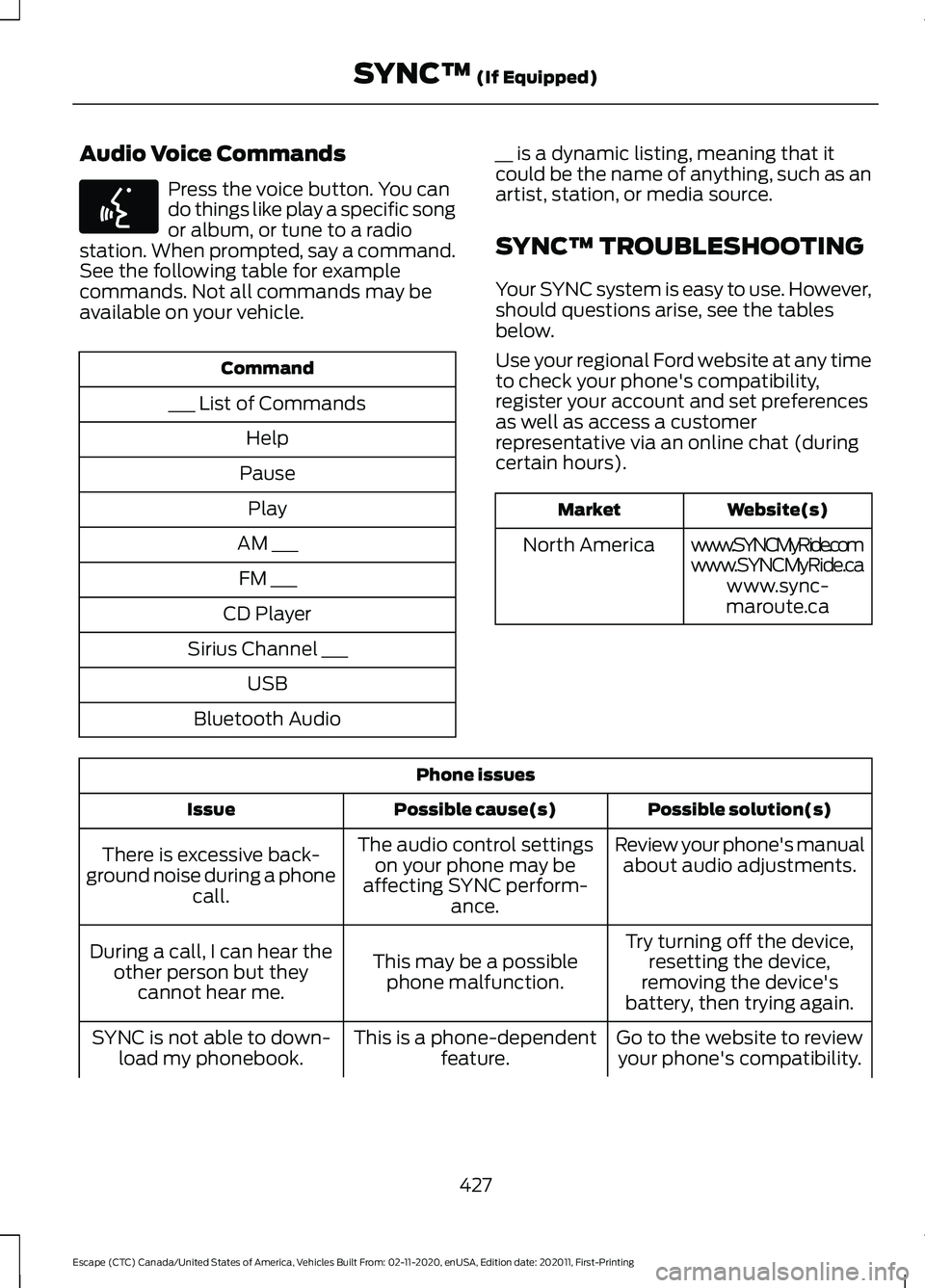
Audio Voice Commands
Press the voice button. You can
do things like play a specific song
or album, or tune to a radio
station. When prompted, say a command.
See the following table for example
commands. Not all commands may be
available on your vehicle. Command
___ List of Commands Help
Pause Play
AM ___ FM ___
CD Player
Sirius Channel ___ USB
Bluetooth Audio __ is a dynamic listing, meaning that it
could be the name of anything, such as an
artist, station, or media source.
SYNC™ TROUBLESHOOTING
Your SYNC system is easy to use. However,
should questions arise, see the tables
below.
Use your regional Ford website at any time
to check your phone's compatibility,
register your account and set preferences
as well as access a customer
representative via an online chat (during
certain hours). Website(s)
Market
www.SYNCMyRide.com
North America
www.SYNCMyRide.cawww.sync-
maroute.ca Phone issues
Possible solution(s)
Possible cause(s)
Issue
Review your phone's manualabout audio adjustments.
The audio control settings
on your phone may be
affecting SYNC perform- ance.
There is excessive back-
ground noise during a phone call.
Try turning off the device,resetting the device,
removing the device's
battery, then trying again.
This may be a possible
phone malfunction.
During a call, I can hear the
other person but theycannot hear me.
Go to the website to reviewyour phone's compatibility.
This is a phone-dependent
feature.
SYNC is not able to down-
load my phonebook.
427
Escape (CTC) Canada/United States of America, Vehicles Built From: 02-11-2020, enUSA, Edition date: 202011, First-Printing SYNC™ (If Equipped)E142599
Page 433 of 589
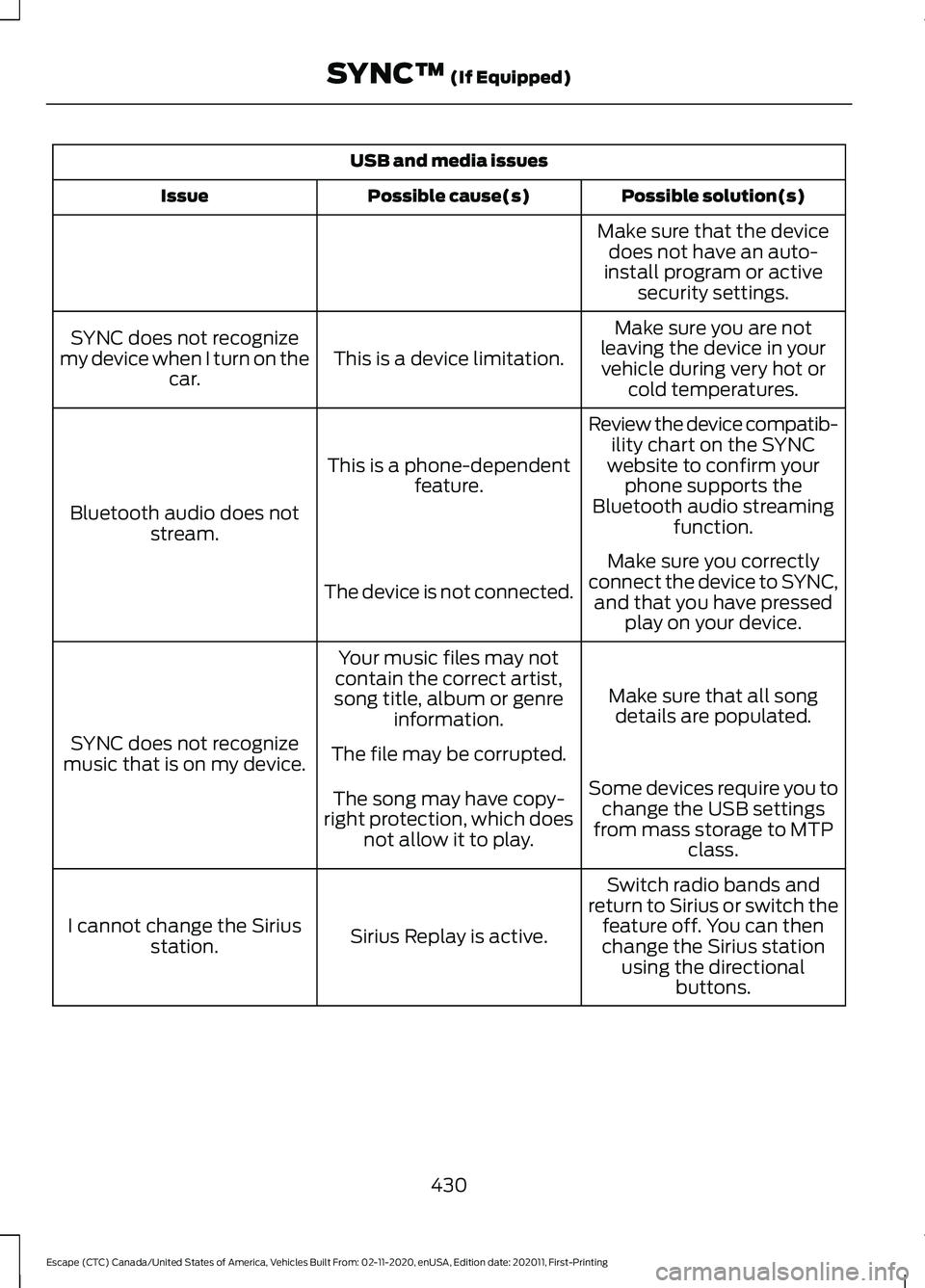
USB and media issues
Possible solution(s)
Possible cause(s)
Issue
Make sure that the devicedoes not have an auto-
install program or active security settings.
Make sure you are not
leaving the device in your vehicle during very hot or cold temperatures.
This is a device limitation.
SYNC does not recognize
my device when I turn on the car.
Review the device compatib-ility chart on the SYNC
website to confirm your phone supports the
Bluetooth audio streaming function.
This is a phone-dependent
feature.
Bluetooth audio does not stream.
Make sure you correctly
connect the device to SYNC, and that you have pressed play on your device.
The device is not connected.
Make sure that all songdetails are populated.
Your music files may not
contain the correct artist,
song title, album or genre information.
SYNC does not recognize
music that is on my device. The file may be corrupted.
Some devices require you tochange the USB settings
from mass storage to MTP class.
The song may have copy-
right protection, which does not allow it to play.
Switch radio bands and
return to Sirius or switch the feature off. You can then
change the Sirius station using the directional buttons.
Sirius Replay is active.
I cannot change the Sirius
station.
430
Escape (CTC) Canada/United States of America, Vehicles Built From: 02-11-2020, enUSA, Edition date: 202011, First-Printing SYNC™ (If Equipped)