radio FORD EXCURSION 2002 1.G User Guide
[x] Cancel search | Manufacturer: FORD, Model Year: 2002, Model line: EXCURSION, Model: FORD EXCURSION 2002 1.GPages: 272, PDF Size: 5.06 MB
Page 34 of 272
20815.psp Ford O/G 2002 Excursion English 4th Print 2C3J-19A321-HB 04/24/2003 09:14:57 17 B
When in rewind mode, your audio system will automatically lower the
volume level of the playing media.
Fast forward
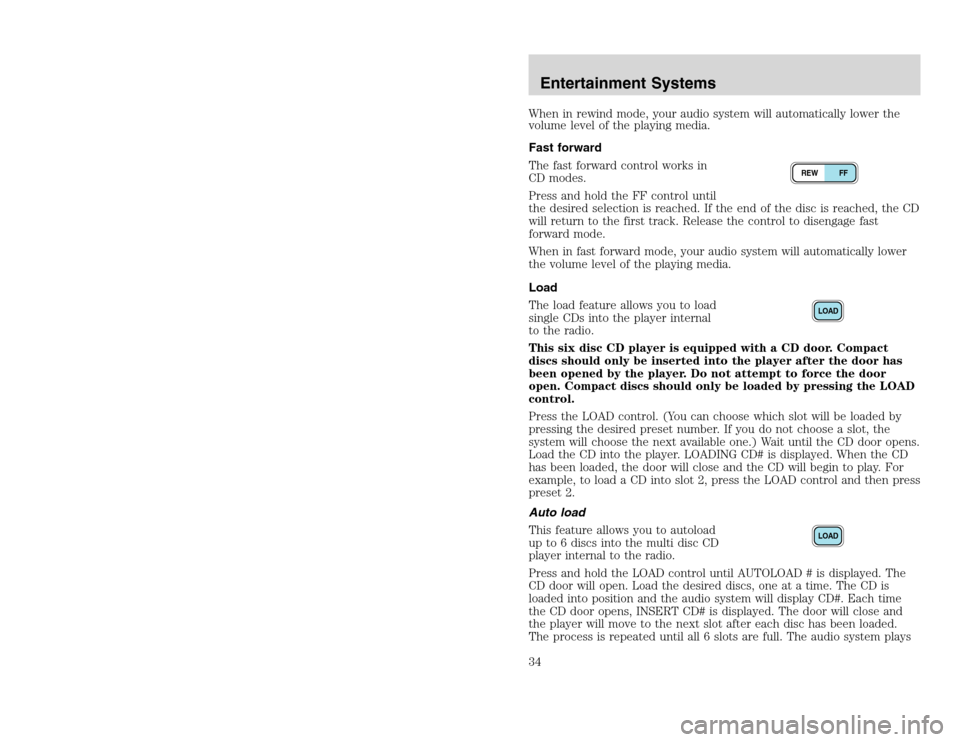
The fast forward control works in
CD modes.
Press and hold the FF control until
the desired selection is reached. If the end of the disc is reached, the CD
will return to the first track. Release the control to disengage fast
forward mode.
When in fast forward mode, your audio system will automatically lower
the volume level of the playing media.
Load
The load feature allows you to load
single CDs into the player internal
to the radio.
This six disc CD player is equipped with a CD door. Compact
discs should only be inserted into the player after the door has
been opened by the player. Do not attempt to force the door
open. Compact discs should only be loaded by pressing the LOAD
control.
Press the LOAD control. (You can choose which slot will be loaded by
pressing the desired preset number. If you do not choose a slot, the
system will choose the next available one.) Wait until the CD door opens.
Load the CD into the player. LOADING CD# is displayed. When the CD
has been loaded, the door will close and the CD will begin to play. For
example, to load a CD into slot 2, press the LOAD control and then press
preset 2.
Auto load
This feature allows you to autoload
up to 6 discs into the multi disc CD
player internal to the radio.
Press and hold the LOAD control until AUTOLOAD # is displayed. The
CD door will open. Load the desired discs, one at a time. The CD is
loaded into position and the audio system will display CD#. Each time
the CD door opens, INSERT CD# is displayed. The door will close and
the player will move to the next slot after each disc has been loaded.
The process is repeated until all 6 slots are full. The audio system plays
REW FF
LOADLOAD
Entertainment Systems34
When in rewind mode, your audio system will automatically lower the
volume level of the playing media.
Fast forward
The fast forward control works in
CD modes.
Press and hold the FF control until
the desired selection is reached. If the end of the disc is reached, the CD
will return to the first track. Release the control to disengage fast
forward mode.
When in fast forward mode, your audio system will automatically lower
the volume level of the playing media.
Load
The load feature allows you to load
single CDs into the player internal
to the radio.
This six disc CD player is equipped with a CD door. Compact
discs should only be inserted into the player after the door has
been opened by the player. Do not attempt to force the door
open. Compact discs should only be loaded by pressing the LOAD
control.
Press the LOAD control. (You can choose which slot will be loaded by
pressing the desired preset number. If you do not choose a slot, the
system will choose the next available one.) Wait until the CD door opens.
Load the CD into the player. LOADING CD# is displayed. When the CD
has been loaded, the door will close and the CD will begin to play. For
example, to load a CD into slot 2, press the LOAD control and then press
preset 2.
Auto load
This feature allows you to autoload
up to 6 discs into the multi disc CD
player internal to the radio.
Press and hold the LOAD control until AUTOLOAD # is displayed. The
CD door will open. Load the desired discs, one at a time. The CD is
loaded into position and the audio system will display CD#. Each time
the CD door opens, INSERT CD# is displayed. The door will close and
the player will move to the next slot after each disc has been loaded.
The process is repeated until all 6 slots are full. The audio system plays
REW FF
LOADLOAD
Entertainment Systems34
Page 36 of 272
20815.psp Ford O/G 2002 Excursion English 4th Print 2C3J-19A321-HB 04/24/2003 09:14:57 18 B
Menu mode
The MENU control allows you to
access many different features
within your audio system. There are
three sets of menus available
depending upon which mode or feature is activated.
While in FM mode, two menus are available.If RDS is turned OFF, you
can access the following:
•SELECT HOURS — Refer toSetting the clock.
•SELECT MINUTES — Refer toSetting the clock.
•RDS OFF — Refer toRadio data system feature.
If RDS is turned ON, you can access the following:
•TRAFFIC ON/OFF-Refer toTraffic announcements.
•FIND type-Refer toProgram type.
•SHOW (NAME, TYPE, NONE)- Refer toRadio data system feature.
•RDS ON— Refer toRadio data system feature.
•SELECT HOURS — Refer toSetting the clock.
•SELECT MINUTES —Refer toSetting the clock.
When in CD mode, you can access: SELECT HOURS, SELECT MINUTES
or COMP ON/OFF.
SELECT HOURS, SELECT MINUTES— Allows you to adjust the hours
and minutes. Refer toSetting the clock.
TRAFFIC ON/OFF— Traffic announcements can be programmed as local
or distant. Refer toTraffic announcements.
RDS ON/OFF— This feature allows your audio system to receive text
information from RDS-equipped FM radio stations. Refer toRadio Data
System feature.
FIND type — Allows you to select your desired FM program type and
search for that selection.
SHOW — Allows you to select from NAME (displays the name of the
radio station), TYPE (displays the RDS program type: rock, jazz, etc.), or
NONE (deactivates the RDS display).Entertainment Systems36
Menu mode
The MENU control allows you to
access many different features
within your audio system. There are
three sets of menus available
depending upon which mode or feature is activated.
While in FM mode, two menus are available.If RDS is turned OFF, you
can access the following:
•SELECT HOURS — Refer toSetting the clock.
•SELECT MINUTES — Refer toSetting the clock.
•RDS OFF — Refer toRadio data system feature.
If RDS is turned ON, you can access the following:
•TRAFFIC ON/OFF-Refer toTraffic announcements.
•FIND type-Refer toProgram type.
•SHOW (NAME, TYPE, NONE)- Refer toRadio data system feature.
•RDS ON— Refer toRadio data system feature.
•SELECT HOURS — Refer toSetting the clock.
•SELECT MINUTES —Refer toSetting the clock.
When in CD mode, you can access: SELECT HOURS, SELECT MINUTES
or COMP ON/OFF.
SELECT HOURS, SELECT MINUTES— Allows you to adjust the hours
and minutes. Refer toSetting the clock.
TRAFFIC ON/OFF— Traffic announcements can be programmed as local
or distant. Refer toTraffic announcements.
RDS ON/OFF— This feature allows your audio system to receive text
information from RDS-equipped FM radio stations. Refer toRadio Data
System feature.
FIND type — Allows you to select your desired FM program type and
search for that selection.
SHOW — Allows you to select from NAME (displays the name of the
radio station), TYPE (displays the RDS program type: rock, jazz, etc.), or
NONE (deactivates the RDS display).Entertainment Systems36
Page 37 of 272
20815.psp Ford O/G 2002 Excursion English 4th Print 2C3J-19A321-HB 04/24/2003 09:14:57 19 A
Traffic announcements
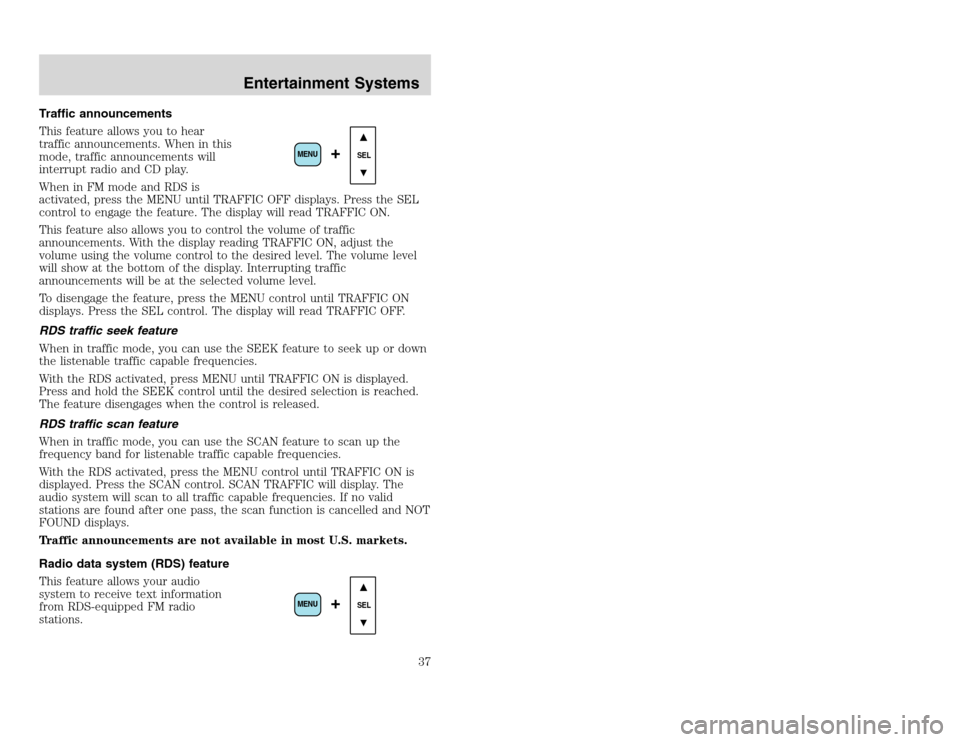
This feature allows you to hear
traffic announcements. When in this
mode, traffic announcements will
interrupt radio and CD play.
When in FM mode and RDS is
activated, press the MENU until TRAFFIC OFF displays. Press the SEL
control to engage the feature. The display will read TRAFFIC ON.
This feature also allows you to control the volume of traffic
announcements. With the display reading TRAFFIC ON, adjust the
volume using the volume control to the desired level. The volume level
will show at the bottom of the display. Interrupting traffic
announcements will be at the selected volume level.
To disengage the feature, press the MENU control until TRAFFIC ON
displays. Press the SEL control. The display will read TRAFFIC OFF.
RDS traffic seek feature
When in traffic mode, you can use the SEEK feature to seek up or down
the listenable traffic capable frequencies.
With the RDS activated, press MENU until TRAFFIC ON is displayed.
Press and hold the SEEK control until the desired selection is reached.
The feature disengages when the control is released.
RDS traffic scan feature
When in traffic mode, you can use the SCAN feature to scan up the
frequency band for listenable traffic capable frequencies.
With the RDS activated, press the MENU control until TRAFFIC ON is
displayed. Press the SCAN control. SCAN TRAFFIC will display. The
audio system will scan to all traffic capable frequencies. If no valid
stations are found after one pass, the scan function is cancelled and NOT
FOUND displays.
Traffic announcements are not available in most U.S. markets.
Radio data system (RDS) feature
This feature allows your audio
system to receive text information
from RDS-equipped FM radio
stations.
SEL
+
MENU
SEL
+
MENU
Entertainment Systems
37
Traffic announcements
This feature allows you to hear
traffic announcements. When in this
mode, traffic announcements will
interrupt radio and CD play.
When in FM mode and RDS is
activated, press the MENU until TRAFFIC OFF displays. Press the SEL
control to engage the feature. The display will read TRAFFIC ON.
This feature also allows you to control the volume of traffic
announcements. With the display reading TRAFFIC ON, adjust the
volume using the volume control to the desired level. The volume level
will show at the bottom of the display. Interrupting traffic
announcements will be at the selected volume level.
To disengage the feature, press the MENU control until TRAFFIC ON
displays. Press the SEL control. The display will read TRAFFIC OFF.
RDS traffic seek feature
When in traffic mode, you can use the SEEK feature to seek up or down
the listenable traffic capable frequencies.
With the RDS activated, press MENU until TRAFFIC ON is displayed.
Press and hold the SEEK control until the desired selection is reached.
The feature disengages when the control is released.
RDS traffic scan feature
When in traffic mode, you can use the SCAN feature to scan up the
frequency band for listenable traffic capable frequencies.
With the RDS activated, press the MENU control until TRAFFIC ON is
displayed. Press the SCAN control. SCAN TRAFFIC will display. The
audio system will scan to all traffic capable frequencies. If no valid
stations are found after one pass, the scan function is cancelled and NOT
FOUND displays.
Traffic announcements are not available in most U.S. markets.
Radio data system (RDS) feature
This feature allows your audio
system to receive text information
from RDS-equipped FM radio
stations.
SEL
+
MENU
SEL
+
MENU
Entertainment Systems
37
Page 38 of 272
20815.psp Ford O/G 2002 Excursion English 4th Print 2C3J-19A321-HB 04/24/2003 09:14:57 19 B
To activate RDS:
•When in FM mode, press the MENU control until RDS OFF displays.
•Press the SEL control to engage this feature (RDS ON).
RDS features:
Once the RDS feature is on, press the MENU control to scroll through
the following selections:
Traffic announcements
This feature allows you to hear traffic announcements while in CD mode.
These announcements are broadcast by traffic capable RDS stations.
When in this mode, traffic announcements will interrupt radio and CD
play.
•Press the MENU control until TRAFFIC is displayed.
•Press the SEL control to engage the feature. The display will read
TRAFFIC ON.
This feature also allows you to control the volume of traffic
announcements. With the display reading TRAFFIC ON, adjust the
volume using the volume control to the desired level. The volume level
will show at the bottom of the display. Interrupting traffic
announcements will be at the selected volume level.
To disengage the feature, press the MENU control until TRAFFIC ON
displays. Press the SEL control. The display will read TRAFFIC OFF.
Traffic announcements are not available in most U.S. markets.
Program type
This feature allows you to search for RDS stations selectively by their
program type.
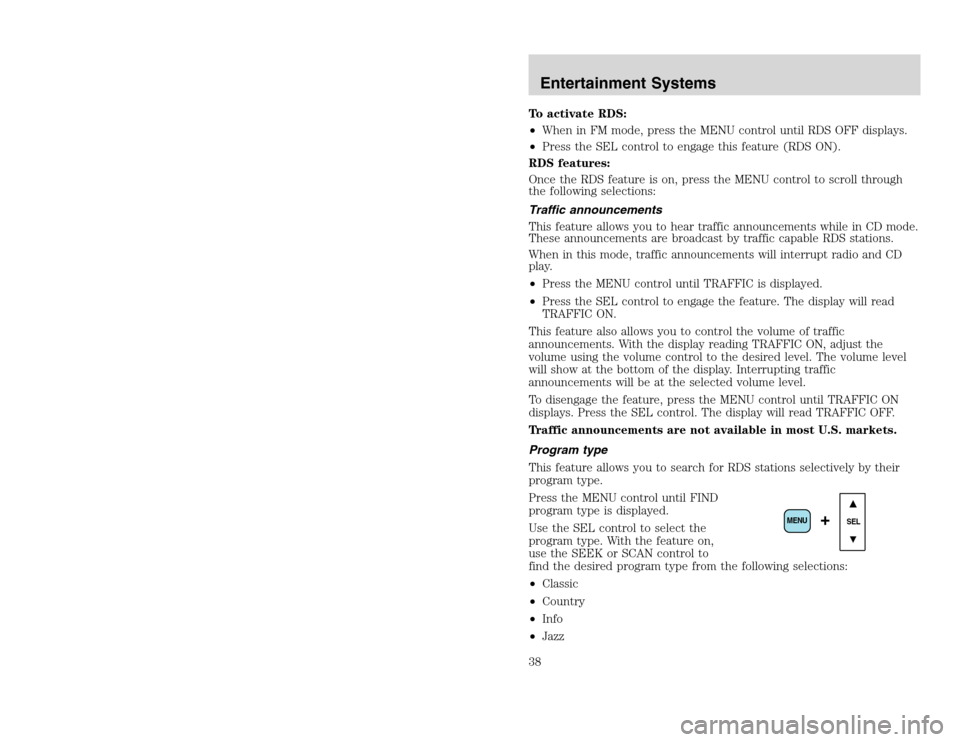
Press the MENU control until FIND
program type is displayed.
Use the SEL control to select the
program type. With the feature on,
use the SEEK or SCAN control to
find the desired program type from the following selections:
•Classic
•Country
•Info
•Jazz
SEL
+
MENU
Entertainment Systems38
To activate RDS:
•When in FM mode, press the MENU control until RDS OFF displays.
•Press the SEL control to engage this feature (RDS ON).
RDS features:
Once the RDS feature is on, press the MENU control to scroll through
the following selections:
Traffic announcements
This feature allows you to hear traffic announcements while in CD mode.
These announcements are broadcast by traffic capable RDS stations.
When in this mode, traffic announcements will interrupt radio and CD
play.
•Press the MENU control until TRAFFIC is displayed.
•Press the SEL control to engage the feature. The display will read
TRAFFIC ON.
This feature also allows you to control the volume of traffic
announcements. With the display reading TRAFFIC ON, adjust the
volume using the volume control to the desired level. The volume level
will show at the bottom of the display. Interrupting traffic
announcements will be at the selected volume level.
To disengage the feature, press the MENU control until TRAFFIC ON
displays. Press the SEL control. The display will read TRAFFIC OFF.
Traffic announcements are not available in most U.S. markets.
Program type
This feature allows you to search for RDS stations selectively by their
program type.
Press the MENU control until FIND
program type is displayed.
Use the SEL control to select the
program type. With the feature on,
use the SEEK or SCAN control to
find the desired program type from the following selections:
•Classic
•Country
•Info
•Jazz
SEL
+
MENU
Entertainment Systems38
Page 39 of 272
20815.psp Ford O/G 2002 Excursion English 4th Print 2C3J-19A321-HB 04/24/2003 09:14:57 20 A
•Oldies
•R&B
•Religious
•Rock
•Soft
•To p 4 0
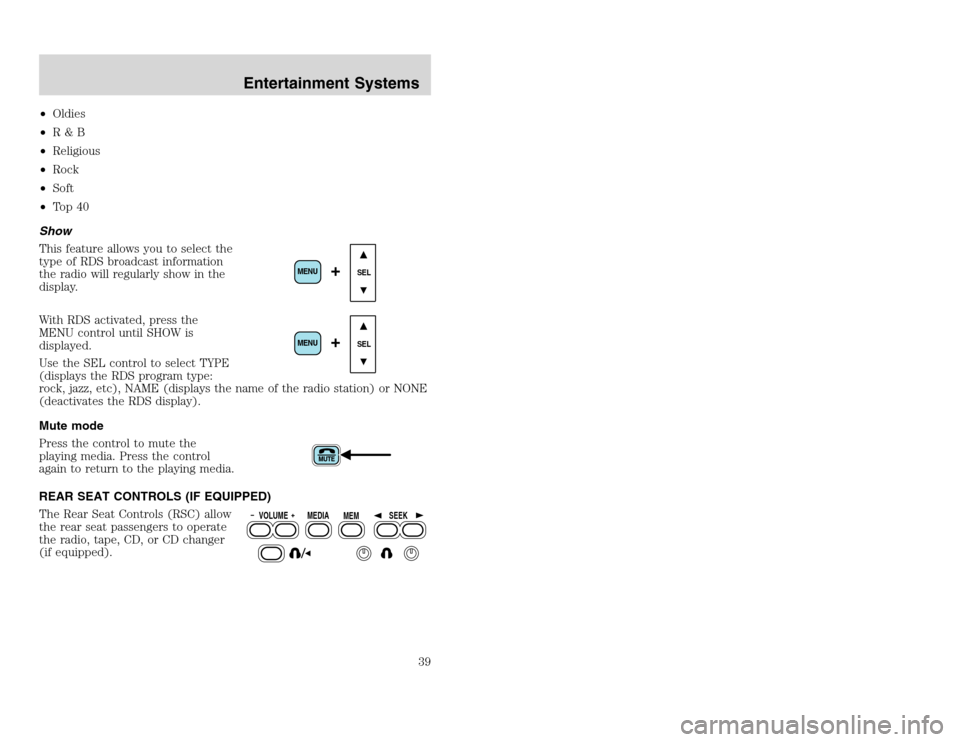
Show
This feature allows you to select the
type of RDS broadcast information
the radio will regularly show in the
display.
With RDS activated, press the
MENU control until SHOW is
displayed.
Use the SEL control to select TYPE
(displays the RDS program type:
rock, jazz, etc), NAME (displays the name of the radio station) or NONE
(deactivates the RDS display).
Mute mode
Press the control to mute the
playing media. Press the control
again to return to the playing media.
REAR SEAT CONTROLS (IF EQUIPPED)
The Rear Seat Controls (RSC) allow
the rear seat passengers to operate
the radio, tape, CD, or CD changer
(if equipped).
SEL
+
MENU
SEL
+
MENU
VOLUME MEDIA
MEMSEEK
Entertainment Systems
39
•Oldies
•R&B
•Religious
•Rock
•Soft
•To p 4 0
Show
This feature allows you to select the
type of RDS broadcast information
the radio will regularly show in the
display.
With RDS activated, press the
MENU control until SHOW is
displayed.
Use the SEL control to select TYPE
(displays the RDS program type:
rock, jazz, etc), NAME (displays the name of the radio station) or NONE
(deactivates the RDS display).
Mute mode
Press the control to mute the
playing media. Press the control
again to return to the playing media.
REAR SEAT CONTROLS (IF EQUIPPED)
The Rear Seat Controls (RSC) allow
the rear seat passengers to operate
the radio, tape, CD, or CD changer
(if equipped).
SEL
+
MENU
SEL
+
MENU
VOLUME MEDIA
MEMSEEK
Entertainment Systems
39
Page 40 of 272
20815.psp Ford O/G 2002 Excursion English 4th Print 2C3J-19A321-HB 04/24/2003 09:14:57 20 B
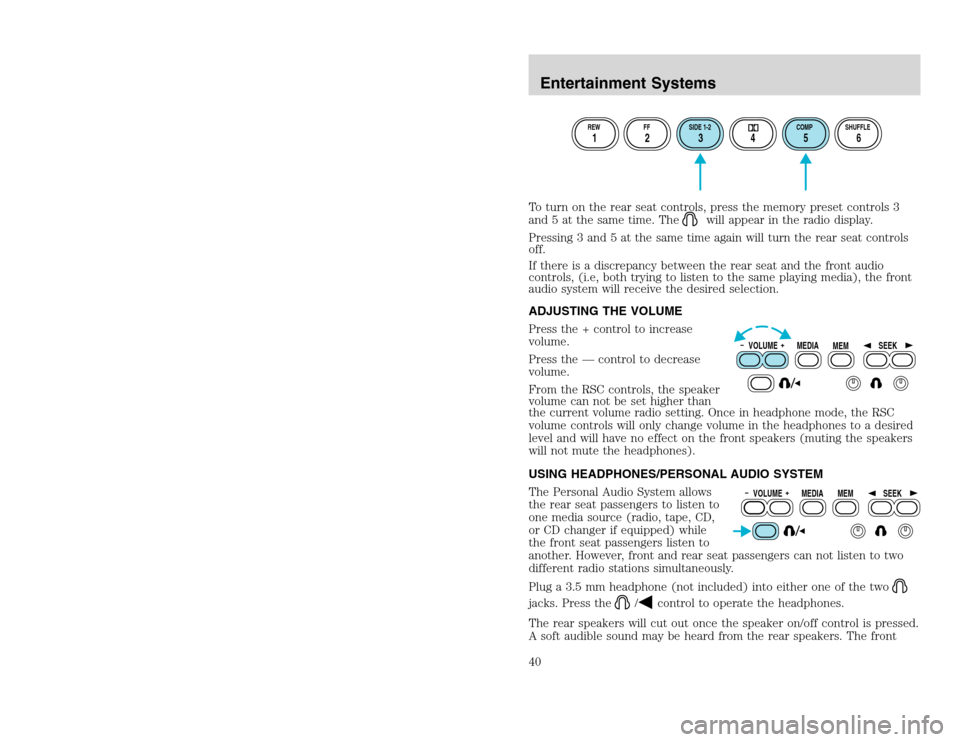
To turn on the rear seat controls, press the memory preset controls 3
and 5 at the same time. The
will appear in the radio display.
Pressing 3 and 5 at the same time again will turn the rear seat controls
off.
If there is a discrepancy between the rear seat and the front audio
controls, (i.e, both trying to listen to the same playing media), the front
audio system will receive the desired selection.
ADJUSTING THE VOLUME
Press the + control to increase
volume.
Press the — control to decrease
volume.
From the RSC controls, the speaker
volume can not be set higher than
the current volume radio setting. Once in headphone mode, the RSC
volume controls will only change volume in the headphones to a desired
level and will have no effect on the front speakers (muting the speakers
will not mute the headphones).
USING HEADPHONES/PERSONAL AUDIO SYSTEM
The Personal Audio System allows
the rear seat passengers to listen to
one media source (radio, tape, CD,
or CD changer if equipped) while
the front seat passengers listen to
another. However, front and rear seat passengers can not listen to two
different radio stations simultaneously.
Plug a 3.5 mm headphone (not included) into either one of the two
jacks. Press the
/
control to operate the headphones.
The rear speakers will cut out once the speaker on/off control is pressed.
A soft audible sound may be heard from the rear speakers. The front
REW FF SIDE 1-2 COMP SHUFFLE12 3456
VOLUME MEDIA
MEMSEEKVOLUME MEDIA
MEMSEEK
Entertainment Systems40
To turn on the rear seat controls, press the memory preset controls 3
and 5 at the same time. The
will appear in the radio display.
Pressing 3 and 5 at the same time again will turn the rear seat controls
off.
If there is a discrepancy between the rear seat and the front audio
controls, (i.e, both trying to listen to the same playing media), the front
audio system will receive the desired selection.
ADJUSTING THE VOLUME
Press the + control to increase
volume.
Press the — control to decrease
volume.
From the RSC controls, the speaker
volume can not be set higher than
the current volume radio setting. Once in headphone mode, the RSC
volume controls will only change volume in the headphones to a desired
level and will have no effect on the front speakers (muting the speakers
will not mute the headphones).
USING HEADPHONES/PERSONAL AUDIO SYSTEM
The Personal Audio System allows
the rear seat passengers to listen to
one media source (radio, tape, CD,
or CD changer if equipped) while
the front seat passengers listen to
another. However, front and rear seat passengers can not listen to two
different radio stations simultaneously.
Plug a 3.5 mm headphone (not included) into either one of the two
jacks. Press the
/
control to operate the headphones.
The rear speakers will cut out once the speaker on/off control is pressed.
A soft audible sound may be heard from the rear speakers. The front
REW FF SIDE 1-2 COMP SHUFFLE12 3456
VOLUME MEDIA
MEMSEEKVOLUME MEDIA
MEMSEEK
Entertainment Systems40
Page 47 of 272
20815.psp Ford O/G 2002 Excursion English 4th Print 2C3J-19A321-HB 04/24/2003 09:14:57 24 A
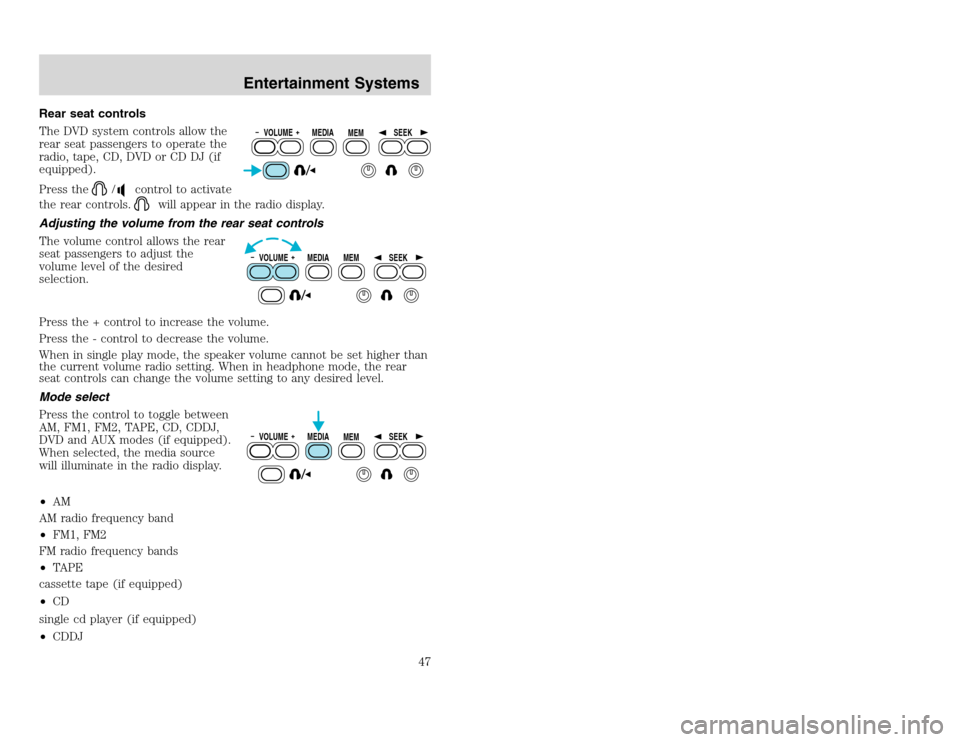
Rear seat controls
The DVD system controls allow the
rear seat passengers to operate the
radio, tape, CD, DVD or CD DJ (if
equipped).
Press the
/
control to activate
the rear controls.
will appear in the radio display.
Adjusting the volume from the rear seat controls
The volume control allows the rear
seat passengers to adjust the
volume level of the desired
selection.
Press the + control to increase the volume.
Press the - control to decrease the volume.
When in single play mode, the speaker volume cannot be set higher than
the current volume radio setting. When in headphone mode, the rear
seat controls can change the volume setting to any desired level.
Mode select
Press the control to toggle between
AM, FM1, FM2, TAPE, CD, CDDJ,
DVD and AUX modes (if equipped).
When selected, the media source
will illuminate in the radio display.
•AM
AM radio frequency band
•FM1, FM2
FM radio frequency bands
•TAPE
cassette tape (if equipped)
•CD
single cd player (if equipped)
•CDDJ
VOLUME MEDIA
MEMSEEKVOLUME MEDIA
MEMSEEKVOLUME MEDIA
MEMSEEK
Entertainment Systems
47
Rear seat controls
The DVD system controls allow the
rear seat passengers to operate the
radio, tape, CD, DVD or CD DJ (if
equipped).
Press the
/
control to activate
the rear controls.
will appear in the radio display.
Adjusting the volume from the rear seat controls
The volume control allows the rear
seat passengers to adjust the
volume level of the desired
selection.
Press the + control to increase the volume.
Press the - control to decrease the volume.
When in single play mode, the speaker volume cannot be set higher than
the current volume radio setting. When in headphone mode, the rear
seat controls can change the volume setting to any desired level.
Mode select
Press the control to toggle between
AM, FM1, FM2, TAPE, CD, CDDJ,
DVD and AUX modes (if equipped).
When selected, the media source
will illuminate in the radio display.
•AM
AM radio frequency band
•FM1, FM2
FM radio frequency bands
•TAPE
cassette tape (if equipped)
•CD
single cd player (if equipped)
•CDDJ
VOLUME MEDIA
MEMSEEKVOLUME MEDIA
MEMSEEKVOLUME MEDIA
MEMSEEK
Entertainment Systems
47
Page 48 of 272
20815.psp Ford O/G 2002 Excursion English 4th Print 2C3J-19A321-HB 04/24/2003 09:14:57 24 B
compact disc changer (if equipped)
•DVD/AUX
DVD player / Auxiliary line input
Memory preset control
In radio mode, press the MEMORY
control successively to scroll
through the memory presets in AM,
FM1 or FM2.
In CDDJ mode (if equipped), press the MEMORY control to select the
next disc in the compact disc changer. Play will begin with the first
track.
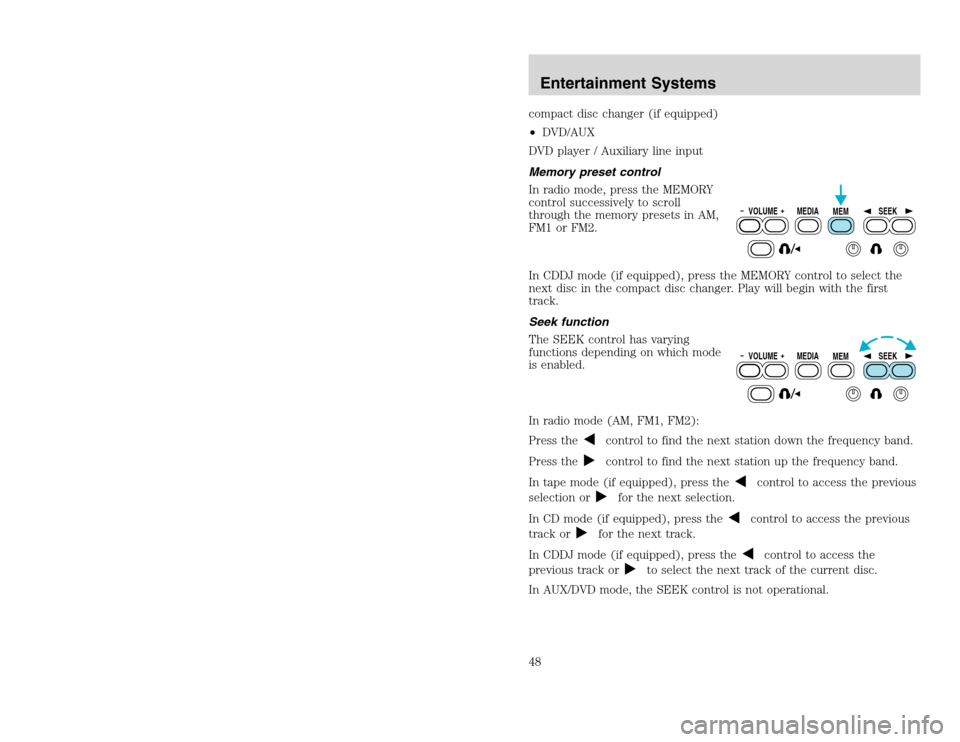
Seek function
The SEEK control has varying
functions depending on which mode
is enabled.
In radio mode (AM, FM1, FM2):
Press the
control to find the next station down the frequency band.
Press thecontrol to find the next station up the frequency band.
In tape mode (if equipped), press the
control to access the previous
selection or
for the next selection.
In CD mode (if equipped), press the
control to access the previous
track or
for the next track.
In CDDJ mode (if equipped), press the
control to access the
previous track or
to select the next track of the current disc.
In AUX/DVD mode, the SEEK control is not operational.
VOLUME MEDIA
MEMSEEKVOLUME MEDIA
MEMSEEK
Entertainment Systems48
compact disc changer (if equipped)
•DVD/AUX
DVD player / Auxiliary line input
Memory preset control
In radio mode, press the MEMORY
control successively to scroll
through the memory presets in AM,
FM1 or FM2.
In CDDJ mode (if equipped), press the MEMORY control to select the
next disc in the compact disc changer. Play will begin with the first
track.
Seek function
The SEEK control has varying
functions depending on which mode
is enabled.
In radio mode (AM, FM1, FM2):
Press the
control to find the next station down the frequency band.
Press thecontrol to find the next station up the frequency band.
In tape mode (if equipped), press the
control to access the previous
selection or
for the next selection.
In CD mode (if equipped), press the
control to access the previous
track or
for the next track.
In CDDJ mode (if equipped), press the
control to access the
previous track or
to select the next track of the current disc.
In AUX/DVD mode, the SEEK control is not operational.
VOLUME MEDIA
MEMSEEKVOLUME MEDIA
MEMSEEK
Entertainment Systems48
Page 49 of 272
20815.psp Ford O/G 2002 Excursion English 4th Print 2C3J-19A321-HB 04/24/2003 09:14:57 25 A
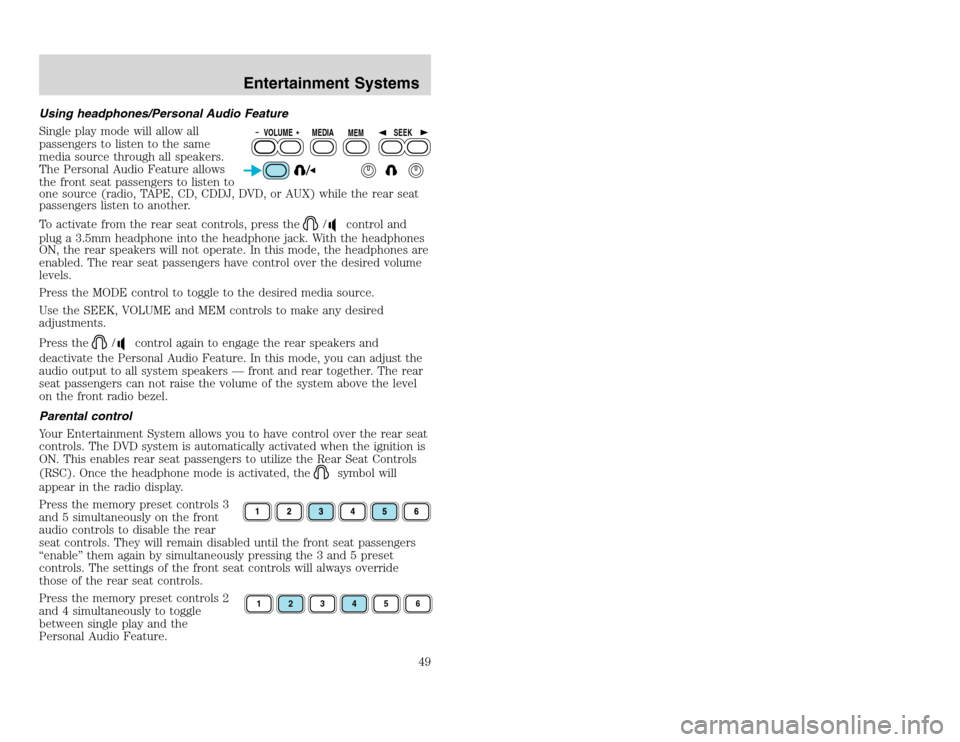
Using headphones/Personal Audio Feature
Single play mode will allow all
passengers to listen to the same
media source through all speakers.
The Personal Audio Feature allows
the front seat passengers to listen to
one source (radio, TAPE, CD, CDDJ, DVD, or AUX) while the rear seat
passengers listen to another.
To activate from the rear seat controls, press the
/
control and
plug a 3.5mm headphone into the headphone jack. With the headphones
ON, the rear speakers will not operate. In this mode, the headphones are
enabled. The rear seat passengers have control over the desired volume
levels.
Press the MODE control to toggle to the desired media source.
Use the SEEK, VOLUME and MEM controls to make any desired
adjustments.
Press the
/
control again to engage the rear speakers and
deactivate the Personal Audio Feature. In this mode, you can adjust the
audio output to all system speakers — front and rear together. The rear
seat passengers can not raise the volume of the system above the level
on the front radio bezel.
Parental control
Your Entertainment System allows you to have control over the rear seat
controls. The DVD system is automatically activated when the ignition is
ON. This enables rear seat passengers to utilize the Rear Seat Controls
(RSC). Once the headphone mode is activated, the
symbol will
appear in the radio display.
Press the memory preset controls 3
and 5 simultaneously on the front
audio controls to disable the rear
seat controls. They will remain disabled until the front seat passengers
“enable” them again by simultaneously pressing the 3 and 5 preset
controls. The settings of the front seat controls will always override
those of the rear seat controls.
Press the memory preset controls 2
and 4 simultaneously to toggle
between single play and the
Personal Audio Feature.
VOLUME MEDIA
MEMSEEK1
2
3
4
5
6
Entertainment Systems
49
Using headphones/Personal Audio Feature
Single play mode will allow all
passengers to listen to the same
media source through all speakers.
The Personal Audio Feature allows
the front seat passengers to listen to
one source (radio, TAPE, CD, CDDJ, DVD, or AUX) while the rear seat
passengers listen to another.
To activate from the rear seat controls, press the
/
control and
plug a 3.5mm headphone into the headphone jack. With the headphones
ON, the rear speakers will not operate. In this mode, the headphones are
enabled. The rear seat passengers have control over the desired volume
levels.
Press the MODE control to toggle to the desired media source.
Use the SEEK, VOLUME and MEM controls to make any desired
adjustments.
Press the
/
control again to engage the rear speakers and
deactivate the Personal Audio Feature. In this mode, you can adjust the
audio output to all system speakers — front and rear together. The rear
seat passengers can not raise the volume of the system above the level
on the front radio bezel.
Parental control
Your Entertainment System allows you to have control over the rear seat
controls. The DVD system is automatically activated when the ignition is
ON. This enables rear seat passengers to utilize the Rear Seat Controls
(RSC). Once the headphone mode is activated, the
symbol will
appear in the radio display.
Press the memory preset controls 3
and 5 simultaneously on the front
audio controls to disable the rear
seat controls. They will remain disabled until the front seat passengers
“enable” them again by simultaneously pressing the 3 and 5 preset
controls. The settings of the front seat controls will always override
those of the rear seat controls.
Press the memory preset controls 2
and 4 simultaneously to toggle
between single play and the
Personal Audio Feature.
VOLUME MEDIA
MEMSEEK1
2
3
4
5
6
Entertainment Systems
49
Page 50 of 272
20815.psp Ford O/G 2002 Excursion English 4th Print 2C3J-19A321-HB 04/24/2003 09:14:57 25 B
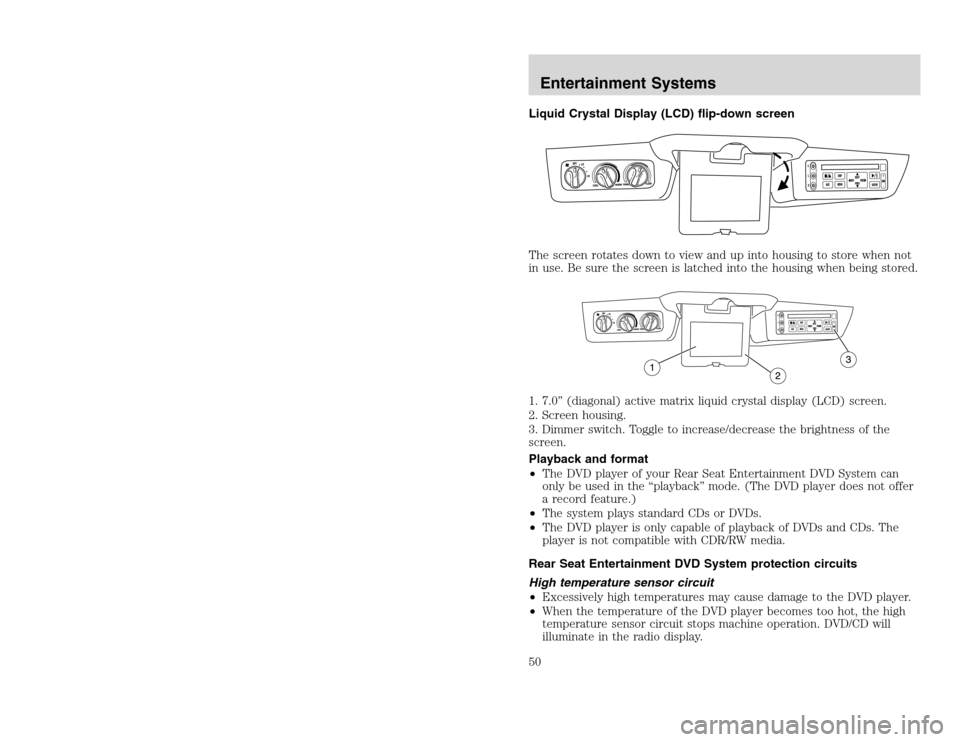
Liquid Crystal Display (LCD) flip-down screen
The screen rotates down to view and up into housing to store when not
in use. Be sure the screen is latched into the housing when being stored.
1. 7.0” (diagonal) active matrix liquid crystal display (LCD) screen.
2. Screen housing.
3. Dimmer switch. Toggle to increase/decrease the brightness of the
screen.
Playback and format
•The DVD player of your Rear Seat Entertainment DVD System can
only be used in the “playback” mode. (The DVD player does not offer
a record feature.)
•The system plays standard CDs or DVDs.
•The DVD player is only capable of playback of DVDs and CDs. The
player is not compatible with CDR/RW media.
Rear Seat Entertainment DVD System protection circuits
High temperature sensor circuit
•Excessively high temperatures may cause damage to the DVD player.
•When the temperature of the DVD player becomes too hot, the high
temperature sensor circuit stops machine operation. DVD/CD will
illuminate in the radio display.Entertainment Systems50
Liquid Crystal Display (LCD) flip-down screen
The screen rotates down to view and up into housing to store when not
in use. Be sure the screen is latched into the housing when being stored.
1. 7.0” (diagonal) active matrix liquid crystal display (LCD) screen.
2. Screen housing.
3. Dimmer switch. Toggle to increase/decrease the brightness of the
screen.
Playback and format
•The DVD player of your Rear Seat Entertainment DVD System can
only be used in the “playback” mode. (The DVD player does not offer
a record feature.)
•The system plays standard CDs or DVDs.
•The DVD player is only capable of playback of DVDs and CDs. The
player is not compatible with CDR/RW media.
Rear Seat Entertainment DVD System protection circuits
High temperature sensor circuit
•Excessively high temperatures may cause damage to the DVD player.
•When the temperature of the DVD player becomes too hot, the high
temperature sensor circuit stops machine operation. DVD/CD will
illuminate in the radio display.Entertainment Systems50