light FORD EXPEDITION 2006 2.G Owner's Manual
[x] Cancel search | Manufacturer: FORD, Model Year: 2006, Model line: EXPEDITION, Model: FORD EXPEDITION 2006 2.GPages: 360, PDF Size: 3.6 MB
Page 55 of 360
AM/FM select in radio mode
This control allows you to select AM or FM frequency bands. Press the
control to switch between AM, FM1 or FM2 memory preset stations.
AM/FM select in CD mode
Press to stop CD play and begin radio play.
Radio reception factors:
•Distance/strength.The further an FM signal travels, the weaker it is.
The listenable range of the average FM station is approximately 40 km
(24 miles). This range can be affected by “signal modulation.” Signal
modulation is a process radio stations use to increase their
strength/volume relative to other stations.
•Terrain.Hills, mountains and tall buildings between your vehicle’s
antenna and the radio station signal can cause FM reception problems.
Static can be caused on AM stations by power lines, electric fences,
traffic lights and thunderstorms. Moving away from an interfering
structure (out of its “shadow”) returns your reception to normal.
•Station overload.Weak signals are sometimes captured by stronger
signals when you pass a broadcast tower. A stronger signal may
temporarily overtake a weaker signal and play while the weak station
frequency is displayed.
AM/FM select in navigation mode
Press once when in navigation mode to return to the audio screen (while
the navigation function continues to work in the background). Press
again to enter AM/FM mode where you are able to make frequency band
adjustments.
CD select
To begin CD play (if a CD is already
loaded), press the CD control. The
first track of the disc will begin
playing. After that, CD play will
begin where it stopped last. Press the CD control again to toggle
between CD, CD DJ, DVD/Video (or DVD/Aux Mode), if equipped with
DVD Rear seat entertainment system.
If a navigation CD is in the head unit and you press CD, the system will
automatically search for an audio CD in the CD DJ and begin play if it is
present.
2006 Expedition(exd)
Owners Guide (post-2002-fmt)
USA(fus)
Entertainment Systems
55
Page 59 of 360
Starting autoset memory preset
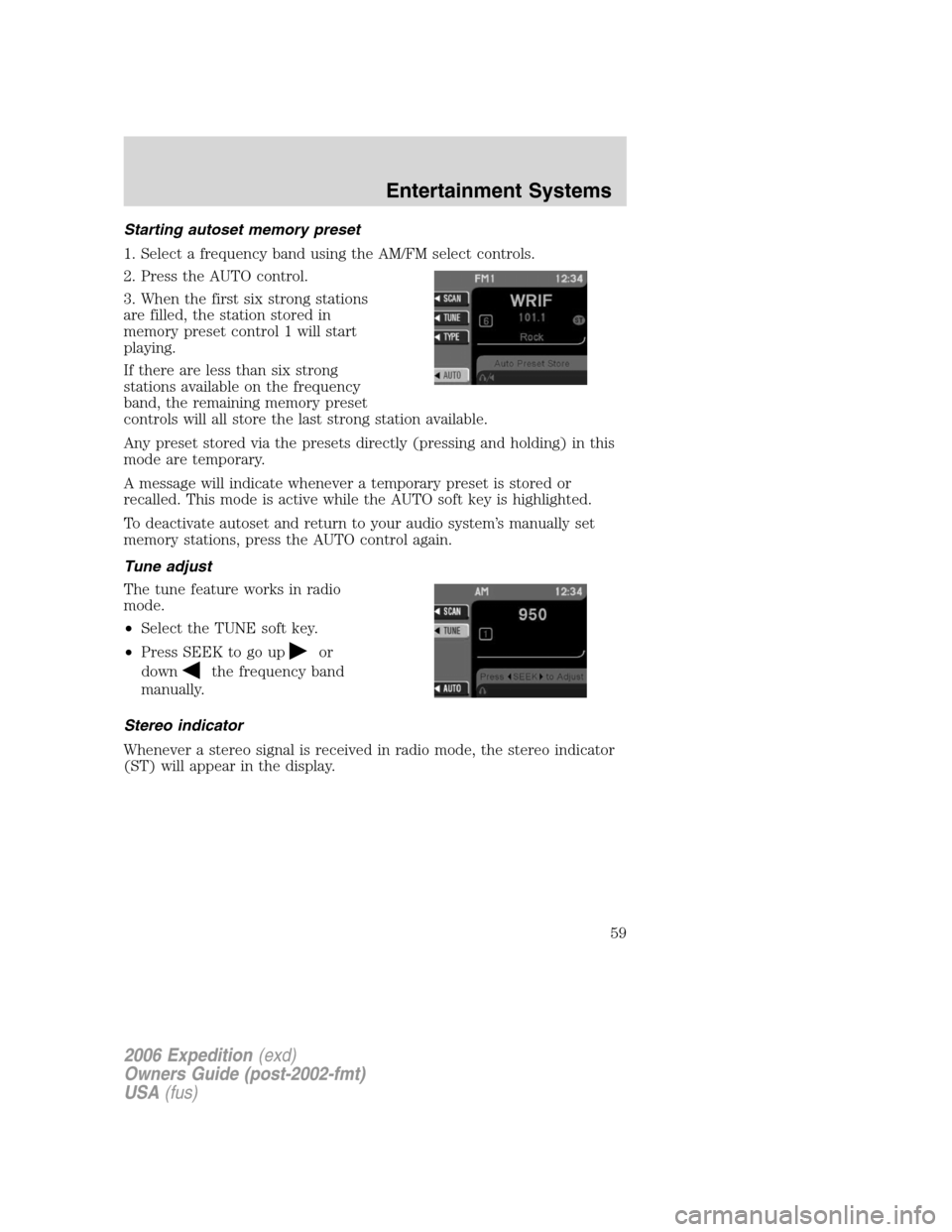
1. Select a frequency band using the AM/FM select controls.
2. Press the AUTO control.
3. When the first six strong stations
are filled, the station stored in
memory preset control 1 will start
playing.
If there are less than six strong
stations available on the frequency
band, the remaining memory preset
controls will all store the last strong station available.
Any preset stored via the presets directly (pressing and holding) in this
mode are temporary.
A message will indicate whenever a temporary preset is stored or
recalled. This mode is active while the AUTO soft key is highlighted.
To deactivate autoset and return to your audio system’s manually set
memory stations, press the AUTO control again.
Tune adjust
The tune feature works in radio
mode.
•Select the TUNE soft key.
•Press SEEK to go up
or
down
the frequency band
manually.
Stereo indicator
Whenever a stereo signal is received in radio mode, the stereo indicator
(ST) will appear in the display.
2006 Expedition(exd)
Owners Guide (post-2002-fmt)
USA(fus)
Entertainment Systems
59
Page 71 of 360
Points of Interest (POI)
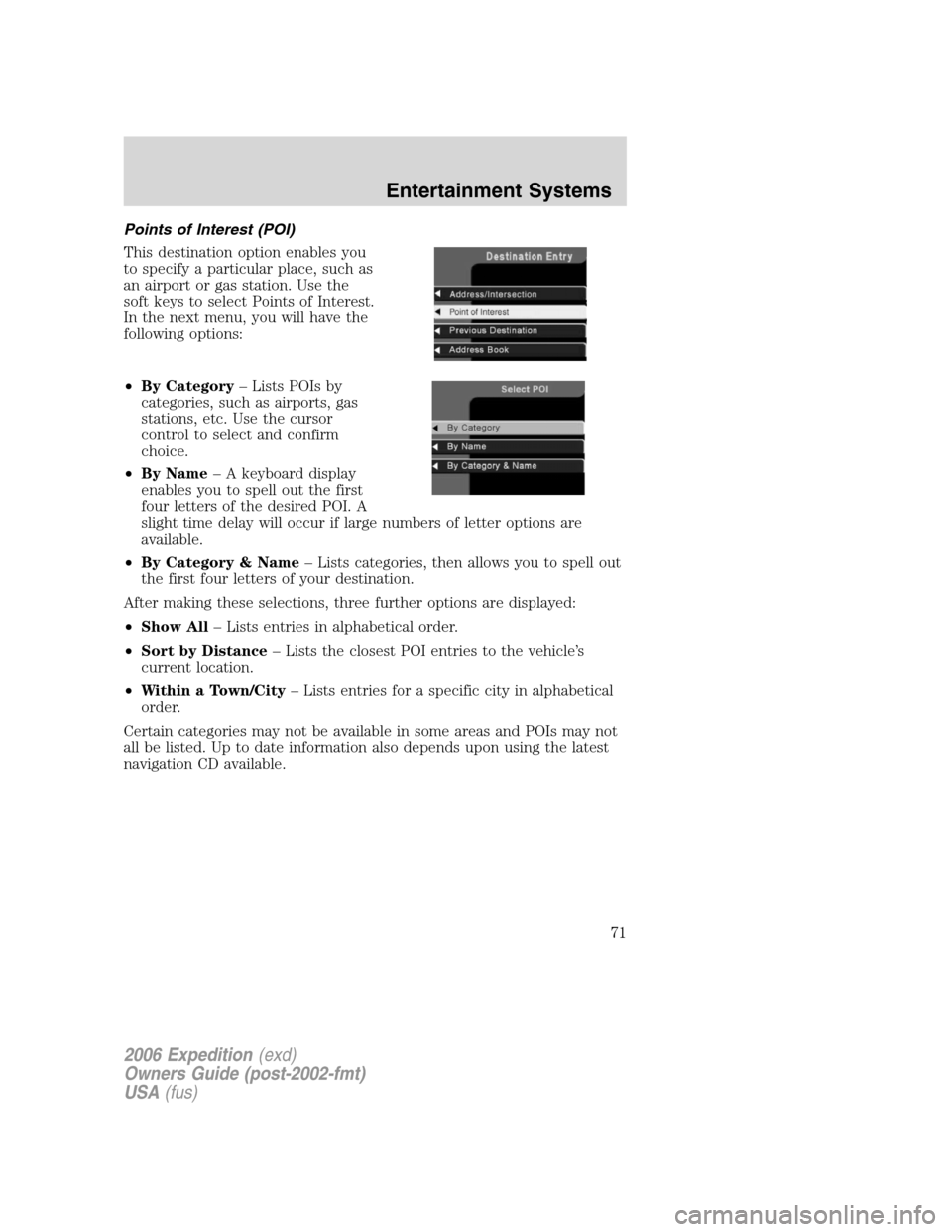
This destination option enables you
to specify a particular place, such as
an airport or gas station. Use the
soft keys to select Points of Interest.
In the next menu, you will have the
following options:
•By Category– Lists POIs by
categories, such as airports, gas
stations, etc. Use the cursor
control to select and confirm
choice.
•By Name– A keyboard display
enables you to spell out the first
four letters of the desired POI. A
slight time delay will occur if large numbers of letter options are
available.
•By Category & Name– Lists categories, then allows you to spell out
the first four letters of your destination.
After making these selections, three further options are displayed:
•Show All– Lists entries in alphabetical order.
•Sort by Distance– Lists the closest POI entries to the vehicle’s
current location.
•Within a Town/City– Lists entries for a specific city in alphabetical
order.
Certain categories may not be available in some areas and POIs may not
all be listed. Up to date information also depends upon using the latest
navigation CD available.
2006 Expedition(exd)
Owners Guide (post-2002-fmt)
USA(fus)
Entertainment Systems
71
Page 72 of 360
Previous destination
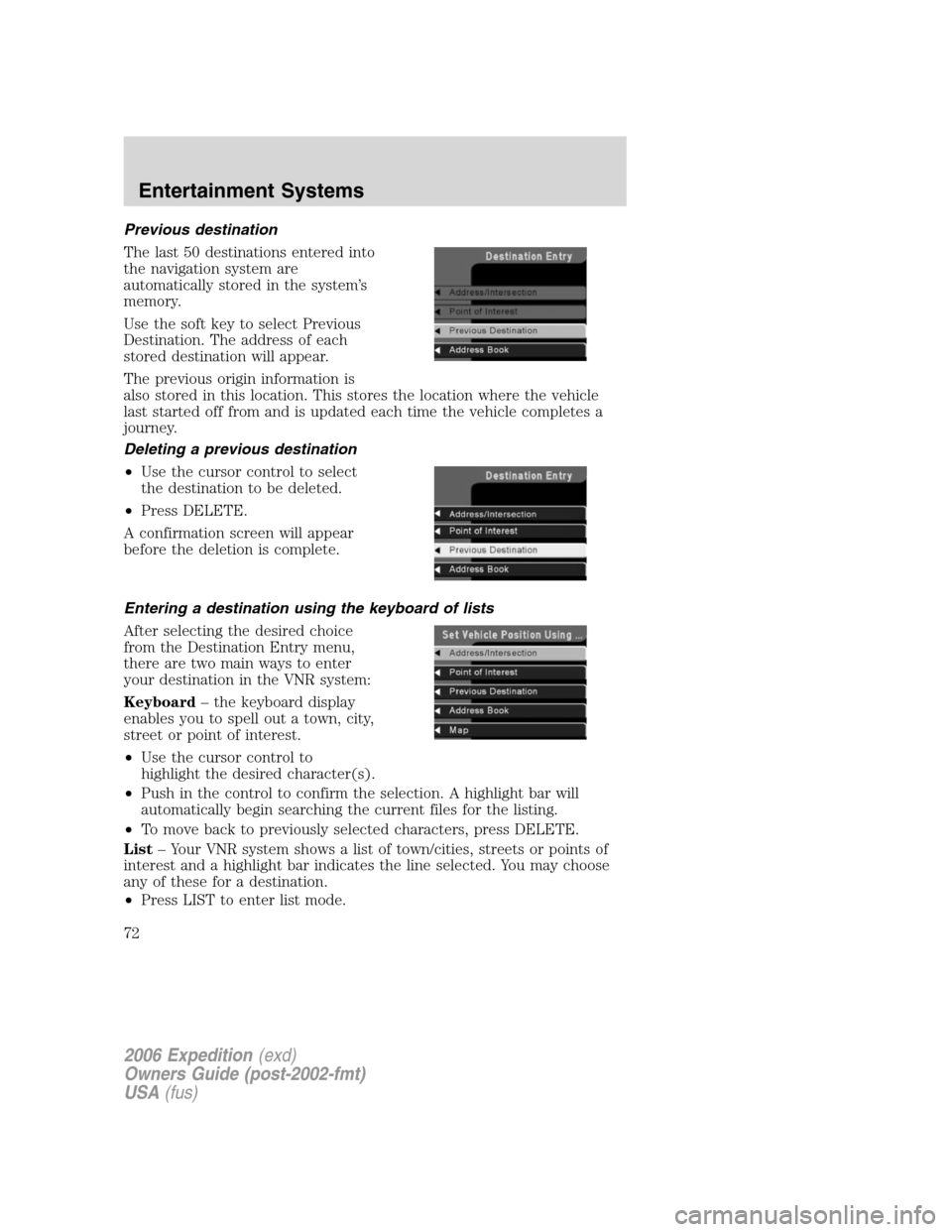
The last 50 destinations entered into
the navigation system are
automatically stored in the system’s
memory.
Use the soft key to select Previous
Destination. The address of each
stored destination will appear.
The previous origin information is
also stored in this location. This stores the location where the vehicle
last started off from and is updated each time the vehicle completes a
journey.
Deleting a previous destination
•Use the cursor control to select
the destination to be deleted.
•Press DELETE.
A confirmation screen will appear
before the deletion is complete.
Entering a destination using the keyboard of lists
After selecting the desired choice
from the Destination Entry menu,
there are two main ways to enter
your destination in the VNR system:
Keyboard– the keyboard display
enables you to spell out a town, city,
street or point of interest.
•Use the cursor control to
highlight the desired character(s).
•Push in the control to confirm the selection. A highlight bar will
automatically begin searching the current files for the listing.
•To move back to previously selected characters, press DELETE.
List– Your VNR system shows a list of town/cities, streets or points of
interest and a highlight bar indicates the line selected. You may choose
any of these for a destination.
•Press LIST to enter list mode.
2006 Expedition(exd)
Owners Guide (post-2002-fmt)
USA(fus)
Entertainment Systems
72
Page 74 of 360
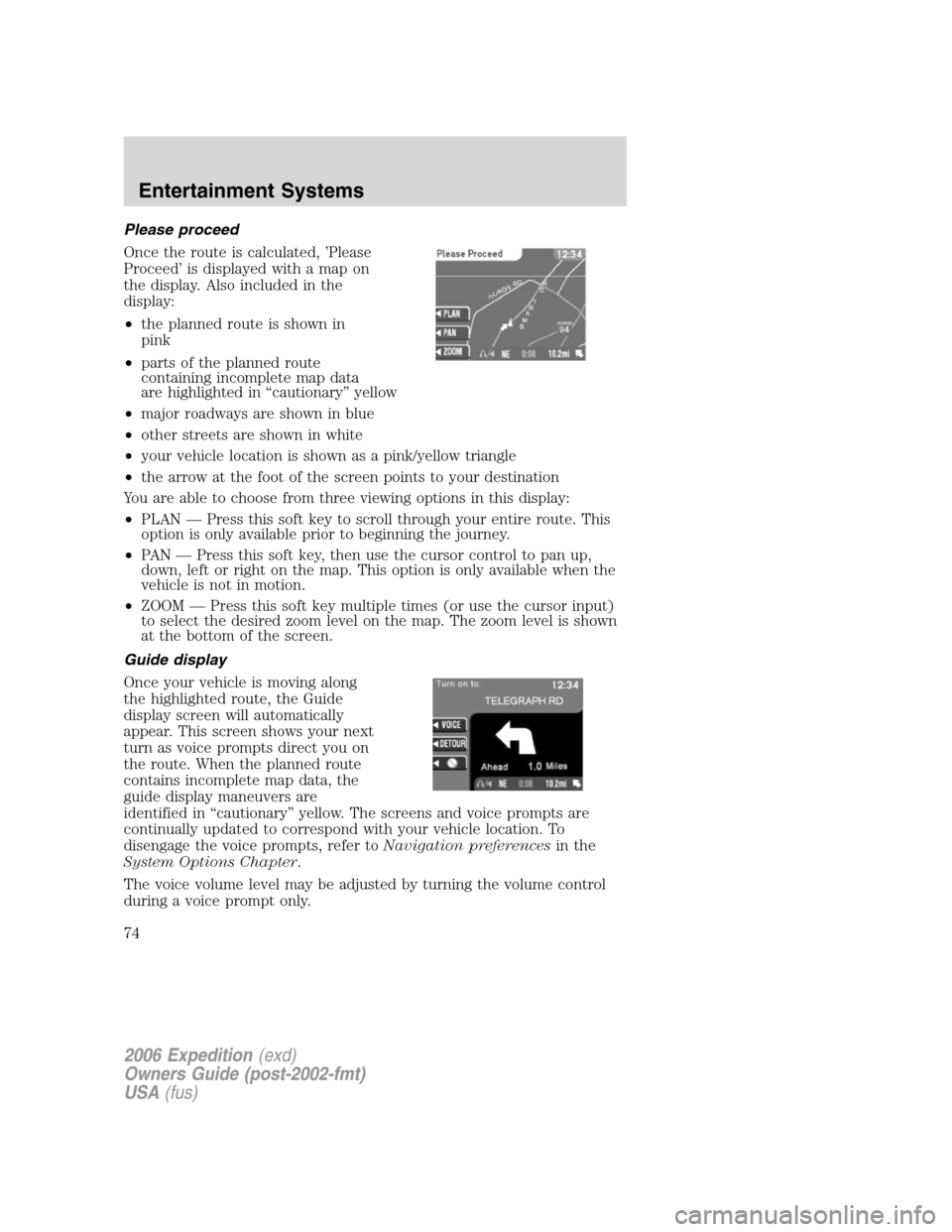
Please proceed
Once the route is calculated, ’Please
Proceed’ is displayed with a map on
the display. Also included in the
display:
•the planned route is shown in
pink
•parts of the planned route
containing incomplete map data
are highlighted in “cautionary” yellow
•major roadways are shown in blue
•other streets are shown in white
•your vehicle location is shown as a pink/yellow triangle
•the arrow at the foot of the screen points to your destination
You are able to choose from three viewing options in this display:
•PLAN — Press this soft key to scroll through your entire route. This
option is only available prior to beginning the journey.
•PAN — Press this soft key, then use the cursor control to pan up,
down, left or right on the map. This option is only available when the
vehicle is not in motion.
•ZOOM — Press this soft key multiple times (or use the cursor input)
to select the desired zoom level on the map. The zoom level is shown
at the bottom of the screen.
Guide display
Once your vehicle is moving along
the highlighted route, the Guide
display screen will automatically
appear. This screen shows your next
turn as voice prompts direct you on
the route. When the planned route
contains incomplete map data, the
guide display maneuvers are
identified in “cautionary” yellow. The screens and voice prompts are
continually updated to correspond with your vehicle location. To
disengage the voice prompts, refer toNavigation preferencesin the
System Options Chapter.
The voice volume level may be adjusted by turning the volume control
during a voice prompt only.
2006 Expedition(exd)
Owners Guide (post-2002-fmt)
USA(fus)
Entertainment Systems
74
Page 78 of 360
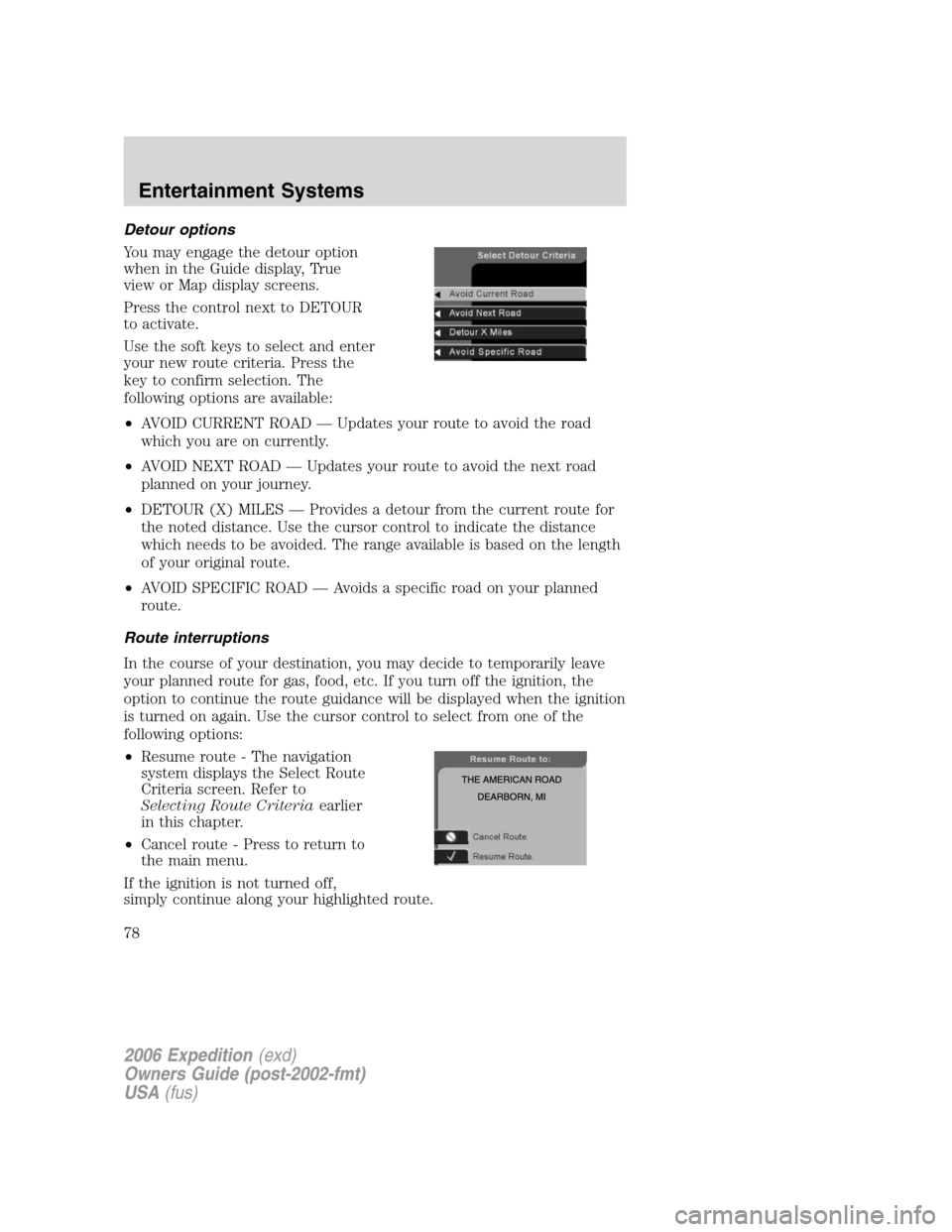
Detour options
You may engage the detour option
when in the Guide display, True
view or Map display screens.
Press the control next to DETOUR
to activate.
Use the soft keys to select and enter
your new route criteria. Press the
key to confirm selection. The
following options are available:
•AVOID CURRENT ROAD — Updates your route to avoid the road
which you are on currently.
•AVOID NEXT ROAD — Updates your route to avoid the next road
planned on your journey.
•DETOUR (X) MILES — Provides a detour from the current route for
the noted distance. Use the cursor control to indicate the distance
which needs to be avoided. The range available is based on the length
of your original route.
•AVOID SPECIFIC ROAD — Avoids a specific road on your planned
route.
Route interruptions
In the course of your destination, you may decide to temporarily leave
your planned route for gas, food, etc. If you turn off the ignition, the
option to continue the route guidance will be displayed when the ignition
is turned on again. Use the cursor control to select from one of the
following options:
•Resume route - The navigation
system displays the Select Route
Criteria screen. Refer to
Selecting Route Criteriaearlier
in this chapter.
•Cancel route - Press to return to
the main menu.
If the ignition is not turned off,
simply continue along your highlighted route.
2006 Expedition(exd)
Owners Guide (post-2002-fmt)
USA(fus)
Entertainment Systems
78
Page 82 of 360
Map coverage
Please refer to theNavigation System Quick Start Guidefor individual
map CD content details.
CDs contain map data for all of the continental United States and parts
of Canada. In some less populated areas, even though a map is displayed,
map data may be incomplete (does not contain one-way street
information, turn restrictions, speed limits, etc.) In these cases, the
system will alert the driver and route guidance directions on the display
are highlighted in “cautionary” yellow.
Ordering additional map CDs
If you wish to order additional maps, or report possible problems with
your current map CD, please callNAVTEQ at 1–(888) NAV-MAPS,
(1–888–628–6277) toll-free or write
NAVTEQ
P.O. Box 543442
Chicago, IL 60654–0442
Website — www.navteq.com
Latest map CDs
The traffic network is constantly changing due to new roads, traffic
restrictions, etc. Therefore, it is not always possible to exactly match the
digital CD map with the current roadways. To help with accuracy, always
use the latest version of the map CD for navigation.
2006 Expedition(exd)
Owners Guide (post-2002-fmt)
USA(fus)
Entertainment Systems
82
Page 88 of 360
Will work in all modes except defrost. In automatic operation, the
recirculated air operates automatically as necessary to achieve the
selected temperature.
3.Passenger side temperature
control:Press to engage the dual
zone feature of the DATC system.
Allows the passenger to choose and
control a different temperature than the driver, if desired.
4.
Passenger heated seat:Press to turn on the passenger side
heated seat. Press once for full heat (three lights above passenger
heated seat control will be illuminated). Press a second time to select
medium heat (two lights). Press a third time to select low heat (one
light). Press a fourth time to disengage the feature (all lights will be off).
Note:The passenger heated seat will turn off automatically after 15
minutes of use.
5.
R(Rear defroster):Press to defrost the rear window. Refer to
theRear window defrostersection in this chapter for more information.
6.
Passenger cooled seat:Press to turn on the passenger side
cooled seat. Press once for full cool (three lights above passenger cooled
seat control will be illuminated). Press a second time to select medium
cool (two lights). Press a third time to select low cool (one light). Press
a fourth time to disengage the feature (all lights will be off).Note:The
passenger cooled seat will turn off automatically after 30 minutes of use.
7.
(Defrost):Distributes outside air through the windshield
defroster ducts and the demister outlets. Can be used to clear ice or fog
from the windshield. The system will automatically provide outside air to
reduce window fogging.
8.
Airflow direction control:Press to toggle through the air
distribution modes listed below. The selected mode will illuminate in the
display.
:Distributes air through the windshield defroster ducts, demister
outlets and the front and rear seat floor ducts. The system will
automatically provide outside air to reduce window fogging.
:Distributes air through the floor and rear seat floor ducts. The
system will automatically provide outside air to reduce window fogging.
:Distributes air through the instrument panel registers and the front
and rear seat floor ducts.
:Distributes air through the instrument panel registers.
2006 Expedition(exd)
Owners Guide (post-2002-fmt)
USA(fus)
Climate Controls
88
Page 89 of 360
9.OFF:Outside air is shut out and
the fan will not operate.
10.Manual override controls:Allows you to manually select where
airflow is directed. To return to full automatic control, press AUTO.
11.AUTO:Press to engage
automatic temperature control. Use
the temperature control to select
the desired temperature setting. The system will automatically determine
fan speed, airflow location, A/C on or off, and outside or recirculated air
to heat or cool the vehicle, allowing it to reach the desired temperature.
Press and hold AUTO for about two seconds to toggle between single
zone and dual zone temperature control.
12.
Driver heated seat:Press to turn on the driver side heated
seat. Press once for full heat (three lights above driver heated seat
control will be illuminated). Press a second time to select medium heat
(two lights). Press a third time to select low heat (one light). Press a
fourth time to disengage the feature (all lights will be off).Note:The
driver heated seat will turn off automatically after 15 minutes of use.
13.
Driver cooled seat:Press to turn on the driver side cooled seat.
Press once for full cool (three lights above driver cooled seat control will
be illuminated). Press a second time to select medium cool (two lights).
Press a third time to select low cool (one light). Press a fourth time to
disengage the feature (all lights will be off).Note:The driver cooled
seat will turn off automatically after 30 minutes of use.
14.Driver’s side temperature
control:Controls the temperature
on the driver side of the vehicle in
dual zone and controls the
temperature of both the driver and passenger sides in single zone.
15.Fan Speed:Press to manually
increase/decrease fan speed. In
manual mode, the display will
show
with a bar graph to
indicate fan speed. Fan speed can be manually adjusted in AUTO mode.
To allow the system to automatically control fan speed, press AUTO.
OFF
AUTO
2006 Expedition(exd)
Owners Guide (post-2002-fmt)
USA(fus)
Climate Controls
89
Page 93 of 360
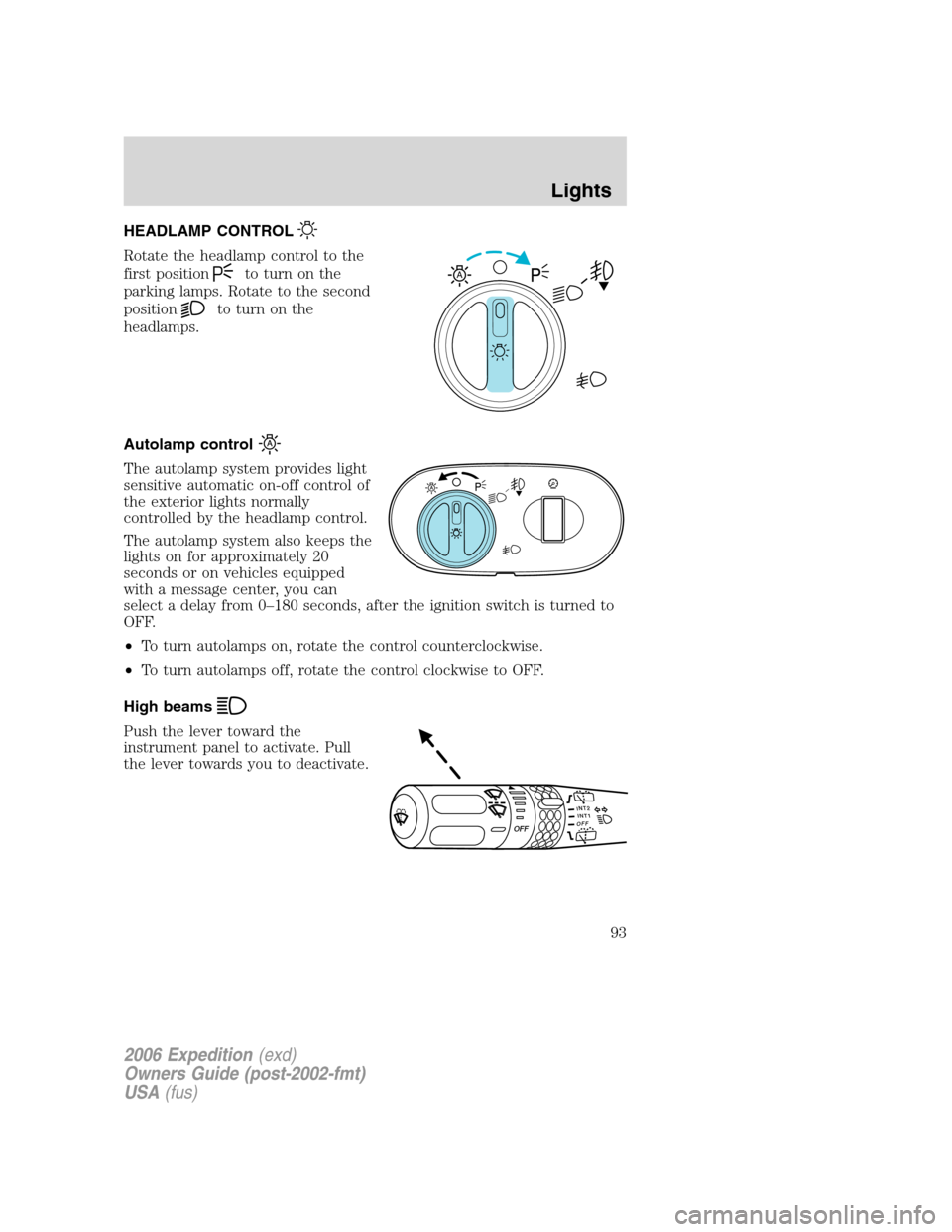
HEADLAMP CONTROL
Rotate the headlamp control to the
first position
to turn on the
parking lamps. Rotate to the second
position
to turn on the
headlamps.
Autolamp control
The autolamp system provides light
sensitive automatic on-off control of
the exterior lights normally
controlled by the headlamp control.
The autolamp system also keeps the
lights on for approximately 20
seconds or on vehicles equipped
with a message center, you can
select a delay from 0–180 seconds, after the ignition switch is turned to
OFF.
•To turn autolamps on, rotate the control counterclockwise.
•To turn autolamps off, rotate the control clockwise to OFF.
High beams
Push the lever toward the
instrument panel to activate. Pull
the lever towards you to deactivate.
A
INT2OFFOFFINT1
2006 Expedition(exd)
Owners Guide (post-2002-fmt)
USA(fus)
Lights
93