language FORD EXPEDITION 2014 3.G User Guide
[x] Cancel search | Manufacturer: FORD, Model Year: 2014, Model line: EXPEDITION, Model: FORD EXPEDITION 2014 3.GPages: 519, PDF Size: 6.9 MB
Page 399 of 519
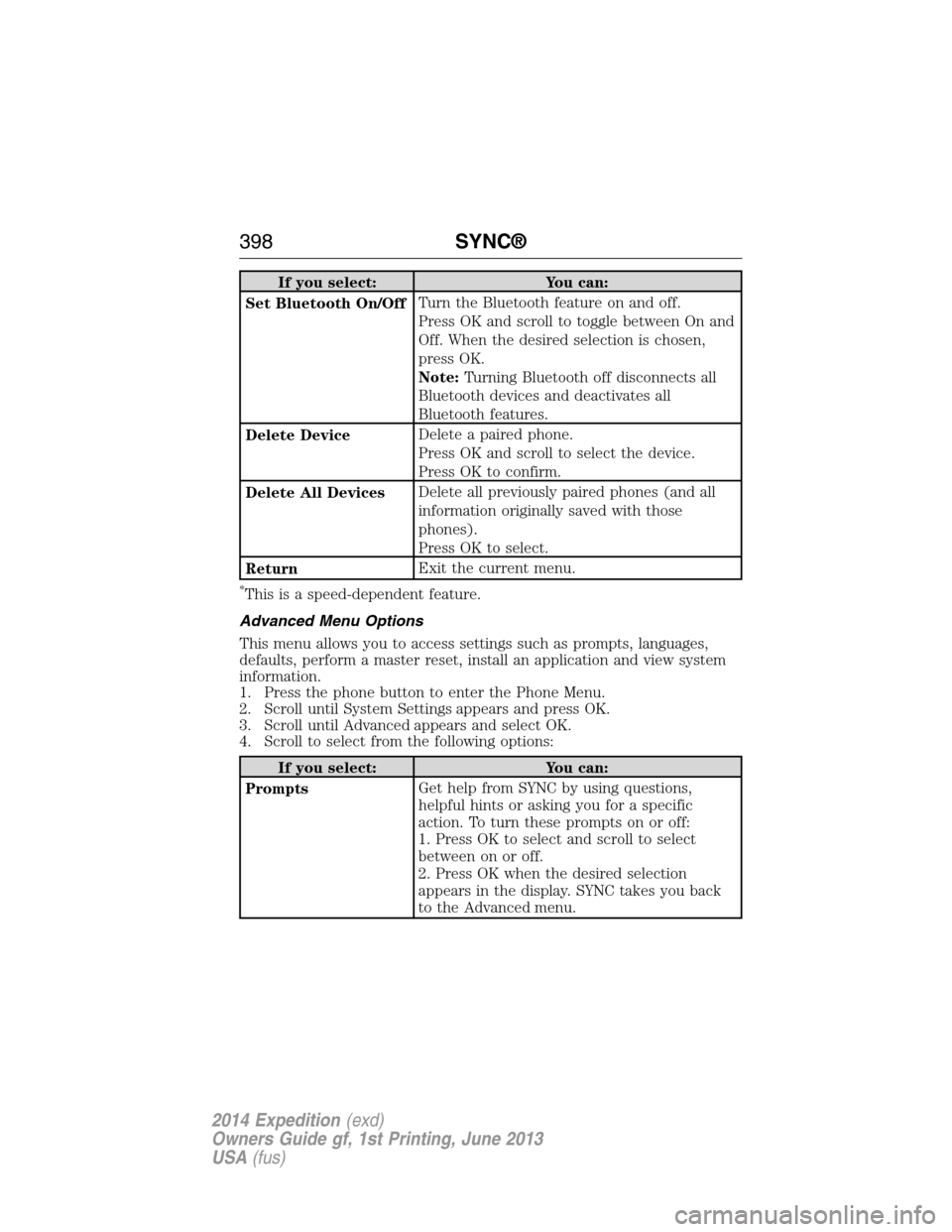
If you select: You can:
Set Bluetooth On/OffTurn the Bluetooth feature on and off.
Press OK and scroll to toggle between On and
Off. When the desired selection is chosen,
press OK.
Note:Turning Bluetooth off disconnects all
Bluetooth devices and deactivates all
Bluetooth features.
Delete DeviceDelete a paired phone.
Press OK and scroll to select the device.
Press OK to confirm.
Delete All DevicesDelete all previously paired phones (and all
information originally saved with those
phones).
Press OK to select.
ReturnExit the current menu.
*This is a speed-dependent feature.
Advanced Menu Options
This menu allows you to access settings such as prompts, languages,
defaults, perform a master reset, install an application and view system
information.
1. Press the phone button to enter the Phone Menu.
2. Scroll until System Settings appears and press OK.
3. Scroll until Advanced appears and select OK.
4. Scroll to select from the following options:
If you select: You can:
PromptsGet help from SYNC by using questions,
helpful hints or asking you for a specific
action. To turn these prompts on or off:
1. Press OK to select and scroll to select
between on or off.
2. Press OK when the desired selection
appears in the display. SYNC takes you back
to the Advanced menu.
398SYNC®
2014 Expedition(exd)
Owners Guide gf, 1st Printing, June 2013
USA(fus)
Page 400 of 519
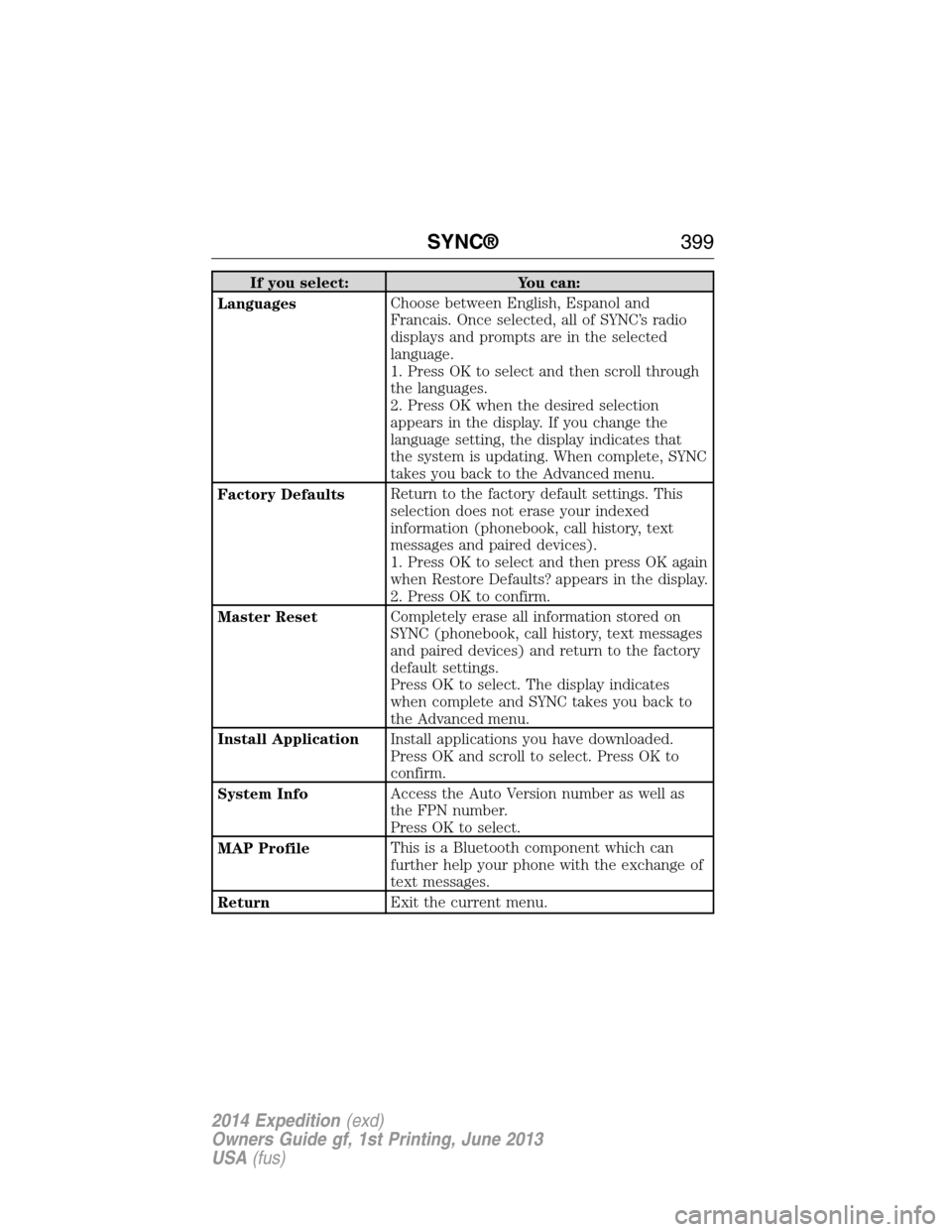
If you select: You can:
LanguagesChoose between English, Espanol and
Francais. Once selected, all of SYNC’s radio
displays and prompts are in the selected
language.
1. Press OK to select and then scroll through
the languages.
2. Press OK when the desired selection
appears in the display. If you change the
language setting, the display indicates that
the system is updating. When complete, SYNC
takes you back to the Advanced menu.
Factory DefaultsReturn to the factory default settings. This
selection does not erase your indexed
information (phonebook, call history, text
messages and paired devices).
1. Press OK to select and then press OK again
when Restore Defaults? appears in the display.
2. Press OK to confirm.
Master ResetCompletely erase all information stored on
SYNC (phonebook, call history, text messages
and paired devices) and return to the factory
default settings.
Press OK to select. The display indicates
when complete and SYNC takes you back to
the Advanced menu.
Install ApplicationInstall applications you have downloaded.
Press OK and scroll to select. Press OK to
confirm.
System InfoAccess the Auto Version number as well as
the FPN number.
Press OK to select.
MAP ProfileThis is a Bluetooth component which can
further help your phone with the exchange of
text messages.
ReturnExit the current menu.
SYNC®399
2014 Expedition(exd)
Owners Guide gf, 1st Printing, June 2013
USA(fus)
Page 415 of 519
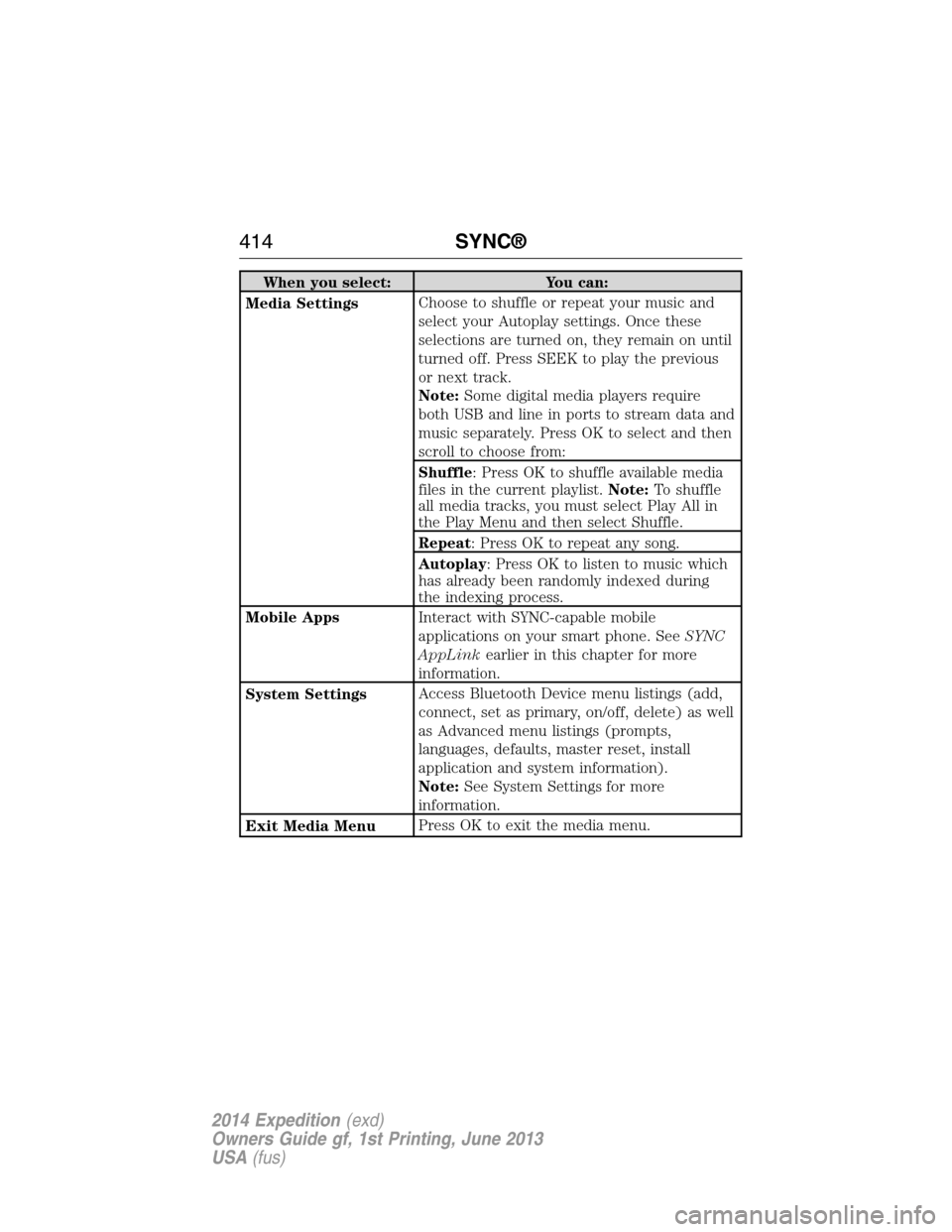
When you select: You can:
Media SettingsChoose to shuffle or repeat your music and
select your Autoplay settings. Once these
selections are turned on, they remain on until
turned off. Press SEEK to play the previous
or next track.
Note:Some digital media players require
both USB and line in ports to stream data and
music separately. Press OK to select and then
scroll to choose from:
Shuffle: Press OK to shuffle available media
files in the current playlist.Note:To shuffle
all media tracks, you must select Play All in
the Play Menu and then select Shuffle.
Repeat: Press OK to repeat any song.
Autoplay: Press OK to listen to music which
has already been randomly indexed during
the indexing process.
Mobile AppsInteract with SYNC-capable mobile
applications on your smart phone. SeeSYNC
AppLinkearlier in this chapter for more
information.
System SettingsAccess Bluetooth Device menu listings (add,
connect, set as primary, on/off, delete) as well
as Advanced menu listings (prompts,
languages, defaults, master reset, install
application and system information).
Note:See System Settings for more
information.
Exit Media MenuPress OK to exit the media menu.
414SYNC®
2014 Expedition(exd)
Owners Guide gf, 1st Printing, June 2013
USA(fus)
Page 418 of 519
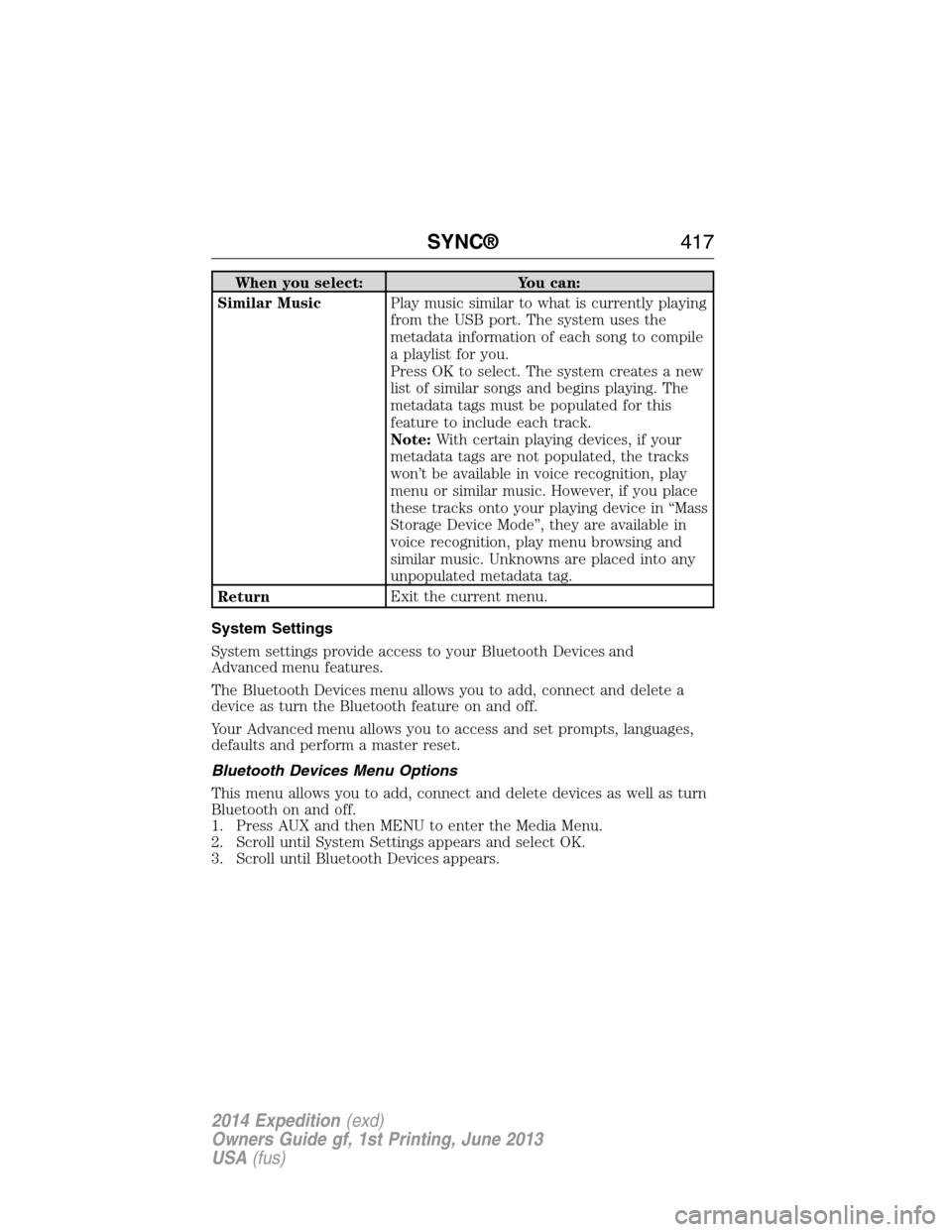
When you select: You can:
Similar MusicPlay music similar to what is currently playing
from the USB port. The system uses the
metadata information of each song to compile
a playlist for you.
Press OK to select. The system creates a new
list of similar songs and begins playing. The
metadata tags must be populated for this
feature to include each track.
Note:With certain playing devices, if your
metadata tags are not populated, the tracks
won’t be available in voice recognition, play
menu or similar music. However, if you place
these tracks onto your playing device in “Mass
Storage Device Mode”, they are available in
voice recognition, play menu browsing and
similar music. Unknowns are placed into any
unpopulated metadata tag.
ReturnExit the current menu.
System Settings
System settings provide access to your Bluetooth Devices and
Advanced menu features.
The Bluetooth Devices menu allows you to add, connect and delete a
device as turn the Bluetooth feature on and off.
Your Advanced menu allows you to access and set prompts, languages,
defaults and perform a master reset.
Bluetooth Devices Menu Options
This menu allows you to add, connect and delete devices as well as turn
Bluetooth on and off.
1. Press AUX and then MENU to enter the Media Menu.
2. Scroll until System Settings appears and select OK.
3. Scroll until Bluetooth Devices appears.
SYNC®417
2014 Expedition(exd)
Owners Guide gf, 1st Printing, June 2013
USA(fus)
Page 419 of 519
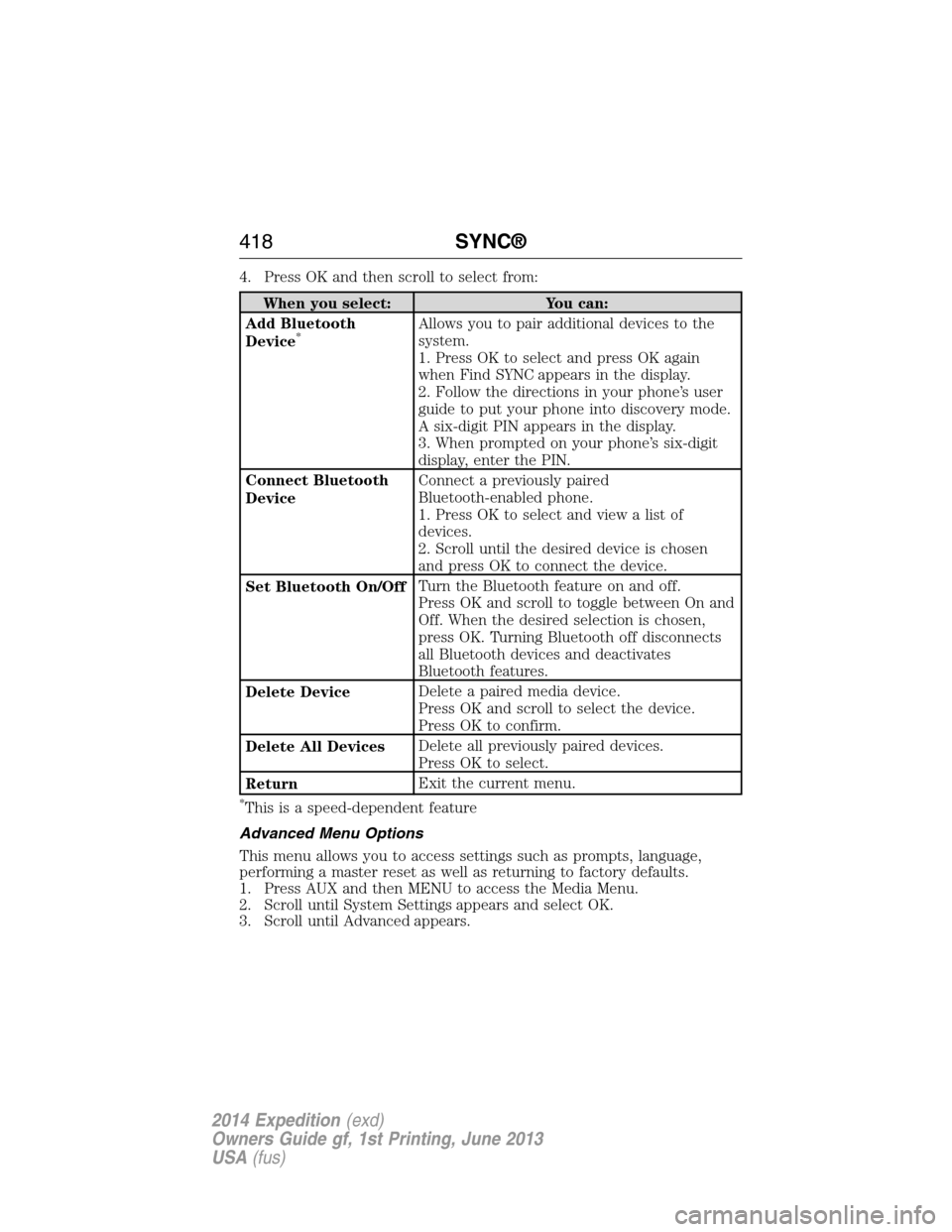
4. Press OK and then scroll to select from:
When you select: You can:
Add Bluetooth
Device
*Allows you to pair additional devices to the
system.
1. Press OK to select and press OK again
when Find SYNC appears in the display.
2. Follow the directions in your phone’s user
guide to put your phone into discovery mode.
A six-digit PIN appears in the display.
3. When prompted on your phone’s six-digit
display, enter the PIN.
Connect Bluetooth
DeviceConnect a previously paired
Bluetooth-enabled phone.
1. Press OK to select and view a list of
devices.
2. Scroll until the desired device is chosen
and press OK to connect the device.
Set Bluetooth On/OffTurn the Bluetooth feature on and off.
Press OK and scroll to toggle between On and
Off. When the desired selection is chosen,
press OK. Turning Bluetooth off disconnects
all Bluetooth devices and deactivates
Bluetooth features.
Delete DeviceDelete a paired media device.
Press OK and scroll to select the device.
Press OK to confirm.
Delete All DevicesDelete all previously paired devices.
Press OK to select.
ReturnExit the current menu.
*This is a speed-dependent feature
Advanced Menu Options
This menu allows you to access settings such as prompts, language,
performing a master reset as well as returning to factory defaults.
1. Press AUX and then MENU to access the Media Menu.
2. Scroll until System Settings appears and select OK.
3. Scroll until Advanced appears.
418SYNC®
2014 Expedition(exd)
Owners Guide gf, 1st Printing, June 2013
USA(fus)
Page 420 of 519
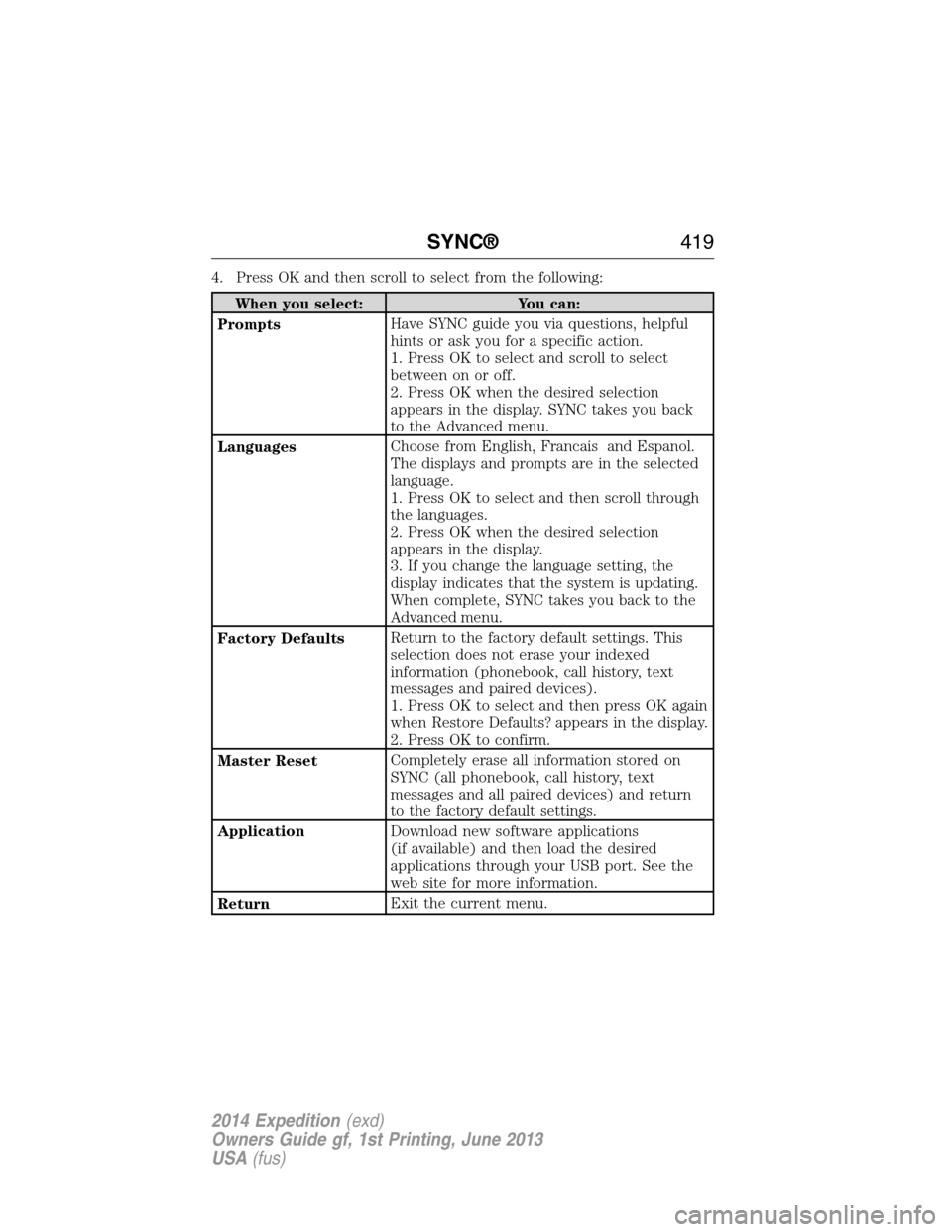
4. Press OK and then scroll to select from the following:
When you select: You can:
PromptsHave SYNC guide you via questions, helpful
hints or ask you for a specific action.
1. Press OK to select and scroll to select
between on or off.
2. Press OK when the desired selection
appears in the display. SYNC takes you back
to the Advanced menu.
LanguagesChoose from English, Francais and Espanol.
The displays and prompts are in the selected
language.
1. Press OK to select and then scroll through
the languages.
2. Press OK when the desired selection
appears in the display.
3. If you change the language setting, the
display indicates that the system is updating.
When complete, SYNC takes you back to the
Advanced menu.
Factory DefaultsReturn to the factory default settings. This
selection does not erase your indexed
information (phonebook, call history, text
messages and paired devices).
1. Press OK to select and then press OK again
when Restore Defaults? appears in the display.
2. Press OK to confirm.
Master ResetCompletely erase all information stored on
SYNC (all phonebook, call history, text
messages and all paired devices) and return
to the factory default settings.
ApplicationDownload new software applications
(if available) and then load the desired
applications through your USB port. See the
web site for more information.
ReturnExit the current menu.
SYNC®419
2014 Expedition(exd)
Owners Guide gf, 1st Printing, June 2013
USA(fus)
Page 434 of 519
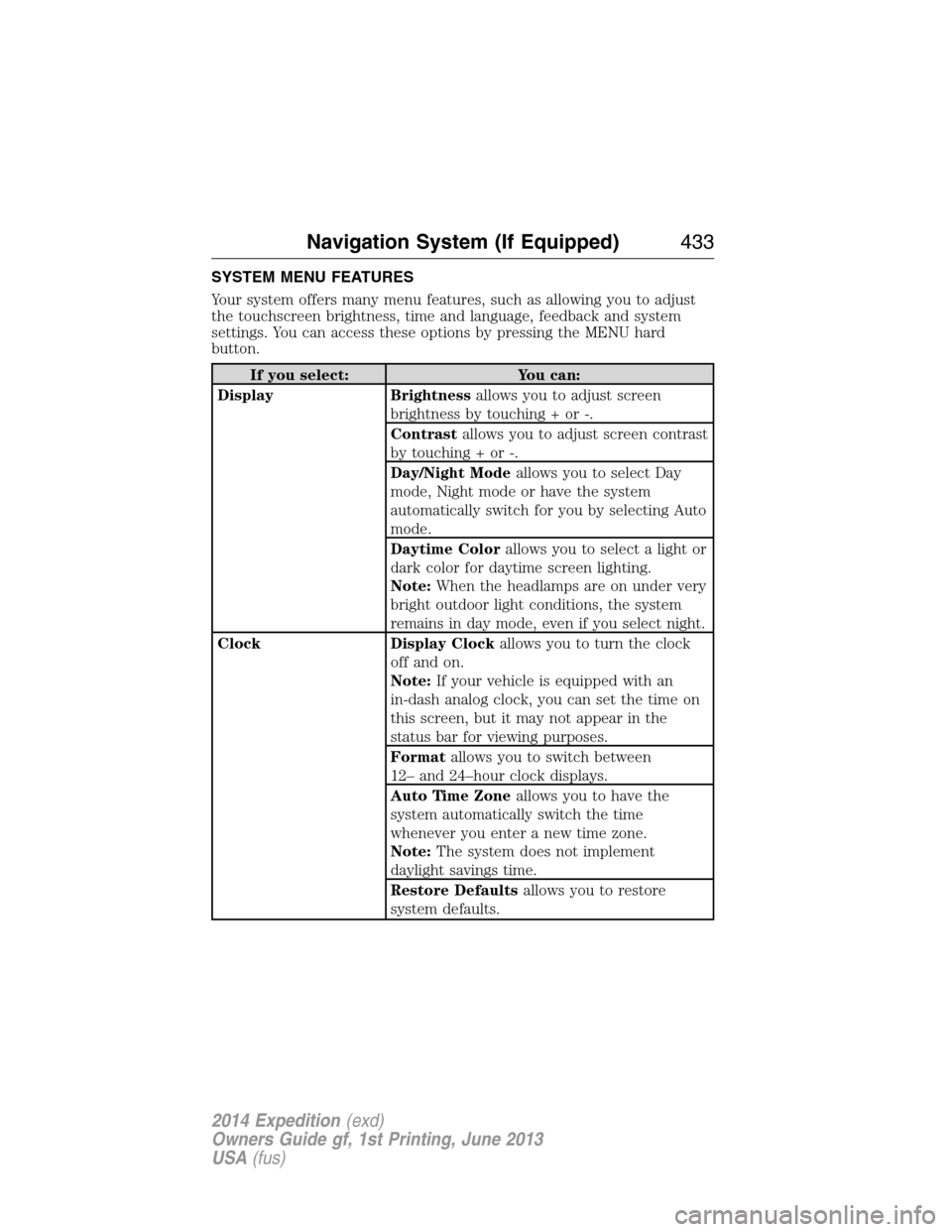
SYSTEM MENU FEATURES
Your system offers many menu features, such as allowing you to adjust
the touchscreen brightness, time and language, feedback and system
settings. You can access these options by pressing the MENU hard
button.
If you select: You can:
Display Brightnessallows you to adjust screen
brightness by touching + or -.
Contrastallows you to adjust screen contrast
by touching + or -.
Day/Night Modeallows you to select Day
mode, Night mode or have the system
automatically switch for you by selecting Auto
mode.
Daytime Colorallows you to select a light or
dark color for daytime screen lighting.
Note:When the headlamps are on under very
bright outdoor light conditions, the system
remains in day mode, even if you select night.
Clock Display Clockallows you to turn the clock
off and on.
Note:If your vehicle is equipped with an
in-dash analog clock, you can set the time on
this screen, but it may not appear in the
status bar for viewing purposes.
Formatallows you to switch between
12– and 24–hour clock displays.
Auto Time Zoneallows you to have the
system automatically switch the time
whenever you enter a new time zone.
Note:The system does not implement
daylight savings time.
Restore Defaultsallows you to restore
system defaults.
Navigation System (If Equipped)433
2014 Expedition(exd)
Owners Guide gf, 1st Printing, June 2013
USA(fus)
Page 436 of 519
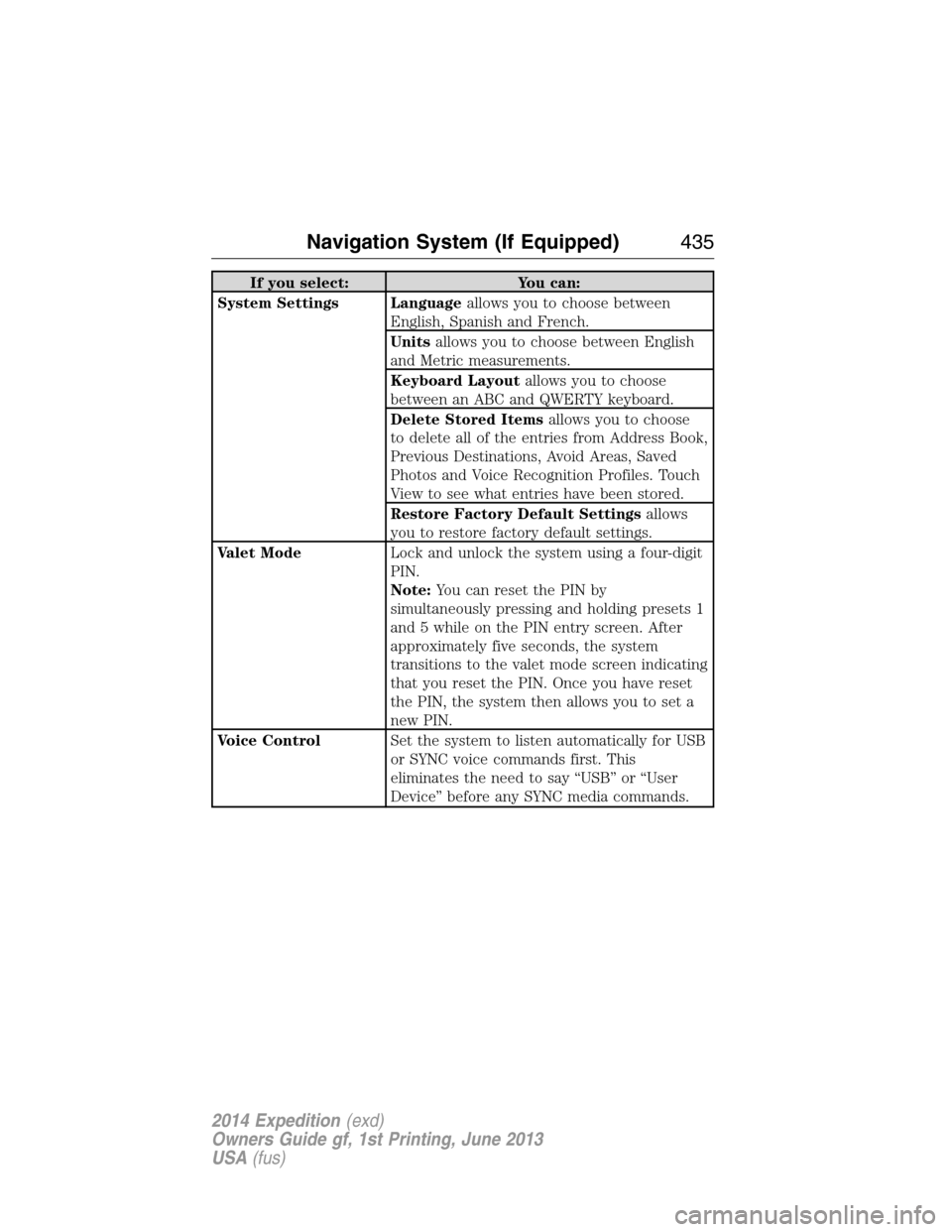
If you select: You can:
System Settings Languageallows you to choose between
English, Spanish and French.
Unitsallows you to choose between English
and Metric measurements.
Keyboard Layoutallows you to choose
between an ABC and QWERTY keyboard.
Delete Stored Itemsallows you to choose
to delete all of the entries from Address Book,
Previous Destinations, Avoid Areas, Saved
Photos and Voice Recognition Profiles. Touch
View to see what entries have been stored.
Restore Factory Default Settingsallows
you to restore factory default settings.
Valet ModeLock and unlock the system using a four-digit
PIN.
Note:You can reset the PIN by
simultaneously pressing and holding presets 1
and 5 while on the PIN entry screen. After
approximately five seconds, the system
transitions to the valet mode screen indicating
that you reset the PIN. Once you have reset
the PIN, the system then allows you to set a
new PIN.
Voice ControlSet the system to listen automatically for USB
or SYNC voice commands first. This
eliminates the need to say “USB” or “User
Device” before any SYNC media commands.
Navigation System (If Equipped)435
2014 Expedition(exd)
Owners Guide gf, 1st Printing, June 2013
USA(fus)
Page 452 of 519
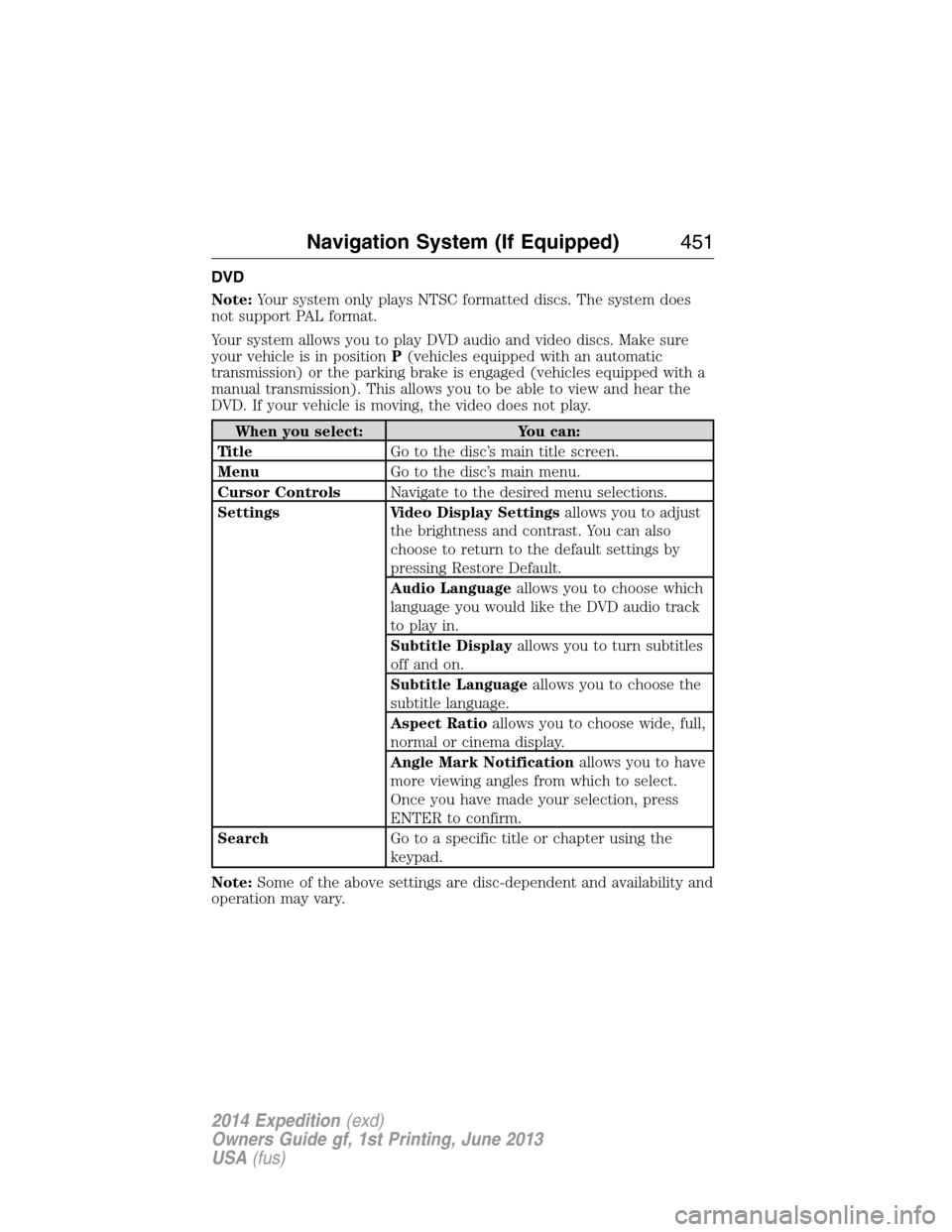
DVD
Note:Your system only plays NTSC formatted discs. The system does
not support PAL format.
Your system allows you to play DVD audio and video discs. Make sure
your vehicle is in positionP(vehicles equipped with an automatic
transmission) or the parking brake is engaged (vehicles equipped with a
manual transmission). This allows you to be able to view and hear the
DVD. If your vehicle is moving, the video does not play.
When you select: You can:
Ti t l eGo to the disc’s main title screen.
MenuGo to the disc’s main menu.
Cursor ControlsNavigate to the desired menu selections.
Settings Video Display Settingsallows you to adjust
the brightness and contrast. You can also
choose to return to the default settings by
pressing Restore Default.
Audio Languageallows you to choose which
language you would like the DVD audio track
to play in.
Subtitle Displayallows you to turn subtitles
off and on.
Subtitle Languageallows you to choose the
subtitle language.
Aspect Ratioallows you to choose wide, full,
normal or cinema display.
Angle Mark Notificationallows you to have
more viewing angles from which to select.
Once you have made your selection, press
ENTER to confirm.
SearchGo to a specific title or chapter using the
keypad.
Note:Some of the above settings are disc-dependent and availability and
operation may vary.
Navigation System (If Equipped)451
2014 Expedition(exd)
Owners Guide gf, 1st Printing, June 2013
USA(fus)
Page 471 of 519
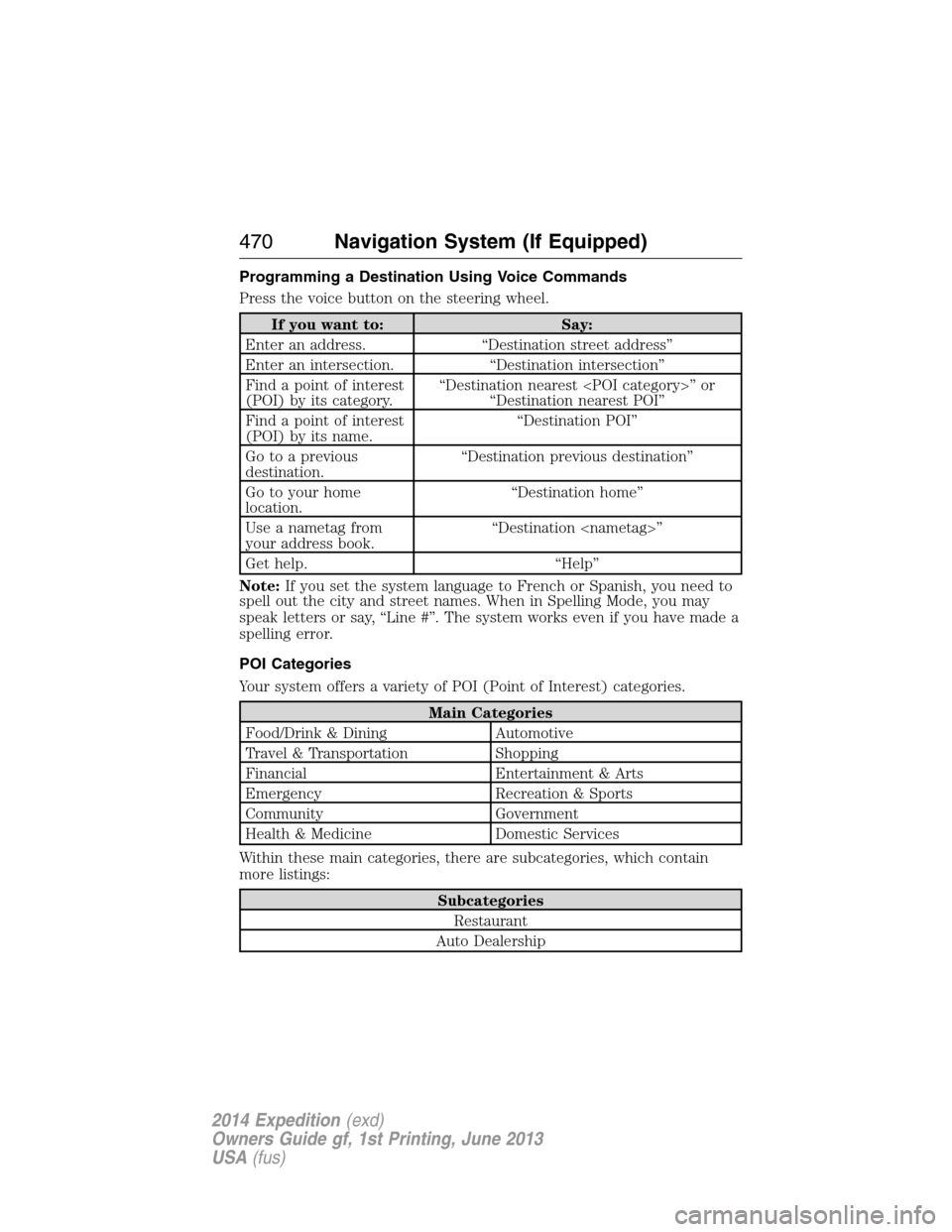
Programming a Destination Using Voice Commands
Press the voice button on the steering wheel.
If you want to: Say:
Enter an address. “Destination street address”
Enter an intersection. “Destination intersection”
Find a point of interest
(POI) by its category.“Destination nearest
“Destination nearest POI”
Find a point of interest
(POI) by its name.“Destination POI”
Go to a previous
destination.“Destination previous destination”
Go to your home
location.“Destination home”
Use a nametag from
your address book.“Destination
Get help. “Help”
Note:If you set the system language to French or Spanish, you need to
spell out the city and street names. When in Spelling Mode, you may
speak letters or say, “Line #”. The system works even if you have made a
spelling error.
POI Categories
Your system offers a variety of POI (Point of Interest) categories.
Main Categories
Food/Drink & Dining Automotive
Travel & Transportation Shopping
Financial Entertainment & Arts
Emergency Recreation & Sports
Community Government
Health & Medicine Domestic Services
Within these main categories, there are subcategories, which contain
more listings:
Subcategories
Restaurant
Auto Dealership
470Navigation System (If Equipped)
2014 Expedition(exd)
Owners Guide gf, 1st Printing, June 2013
USA(fus)