date setting FORD EXPEDITION 2017 3.G Owners Manual
[x] Cancel search | Manufacturer: FORD, Model Year: 2017, Model line: EXPEDITION, Model: FORD EXPEDITION 2017 3.GPages: 500, PDF Size: 4.83 MB
Page 429 of 500
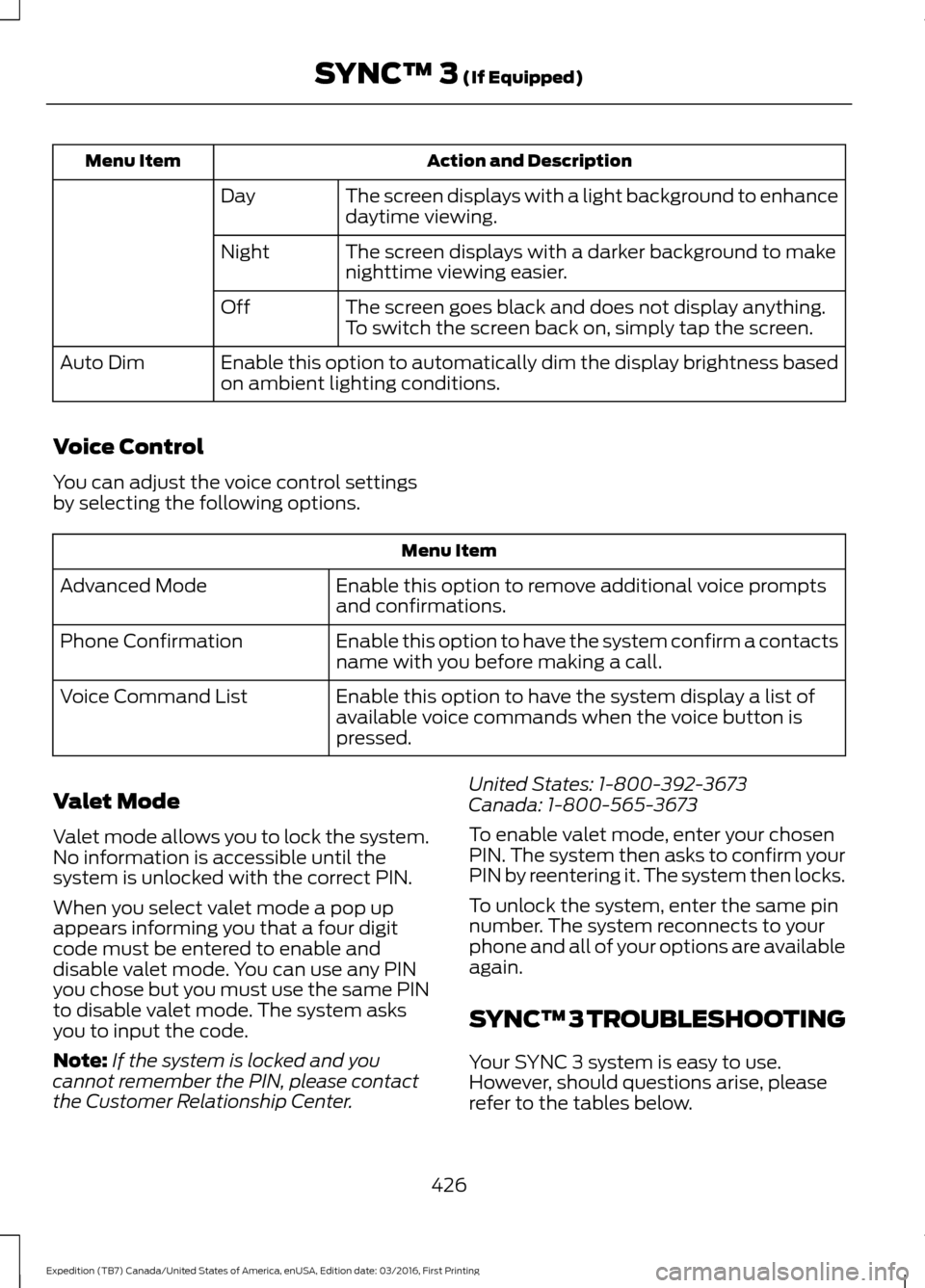
Action and Description
Menu Item
The screen displays with a light background to enhance
daytime viewing.
Day
The screen displays with a darker background to make
nighttime viewing easier.
Night
The screen goes black and does not display anything.
To switch the screen back on, simply tap the screen.
Off
Enable this option to automatically dim the display brightness based
on ambient lighting conditions.
Auto Dim
Voice Control
You can adjust the voice control settings
by selecting the following options. Menu Item
Enable this option to remove additional voice prompts
and confirmations.
Advanced Mode
Enable this option to have the system confirm a contacts
name with you before making a call.
Phone Confirmation
Enable this option to have the system display a list of
available voice commands when the voice button is
pressed.
Voice Command List
Valet Mode
Valet mode allows you to lock the system.
No information is accessible until the
system is unlocked with the correct PIN.
When you select valet mode a pop up
appears informing you that a four digit
code must be entered to enable and
disable valet mode. You can use any PIN
you chose but you must use the same PIN
to disable valet mode. The system asks
you to input the code.
Note: If the system is locked and you
cannot remember the PIN, please contact
the Customer Relationship Center. United States: 1-800-392-3673
Canada: 1-800-565-3673
To enable valet mode, enter your chosen
PIN. The system then asks to confirm your
PIN by reentering it. The system then locks.
To unlock the system, enter the same pin
number. The system reconnects to your
phone and all of your options are available
again.
SYNC™ 3 TROUBLESHOOTING
Your SYNC 3 system is easy to use.
However, should questions arise, please
refer to the tables below.
426
Expedition (TB7) Canada/United States of America, enUSA, Edition date: 03/2016, First Printing SYNC™ 3 (If Equipped)
Page 430 of 500
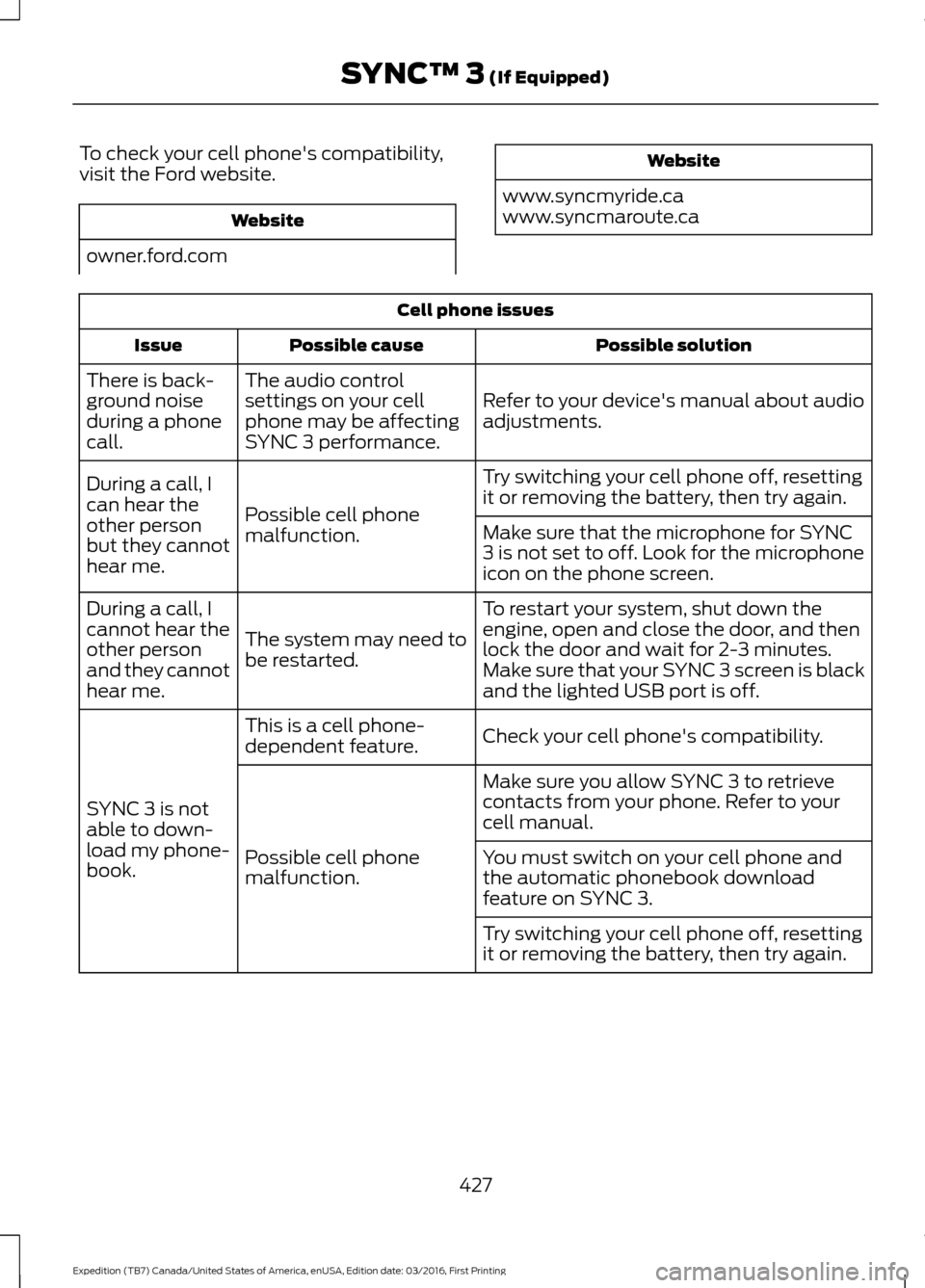
To check your cell phone's compatibility,
visit the Ford website.
Website
owner.ford.com Website
www.syncmyride.ca
www.syncmaroute.ca Cell phone issues
Possible solution
Possible cause
Issue
Refer to your device's manual about audio
adjustments.
The audio control
settings on your cell
phone may be affecting
SYNC 3 performance.
There is back-
ground noise
during a phone
call.
Try switching your cell phone off, resetting
it or removing the battery, then try again.
Possible cell phone
malfunction.
During a call, I
can hear the
other person
but they cannot
hear me.
Make sure that the microphone for SYNC
3 is not set to off. Look for the microphone
icon on the phone screen.
To restart your system, shut down the
engine, open and close the door, and then
lock the door and wait for 2-3 minutes.
Make sure that your SYNC 3 screen is black
and the lighted USB port is off.
The system may need to
be restarted.
During a call, I
cannot hear the
other person
and they cannot
hear me.
Check your cell phone's compatibility.
This is a cell phone-
dependent feature.
SYNC 3 is not
able to down-
load my phone-
book. Make sure you allow SYNC 3 to retrieve
contacts from your phone. Refer to your
cell manual.
Possible cell phone
malfunction. You must switch on your cell phone and
the automatic phonebook download
feature on SYNC 3.
Try switching your cell phone off, resetting
it or removing the battery, then try again.
427
Expedition (TB7) Canada/United States of America, enUSA, Edition date: 03/2016, First Printing SYNC™ 3 (If Equipped)
Page 431 of 500
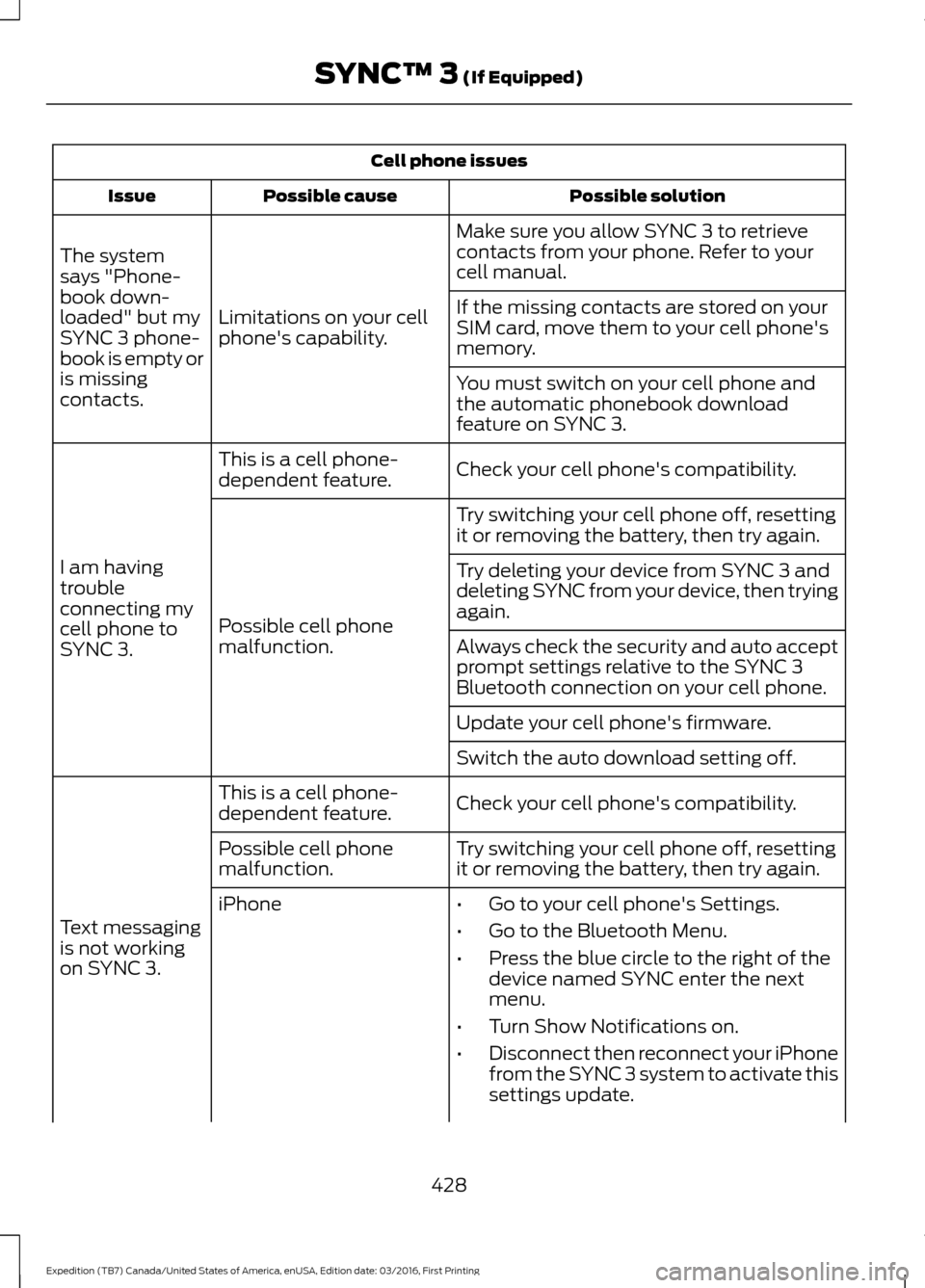
Cell phone issues
Possible solution
Possible cause
Issue
Make sure you allow SYNC 3 to retrieve
contacts from your phone. Refer to your
cell manual.
Limitations on your cell
phone's capability.
The system
says "Phone-
book down-
loaded" but my
SYNC 3 phone-
book is empty or
is missing
contacts. If the missing contacts are stored on your
SIM card, move them to your cell phone's
memory.
You must switch on your cell phone and
the automatic phonebook download
feature on SYNC 3.
Check your cell phone's compatibility.
This is a cell phone-
dependent feature.
I am having
trouble
connecting my
cell phone to
SYNC 3. Try switching your cell phone off, resetting
it or removing the battery, then try again.
Possible cell phone
malfunction. Try deleting your device from SYNC 3 and
deleting SYNC from your device, then trying
again.
Always check the security and auto accept
prompt settings relative to the SYNC 3
Bluetooth connection on your cell phone.
Update your cell phone's firmware.
Switch the auto download setting off.
Check your cell phone's compatibility.
This is a cell phone-
dependent feature.
Text messaging
is not working
on SYNC 3. Try switching your cell phone off, resetting
it or removing the battery, then try again.
Possible cell phone
malfunction.
iPhone
•Go to your cell phone's Settings.
• Go to the Bluetooth Menu.
• Press the blue circle to the right of the
device named SYNC enter the next
menu.
• Turn Show Notifications on.
• Disconnect then reconnect your iPhone
from the SYNC 3 system to activate this
settings update.
428
Expedition (TB7) Canada/United States of America, enUSA, Edition date: 03/2016, First Printing SYNC™ 3 (If Equipped)
Page 432 of 500
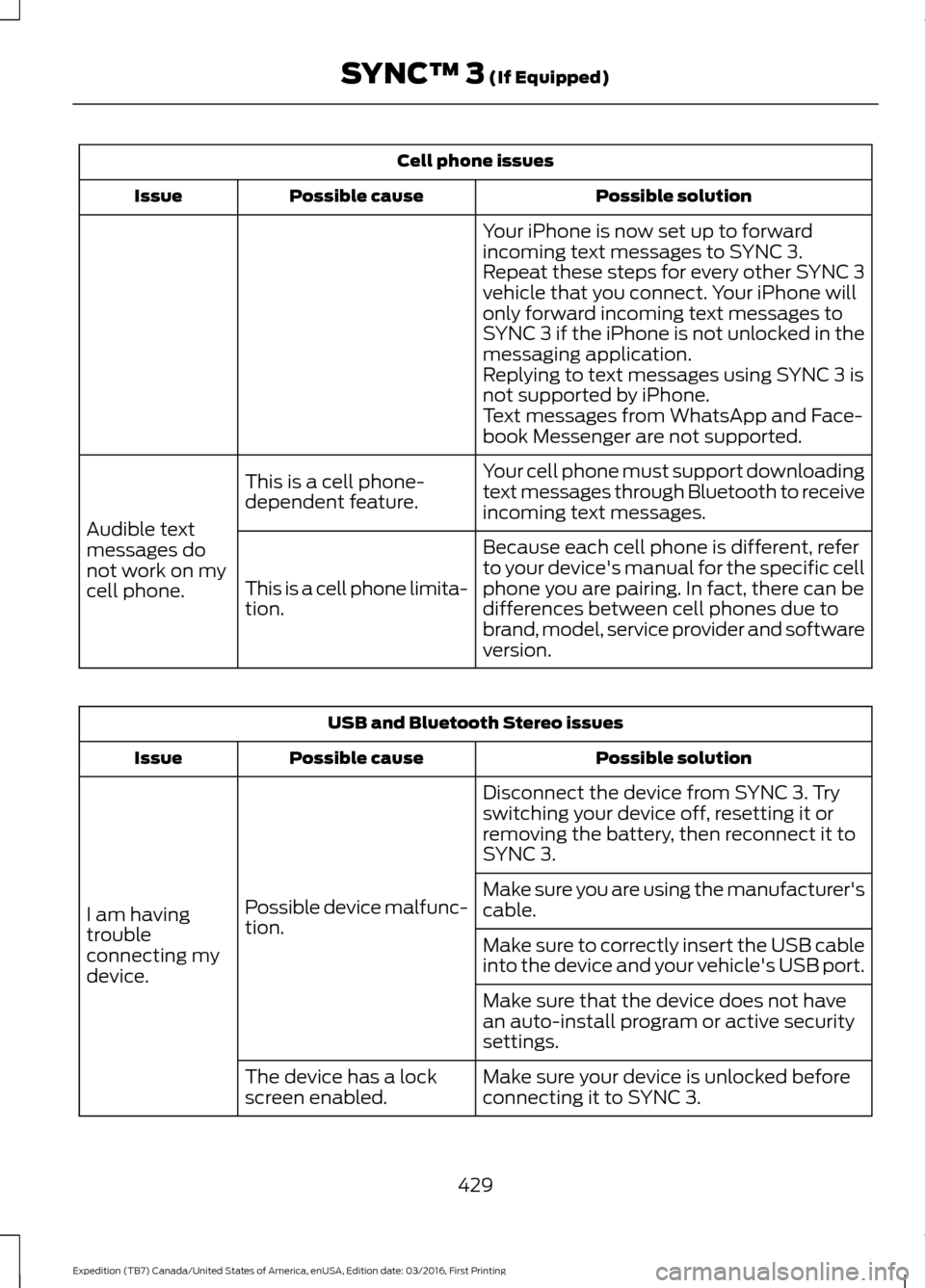
Cell phone issues
Possible solution
Possible cause
Issue
Your iPhone is now set up to forward
incoming text messages to SYNC 3.
Repeat these steps for every other SYNC 3
vehicle that you connect. Your iPhone will
only forward incoming text messages to
SYNC 3 if the iPhone is not unlocked in the
messaging application.
Replying to text messages using SYNC 3 is
not supported by iPhone.
Text messages from WhatsApp and Face-
book Messenger are not supported.
Your cell phone must support downloading
text messages through Bluetooth to receive
incoming text messages.
This is a cell phone-
dependent feature.
Audible text
messages do
not work on my
cell phone. Because each cell phone is different, refer
to your device's manual for the specific cell
phone you are pairing. In fact, there can be
differences between cell phones due to
brand, model, service provider and software
version.
This is a cell phone limita-
tion. USB and Bluetooth Stereo issues
Possible solution
Possible cause
Issue
Disconnect the device from SYNC 3. Try
switching your device off, resetting it or
removing the battery, then reconnect it to
SYNC 3.
Possible device malfunc-
tion.
I am having
trouble
connecting my
device. Make sure you are using the manufacturer's
cable.
Make sure to correctly insert the USB cable
into the device and your vehicle's USB port.
Make sure that the device does not have
an auto-install program or active security
settings.
Make sure your device is unlocked before
connecting it to SYNC 3.
The device has a lock
screen enabled.
429
Expedition (TB7) Canada/United States of America, enUSA, Edition date: 03/2016, First Printing SYNC™ 3 (If Equipped)
Page 433 of 500
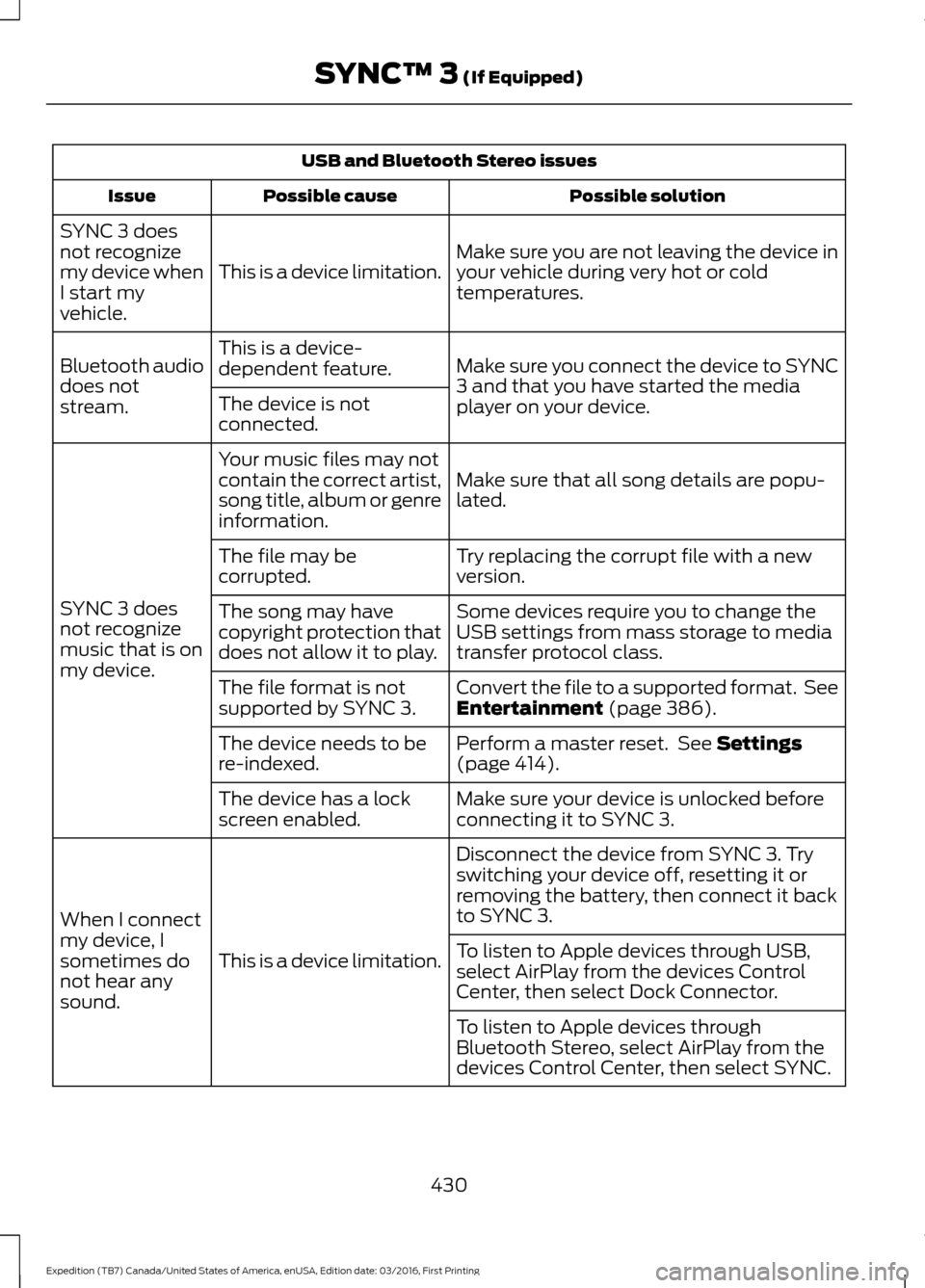
USB and Bluetooth Stereo issues
Possible solution
Possible cause
Issue
Make sure you are not leaving the device in
your vehicle during very hot or cold
temperatures.
This is a device limitation.
SYNC 3 does
not recognize
my device when
I start my
vehicle.
Make sure you connect the device to SYNC
3 and that you have started the media
player on your device.
This is a device-
dependent feature.
Bluetooth audio
does not
stream. The device is not
connected.
Make sure that all song details are popu-
lated.
Your music files may not
contain the correct artist,
song title, album or genre
information.
SYNC 3 does
not recognize
music that is on
my device. Try replacing the corrupt file with a new
version.
The file may be
corrupted.
Some devices require you to change the
USB settings from mass storage to media
transfer protocol class.
The song may have
copyright protection that
does not allow it to play.
Convert the file to a supported format. See
Entertainment (page 386).
The file format is not
supported by SYNC 3.
Perform a master reset. See
Settings
(page 414).
The device needs to be
re-indexed.
Make sure your device is unlocked before
connecting it to SYNC 3.
The device has a lock
screen enabled.
Disconnect the device from SYNC 3. Try
switching your device off, resetting it or
removing the battery, then connect it back
to SYNC 3.
This is a device limitation.
When I connect
my device, I
sometimes do
not hear any
sound. To listen to Apple devices through USB,
select AirPlay from the devices Control
Center, then select Dock Connector.
To listen to Apple devices through
Bluetooth Stereo, select AirPlay from the
devices Control Center, then select SYNC.
430
Expedition (TB7) Canada/United States of America, enUSA, Edition date: 03/2016, First Printing SYNC™ 3
(If Equipped)
Page 436 of 500
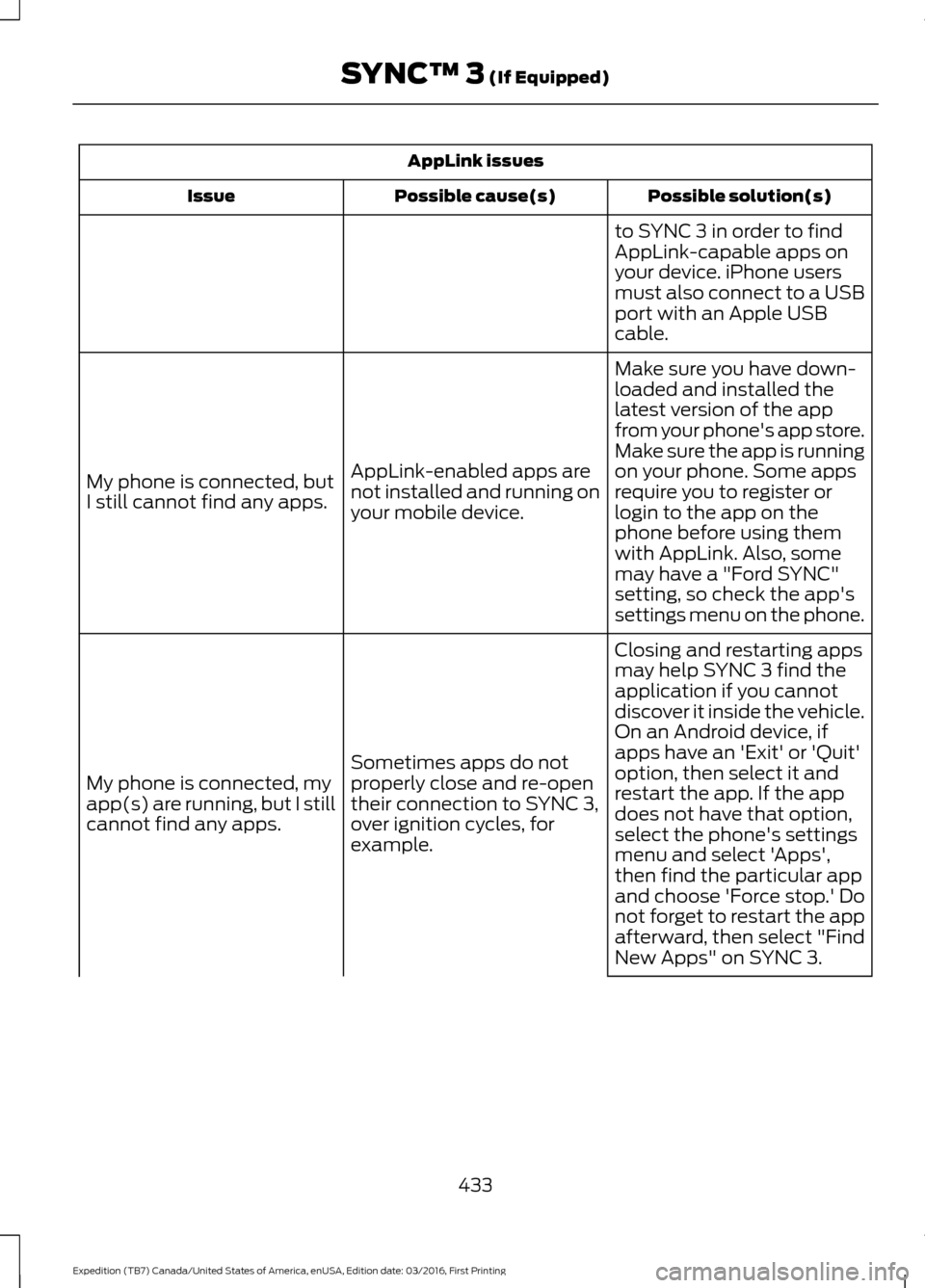
AppLink issues
Possible solution(s)
Possible cause(s)
Issue
to SYNC 3 in order to find
AppLink-capable apps on
your device. iPhone users
must also connect to a USB
port with an Apple USB
cable.
Make sure you have down-
loaded and installed the
latest version of the app
from your phone's app store.
Make sure the app is running
on your phone. Some apps
AppLink-enabled apps are
not installed and running on
your mobile device.
My phone is connected, but
I still cannot find any apps.
require you to register or
login to the app on the
phone before using them
with AppLink. Also, some
may have a "Ford SYNC"
setting, so check the app's
settings menu on the phone.
Closing and restarting apps
may help SYNC 3 find the
application if you cannot
discover it inside the vehicle.
On an Android device, if
apps have an 'Exit' or 'Quit'
Sometimes apps do not
properly close and re-open
their connection to SYNC 3,
over ignition cycles, for
example.
My phone is connected, my
app(s) are running, but I still
cannot find any apps.
option, then select it and
restart the app. If the app
does not have that option,
select the phone's settings
menu and select 'Apps',
then find the particular app
and choose 'Force stop.' Do
not forget to restart the app
afterward, then select "Find
New Apps" on SYNC 3.
433
Expedition (TB7) Canada/United States of America, enUSA, Edition date: 03/2016, First Printing SYNC™ 3 (If Equipped)
Page 438 of 500
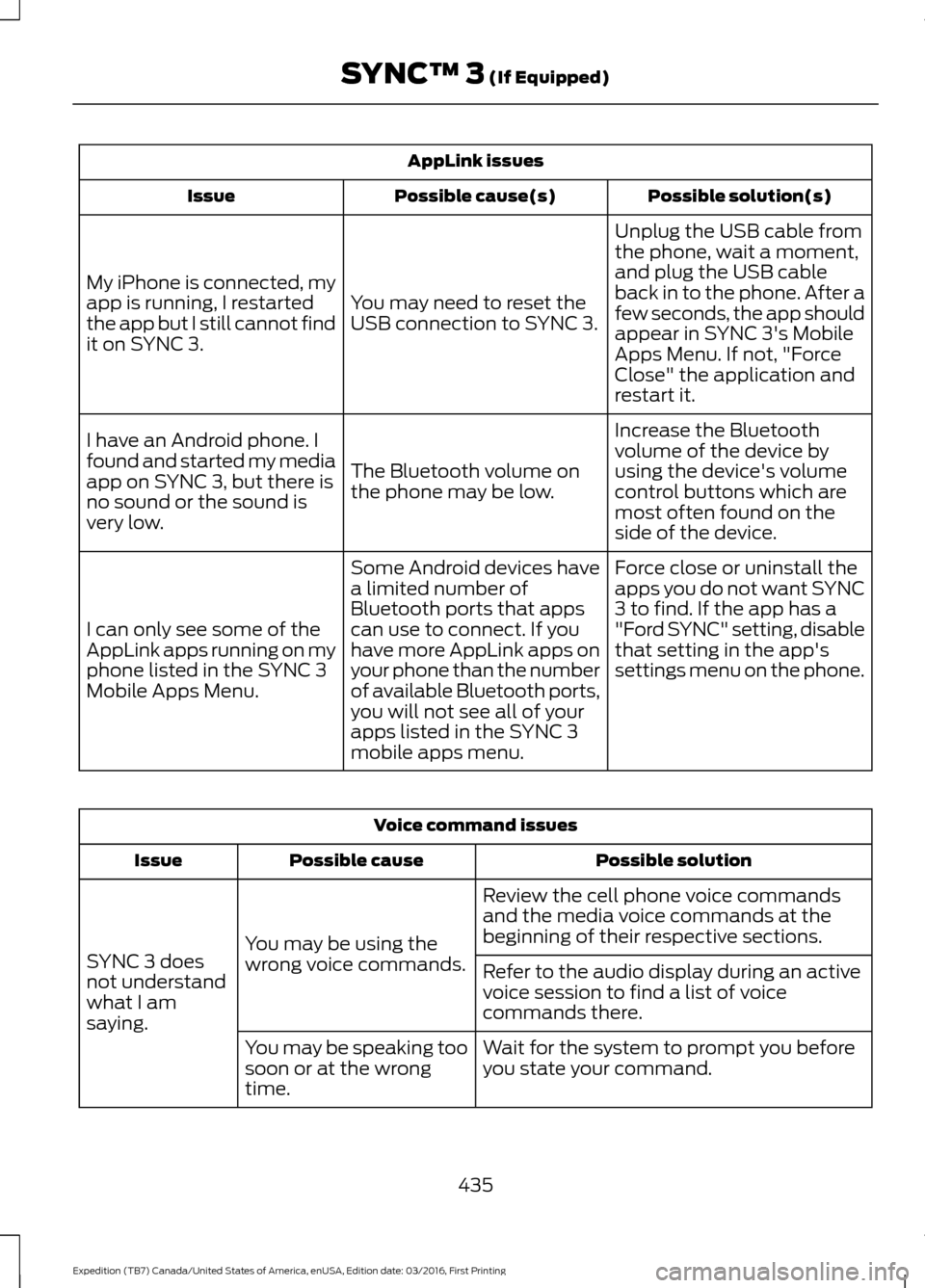
AppLink issues
Possible solution(s)
Possible cause(s)
Issue
Unplug the USB cable from
the phone, wait a moment,
and plug the USB cable
back in to the phone. After a
few seconds, the app should
appear in SYNC 3's Mobile
Apps Menu. If not, "Force
Close" the application and
restart it.
You may need to reset the
USB connection to SYNC 3.
My iPhone is connected, my
app is running, I restarted
the app but I still cannot find
it on SYNC 3.
Increase the Bluetooth
volume of the device by
using the device's volume
control buttons which are
most often found on the
side of the device.
The Bluetooth volume on
the phone may be low.
I have an Android phone. I
found and started my media
app on SYNC 3, but there is
no sound or the sound is
very low.
Force close or uninstall the
apps you do not want SYNC
3 to find. If the app has a
"Ford SYNC" setting, disable
that setting in the app's
settings menu on the phone.
Some Android devices have
a limited number of
Bluetooth ports that apps
can use to connect. If you
have more AppLink apps on
your phone than the number
of available Bluetooth ports,
you will not see all of your
apps listed in the SYNC 3
mobile apps menu.
I can only see some of the
AppLink apps running on my
phone listed in the SYNC 3
Mobile Apps Menu. Voice command issues
Possible solution
Possible cause
Issue
Review the cell phone voice commands
and the media voice commands at the
beginning of their respective sections.
You may be using the
wrong voice commands.
SYNC 3 does
not understand
what I am
saying. Refer to the audio display during an active
voice session to find a list of voice
commands there.
Wait for the system to prompt you before
you state your command.
You may be speaking too
soon or at the wrong
time.
435
Expedition (TB7) Canada/United States of America, enUSA, Edition date: 03/2016, First Printing SYNC™ 3 (If Equipped)
Page 441 of 500
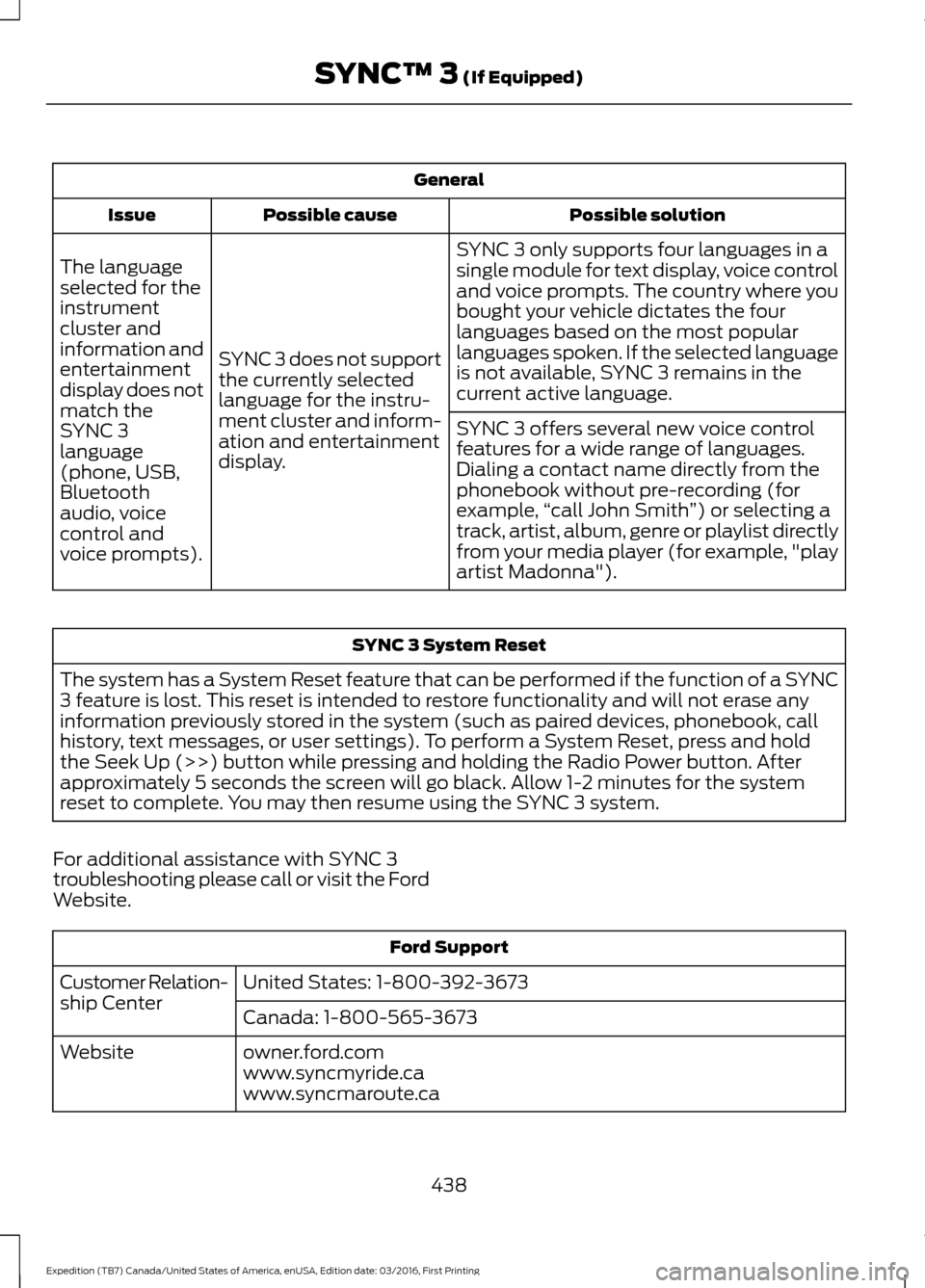
General
Possible solution
Possible cause
Issue
SYNC 3 only supports four languages in a
single module for text display, voice control
and voice prompts. The country where you
bought your vehicle dictates the four
languages based on the most popular
languages spoken. If the selected language
is not available, SYNC 3 remains in the
current active language.
SYNC 3 does not support
the currently selected
language for the instru-
ment cluster and inform-
ation and entertainment
display.
The language
selected for the
instrument
cluster and
information and
entertainment
display does not
match the
SYNC 3
SYNC 3 offers several new voice control
features for a wide range of languages.
Dialing a contact name directly from the
phonebook without pre-recording (for
example,
“call John Smith ”) or selecting a
track, artist, album, genre or playlist directly
from your media player (for example, "play
artist Madonna").
language
(phone, USB,
Bluetooth
audio, voice
control and
voice prompts). SYNC 3 System Reset
The system has a System Reset feature that can be performed if the function of a SYNC
3 feature is lost. This reset is intended to restore functionality and will not erase any
information previously stored in the system (such as paired devices, phonebook, call
history, text messages, or user settings). To perform a System Reset, press and hold
the Seek Up (>>) button while pressing and holding the Radio Power button. After
approximately 5 seconds the screen will go black. Allow 1-2 minutes for the system
reset to complete. You may then resume using the SYNC 3 system.
For additional assistance with SYNC 3
troubleshooting please call or visit the Ford
Website. Ford Support
United States: 1-800-392-3673
Customer Relation-
ship Center
Canada: 1-800-565-3673
owner.ford.com
Website
www.syncmyride.ca
www.syncmaroute.ca
438
Expedition (TB7) Canada/United States of America, enUSA, Edition date: 03/2016, First Printing SYNC™ 3 (If Equipped)
Page 468 of 500
TRADEMARKS: This EULA does not grant
you any rights in connection with any
trademarks or service marks of FORD
MOTOR COMPANY, its affiliates, and third
party software and service providers.
PRODUCT SUPPORT: Please refer to
FORD MOTOR COMPANY instructions
provided in the documentation for the
DEVICES product support, such as the
vehicle owner guide.
Should you have any questions concerning
this EULA, or if you desire to contact FORD
MOTOR COMPANY for any other reason,
please refer to the address provided in the
documentation for the DEVICES.
No Liability for Certain Damages:
EXCEPT AS PROHIBITED BY LAW, FORD
MOTOR COMPANY, ANY THIRD PARTY
SOFTWARE OR SERVICES SUPPLIERS,
AND THEIR AFFILIATES SHALL HAVE NO
LIABILITY FOR ANY INDIRECT, SPECIAL,
CONSEQUENTIAL OR INCIDENTAL
DAMAGES ARISING FROM OR IN
CONNECTION WITH THE USE OR
PERFORMANCE OF THE SOFTWARE. THIS
LIMITATION SHALL APPLY EVEN IF ANY
REMEDY FAILS OF ITS ESSENTIAL
PURPOSE. THERE ARE NO WARRANTIES
OTHER THAN THOSE THAT MAY BE
EXPRESSLY PROVIDED FOR YOUR NEW
VEHICLE.
SYNC® Automotive Important Safety
Information Read and follow
instructions:
• Before using your SYNC® system, read
and follow all instructions and safety
information provided in this end user
manual ("Owner Guide".) Not
following precautions found in the
Owner Guide can lead to an accident
or other serious injuries. General Operation
•
Voice Command Control
: Certain
functions within the SYNC® system
may be accomplished using voice
commands. Using voice commands
while driving helps you to operate the
system without removing your hands
from the wheel or eyes from the road.
• Prolonged Views of Screen:
Do not
access any function requiring a
prolonged view of the screen while you
are driving. Pull over in a safe and legal
manner before attempting to access a
function of the system requiring
prolonged attention.
• Volume Setting:
Do not raise the
volume excessively. Keep the volume
at a level where you can still hear
outside traffic and emergency signals
while driving. Driving while unable to
hear these sounds could cause an
accident.
• Navigation Features:
Any navigation
features included in the system are
intended to provide turn by turn
instructions to get you to a desired
destination. Please make certain all
persons using this system carefully
read and follow instructions and safety
information fully.
• Distraction Hazard:
Any navigation
features may require manual
(non-verbal) setup. Attempting to
perform such set-up or insert data
while driving can distract your attention
and could cause an accident or other
serious injury. Stop the vehicle in a safe
and legal manner before attempting
these operations.
• Let Your Judgment Prevail:
Any
navigation features are provided only
as an aid. Make your driving decisions
based on your observations of local
conditions and existing traffic
regulations. Any such feature is not a
465
Expedition (TB7) Canada/United States of America, enUSA, Edition date: 03/2016, First Printing Appendices
Page 491 of 500
Blind Spot Information System..............189
False Alerts........................................................... 192
Switching the System Off and On...............193
System Errors....................................................... 192
System Limitations............................................ 192
Using the System............................................... 189
Bonnet Lock See: Opening and Closing the Hood..........243
Booster Seats..................................................24 Types of Booster Seats...................................... 25
Brake Fluid Check........................................252
Brakes................................................................173 General Information........................................... 173
Breaking-In......................................................218
Bulb Specification Chart..........................260
C
California Proposition 65..............................11
Capacities and Specifications...............308 Specifications..................................................... 309
Car Wash See: Cleaning the Exterior.............................. 265
Center Console
..............................................143
Changing a Bulb...........................................257 Central High-mounted Brake Lamp
Bulb................................................................... 260
Fog Lamp Bulb................................................... 259
Front Direction Indicator Bulb....................... 258
Headlamp Bulb.................................................. 258
LED Central High-mounted Brake Lamp Bulb................................................................... 260
LED Direction Indicator and Side Marker Bulbs.................................................................. 259
LED Headlamp Bulb......................................... 258
LED Rear Lamp, Brake Lamp, Rear Direction Indicator and Reverse Lamp
Bulbs................................................................. 260
License Plate Lamp Bulb............................... 260
Rear Lamp, Brake Lamp, Rear Direction Indicator and Reverse Lamp
Bulbs.................................................................. 259
Side Direction Indicator Bulb........................ 260
Side Marker Bulb............................................... 258
Changing a Fuse............................................241 Fuses....................................................................... 241Changing a Road Wheel............................297
Dissimilar Spare Wheel and Tire Assembly
Information
...................................................... 297
Location of the Spare Tire and Tools.........298
Tire Change Procedure.................................... 299
Changing the 12V Battery.........................253 Battery Management System....................... 254
Changing the Engine Air Filter.................262
Changing the Wiper Blades.....................255
Checking MyKey System Status..............50
Checking the Wiper Blades......................255
Childminder Mirror
..........................................81
Child Restraint and Seatbelt Maintenance.................................................35
Child Restraint Positioning
.........................26
Child Safety.......................................................16 General Information............................................. 16
Child Safety Locks..........................................27
Cleaning Leather Seats.............................268 With King Ranch Edition................................. 269
Without King Ranch Edition.......................... 268
Cleaning Products
.......................................264
Cleaning the Alloy Wheels.......................270
Cleaning the Engine...................................266
Cleaning the Exterior..................................265 Exterior Chrome Parts...................................... 265
Exterior Plastic Parts........................................ 265
Stripes or Graphics............................................ 265
Underbody........................................................... 266
Under Hood......................................................... 266
Cleaning the Instrument Panel and Instrument Cluster Lens........................268
Cleaning the Interior....................................267
Cleaning the Windows and Wiper Blades............................................................267
Clearing All MyKeys.......................................49
Climate............................................................396
Climate Control
..............................................112
Climate Controlled Seats..........................134 Cooled Seats........................................................ 134
Coolant Check See: Engine Coolant Check............................ 247
Crash Sensors and Airbag Indicator.......40
Creating a MyKey...........................................48 Programming/Changing Configurable
Settings............................................................... 48
Cruise Control
.................................................69
Principle of Operation....................................... 187
488
Expedition (TB7) Canada/United States of America, enUSA, Edition date: 03/2016, First Printing Index