display FORD EXPEDITION 2017 3.G Owners Manual
[x] Cancel search | Manufacturer: FORD, Model Year: 2017, Model line: EXPEDITION, Model: FORD EXPEDITION 2017 3.GPages: 500, PDF Size: 4.83 MB
Page 338 of 500
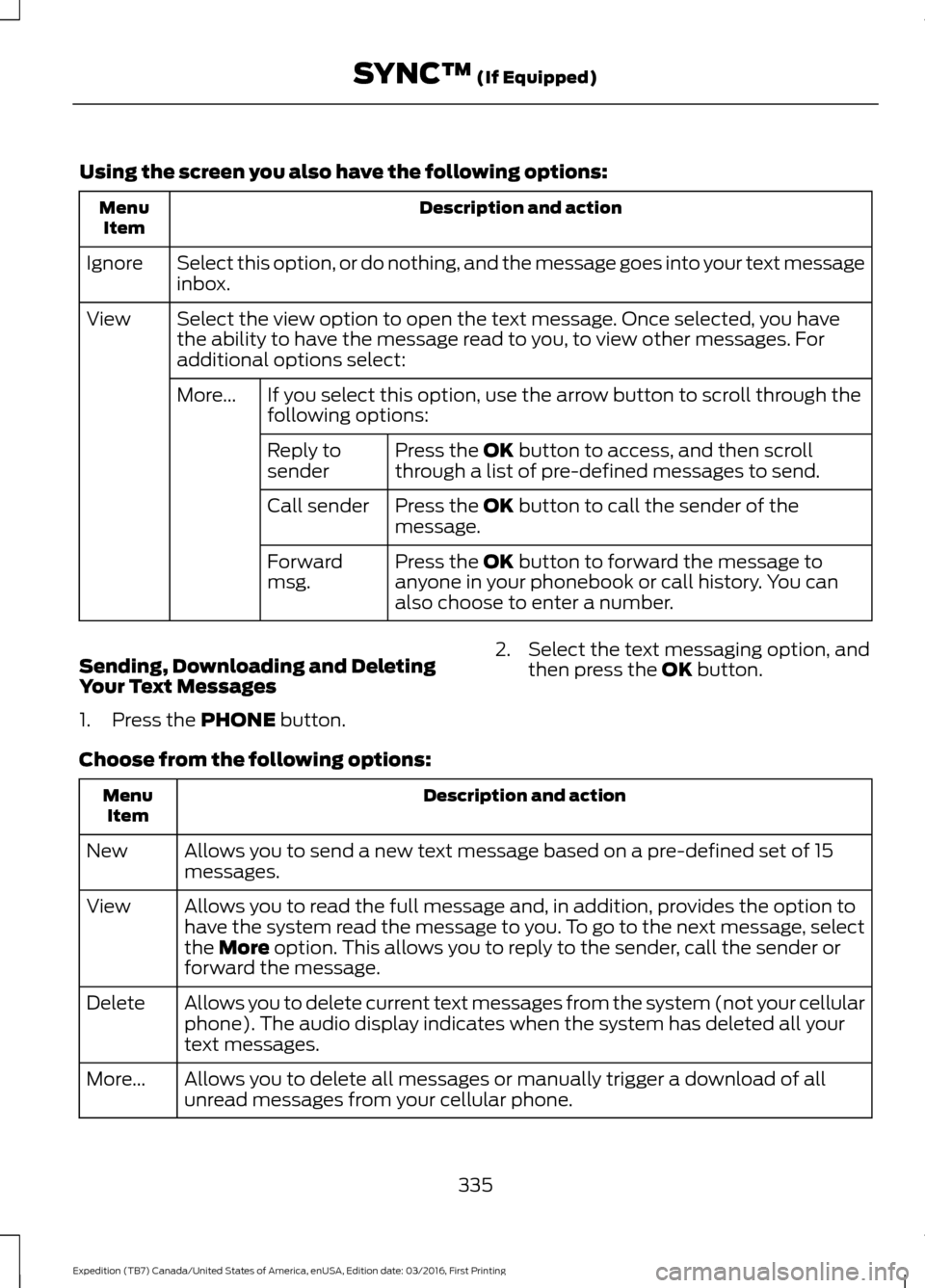
Using the screen you also have the following options:
Description and action
Menu
Item
Select this option, or do nothing, and the message goes into your text message
inbox.
Ignore
Select the view option to open the text message. Once selected, you have
the ability to have the message read to you, to view other messages. For
additional options select:
View
If you select this option, use the arrow button to scroll through the
following options:
More...
Press the OK button to access, and then scroll
through a list of pre-defined messages to send.
Reply to
sender
Press the
OK button to call the sender of the
message.
Call sender
Press the
OK button to forward the message to
anyone in your phonebook or call history. You can
also choose to enter a number.
Forward
msg.
Sending, Downloading and Deleting
Your Text Messages
1. Press the
PHONE button. 2. Select the text messaging option, and
then press the
OK button.
Choose from the following options: Description and action
Menu
Item
Allows you to send a new text message based on a pre-defined set of 15
messages.
New
Allows you to read the full message and, in addition, provides the option to
have the system read the message to you. To go to the next message, select
the
More option. This allows you to reply to the sender, call the sender or
forward the message.
View
Allows you to delete current text messages from the system (not your cellular
phone). The audio display indicates when the system has deleted all your
text messages.
Delete
Allows you to delete all messages or manually trigger a download of all
unread messages from your cellular phone.
More...
335
Expedition (TB7) Canada/United States of America, enUSA, Edition date: 03/2016, First Printing SYNC™
(If Equipped)
Page 339 of 500
Sending a Text Message
Note:
You can only send a text message to
one recipient at a time.
1. Select the send option when the desired selection highlights in the audio
display.
2. Select the confirmation option when the contact appears.
3. Press the OK button again to confirm when the system asks if you want to
send the message. A pre-defined
signature appears on each text
message. Note:
You can send text messages either
by choosing a contact from the phonebook
and selecting the text option from the audio
display or by replying to a received message
in the inbox.
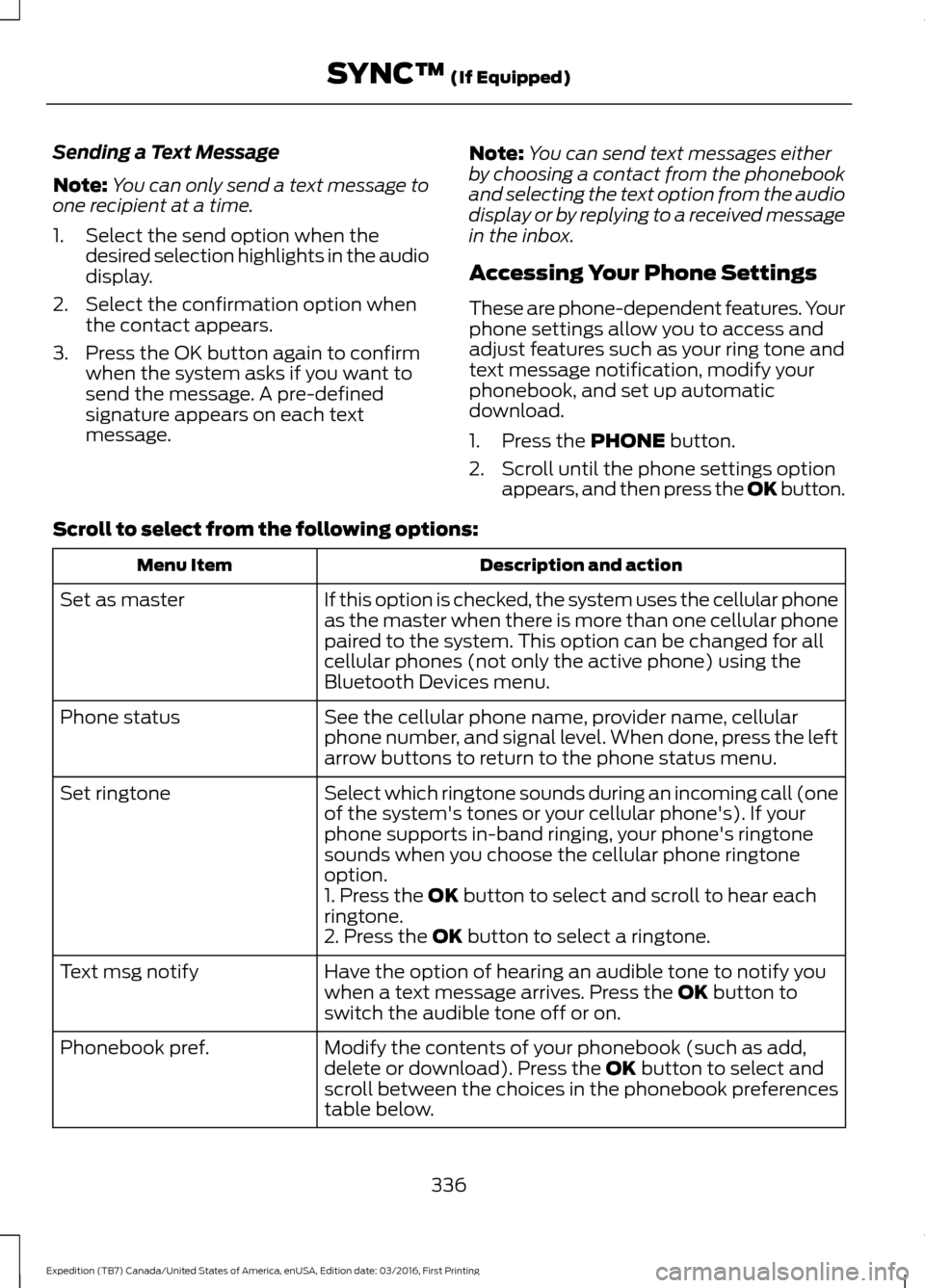
Accessing Your Phone Settings
These are phone-dependent features. Your
phone settings allow you to access and
adjust features such as your ring tone and
text message notification, modify your
phonebook, and set up automatic
download.
1. Press the PHONE button.
2. Scroll until the phone settings option appears, and then press the OK button.
Scroll to select from the following options: Description and action
Menu Item
If this option is checked, the system uses the cellular phone
as the master when there is more than one cellular phone
paired to the system. This option can be changed for all
cellular phones (not only the active phone) using the
Bluetooth Devices menu.
Set as master
See the cellular phone name, provider name, cellular
phone number, and signal level. When done, press the left
arrow buttons to return to the phone status menu.
Phone status
Select which ringtone sounds during an incoming call (one
of the system's tones or your cellular phone's). If your
phone supports in-band ringing, your phone's ringtone
sounds when you choose the cellular phone ringtone
option.
Set ringtone
1. Press the
OK button to select and scroll to hear each
ringtone.
2. Press the
OK button to select a ringtone.
Have the option of hearing an audible tone to notify you
when a text message arrives. Press the
OK button to
switch the audible tone off or on.
Text msg notify
Modify the contents of your phonebook (such as add,
delete or download). Press the
OK button to select and
scroll between the choices in the phonebook preferences
table below.
Phonebook pref.
336
Expedition (TB7) Canada/United States of America, enUSA, Edition date: 03/2016, First Printing SYNC™
(If Equipped)
Page 340 of 500
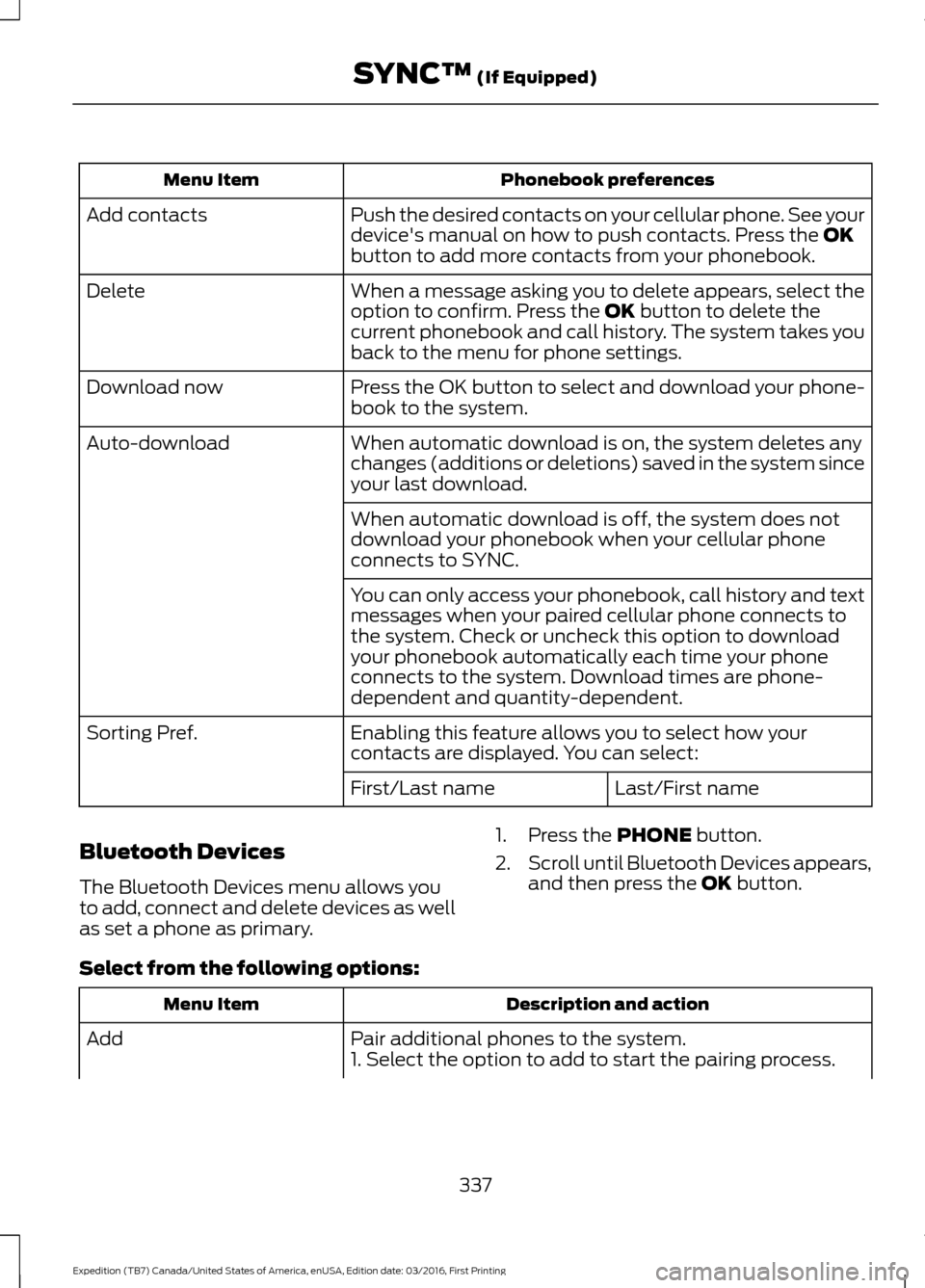
Phonebook preferences
Menu Item
Push the desired contacts on your cellular phone. See your
device's manual on how to push contacts. Press the OK
button to add more contacts from your phonebook.
Add contacts
When a message asking you to delete appears, select the
option to confirm. Press the
OK button to delete the
current phonebook and call history. The system takes you
back to the menu for phone settings.
Delete
Press the OK button to select and download your phone-
book to the system.
Download now
When automatic download is on, the system deletes any
changes (additions or deletions) saved in the system since
your last download.
Auto-download
When automatic download is off, the system does not
download your phonebook when your cellular phone
connects to SYNC.
You can only access your phonebook, call history and text
messages when your paired cellular phone connects to
the system. Check or uncheck this option to download
your phonebook automatically each time your phone
connects to the system. Download times are phone-
dependent and quantity-dependent.
Enabling this feature allows you to select how your
contacts are displayed. You can select:
Sorting Pref.
Last/First name
First/Last name
Bluetooth Devices
The Bluetooth Devices menu allows you
to add, connect and delete devices as well
as set a phone as primary. 1. Press the
PHONE button.
2. Scroll until Bluetooth Devices appears,
and then press the
OK button.
Select from the following options: Description and action
Menu Item
Pair additional phones to the system.
Add
1. Select the option to add to start the pairing process.
337
Expedition (TB7) Canada/United States of America, enUSA, Edition date: 03/2016, First Printing SYNC™
(If Equipped)
Page 341 of 500
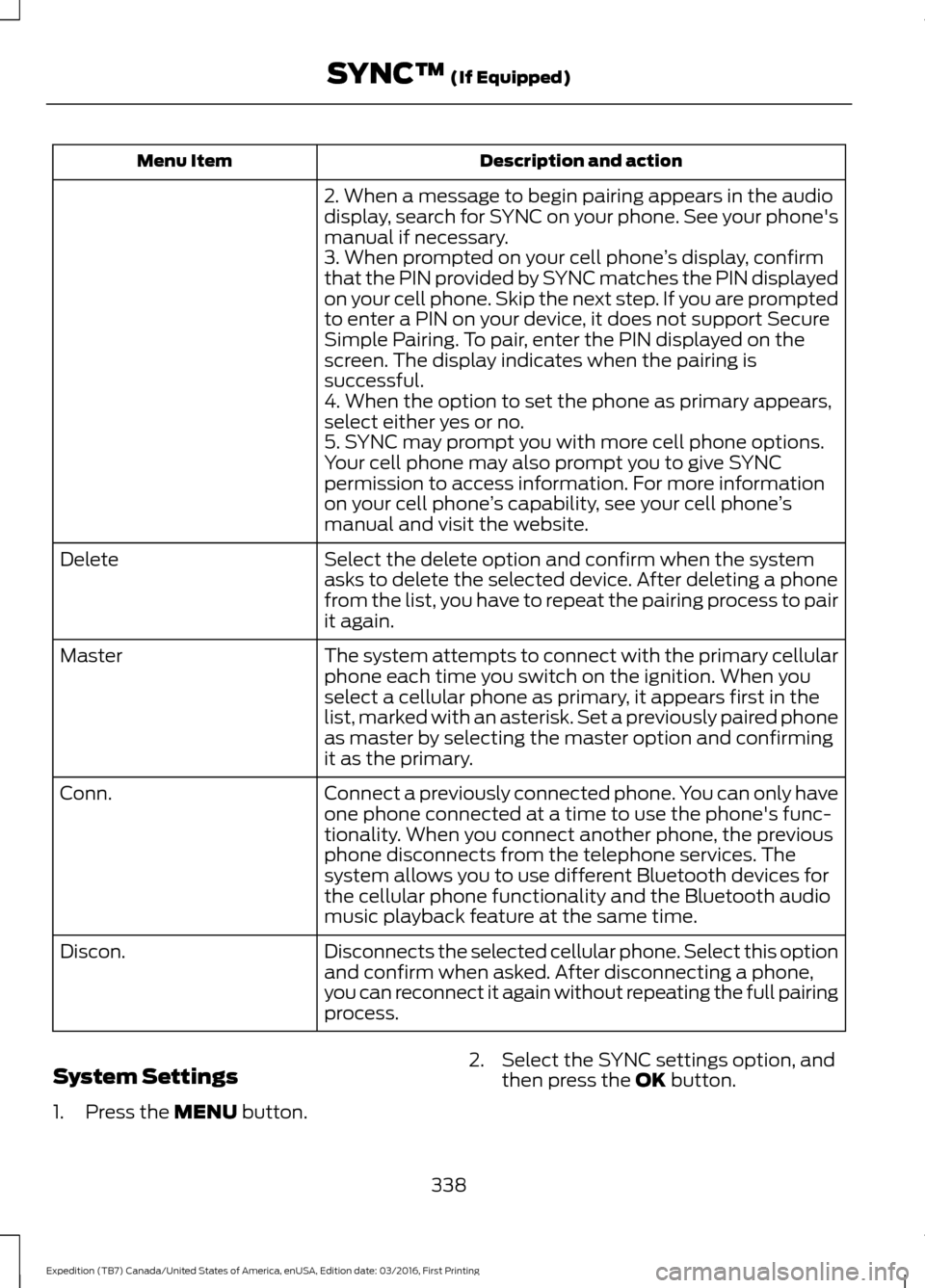
Description and action
Menu Item
2. When a message to begin pairing appears in the audio
display, search for SYNC on your phone. See your phone's
manual if necessary.
3. When prompted on your cell phone ’s display, confirm
that the PIN provided by SYNC matches the PIN displayed
on your cell phone. Skip the next step. If you are prompted
to enter a PIN on your device, it does not support Secure
Simple Pairing. To pair, enter the PIN displayed on the
screen. The display indicates when the pairing is
successful.
4. When the option to set the phone as primary appears,
select either yes or no.
5. SYNC may prompt you with more cell phone options.
Your cell phone may also prompt you to give SYNC
permission to access information. For more information
on your cell phone ’s capability, see your cell phone ’s
manual and visit the website.
Select the delete option and confirm when the system
asks to delete the selected device. After deleting a phone
from the list, you have to repeat the pairing process to pair
it again.
Delete
The system attempts to connect with the primary cellular
phone each time you switch on the ignition. When you
select a cellular phone as primary, it appears first in the
list, marked with an asterisk. Set a previously paired phone
as master by selecting the master option and confirming
it as the primary.
Master
Connect a previously connected phone. You can only have
one phone connected at a time to use the phone's func-
tionality. When you connect another phone, the previous
phone disconnects from the telephone services. The
system allows you to use different Bluetooth devices for
the cellular phone functionality and the Bluetooth audio
music playback feature at the same time.
Conn.
Disconnects the selected cellular phone. Select this option
and confirm when asked. After disconnecting a phone,
you can reconnect it again without repeating the full pairing
process.
Discon.
System Settings
1. Press the MENU button. 2. Select the SYNC settings option, and
then press the
OK button.
338
Expedition (TB7) Canada/United States of America, enUSA, Edition date: 03/2016, First Printing SYNC™
(If Equipped)
Page 342 of 500
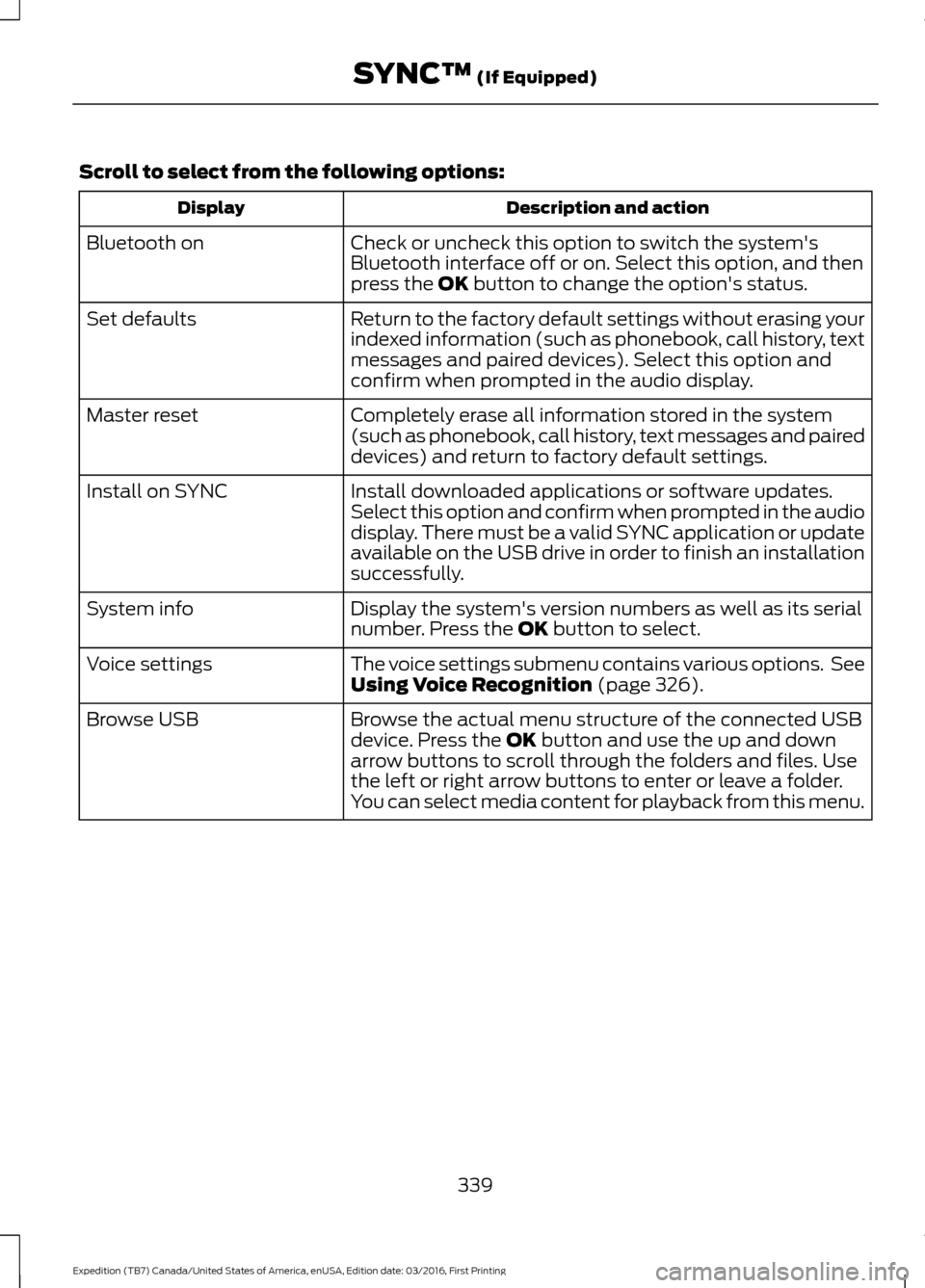
Scroll to select from the following options:
Description and action
Display
Check or uncheck this option to switch the system's
Bluetooth interface off or on. Select this option, and then
press the OK button to change the option's status.
Bluetooth on
Return to the factory default settings without erasing your
indexed information (such as phonebook, call history, text
messages and paired devices). Select this option and
confirm when prompted in the audio display.
Set defaults
Completely erase all information stored in the system
(such as phonebook, call history, text messages and paired
devices) and return to factory default settings.
Master reset
Install downloaded applications or software updates.
Select this option and confirm when prompted in the audio
display. There must be a valid SYNC application or update
available on the USB drive in order to finish an installation
successfully.
Install on SYNC
Display the system's version numbers as well as its serial
number. Press the
OK button to select.
System info
The voice settings submenu contains various options. See
Using Voice Recognition
(page 326).
Voice settings
Browse the actual menu structure of the connected USB
device. Press the
OK button and use the up and down
arrow buttons to scroll through the folders and files. Use
the left or right arrow buttons to enter or leave a folder.
You can select media content for playback from this menu.
Browse USB
339
Expedition (TB7) Canada/United States of America, enUSA, Edition date: 03/2016, First Printing SYNC™
(If Equipped)
Page 343 of 500
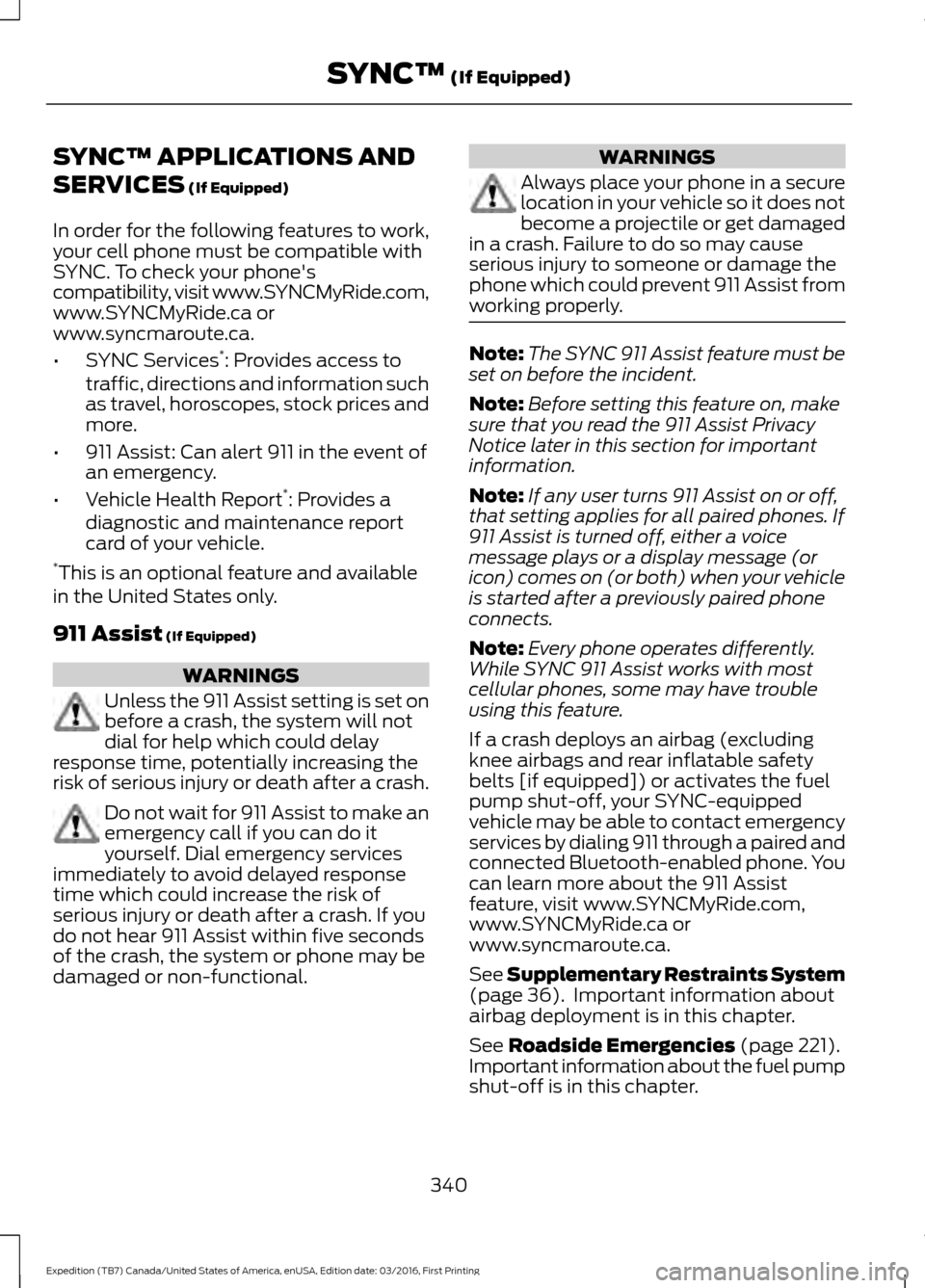
SYNC™ APPLICATIONS AND
SERVICES (If Equipped)
In order for the following features to work,
your cell phone must be compatible with
SYNC. To check your phone's
compatibility, visit www.SYNCMyRide.com,
www.SYNCMyRide.ca or
www.syncmaroute.ca.
• SYNC Services *
: Provides access to
traffic, directions and information such
as travel, horoscopes, stock prices and
more.
• 911 Assist: Can alert 911 in the event of
an emergency.
• Vehicle Health Report *
: Provides a
diagnostic and maintenance report
card of your vehicle.
* This is an optional feature and available
in the United States only.
911 Assist
(If Equipped) WARNINGS
Unless the 911 Assist setting is set on
before a crash, the system will not
dial for help which could delay
response time, potentially increasing the
risk of serious injury or death after a crash. Do not wait for 911 Assist to make an
emergency call if you can do it
yourself. Dial emergency services
immediately to avoid delayed response
time which could increase the risk of
serious injury or death after a crash. If you
do not hear 911 Assist within five seconds
of the crash, the system or phone may be
damaged or non-functional. WARNINGS
Always place your phone in a secure
location in your vehicle so it does not
become a projectile or get damaged
in a crash. Failure to do so may cause
serious injury to someone or damage the
phone which could prevent 911 Assist from
working properly. Note:
The SYNC 911 Assist feature must be
set on before the incident.
Note: Before setting this feature on, make
sure that you read the 911 Assist Privacy
Notice later in this section for important
information.
Note: If any user turns 911 Assist on or off,
that setting applies for all paired phones. If
911 Assist is turned off, either a voice
message plays or a display message (or
icon) comes on (or both) when your vehicle
is started after a previously paired phone
connects.
Note: Every phone operates differently.
While SYNC 911 Assist works with most
cellular phones, some may have trouble
using this feature.
If a crash deploys an airbag (excluding
knee airbags and rear inflatable safety
belts [if equipped]) or activates the fuel
pump shut-off, your SYNC-equipped
vehicle may be able to contact emergency
services by dialing 911 through a paired and
connected Bluetooth-enabled phone. You
can learn more about the 911 Assist
feature, visit www.SYNCMyRide.com,
www.SYNCMyRide.ca or
www.syncmaroute.ca.
See
Supplementary Restraints System
(page 36). Important information about
airbag deployment is in this chapter.
See
Roadside Emergencies (page 221).
Important information about the fuel pump
shut-off is in this chapter.
340
Expedition (TB7) Canada/United States of America, enUSA, Edition date: 03/2016, First Printing SYNC™
(If Equipped)
Page 344 of 500
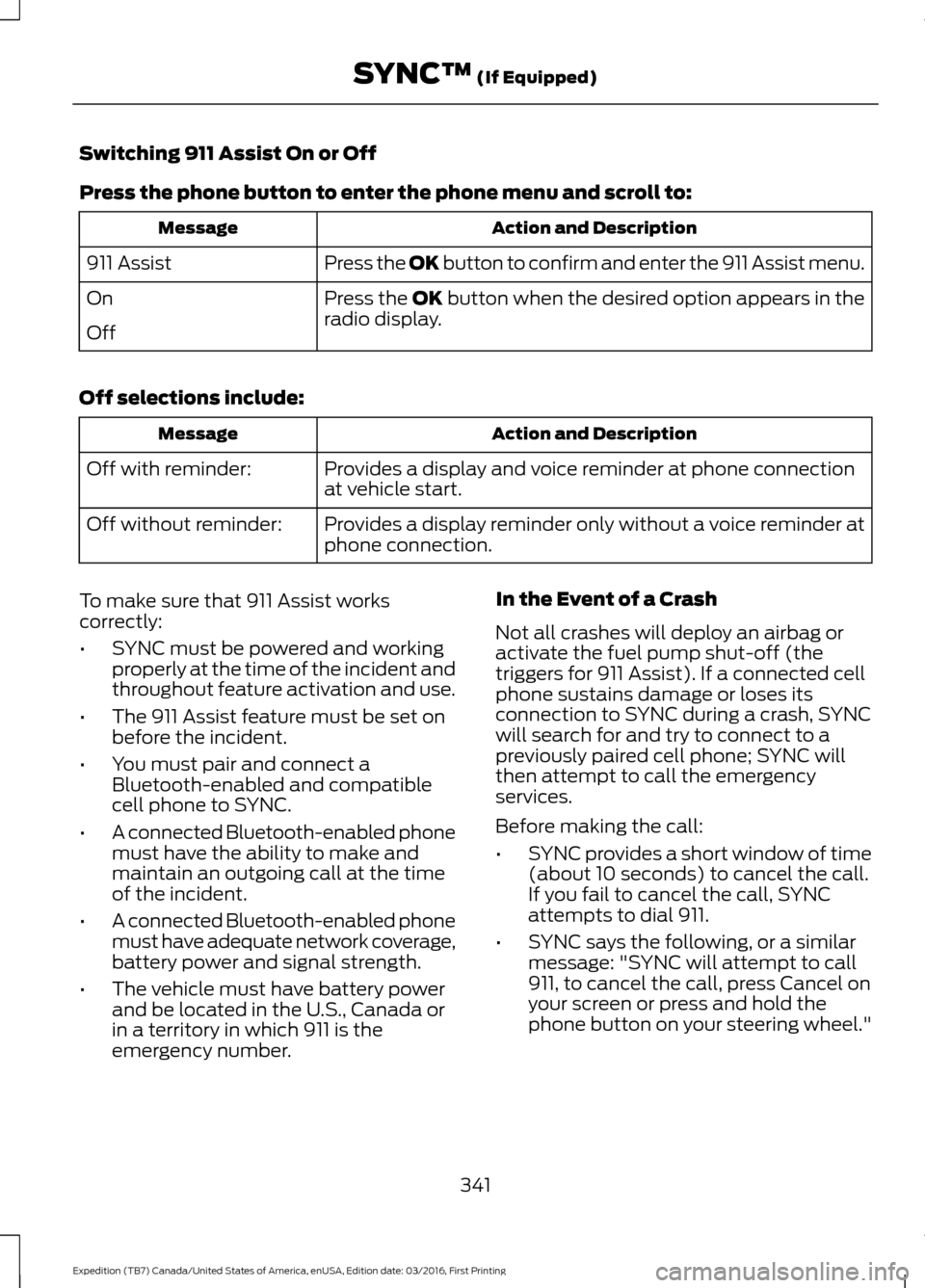
Switching 911 Assist On or Off
Press the phone button to enter the phone menu and scroll to:
Action and Description
Message
Press the OK button to confirm and enter the 911 Assist menu.
911 Assist
Press the OK button when the desired option appears in the
radio display.
On
Off
Off selections include: Action and Description
Message
Provides a display and voice reminder at phone connection
at vehicle start.
Off with reminder:
Provides a display reminder only without a voice reminder at
phone connection.
Off without reminder:
To make sure that 911 Assist works
correctly:
• SYNC must be powered and working
properly at the time of the incident and
throughout feature activation and use.
• The 911 Assist feature must be set on
before the incident.
• You must pair and connect a
Bluetooth-enabled and compatible
cell phone to SYNC.
• A connected Bluetooth-enabled phone
must have the ability to make and
maintain an outgoing call at the time
of the incident.
• A connected Bluetooth-enabled phone
must have adequate network coverage,
battery power and signal strength.
• The vehicle must have battery power
and be located in the U.S., Canada or
in a territory in which 911 is the
emergency number. In the Event of a Crash
Not all crashes will deploy an airbag or
activate the fuel pump shut-off (the
triggers for 911 Assist). If a connected cell
phone sustains damage or loses its
connection to SYNC during a crash, SYNC
will search for and try to connect to a
previously paired cell phone; SYNC will
then attempt to call the emergency
services.
Before making the call:
•
SYNC provides a short window of time
(about 10 seconds) to cancel the call.
If you fail to cancel the call, SYNC
attempts to dial 911.
• SYNC says the following, or a similar
message: "SYNC will attempt to call
911, to cancel the call, press Cancel on
your screen or press and hold the
phone button on your steering wheel."
341
Expedition (TB7) Canada/United States of America, enUSA, Edition date: 03/2016, First Printing SYNC™ (If Equipped)
Page 349 of 500
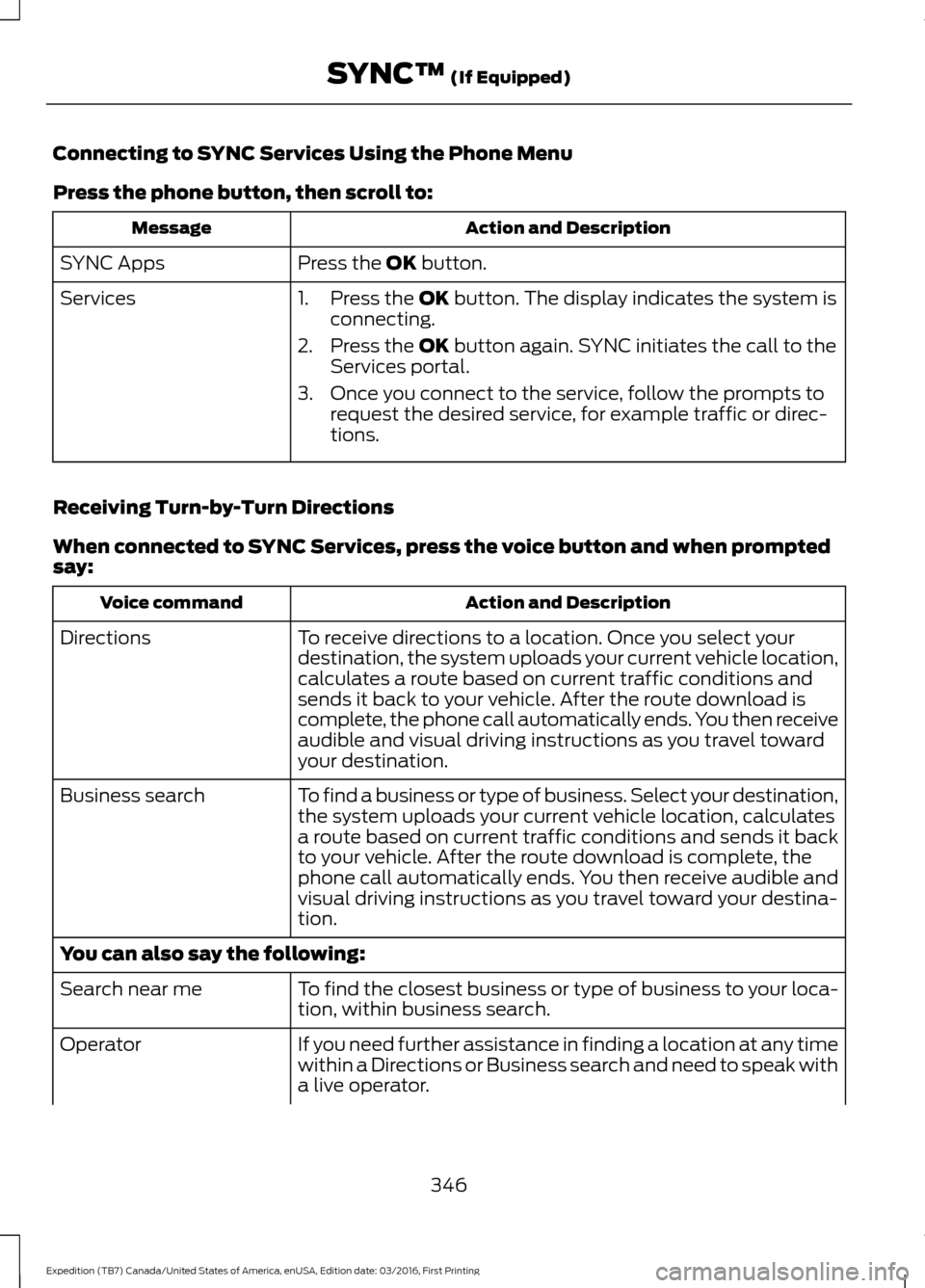
Connecting to SYNC Services Using the Phone Menu
Press the phone button, then scroll to:
Action and Description
Message
Press the OK button.
SYNC Apps
Services 1. Press the
OK button. The display indicates the system is
connecting.
2. Press the
OK button again. SYNC initiates the call to the
Services portal.
3. Once you connect to the service, follow the prompts to request the desired service, for example traffic or direc-
tions.
Receiving Turn-by-Turn Directions
When connected to SYNC Services, press the voice button and when prompted
say: Action and Description
Voice command
To receive directions to a location. Once you select your
destination, the system uploads your current vehicle location,
calculates a route based on current traffic conditions and
sends it back to your vehicle. After the route download is
complete, the phone call automatically ends. You then receive
audible and visual driving instructions as you travel toward
your destination.
Directions
To find a business or type of business. Select your destination,
the system uploads your current vehicle location, calculates
a route based on current traffic conditions and sends it back
to your vehicle. After the route download is complete, the
phone call automatically ends. You then receive audible and
visual driving instructions as you travel toward your destina-
tion.
Business search
You can also say the following:
To find the closest business or type of business to your loca-
tion, within business search.
Search near me
If you need further assistance in finding a location at any time
within a Directions or Business search and need to speak with
a live operator.
Operator
346
Expedition (TB7) Canada/United States of America, enUSA, Edition date: 03/2016, First Printing SYNC™
(If Equipped)
Page 351 of 500
SYNC Services quick tips
You can even access your account outside your vehicle. Just
use the number on your phone's call history. Traffic and
Directions features do not function properly but information
services and the 411 connect and text message features are
available.
USING SYNC™ WITH YOUR
MEDIA PLAYER
You can access and play music from your
digital music player over your vehicle's
speaker system using the system's media
menu or voice commands. You can also
sort and play your music by specific
categories, such as artist and album.
Note: The system is capable of indexing up
to 15,000 songs.
SYNC is capable of hosting nearly any
digital media player including: iPod, Zune,
plays from device players, and most USB
drives. SYNC also supports audio formats,
such as MP3, WMA, WAV and ACC.
Confirm that the USB device has been
formatted correctly and has the following
specifications:
• USB 2.0.
• File format must be FAT16/32.
The format of the audio files on the USB
device must be:
• MP3.
• Non DRM protected WMA.
• WAV.
• AAC. Connecting Your Digital Media
Player to the USB Port
Note:
If your digital media player has a
power switch, make sure you switch it on
before plugging it in.
To Connect Using Voice Commands
Plug the device into one of the vehicle's
USB ports.
Press the voice button and when
prompted, say: Action and Descrip-
tion
Voice Command
You can now play
music by saying any
of the appropriate
voice commands.
See the media
voice commands.
(USB [stick] | iPod
| MP3 [player])
Words in brackets [ ] are optional and do
not have to be spoken for the system to
understand the command. For example,
for where (USB [stick] | iPOD | MP3
[player]) appears, you can say USB or USB
stick.
To Connect Using the System Menu
1. Plug the device into one of the vehicle's
USB ports.
2. Press the MEDIA button and select
either USB 1 or USB 2 from the media
source list in the audio display.
348
Expedition (TB7) Canada/United States of America, enUSA, Edition date: 03/2016, First Printing SYNC™
(If Equipped)
Page 352 of 500
To view USB content select:
Description and Action
Message
Depending on how many media files are on your connected
device, an indexing message may appear in the display. When
indexing is complete, the selected source starts to playback
audio automatically.
Browse USB
You can browse the files on the USB
device in categories. Select BROWSE
from the buttons at the bottom of the
audio display and choose from the
following: Message
Play all
Playlists
Songs
Artists Message
Albums
Genres
Browse USB
Reset USB
Media Voice Commands Press the voice button and when
prompted say:
Description and Action
Voice Command
You can now play music by saying any of the appropriate
voice commands.
(USB [stick] | iPod | MP3
[player])
You can say any of the voice commands that appear within open and close brackets that
are separated by |. For example, where; (what's | what is) appears you say; what's or
what is.
You must say any of the voice commands that appear outside of open and close brackets.
For example, where; (what's | what is) playing, you must say either "what's playing" or
"what is playing". Description and Action
Command
Pauses device playback.
pause
Resumes device playback.
play
play [album] ___Play all media on the device from the first
track to the last.
play all
349
Expedition (TB7) Canada/United States of America, enUSA, Edition date: 03/2016, First Printing SYNC™
(If Equipped)E142599