clock FORD EXPEDITION 2017 3.G User Guide
[x] Cancel search | Manufacturer: FORD, Model Year: 2017, Model line: EXPEDITION, Model: FORD EXPEDITION 2017 3.GPages: 500, PDF Size: 4.83 MB
Page 303 of 500
Park on a level surface, activate the hazard
flashers and set the parking brake. Then,
place the transmission in park (P) and turn
the engine off.
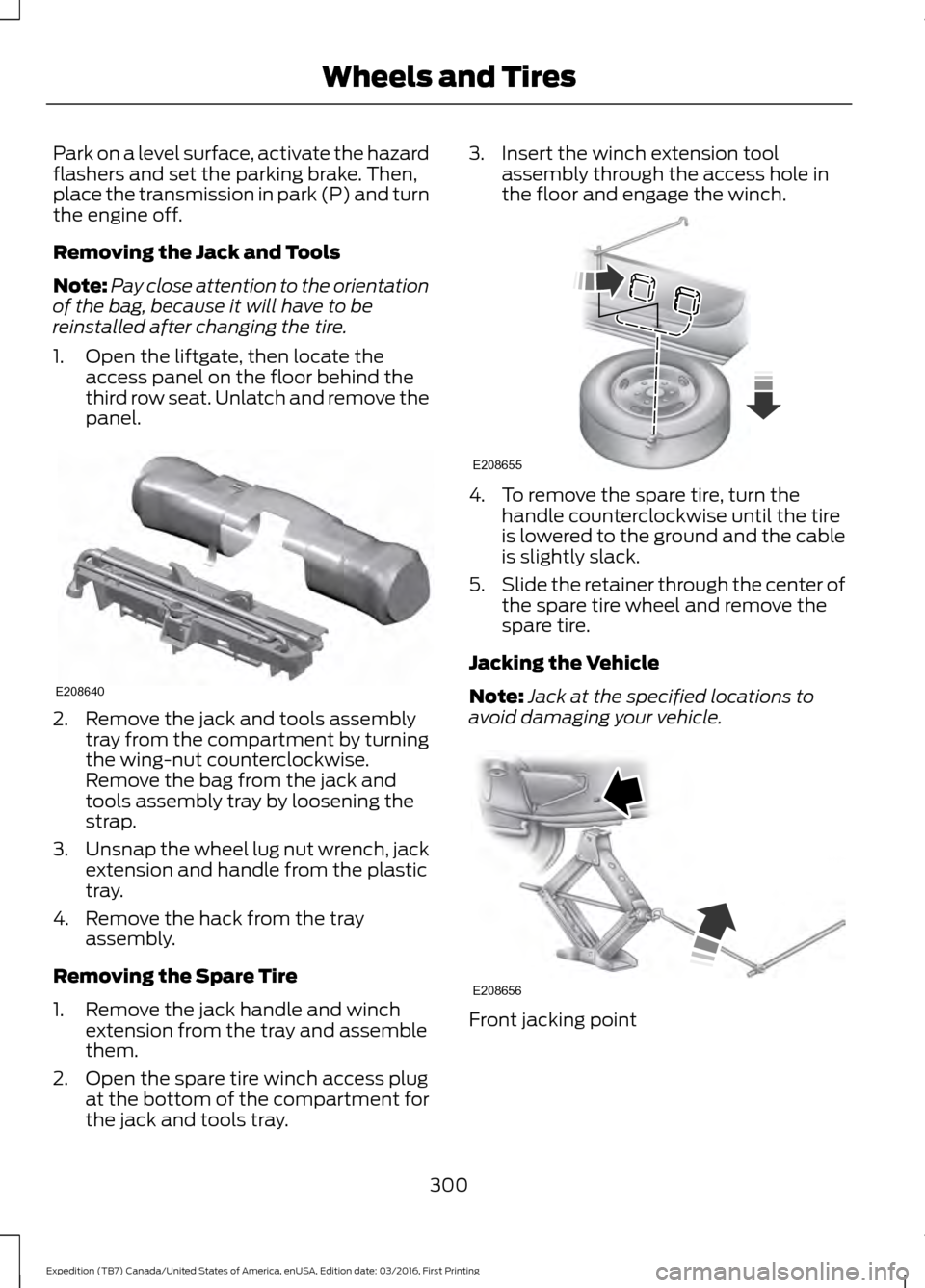
Removing the Jack and Tools
Note:
Pay close attention to the orientation
of the bag, because it will have to be
reinstalled after changing the tire.
1. Open the liftgate, then locate the access panel on the floor behind the
third row seat. Unlatch and remove the
panel. 2. Remove the jack and tools assembly
tray from the compartment by turning
the wing-nut counterclockwise.
Remove the bag from the jack and
tools assembly tray by loosening the
strap.
3. Unsnap the wheel lug nut wrench, jack
extension and handle from the plastic
tray.
4. Remove the hack from the tray assembly.
Removing the Spare Tire
1. Remove the jack handle and winch extension from the tray and assemble
them.
2. Open the spare tire winch access plug at the bottom of the compartment for
the jack and tools tray. 3. Insert the winch extension tool
assembly through the access hole in
the floor and engage the winch. 4. To remove the spare tire, turn the
handle counterclockwise until the tire
is lowered to the ground and the cable
is slightly slack.
5. Slide the retainer through the center of
the spare tire wheel and remove the
spare tire.
Jacking the Vehicle
Note: Jack at the specified locations to
avoid damaging your vehicle. Front jacking point
300
Expedition (TB7) Canada/United States of America, enUSA, Edition date: 03/2016, First Printing Wheels and TiresE208640 E208655 E208656
Page 304 of 500
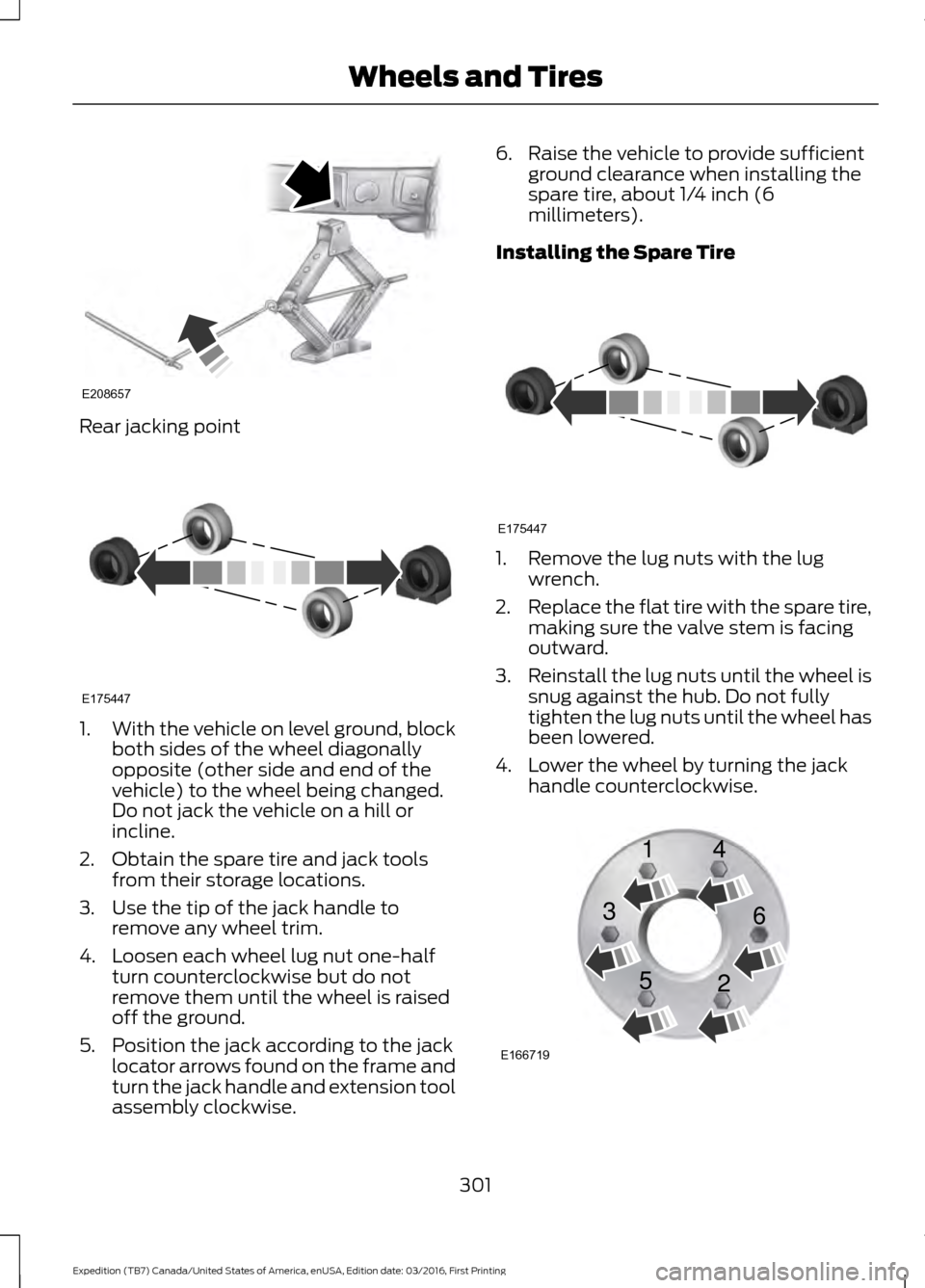
Rear jacking point
1.
With the vehicle on level ground, block
both sides of the wheel diagonally
opposite (other side and end of the
vehicle) to the wheel being changed.
Do not jack the vehicle on a hill or
incline.
2. Obtain the spare tire and jack tools from their storage locations.
3. Use the tip of the jack handle to remove any wheel trim.
4. Loosen each wheel lug nut one-half turn counterclockwise but do not
remove them until the wheel is raised
off the ground.
5. Position the jack according to the jack locator arrows found on the frame and
turn the jack handle and extension tool
assembly clockwise. 6. Raise the vehicle to provide sufficient
ground clearance when installing the
spare tire, about 1/4 inch (6
millimeters).
Installing the Spare Tire 1. Remove the lug nuts with the lug
wrench.
2. Replace the flat tire with the spare tire,
making sure the valve stem is facing
outward.
3. Reinstall the lug nuts until the wheel is
snug against the hub. Do not fully
tighten the lug nuts until the wheel has
been lowered.
4. Lower the wheel by turning the jack handle counterclockwise. 301
Expedition (TB7) Canada/United States of America, enUSA, Edition date: 03/2016, First Printing Wheels and TiresE208657 E175447 E175447 E166719
1
3
5 4
6
2
Page 305 of 500
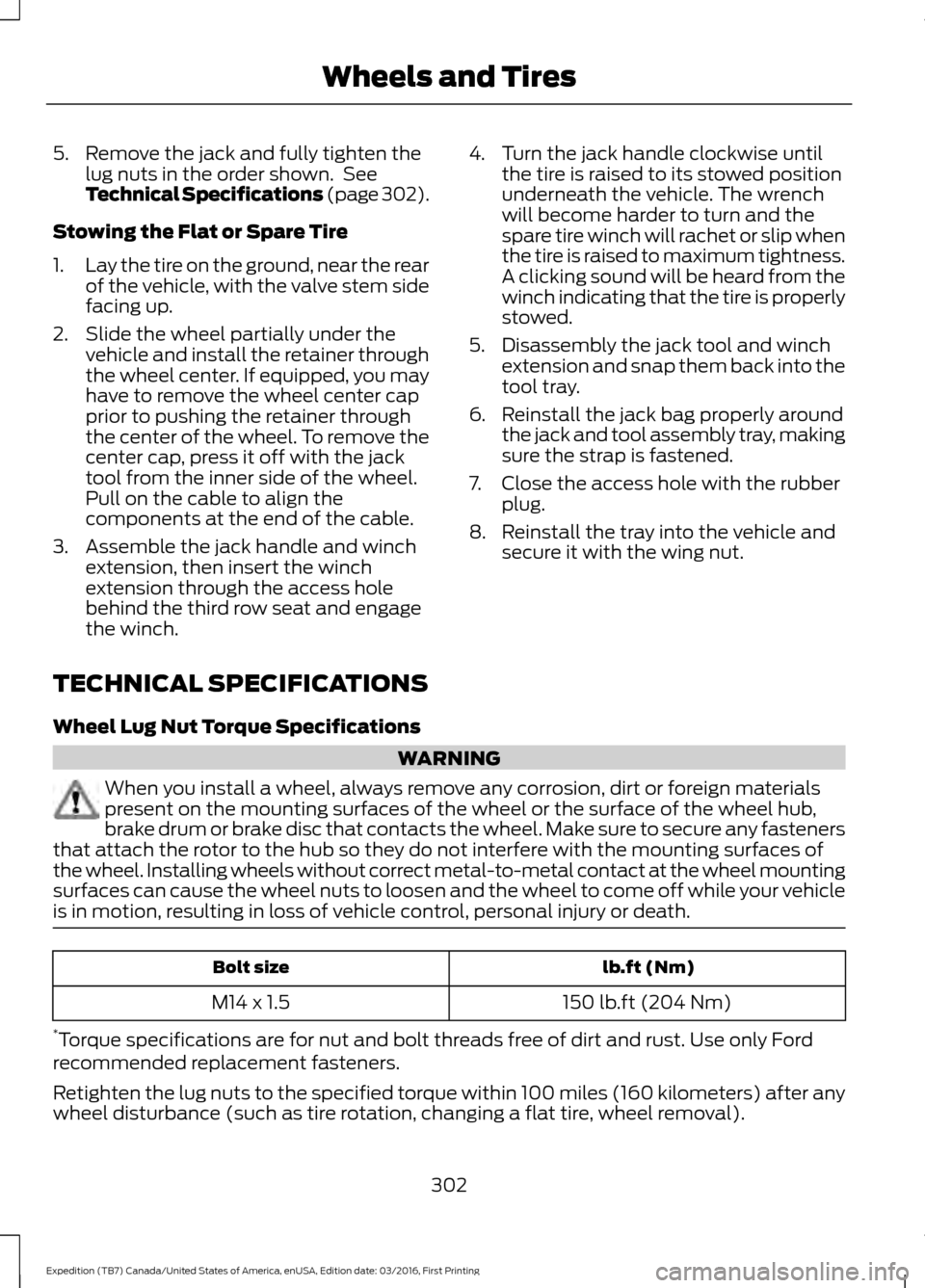
5. Remove the jack and fully tighten the
lug nuts in the order shown. See
Technical Specifications (page 302).
Stowing the Flat or Spare Tire
1. Lay the tire on the ground, near the rear
of the vehicle, with the valve stem side
facing up.
2. Slide the wheel partially under the vehicle and install the retainer through
the wheel center. If equipped, you may
have to remove the wheel center cap
prior to pushing the retainer through
the center of the wheel. To remove the
center cap, press it off with the jack
tool from the inner side of the wheel.
Pull on the cable to align the
components at the end of the cable.
3. Assemble the jack handle and winch extension, then insert the winch
extension through the access hole
behind the third row seat and engage
the winch. 4. Turn the jack handle clockwise until
the tire is raised to its stowed position
underneath the vehicle. The wrench
will become harder to turn and the
spare tire winch will rachet or slip when
the tire is raised to maximum tightness.
A clicking sound will be heard from the
winch indicating that the tire is properly
stowed.
5. Disassembly the jack tool and winch extension and snap them back into the
tool tray.
6. Reinstall the jack bag properly around the jack and tool assembly tray, making
sure the strap is fastened.
7. Close the access hole with the rubber plug.
8. Reinstall the tray into the vehicle and secure it with the wing nut.
TECHNICAL SPECIFICATIONS
Wheel Lug Nut Torque Specifications WARNING
When you install a wheel, always remove any corrosion, dirt or foreign materials
present on the mounting surfaces of the wheel or the surface of the wheel hub,
brake drum or brake disc that contacts the wheel. Make sure to secure any fasteners
that attach the rotor to the hub so they do not interfere with the mounting surfaces of
the wheel. Installing wheels without correct metal-to-metal contact at the wheel mounting
surfaces can cause the wheel nuts to loosen and the wheel to come off while your vehicle
is in motion, resulting in loss of vehicle control, personal injury or death. lb.ft (Nm)
Bolt size
150 lb.ft (204 Nm)
M14 x 1.5
* Torque specifications are for nut and bolt threads free of dirt and rust. Use only Ford
recommended replacement fasteners.
Retighten the lug nuts to the specified torque within 100 miles (160 kilometers) after any
wheel disturbance (such as tire rotation, changing a flat tire, wheel removal).
302
Expedition (TB7) Canada/United States of America, enUSA, Edition date: 03/2016, First Printing Wheels and Tires
Page 319 of 500
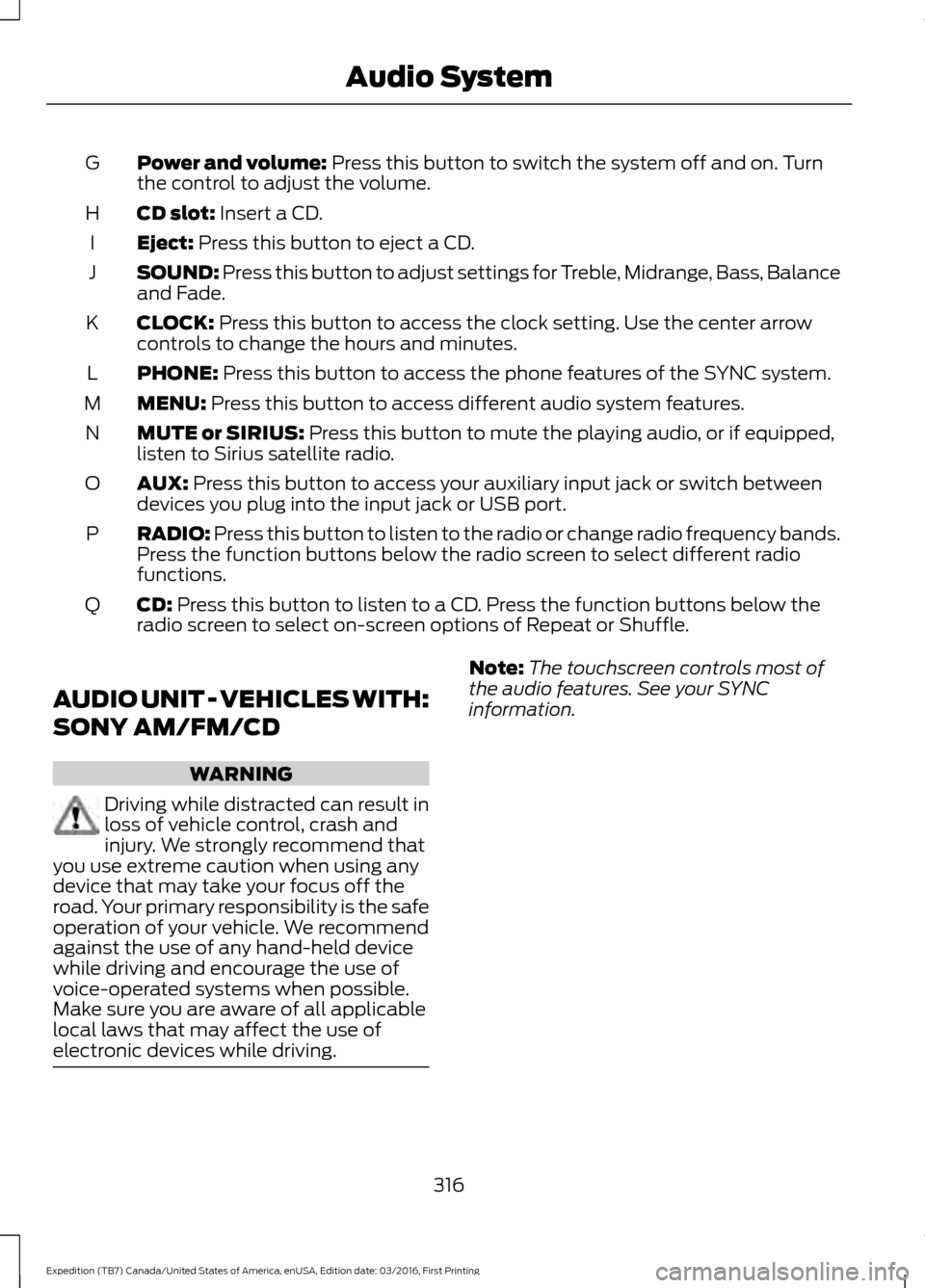
Power and volume: Press this button to switch the system off and on. Turn
the control to adjust the volume.
G
CD slot:
Insert a CD.
H
Eject:
Press this button to eject a CD.
I
SOUND:
Press this button to adjust settings for Treble, Midrange, Bass, Balance
and Fade.
J
CLOCK:
Press this button to access the clock setting. Use the center arrow
controls to change the hours and minutes.
K
PHONE:
Press this button to access the phone features of the SYNC system.
L
MENU:
Press this button to access different audio system features.
M
MUTE or SIRIUS:
Press this button to mute the playing audio, or if equipped,
listen to Sirius satellite radio.
N
AUX:
Press this button to access your auxiliary input jack or switch between
devices you plug into the input jack or USB port.
O
RADIO:
Press this button to listen to the radio or change radio frequency bands.
Press the function buttons below the radio screen to select different radio
functions.
P
CD:
Press this button to listen to a CD. Press the function buttons below the
radio screen to select on-screen options of Repeat or Shuffle.
Q
AUDIO UNIT - VEHICLES WITH:
SONY AM/FM/CD WARNING
Driving while distracted can result in
loss of vehicle control, crash and
injury. We strongly recommend that
you use extreme caution when using any
device that may take your focus off the
road. Your primary responsibility is the safe
operation of your vehicle. We recommend
against the use of any hand-held device
while driving and encourage the use of
voice-operated systems when possible.
Make sure you are aware of all applicable
local laws that may affect the use of
electronic devices while driving. Note:
The touchscreen controls most of
the audio features. See your SYNC
information.
316
Expedition (TB7) Canada/United States of America, enUSA, Edition date: 03/2016, First Printing Audio System
Page 321 of 500
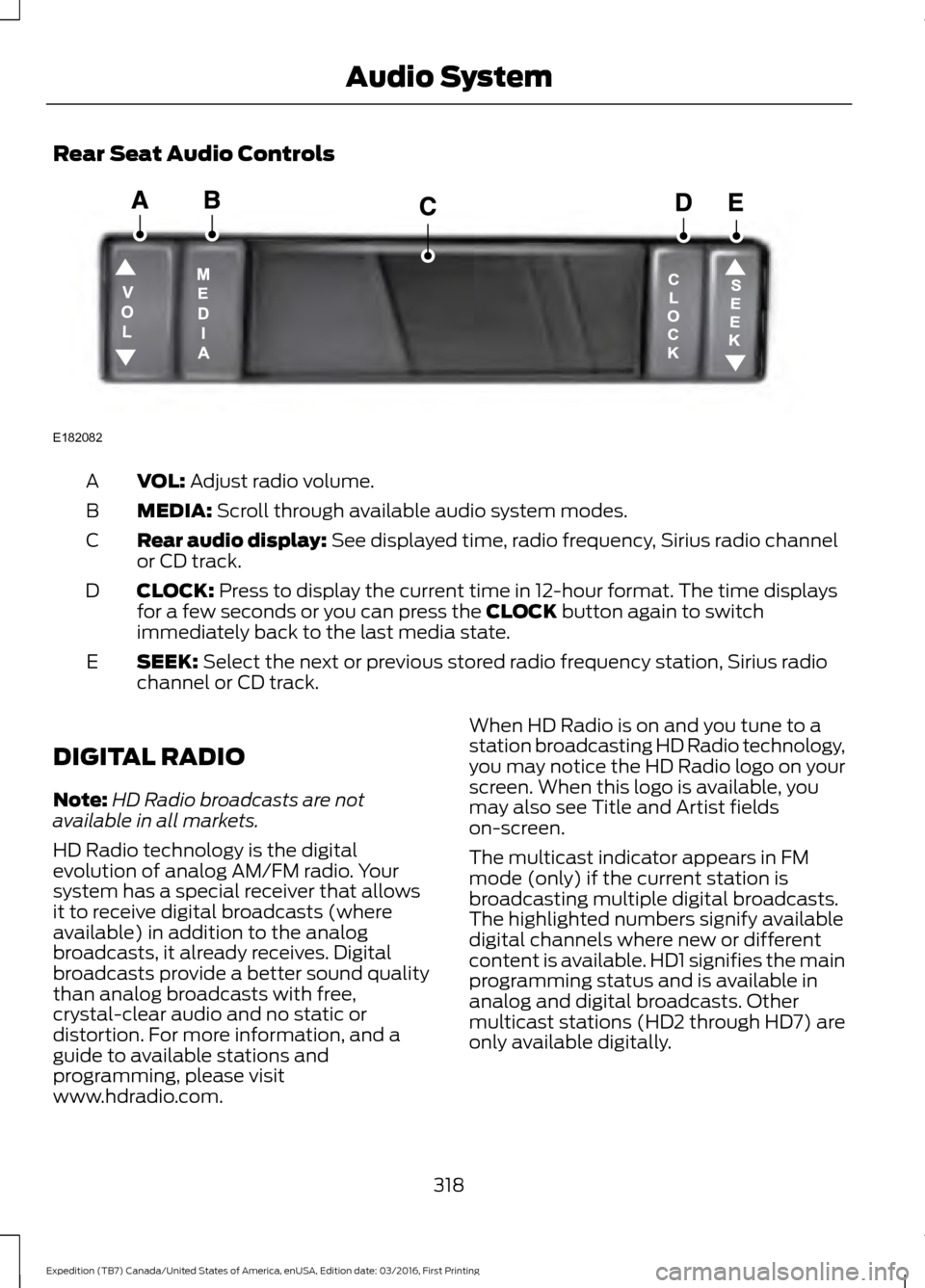
Rear Seat Audio Controls
VOL: Adjust radio volume.
A
MEDIA:
Scroll through available audio system modes.
B
Rear audio display:
See displayed time, radio frequency, Sirius radio channel
or CD track.
C
CLOCK:
Press to display the current time in 12-hour format. The time displays
for a few seconds or you can press the CLOCK button again to switch
immediately back to the last media state.
D
SEEK:
Select the next or previous stored radio frequency station, Sirius radio
channel or CD track.
E
DIGITAL RADIO
Note: HD Radio broadcasts are not
available in all markets.
HD Radio technology is the digital
evolution of analog AM/FM radio. Your
system has a special receiver that allows
it to receive digital broadcasts (where
available) in addition to the analog
broadcasts, it already receives. Digital
broadcasts provide a better sound quality
than analog broadcasts with free,
crystal-clear audio and no static or
distortion. For more information, and a
guide to available stations and
programming, please visit
www.hdradio.com. When HD Radio is on and you tune to a
station broadcasting HD Radio technology,
you may notice the HD Radio logo on your
screen. When this logo is available, you
may also see Title and Artist fields
on-screen.
The multicast indicator appears in FM
mode (only) if the current station is
broadcasting multiple digital broadcasts.
The highlighted numbers signify available
digital channels where new or different
content is available. HD1 signifies the main
programming status and is available in
analog and digital broadcasts. Other
multicast stations (HD2 through HD7) are
only available digitally.
318
Expedition (TB7) Canada/United States of America, enUSA, Edition date: 03/2016, First Printing Audio SystemE182082
Page 369 of 500
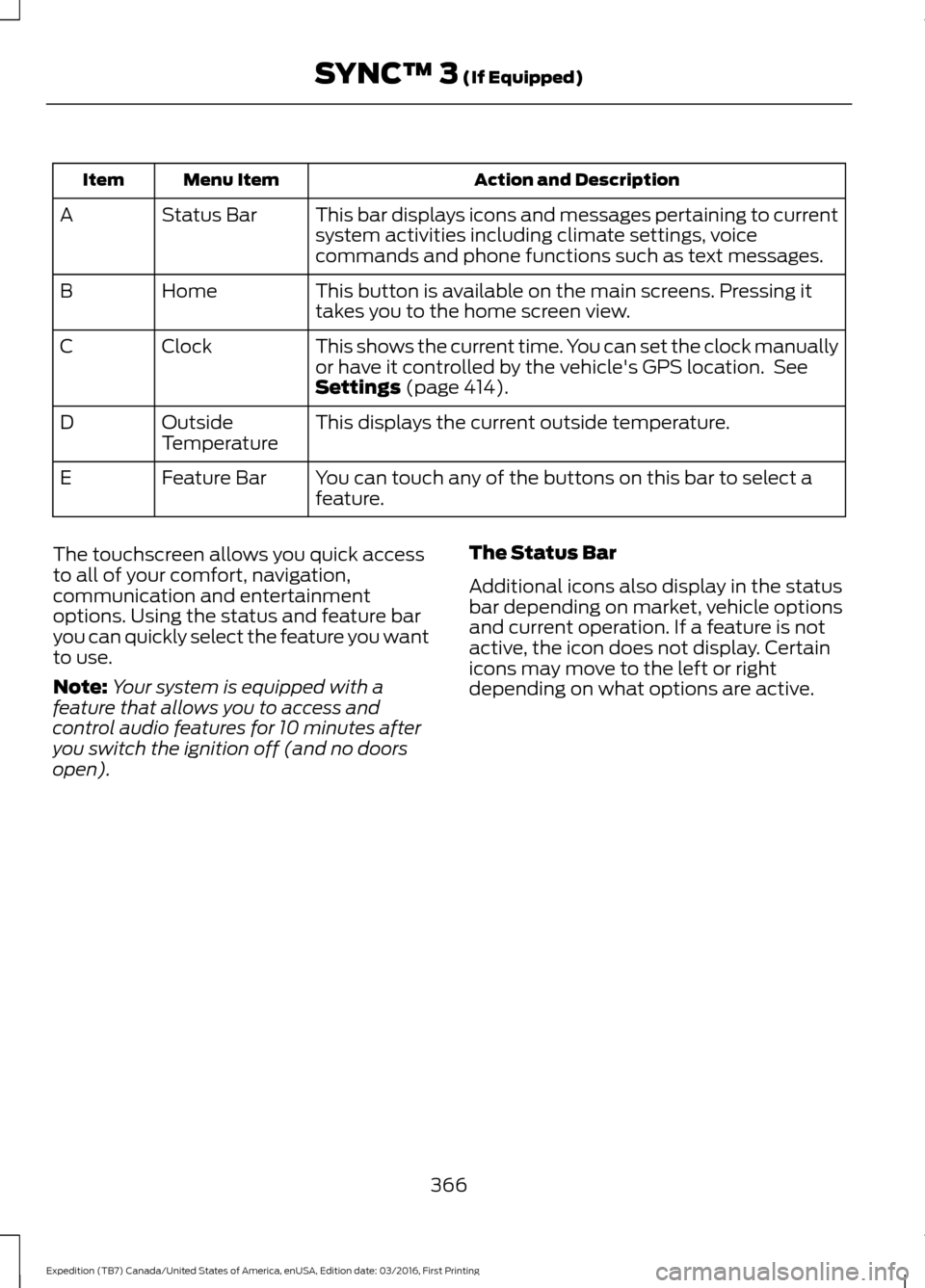
Action and Description
Menu Item
Item
This bar displays icons and messages pertaining to current
system activities including climate settings, voice
commands and phone functions such as text messages.
Status Bar
A
This button is available on the main screens. Pressing it
takes you to the home screen view.
Home
B
This shows the current time. You can set the clock manually
or have it controlled by the vehicle's GPS location. See
Settings (page 414).
Clock
C
This displays the current outside temperature.
Outside
Temperature
D
You can touch any of the buttons on this bar to select a
feature.
Feature Bar
E
The touchscreen allows you quick access
to all of your comfort, navigation,
communication and entertainment
options. Using the status and feature bar
you can quickly select the feature you want
to use.
Note: Your system is equipped with a
feature that allows you to access and
control audio features for 10 minutes after
you switch the ignition off (and no doors
open). The Status Bar
Additional icons also display in the status
bar depending on market, vehicle options
and current operation. If a feature is not
active, the icon does not display. Certain
icons may move to the left or right
depending on what options are active.
366
Expedition (TB7) Canada/United States of America, enUSA, Edition date: 03/2016, First Printing SYNC™ 3
(If Equipped)
Page 400 of 500
Note: The heated steering wheel may remain on after remote starting the
vehicle, based on your remote start settings. The heated steering wheel may
also turn on when you start your vehicle, if it was on when you switched your
vehicle off.
Note:
For steering wheels with wood trim, the heating feature will not heat the
wheel between the 10 and 2 o'clock positions.
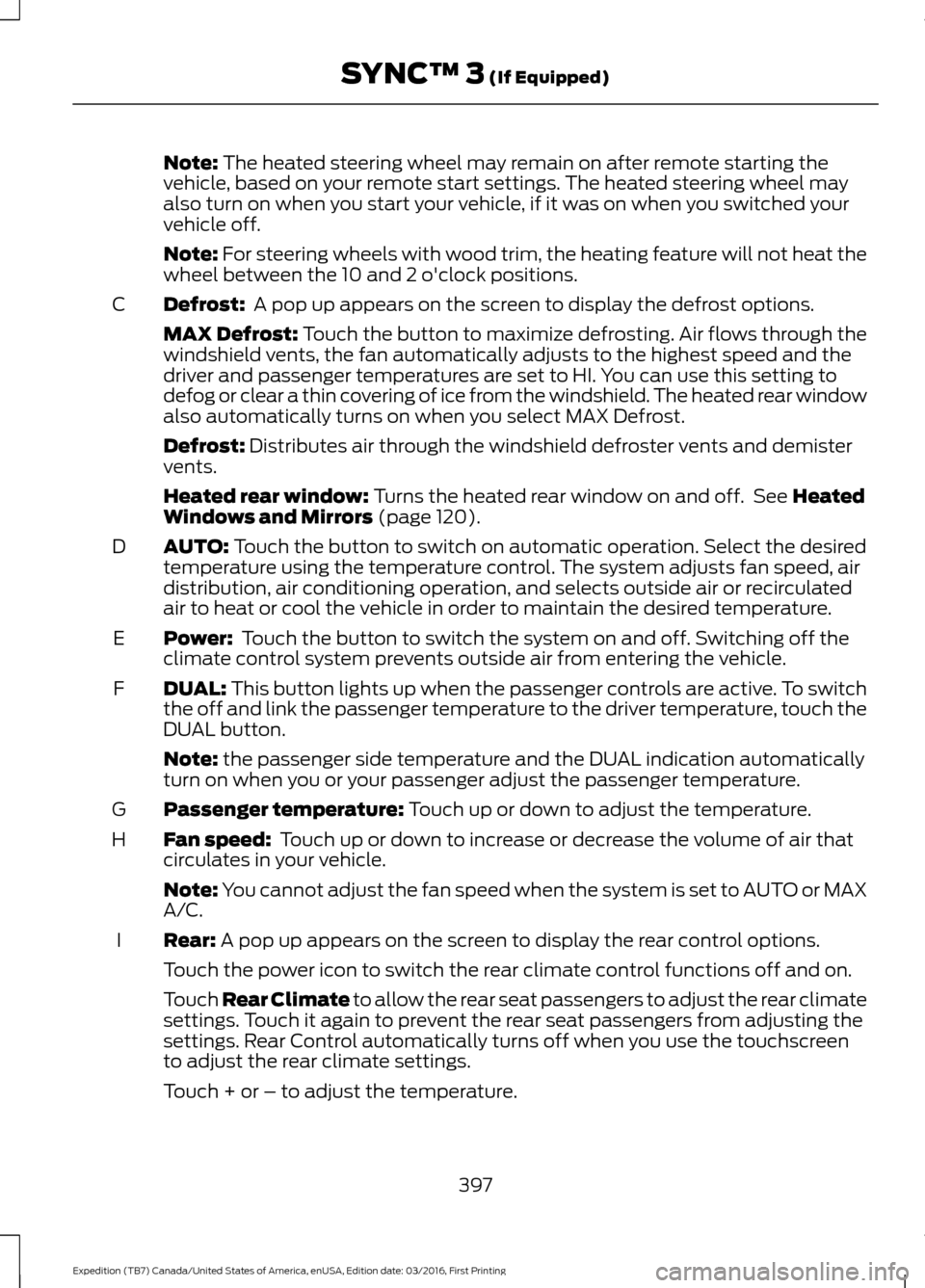
Defrost:
A pop up appears on the screen to display the defrost options.
C
MAX Defrost: Touch the button to maximize defrosting. Air flows through the
windshield vents, the fan automatically adjusts to the highest speed and the
driver and passenger temperatures are set to HI. You can use this setting to
defog or clear a thin covering of ice from the windshield. The heated rear window
also automatically turns on when you select MAX Defrost.
Defrost:
Distributes air through the windshield defroster vents and demister
vents.
Heated rear window:
Turns the heated rear window on and off. See Heated
Windows and Mirrors (page 120).
AUTO:
Touch the button to switch on automatic operation. Select the desired
temperature using the temperature control. The system adjusts fan speed, air
distribution, air conditioning operation, and selects outside air or recirculated
air to heat or cool the vehicle in order to maintain the desired temperature.
D
Power:
Touch the button to switch the system on and off. Switching off the
climate control system prevents outside air from entering the vehicle.
E
DUAL:
This button lights up when the passenger controls are active. To switch
the off and link the passenger temperature to the driver temperature, touch the
DUAL button.
F
Note:
the passenger side temperature and the DUAL indication automatically
turn on when you or your passenger adjust the passenger temperature.
Passenger temperature:
Touch up or down to adjust the temperature.
G
Fan speed:
Touch up or down to increase or decrease the volume of air that
circulates in your vehicle.
H
Note:
You cannot adjust the fan speed when the system is set to AUTO or MAX
A/C.
Rear:
A pop up appears on the screen to display the rear control options.
I
Touch the power icon to switch the rear climate control functions off and on.
Touch Rear Climate to allow the rear seat passengers to adjust the rear climate
settings. Touch it again to prevent the rear seat passengers from adjusting the
settings. Rear Control automatically turns off when you use the touchscreen
to adjust the rear climate settings.
Touch + or – to adjust the temperature.
397
Expedition (TB7) Canada/United States of America, enUSA, Edition date: 03/2016, First Printing SYNC™ 3
(If Equipped)
Page 419 of 500
Action and Description
Menu Item
The Gracenote Database supplied cover art is
used for your music files. This overrides any
cover art from your device.
Gracenote®
Erase the stored media information in order to re-index.
Reset Media
This allows you to view the version level of the Gracenote Database.
Gracenote® Data-
base Info
This allows you to view the manufacturer and model number of your
media device.
Device Informa-
tion
Clock
To adjust the time, select the up and down
arrows on either side of the screen. The
arrows on the left adjust the hour and
arrows on the right adjust the minute. You
can then select AM or PM. You can adjust the following features:Action and Description
Menu Item
Select how time displays.
Clock Format
When active, the clock adjusts to time zone changes.
Auto Time Zone
Update This feature is only available in vehicles with navigation.
When selected, the vehicle clock resets to GPS satellite time.
Reset Clock to
GPS Time
The system automatically saves any
updates you make to the settings. Bluetooth
Pressing this button allows you to access
the following: Action
Menu Item
Turning Bluetooth off disconnects all devices and does not permit
new connections.
Bluetooth
You must activate Bluetooth to pair a
Bluetooth-enabled device. The processes of pairing a Bluetooth
device is the same as pairing a phone.
See
Pairing a Device in Phone settings for how
to pair a device and the available options.
416
Expedition (TB7) Canada/United States of America, enUSA, Edition date: 03/2016, First Printing SYNC™ 3 (If Equipped)
Page 497 of 500
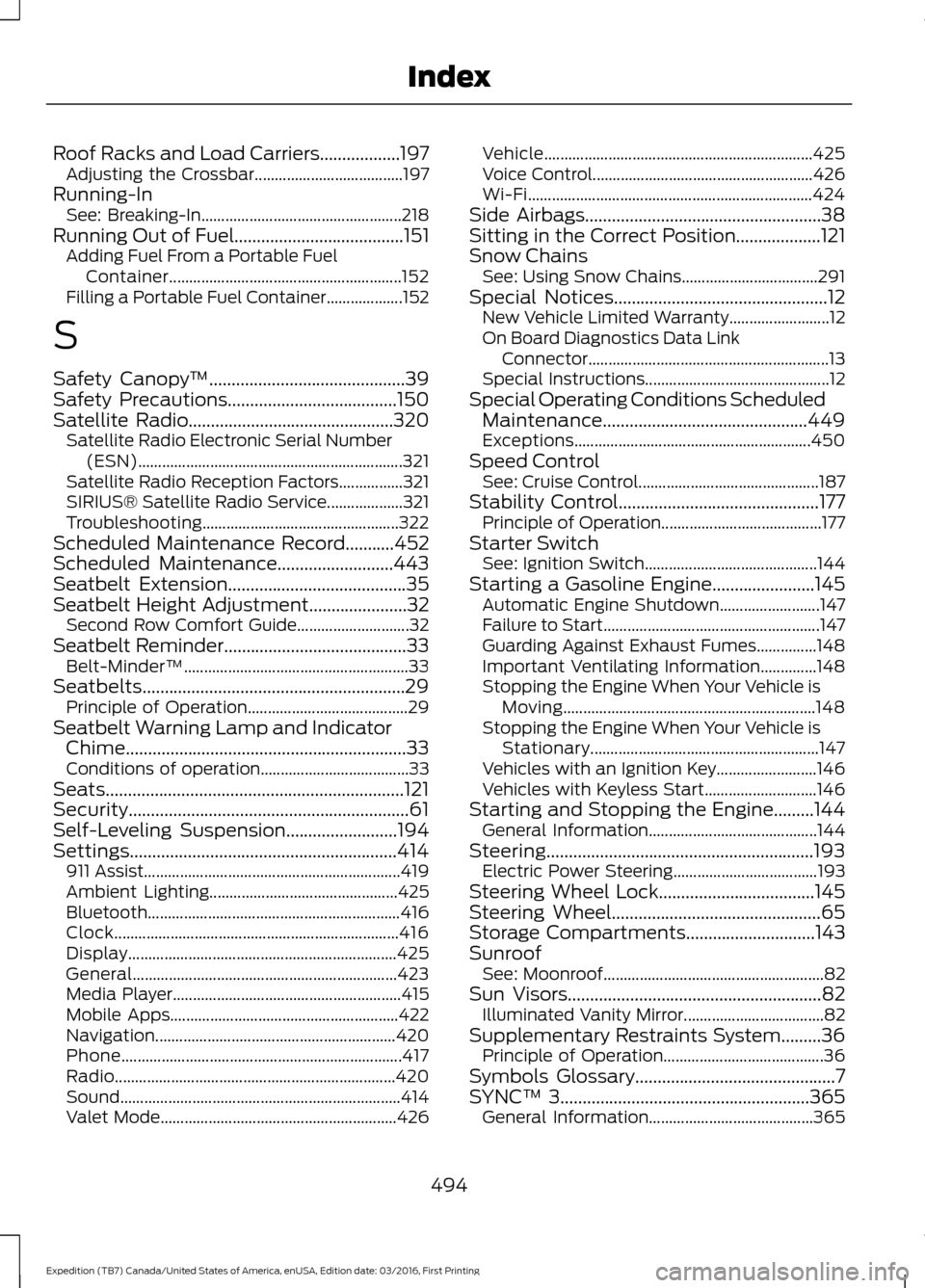
Roof Racks and Load Carriers..................197
Adjusting the Crossbar..................................... 197
Running-In See: Breaking-In.................................................. 218
Running Out of Fuel......................................151
Adding Fuel From a Portable Fuel
Container.......................................................... 152
Filling a Portable Fuel Container................... 152
S
Safety Canopy ™
............................................39
Safety Precautions......................................150
Satellite Radio..............................................320 Satellite Radio Electronic Serial Number
(ESN).................................................................. 321
Satellite Radio Reception Factors................321
SIRIUS® Satellite Radio Service................... 321
Troubleshooting................................................. 322
Scheduled Maintenance Record
...........452
Scheduled Maintenance..........................443
Seatbelt Extension
........................................35
Seatbelt Height Adjustment......................32 Second Row Comfort Guide............................ 32
Seatbelt Reminder
.........................................33
Belt-Minder™........................................................ 33
Seatbelts...........................................................29 Principle of Operation........................................ 29
Seatbelt Warning Lamp and Indicator Chime...............................................................33
Conditions of operation..................................... 33
Seats...................................................................121
Security...............................................................61
Self-Leveling Suspension
.........................194
Settings............................................................414 911 Assist................................................................ 419
Ambient Lighting............................................... 425
Bluetooth............................................................... 416
Clock....................................................................... 416
Display................................................................... 425
General.................................................................. 423
Media Player......................................................... 415
Mobile Apps......................................................... 422
Navigation............................................................ 420
Phone...................................................................... 417
Radio...................................................................... 420
Sound...................................................................... 414
Valet Mode........................................................... 426Vehicle...................................................................
425
Voice Control....................................................... 426
Wi-Fi....................................................................... 424
Side Airbags
.....................................................38
Sitting in the Correct Position...................121
Snow Chains See: Using Snow Chains.................................. 291
Special Notices................................................12 New Vehicle Limited Warranty......................... 12
On Board Diagnostics Data Link Connector............................................................ 13
Special Instructions.............................................. 12
Special Operating Conditions Scheduled Maintenance..............................................449
Exceptions........................................................... 450
Speed Control See: Cruise Control............................................. 187
Stability Control
.............................................177
Principle of Operation........................................ 177
Starter Switch See: Ignition Switch........................................... 144
Starting a Gasoline Engine
.......................145
Automatic Engine Shutdown......................... 147
Failure to Start...................................................... 147
Guarding Against Exhaust Fumes...............148
Important Ventilating Information..............148
Stopping the Engine When Your Vehicle is Moving............................................................... 148
Stopping the Engine When Your Vehicle is Stationary......................................................... 147
Vehicles with an Ignition Key......................... 146
Vehicles with Keyless Start............................ 146
Starting and Stopping the Engine.........144 General Information.......................................... 144
Steering............................................................193 Electric Power Steering.................................... 193
Steering Wheel Lock...................................145
Steering Wheel...............................................65
Storage Compartments
.............................143
Sunroof See: Moonroof....................................................... 82
Sun Visors
.........................................................82
Illuminated Vanity Mirror................................... 82
Supplementary Restraints System.........36 Principle of Operation........................................ 36
Symbols Glossary
.............................................7
SYNC™ 3........................................................365
General Information......................................... 365
494
Expedition (TB7) Canada/United States of America, enUSA, Edition date: 03/2016, First Printing Index