reset FORD EXPEDITION 2017 3.G User Guide
[x] Cancel search | Manufacturer: FORD, Model Year: 2017, Model line: EXPEDITION, Model: FORD EXPEDITION 2017 3.GPages: 500, PDF Size: 4.83 MB
Page 100 of 500
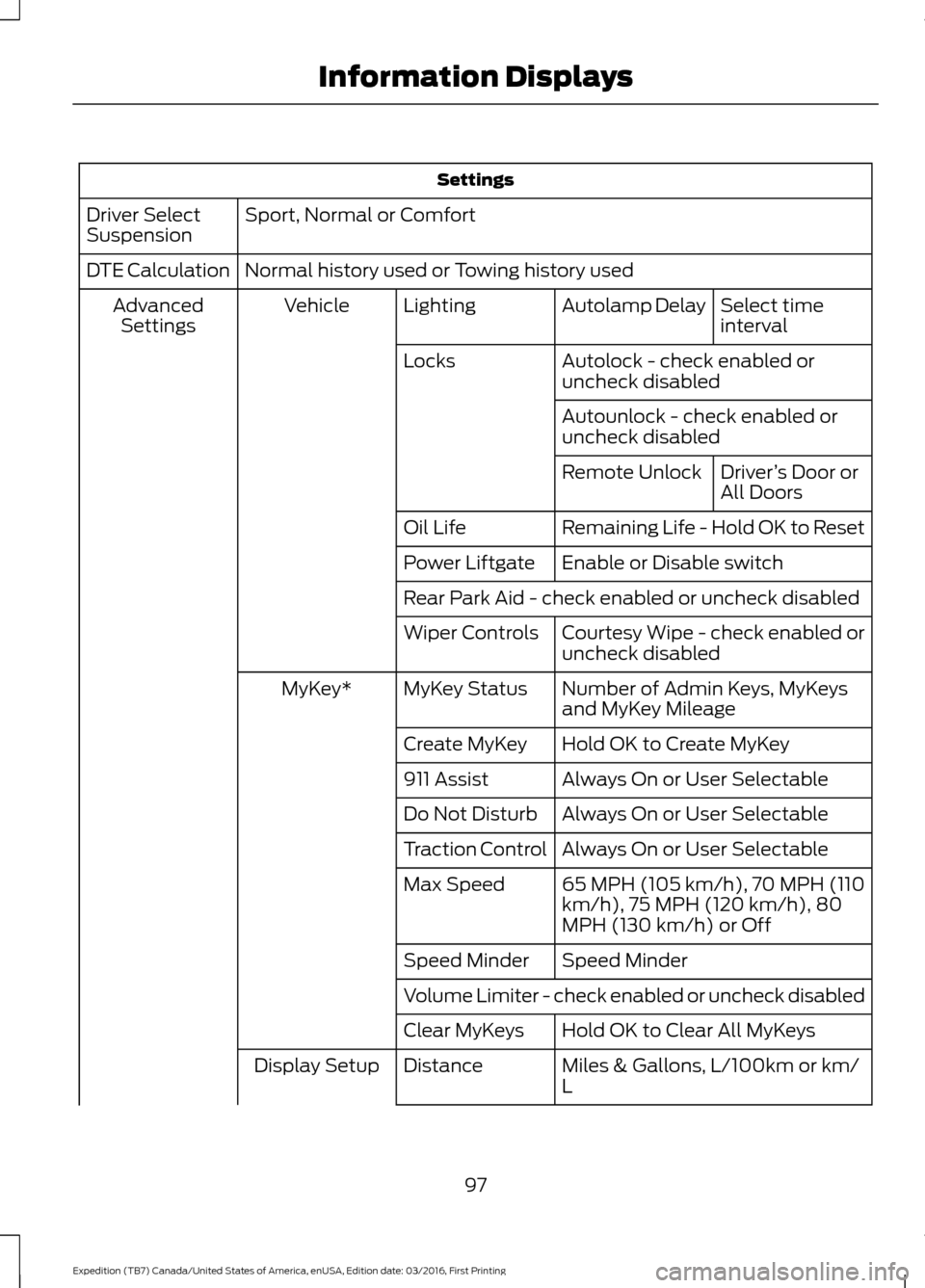
Settings
Sport, Normal or Comfort
Driver Select
Suspension
Normal history used or Towing history used
DTE Calculation
Select time
interval
Autolamp Delay
Lighting
Vehicle
Advanced
Settings
Autolock - check enabled or
uncheck disabled
Locks
Autounlock - check enabled or
uncheck disabledDriver’s Door or
All Doors
Remote Unlock
Remaining Life - Hold OK to Reset
Oil Life
Enable or Disable switch
Power Liftgate
Rear Park Aid - check enabled or uncheck disabled
Courtesy Wipe - check enabled or
uncheck disabled
Wiper Controls
Number of Admin Keys, MyKeys
and MyKey Mileage
MyKey Status
MyKey*
Hold OK to Create MyKey
Create MyKey
Always On or User Selectable
911 Assist
Always On or User Selectable
Do Not Disturb
Always On or User Selectable
Traction Control
65 MPH (105 km/h), 70 MPH (110
km/h), 75 MPH (120 km/h), 80
MPH (130 km/h) or Off
Max Speed
Speed Minder
Speed Minder
Volume Limiter - check enabled or uncheck disabled
Hold OK to Clear All MyKeys
Clear MyKeys
Miles & Gallons, L/100km or km/
L
Distance
Display Setup
97
Expedition (TB7) Canada/United States of America, enUSA, Edition date: 03/2016, First Printing Information Displays
Page 102 of 500
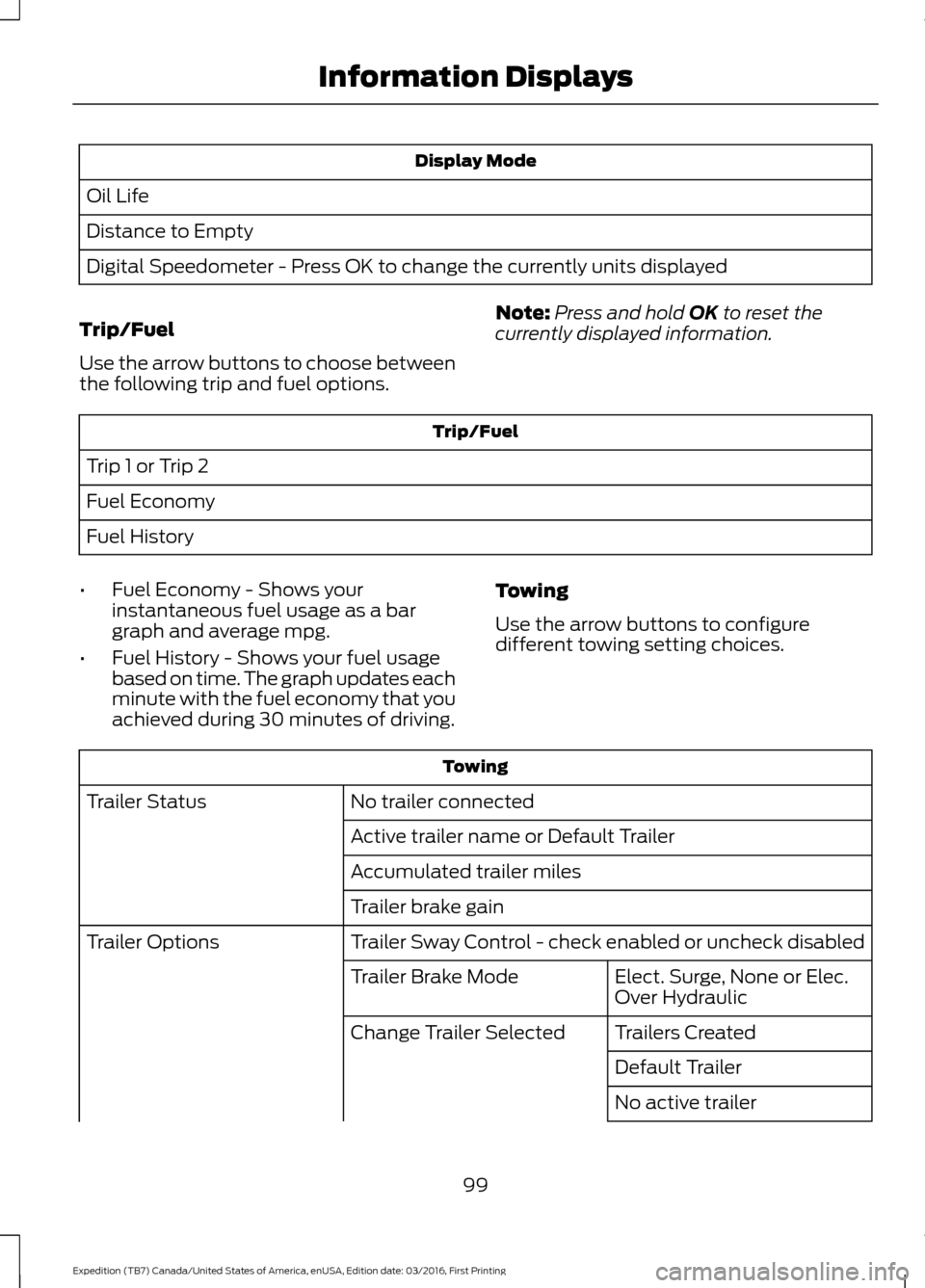
Display Mode
Oil Life
Distance to Empty
Digital Speedometer - Press OK to change the currently units displayed
Trip/Fuel
Use the arrow buttons to choose between
the following trip and fuel options. Note:
Press and hold OK to reset the
currently displayed information. Trip/Fuel
Trip 1 or Trip 2
Fuel Economy
Fuel History
• Fuel Economy - Shows your
instantaneous fuel usage as a bar
graph and average mpg.
• Fuel History - Shows your fuel usage
based on time. The graph updates each
minute with the fuel economy that you
achieved during 30 minutes of driving. Towing
Use the arrow buttons to configure
different towing setting choices. Towing
No trailer connected
Trailer Status
Active trailer name or Default Trailer
Accumulated trailer miles
Trailer brake gain
Trailer Sway Control - check enabled or uncheck disabled
Trailer Options
Elect. Surge, None or Elec.
Over Hydraulic
Trailer Brake Mode
Trailers Created
Change Trailer Selected
Default Trailer
No active trailer
99
Expedition (TB7) Canada/United States of America, enUSA, Edition date: 03/2016, First Printing Information Displays
Page 103 of 500
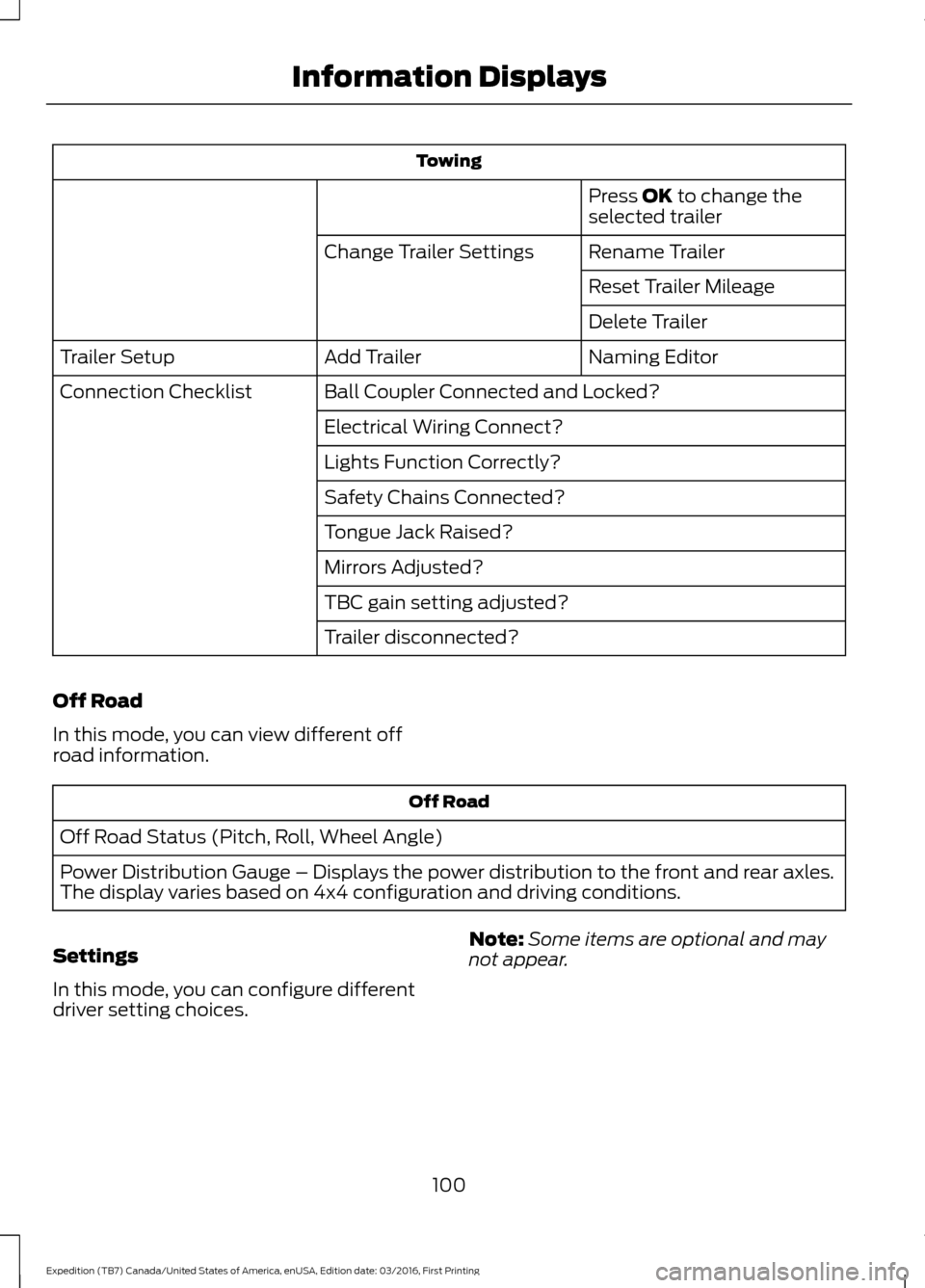
Towing
Press OK to change the
selected trailer
Rename Trailer
Change Trailer Settings
Reset Trailer Mileage
Delete Trailer
Naming Editor
Add Trailer
Trailer Setup
Ball Coupler Connected and Locked?
Connection Checklist
Electrical Wiring Connect?
Lights Function Correctly?
Safety Chains Connected?
Tongue Jack Raised?
Mirrors Adjusted?
TBC gain setting adjusted?
Trailer disconnected?
Off Road
In this mode, you can view different off
road information. Off Road
Off Road Status (Pitch, Roll, Wheel Angle)
Power Distribution Gauge – Displays the power distribution to the front and rear axles.
The display varies based on 4x4 configuration and driving conditions.
Settings
In this mode, you can configure different
driver setting choices. Note:
Some items are optional and may
not appear.
100
Expedition (TB7) Canada/United States of America, enUSA, Edition date: 03/2016, First Printing Information Displays
Page 104 of 500
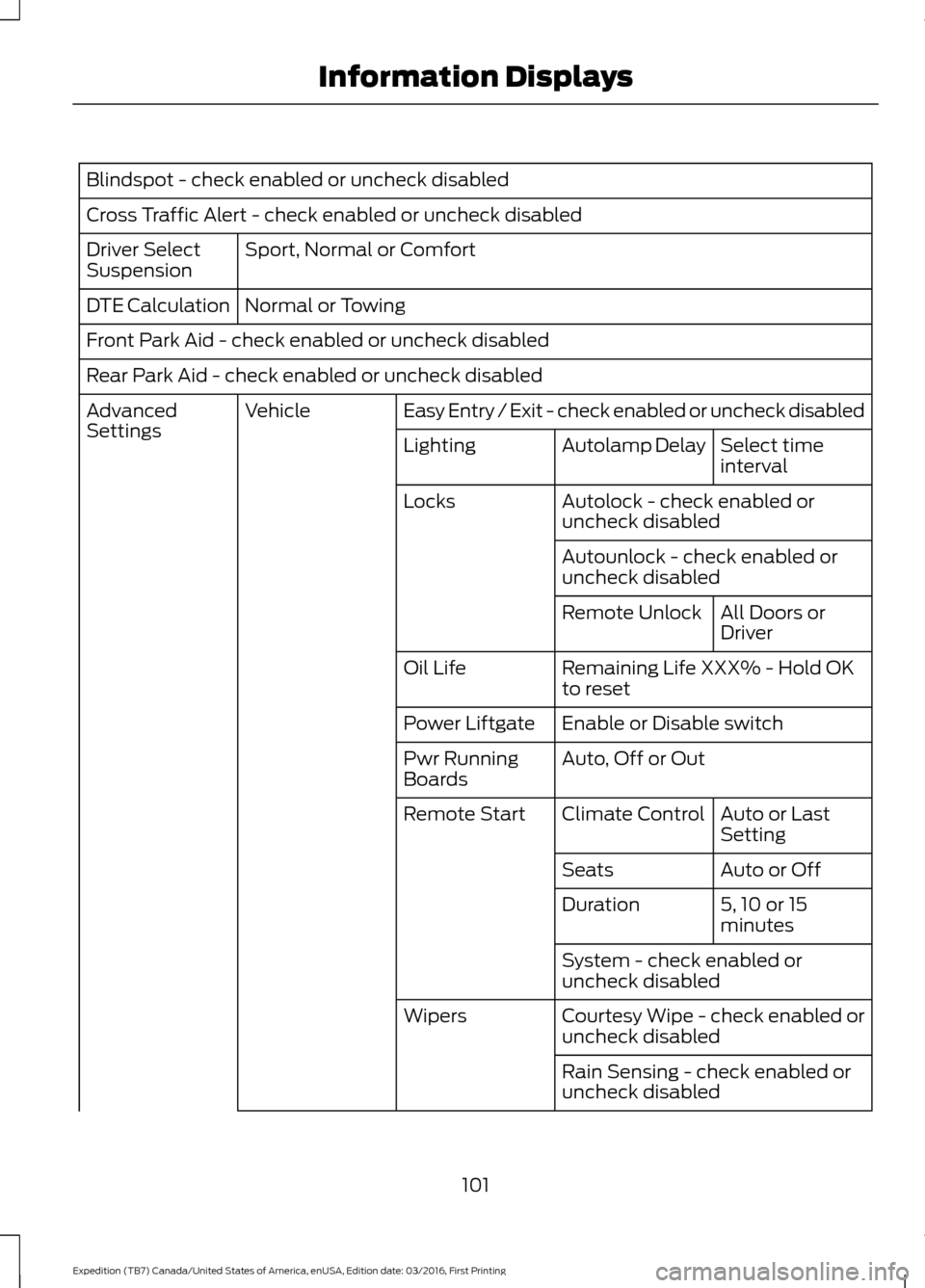
Blindspot - check enabled or uncheck disabled
Cross Traffic Alert - check enabled or uncheck disabled
Sport, Normal or Comfort
Driver Select
Suspension
Normal or Towing
DTE Calculation
Front Park Aid - check enabled or uncheck disabled
Rear Park Aid - check enabled or uncheck disabled
Easy Entry / Exit - check enabled or uncheck disabled
Vehicle
Advanced
Settings
Select time
interval
Autolamp Delay
Lighting
Autolock - check enabled or
uncheck disabled
Locks
Autounlock - check enabled or
uncheck disabledAll Doors or
Driver
Remote Unlock
Remaining Life XXX% - Hold OK
to reset
Oil Life
Enable or Disable switch
Power Liftgate
Auto, Off or Out
Pwr Running
Boards
Auto or Last
Setting
Climate Control
Remote Start
Auto or Off
Seats
5, 10 or 15
minutes
Duration
System - check enabled or
uncheck disabled
Courtesy Wipe - check enabled or
uncheck disabled
Wipers
Rain Sensing - check enabled or
uncheck disabled
101
Expedition (TB7) Canada/United States of America, enUSA, Edition date: 03/2016, First Printing Information Displays
Page 107 of 500
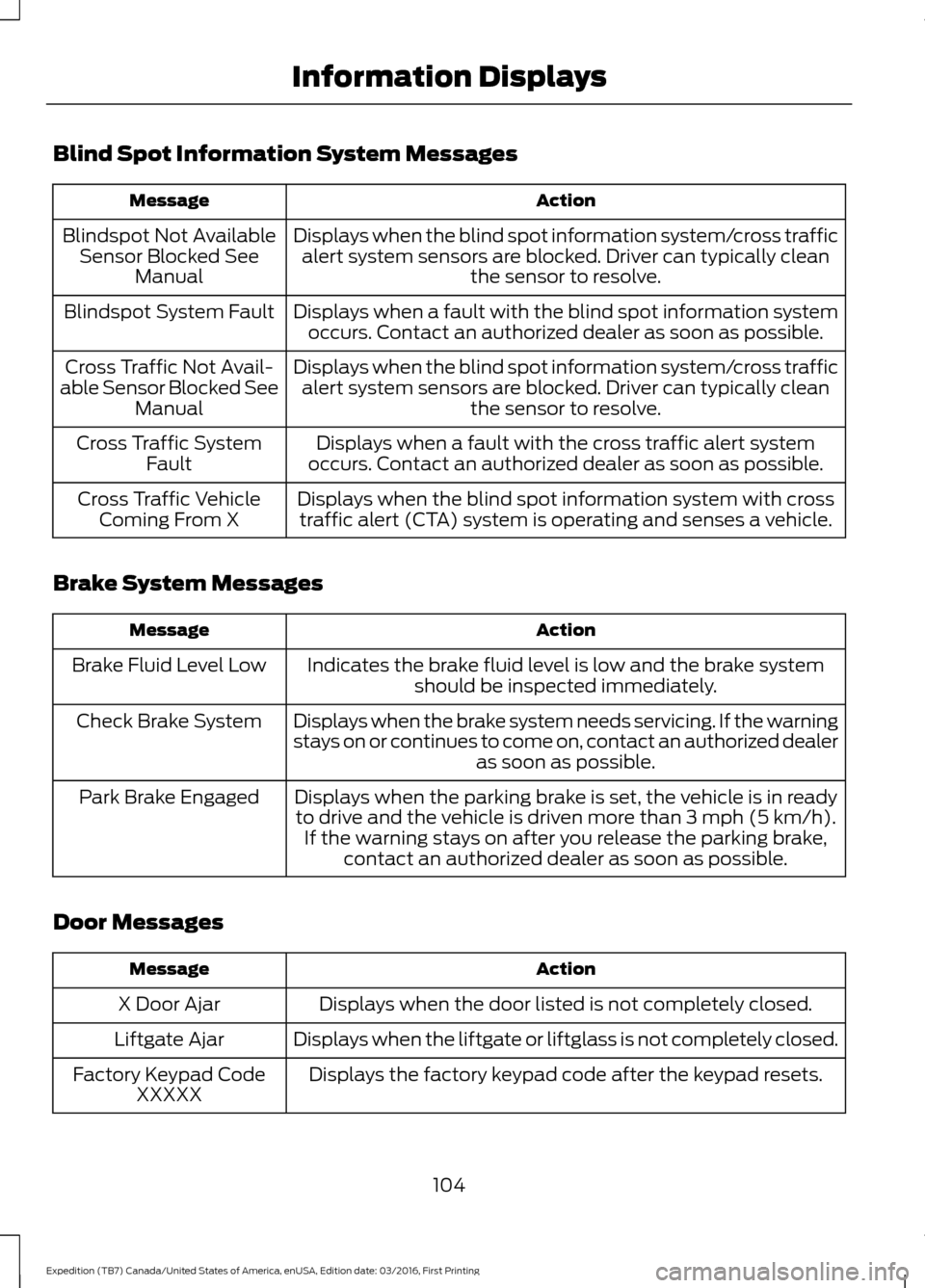
Blind Spot Information System Messages
Action
Message
Displays when the blind spot information system/cross trafficalert system sensors are blocked. Driver can typically clean the sensor to resolve.
Blindspot Not Available
Sensor Blocked See Manual
Displays when a fault with the blind spot information systemoccurs. Contact an authorized dealer as soon as possible.
Blindspot System Fault
Displays when the blind spot information system/cross trafficalert system sensors are blocked. Driver can typically clean the sensor to resolve.
Cross Traffic Not Avail-
able Sensor Blocked See Manual
Displays when a fault with the cross traffic alert system
occurs. Contact an authorized dealer as soon as possible.
Cross Traffic System
Fault
Displays when the blind spot information system with crosstraffic alert (CTA) system is operating and senses a vehicle.
Cross Traffic Vehicle
Coming From X
Brake System Messages Action
Message
Indicates the brake fluid level is low and the brake systemshould be inspected immediately.
Brake Fluid Level Low
Displays when the brake system needs servicing. If the warning
stays on or continues to come on, contact an authorized dealeras soon as possible.
Check Brake System
Displays when the parking brake is set, the vehicle is in readyto drive and the vehicle is driven more than 3 mph (5 km/h). If the warning stays on after you release the parking brake, contact an authorized dealer as soon as possible.
Park Brake Engaged
Door Messages Action
Message
Displays when the door listed is not completely closed.
X Door Ajar
Displays when the liftgate or liftglass is not completely closed.
Liftgate Ajar
Displays the factory keypad code after the keypad resets.
Factory Keypad Code
XXXXX
104
Expedition (TB7) Canada/United States of America, enUSA, Edition date: 03/2016, First Printing Information Displays
Page 127 of 500
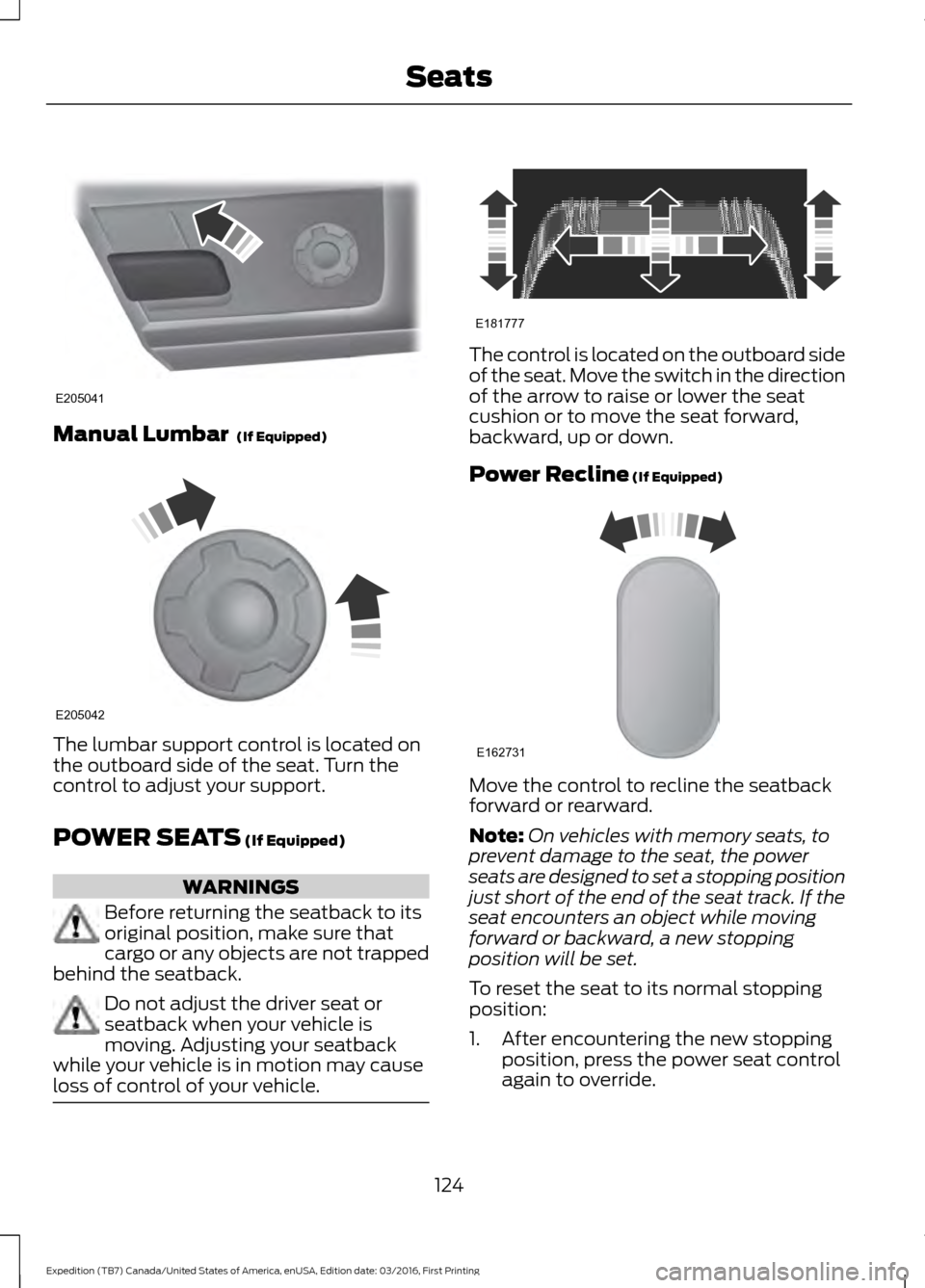
Manual Lumbar (If Equipped)
The lumbar support control is located on
the outboard side of the seat. Turn the
control to adjust your support.
POWER SEATS
(If Equipped)
WARNINGS
Before returning the seatback to its
original position, make sure that
cargo or any objects are not trapped
behind the seatback. Do not adjust the driver seat or
seatback when your vehicle is
moving. Adjusting your seatback
while your vehicle is in motion may cause
loss of control of your vehicle. The control is located on the outboard side
of the seat. Move the switch in the direction
of the arrow to raise or lower the seat
cushion or to move the seat forward,
backward, up or down.
Power Recline
(If Equipped)
Move the control to recline the seatback
forward or rearward.
Note:
On vehicles with memory seats, to
prevent damage to the seat, the power
seats are designed to set a stopping position
just short of the end of the seat track. If the
seat encounters an object while moving
forward or backward, a new stopping
position will be set.
To reset the seat to its normal stopping
position:
1. After encountering the new stopping position, press the power seat control
again to override.
124
Expedition (TB7) Canada/United States of America, enUSA, Edition date: 03/2016, First Printing SeatsE205041 E205042 E181777 E162731
Page 128 of 500
2. Continue pressing the control until it
reaches the end of the seat track.
3. Continue pressing the control for about
two seconds. You will feel the seat
bounce back slightly.
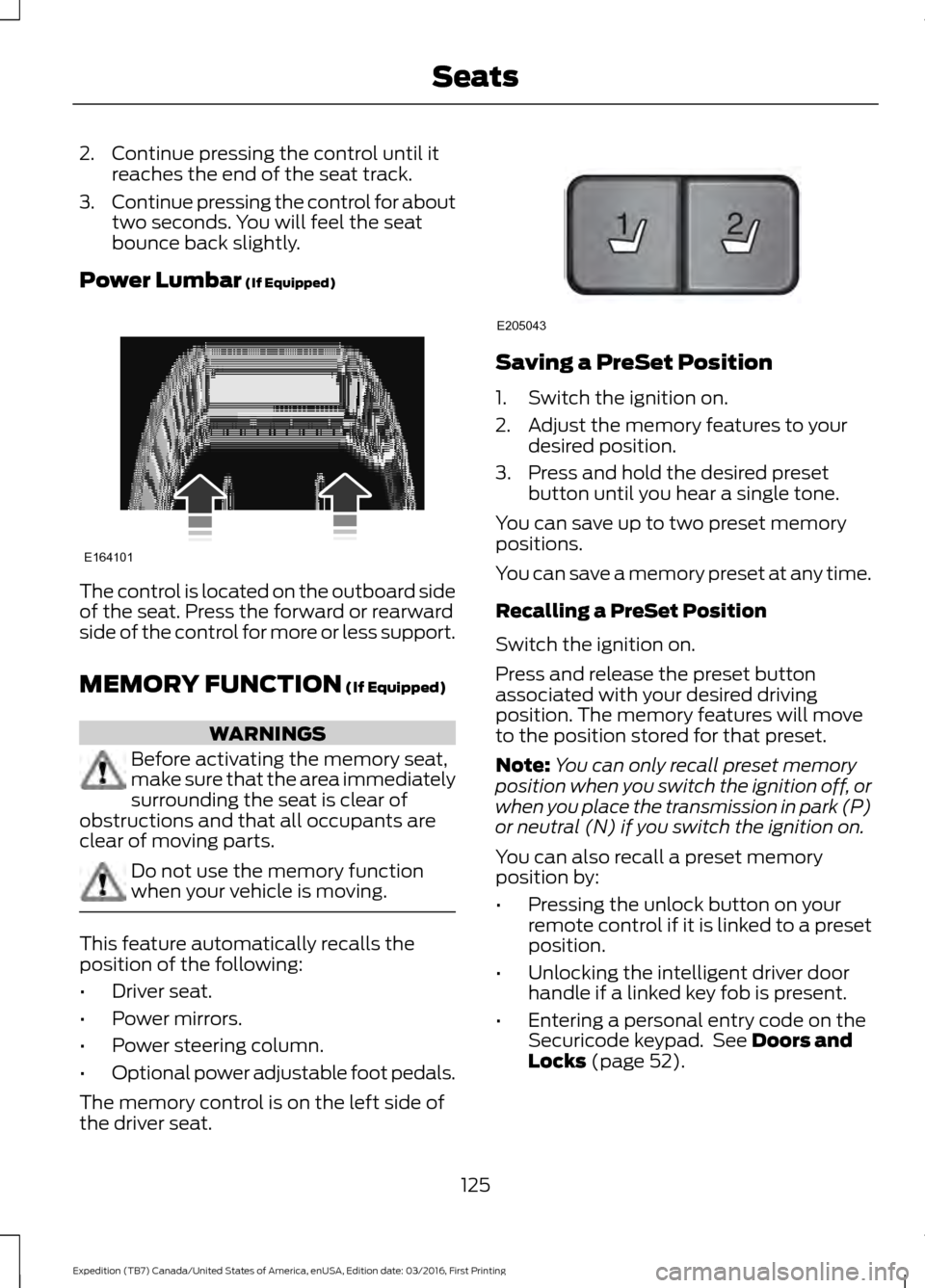
Power Lumbar (If Equipped) The control is located on the outboard side
of the seat. Press the forward or rearward
side of the control for more or less support.
MEMORY FUNCTION
(If Equipped)
WARNINGS
Before activating the memory seat,
make sure that the area immediately
surrounding the seat is clear of
obstructions and that all occupants are
clear of moving parts. Do not use the memory function
when your vehicle is moving.
This feature automatically recalls the
position of the following:
•
Driver seat.
• Power mirrors.
• Power steering column.
• Optional power adjustable foot pedals.
The memory control is on the left side of
the driver seat. Saving a PreSet Position
1. Switch the ignition on.
2. Adjust the memory features to your
desired position.
3. Press and hold the desired preset button until you hear a single tone.
You can save up to two preset memory
positions.
You can save a memory preset at any time.
Recalling a PreSet Position
Switch the ignition on.
Press and release the preset button
associated with your desired driving
position. The memory features will move
to the position stored for that preset.
Note: You can only recall preset memory
position when you switch the ignition off, or
when you place the transmission in park (P)
or neutral (N) if you switch the ignition on.
You can also recall a preset memory
position by:
• Pressing the unlock button on your
remote control if it is linked to a preset
position.
• Unlocking the intelligent driver door
handle if a linked key fob is present.
• Entering a personal entry code on the
Securicode keypad. See
Doors and
Locks (page 52).
125
Expedition (TB7) Canada/United States of America, enUSA, Edition date: 03/2016, First Printing SeatsE164101 21
E205043
Page 129 of 500
Note:
Using a linked key fob to recall your
memory position when the ignition is off
moves the seat and steering column to the
Easy Entry position.
Note: Pressing any active memory feature
control - power seat, mirror (or steering
column switch) (or any memory button)
during a memory recall cancels the
operation.
Linking a PreSet Position to your
Remote Control or Intelligent Access
Key Fob
Your vehicle can save the preset memory
positions for up to two remote controls.
1. With the ignition on, move the memory
positions to the desired positions.
2. Press and hold the desired preset button for about five seconds. A tone
sounds after about two seconds.
Continue holding until you hear a
second tone.
3. Within three seconds, press the lock button on the remote control you are
linking.
To unlink a remote control, follow the
same procedure – except in step 3, press
the unlock button on the remote control.
Note: If more than one linked remote
control or intelligent access key is in range,
the memory function moves to the settings
of the first key to initiate a memory recall.
Easy Entry and Exit Feature (If
Equipped)
This feature adjusts the position of the seat
and steering column to allow easier exit
and entry to the vehicle.
The driver seat automatically moves 2
inches (5 centimeters) rearward when the
transmission is in park (P) and you remove
the key from the ignition or you switch the
ignition off. The driver seat returns to the previous
position when you put the key in the
ignition or switch the ignition on.
You can enable or disable this feature in
the information display. See Information
Displays
(page 91).
REAR SEATS
Folding Down the Second Row
40% Seat WARNINGS
Use caution when folding the
seatback to the flat back position as
the system will move forward when
you lift the release handle. Before returning the seatback to its
original position, make sure that
cargo or any objects are not trapped
behind the seatback. After returning the
seatback to its original position, pull on the
seatback to make sure that it has fully
latched. An unlatched seat may become
dangerous in the event of a sudden stop
or crash. Make sure that the head restraint is in the
down position and no objects such as
books, purses or briefcases are on the floor
in front of the second row seats before
folding them down.
Move the front passenger seat forward so
that the second row seat head restraint
clears the front seat.
126
Expedition (TB7) Canada/United States of America, enUSA, Edition date: 03/2016, First Printing Seats
Page 137 of 500
Press the heated seat symbol to cycle
through the various heat settings and off.
More indicator lights indicate warmer
settings.
The heated seat module resets at every
ignition run cycle. While the ignition is on,
press the high or low heated seat switch
to enable heating mode. When activated,
they will turn off automatically when you
turn the engine off.
CLIMATE CONTROLLED SEATS
(If Equipped)
Heated Seats
WARNING
Persons who are unable to feel pain
to the skin because of advanced age,
chronic illness, diabetes, spinal cord
injury, medication, alcohol use, exhaustion,
or other physical conditions, must exercise
care when using the seat heater. The seat
heater may cause burns even at low
temperatures, especially if used for long
periods of time. Do not place anything on
the seat that insulates against heat, such
as a blanket or cushion, because this may
cause the seat heater to overheat. Do not
puncture the seat with pins, needles, or
other pointed objects because this may
damage the heating element which may
cause the seat heater to overheat. An
overheated seat may cause serious
personal injury. Note:
Do not do the following:
• Place heavy objects on the seat.
• Operate the seat heater if water or any
other liquid spill on the seat. Allow the
seat to dry thoroughly.
The heated seats will only function when
the engine is running. Press the heated seat symbol to cycle
through the various heat settings and off.
More indicator lights indicate warmer
settings.
Cooled Seats
The cooled seats will only function when
the engine is running.
Press the cooled seat symbol to cycle
through the various cooling settings and
off. More indicator lights indicate cooler
settings.
If the engine falls below 350 RPM while
the cooled seats are on, the feature will
turn itself off. You will need to reactivate
it.
Climate Controlled Seat Air Filter
Replacement
The climate controlled seat system
includes air filters. You must replace them
periodically. See Scheduled
Maintenance (page 443).
134
Expedition (TB7) Canada/United States of America, enUSA, Edition date: 03/2016, First Printing SeatsE146322 E146309
Page 145 of 500
When the indicator light on the power point
is:
•
On: The power point is working, the
ignition is on and a device is plugged
in.
• Off: The power point is off, the ignition
is off or no device is plugged in.
• Flashing: The power point is in fault
mode.
The power outlet temporarily turns off
power when in fault mode if the device
exceeds the 150 watt limit. Unplug your
device and switch the ignition off. Switch
the ignition back on, but do not plug your
device back in. Let the system cool off and
switch the ignition off to reset the fault
mode. Switch the ignition back on and
make sure the indicator light remains on.
Do not use the power point for certain
electric devices, including:
• Cathode-ray, tube-type televisions.
• Motor loads, such as vacuum cleaners,
electric saws and other electric power
tools or compressor-driven
refrigerators.
• Measuring devices, which process
precise data, such as medical
equipment or measuring equipment.
• Other appliances requiring an
extremely stable power supply such as
microcomputer-controlled electric
blankets or touch-sensor lamps.
142
Expedition (TB7) Canada/United States of America, enUSA, Edition date: 03/2016, First Printing Auxiliary Power Points