transmission FORD EXPEDITION 2017 3.G User Guide
[x] Cancel search | Manufacturer: FORD, Model Year: 2017, Model line: EXPEDITION, Model: FORD EXPEDITION 2017 3.GPages: 500, PDF Size: 4.83 MB
Page 92 of 500
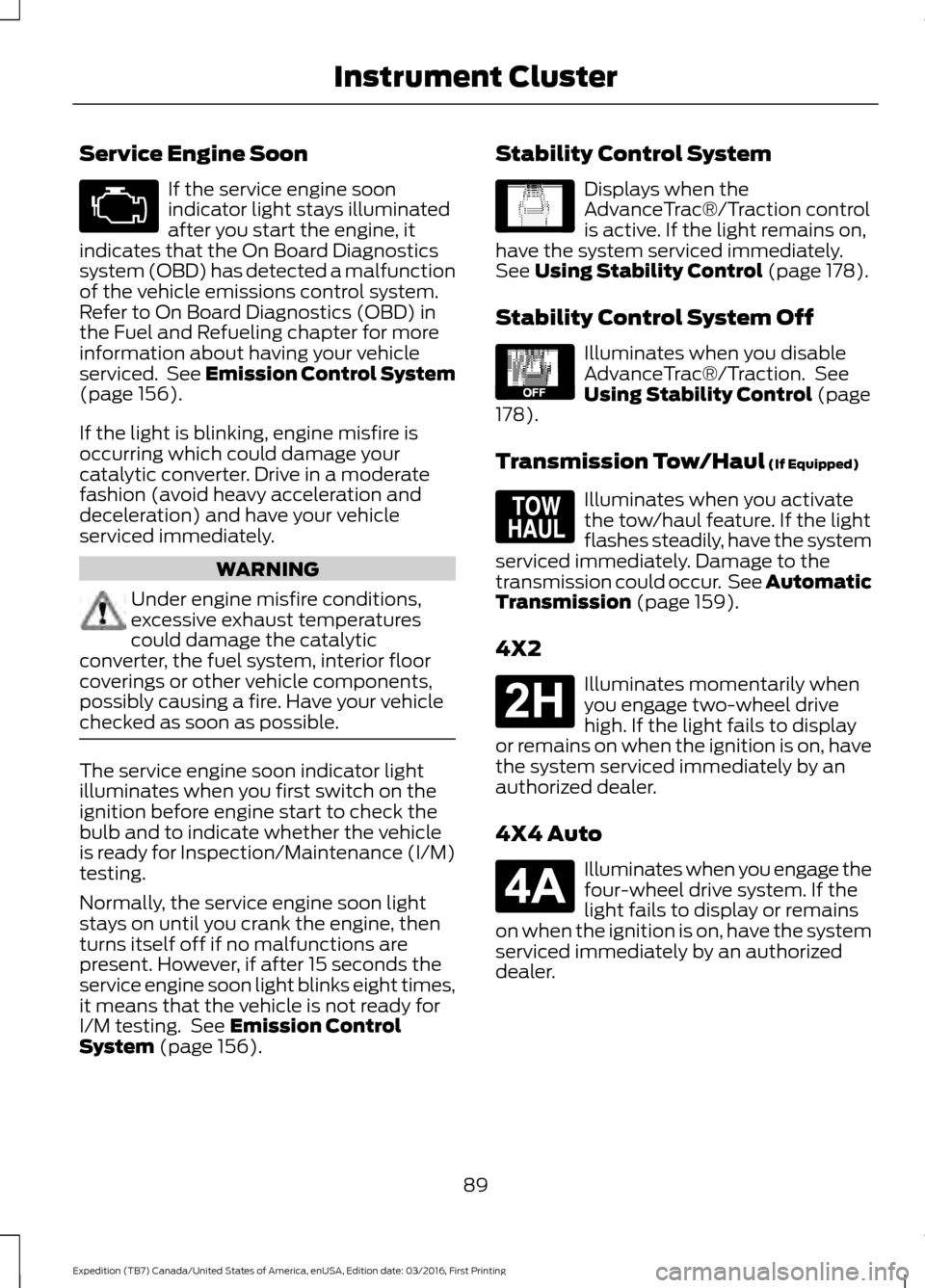
Service Engine Soon
If the service engine soon
indicator light stays illuminated
after you start the engine, it
indicates that the On Board Diagnostics
system (OBD) has detected a malfunction
of the vehicle emissions control system.
Refer to On Board Diagnostics (OBD) in
the Fuel and Refueling chapter for more
information about having your vehicle
serviced. See Emission Control System
(page 156).
If the light is blinking, engine misfire is
occurring which could damage your
catalytic converter. Drive in a moderate
fashion (avoid heavy acceleration and
deceleration) and have your vehicle
serviced immediately. WARNING
Under engine misfire conditions,
excessive exhaust temperatures
could damage the catalytic
converter, the fuel system, interior floor
coverings or other vehicle components,
possibly causing a fire. Have your vehicle
checked as soon as possible. The service engine soon indicator light
illuminates when you first switch on the
ignition before engine start to check the
bulb and to indicate whether the vehicle
is ready for Inspection/Maintenance (I/M)
testing.
Normally, the service engine soon light
stays on until you crank the engine, then
turns itself off if no malfunctions are
present. However, if after 15 seconds the
service engine soon light blinks eight times,
it means that the vehicle is not ready for
I/M testing. See
Emission Control
System (page 156). Stability Control System Displays when the
AdvanceTrac®/Traction control
is active. If the light remains on,
have the system serviced immediately.
See
Using Stability Control (page 178).
Stability Control System Off Illuminates when you disable
AdvanceTrac®/Traction. See
Using Stability Control
(page
178).
Transmission Tow/Haul
(If Equipped) Illuminates when you activate
the tow/haul feature. If the light
flashes steadily, have the system
serviced immediately. Damage to the
transmission could occur. See
Automatic
Transmission (page 159).
4X2 Illuminates momentarily when
you engage two-wheel drive
high. If the light fails to display
or remains on when the ignition is on, have
the system serviced immediately by an
authorized dealer.
4X4 Auto Illuminates when you engage the
four-wheel drive system. If the
light fails to display or remains
on when the ignition is on, have the system
serviced immediately by an authorized
dealer.
89
Expedition (TB7) Canada/United States of America, enUSA, Edition date: 03/2016, First Printing Instrument Cluster E138639 E130458 E161509 E181778 E181781
Page 97 of 500
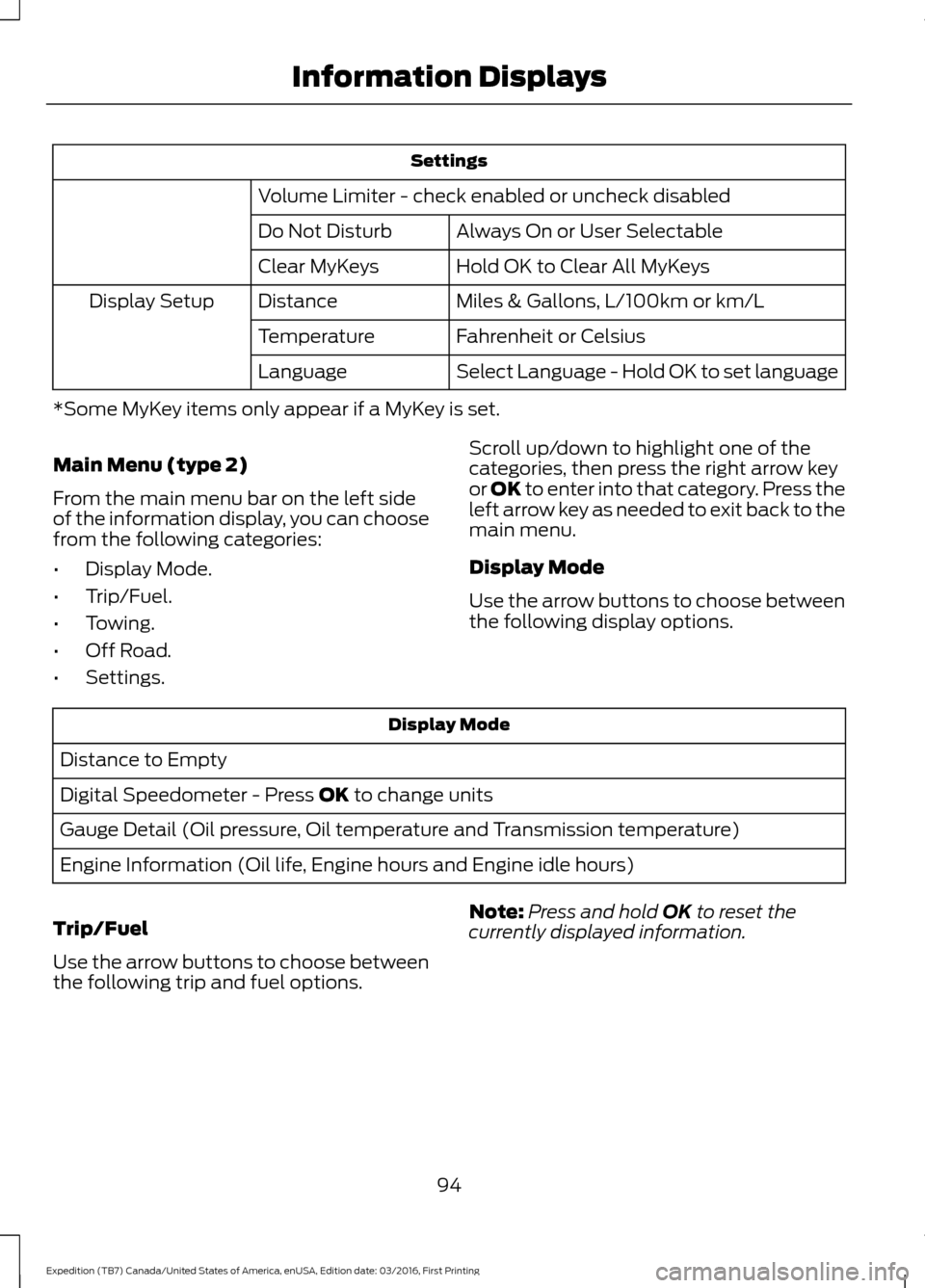
Settings
Volume Limiter - check enabled or uncheck disabled Always On or User Selectable
Do Not Disturb
Hold OK to Clear All MyKeys
Clear MyKeys
Miles & Gallons, L/100km or km/L
Distance
Display Setup
Fahrenheit or Celsius
Temperature
Select Language - Hold OK to set language
Language
*Some MyKey items only appear if a MyKey is set.
Main Menu (type 2)
From the main menu bar on the left side
of the information display, you can choose
from the following categories:
• Display Mode.
• Trip/Fuel.
• Towing.
• Off Road.
• Settings. Scroll up/down to highlight one of the
categories, then press the right arrow key
or OK to enter into that category. Press the
left arrow key as needed to exit back to the
main menu.
Display Mode
Use the arrow buttons to choose between
the following display options.Display Mode
Distance to Empty
Digital Speedometer - Press OK to change units
Gauge Detail (Oil pressure, Oil temperature and Transmission temperature)
Engine Information (Oil life, Engine hours and Engine idle hours)
Trip/Fuel
Use the arrow buttons to choose between
the following trip and fuel options. Note:
Press and hold
OK to reset the
currently displayed information.
94
Expedition (TB7) Canada/United States of America, enUSA, Edition date: 03/2016, First Printing Information Displays
Page 101 of 500
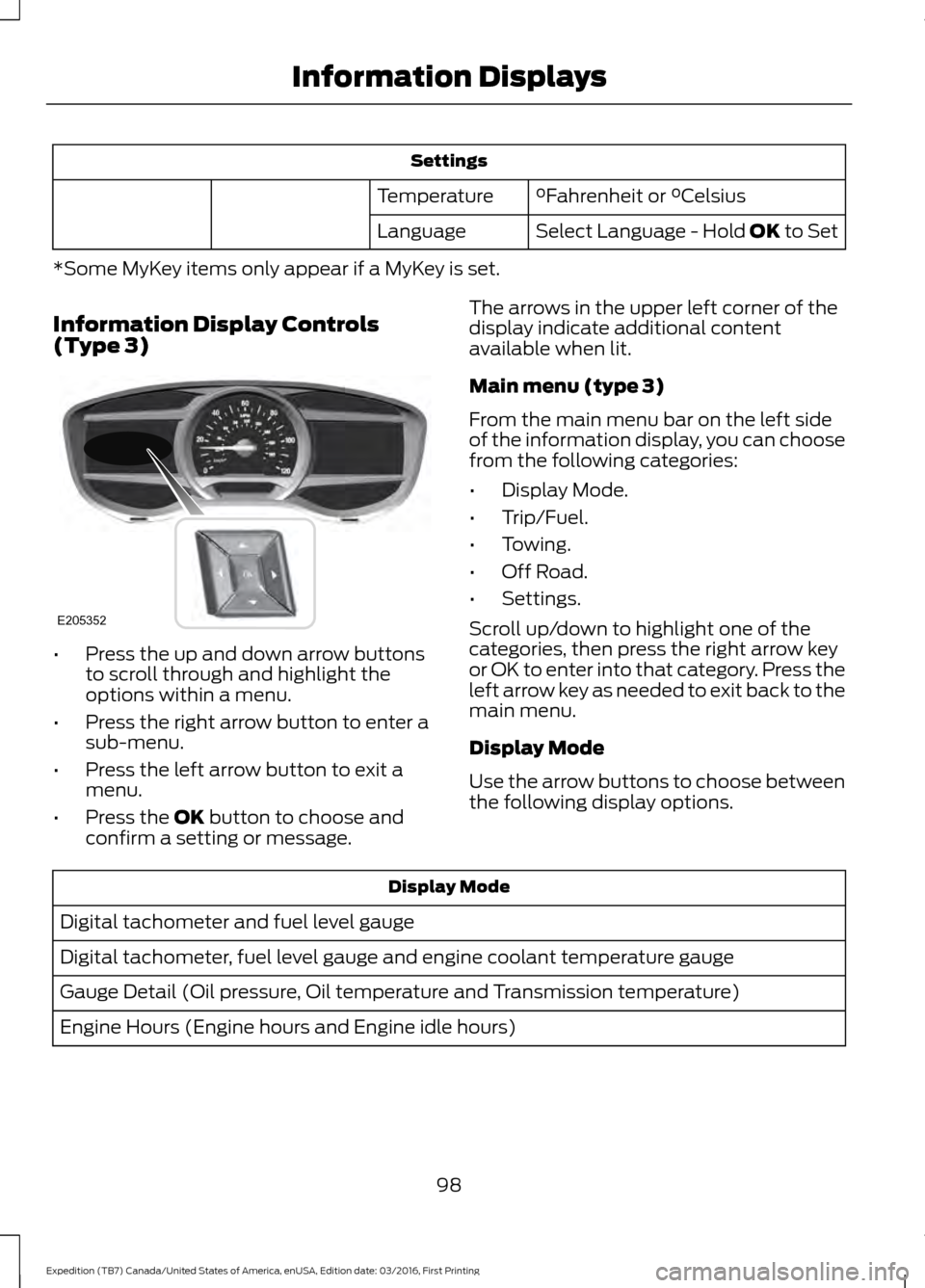
Settings
°Fahrenheit or °Celsius
Temperature
Select Language - Hold OK to Set
Language
*Some MyKey items only appear if a MyKey is set.
Information Display Controls
(Type 3) •
Press the up and down arrow buttons
to scroll through and highlight the
options within a menu.
• Press the right arrow button to enter a
sub-menu.
• Press the left arrow button to exit a
menu.
• Press the
OK button to choose and
confirm a setting or message. The arrows in the upper left corner of the
display indicate additional content
available when lit.
Main menu (type 3)
From the main menu bar on the left side
of the information display, you can choose
from the following categories:
•
Display Mode.
• Trip/Fuel.
• Towing.
• Off Road.
• Settings.
Scroll up/down to highlight one of the
categories, then press the right arrow key
or OK to enter into that category. Press the
left arrow key as needed to exit back to the
main menu.
Display Mode
Use the arrow buttons to choose between
the following display options. Display Mode
Digital tachometer and fuel level gauge
Digital tachometer, fuel level gauge and engine coolant temperature gauge
Gauge Detail (Oil pressure, Oil temperature and Transmission temperature)
Engine Hours (Engine hours and Engine idle hours)
98
Expedition (TB7) Canada/United States of America, enUSA, Edition date: 03/2016, First Printing Information DisplaysE205352
Page 111 of 500
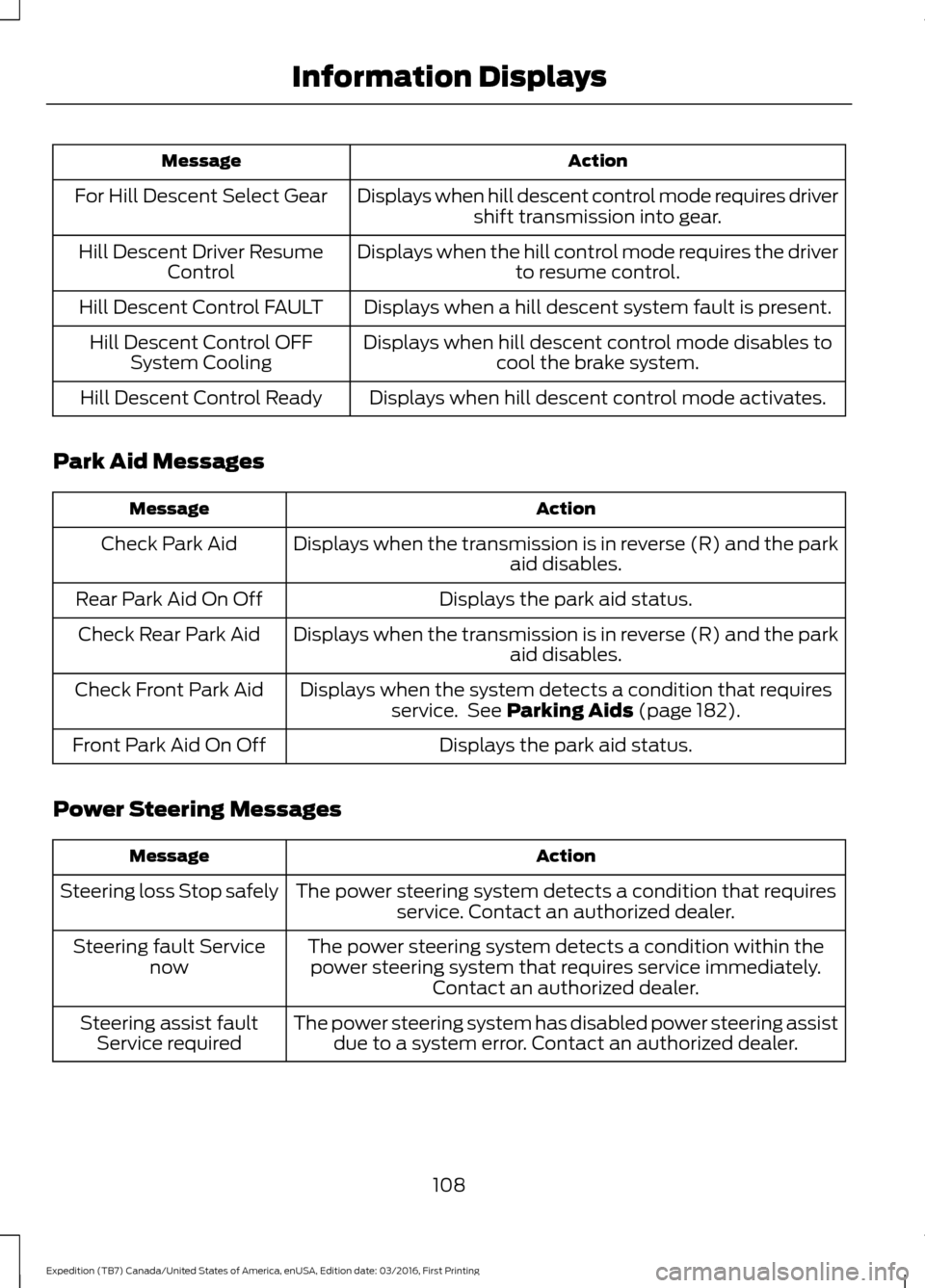
Action
Message
Displays when hill descent control mode requires drivershift transmission into gear.
For Hill Descent Select Gear
Displays when the hill control mode requires the driverto resume control.
Hill Descent Driver Resume
Control
Displays when a hill descent system fault is present.
Hill Descent Control FAULT
Displays when hill descent control mode disables tocool the brake system.
Hill Descent Control OFF
System Cooling
Displays when hill descent control mode activates.
Hill Descent Control Ready
Park Aid Messages Action
Message
Displays when the transmission is in reverse (R) and the park aid disables.
Check Park Aid
Displays the park aid status.
Rear Park Aid On Off
Displays when the transmission is in reverse (R) and the parkaid disables.
Check Rear Park Aid
Displays when the system detects a condition that requiresservice. See Parking Aids (page 182).
Check Front Park Aid
Displays the park aid status.
Front Park Aid On Off
Power Steering Messages Action
Message
The power steering system detects a condition that requiresservice. Contact an authorized dealer.
Steering loss Stop safely
The power steering system detects a condition within thepower steering system that requires service immediately. Contact an authorized dealer.
Steering fault Service
now
The power steering system has disabled power steering assistdue to a system error. Contact an authorized dealer.
Steering assist fault
Service required
108
Expedition (TB7) Canada/United States of America, enUSA, Edition date: 03/2016, First Printing Information Displays
Page 113 of 500
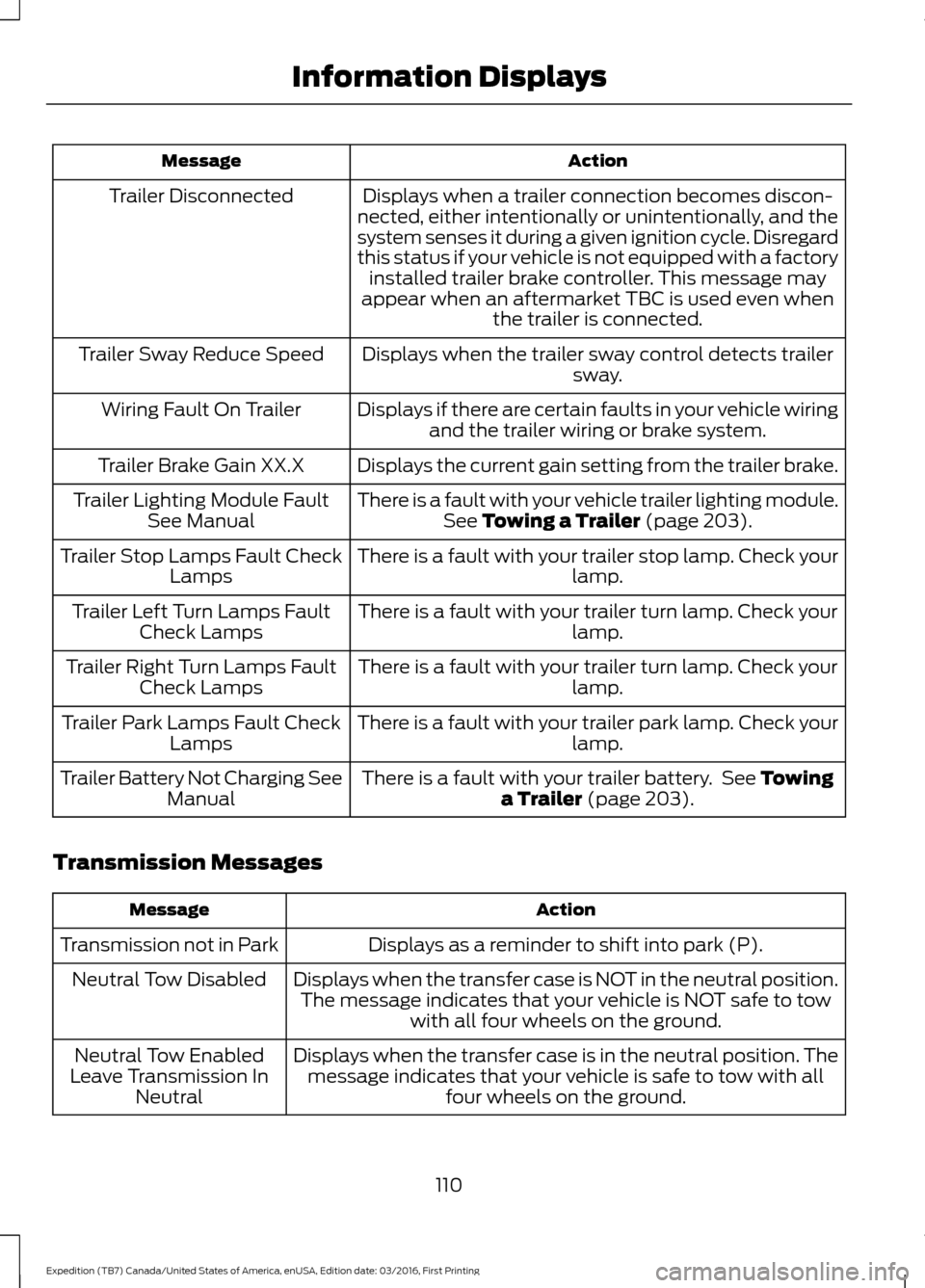
Action
Message
Displays when a trailer connection becomes discon-
nected, either intentionally or unintentionally, and the
system senses it during a given ignition cycle. Disregard
this status if your vehicle is not equipped with a factory installed trailer brake controller. This message may
appear when an aftermarket TBC is used even when the trailer is connected.
Trailer Disconnected
Displays when the trailer sway control detects trailersway.
Trailer Sway Reduce Speed
Displays if there are certain faults in your vehicle wiringand the trailer wiring or brake system.
Wiring Fault On Trailer
Displays the current gain setting from the trailer brake.
Trailer Brake Gain XX.X
There is a fault with your vehicle trailer lighting module.See Towing a Trailer (page 203).
Trailer Lighting Module Fault
See Manual
There is a fault with your trailer stop lamp. Check your lamp.
Trailer Stop Lamps Fault Check
Lamps
There is a fault with your trailer turn lamp. Check your lamp.
Trailer Left Turn Lamps Fault
Check Lamps
There is a fault with your trailer turn lamp. Check yourlamp.
Trailer Right Turn Lamps Fault
Check Lamps
There is a fault with your trailer park lamp. Check yourlamp.
Trailer Park Lamps Fault Check
Lamps
There is a fault with your trailer battery. See
Towing
a Trailer (page 203).
Trailer Battery Not Charging See
Manual
Transmission Messages Action
Message
Displays as a reminder to shift into park (P).
Transmission not in Park
Displays when the transfer case is NOT in the neutral position.The message indicates that your vehicle is NOT safe to tow with all four wheels on the ground.
Neutral Tow Disabled
Displays when the transfer case is in the neutral position. Themessage indicates that your vehicle is safe to tow with all four wheels on the ground.
Neutral Tow Enabled
Leave Transmission In Neutral
110
Expedition (TB7) Canada/United States of America, enUSA, Edition date: 03/2016, First Printing Information Displays
Page 128 of 500
2. Continue pressing the control until it
reaches the end of the seat track.
3. Continue pressing the control for about
two seconds. You will feel the seat
bounce back slightly.
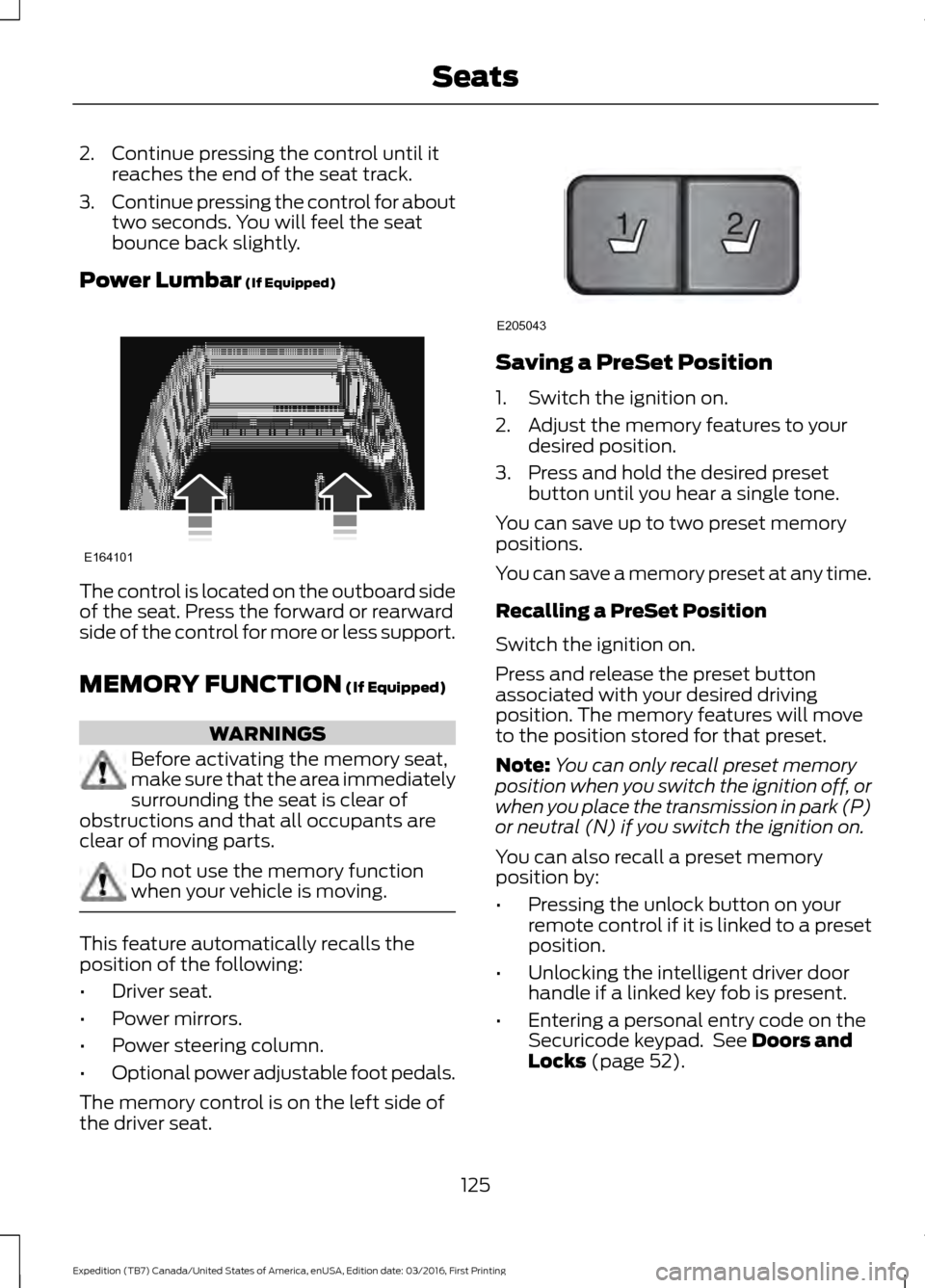
Power Lumbar (If Equipped) The control is located on the outboard side
of the seat. Press the forward or rearward
side of the control for more or less support.
MEMORY FUNCTION
(If Equipped)
WARNINGS
Before activating the memory seat,
make sure that the area immediately
surrounding the seat is clear of
obstructions and that all occupants are
clear of moving parts. Do not use the memory function
when your vehicle is moving.
This feature automatically recalls the
position of the following:
•
Driver seat.
• Power mirrors.
• Power steering column.
• Optional power adjustable foot pedals.
The memory control is on the left side of
the driver seat. Saving a PreSet Position
1. Switch the ignition on.
2. Adjust the memory features to your
desired position.
3. Press and hold the desired preset button until you hear a single tone.
You can save up to two preset memory
positions.
You can save a memory preset at any time.
Recalling a PreSet Position
Switch the ignition on.
Press and release the preset button
associated with your desired driving
position. The memory features will move
to the position stored for that preset.
Note: You can only recall preset memory
position when you switch the ignition off, or
when you place the transmission in park (P)
or neutral (N) if you switch the ignition on.
You can also recall a preset memory
position by:
• Pressing the unlock button on your
remote control if it is linked to a preset
position.
• Unlocking the intelligent driver door
handle if a linked key fob is present.
• Entering a personal entry code on the
Securicode keypad. See
Doors and
Locks (page 52).
125
Expedition (TB7) Canada/United States of America, enUSA, Edition date: 03/2016, First Printing SeatsE164101 21
E205043
Page 129 of 500
Note:
Using a linked key fob to recall your
memory position when the ignition is off
moves the seat and steering column to the
Easy Entry position.
Note: Pressing any active memory feature
control - power seat, mirror (or steering
column switch) (or any memory button)
during a memory recall cancels the
operation.
Linking a PreSet Position to your
Remote Control or Intelligent Access
Key Fob
Your vehicle can save the preset memory
positions for up to two remote controls.
1. With the ignition on, move the memory
positions to the desired positions.
2. Press and hold the desired preset button for about five seconds. A tone
sounds after about two seconds.
Continue holding until you hear a
second tone.
3. Within three seconds, press the lock button on the remote control you are
linking.
To unlink a remote control, follow the
same procedure – except in step 3, press
the unlock button on the remote control.
Note: If more than one linked remote
control or intelligent access key is in range,
the memory function moves to the settings
of the first key to initiate a memory recall.
Easy Entry and Exit Feature (If
Equipped)
This feature adjusts the position of the seat
and steering column to allow easier exit
and entry to the vehicle.
The driver seat automatically moves 2
inches (5 centimeters) rearward when the
transmission is in park (P) and you remove
the key from the ignition or you switch the
ignition off. The driver seat returns to the previous
position when you put the key in the
ignition or switch the ignition on.
You can enable or disable this feature in
the information display. See Information
Displays
(page 91).
REAR SEATS
Folding Down the Second Row
40% Seat WARNINGS
Use caution when folding the
seatback to the flat back position as
the system will move forward when
you lift the release handle. Before returning the seatback to its
original position, make sure that
cargo or any objects are not trapped
behind the seatback. After returning the
seatback to its original position, pull on the
seatback to make sure that it has fully
latched. An unlatched seat may become
dangerous in the event of a sudden stop
or crash. Make sure that the head restraint is in the
down position and no objects such as
books, purses or briefcases are on the floor
in front of the second row seats before
folding them down.
Move the front passenger seat forward so
that the second row seat head restraint
clears the front seat.
126
Expedition (TB7) Canada/United States of America, enUSA, Edition date: 03/2016, First Printing Seats
Page 135 of 500
To return the seatback to its original
position, lift the seatback until it latches
into place.
PowerFold™ Third Row Seat (If
Equipped)
Note: The power fold down seats operate
for 10 minutes after you switch the ignition
off. The transmission must be in park (P)
and the liftgate, or liftgate glass must be
open. Similar to the battery saver feature,
the power third row seat disables 10 minutes
after you switch the ignition off.
Note: Be sure that the head restraints are
folded down before powering the third row
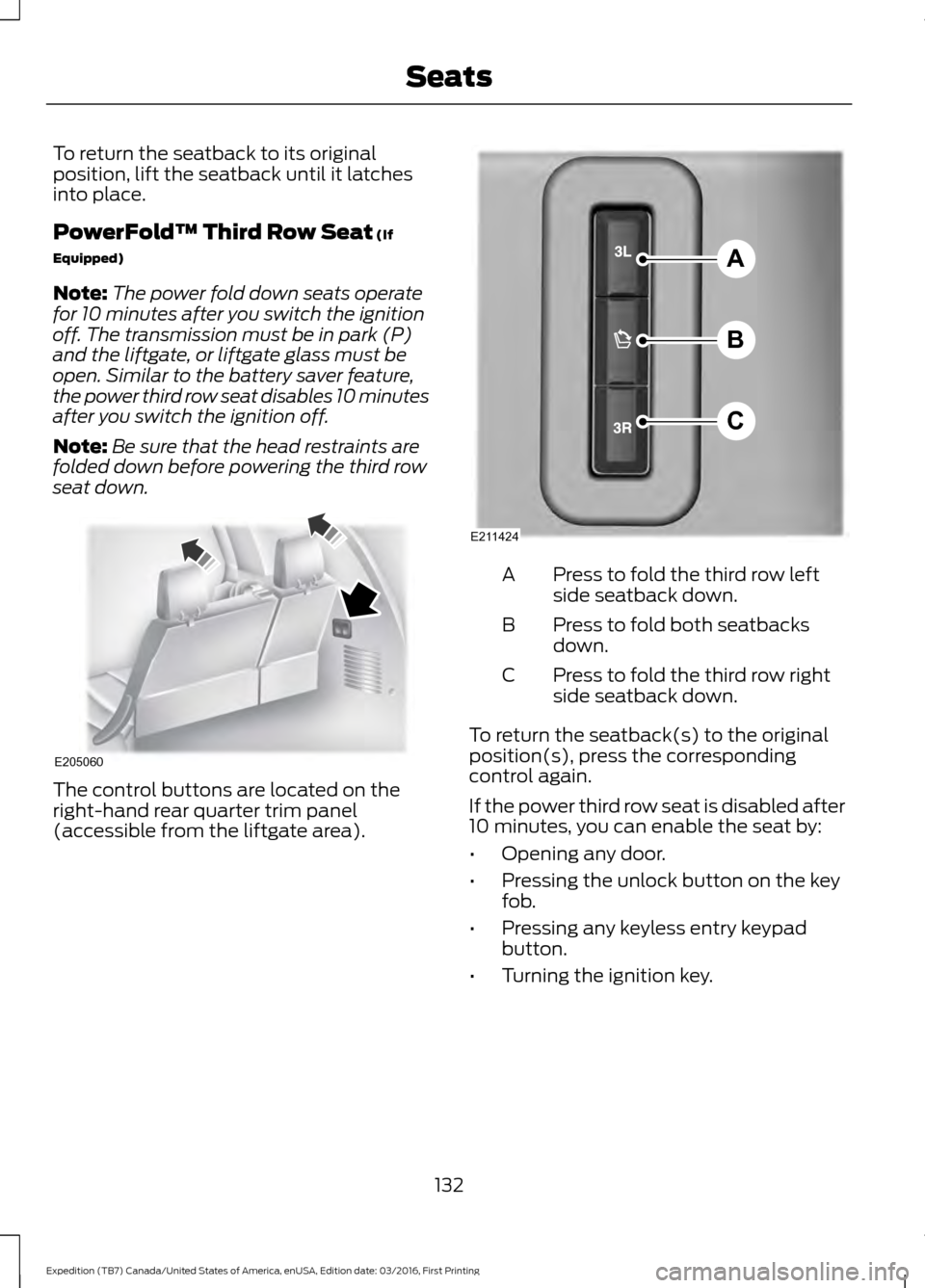
seat down. The control buttons are located on the
right-hand rear quarter trim panel
(accessible from the liftgate area). Press to fold the third row left
side seatback down.
A
Press to fold both seatbacks
down.
B
Press to fold the third row right
side seatback down.
C
To return the seatback(s) to the original
position(s), press the corresponding
control again.
If the power third row seat is disabled after
10 minutes, you can enable the seat by:
• Opening any door.
• Pressing the unlock button on the key
fob.
• Pressing any keyless entry keypad
button.
• Turning the ignition key.
132
Expedition (TB7) Canada/United States of America, enUSA, Edition date: 03/2016, First Printing SeatsE205060 A
B
C
E211424
Page 139 of 500
HomeLink Wireless Control
System
WARNINGS
Make sure that the garage door and
security device are free from
obstruction when you are
programming. Do not program the system
with the vehicle in the garage. Do not use the system with any
garage door opener that does not
have the safety stop and reverse
feature as required by U.S. Federal Safety
Standards (this includes any garage door
opener manufactured before April 1, 1982).
A garage door opener which cannot detect
an object, signaling the door to stop and
reverse, does not meet current federal
safety standards. Using a garage door
opener without these features increases
the risk of serious injury or death. Note:
Make sure you keep the original
remote control transmitter for use in other
vehicles as well as for future system
programming.
Note: We recommend that upon the sale
or lease termination of your vehicle, you
erase the programmed function buttons for
security reasons. See Erasing the Function
Button Codes.
Note: You can program a maximum of
three devices. To change or replace any of
the three devices after it has been initially
programmed, you must first erase the
current settings. See Erasing the Function
Button Codes
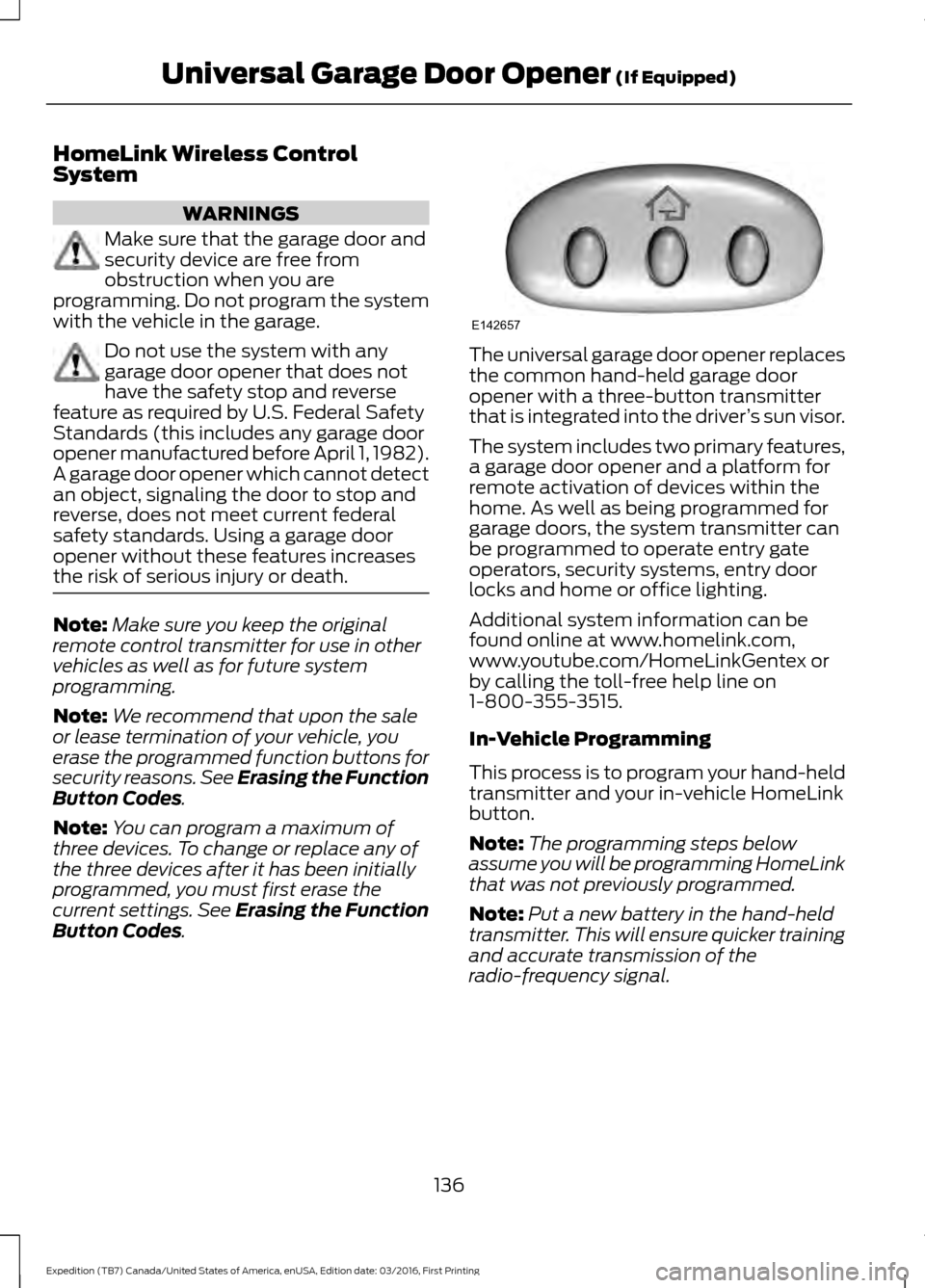
. The universal garage door opener replaces
the common hand-held garage door
opener with a three-button transmitter
that is integrated into the driver
’s sun visor.
The system includes two primary features,
a garage door opener and a platform for
remote activation of devices within the
home. As well as being programmed for
garage doors, the system transmitter can
be programmed to operate entry gate
operators, security systems, entry door
locks and home or office lighting.
Additional system information can be
found online at www.homelink.com,
www.youtube.com/HomeLinkGentex or
by calling the toll-free help line on
1-800-355-3515.
In-Vehicle Programming
This process is to program your hand-held
transmitter and your in-vehicle HomeLink
button.
Note: The programming steps below
assume you will be programming HomeLink
that was not previously programmed.
Note: Put a new battery in the hand-held
transmitter. This will ensure quicker training
and accurate transmission of the
radio-frequency signal.
136
Expedition (TB7) Canada/United States of America, enUSA, Edition date: 03/2016, First Printing Universal Garage Door Opener
(If Equipped)E142657
Page 141 of 500
Gate Operator / Canadian
Programming
Canadian radio-frequency laws require
transmitter signals to
“time-out” (or quit)
after several seconds of transmission –
which may not be long enough for
HomeLink to pick up the signal during
programming. Similar to this Canadian law,
some U.S. gate operators are designed to
“time-out” in the same manner.
Note: If programming a garage door opener
or gate operator, it is advised to unplug the
device during the “cycling” process to
prevent possible overheating.
1. Press and hold the HomeLink button while you press and release, every two
seconds, your hand-held transmitter
until the HomeLink indicator light
changes from a slow to a rapidly
blinking light.
2. Release both the HomeLink and hand-held transmitter buttons.
3. Continue programing HomeLink. See In-Vehicle Programming
.
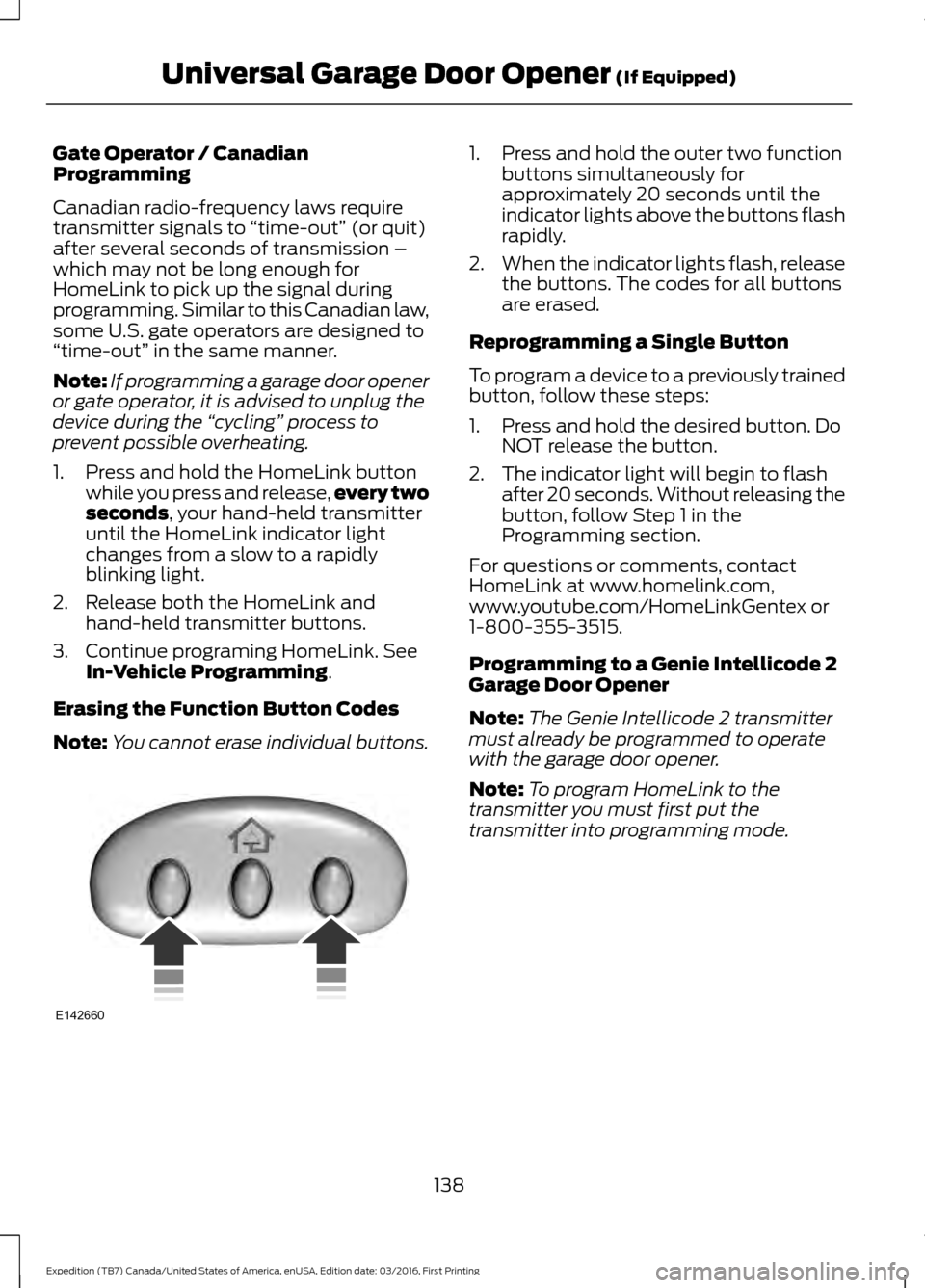
Erasing the Function Button Codes
Note: You cannot erase individual buttons. 1. Press and hold the outer two function
buttons simultaneously for
approximately 20 seconds until the
indicator lights above the buttons flash
rapidly.
2. When the indicator lights flash, release
the buttons. The codes for all buttons
are erased.
Reprogramming a Single Button
To program a device to a previously trained
button, follow these steps:
1. Press and hold the desired button. Do NOT release the button.
2. The indicator light will begin to flash after 20 seconds. Without releasing the
button, follow Step 1 in the
Programming section.
For questions or comments, contact
HomeLink at www.homelink.com,
www.youtube.com/HomeLinkGentex or
1-800-355-3515.
Programming to a Genie Intellicode 2
Garage Door Opener
Note: The Genie Intellicode 2 transmitter
must already be programmed to operate
with the garage door opener.
Note: To program HomeLink to the
transmitter you must first put the
transmitter into programming mode.
138
Expedition (TB7) Canada/United States of America, enUSA, Edition date: 03/2016, First Printing Universal Garage Door Opener
(If Equipped)E142660