radio FORD EXPEDITION 2018 Service Manual
[x] Cancel search | Manufacturer: FORD, Model Year: 2018, Model line: EXPEDITION, Model: FORD EXPEDITION 2018Pages: 571, PDF Size: 25.8 MB
Page 474 of 571
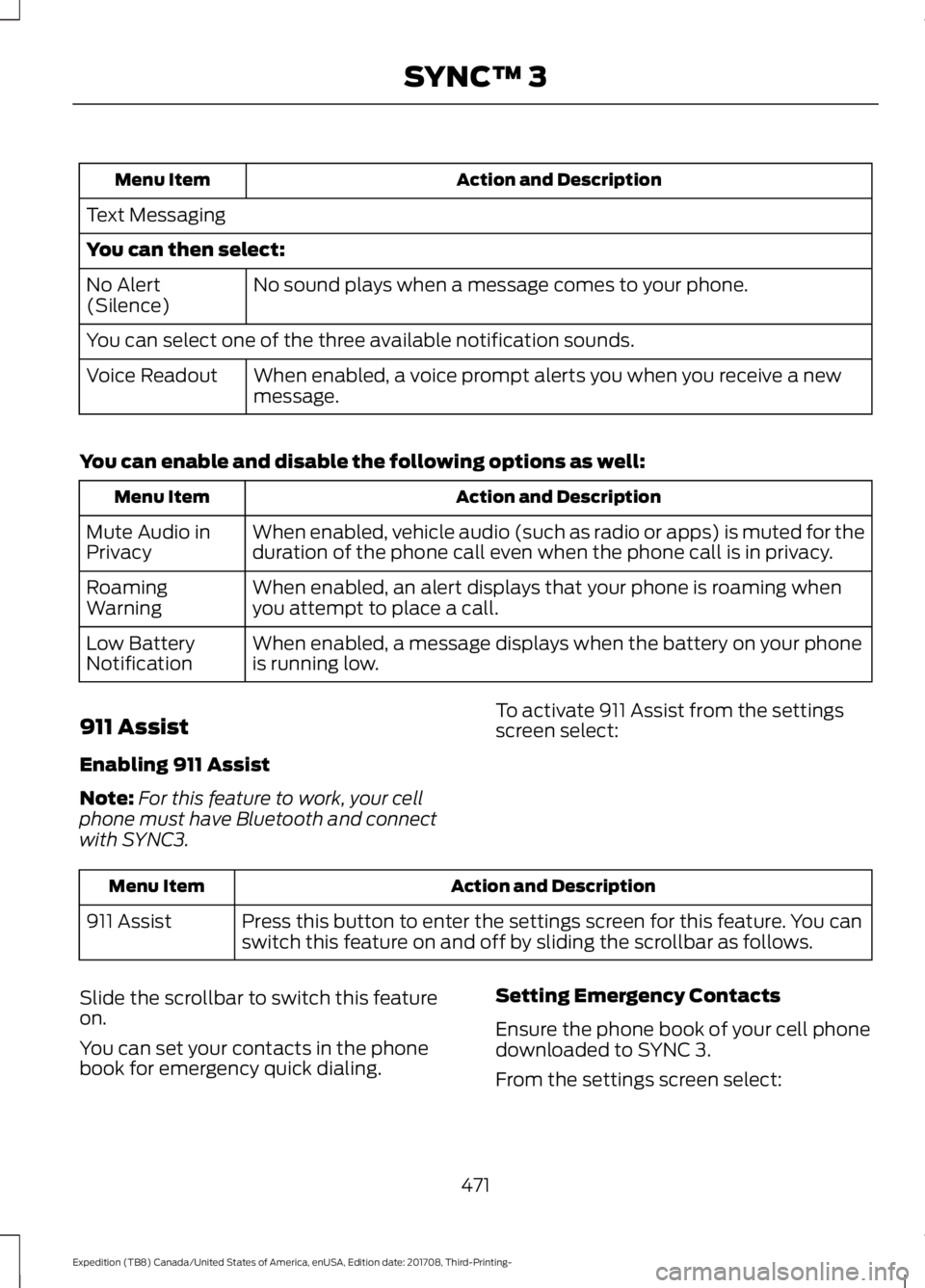
Action and Description
Menu Item
Text Messaging
You can then select: No sound plays when a message comes to your phone.
No Alert
(Silence)
You can select one of the three available notification sounds.
When enabled, a voice prompt alerts you when you receive a new
message.
Voice Readout
You can enable and disable the following options as well: Action and Description
Menu Item
When enabled, vehicle audio (such as radio or apps) is muted for the
duration of the phone call even when the phone call is in privacy.
Mute Audio in
Privacy
When enabled, an alert displays that your phone is roaming when
you attempt to place a call.
Roaming
Warning
When enabled, a message displays when the battery on your phone
is running low.
Low Battery
Notification
911 Assist
Enabling 911 Assist
Note: For this feature to work, your cell
phone must have Bluetooth and connect
with SYNC3. To activate 911 Assist from the settings
screen select: Action and Description
Menu Item
Press this button to enter the settings screen for this feature. You can
switch this feature on and off by sliding the scrollbar as follows.
911 Assist
Slide the scrollbar to switch this feature
on.
You can set your contacts in the phone
book for emergency quick dialing. Setting Emergency Contacts
Ensure the phone book of your cell phone
downloaded to SYNC 3.
From the settings screen select:
471
Expedition (TB8) Canada/United States of America, enUSA, Edition date: 201708, Third-Printing- SYNC™ 3
Page 475 of 571
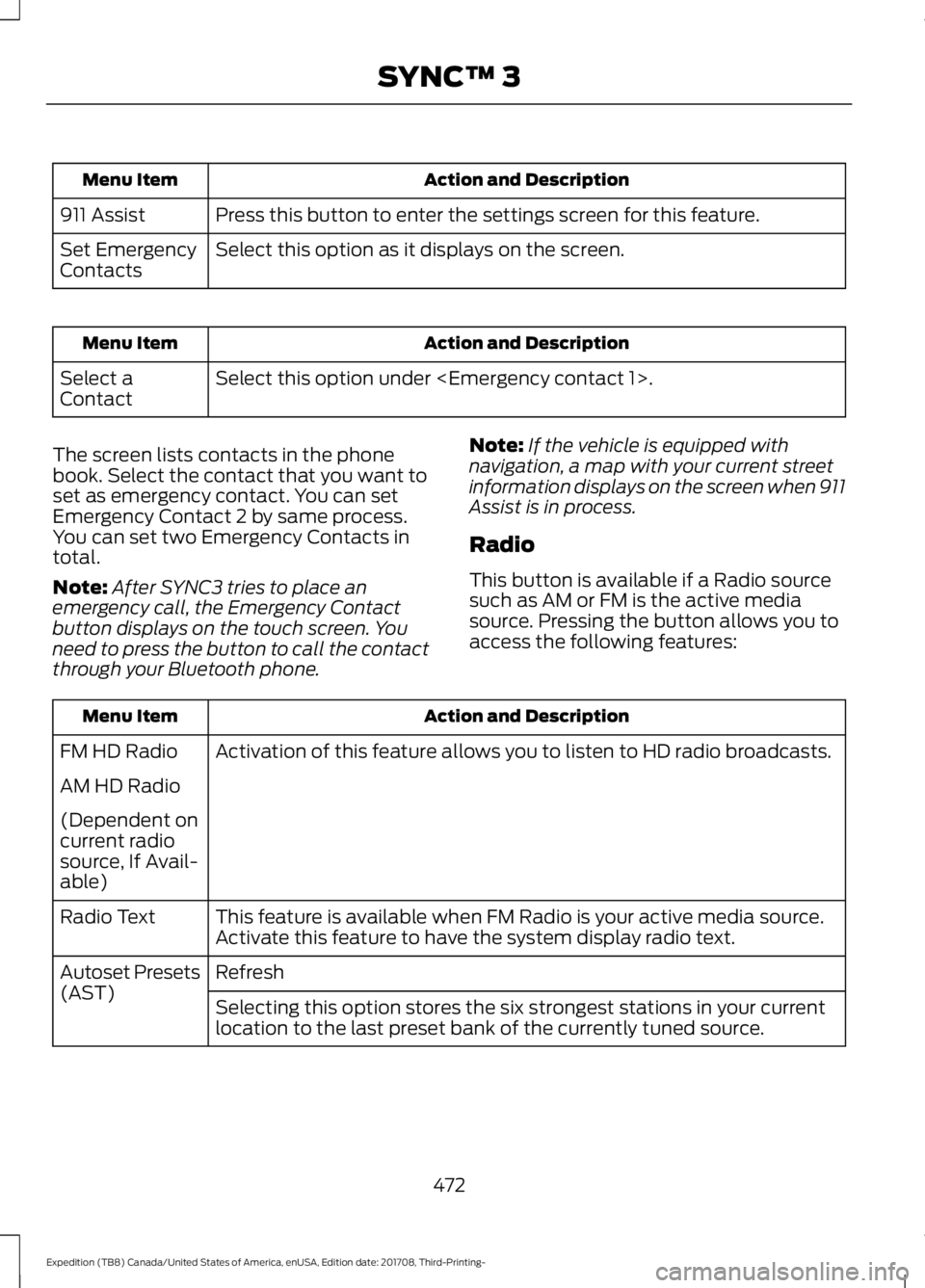
Action and Description
Menu Item
Press this button to enter the settings screen for this feature.
911 Assist
Select this option as it displays on the screen.
Set Emergency
Contacts Action and Description
Menu Item
Select this option under
Select a
Contact
The screen lists contacts in the phone
book. Select the contact that you want to
set as emergency contact. You can set
Emergency Contact 2 by same process.
You can set two Emergency Contacts in
total.
Note: After SYNC3 tries to place an
emergency call, the Emergency Contact
button displays on the touch screen. You
need to press the button to call the contact
through your Bluetooth phone. Note:
If the vehicle is equipped with
navigation, a map with your current street
information displays on the screen when 911
Assist is in process.
Radio
This button is available if a Radio source
such as AM or FM is the active media
source. Pressing the button allows you to
access the following features: Action and Description
Menu Item
Activation of this feature allows you to listen to HD radio broadcasts.
FM HD Radio
AM HD Radio
(Dependent on
current radio
source, If Avail-
able)
This feature is available when FM Radio is your active media source.
Activate this feature to have the system display radio text.
Radio Text
Refresh
Autoset Presets
(AST)
Selecting this option stores the six strongest stations in your current
location to the last preset bank of the currently tuned source.
472
Expedition (TB8) Canada/United States of America, enUSA, Edition date: 201708, Third-Printing- SYNC™ 3
Page 476 of 571
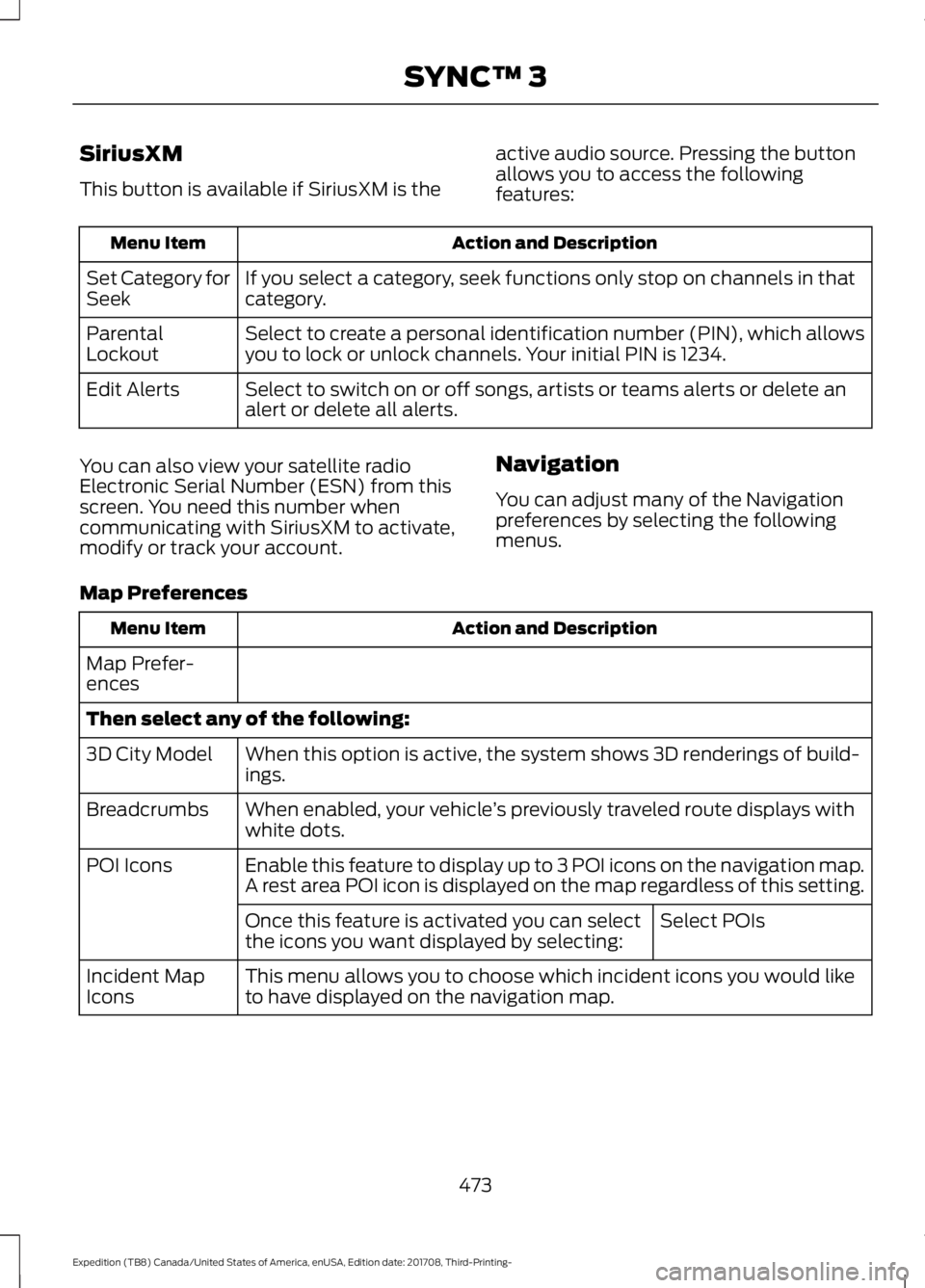
SiriusXM
This button is available if SiriusXM is the
active audio source. Pressing the button
allows you to access the following
features: Action and Description
Menu Item
If you select a category, seek functions only stop on channels in that
category.
Set Category for
Seek
Select to create a personal identification number (PIN), which allows
you to lock or unlock channels. Your initial PIN is 1234.
Parental
Lockout
Select to switch on or off songs, artists or teams alerts or delete an
alert or delete all alerts.
Edit Alerts
You can also view your satellite radio
Electronic Serial Number (ESN) from this
screen. You need this number when
communicating with SiriusXM to activate,
modify or track your account. Navigation
You can adjust many of the Navigation
preferences by selecting the following
menus.
Map Preferences Action and Description
Menu Item
Map Prefer-
ences
Then select any of the following: When this option is active, the system shows 3D renderings of build-
ings.
3D City Model
When enabled, your vehicle ’s previously traveled route displays with
white dots.
Breadcrumbs
Enable this feature to display up to 3 POI icons on the navigation map.
A rest area POI icon is displayed on the map regardless of this setting.
POI Icons
Select POIs
Once this feature is activated you can select
the icons you want displayed by selecting:
This menu allows you to choose which incident icons you would like
to have displayed on the navigation map.
Incident Map
Icons
473
Expedition (TB8) Canada/United States of America, enUSA, Edition date: 201708, Third-Printing- SYNC™ 3
Page 482 of 571
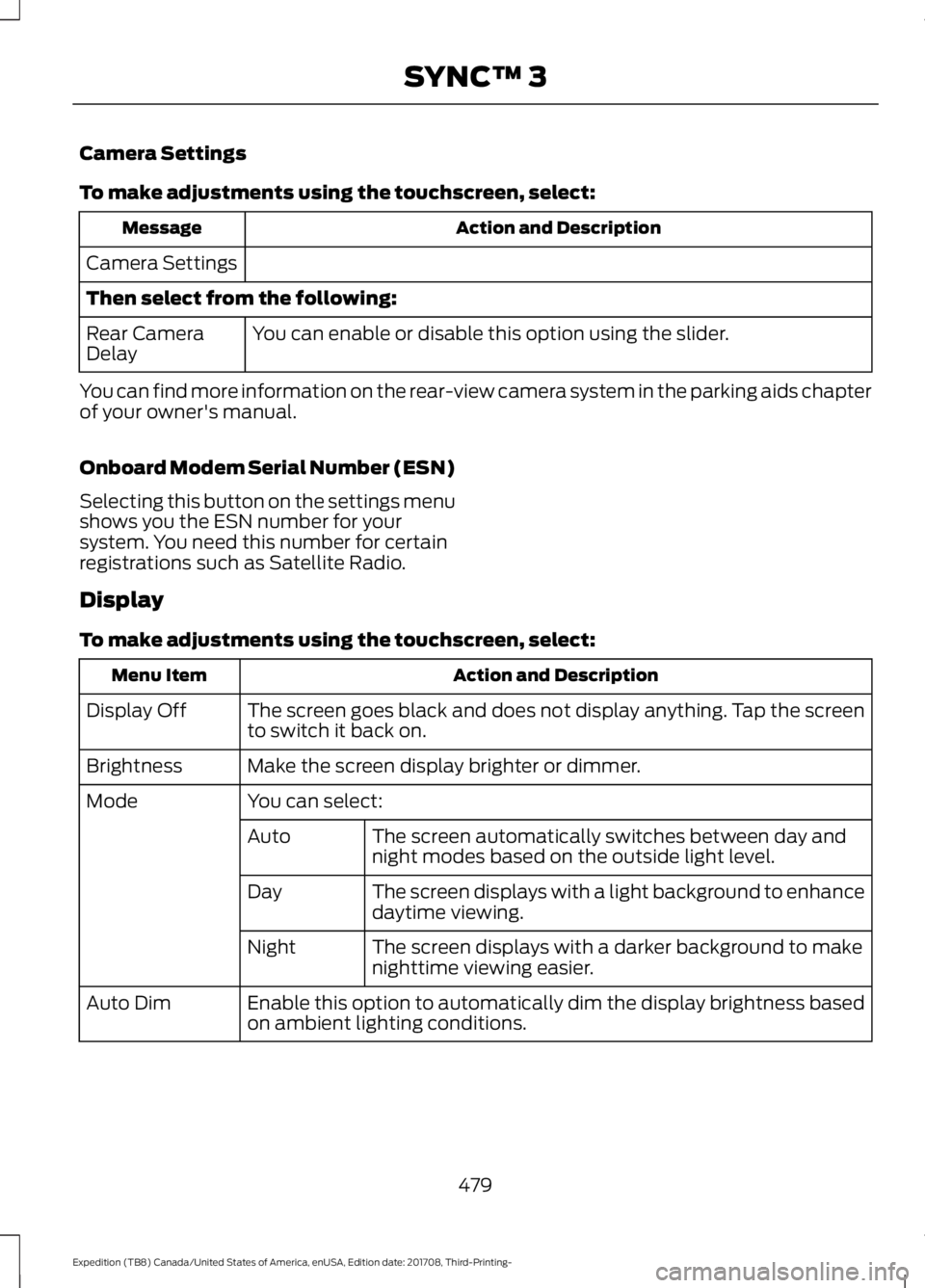
Camera Settings
To make adjustments using the touchscreen, select:
Action and Description
Message
Camera Settings
Then select from the following: You can enable or disable this option using the slider.
Rear Camera
Delay
You can find more information on the rear-view camera system in the parking aids chapter
of your owner's manual.
Onboard Modem Serial Number (ESN)
Selecting this button on the settings menu
shows you the ESN number for your
system. You need this number for certain
registrations such as Satellite Radio.
Display
To make adjustments using the touchscreen, select: Action and Description
Menu Item
The screen goes black and does not display anything. Tap the screen
to switch it back on.
Display Off
Make the screen display brighter or dimmer.
Brightness
You can select:
Mode
The screen automatically switches between day and
night modes based on the outside light level.
Auto
The screen displays with a light background to enhance
daytime viewing.
Day
The screen displays with a darker background to make
nighttime viewing easier.
Night
Enable this option to automatically dim the display brightness based
on ambient lighting conditions.
Auto Dim
479
Expedition (TB8) Canada/United States of America, enUSA, Edition date: 201708, Third-Printing- SYNC™ 3
Page 496 of 571
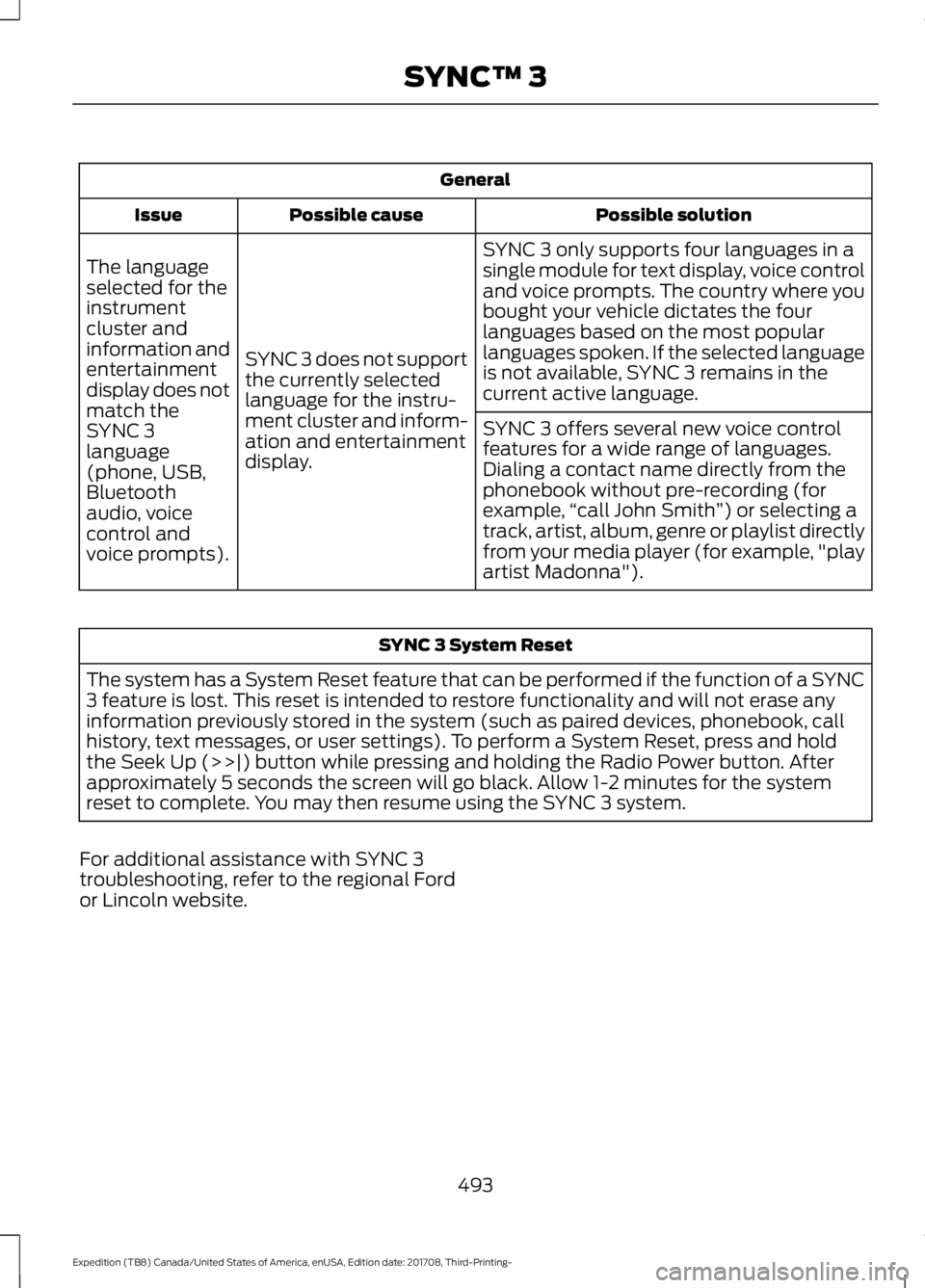
General
Possible solution
Possible cause
Issue
SYNC 3 only supports four languages in a
single module for text display, voice control
and voice prompts. The country where you
bought your vehicle dictates the four
languages based on the most popular
languages spoken. If the selected language
is not available, SYNC 3 remains in the
current active language.
SYNC 3 does not support
the currently selected
language for the instru-
ment cluster and inform-
ation and entertainment
display.
The language
selected for the
instrument
cluster and
information and
entertainment
display does not
match the
SYNC 3
SYNC 3 offers several new voice control
features for a wide range of languages.
Dialing a contact name directly from the
phonebook without pre-recording (for
example,
“call John Smith ”) or selecting a
track, artist, album, genre or playlist directly
from your media player (for example, "play
artist Madonna").
language
(phone, USB,
Bluetooth
audio, voice
control and
voice prompts). SYNC 3 System Reset
The system has a System Reset feature that can be performed if the function of a SYNC
3 feature is lost. This reset is intended to restore functionality and will not erase any
information previously stored in the system (such as paired devices, phonebook, call
history, text messages, or user settings). To perform a System Reset, press and hold
the Seek Up (>>|) button while pressing and holding the Radio Power button. After
approximately 5 seconds the screen will go black. Allow 1-2 minutes for the system
reset to complete. You may then resume using the SYNC 3 system.
For additional assistance with SYNC 3
troubleshooting, refer to the regional Ford
or Lincoln website.
493
Expedition (TB8) Canada/United States of America, enUSA, Edition date: 201708, Third-Printing- SYNC™ 3
Page 498 of 571
For maximum vehicle performance, keep
the following information in mind when
adding accessories or equipment to your
vehicle:
•
When adding accessories, equipment,
passengers and luggage to your
vehicle, do not exceed the total weight
capacity of the vehicle or of the front
or rear axle (GVWR or GAWR as
indicated on the Safety Compliance
Certification label). Ask an authorized
dealer for specific weight information.
• The Federal Communications
Commission (FCC) and Canadian
Radio Telecommunications
Commission (CRTC) regulate the use
of mobile communications systems
that are equipped with radio
transmitters, for example two-way
radios, telephones and theft alarms.
Any such equipment installed in your
vehicle should comply with Federal
Communications Commission (FCC)
and Canadian Radio
Telecommunications Commission
(CRTC) regulations and should be
installed only by an authorized dealer.
• Mobile communications systems may
harm the operation of your vehicle,
particularly if their manufacturer did
not design them specifically for
automotive use.
• If you or an authorized Ford dealer add
any non-Ford electrical or electronic
accessories or components to your
vehicle, you may adversely affect
battery performance and durability. In
addition, you may also adversely affect
the performance of other electrical
systems in the vehicle.
495
Expedition (TB8) Canada/United States of America, enUSA, Edition date: 201708, Third-Printing- Accessories
Page 520 of 571
ELECTROMAGNETIC
COMPATIBILITY
WARNING: Do not place objects
or mount equipment on or near the
airbag cover, on the side of the seatbacks
(of the front seats), or in front seat areas
that may come into contact with a
deploying airbag. Failure to follow these
instructions may increase the risk of
personal injury in the event of a crash. WARNING:
Do not fasten antenna
cables to original vehicle wiring, fuel
pipes and brake pipes. WARNING:
Keep antenna and
power cables at least 4 in (10 cm) from
any electronic modules and airbags.
Note: We test and certify your vehicle to
meet electromagnetic compatibility
legislation (UNECE Regulation 10 or other
applicable local requirements). It is your
responsibility to make sure that any
equipment an authorized dealer installs on
your vehicle complies with applicable local
legislation and other requirements.
Note: Any radio frequency transmitter
equipment in your vehicle (such as cellular
telephones and amateur radio transmitters)
must keep to the parameters in the
following table. We do not provide special
provisions or conditions for installations or
use.
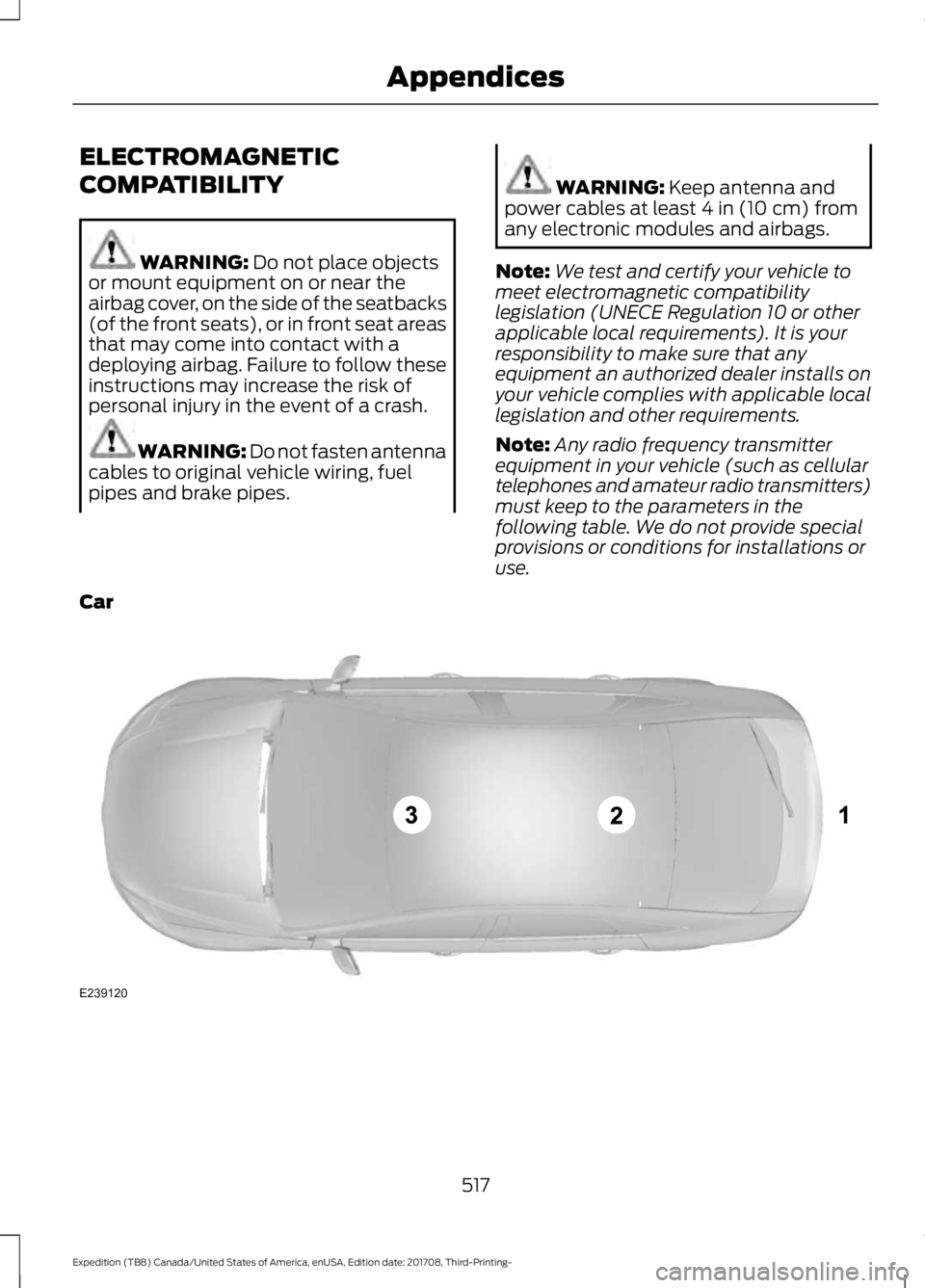
Car 517
Expedition (TB8) Canada/United States of America, enUSA, Edition date: 201708, Third-Printing- AppendicesE239120
Page 522 of 571
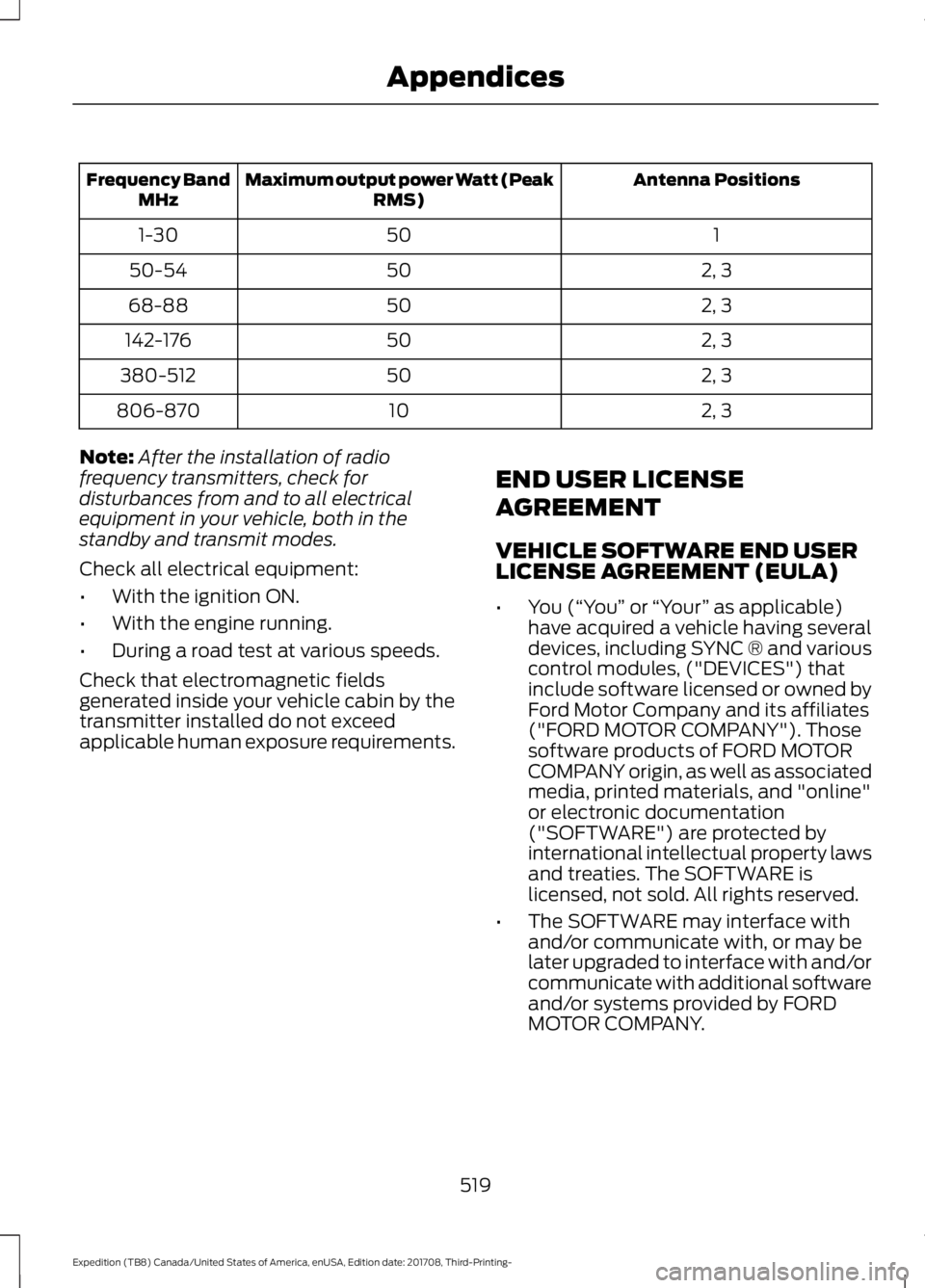
Antenna Positions
Maximum output power Watt (Peak
RMS)
Frequency Band
MHz
1
50
1-30
2, 3
50
50-54
2, 3
50
68-88
2, 3
50
142-176
2, 3
50
380-512
2, 3
10
806-870
Note: After the installation of radio
frequency transmitters, check for
disturbances from and to all electrical
equipment in your vehicle, both in the
standby and transmit modes.
Check all electrical equipment:
• With the ignition ON.
• With the engine running.
• During a road test at various speeds.
Check that electromagnetic fields
generated inside your vehicle cabin by the
transmitter installed do not exceed
applicable human exposure requirements. END USER LICENSE
AGREEMENT
VEHICLE SOFTWARE END USER
LICENSE AGREEMENT (EULA)
•
You (“You” or “Your ” as applicable)
have acquired a vehicle having several
devices, including SYNC ® and various
control modules, ("DEVICES") that
include software licensed or owned by
Ford Motor Company and its affiliates
("FORD MOTOR COMPANY"). Those
software products of FORD MOTOR
COMPANY origin, as well as associated
media, printed materials, and "online"
or electronic documentation
("SOFTWARE") are protected by
international intellectual property laws
and treaties. The SOFTWARE is
licensed, not sold. All rights reserved.
• The SOFTWARE may interface with
and/or communicate with, or may be
later upgraded to interface with and/or
communicate with additional software
and/or systems provided by FORD
MOTOR COMPANY.
519
Expedition (TB8) Canada/United States of America, enUSA, Edition date: 201708, Third-Printing- Appendices
Page 546 of 571
IMPLIED WARRANTIES OF
MERCHANTABILITY, FITNESS FOR A
PARTICULAR PURPOSE, TITLE, AND
NON-INFRINGEMENT. NEITHER
GRACENOTE WARRANTS THE RESULTS
THAT WILL BE OBTAINED BY YOUR USE
OF THE GRACENOTE SOFTWARE OR ANY
GRACENOTE SERVER. IN NO CASE WILL
GRACENOTE BE LIABLE FOR ANY
CONSEQUENTIAL OR INCIDENTAL
DAMAGES OR FOR ANY LOST PROFITS
OR LOST REVENUES FOR ANY REASON
WHATSOEVER. © Gracenote 2007.
Radio Frequency Statement
FCC ID: ACJ-SYNCG3-L
IC: 216B-SYNCG3-L
This device complies with Part 15 of the
FCC Rules and with RSS-210 of Industry
Canada. Operation is subject to the
following two conditions:
(1) This device may not cause harmful
interference, and
(2)
this device must accept any
interference received, including
interference that may cause undesired
operation. WARNING:
Changes or
modifications not expressively approved
by the party responsible for compliance
could void the user's authority to operate
the equipment. The term "IC:" before the
radio certification number only signifies
that Industry Canada technical
specifications were met.
The antenna used for this transmitter must
not be co-located or operating in
conjunction with any other antenna or
transmitter. Taiwan Territory
Note: In accordance with the management
approach of low-power radio wave
radiation motors:
Article 12: For approved and certified
low-power radiation motor models,
companies, firms or users must not alter
the frequency, increase the power or
change the characteristics and functions
of the original design without authorization.
Article 14: The usage of low-power
radio-frequency motors must not affect
aviation safety and interfere with legal
telecommunications. Should interference
be detected, immediately stop using the
device and only resume usage after
ensuring that there is no longer any
interference. For the legal
telecommunication and wireless
telecommunication of the telco, the
low-power radio frequency motor must be
able to tolerate legal limits of interference
from telecommunication, industrial,
scientific and radio wave equipment.
SUNA TRAFFIC CHANNEL – TERMS
AND CONDITIONS
By activating, using and/or accessing the
SUNA Traffic Channel, SUNA Predictive or
other content or material provided by
Intelematics (together,
SUNA Products
and/or Services
), you must accept
certain terms and conditions. The following
is a brief summary of the terms and
conditions that apply to you. To view the
full terms and conditions relevant to your
use of the SUNA Products and/or Services,
please consult: Website
www.sunatraffic.com.au/termsandcon- ditions/
1. Acceptance
543
Expedition (TB8) Canada/United States of America, enUSA, Edition date: 201708, Third-Printing- Appendices
Page 548 of 571
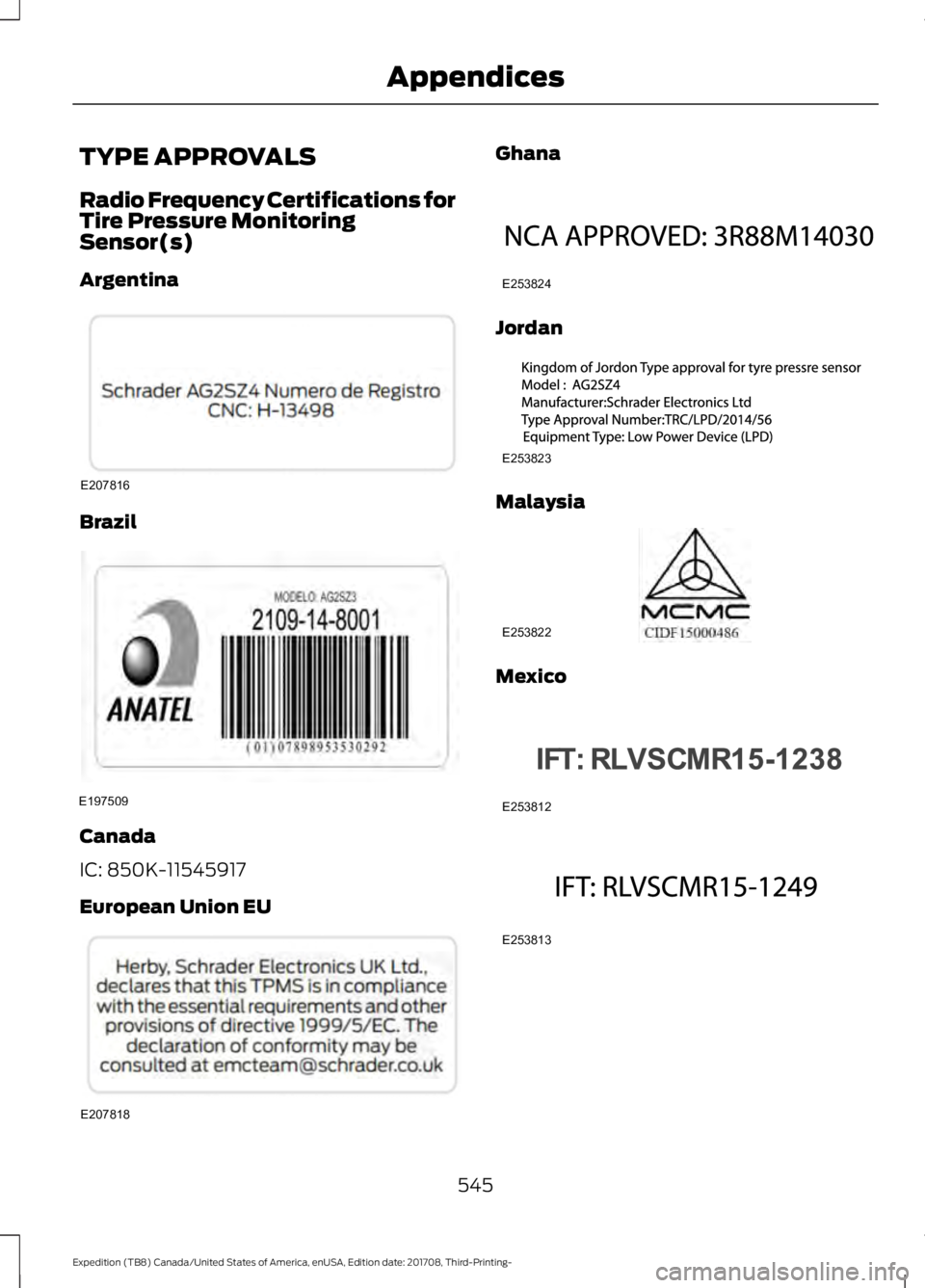
TYPE APPROVALS
Radio Frequency Certifications for
Tire Pressure Monitoring
Sensor(s)
Argentina
Brazil
Canada
IC: 850K-11545917
European Union EU Ghana
Jordan
Malaysia
Mexico
545
Expedition (TB8) Canada/United States of America, enUSA, Edition date: 201708, Third-Printing- AppendicesE207816 E197509 E207818 E253824 E253823 E253822 E253812 E253813