start stop button FORD EXPEDITION 2019 User Guide
[x] Cancel search | Manufacturer: FORD, Model Year: 2019, Model line: EXPEDITION, Model: FORD EXPEDITION 2019Pages: 583, PDF Size: 6.71 MB
Page 189 of 583
•
Hill descent control is not active.
• You have not selected Tow haul, Sport,
Sand or Mud/Rut modes.
Note: Note when in Sport mode it can be
enabled by pressing the Auto-Start-Stop
button. The green Auto-Start-Stop
indicator light on the instrument
cluster will illuminate to indicate
when the automatic engine stop occurs. If the instrument cluster is
equipped with a grey
Auto-Start-Stop indicator light,
it illuminates when automatic engine stop
is not available due to one of the above
noted conditions not being met.
Automatic Engine Restart
Any of the following conditions will result
in an automatic restart of the engine:
• You have removed your foot from the
brake pedal.
• You press the accelerator pedal.
• You press the accelerator and the
brake pedal at the same time.
• The driver safety belt becomes
unfastened or the driver door is ajar.
• Your vehicle is moving.
• The interior compartment does not
meet customer comfort when air
conditioning or heat is on.
• Fogging of the windows could occur
and the air conditioning is on.
• The battery is not within optimal
operating conditions.
• You have exceeded the maximum
engine off time.
• When you press the Auto-Start-Stop
button with the engine automatically
stopped. •
The front defroster is turned to the Max
setting.
• When you shift into park (P), the engine
will restart.
Any of the following conditions may result
in an automatic restart of the engine:
• You have increased the blower fan
speed or changed the climate control
temperature.
• You have an electrical accessory
turned on or plugged in.
Note: You may notice that the climate seat
fan fluctuates during an automatic restart.
Disabling Auto-Start-Stop Press the Auto-Start-Stop button on the
center console to switch the system off.
The button will illuminate. Deactivating
using the button lasts only 1 key cycle.
Press the button again to restore
Auto-Start-Stop function.
Note:
If the Shift to park (P), Restart Engine
message appears and the amber
Auto-Start-Stop indicator light flashes, this
indicates automatic restart is unavailable.
You must restart the vehicle manually. See
Information Displays (page 113).
186
Expedition (TB8) Canada/United States of America, enUSA, Edition date: 201808, Second-Printing Unique Driving Characteristics E146361 E181352
Page 205 of 583
WARNING: When doing this
procedure, you need to take the
transmission out of park (P) which
means your vehicle can roll freely. To
avoid unwanted vehicle movement,
always fully apply the parking brake prior
to doing this procedure. Use wheels
chocks if appropriate.
1. Do not press the brake pedal. Press the
START/STOP
button.
2. Fully press down on the brake pedal. Keep the brakes applied through step
6.
3. Press the accelerator pedal to the floor
and hold through step 6.
4. Rotate transmission selector to Neutral
(N) and press the manual (M) button.
5. Press and release the push to start button, the transmission needs a
minimum of 2 seconds to exit park.
6. When neutral (N) is displayed, the brake and accelerator pedals can be
released.
To exit Stay in Neutral mode, select a
different gear.
A message appears in your information
display screen when your vehicle has
entered Stay in Neutral mode.
Drive (D)
Drive (D) is the normal driving position for
the best fuel economy. The overdrive
function allows automatic upshifts and
downshifts through gears one through ten.
Manual (M)
With the transmission selector in manual
(M), you can change gears up or down as
desired. By pushing the manual (M) button,
you have control of selecting the gear you
desire using the + and - buttons on the
transmission selector. Tow/Haul Mode WARNING:
Do not use tow/haul
when the road surface is slippery. Failure
to follow this instruction could result in
the loss of control of your vehicle. With Column Shifter
To activate tow haul for the
column shifter, press the button
on the gearshift lever to cycle through the
available drive modes until tow haul mode
is selected. See Drive Control
(page 266).
The tow haul indicator light illuminates in
the instrument cluster when the system is
active.
Without Column Shifter
To activate tow haul, press the drive
modes button or rotate the dial, to cycle
through the available drive modes until
tow haul is selected.
See Drive Control
(page 266). The tow haul indicator light
illuminates in the instrument cluster when
the system is active.
The tow/haul feature:
• Moves upshifts to higher engine speeds
to reduce the frequency of
transmission shifting.
• Provides engine braking in all forward
gears, which slows your vehicle and
assist you in controlling your vehicle
when descending a slope.
• Depending on driving conditions and
load conditions, may downshift the
transmission, slow your vehicle to help
control your vehicle speed when
descending a hill. The amount of
downshift braking provided varies
based upon the amount the brake
pedal is pressed.
The tow haul feature improves
transmission operation when towing a
trailer or a heavy load.
202
Expedition (TB8) Canada/United States of America, enUSA, Edition date: 201808, Second-Printing TransmissionE246592
Page 300 of 583
lever without a trailer connected. After
disconnecting the trailer connector,
press the brake pedal for
approximately five seconds to allow
the system to detect and update the
trailer status.
B: Manual control lever: Slide the control
lever to the left to turn on the trailer's
electric brakes independent of the tow
vehicle's. If you use the manual control
when the brake is also applied, the greater
of the two inputs determines the power
sent to the trailer brakes.
• Stop lamps: Using the manual control
lever illuminates both the trailer brake
lamps and your vehicle brake lamps
except the center high-mount stop
lamp, if you make the proper electrical
connection to the trailer. Pressing your
vehicle brake pedal also illuminates
both trailer and vehicle brake lamps.
Procedure for Adjusting Gain
Note: Only perform this procedure in a
traffic-free environment at speeds of
approximately
20– 25 mph (30–40 km/h).
The gain setting sets the trailer brake
controller for the specific towing condition.
You should change the setting as towing
conditions change. Changes to towing
conditions include trailer load, vehicle load,
road conditions and weather.
The gain should be set to provide the
maximum trailer braking assistance when
making sure the trailer wheels do not lock
when using the brakes. Locked trailer
wheels may lead to trailer instability.
1. Make sure the trailer brakes are in good
working condition, functioning normally
and properly adjusted. See your trailer
dealer if necessary.
2. Hook up the trailer and make the electrical connections according to the
trailer manufacturer's instructions. 3. When you plug in a trailer with electric
or electric-over-hydraulic brakes, a
message confirming connection
appears in the information display.
4. Use the gain adjustment (+ and -) buttons to increase or decrease the
gain setting to the desired starting
point. A gain setting of 6.0 is a good
starting point for heavier loads.
5. In a traffic-free environment, tow the trailer on a dry, level surface at a speed
of
20– 25 mph (30–40 km/h) and
squeeze the manual control lever
completely.
6. If the trailer wheels lock up, indicated by squealing tires, reduce the gain
setting. If the trailer wheels turn freely,
increase the gain setting. Repeat steps
5 and 6 until the gain setting is at a
point just below trailer wheel lock-up.
If towing a heavier trailer, trailer wheel
lock-up may not be attainable even
with the maximum gain setting of 10.
Explanation of Information Display
Warning Messages
Note: An authorized dealer can diagnose
the trailer brake controller to determine
exactly which trailer fault has occurred.
However, your Ford warranty does not cover
this diagnosis if the fault is with the trailer.
A message indicating a trailer brake
module fault may display in response to
faults sensed by the trailer brake controller,
accompanied by a single tone. If this
message appears, contact an authorized
dealer as soon as possible for diagnosis
and repair. The controller may still
function, but performance may be
degraded.
A message indicating a trailer wiring fault
may display when there is a short circuit
on the electric brake output wire. If this
message displays, accompanied by a
single tone, with no trailer connected, the
problem is with your vehicle wiring
297
Expedition (TB8) Canada/United States of America, enUSA, Edition date: 201808, Second-Printing Towing
Page 304 of 583
4.
Once the transmission is in neutral (N)
or stay in neutral mode, switch the
engine off but leave the ignition in the
on position. The information display
shows a Transmission Not in Park
message.
Note: If your vehicle has intelligent access,
you can keep your vehicle on while switching
the engine off by pressing the
START/STOP
button two times slowly
without pressing the brake pedal.
5. Press and hold the brake pedal.
6. Enable neutral tow through the information display by selecting
Settings
from the menu. See General
Information (page 113).
7. Then select
Advanced Settings.
8. Then select
Vehicle.
9. Then select
Neutral Tow.
10. Press and hold the
OK button until
the information display confirms
neutral tow is enabled.
Note: If completed successfully, the
information display shows
Neutral Tow
Enabled Leave Transmission in Neutral.
This indicates that your vehicle is safe to
tow with all wheels on the ground.
Note: If you do not see the message in the
display, you must perform the procedure
again from the beginning.
Note: You may hear an audible noise as the
transfer case shifts into its neutral position.
This is normal.
11. Leave the transmission in neutral (N).
If your vehicle has intelligent access,
press the engine
START/STOP
button once without pressing the
brake pedal to switch the ignition off.
You do not need to leave your keys in
the vehicle. You can lock and unlock
your vehicle as you normally do. If
your vehicle has a physical ignition
key, turn the ignition as far as it can
go toward the off position. It does not turn to the off position when the
transmission is in neutral (N). You
must leave the key in the ignition
when towing. To lock and unlock your
vehicle, use the keyless entry keypad
or an extra set of keys.
12. Release the brake pedal. WARNING:
Do not disconnect the
battery during recreational towing. It
prevents the transfer case from shifting
properly and may cause the vehicle to
roll, even if the transmission is in park
(P). WARNING:
Shifting the transfer
case to its neutral position for
recreational towing may cause the
vehicle to roll, even if the transmission is
in park (P). It may injure the driver and
others. Make sure you press the foot
brake and the vehicle is in a secure, safe
position when you shift to neutral (N).
Note: Failing to put the transfer case in its
neutral position may damage vehicle
components.
Note: You can check four-wheel-down
towing status at any time by opening the
driver door or turning the ignition to the
accessory or on position and verifying the
message displays in the cluster.
Exiting Four-wheel-down Towing
To exit four-wheel-down towing and return
the transfer case to its
2H position:
1. With your vehicle still properly secured
to the tow vehicle, start the engine.
2. After starting your vehicle, switch the engine off but leave the key in the on
position.
301
Expedition (TB8) Canada/United States of America, enUSA, Edition date: 201808, Second-Printing Towing
Page 305 of 583
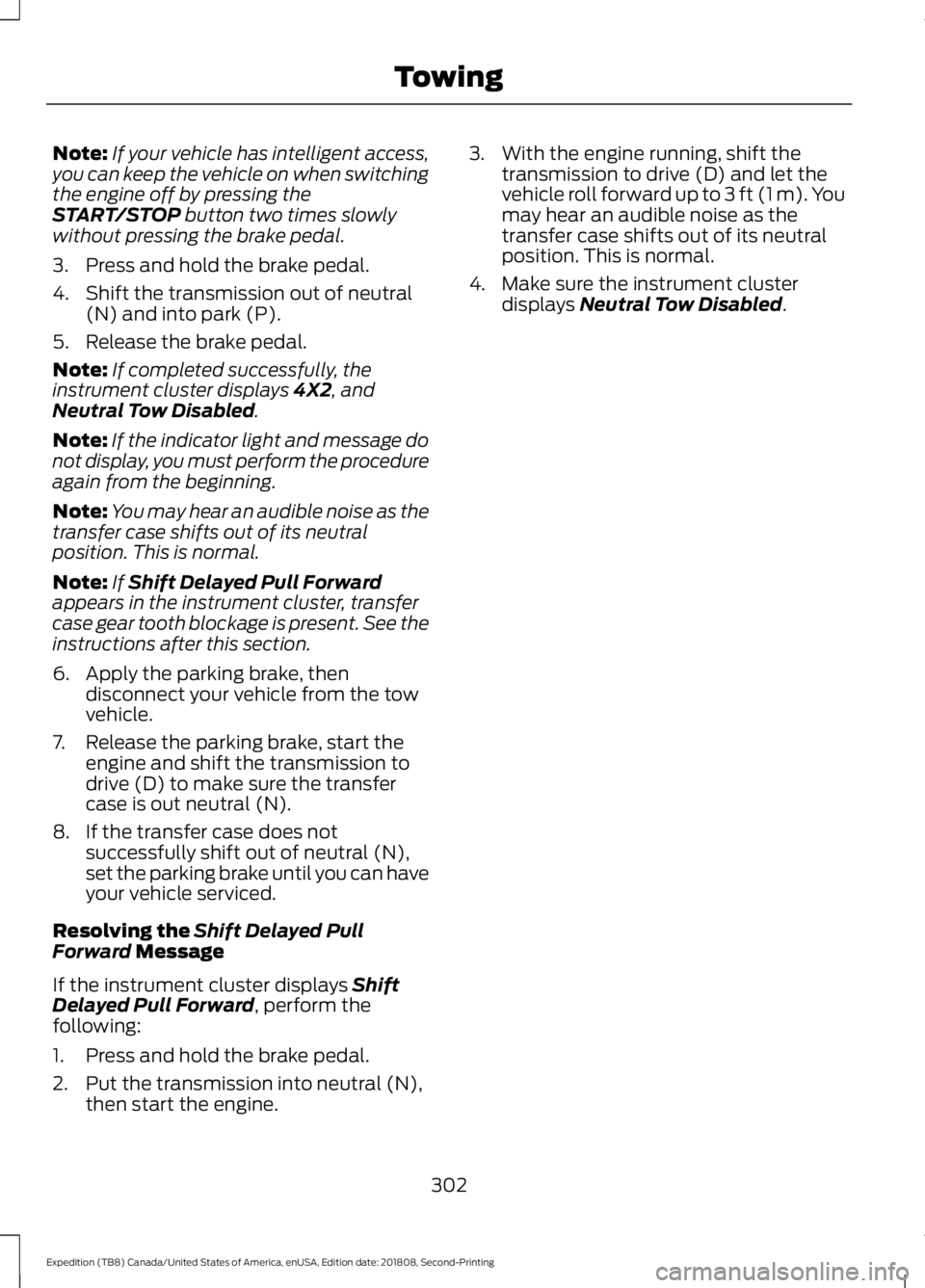
Note:
If your vehicle has intelligent access,
you can keep the vehicle on when switching
the engine off by pressing the
START/STOP button two times slowly
without pressing the brake pedal.
3. Press and hold the brake pedal.
4. Shift the transmission out of neutral (N) and into park (P).
5. Release the brake pedal.
Note: If completed successfully, the
instrument cluster displays
4X2, and
Neutral Tow Disabled.
Note: If the indicator light and message do
not display, you must perform the procedure
again from the beginning.
Note: You may hear an audible noise as the
transfer case shifts out of its neutral
position. This is normal.
Note: If
Shift Delayed Pull Forward
appears in the instrument cluster, transfer
case gear tooth blockage is present. See the
instructions after this section.
6. Apply the parking brake, then disconnect your vehicle from the tow
vehicle.
7. Release the parking brake, start the engine and shift the transmission to
drive (D) to make sure the transfer
case is out neutral (N).
8. If the transfer case does not successfully shift out of neutral (N),
set the parking brake until you can have
your vehicle serviced.
Resolving the
Shift Delayed Pull
Forward Message
If the instrument cluster displays
Shift
Delayed Pull Forward, perform the
following:
1. Press and hold the brake pedal.
2. Put the transmission into neutral (N), then start the engine. 3. With the engine running, shift the
transmission to drive (D) and let the
vehicle roll forward up to
3 ft (1 m). You
may hear an audible noise as the
transfer case shifts out of its neutral
position. This is normal.
4. Make sure the instrument cluster displays
Neutral Tow Disabled.
302
Expedition (TB8) Canada/United States of America, enUSA, Edition date: 201808, Second-Printing Towing
Page 310 of 583
Vehicles Sold in Canada: Getting
Roadside Assistance
To fully assist you should you have a
vehicle concern, Ford Motor Company of
Canada, Limited offers a complimentary
roadside assistance program. This program
is eligible within Canada or the continental
United States.
The service is available 24 hours a day,
seven days a week.
This program is separate from the New
Vehicle Limited Warranty, but the coverage
is concurrent with the powertrain coverage
period of your vehicle. Canadian roadside
coverage and benefits may differ from the
U.S. coverage.
If you require more information, please call
us in Canada at 1-800-665-2006, or visit
our website at www.ford.ca.
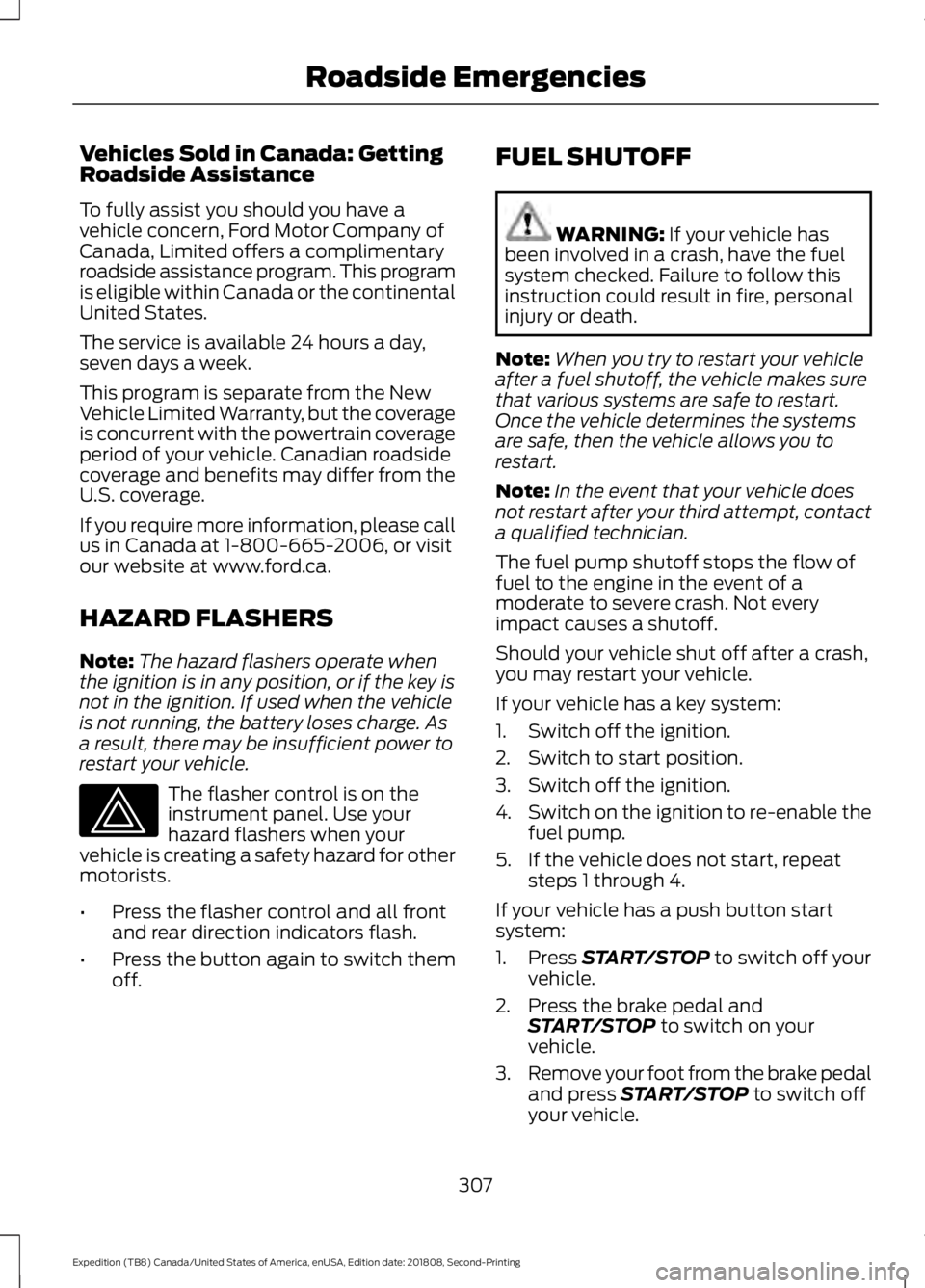
HAZARD FLASHERS
Note:
The hazard flashers operate when
the ignition is in any position, or if the key is
not in the ignition. If used when the vehicle
is not running, the battery loses charge. As
a result, there may be insufficient power to
restart your vehicle. The flasher control is on the
instrument panel. Use your
hazard flashers when your
vehicle is creating a safety hazard for other
motorists.
• Press the flasher control and all front
and rear direction indicators flash.
• Press the button again to switch them
off. FUEL SHUTOFF WARNING: If your vehicle has
been involved in a crash, have the fuel
system checked. Failure to follow this
instruction could result in fire, personal
injury or death.
Note: When you try to restart your vehicle
after a fuel shutoff, the vehicle makes sure
that various systems are safe to restart.
Once the vehicle determines the systems
are safe, then the vehicle allows you to
restart.
Note: In the event that your vehicle does
not restart after your third attempt, contact
a qualified technician.
The fuel pump shutoff stops the flow of
fuel to the engine in the event of a
moderate to severe crash. Not every
impact causes a shutoff.
Should your vehicle shut off after a crash,
you may restart your vehicle.
If your vehicle has a key system:
1. Switch off the ignition.
2. Switch to start position.
3. Switch off the ignition.
4. Switch on the ignition to re-enable the
fuel pump.
5. If the vehicle does not start, repeat steps 1 through 4.
If your vehicle has a push button start
system:
1. Press
START/STOP to switch off your
vehicle.
2. Press the brake pedal and START/STOP
to switch on your
vehicle.
3. Remove your foot from the brake pedal
and press
START/STOP to switch off
your vehicle.
307
Expedition (TB8) Canada/United States of America, enUSA, Edition date: 201808, Second-Printing Roadside Emergencies
Page 427 of 583
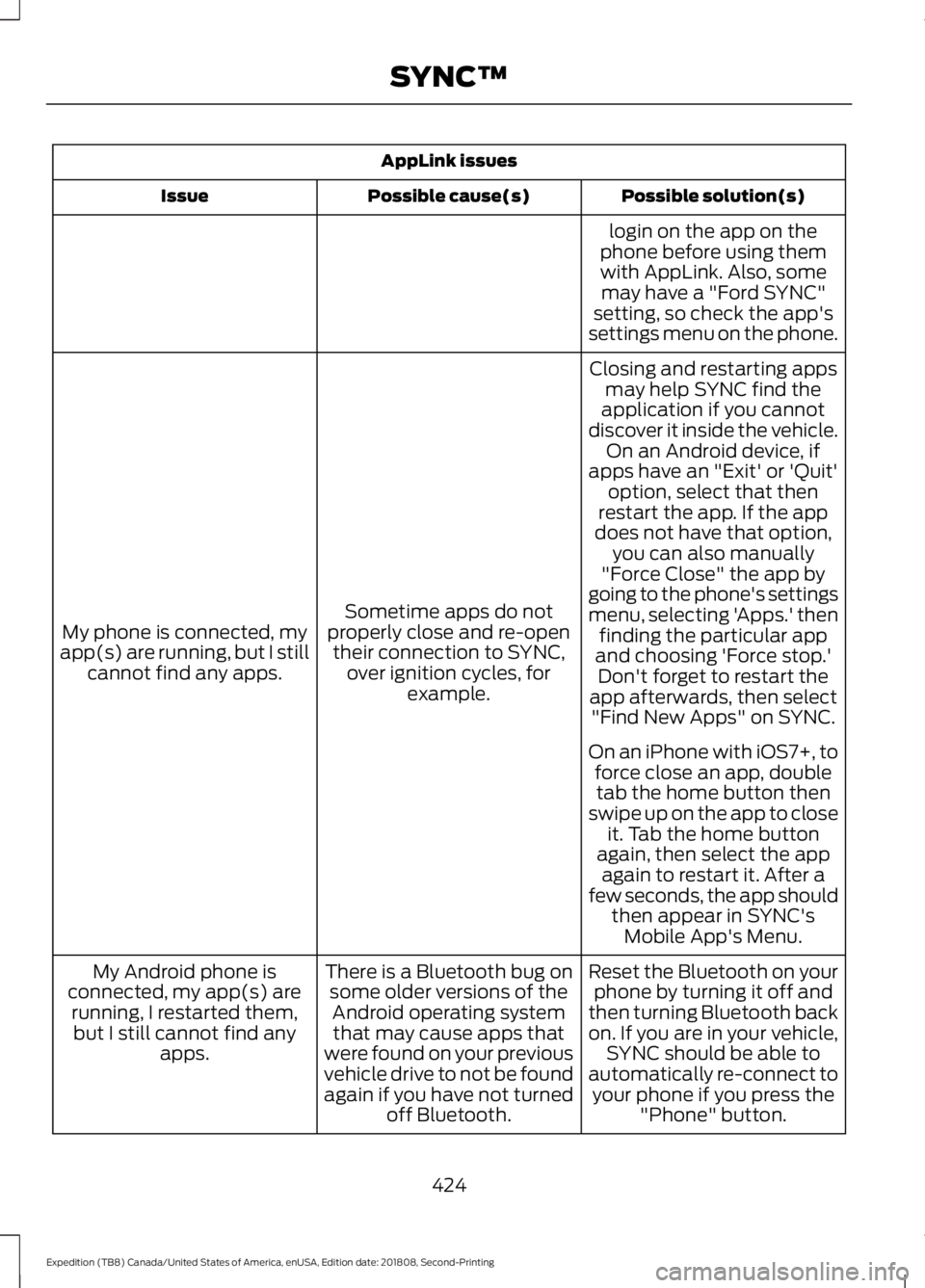
AppLink issues
Possible solution(s)
Possible cause(s)
Issue
login on the app on the
phone before using them with AppLink. Also, some may have a "Ford SYNC"
setting, so check the app's
settings menu on the phone.
Closing and restarting apps may help SYNC find the
application if you cannot
discover it inside the vehicle. On an Android device, if
apps have an "Exit' or 'Quit'
Sometime apps do not
properly close and re-open their connection to SYNC, over ignition cycles, for example.
My phone is connected, my
app(s) are running, but I still cannot find any apps. option, select that then
restart the app. If the app
does not have that option, you can also manually
"Force Close" the app by
going to the phone's settings
menu, selecting 'Apps.' then finding the particular app
and choosing 'Force stop.' Don't forget to restart the
app afterwards, then select "Find New Apps" on SYNC.
On an iPhone with iOS7+, to force close an app, doubletab the home button then
swipe up on the app to close it. Tab the home button
again, then select the app again to restart it. After a
few seconds, the app should then appear in SYNC'sMobile App's Menu.
Reset the Bluetooth on your phone by turning it off and
then turning Bluetooth back
on. If you are in your vehicle, SYNC should be able to
automatically re-connect to your phone if you press the "Phone" button.
There is a Bluetooth bug on
some older versions of theAndroid operating systemthat may cause apps that
were found on your previous
vehicle drive to not be found
again if you have not turned off Bluetooth.
My Android phone is
connected, my app(s) are running, I restarted them,but I still cannot find any apps.
424
Expedition (TB8) Canada/United States of America, enUSA, Edition date: 201808, Second-Printing SYNC™
Page 434 of 583
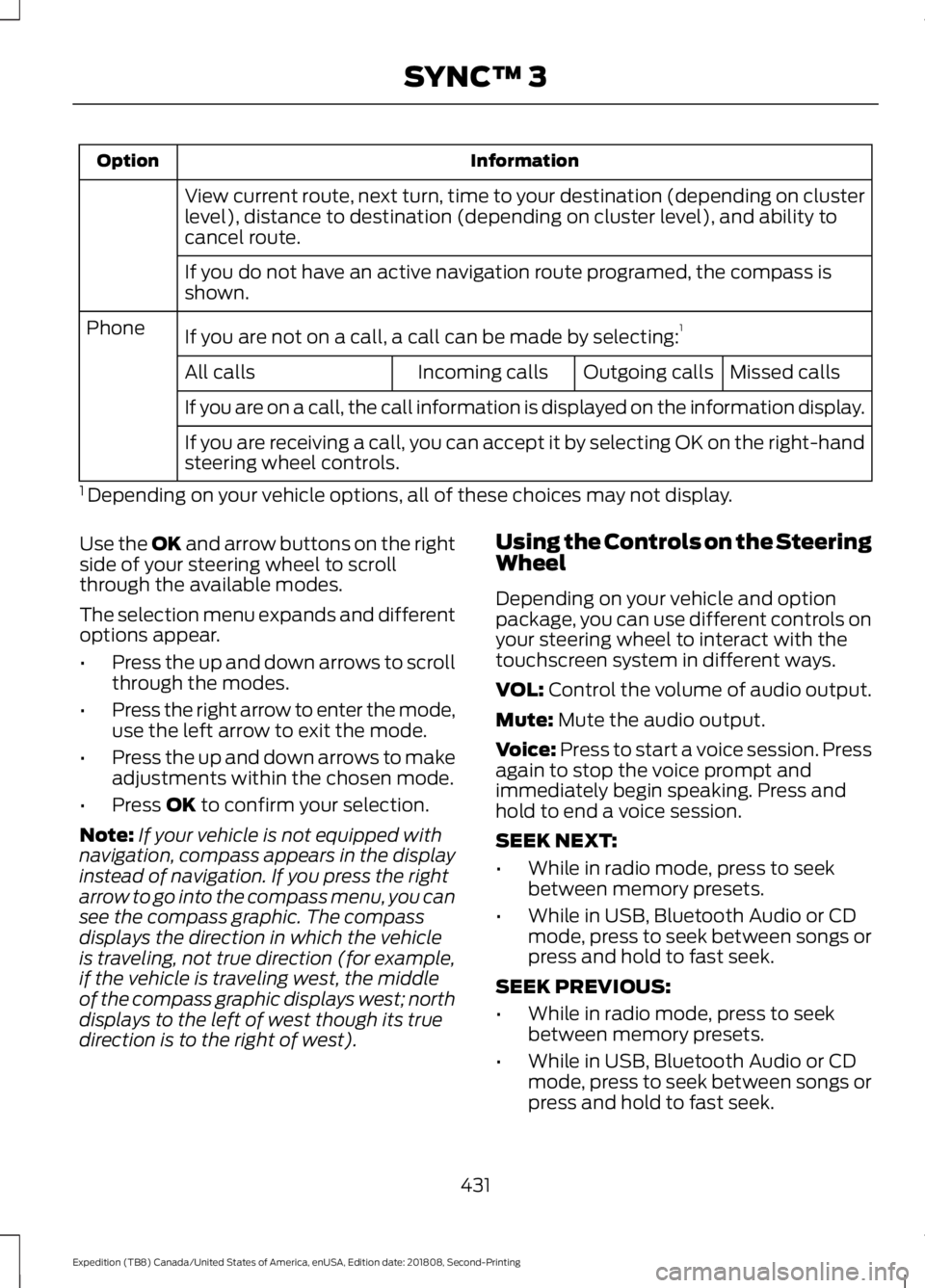
Information
Option
View current route, next turn, time to your destination (depending on cluster
level), distance to destination (depending on cluster level), and ability to
cancel route.
If you do not have an active navigation route programed, the compass is
shown.
If you are not on a call, a call can be made by selecting: 1
Phone
Missed calls
Outgoing calls
Incoming calls
All calls
If you are on a call, the call information is displayed on the information display.
If you are receiving a call, you can accept it by selecting OK on the right-hand
steering wheel controls.
1 Depending on your vehicle options, all of these choices may not display.
Use the OK and arrow buttons on the right
side of your steering wheel to scroll
through the available modes.
The selection menu expands and different
options appear.
• Press the up and down arrows to scroll
through the modes.
• Press the right arrow to enter the mode,
use the left arrow to exit the mode.
• Press the up and down arrows to make
adjustments within the chosen mode.
• Press
OK to confirm your selection.
Note: If your vehicle is not equipped with
navigation, compass appears in the display
instead of navigation. If you press the right
arrow to go into the compass menu, you can
see the compass graphic. The compass
displays the direction in which the vehicle
is traveling, not true direction (for example,
if the vehicle is traveling west, the middle
of the compass graphic displays west; north
displays to the left of west though its true
direction is to the right of west). Using the Controls on the Steering
Wheel
Depending on your vehicle and option
package, you can use different controls on
your steering wheel to interact with the
touchscreen system in different ways.
VOL:
Control the volume of audio output.
Mute:
Mute the audio output.
Voice:
Press to start a voice session. Press
again to stop the voice prompt and
immediately begin speaking. Press and
hold to end a voice session.
SEEK NEXT:
• While in radio mode, press to seek
between memory presets.
• While in USB, Bluetooth Audio or CD
mode, press to seek between songs or
press and hold to fast seek.
SEEK PREVIOUS:
• While in radio mode, press to seek
between memory presets.
• While in USB, Bluetooth Audio or CD
mode, press to seek between songs or
press and hold to fast seek.
431
Expedition (TB8) Canada/United States of America, enUSA, Edition date: 201808, Second-Printing SYNC™ 3
Page 499 of 583
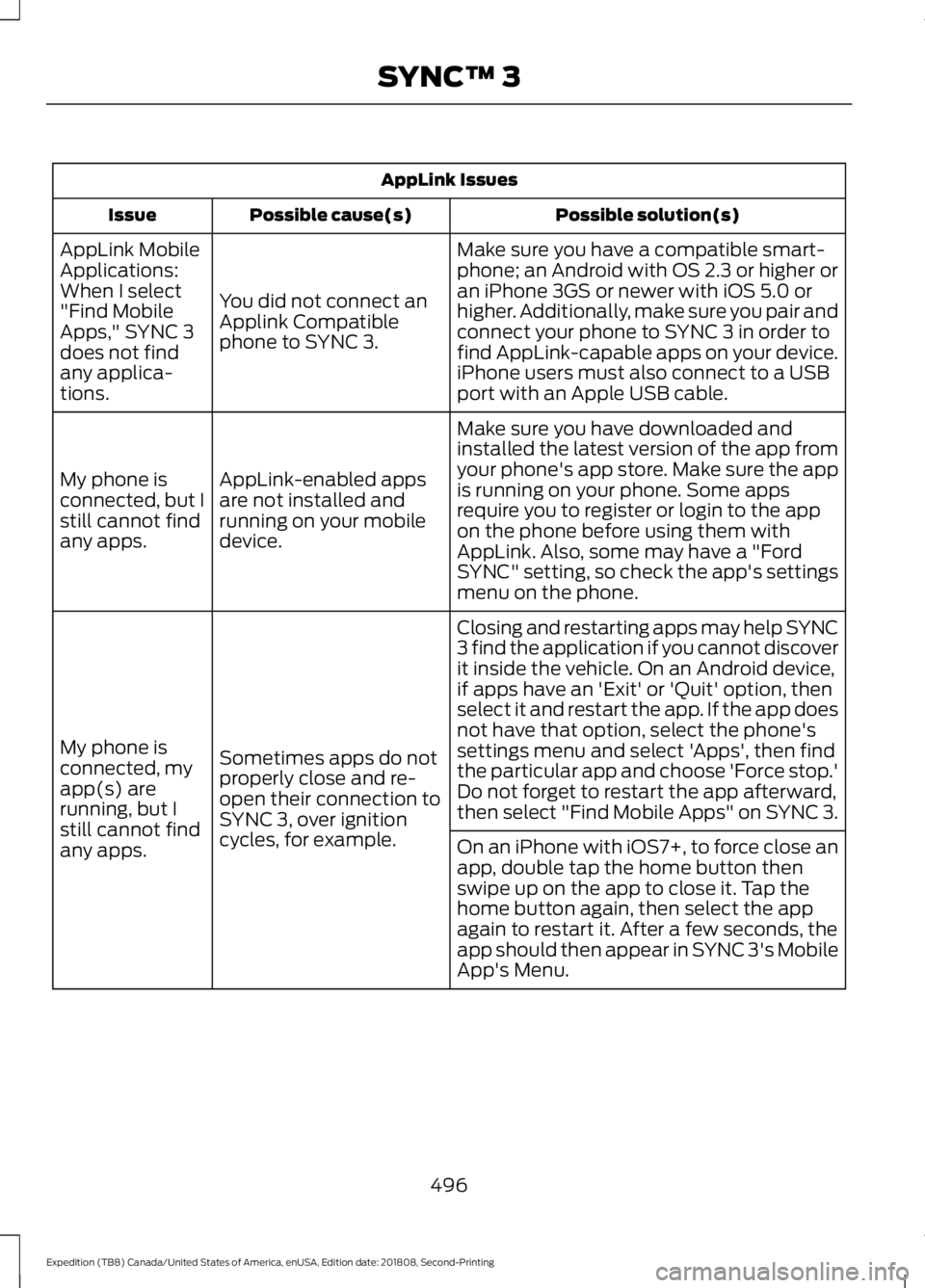
AppLink Issues
Possible solution(s)
Possible cause(s)
Issue
Make sure you have a compatible smart-
phone; an Android with OS 2.3 or higher or
an iPhone 3GS or newer with iOS 5.0 or
higher. Additionally, make sure you pair and
connect your phone to SYNC 3 in order to
find AppLink-capable apps on your device.
iPhone users must also connect to a USB
port with an Apple USB cable.
You did not connect an
Applink Compatible
phone to SYNC 3.
AppLink Mobile
Applications:
When I select
"Find Mobile
Apps," SYNC 3
does not find
any applica-
tions.
Make sure you have downloaded and
installed the latest version of the app from
your phone's app store. Make sure the app
is running on your phone. Some apps
require you to register or login to the app
on the phone before using them with
AppLink. Also, some may have a "Ford
SYNC" setting, so check the app's settings
menu on the phone.
AppLink-enabled apps
are not installed and
running on your mobile
device.
My phone is
connected, but I
still cannot find
any apps.
Closing and restarting apps may help SYNC
3 find the application if you cannot discover
it inside the vehicle. On an Android device,
if apps have an 'Exit' or 'Quit' option, then
select it and restart the app. If the app does
not have that option, select the phone's
settings menu and select 'Apps', then find
the particular app and choose 'Force stop.'
Do not forget to restart the app afterward,
then select "Find Mobile Apps" on SYNC 3.
Sometimes apps do not
properly close and re-
open their connection to
SYNC 3, over ignition
cycles, for example.
My phone is
connected, my
app(s) are
running, but I
still cannot find
any apps.
On an iPhone with iOS7+, to force close an
app, double tap the home button then
swipe up on the app to close it. Tap the
home button again, then select the app
again to restart it. After a few seconds, the
app should then appear in SYNC 3's Mobile
App's Menu.
496
Expedition (TB8) Canada/United States of America, enUSA, Edition date: 201808, Second-Printing SYNC™ 3