radio controls FORD EXPEDITION 2019 Owners Manual
[x] Cancel search | Manufacturer: FORD, Model Year: 2019, Model line: EXPEDITION, Model: FORD EXPEDITION 2019Pages: 583, PDF Size: 6.71 MB
Page 4 of 583
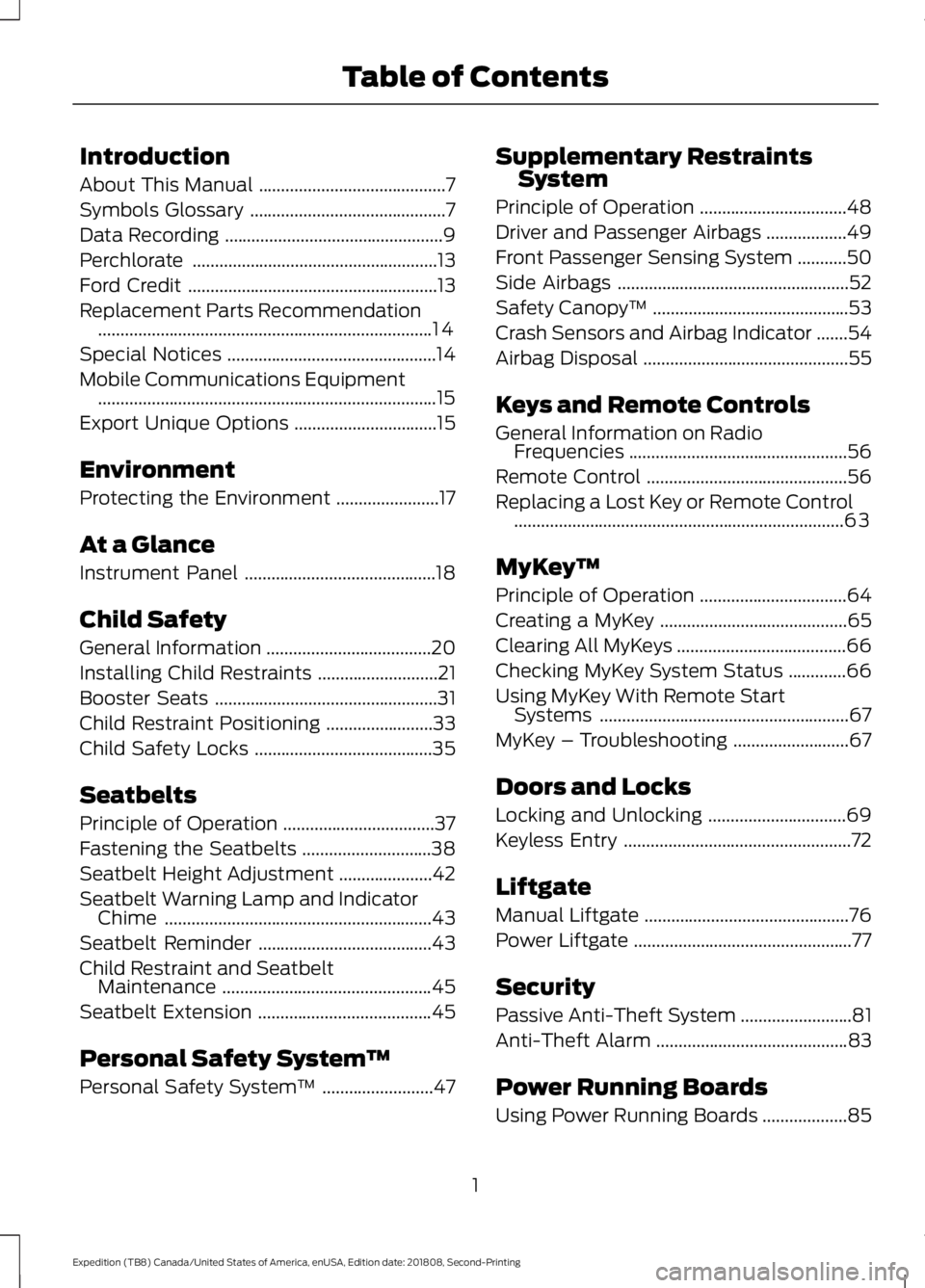
Introduction
About This Manual
..........................................7
Symbols Glossary ............................................
7
Data Recording .................................................
9
Perchlorate .......................................................
13
Ford Credit ........................................................
13
Replacement Parts Recommendation ........................................................................\
...
14
Special Notices ...............................................
14
Mobile Communications Equipment ........................................................................\
....
15
Export Unique Options ................................
15
Environment
Protecting the Environment .......................
17
At a Glance
Instrument Panel ...........................................
18
Child Safety
General Information .....................................
20
Installing Child Restraints ...........................
21
Booster Seats ..................................................
31
Child Restraint Positioning ........................
33
Child Safety Locks ........................................
35
Seatbelts
Principle of Operation ..................................
37
Fastening the Seatbelts .............................
38
Seatbelt Height Adjustment .....................
42
Seatbelt Warning Lamp and Indicator Chime ............................................................
43
Seatbelt Reminder .......................................
43
Child Restraint and Seatbelt Maintenance ...............................................
45
Seatbelt Extension .......................................
45
Personal Safety System ™
Personal Safety System ™.........................
47 Supplementary Restraints
System
Principle of Operation .................................
48
Driver and Passenger Airbags ..................
49
Front Passenger Sensing System ...........
50
Side Airbags ....................................................
52
Safety Canopy ™............................................
53
Crash Sensors and Airbag Indicator .......
54
Airbag Disposal ..............................................
55
Keys and Remote Controls
General Information on Radio Frequencies .................................................
56
Remote Control .............................................
56
Replacing a Lost Key or Remote Control ........................................................................\
..
63
MyKey ™
Principle of Operation .................................
64
Creating a MyKey ..........................................
65
Clearing All MyKeys ......................................
66
Checking MyKey System Status .............
66
Using MyKey With Remote Start Systems ........................................................
67
MyKey – Troubleshooting ..........................
67
Doors and Locks
Locking and Unlocking ...............................
69
Keyless Entry ...................................................
72
Liftgate
Manual Liftgate ..............................................
76
Power Liftgate .................................................
77
Security
Passive Anti-Theft System .........................
81
Anti-Theft Alarm ...........................................
83
Power Running Boards
Using Power Running Boards ...................
85
1
Expedition (TB8) Canada/United States of America, enUSA, Edition date: 201808, Second-Printing Table of Contents
Page 59 of 583
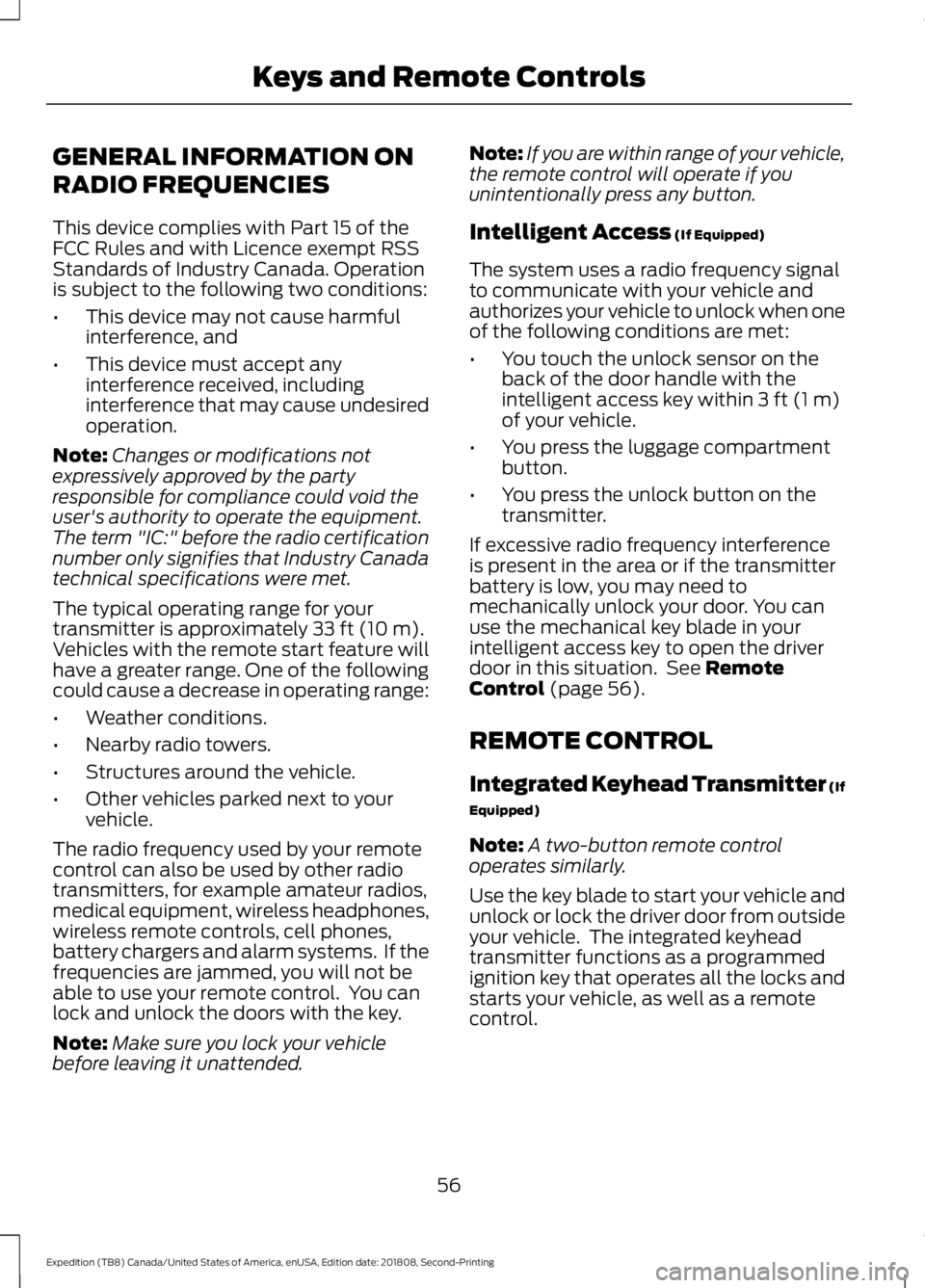
GENERAL INFORMATION ON
RADIO FREQUENCIES
This device complies with Part 15 of the
FCC Rules and with Licence exempt RSS
Standards of Industry Canada. Operation
is subject to the following two conditions:
•
This device may not cause harmful
interference, and
• This device must accept any
interference received, including
interference that may cause undesired
operation.
Note: Changes or modifications not
expressively approved by the party
responsible for compliance could void the
user's authority to operate the equipment.
The term "IC:" before the radio certification
number only signifies that Industry Canada
technical specifications were met.
The typical operating range for your
transmitter is approximately 33 ft (10 m).
Vehicles with the remote start feature will
have a greater range. One of the following
could cause a decrease in operating range:
• Weather conditions.
• Nearby radio towers.
• Structures around the vehicle.
• Other vehicles parked next to your
vehicle.
The radio frequency used by your remote
control can also be used by other radio
transmitters, for example amateur radios,
medical equipment, wireless headphones,
wireless remote controls, cell phones,
battery chargers and alarm systems. If the
frequencies are jammed, you will not be
able to use your remote control. You can
lock and unlock the doors with the key.
Note: Make sure you lock your vehicle
before leaving it unattended. Note:
If you are within range of your vehicle,
the remote control will operate if you
unintentionally press any button.
Intelligent Access
(If Equipped)
The system uses a radio frequency signal
to communicate with your vehicle and
authorizes your vehicle to unlock when one
of the following conditions are met:
• You touch the unlock sensor on the
back of the door handle with the
intelligent access key within
3 ft (1 m)
of your vehicle.
• You press the luggage compartment
button.
• You press the unlock button on the
transmitter.
If excessive radio frequency interference
is present in the area or if the transmitter
battery is low, you may need to
mechanically unlock your door. You can
use the mechanical key blade in your
intelligent access key to open the driver
door in this situation. See
Remote
Control (page 56).
REMOTE CONTROL
Integrated Keyhead Transmitter (If
Equipped)
Note: A two-button remote control
operates similarly.
Use the key blade to start your vehicle and
unlock or lock the driver door from outside
your vehicle. The integrated keyhead
transmitter functions as a programmed
ignition key that operates all the locks and
starts your vehicle, as well as a remote
control.
56
Expedition (TB8) Canada/United States of America, enUSA, Edition date: 201808, Second-Printing Keys and Remote Controls
Page 65 of 583
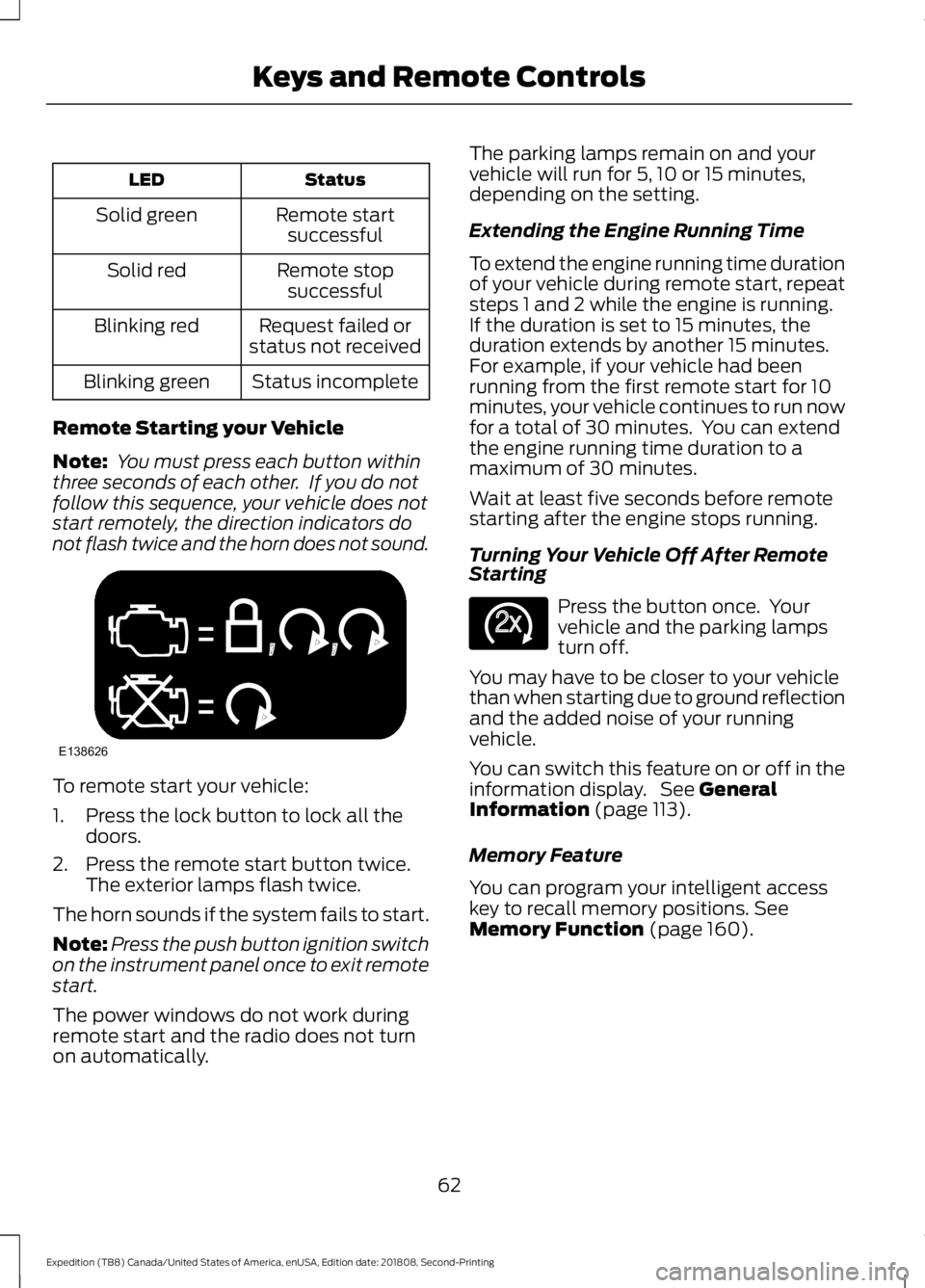
Status
LED
Remote startsuccessful
Solid green
Remote stopsuccessful
Solid red
Request failed or
status not received
Blinking red
Status incomplete
Blinking green
Remote Starting your Vehicle
Note: You must press each button within
three seconds of each other. If you do not
follow this sequence, your vehicle does not
start remotely, the direction indicators do
not flash twice and the horn does not sound. To remote start your vehicle:
1. Press the lock button to lock all the
doors.
2. Press the remote start button twice. The exterior lamps flash twice.
The horn sounds if the system fails to start.
Note: Press the push button ignition switch
on the instrument panel once to exit remote
start.
The power windows do not work during
remote start and the radio does not turn
on automatically. The parking lamps remain on and your
vehicle will run for 5, 10 or 15 minutes,
depending on the setting.
Extending the Engine Running Time
To extend the engine running time duration
of your vehicle during remote start, repeat
steps 1 and 2 while the engine is running.
If the duration is set to 15 minutes, the
duration extends by another 15 minutes.
For example, if your vehicle had been
running from the first remote start for 10
minutes, your vehicle continues to run now
for a total of 30 minutes. You can extend
the engine running time duration to a
maximum of 30 minutes.
Wait at least five seconds before remote
starting after the engine stops running.
Turning Your Vehicle Off After Remote
Starting
Press the button once. Your
vehicle and the parking lamps
turn off.
You may have to be closer to your vehicle
than when starting due to ground reflection
and the added noise of your running
vehicle.
You can switch this feature on or off in the
information display. See General
Information (page 113).
Memory Feature
You can program your intelligent access
key to recall memory positions.
See
Memory Function (page 160).
62
Expedition (TB8) Canada/United States of America, enUSA, Edition date: 201808, Second-Printing Keys and Remote ControlsE138626 E138625
Page 92 of 583
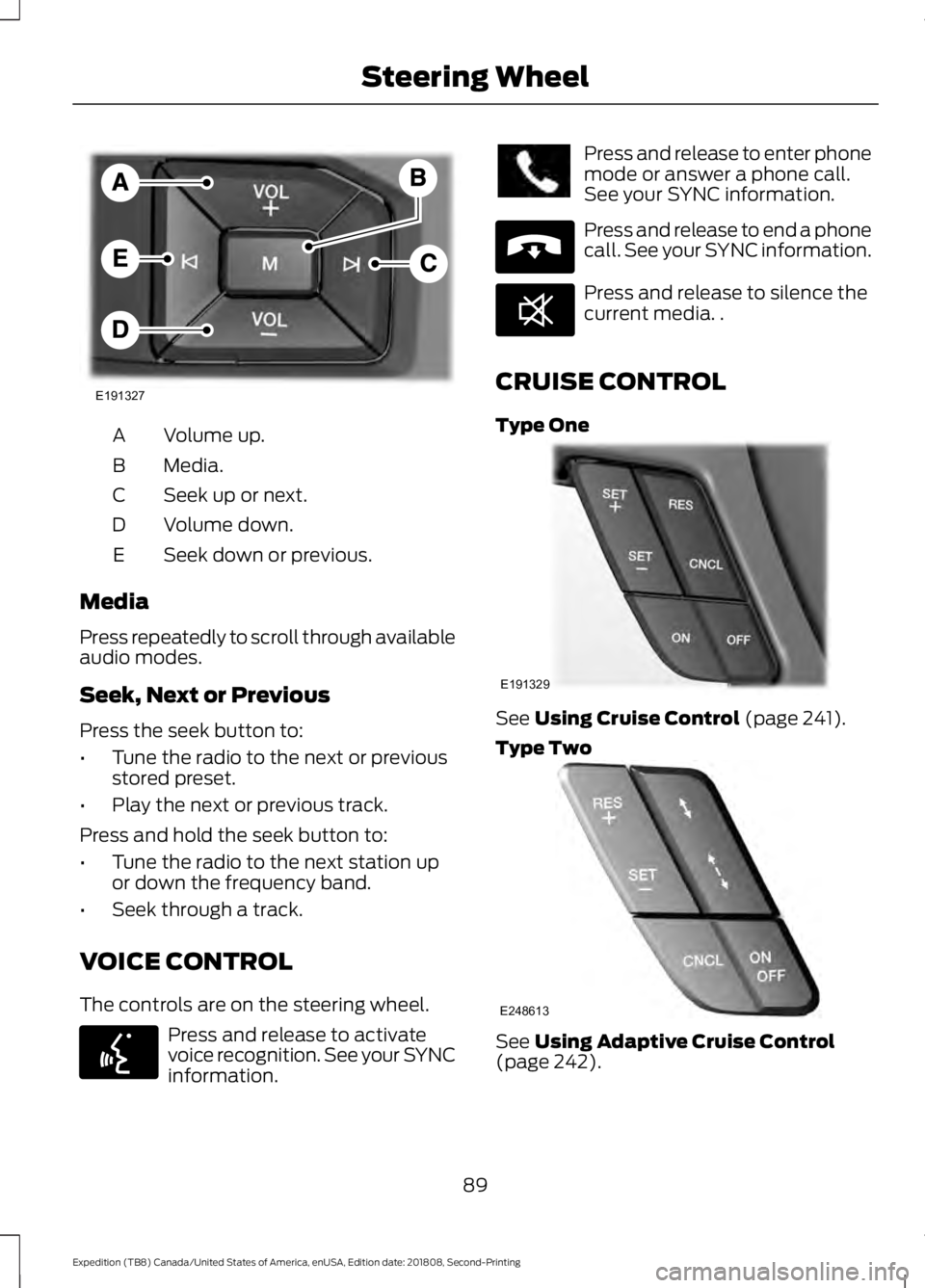
Volume up.
A
Media.
B
Seek up or next.
C
Volume down.
D
Seek down or previous.
E
Media
Press repeatedly to scroll through available
audio modes.
Seek, Next or Previous
Press the seek button to:
• Tune the radio to the next or previous
stored preset.
• Play the next or previous track.
Press and hold the seek button to:
• Tune the radio to the next station up
or down the frequency band.
• Seek through a track.
VOICE CONTROL
The controls are on the steering wheel. Press and release to activate
voice recognition. See your SYNC
information. Press and release to enter phone
mode or answer a phone call.
See your SYNC information.
Press and release to end a phone
call. See your SYNC information.
Press and release to silence the
current media. .
CRUISE CONTROL
Type One See Using Cruise Control (page 241).
Type Two See
Using Adaptive Cruise Control
(page 242).
89
Expedition (TB8) Canada/United States of America, enUSA, Edition date: 201808, Second-Printing Steering WheelE191327 E142599 E265040 E268549 E191329 E248613
Page 403 of 583
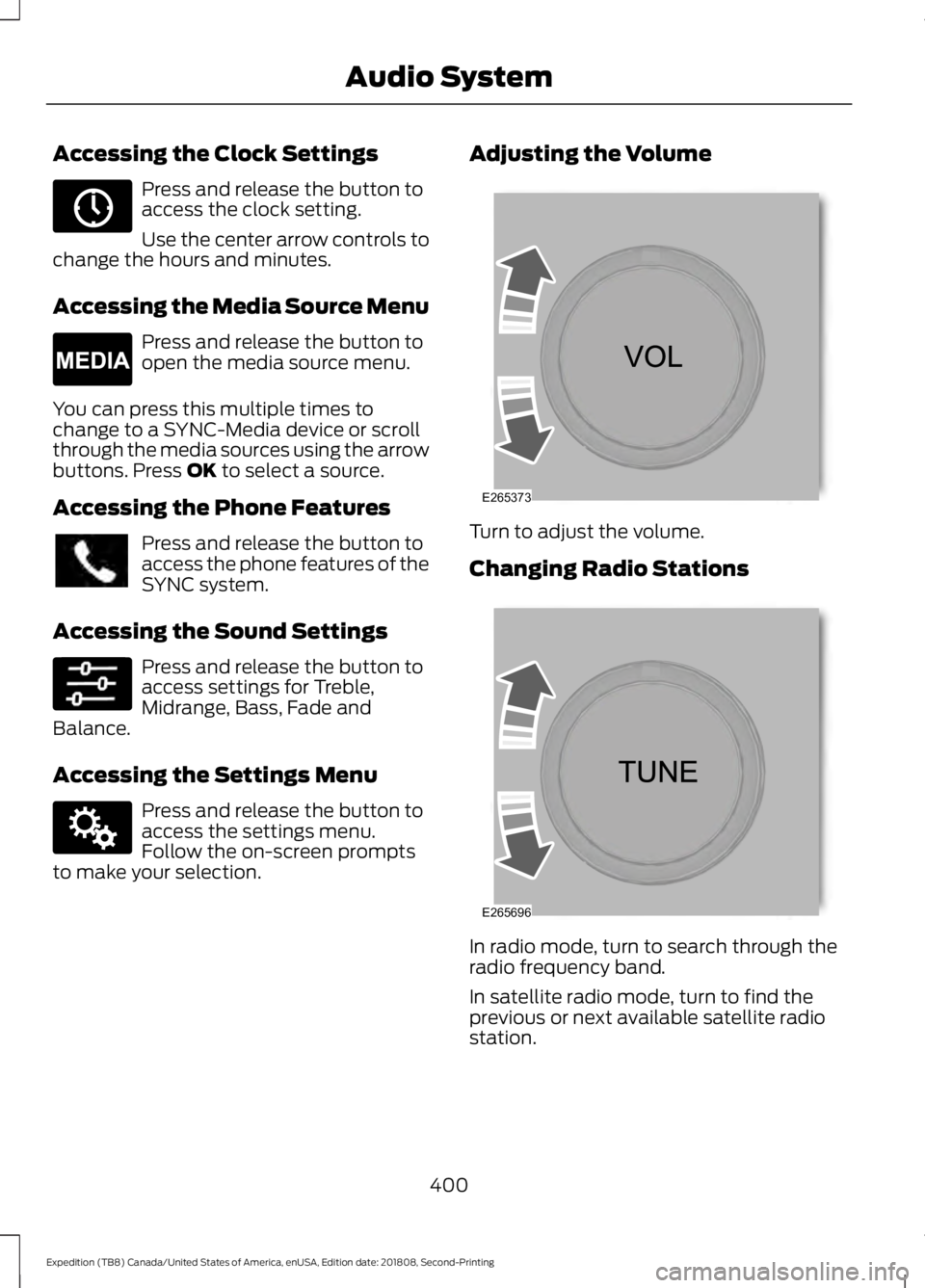
Accessing the Clock Settings
Press and release the button to
access the clock setting.
Use the center arrow controls to
change the hours and minutes.
Accessing the Media Source Menu Press and release the button to
open the media source menu.
You can press this multiple times to
change to a SYNC-Media device or scroll
through the media sources using the arrow
buttons. Press OK to select a source.
Accessing the Phone Features Press and release the button to
access the phone features of the
SYNC system.
Accessing the Sound Settings Press and release the button to
access settings for Treble,
Midrange, Bass, Fade and
Balance.
Accessing the Settings Menu Press and release the button to
access the settings menu.
Follow the on-screen prompts
to make your selection. Adjusting the Volume
Turn to adjust the volume.
Changing Radio Stations
In radio mode, turn to search through the
radio frequency band.
In satellite radio mode, turn to find the
previous or next available satellite radio
station.
400
Expedition (TB8) Canada/United States of America, enUSA, Edition date: 201808, Second-Printing Audio SystemE265036 E265035 E142607 E265373 E265696
Page 405 of 583
AUDIO UNIT - VEHICLES WITH:
TOUCHSCREEN DISPLAY
WARNING: Driving while
distracted can result in loss of vehicle
control, crash and injury. We strongly
recommend that you use extreme
caution when using any device that may
take your focus off the road. Your
primary responsibility is the safe
operation of your vehicle. We
recommend against the use of any
hand-held device while driving and
encourage the use of voice-operated
systems when possible. Make sure you
are aware of all applicable local laws
that may affect the use of electronic
devices while driving.
Note: Some features, such as satellite
radio, may not be available in your location.
Check with an authorized dealer.
Note: The touchscreen system controls
most of the audio features. See your SYNC
information.
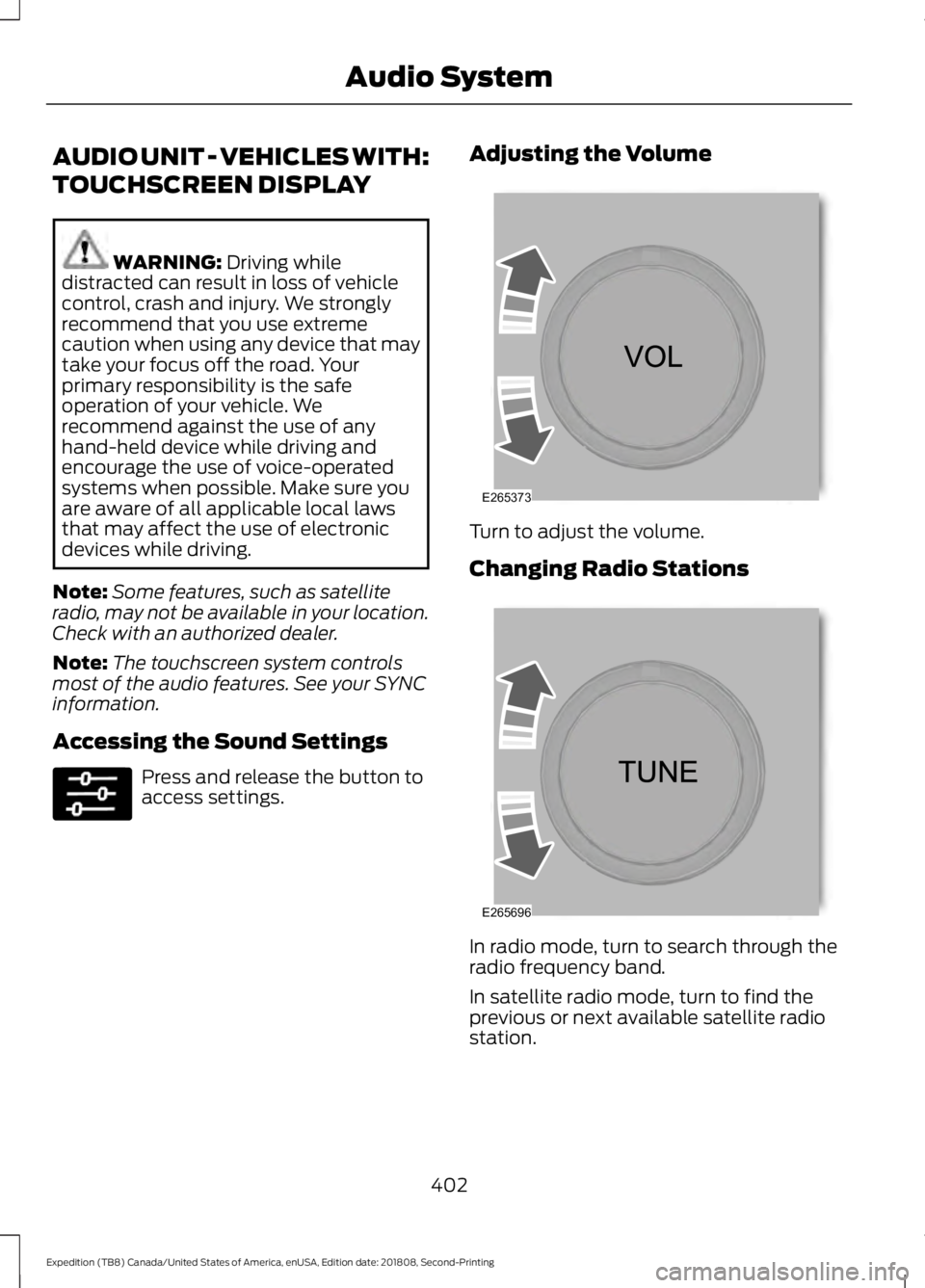
Accessing the Sound Settings Press and release the button to
access settings. Adjusting the Volume Turn to adjust the volume.
Changing Radio Stations
In radio mode, turn to search through the
radio frequency band.
In satellite radio mode, turn to find the
previous or next available satellite radio
station.
402
Expedition (TB8) Canada/United States of America, enUSA, Edition date: 201808, Second-Printing Audio System E265373 E265696
Page 420 of 583
•
To allow your vehicle to provide
location information, including: GPS
and speed.
• To allow the app to send push
notifications using the vehicle display
and voice capabilities while running in
a background state. Push notifications
may be particularly useful for news or
location based apps.
Note: You only need to grant permissions
the first time you use an app with SYNC.
Note: Ford is not responsible or liable for
any damages or loss of privacy relating to
usage of an app, or dissemination of any
vehicle data that you approve Ford to
provide to an app.
Enabling SYNC Mobile Apps
In order to enable mobile apps, SYNC
requires user consent to send and receive
app authorization information and updates
using the data plan associated with the
connected device.
Data is sent to Ford in the United States
through the connected device. The
information is encrypted and includes your
VIN, SYNC module number, anonymous
usage statistics and debugging
information. Updates may take place.
Note: You must enable mobile apps for
each connected device the first time you
select a mobile app using the system.
Note: Standard data rates apply. Ford is
not responsible for any additional charges
you may receive from your service provider,
when your vehicle sends or receives data
through the connected device. This includes
any additional charges incurred due to
driving in areas when roaming out of a home
network. USING SYNC™ WITH YOUR
MEDIA PLAYER
SYNC supports digital media sources
including: iPod, Bluetooth devices, and
most USB drives. SYNC also supports
audio formats, such as MP3, WMA, WAV
and ACC.
Media Sources
The AUX or MEDIA button allows you to
view and select available media sources.
Press the
AUX or MEDIA button to view
your sources. Use the directional arrows
and OK button to select your source. You
can also use the steering wheel audio
controls.
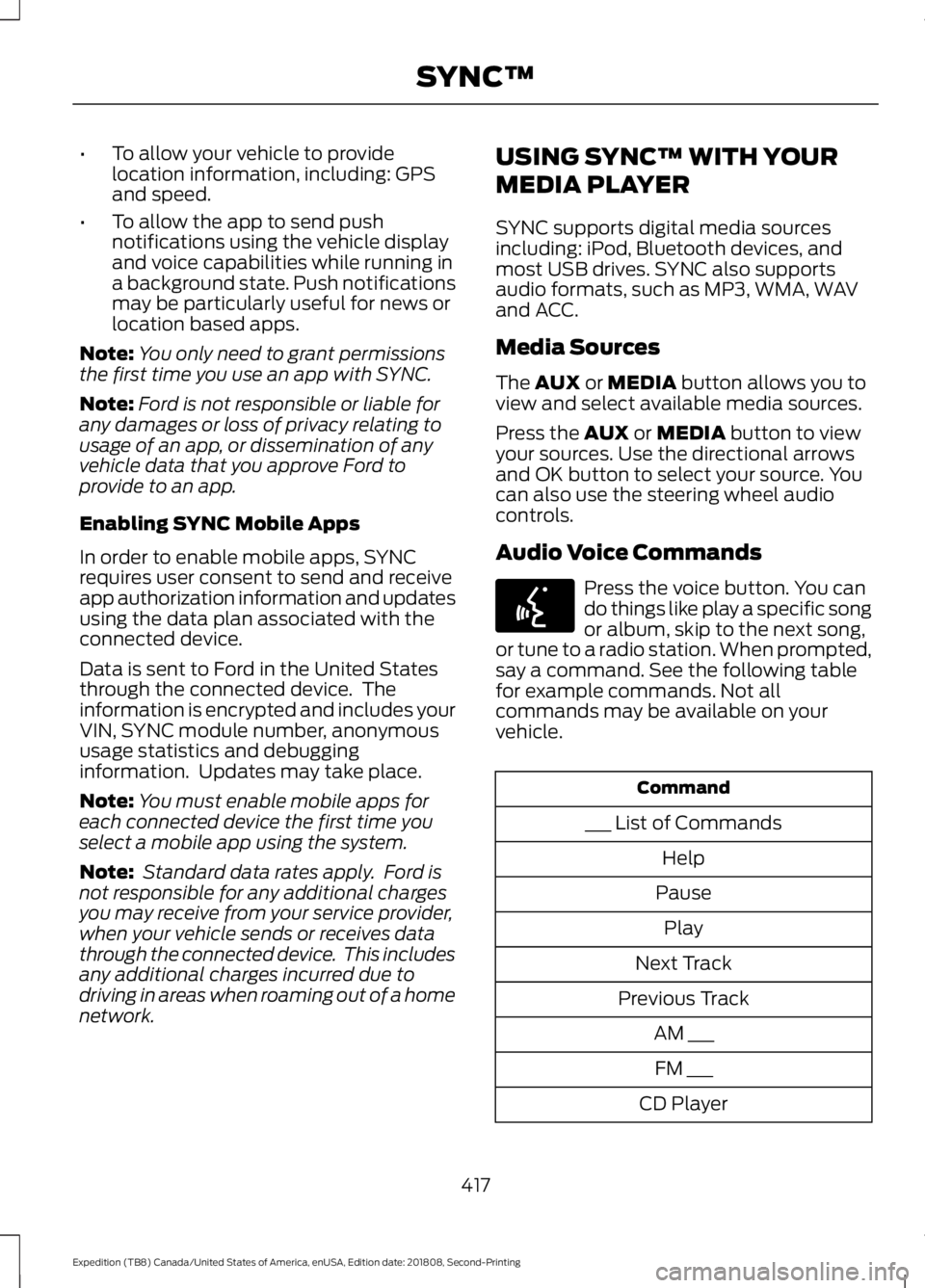
Audio Voice Commands Press the voice button. You can
do things like play a specific song
or album, skip to the next song,
or tune to a radio station. When prompted,
say a command. See the following table
for example commands. Not all
commands may be available on your
vehicle. Command
___ List of Commands Help
Pause Play
Next Track
Previous Track AM ___FM ___
CD Player
417
Expedition (TB8) Canada/United States of America, enUSA, Edition date: 201808, Second-Printing SYNC™E142599
Page 434 of 583
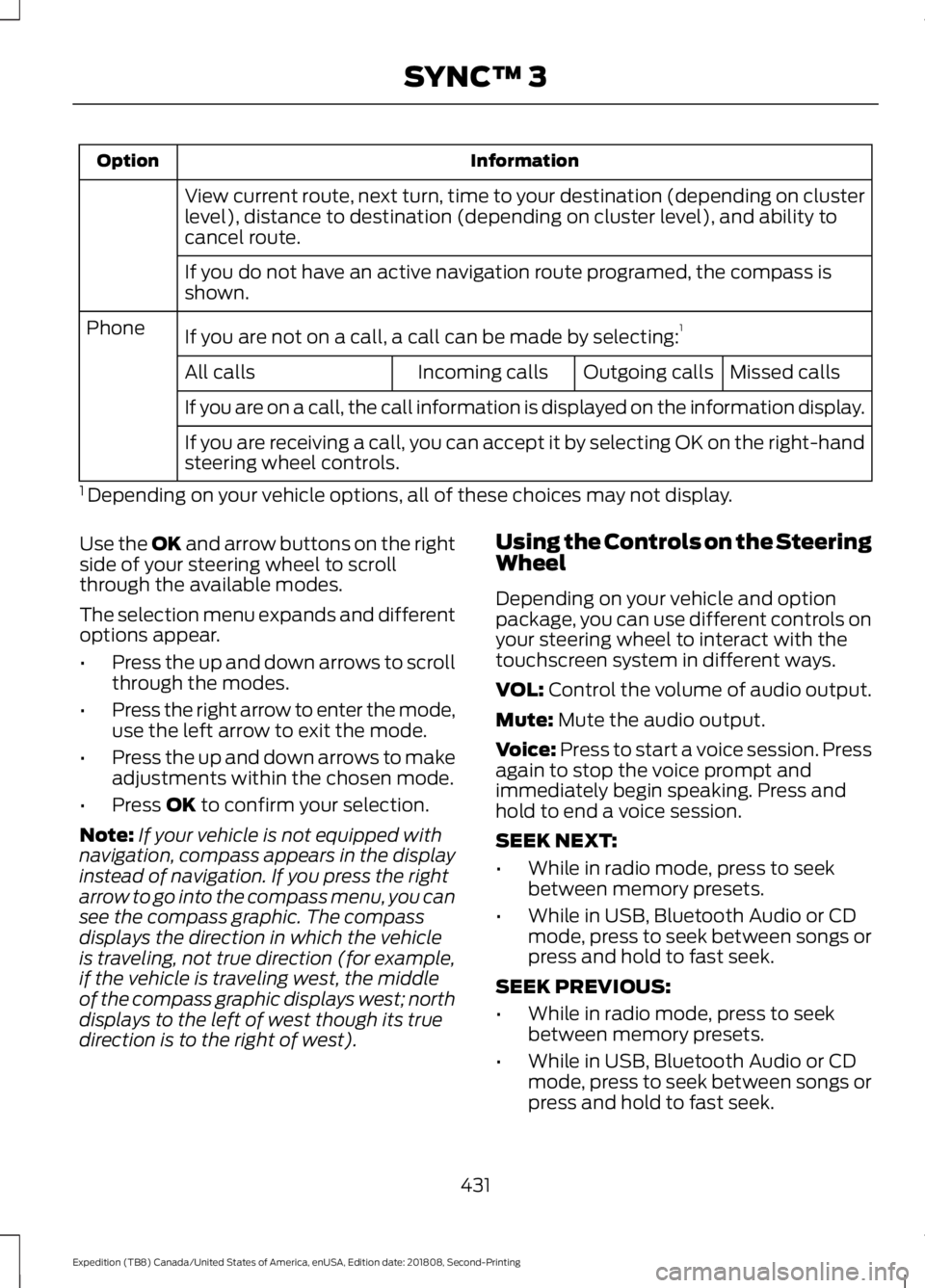
Information
Option
View current route, next turn, time to your destination (depending on cluster
level), distance to destination (depending on cluster level), and ability to
cancel route.
If you do not have an active navigation route programed, the compass is
shown.
If you are not on a call, a call can be made by selecting: 1
Phone
Missed calls
Outgoing calls
Incoming calls
All calls
If you are on a call, the call information is displayed on the information display.
If you are receiving a call, you can accept it by selecting OK on the right-hand
steering wheel controls.
1 Depending on your vehicle options, all of these choices may not display.
Use the OK and arrow buttons on the right
side of your steering wheel to scroll
through the available modes.
The selection menu expands and different
options appear.
• Press the up and down arrows to scroll
through the modes.
• Press the right arrow to enter the mode,
use the left arrow to exit the mode.
• Press the up and down arrows to make
adjustments within the chosen mode.
• Press
OK to confirm your selection.
Note: If your vehicle is not equipped with
navigation, compass appears in the display
instead of navigation. If you press the right
arrow to go into the compass menu, you can
see the compass graphic. The compass
displays the direction in which the vehicle
is traveling, not true direction (for example,
if the vehicle is traveling west, the middle
of the compass graphic displays west; north
displays to the left of west though its true
direction is to the right of west). Using the Controls on the Steering
Wheel
Depending on your vehicle and option
package, you can use different controls on
your steering wheel to interact with the
touchscreen system in different ways.
VOL:
Control the volume of audio output.
Mute:
Mute the audio output.
Voice:
Press to start a voice session. Press
again to stop the voice prompt and
immediately begin speaking. Press and
hold to end a voice session.
SEEK NEXT:
• While in radio mode, press to seek
between memory presets.
• While in USB, Bluetooth Audio or CD
mode, press to seek between songs or
press and hold to fast seek.
SEEK PREVIOUS:
• While in radio mode, press to seek
between memory presets.
• While in USB, Bluetooth Audio or CD
mode, press to seek between songs or
press and hold to fast seek.
431
Expedition (TB8) Canada/United States of America, enUSA, Edition date: 201808, Second-Printing SYNC™ 3
Page 450 of 583
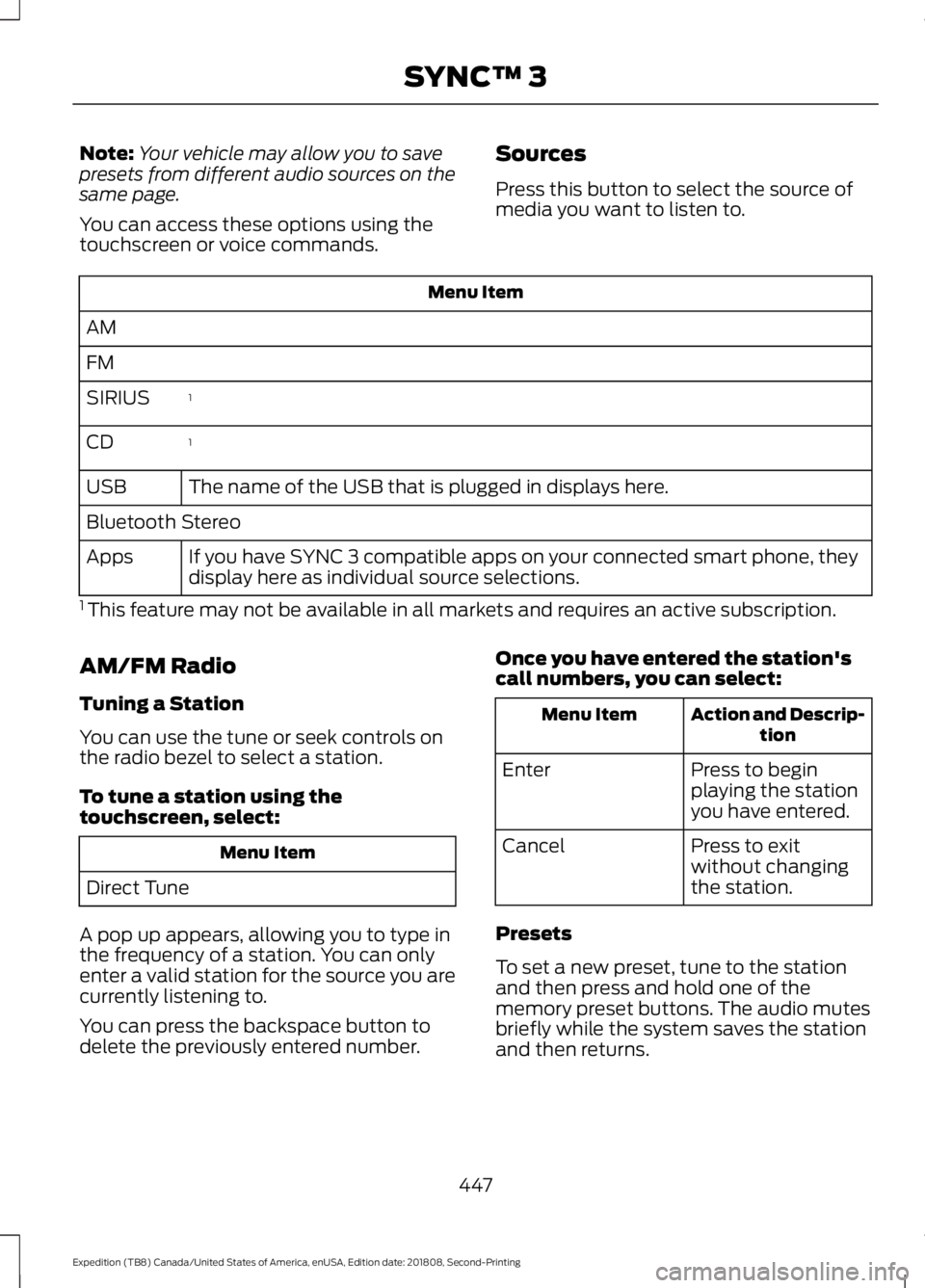
Note:
Your vehicle may allow you to save
presets from different audio sources on the
same page.
You can access these options using the
touchscreen or voice commands. Sources
Press this button to select the source of
media you want to listen to.Menu Item
AM
FM 1
SIRIUS
1
CD
The name of the USB that is plugged in displays here.
USB
Bluetooth Stereo
If you have SYNC 3 compatible apps on your connected smart phone, they
display here as individual source selections.
Apps
1 This feature may not be available in all markets and requires an active subscription.
AM/FM Radio
Tuning a Station
You can use the tune or seek controls on
the radio bezel to select a station.
To tune a station using the
touchscreen, select: Menu Item
Direct Tune
A pop up appears, allowing you to type in
the frequency of a station. You can only
enter a valid station for the source you are
currently listening to.
You can press the backspace button to
delete the previously entered number. Once you have entered the station's
call numbers, you can select: Action and Descrip-
tion
Menu Item
Press to begin
playing the station
you have entered.
Enter
Press to exit
without changing
the station.
Cancel
Presets
To set a new preset, tune to the station
and then press and hold one of the
memory preset buttons. The audio mutes
briefly while the system saves the station
and then returns.
447
Expedition (TB8) Canada/United States of America, enUSA, Edition date: 201808, Second-Printing SYNC™ 3
Page 568 of 583
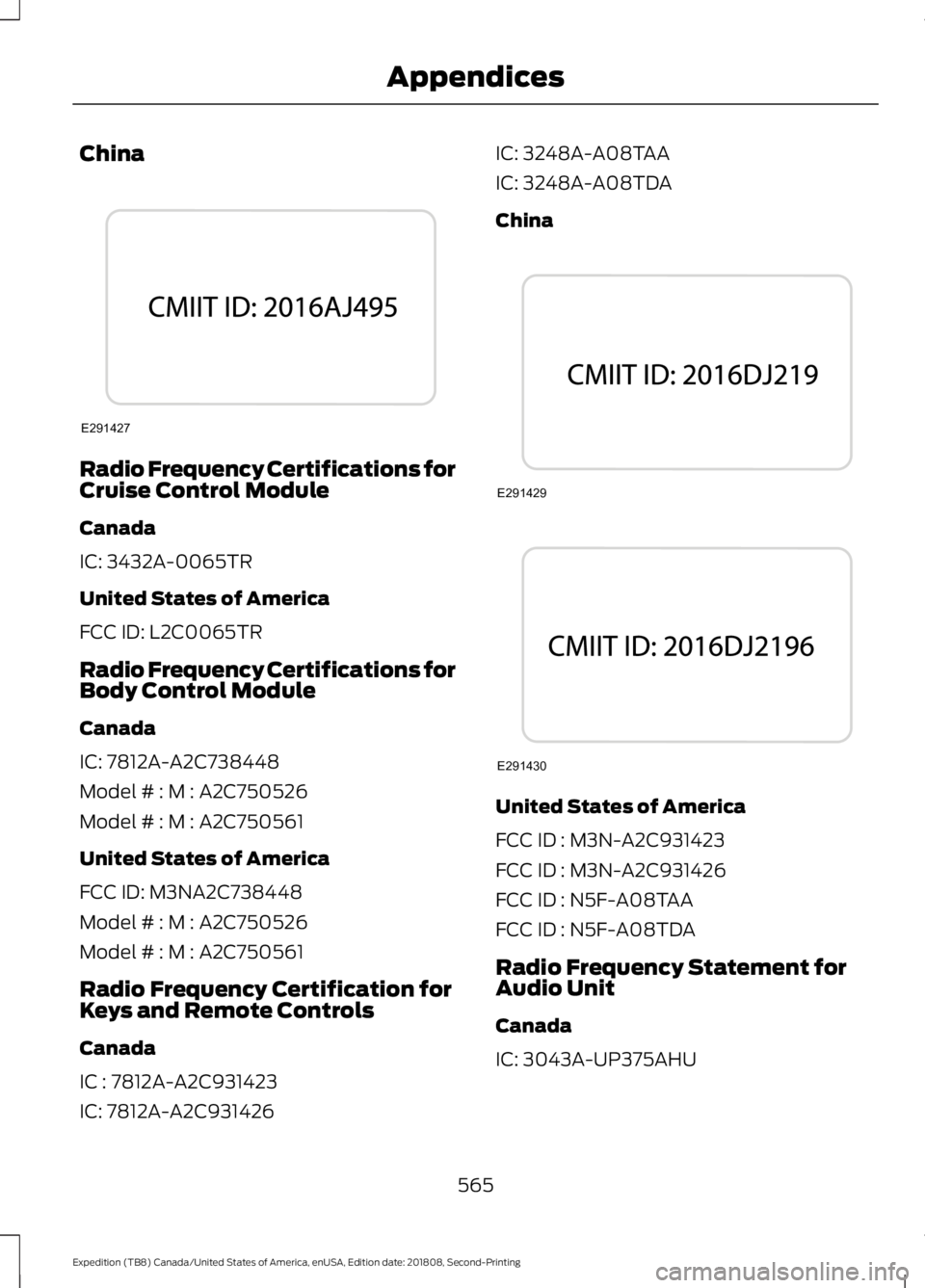
China
Radio Frequency Certifications for
Cruise Control Module
Canada
IC: 3432A-0065TR
United States of America
FCC ID: L2C0065TR
Radio Frequency Certifications for
Body Control Module
Canada
IC: 7812A-A2C738448
Model # : M : A2C750526
Model # : M : A2C750561
United States of America
FCC ID: M3NA2C738448
Model # : M : A2C750526
Model # : M : A2C750561
Radio Frequency Certification for
Keys and Remote Controls
Canada
IC : 7812A-A2C931423
IC: 7812A-A2C931426 IC: 3248A-A08TAA
IC: 3248A-A08TDA
China
United States of America
FCC ID : M3N-A2C931423
FCC ID : M3N-A2C931426
FCC ID : N5F-A08TAA
FCC ID : N5F-A08TDA
Radio Frequency Statement for
Audio Unit
Canada
IC: 3043A-UP375AHU
565
Expedition (TB8) Canada/United States of America, enUSA, Edition date: 201808, Second-Printing AppendicesE291427 E291429 E291430