key FORD EXPEDITION 2020 Repair Manual
[x] Cancel search | Manufacturer: FORD, Model Year: 2020, Model line: EXPEDITION, Model: FORD EXPEDITION 2020Pages: 542, PDF Size: 6.73 MB
Page 306 of 542
Vehicles Sold in Canada: Getting
Roadside Assistance
To fully assist you should you have a
vehicle concern, Ford Motor Company of
Canada, Limited offers a complimentary
roadside assistance program. This program
is eligible within Canada or the continental
United States.
The service is available 24 hours a day,
seven days a week.
This program is separate from the New
Vehicle Limited Warranty, but the coverage
is concurrent with the powertrain coverage
period of your vehicle. Canadian roadside
coverage and benefits may differ from the
U.S. coverage.
If you require more information, please call
us in Canada at 1-800-665-2006, or visit
our website at www.ford.ca.
HAZARD FLASHERS
Note:
The hazard flashers operate when
the ignition is in any position, or if the key is
not in the ignition. If used when the vehicle
is not running, the battery loses charge. As
a result, there may be insufficient power to
restart your vehicle. The flasher control is on the
instrument panel. Use your
hazard flashers when your
vehicle is creating a safety hazard for other
motorists.
• Press the flasher control and all front
and rear direction indicators flash.
• Press the button again to switch them
off. FUEL SHUTOFF WARNING: If your vehicle has been
involved in a crash, have the fuel system
checked. Failure to follow this instruction
could result in fire, personal injury or
death.
Note: When you try to restart your vehicle
after a fuel shutoff, the vehicle makes sure
that various systems are safe to restart.
Once the vehicle determines the systems
are safe, then the vehicle allows you to
restart.
Note: In the event that your vehicle does
not restart after your third attempt, contact
a qualified technician.
The fuel pump shutoff stops the flow of
fuel to the engine in the event of a
moderate to severe crash. Not every
impact causes a shutoff.
Should your vehicle shut off after a crash,
you may restart your vehicle.
If your vehicle has a key system:
1. Switch off the ignition.
2. Switch to start position.
3. Switch off the ignition.
4. Switch on the ignition to re-enable the
fuel pump.
5. If the vehicle does not start, repeat steps 1 through 4.
If your vehicle has a push button start
system:
1. Press START/STOP to switch off your
vehicle.
2. Press the brake pedal and START/STOP
to switch on your
vehicle.
3. Remove your foot from the brake pedal
and press
START/STOP to switch off
your vehicle.
303
Expedition (TB8) Canada/United States of America, enUSA, Edition date: 201907, Third-Printing- Roadside Emergencies
Page 324 of 542
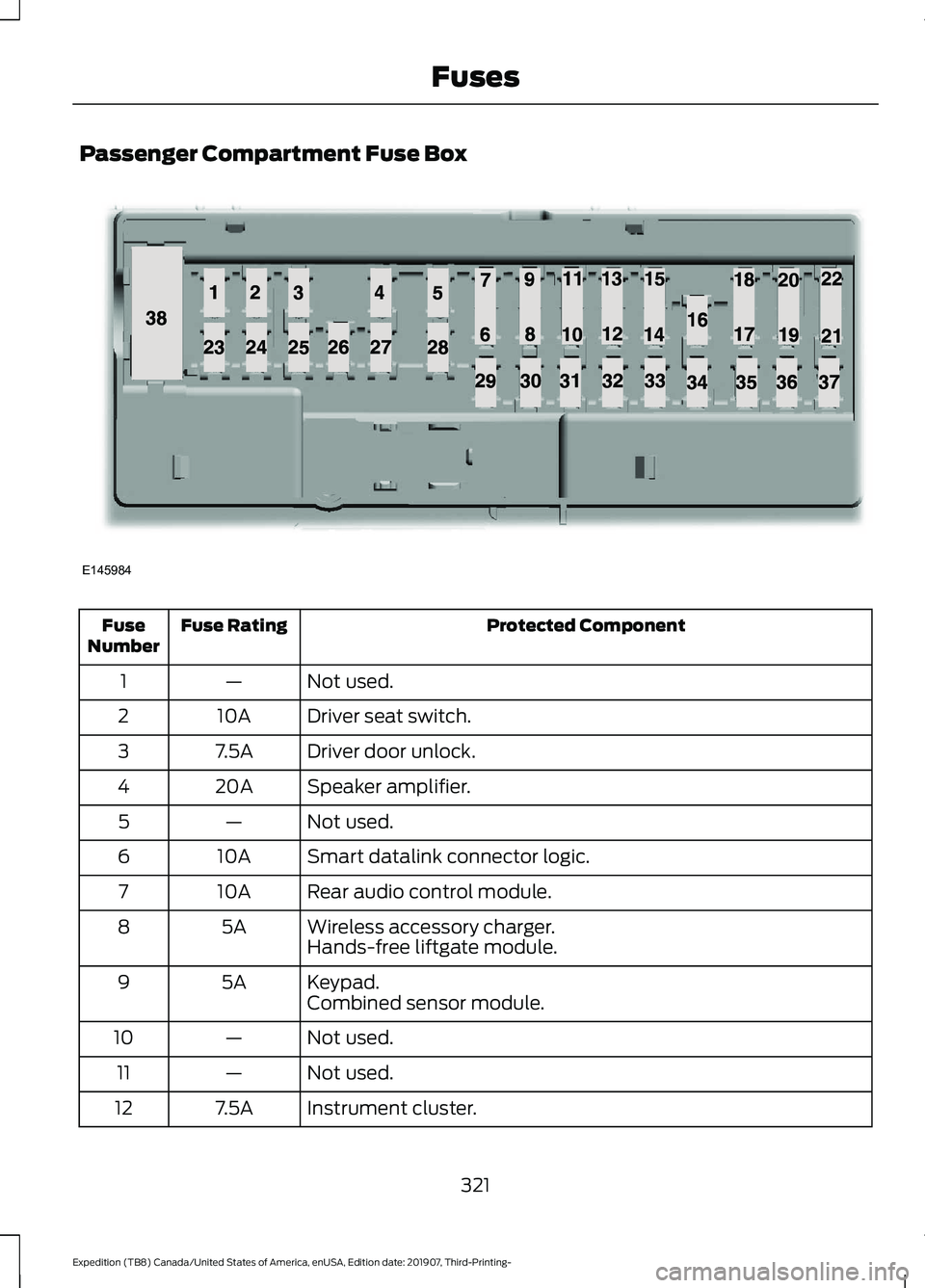
Passenger Compartment Fuse Box
Protected Component
Fuse Rating
Fuse
Number
Not used.
—
1
Driver seat switch.
10A
2
Driver door unlock.
7.5A
3
Speaker amplifier.
20A
4
Not used.
—
5
Smart datalink connector logic.
10A
6
Rear audio control module.
10A
7
Wireless accessory charger.
5A
8
Hands-free liftgate module.
Keypad.
5A
9
Combined sensor module.
Not used.
—
10
Not used.
—
11
Instrument cluster.
7.5A
12
321
Expedition (TB8) Canada/United States of America, enUSA, Edition date: 201907, Third-Printing- FusesE145984
Page 325 of 542
Protected Component
Fuse Rating
Fuse
Number
Steering column control module.
7.5A
13
Smart datalink connector logic.
Brake switch.
15A
14
SYNC.
15A
15
Not used.
—
16
Not used.
—
17
Key inhibit solenoid.
7.5A
18
Gearshift module.
Telematics control unit module.
5A
19
Ignition switch.
5A
20
Humidity and in-car temperature sensor.
5A
21
Electrochromic mirror.
5A
22
Second row heated seat module.
Power window switch.
30A
23
Power mirror switch.
Left-hand front door zone module.
Moonroof logic.
30A
24
Speaker amplifier 2.
20A
25
Right-hand front door zone module.
30A
26
Left-hand rear door zone module.
30A
27
Right-hand rear door zone module.
30A
28
Adjustable pedals.
15A
29
Trailer tow control module.
5A
30
Rear climate control module.
10A
31
Drive mode switch module.
Terrain management switch.
Radio frequency transceiver module.
4x4 switch.
Audio control module.
20A
32
Not used.
—
33
322
Expedition (TB8) Canada/United States of America, enUSA, Edition date: 201907, Third-Printing- Fuses
Page 409 of 542
SiriusXM satellite radio is a
subscription-based satellite radio service
that broadcasts a variety of music, sports,
news, weather, traffic and entertainment
programming. Your factory-installed
SiriusXM satellite radio system includes
hardware and a limited subscription term,
which begins on the date of sale or lease
of your vehicle. See an authorized dealer
for availability.
For more information on extended
subscription terms (a service fee is
required), the online media player and a
complete list of SiriusXM satellite radio
channels, and other features, please visit
www.siriusxm.com in the United States,
www.siriusxm.ca in Canada, or call
SiriusXM at 1-888-539-7474.
Satellite Radio Electronic Serial
Number (ESN)
You need your ESN to activate, modify or
track your satellite radio account.
Locating Your ESN
With satellite radio as the source, use the
touchscreen to select the following:
1. Select Settings. See Settings (page
457).
2. Select
SiriusXM.
3. Select
SiriusXM information.
Troubleshooting Action
Condition
Message
No action required. This
message should disappear
shortly.
Radio requires more than
two seconds to produce
audio for the selected
channel.
Acquiring\b
If this message does not
clear shortly, or with an igni-
tion key cycle, your receiver
may have a fault. See an
authorized dealer for service.
There is an internal module
or system failure present.
Satellite antenna fault
SIRIUS system failure
Tune to another channel or
choose another preset.
The channel is no longer
available.
Invalid Channel
Contact SiriusXM at 1-888-
539-7474 to subscribe to
the channel, or tune to
another channel.
Your subscription does not
include this channel.
Unsubscribed Channel
The signal is blocked. When
you move into an open area,
the signal should return.
The signal is lost from the
SiriusXM satellite or Siri-
usXM tower to your vehicle
antenna.
No Signal
406
Expedition (TB8) Canada/United States of America, enUSA, Edition date: 201907, Third-Printing- Audio System
Page 419 of 542
App Permissions
App permissions are organized by groups.
You can grant these group permissions
individually. You can change a permission
group status any time when not driving, by
using the settings menu.
When you launch an app using SYNC, the
system may ask you to grant certain
permissions, for example:
•
To allow your vehicle to provide vehicle
information to the app such as, but not
limited to: Fuel level, fuel economy, fuel
consumption, engine speed, rain
sensor, odometer, VIN, external
temperature, gear position, tire
pressure, and head lamp status.
• To allow your vehicle to provide driving
characteristic information such as, but
not limited to: MyKey, seat belt status,
engine revolutions per minute, gear
position, braking events, steering wheel
angle, and accelerator pedal position.
• To allow your vehicle to provide
location information, including: GPS
and speed.
• To allow the app to send push
notifications using the vehicle display
and voice capabilities while running in
a background state. Push notifications
may be particularly useful for news or
location based apps.
Note: You only need to grant permissions
the first time you use an app with SYNC.
Note: Ford is not responsible or liable for
any damages or loss of privacy relating to
usage of an app, or dissemination of any
vehicle data that you approve Ford to
provide to an app. Enabling SYNC Mobile Apps
In order to enable mobile apps, SYNC
requires user consent to send and receive
app authorization information and updates
using the data plan associated with the
connected device.
Data is sent to Ford in the United States
through the connected device. The
information is encrypted and includes your
VIN, SYNC module number, anonymous
usage statistics and debugging
information. Updates may take place.
Note:
You must enable mobile apps for
each connected device the first time you
select a mobile app using the system.
Note: Standard data rates apply. Ford is
not responsible for any additional charges
you may receive from your service provider,
when your vehicle sends or receives data
through the connected device. This includes
any additional charges incurred due to
driving in areas when roaming out of a home
network.
USING SYNC™ WITH YOUR
MEDIA PLAYER
SYNC supports digital media sources
including: iPod, Bluetooth devices, and
most USB drives. SYNC also supports
audio formats, such as MP3, WMA, WAV
and ACC.
Media Sources
The AUX or MEDIA button allows you to
view and select available media sources.
Press the
AUX or MEDIA button to view
your sources. Use the directional arrows
and OK button to select your source. You
can also use the steering wheel audio
controls.
416
Expedition (TB8) Canada/United States of America, enUSA, Edition date: 201907, Third-Printing- SYNC™
Page 442 of 542
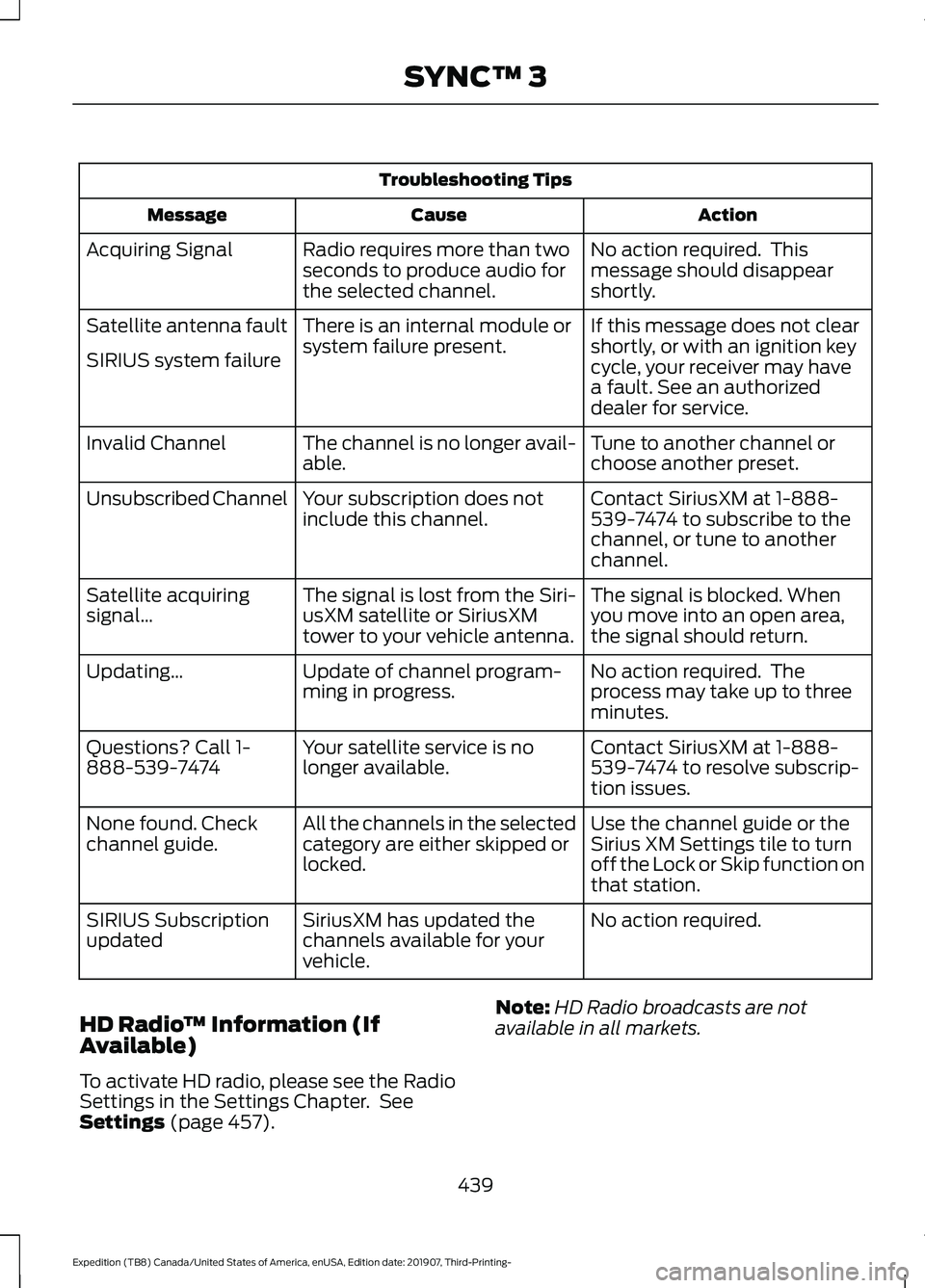
Troubleshooting Tips
Action
Cause
Message
No action required. This
message should disappear
shortly.
Radio requires more than two
seconds to produce audio for
the selected channel.
Acquiring Signal
If this message does not clear
shortly, or with an ignition key
cycle, your receiver may have
a fault. See an authorized
dealer for service.
There is an internal module or
system failure present.
Satellite antenna fault
SIRIUS system failure
Tune to another channel or
choose another preset.
The channel is no longer avail-
able.
Invalid Channel
Contact SiriusXM at 1-888-
539-7474 to subscribe to the
channel, or tune to another
channel.
Your subscription does not
include this channel.
Unsubscribed Channel
The signal is blocked. When
you move into an open area,
the signal should return.
The signal is lost from the Siri-
usXM satellite or SiriusXM
tower to your vehicle antenna.
Satellite acquiring
signal\b
No action required. The
process may take up to three
minutes.
Update of channel program-
ming in progress.
Updating\b
Contact SiriusXM at 1-888-
539-7474 to resolve subscrip-
tion issues.
Your satellite service is no
longer available.
Questions? Call 1-
888-539-7474
Use the channel guide or the
Sirius XM Settings tile to turn
off the Lock or Skip function on
that station.
All the channels in the selected
category are either skipped or
locked.
None found. Check
channel guide.
No action required.
SiriusXM has updated the
channels available for your
vehicle.
SIRIUS Subscription
updated
HD Radio ™ Information (If
Available)
To activate HD radio, please see the Radio
Settings in the Settings Chapter. See
Settings (page 457). Note:
HD Radio broadcasts are not
available in all markets.
439
Expedition (TB8) Canada/United States of America, enUSA, Edition date: 201907, Third-Printing- SYNC™ 3
Page 451 of 542
Check the compatibility of your device on
the regional website.
Pairing Your Cell Phone for the
First Time
Go to the settings menu on your cell phone
and switch Bluetooth on.
Select the phone option on the
feature bar.
1. Select Add Phone.
Note: A prompt alerts you to search for your
vehicle on your cell phone.
2. Select your vehicle on your cell phone.
Note: A number appears on your cell phone
and on the touchscreen.
3. Confirm that the number on your cell phone matches the number on the
touchscreen.
Note: The touchscreen indicates that you
have successfully paired your cell phone.
4. Download the phonebook from your cell phone when you are prompted.
Note: If you pair more than one cell phone,
use the phone settings to specify the
primary phone. You can change this setting
at any time.
Using Your Cell Phone
Recent Call List
Display and select an entry from a list of
previous calls.
Contacts
Display a smart search form to look up your
contacts. Use the List button to
alphabetically sort your contacts. Change Phone
Display the list of paired or connected
devices that you can select.
Phone Settings
Change ring tones, alerts or pair another
phone.
Do Not Disturb
Reject incoming calls and switch ring tones
and alerts off.
Phone Keypad
Directly dial a number.
Mute
Mute the microphone when in a call or
voice recognition session.
Text Messaging
Setting Text Message Notification
iOS
1. Go to the settings menu on your cell
phone.
2. Select Bluetooth.
3. Select the information icon to the right
of your vehicle.
4. Switch text message notification on.
Android
1. Go to the settings menu on your cell phone.
2. Select Bluetooth.
3. Select the profiles option.
4. Select the phone profile.
5. Switch text message notification on.
448
Expedition (TB8) Canada/United States of America, enUSA, Edition date: 201907, Third-Printing- SYNC™ 3
Page 453 of 542
Setting a Destination
Destination Entry Menu
Description
Item
Enter a destination address.
Search
Display and select from a list of previous destinations.
Previous Destinations
Set your saved home address as your destination
Home
Set your saved place of work as your destination.
Work
Display and select from a list of favorite destinations.
Favorites
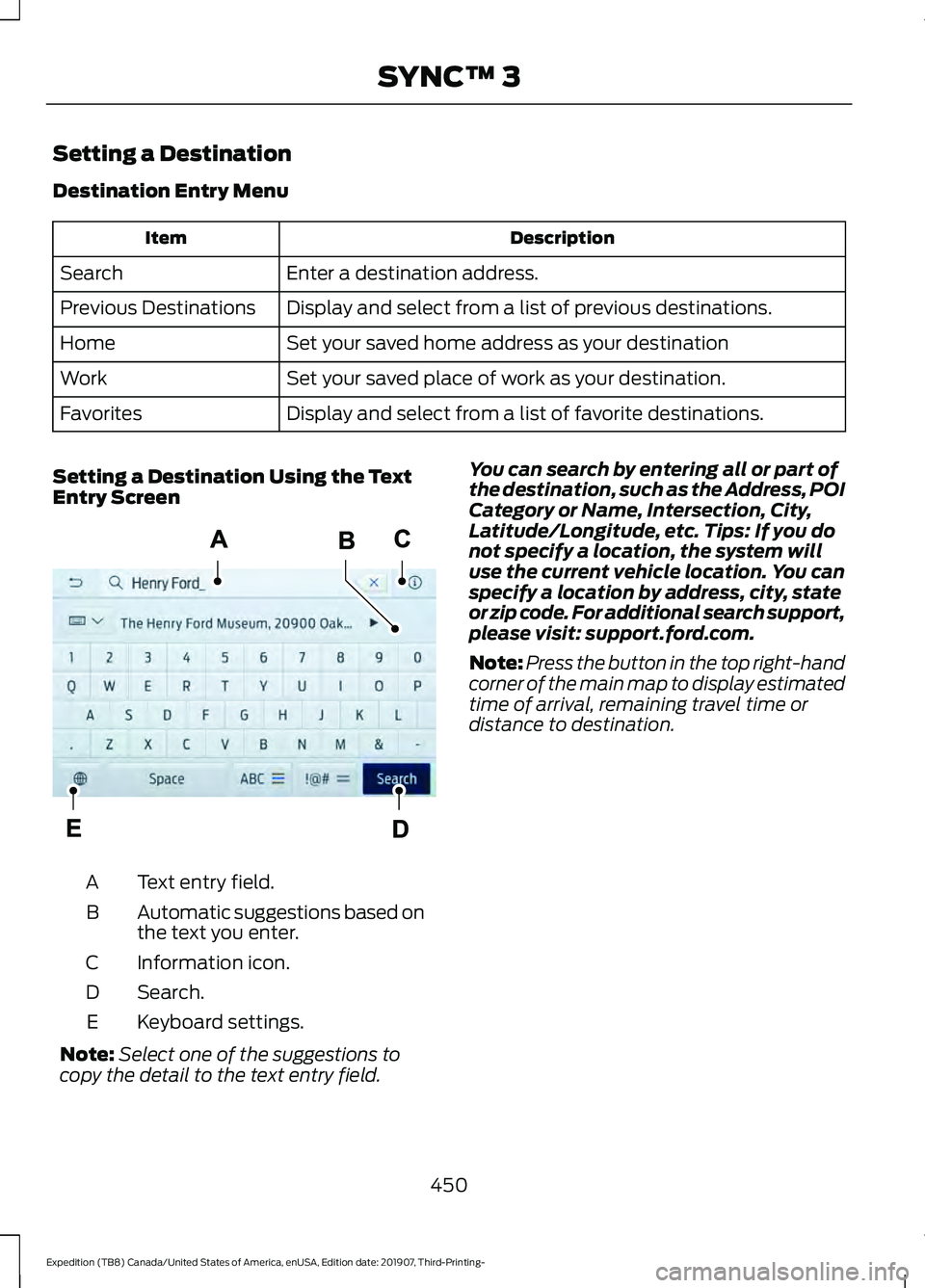
Setting a Destination Using the Text
Entry Screen Text entry field.
A
Automatic suggestions based on
the text you enter.
B
Information icon.
C
Search.
D
Keyboard settings.
E
Note: Select one of the suggestions to
copy the detail to the text entry field. You can search by entering all or part of
the destination, such as the Address, POI
Category or Name, Intersection, City,
Latitude/Longitude, etc. Tips: If you do
not specify a location, the system will
use the current vehicle location. You can
specify a location by address, city, state
or zip code. For additional search support,
please visit: support.ford.com.
Note:
Press the button in the top right-hand
corner of the main map to display estimated
time of arrival, remaining travel time or
distance to destination.
450
Expedition (TB8) Canada/United States of America, enUSA, Edition date: 201907, Third-Printing- SYNC™ 3E297558
Page 460 of 542
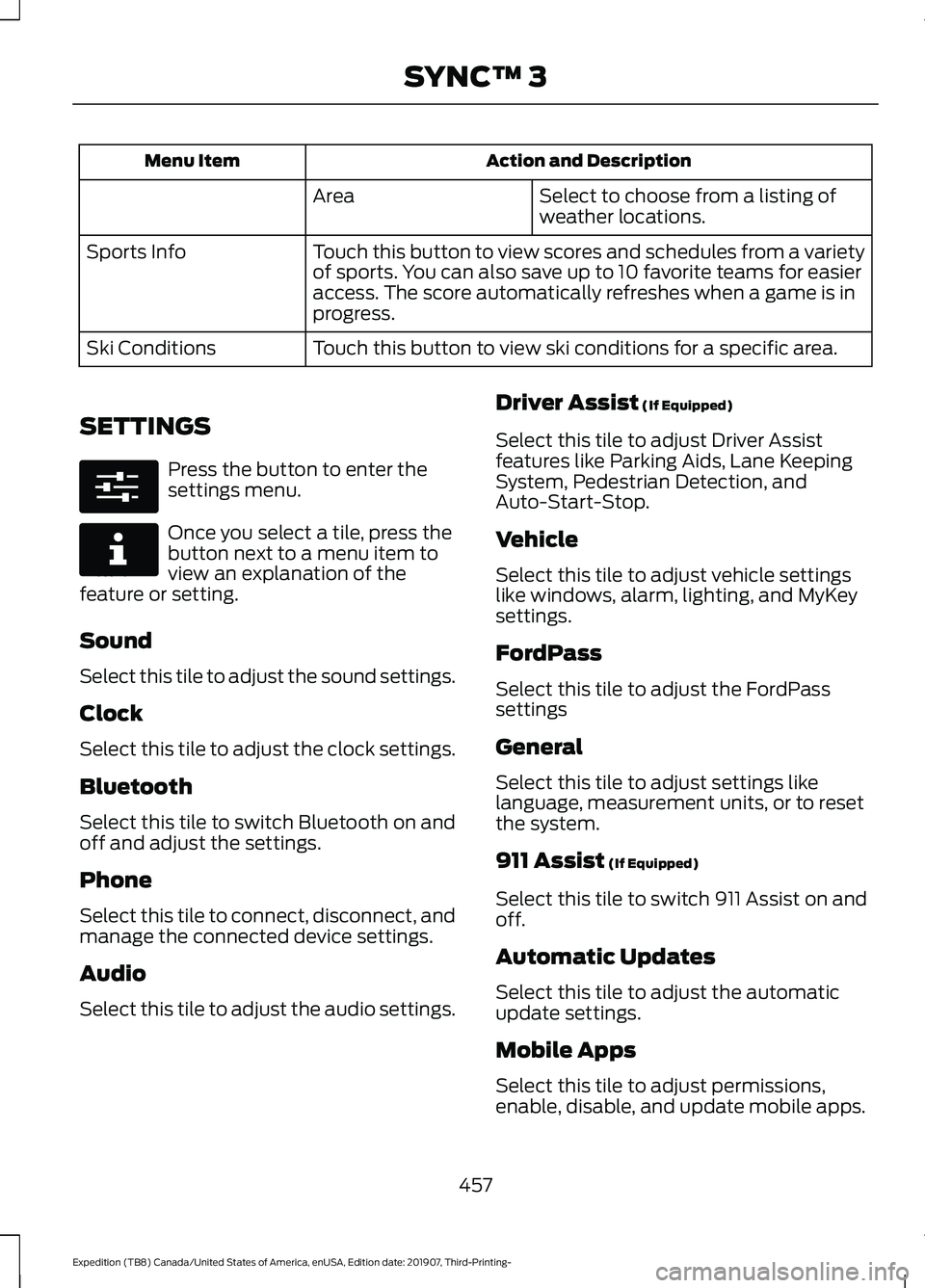
Action and Description
Menu Item
Select to choose from a listing of
weather locations.
Area
Touch this button to view scores and schedules from a variety
of sports. You can also save up to 10 favorite teams for easier
access. The score automatically refreshes when a game is in
progress.
Sports Info
Touch this button to view ski conditions for a specific area.
Ski Conditions
SETTINGS Press the button to enter the
settings menu.
Once you select a tile, press the
button next to a menu item to
view an explanation of the
feature or setting.
Sound
Select this tile to adjust the sound settings.
Clock
Select this tile to adjust the clock settings.
Bluetooth
Select this tile to switch Bluetooth on and
off and adjust the settings.
Phone
Select this tile to connect, disconnect, and
manage the connected device settings.
Audio
Select this tile to adjust the audio settings. Driver Assist (If Equipped)
Select this tile to adjust Driver Assist
features like Parking Aids, Lane Keeping
System, Pedestrian Detection, and
Auto-Start-Stop.
Vehicle
Select this tile to adjust vehicle settings
like windows, alarm, lighting, and MyKey
settings.
FordPass
Select this tile to adjust the FordPass
settings
General
Select this tile to adjust settings like
language, measurement units, or to reset
the system.
911 Assist
(If Equipped)
Select this tile to switch 911 Assist on and
off.
Automatic Updates
Select this tile to adjust the automatic
update settings.
Mobile Apps
Select this tile to adjust permissions,
enable, disable, and update mobile apps.
457
Expedition (TB8) Canada/United States of America, enUSA, Edition date: 201907, Third-Printing- SYNC™ 3E280315 E268570
Page 528 of 542
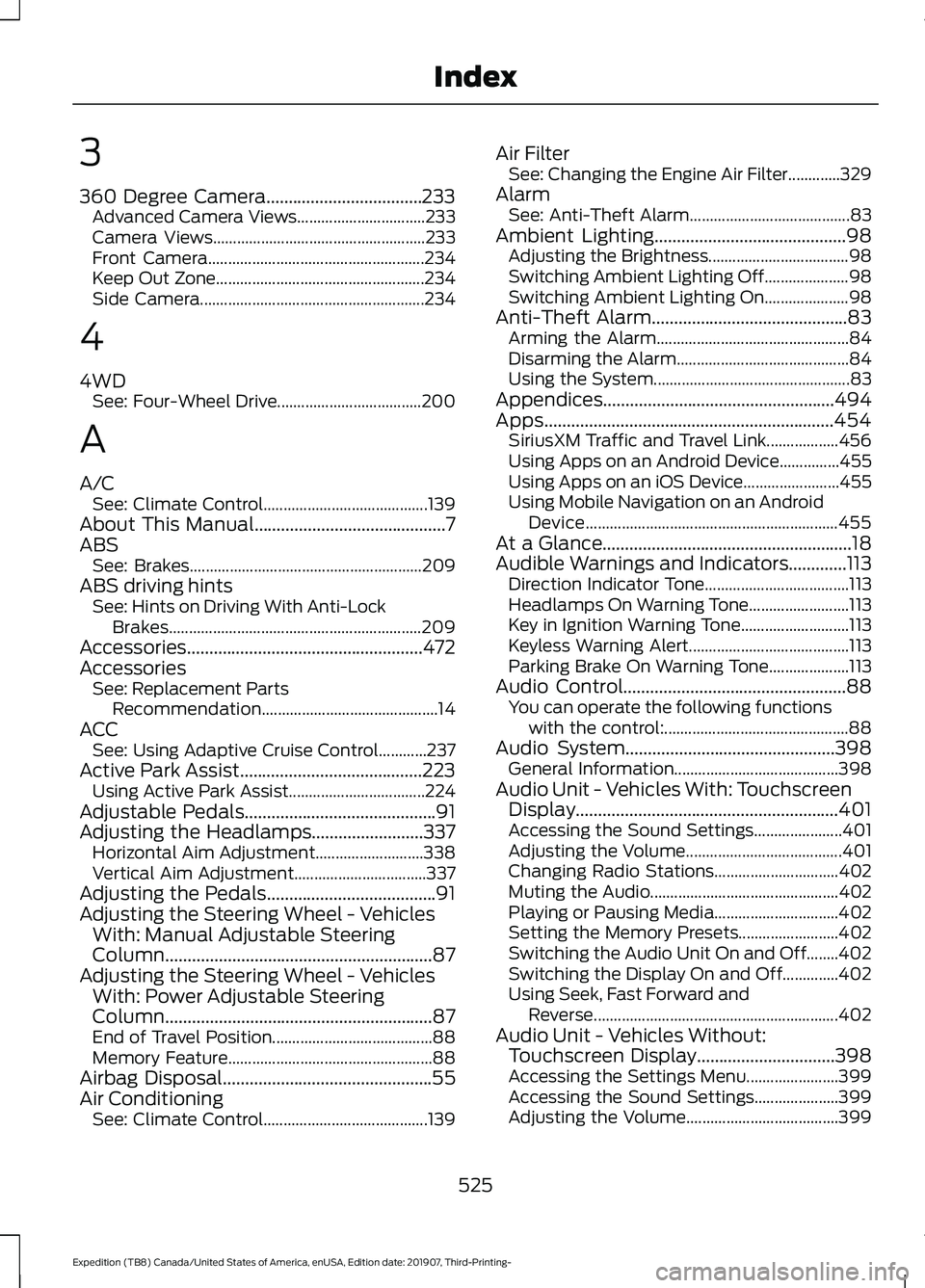
3
360 Degree Camera...................................233
Advanced Camera Views................................ 233
Camera Views..................................................... 233
Front Camera...................................................... 234
Keep Out Zone.................................................... 234
Side Camera........................................................ 234
4
4WD See: Four-Wheel Drive.................................... 200
A
A/C See: Climate Control......................................... 139
About This Manual...........................................7
ABS See: Brakes.......................................................... 209
ABS driving hints See: Hints on Driving With Anti-Lock
Brakes............................................................... 209
Accessories.....................................................472
Accessories See: Replacement Parts
Recommendation............................................ 14
ACC See: Using Adaptive Cruise Control............237
Active Park Assist.........................................223 Using Active Park Assist.................................. 224
Adjustable Pedals...........................................91
Adjusting the Headlamps.........................337 Horizontal Aim Adjustment........................... 338
Vertical Aim Adjustment................................. 337
Adjusting the Pedals......................................91
Adjusting the Steering Wheel - Vehicles With: Manual Adjustable Steering
Column............................................................87
Adjusting the Steering Wheel - Vehicles With: Power Adjustable Steering
Column............................................................87
End of Travel Position........................................ 88
Memory Feature................................................... 88
Airbag Disposal...............................................55
Air Conditioning See: Climate Control......................................... 139Air Filter
See: Changing the Engine Air Filter.............329
Alarm See: Anti-Theft Alarm........................................ 83
Ambient Lighting
...........................................98
Adjusting the Brightness................................... 98
Switching Ambient Lighting Off..................... 98
Switching Ambient Lighting On..................... 98
Anti-Theft Alarm............................................83 Arming the Alarm................................................ 84
Disarming the Alarm........................................... 84
Using the System................................................. 83
Appendices....................................................494
Apps.................................................................454 SiriusXM Traffic and Travel Link.................. 456
Using Apps on an Android Device...............455
Using Apps on an iOS Device........................ 455
Using Mobile Navigation on an Android Device............................................................... 455
At a Glance........................................................18
Audible Warnings and Indicators.............113 Direction Indicator Tone.................................... 113
Headlamps On Warning Tone......................... 113
Key in Ignition Warning Tone........................... 113
Keyless Warning Alert........................................ 113
Parking Brake On Warning Tone.................... 113
Audio Control
..................................................88
You can operate the following functions
with the control:.............................................. 88
Audio System
...............................................398
General Information......................................... 398
Audio Unit - Vehicles With: Touchscreen Display...........................................................401
Accessing the Sound Settings...................... 401
Adjusting the Volume....................................... 401
Changing Radio Stations............................... 402
Muting the Audio............................................... 402
Playing or Pausing Media............................... 402
Setting the Memory Presets......................... 402
Switching the Audio Unit On and Off........402
Switching the Display On and Off..............402
Using Seek, Fast Forward and Reverse............................................................. 402
Audio Unit - Vehicles Without: Touchscreen Display
...............................398
Accessing the Settings Menu....................... 399
Accessing the Sound Settings..................... 399
Adjusting the Volume...................................... 399
525
Expedition (TB8) Canada/United States of America, enUSA, Edition date: 201907, Third-Printing- Index