steering wheel FORD EXPEDITION 2021 User Guide
[x] Cancel search | Manufacturer: FORD, Model Year: 2021, Model line: EXPEDITION, Model: FORD EXPEDITION 2021Pages: 574, PDF Size: 8.33 MB
Page 95 of 574
End of Travel Position
The steering column sets a stopping
position just short of the end of the column
position to prevent damage to the steering
column. A new stopping position sets if
the steering column encounters an object
when tilting or telescoping.
To reset the steering column to its normal
stopping position:
1. Confirm there is nothing obstructing
the motion of the steering column.
2. Press and hold the steering column control until the steering column stops
moving.
3. Press the steering column control again.
Note: The steering column may begin to
move again.
4. When the steering column stops, continue holding the control for a few
seconds.
5. Repeat for each direction as necessary.
A new stopping position sets. The next
time you tilt or telescope the steering
column, it stops just short of the end of the
column position.
Memory Feature (If Equipped)
You can save and recall the steering
column position with the memory
function. See
Memory Function (page
164).
Pressing the adjustment control during a
memory recall cancels the operation.
Easy Entry and Exit Feature
The column moves up when you switch
the ignition off. Switch the ignition on to
return the system to its previous settings.
You can switch this feature on or off in the
information display. See
Information
Displays (page 119). Note:
If you press any adjustment or
memory button when in easy exit mode, the
system cancels the operation.
Note: Depending on your vehicle, the
column may move up and in.
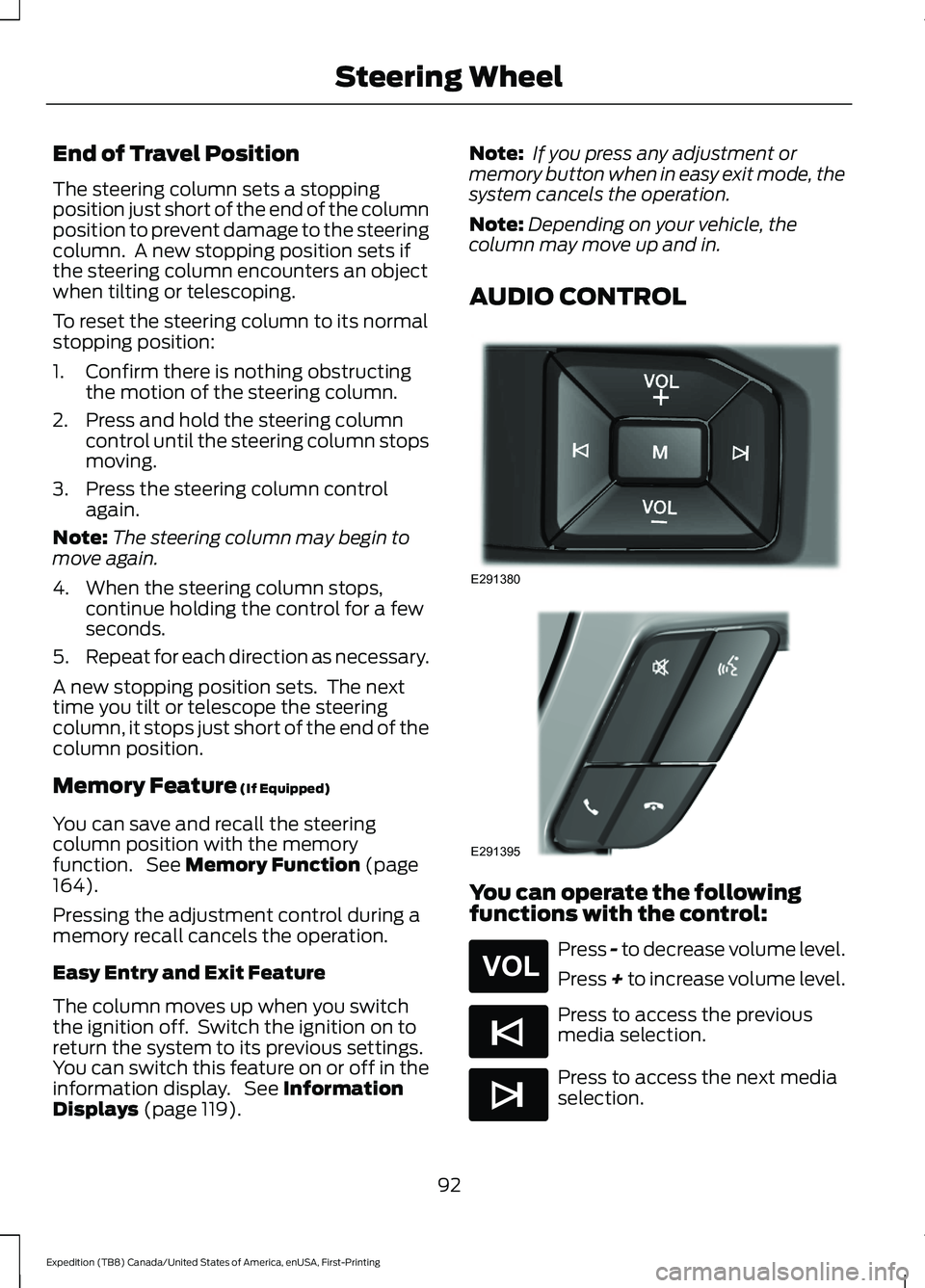
AUDIO CONTROL You can operate the following
functions with the control:
Press - to decrease volume level.
Press + to increase volume level.
Press to access the previous
media selection.
Press to access the next media
selection.
92
Expedition (TB8) Canada/United States of America, enUSA, First-Printing Steering WheelE291380 E291395 E265304 E265045 E265044
Page 96 of 574
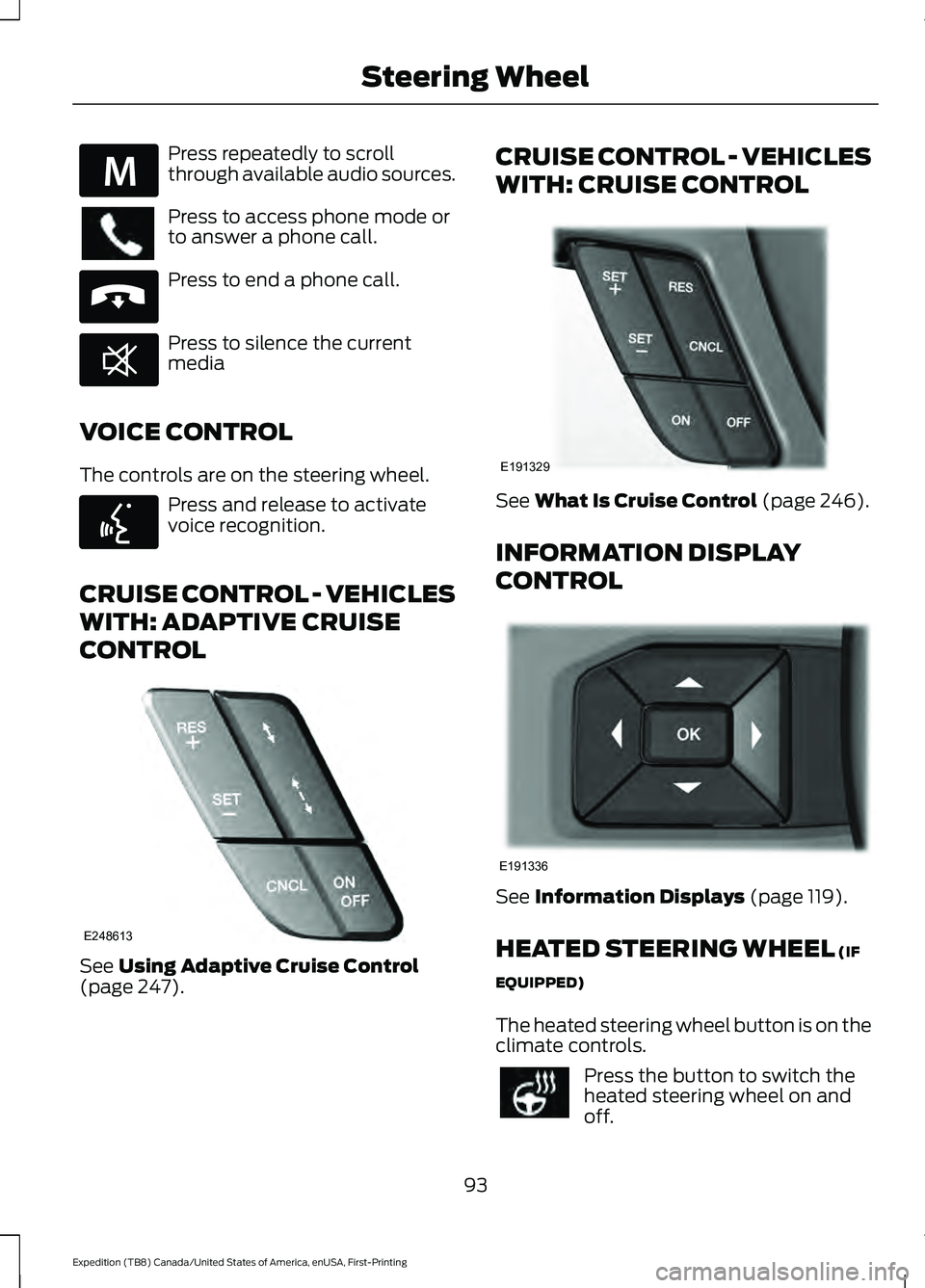
Press repeatedly to scroll
through available audio sources.
Press to access phone mode or
to answer a phone call.
Press to end a phone call.
Press to silence the current
media
VOICE CONTROL
The controls are on the steering wheel. Press and release to activate
voice recognition.
CRUISE CONTROL - VEHICLES
WITH: ADAPTIVE CRUISE
CONTROL See Using Adaptive Cruise Control
(page 247). CRUISE CONTROL - VEHICLES
WITH: CRUISE CONTROL
See
What Is Cruise Control (page 246).
INFORMATION DISPLAY
CONTROL See
Information Displays (page 119).
HEATED STEERING WHEEL
(IF
EQUIPPED)
The heated steering wheel button is on the
climate controls. Press the button to switch the
heated steering wheel on and
off.
93
Expedition (TB8) Canada/United States of America, enUSA, First-Printing Steering WheelE289636 E265040 E268549 E142599 E248613 E191329 E191336
Page 97 of 574
Note:
You can use the heated steering
wheel only when the engine is running.
Note: The system uses a sensor and is
designed to control the temperature of the
steering wheel and to prevent it from
overheating.
Note: In warm temperatures, the steering
wheel quickly reaches its maximum
temperature and the system reduces the
current to the heating element. This could
cause you to think that the system has
stopped working but it has not. This is
normal.
HORN Press on the center of the
steering wheel near the horn icon
to activate the horn.
94
Expedition (TB8) Canada/United States of America, enUSA, First-Printing Steering WheelE270945
Page 122 of 574
GENERAL INFORMATION -
VEHICLES WITH: 4 INCH
INFORMATION AND
ENTERTAINMENT DISPLAY
SCREEN
WARNING: Driving while distracted
can result in loss of vehicle control, crash
and injury. We strongly recommend that
you use extreme caution when using any
device that may take your focus off the
road. Your primary responsibility is the
safe operation of your vehicle. We
recommend against the use of any
hand-held device while driving and
encourage the use of voice-operated
systems when possible. Make sure you
are aware of all applicable local laws
that may affect the use of electronic
devices while driving.
You can control various systems on your
vehicle using the information display
controls on the steering wheel.
Corresponding information appears in the
information display. Note:
Some options could appear slightly
different or not at all if the items are
optional.
Note: Trailer options are not available if
your vehicle speed is greater than 3 mph
(5 km/h).
Note: Some MyKey menu options only
appear if MyKey is enabled and you
programmed at least one MyKey. This icon gives you the ability to
switch a feature on or off. A
check in the box indicates the
feature is on, and unchecked indicates the
feature is off.
Information Display Controls (4
Inch Display)
• Press the up and down arrow buttons
to scroll through and highlight the
options within a menu.
• Press the right arrow button to enter a
sub-menu.
• Press the left arrow button to exit a
menu.
• Press the
OK button to choose and
confirm a setting or messages.
4 Inch Display Main Menu
Display Mode Trip/FuelTowing
Off Road Settings
119
Expedition (TB8) Canada/United States of America, enUSA, First-Printing Information DisplaysE204495
Page 125 of 574
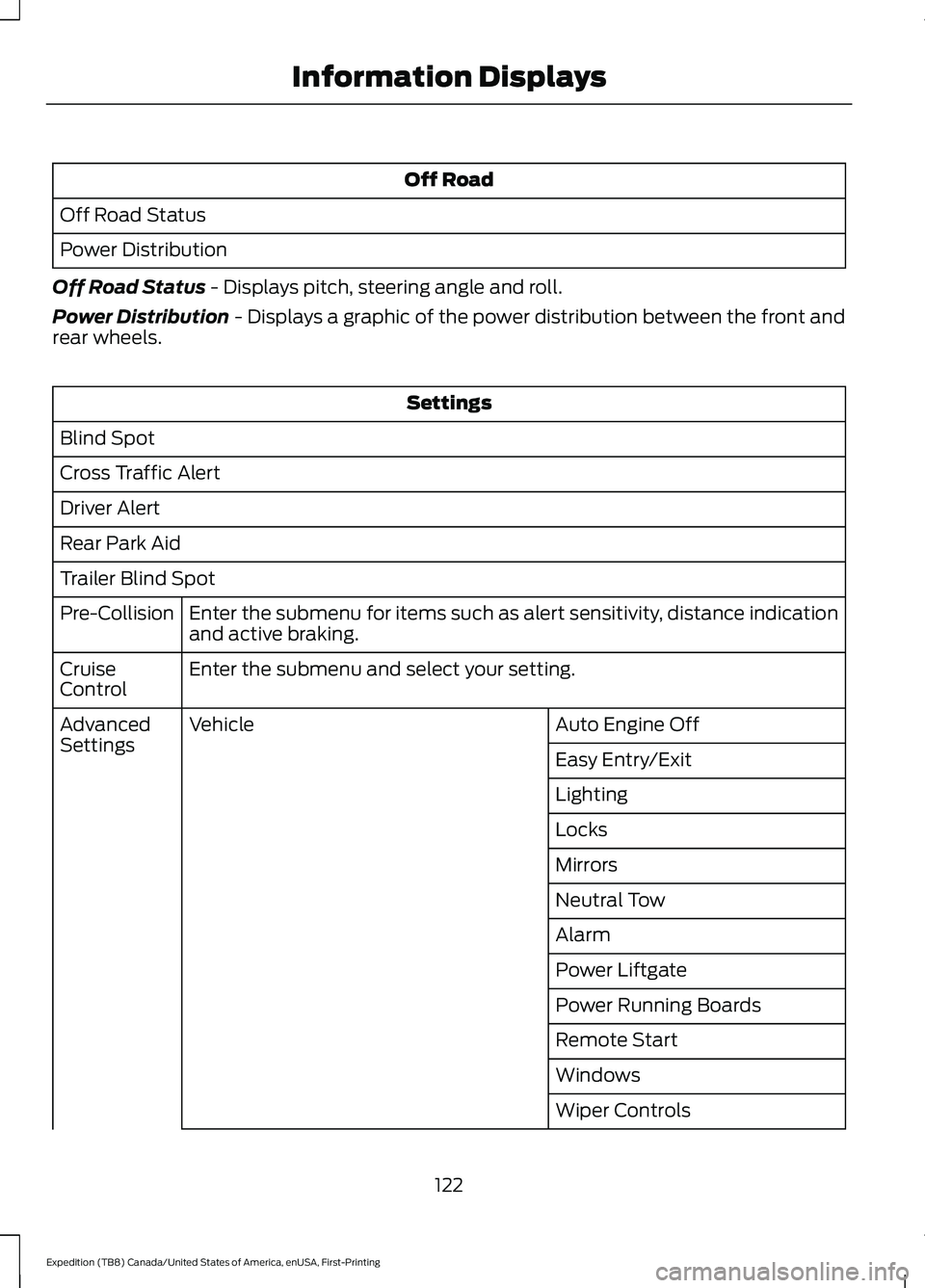
Off Road
Off Road Status
Power Distribution
Off Road Status - Displays pitch, steering angle and roll.
Power Distribution
- Displays a graphic of the power distribution between the front and
rear wheels. Settings
Blind Spot
Cross Traffic Alert
Driver Alert
Rear Park Aid
Trailer Blind Spot Enter the submenu for items such as alert sensitivity, distance indication
and active braking.
Pre-Collision
Enter the submenu and select your setting.
Cruise
Control
Auto Engine Off
Vehicle
Advanced
Settings
Easy Entry/Exit
Lighting
Locks
Mirrors
Neutral Tow
Alarm
Power Liftgate
Power Running Boards
Remote Start
Windows
Wiper Controls
122
Expedition (TB8) Canada/United States of America, enUSA, First-Printing Information Displays
Page 126 of 574
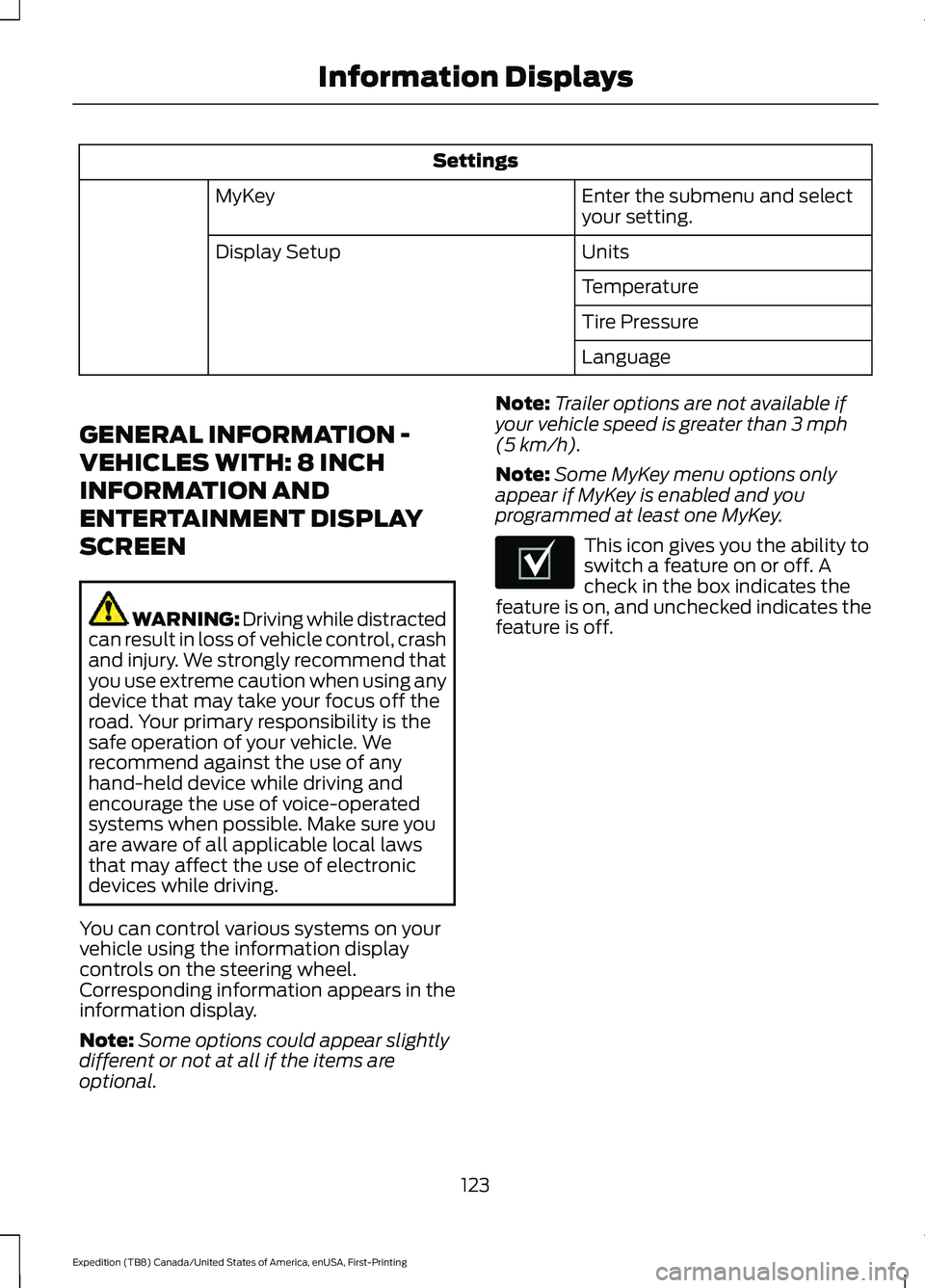
Settings
Enter the submenu and select
your setting.
MyKey
Units
Display Setup
Temperature
Tire Pressure
Language
GENERAL INFORMATION -
VEHICLES WITH: 8 INCH
INFORMATION AND
ENTERTAINMENT DISPLAY
SCREEN WARNING: Driving while distracted
can result in loss of vehicle control, crash
and injury. We strongly recommend that
you use extreme caution when using any
device that may take your focus off the
road. Your primary responsibility is the
safe operation of your vehicle. We
recommend against the use of any
hand-held device while driving and
encourage the use of voice-operated
systems when possible. Make sure you
are aware of all applicable local laws
that may affect the use of electronic
devices while driving.
You can control various systems on your
vehicle using the information display
controls on the steering wheel.
Corresponding information appears in the
information display.
Note: Some options could appear slightly
different or not at all if the items are
optional. Note:
Trailer options are not available if
your vehicle speed is greater than 3 mph
(5 km/h).
Note: Some MyKey menu options only
appear if MyKey is enabled and you
programmed at least one MyKey. This icon gives you the ability to
switch a feature on or off. A
check in the box indicates the
feature is on, and unchecked indicates the
feature is off.
123
Expedition (TB8) Canada/United States of America, enUSA, First-Printing Information DisplaysE204495
Page 131 of 574
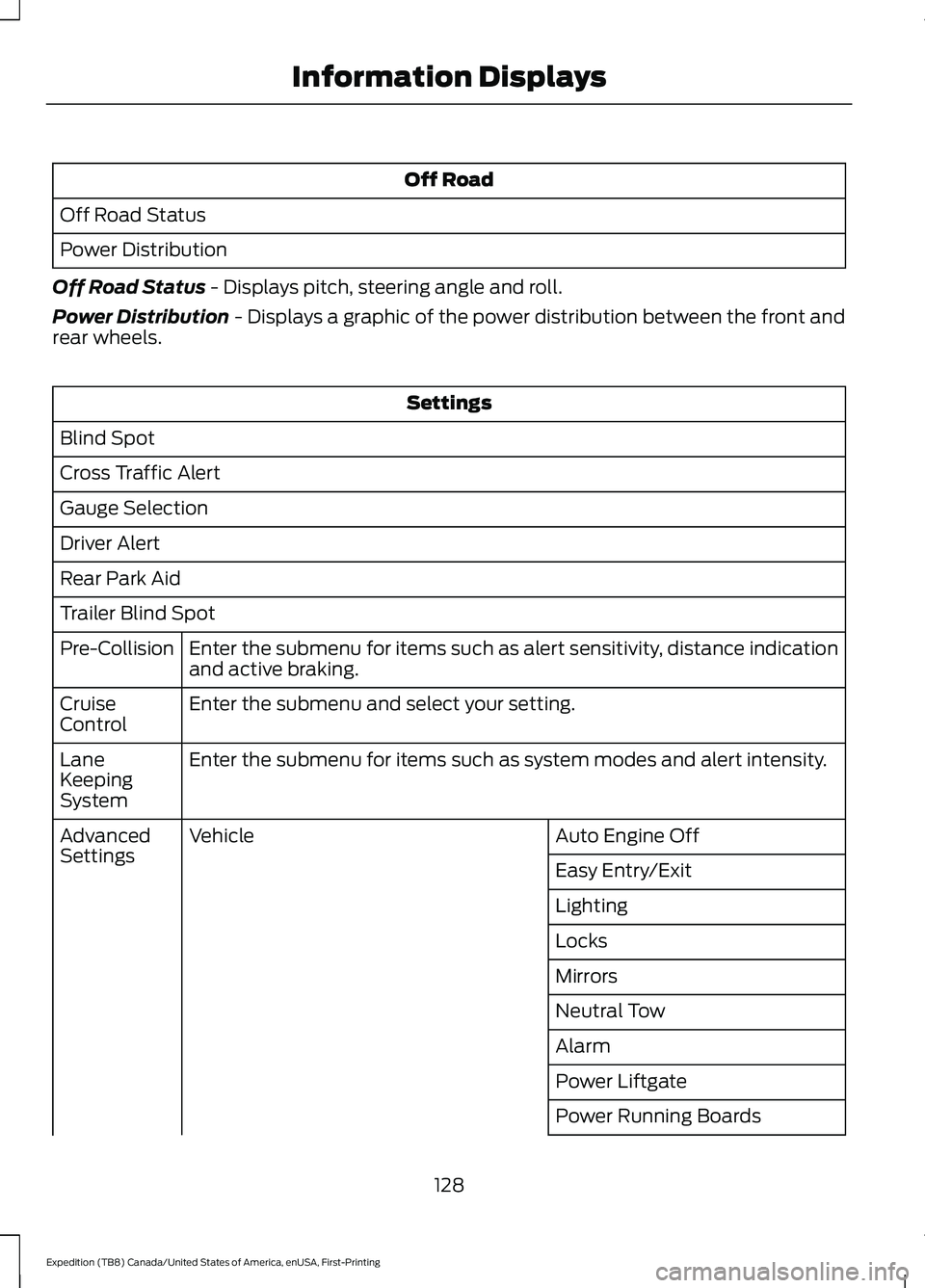
Off Road
Off Road Status
Power Distribution
Off Road Status - Displays pitch, steering angle and roll.
Power Distribution
- Displays a graphic of the power distribution between the front and
rear wheels. Settings
Blind Spot
Cross Traffic Alert
Gauge Selection
Driver Alert
Rear Park Aid
Trailer Blind Spot Enter the submenu for items such as alert sensitivity, distance indication
and active braking.
Pre-Collision
Enter the submenu and select your setting.
Cruise
Control
Enter the submenu for items such as system modes and alert intensity.
Lane
Keeping
System
Auto Engine Off
Vehicle
Advanced
Settings
Easy Entry/Exit
Lighting
Locks
Mirrors
Neutral Tow
Alarm
Power Liftgate
Power Running Boards
128
Expedition (TB8) Canada/United States of America, enUSA, First-Printing Information Displays
Page 140 of 574
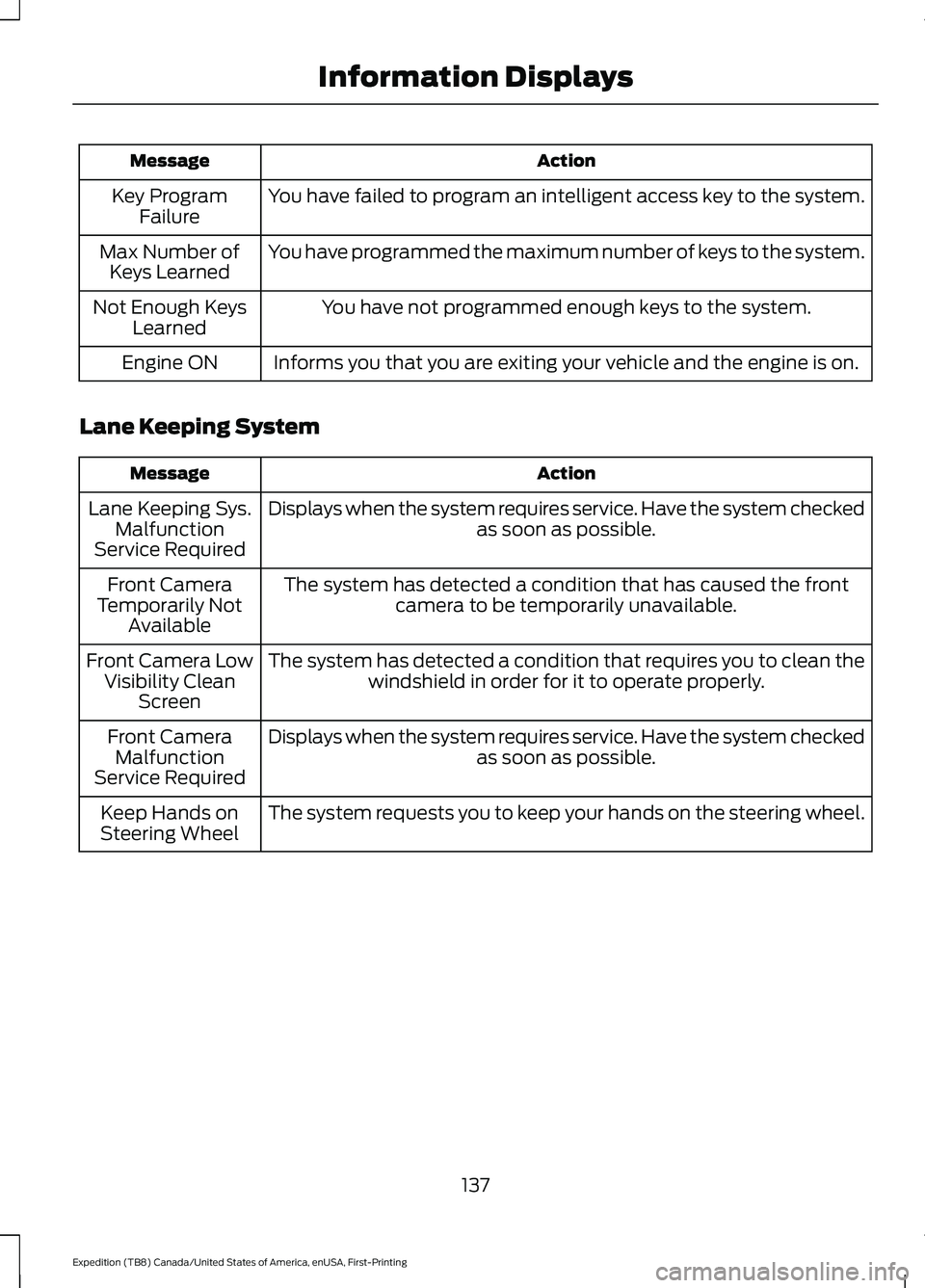
Action
Message
You have failed to program an intelligent access key to the system.
Key Program
Failure
You have programmed the maximum number of keys to the system.
Max Number of
Keys Learned
You have not programmed enough keys to the system.
Not Enough Keys
Learned
Informs you that you are exiting your vehicle and the engine is on.
Engine ON
Lane Keeping System Action
Message
Displays when the system requires service. Have the system checked as soon as possible.
Lane Keeping Sys.
Malfunction
Service Required
The system has detected a condition that has caused the frontcamera to be temporarily unavailable.
Front Camera
Temporarily Not Available
The system has detected a condition that requires you to clean thewindshield in order for it to operate properly.
Front Camera Low
Visibility Clean Screen
Displays when the system requires service. Have the system checked as soon as possible.
Front Camera
Malfunction
Service Required
The system requests you to keep your hands on the steering wheel.
Keep Hands on
Steering Wheel
137
Expedition (TB8) Canada/United States of America, enUSA, First-Printing Information Displays
Page 145 of 574
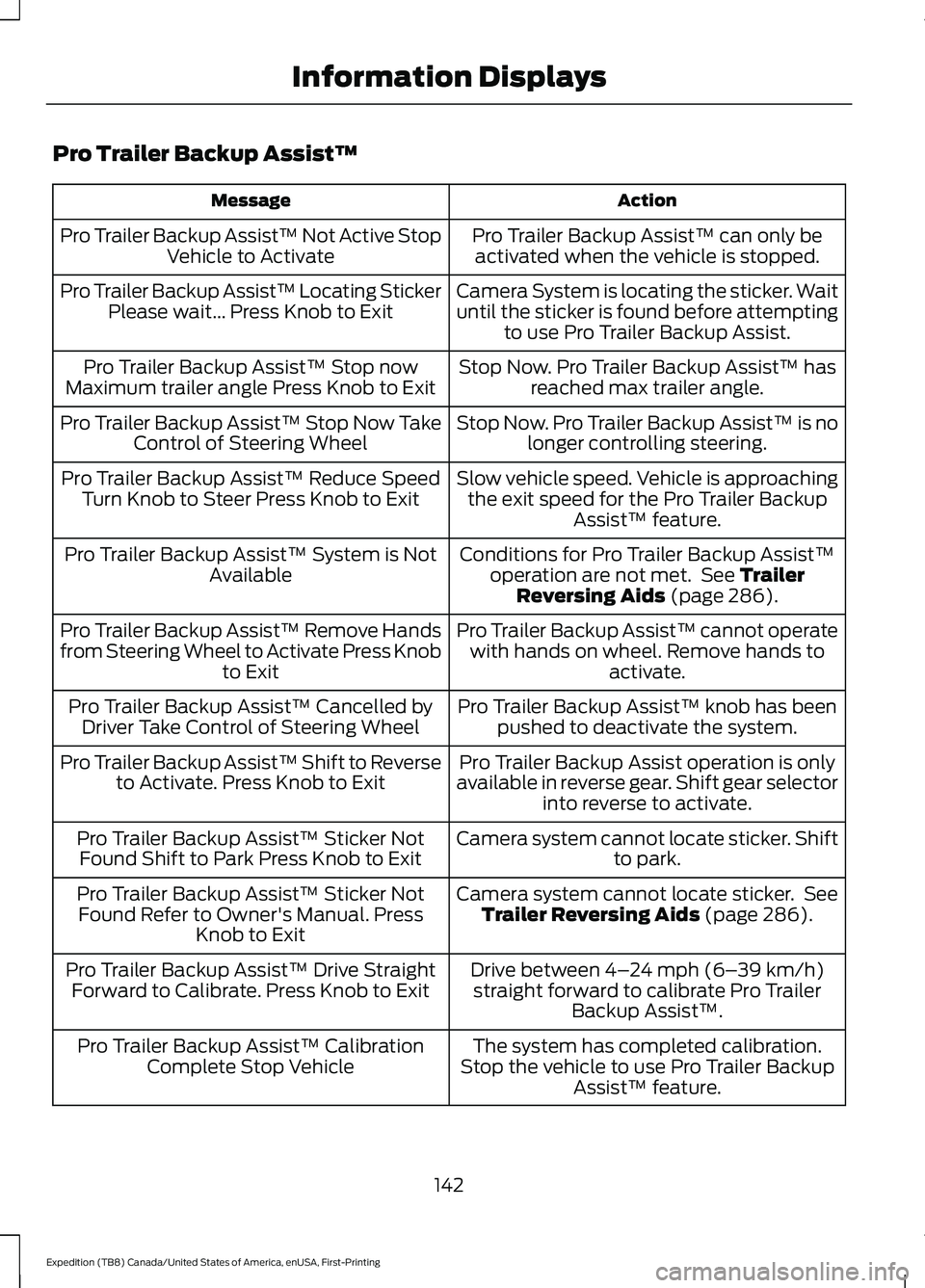
Pro Trailer Backup Assist™
Action
Message
Pro Trailer Backup Assist™ can only beactivated when the vehicle is stopped.
Pro Trailer Backup Assist™ Not Active Stop
Vehicle to Activate
Camera System is locating the sticker. Wait
until the sticker is found before attemptingto use Pro Trailer Backup Assist.
Pro Trailer Backup Assist™ Locating Sticker
Please wait... Press Knob to Exit
Stop Now. Pro Trailer Backup Assist™ hasreached max trailer angle.
Pro Trailer Backup Assist™ Stop now
Maximum trailer angle Press Knob to Exit
Stop Now. Pro Trailer Backup Assist™ is nolonger controlling steering.
Pro Trailer Backup Assist™ Stop Now Take
Control of Steering Wheel
Slow vehicle speed. Vehicle is approachingthe exit speed for the Pro Trailer Backup Assist™ feature.
Pro Trailer Backup Assist™ Reduce Speed
Turn Knob to Steer Press Knob to Exit
Conditions for Pro Trailer Backup Assist™operation are not met. See Trailer
Reversing Aids (page 286).
Pro Trailer Backup Assist™ System is Not
Available
Pro Trailer Backup Assist™ cannot operatewith hands on wheel. Remove hands to activate.
Pro Trailer Backup Assist™ Remove Hands
from Steering Wheel to Activate Press Knob
to Exit
Pro Trailer Backup Assist™ knob has beenpushed to deactivate the system.
Pro Trailer Backup Assist™ Cancelled by
Driver Take Control of Steering Wheel
Pro Trailer Backup Assist operation is only
available in reverse gear. Shift gear selector into reverse to activate.
Pro Trailer Backup Assist™ Shift to Reverse
to Activate. Press Knob to Exit
Camera system cannot locate sticker. Shiftto park.
Pro Trailer Backup Assist™ Sticker Not
Found Shift to Park Press Knob to Exit
Camera system cannot locate sticker. SeeTrailer Reversing Aids
(page 286).
Pro Trailer Backup Assist™ Sticker Not
Found Refer to Owner's Manual. Press Knob to Exit
Drive between
4–24 mph (6– 39 km/h)
straight forward to calibrate Pro Trailer Backup Assist™.
Pro Trailer Backup Assist™ Drive Straight
Forward to Calibrate. Press Knob to Exit
The system has completed calibration.
Stop the vehicle to use Pro Trailer Backup Assist™ feature.
Pro Trailer Backup Assist™ Calibration
Complete Stop Vehicle
142
Expedition (TB8) Canada/United States of America, enUSA, First-Printing Information Displays
Page 158 of 574
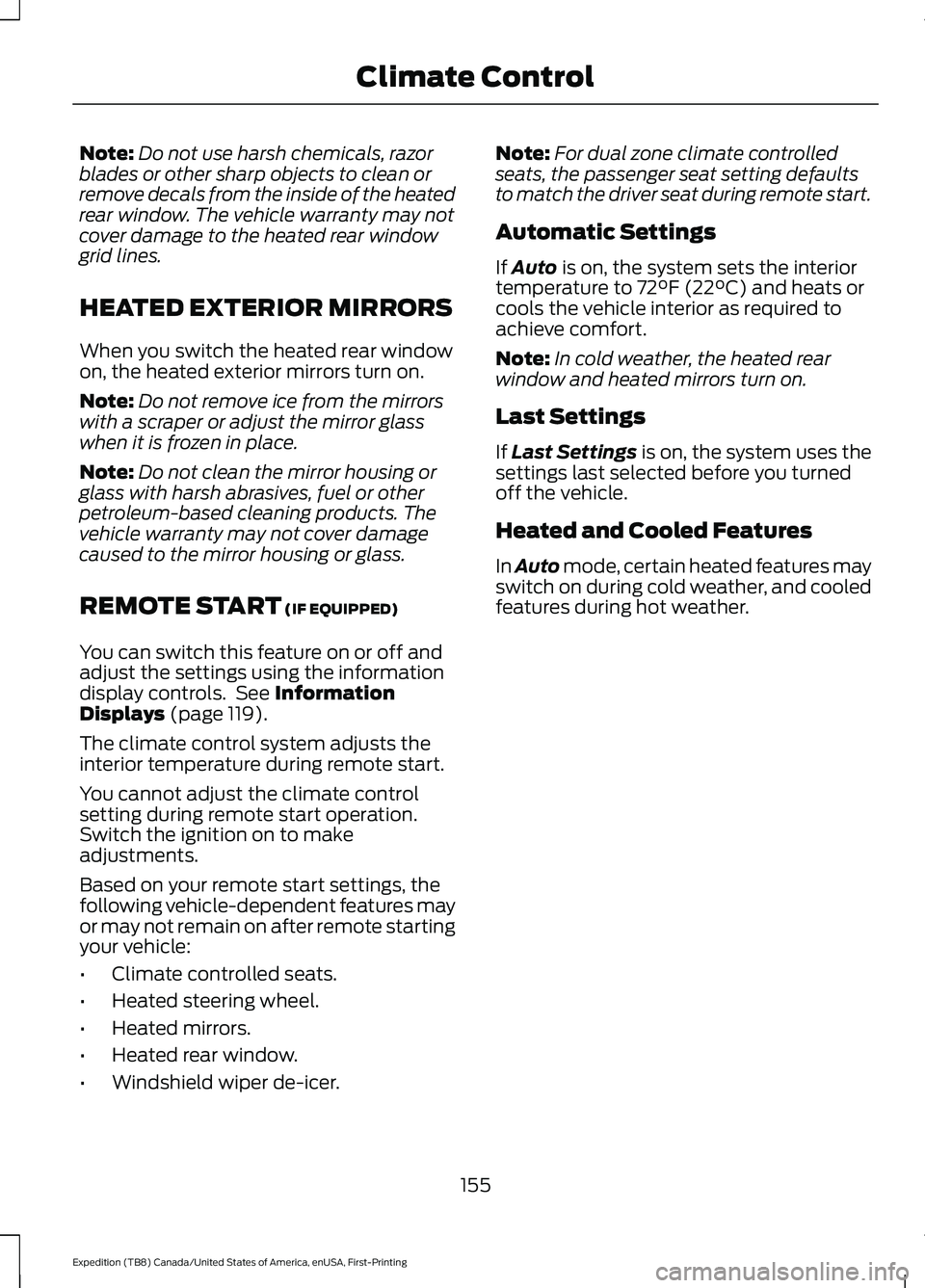
Note:
Do not use harsh chemicals, razor
blades or other sharp objects to clean or
remove decals from the inside of the heated
rear window. The vehicle warranty may not
cover damage to the heated rear window
grid lines.
HEATED EXTERIOR MIRRORS
When you switch the heated rear window
on, the heated exterior mirrors turn on.
Note: Do not remove ice from the mirrors
with a scraper or adjust the mirror glass
when it is frozen in place.
Note: Do not clean the mirror housing or
glass with harsh abrasives, fuel or other
petroleum-based cleaning products. The
vehicle warranty may not cover damage
caused to the mirror housing or glass.
REMOTE START (IF EQUIPPED)
You can switch this feature on or off and
adjust the settings using the information
display controls. See
Information
Displays (page 119).
The climate control system adjusts the
interior temperature during remote start.
You cannot adjust the climate control
setting during remote start operation.
Switch the ignition on to make
adjustments.
Based on your remote start settings, the
following vehicle-dependent features may
or may not remain on after remote starting
your vehicle:
• Climate controlled seats.
• Heated steering wheel.
• Heated mirrors.
• Heated rear window.
• Windshield wiper de-icer. Note:
For dual zone climate controlled
seats, the passenger seat setting defaults
to match the driver seat during remote start.
Automatic Settings
If
Auto is on, the system sets the interior
temperature to 72°F (22°C) and heats or
cools the vehicle interior as required to
achieve comfort.
Note: In cold weather, the heated rear
window and heated mirrors turn on.
Last Settings
If
Last Settings is on, the system uses the
settings last selected before you turned
off the vehicle.
Heated and Cooled Features
In Auto mode, certain heated features may
switch on during cold weather, and cooled
features during hot weather.
155
Expedition (TB8) Canada/United States of America, enUSA, First-Printing Climate Control