pairing phone FORD EXPEDITION 2021 Owners Manual
[x] Cancel search | Manufacturer: FORD, Model Year: 2021, Model line: EXPEDITION, Model: FORD EXPEDITION 2021Pages: 574, PDF Size: 8.33 MB
Page 9 of 574
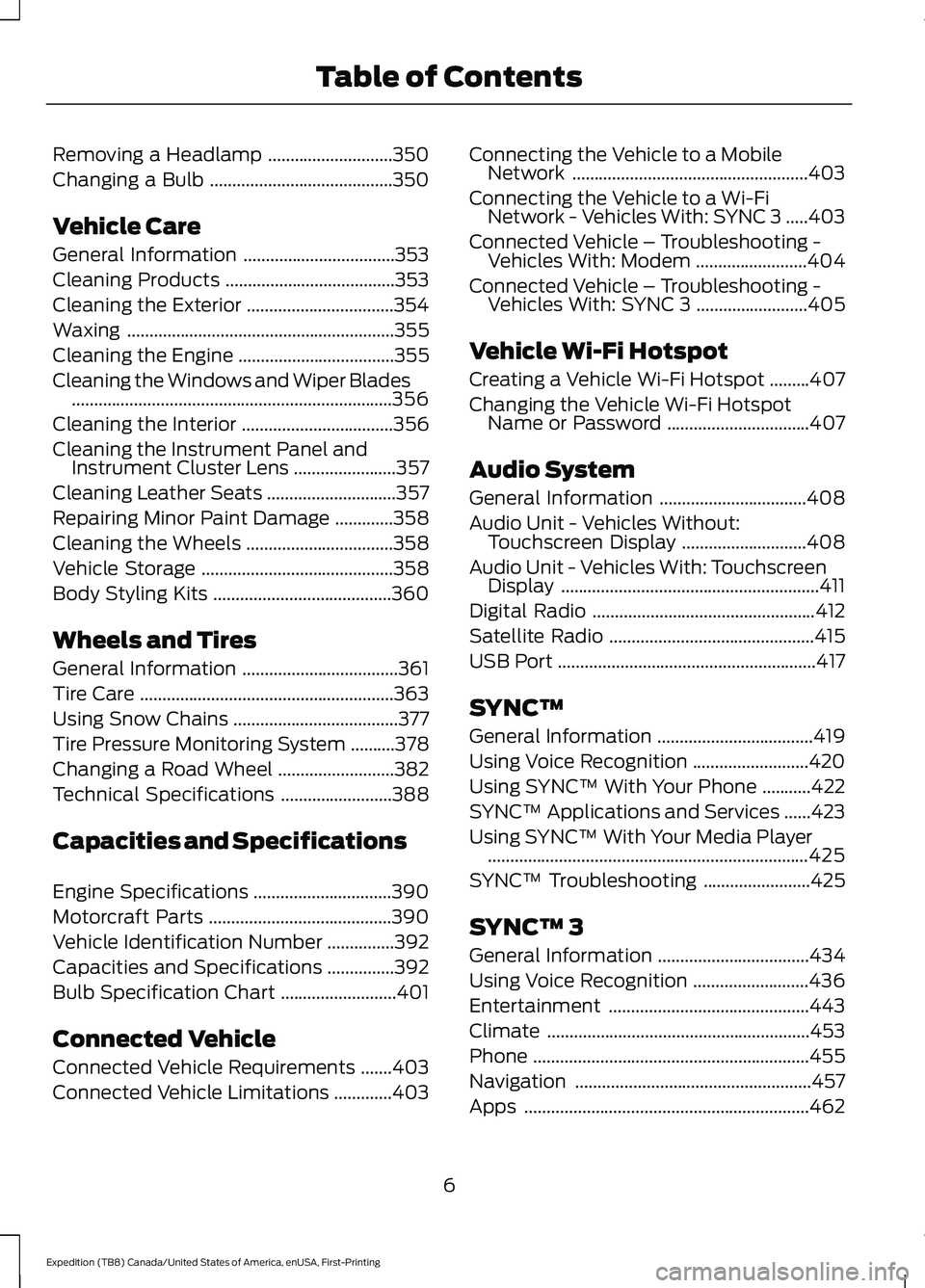
Removing a Headlamp
............................350
Changing a Bulb .........................................
350
Vehicle Care
General Information ..................................
353
Cleaning Products ......................................
353
Cleaning the Exterior .................................
354
Waxing ............................................................
355
Cleaning the Engine ...................................
355
Cleaning the Windows and Wiper Blades ........................................................................\
356
Cleaning the Interior ..................................
356
Cleaning the Instrument Panel and Instrument Cluster Lens .......................
357
Cleaning Leather Seats .............................
357
Repairing Minor Paint Damage .............
358
Cleaning the Wheels .................................
358
Vehicle Storage ...........................................
358
Body Styling Kits ........................................
360
Wheels and Tires
General Information ...................................
361
Tire Care .........................................................
363
Using Snow Chains .....................................
377
Tire Pressure Monitoring System ..........
378
Changing a Road Wheel ..........................
382
Technical Specifications .........................
388
Capacities and Specifications
Engine Specifications ...............................
390
Motorcraft Parts .........................................
390
Vehicle Identification Number ...............
392
Capacities and Specifications ...............
392
Bulb Specification Chart ..........................
401
Connected Vehicle
Connected Vehicle Requirements .......
403
Connected Vehicle Limitations .............
403Connecting the Vehicle to a Mobile
Network .....................................................
403
Connecting the Vehicle to a Wi-Fi Network - Vehicles With: SYNC 3 .....
403
Connected Vehicle – Troubleshooting - Vehicles With: Modem .........................
404
Connected Vehicle – Troubleshooting - Vehicles With: SYNC 3 .........................
405
Vehicle Wi-Fi Hotspot
Creating a Vehicle Wi-Fi Hotspot .........
407
Changing the Vehicle Wi-Fi Hotspot Name or Password ................................
407
Audio System
General Information .................................
408
Audio Unit - Vehicles Without: Touchscreen Display ............................
408
Audio Unit - Vehicles With: Touchscreen Display ..........................................................
411
Digital Radio ..................................................
412
Satellite Radio ..............................................
415
USB Port ..........................................................
417
SYNC™
General Information ...................................
419
Using Voice Recognition ..........................
420
Using SYNC™ With Your Phone ...........
422
SYNC™ Applications and Services ......
423
Using SYNC™ With Your Media Player ........................................................................\
425
SYNC™ Troubleshooting ........................
425
SYNC™ 3
General Information ..................................
434
Using Voice Recognition ..........................
436
Entertainment .............................................
443
Climate ...........................................................
453
Phone ..............................................................
455
Navigation .....................................................
457
Apps ................................................................
462
6
Expedition (TB8) Canada/United States of America, enUSA, First-Printing Table of Contents
Page 425 of 574
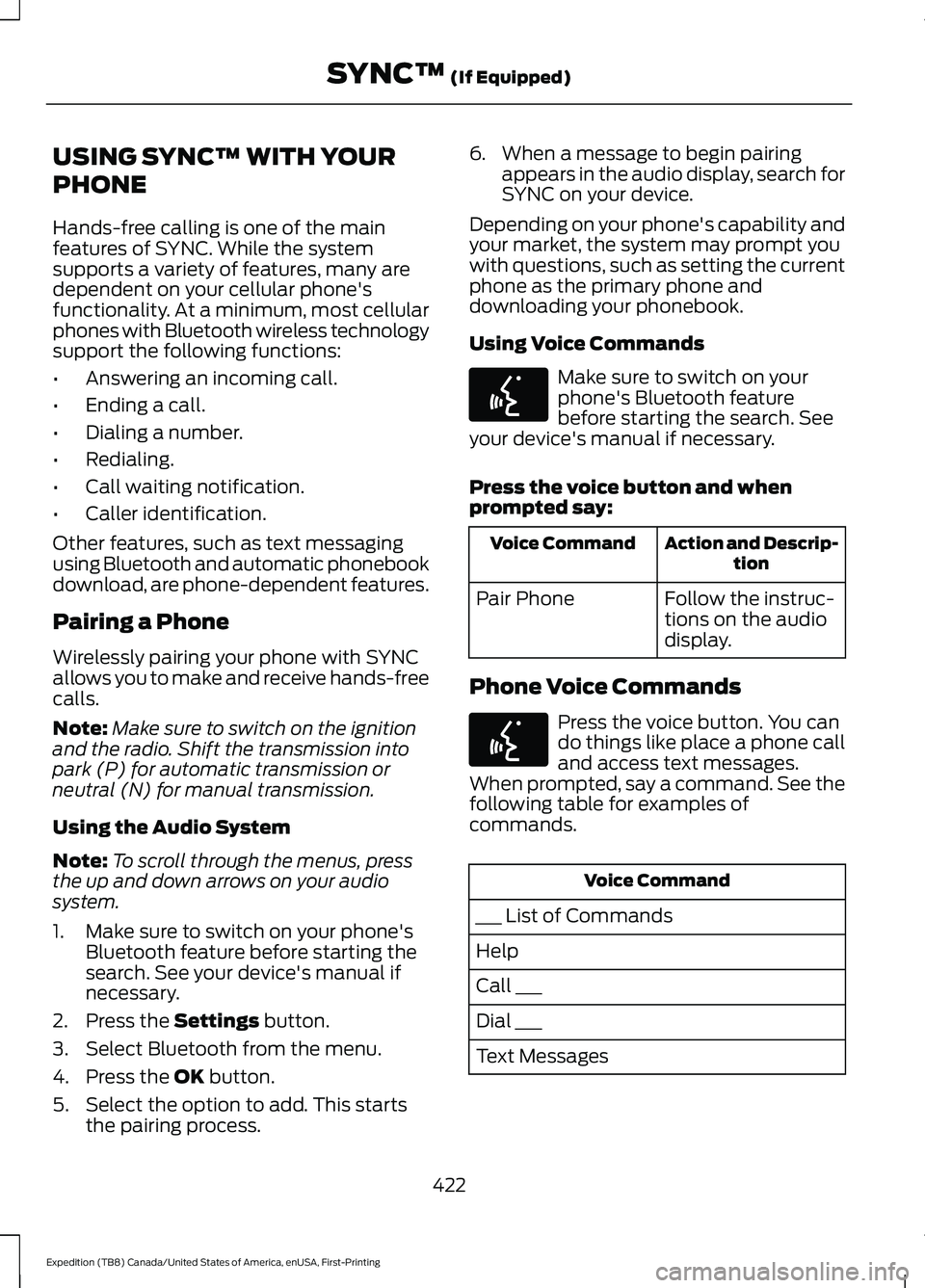
USING SYNC™ WITH YOUR
PHONE
Hands-free calling is one of the main
features of SYNC. While the system
supports a variety of features, many are
dependent on your cellular phone's
functionality. At a minimum, most cellular
phones with Bluetooth wireless technology
support the following functions:
•
Answering an incoming call.
• Ending a call.
• Dialing a number.
• Redialing.
• Call waiting notification.
• Caller identification.
Other features, such as text messaging
using Bluetooth and automatic phonebook
download, are phone-dependent features.
Pairing a Phone
Wirelessly pairing your phone with SYNC
allows you to make and receive hands-free
calls.
Note: Make sure to switch on the ignition
and the radio. Shift the transmission into
park (P) for automatic transmission or
neutral (N) for manual transmission.
Using the Audio System
Note: To scroll through the menus, press
the up and down arrows on your audio
system.
1. Make sure to switch on your phone's Bluetooth feature before starting the
search. See your device's manual if
necessary.
2. Press the Settings button.
3. Select Bluetooth from the menu.
4. Press the
OK button.
5. Select the option to add. This starts the pairing process. 6. When a message to begin pairing
appears in the audio display, search for
SYNC on your device.
Depending on your phone's capability and
your market, the system may prompt you
with questions, such as setting the current
phone as the primary phone and
downloading your phonebook.
Using Voice Commands Make sure to switch on your
phone's Bluetooth feature
before starting the search. See
your device's manual if necessary.
Press the voice button and when
prompted say: Action and Descrip-
tion
Voice Command
Follow the instruc-
tions on the audio
display.
Pair Phone
Phone Voice Commands Press the voice button. You can
do things like place a phone call
and access text messages.
When prompted, say a command. See the
following table for examples of
commands. Voice Command
___ List of Commands
Help
Call ___
Dial ___
Text Messages
422
Expedition (TB8) Canada/United States of America, enUSA, First-Printing SYNC™
(If Equipped)E142599 E142599
Page 441 of 574
Description
Voice command
Play Audiobook ___ For USB audio only, you can say the name of an
artist, album, or a genre to browse by that selec-
tion. Your system must finish indexing before this
option is available. For example you can say
"Browse artist The Beatles" or "Browse genre
folk".
Browse ___
Browse Artist ___
Browse Album ___
Browse Genre ___
Browse Playlist ___
Browse Audiobook ___
Browse Podcast ___
1 This option may not be available in all markets or may require a subscription.
Climate Voice Commands (If Equipped)
You can control the temperature of the
vehicle using voice commands. ___ is a dynamic listing, meaning that for
climate voice commands it can be the
desired degrees for the temperature
setting.
To adjust the temperature, say: Description
Voice command
Adjust the temperature between 60–85°F
(15.5– 29.5°C).
Set the Temperature to ____
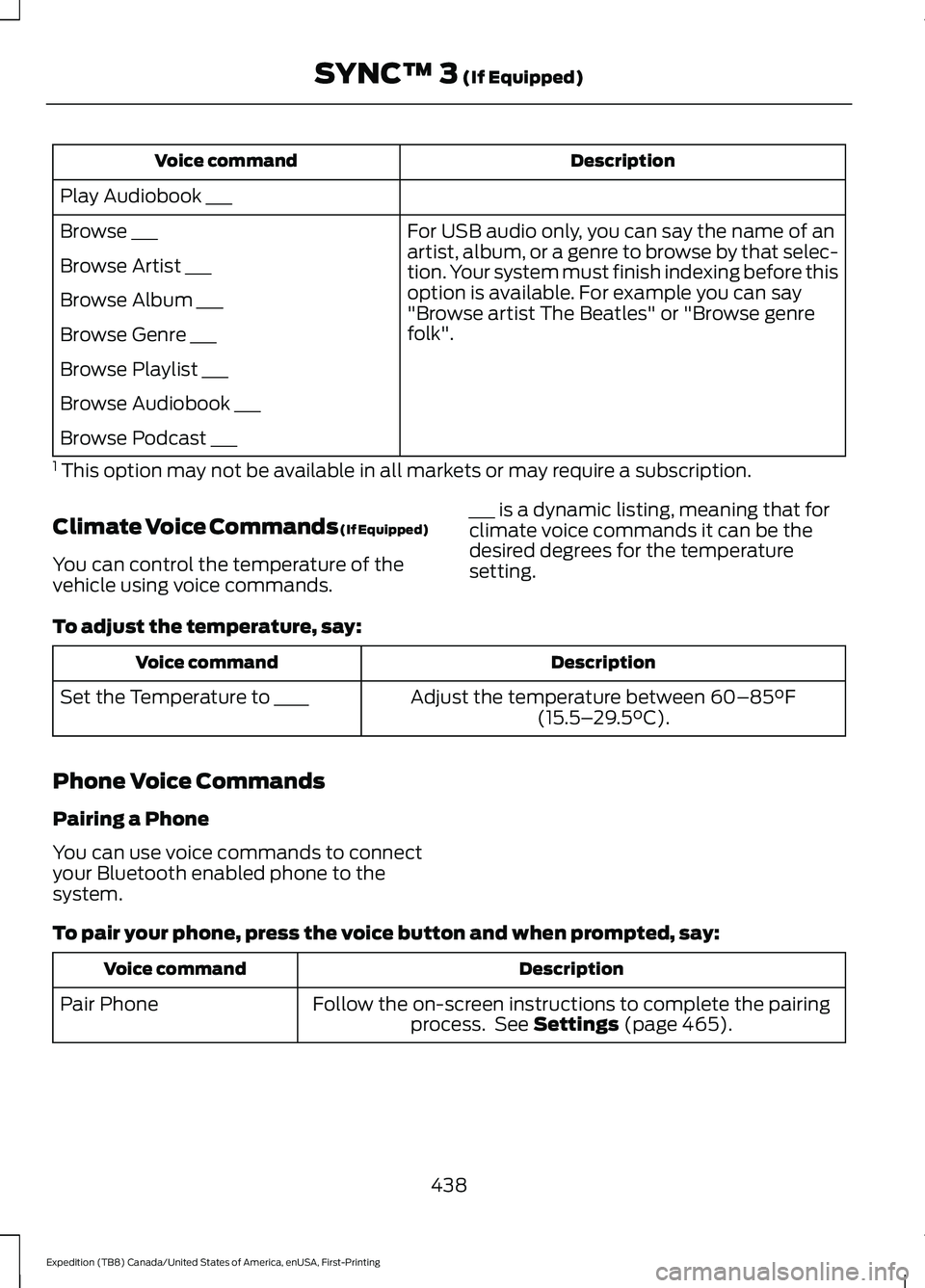
Phone Voice Commands
Pairing a Phone
You can use voice commands to connect
your Bluetooth enabled phone to the
system.
To pair your phone, press the voice button and when prompted, say: Description
Voice command
Follow the on-screen instructions to complete the pairingprocess. See
Settings (page 465).
Pair Phone
438
Expedition (TB8) Canada/United States of America, enUSA, First-Printing SYNC™ 3
(If Equipped)
Page 459 of 574
Check the compatibility of your device on
the regional website.
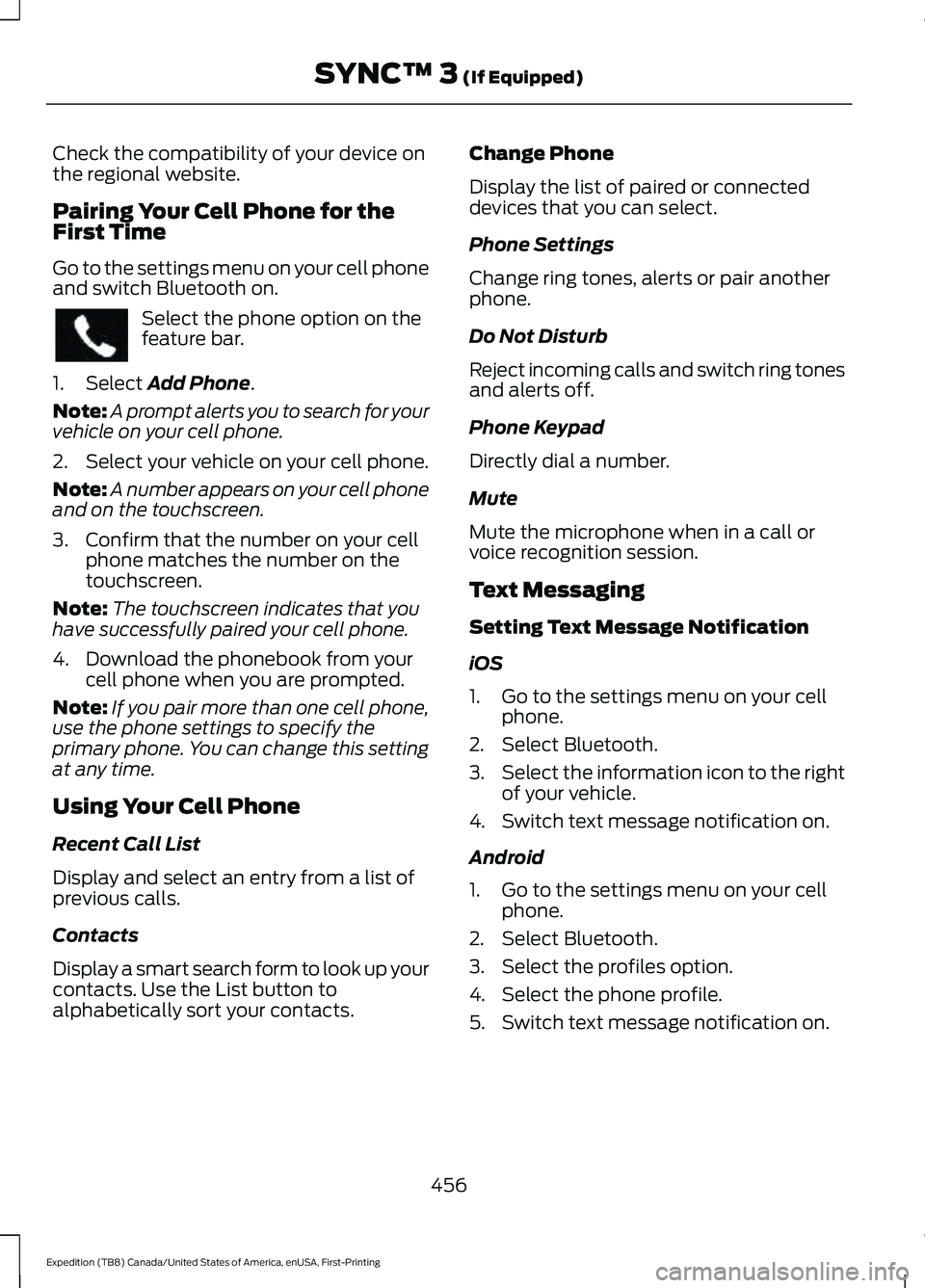
Pairing Your Cell Phone for the
First Time
Go to the settings menu on your cell phone
and switch Bluetooth on.
Select the phone option on the
feature bar.
1. Select Add Phone.
Note: A prompt alerts you to search for your
vehicle on your cell phone.
2. Select your vehicle on your cell phone.
Note: A number appears on your cell phone
and on the touchscreen.
3. Confirm that the number on your cell phone matches the number on the
touchscreen.
Note: The touchscreen indicates that you
have successfully paired your cell phone.
4. Download the phonebook from your cell phone when you are prompted.
Note: If you pair more than one cell phone,
use the phone settings to specify the
primary phone. You can change this setting
at any time.
Using Your Cell Phone
Recent Call List
Display and select an entry from a list of
previous calls.
Contacts
Display a smart search form to look up your
contacts. Use the List button to
alphabetically sort your contacts. Change Phone
Display the list of paired or connected
devices that you can select.
Phone Settings
Change ring tones, alerts or pair another
phone.
Do Not Disturb
Reject incoming calls and switch ring tones
and alerts off.
Phone Keypad
Directly dial a number.
Mute
Mute the microphone when in a call or
voice recognition session.
Text Messaging
Setting Text Message Notification
iOS
1. Go to the settings menu on your cell
phone.
2. Select Bluetooth.
3. Select the information icon to the right
of your vehicle.
4. Switch text message notification on.
Android
1. Go to the settings menu on your cell phone.
2. Select Bluetooth.
3. Select the profiles option.
4. Select the phone profile.
5. Switch text message notification on.
456
Expedition (TB8) Canada/United States of America, enUSA, First-Printing SYNC™ 3
(If Equipped)
Page 569 of 574
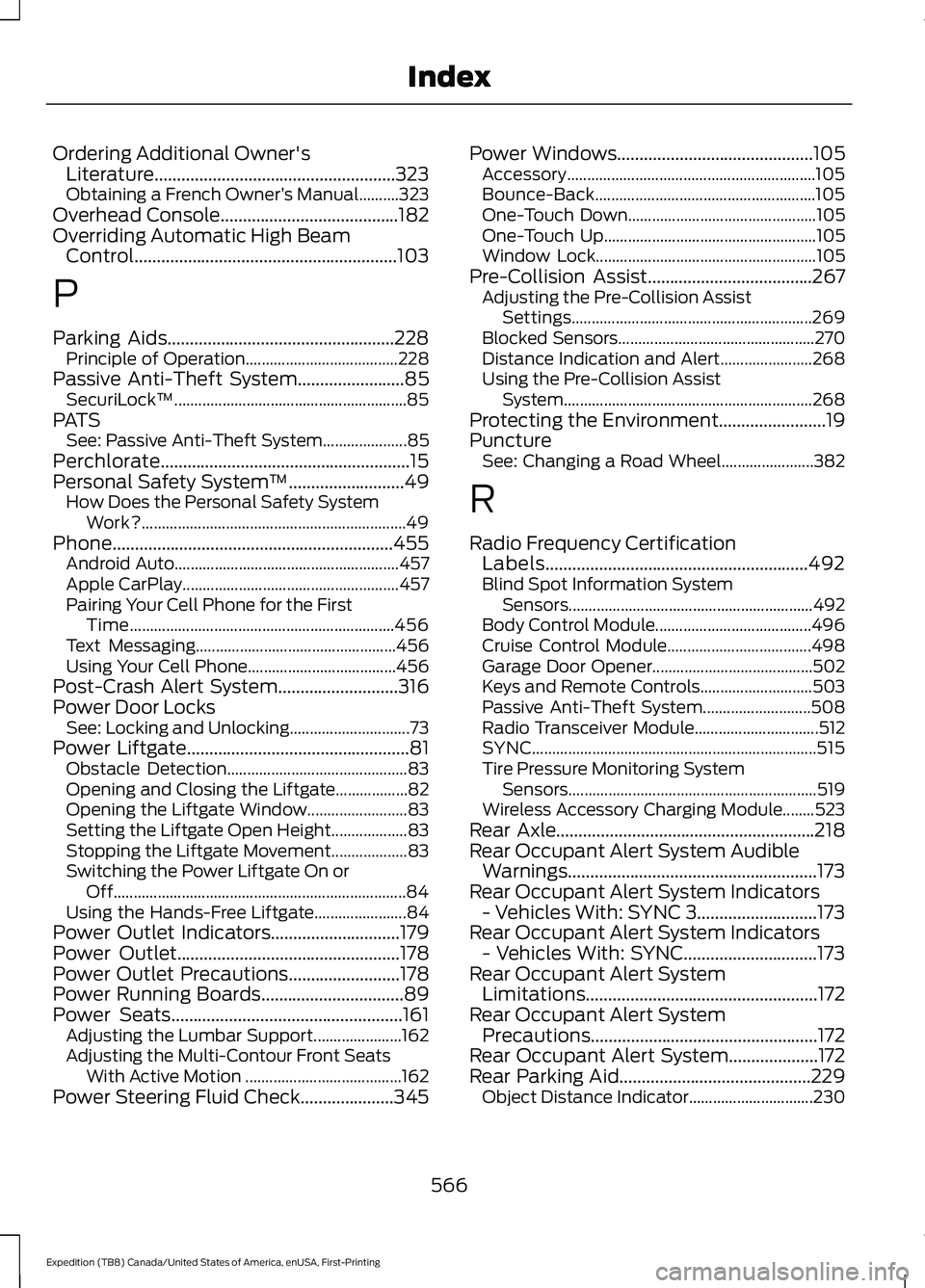
Ordering Additional Owner's
Literature......................................................323
Obtaining a French Owner ’s Manual..........323
Overhead Console........................................182
Overriding Automatic High Beam Control...........................................................103
P
Parking Aids...................................................228 Principle of Operation...................................... 228
Passive Anti-Theft System
........................85
SecuriLock ™.......................................................... 85
PATS See: Passive Anti-Theft System..................... 85
Perchlorate........................................................15
Personal Safety System ™
..........................49
How Does the Personal Safety System
Work?.................................................................. 49
Phone...............................................................455 Android Auto........................................................ 457
Apple CarPlay...................................................... 457
Pairing Your Cell Phone for the First Time.................................................................. 456
Text Messaging.................................................. 456
Using Your Cell Phone..................................... 456
Post-Crash Alert System...........................316
Power Door Locks See: Locking and Unlocking.............................. 73
Power Liftgate
..................................................81
Obstacle Detection............................................. 83
Opening and Closing the Liftgate.................. 82
Opening the Liftgate Window......................... 83
Setting the Liftgate Open Height................... 83
Stopping the Liftgate Movement................... 83
Switching the Power Liftgate On or Off........................................................................\
. 84
Using the Hands-Free Liftgate....................... 84
Power Outlet Indicators.............................179
Power Outlet
..................................................178
Power Outlet Precautions.........................178
Power Running Boards................................89
Power Seats....................................................161 Adjusting the Lumbar Support...................... 162
Adjusting the Multi-Contour Front Seats With Active Motion ....................................... 162
Power Steering Fluid Check.....................345 Power Windows
............................................105
Accessory.............................................................. 105
Bounce-Back....................................................... 105
One-Touch Down............................................... 105
One-Touch Up..................................................... 105
Window Lock....................................................... 105
Pre-Collision Assist.....................................267 Adjusting the Pre-Collision Assist
Settings............................................................ 269
Blocked Sensors................................................. 270
Distance Indication and Alert....................... 268
Using the Pre-Collision Assist System.............................................................. 268
Protecting the Environment
........................19
Puncture See: Changing a Road Wheel....................... 382
R
Radio Frequency Certification Labels...........................................................492
Blind Spot Information System Sensors............................................................. 492
Body Control Module....................................... 496
Cruise Control Module.................................... 498
Garage Door Opener........................................ 502
Keys and Remote Controls............................ 503
Passive Anti-Theft System........................... 508
Radio Transceiver Module............................... 512
SYNC....................................................................... 515
Tire Pressure Monitoring System Sensors.............................................................. 519
Wireless Accessory Charging Module........523
Rear Axle..........................................................218
Rear Occupant Alert System Audible Warnings........................................................173
Rear Occupant Alert System Indicators - Vehicles With: SYNC 3...........................173
Rear Occupant Alert System Indicators - Vehicles With: SYNC..............................173
Rear Occupant Alert System Limitations....................................................172
Rear Occupant Alert System Precautions...................................................172
Rear Occupant Alert System
....................172
Rear Parking Aid...........................................229 Object Distance Indicator............................... 230
566
Expedition (TB8) Canada/United States of America, enUSA, First-Printing Index
Page 573 of 574
Trailer Reversing Aids.................................286
Principle of Operation...................................... 286
Pro Trailer Backup Assist™........................... 286
Setting Up Pro Trailer Backup Assist.........286
Troubleshooting.................................................. 291
Using Pro Trailer Backup Assist................... 290
Trailer Sway Control...................................295
Transfer Case Fluid Check.......................344
Transmission.................................................203
Transporting the Vehicle............................316
U
Under Hood Overview
...............................336
Unique Driving Characteristics................189
Universal Garage Door Opener................174 HomeLink Wireless Control System............174
USB Port
...........................................................417
Locating the USB Ports.................................... 418
Using Adaptive Cruise Control................247 Automatic Cancellation.................................. 250
Blocked Sensor................................................... 252
Canceling the Set Speed................................ 250
Changing the Set Speed................................. 250
Detection Issues.................................................. 251
Following a Vehicle........................................... 248
Following a Vehicle to a Complete Stop................................................................... 249
Hilly Condition Usage........................................ 251
Overriding the Set Speed............................... 250
Park Brake Application..................................... 251
Resuming the Set Speed................................ 250
Setting the Adaptive Cruise Speed............248
Setting the Adaptive Cruise Speed When Your Vehicle is Stationary.......................... 248
Setting the Gap Distance............................... 249
Switching Adaptive Cruise Control Off........................................................................\
251
Switching Adaptive Cruise Control On....................................................................... 248
Switching to Normal Cruise Control...........253
System Not Available....................................... 252
Using Four-Wheel Drive.............................210 4WD Switch Selections................................... 210
4X4 Indicator Lights.......................................... 210
Driving Off-Road With Truck and Utility Vehicles.............................................................. 213How Your Vehicle Differs From Other
Vehicles.............................................................. 212
Operating Four-Wheel Drive Vehicles With Spare or Mismatched Tires........................ 212
Using Hill Descent Control........................227 Hill Descent Modes............................................ 227
Using MyKey With Remote Start Systems............................................................71
Using Power Running Boards....................89 Automatic Power Deploy.................................. 89
Automatic Power Stow..................................... 89
Bounce-back......................................................... 90
Enabling and Disabling...................................... 89
Manual Power Deploy........................................ 89
Using Snow Chains
......................................377
Using Stability Control...............................225
Stability Control and Traction Control with
Roll Stability Control ™ (RSC™).............225
Using SYNC™ With Your Media Player............................................................425
Audio Voice Commands................................. 425
Media Sources.................................................... 425
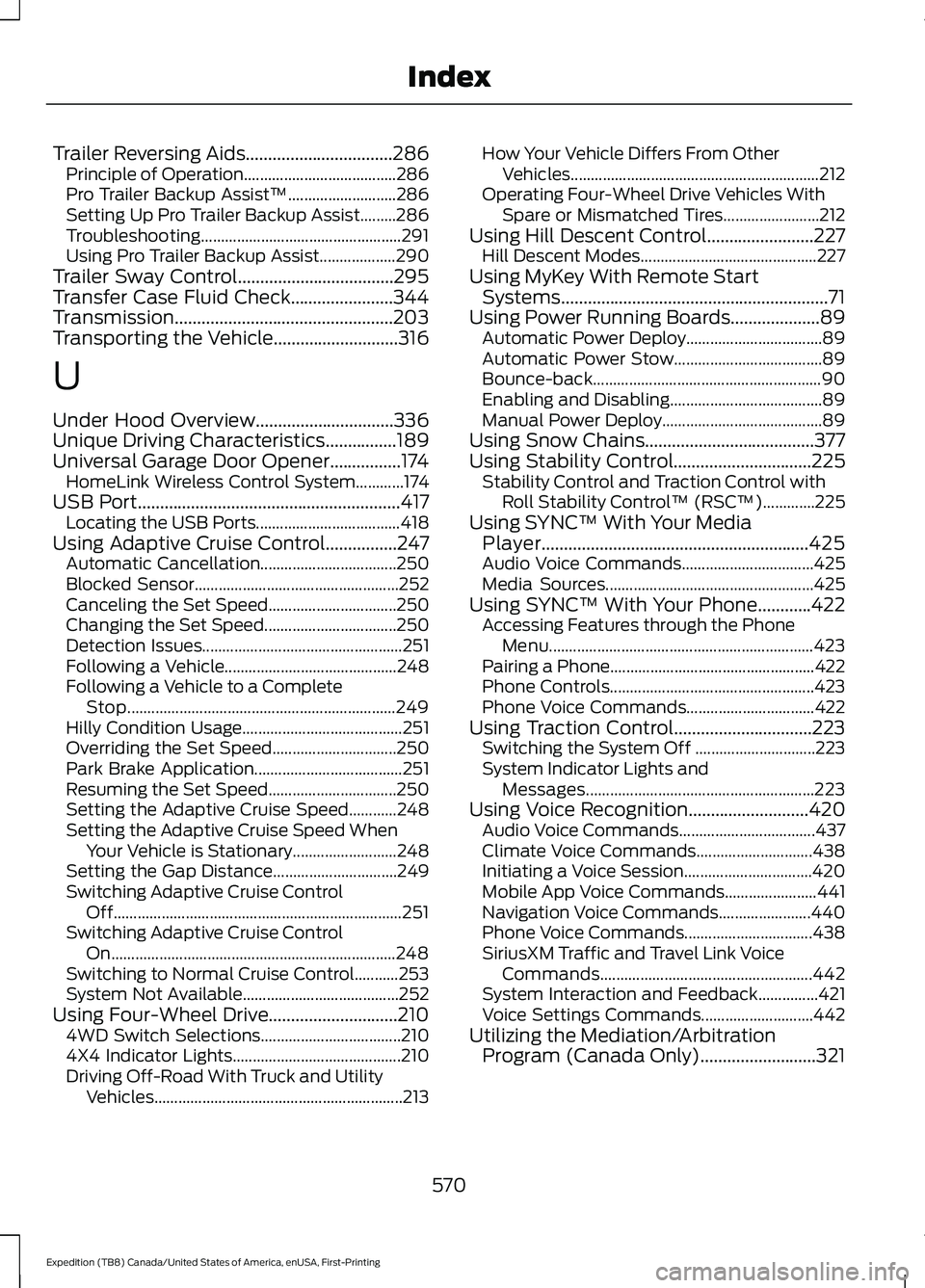
Using SYNC™ With Your Phone............422 Accessing Features through the Phone
Menu.................................................................. 423
Pairing a Phone................................................... 422
Phone Controls................................................... 423
Phone Voice Commands................................ 422
Using Traction Control...............................223 Switching the System Off .............................. 223
System Indicator Lights and Messages......................................................... 223
Using Voice Recognition
...........................420
Audio Voice Commands.................................. 437
Climate Voice Commands............................. 438
Initiating a Voice Session................................ 420
Mobile App Voice Commands....................... 441
Navigation Voice Commands....................... 440
Phone Voice Commands................................ 438
SiriusXM Traffic and Travel Link Voice Commands..................................................... 442
System Interaction and Feedback...............421
Voice Settings Commands............................ 442
Utilizing the Mediation/Arbitration Program (Canada Only)..........................321
570
Expedition (TB8) Canada/United States of America, enUSA, First-Printing Index