ad blue FORD EXPEDITION EL 2016 User Guide
[x] Cancel search | Manufacturer: FORD, Model Year: 2016, Model line: EXPEDITION EL, Model: FORD EXPEDITION EL 2016Pages: 421, PDF Size: 7.39 MB
Page 340 of 421
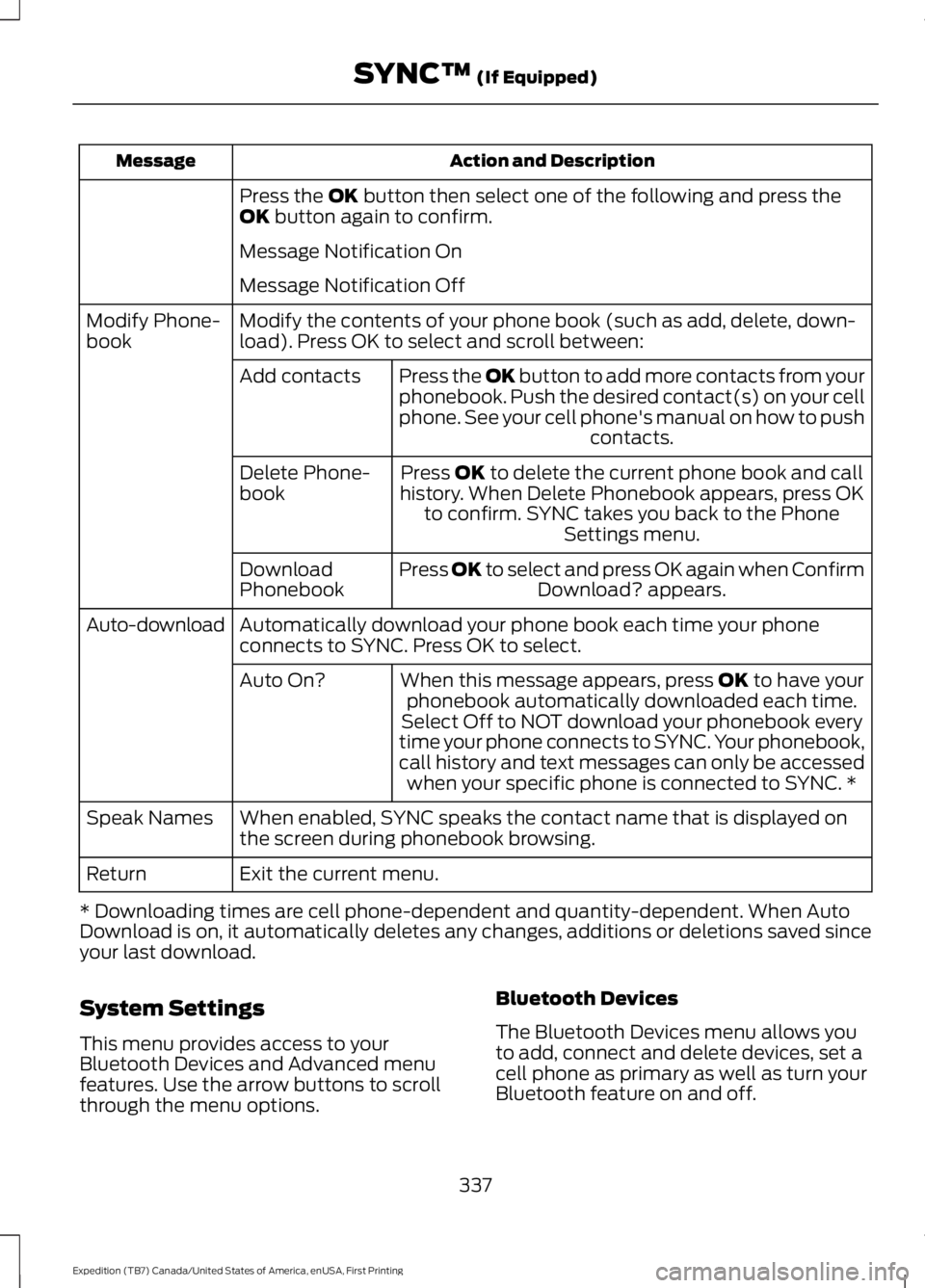
Action and DescriptionMessage
Press the OK button then select one of the following and press theOK button again to confirm.
Message Notification On
Message Notification Off
Modify the contents of your phone book (such as add, delete, down-load). Press OK to select and scroll between:Modify Phone-book
Press the OK button to add more contacts from yourphonebook. Push the desired contact(s) on your cellphone. See your cell phone's manual on how to pushcontacts.
Add contacts
Press OK to delete the current phone book and callhistory. When Delete Phonebook appears, press OKto confirm. SYNC takes you back to the PhoneSettings menu.
Delete Phone-book
Press OK to select and press OK again when ConfirmDownload? appears.DownloadPhonebook
Automatically download your phone book each time your phoneconnects to SYNC. Press OK to select.Auto-download
When this message appears, press OK to have yourphonebook automatically downloaded each time.Auto On?
Select Off to NOT download your phonebook everytime your phone connects to SYNC. Your phonebook,call history and text messages can only be accessedwhen your specific phone is connected to SYNC. *
When enabled, SYNC speaks the contact name that is displayed onthe screen during phonebook browsing.Speak Names
Exit the current menu.Return
* Downloading times are cell phone-dependent and quantity-dependent. When AutoDownload is on, it automatically deletes any changes, additions or deletions saved sinceyour last download.
System Settings
This menu provides access to yourBluetooth Devices and Advanced menufeatures. Use the arrow buttons to scrollthrough the menu options.
Bluetooth Devices
The Bluetooth Devices menu allows youto add, connect and delete devices, set acell phone as primary as well as turn yourBluetooth feature on and off.
337
Expedition (TB7) Canada/United States of America, enUSA, First Printing
SYNC™ (If Equipped)
Page 341 of 421
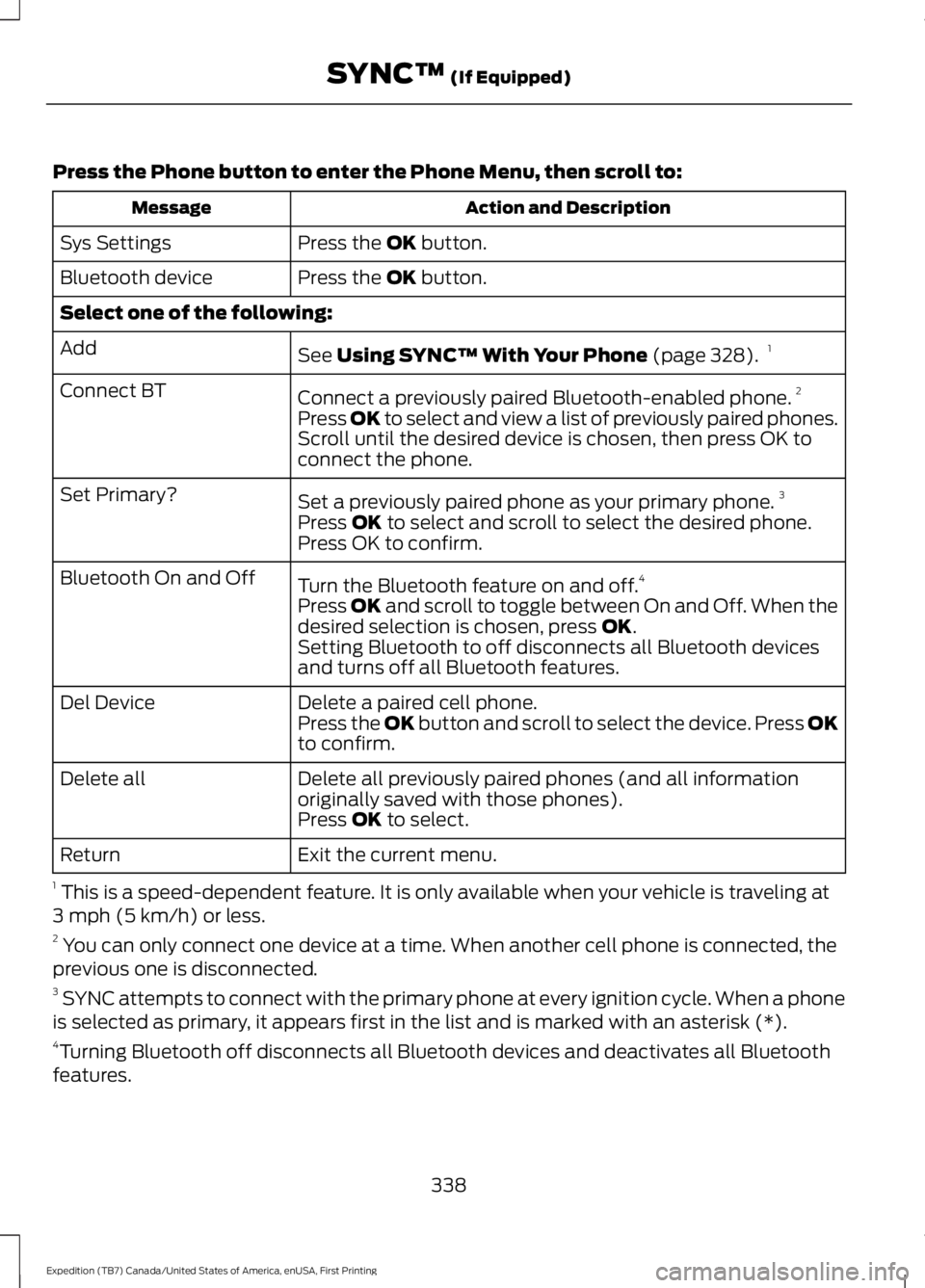
Press the Phone button to enter the Phone Menu, then scroll to:
Action and DescriptionMessage
Press the OK button.Sys Settings
Press the OK button.Bluetooth device
Select one of the following:
See Using SYNC™ With Your Phone (page 328).1Add
Connect a previously paired Bluetooth-enabled phone.2Connect BT
Press OK to select and view a list of previously paired phones.Scroll until the desired device is chosen, then press OK toconnect the phone.
Set a previously paired phone as your primary phone.3Set Primary?
Press OK to select and scroll to select the desired phone.Press OK to confirm.
Turn the Bluetooth feature on and off.4Bluetooth On and Off
Press OK and scroll to toggle between On and Off. When thedesired selection is chosen, press OK.Setting Bluetooth to off disconnects all Bluetooth devicesand turns off all Bluetooth features.
Delete a paired cell phone.Del DevicePress the OK button and scroll to select the device. Press OKto confirm.
Delete all previously paired phones (and all informationoriginally saved with those phones).Delete all
Press OK to select.
Exit the current menu.Return
1 This is a speed-dependent feature. It is only available when your vehicle is traveling at3 mph (5 km/h) or less.2 You can only connect one device at a time. When another cell phone is connected, theprevious one is disconnected.3 SYNC attempts to connect with the primary phone at every ignition cycle. When a phoneis selected as primary, it appears first in the list and is marked with an asterisk (*).4Turning Bluetooth off disconnects all Bluetooth devices and deactivates all Bluetoothfeatures.
338
Expedition (TB7) Canada/United States of America, enUSA, First Printing
SYNC™ (If Equipped)
Page 344 of 421
![FORD EXPEDITION EL 2016 User Guide If a crash deploys an airbag (excludingknee airbags and rear inflatable safetybelts [if equipped]) or activates the fuelpump shut-off, your SYNC-equippedvehicle may be able to contact emergencyservice](/img/11/58754/w960_58754-343.png "FORD EXPEDITION EL 2016 User Guide If a crash deploys an airbag (excludingknee airbags and rear inflatable safetybelts [if equipped]) or activates the fuelpump shut-off, your SYNC-equippedvehicle may be able to contact emergencyservice")
If a crash deploys an airbag (excludingknee airbags and rear inflatable safetybelts [if equipped]) or activates the fuelpump shut-off, your SYNC-equippedvehicle may be able to contact emergencyservices by dialing 911 through a paired andconnected Bluetooth-enabled phone. Youcan learn more about the 911 Assistfeature, visit www.SYNCMyRide.com,
www.SYNCMyRide.ca orwww.syncmaroute.ca.
See Supplementary Restraints System(page 35). Important information aboutairbag deployment is in this chapter.
See Roadside Emergencies (page 223).Important information about the fuel pumpshut-off is in this chapter.
Switching 911 Assist On or Off
Press the phone button to enter the phone menu and scroll to:
Action and DescriptionMessage
Press the OK button to confirm and enter the 911 Assist menu.911 Assist
Press the OK button when the desired option appears in theradio display.On
Off
Off selections include:
Action and DescriptionMessage
Provides a display and voice reminder at phone connectionat vehicle start.Off with reminder:
Provides a display reminder only without a voice reminder atphone connection.Off without reminder:
To make sure that 911 Assist workscorrectly:
•SYNC must be powered and workingproperly at the time of the incident andthroughout feature activation and use.
•The 911 Assist feature must be set onbefore the incident.
•You must pair and connect aBluetooth-enabled and compatiblecell phone to SYNC.
•A connected Bluetooth-enabled phonemust have the ability to make andmaintain an outgoing call at the timeof the incident.
•A connected Bluetooth-enabled phonemust have adequate network coverage,battery power and signal strength.
•The vehicle must have battery powerand be located in the U.S., Canada orin a territory in which 911 is theemergency number.
341
Expedition (TB7) Canada/United States of America, enUSA, First Printing
SYNC™ (If Equipped)
Page 347 of 421
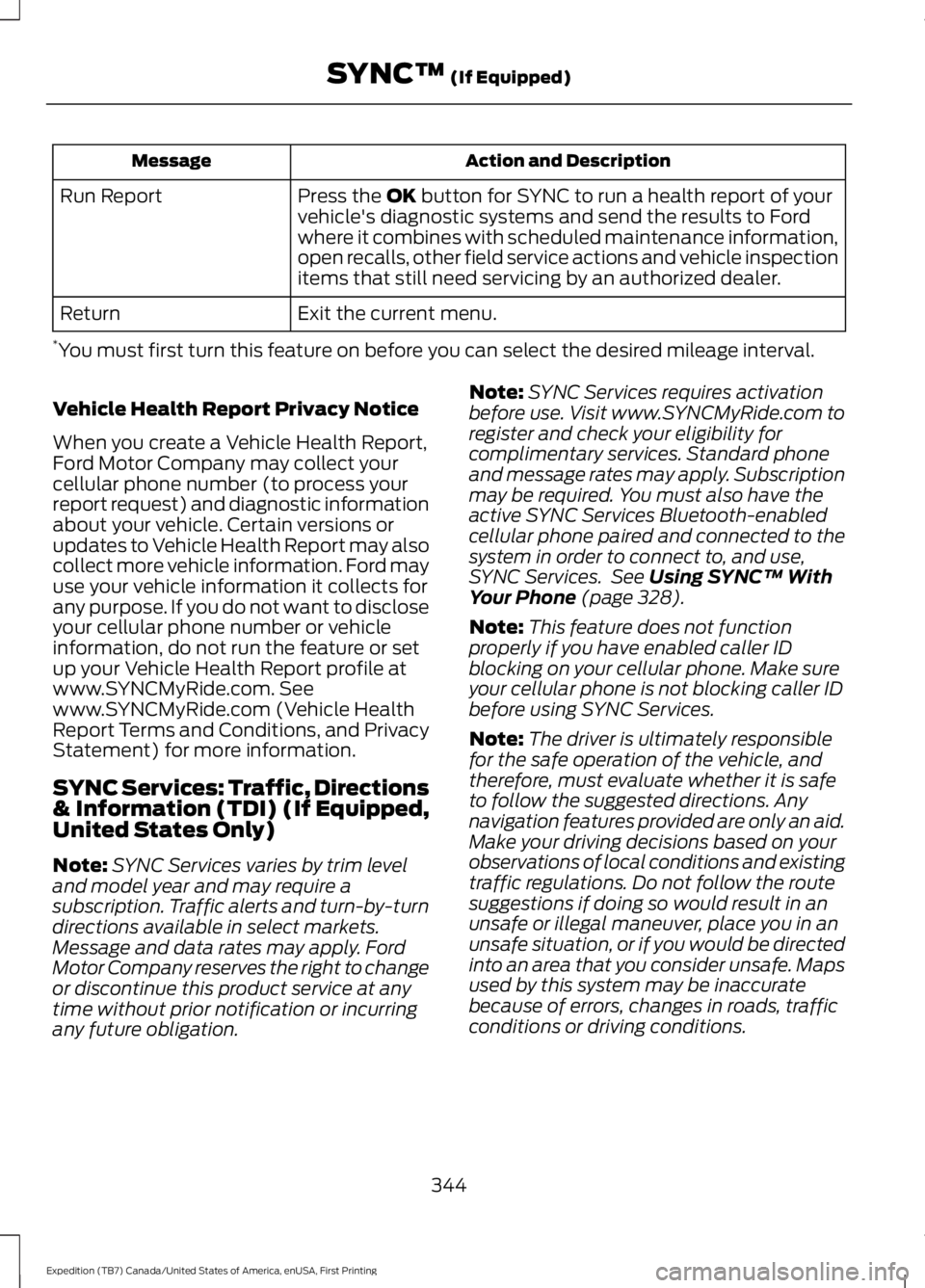
Action and DescriptionMessage
Press the OK button for SYNC to run a health report of yourvehicle's diagnostic systems and send the results to Fordwhere it combines with scheduled maintenance information,open recalls, other field service actions and vehicle inspectionitems that still need servicing by an authorized dealer.
Run Report
Exit the current menu.Return
*You must first turn this feature on before you can select the desired mileage interval.
Vehicle Health Report Privacy Notice
When you create a Vehicle Health Report,Ford Motor Company may collect yourcellular phone number (to process yourreport request) and diagnostic informationabout your vehicle. Certain versions orupdates to Vehicle Health Report may alsocollect more vehicle information. Ford mayuse your vehicle information it collects forany purpose. If you do not want to discloseyour cellular phone number or vehicleinformation, do not run the feature or setup your Vehicle Health Report profile atwww.SYNCMyRide.com. Seewww.SYNCMyRide.com (Vehicle HealthReport Terms and Conditions, and PrivacyStatement) for more information.
SYNC Services: Traffic, Directions& Information (TDI) (If Equipped,United States Only)
Note:SYNC Services varies by trim leveland model year and may require asubscription. Traffic alerts and turn-by-turndirections available in select markets.Message and data rates may apply. FordMotor Company reserves the right to changeor discontinue this product service at anytime without prior notification or incurringany future obligation.
Note:SYNC Services requires activationbefore use. Visit www.SYNCMyRide.com toregister and check your eligibility forcomplimentary services. Standard phoneand message rates may apply. Subscriptionmay be required. You must also have theactive SYNC Services Bluetooth-enabledcellular phone paired and connected to thesystem in order to connect to, and use,SYNC Services. See Using SYNC™ WithYour Phone (page 328).
Note:This feature does not functionproperly if you have enabled caller IDblocking on your cellular phone. Make sureyour cellular phone is not blocking caller IDbefore using SYNC Services.
Note:The driver is ultimately responsiblefor the safe operation of the vehicle, andtherefore, must evaluate whether it is safeto follow the suggested directions. Anynavigation features provided are only an aid.Make your driving decisions based on yourobservations of local conditions and existingtraffic regulations. Do not follow the routesuggestions if doing so would result in anunsafe or illegal maneuver, place you in anunsafe situation, or if you would be directedinto an area that you consider unsafe. Mapsused by this system may be inaccuratebecause of errors, changes in roads, trafficconditions or driving conditions.
344
Expedition (TB7) Canada/United States of America, enUSA, First Printing
SYNC™ (If Equipped)
Page 348 of 421
Note:When you connect, the service usesGPS technology and advanced vehiclesensors to collect your vehicle's currentlocation, travel direction and speed to helpprovide you with the directions, trafficreports, or business searches you request.Further, to provide the services you request,for continuous improvement, the servicemay collect and record call details and voicecommunications. For more information, seeSYNC Services Terms and Conditions atwww.SYNCMyRide.com. If you do not wantFord or its service providers to collect yourvehicle travel information or otherinformation identified in the Terms andConditions, do not subscribe or use theservice.
SYNC Services uses advanced vehiclesensors, integrated GPS technology andcomprehensive map and traffic data, togive you personalized traffic reports,precise turn-by-turn directions, businesssearch, news, sports, weather and more.For a complete list of services, or to learnmore, please visit www.SYNCMyRide.com.
Connecting to SYNC Services Using Voice Commands
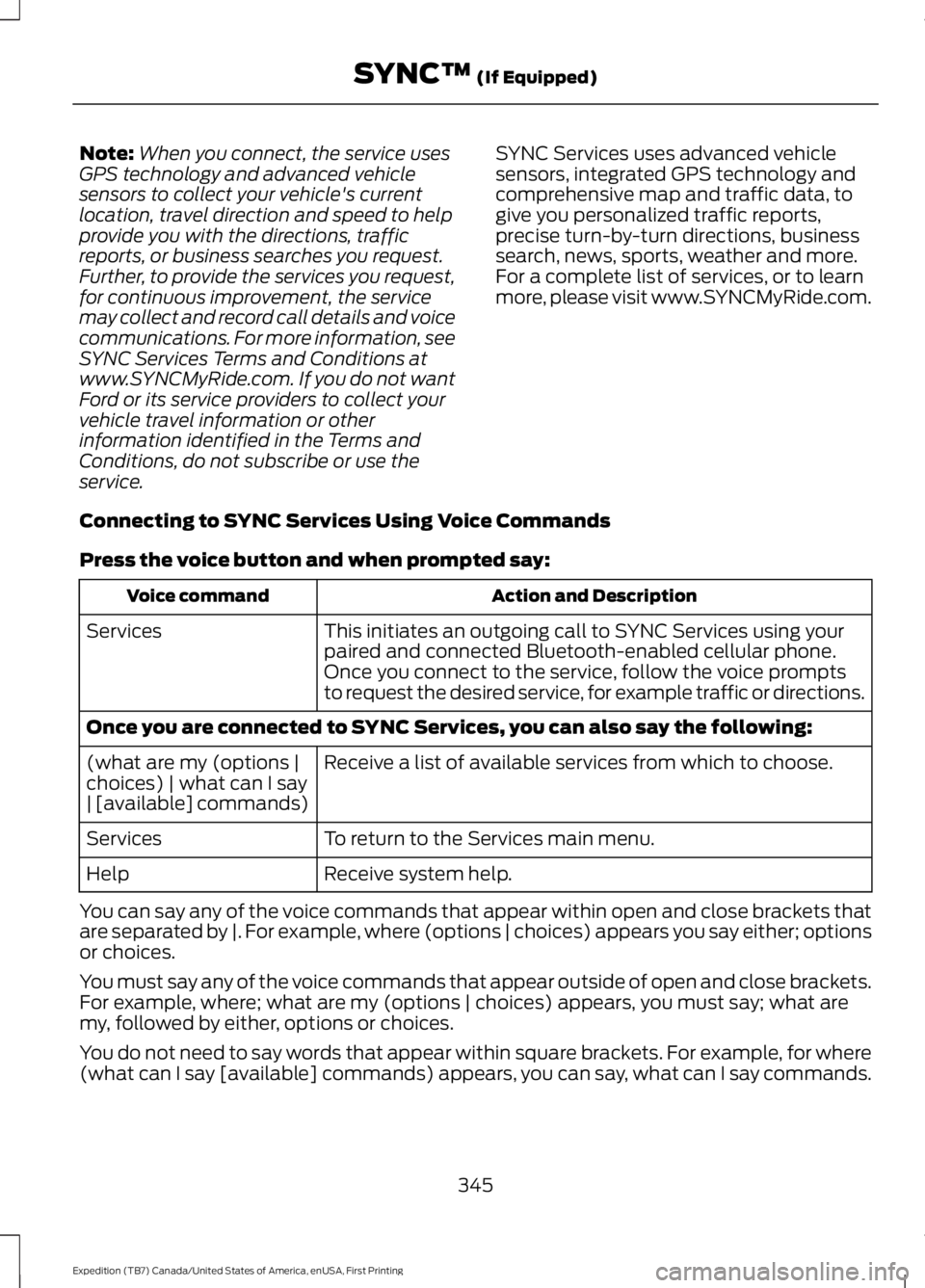
Press the voice button and when prompted say:
Action and DescriptionVoice command
This initiates an outgoing call to SYNC Services using yourpaired and connected Bluetooth-enabled cellular phone.Services
Once you connect to the service, follow the voice promptsto request the desired service, for example traffic or directions.
Once you are connected to SYNC Services, you can also say the following:
Receive a list of available services from which to choose.(what are my (options |choices) | what can I say| [available] commands)
To return to the Services main menu.Services
Receive system help.Help
You can say any of the voice commands that appear within open and close brackets thatare separated by |. For example, where (options | choices) appears you say either; optionsor choices.
You must say any of the voice commands that appear outside of open and close brackets.For example, where; what are my (options | choices) appears, you must say; what aremy, followed by either, options or choices.
You do not need to say words that appear within square brackets. For example, for where(what can I say [available] commands) appears, you can say, what can I say commands.
345
Expedition (TB7) Canada/United States of America, enUSA, First Printing
SYNC™ (If Equipped)
Page 350 of 421
Action and DescriptionVoice command
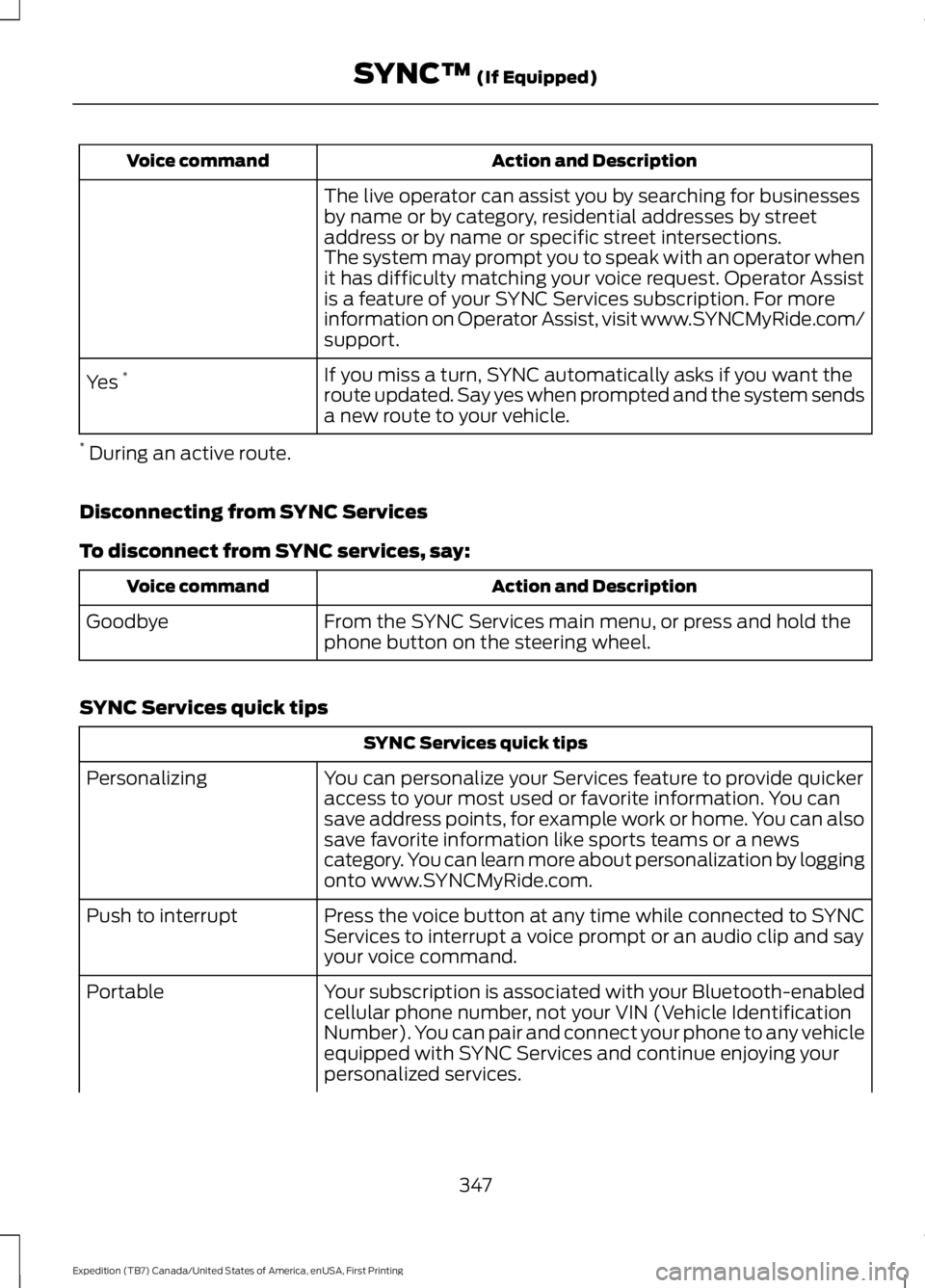
The live operator can assist you by searching for businessesby name or by category, residential addresses by streetaddress or by name or specific street intersections.The system may prompt you to speak with an operator whenit has difficulty matching your voice request. Operator Assistis a feature of your SYNC Services subscription. For moreinformation on Operator Assist, visit www.SYNCMyRide.com/support.
If you miss a turn, SYNC automatically asks if you want theroute updated. Say yes when prompted and the system sendsa new route to your vehicle.
Yes *
* During an active route.
Disconnecting from SYNC Services
To disconnect from SYNC services, say:
Action and DescriptionVoice command
From the SYNC Services main menu, or press and hold thephone button on the steering wheel.Goodbye
SYNC Services quick tips
SYNC Services quick tips
You can personalize your Services feature to provide quickeraccess to your most used or favorite information. You cansave address points, for example work or home. You can alsosave favorite information like sports teams or a newscategory. You can learn more about personalization by loggingonto www.SYNCMyRide.com.
Personalizing
Press the voice button at any time while connected to SYNCServices to interrupt a voice prompt or an audio clip and sayyour voice command.
Push to interrupt
Your subscription is associated with your Bluetooth-enabledcellular phone number, not your VIN (Vehicle IdentificationNumber). You can pair and connect your phone to any vehicleequipped with SYNC Services and continue enjoying yourpersonalized services.
Portable
347
Expedition (TB7) Canada/United States of America, enUSA, First Printing
SYNC™ (If Equipped)
Page 354 of 421
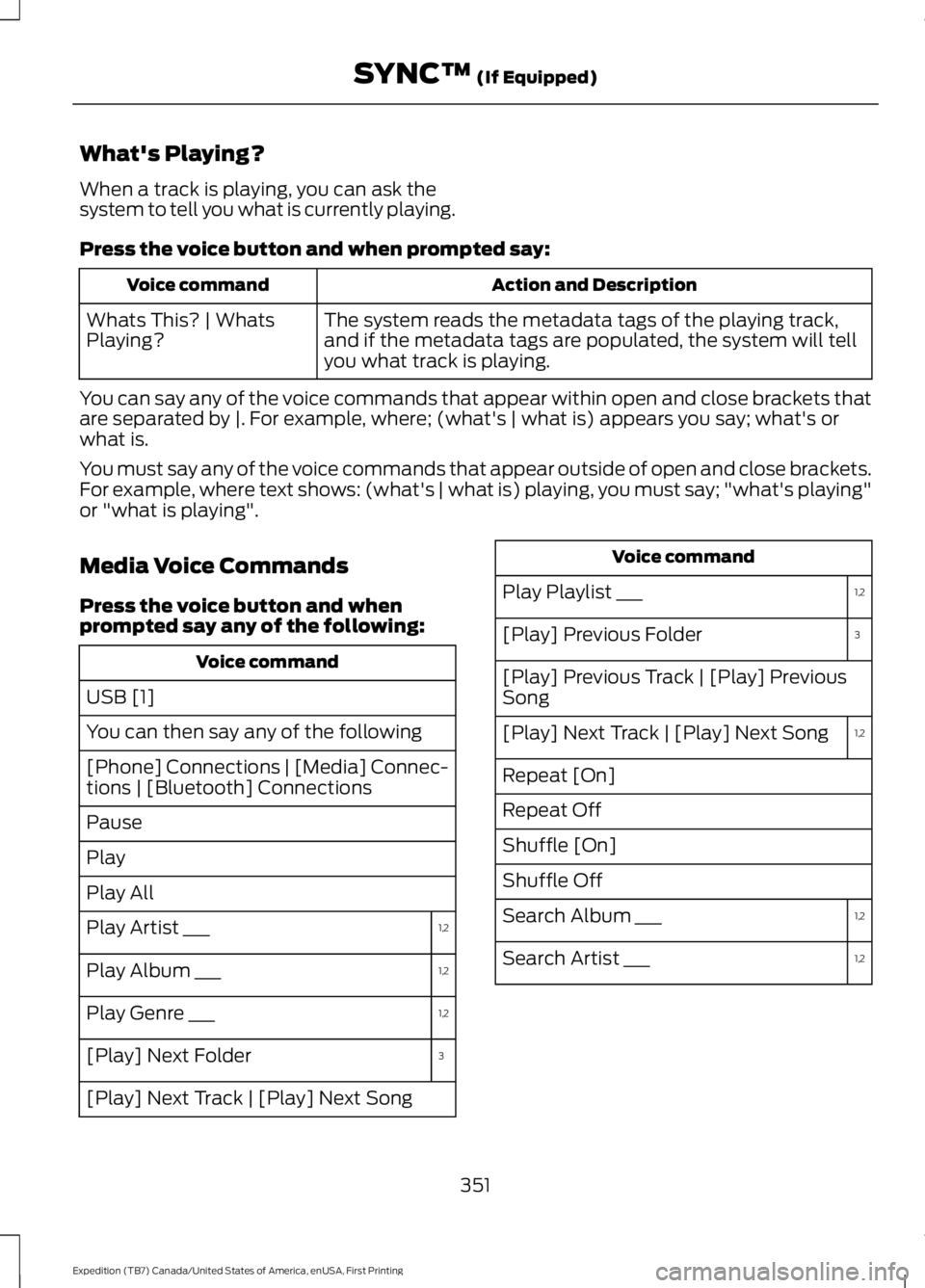
What's Playing?
When a track is playing, you can ask thesystem to tell you what is currently playing.
Press the voice button and when prompted say:
Action and DescriptionVoice command
The system reads the metadata tags of the playing track,and if the metadata tags are populated, the system will tellyou what track is playing.
Whats This? | WhatsPlaying?
You can say any of the voice commands that appear within open and close brackets thatare separated by |. For example, where; (what's | what is) appears you say; what's orwhat is.
You must say any of the voice commands that appear outside of open and close brackets.For example, where text shows: (what's | what is) playing, you must say; "what's playing"or "what is playing".
Media Voice Commands
Press the voice button and whenprompted say any of the following:
Voice command
USB [1]
You can then say any of the following
[Phone] Connections | [Media] Connec-tions | [Bluetooth] Connections
Pause
Play
Play All
1,2Play Artist ___
1,2Play Album ___
1,2Play Genre ___
3[Play] Next Folder
[Play] Next Track | [Play] Next Song
Voice command
1,2Play Playlist ___
3[Play] Previous Folder
[Play] Previous Track | [Play] PreviousSong
1,2[Play] Next Track | [Play] Next Song
Repeat [On]
Repeat Off
Shuffle [On]
Shuffle Off
1,2Search Album ___
1,2Search Artist ___
351
Expedition (TB7) Canada/United States of America, enUSA, First Printing
SYNC™ (If Equipped)
Page 355 of 421
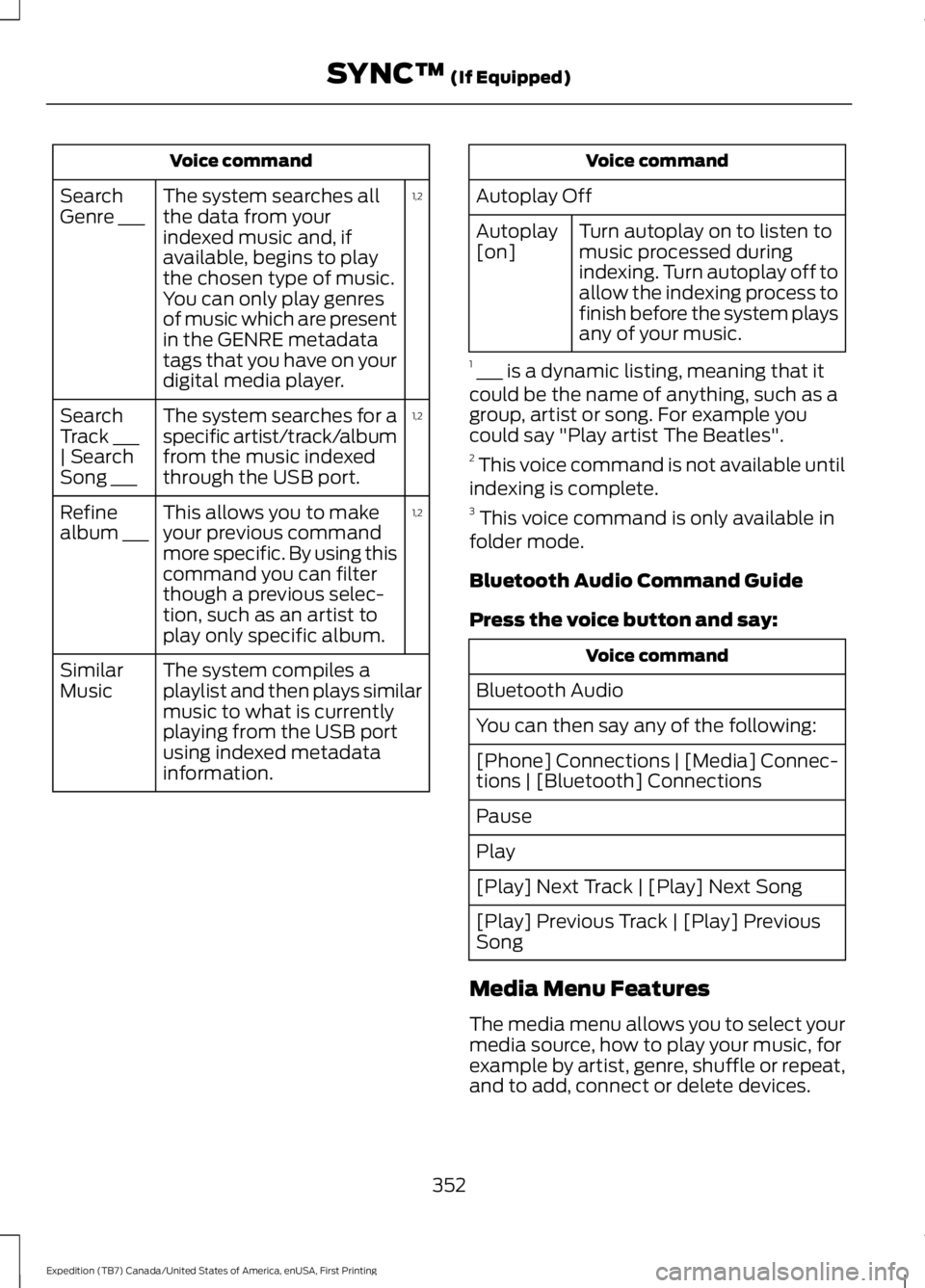
Voice command
1,2The system searches allthe data from yourindexed music and, ifavailable, begins to playthe chosen type of music.You can only play genresof music which are presentin the GENRE metadatatags that you have on yourdigital media player.
SearchGenre ___
1,2The system searches for aspecific artist/track/albumfrom the music indexedthrough the USB port.
SearchTrack ___| SearchSong ___
1,2This allows you to makeyour previous commandmore specific. By using thiscommand you can filterthough a previous selec-tion, such as an artist toplay only specific album.
Refinealbum ___
The system compiles aplaylist and then plays similarmusic to what is currentlyplaying from the USB portusing indexed metadatainformation.
SimilarMusic
Voice command
Autoplay Off
Turn autoplay on to listen tomusic processed duringindexing. Turn autoplay off toallow the indexing process tofinish before the system playsany of your music.
Autoplay[on]
1 ___ is a dynamic listing, meaning that itcould be the name of anything, such as agroup, artist or song. For example youcould say "Play artist The Beatles".2 This voice command is not available untilindexing is complete.3 This voice command is only available infolder mode.
Bluetooth Audio Command Guide
Press the voice button and say:
Voice command
Bluetooth Audio
You can then say any of the following:
[Phone] Connections | [Media] Connec-tions | [Bluetooth] Connections
Pause
Play
[Play] Next Track | [Play] Next Song
[Play] Previous Track | [Play] PreviousSong
Media Menu Features
The media menu allows you to select yourmedia source, how to play your music, forexample by artist, genre, shuffle or repeat,and to add, connect or delete devices.
352
Expedition (TB7) Canada/United States of America, enUSA, First Printing
SYNC™ (If Equipped)
Page 356 of 421
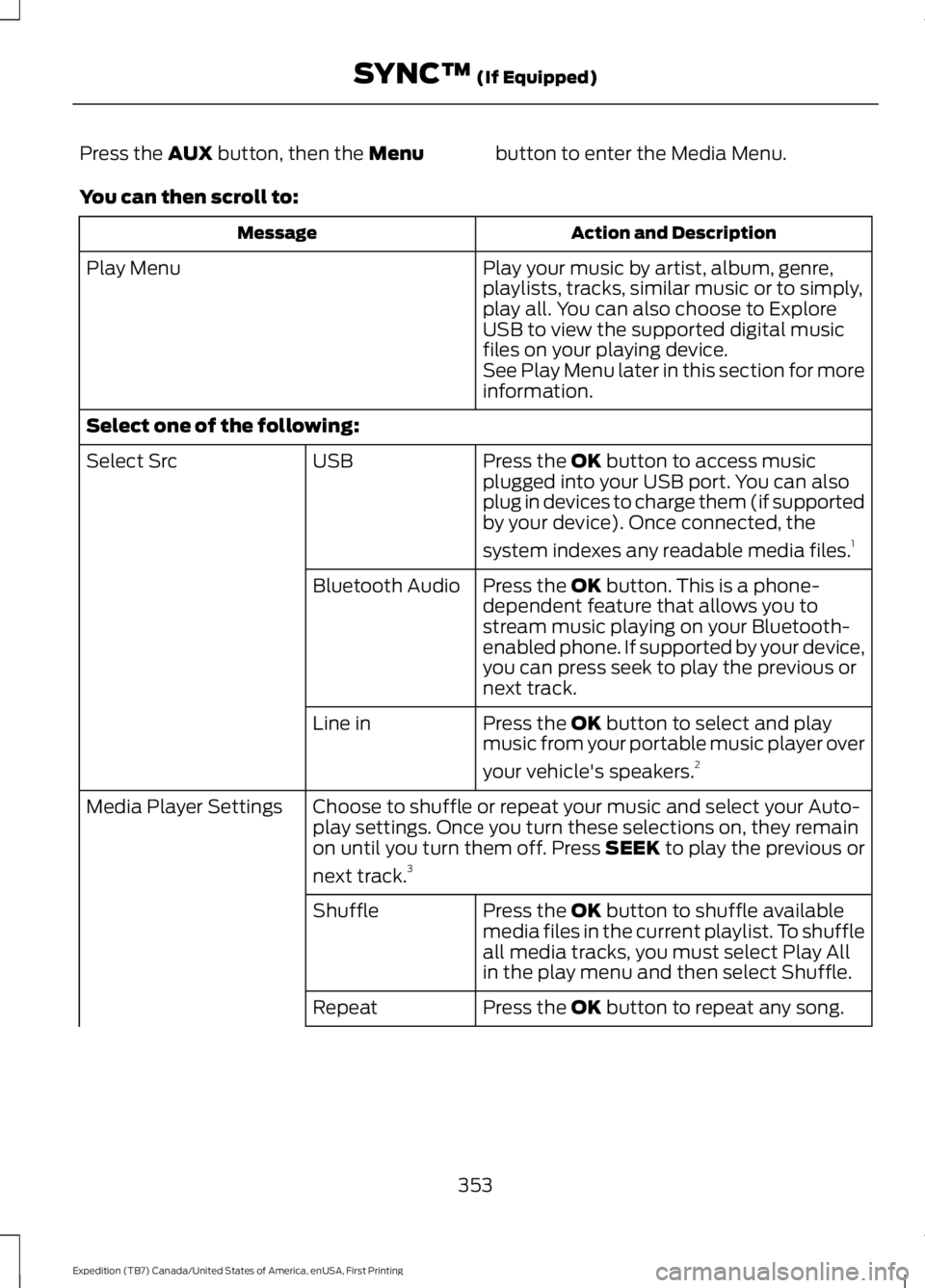
Press the AUX button, then the Menubutton to enter the Media Menu.
You can then scroll to:
Action and DescriptionMessage
Play your music by artist, album, genre,playlists, tracks, similar music or to simply,play all. You can also choose to ExploreUSB to view the supported digital musicfiles on your playing device.
Play Menu
See Play Menu later in this section for moreinformation.
Select one of the following:
Press the OK button to access musicplugged into your USB port. You can alsoplug in devices to charge them (if supportedby your device). Once connected, the
system indexes any readable media files.1
USBSelect Src
Press the OK button. This is a phone-dependent feature that allows you tostream music playing on your Bluetooth-enabled phone. If supported by your device,you can press seek to play the previous ornext track.
Bluetooth Audio
Press the OK button to select and playmusic from your portable music player over
your vehicle's speakers.2
Line in
Choose to shuffle or repeat your music and select your Auto-play settings. Once you turn these selections on, they remainon until you turn them off. Press SEEK to play the previous or
next track.3
Media Player Settings
Press the OK button to shuffle availablemedia files in the current playlist. To shuffleall media tracks, you must select Play Allin the play menu and then select Shuffle.
Shuffle
Press the OK button to repeat any song.Repeat
353
Expedition (TB7) Canada/United States of America, enUSA, First Printing
SYNC™ (If Equipped)
Page 357 of 421
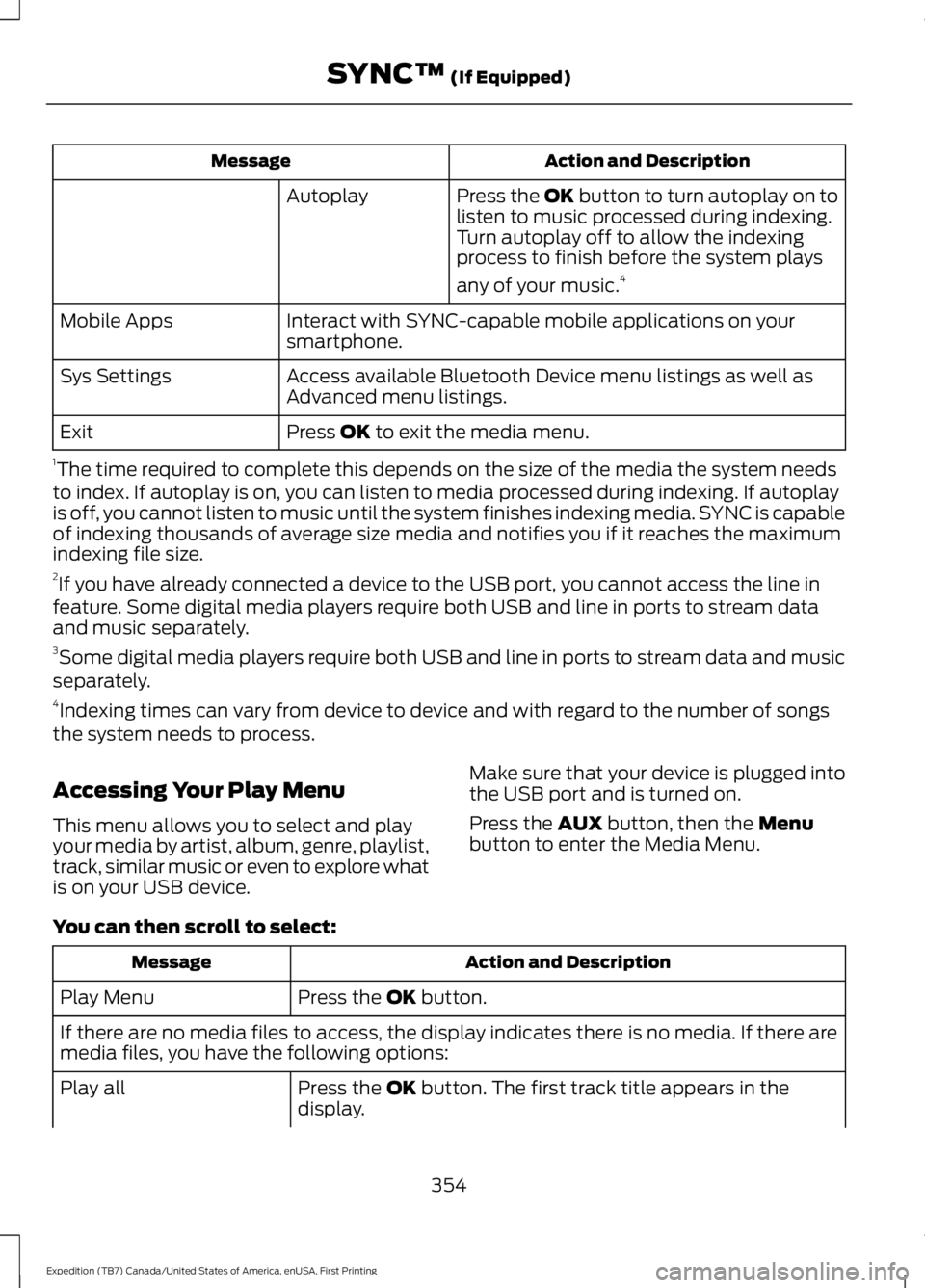
Action and DescriptionMessage
Press the OK button to turn autoplay on tolisten to music processed during indexing.Turn autoplay off to allow the indexingprocess to finish before the system plays
any of your music.4
Autoplay
Interact with SYNC-capable mobile applications on yoursmartphone.Mobile Apps
Access available Bluetooth Device menu listings as well asAdvanced menu listings.Sys Settings
Press OK to exit the media menu.Exit
1The time required to complete this depends on the size of the media the system needsto index. If autoplay is on, you can listen to media processed during indexing. If autoplayis off, you cannot listen to music until the system finishes indexing media. SYNC is capableof indexing thousands of average size media and notifies you if it reaches the maximumindexing file size.2If you have already connected a device to the USB port, you cannot access the line infeature. Some digital media players require both USB and line in ports to stream dataand music separately.3Some digital media players require both USB and line in ports to stream data and musicseparately.4Indexing times can vary from device to device and with regard to the number of songsthe system needs to process.
Accessing Your Play Menu
This menu allows you to select and playyour media by artist, album, genre, playlist,track, similar music or even to explore whatis on your USB device.
Make sure that your device is plugged intothe USB port and is turned on.
Press the AUX button, then the Menubutton to enter the Media Menu.
You can then scroll to select:
Action and DescriptionMessage
Press the OK button.Play Menu
If there are no media files to access, the display indicates there is no media. If there aremedia files, you have the following options:
Press the OK button. The first track title appears in thedisplay.Play all
354
Expedition (TB7) Canada/United States of America, enUSA, First Printing
SYNC™ (If Equipped)