audio FORD EXPEDITION EL 2016 Owner's Manual
[x] Cancel search | Manufacturer: FORD, Model Year: 2016, Model line: EXPEDITION EL, Model: FORD EXPEDITION EL 2016Pages: 421, PDF Size: 7.39 MB
Page 328 of 421
System data cannot be accessed withoutspecial equipment and access to thevehicle's SYNC module. Ford MotorCompany and Ford of Canada will notaccess the system data for any purposeother than as described absent consent, acourt order, or where required by lawenforcement, other governmentauthorities, or other third parties actingwith lawful authority. Other parties mayseek to access the informationindependently of Ford Motor Company andFord of Canada. For further privacyinformation, see the sections on 911 Assist,Vehicle Health Report, and Traffic,Directions and Information.
USING VOICE RECOGNITION
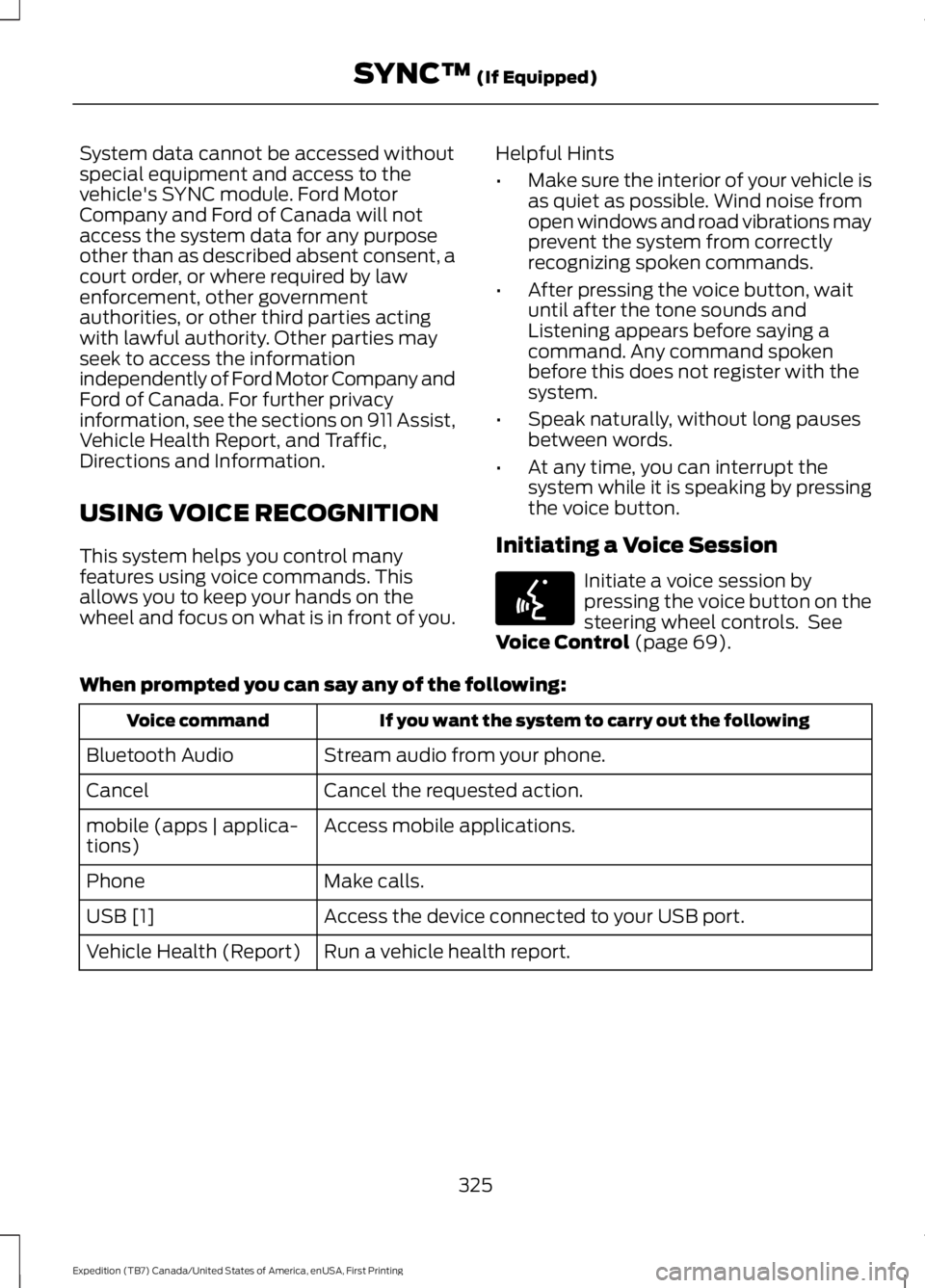
This system helps you control manyfeatures using voice commands. Thisallows you to keep your hands on thewheel and focus on what is in front of you.
Helpful Hints
•Make sure the interior of your vehicle isas quiet as possible. Wind noise fromopen windows and road vibrations mayprevent the system from correctlyrecognizing spoken commands.
•After pressing the voice button, waituntil after the tone sounds andListening appears before saying acommand. Any command spokenbefore this does not register with thesystem.
•Speak naturally, without long pausesbetween words.
•At any time, you can interrupt thesystem while it is speaking by pressingthe voice button.
Initiating a Voice Session
Initiate a voice session bypressing the voice button on thesteering wheel controls. SeeVoice Control (page 69).
When prompted you can say any of the following:
If you want the system to carry out the followingVoice command
Stream audio from your phone.Bluetooth Audio
Cancel the requested action.Cancel
Access mobile applications.mobile (apps | applica-tions)
Make calls.Phone
Access the device connected to your USB port.USB [1]
Run a vehicle health report.Vehicle Health (Report)
325
Expedition (TB7) Canada/United States of America, enUSA, First Printing
SYNC™ (If Equipped)E142599
Page 331 of 421
USING SYNC™ WITH YOUR
PHONE
Hands-free calling is one of the mainfeatures of SYNC. While the systemsupports a variety of features, many aredependent on your cell phone'sfunctionality. At a minimum, most cellphones with Bluetooth wireless technologysupport the following functions:
•Answering an incoming call.
•Ending a call.
•Using privacy mode.
•Dialing a number.
•Redialing.
•Call waiting notification.
•Caller ID.
Other features, such as text messagingusing Bluetooth and automatic phonebookdownload, are cell phone-dependentfeatures. To check your cell phone'scompatibility, see your cell phone's manualand visit www.SYNCMyRide.com,www.SYNCMyRide.ca orwww.syncmaroute.ca.
Pairing a Cell Phone for the FirstTime
Note:SYNC can support downloading upto approximately 1000 entries perBluetooth-enabled cell phone.
Note:Make sure to switch on the ignitionand the radio. Put the transmission inposition park (P) (automatic transmission)or neutral with the parking brake applied(manual transmission).
Note:To scroll through the menus, pressthe up and down arrows on your audiosystem.
Wirelessly pairing your cell phone withSYNC allows you to make and receivehands-free calls.
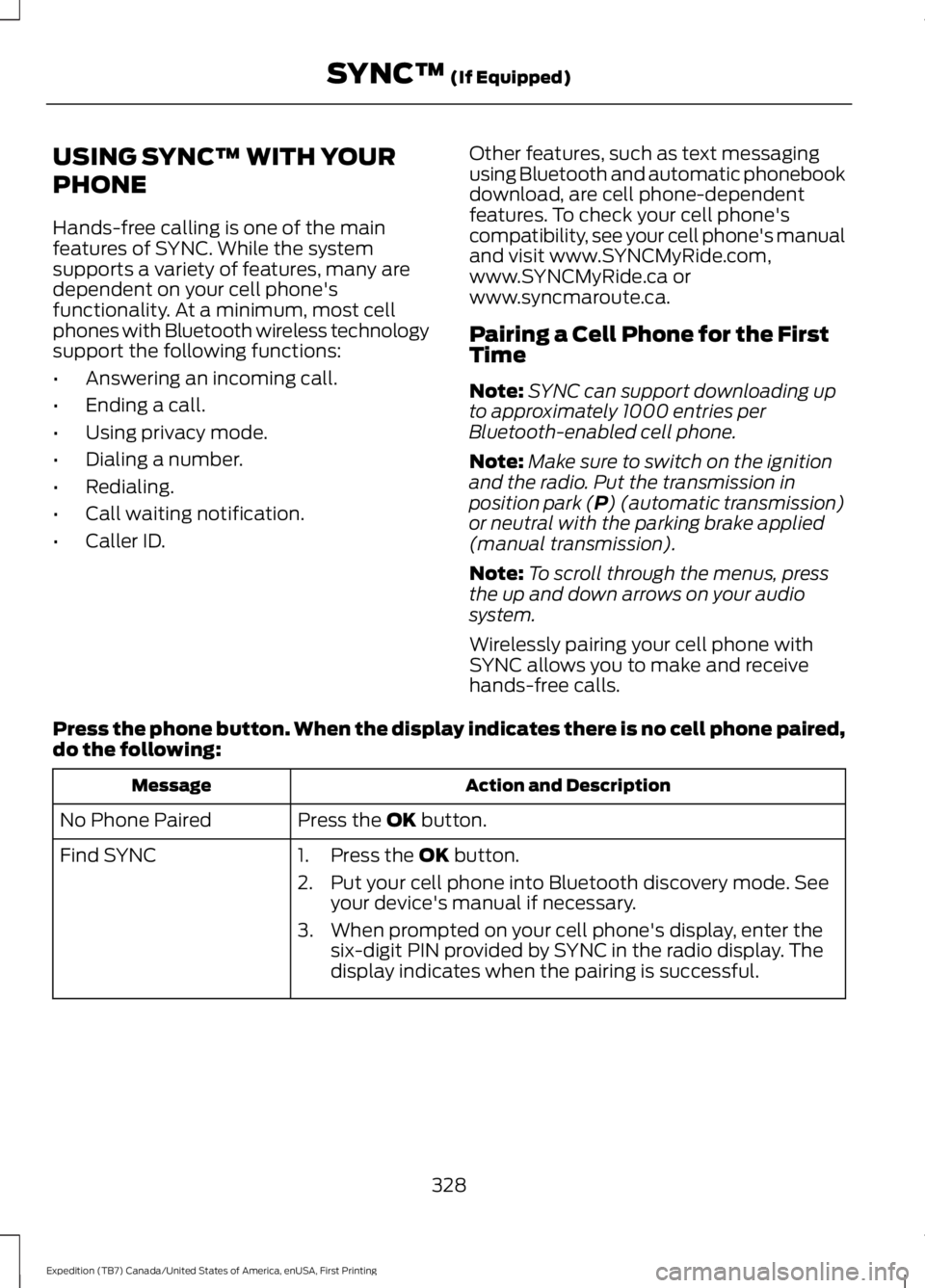
Press the phone button. When the display indicates there is no cell phone paired,do the following:
Action and DescriptionMessage
Press the OK button.No Phone Paired
Find SYNC1. Press the OK button.
2. Put your cell phone into Bluetooth discovery mode. Seeyour device's manual if necessary.
3. When prompted on your cell phone's display, enter thesix-digit PIN provided by SYNC in the radio display. Thedisplay indicates when the pairing is successful.
328
Expedition (TB7) Canada/United States of America, enUSA, First Printing
SYNC™ (If Equipped)
Page 332 of 421
Depending on your cell phone's capabilityand your market, the system may promptyou with questions, such as setting thecurrent cell phone as the primary cellphone (the cell phone SYNC automaticallytries to connect with first upon vehiclestart-up) and downloading yourphonebook.
Pairing Subsequent Cell Phones
Note:To scroll through the menus, pressthe up and down arrows on your audiosystem.
Note:Make sure to switch on the ignitionand the radio. Put the transmission inposition park (P) (automatic transmission)or neutral with the parking brake applied(manual transmission).
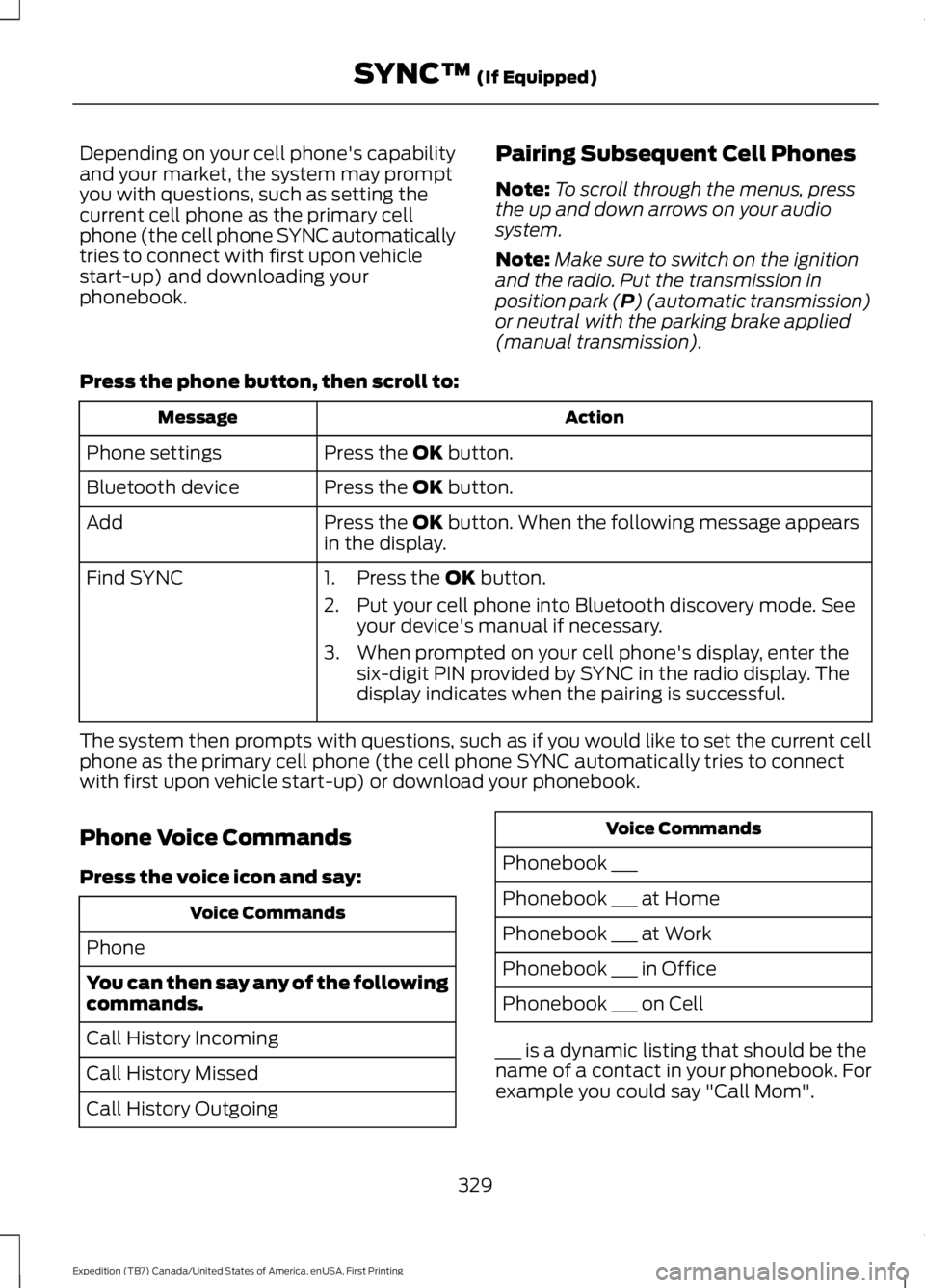
Press the phone button, then scroll to:
ActionMessage
Press the OK button.Phone settings
Press the OK button.Bluetooth device
Press the OK button. When the following message appearsin the display.Add
Find SYNC1. Press the OK button.
2. Put your cell phone into Bluetooth discovery mode. Seeyour device's manual if necessary.
3. When prompted on your cell phone's display, enter thesix-digit PIN provided by SYNC in the radio display. Thedisplay indicates when the pairing is successful.
The system then prompts with questions, such as if you would like to set the current cellphone as the primary cell phone (the cell phone SYNC automatically tries to connectwith first upon vehicle start-up) or download your phonebook.
Phone Voice Commands
Press the voice icon and say:
Voice Commands
Phone
You can then say any of the followingcommands.
Call History Incoming
Call History Missed
Call History Outgoing
Voice Commands
Phonebook ___
Phonebook ___ at Home
Phonebook ___ at Work
Phonebook ___ in Office
Phonebook ___ on Cell
___ is a dynamic listing that should be thename of a contact in your phonebook. Forexample you could say "Call Mom".
329
Expedition (TB7) Canada/United States of America, enUSA, First Printing
SYNC™ (If Equipped)
Page 350 of 421
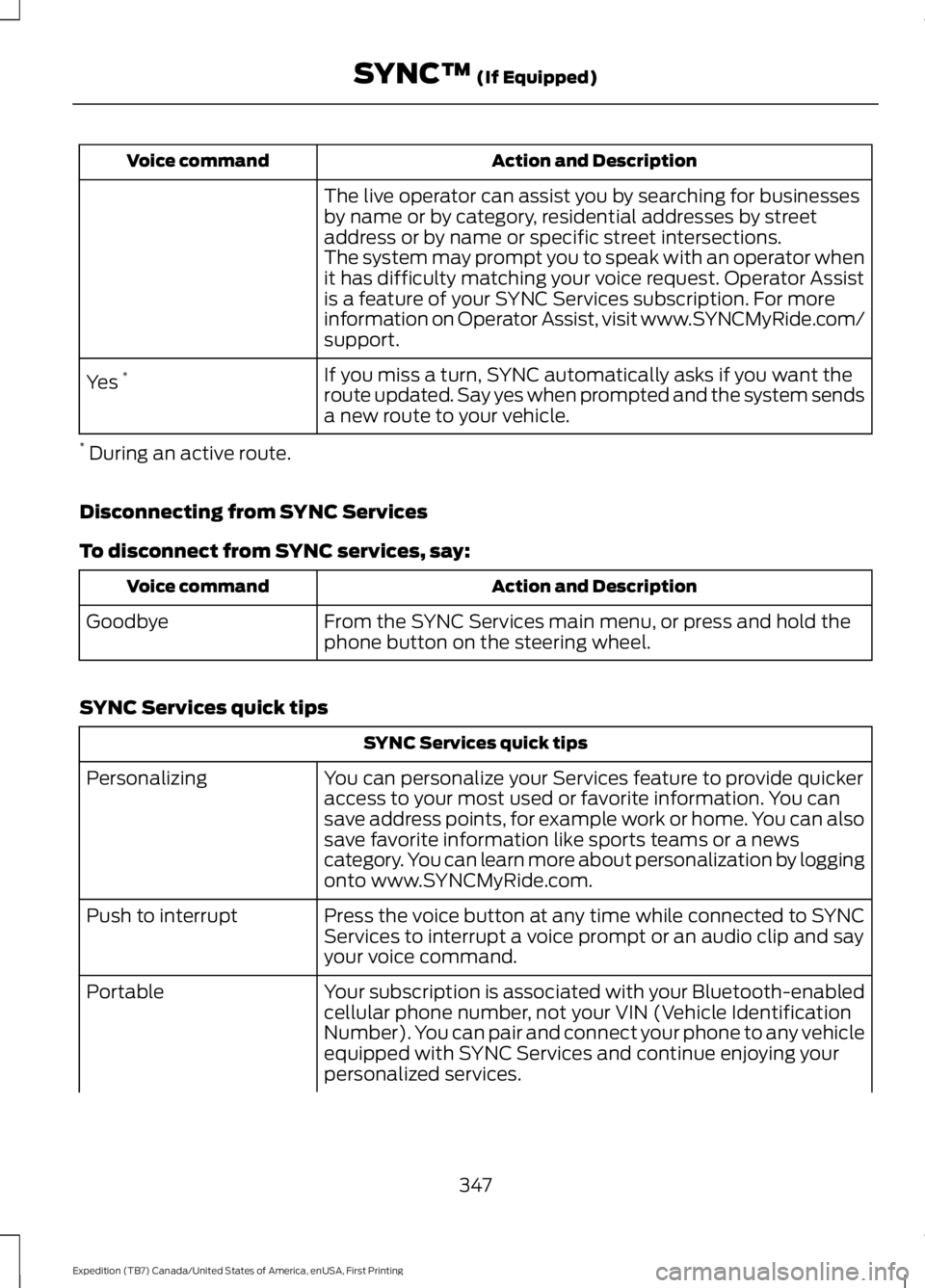
Action and DescriptionVoice command
The live operator can assist you by searching for businessesby name or by category, residential addresses by streetaddress or by name or specific street intersections.The system may prompt you to speak with an operator whenit has difficulty matching your voice request. Operator Assistis a feature of your SYNC Services subscription. For moreinformation on Operator Assist, visit www.SYNCMyRide.com/support.
If you miss a turn, SYNC automatically asks if you want theroute updated. Say yes when prompted and the system sendsa new route to your vehicle.
Yes *
* During an active route.
Disconnecting from SYNC Services
To disconnect from SYNC services, say:
Action and DescriptionVoice command
From the SYNC Services main menu, or press and hold thephone button on the steering wheel.Goodbye
SYNC Services quick tips
SYNC Services quick tips
You can personalize your Services feature to provide quickeraccess to your most used or favorite information. You cansave address points, for example work or home. You can alsosave favorite information like sports teams or a newscategory. You can learn more about personalization by loggingonto www.SYNCMyRide.com.
Personalizing
Press the voice button at any time while connected to SYNCServices to interrupt a voice prompt or an audio clip and sayyour voice command.
Push to interrupt
Your subscription is associated with your Bluetooth-enabledcellular phone number, not your VIN (Vehicle IdentificationNumber). You can pair and connect your phone to any vehicleequipped with SYNC Services and continue enjoying yourpersonalized services.
Portable
347
Expedition (TB7) Canada/United States of America, enUSA, First Printing
SYNC™ (If Equipped)
Page 352 of 421
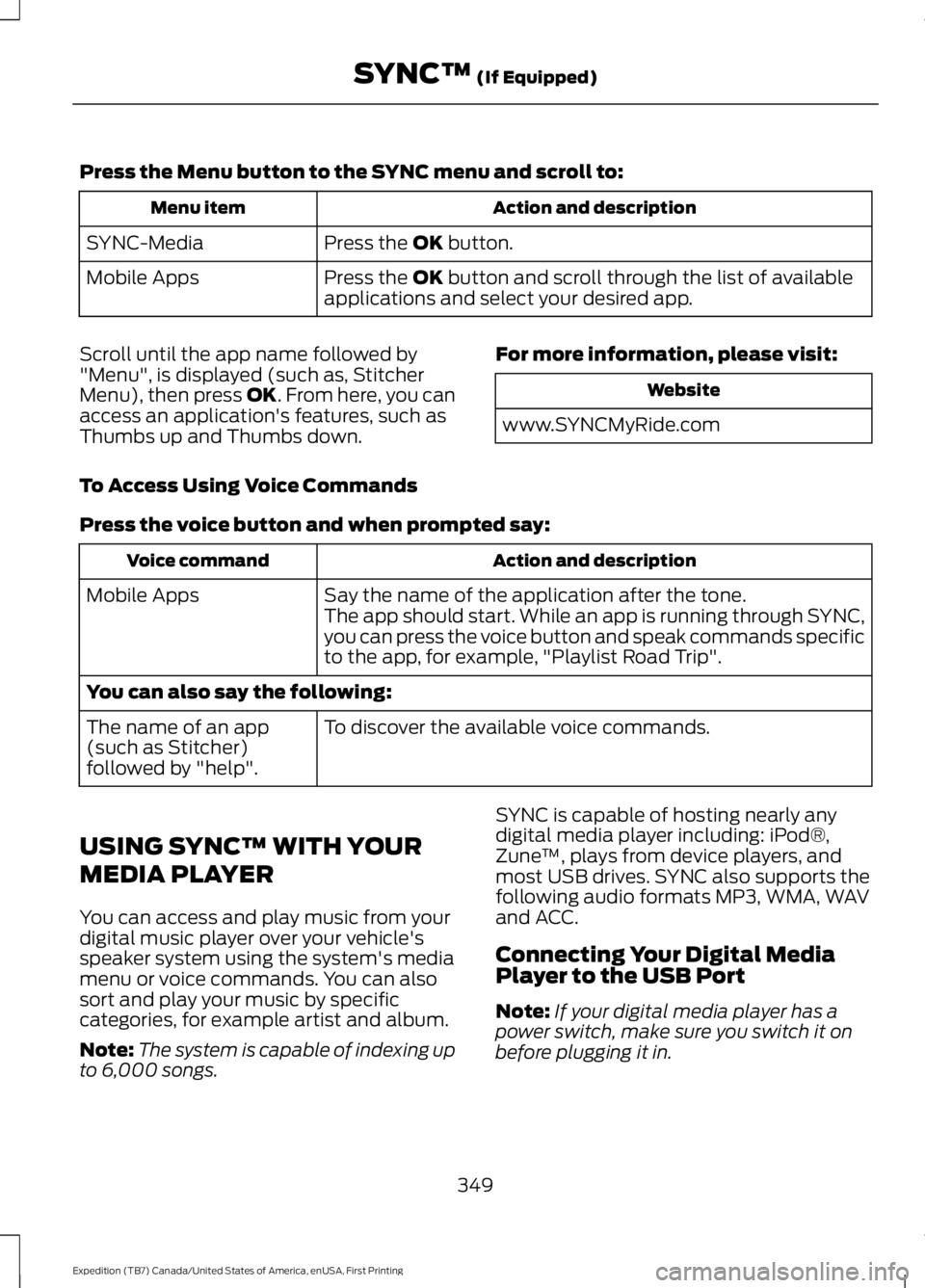
Press the Menu button to the SYNC menu and scroll to:
Action and descriptionMenu item
Press the OK button.SYNC-Media
Press the OK button and scroll through the list of availableapplications and select your desired app.Mobile Apps
Scroll until the app name followed by"Menu", is displayed (such as, StitcherMenu), then press OK. From here, you canaccess an application's features, such asThumbs up and Thumbs down.
For more information, please visit:
Website
www.SYNCMyRide.com
To Access Using Voice Commands
Press the voice button and when prompted say:
Action and descriptionVoice command
Say the name of the application after the tone.The app should start. While an app is running through SYNC,you can press the voice button and speak commands specificto the app, for example, "Playlist Road Trip".
Mobile Apps
You can also say the following:
To discover the available voice commands.The name of an app(such as Stitcher)followed by "help".
USING SYNC™ WITH YOUR
MEDIA PLAYER
You can access and play music from yourdigital music player over your vehicle'sspeaker system using the system's mediamenu or voice commands. You can alsosort and play your music by specificcategories, for example artist and album.
Note:The system is capable of indexing upto 6,000 songs.
SYNC is capable of hosting nearly anydigital media player including: iPod®,Zune™, plays from device players, andmost USB drives. SYNC also supports thefollowing audio formats MP3, WMA, WAVand ACC.
Connecting Your Digital MediaPlayer to the USB Port
Note:If your digital media player has apower switch, make sure you switch it onbefore plugging it in.
349
Expedition (TB7) Canada/United States of America, enUSA, First Printing
SYNC™ (If Equipped)
Page 355 of 421
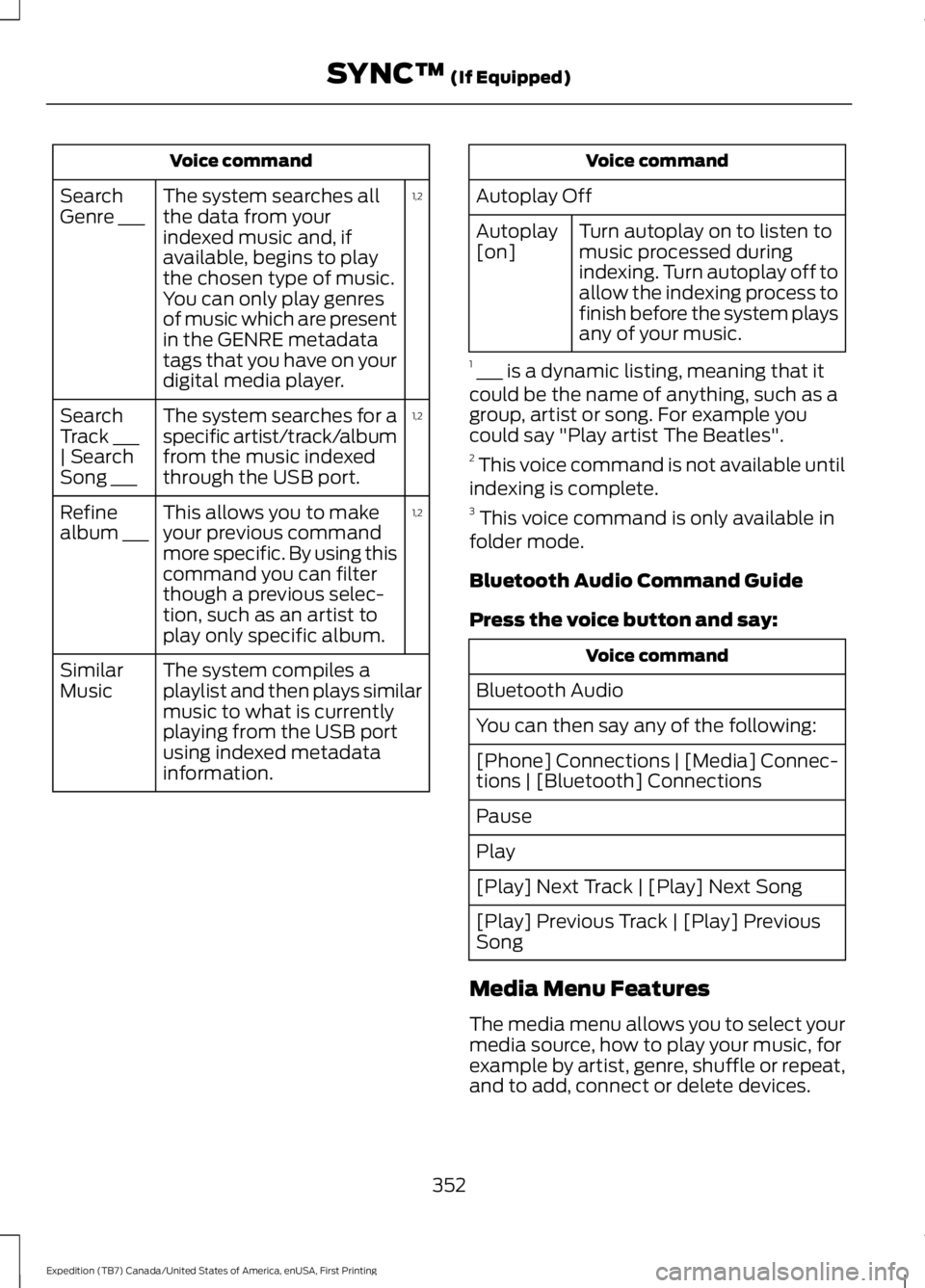
Voice command
1,2The system searches allthe data from yourindexed music and, ifavailable, begins to playthe chosen type of music.You can only play genresof music which are presentin the GENRE metadatatags that you have on yourdigital media player.
SearchGenre ___
1,2The system searches for aspecific artist/track/albumfrom the music indexedthrough the USB port.
SearchTrack ___| SearchSong ___
1,2This allows you to makeyour previous commandmore specific. By using thiscommand you can filterthough a previous selec-tion, such as an artist toplay only specific album.
Refinealbum ___
The system compiles aplaylist and then plays similarmusic to what is currentlyplaying from the USB portusing indexed metadatainformation.
SimilarMusic
Voice command
Autoplay Off
Turn autoplay on to listen tomusic processed duringindexing. Turn autoplay off toallow the indexing process tofinish before the system playsany of your music.
Autoplay[on]
1 ___ is a dynamic listing, meaning that itcould be the name of anything, such as agroup, artist or song. For example youcould say "Play artist The Beatles".2 This voice command is not available untilindexing is complete.3 This voice command is only available infolder mode.
Bluetooth Audio Command Guide
Press the voice button and say:
Voice command
Bluetooth Audio
You can then say any of the following:
[Phone] Connections | [Media] Connec-tions | [Bluetooth] Connections
Pause
Play
[Play] Next Track | [Play] Next Song
[Play] Previous Track | [Play] PreviousSong
Media Menu Features
The media menu allows you to select yourmedia source, how to play your music, forexample by artist, genre, shuffle or repeat,and to add, connect or delete devices.
352
Expedition (TB7) Canada/United States of America, enUSA, First Printing
SYNC™ (If Equipped)
Page 356 of 421
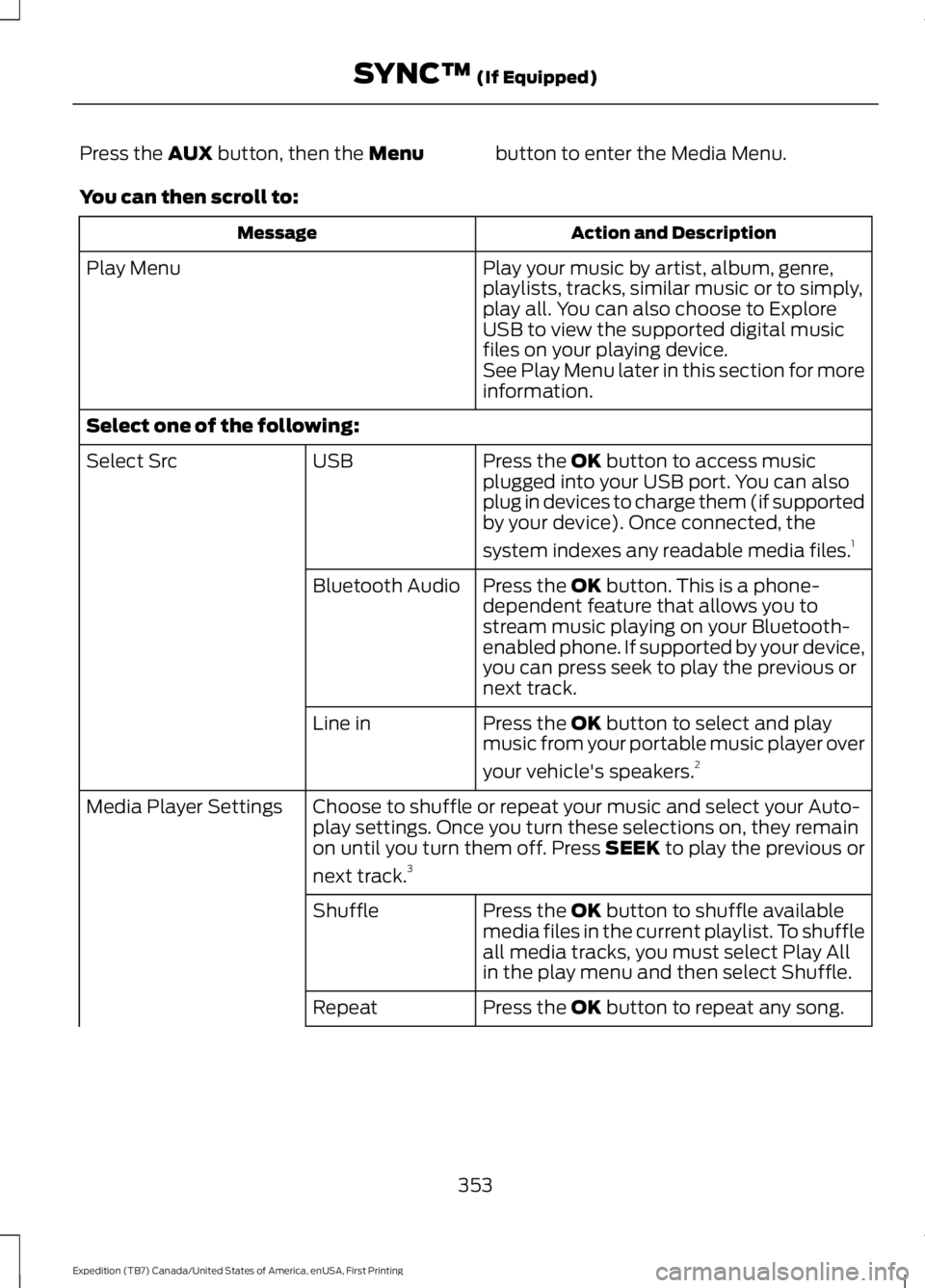
Press the AUX button, then the Menubutton to enter the Media Menu.
You can then scroll to:
Action and DescriptionMessage
Play your music by artist, album, genre,playlists, tracks, similar music or to simply,play all. You can also choose to ExploreUSB to view the supported digital musicfiles on your playing device.
Play Menu
See Play Menu later in this section for moreinformation.
Select one of the following:
Press the OK button to access musicplugged into your USB port. You can alsoplug in devices to charge them (if supportedby your device). Once connected, the
system indexes any readable media files.1
USBSelect Src
Press the OK button. This is a phone-dependent feature that allows you tostream music playing on your Bluetooth-enabled phone. If supported by your device,you can press seek to play the previous ornext track.
Bluetooth Audio
Press the OK button to select and playmusic from your portable music player over
your vehicle's speakers.2
Line in
Choose to shuffle or repeat your music and select your Auto-play settings. Once you turn these selections on, they remainon until you turn them off. Press SEEK to play the previous or
next track.3
Media Player Settings
Press the OK button to shuffle availablemedia files in the current playlist. To shuffleall media tracks, you must select Play Allin the play menu and then select Shuffle.
Shuffle
Press the OK button to repeat any song.Repeat
353
Expedition (TB7) Canada/United States of America, enUSA, First Printing
SYNC™ (If Equipped)
Page 362 of 421
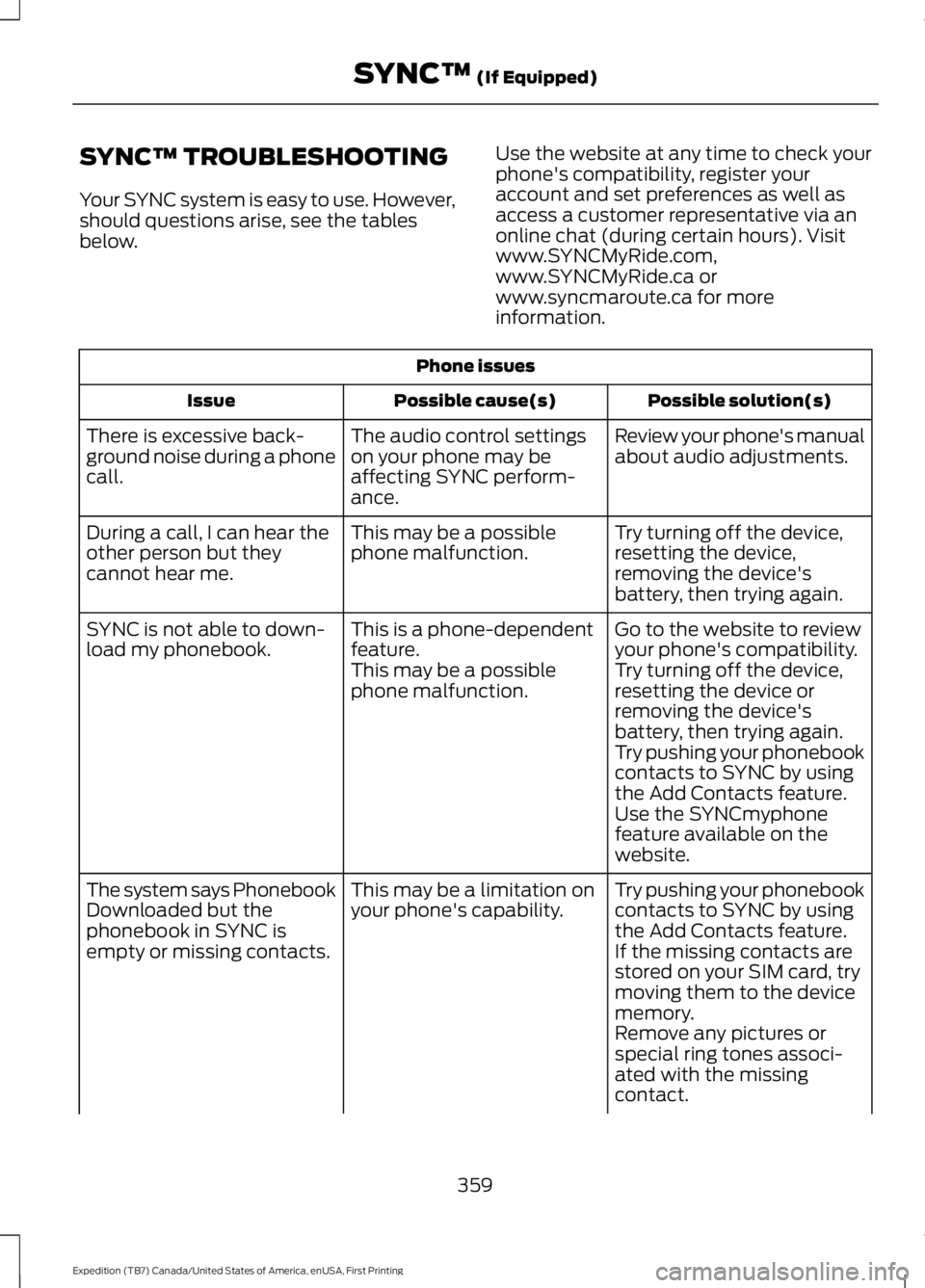
SYNC™ TROUBLESHOOTING
Your SYNC system is easy to use. However,should questions arise, see the tablesbelow.
Use the website at any time to check yourphone's compatibility, register youraccount and set preferences as well asaccess a customer representative via anonline chat (during certain hours). Visitwww.SYNCMyRide.com,www.SYNCMyRide.ca orwww.syncmaroute.ca for moreinformation.
Phone issues
Possible solution(s)Possible cause(s)Issue
Review your phone's manualabout audio adjustments.The audio control settingson your phone may beaffecting SYNC perform-ance.
There is excessive back-ground noise during a phonecall.
Try turning off the device,resetting the device,removing the device'sbattery, then trying again.
This may be a possiblephone malfunction.During a call, I can hear theother person but theycannot hear me.
Go to the website to reviewyour phone's compatibility.This is a phone-dependentfeature.SYNC is not able to down-load my phonebook.Try turning off the device,resetting the device orremoving the device'sbattery, then trying again.
This may be a possiblephone malfunction.
Try pushing your phonebookcontacts to SYNC by usingthe Add Contacts feature.Use the SYNCmyphonefeature available on thewebsite.
Try pushing your phonebookcontacts to SYNC by usingthe Add Contacts feature.
This may be a limitation onyour phone's capability.The system says PhonebookDownloaded but thephonebook in SYNC isempty or missing contacts.If the missing contacts arestored on your SIM card, trymoving them to the devicememory.Remove any pictures orspecial ring tones associ-ated with the missingcontact.
359
Expedition (TB7) Canada/United States of America, enUSA, First Printing
SYNC™ (If Equipped)
Page 364 of 421
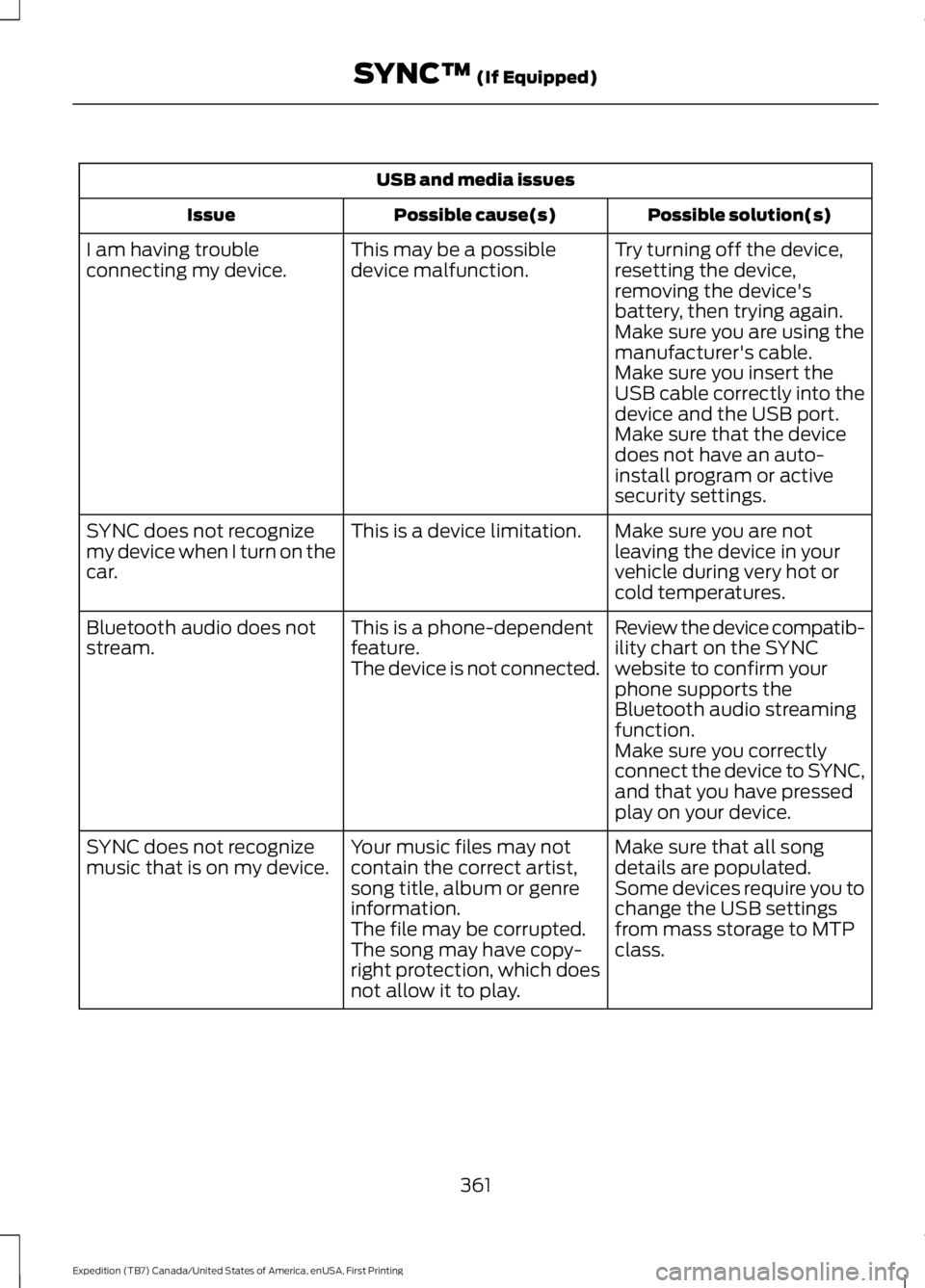
USB and media issues
Possible solution(s)Possible cause(s)Issue
Try turning off the device,resetting the device,removing the device'sbattery, then trying again.
This may be a possibledevice malfunction.I am having troubleconnecting my device.
Make sure you are using themanufacturer's cable.Make sure you insert theUSB cable correctly into thedevice and the USB port.Make sure that the devicedoes not have an auto-install program or activesecurity settings.
Make sure you are notleaving the device in yourvehicle during very hot orcold temperatures.
This is a device limitation.SYNC does not recognizemy device when I turn on thecar.
Review the device compatib-ility chart on the SYNCwebsite to confirm yourphone supports theBluetooth audio streamingfunction.
This is a phone-dependentfeature.The device is not connected.
Bluetooth audio does notstream.
Make sure you correctlyconnect the device to SYNC,and that you have pressedplay on your device.
Make sure that all songdetails are populated.Your music files may notcontain the correct artist,song title, album or genreinformation.
SYNC does not recognizemusic that is on my device.Some devices require you tochange the USB settingsfrom mass storage to MTPclass.The file may be corrupted.The song may have copy-right protection, which doesnot allow it to play.
361
Expedition (TB7) Canada/United States of America, enUSA, First Printing
SYNC™ (If Equipped)
Page 396 of 421
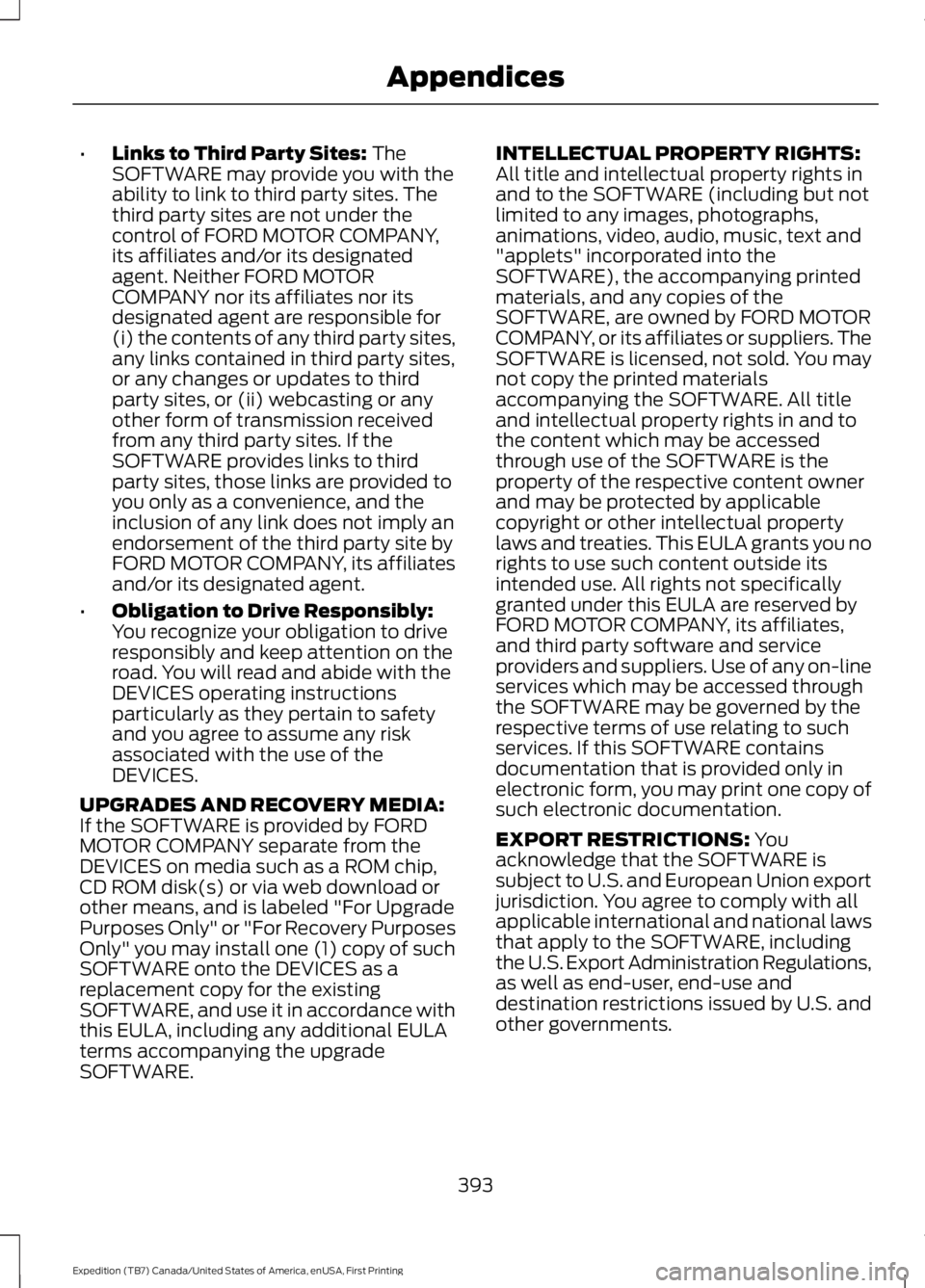
•Links to Third Party Sites: TheSOFTWARE may provide you with theability to link to third party sites. Thethird party sites are not under thecontrol of FORD MOTOR COMPANY,its affiliates and/or its designatedagent. Neither FORD MOTORCOMPANY nor its affiliates nor itsdesignated agent are responsible for(i) the contents of any third party sites,any links contained in third party sites,or any changes or updates to thirdparty sites, or (ii) webcasting or anyother form of transmission receivedfrom any third party sites. If theSOFTWARE provides links to thirdparty sites, those links are provided toyou only as a convenience, and theinclusion of any link does not imply anendorsement of the third party site byFORD MOTOR COMPANY, its affiliatesand/or its designated agent.
•Obligation to Drive Responsibly:You recognize your obligation to driveresponsibly and keep attention on theroad. You will read and abide with theDEVICES operating instructionsparticularly as they pertain to safetyand you agree to assume any riskassociated with the use of theDEVICES.
UPGRADES AND RECOVERY MEDIA:If the SOFTWARE is provided by FORDMOTOR COMPANY separate from theDEVICES on media such as a ROM chip,CD ROM disk(s) or via web download orother means, and is labeled "For UpgradePurposes Only" or "For Recovery PurposesOnly" you may install one (1) copy of suchSOFTWARE onto the DEVICES as areplacement copy for the existingSOFTWARE, and use it in accordance withthis EULA, including any additional EULAterms accompanying the upgradeSOFTWARE.
INTELLECTUAL PROPERTY RIGHTS:All title and intellectual property rights inand to the SOFTWARE (including but notlimited to any images, photographs,animations, video, audio, music, text and"applets" incorporated into theSOFTWARE), the accompanying printedmaterials, and any copies of theSOFTWARE, are owned by FORD MOTORCOMPANY, or its affiliates or suppliers. TheSOFTWARE is licensed, not sold. You maynot copy the printed materialsaccompanying the SOFTWARE. All titleand intellectual property rights in and tothe content which may be accessedthrough use of the SOFTWARE is theproperty of the respective content ownerand may be protected by applicablecopyright or other intellectual propertylaws and treaties. This EULA grants you norights to use such content outside itsintended use. All rights not specificallygranted under this EULA are reserved byFORD MOTOR COMPANY, its affiliates,and third party software and serviceproviders and suppliers. Use of any on-lineservices which may be accessed throughthe SOFTWARE may be governed by therespective terms of use relating to suchservices. If this SOFTWARE containsdocumentation that is provided only inelectronic form, you may print one copy ofsuch electronic documentation.
EXPORT RESTRICTIONS: Youacknowledge that the SOFTWARE issubject to U.S. and European Union exportjurisdiction. You agree to comply with allapplicable international and national lawsthat apply to the SOFTWARE, includingthe U.S. Export Administration Regulations,as well as end-user, end-use anddestination restrictions issued by U.S. andother governments.
393
Expedition (TB7) Canada/United States of America, enUSA, First Printing
Appendices