display FORD EXPEDITION EL 2017 Owners Manual
[x] Cancel search | Manufacturer: FORD, Model Year: 2017, Model line: EXPEDITION EL, Model: FORD EXPEDITION EL 2017Pages: 500, PDF Size: 6.13 MB
Page 397 of 500
Bluetooth Stereo or USB
Bluetooth Stereo and USB allow you to
access media that you store on yourBluetooth device or USB device such asmusic, audio books or podcasts.
The following buttons are available for Bluetooth and USB:
FunctionButton
Pressing the repeat button toggles the repeat setting throughthree modes: repeat off (button not highlighted), repeat all(button highlighted) and repeat track (button highlighted witha small number one).
Repeat
Play the tracks in random order.Shuffle
You can use the forward, reverse, pause orplay buttons to control the audio playback.
To get more information about thecurrently playing track, press the cover artor Info button.
For some devices, SYNC 3 is able toprovide 30-second skip buttons when youlisten to audio books or podcasts. Thesebuttons allow you to skip forward orbackward within a track.
While playing audio from a USB device youcan look for certain music by selecting thefollowing:
FunctionButton
If available, displays the list of tracks in theNow Playing playlist.Browse
This option, which is available underbrowse, allows you to play all tracks or tofilter the available media into one of thebelow categories.
New Search
Play All
Playlists
Artists
Albums
Songs
Genres
Podcasts
Audio books
394
Expedition (TB7) Canada/United States of America, enUSA, Edition date: 03/2016, First Printing
SYNC™ 3 (If Equipped)
Page 400 of 500
Note: The heated steering wheel may remain on after remote starting thevehicle, based on your remote start settings. The heated steering wheel mayalso turn on when you start your vehicle, if it was on when you switched yourvehicle off.
Note: For steering wheels with wood trim, the heating feature will not heat thewheel between the 10 and 2 o'clock positions.
Defrost: A pop up appears on the screen to display the defrost options.C
MAX Defrost: Touch the button to maximize defrosting. Air flows through thewindshield vents, the fan automatically adjusts to the highest speed and thedriver and passenger temperatures are set to HI. You can use this setting todefog or clear a thin covering of ice from the windshield. The heated rear windowalso automatically turns on when you select MAX Defrost.
Defrost: Distributes air through the windshield defroster vents and demistervents.
Heated rear window: Turns the heated rear window on and off. See HeatedWindows and Mirrors (page 120).
AUTO: Touch the button to switch on automatic operation. Select the desiredtemperature using the temperature control. The system adjusts fan speed, airdistribution, air conditioning operation, and selects outside air or recirculatedair to heat or cool the vehicle in order to maintain the desired temperature.
D
Power: Touch the button to switch the system on and off. Switching off theclimate control system prevents outside air from entering the vehicle.E
DUAL: This button lights up when the passenger controls are active. To switchthe off and link the passenger temperature to the driver temperature, touch theDUAL button.
F
Note: the passenger side temperature and the DUAL indication automaticallyturn on when you or your passenger adjust the passenger temperature.
Passenger temperature: Touch up or down to adjust the temperature.G
Fan speed: Touch up or down to increase or decrease the volume of air thatcirculates in your vehicle.H
Note: You cannot adjust the fan speed when the system is set to AUTO or MAXA/C.
Rear: A pop up appears on the screen to display the rear control options.I
Touch the power icon to switch the rear climate control functions off and on.
Touch Rear Climate to allow the rear seat passengers to adjust the rear climatesettings. Touch it again to prevent the rear seat passengers from adjusting thesettings. Rear Control automatically turns off when you use the touchscreento adjust the rear climate settings.
Touch + or – to adjust the temperature.
397
Expedition (TB7) Canada/United States of America, enUSA, Edition date: 03/2016, First Printing
SYNC™ 3 (If Equipped)
Page 401 of 500
To adjust fan speed, touch + or – next to the fan icon.
Touch Rear again to close the rear controls. Closing the rear climate controlfunctions does not affect their current settings.
Manual airflow distribution controls:J
Footwell and Defrost: Distributes air through the windshield defroster vents,demister vents, floor vents and rear seat floor vents, and provides outside airto reduce window fogging.
Panel: Distributes air through the instrument panel vents.
Floor: Distributes air through the demister vents, floor vents and rear seat floorvents.
Panel and Floor: Distributes air through the instrument panel vents, demistervents, floor vents and rear seat floor vents.
A/C: A pop-up appears on the screen to display the air conditioning options.K
MAX A/C: Touch the button to activate and maximize cooling. The driver andpassenger temperatures are set to LO, recirculated air flows through theinstrument panel vents, air conditioning automatically turns on and the fanautomatically adjusts to the highest speed.
A/C: Touch to switch the air conditioning on or off. Use A/C with recirculatedair to improve cooling performance and efficiency.
Note: In certain conditions (for example, Max Defrost), the air conditioningcompressor may continue to operate even when you switch the air conditioningA/C button off.
Recirculated air: Touch to switch the recirculated air on or off. Whenrecirculated air is on, it may reduce the amount of time needed to cool downthe interior (when used with A/C) and help reduce odors from reaching theinterior.
Note: Recirculatied air may turn off automatically (or the system may preventitfrom turning on) in all airflow modes except MAX A/C to reduce risk of fogging.It may also turn on and off automatically in Panel or Panel/Floor airflow modesduring hot weather in order to improve cooling efficiency.
398
Expedition (TB7) Canada/United States of America, enUSA, Edition date: 03/2016, First Printing
SYNC™ 3 (If Equipped)
Page 402 of 500
PHONE
WARNING
Driving while distracted can result inloss of vehicle control, crash andinjury. We strongly recommend thatyou use extreme caution when using anydevice that may take your focus off theroad. Your primary responsibility is the safeoperation of your vehicle. We recommendagainst the use of any hand-held devicewhile driving and encourage the use ofvoice-operated systems when possible.Make sure you are aware of all applicablelocal laws that may affect the use ofelectronic devices while driving.
Hands-free calling is one of the mainfeatures of the system. Once you pair yourcell phone, you can access many optionsusing the touchscreen or voice commands.While the system supports a variety offeatures, many are dependent on your cellphone’s functionality.
Pairing Your Cell Phone for theFirst Time
Pair your Bluetooth-enabled phone withthe system before using the functions inhands-free mode.
Switch on Bluetooth on your device tobegin pairing. See your phone’s manual ifnecessary.
To add a phone, select:
Menu Item
Add Phone
1. Follow the on-screen instructions.
2. A prompt alerts you to search for thesystem on your phone.
3. Select your vehicle's make and modelas it displays on your phone.
4. Confirm that the six-digit numberappearing on your phone matches thesix-digit number on the touchscreen.
5. The touchscreen indicates when thepairing is successful.
6. Your phone may prompt you to givethe system permission to accessinformation. To check your phone’scompatibility, see your phone’s manualor visit the website.
Alternatively, to add a phone, select:
Menu Item
Add Phone
Then select:
Discover Other Bluetooth Devices
1. Follow the on-screen instructions.
2. Select your phone's name when itappears on the touchscreen.
3. Confirm that the six-digit numberappearing on your phone matches thesix-digit number on the touchscreen.
4. The touchscreen indicates when thepairing is successful.
5. Your phone may prompt you to givethe system permission to accessinformation. To check your phone’scompatibility, see your phone’s manualor visit the website.
At a minimum, most cell phones withBluetooth wireless technology support thefollowing functions:
•Answering an incoming call.
•Ending a call.
•Dialing a number.
•Call waiting notification.
•Caller identification.
399
Expedition (TB7) Canada/United States of America, enUSA, Edition date: 03/2016, First Printing
SYNC™ 3 (If Equipped)
Page 403 of 500
Other features, such as text messagingusing Bluetooth and automatic phonebookdownload, are phone-dependent features.
To check your phone’s compatibility,see your phone’s manual or visit thewebsite:
Websites
owner.ford.com
Websites
www.syncmyride.cawww.syncmaroute.ca
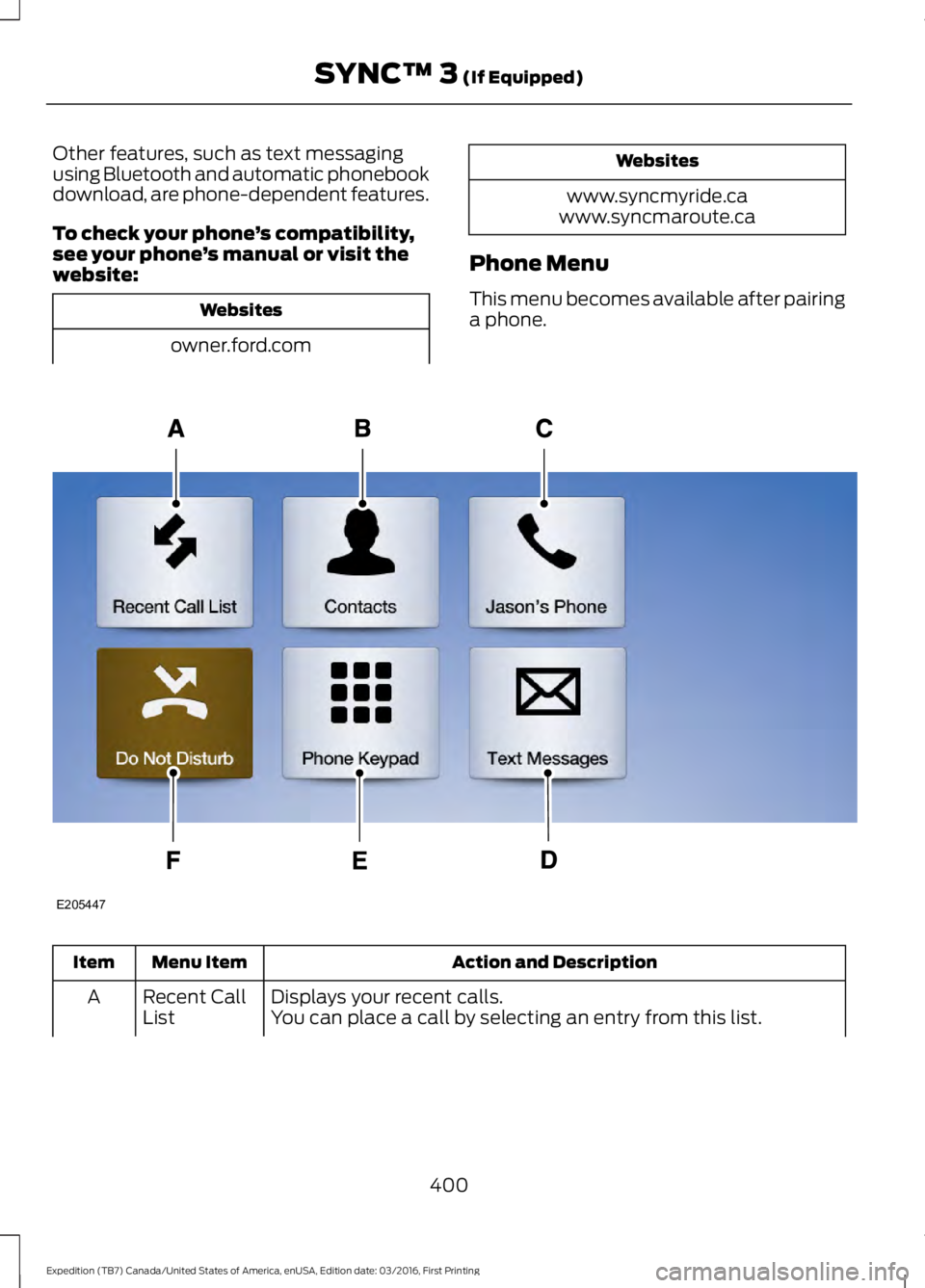
Phone Menu
This menu becomes available after pairinga phone.
Action and DescriptionMenu ItemItem
Displays your recent calls.Recent CallListAYou can place a call by selecting an entry from this list.
400
Expedition (TB7) Canada/United States of America, enUSA, Edition date: 03/2016, First Printing
SYNC™ 3 (If Equipped)E205447
Page 404 of 500
Action and DescriptionMenu ItemItem
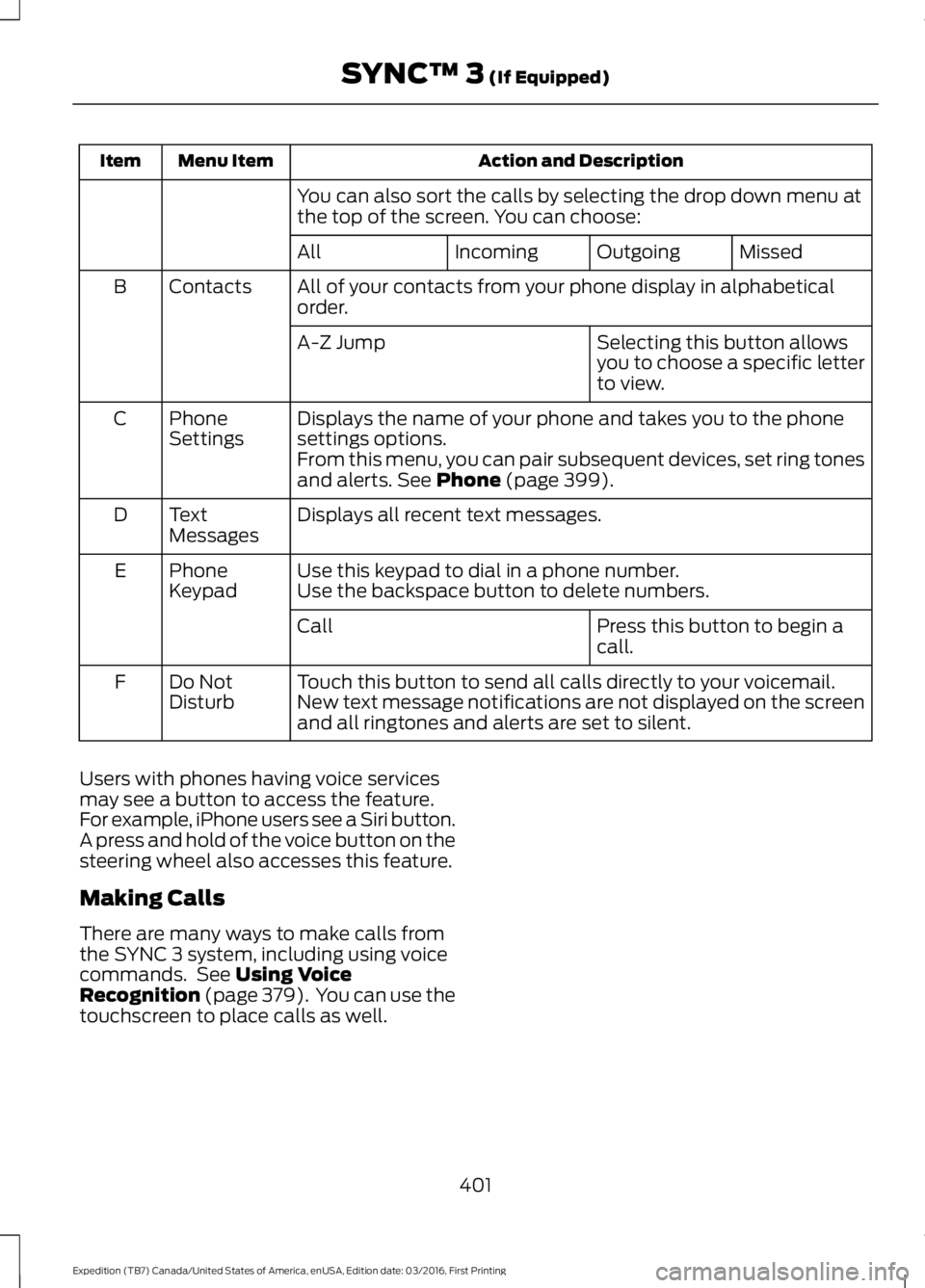
You can also sort the calls by selecting the drop down menu atthe top of the screen. You can choose:
MissedOutgoingIncomingAll
All of your contacts from your phone display in alphabeticalorder.ContactsB
Selecting this button allowsyou to choose a specific letterto view.
A-Z Jump
Displays the name of your phone and takes you to the phonesettings options.PhoneSettingsC
From this menu, you can pair subsequent devices, set ring tonesand alerts. See Phone (page 399).
Displays all recent text messages.TextMessagesD
Use this keypad to dial in a phone number.PhoneKeypadEUse the backspace button to delete numbers.
Press this button to begin acall.Call
Touch this button to send all calls directly to your voicemail.New text message notifications are not displayed on the screenand all ringtones and alerts are set to silent.
Do NotDisturbF
Users with phones having voice servicesmay see a button to access the feature.For example, iPhone users see a Siri button.A press and hold of the voice button on thesteering wheel also accesses this feature.
Making Calls
There are many ways to make calls fromthe SYNC 3 system, including using voicecommands. See Using VoiceRecognition (page 379). You can use thetouchscreen to place calls as well.
401
Expedition (TB7) Canada/United States of America, enUSA, Edition date: 03/2016, First Printing
SYNC™ 3 (If Equipped)
Page 405 of 500
To call a number in your contacts,select:
Action and DescriptionMenu Item
You can then select thename of the contact youwant to call. Any numbersstored for that contactdisplay along with anystored contact photos. Youcan then select thenumber that you want tocall. The system begins thecall.
Contacts
To call a number from your recent calls,select:
Action and DescriptionMenu Item
You can then select anentry that you want to call.The system begins the call.
Recent CallList
To call a number that is not stored inyour phone, select:
Action and DescriptionMenu Item
Select the digits of thenumber you wish to call.PhoneKeypad
The system begins the call.Call
Pressing the backspace button deletes thelast digit you typed.
Receiving Calls
During an incoming call, an audible tonesounds. Caller information appears in thedisplay if it is available.
To accept the call, select:
Menu Item
Accept
Note:You can also accept the call bypressing the phone button on the steeringwheel.
To reject the call, select:
Menu Item
Reject
Note:You can also reject the call bypressing the phone button on the steeringwheel.
Ignore the call by doing nothing. SYNC 3logs it as a missed call.
During a Phone Call
During a phone call, the contacts nameand number display on the screen alongwith the call duration.
The phone status items are also visible:
•Signal Strength.
•Battery.
•911 Assist (United States and CanadaOnly). See Phone (page 399).
You can select any of the following duringan active phone call:
402
Expedition (TB7) Canada/United States of America, enUSA, Edition date: 03/2016, First Printing
SYNC™ 3 (If Equipped)
Page 406 of 500
Item
Immediately end aphone call. You canalso press thebutton on thesteering wheel.
End Call
Press this to accessthe phone keypad.Keypad
You can switch themicrophone off sothe caller does nothear you.
Mute
Item
PrivacyTransfer the call tothe cell phone orback to SYNC 3.
Text Messaging
Note:Downloading and sending textmessages using Bluetooth are cellphone-dependent features.
Note:Certain features in text messagingare speed-dependent and not availablewhen your vehicle is traveling at speeds over3 mph (5 km/h).
Receiving a Text Message
When a new message arrives, an audible tone sounds and the screen displays apop-up with the caller name and ID, if supported by your cell phone. You can select:
Action and DescriptionMenu Item
Have SYNC 3 read the message to you.Hear It
View the text on the touchscreen.View
To call the sender.Call
You can select from 15 preset messages. Press the messagethat you would like to use and confirm to send the message.SYNC 3 confirms when the message is sent successfully.
Reply
To exit the screen.Close
Smartphone Connectivity (If Equipped)
SYNC 3 allows you to use Apple CarPlayand Android Auto to access your phone.
When you use Apple CarPlay or AndroidAuto, you can:
•Make calls.
•Send and receive messages.
•Listen to music.
•Use your phone's voice assistant.
Apple CarPlay and Android Auto disablesome SYNC 3 features.
Most Apple CarPlay and Android Autofeatures use mobile data.
Apple CarPlay
Apple CarPlay requires an iPhone 5 ornewer with iOS 7.1 or newer. Updating tothe latest iOS version is recommended.
1. Plug your phone into a USB port. SeeUSB Port (page 323).
403
Expedition (TB7) Canada/United States of America, enUSA, Edition date: 03/2016, First Printing
SYNC™ 3 (If Equipped)
Page 408 of 500
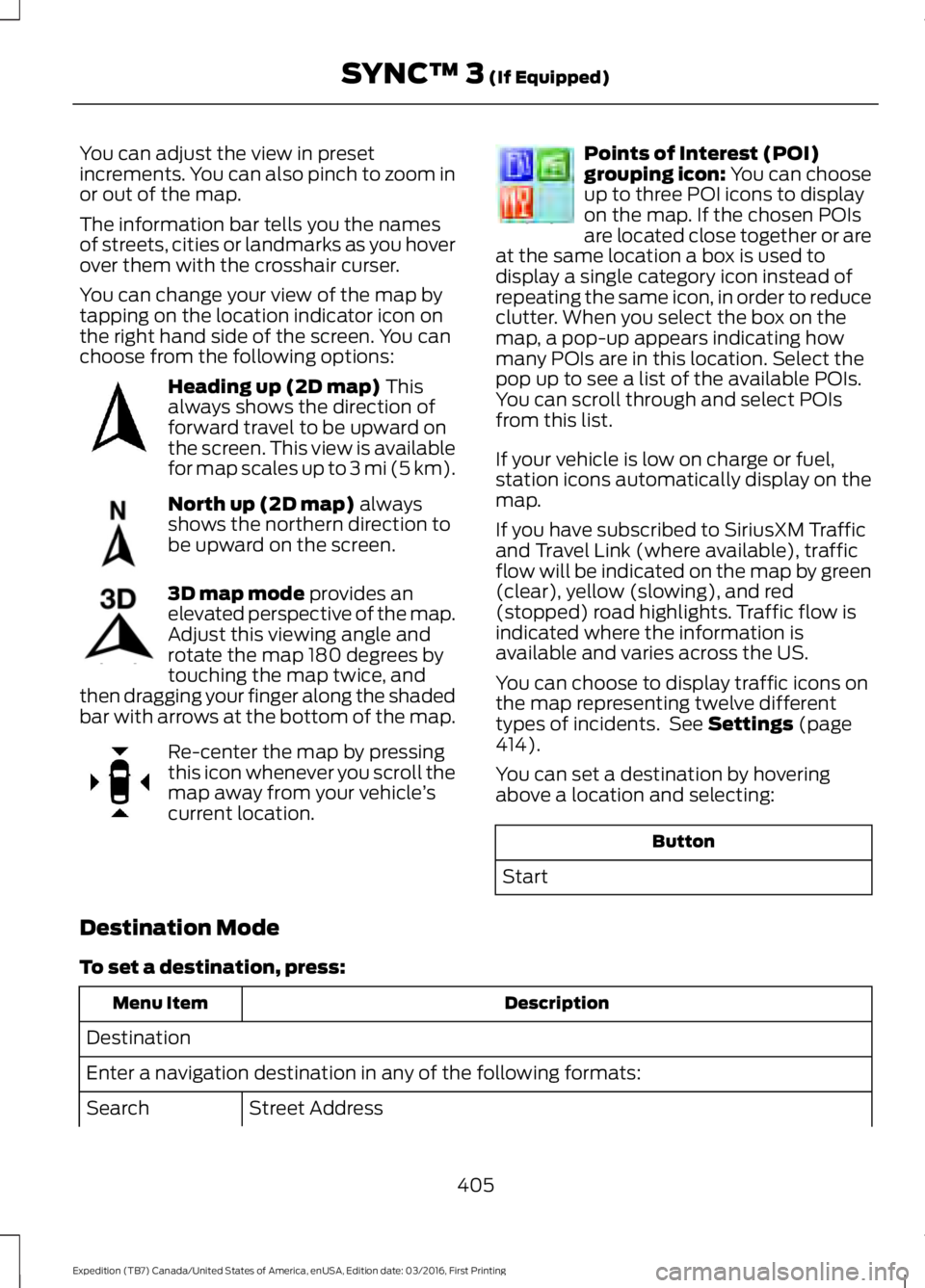
You can adjust the view in presetincrements. You can also pinch to zoom inor out of the map.
The information bar tells you the namesof streets, cities or landmarks as you hoverover them with the crosshair curser.
You can change your view of the map bytapping on the location indicator icon onthe right hand side of the screen. You canchoose from the following options:
Heading up (2D map) Thisalways shows the direction offorward travel to be upward onthe screen. This view is availablefor map scales up to 3 mi (5 km).
North up (2D map) alwaysshows the northern direction tobe upward on the screen.
3D map mode provides anelevated perspective of the map.Adjust this viewing angle androtate the map 180 degrees bytouching the map twice, andthen dragging your finger along the shadedbar with arrows at the bottom of the map.
Re-center the map by pressingthis icon whenever you scroll themap away from your vehicle’scurrent location.
Points of Interest (POI)grouping icon: You can chooseup to three POI icons to displayon the map. If the chosen POIsare located close together or areat the same location a box is used todisplay a single category icon instead ofrepeating the same icon, in order to reduceclutter. When you select the box on themap, a pop-up appears indicating howmany POIs are in this location. Select thepop up to see a list of the available POIs.You can scroll through and select POIsfrom this list.
If your vehicle is low on charge or fuel,station icons automatically display on themap.
If you have subscribed to SiriusXM Trafficand Travel Link (where available), trafficflow will be indicated on the map by green(clear), yellow (slowing), and red(stopped) road highlights. Traffic flow isindicated where the information isavailable and varies across the US.
You can choose to display traffic icons onthe map representing twelve differenttypes of incidents. See Settings (page414).
You can set a destination by hoveringabove a location and selecting:
Button
Start
Destination Mode
To set a destination, press:
DescriptionMenu Item
Destination
Enter a navigation destination in any of the following formats:
Street AddressSearch
405
Expedition (TB7) Canada/United States of America, enUSA, Edition date: 03/2016, First Printing
SYNC™ 3 (If Equipped)E207750 E207749 E207748 E207751 E207754
Page 409 of 500
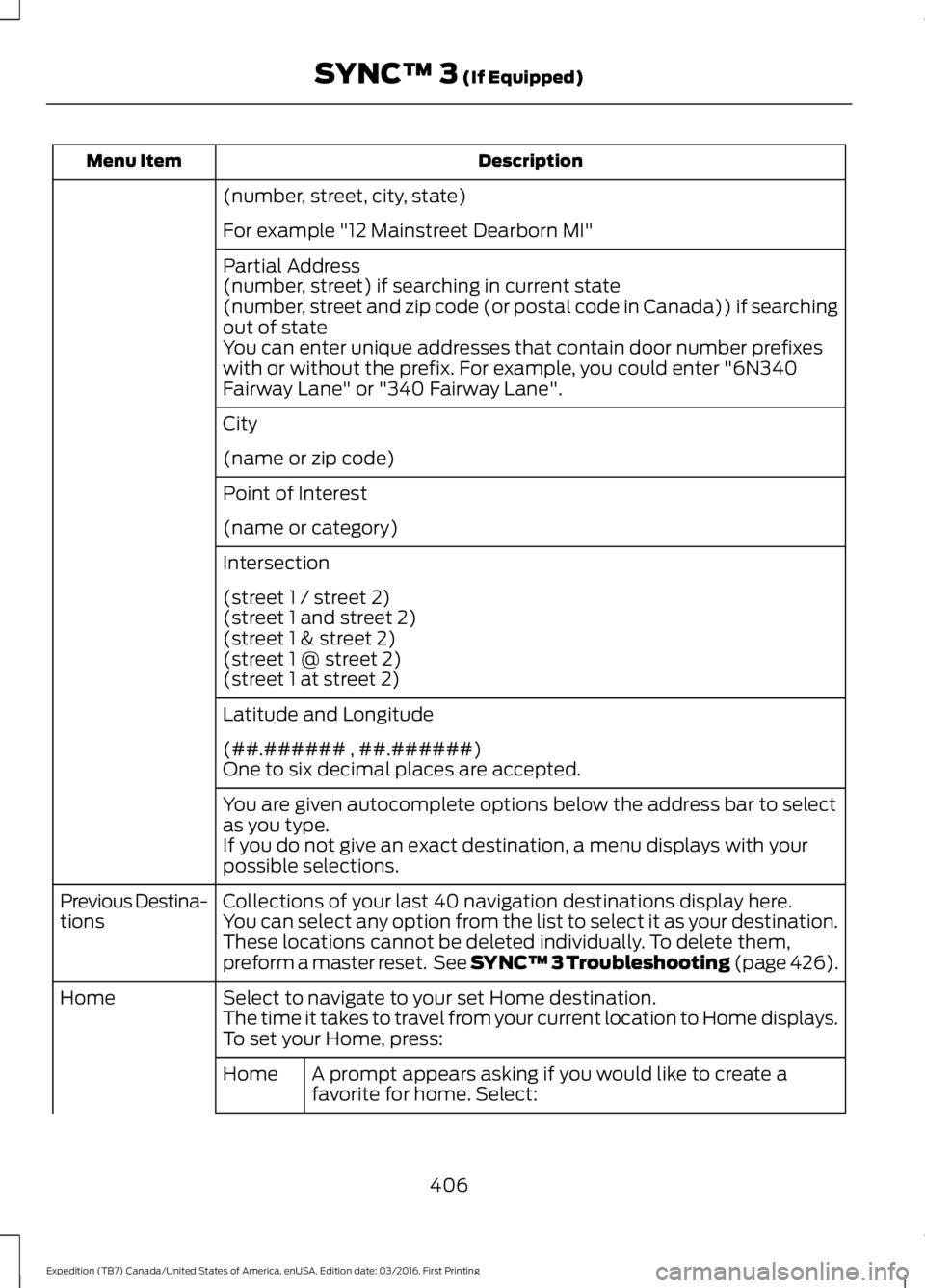
DescriptionMenu Item
(number, street, city, state)
For example "12 Mainstreet Dearborn MI"
Partial Address(number, street) if searching in current state(number, street and zip code (or postal code in Canada)) if searchingout of stateYou can enter unique addresses that contain door number prefixeswith or without the prefix. For example, you could enter "6N340Fairway Lane" or "340 Fairway Lane".
City
(name or zip code)
Point of Interest
(name or category)
Intersection
(street 1 / street 2)(street 1 and street 2)(street 1 & street 2)(street 1 @ street 2)(street 1 at street 2)
Latitude and Longitude
(##.###### , ##.######)One to six decimal places are accepted.
You are given autocomplete options below the address bar to selectas you type.If you do not give an exact destination, a menu displays with yourpossible selections.
Collections of your last 40 navigation destinations display here.Previous Destina-tionsYou can select any option from the list to select it as your destination.These locations cannot be deleted individually. To delete them,preform a master reset. See SYNC™ 3 Troubleshooting (page 426).
Select to navigate to your set Home destination.HomeThe time it takes to travel from your current location to Home displays.To set your Home, press:
A prompt appears asking if you would like to create afavorite for home. Select:Home
406
Expedition (TB7) Canada/United States of America, enUSA, Edition date: 03/2016, First Printing
SYNC™ 3 (If Equipped)