CD player FORD EXPEDITION EL 2017 User Guide
[x] Cancel search | Manufacturer: FORD, Model Year: 2017, Model line: EXPEDITION EL, Model: FORD EXPEDITION EL 2017Pages: 500, PDF Size: 6.13 MB
Page 358 of 500
![FORD EXPEDITION EL 2017 User Guide Voice Command
*Sirius
(USB [stick] | iPod | MP3 [player])
((who's | who is) this | who plays this |(what's | what is) playing [now] | (what| which) (song | track | artist) is this |(who's](/img/11/58755/w960_58755-357.png "FORD EXPEDITION EL 2017 User Guide Voice Command
*Sirius
(USB [stick] | iPod | MP3 [player])
((who's | who is) this | who plays this |(what's | what is) playing [now] | (what| which) (song | track | artist) is this |(who's")
Voice Command
*Sirius
(USB [stick] | iPod | MP3 [player])
((who's | who is) this | who plays this |(what's | what is) playing [now] | (what| which) (song | track | artist) is this |(who's | who is) playing | (what's | whatis) this)
help
* If equipped.
Radio Voice Commands
If you are listening to the radio,press the voice button, and thensay any of the commands in thefollowing table.
If you are not listening to the radio,press the voice button and, after thetone, say:
Voice Command
Radio
You can then say any of the followingcommands.
[tune [to]] AM
[tune [to]] AM1
[tune [to]] AM (autostore | AST |autoset)
[tune [to]] AM 2
[tune [to]] (AM ___ | ___ [AM])
[tune [to]] AM preset ___
[tune [to]] AM1 preset ___
[tune [to]] FM
[tune [to]] FM1
Voice Command
[tune [to]] FM (autostore | AST |autoset) preset ___
[tune [to]] FM 2
[tune [to]] (FM ___ | ___ [FM])
[tune [to]] FM preset ___
*FM ___ HD ___
[tune [to]] FM 2 preset ___
*HD ___
[tune [to]] preset ___
Tune
help
* If equipped.
Sirius Satellite Radio Voice Commands(If equipped)
To listen to Sirius satellite radio,press the voice button and, afterthe tone, say:
Voice Commands
Sirius
When you are listening to Siriussatellite radio, you can press the voicebutton, and say any of the commandsin the following table.
Voice Commands
tune [to] SAT
[tune [to]] SAT 1
[tune [to]] SAT 2
[tune [to]] SAT 3
355
Expedition (TB7) Canada/United States of America, enUSA, Edition date: 03/2016, First Printing
SYNC™ (If Equipped)E142599 E142599
Page 359 of 500
![FORD EXPEDITION EL 2017 User Guide Voice Commands
[tune [to]] preset ___
[tune [to]] SAT 1 preset ___
[tune [to]] SAT 2 preset ___
[tune [to]] SAT 3 preset ___
tune [to] [Sirius]
Help
You can say thechannel number (0-233) to listen to](/img/11/58755/w960_58755-358.png "FORD EXPEDITION EL 2017 User Guide Voice Commands
[tune [to]] preset ___
[tune [to]] SAT 1 preset ___
[tune [to]] SAT 2 preset ___
[tune [to]] SAT 3 preset ___
tune [to] [Sirius]
Help
You can say thechannel number (0-233) to listen to")
Voice Commands
[tune [to]] preset ___
[tune [to]] SAT 1 preset ___
[tune [to]] SAT 2 preset ___
[tune [to]] SAT 3 preset ___
tune [to] [Sirius]
Help
You can say thechannel number (0-233) to listen to thatSirius station.
[tune [to]] Sirius[channel] ___
CD Voice Commands
If you are listening to a CD, pressthe voice button, and then sayany of the commands in thefollowing table.
If you are not listening to a CD, pressthe voice button and, after the tone,say:
Voice Command
(disc | CD [player]) play
You can then say any of the followingcommands.
pause
play
Voice Command
[play] next track
[play] previous track
[play | change to] track [number] ___
repeat (track | song) [on]
repeat folder [on]
repeat off
(shuffle | random | mix) [on | (tracks |songs) [on]]
(shuffle | random | mix) (CD [player] |disc) [on]
(shuffle | random | mix) folder [on]
shuffle off
SYNC™ TROUBLESHOOTING
Your SYNC system is easy to use. However,should questions arise, see the tablesbelow.
Use the website at any time to check yourphone's compatibility, register youraccount and set preferences as well asaccess a customer representative via anonline chat (during certain hours). Visitwww.SYNCMyRide.com,www.SYNCMyRide.ca orwww.syncmaroute.ca for moreinformation.
356
Expedition (TB7) Canada/United States of America, enUSA, Edition date: 03/2016, First Printing
SYNC™ (If Equipped)E142599
Page 380 of 500
When Wi-Fi and automatic updates areenabled, your system checks for softwareupdates periodically. If a new version isavailable, it downloads at that time.Software downloads can take place for upto 30 minutes after you have switched yourvehicle off. The updates do not interruptthe normal use of your SYNC 3 system. Ifa download does not complete for anyreason, the download continues where itleft off at the next Wi-Fi connectedopportunity. Upon activation of an update,a banner displays on the touchscreenindicating the system update. Select theicon to see more detail. This icon displaysfor two ignition cycles.
To switch this feature off:
Menu Item
Settings
General
In this menu selection, youcan change the selectionfor automatic updates toOFF.
AutomaticSystemUpdates
Support
The SYNC support team is available tohelp you with any questions you are notable to answer on your own.
Monday-Saturday, 8:30am-8:00pm EST.
United States: 1-800-392-3673.
Canada: 1-800-565-3673.
Times are subject to change due toholidays.
Privacy Information
When you connect a cellular phone toSYNC 3, the system creates a profile withinyour vehicle that links to that cellularphone. This profile helps in offering youmore cellular features and operating moreefficiently. Among other things, this profilemay contain data about your cellularphone book, text messages (read andunread), and call history, including historyof calls when your cell phone was notconnected to the system. In addition, if youconnect a media device, the systemcreates and retains an index of supportedmedia content. The system also records ashort diagnostic log of approximately 10minutes of all recent system activity. Thelog profile and other system data may beused to improve the system and helpdiagnose any problems that may occur.
The cellular profile, media device index,and diagnostic log remain in your vehicleunless you delete them and are generallyaccessible only in your vehicle when thecellular phone or media player isconnected.
If you no longer plan to use the system oryour vehicle, we recommend you performa Master Reset to erase all storedinformation. You can find more informationabout the Master Reset in GeneralSettings. See Settings (page 414). Systemdata cannot be accessed without specialequipment and access to your vehicle'sSYNC 3 module. Ford Motor Company,Ford of Canada and The Lincoln MotorCompany do not access the system datafor any purpose other than as describedabsent consent, a court order, or whererequired by law enforcement, othergovernment authorities, or other thirdparties acting with lawful authority. Otherparties may seek to access the informationindependently of Ford Motor Company,Ford of Canada and The Lincoln MotorCompany.
377
Expedition (TB7) Canada/United States of America, enUSA, Edition date: 03/2016, First Printing
SYNC™ 3 (If Equipped)
Page 391 of 500
SIRIUS® Satellite Radio (IfActivated)
Note: This feature may not be available inall markets and requires an activesubscription.
SIRIUS satellite radio is asubscription-based satellite radio servicethat broadcasts a variety of music, sports,news, weather, traffic and entertainmentprogramming. Your factory-installedSIRIUS satellite radio system includeshardware and a limited subscription termthat begins on the date of sale or lease ofyour vehicle. See an authorized dealer foravailability.
For more information on extendedsubscription terms (a service fee isrequired), the online media player and alist of SIRIUS satellite radio channels, andother features, please visitwww.siriusxm.com in the United States,www.siriusxm.ca in Canada, or call SIRIUSat 1-888-539-7474.
Note:SIRIUS reserves the unrestricted rightto change, rearrange, add or deleteprogramming. This includes canceling,moving or adding particular channels, andits prices, at any time, with or without noticeto you. Ford Motor Company shall not beresponsible for any such programmingchanges.
Note:This receiver includes the eCosreal-time operating system. eCos ispublished under the eCos License.
The following buttons are available for Sirius:
Action and descriptionMenu item
Touch this button to see a list of available stations.Browse
A pop-up appears, allowing you to type in the call numbers ofa station.Direct Tune
Once you enter the stations call numbers, you can select:
The system tunes to the station you select.Enter
You exit the pop-up and the current stationcontinues to play.Cancel
You can press the backspace button to delete the previousnumber.
388
Expedition (TB7) Canada/United States of America, enUSA, Edition date: 03/2016, First Printing
SYNC™ 3 (If Equipped)E234451
Page 398 of 500
FunctionButton
Composers
This button allows you to choose a specificletter to view within the category you arebrowsing.
A-Z Jump
If available, this allows you to browse thefolders and files on your USB device.Explore Device
USB Ports
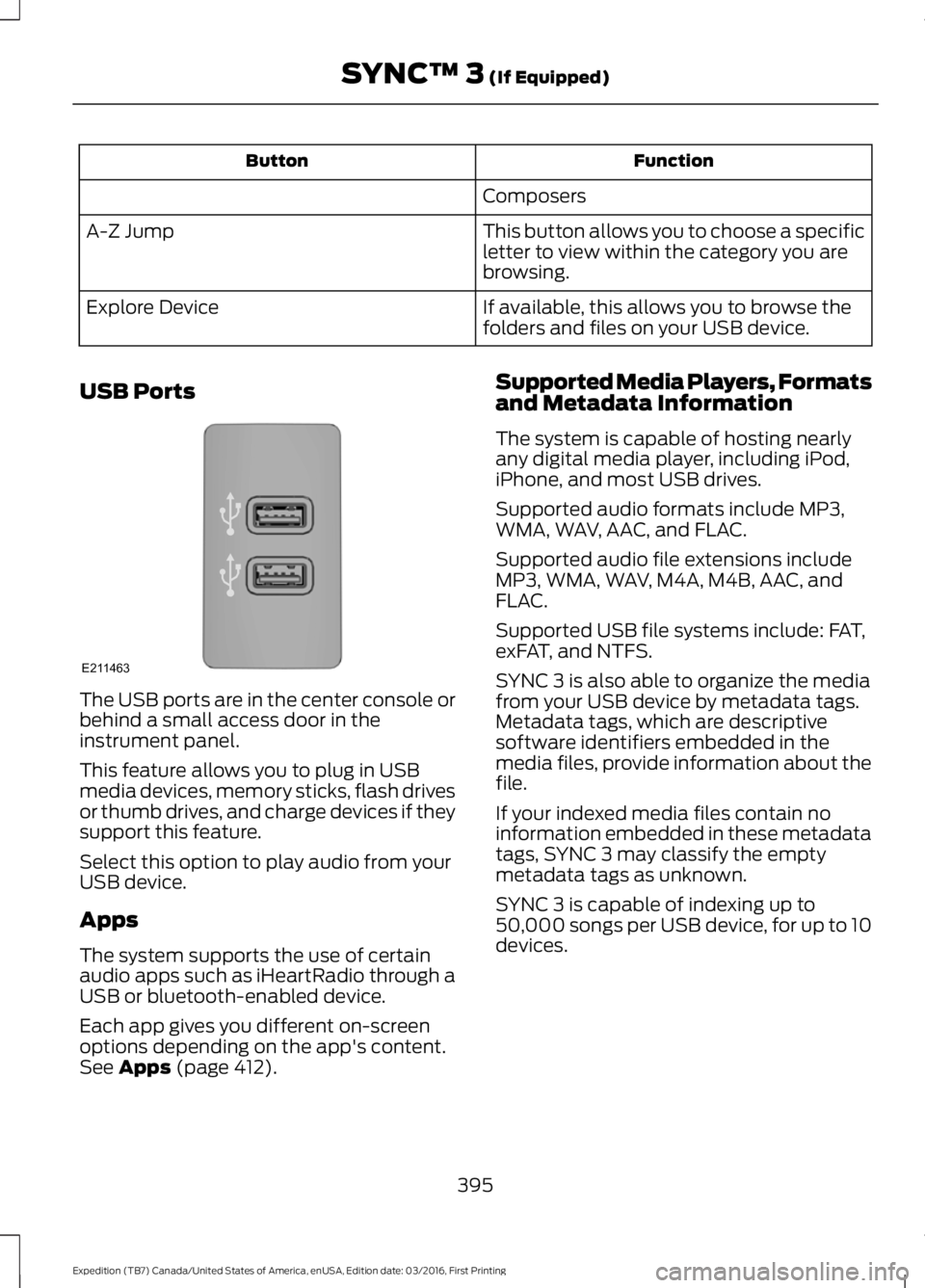
The USB ports are in the center console orbehind a small access door in theinstrument panel.
This feature allows you to plug in USBmedia devices, memory sticks, flash drivesor thumb drives, and charge devices if theysupport this feature.
Select this option to play audio from yourUSB device.
Apps
The system supports the use of certainaudio apps such as iHeartRadio through aUSB or bluetooth-enabled device.
Each app gives you different on-screenoptions depending on the app's content.See Apps (page 412).
Supported Media Players, Formatsand Metadata Information
The system is capable of hosting nearlyany digital media player, including iPod,iPhone, and most USB drives.
Supported audio formats include MP3,WMA, WAV, AAC, and FLAC.
Supported audio file extensions includeMP3, WMA, WAV, M4A, M4B, AAC, andFLAC.
Supported USB file systems include: FAT,exFAT, and NTFS.
SYNC 3 is also able to organize the mediafrom your USB device by metadata tags.Metadata tags, which are descriptivesoftware identifiers embedded in themedia files, provide information about thefile.
If your indexed media files contain noinformation embedded in these metadatatags, SYNC 3 may classify the emptymetadata tags as unknown.
SYNC 3 is capable of indexing up to50,000 songs per USB device, for up to 10devices.
395
Expedition (TB7) Canada/United States of America, enUSA, Edition date: 03/2016, First Printing
SYNC™ 3 (If Equipped)E211463
Page 418 of 500
Sound Settings
Returns Treble, Midrange, and Bass sound settings to factory levels.Reset All
Adjusts the high frequency level.Treble
Adjusts the middle frequency level.Midrange
Adjusts the low frequency level.Bass
Adjusts the sound ratio from side to side or front to back.Balance / Fade
Adjusts the amount the audio system volume increases with speed,or turns the feature off.Speed AdaptiveVolume
Optimizes the sound based on the location of the listeners.Occupancy Mode
StereoSound Settings
Surround
Your vehicle might not have all of these features.
Media Player
This button is available when a mediadevice such as a Bluetooth Stereo or USBdevice is the active audio source. Pressingthe button allows you to access thefollowing options for active devices only.
Action and DescriptionMenu Item
For some Apple devices, SYNC 3 can adjust the playback speed ofpodcasts. When a podcast is playing, you can choose:Podcast Speed
FasterNormalSlower
For some Apple devices, SYNC 3 can adjust the playback speed ofaudiobooks. When an audiobook is playing, you can choose:Audiobook Speed
FasterNormalSlower
Cover art displays from your device’s musicfiles. If no cover art for the files exists on thedevice, then the Gracenote Database providescover art.
Media PlayerCover Art Priority
415
Expedition (TB7) Canada/United States of America, enUSA, Edition date: 03/2016, First Printing
SYNC™ 3 (If Equipped)
Page 433 of 500
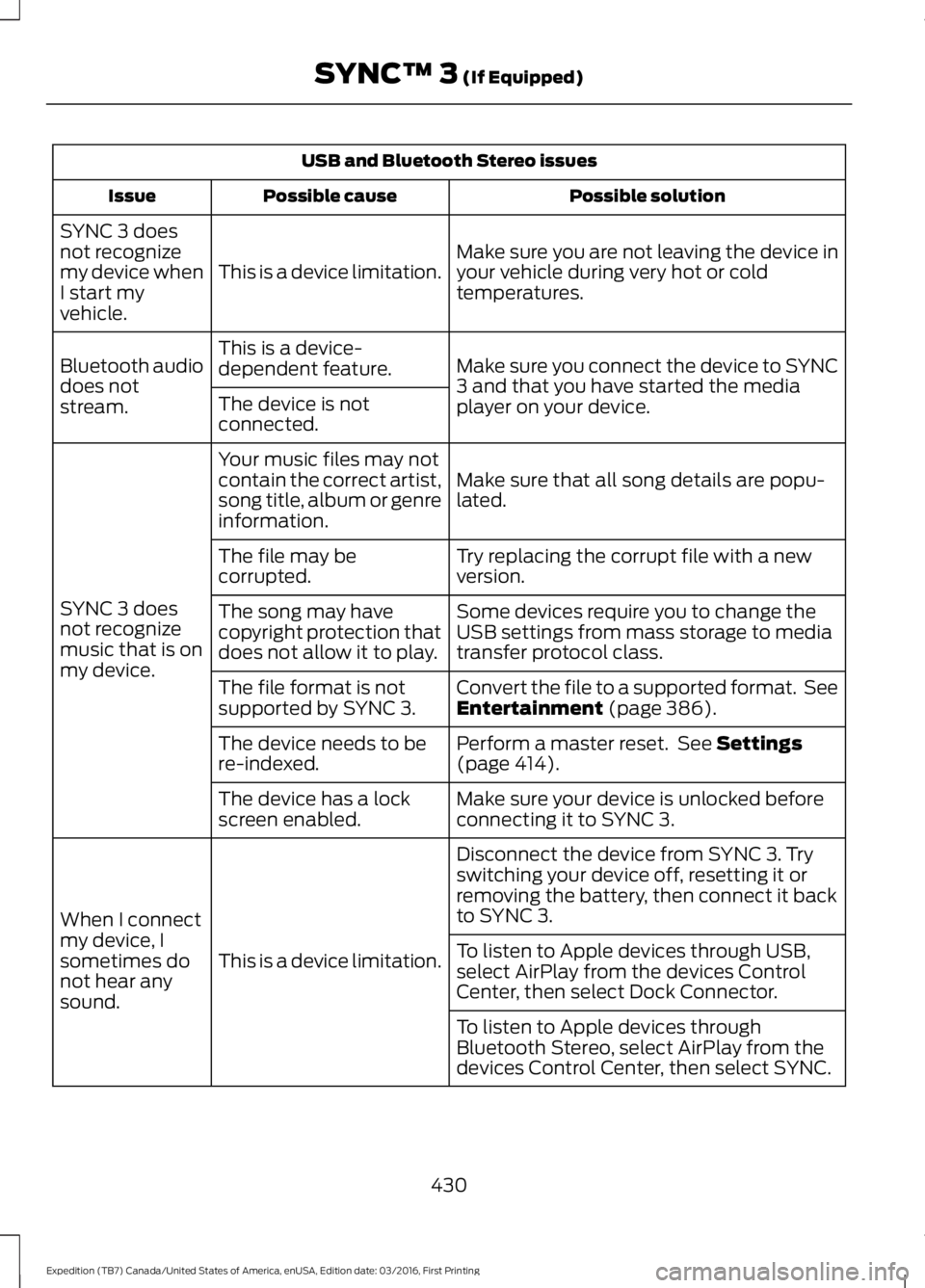
USB and Bluetooth Stereo issues
Possible solutionPossible causeIssue
Make sure you are not leaving the device inyour vehicle during very hot or coldtemperatures.This is a device limitation.
SYNC 3 doesnot recognizemy device whenI start myvehicle.
Make sure you connect the device to SYNC3 and that you have started the mediaplayer on your device.
This is a device-dependent feature.Bluetooth audiodoes notstream.The device is notconnected.
Make sure that all song details are popu-lated.
Your music files may notcontain the correct artist,song title, album or genreinformation.
SYNC 3 doesnot recognizemusic that is onmy device.
Try replacing the corrupt file with a newversion.The file may becorrupted.
Some devices require you to change theUSB settings from mass storage to mediatransfer protocol class.
The song may havecopyright protection thatdoes not allow it to play.
Convert the file to a supported format. SeeEntertainment (page 386).The file format is notsupported by SYNC 3.
Perform a master reset. See Settings(page 414).The device needs to bere-indexed.
Make sure your device is unlocked beforeconnecting it to SYNC 3.The device has a lockscreen enabled.
Disconnect the device from SYNC 3. Tryswitching your device off, resetting it orremoving the battery, then connect it backto SYNC 3.
This is a device limitation.
When I connectmy device, Isometimes donot hear anysound.
To listen to Apple devices through USB,select AirPlay from the devices ControlCenter, then select Dock Connector.
To listen to Apple devices throughBluetooth Stereo, select AirPlay from thedevices Control Center, then select SYNC.
430
Expedition (TB7) Canada/United States of America, enUSA, Edition date: 03/2016, First Printing
SYNC™ 3 (If Equipped)
Page 440 of 500
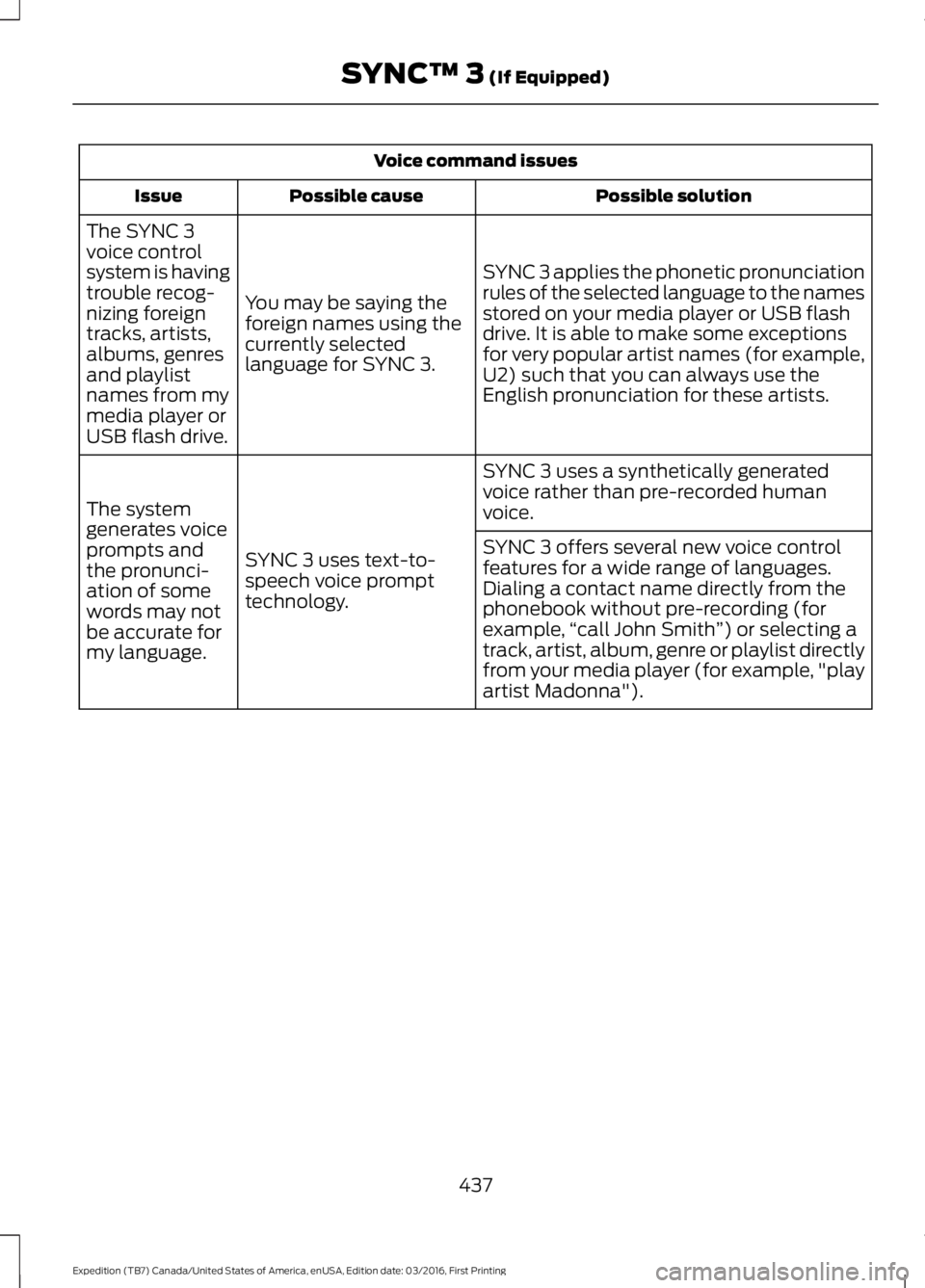
Voice command issues
Possible solutionPossible causeIssue
SYNC 3 applies the phonetic pronunciationrules of the selected language to the namesstored on your media player or USB flashdrive. It is able to make some exceptionsfor very popular artist names (for example,U2) such that you can always use theEnglish pronunciation for these artists.
You may be saying theforeign names using thecurrently selectedlanguage for SYNC 3.
The SYNC 3voice controlsystem is havingtrouble recog-nizing foreigntracks, artists,albums, genresand playlistnames from mymedia player orUSB flash drive.
SYNC 3 uses a synthetically generatedvoice rather than pre-recorded humanvoice.
SYNC 3 uses text-to-speech voice prompttechnology.
The systemgenerates voiceprompts andthe pronunci-ation of somewords may notbe accurate formy language.
SYNC 3 offers several new voice controlfeatures for a wide range of languages.Dialing a contact name directly from thephonebook without pre-recording (forexample,“call John Smith”) or selecting atrack, artist, album, genre or playlist directlyfrom your media player (for example, "playartist Madonna").
437
Expedition (TB7) Canada/United States of America, enUSA, Edition date: 03/2016, First Printing
SYNC™ 3 (If Equipped)
Page 441 of 500
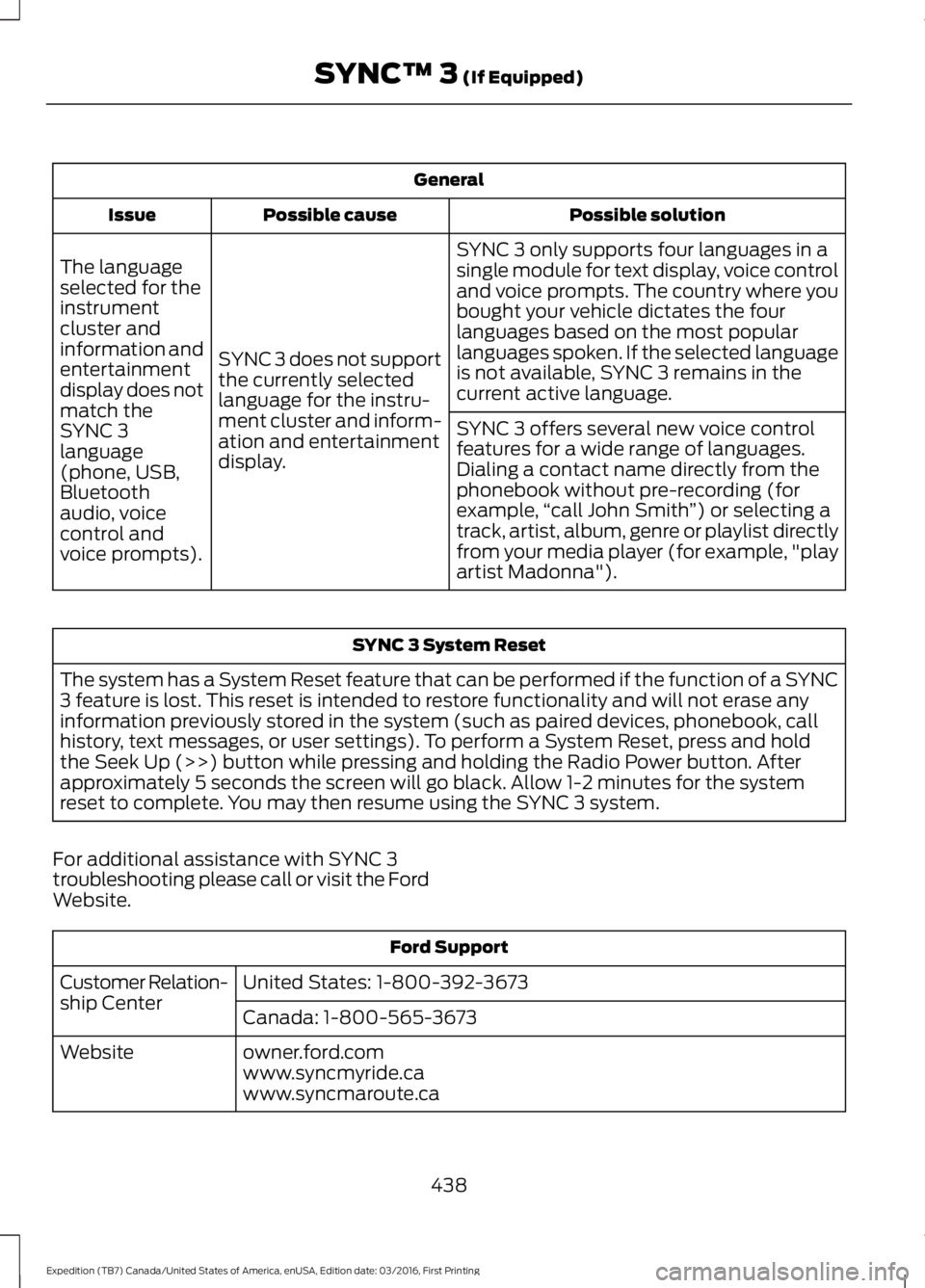
General
Possible solutionPossible causeIssue
SYNC 3 only supports four languages in asingle module for text display, voice controland voice prompts. The country where youbought your vehicle dictates the fourlanguages based on the most popularlanguages spoken. If the selected languageis not available, SYNC 3 remains in thecurrent active language.
SYNC 3 does not supportthe currently selectedlanguage for the instru-ment cluster and inform-ation and entertainmentdisplay.
The languageselected for theinstrumentcluster andinformation andentertainmentdisplay does notmatch theSYNC 3SYNC 3 offers several new voice controlfeatures for a wide range of languages.Dialing a contact name directly from thephonebook without pre-recording (forexample,“call John Smith”) or selecting atrack, artist, album, genre or playlist directlyfrom your media player (for example, "playartist Madonna").
language(phone, USB,Bluetoothaudio, voicecontrol andvoice prompts).
SYNC 3 System Reset
The system has a System Reset feature that can be performed if the function of a SYNC3 feature is lost. This reset is intended to restore functionality and will not erase anyinformation previously stored in the system (such as paired devices, phonebook, callhistory, text messages, or user settings). To perform a System Reset, press and holdthe Seek Up (>>) button while pressing and holding the Radio Power button. Afterapproximately 5 seconds the screen will go black. Allow 1-2 minutes for the systemreset to complete. You may then resume using the SYNC 3 system.
For additional assistance with SYNC 3troubleshooting please call or visit the FordWebsite.
Ford Support
United States: 1-800-392-3673Customer Relation-ship CenterCanada: 1-800-565-3673
owner.ford.comWebsitewww.syncmyride.cawww.syncmaroute.ca
438
Expedition (TB7) Canada/United States of America, enUSA, Edition date: 03/2016, First Printing
SYNC™ 3 (If Equipped)
Page 492 of 500
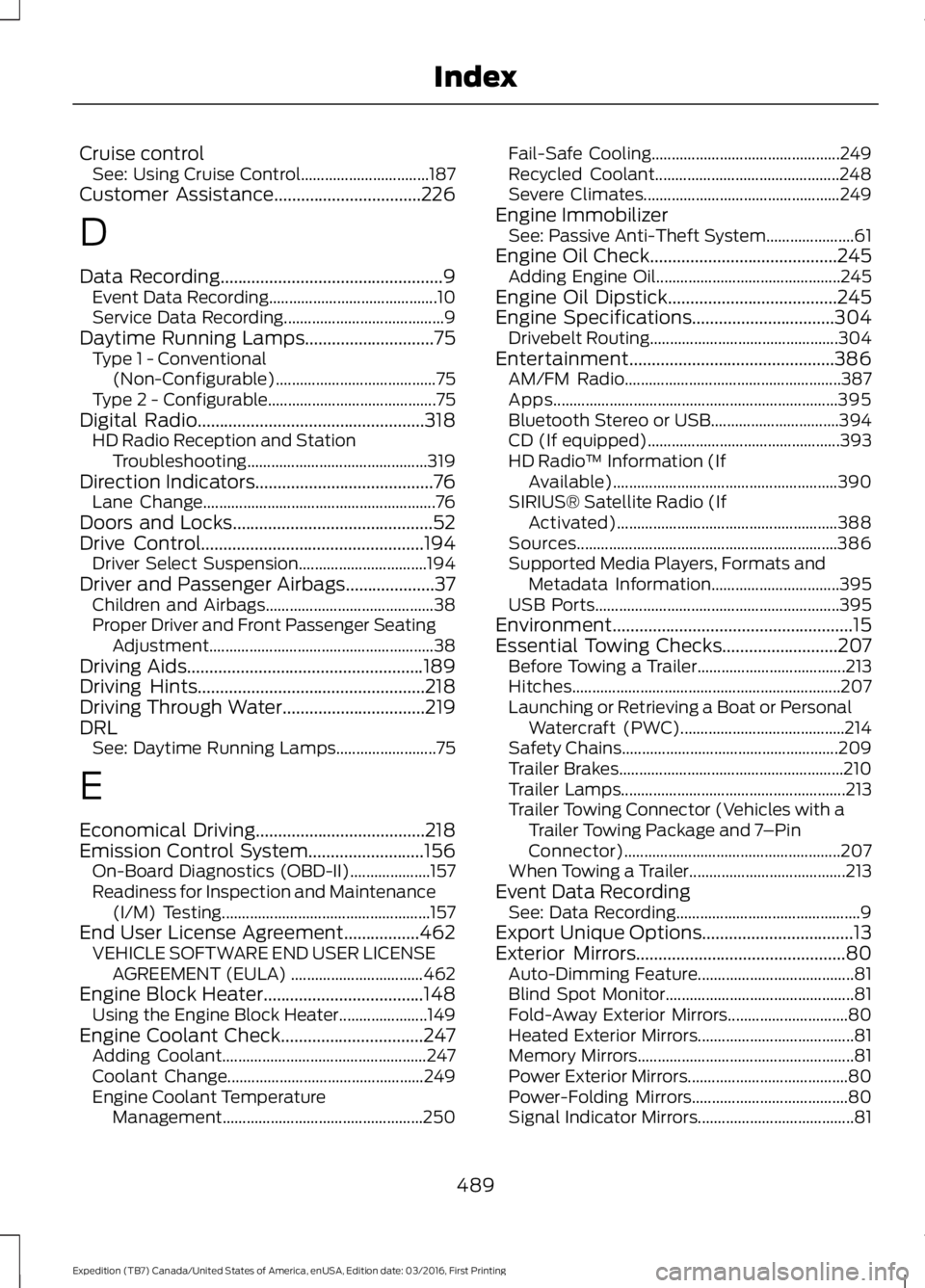
Cruise controlSee: Using Cruise Control................................187Customer Assistance.................................226
D
Data Recording..................................................9Event Data Recording..........................................10Service Data Recording........................................9Daytime Running Lamps.............................75Type 1 - Conventional(Non-Configurable)........................................75Type 2 - Configurable..........................................75Digital Radio...................................................318HD Radio Reception and StationTroubleshooting.............................................319Direction Indicators........................................76Lane Change..........................................................76Doors and Locks.............................................52Drive Control..................................................194Driver Select Suspension................................194Driver and Passenger Airbags....................37Children and Airbags..........................................38Proper Driver and Front Passenger SeatingAdjustment........................................................38Driving Aids.....................................................189Driving Hints...................................................218Driving Through Water................................219DRLSee: Daytime Running Lamps.........................75
E
Economical Driving......................................218Emission Control System..........................156On-Board Diagnostics (OBD-II)....................157Readiness for Inspection and Maintenance(I/M) Testing....................................................157End User License Agreement.................462VEHICLE SOFTWARE END USER LICENSEAGREEMENT (EULA) .................................462Engine Block Heater....................................148Using the Engine Block Heater......................149Engine Coolant Check................................247Adding Coolant...................................................247Coolant Change.................................................249Engine Coolant TemperatureManagement..................................................250
Fail-Safe Cooling...............................................249Recycled Coolant..............................................248Severe Climates.................................................249Engine ImmobilizerSee: Passive Anti-Theft System......................61Engine Oil Check..........................................245Adding Engine Oil..............................................245Engine Oil Dipstick......................................245Engine Specifications................................304Drivebelt Routing...............................................304Entertainment..............................................386AM/FM Radio......................................................387Apps.......................................................................395Bluetooth Stereo or USB................................394CD (If equipped)................................................393HD Radio™ Information (IfAvailable)........................................................390SIRIUS® Satellite Radio (IfActivated).......................................................388Sources.................................................................386Supported Media Players, Formats andMetadata Information................................395USB Ports.............................................................395Environment......................................................15Essential Towing Checks..........................207Before Towing a Trailer.....................................213Hitches...................................................................207Launching or Retrieving a Boat or PersonalWatercraft (PWC).........................................214Safety Chains......................................................209Trailer Brakes........................................................210Trailer Lamps........................................................213Trailer Towing Connector (Vehicles with aTrailer Towing Package and 7–PinConnector)......................................................207When Towing a Trailer.......................................213Event Data RecordingSee: Data Recording..............................................9Export Unique Options..................................13Exterior Mirrors...............................................80Auto-Dimming Feature.......................................81Blind Spot Monitor...............................................81Fold-Away Exterior Mirrors..............................80Heated Exterior Mirrors.......................................81Memory Mirrors......................................................81Power Exterior Mirrors........................................80Power-Folding Mirrors.......................................80Signal Indicator Mirrors.......................................81
489
Expedition (TB7) Canada/United States of America, enUSA, Edition date: 03/2016, First Printing
Index