navigation system FORD EXPEDITION EL 2017 User Guide
[x] Cancel search | Manufacturer: FORD, Model Year: 2017, Model line: EXPEDITION EL, Model: FORD EXPEDITION EL 2017Pages: 500, PDF Size: 6.13 MB
Page 379 of 500
Website
www.syncmaroute.ca
The website notifies you if an update isavailable. You can then select to downloadthe update.
You will need an empty USB drive. Pleasecheck the website for minimumrequirements. Once you have inserted theUSB drive into your computer, choose tostart the download. Follow the instructionsprovided to download the files to the USBdrive.
The installation of most files occurs in thebackground, and does not interrupt youruse of the system. Navigation updatescannot be installed in the background,because the files are too large.
To install the update in your vehicle,remove anything that is plugged in the USBports on the media hub and plug in theUSB drive containing the update. Whenthe USB drive is plugged in, the installationshould begin immediately. After asuccessful installation, the update isavailable the next time the vehicle isstarted.
Please reference the website for anyfurther actions.
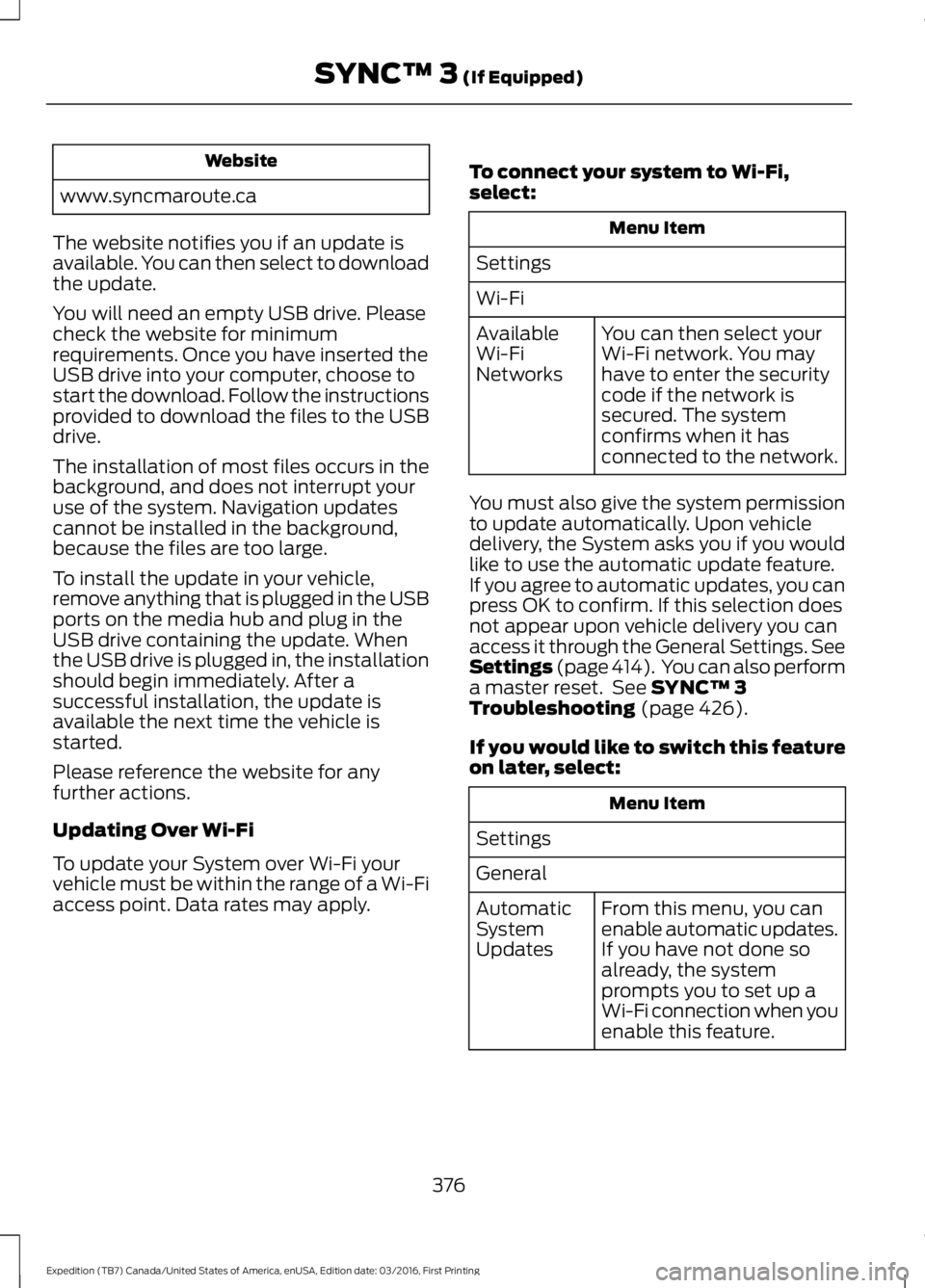
Updating Over Wi-Fi
To update your System over Wi-Fi yourvehicle must be within the range of a Wi-Fiaccess point. Data rates may apply.
To connect your system to Wi-Fi,select:
Menu Item
Settings
Wi-Fi
You can then select yourWi-Fi network. You mayhave to enter the securitycode if the network issecured. The systemconfirms when it hasconnected to the network.
AvailableWi-FiNetworks
You must also give the system permissionto update automatically. Upon vehicledelivery, the System asks you if you wouldlike to use the automatic update feature.If you agree to automatic updates, you canpress OK to confirm. If this selection doesnot appear upon vehicle delivery you canaccess it through the General Settings. SeeSettings (page 414). You can also performa master reset. See SYNC™ 3Troubleshooting (page 426).
If you would like to switch this featureon later, select:
Menu Item
Settings
General
From this menu, you canenable automatic updates.If you have not done soalready, the systemprompts you to set up aWi-Fi connection when youenable this feature.
AutomaticSystemUpdates
376
Expedition (TB7) Canada/United States of America, enUSA, Edition date: 03/2016, First Printing
SYNC™ 3 (If Equipped)
Page 382 of 500
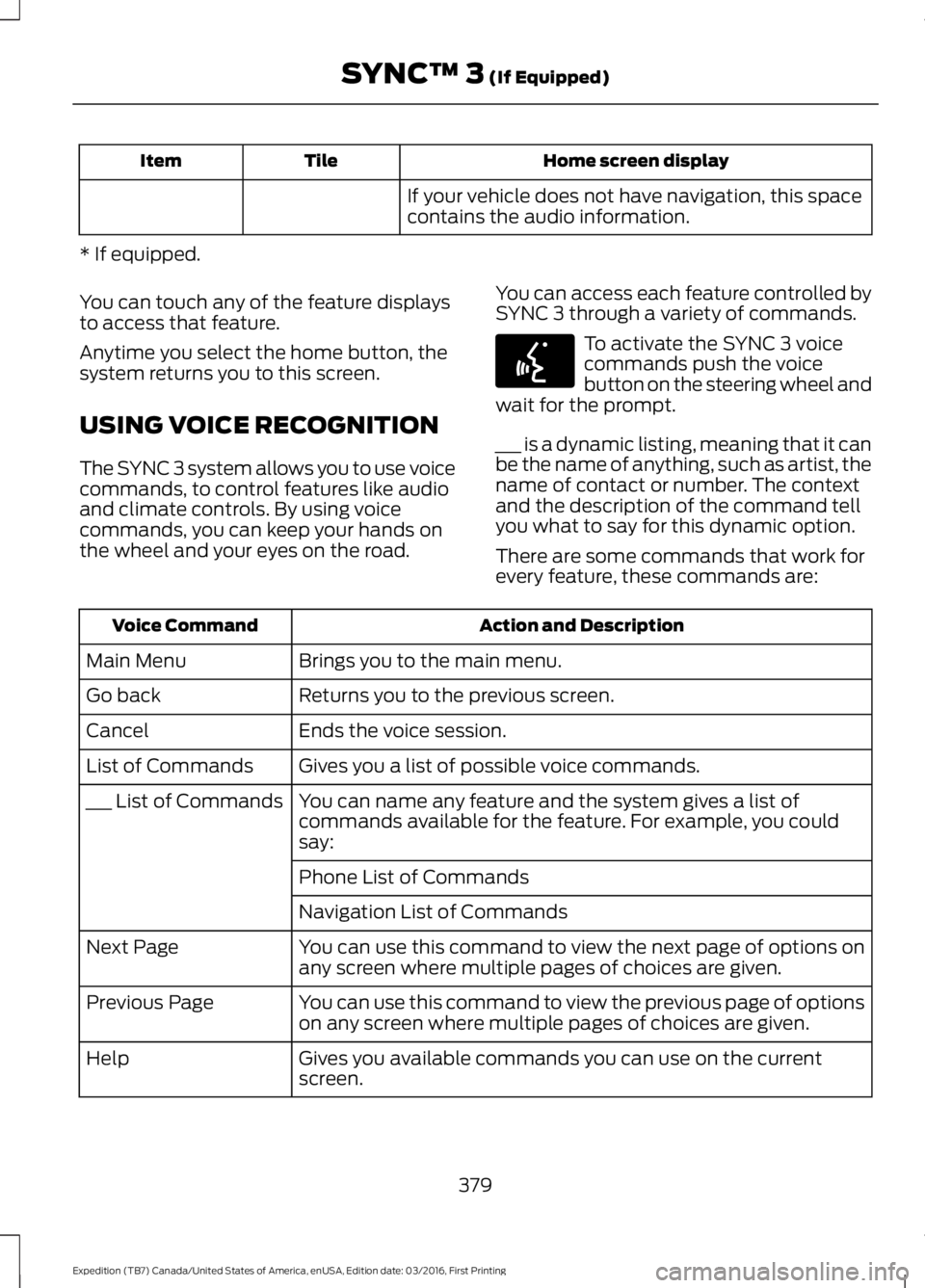
Home screen displayTileItem
If your vehicle does not have navigation, this spacecontains the audio information.
* If equipped.
You can touch any of the feature displaysto access that feature.
Anytime you select the home button, thesystem returns you to this screen.
USING VOICE RECOGNITION
The SYNC 3 system allows you to use voicecommands, to control features like audioand climate controls. By using voicecommands, you can keep your hands onthe wheel and your eyes on the road.
You can access each feature controlled bySYNC 3 through a variety of commands.
To activate the SYNC 3 voicecommands push the voicebutton on the steering wheel andwait for the prompt.
___ is a dynamic listing, meaning that it canbe the name of anything, such as artist, thename of contact or number. The contextand the description of the command tellyou what to say for this dynamic option.
There are some commands that work forevery feature, these commands are:
Action and DescriptionVoice Command
Brings you to the main menu.Main Menu
Returns you to the previous screen.Go back
Ends the voice session.Cancel
Gives you a list of possible voice commands.List of Commands
You can name any feature and the system gives a list ofcommands available for the feature. For example, you couldsay:
___ List of Commands
Phone List of Commands
Navigation List of Commands
You can use this command to view the next page of options onany screen where multiple pages of choices are given.Next Page
You can use this command to view the previous page of optionson any screen where multiple pages of choices are given.Previous Page
Gives you available commands you can use on the currentscreen.Help
379
Expedition (TB7) Canada/United States of America, enUSA, Edition date: 03/2016, First Printing
SYNC™ 3 (If Equipped)E142599
Page 407 of 500
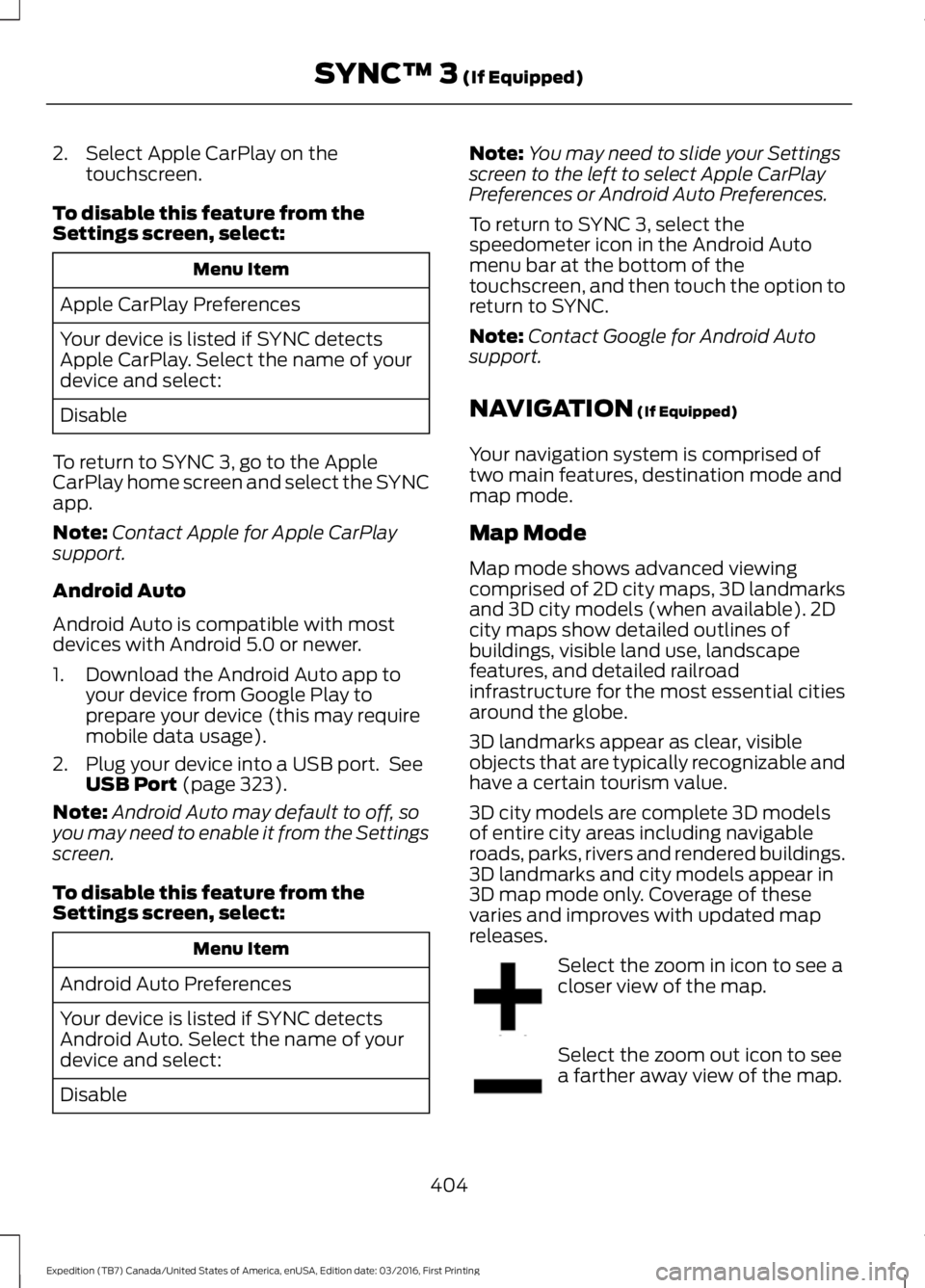
2. Select Apple CarPlay on thetouchscreen.
To disable this feature from theSettings screen, select:
Menu Item
Apple CarPlay Preferences
Your device is listed if SYNC detectsApple CarPlay. Select the name of yourdevice and select:
Disable
To return to SYNC 3, go to the AppleCarPlay home screen and select the SYNCapp.
Note:Contact Apple for Apple CarPlaysupport.
Android Auto
Android Auto is compatible with mostdevices with Android 5.0 or newer.
1. Download the Android Auto app toyour device from Google Play toprepare your device (this may requiremobile data usage).
2. Plug your device into a USB port. SeeUSB Port (page 323).
Note:Android Auto may default to off, soyou may need to enable it from the Settingsscreen.
To disable this feature from theSettings screen, select:
Menu Item
Android Auto Preferences
Your device is listed if SYNC detectsAndroid Auto. Select the name of yourdevice and select:
Disable
Note:You may need to slide your Settingsscreen to the left to select Apple CarPlayPreferences or Android Auto Preferences.
To return to SYNC 3, select thespeedometer icon in the Android Automenu bar at the bottom of thetouchscreen, and then touch the option toreturn to SYNC.
Note:Contact Google for Android Autosupport.
NAVIGATION (If Equipped)
Your navigation system is comprised oftwo main features, destination mode andmap mode.
Map Mode
Map mode shows advanced viewingcomprised of 2D city maps, 3D landmarksand 3D city models (when available). 2Dcity maps show detailed outlines ofbuildings, visible land use, landscapefeatures, and detailed railroadinfrastructure for the most essential citiesaround the globe.
3D landmarks appear as clear, visibleobjects that are typically recognizable andhave a certain tourism value.
3D city models are complete 3D modelsof entire city areas including navigableroads, parks, rivers and rendered buildings.3D landmarks and city models appear in3D map mode only. Coverage of thesevaries and improves with updated mapreleases.
Select the zoom in icon to see acloser view of the map.
Select the zoom out icon to seea farther away view of the map.
404
Expedition (TB7) Canada/United States of America, enUSA, Edition date: 03/2016, First Printing
SYNC™ 3 (If Equipped)E207752 E207753
Page 411 of 500
DescriptionMenu Item
Along Route
Near Destination
In a City
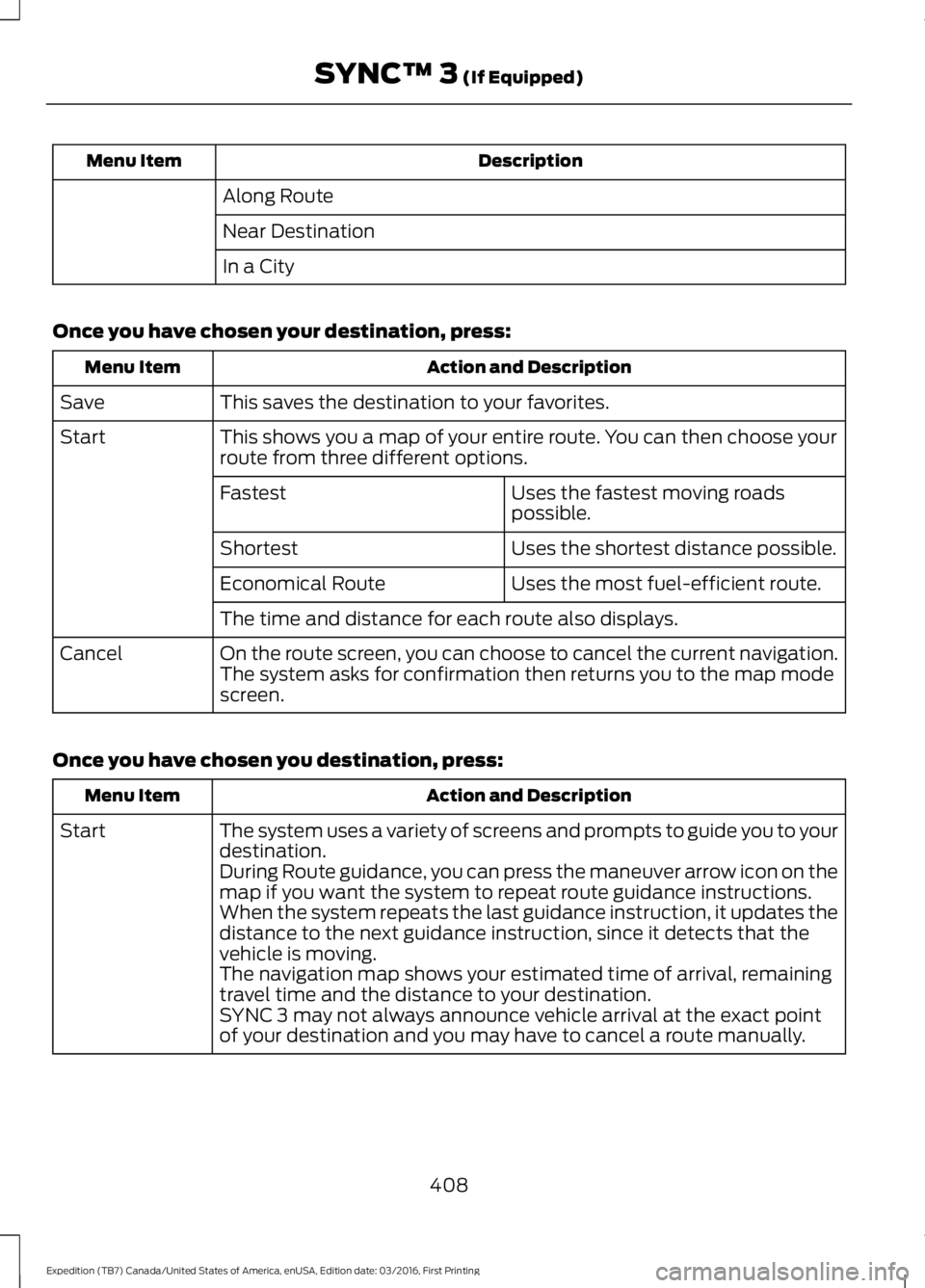
Once you have chosen your destination, press:
Action and DescriptionMenu Item
This saves the destination to your favorites.Save
This shows you a map of your entire route. You can then choose yourroute from three different options.Start
Uses the fastest moving roadspossible.Fastest
Uses the shortest distance possible.Shortest
Uses the most fuel-efficient route.Economical Route
The time and distance for each route also displays.
On the route screen, you can choose to cancel the current navigation.The system asks for confirmation then returns you to the map modescreen.
Cancel
Once you have chosen you destination, press:
Action and DescriptionMenu Item
The system uses a variety of screens and prompts to guide you to yourdestination.Start
During Route guidance, you can press the maneuver arrow icon on themap if you want the system to repeat route guidance instructions.When the system repeats the last guidance instruction, it updates thedistance to the next guidance instruction, since it detects that thevehicle is moving.The navigation map shows your estimated time of arrival, remainingtravel time and the distance to your destination.SYNC 3 may not always announce vehicle arrival at the exact pointof your destination and you may have to cancel a route manually.
408
Expedition (TB7) Canada/United States of America, enUSA, Edition date: 03/2016, First Printing
SYNC™ 3 (If Equipped)
Page 412 of 500
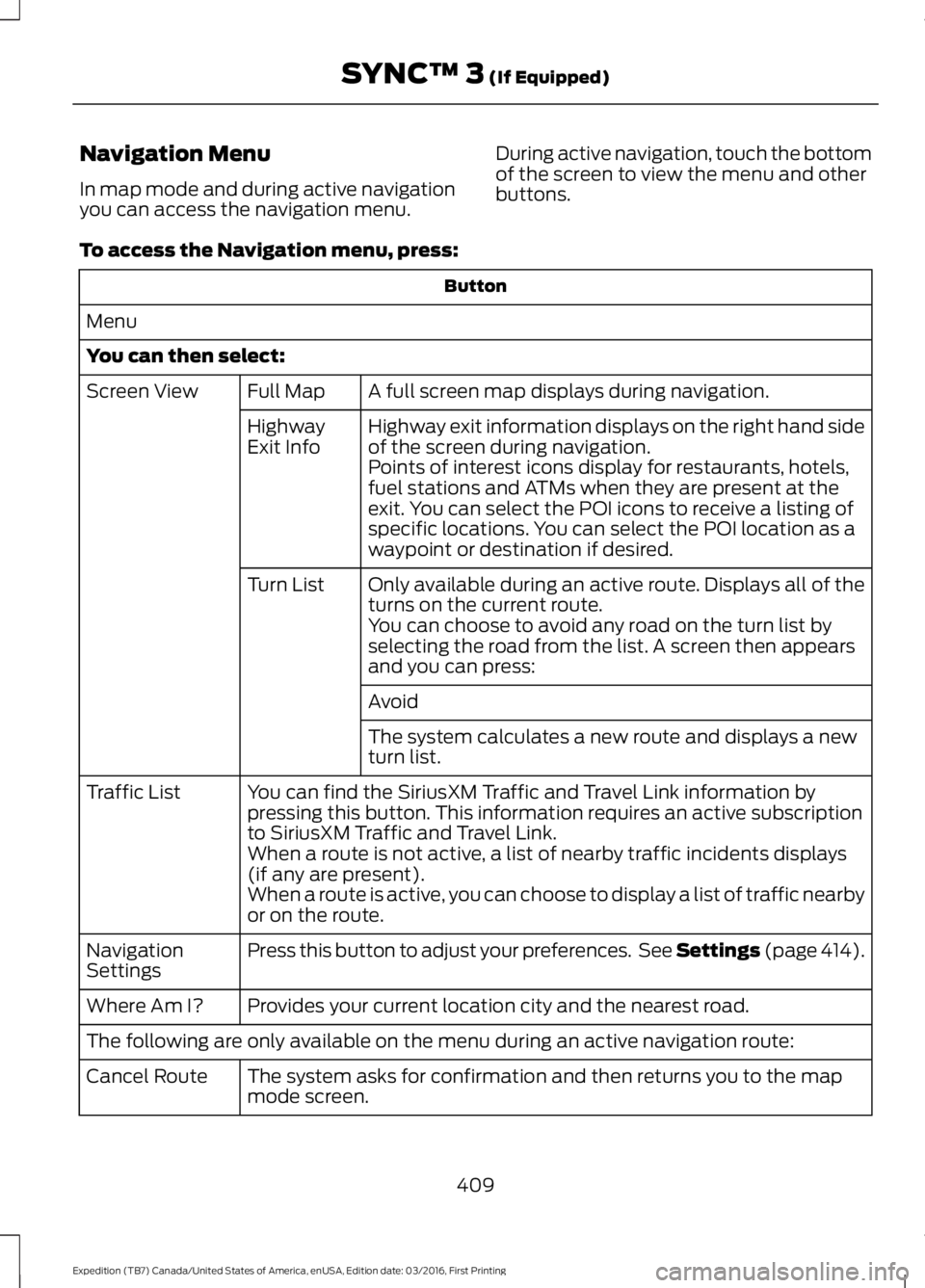
Navigation Menu
In map mode and during active navigationyou can access the navigation menu.
During active navigation, touch the bottomof the screen to view the menu and otherbuttons.
To access the Navigation menu, press:
Button
Menu
You can then select:
A full screen map displays during navigation.Full MapScreen View
Highway exit information displays on the right hand sideof the screen during navigation.HighwayExit InfoPoints of interest icons display for restaurants, hotels,fuel stations and ATMs when they are present at theexit. You can select the POI icons to receive a listing ofspecific locations. You can select the POI location as awaypoint or destination if desired.
Only available during an active route. Displays all of theturns on the current route.Turn List
You can choose to avoid any road on the turn list byselecting the road from the list. A screen then appearsand you can press:
Avoid
The system calculates a new route and displays a newturn list.
You can find the SiriusXM Traffic and Travel Link information bypressing this button. This information requires an active subscriptionto SiriusXM Traffic and Travel Link.
Traffic List
When a route is not active, a list of nearby traffic incidents displays(if any are present).When a route is active, you can choose to display a list of traffic nearbyor on the route.
Press this button to adjust your preferences. See Settings (page 414).NavigationSettings
Provides your current location city and the nearest road.Where Am I?
The following are only available on the menu during an active navigation route:
The system asks for confirmation and then returns you to the mapmode screen.Cancel Route
409
Expedition (TB7) Canada/United States of America, enUSA, Edition date: 03/2016, First Printing
SYNC™ 3 (If Equipped)
Page 413 of 500
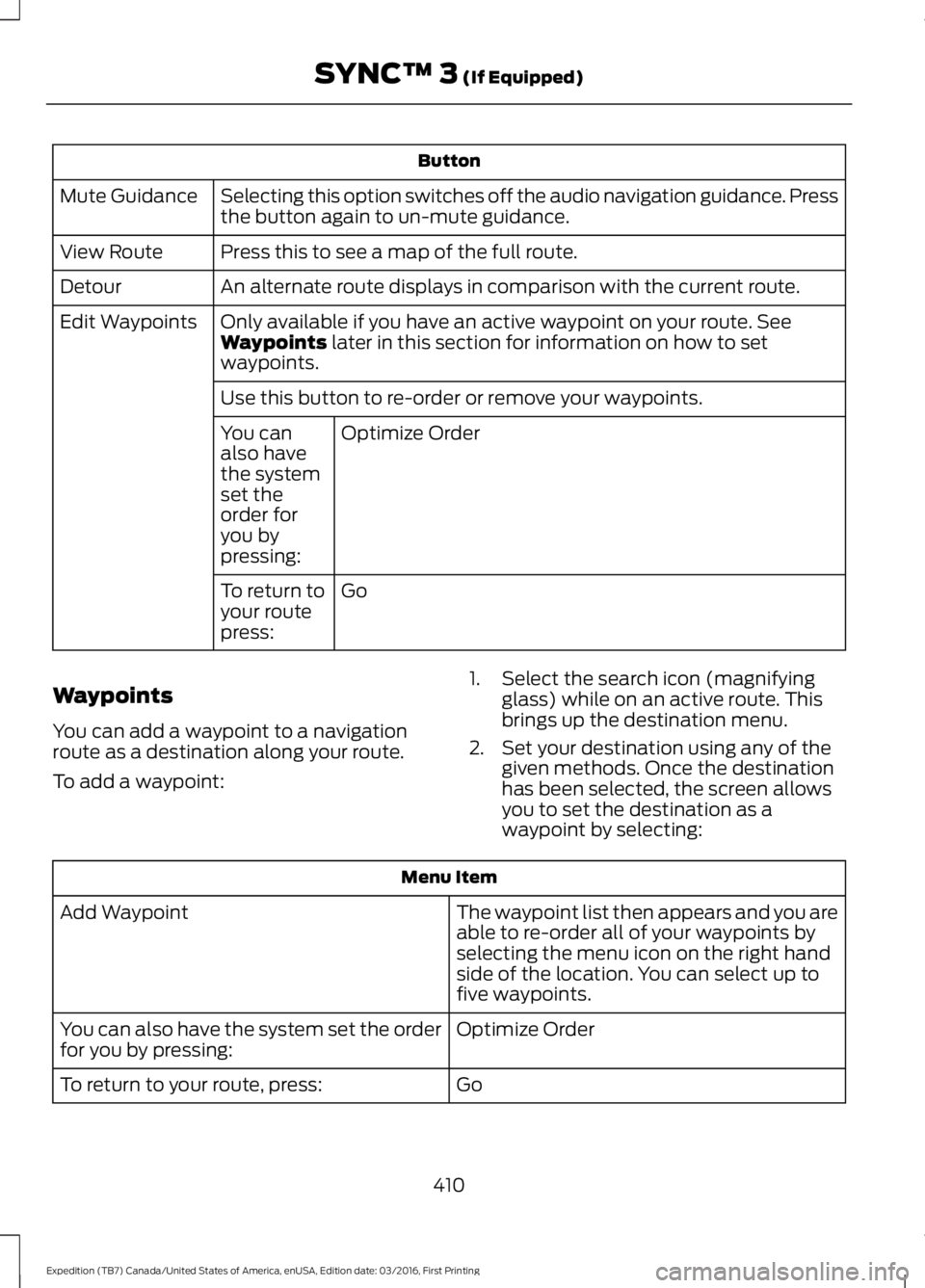
Button
Selecting this option switches off the audio navigation guidance. Pressthe button again to un-mute guidance.Mute Guidance
Press this to see a map of the full route.View Route
An alternate route displays in comparison with the current route.Detour
Only available if you have an active waypoint on your route. SeeWaypoints later in this section for information on how to setwaypoints.
Edit Waypoints
Use this button to re-order or remove your waypoints.
Optimize OrderYou canalso havethe systemset theorder foryou bypressing:
GoTo return toyour routepress:
Waypoints
You can add a waypoint to a navigationroute as a destination along your route.
To add a waypoint:
1. Select the search icon (magnifyingglass) while on an active route. Thisbrings up the destination menu.
2. Set your destination using any of thegiven methods. Once the destinationhas been selected, the screen allowsyou to set the destination as awaypoint by selecting:
Menu Item
The waypoint list then appears and you areable to re-order all of your waypoints byselecting the menu icon on the right handside of the location. You can select up tofive waypoints.
Add Waypoint
Optimize OrderYou can also have the system set the orderfor you by pressing:
GoTo return to your route, press:
410
Expedition (TB7) Canada/United States of America, enUSA, Edition date: 03/2016, First Printing
SYNC™ 3 (If Equipped)
Page 414 of 500
cityseeker (If Equipped)
Note:cityseeker point of interest (POI)information is limited to approximately 1110cities (1049 in the United States, 36 inCanada and 15 in Mexico).
cityseeker, when available, is a service thatprovides more information about certainpoints of interest such as restaurants,hotels and attractions.
When you have selected a point of interest,the location and information appear, suchas address, phone number and a starrating.
Press More Information to see a photo,a review, a list of services and facilities, theaverage room or meal price and the webaddress. This screen displays the point ofinterest icons.
For restaurants, cityseeker can provideinformation such as star rating, averagecost, review, handicap access, hours ofoperation, and website address.
For hotels, cityseeker can provideinformation such as star rating, pricecategory, review, check-in and checkouttimes, hotel service icons and websiteaddress. Hotel service icons include:
•Restaurant
•Business center
•Handicap facilities
•Laundry
•Refrigerator
•24 hour room service
•Fitness center
•Internet access
•Pool
•Wi-Fi
Attractions include nearby landmarks,amusement parks, historic buildings andmore. cityseeker can provide informationsuch as star rating, reviews, hour ofoperation and admission price.
SiriusXM Traffic and Travel Link
SiriusXM Traffic and Travel Link is availableon vehicles equipped with navigation andonly in select markets. You must activateand subscribe to receive SiriusXM Trafficand Travel Link information. It helps youlocate the best gas prices, find movielistings, get current traffic alerts, view theweather map, get accurate ski conditionsand see current sports scores. See Apps(page 412).
The system calculates a reasonableefficient route based on available speedlimits, traffic, and road conditions. You mayknow a local short cut that is more efficientat a given time than the route provided bySYNC 3, but you should expect a slightdifference in minutes or miles with theSYNC 3 route.
Navigation Map Updates
Annual navigation map updates areavailable for purchase through yourdealership, by calling 1-866-462-8837 inthe United States and Canada or01-800-557-5539 in Mexico. You can alsovisit:
Website
www.navigation.com/sync
You need to specify the make and modelof your vehicle to determine if there is anupdate available.
411
Expedition (TB7) Canada/United States of America, enUSA, Edition date: 03/2016, First Printing
SYNC™ 3 (If Equipped)E225487
Page 415 of 500
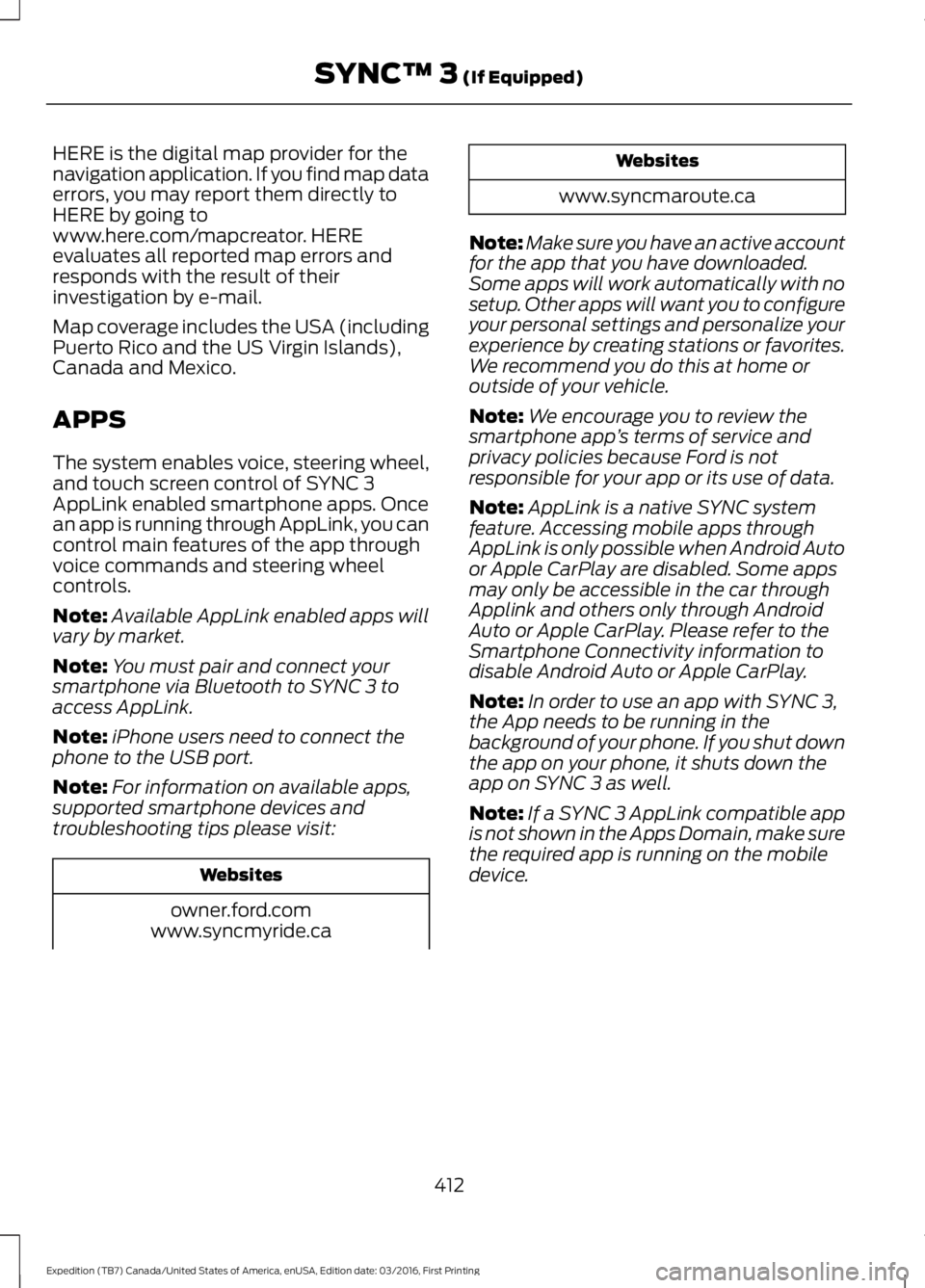
HERE is the digital map provider for thenavigation application. If you find map dataerrors, you may report them directly toHERE by going towww.here.com/mapcreator. HEREevaluates all reported map errors andresponds with the result of theirinvestigation by e-mail.
Map coverage includes the USA (includingPuerto Rico and the US Virgin Islands),Canada and Mexico.
APPS
The system enables voice, steering wheel,and touch screen control of SYNC 3AppLink enabled smartphone apps. Oncean app is running through AppLink, you cancontrol main features of the app throughvoice commands and steering wheelcontrols.
Note:Available AppLink enabled apps willvary by market.
Note:You must pair and connect yoursmartphone via Bluetooth to SYNC 3 toaccess AppLink.
Note:iPhone users need to connect thephone to the USB port.
Note:For information on available apps,supported smartphone devices andtroubleshooting tips please visit:
Websites
owner.ford.comwww.syncmyride.ca
Websites
www.syncmaroute.ca
Note:Make sure you have an active accountfor the app that you have downloaded.Some apps will work automatically with nosetup. Other apps will want you to configureyour personal settings and personalize yourexperience by creating stations or favorites.We recommend you do this at home oroutside of your vehicle.
Note:We encourage you to review thesmartphone app’s terms of service andprivacy policies because Ford is notresponsible for your app or its use of data.
Note:AppLink is a native SYNC systemfeature. Accessing mobile apps throughAppLink is only possible when Android Autoor Apple CarPlay are disabled. Some appsmay only be accessible in the car throughApplink and others only through AndroidAuto or Apple CarPlay. Please refer to theSmartphone Connectivity information todisable Android Auto or Apple CarPlay.
Note:In order to use an app with SYNC 3,the App needs to be running in thebackground of your phone. If you shut downthe app on your phone, it shuts down theapp on SYNC 3 as well.
Note:If a SYNC 3 AppLink compatible appis not shown in the Apps Domain, make surethe required app is running on the mobiledevice.
412
Expedition (TB7) Canada/United States of America, enUSA, Edition date: 03/2016, First Printing
SYNC™ 3 (If Equipped)
Page 417 of 500
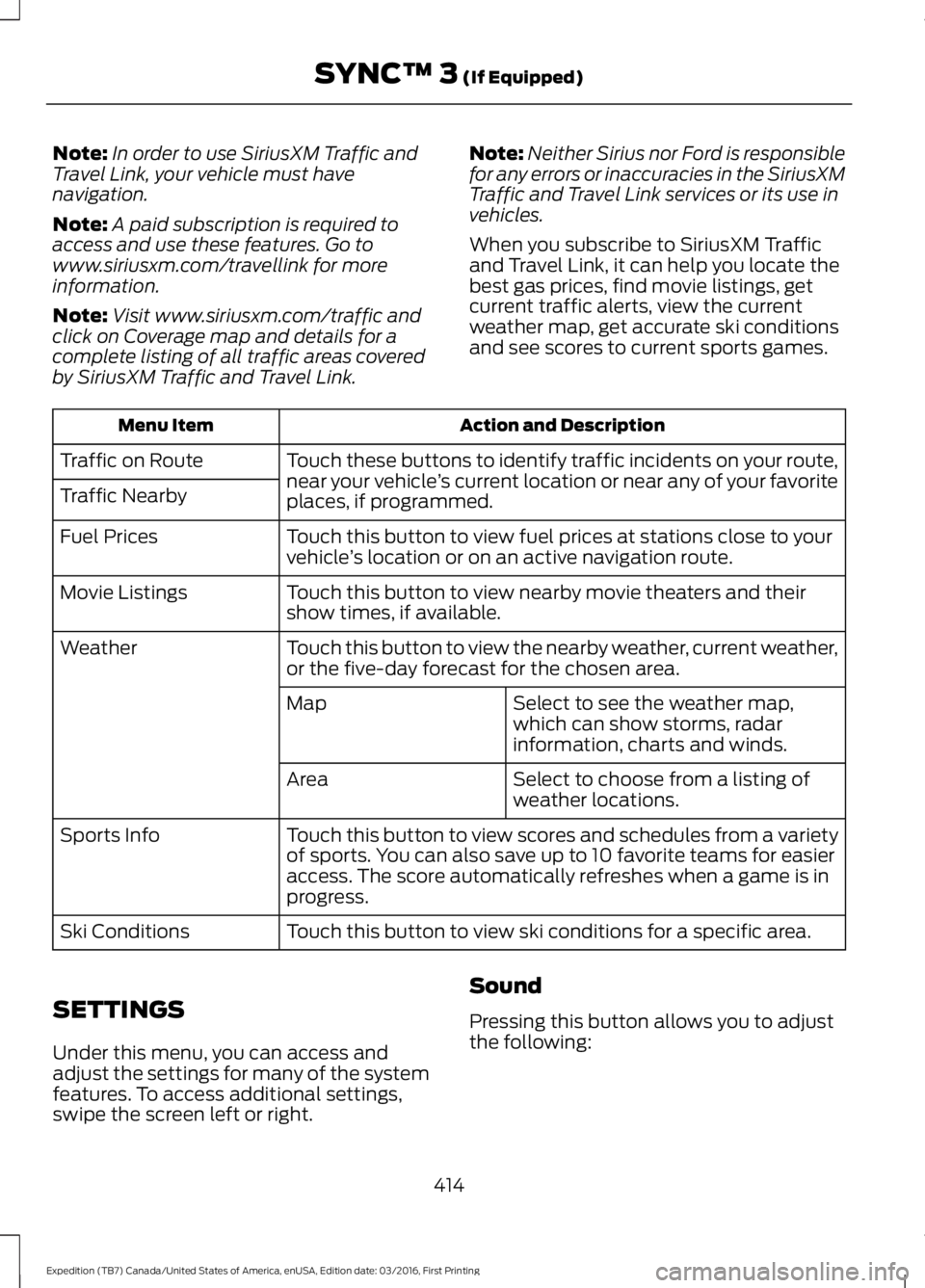
Note:In order to use SiriusXM Traffic andTravel Link, your vehicle must havenavigation.
Note:A paid subscription is required toaccess and use these features. Go towww.siriusxm.com/travellink for moreinformation.
Note:Visit www.siriusxm.com/traffic andclick on Coverage map and details for acomplete listing of all traffic areas coveredby SiriusXM Traffic and Travel Link.
Note:Neither Sirius nor Ford is responsiblefor any errors or inaccuracies in the SiriusXMTraffic and Travel Link services or its use invehicles.
When you subscribe to SiriusXM Trafficand Travel Link, it can help you locate thebest gas prices, find movie listings, getcurrent traffic alerts, view the currentweather map, get accurate ski conditionsand see scores to current sports games.
Action and DescriptionMenu Item
Touch these buttons to identify traffic incidents on your route,near your vehicle’s current location or near any of your favoriteplaces, if programmed.
Traffic on Route
Traffic Nearby
Touch this button to view fuel prices at stations close to yourvehicle’s location or on an active navigation route.Fuel Prices
Touch this button to view nearby movie theaters and theirshow times, if available.Movie Listings
Touch this button to view the nearby weather, current weather,or the five-day forecast for the chosen area.Weather
Select to see the weather map,which can show storms, radarinformation, charts and winds.
Map
Select to choose from a listing ofweather locations.Area
Touch this button to view scores and schedules from a varietyof sports. You can also save up to 10 favorite teams for easieraccess. The score automatically refreshes when a game is inprogress.
Sports Info
Touch this button to view ski conditions for a specific area.Ski Conditions
SETTINGS
Under this menu, you can access andadjust the settings for many of the systemfeatures. To access additional settings,swipe the screen left or right.
Sound
Pressing this button allows you to adjustthe following:
414
Expedition (TB7) Canada/United States of America, enUSA, Edition date: 03/2016, First Printing
SYNC™ 3 (If Equipped)
Page 419 of 500
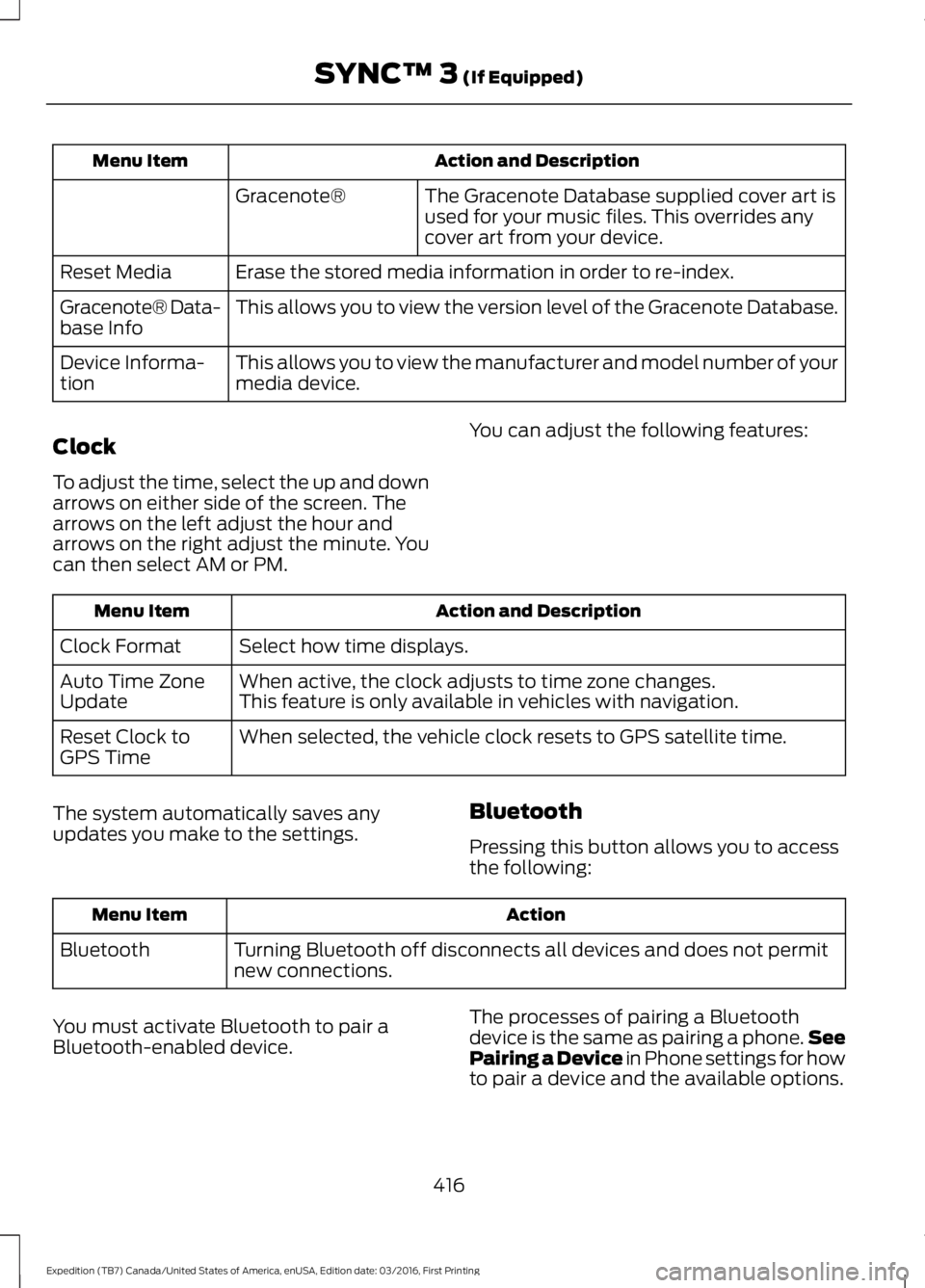
Action and DescriptionMenu Item
The Gracenote Database supplied cover art isused for your music files. This overrides anycover art from your device.
Gracenote®
Erase the stored media information in order to re-index.Reset Media
This allows you to view the version level of the Gracenote Database.Gracenote® Data-base Info
This allows you to view the manufacturer and model number of yourmedia device.Device Informa-tion
Clock
To adjust the time, select the up and downarrows on either side of the screen. Thearrows on the left adjust the hour andarrows on the right adjust the minute. Youcan then select AM or PM.
You can adjust the following features:
Action and DescriptionMenu Item
Select how time displays.Clock Format
When active, the clock adjusts to time zone changes.Auto Time ZoneUpdateThis feature is only available in vehicles with navigation.
When selected, the vehicle clock resets to GPS satellite time.Reset Clock toGPS Time
The system automatically saves anyupdates you make to the settings.Bluetooth
Pressing this button allows you to accessthe following:
ActionMenu Item
Turning Bluetooth off disconnects all devices and does not permitnew connections.Bluetooth
You must activate Bluetooth to pair aBluetooth-enabled device.
The processes of pairing a Bluetoothdevice is the same as pairing a phone.SeePairing a Device in Phone settings for howto pair a device and the available options.
416
Expedition (TB7) Canada/United States of America, enUSA, Edition date: 03/2016, First Printing
SYNC™ 3 (If Equipped)