ad blue FORD EXPEDITION EL 2017 Owners Manual
[x] Cancel search | Manufacturer: FORD, Model Year: 2017, Model line: EXPEDITION EL, Model: FORD EXPEDITION EL 2017Pages: 500, PDF Size: 6.13 MB
Page 142 of 500
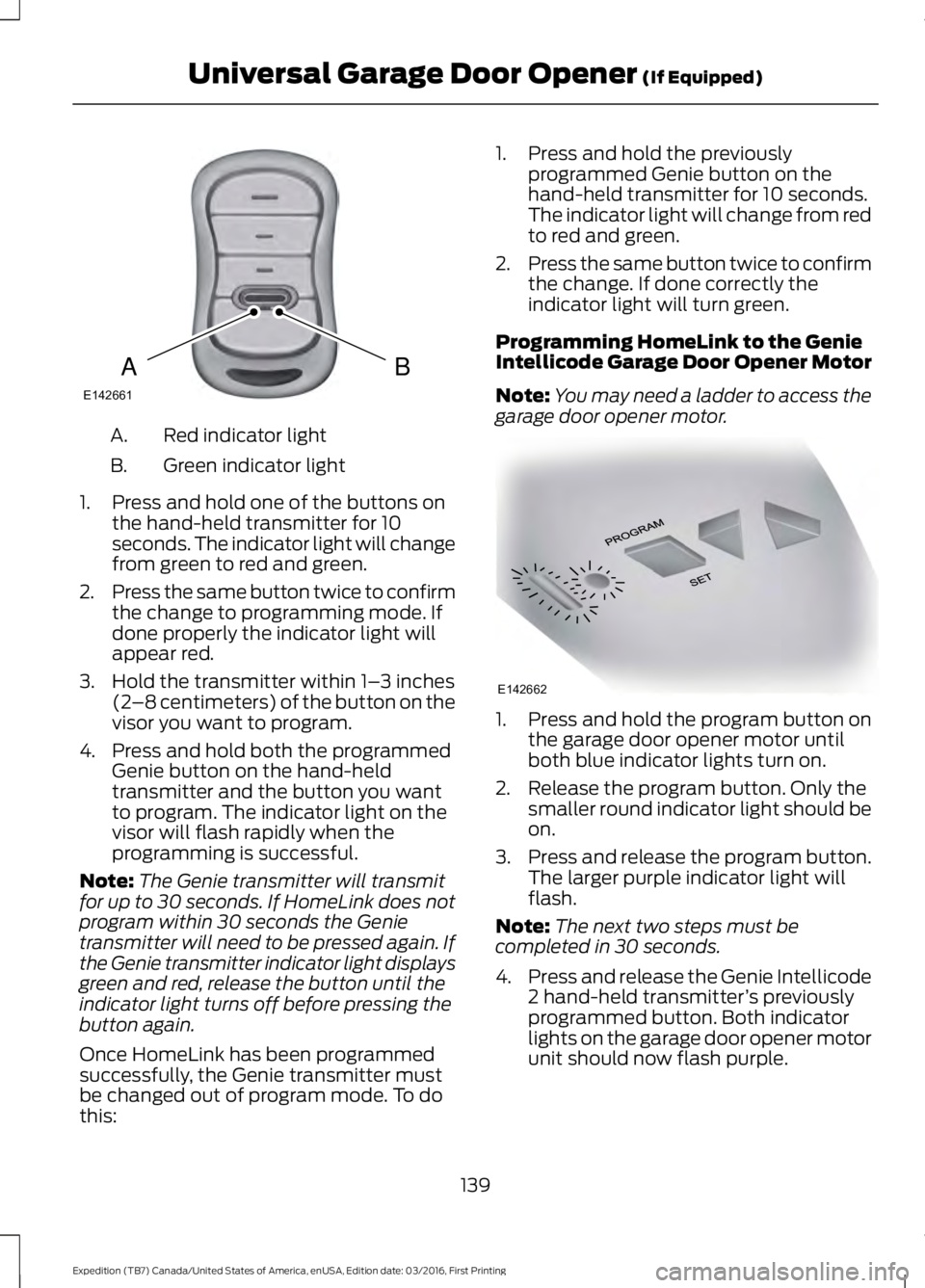
Red indicator lightA.
Green indicator lightB.
1. Press and hold one of the buttons onthe hand-held transmitter for 10seconds. The indicator light will changefrom green to red and green.
2.Press the same button twice to confirmthe change to programming mode. Ifdone properly the indicator light willappear red.
3. Hold the transmitter within 1–3 inches(2–8 centimeters) of the button on thevisor you want to program.
4. Press and hold both the programmedGenie button on the hand-heldtransmitter and the button you wantto program. The indicator light on thevisor will flash rapidly when theprogramming is successful.
Note:The Genie transmitter will transmitfor up to 30 seconds. If HomeLink does notprogram within 30 seconds the Genietransmitter will need to be pressed again. Ifthe Genie transmitter indicator light displaysgreen and red, release the button until theindicator light turns off before pressing thebutton again.
Once HomeLink has been programmedsuccessfully, the Genie transmitter mustbe changed out of program mode. To dothis:
1. Press and hold the previouslyprogrammed Genie button on thehand-held transmitter for 10 seconds.The indicator light will change from redto red and green.
2.Press the same button twice to confirmthe change. If done correctly theindicator light will turn green.
Programming HomeLink to the GenieIntellicode Garage Door Opener Motor
Note:You may need a ladder to access thegarage door opener motor.
1. Press and hold the program button onthe garage door opener motor untilboth blue indicator lights turn on.
2. Release the program button. Only thesmaller round indicator light should beon.
3.Press and release the program button.The larger purple indicator light willflash.
Note:The next two steps must becompleted in 30 seconds.
4.Press and release the Genie Intellicode2 hand-held transmitter’s previouslyprogrammed button. Both indicatorlights on the garage door opener motorunit should now flash purple.
139
Expedition (TB7) Canada/United States of America, enUSA, Edition date: 03/2016, First Printing
Universal Garage Door Opener (If Equipped)BAE142661 E142662
Page 210 of 500
ESSENTIAL TOWING CHECKS
Follow these guidelines for safe towing:
•Do not tow a trailer until you drive yourvehicle at least 1000 miles (1600kilometers).
•Consult your local motor vehicle lawsfor towing a trailer.
•See the instructions included withtowing accessories for the properinstallation and adjustmentspecifications.
•Service your vehicle more frequently ifyou tow a trailer. See your scheduledmaintenance information.
•If you use a rental trailer, follow theinstructions the rental agency givesyou.
See Load limits in the Load Carryingchapter for load specification terms foundon the tire label and Safety Compliancelabel and instructions on calculating yourvehicle's load.
Remember to account for the trailertongue weight as part of your vehicle loadwhen calculating the total vehicle weight.
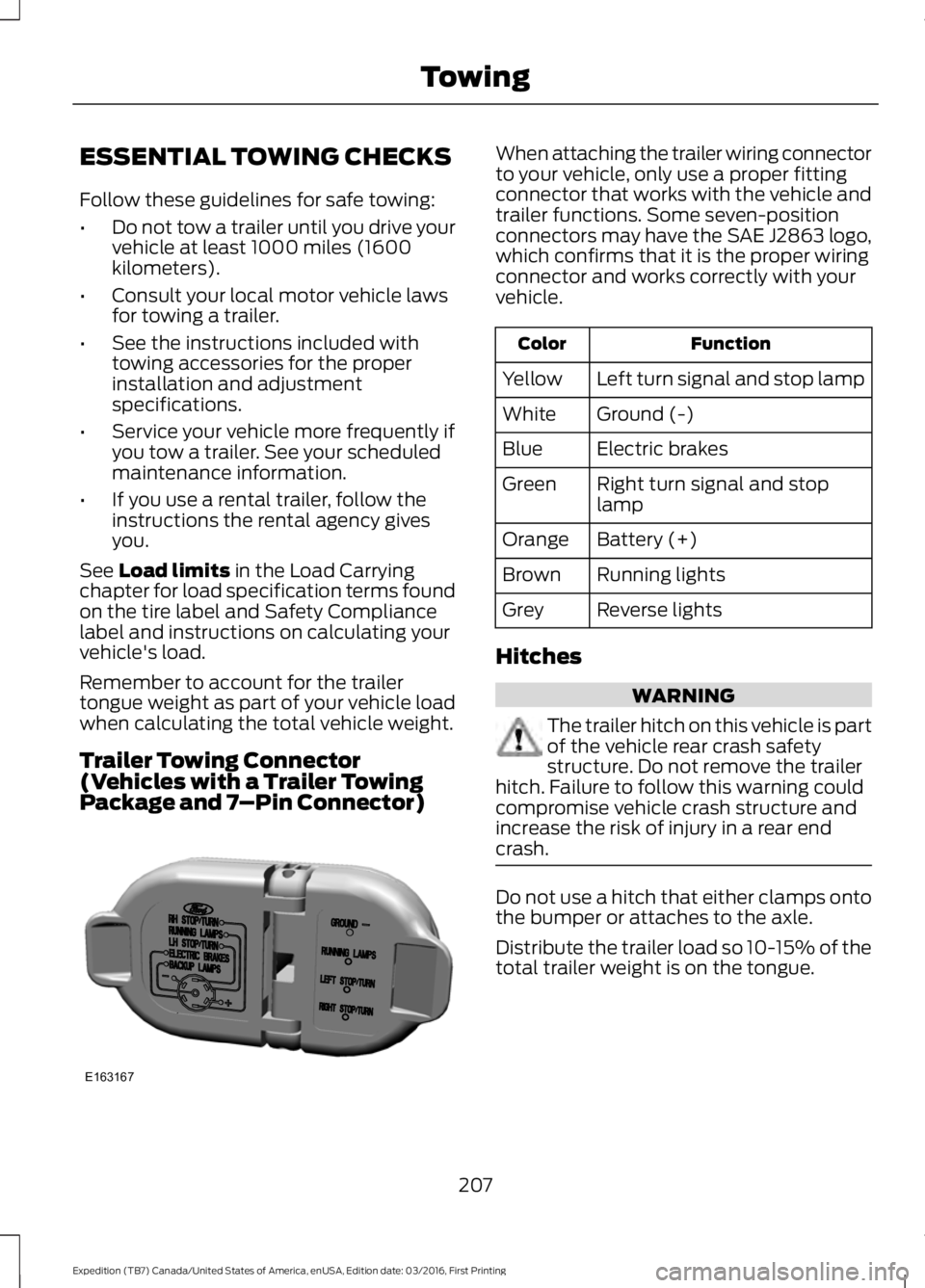
Trailer Towing Connector(Vehicles with a Trailer TowingPackage and 7–Pin Connector)
When attaching the trailer wiring connectorto your vehicle, only use a proper fittingconnector that works with the vehicle andtrailer functions. Some seven-positionconnectors may have the SAE J2863 logo,which confirms that it is the proper wiringconnector and works correctly with yourvehicle.
FunctionColor
Left turn signal and stop lampYellow
Ground (-)White
Electric brakesBlue
Right turn signal and stoplampGreen
Battery (+)Orange
Running lightsBrown
Reverse lightsGrey
Hitches
WARNING
The trailer hitch on this vehicle is partof the vehicle rear crash safetystructure. Do not remove the trailerhitch. Failure to follow this warning couldcompromise vehicle crash structure andincrease the risk of injury in a rear endcrash.
Do not use a hitch that either clamps ontothe bumper or attaches to the axle.
Distribute the trailer load so 10-15% of thetotal trailer weight is on the tongue.
207
Expedition (TB7) Canada/United States of America, enUSA, Edition date: 03/2016, First Printing
TowingE163167
Page 327 of 500
GENERAL INFORMATION
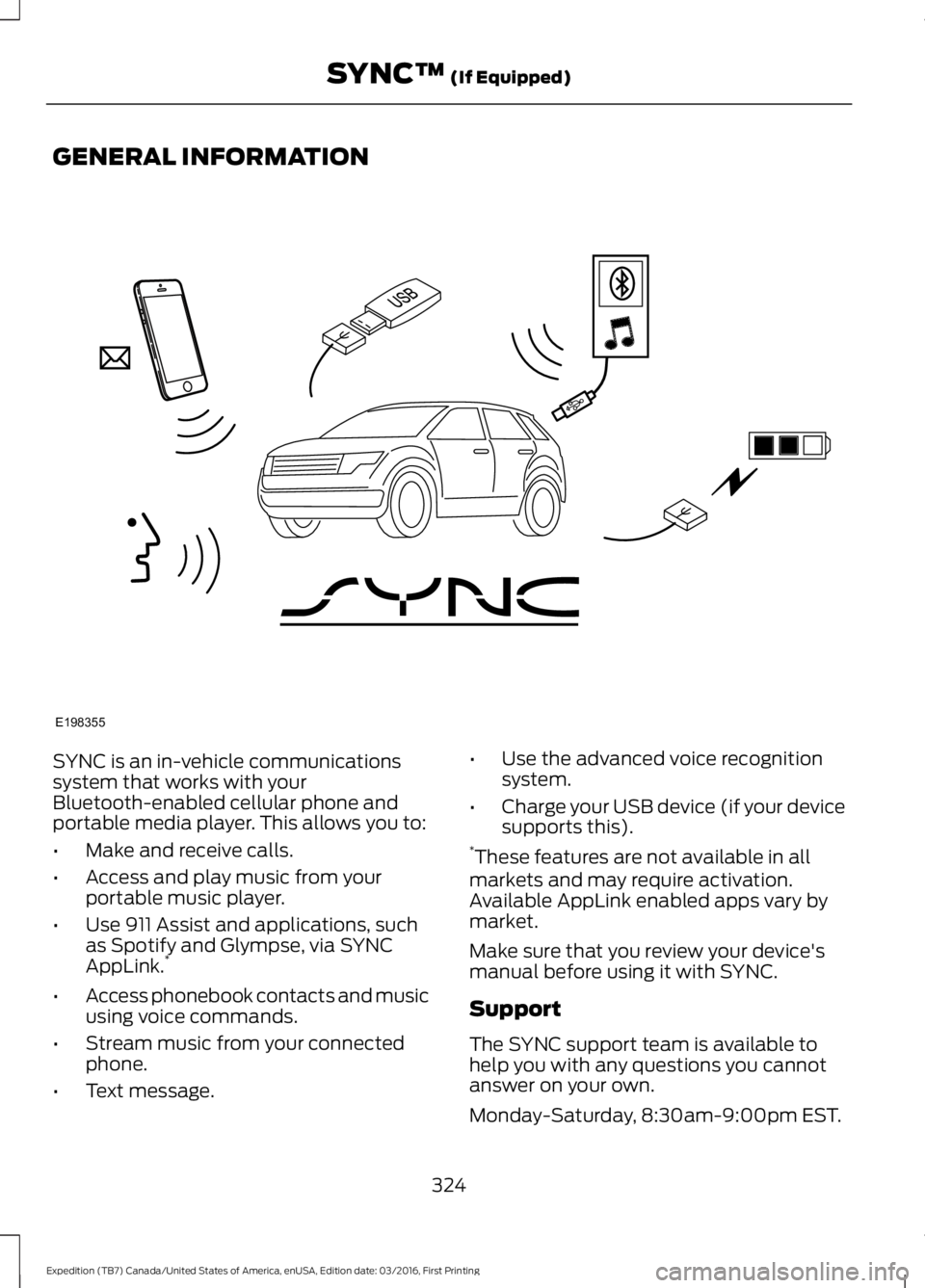
SYNC is an in-vehicle communicationssystem that works with yourBluetooth-enabled cellular phone andportable media player. This allows you to:
•Make and receive calls.
•Access and play music from yourportable music player.
•Use 911 Assist and applications, suchas Spotify and Glympse, via SYNCAppLink.*
•Access phonebook contacts and musicusing voice commands.
•Stream music from your connectedphone.
•Text message.
•Use the advanced voice recognitionsystem.
•Charge your USB device (if your devicesupports this).*These features are not available in allmarkets and may require activation.Available AppLink enabled apps vary bymarket.
Make sure that you review your device'smanual before using it with SYNC.
Support
The SYNC support team is available tohelp you with any questions you cannotanswer on your own.
Monday-Saturday, 8:30am-9:00pm EST.
324
Expedition (TB7) Canada/United States of America, enUSA, Edition date: 03/2016, First Printing
SYNC™ (If Equipped)E198355
Page 331 of 500
To adjust this setting press the voice button, when prompted say:
Action and DescriptionVoice Command
voice settings
Then any of the following:
When enabled, this feature will prompt youto confirm any voice initiated call commandprior to the call being placed.
phone confirmation on
The system will make a best guess; youmay still occasionally be asked to confirmsettings.
phone confirmation off
Changing the Voice Settings
In addition to using voice commands tochange the voice settings, you can also usethe menu in the audio display.
To change the voice settings press theMenu button then select:
Menu Item
SYNC-Settings
Voice settings
Note:Depending on the current climatecontrol settings, the fan speed mayautomatically go down while issuing voicecommands or while making and receivingphone calls via SYNC to reduce the amountof background noise in the vehicle. The fanspeed will automatically return to normaloperation once the voice session ends. Fanspeed can also be adjusted normally duringa voice session, simply press fan buttons (orturn fan knob) to increase or decrease fanspeed to desired setting.
To disable this automatic fan speedreduction feature during voice sessions,press and hold the climate control AC andRecirculated air buttons simultaneously,release and then increase fan speed within2 seconds. To re-enable this feature, repeatthe above sequence.
USING SYNC™ WITH YOUR
PHONE
Hands-free calling is one of the mainfeatures of SYNC. While the systemsupports a variety of features, many aredependent on your cellular phone'sfunctionality. At a minimum, most cellularphones with Bluetooth wireless technologysupport the following functions:
•Answering an incoming call.
•Ending a call.
•Using privacy mode.
•Dialing a number.
•Redialing.
•Call waiting notification.
•Caller ID.
328
Expedition (TB7) Canada/United States of America, enUSA, Edition date: 03/2016, First Printing
SYNC™ (If Equipped)
Page 332 of 500
Other features, such as text messagingusing Bluetooth and automatic phonebookdownload, are phone-dependent features.To check your phone's compatibility, seeyour phone's manual and visitwww.SYNCMyRide.com,www.SYNCMyRide.ca orwww.syncmaroute.ca.
Pairing a Phone for the First Time
Wirelessly pairing your phone with SYNCallows you to make and receive hands-freecalls.
Note:SYNC can support downloading upto approximately 4000 entries perBluetooth-enabled cellular phone.
Note:Make sure to switch on the ignitionand the radio. Shift the transmission intopark (P) for automatic transmission or firstgear for manual transmission.
Using the Audio System
Note:To scroll through the menus, pressthe up and down arrows on your audiosystem.
1. Make sure to switch on your phone'sBluetooth feature before starting thesearch. See your device's manual ifnecessary.
2. Press the PHONE button. When theaudio display indicates there is nopaired phone, select the option to add.
3. When a message to begin pairingappears in the audio display, search forSYNC on your phone to start the pairingprocess.
4. When prompted on your cell phone’sdisplay, confirm that the PIN providedby SYNC matches the PIN displayedon your cell phone. Your phone is nowpaired and the display indicates thatthe pairing was successful. If you areprompted to enter a PIN on your device,enter the PIN displayed on the screen.The display indicates when the pairingis successful.
Depending on your phone's capability andyour market, the system may prompt youwith questions, such as setting the currentphone as the primary phone (the phoneSYNC automatically tries to connect withfirst upon vehicle start-up) anddownloading your phonebook.
Using Voice Commands
Make sure to switch on yourphone's Bluetooth featurebefore starting the search. Seeyour device's manual if necessary.
Press the voice and when promptedsay:
Action and Descrip-tionVoice Command
Follow the instruc-tions on the audiodisplay.
(pair ([Bluetooth]device | phone |Bluetooth audio) |add phone)
You can say any of the voice commandsthat appear within open and close bracketsthat are separated by |. For example,where; (what's | what is) appears you say;what's or what is.
The commands that have [ ] around theword means that the word is optional.
329
Expedition (TB7) Canada/United States of America, enUSA, Edition date: 03/2016, First Printing
SYNC™ (If Equipped)E142599
Page 333 of 500
Depending on your phone's capability andyour market, the system may prompt youwith questions, such as setting the currentphone as the primary phone (the phoneSYNC automatically tries to connect withfirst upon vehicle start-up) anddownloading your phonebook.
Pairing Subsequent Phones
Note:Make sure to switch on the ignitionand the radio. Shift the transmission intopark (P) for automatic transmission or firstgear for manual transmission.
Note:To scroll through the menus, pressthe up and down arrows on your audiosystem.
1. Make sure to switch on your phone'sBluetooth feature before starting thesearch. See your device's manual ifnecessary.
2. Press the PHONE button.
3. Select the option for BluetoothDevices.
4. Press the OK button.
5. Select the option to add. This startsthe pairing process.
6. When a message to begin pairingappears in the audio display, search forSYNC on your device.
7. When prompted on your cell phone’sdisplay, confirm that the PIN providedby SYNC matches the PIN displayedon your cell phone. Your phone is nowpaired and the display indicates thatthe pairing was successful. If you areprompted to enter a PIN on your device,enter the PIN displayed on the screen.The display indicates when the pairingis successful.
SYNC may prompt you with more cellphone options. Your cell phone may alsoprompt you to give SYNC permission toaccess information. For more informationon your cell phone’s capability, see yourcell phone’s manual and visit the website.
Phone Voice Commands
Press the voice button. Whenprompted, say any of thefollowing:
Voice Command
(phone | Blackberry | iPhone)
Then say any of the following:
call (___)
call ___ at home
call ___ ((in|at) [the] office | at work)
call ___ on (cell | mobile)
call ___ on other
1dial [[a] number]
2([go to] privacy | transfer to phone| privacy on)
2(hold call [on] | place call on hold)
2join (calls | call)
2mute call [on]
2(mute call off | un-mute call)
(turn ringer on | silent mode off)
(turn ringer off | silent mode [on])
330
Expedition (TB7) Canada/United States of America, enUSA, Edition date: 03/2016, First Printing
SYNC™ (If Equipped)E142599
Page 335 of 500
Voice Command
You can state the name ofthe desired device, such as“My iPhone”,“My Galaxy”or“My iPod”. SYNC mayask you to confirm the typeof device (Phone, USB, orBluetooth Audio).
(connect |device) ___
Making Calls
Press the voice button. Whenprompted, say:
Voice Command
call [[a] name]
SYNC prompts you to saythe numbers that you wishto dial. After you say thenumbers, the systemconfirms it. You can thensay:
dial [[a]number]
When the system has stated thenumber, you say any of the following:
Voice Command
This initiates the call.(dial | send)
This erases the spokendigits.(delete |correct)
To end the call, press the end call button
on the steering wheel or select the end calloption in the audio display.
Receiving Calls
Accepting calls
When receiving a call, you can answer thecall by pressing the accept call button onthe steering wheel or use the screen.
To use the screen to accept a callselect:
Menu Item
Accept
Rejecting Calls
When receiving a call, you can reject thecall by pressing the reject call button onthe steering wheel or use the screen.
To use the screen to reject a call select:
Menu Item
Reject
Ignore the call by doing nothing.
Phone Options during an ActiveCall
During an active call, you have more menufeatures that become available, such asputting a call on hold or joining calls.
To access this menu, choose one of theoptions available at the bottom of theaudio display or select More to choosefrom the following options:
332
Expedition (TB7) Canada/United States of America, enUSA, Edition date: 03/2016, First Printing
SYNC™ (If Equipped)E142599
Page 337 of 500
Description and actionDisplay
Enter numbers using the audio system's numeric keypad.Dial a number
Access your downloaded phonebook.Phonebook1. Press the OK button to confirm and enter. You can usethe options at the bottom of the screen to access analphabetical category quickly. You can also use the letterson the audio system's numeric keypad to jump in the list.2. Scroll through your phonebook contacts.3. Press the OK button again when the desired selectionappears in the audio display.4. Press the OK button or dial button to call the selection.
Access any previously dialed, received or missed calls.Call History1. Press the OK button to select.2. Scroll to select incoming, outgoing or missed calls. Pressthe OK button to make your selection.3. Press the OK button or dial button to call the selection.
Select 1 of 10 speed dial entries. To set a speed dial entry,go to the phonebook and then press and hold one of thenumbers on the audio system's numeric keypad.
Speed Dial
Send, download and delete text messages.Text messaging
Access the option for Bluetooth Device menu listings (add,connect, set as primary, on or off, delete).BT Devices
View various settings and features on your phone.Phone settings
Text Messaging
Note:This is a phone-dependent feature.
SYNC allows you to receive, send,download and delete text messages. Thesystem can also read incoming textmessages to you so that you do not haveto take your eyes off the road.
Receiving a Text Message
Note:This is a phone-dependent feature.Your phone must support downloading textmessages using Bluetooth to receiveincoming text messages.
Note:This is a speed-dependent featureand is only available when your vehicle istraveling at 3.1 mph (5 km/h) or less.
When a new message arrives, an audibletone sounds and the audio displayindicates you have a new message.
To hear the message you can say:
Description andactionVoice command
Select this optionto have the systemread the messageto you.
(listen to | read)([text] message)
334
Expedition (TB7) Canada/United States of America, enUSA, Edition date: 03/2016, First Printing
SYNC™ (If Equipped)
Page 339 of 500
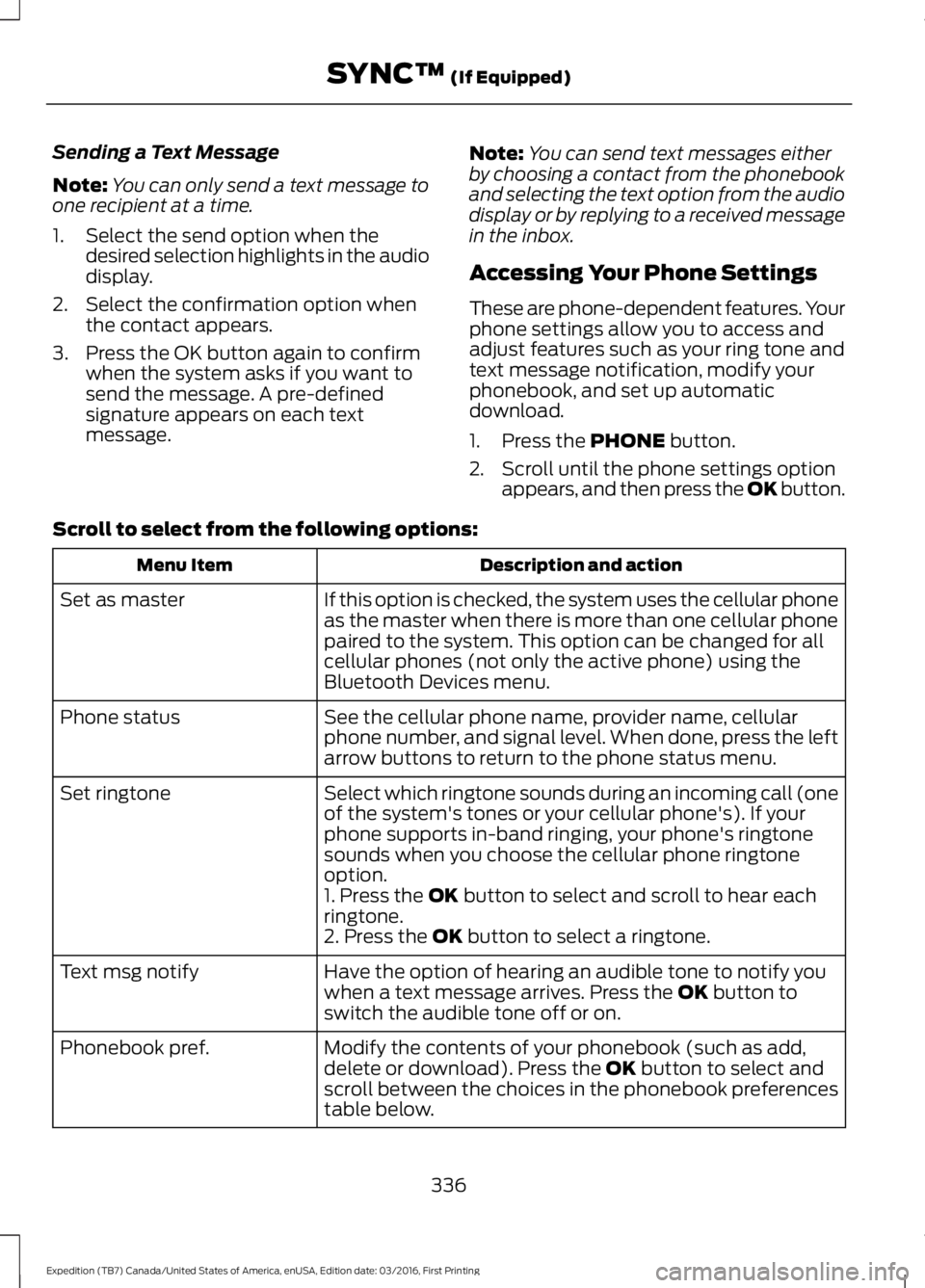
Sending a Text Message
Note:You can only send a text message toone recipient at a time.
1. Select the send option when thedesired selection highlights in the audiodisplay.
2. Select the confirmation option whenthe contact appears.
3. Press the OK button again to confirmwhen the system asks if you want tosend the message. A pre-definedsignature appears on each textmessage.
Note:You can send text messages eitherby choosing a contact from the phonebookand selecting the text option from the audiodisplay or by replying to a received messagein the inbox.
Accessing Your Phone Settings
These are phone-dependent features. Yourphone settings allow you to access andadjust features such as your ring tone andtext message notification, modify yourphonebook, and set up automaticdownload.
1. Press the PHONE button.
2. Scroll until the phone settings optionappears, and then press the OK button.
Scroll to select from the following options:
Description and actionMenu Item
If this option is checked, the system uses the cellular phoneas the master when there is more than one cellular phonepaired to the system. This option can be changed for allcellular phones (not only the active phone) using theBluetooth Devices menu.
Set as master
See the cellular phone name, provider name, cellularphone number, and signal level. When done, press the leftarrow buttons to return to the phone status menu.
Phone status
Select which ringtone sounds during an incoming call (oneof the system's tones or your cellular phone's). If yourphone supports in-band ringing, your phone's ringtonesounds when you choose the cellular phone ringtoneoption.
Set ringtone
1. Press the OK button to select and scroll to hear eachringtone.2. Press the OK button to select a ringtone.
Have the option of hearing an audible tone to notify youwhen a text message arrives. Press the OK button toswitch the audible tone off or on.
Text msg notify
Modify the contents of your phonebook (such as add,delete or download). Press the OK button to select andscroll between the choices in the phonebook preferencestable below.
Phonebook pref.
336
Expedition (TB7) Canada/United States of America, enUSA, Edition date: 03/2016, First Printing
SYNC™ (If Equipped)
Page 340 of 500
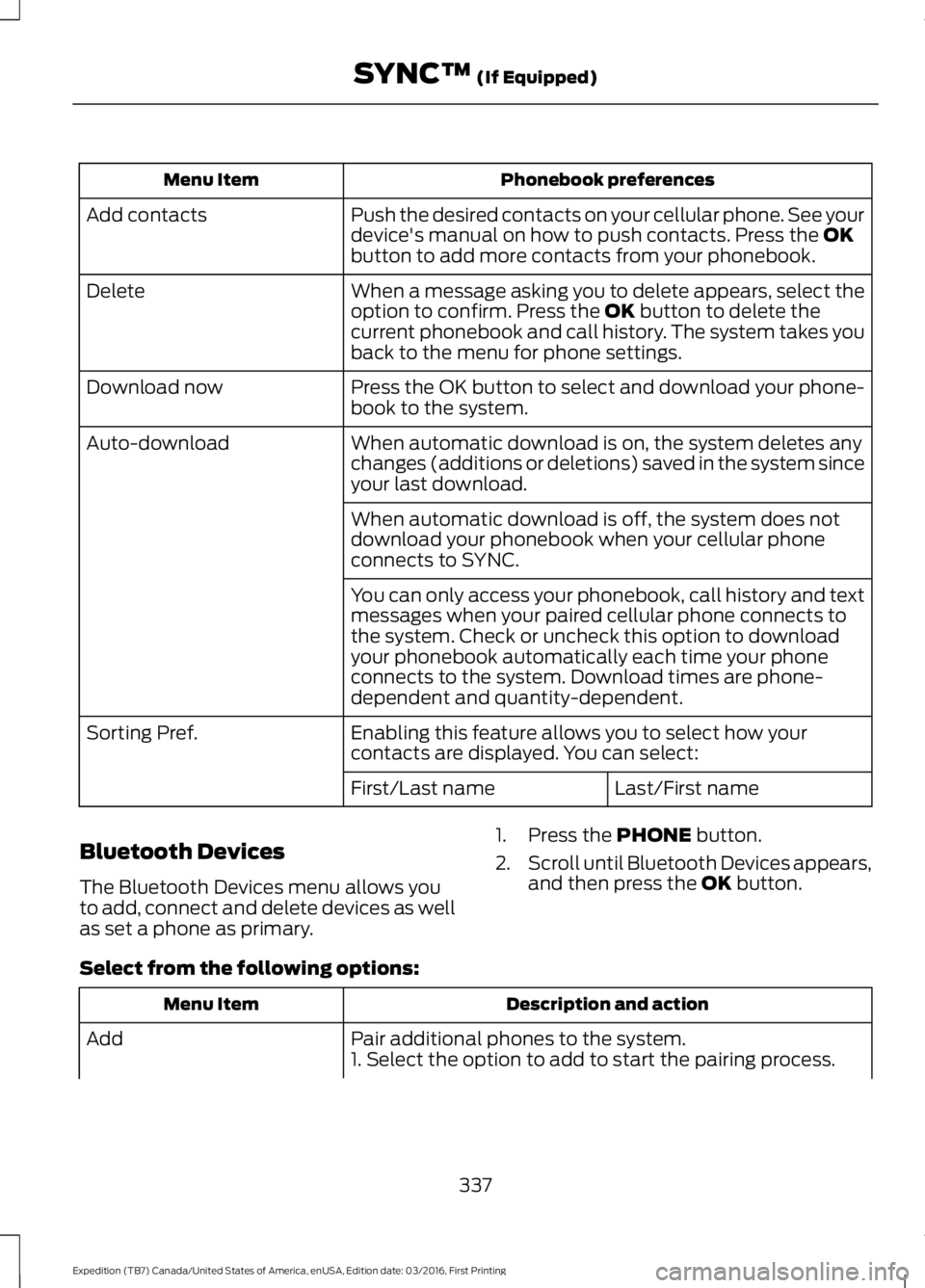
Phonebook preferencesMenu Item
Push the desired contacts on your cellular phone. See yourdevice's manual on how to push contacts. Press the OKbutton to add more contacts from your phonebook.
Add contacts
When a message asking you to delete appears, select theoption to confirm. Press the OK button to delete thecurrent phonebook and call history. The system takes youback to the menu for phone settings.
Delete
Press the OK button to select and download your phone-book to the system.Download now
When automatic download is on, the system deletes anychanges (additions or deletions) saved in the system sinceyour last download.
Auto-download
When automatic download is off, the system does notdownload your phonebook when your cellular phoneconnects to SYNC.
You can only access your phonebook, call history and textmessages when your paired cellular phone connects tothe system. Check or uncheck this option to downloadyour phonebook automatically each time your phoneconnects to the system. Download times are phone-dependent and quantity-dependent.
Enabling this feature allows you to select how yourcontacts are displayed. You can select:Sorting Pref.
Last/First nameFirst/Last name
Bluetooth Devices
The Bluetooth Devices menu allows youto add, connect and delete devices as wellas set a phone as primary.
1. Press the PHONE button.
2.Scroll until Bluetooth Devices appears,and then press the OK button.
Select from the following options:
Description and actionMenu Item
Pair additional phones to the system.Add1. Select the option to add to start the pairing process.
337
Expedition (TB7) Canada/United States of America, enUSA, Edition date: 03/2016, First Printing
SYNC™ (If Equipped)