display FORD EXPLORER 2012 5.G Repair Manual
[x] Cancel search | Manufacturer: FORD, Model Year: 2012, Model line: EXPLORER, Model: FORD EXPLORER 2012 5.GPages: 439, PDF Size: 3.63 MB
Page 281 of 439
Hill descent control can maintain vehicle speeds on downhill grades
between 3 mph (5 km/h) and 20 mph (32 km/h). Above 20 mph
(32 km/h), the system remains armed, but descent speed cannot be set
or maintained.
WARNING:Hill descent control does not provide hill hold at
zero mph (0 km/h). When stopped, the parking brake must be
applied and/or the vehicle must be placed in P (Park) or it may roll
away.
Hill descent control requires a cooling down interval after a period of
sustained use. The amount of time that the feature can remain active
before cooling varies with conditions. The system will provide a warning
in the message center and a chime will sound when the system is about
to disengage for cooling. At this time, manually apply the brakes as
needed to maintain descent speed.
Enabling hill descent control and setting the descent speed
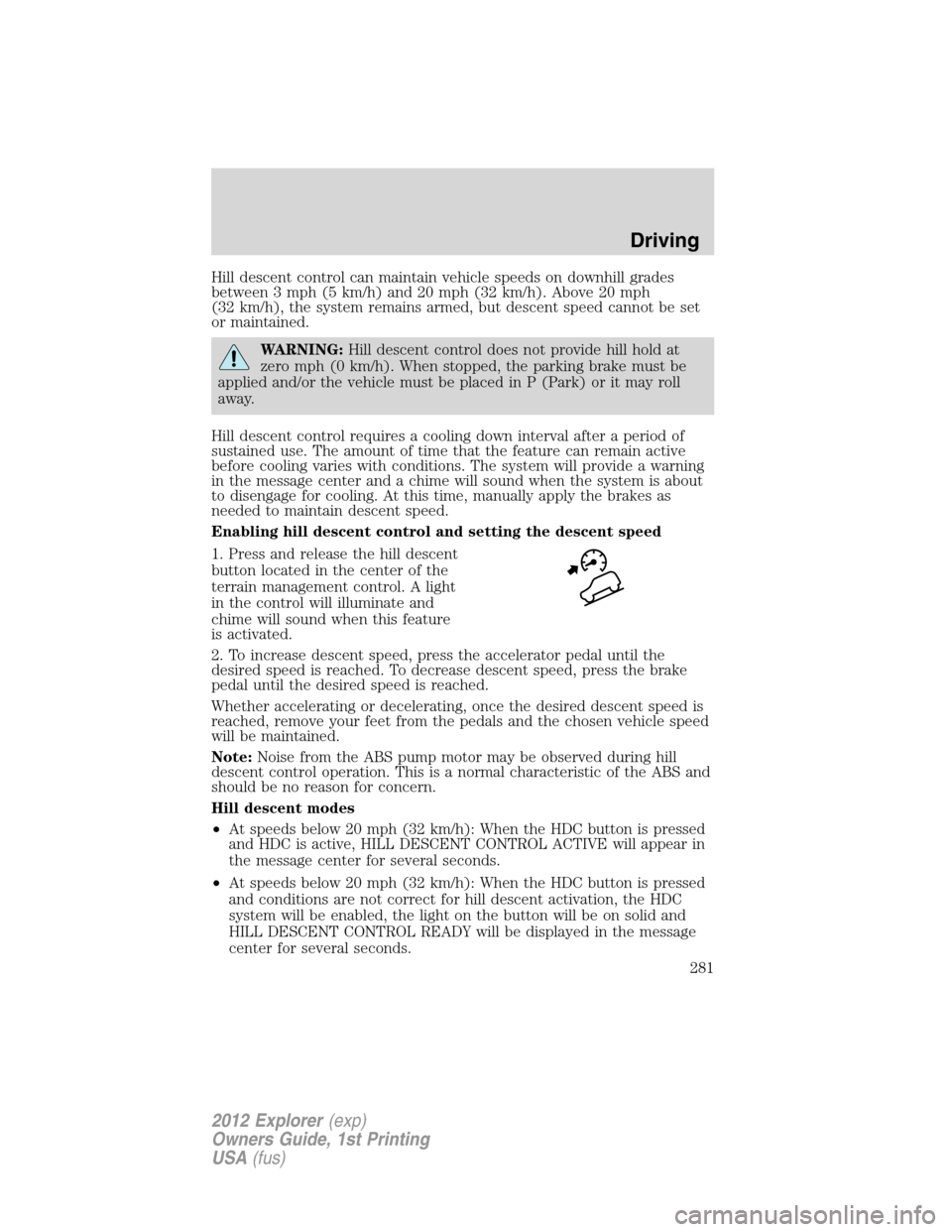
1. Press and release the hill descent
button located in the center of the
terrain management control. A light
in the control will illuminate and
chime will sound when this feature
is activated.
2. To increase descent speed, press the accelerator pedal until the
desired speed is reached. To decrease descent speed, press the brake
pedal until the desired speed is reached.
Whether accelerating or decelerating, once the desired descent speed is
reached, remove your feet from the pedals and the chosen vehicle speed
will be maintained.
Note:Noise from the ABS pump motor may be observed during hill
descent control operation. This is a normal characteristic of the ABS and
should be no reason for concern.
Hill descent modes
•At speeds below 20 mph (32 km/h): When the HDC button is pressed
and HDC is active, HILL DESCENT CONTROL ACTIVE will appear in
the message center for several seconds.
•At speeds below 20 mph (32 km/h): When the HDC button is pressed
and conditions are not correct for hill descent activation, the HDC
system will be enabled, the light on the button will be on solid and
HILL DESCENT CONTROL READY will be displayed in the message
center for several seconds.
Driving
281
2012 Explorer(exp)
Owners Guide, 1st Printing
USA(fus)
Page 282 of 439
•At speeds above 20 mph (32 km/h): When the HDC button is pressed,
the HDC system will be enabled, the light on the button will be
illuminated, and FOR HILL CNTRL, 20 MPH OR LESS will be
displayed in the message center for several seconds.
•For HDC to enable, the vehicle must be in a drive gear or (R)
Reverse. If the vehicle is in P (Park) or N (Neutral) and the HDC
button is pressed, FOR HILL CNTRL, SELECT GEAR will be displayed
in the message center for several seconds.
Refer toMessage centerin theInstrument Clusterchapter for hill
descent control messages.
STEERING
Your vehicle is equipped with an electric power-assisted steering (EPAS)
system. There is no fluid reservoir to check or fill.
If your vehicle loses electrical power while you are driving (or if the
ignition is turned off), you can steer the vehicle manually, but it takes
more effort. Extreme continuous steering may increase the effort it takes
for you to steer. This occurs to prevent overheating and permanent
damage to your steering system. If this should occur, you will neither
lose the ability to steer the vehicle manually nor will it cause permanent
damage. Typical steering and driving maneuvers will allow the system to
cool and steering assist will return to normal.
The EPS system has diagnostic checks that continuously monitor the
EPS system to ensure proper operation. When a system error is
detected, the following message SERVICE POWER STEERING, SERVICE
POWER STEERING NOW or POWER STEERING ASSIST FAULT may
display in the message center. Refer to theMessage centerin the
Instrument Clusterchapter for more information.
WARNING:The EPS system has diagnostics checks that
continuously monitor the EPS system to ensure proper operation
of the electronic system. When an electronic error is detected, the
message POWER STEERING ASSIST FAULT will be displayed in the
message center. If this happens, stop the vehicle in a safe place, and
turn off the engine. After at least 10 seconds, reset the system by
restarting the engine, and watch the message center for POWER
STEERING ASSIST FAULT. If the message returns, or returns while
driving, take the vehicle to your dealer to have it checked. With the
message displayed, the steering assist is turned off, making the vehicle
harder to steer.
Driving
282
2012 Explorer(exp)
Owners Guide, 1st Printing
USA(fus)
Page 283 of 439
WARNING:If the message SERVICE POWER STEERING is
displayed in the message center, the EPS system has detected a
problem with the system function. On the next ignition cycle, the
message SERVICE POWER STEERING NOW will be displayed and
steering assist will be removed until the steering system is serviced.
Have your vehicle taken to the nearest dealer as soon as possible.
If the steering wanders or pulls, check for:
•an improperly inflated tire.
•uneven tire wear.
•loose or worn suspension components.
•loose or worn steering components.
•improper steering alignment.
A high crown in the road or high crosswinds may also make the steering
seem to wander/pull.
PREPARING TO DRIVE
WARNING:Utility vehicles have a significantly higher rollover
rate than other types of vehicles.
WARNING:In a rollover crash, an unbelted person is
significantly more likely to die than a person wearing a seat belt.
Utility vehicles and trucks have larger tires and increased ground
clearance, giving the vehicle a higher center of gravity than a passenger
car.
WARNING:Vehicles with a higher center of gravity such as
utility vehicles and trucks handle differently than vehicles with a
lower center of gravity. Utility vehicles and trucks arenotdesigned for
cornering at speeds as high as passenger cars any more than low-slung
sports cars are designed to perform satisfactorily under off-road
conditions. Avoid sharp turns, excessive speed or abrupt maneuvers in
these vehicles. Failure to drive cautiously could result in an increased
risk of loss of vehicle control, vehicle rollover, personal injury and
death.
Driving
283
2012 Explorer(exp)
Owners Guide, 1st Printing
USA(fus)
Page 289 of 439
M (Manual)
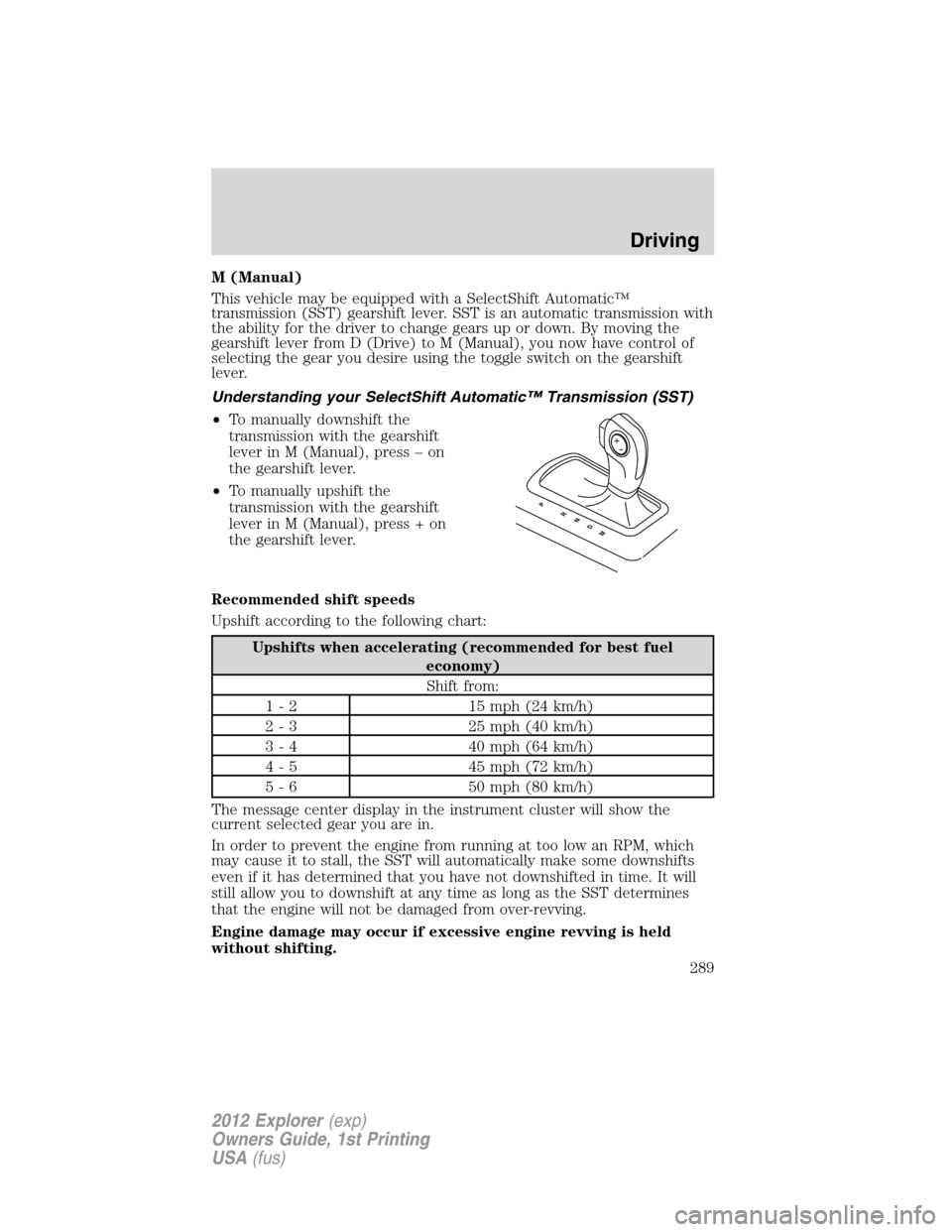
This vehicle may be equipped with a SelectShift Automatic™
transmission (SST) gearshift lever. SST is an automatic transmission with
the ability for the driver to change gears up or down. By moving the
gearshift lever from D (Drive) to M (Manual), you now have control of
selecting the gear you desire using the toggle switch on the gearshift
lever.
Understanding your SelectShift Automatic™ Transmission (SST)
•To manually downshift the
transmission with the gearshift
lever in M (Manual), press – on
the gearshift lever.
•To manually upshift the
transmission with the gearshift
lever in M (Manual), press + on
the gearshift lever.
Recommended shift speeds
Upshift according to the following chart:
Upshifts when accelerating (recommended for best fuel
economy)
Shift from:
1 - 2 15 mph (24 km/h)
2 - 3 25 mph (40 km/h)
3 - 4 40 mph (64 km/h)
4 - 5 45 mph (72 km/h)
5 - 6 50 mph (80 km/h)
The message center display in the instrument cluster will show the
current selected gear you are in.
In order to prevent the engine from running at too low an RPM, which
may cause it to stall, the SST will automatically make some downshifts
even if it has determined that you have not downshifted in time. It will
still allow you to downshift at any time as long as the SST determines
that the engine will not be damaged from over-revving.
Engine damage may occur if excessive engine revving is held
without shifting.
PRNDM
Driving
289
2012 Explorer(exp)
Owners Guide, 1st Printing
USA(fus)
Page 293 of 439
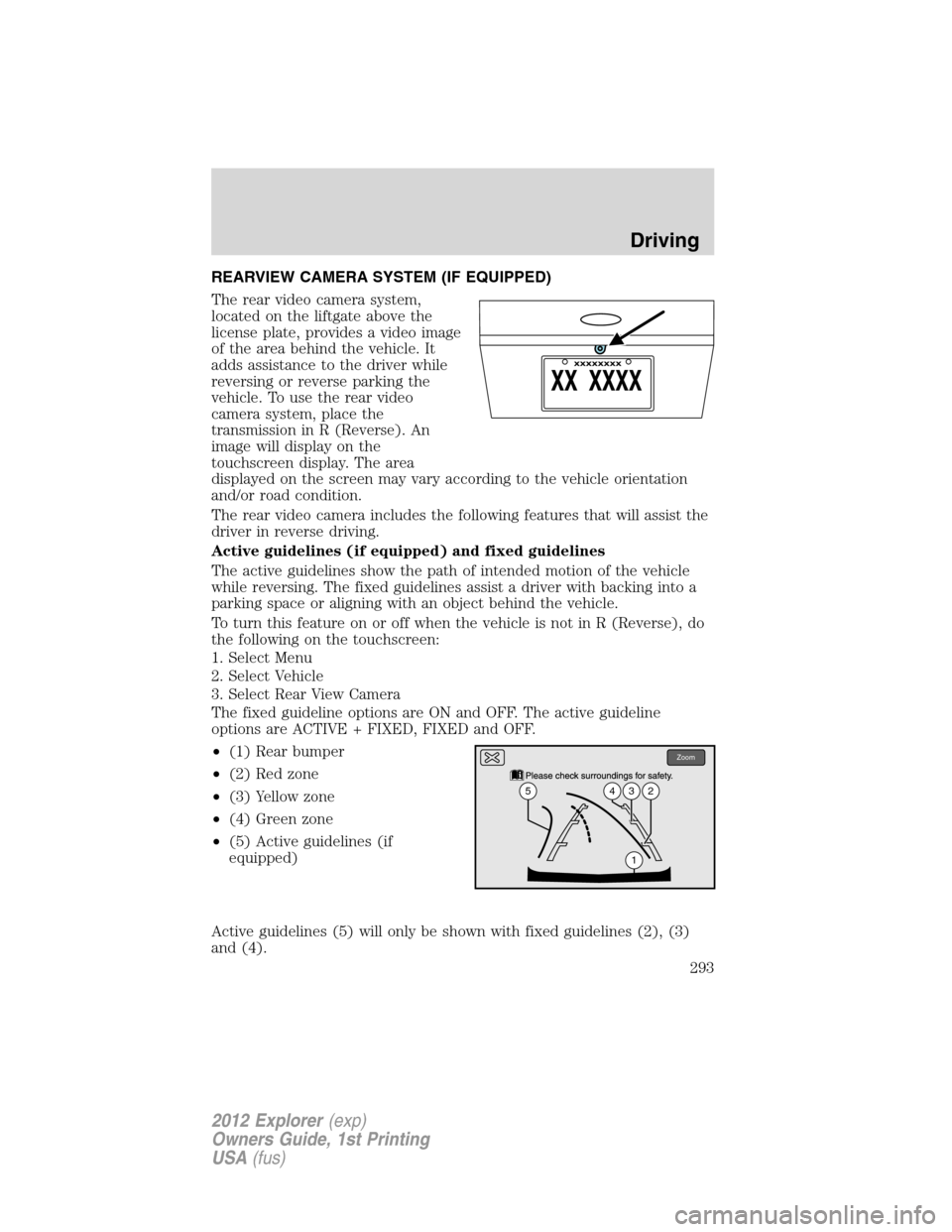
REARVIEW CAMERA SYSTEM (IF EQUIPPED)
The rear video camera system,
located on the liftgate above the
license plate, provides a video image
of the area behind the vehicle. It
adds assistance to the driver while
reversing or reverse parking the
vehicle. To use the rear video
camera system, place the
transmission in R (Reverse). An
image will display on the
touchscreen display. The area
displayed on the screen may vary according to the vehicle orientation
and/or road condition.
The rear video camera includes the following features that will assist the
driver in reverse driving.
Active guidelines (if equipped) and fixed guidelines
The active guidelines show the path of intended motion of the vehicle
while reversing. The fixed guidelines assist a driver with backing into a
parking space or aligning with an object behind the vehicle.
To turn this feature on or off when the vehicle is not in R (Reverse), do
the following on the touchscreen:
1. Select Menu
2. Select Vehicle
3. Select Rear View Camera
The fixed guideline options are ON and OFF. The active guideline
options are ACTIVE + FIXED, FIXED and OFF.
•(1) Rear bumper
•(2) Red zone
•(3) Yellow zone
•(4) Green zone
•(5) Active guidelines (if
equipped)
Active guidelines (5) will only be shown with fixed guidelines (2), (3)
and (4).
Zoom
1
5432
Driving
293
2012 Explorer(exp)
Owners Guide, 1st Printing
USA(fus)
Page 294 of 439
To use active guidelines, turn the steering wheel and point the active
guidelines towards an intended path. If the steering wheel position is
changed while reversing, the vehicle might deviate from the original
intended path.
Active guidelines project the intended path of the vehicle. Fixed
guidelines show the actual direction the vehicle is moving. The fixed and
active guidelines will fade in and out depending on the steering wheel
position. When the steering wheel position is straight, the active
guidelines will not be shown.
Always use caution while backing. Objects in the red zone (2) are closest
to your vehicle and objects in the green zone (4) are further away.
Objects are getting closer to your vehicle as they move from the green
zone (4) to the yellow (3) or red zones (2). Use the side mirrors and
rearview mirror to get better coverage on both sides and rear of the
vehicle.
Visual park aid alert (if equipped)
Visual park aid alert allows the driver to see the area that is causing the
reverse sensing system to beep. The visual alerts are red, yellow or green
highlights which appear on top of the video image when an object is
detected by the reverse sensing system. The visual alert will highlight
the closest object detected by the reverse sensing system. The reverse
sensing alert can be disabled and if visual park aid alert is enabled,
highlighted areas will still be displayed.
To turn this feature on or off when the vehicle is not in R (Reverse), do
the following on the touchscreen:
1. Select Menu
2. Select Vehicle
3. Select Rear View Camera
The visual park aid alert options are ON and OFF.
Note:The reverse sensing system is not effective at speeds above 3 mph
(5 km/h) and may not detect certain angular or moving objects.
Manual zoom
The manual zoom feature assists drivers with connecting their vehicle to
a trailer for the purpose of towing. It allows the driver to manually zoom
closer to an object behind the vehicle. The zoomed image keeps the
bumper in the image to provide a reference.
Driving
294
2012 Explorer(exp)
Owners Guide, 1st Printing
USA(fus)
Page 296 of 439
If the vehicle is in R (Reverse) and the liftgate is ajar, no rear video
camera features will be displayed. A message will be displayed on the
touchscreen if the liftgate is ajar.
After activating or deactivating a rear video camera feature, the
touchscreen will show a preview of the feature(s) selected.
Note:If the camera system image is not clear or seems distorted, it may
be covered with water droplets, snow, mud or any other substance. If
this occurs, clean the camera lens before using the camera system.
WARNING:The rearview camera system is a reverse aid
supplement device that still requires the driver to use it in
conjunction with the rearview mirror and the side mirrors for
maximum coverage.
WARNING:Objects that are close to either corner of the
bumper or under the bumper, might not be seen on the screen
due to the limited coverage of the camera system.
WARNING:Backup as slow as possible since higher speeds
might limit your reaction time to stop the vehicle.
WARNING:When manual zoom is enabled (Level 1, Level 2 or
Level 3), the full area behind the vehicle will not be shown. Be
aware of your surroundings when using the manual zoom feature.
WARNING:Use caution when using the rear video camera and
the liftgate is ajar. If the liftgate is ajar, the camera will be out of
position and the video image may be incorrect. All guidelines (if
enabled) have been removed when the liftgate is ajar.
WARNING:Use caution when turning ON or OFF camera
features while in R (Reverse). Make sure the vehicle is not
moving.
If the back end of the vehicle is hit or damaged, then check with your
authorized dealer to have your rear video system checked for proper
coverage and operation.
Driving
296
2012 Explorer(exp)
Owners Guide, 1st Printing
USA(fus)
Page 299 of 439
If the front end of the vehicle is hit or damaged, the radar sensing zone
may be altered causing missed or false collision warnings. Check with
your authorized dealer to have your collision warning radar checked for
proper coverage and operation.
WARNING:The collision warning system’s brake support can
only help reduce the speed at which a collision occurs if the
driver applies the vehicle’s brakes. The brake pedal must be pressed
just like any typical braking situation.
Blocked sensor
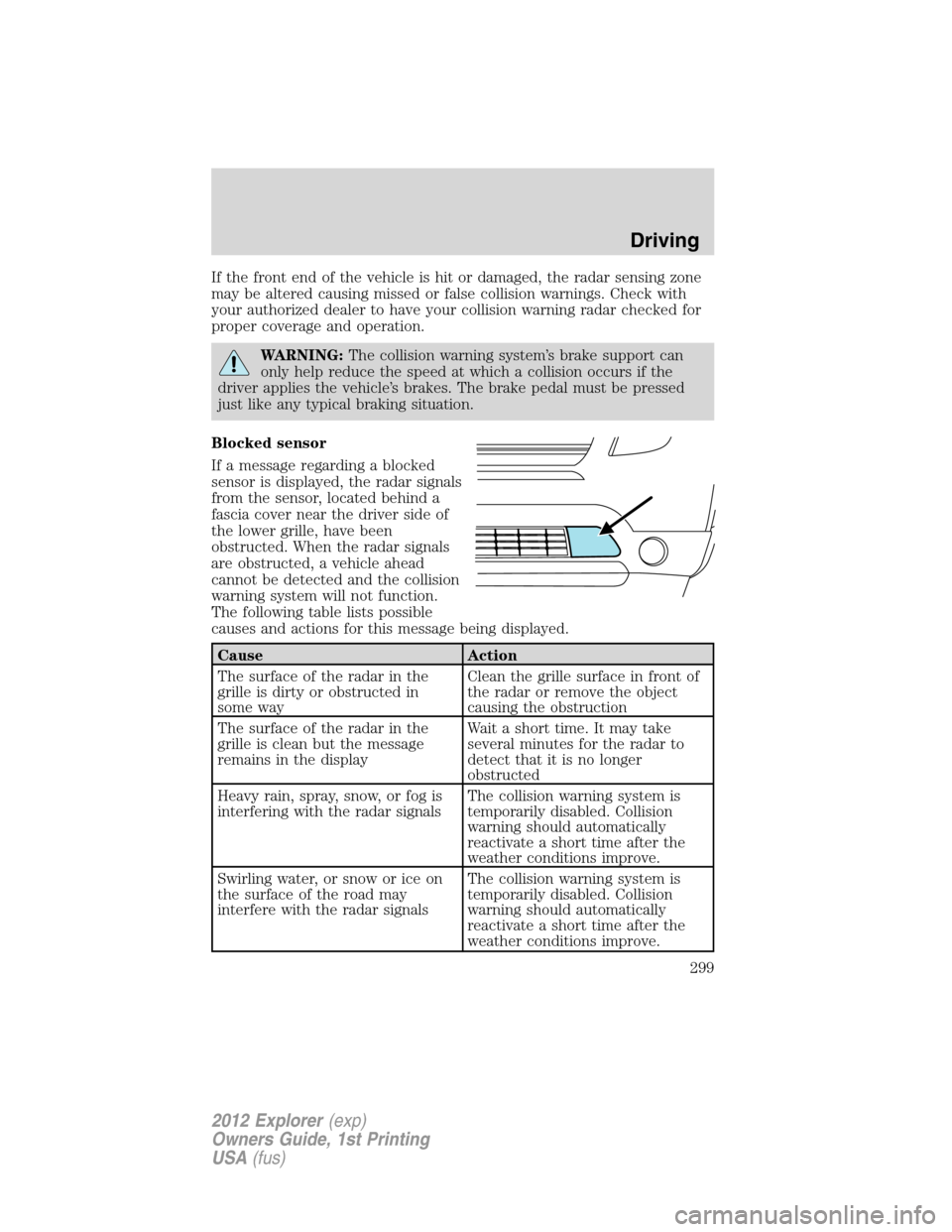
If a message regarding a blocked
sensor is displayed, the radar signals
from the sensor, located behind a
fascia cover near the driver side of
the lower grille, have been
obstructed. When the radar signals
are obstructed, a vehicle ahead
cannot be detected and the collision
warning system will not function.
The following table lists possible
causes and actions for this message being displayed.
Cause Action
The surface of the radar in the
grille is dirty or obstructed in
some wayClean the grille surface in front of
the radar or remove the object
causing the obstruction
The surface of the radar in the
grille is clean but the message
remains in the displayWait a short time. It may take
several minutes for the radar to
detect that it is no longer
obstructed
Heavy rain, spray, snow, or fog is
interfering with the radar signalsThe collision warning system is
temporarily disabled. Collision
warning should automatically
reactivate a short time after the
weather conditions improve.
Swirling water, or snow or ice on
the surface of the road may
interfere with the radar signalsThe collision warning system is
temporarily disabled. Collision
warning should automatically
reactivate a short time after the
weather conditions improve.
Driving
299
2012 Explorer(exp)
Owners Guide, 1st Printing
USA(fus)
Page 301 of 439
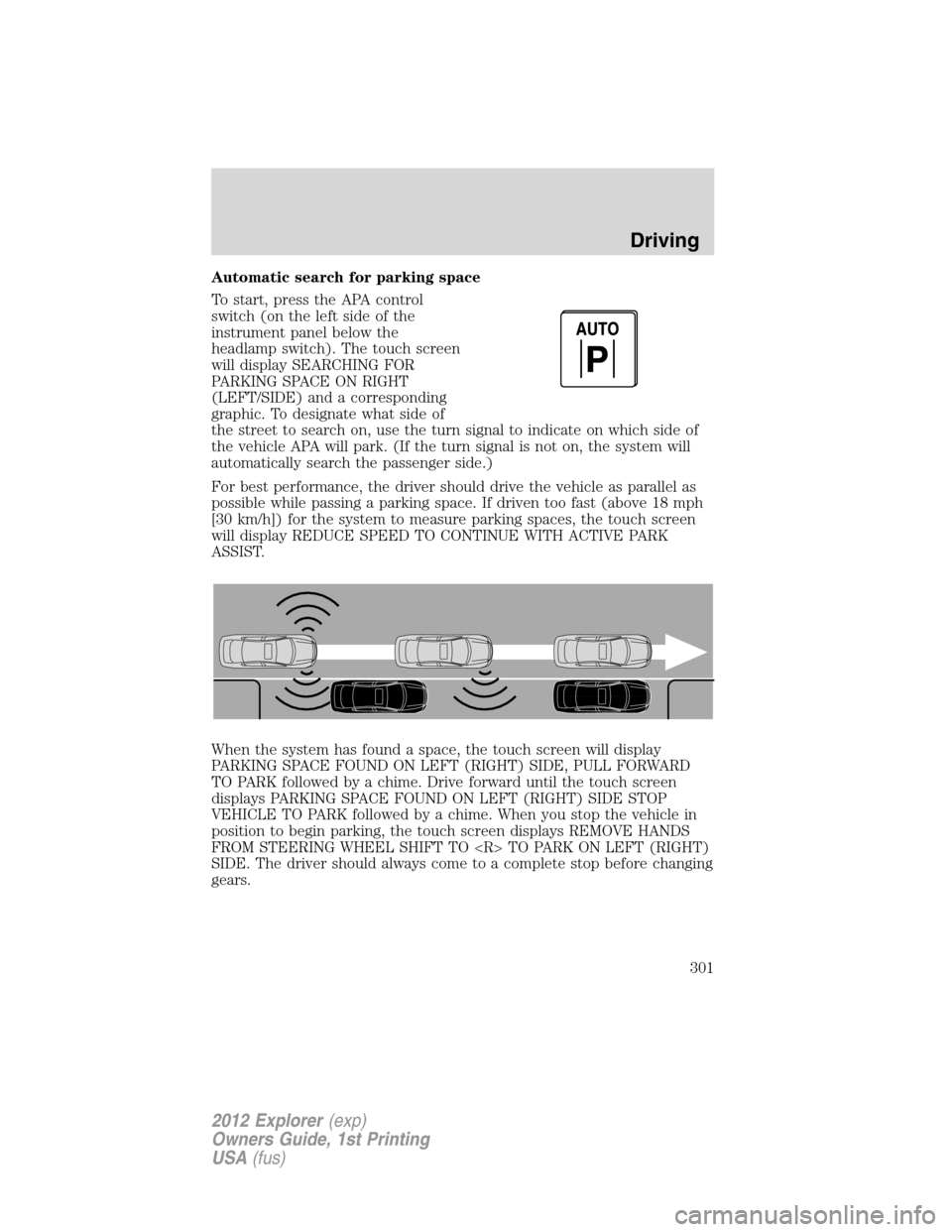
Automatic search for parking space
To start, press the APA control
switch(ontheleftsideofthe
instrument panel below the
headlamp switch). The touch screen
will display SEARCHING FOR
PARKING SPACE ON RIGHT
(LEFT/SIDE) and a corresponding
graphic. To designate what side of
the street to search on, use the turn signal to indicate on which side of
the vehicle APA will park. (If the turn signal is not on, the system will
automatically search the passenger side.)
For best performance, the driver should drive the vehicle as parallel as
possible while passing a parking space. If driven too fast (above 18 mph
[30 km/h]) for the system to measure parking spaces, the touch screen
will display REDUCE SPEED TO CONTINUE WITH ACTIVE PARK
ASSIST.
When the system has found a space, the touch screen will display
PARKING SPACE FOUND ON LEFT (RIGHT) SIDE, PULL FORWARD
TO PARK followed by a chime. Drive forward until the touch screen
displays PARKING SPACE FOUND ON LEFT (RIGHT) SIDE STOP
VEHICLE TO PARK followed by a chime. When you stop the vehicle in
position to begin parking, the touch screen displays REMOVE HANDS
FROM STEERING WHEEL SHIFT TO
SIDE. The driver should always come to a complete stop before changing
gears.
Driving
301
2012 Explorer(exp)
Owners Guide, 1st Printing
USA(fus)
Page 302 of 439
Automatic steering into parking space
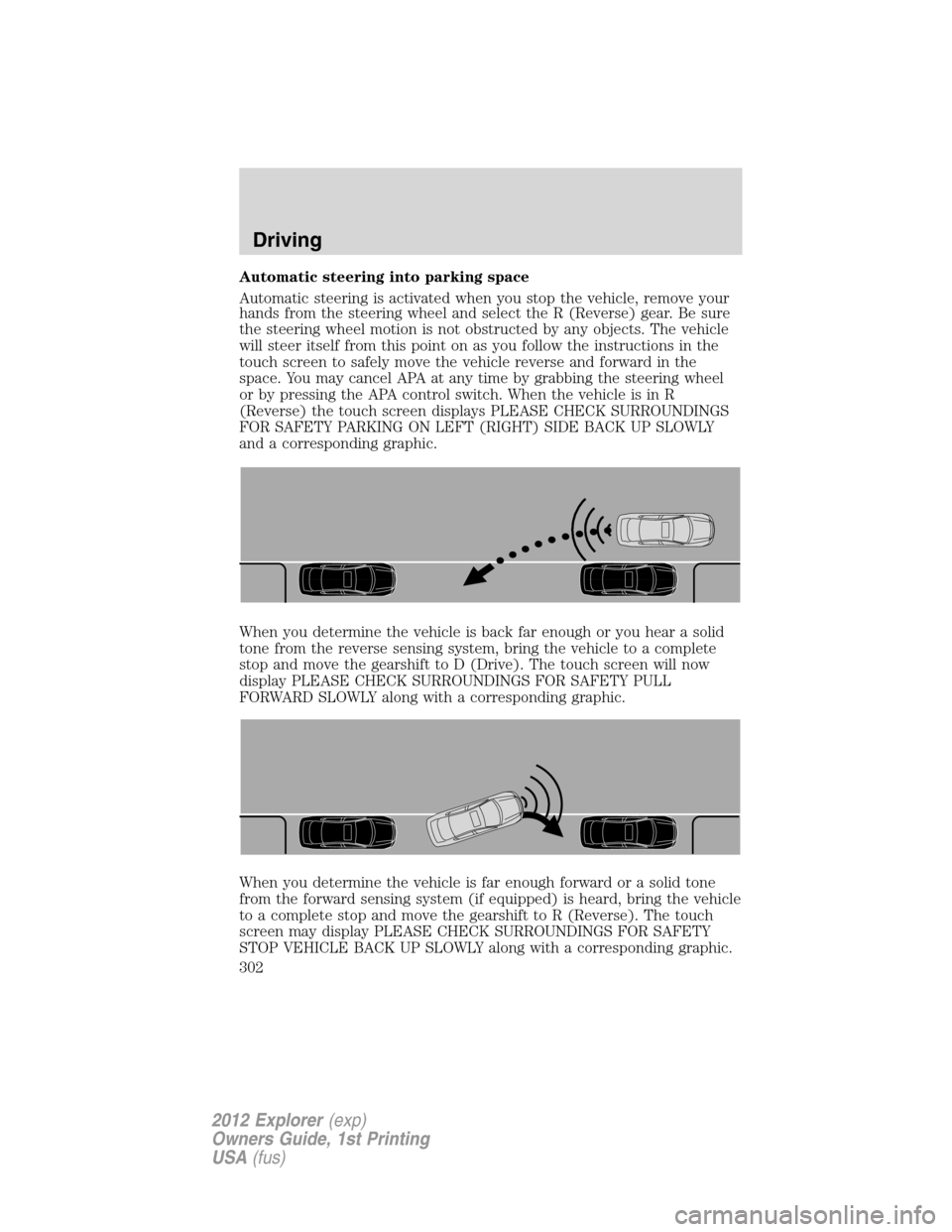
Automatic steering is activated when you stop the vehicle, remove your
hands from the steering wheel and select the R (Reverse) gear. Be sure
the steering wheel motion is not obstructed by any objects. The vehicle
will steer itself from this point on as you follow the instructions in the
touch screen to safely move the vehicle reverse and forward in the
space. You may cancel APA at any time by grabbing the steering wheel
or by pressing the APA control switch. When the vehicle is in R
(Reverse) the touch screen displays PLEASE CHECK SURROUNDINGS
FOR SAFETY PARKING ON LEFT (RIGHT) SIDE BACK UP SLOWLY
and a corresponding graphic.
When you determine the vehicle is back far enough or you hear a solid
tone from the reverse sensing system, bring the vehicle to a complete
stop and move the gearshift to D (Drive). The touch screen will now
display PLEASE CHECK SURROUNDINGS FOR SAFETY PULL
FORWARD SLOWLY along with a corresponding graphic.
When you determine the vehicle is far enough forward or a solid tone
from the forward sensing system (if equipped) is heard, bring the vehicle
to a complete stop and move the gearshift to R (Reverse). The touch
screen may display PLEASE CHECK SURROUNDINGS FOR SAFETY
STOP VEHICLE BACK UP SLOWLY along with a corresponding graphic.
Driving
302
2012 Explorer(exp)
Owners Guide, 1st Printing
USA(fus)