clock FORD EXPLORER 2014 5.G User Guide
[x] Cancel search | Manufacturer: FORD, Model Year: 2014, Model line: EXPLORER, Model: FORD EXPLORER 2014 5.GPages: 586, PDF Size: 9.07 MB
Page 341 of 586
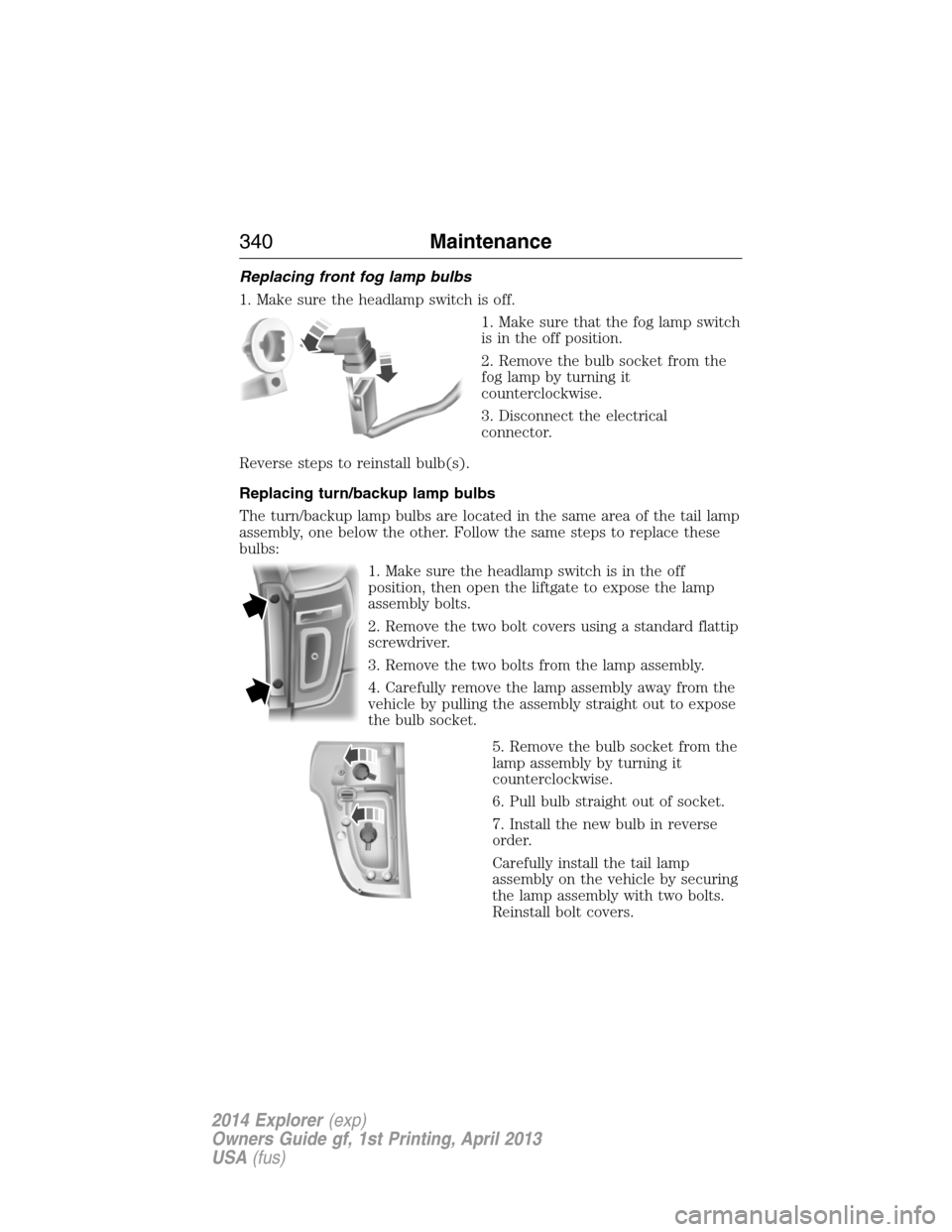
Replacing front fog lamp bulbs
1. Make sure the headlamp switch is off.
1. Make sure that the fog lamp switch
is in the off position.
2. Remove the bulb socket from the
fog lamp by turning it
counterclockwise.
3. Disconnect the electrical
connector.
Reverse steps to reinstall bulb(s).
Replacing turn/backup lamp bulbs
The turn/backup lamp bulbs are located in the same area of the tail lamp
assembly, one below the other. Follow the same steps to replace these
bulbs:
1. Make sure the headlamp switch is in the off
position, then open the liftgate to expose the lamp
assembly bolts.
2. Remove the two bolt covers using a standard flattip
screwdriver.
3. Remove the two bolts from the lamp assembly.
4. Carefully remove the lamp assembly away from the
vehicle by pulling the assembly straight out to expose
the bulb socket.
5. Remove the bulb socket from the
lamp assembly by turning it
counterclockwise.
6. Pull bulb straight out of socket.
7. Install the new bulb in reverse
order.
Carefully install the tail lamp
assembly on the vehicle by securing
the lamp assembly with two bolts.
Reinstall bolt covers.
340Maintenance
2014 Explorer(exp)
Owners Guide gf, 1st Printing, April 2013
USA(fus)
Page 380 of 586
WARNING:Do not attempt to change a tire on the side of the
vehicle close to moving traffic. Pull far enough off the road to
avoid the danger of being hit when operating the jack or changing the
wheel.
WARNING:Always use the jack provided as original equipment
with your vehicle. If using a jack other than the one provided as
original equipment with your vehicle, make sure the jack capacity is
adequate for the vehicle weight, including any vehicle cargo or
modifications.
Note:Passengers should not remain in the vehicle when the vehicle is
being jacked.
Note:If the third-row seat is stowed in the floor, you will need to
unstow it (raised position) to access the spare tire and jack. SeeRear
Seatsin theSeatschapter for this procedure.
1. Park on a level surface, set the parking brake and activate the hazard
flashers.
2. Place the transmission selector lever in positionPand turn the engine
off.
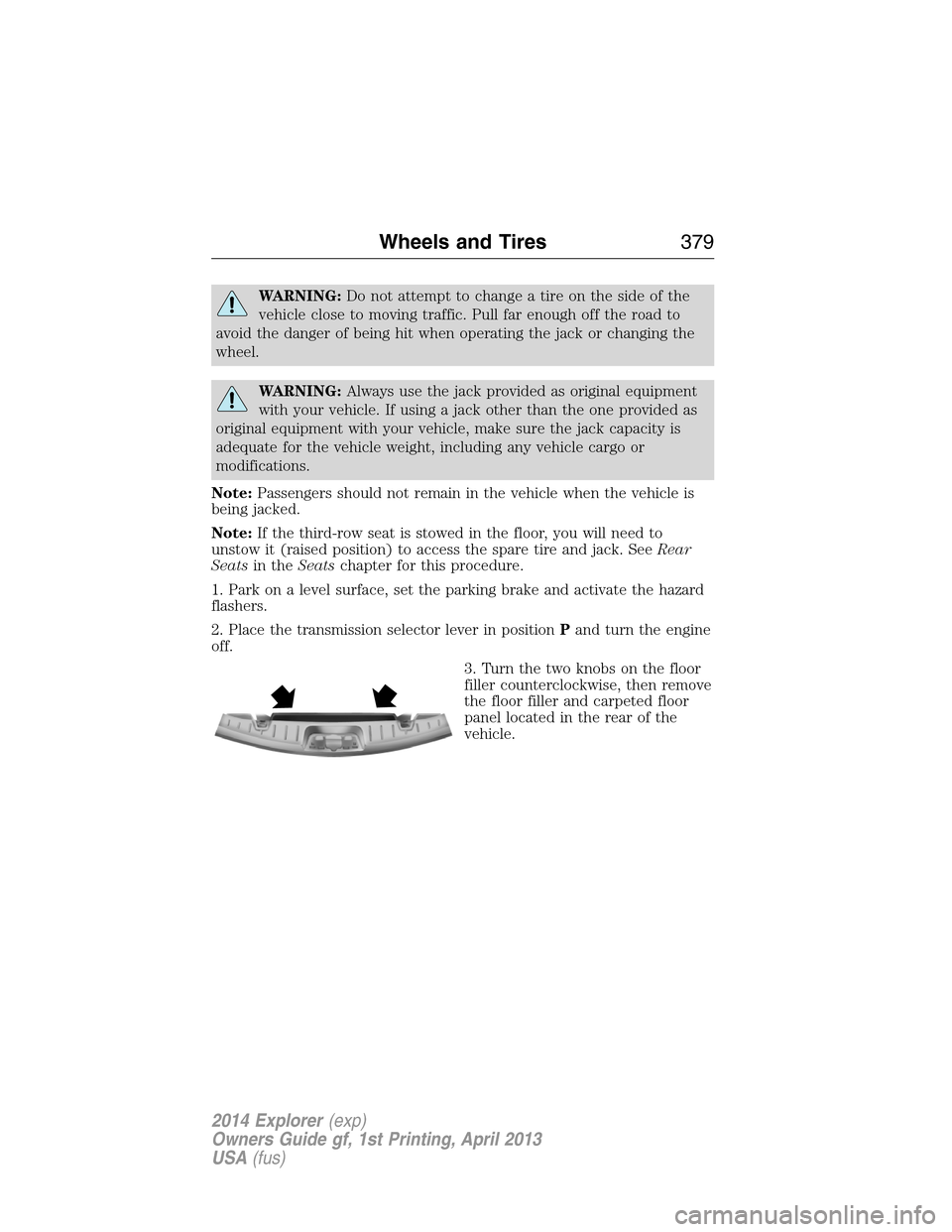
3. Turn the two knobs on the floor
filler counterclockwise, then remove
the floor filler and carpeted floor
panel located in the rear of the
vehicle.
Wheels and Tires379
2014 Explorer(exp)
Owners Guide gf, 1st Printing, April 2013
USA(fus)
Page 381 of 586
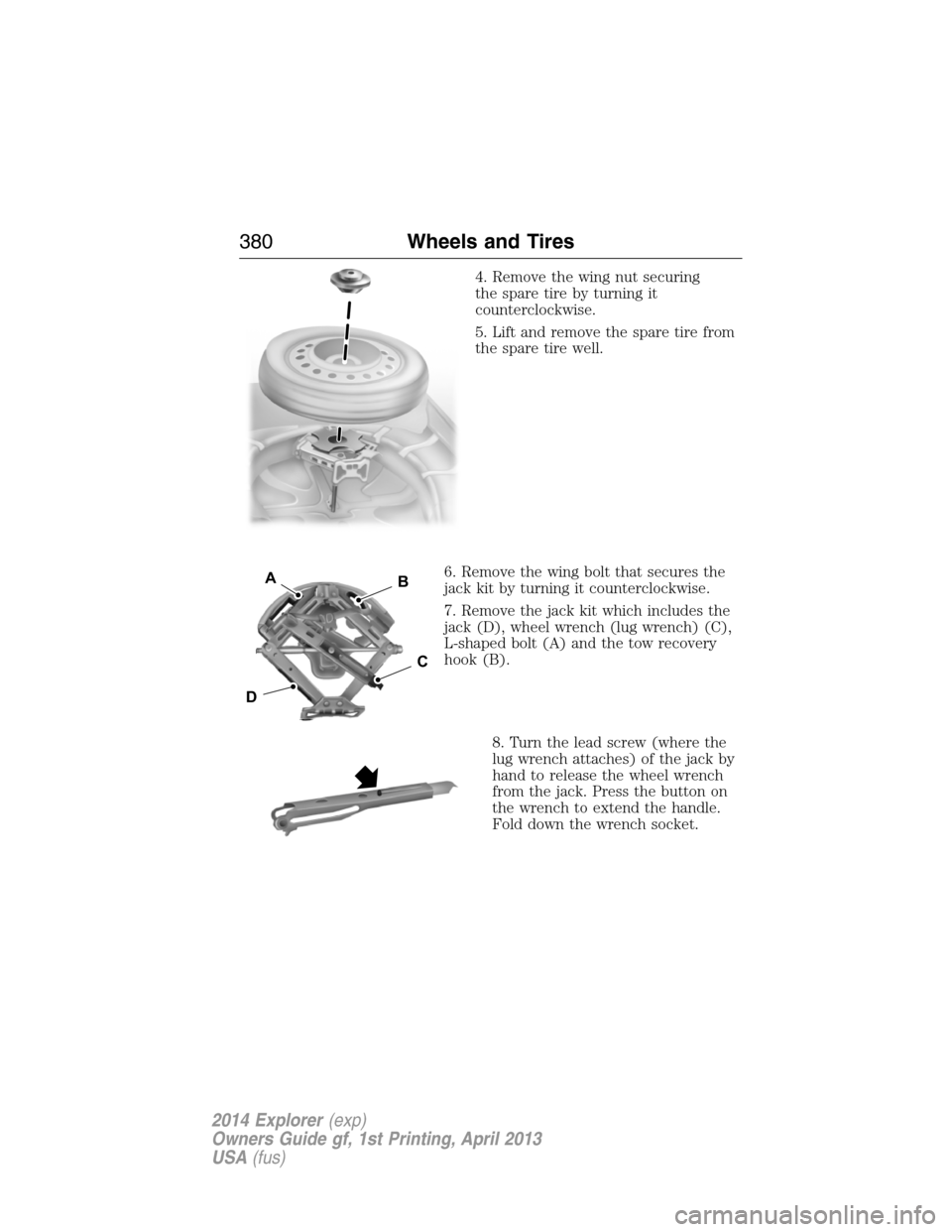
4. Remove the wing nut securing
the spare tire by turning it
counterclockwise.
5. Lift and remove the spare tire from
the spare tire well.
6. Remove the wing bolt that secures the
jack kit by turning it counterclockwise.
7. Remove the jack kit which includes the
jack (D), wheel wrench (lug wrench) (C),
L-shaped bolt (A) and the tow recovery
hook (B).
8. Turn the lead screw (where the
lug wrench attaches) of the jack by
hand to release the wheel wrench
from the jack. Press the button on
the wrench to extend the handle.
Fold down the wrench socket.
D
B
C
A
380Wheels and Tires
2014 Explorer(exp)
Owners Guide gf, 1st Printing, April 2013
USA(fus)
Page 382 of 586
Vehicle Jacking
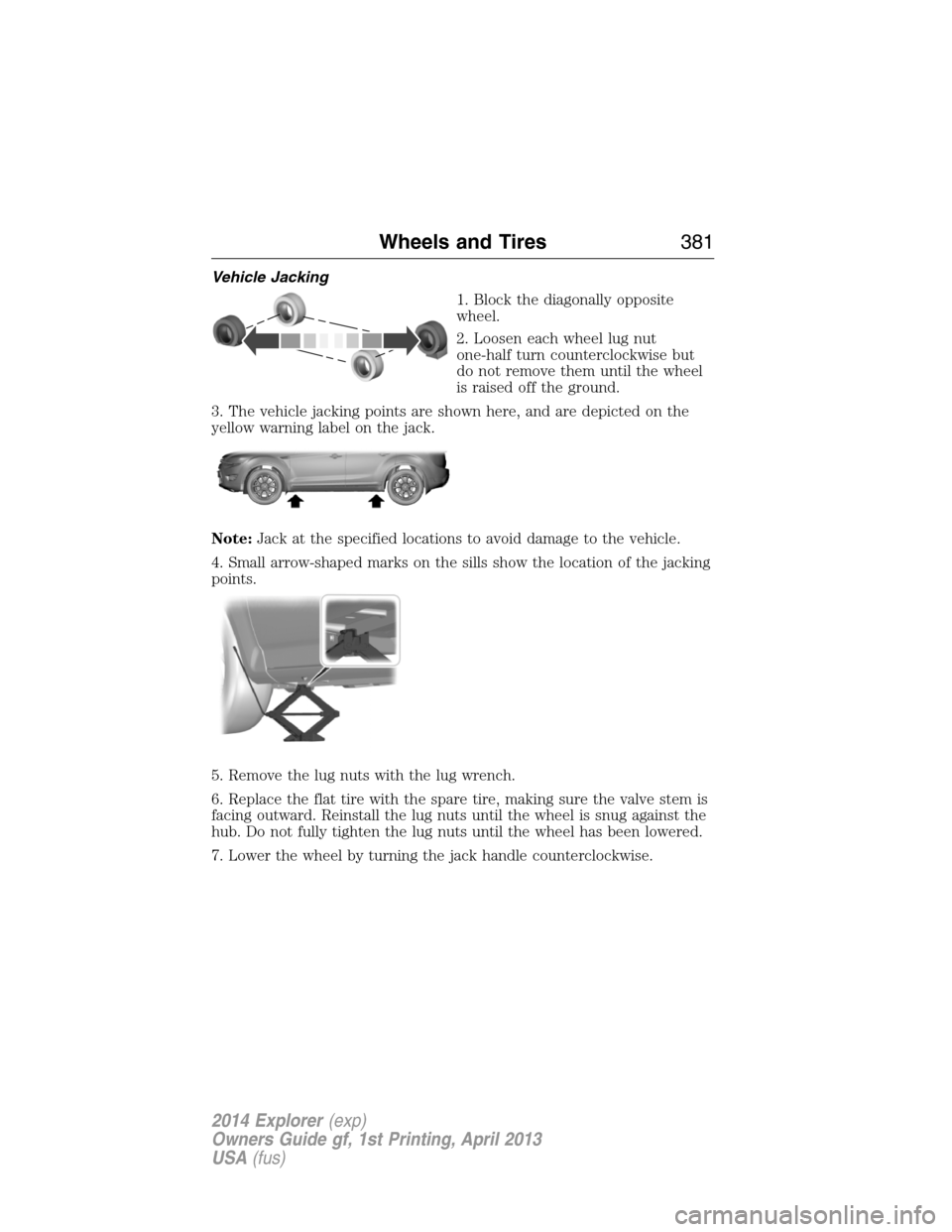
1. Block the diagonally opposite
wheel.
2. Loosen each wheel lug nut
one-half turn counterclockwise but
do not remove them until the wheel
is raised off the ground.
3. The vehicle jacking points are shown here, and are depicted on the
yellow warning label on the jack.
Note:Jack at the specified locations to avoid damage to the vehicle.
4. Small arrow-shaped marks on the sills show the location of the jacking
points.
5. Remove the lug nuts with the lug wrench.
6. Replace the flat tire with the spare tire, making sure the valve stem is
facing outward. Reinstall the lug nuts until the wheel is snug against the
hub. Do not fully tighten the lug nuts until the wheel has been lowered.
7. Lower the wheel by turning the jack handle counterclockwise.
Wheels and Tires381
2014 Explorer(exp)
Owners Guide gf, 1st Printing, April 2013
USA(fus)
Page 383 of 586
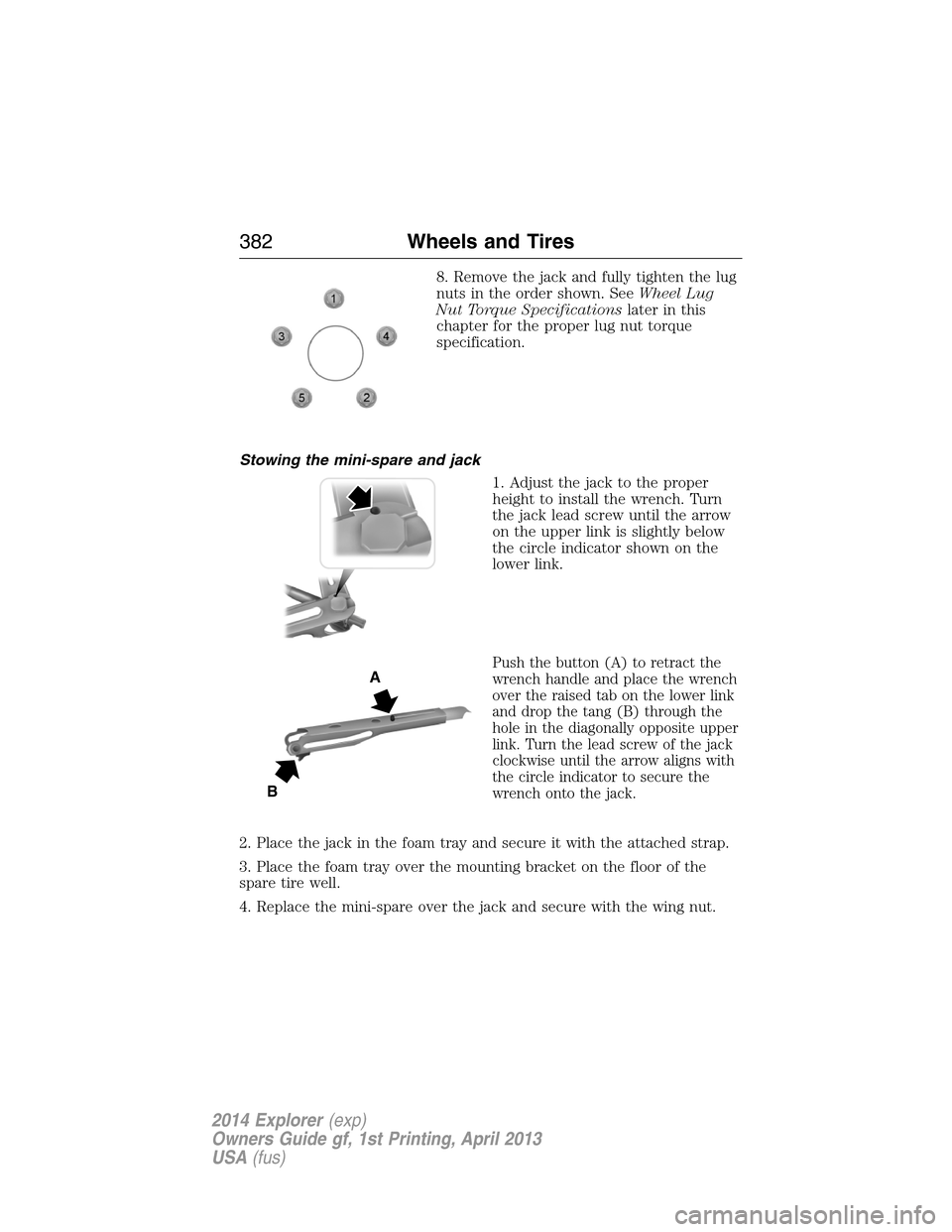
8. Remove the jack and fully tighten the lug
nuts in the order shown. SeeWheel Lug
Nut Torque Specificationslater in this
chapter for the proper lug nut torque
specification.
Stowing the mini-spare and jack
1. Adjust the jack to the proper
height to install the wrench. Turn
the jack lead screw until the arrow
on the upper link is slightly below
the circle indicator shown on the
lower link.
Push the button (A) to retract the
wrench handle and place the wrench
over the raised tab on the lower link
and drop the tang (B) through the
hole in the diagonally opposite upper
link. Turn the lead screw of the jack
clockwise until the arrow aligns with
the circle indicator to secure the
wrench onto the jack.
2. Place the jack in the foam tray and secure it with the attached strap.
3. Place the foam tray over the mounting bracket on the floor of the
spare tire well.
4. Replace the mini-spare over the jack and secure with the wing nut.
A
B
382Wheels and Tires
2014 Explorer(exp)
Owners Guide gf, 1st Printing, April 2013
USA(fus)
Page 384 of 586
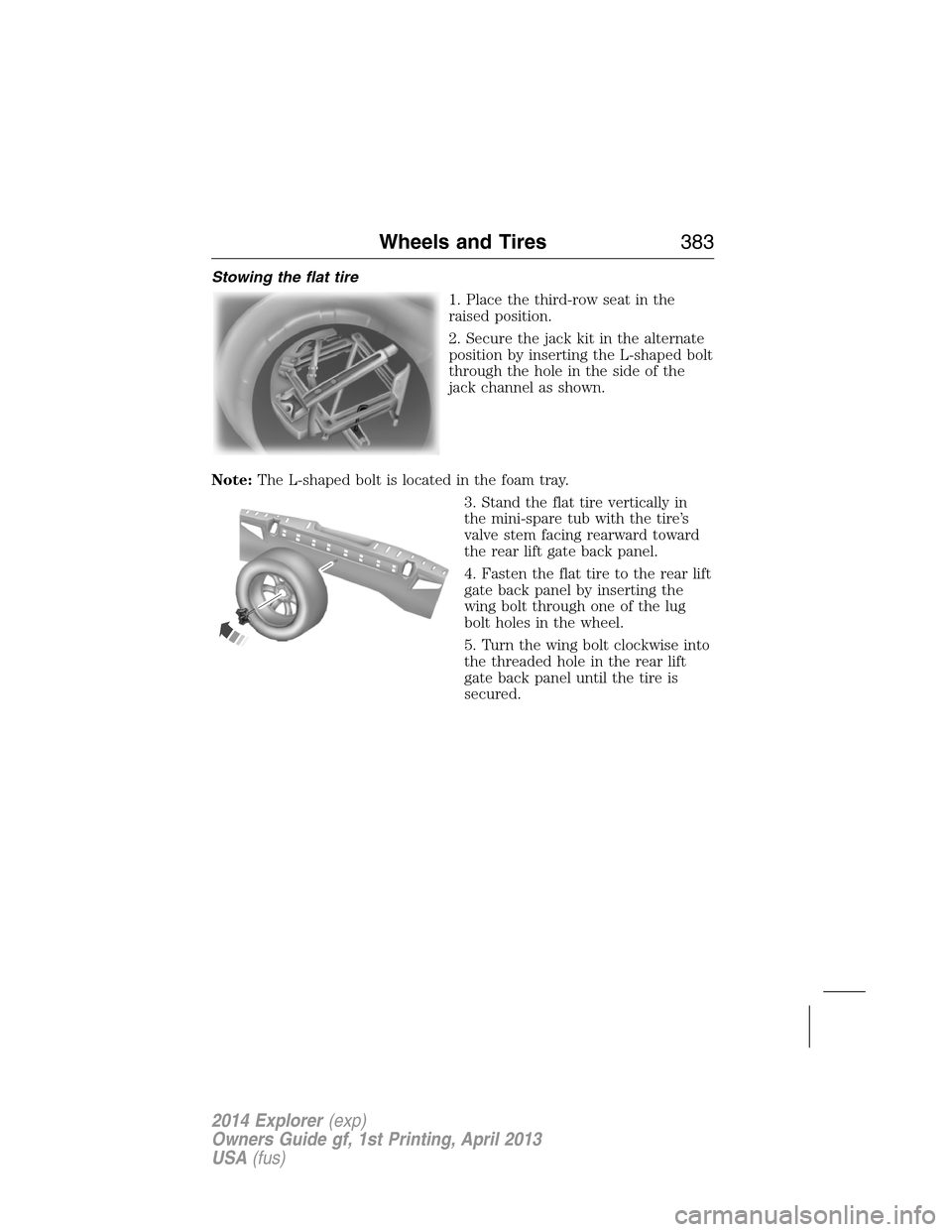
Stowing the flat tire
1. Place the third-row seat in the
raised position.
2. Secure the jack kit in the alternate
position by inserting the L-shaped bolt
through the hole in the side of the
jack channel as shown.
Note:The L-shaped bolt is located in the foam tray.
3. Stand the flat tire vertically in
the mini-spare tub with the tire’s
valve stem facing rearward toward
the rear lift gate back panel.
4. Fasten the flat tire to the rear lift
gate back panel by inserting the
wing bolt through one of the lug
bolt holes in the wheel.
5. Turn the wing bolt clockwise into
the threaded hole in the rear lift
gate back panel until the tire is
secured.
Wheels and Tires383
2014 Explorer(exp)
Owners Guide gf, 1st Printing, April 2013
USA(fus)
Page 404 of 586
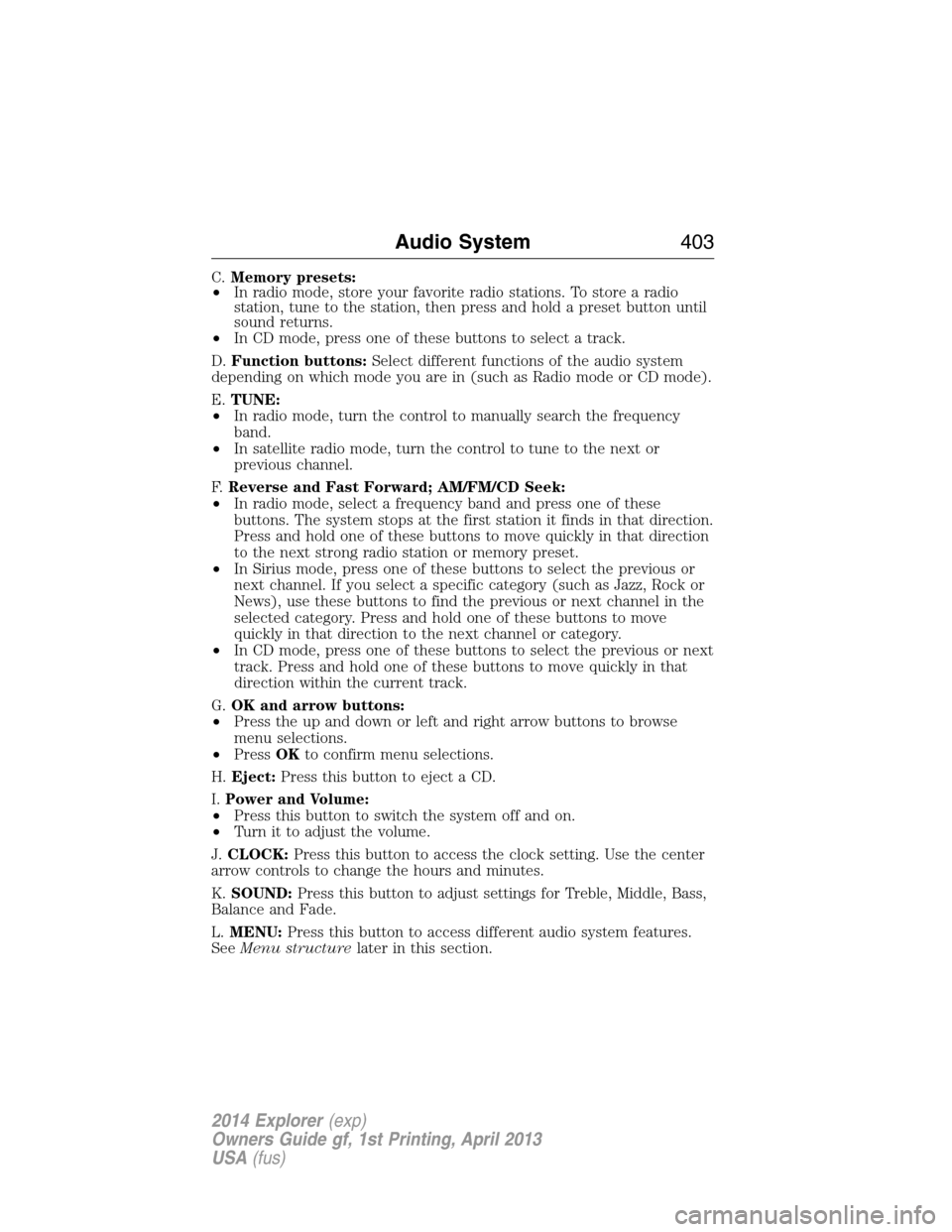
C.Memory presets:
•In radio mode, store your favorite radio stations. To store a radio
station, tune to the station, then press and hold a preset button until
sound returns.
•In CD mode, press one of these buttons to select a track.
D.Function buttons:Select different functions of the audio system
depending on which mode you are in (such as Radio mode or CD mode).
E.TUNE:
•In radio mode, turn the control to manually search the frequency
band.
•In satellite radio mode, turn the control to tune to the next or
previous channel.
F.Reverse and Fast Forward; AM/FM/CD Seek:
•In radio mode, select a frequency band and press one of these
buttons. The system stops at the first station it finds in that direction.
Press and hold one of these buttons to move quickly in that direction
to the next strong radio station or memory preset.
•In Sirius mode, press one of these buttons to select the previous or
next channel. If you select a specific category (such as Jazz, Rock or
News), use these buttons to find the previous or next channel in the
selected category. Press and hold one of these buttons to move
quickly in that direction to the next channel or category.
•In CD mode, press one of these buttons to select the previous or next
track. Press and hold one of these buttons to move quickly in that
direction within the current track.
G.OK and arrow buttons:
•Press the up and down or left and right arrow buttons to browse
menu selections.
•PressOKto confirm menu selections.
H.Eject:Press this button to eject a CD.
I.Power and Volume:
•Press this button to switch the system off and on.
•Turn it to adjust the volume.
J.CLOCK:Press this button to access the clock setting. Use the center
arrow controls to change the hours and minutes.
K.SOUND:Press this button to adjust settings for Treble, Middle, Bass,
Balance and Fade.
L.MENU:Press this button to access different audio system features.
SeeMenu structurelater in this section.
Audio System403
2014 Explorer(exp)
Owners Guide gf, 1st Printing, April 2013
USA(fus)
Page 407 of 586
CD Settings
Scan AllSelect to scan all disc selections.
Scan FolderSelect to scan all music in the current MP3
folder.
CD CompressionSelect to bring soft and loud passages together
for a more consistent listening level.
Clock Settings
Set TimeSelect to set the time.
Set DateSelect to set the calendar date.
24h ModeSelect to view clock time in a 12–hour mode or
24–hour mode.
Display Settings
DimmingSelect to change display brightness.
LanguageSelect to display the language in English,
French or Spanish.
Temp. SettingSelect to display the outside temperature in
Fahrenheit or Celsius.
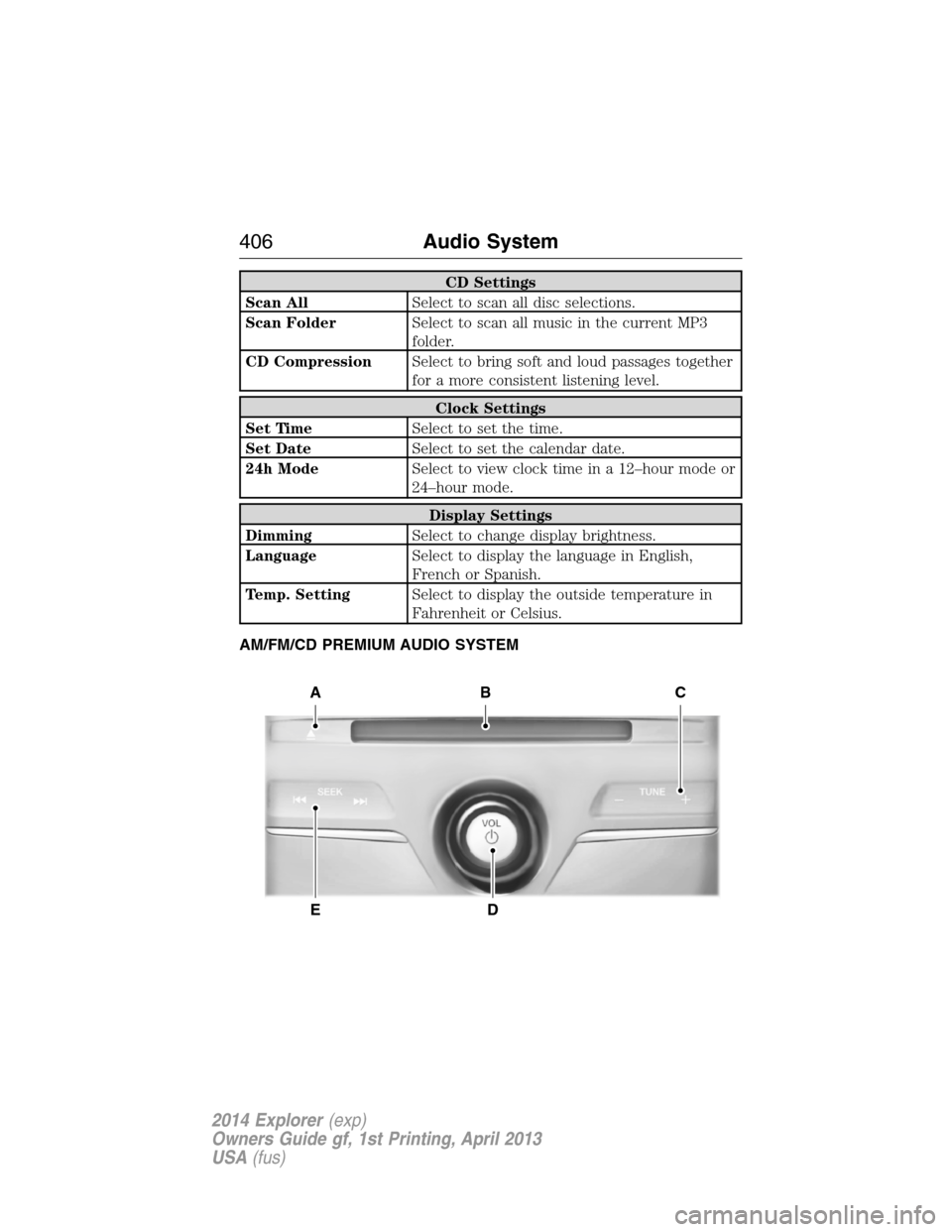
AM/FM/CD PREMIUM AUDIO SYSTEM
A
ED
BC
406Audio System
2014 Explorer(exp)
Owners Guide gf, 1st Printing, April 2013
USA(fus)
Page 468 of 586
SETTINGS
Press to select any of the following:
•Clock
•Display
•Sound
•Vehicle
•Settings
•Help
HOME
Press to access your home screen. Depending on your vehicle’s option
package and software, your screens may vary in appearance from the
descriptions in this section. Your features may also be limited depending
on your market. Check with your authorized dealer for availability.
INFORMATION
Press to select any of the following:
•SYNC Services
•Sirius Travel Link
•Alerts
•Calendar
•SYNC Apps
If the icon is yellow, seeAlertsin theInformationsection of this
chapter.
ENTERTAINMENT
Press to select any of the following:
•AM
•FM
•SIRIUS
•CD
•USB
•BT Stereo
•SD Card
•A/V In
MyFord Touch® (If Equipped)467
2014 Explorer(exp)
Owners Guide gf, 1st Printing, April 2013
USA(fus)
Page 517 of 586
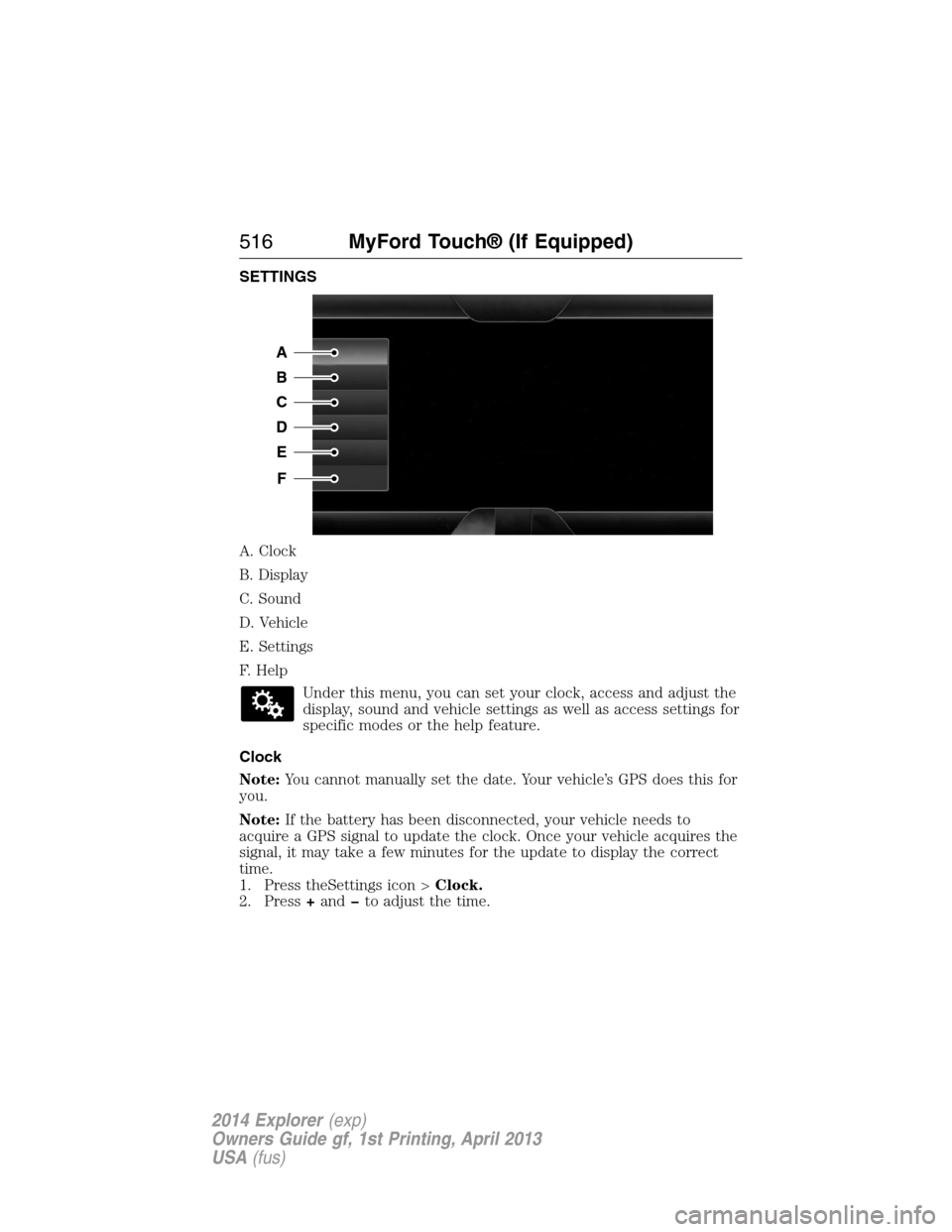
SETTINGS
A. Clock
B. Display
C. Sound
D. Vehicle
E. Settings
F. Help
Under this menu, you can set your clock, access and adjust the
display, sound and vehicle settings as well as access settings for
specific modes or the help feature.
Clock
Note:You cannot manually set the date. Your vehicle’s GPS does this for
you.
Note:If the battery has been disconnected, your vehicle needs to
acquire a GPS signal to update the clock. Once your vehicle acquires the
signal, it may take a few minutes for the update to display the correct
time.
1. Press theSettings icon >Clock.
2. Press+andto adjust the time.
A
B
C
D
E
F
516MyFord Touch® (If Equipped)
2014 Explorer(exp)
Owners Guide gf, 1st Printing, April 2013
USA(fus)