tow FORD EXPLORER 2014 5.G Owner's Guide
[x] Cancel search | Manufacturer: FORD, Model Year: 2014, Model line: EXPLORER, Model: FORD EXPLORER 2014 5.GPages: 586, PDF Size: 9.07 MB
Page 208 of 586
D (Drive) with Overdrive
The normal driving position for the best fuel economy. Transmission
operates in gears one through six.
The automatic transmission shift strategy has the ability to detect hilly
terrain or mountainous areas and will provide a limited amount of grade
assist features automatically. Refer toD(Drive) with Grade assist or
SelectShift for more information.
D (Drive) with Tow on
Press theTOWswitch located on the instrument panel by the headlamp
control to activate tow. TheTOW/HAULmessage will illuminate in the
instrument cluster.
The tow feature improves transmission operation when towing a trailer
or a heavy load. All transmission gear ranges are available when using
tow.
The tow feature delays upshifts to reduce frequency of transmission
shifting. Tow also provides engine braking in all forward gears when the
transmission is in theD(Overdrive) position. This engine braking will
slow the vehicle and assist the driver in controlling the vehicle when
descending a grade. Depending on driving conditions and load
conditions, the transmission may downshift, slow the vehicle and control
the vehicle speed when descending a hill, without the accelerator pedal
being pressed. The amount of downshift braking provided will vary based
upon the amount the brake pedal is depressed.
Press theTOWbutton to deactivate the tow feature and return to
normal driving mode. The tow light will no longer be illuminated.
When you shut-off and restart the engine, the transmission will
automatically return to normalD(Overdrive) mode (tow off).
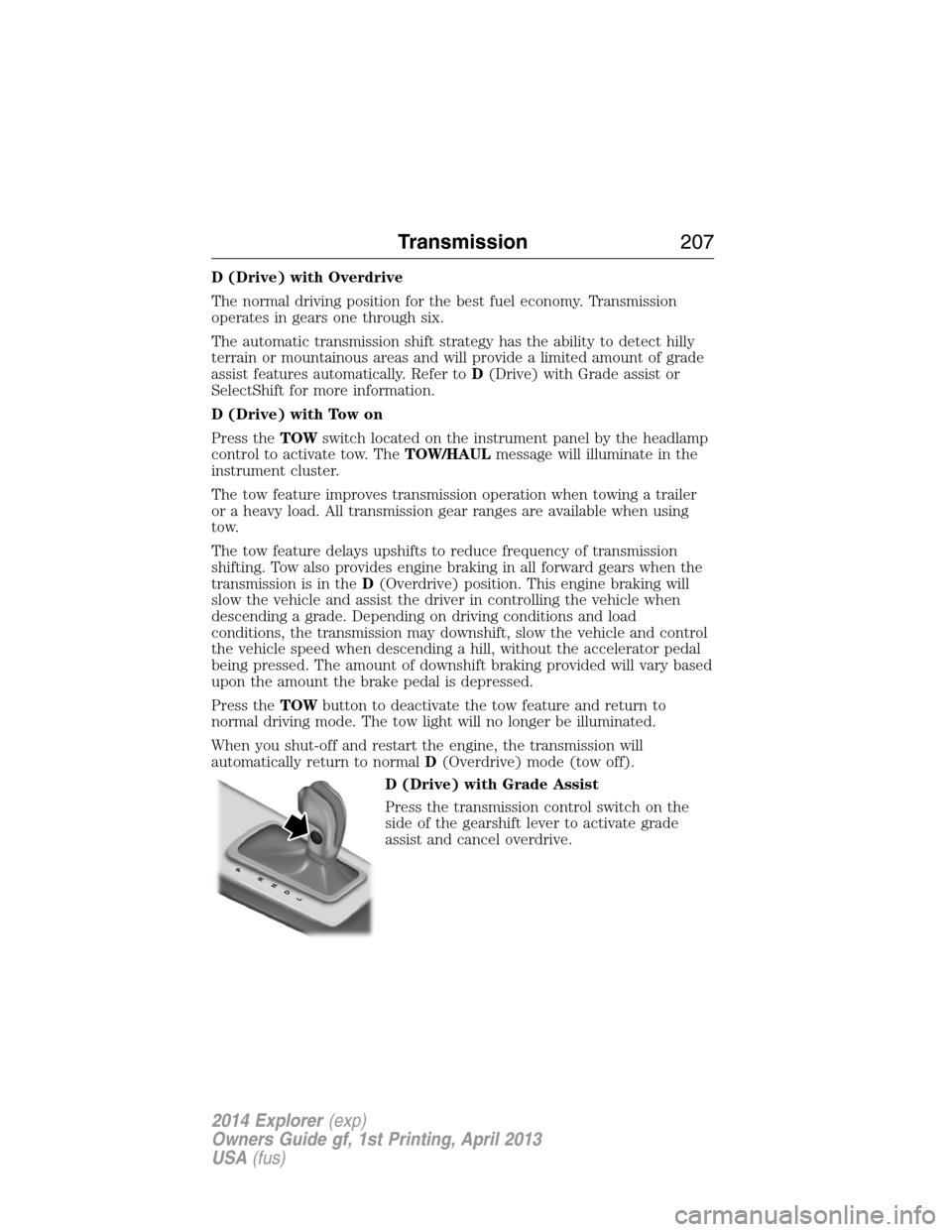
D (Drive) with Grade Assist
Press the transmission control switch on the
side of the gearshift lever to activate grade
assist and cancel overdrive.
PRNDL
Transmission207
2014 Explorer(exp)
Owners Guide gf, 1st Printing, April 2013
USA(fus)
Page 222 of 586
GENERAL INFORMATION
Note:Occasional brake noise is normal. If a metal-to-metal, continuous
grinding or continuous squeal sound is present, the brake linings may be
worn out and should be inspected by an authorized dealer. If your
vehicle has continuous vibration or shudder in the steering wheel while
braking, you should take it to an authorized dealer for inspection.
Note:Brake dust may accumulate on the wheels, even under normal
driving conditions. Some dust is inevitable as the brakes wear and does
not contribute to brake noise. See theVehicle Carechapter for wheel
cleaning instructions.
See theInstrument Clusterchapter for information on the
brake system warning light.
Wet brakes result in reduced braking efficiency. Gently press the brake
pedal a few times when driving from a car wash or standing water to dry
the brakes.
Brake Over Accelerator
In the event the accelerator pedal becomes stuck or entrapped, apply
steady and firm pressure to the brake pedal to slow your vehicle and
reduce engine power. If you experience this condition, apply the brakes
and bring your vehicle to a safe stop. Turn the engine off, shift to
positionPand apply the parking brake, then inspect the accelerator
pedal for any interferences. If none are found and the condition persists,
have your vehicle towed to the nearest authorized dealer.
Brake Assist
Brake assist detects when you brake heavily by measuring the rate at
which you press the brake pedal. It provides maximum braking efficiency
as long as you press the pedal. Brake assist can reduce stopping
distances in critical situations.
Brakes221
2014 Explorer(exp)
Owners Guide gf, 1st Printing, April 2013
USA(fus)
Page 227 of 586
TERRAIN MANAGEMENT (IF EQUIPPED)
This system optimizes drivability and comfort as well as maximizing
traction while operating on different types of terrain.
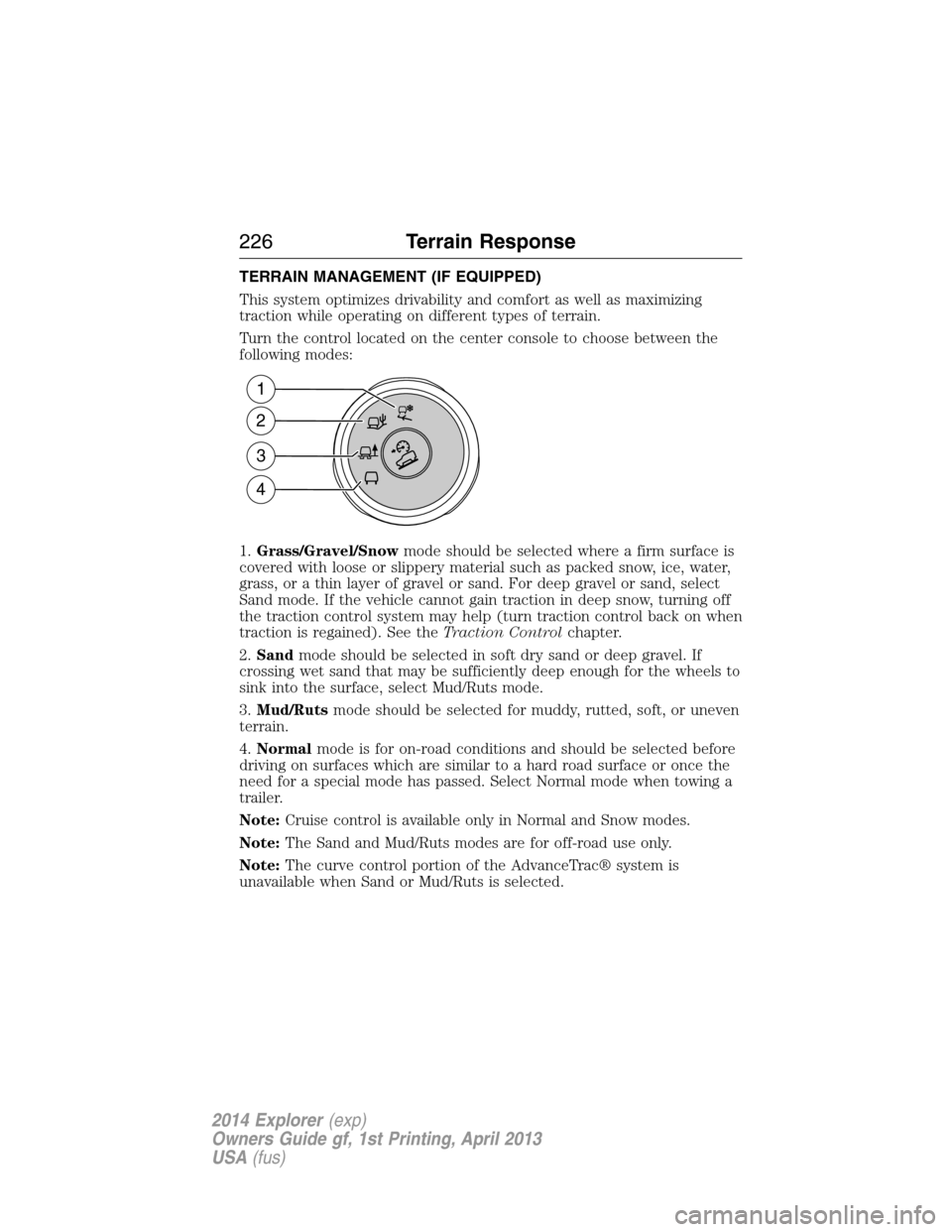
Turn the control located on the center console to choose between the
following modes:
1.Grass/Gravel/Snowmode should be selected where a firm surface is
covered with loose or slippery material such as packed snow, ice, water,
grass, or a thin layer of gravel or sand. For deep gravel or sand, select
Sand mode. If the vehicle cannot gain traction in deep snow, turning off
the traction control system may help (turn traction control back on when
traction is regained). See theTraction Controlchapter.
2.Sandmode should be selected in soft dry sand or deep gravel. If
crossing wet sand that may be sufficiently deep enough for the wheels to
sink into the surface, select Mud/Ruts mode.
3.Mud/Rutsmode should be selected for muddy, rutted, soft, or uneven
terrain.
4.Normalmode is for on-road conditions and should be selected before
driving on surfaces which are similar to a hard road surface or once the
need for a special mode has passed. Select Normal mode when towing a
trailer.
Note:Cruise control is available only in Normal and Snow modes.
Note:The Sand and Mud/Ruts modes are for off-road use only.
Note:The curve control portion of the AdvanceTrac® system is
unavailable when Sand or Mud/Ruts is selected.
1
2
3
4
226Terrain Response
2014 Explorer(exp)
Owners Guide gf, 1st Printing, April 2013
USA(fus)
Page 229 of 586
To enable hill descent control and set the descent speed, do the
following:
1. Press and release the hill descent button located in the
center of the terrain management control. A light in the
control will illuminate and chime will sound when this feature
is activated.
2. To increase descent speed, press the accelerator pedal until the
desired speed is reached. To decrease descent speed, press the brake
pedal until the desired speed is reached.
Whether accelerating or decelerating, once the desired descent speed is
reached, remove your feet from the pedals and the chosen vehicle speed
will be maintained.
Note:Noise from the ABS pump motor may be observed during hill
descent control operation. This is a normal characteristic of the ABS and
should be no reason for concern.
Hill descent modes
•At speeds below 20 mph (32 km/h): When the HDC button is pressed
and HDC is active, HILL DESCENT CONTROL ACTIVE will appear in
the message center for several seconds.
•At speeds below 20 mph (32 km/h): When the HDC button is pressed
and conditions are not correct for hill descent activation, the HDC
system will be enabled, the light on the button will be on solid and
HILL DESCENT CONTROL READY will be displayed in the message
center for several seconds.
•At speeds above 20 mph (32 km/h): When the HDC button is pressed,
the HDC system will be enabled, the light on the button will be
illuminated, and FOR HILL CNTRL, 20 MPH OR LESS will be
displayed in the message center for several seconds.
•For HDC to enable, the vehicle must be in a drive gear or (R)
Reverse. If the vehicle is in P (Park) or N (Neutral) and the HDC
button is pressed, FOR HILL CNTRL, SELECT GEAR will be displayed
in the message center for several seconds.
Refer toWarning lamps and indicatorsin theInstrument Cluster
chapter for hill descent control messages.
228Terrain Response
2014 Explorer(exp)
Owners Guide gf, 1st Printing, April 2013
USA(fus)
Page 231 of 586
If a fault is present in the system, a warning message appears in the
information display and does not allow the driver to switch the faulted
system on.
Note:If your vehicle is equipped with MyKey®, it is possible to prevent
turning the sensing system off. Refer to theMyKey®chapter.
Using the Rear Sensing System
The rear sensors are only active when the transmission is inR.Asthe
vehicle moves closer to the obstacle, the rate of the audible warning
increases. When the obstacle is fewer than 12 inches (30 centimeters)
away, the warning sounds continuously. If a stationary or receding object
is detected farther than 12 inches (30 centimeters) from the side of the
vehicle, the tone sounds for only three seconds. Once the system detects
an object approaching, the warning sounds again.
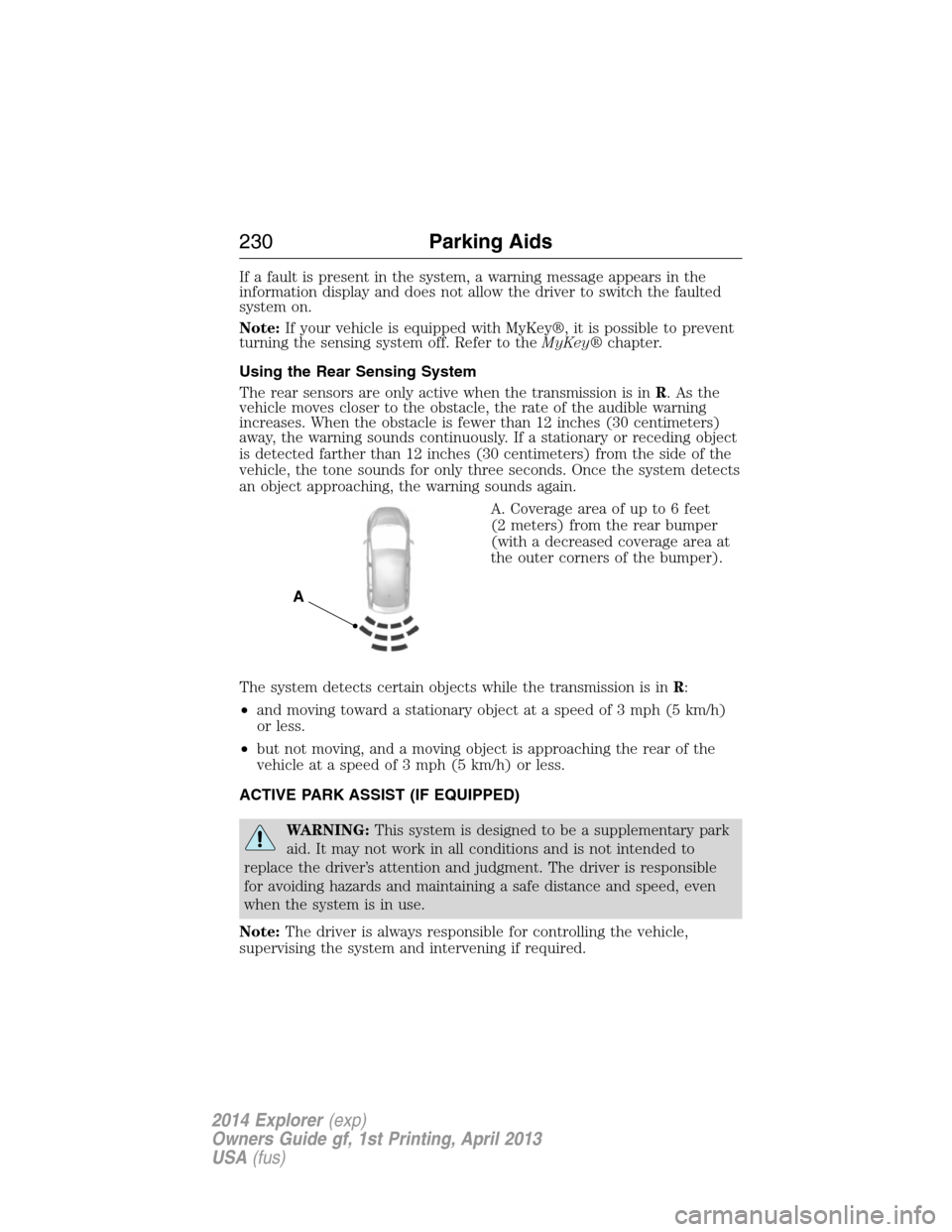
A. Coverage area of up to 6 feet
(2 meters) from the rear bumper
(with a decreased coverage area at
the outer corners of the bumper).
The system detects certain objects while the transmission is inR:
•and moving toward a stationary object at a speed of 3 mph (5 km/h)
or less.
•but not moving, and a moving object is approaching the rear of the
vehicle at a speed of 3 mph (5 km/h) or less.
ACTIVE PARK ASSIST (IF EQUIPPED)
WARNING:This system is designed to be a supplementary park
aid. It may not work in all conditions and is not intended to
replace the driver’s attention and judgment. The driver is responsible
for avoiding hazards and maintaining a safe distance and speed, even
when the system is in use.
Note:The driver is always responsible for controlling the vehicle,
supervising the system and intervening if required.
A
230Parking Aids
2014 Explorer(exp)
Owners Guide gf, 1st Printing, April 2013
USA(fus)
Page 232 of 586
The system detects an available parallel parking space and automatically
steers the vehicle into the space (hands-free) while you control the
accelerator, gearshift and brakes. The system visually and/or audibly
instructs the driver to park the vehicle.
The system may not function correctly if something passes between the
front bumper and the parking space (i.e. a pedestrian or cyclist) or if the
edge of the neighboring parked vehicle is high from the ground (i.e. a
bus, tow truck or flatbed truck).
Note:The sensors may not detect objects in heavy rain or other
conditions that cause disruptive reflections.
Note:The sensors may not detect objects with surfaces that absorb
ultrasonic waves.
Note:After a tire change the system will go through a relearning
procedure. During this time the system performance may deteriorate.
The system should not be used if:
•a foreign object (i.e. bike rack or trailer) is attached to the front or
rear of the vehicle or at another location close to the sensors.
•an overhanging object (i.e. surfboard) is attached to the roof.
•the front bumper or side sensors are damaged (i.e. in a collision) or
obstructed by a foreign object (i.e. front bumper cover).
•a mini-spare tire is in use.
Using Active Park Assist
Press the button; the touch screen
displays a message and a
corresponding graphic to indicate
it’s searching for a parking space.
Use the turn signal to indicate
which side of the vehicle you want
the system to search on.
Note:If the turn signal is not on, the system automatically searches on
the vehicle’s passenger side.
AUTO
P
Parking Aids231
2014 Explorer(exp)
Owners Guide gf, 1st Printing, April 2013
USA(fus)
Page 238 of 586
Note:When towing, the camera only sees what is being towed behind
the vehicle. This might not provide adequate coverage as it usually
provides in normal operation and some objects might not be seen.
In some vehicles, the guidelines may disappear once the trailer tow
connector is engaged.
Note:The camera may not operate correctly under the following
conditions:
•Nighttime or dark areas if one or both reverse lamps are not
operating. Do not use the rear view camera display when lighting is
low until both reverse lamps are functional.
•The camera’s view is obstructed by mud, water or debris. Clean the
lens with a soft, lint-free cloth and non-abrasive cleaner.
•The rear of the vehicle is hit or damaged, causing the camera to
become misaligned. Check with your authorized dealer to have the
rear view camera system checked for proper coverage and operation.
Adjusting the Rear View Camera Settings (If Equipped)
To access any of the rear view camera system settings, make the
following selections in the touch screen when the transmission is not in
R (Reverse):
1. Menu
2. Vehicle
3. Rear View Camera
After changing a system setting, the touch screen shows a preview of the
feature(s) selected.
Guidelines and the Centerline
Note:Fixed guidelines and active guidelines (if equipped) are only
available when the transmission is in R (Reverse).
Note:The centerline is only available if Fixed or Active (if equipped)
guidelines are on.
Parking Aids237
2014 Explorer(exp)
Owners Guide gf, 1st Printing, April 2013
USA(fus)
Page 239 of 586
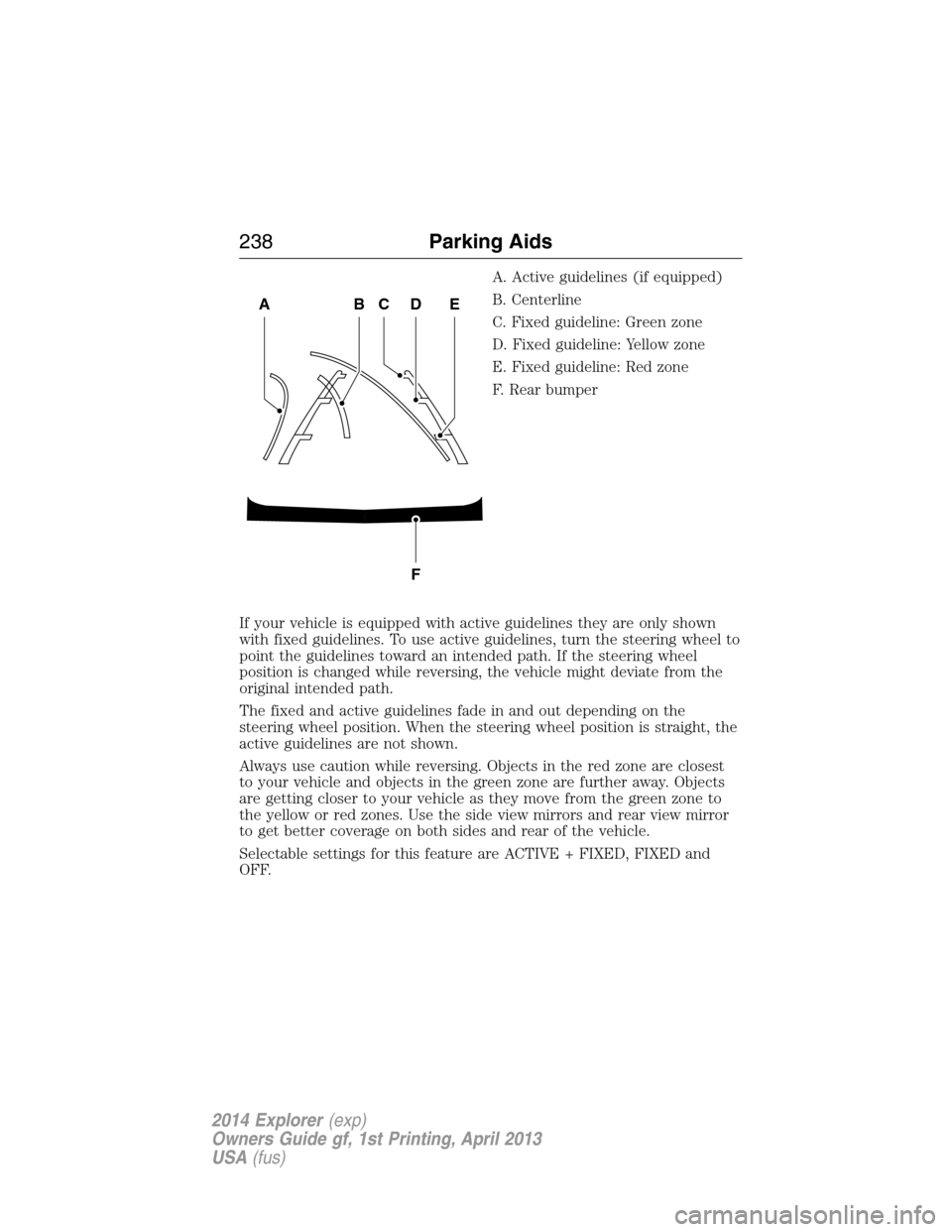
A. Active guidelines (if equipped)
B. Centerline
C. Fixed guideline: Green zone
D. Fixed guideline: Yellow zone
E. Fixed guideline: Red zone
F. Rear bumper
If your vehicle is equipped with active guidelines they are only shown
with fixed guidelines. To use active guidelines, turn the steering wheel to
point the guidelines toward an intended path. If the steering wheel
position is changed while reversing, the vehicle might deviate from the
original intended path.
The fixed and active guidelines fade in and out depending on the
steering wheel position. When the steering wheel position is straight, the
active guidelines are not shown.
Always use caution while reversing. Objects in the red zone are closest
to your vehicle and objects in the green zone are further away. Objects
are getting closer to your vehicle as they move from the green zone to
the yellow or red zones. Use the side view mirrors and rear view mirror
to get better coverage on both sides and rear of the vehicle.
Selectable settings for this feature are ACTIVE + FIXED, FIXED and
OFF.
ABCD
F
E
238Parking Aids
2014 Explorer(exp)
Owners Guide gf, 1st Printing, April 2013
USA(fus)
Page 249 of 586
Blocked Sensor
WARNING:Do not use ACC when towing a trailer with brake
controls. Aftermarket trailer brakes will not function properly
when ACC is activated because the brakes are electronically controlled.
Failing to do so may result in loss of vehicle control, which could result
in serious injury.
WARNING:Do not use tires sizes other than those
recommended because this can affect the normal operation of
ACC. Failing to do so may result in a loss of vehicle control, which
could result in serious injury.
A message regarding a blocked
sensor is displayed if the radar
signals from the sensor have been
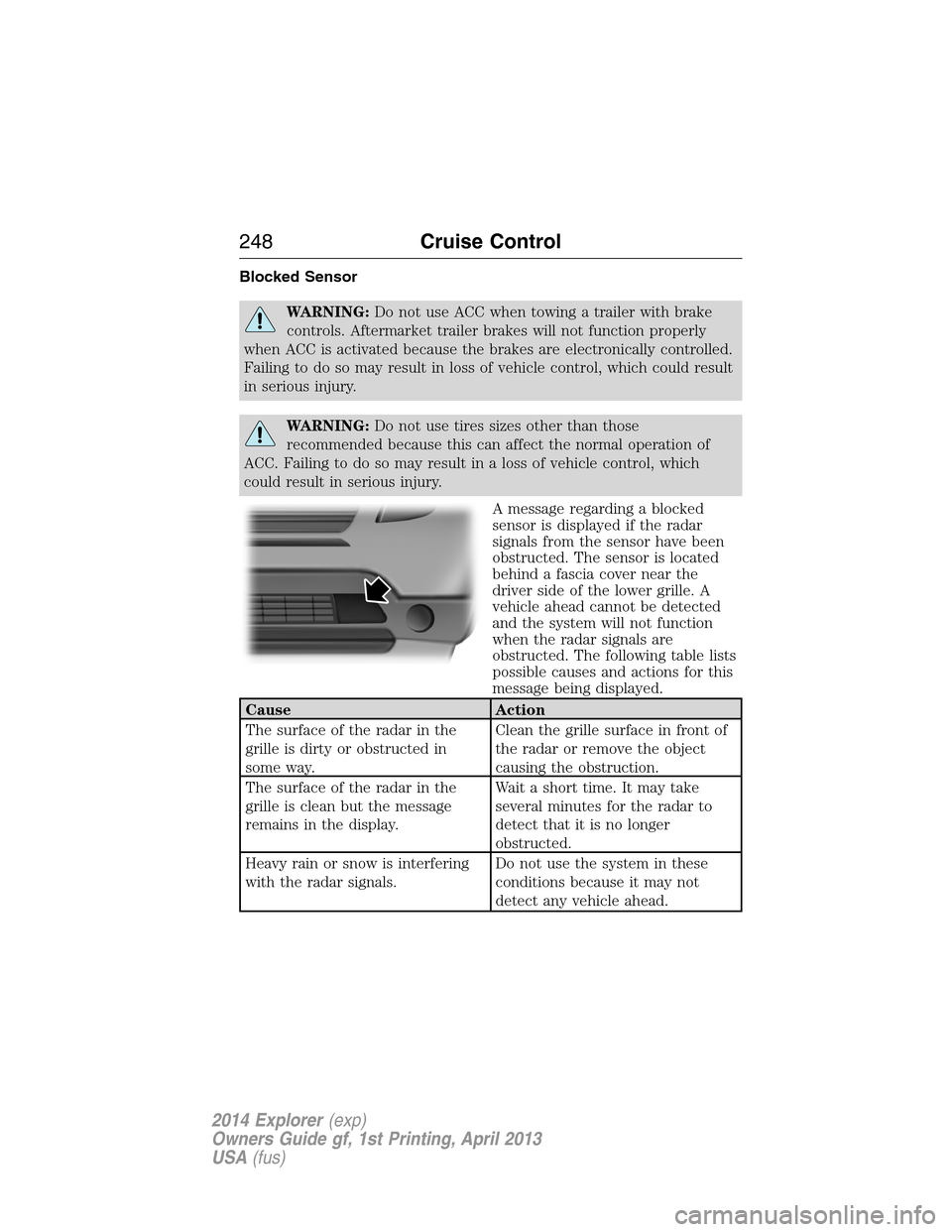
obstructed. The sensor is located
behind a fascia cover near the
driver side of the lower grille. A
vehicle ahead cannot be detected
and the system will not function
when the radar signals are
obstructed. The following table lists
possible causes and actions for this
message being displayed.
Cause Action
The surface of the radar in the
grille is dirty or obstructed in
some way.Clean the grille surface in front of
the radar or remove the object
causing the obstruction.
The surface of the radar in the
grille is clean but the message
remains in the display.Wait a short time. It may take
several minutes for the radar to
detect that it is no longer
obstructed.
Heavy rain or snow is interfering
with the radar signals.Do not use the system in these
conditions because it may not
detect any vehicle ahead.
248Cruise Control
2014 Explorer(exp)
Owners Guide gf, 1st Printing, April 2013
USA(fus)
Page 253 of 586
LANE KEEPING SYSTEM (IF EQUIPPED)
WARNING:The system is designed to aid the driver. It is not
intended to replace the driver’s attention and judgment. The
driver is still responsible to drive with due care and attention.
The system detects unintentional drifting toward the outside of the lane
and alerts and/or aids the driver to stay in the lane through the steering
system and instrument cluster display. The system automatically detects
and tracks the road lane markings using a camera that is mounted
behind the interior rear view mirror.
Note:The system works above 40 mph (64 km/h).
Note:The system works as long as one lane marking can be detected by
the camera.
Note:If the camera is blocked or if the windshield is damaged, the
system may not function.
Note:When Aid mode is on and the system detects no driver steering
activity for a short period after system activation, the system alerts the
driver to keep their hands on the steering wheel. The system may detect
a light touch or grip on the steering wheel as hands-off driving.
Switching the System On and Off
Press the button located on the turn signal lever to switch the
system on or off.
Note:The system on/off setting is stored until it is manual changed,
unless a MyKey® is detected. If a MyKey® is detected, the system is
defaulted to on and the mode is set to Alert.
Note:If a MyKey® is detected, pressing the button will not affect the
on/off status of the system. Only the Mode and Intensity settings can be
changed when a MyKey® is present.
System Settings
The system has one standard feature setting and one optional setting
menu available. To view or adjust the settings, refer to theInformation
Displayschapter. The last-known selection for each of these settings is
stored by the system. You do not need to readjust your settings each
time you turn on the system.
Mode:This setting allows the driver to select which of the system
features will be enabled.
252Driving Aids
2014 Explorer(exp)
Owners Guide gf, 1st Printing, April 2013
USA(fus)