light FORD EXPLORER 2014 5.G Manual PDF
[x] Cancel search | Manufacturer: FORD, Model Year: 2014, Model line: EXPLORER, Model: FORD EXPLORER 2014 5.GPages: 586, PDF Size: 9.07 MB
Page 238 of 586
Note:When towing, the camera only sees what is being towed behind
the vehicle. This might not provide adequate coverage as it usually
provides in normal operation and some objects might not be seen.
In some vehicles, the guidelines may disappear once the trailer tow
connector is engaged.
Note:The camera may not operate correctly under the following
conditions:
•Nighttime or dark areas if one or both reverse lamps are not
operating. Do not use the rear view camera display when lighting is
low until both reverse lamps are functional.
•The camera’s view is obstructed by mud, water or debris. Clean the
lens with a soft, lint-free cloth and non-abrasive cleaner.
•The rear of the vehicle is hit or damaged, causing the camera to
become misaligned. Check with your authorized dealer to have the
rear view camera system checked for proper coverage and operation.
Adjusting the Rear View Camera Settings (If Equipped)
To access any of the rear view camera system settings, make the
following selections in the touch screen when the transmission is not in
R (Reverse):
1. Menu
2. Vehicle
3. Rear View Camera
After changing a system setting, the touch screen shows a preview of the
feature(s) selected.
Guidelines and the Centerline
Note:Fixed guidelines and active guidelines (if equipped) are only
available when the transmission is in R (Reverse).
Note:The centerline is only available if Fixed or Active (if equipped)
guidelines are on.
Parking Aids237
2014 Explorer(exp)
Owners Guide gf, 1st Printing, April 2013
USA(fus)
Page 240 of 586
Visual Park Aid Alert
Note:Visual park alert is only available when the transmission is in R
(Reverse).
Note:The reverse sensing system is not effective at speeds above 3 mph
(5 km/h) and may not detect certain angular or moving objects.
The visual park aid alert allows the driver to view the area that is being
detected by the reverse sensing system. The system uses red, yellow and
green highlights which appear on top of the video image when an object
is detected by the reverse sensing system. The alert highlights the
closest object detected. The reverse sensing alert can be disabled and if
visual park aid alert is enabled, highlighted areas are still displayed.
Selectable settings for this feature are ON and OFF.
Manual Zoom
WARNING:When manual zoom is on, the full area behind the
vehicle is not shown. Be aware of your surroundings when using
the manual zoom feature.
Note:Manual zoom is only available when the transmission is in R
(Reverse).
Note:When manual zoom is enabled, only the centerline is shown.
Allows the driver to get a closer view of an object behind the vehicle.
The zoomed image keeps the bumper in the image to provide a
reference. The zoom is only active while the transmission is in R
(Reverse), When the transmission is shifted out of R (Reverse), the
feature automatically turns off and must be reset when it is used again.
Selectable settings for this feature are OFF, Level 1, Level 2 or Level 3.
Press the up and down arrows to change the view. The selection level
appears between the buttons (i.e. Level 1). The default setting for the
manual zoom is OFF.
Rear Camera Delay
When shifting the transmission out of R (Reverse) and into any gear
other than P (Park), the camera image remains in the display until the
vehicle speed reaches 6 mph (10 km/h). This occurs when the rear
camera delay feature is on, or until a radio button is selected.
Selectable settings for this feature are ON and OFF. The default setting
for the rear camera delay is OFF.
Parking Aids239
2014 Explorer(exp)
Owners Guide gf, 1st Printing, April 2013
USA(fus)
Page 243 of 586
WARNING:Do not use the adaptive cruise control when
entering or leaving a highway, in heavy traffic or on roads that
are winding, slippery or unpaved.
WARNING:Do not use in poor visibility, specifically fog, rain,
spray or snow.
Note:It is your responsibility to stay alert, drive safely and be in control
of your vehicle at all times.
The system adjusts your speed to maintain a proper distance between
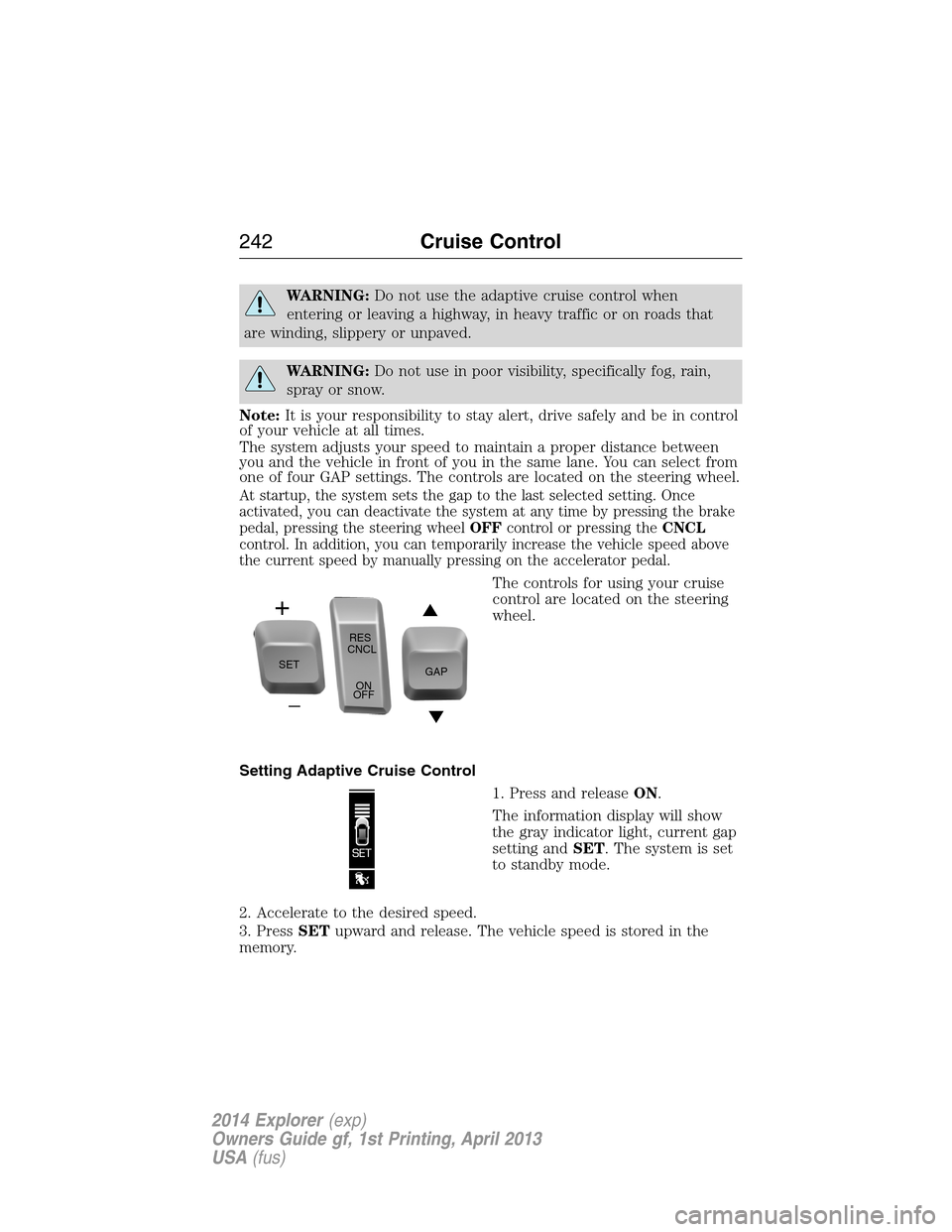
you and the vehicle in front of you in the same lane. You can select from
one of four GAP settings. The controls are located on the steering wheel.
At startup, the system sets the gap to the last selected setting. Once
activated, you can deactivate the system at any time by pressing the brake
pedal, pressing the steering wheelOFFcontrol or pressing theCNCL
control. In addition, you can temporarily increase the vehicle speed above
the current speed by manually pressing on the accelerator pedal.
The controls for using your cruise
control are located on the steering
wheel.
Setting Adaptive Cruise Control
1. Press and releaseON.
The information display will show
the gray indicator light, current gap
setting andSET. The system is set
to standby mode.
2. Accelerate to the desired speed.
3. PressSETupward and release. The vehicle speed is stored in the
memory.
SETRES
CNCL
ON
OFFGAP
242Cruise Control
2014 Explorer(exp)
Owners Guide gf, 1st Printing, April 2013
USA(fus)
Page 244 of 586
The information display will show a green indicator light,
current gap setting and desired set speed.
4. Take your foot off the accelerator pedal.
5. A lead vehicle graphic will
illuminate if there is a vehicle
detected in front of you.
Note:When adaptive cruise control is active, the set speed displayed in
the information display may vary slightly from the speedometer.
Following a Vehicle
WARNING:When following a vehicle in front of you, your
vehicle will not decelerate automatically to a stop, nor will your
vehicle always decelerate quickly enough to avoid a collision without
driver intervention. Always apply the brakes when necessary. Failing to
do so may result in a collision, serious injury or death.
WARNING:Adaptive cruise control only warns of vehicles
detected by the radar sensor. In some cases there may be no
warning or the warning may be delayed. The driver should always apply
the brakes when necessary. Failing to do so may result in a collision,
serious injury or death.
Note:The brakes may emit a sound when they are being modulated by
the adaptive cruise control system.
When a vehicle ahead of you enters the same lane or a slower vehicle is
ahead in the same lane, the vehicle speed adjusts to maintain a preset
gap distance. The distance setting is adjustable.
The lead vehicle graphic will be illuminated.
Your vehicle will maintain a constant distance between the vehicle ahead
until:
•the vehicle in front of you accelerates to a speed above the set speed
•the vehicle in front of you moves out of your lane or out of view
•the vehicle speed falls below 16 mph (26 km/h)
•a new gap distance is set.
Cruise Control243
2014 Explorer(exp)
Owners Guide gf, 1st Printing, April 2013
USA(fus)
Page 246 of 586
Overriding Adaptive Cruise Control
WARNING:Whenever the driver is overriding the ACC by
pressing the accelerator pedal, the ACC will not automatically
apply the brakes to maintain separation from any vehicle ahead.
You can override the set speed and gap distance by pressing the
accelerator pedal.
When you are overriding the system, the green indicator light
illuminates and the follow vehicle does not show in the
information display. The system will resume operation when
you release the accelerator pedal. The vehicle speed will decrease to the
set speed, or a lower speed if following a slower vehicle.
Changing the Set Speed
There are three ways to change the set speed:
•Accelerate or brake to the desired speed and pressSETupward and
release.
•Increase or decrease the speed by holdingSETupward or downward
until the desired set speed is shown on the information display.
The vehicle speed will gradually change to the selected speed.
•Increase or decrease the speed in increments of 1 mph (2 km/h) by
briefly pressingSETupward or downward.
The system may apply the brakes to slow your vehicle down to the new
set speed. The set speed will display continuously in the information
display while the system is active.
Resuming the Set Speed
Note:Resume should only be used if you are aware of the set speed and
intend to return to it.
Press and releaseRES. Your vehicle will return to the previously set
speed. The set speed will display continuously in the information display
while the system is active.
Cruise Control245
2014 Explorer(exp)
Owners Guide gf, 1st Printing, April 2013
USA(fus)
Page 250 of 586
Cause Action
Swirling water, or snow or ice on
the surface of the road may
interfere with the radar signals.Do not use system in these
conditions because it may not
detect any vehicle ahead.
You are in a desert or remote area
with no other vehicles and no
roadside objects.Wait a short time or switch to
normal cruise control.
Due to the nature of radar technology, it is possible to get a blockage
warning and not be blocked. This can happen, for example, when driving
in sparse rural or desert environments. A false blocked condition will
either self-clear or clear after a key cycle.
Switching to Normal Cruise Control
WARNING:Normal cruise control will not brake due to slower
vehicles. Always be aware of which mode is selected and apply
the brakes when necessary.
You can manually change from adaptive cruise control to normal cruise
control through the information display.
The cruise control indicator light will replace the adaptive
cruise control indicator light if normal cruise control is selected.
The gap setting will not be displayed, the system will not
automatically respond to lead vehicles and automatic braking will not be
activated. The system will default to adaptive cruise control when the
engine is started.
Cruise Control249
2014 Explorer(exp)
Owners Guide gf, 1st Printing, April 2013
USA(fus)
Page 253 of 586
LANE KEEPING SYSTEM (IF EQUIPPED)
WARNING:The system is designed to aid the driver. It is not
intended to replace the driver’s attention and judgment. The
driver is still responsible to drive with due care and attention.
The system detects unintentional drifting toward the outside of the lane
and alerts and/or aids the driver to stay in the lane through the steering
system and instrument cluster display. The system automatically detects
and tracks the road lane markings using a camera that is mounted
behind the interior rear view mirror.
Note:The system works above 40 mph (64 km/h).
Note:The system works as long as one lane marking can be detected by
the camera.
Note:If the camera is blocked or if the windshield is damaged, the
system may not function.
Note:When Aid mode is on and the system detects no driver steering
activity for a short period after system activation, the system alerts the
driver to keep their hands on the steering wheel. The system may detect
a light touch or grip on the steering wheel as hands-off driving.
Switching the System On and Off
Press the button located on the turn signal lever to switch the
system on or off.
Note:The system on/off setting is stored until it is manual changed,
unless a MyKey® is detected. If a MyKey® is detected, the system is
defaulted to on and the mode is set to Alert.
Note:If a MyKey® is detected, pressing the button will not affect the
on/off status of the system. Only the Mode and Intensity settings can be
changed when a MyKey® is present.
System Settings
The system has one standard feature setting and one optional setting
menu available. To view or adjust the settings, refer to theInformation
Displayschapter. The last-known selection for each of these settings is
stored by the system. You do not need to readjust your settings each
time you turn on the system.
Mode:This setting allows the driver to select which of the system
features will be enabled.
252Driving Aids
2014 Explorer(exp)
Owners Guide gf, 1st Printing, April 2013
USA(fus)
Page 256 of 586
Troubleshooting
Why is the feature not available (line markings are gray) when I
can see the lane markings on the road?
Vehicle speed is outside the operational range of the feature
Sun is shining directly into the camera lens
Quick intentional lane change
Staying too close to the lane marking
Driving at high speeds in curves
Previous feature activation happened within the last one second
Ambiguous lane markings (mainly in construction zones)
Rapid transition from light to dark or vice versa
Sudden offset in lane markings
ABS or AdvanceTrac activation
Camera blockage due to dirt, grime, fog, frost or water on the
windshield
Too close to the vehicle in front of you
Transitioning between no lane markings to lane markings or vice versa
Standing water on the road
Faint lane markings (partial yellow lane markings on concrete roads)
Lane width too narrow or too wide
Camera not calibrated after a windshield replacement
When driving on tight roads or on uneven roads
Why does the vehicle not come back into the middle of the lane
always, as expected, in the Aid or Aid + Alert mode?
High cross winds
Large road crown
Rough roads, grooves, shoulder drop-offs
Heavy uneven loading of the vehicle or improper tire inflation pressure
If the tires have been exchanged (including snow tires), or the
suspension has been modified
Driving Aids255
2014 Explorer(exp)
Owners Guide gf, 1st Printing, April 2013
USA(fus)
Page 259 of 586
System Lights and Messages
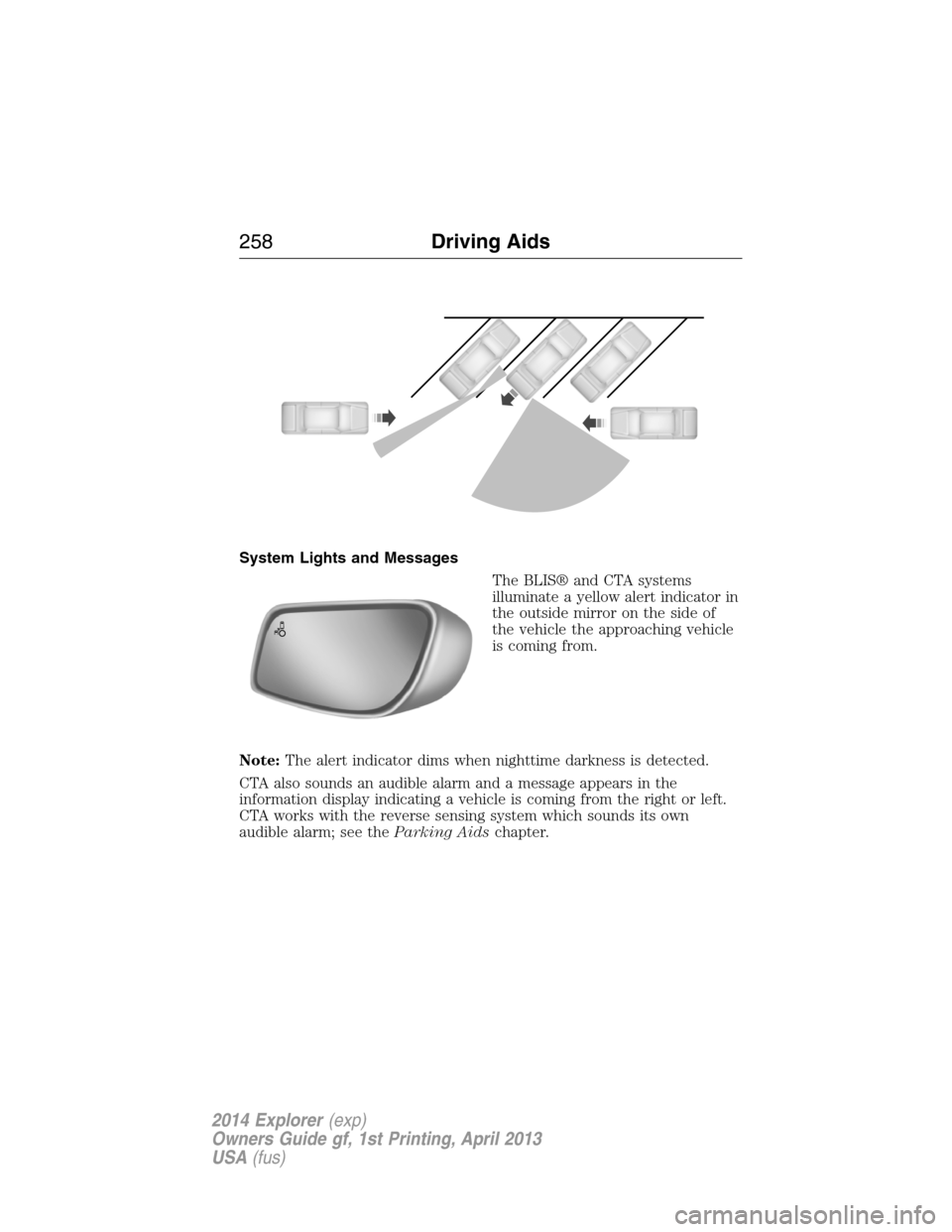
The BLIS® and CTA systems
illuminate a yellow alert indicator in
the outside mirror on the side of
the vehicle the approaching vehicle
is coming from.
Note:The alert indicator dims when nighttime darkness is detected.
CTA also sounds an audible alarm and a message appears in the
information display indicating a vehicle is coming from the right or left.
CTA works with the reverse sensing system which sounds its own
audible alarm; see theParking Aidschapter.
258Driving Aids
2014 Explorer(exp)
Owners Guide gf, 1st Printing, April 2013
USA(fus)
Page 263 of 586
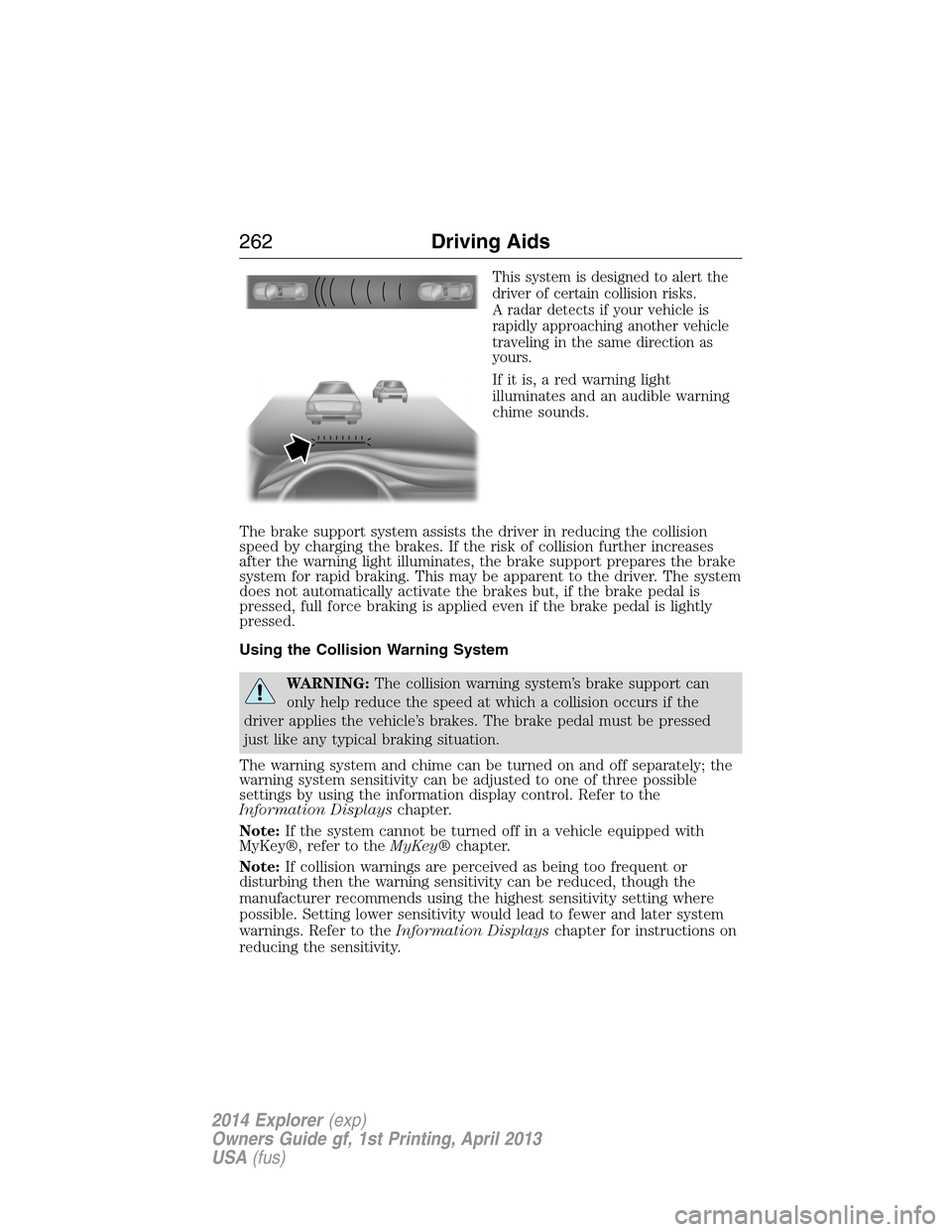
This system is designed to alert the
driver of certain collision risks.
A radar detects if your vehicle is
rapidly approaching another vehicle
traveling in the same direction as
yours.
If it is, a red warning light
illuminates and an audible warning
chime sounds.
The brake support system assists the driver in reducing the collision
speed by charging the brakes. If the risk of collision further increases
after the warning light illuminates, the brake support prepares the brake
system for rapid braking. This may be apparent to the driver. The system
does not automatically activate the brakes but, if the brake pedal is
pressed, full force braking is applied even if the brake pedal is lightly
pressed.
Using the Collision Warning System
WARNING:The collision warning system’s brake support can
only help reduce the speed at which a collision occurs if the
driver applies the vehicle’s brakes. The brake pedal must be pressed
just like any typical braking situation.
The warning system and chime can be turned on and off separately; the
warning system sensitivity can be adjusted to one of three possible
settings by using the information display control. Refer to the
Information Displayschapter.
Note:If the system cannot be turned off in a vehicle equipped with
MyKey®, refer to theMyKey®chapter.
Note:If collision warnings are perceived as being too frequent or
disturbing then the warning sensitivity can be reduced, though the
manufacturer recommends using the highest sensitivity setting where
possible. Setting lower sensitivity would lead to fewer and later system
warnings. Refer to theInformation Displayschapter for instructions on
reducing the sensitivity.
262Driving Aids
2014 Explorer(exp)
Owners Guide gf, 1st Printing, April 2013
USA(fus)