key FORD EXPLORER 2016 5.G Owner's Manual
[x] Cancel search | Manufacturer: FORD, Model Year: 2016, Model line: EXPLORER, Model: FORD EXPLORER 2016 5.GPages: 541, PDF Size: 6.51 MB
Page 70 of 541
When Opening
The system stops when it detects an
obstacle and two short tones sound. Once
you remove the obstacle, you can continue
to operate the liftgate.
Hands-Free Feature (If Equipped)
Make sure you have an intelligent access
transmitter within
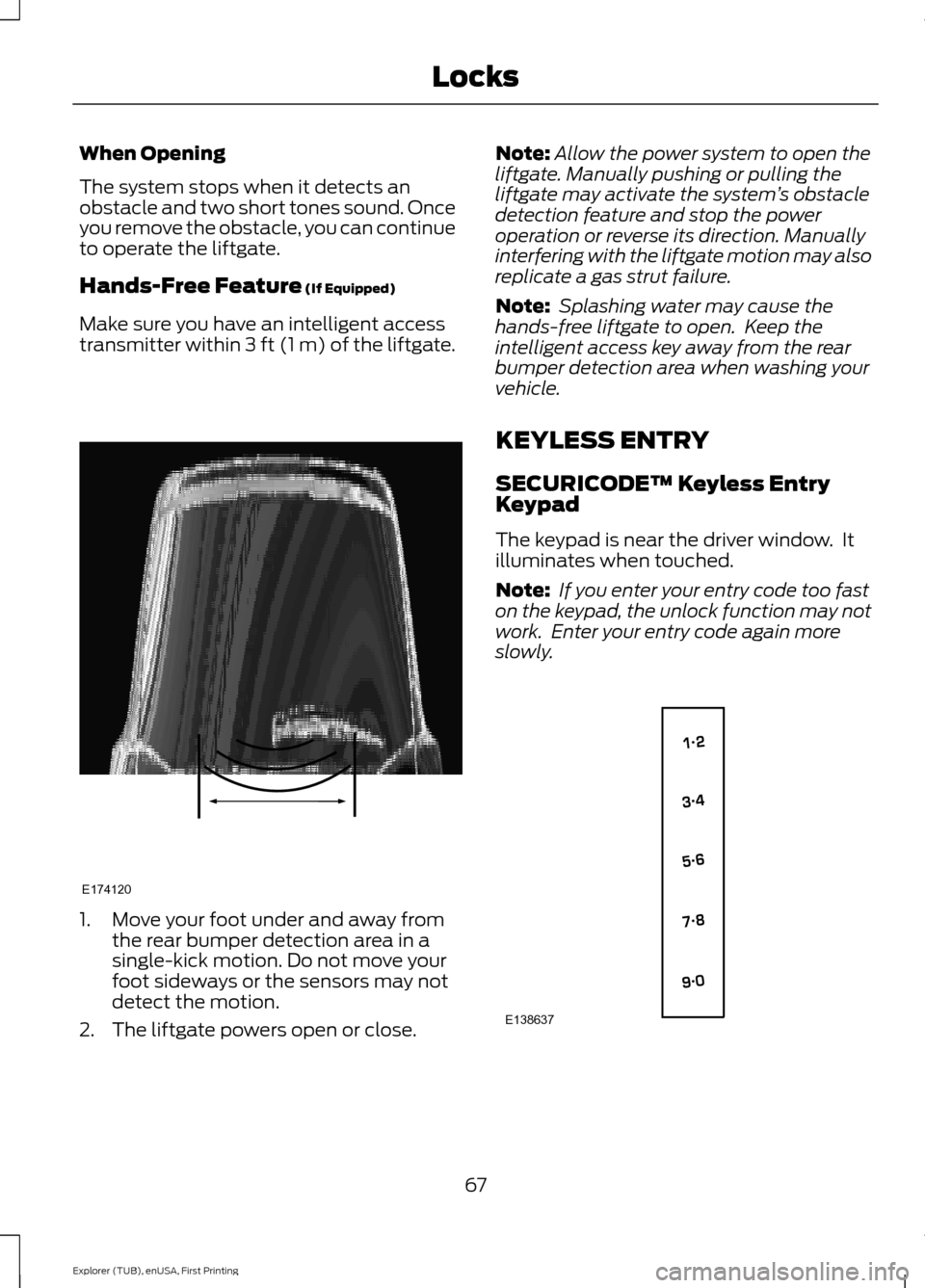
3 ft (1 m) of the liftgate. 1. Move your foot under and away from
the rear bumper detection area in a
single-kick motion. Do not move your
foot sideways or the sensors may not
detect the motion.
2. The liftgate powers open or close. Note:
Allow the power system to open the
liftgate. Manually pushing or pulling the
liftgate may activate the system ’s obstacle
detection feature and stop the power
operation or reverse its direction. Manually
interfering with the liftgate motion may also
replicate a gas strut failure.
Note: Splashing water may cause the
hands-free liftgate to open. Keep the
intelligent access key away from the rear
bumper detection area when washing your
vehicle.
KEYLESS ENTRY
SECURICODE™ Keyless Entry
Keypad
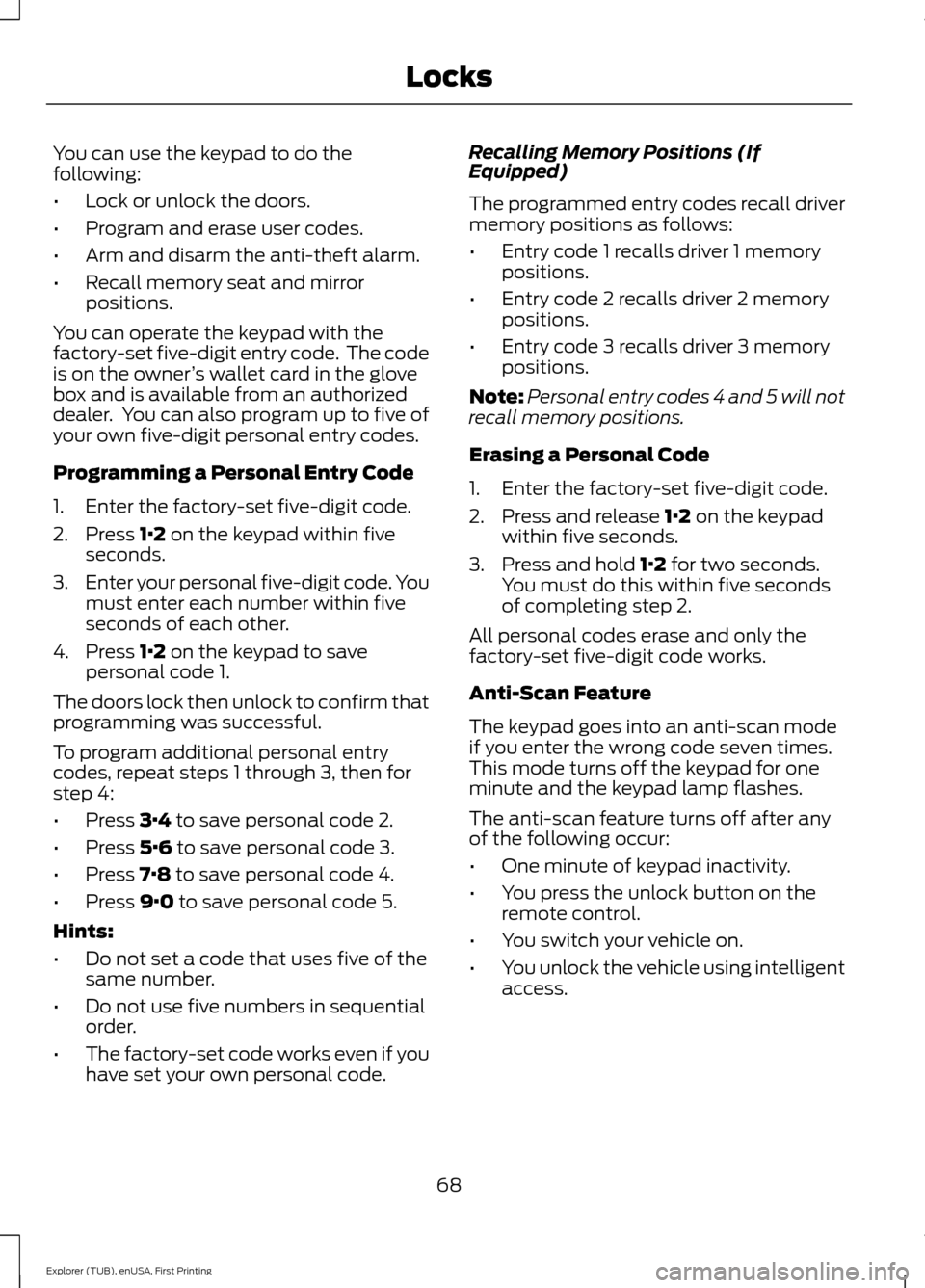
The keypad is near the driver window. It
illuminates when touched.
Note: If you enter your entry code too fast
on the keypad, the unlock function may not
work. Enter your entry code again more
slowly. 67
Explorer (TUB), enUSA, First Printing LocksE174120 E138637
Page 71 of 541
You can use the keypad to do the
following:
•
Lock or unlock the doors.
• Program and erase user codes.
• Arm and disarm the anti-theft alarm.
• Recall memory seat and mirror
positions.
You can operate the keypad with the
factory-set five-digit entry code. The code
is on the owner ’s wallet card in the glove
box and is available from an authorized
dealer. You can also program up to five of
your own five-digit personal entry codes.
Programming a Personal Entry Code
1. Enter the factory-set five-digit code.
2. Press 1·2 on the keypad within five
seconds.
3. Enter your personal five-digit code. You
must enter each number within five
seconds of each other.
4. Press
1·2 on the keypad to save
personal code 1.
The doors lock then unlock to confirm that
programming was successful.
To program additional personal entry
codes, repeat steps 1 through 3, then for
step 4:
• Press
3·4 to save personal code 2.
• Press
5·6 to save personal code 3.
• Press
7·8 to save personal code 4.
• Press
9·0 to save personal code 5.
Hints:
• Do not set a code that uses five of the
same number.
• Do not use five numbers in sequential
order.
• The factory-set code works even if you
have set your own personal code. Recalling Memory Positions (If
Equipped)
The programmed entry codes recall driver
memory positions as follows:
•
Entry code 1 recalls driver 1 memory
positions.
• Entry code 2 recalls driver 2 memory
positions.
• Entry code 3 recalls driver 3 memory
positions.
Note: Personal entry codes 4 and 5 will not
recall memory positions.
Erasing a Personal Code
1. Enter the factory-set five-digit code.
2. Press and release
1·2 on the keypad
within five seconds.
3. Press and hold
1·2 for two seconds.
You must do this within five seconds
of completing step 2.
All personal codes erase and only the
factory-set five-digit code works.
Anti-Scan Feature
The keypad goes into an anti-scan mode
if you enter the wrong code seven times.
This mode turns off the keypad for one
minute and the keypad lamp flashes.
The anti-scan feature turns off after any
of the following occur:
• One minute of keypad inactivity.
• You press the unlock button on the
remote control.
• You switch your vehicle on.
• You unlock the vehicle using intelligent
access.
68
Explorer (TUB), enUSA, First Printing Locks
Page 72 of 541
Locking and Unlocking the Doors
Locking All Doors
Press and hold 7·8 and 9·0 on the keypad
simultaneously with the driver door closed.
You do not need to enter a code first.
Unlocking All Doors
Enter the factory-set code or your personal
code, then press 3·4 on the keypad within
five seconds.
Unlocking Only the Driver Door
Enter the factory-set or your personal
five-digit code. You must press each
number within five seconds of each other.
The interior lamps illuminate.
Note:
All doors unlock if the two-stage
unlocking feature is turned off. See Locking
and Unlocking (page 60).
69
Explorer (TUB), enUSA, First Printing Locks
Page 73 of 541
PASSIVE ANTI-THEFT
SYSTEM
Note:
The system is not compatible with
non-Ford aftermarket remote start systems.
Use of these systems may result in vehicle
starting problems and a loss of security
protection.
Note: Metallic objects, electronic devices
or a second coded key on the same key
chain may cause vehicle starting problems
if they are too close to the key when starting
the engine. Prevent these objects from
touching the coded key while starting the
engine. Switch the ignition off, move all
objects on the key chain away from the
coded key and restart the engine if a
problem occurs.
Note: Do not leave a duplicate coded key
in the vehicle. Always take your keys and
lock all doors when leaving the vehicle.
SecuriLock®
The system is an engine immobilization
system. It is designed to help prevent the
engine from being started unless a coded
key programmed to your vehicle is used.
Using the wrong key may prevent the
engine from starting. A message may
appear in the information display.
If you are unable to start the engine with a
correctly coded key, a malfunction has
happened and a message may appear in
the information display.
Automatic Arming
The vehicle arms immediately after you
switch the ignition off.
Automatic Disarming
Switching the ignition on with a coded key
disarms the vehicle. Replacement Keys
Note:
Your vehicle comes equipped with
two integrated keyhead transmitters or two
intelligent access keys.
The integrated keyhead transmitter
functions as a programmed ignition key
that operates all the locks and starts the
vehicle, as well as a remote control.
The intelligent access key functions as a
programmed key that operates the driver
door lock and activates the intelligent
access with push button start system, as
well as a remote control.
If your programmed transmitters or
standard SecuriLock coded keys
(integrated keyhead transmitters only) are
lost or stolen and you do not have an extra
coded key, you will need to have your
vehicle towed to an authorized dealer. You
need to erase the key codes from your
vehicle and program new coded keys.
Store an extra programmed key away from
the vehicle in a safe place to help prevent
any inconveniences. See your authorized
dealer to purchase additional spare or
replacement keys.
Programming a Spare Integrated
Keyhead Transmitter
Note: You can program a maximum of eight
coded keys to your vehicle. All eight can be
integrated keyhead transmitters.
You can program your own integrated
keyhead transmitter or standard
SecuriLock coded keys to your vehicle. This
procedure will program both the engine
immobilizer keycode and the remote entry
portion of the remote control to your
vehicle
Only use integrated keyhead transmitters
or standard SecuriLock keys.
70
Explorer (TUB), enUSA, First Printing Security
Page 74 of 541
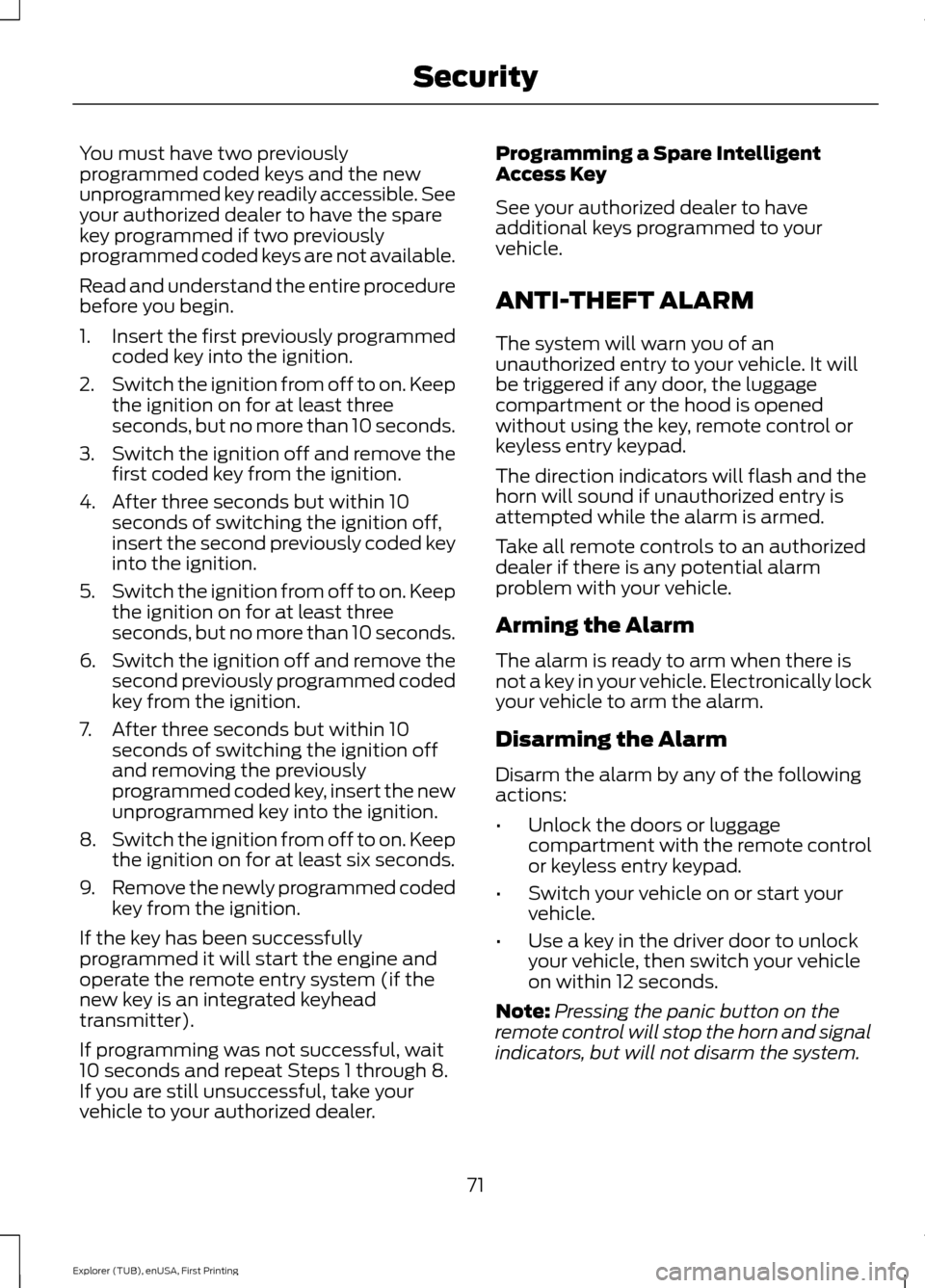
You must have two previously
programmed coded keys and the new
unprogrammed key readily accessible. See
your authorized dealer to have the spare
key programmed if two previously
programmed coded keys are not available.
Read and understand the entire procedure
before you begin.
1.
Insert the first previously programmed
coded key into the ignition.
2. Switch the ignition from off to on. Keep
the ignition on for at least three
seconds, but no more than 10 seconds.
3. Switch the ignition off and remove the
first coded key from the ignition.
4. After three seconds but within 10 seconds of switching the ignition off,
insert the second previously coded key
into the ignition.
5. Switch the ignition from off to on. Keep
the ignition on for at least three
seconds, but no more than 10 seconds.
6. Switch the ignition off and remove the
second previously programmed coded
key from the ignition.
7. After three seconds but within 10 seconds of switching the ignition off
and removing the previously
programmed coded key, insert the new
unprogrammed key into the ignition.
8. Switch the ignition from off to on. Keep
the ignition on for at least six seconds.
9. Remove the newly programmed coded
key from the ignition.
If the key has been successfully
programmed it will start the engine and
operate the remote entry system (if the
new key is an integrated keyhead
transmitter).
If programming was not successful, wait
10 seconds and repeat Steps 1 through 8.
If you are still unsuccessful, take your
vehicle to your authorized dealer. Programming a Spare Intelligent
Access Key
See your authorized dealer to have
additional keys programmed to your
vehicle.
ANTI-THEFT ALARM
The system will warn you of an
unauthorized entry to your vehicle. It will
be triggered if any door, the luggage
compartment or the hood is opened
without using the key, remote control or
keyless entry keypad.
The direction indicators will flash and the
horn will sound if unauthorized entry is
attempted while the alarm is armed.
Take all remote controls to an authorized
dealer if there is any potential alarm
problem with your vehicle.
Arming the Alarm
The alarm is ready to arm when there is
not a key in your vehicle. Electronically lock
your vehicle to arm the alarm.
Disarming the Alarm
Disarm the alarm by any of the following
actions:
•
Unlock the doors or luggage
compartment with the remote control
or keyless entry keypad.
• Switch your vehicle on or start your
vehicle.
• Use a key in the driver door to unlock
your vehicle, then switch your vehicle
on within 12 seconds.
Note: Pressing the panic button on the
remote control will stop the horn and signal
indicators, but will not disarm the system.
71
Explorer (TUB), enUSA, First Printing Security
Page 103 of 541
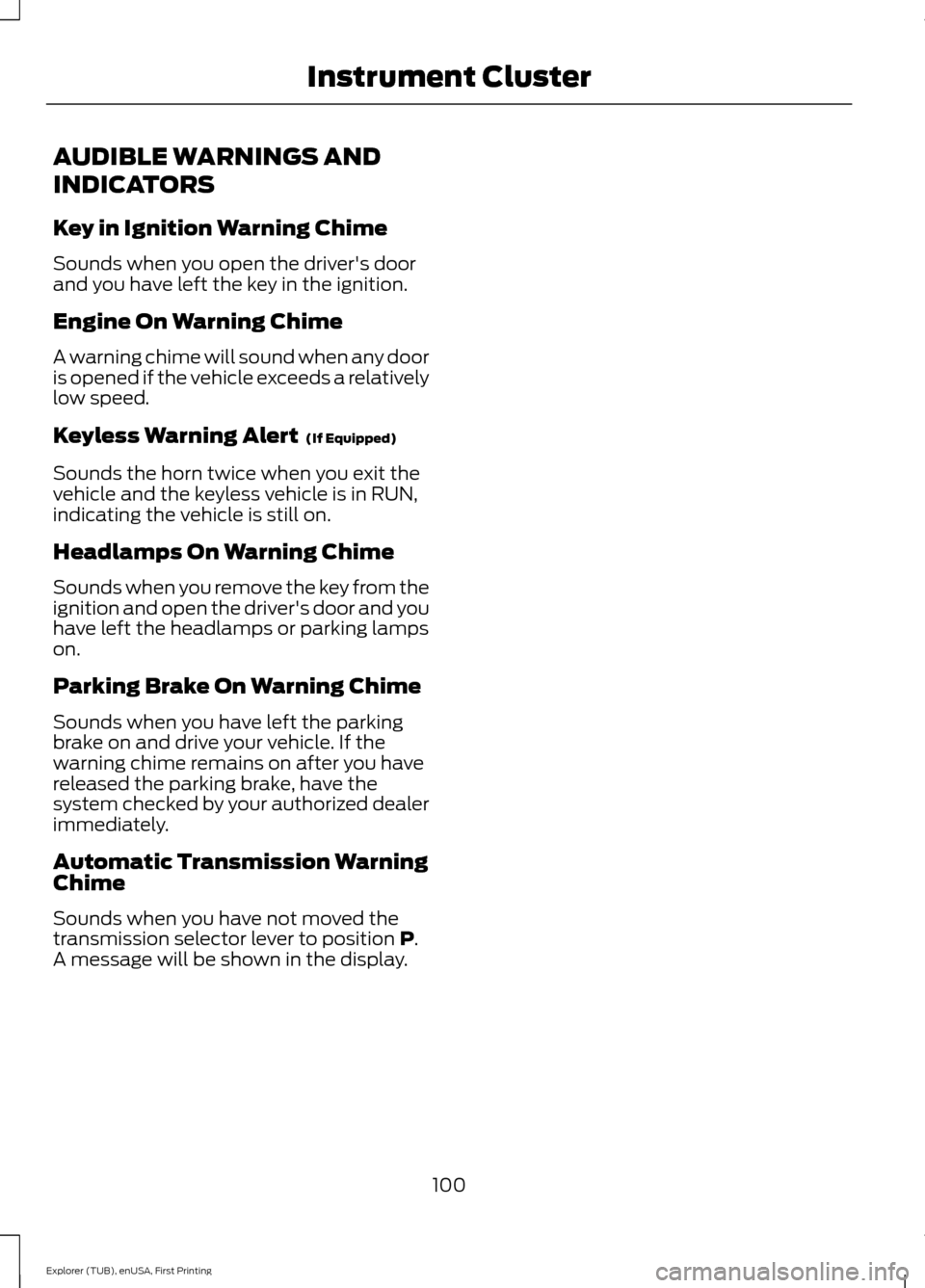
AUDIBLE WARNINGS AND
INDICATORS
Key in Ignition Warning Chime
Sounds when you open the driver's door
and you have left the key in the ignition.
Engine On Warning Chime
A warning chime will sound when any door
is opened if the vehicle exceeds a relatively
low speed.
Keyless Warning Alert (If Equipped)
Sounds the horn twice when you exit the
vehicle and the keyless vehicle is in RUN,
indicating the vehicle is still on.
Headlamps On Warning Chime
Sounds when you remove the key from the
ignition and open the driver's door and you
have left the headlamps or parking lamps
on.
Parking Brake On Warning Chime
Sounds when you have left the parking
brake on and drive your vehicle. If the
warning chime remains on after you have
released the parking brake, have the
system checked by your authorized dealer
immediately.
Automatic Transmission Warning
Chime
Sounds when you have not moved the
transmission selector lever to position
P.
A message will be shown in the display.
100
Explorer (TUB), enUSA, First Printing Instrument Cluster
Page 108 of 541
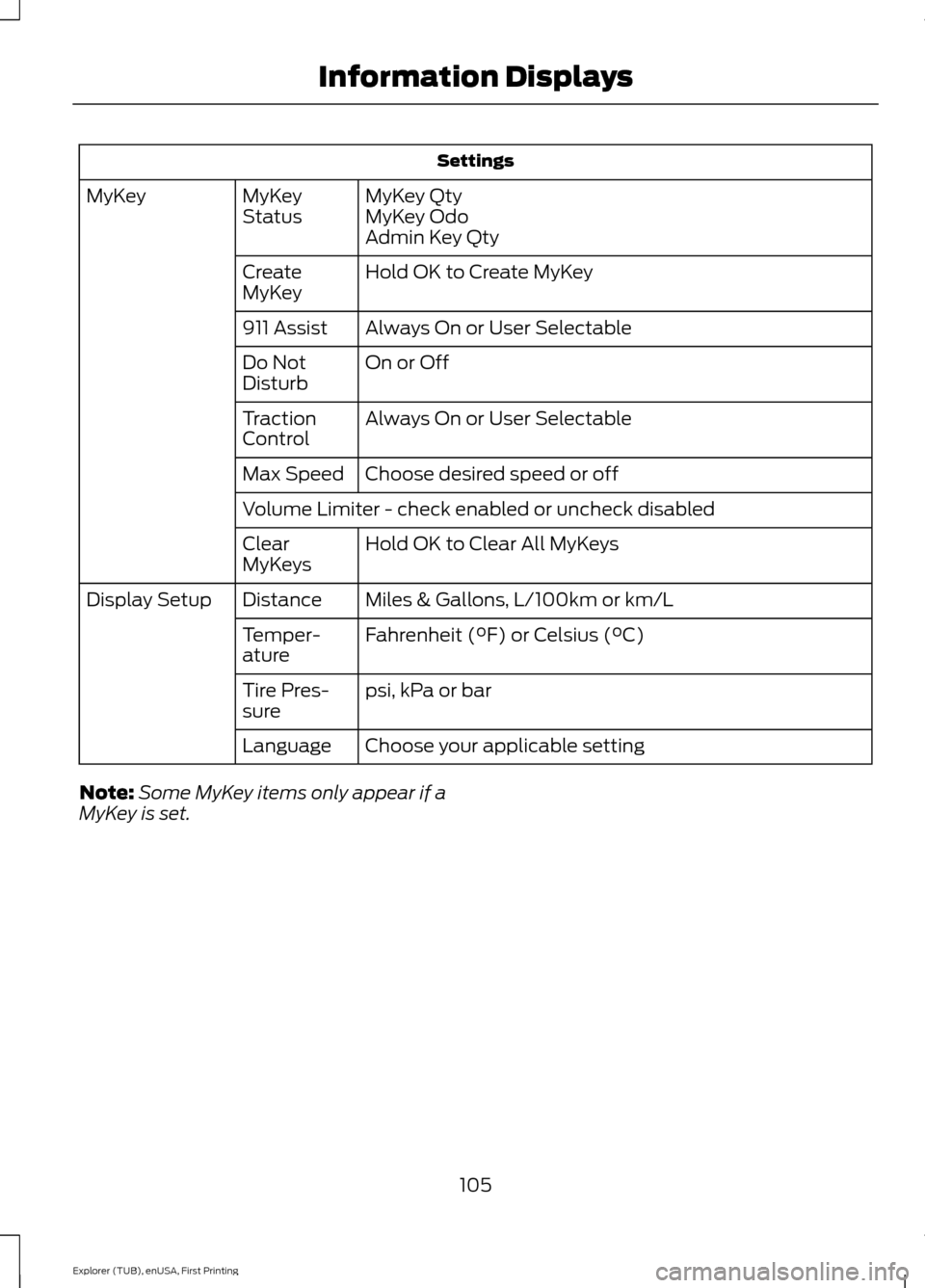
Settings
MyKey Qty
MyKey
Status
MyKey
MyKey Odo
Admin Key Qty
Hold OK to Create MyKey
Create
MyKey
Always On or User Selectable
911 Assist
On or Off
Do Not
Disturb
Always On or User Selectable
Traction
Control
Choose desired speed or off
Max Speed
Volume Limiter - check enabled or uncheck disabled
Hold OK to Clear All MyKeys
Clear
MyKeys
Miles & Gallons, L/100km or km/L
Distance
Display Setup
Fahrenheit (°F) or Celsius (°C)
Temper-
ature
psi, kPa or bar
Tire Pres-
sure
Choose your applicable setting
Language
Note: Some MyKey items only appear if a
MyKey is set.
105
Explorer (TUB), enUSA, First Printing Information Displays
Page 109 of 541
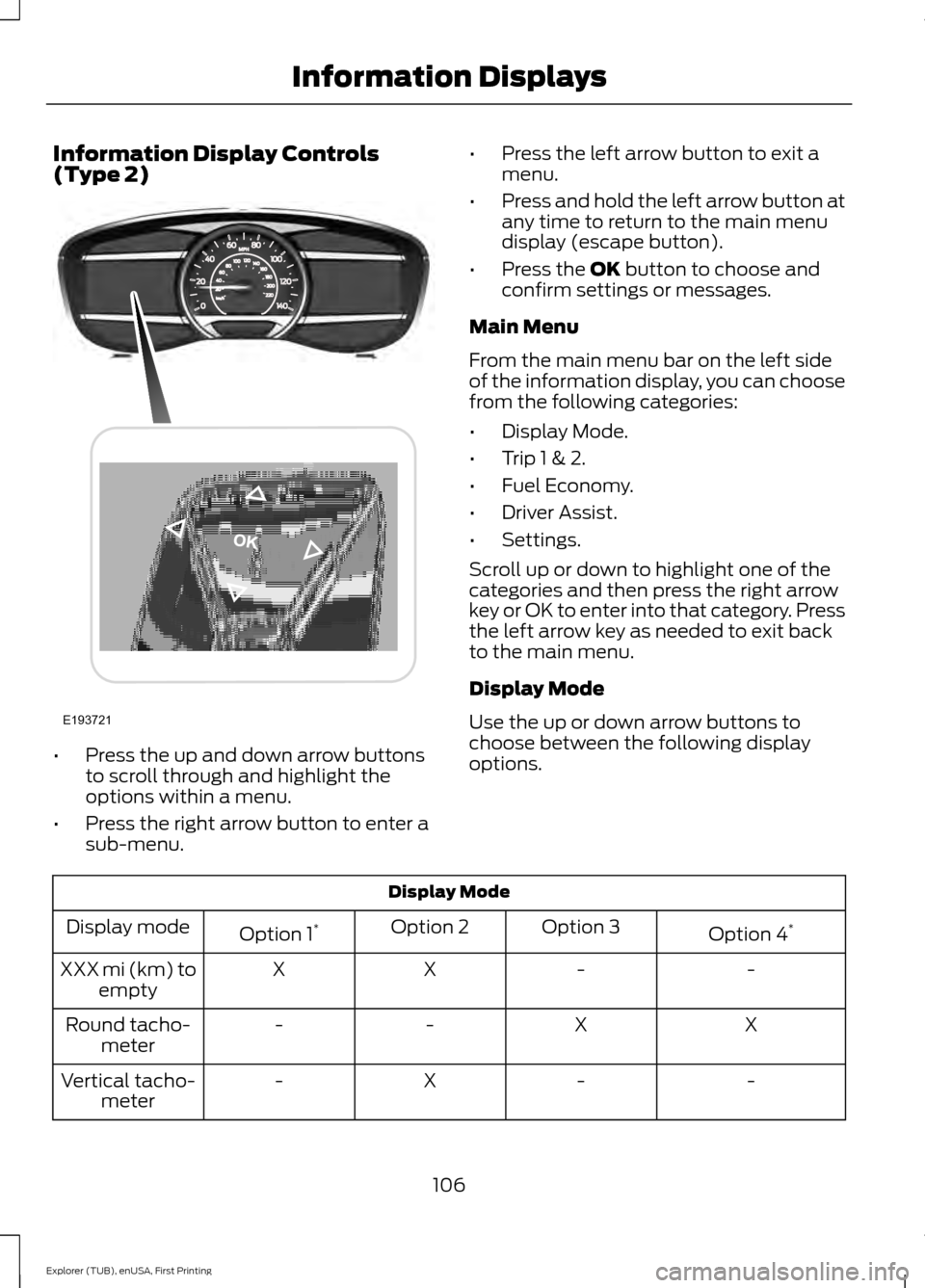
Information Display Controls
(Type 2)
•
Press the up and down arrow buttons
to scroll through and highlight the
options within a menu.
• Press the right arrow button to enter a
sub-menu. •
Press the left arrow button to exit a
menu.
• Press and hold the left arrow button at
any time to return to the main menu
display (escape button).
• Press the OK button to choose and
confirm settings or messages.
Main Menu
From the main menu bar on the left side
of the information display, you can choose
from the following categories:
• Display Mode.
• Trip 1 & 2.
• Fuel Economy.
• Driver Assist.
• Settings.
Scroll up or down to highlight one of the
categories and then press the right arrow
key or OK to enter into that category. Press
the left arrow key as needed to exit back
to the main menu.
Display Mode
Use the up or down arrow buttons to
choose between the following display
options. Display Mode
Option 4*
Option 3
Option 2
Option 1 *
Display mode
-
-
X
X
XXX mi (km) to
empty
X
X
-
-
Round tacho-
meter
-
-
X
-
Vertical tacho-
meter
106
Explorer (TUB), enUSA, First Printing Information DisplaysE193721
Page 110 of 541
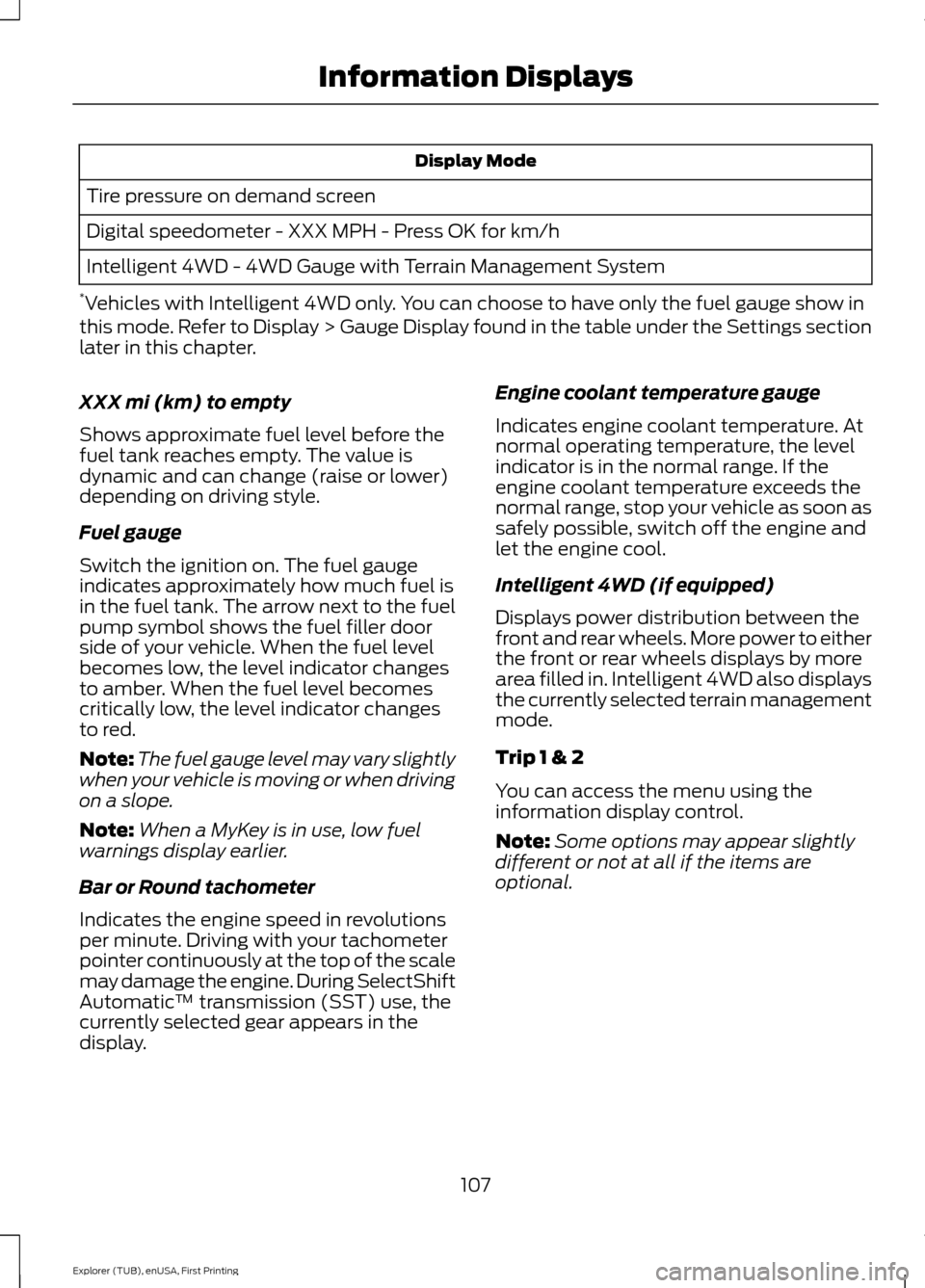
Display Mode
Tire pressure on demand screen
Digital speedometer - XXX MPH - Press OK for km/h
Intelligent 4WD - 4WD Gauge with Terrain Management System
* Vehicles with Intelligent 4WD only. You can choose to have only the fuel gauge show in
this mode. Refer to Display > Gauge Display found in the table under the Settings section
later in this chapter.
XXX mi (km) to empty
Shows approximate fuel level before the
fuel tank reaches empty. The value is
dynamic and can change (raise or lower)
depending on driving style.
Fuel gauge
Switch the ignition on. The fuel gauge
indicates approximately how much fuel is
in the fuel tank. The arrow next to the fuel
pump symbol shows the fuel filler door
side of your vehicle. When the fuel level
becomes low, the level indicator changes
to amber. When the fuel level becomes
critically low, the level indicator changes
to red.
Note: The fuel gauge level may vary slightly
when your vehicle is moving or when driving
on a slope.
Note: When a MyKey is in use, low fuel
warnings display earlier.
Bar or Round tachometer
Indicates the engine speed in revolutions
per minute. Driving with your tachometer
pointer continuously at the top of the scale
may damage the engine. During SelectShift
Automatic ™ transmission (SST) use, the
currently selected gear appears in the
display. Engine coolant temperature gauge
Indicates engine coolant temperature. At
normal operating temperature, the level
indicator is in the normal range. If the
engine coolant temperature exceeds the
normal range, stop your vehicle as soon as
safely possible, switch off the engine and
let the engine cool.
Intelligent 4WD (if equipped)
Displays power distribution between the
front and rear wheels. More power to either
the front or rear wheels displays by more
area filled in. Intelligent 4WD also displays
the currently selected terrain management
mode.
Trip 1 & 2
You can access the menu using the
information display control.
Note:
Some options may appear slightly
different or not at all if the items are
optional.
107
Explorer (TUB), enUSA, First Printing Information Displays
Page 113 of 541
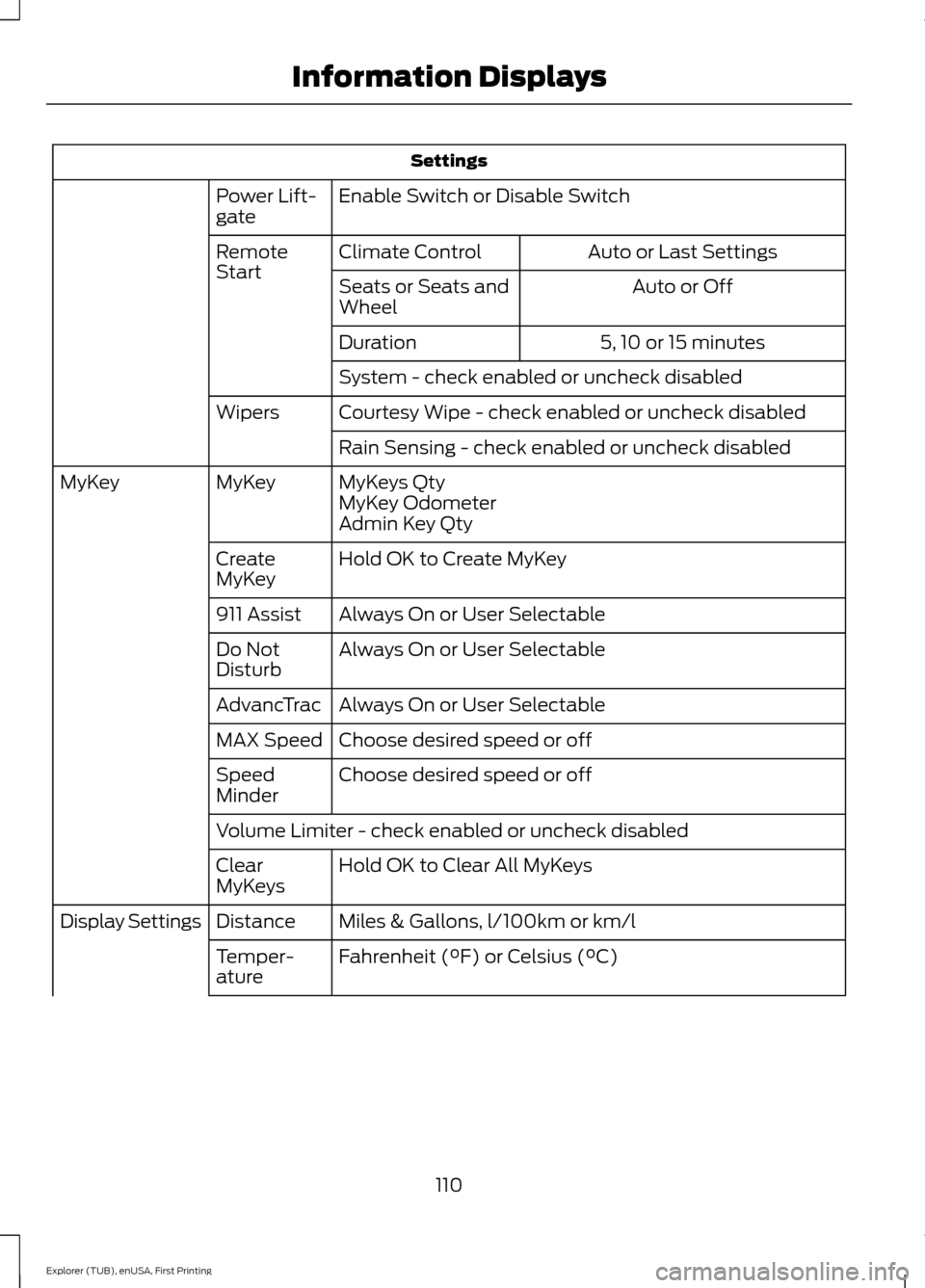
Settings
Enable Switch or Disable Switch
Power Lift-
gate
Auto or Last Settings
Climate Control
Remote
Start
Auto or Off
Seats or Seats and
Wheel
5, 10 or 15 minutes
Duration
System - check enabled or uncheck disabled
Courtesy Wipe - check enabled or uncheck disabled
Wipers
Rain Sensing - check enabled or uncheck disabled
MyKeys Qty
MyKey
MyKey
MyKey Odometer
Admin Key Qty
Hold OK to Create MyKey
Create
MyKey
Always On or User Selectable
911 Assist
Always On or User Selectable
Do Not
Disturb
Always On or User Selectable
AdvancTrac
Choose desired speed or off
MAX Speed
Choose desired speed or off
Speed
Minder
Volume Limiter - check enabled or uncheck disabled
Hold OK to Clear All MyKeys
Clear
MyKeys
Miles & Gallons, l/100km or km/l
Distance
Display Settings
Fahrenheit (°F) or Celsius (°C)
Temper-
ature
110
Explorer (TUB), enUSA, First Printing Information Displays