head FORD EXPLORER 2016 5.G Workshop Manual
[x] Cancel search | Manufacturer: FORD, Model Year: 2016, Model line: EXPLORER, Model: FORD EXPLORER 2016 5.GPages: 541, PDF Size: 6.51 MB
Page 295 of 541
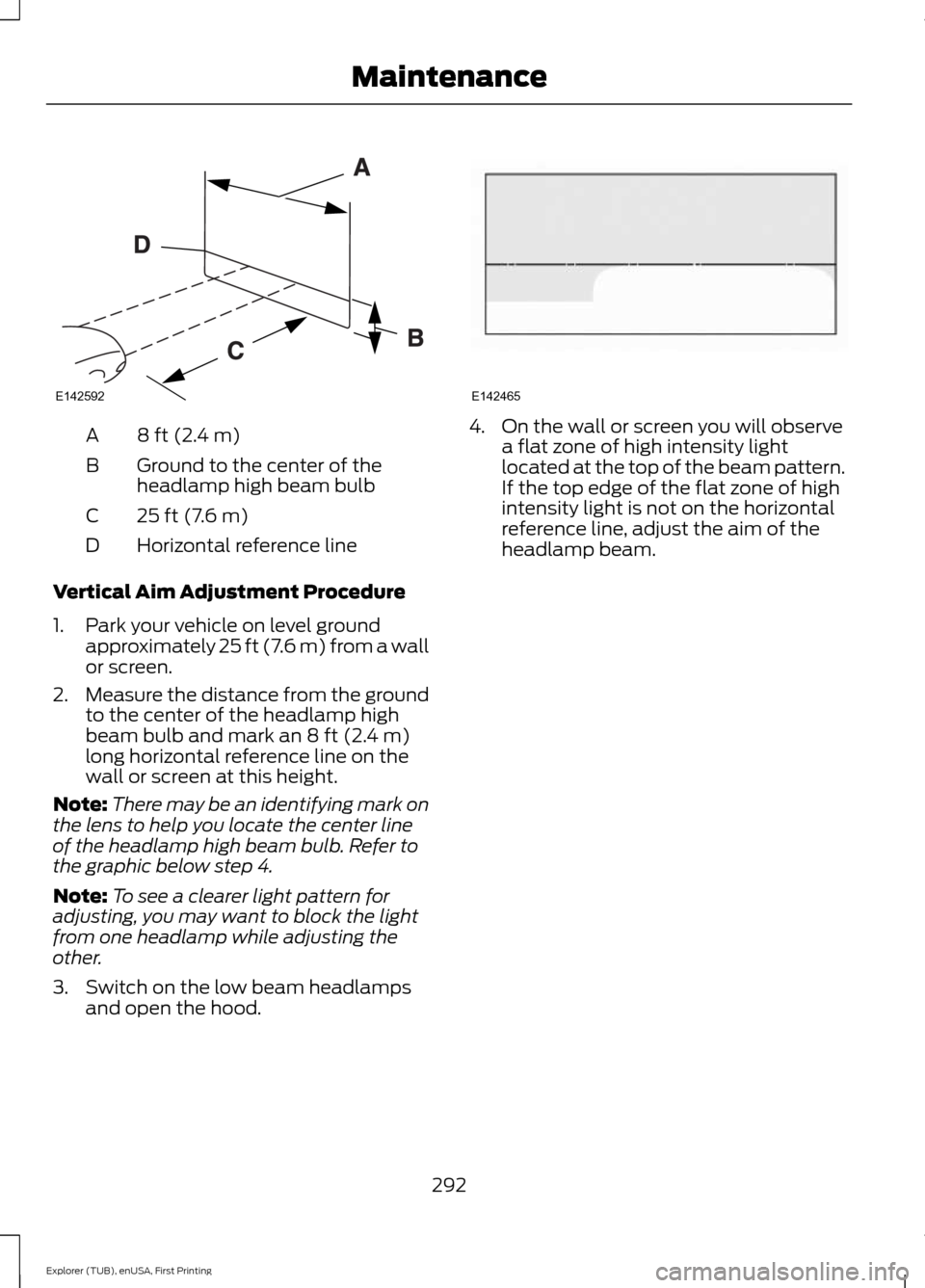
8 ft (2.4 m)
A
Ground to the center of the
headlamp high beam bulb
B
25 ft (7.6 m)
C
Horizontal reference line
D
Vertical Aim Adjustment Procedure
1. Park your vehicle on level ground approximately 25 ft (7.6 m) from a wall
or screen.
2. Measure the distance from the ground
to the center of the headlamp high
beam bulb and mark an 8 ft (2.4 m)
long horizontal reference line on the
wall or screen at this height.
Note: There may be an identifying mark on
the lens to help you locate the center line
of the headlamp high beam bulb. Refer to
the graphic below step 4.
Note: To see a clearer light pattern for
adjusting, you may want to block the light
from one headlamp while adjusting the
other.
3. Switch on the low beam headlamps and open the hood. 4. On the wall or screen you will observe
a flat zone of high intensity light
located at the top of the beam pattern.
If the top edge of the flat zone of high
intensity light is not on the horizontal
reference line, adjust the aim of the
headlamp beam.
292
Explorer (TUB), enUSA, First Printing MaintenanceE142592 E142465
Page 296 of 541
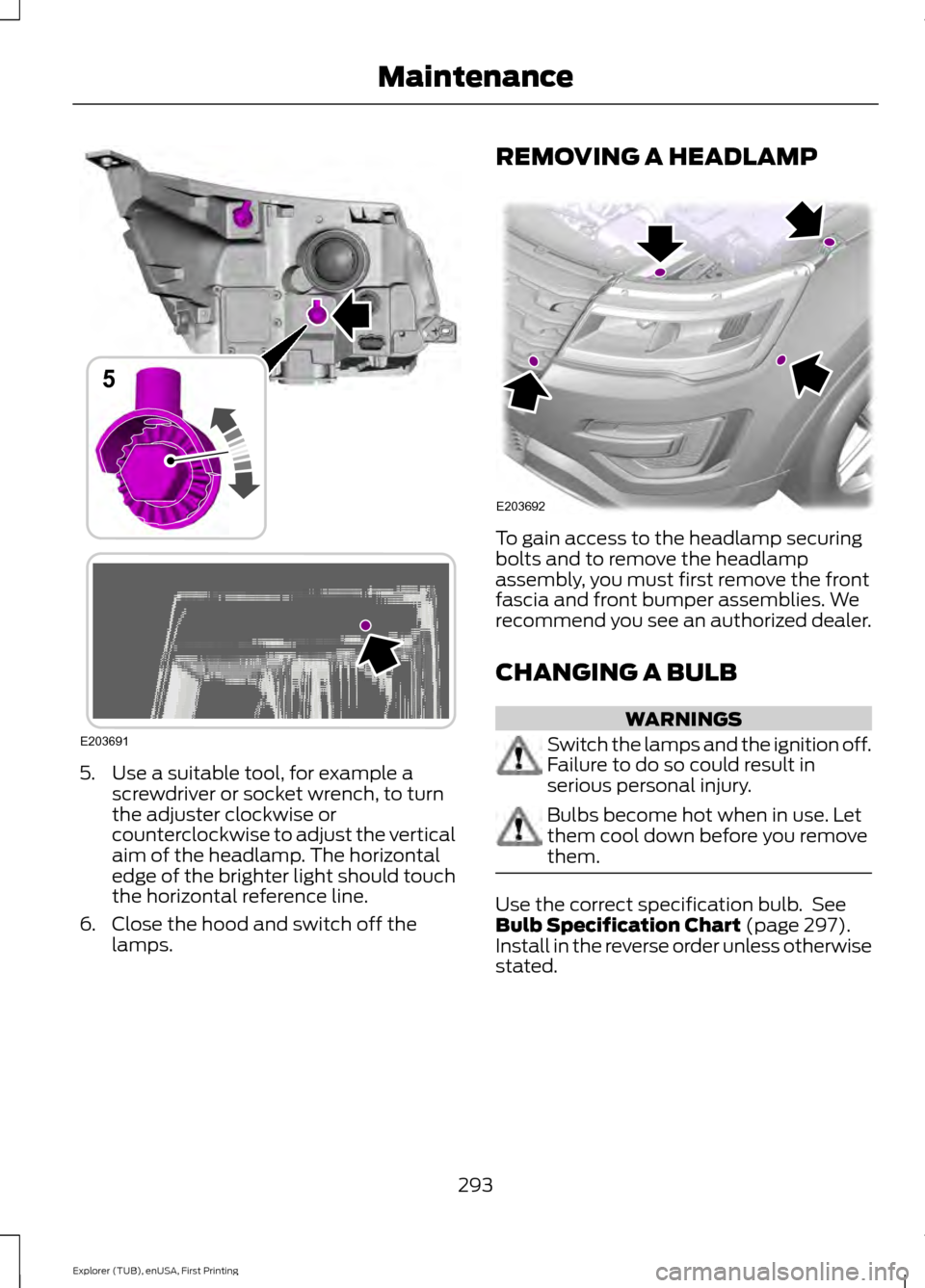
5. Use a suitable tool, for example a
screwdriver or socket wrench, to turn
the adjuster clockwise or
counterclockwise to adjust the vertical
aim of the headlamp. The horizontal
edge of the brighter light should touch
the horizontal reference line.
6. Close the hood and switch off the lamps. REMOVING A HEADLAMP
To gain access to the headlamp securing
bolts and to remove the headlamp
assembly, you must first remove the front
fascia and front bumper assemblies. We
recommend you see an authorized dealer.
CHANGING A BULB
WARNINGS
Switch the lamps and the ignition off.
Failure to do so could result in
serious personal injury.
Bulbs become hot when in use. Let
them cool down before you remove
them.
Use the correct specification bulb. See
Bulb Specification Chart (page 297).
Install in the reverse order unless otherwise
stated.
293
Explorer (TUB), enUSA, First Printing MaintenanceE203691
5 E203692
Page 297 of 541
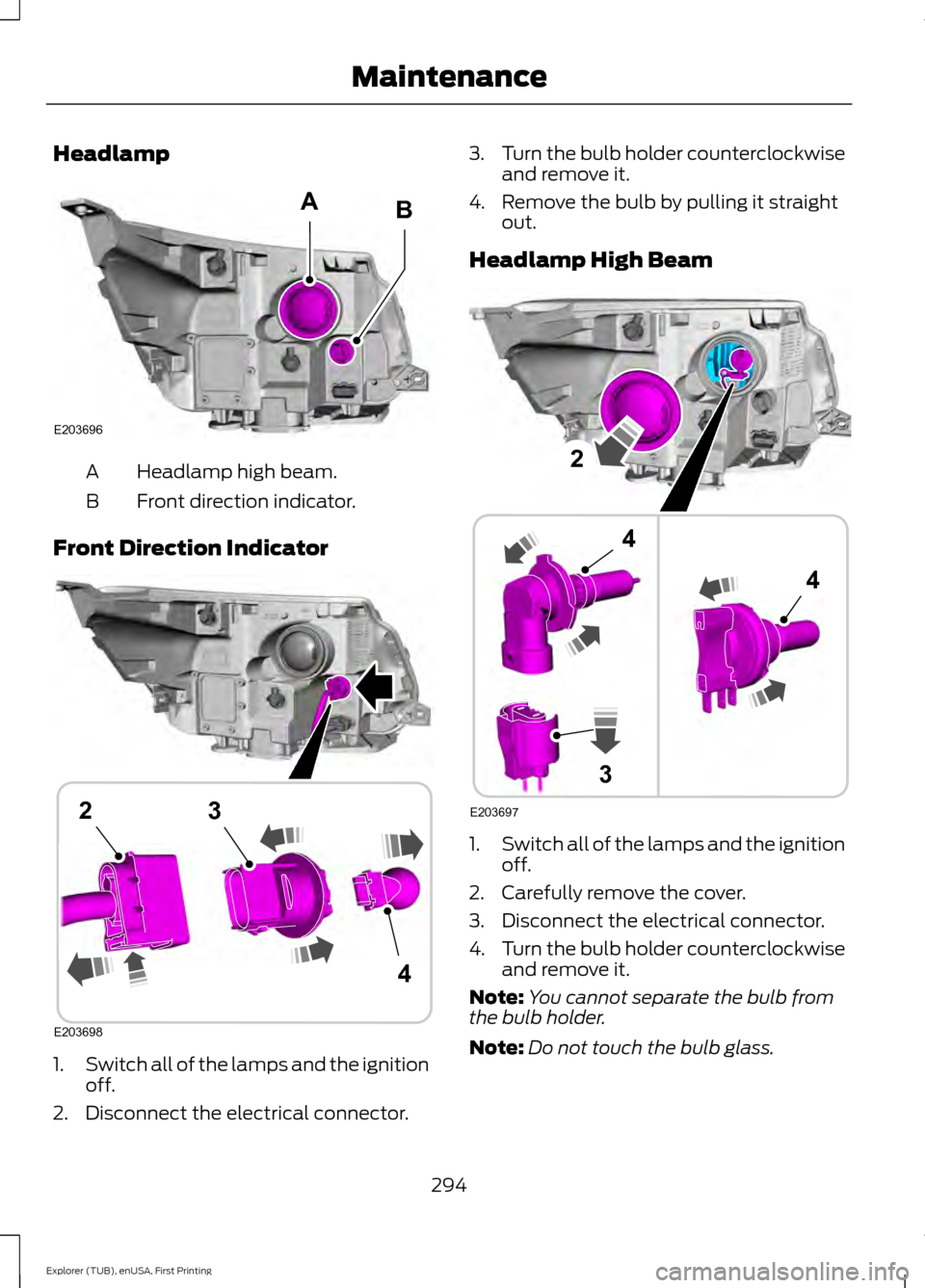
Headlamp
Headlamp high beam.
A
Front direction indicator.
B
Front Direction Indicator 1.
Switch all of the lamps and the ignition
off.
2. Disconnect the electrical connector. 3.
Turn the bulb holder counterclockwise
and remove it.
4. Remove the bulb by pulling it straight out.
Headlamp High Beam 1.
Switch all of the lamps and the ignition
off.
2. Carefully remove the cover.
3. Disconnect the electrical connector.
4. Turn the bulb holder counterclockwise
and remove it.
Note: You cannot separate the bulb from
the bulb holder.
Note: Do not touch the bulb glass.
294
Explorer (TUB), enUSA, First Printing MaintenanceE203696
AB E203698
4
23 E203697
2
3
4
4
Page 299 of 541
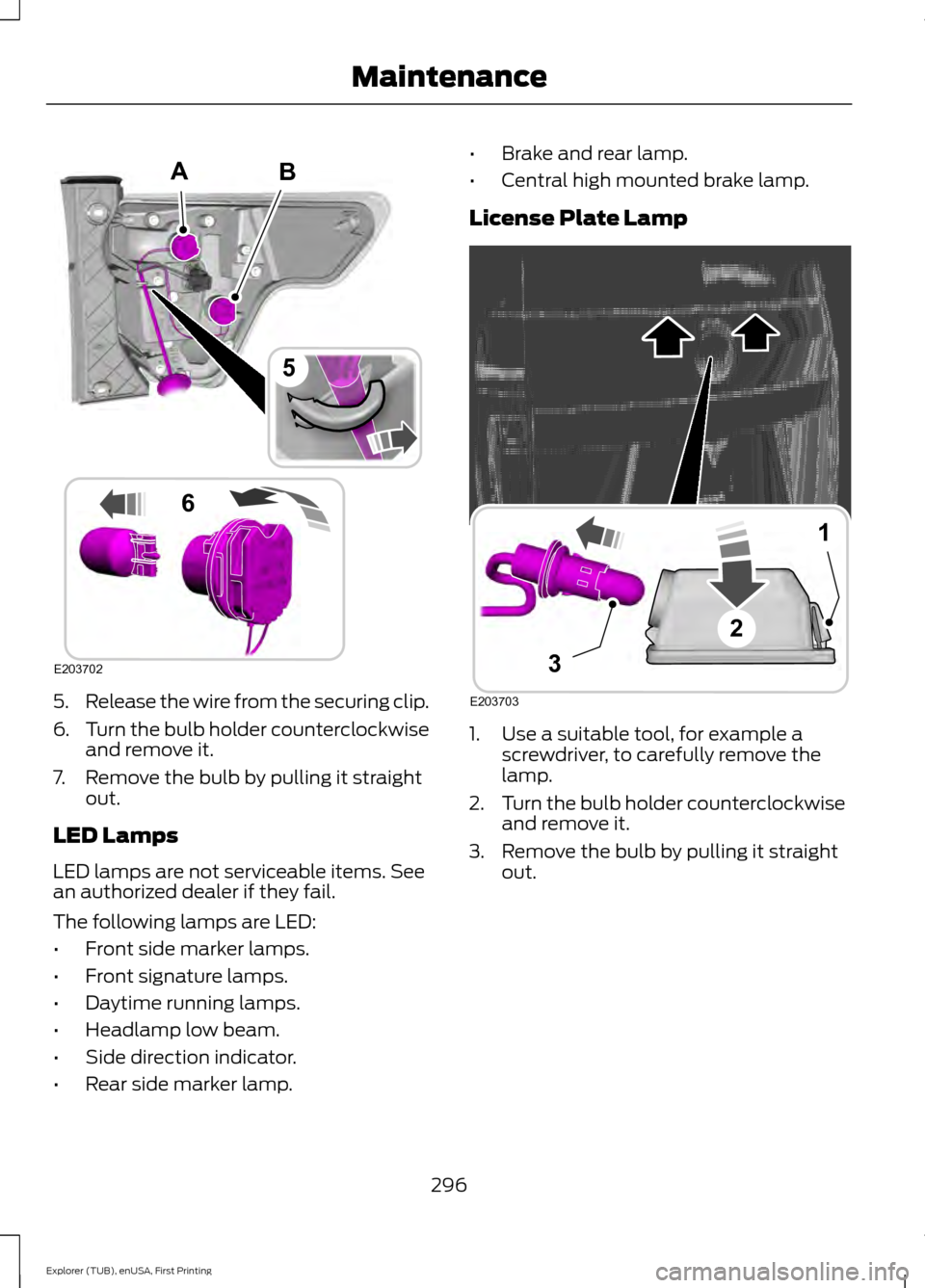
5.
Release the wire from the securing clip.
6. Turn the bulb holder counterclockwise
and remove it.
7. Remove the bulb by pulling it straight out.
LED Lamps
LED lamps are not serviceable items. See
an authorized dealer if they fail.
The following lamps are LED:
• Front side marker lamps.
• Front signature lamps.
• Daytime running lamps.
• Headlamp low beam.
• Side direction indicator.
• Rear side marker lamp. •
Brake and rear lamp.
• Central high mounted brake lamp.
License Plate Lamp 1. Use a suitable tool, for example a
screwdriver, to carefully remove the
lamp.
2. Turn the bulb holder counterclockwise
and remove it.
3. Remove the bulb by pulling it straight out.
296
Explorer (TUB), enUSA, First Printing MaintenanceB
E203702
5
6
A E203703
1
3
2
Page 300 of 541
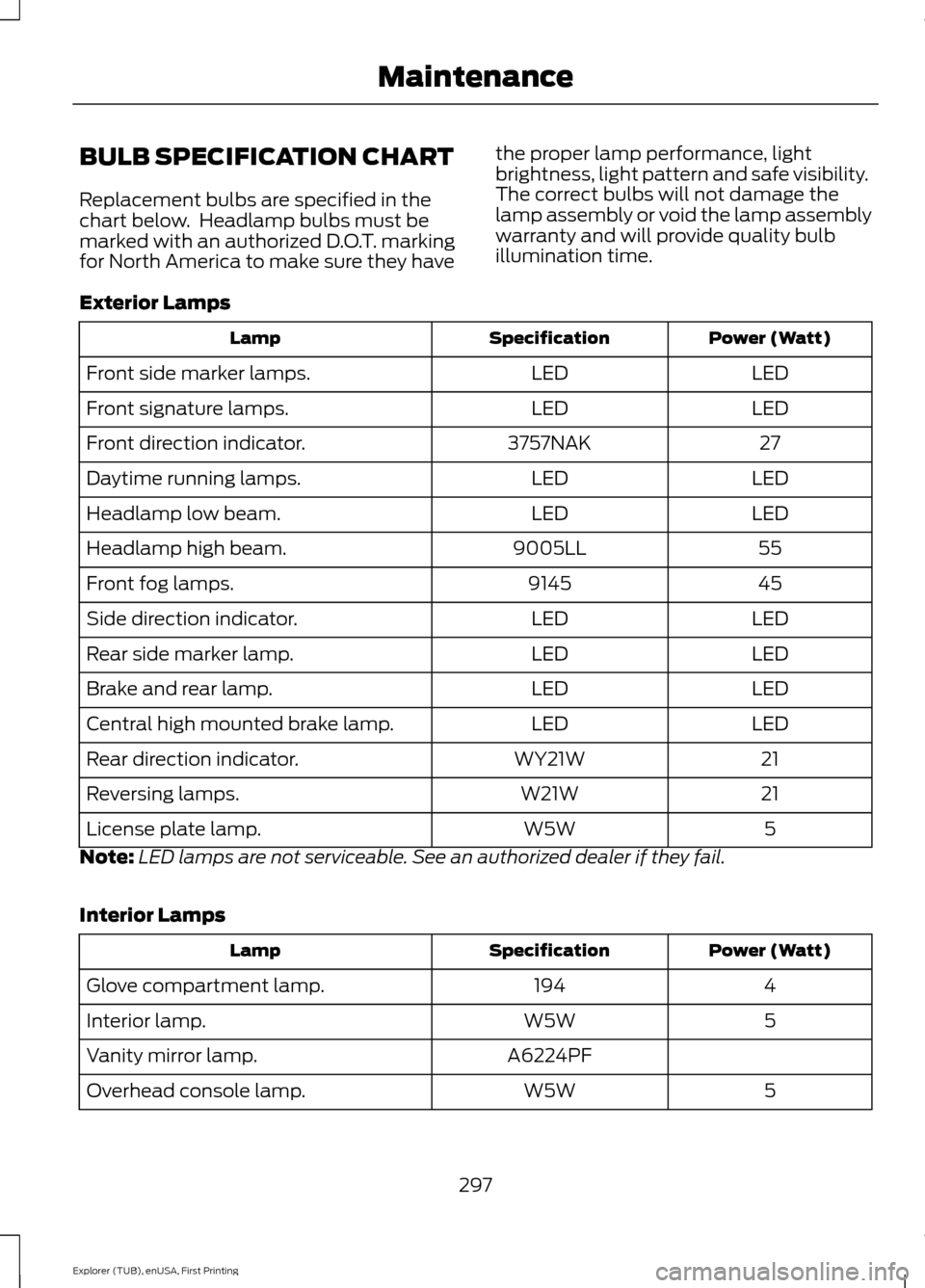
BULB SPECIFICATION CHART
Replacement bulbs are specified in the
chart below. Headlamp bulbs must be
marked with an authorized D.O.T. marking
for North America to make sure they have
the proper lamp performance, light
brightness, light pattern and safe visibility.
The correct bulbs will not damage the
lamp assembly or void the lamp assembly
warranty and will provide quality bulb
illumination time.
Exterior Lamps Power (Watt)
Specification
Lamp
LED
LED
Front side marker lamps.
LED
LED
Front signature lamps.
27
3757NAK
Front direction indicator.
LED
LED
Daytime running lamps.
LED
LED
Headlamp low beam.
55
9005LL
Headlamp high beam.
45
9145
Front fog lamps.
LED
LED
Side direction indicator.
LED
LED
Rear side marker lamp.
LED
LED
Brake and rear lamp.
LED
LED
Central high mounted brake lamp.
21
WY21W
Rear direction indicator.
21
W21W
Reversing lamps.
5
W5W
License plate lamp.
Note: LED lamps are not serviceable. See an authorized dealer if they fail.
Interior Lamps Power (Watt)
Specification
Lamp
4
194
Glove compartment lamp.
5
W5W
Interior lamp.
A6224PF
Vanity mirror lamp.
5
W5W
Overhead console lamp.
297
Explorer (TUB), enUSA, First Printing Maintenance
Page 313 of 541
TIRE CARE
Information About Uniform
Tire Quality Grading
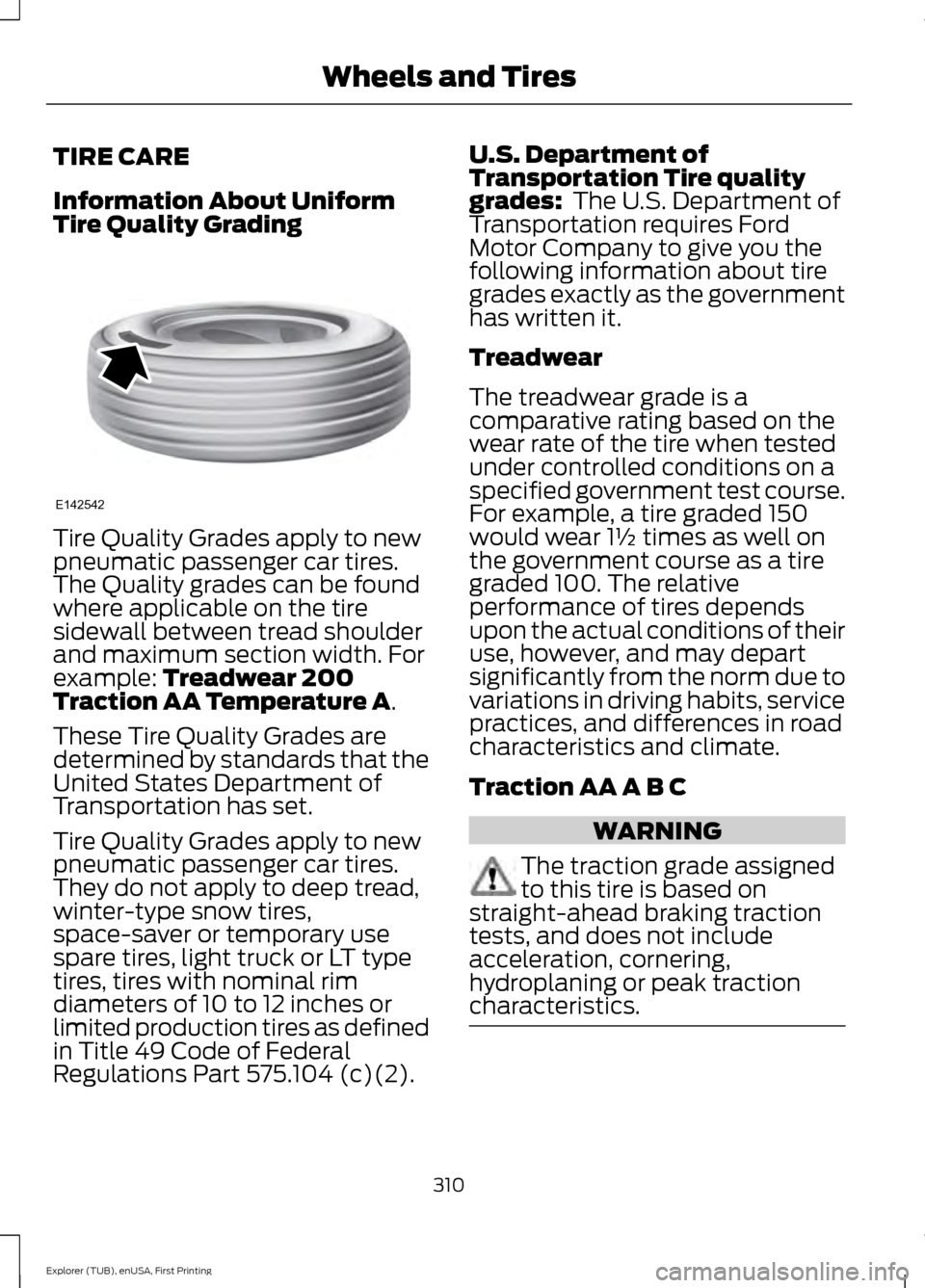
Tire Quality Grades apply to new
pneumatic passenger car tires.
The Quality grades can be found
where applicable on the tire
sidewall between tread shoulder
and maximum section width. For
example: Treadwear 200
Traction AA Temperature A.
These Tire Quality Grades are
determined by standards that the
United States Department of
Transportation has set.
Tire Quality Grades apply to new
pneumatic passenger car tires.
They do not apply to deep tread,
winter-type snow tires,
space-saver or temporary use
spare tires, light truck or LT type
tires, tires with nominal rim
diameters of 10 to 12 inches or
limited production tires as defined
in Title 49 Code of Federal
Regulations Part 575.104 (c)(2). U.S. Department of
Transportation Tire quality
grades:
The U.S. Department of
Transportation requires Ford
Motor Company to give you the
following information about tire
grades exactly as the government
has written it.
Treadwear
The treadwear grade is a
comparative rating based on the
wear rate of the tire when tested
under controlled conditions on a
specified government test course.
For example, a tire graded 150
would wear 1½ times as well on
the government course as a tire
graded 100. The relative
performance of tires depends
upon the actual conditions of their
use, however, and may depart
significantly from the norm due to
variations in driving habits, service
practices, and differences in road
characteristics and climate.
Traction AA A B C WARNING
The traction grade assigned
to this tire is based on
straight-ahead braking traction
tests, and does not include
acceleration, cornering,
hydroplaning or peak traction
characteristics. 310
Explorer (TUB), enUSA, First Printing Wheels and TiresE142542
Page 390 of 541
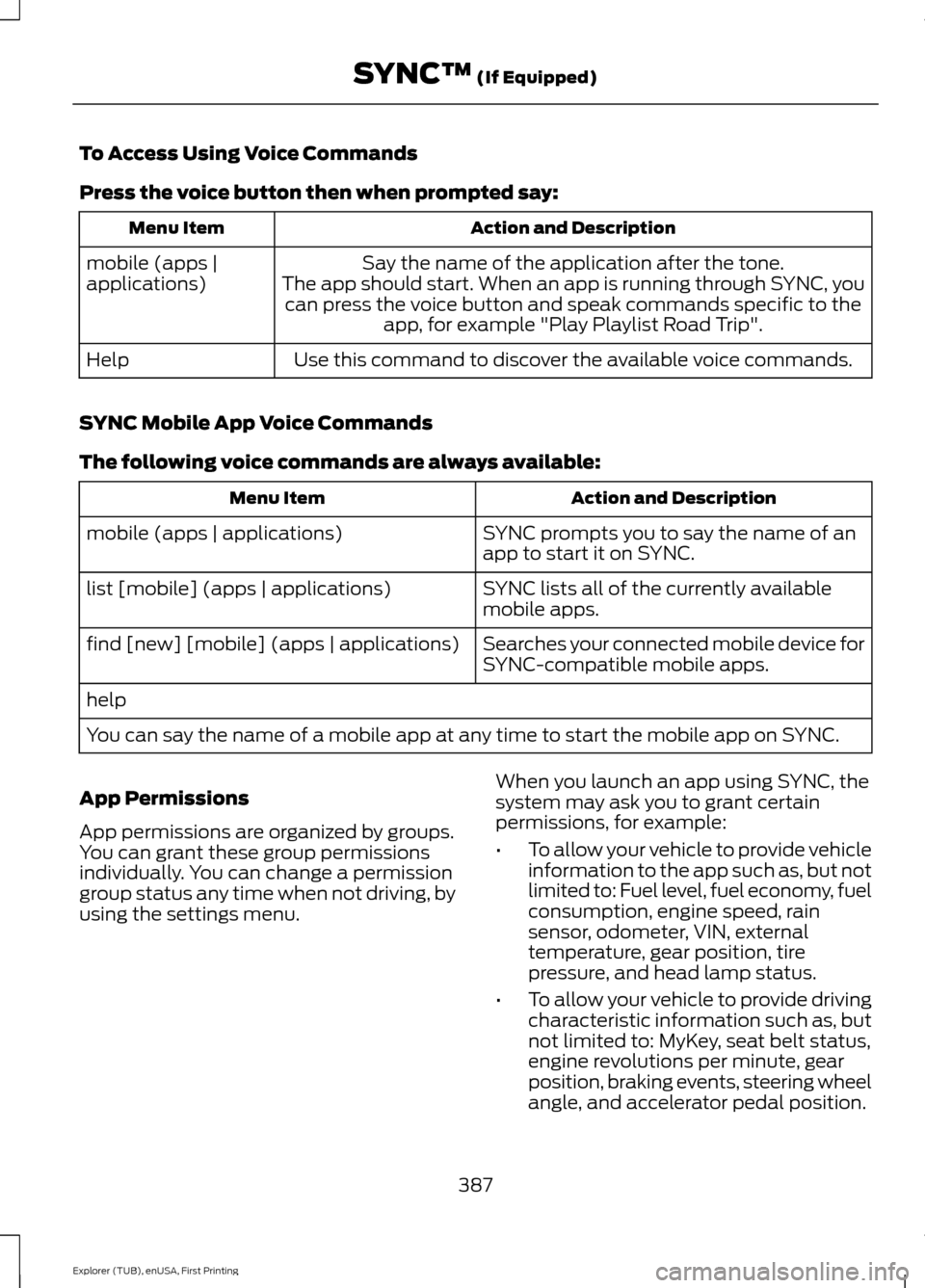
To Access Using Voice Commands
Press the voice button then when prompted say:
Action and Description
Menu Item
Say the name of the application after the tone.
The app should start. When an app is running through SYNC, you can press the voice button and speak commands specific to the app, for example "Play Playlist Road Trip".
mobile (apps |
applications)
Use this command to discover the available voice commands.
Help
SYNC Mobile App Voice Commands
The following voice commands are always available: Action and Description
Menu Item
SYNC prompts you to say the name of an
app to start it on SYNC.
mobile (apps | applications)
SYNC lists all of the currently available
mobile apps.
list [mobile] (apps | applications)
Searches your connected mobile device for
SYNC-compatible mobile apps.
find [new] [mobile] (apps | applications)
help
You can say the name of a mobile app at any time to start the mobile app on SYNC.
App Permissions
App permissions are organized by groups.
You can grant these group permissions
individually. You can change a permission
group status any time when not driving, by
using the settings menu. When you launch an app using SYNC, the
system may ask you to grant certain
permissions, for example:
•
To allow your vehicle to provide vehicle
information to the app such as, but not
limited to: Fuel level, fuel economy, fuel
consumption, engine speed, rain
sensor, odometer, VIN, external
temperature, gear position, tire
pressure, and head lamp status.
• To allow your vehicle to provide driving
characteristic information such as, but
not limited to: MyKey, seat belt status,
engine revolutions per minute, gear
position, braking events, steering wheel
angle, and accelerator pedal position.
387
Explorer (TUB), enUSA, First Printing SYNC™ (If Equipped)
Page 453 of 541
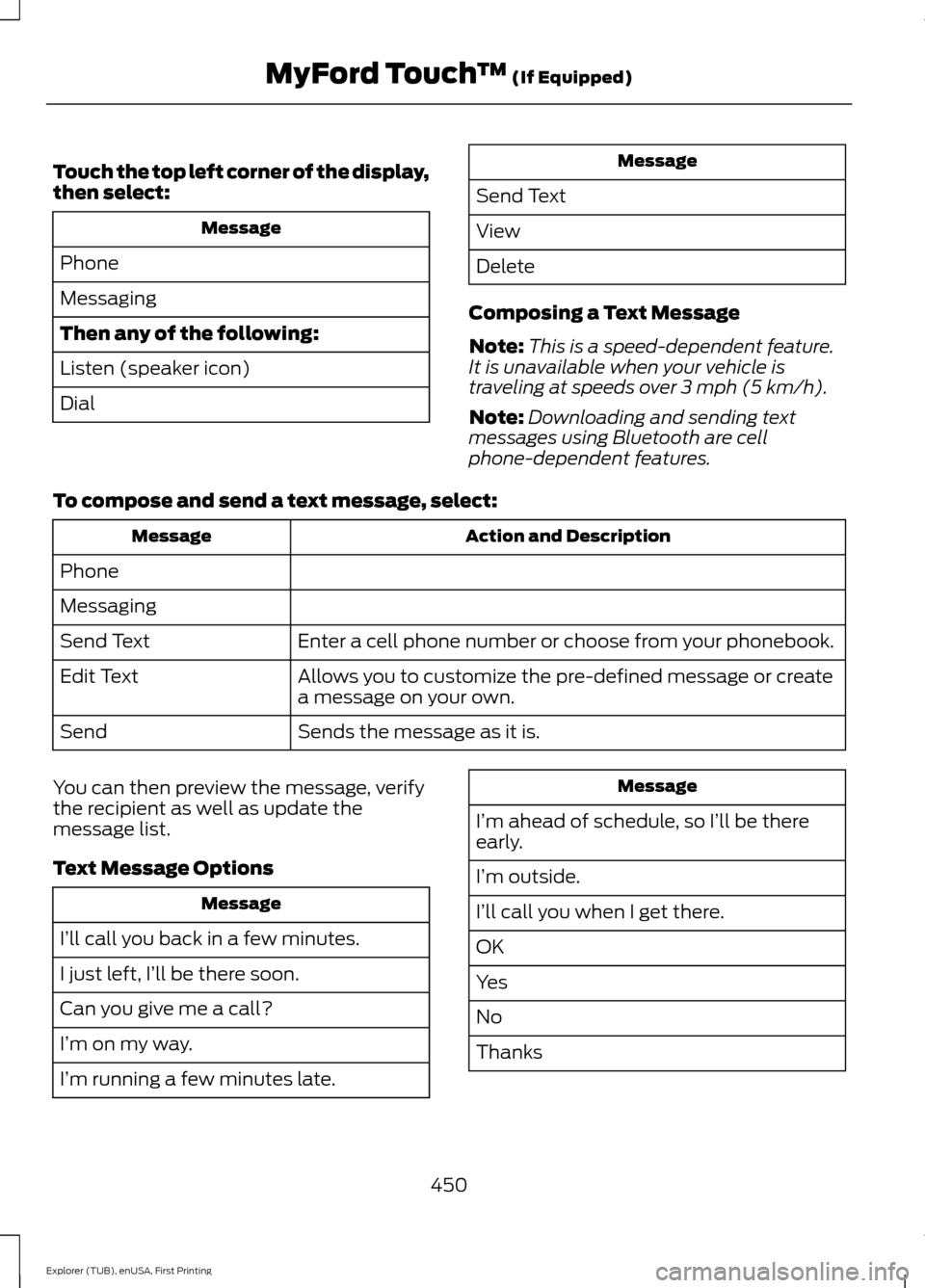
Touch the top left corner of the display,
then select:
Message
Phone
Messaging
Then any of the following:
Listen (speaker icon)
Dial Message
Send Text
View
Delete
Composing a Text Message
Note: This is a speed-dependent feature.
It is unavailable when your vehicle is
traveling at speeds over 3 mph (5 km/h).
Note: Downloading and sending text
messages using Bluetooth are cell
phone-dependent features.
To compose and send a text message, select: Action and Description
Message
Phone
Messaging Enter a cell phone number or choose from your phonebook.
Send Text
Allows you to customize the pre-defined message or create
a message on your own.
Edit Text
Sends the message as it is.
Send
You can then preview the message, verify
the recipient as well as update the
message list.
Text Message Options Message
I’ll call you back in a few minutes.
I just left, I’ll be there soon.
Can you give me a call?
I’m on my way.
I’m running a few minutes late. Message
I’m ahead of schedule, so I’ll be there
early.
I’m outside.
I’ll call you when I get there.
OK
Yes
No
Thanks
450
Explorer (TUB), enUSA, First Printing MyFord Touch
™
(If Equipped)
Page 475 of 541
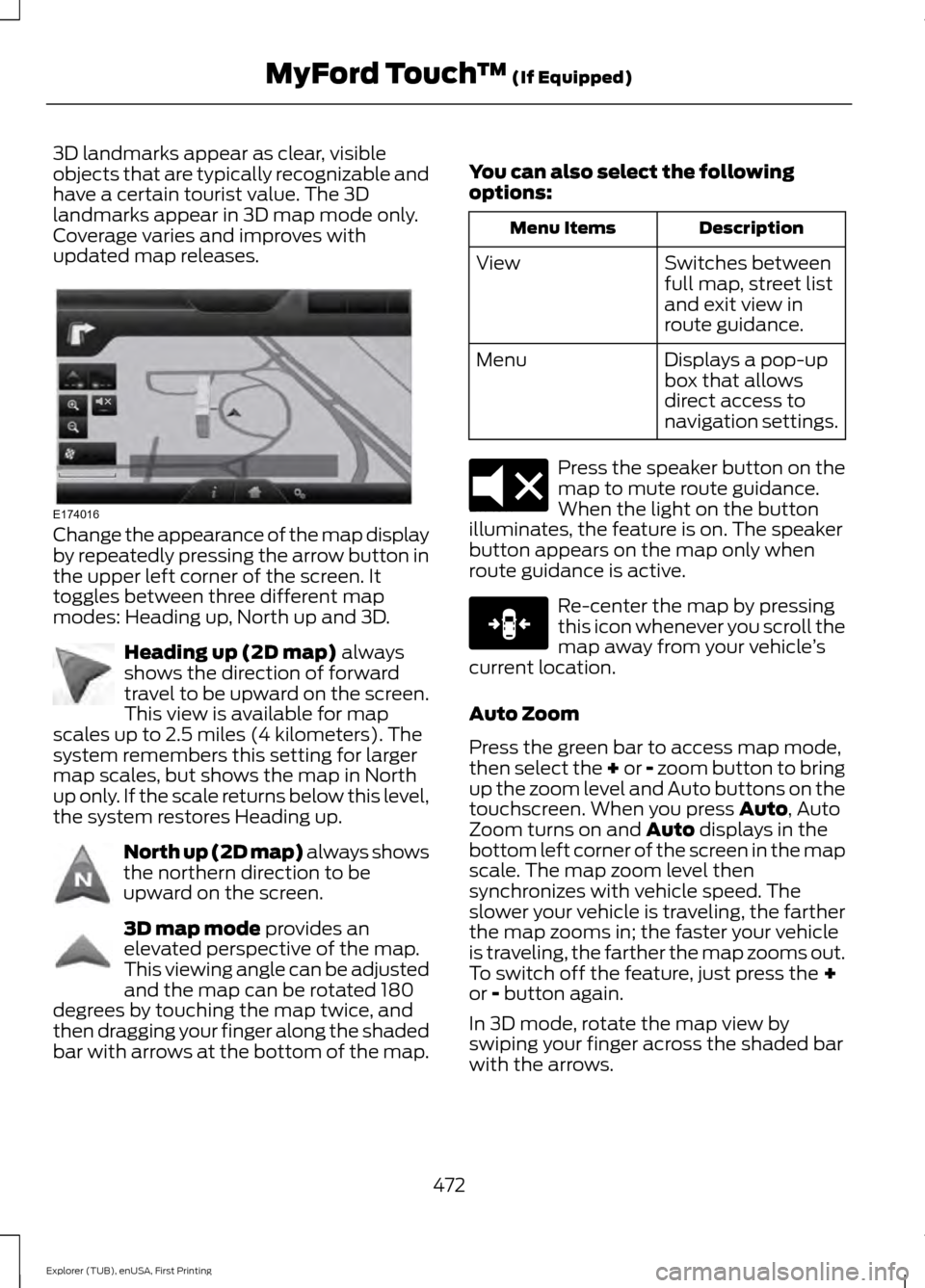
3D landmarks appear as clear, visible
objects that are typically recognizable and
have a certain tourist value. The 3D
landmarks appear in 3D map mode only.
Coverage varies and improves with
updated map releases.
Change the appearance of the map display
by repeatedly pressing the arrow button in
the upper left corner of the screen. It
toggles between three different map
modes: Heading up, North up and 3D.
Heading up (2D map) always
shows the direction of forward
travel to be upward on the screen.
This view is available for map
scales up to 2.5 miles (4 kilometers). The
system remembers this setting for larger
map scales, but shows the map in North
up only. If the scale returns below this level,
the system restores Heading up. North up (2D map) always shows
the northern direction to be
upward on the screen.
3D map mode
provides an
elevated perspective of the map.
This viewing angle can be adjusted
and the map can be rotated 180
degrees by touching the map twice, and
then dragging your finger along the shaded
bar with arrows at the bottom of the map. You can also select the following
options: Description
Menu Items
Switches between
full map, street list
and exit view in
route guidance.
View
Displays a pop-up
box that allows
direct access to
navigation settings.
Menu Press the speaker button on the
map to mute route guidance.
When the light on the button
illuminates, the feature is on. The speaker
button appears on the map only when
route guidance is active. Re-center the map by pressing
this icon whenever you scroll the
map away from your vehicle
’s
current location.
Auto Zoom
Press the green bar to access map mode,
then select the + or - zoom button to bring
up the zoom level and Auto buttons on the
touchscreen. When you press
Auto, Auto
Zoom turns on and Auto displays in the
bottom left corner of the screen in the map
scale. The map zoom level then
synchronizes with vehicle speed. The
slower your vehicle is traveling, the farther
the map zooms in; the faster your vehicle
is traveling, the farther the map zooms out.
To switch off the feature, just press the
+
or - button again.
In 3D mode, rotate the map view by
swiping your finger across the shaded bar
with the arrows.
472
Explorer (TUB), enUSA, First Printing MyFord Touch
™
(If Equipped)E174016 E142642 E142643 E142644 E174017 E146188
Page 517 of 541
Telenav Software agreeing to be bound by
the terms and conditions of this
Agreement. Any such sale, assignment or
transfer that is not expressly permitted
under this paragraph will result in
immediate termination of this Agreement,
without liability to Telenav, in which case
you and all other parties shall immediately
cease all use of the Telenav Software.
Notwithstanding the foregoing, Telenav
may assign this Agreement to any other
party at any time without notice, provided
the assignee remains bound by this
Agreement.
8. Miscellaneous
8.1
This Agreement constitutes the entire
agreement between Telenav and you with
respect to the subject matter hereof.
8.2
Except for the limited licenses expressly
granted in this Agreement, Telenav retains
all right, title and interest in and to the
Telenav Software, including without
limitation all related intellectual property
rights. No licenses or other rights which are
not expressly granted in this Agreement
are intended to, or shall be, granted or
conferred by implication, statute,
inducement, estoppel or otherwise, and
Telenav and its suppliers and licensors
hereby reserve all of their respective rights
other than the licenses explicitly granted
in this Agreement.
8.3
By using the Telenav Software, you
consent to receive from Telenav all
communications, including notices,
agreements, legally required disclosures
or other information in connection with the
Telenav Software (collectively,
“Notices”)
electronically. Telenav may provide such Notices by posting them on Telenav
’s
Website or by downloading such Notices
to your wireless device. If you desire to
withdraw your consent to receive Notices
electronically, you must discontinue your
use of the Telenav Software.
8.4
Telenav ’s or your failure to require
performance of any provision shall not
affect that party ’s right to require
performance at any time thereafter, nor
shall a waiver of any breach or default of
this Agreement constitute a waiver of any
subsequent breach or default or a waiver
of the provision itself.
8.5
If any provision herein is held
unenforceable, then such provision will be
modified to reflect the intention of the
parties, and the remaining provisions of
this Agreement will remain in full force and
effect.
8.6
The headings in this Agreement are for
convenience of reference only, will not be
deemed to be a part of this Agreement,
and will not be referred to in connection
with the construction or interpretation of
this Agreement. As used in this Agreement,
the words “include ” and “including, ” and
variations thereof, will not be deemed to
be terms of limitation, but rather will be
deemed to be followed by the words
“ without limitation. ”
9. Other Vendors Terms and Conditions
The Telenav Software utilizes map and
other data licensed to Telenav by third
party vendors for the benefit of you and
other end users. This Agreement includes
end-user terms applicable to these
companies (included at the end of this
514
Explorer (TUB), enUSA, First Printing Appendices