USB port FORD EXPLORER 2016 5.G Owners Manual
[x] Cancel search | Manufacturer: FORD, Model Year: 2016, Model line: EXPLORER, Model: FORD EXPLORER 2016 5.GPages: 541, PDF Size: 6.51 MB
Page 8 of 541
Cleaning the Interior...................................302
Cleaning the Instrument Panel and
Instrument Cluster Lens.......................303
Cleaning Leather Seats.............................303
Repairing Minor Paint Damage..............304
Cleaning the Alloy Wheels.......................304
Vehicle Storage
............................................304
Wheels and Tires
General Information
...................................307
Tire Care
...........................................................310
Using Summer Tires
...................................323
Using Snow Chains.....................................324
Tire Pressure Monitoring System...........325
Changing a Road Wheel
...........................328
Technical Specifications
...........................332
Capacities and Specific- ations
Engine Specifications -
2.3L
EcoBoost™................................................334
Engine Specifications -
3.5L
Duratec........................................................335
Engine Specifications -
3.5L
Ecoboost™................................................335
Motorcraft Parts - 2.3L EcoBoost™......336
Motorcraft Parts - 3.5L Duratec..............337
Motorcraft Parts - 3.5L Ecoboost™......338
Vehicle Identification Number................339
Vehicle Certification Label.......................340
Transmission Code Designation............340
Capacities and Specifications -
2.3L
EcoBoost™.................................................341
Capacities and Specifications -
3.5L
Duratec........................................................344
Capacities and Specifications -
3.5L
Ecoboost™................................................348
Audio System
General Information
...................................353 Audio Unit - Vehicles With: AM/FM/CD/
SYNC............................................................354
Audio Unit - Vehicles With: Premium AM/ FM/CD..........................................................357
Audio Unit - Vehicles With: Sony AM/FM/ CD..................................................................358
Digital Radio
..................................................362
Satellite Radio..............................................364
USB Port
..........................................................367
Media Hub......................................................367
SYNC™
General Information...................................368
Using Voice Recognition...........................370
Using SYNC™ With Your Phone.............372
SYNC™ Applications and Services
......384
Using SYNC™ With Your Media Player...........................................................389
SYNC™ Troubleshooting
.........................398
MyFord Touch ™
General Information
..................................406
Settings............................................................416
Entertainment..............................................429
Phone..............................................................445
Information....................................................453
Climate............................................................462
Navigation ......................................................
466
MyFord Touch ™ Troubleshooting
.........475
Accessories
Accessories
....................................................482
Extended Service Plan (ESP)
Extended Service Plan (ESP).................484
Scheduled Maintenance
General Maintenance Information
.......486
Normal Scheduled Maintenance..........489
5
Explorer (TUB), enUSA, First Printing Table of Contents
Page 167 of 541
CENTER CONSOLE
Stow items in the cup holder carefully as
items may become loose during hard
braking, acceleration or crashes, including
hot drinks which may spill.
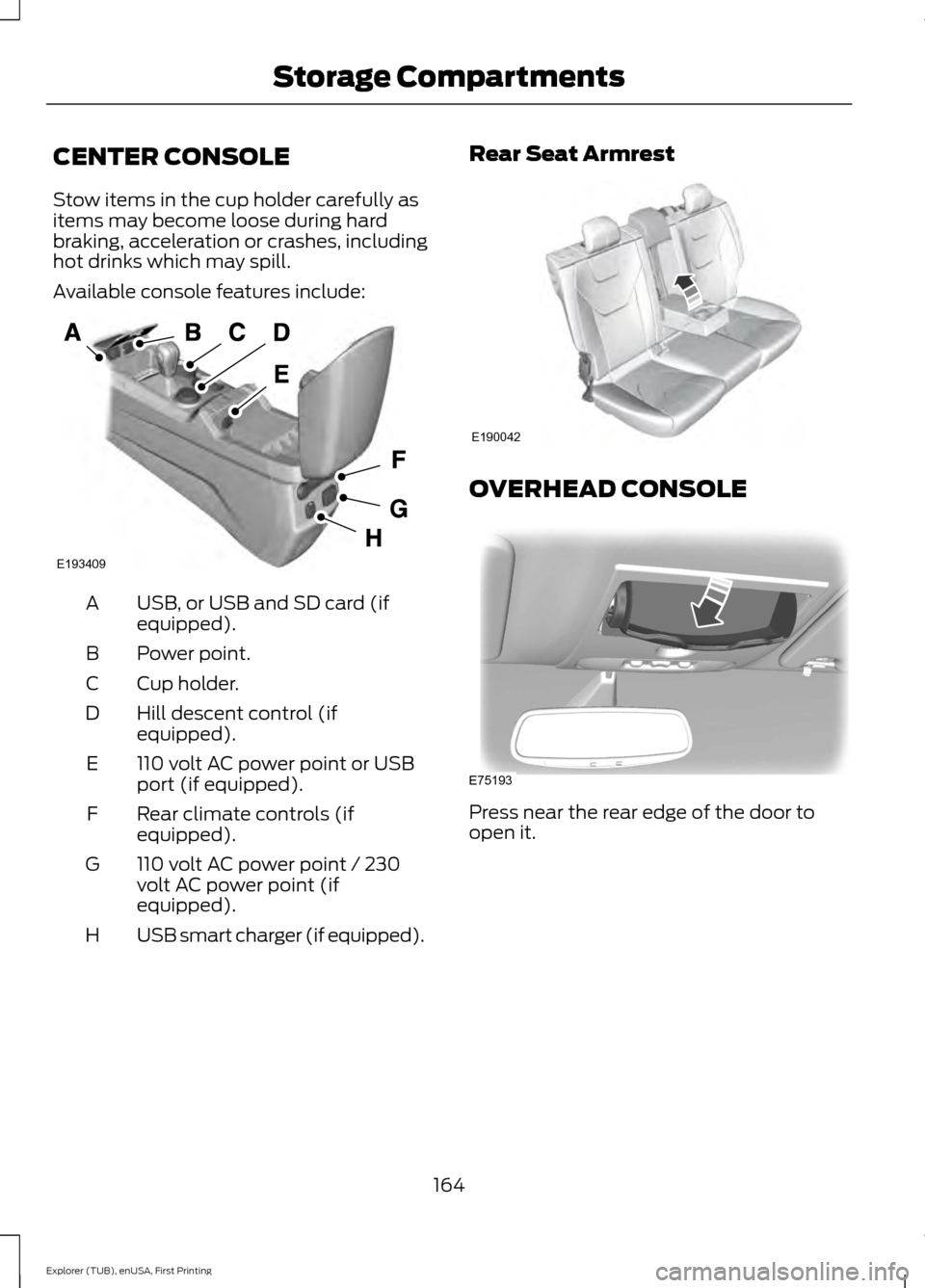
Available console features include:
USB, or USB and SD card (if
equipped).
A
Power point.
B
Cup holder.
C
Hill descent control (if
equipped).
D
110 volt AC power point or USB
port (if equipped).
E
Rear climate controls (if
equipped).
F
110 volt AC power point / 230
volt AC power point (if
equipped).
G
USB smart charger (if equipped).
H Rear Seat Armrest
OVERHEAD CONSOLE
Press near the rear edge of the door to
open it.
164
Explorer (TUB), enUSA, First Printing Storage CompartmentsE193409 E190042 E75193
Page 359 of 541
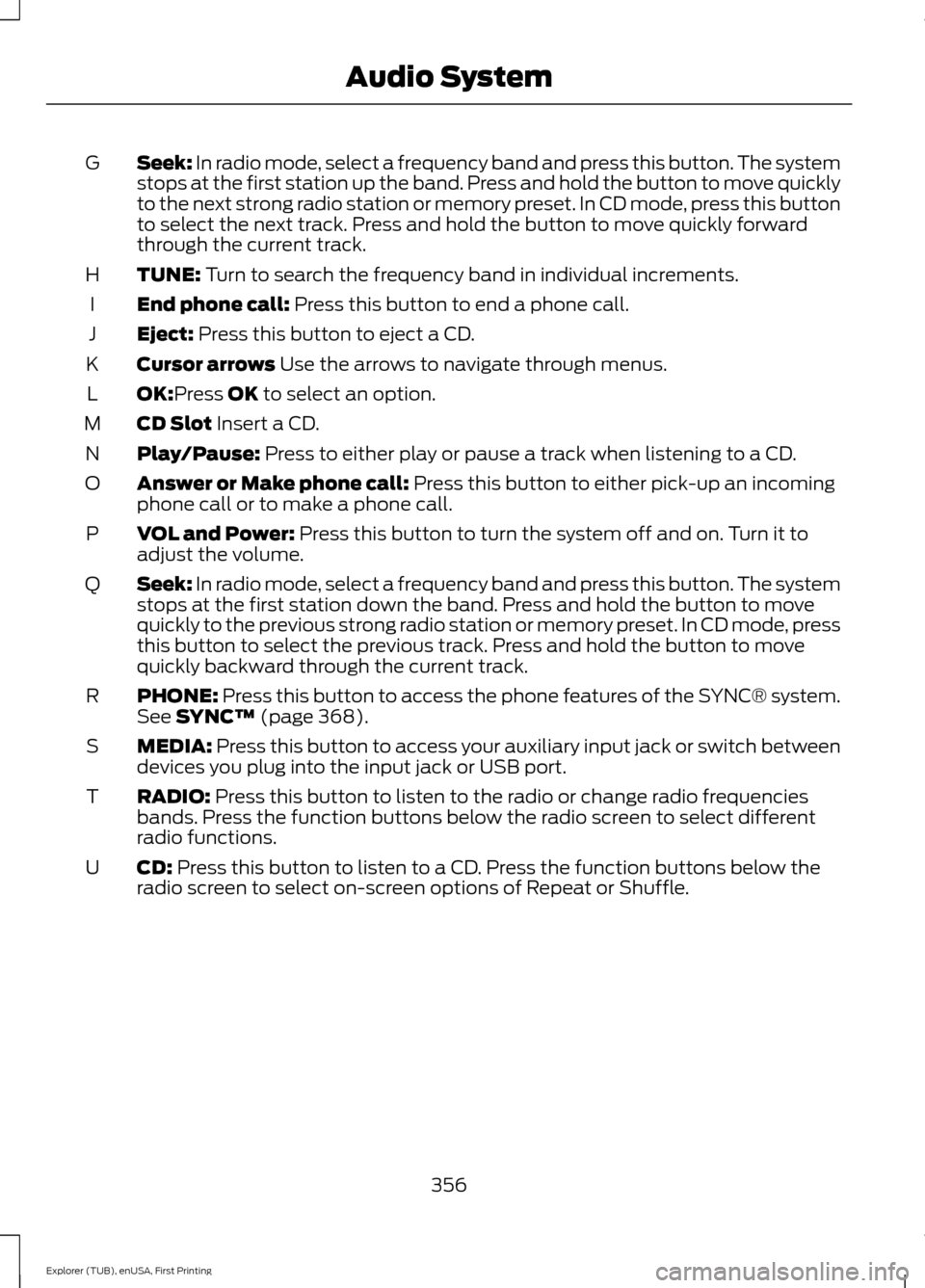
Seek: In radio mode, select a frequency band and press this button. The system
stops at the first station up the band. Press and hold the button to move quickly
to the next strong radio station or memory preset. In CD mode, press this button
to select the next track. Press and hold the button to move quickly forward
through the current track.
G
TUNE:
Turn to search the frequency band in individual increments.
H
End phone call:
Press this button to end a phone call.
I
Eject:
Press this button to eject a CD.
J
Cursor arrows
Use the arrows to navigate through menus.
K
OK:
Press OK to select an option.
L
CD Slot
Insert a CD.
M
Play/Pause:
Press to either play or pause a track when listening to a CD.
N
Answer or Make phone call:
Press this button to either pick-up an incoming
phone call or to make a phone call.
O
VOL and Power:
Press this button to turn the system off and on. Turn it to
adjust the volume.
P
Seek:
In radio mode, select a frequency band and press this button. The system
stops at the first station down the band. Press and hold the button to move
quickly to the previous strong radio station or memory preset. In CD mode, press
this button to select the previous track. Press and hold the button to move
quickly backward through the current track.
Q
PHONE:
Press this button to access the phone features of the SYNC® system.
See SYNC™ (page 368).
R
MEDIA:
Press this button to access your auxiliary input jack or switch between
devices you plug into the input jack or USB port.
S
RADIO:
Press this button to listen to the radio or change radio frequencies
bands. Press the function buttons below the radio screen to select different
radio functions.
T
CD:
Press this button to listen to a CD. Press the function buttons below the
radio screen to select on-screen options of Repeat or Shuffle.
U
356
Explorer (TUB), enUSA, First Printing Audio System
Page 361 of 541
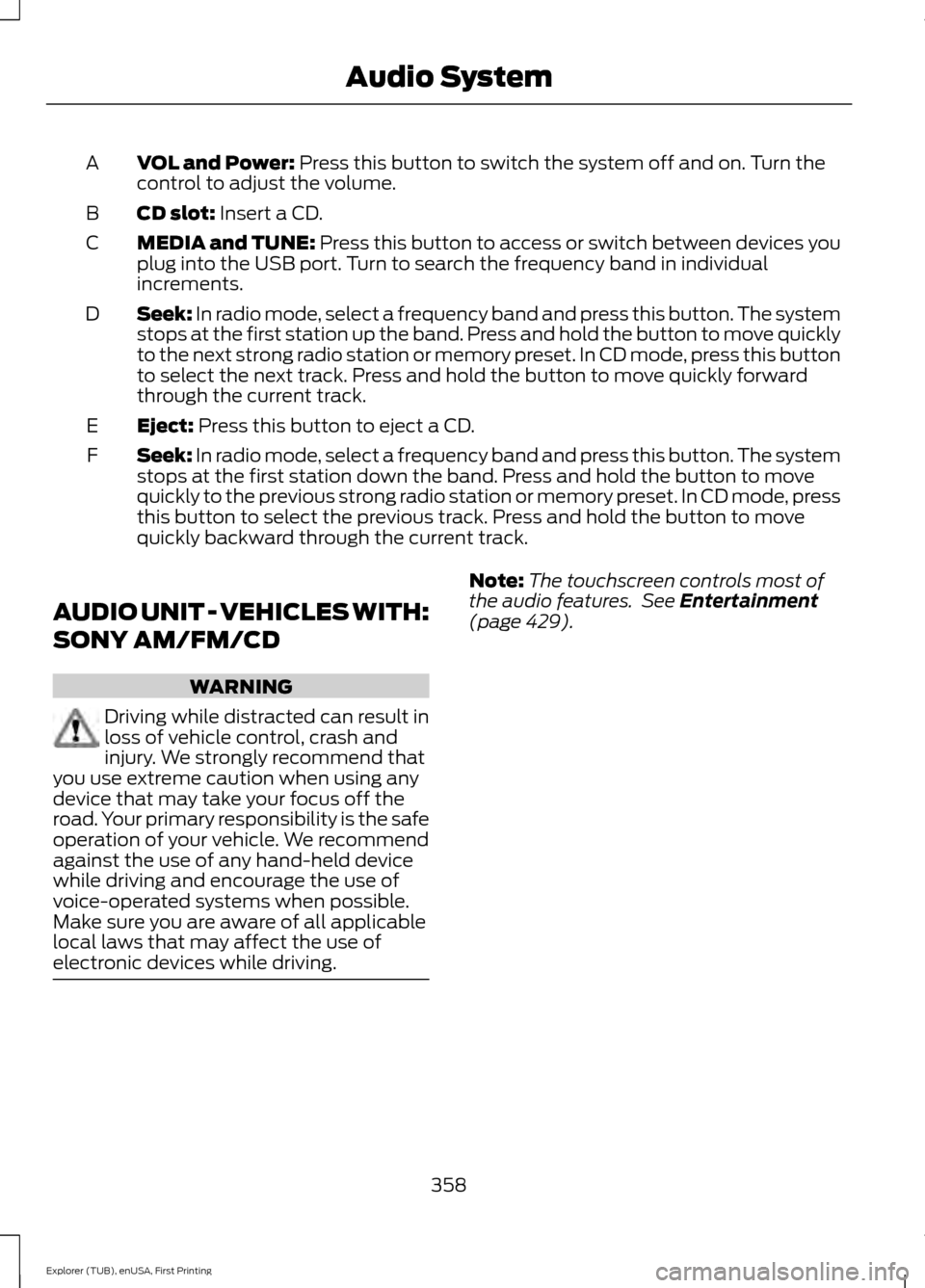
VOL and Power: Press this button to switch the system off and on. Turn the
control to adjust the volume.
A
CD slot:
Insert a CD.
B
MEDIA and TUNE: Press this button to access or switch between devices you
plug into the USB port. Turn to search the frequency band in individual
increments.
C
Seek:
In radio mode, select a frequency band and press this button. The system
stops at the first station up the band. Press and hold the button to move quickly
to the next strong radio station or memory preset. In CD mode, press this button
to select the next track. Press and hold the button to move quickly forward
through the current track.
D
Eject:
Press this button to eject a CD.
E
Seek:
In radio mode, select a frequency band and press this button. The system
stops at the first station down the band. Press and hold the button to move
quickly to the previous strong radio station or memory preset. In CD mode, press
this button to select the previous track. Press and hold the button to move
quickly backward through the current track.
F
AUDIO UNIT - VEHICLES WITH:
SONY AM/FM/CD WARNING
Driving while distracted can result in
loss of vehicle control, crash and
injury. We strongly recommend that
you use extreme caution when using any
device that may take your focus off the
road. Your primary responsibility is the safe
operation of your vehicle. We recommend
against the use of any hand-held device
while driving and encourage the use of
voice-operated systems when possible.
Make sure you are aware of all applicable
local laws that may affect the use of
electronic devices while driving. Note:
The touchscreen controls most of
the audio features. See
Entertainment
(page 429).
358
Explorer (TUB), enUSA, First Printing Audio System
Page 370 of 541
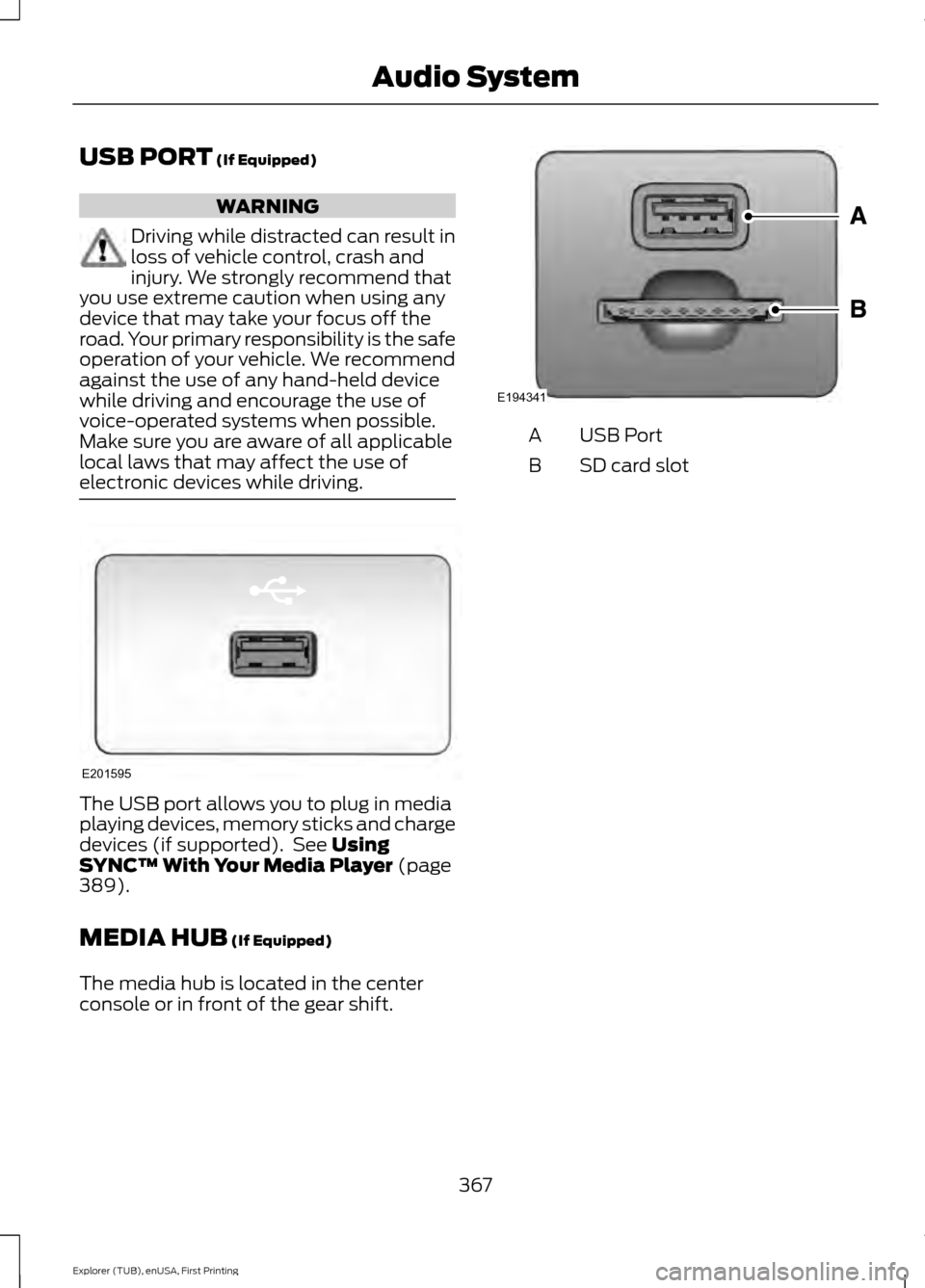
USB PORT (If Equipped)
WARNING
Driving while distracted can result in
loss of vehicle control, crash and
injury. We strongly recommend that
you use extreme caution when using any
device that may take your focus off the
road. Your primary responsibility is the safe
operation of your vehicle. We recommend
against the use of any hand-held device
while driving and encourage the use of
voice-operated systems when possible.
Make sure you are aware of all applicable
local laws that may affect the use of
electronic devices while driving. The USB port allows you to plug in media
playing devices, memory sticks and charge
devices (if supported). See
Using
SYNC™ With Your Media Player (page
389).
MEDIA HUB
(If Equipped)
The media hub is located in the center
console or in front of the gear shift. USB Port
A
SD card slot
B
367
Explorer (TUB), enUSA, First Printing Audio SystemE201595 E194341
Page 371 of 541
GENERAL INFORMATION
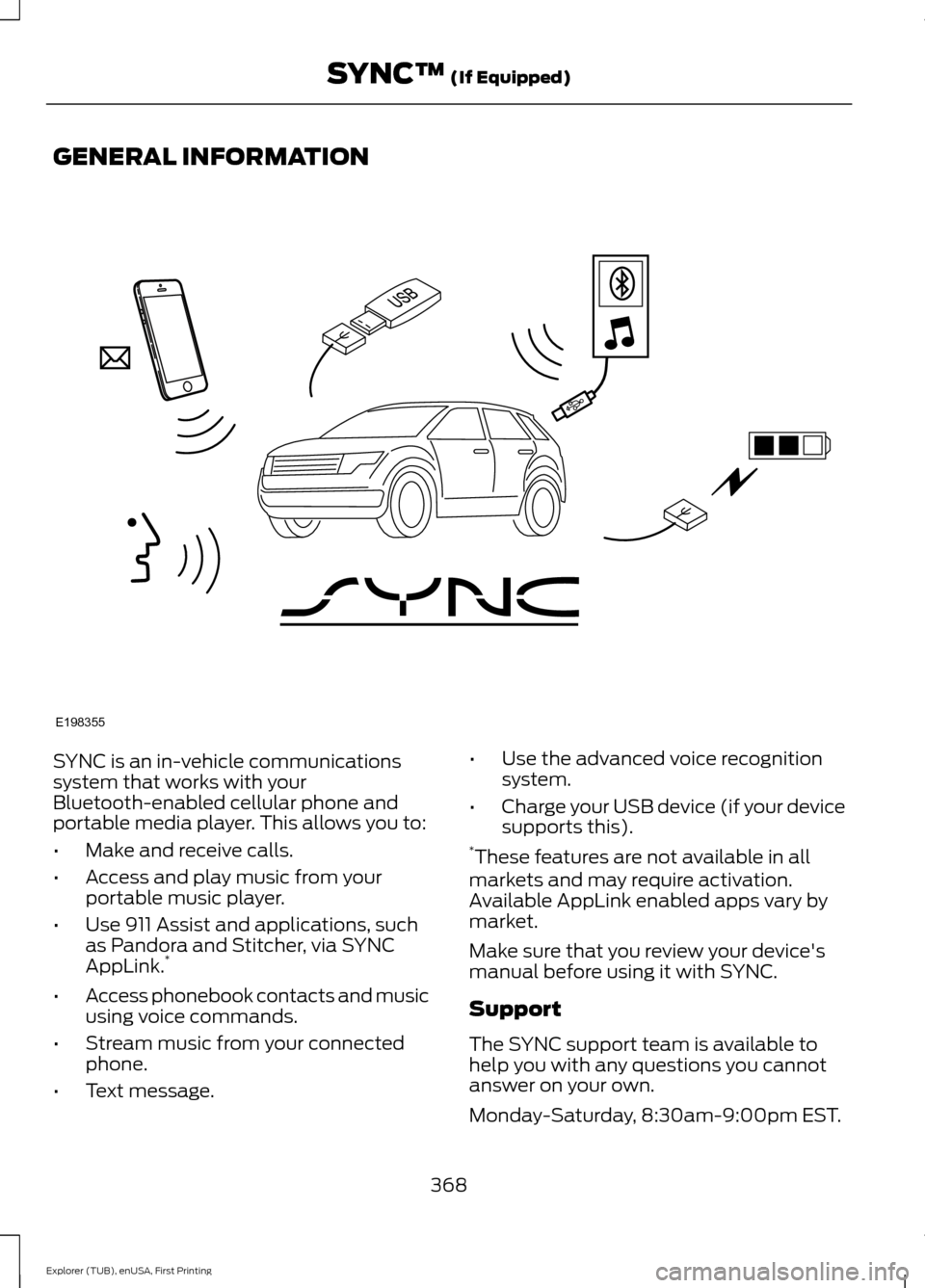
SYNC is an in-vehicle communications
system that works with your
Bluetooth-enabled cellular phone and
portable media player. This allows you to:
•
Make and receive calls.
• Access and play music from your
portable music player.
• Use 911 Assist and applications, such
as Pandora and Stitcher, via SYNC
AppLink. *
• Access phonebook contacts and music
using voice commands.
• Stream music from your connected
phone.
• Text message. •
Use the advanced voice recognition
system.
• Charge your USB device (if your device
supports this).
* These features are not available in all
markets and may require activation.
Available AppLink enabled apps vary by
market.
Make sure that you review your device's
manual before using it with SYNC.
Support
The SYNC support team is available to
help you with any questions you cannot
answer on your own.
Monday-Saturday, 8:30am-9:00pm EST.
368
Explorer (TUB), enUSA, First Printing SYNC™ (If Equipped)E198355
Page 389 of 541
911 Assist Privacy Notice
When you switch on 911 Assist, it may
disclose to emergency services that your
vehicle has been in a crash involving the
deployment of an airbag or activation of
the fuel pump shut-off. Certain versions or
updates to 911 Assist may also be capable
of electronically or verbally disclosing to
911 operators your vehicle location or other
details about your vehicle or crash to assist
911 operators to provide the most
appropriate emergency services. If you do
not want to disclose this information, do
not switch the feature on.
SYNC Mobile Apps
The system enables voice and steering
wheel control of SYNC AppLink enabled
smartphone apps. When an app is running
through AppLink, you can control main
features of the app through voice
commands and steering wheel controls.
Note:
You must pair and connect your
smartphone to SYNC to access AppLink.
Note: iPhone users need to connect the
phone to the USB port.
Note: Android users need to connect the
phone to SYNC using Bluetooth.
Note: For information on available apps,
supported smartphone devices and
troubleshooting tips please visit the Ford
website.
Availability of SYNC AppLink enabled Apps
will vary by region. Note:
Make sure you have an active account
for the app that you have downloaded.
Some apps work automatically with no
setup. Other apps want you to configure
your personal settings and personalize your
experience by creating stations or favorites.
We recommend you do this at home or
outside of your vehicle.
Note: AppLink is not available if your
vehicle is equipped with the MyFordTouch
system.
To Access Using the SYNC Menu
Press the MENU button to access the
menu on-screen. Then select: Action and Description
Menu
Item
SYNC-Apps Scroll through the list of
available applications and
select a particular app or
select:
Mobile
Apps
Find New Apps
Note: If you cannot find a compatible SYNC
AppLink app, make sure the required app is
running on the mobile device.
Accessing an App's Menu
When an app is running through SYNC,
press the right arrow button on the steering
wheel control to access the app menu.
You can access various app features from
here, for example thumbs up and thumbs
down.
Press the left arrow button on the steering
wheel control to exit the app menu.
386
Explorer (TUB), enUSA, First Printing SYNC™
(If Equipped)
Page 392 of 541
There are three possible statuses:
Action and Description
Menu Item
The system has detected a new apprequiring authorization or a general permissions update is required.
Update Needed
No update is required.
Up-To-Date
The system is trying to receive an update.
Updating...
Update settings Action and Description
Menu Item
Select this option from the settings menuto manually preform a needed update.
Request Update
Select this option from the settings menuto disable automatic updates.
Disable Updates
Doing so also disables the use of MobileApps on SYNC.
USING SYNC™ WITH YOUR
MEDIA PLAYER
You can access and play music from your
digital music player over your vehicle's
speaker system using the system's media
menu or voice commands. You can also
sort and play your music by specific
categories, such as artist and album.
Note: The system is capable of indexing up
to 15,000 songs.
SYNC is capable of hosting nearly any
digital media player including: iPod, Zune,
plays from device players, and most USB
drives. SYNC also supports audio formats,
such as MP3, WMA, WAV and ACC. Confirm that the USB device has been
formatted correctly and has the following
specifications:
•
USB 2.0.
• File format must be FAT16/32.
The format of the audio files on the USB
device must be:
• MP3.
• Non DRM protected WMA.
• WAV.
• AAC.
Connecting Your Digital Media
Player to the USB Port
Note: If your digital media player has a
power switch, make sure you switch it on
before plugging it in.
389
Explorer (TUB), enUSA, First Printing SYNC™ (If Equipped)
Page 393 of 541
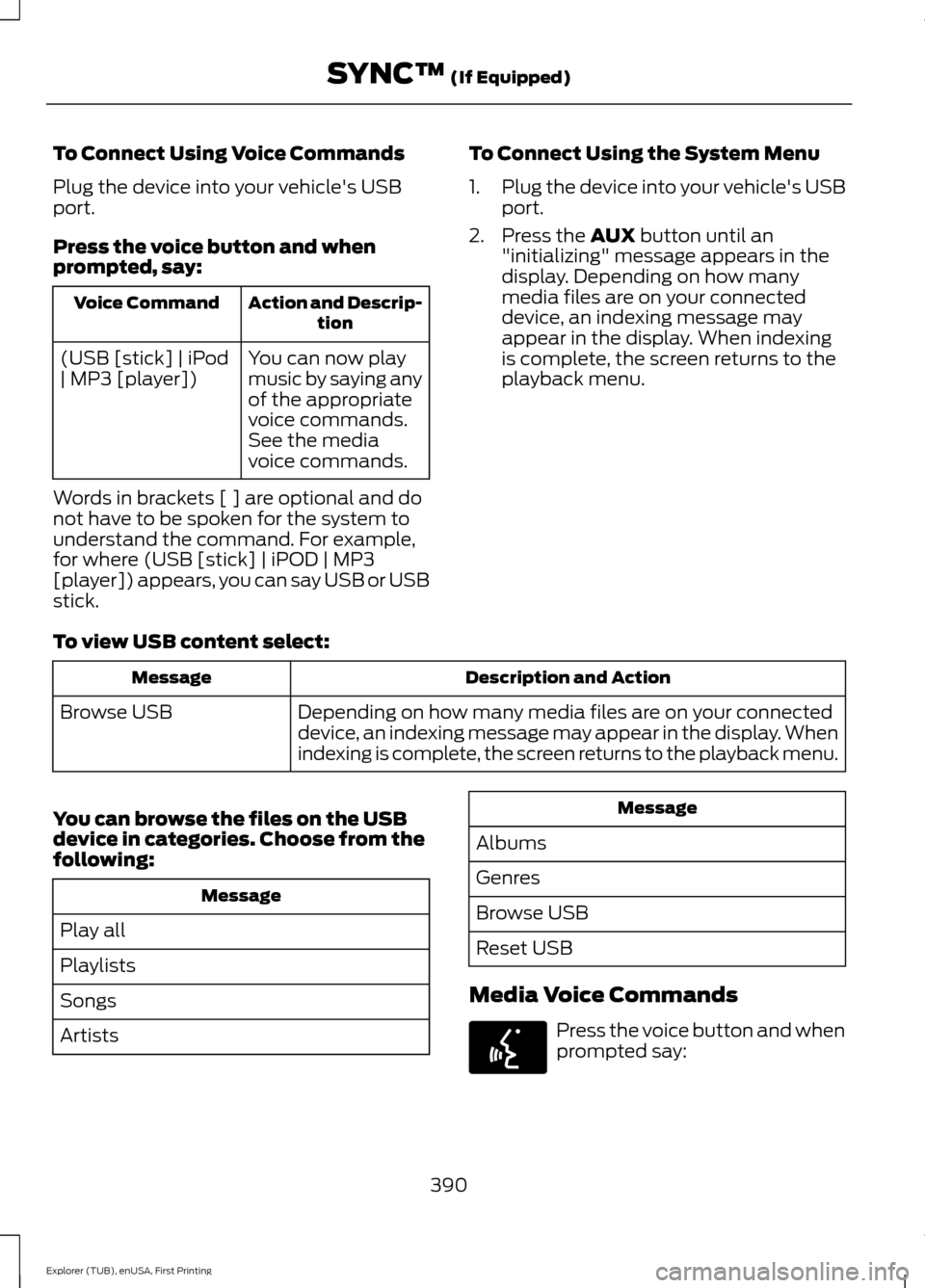
To Connect Using Voice Commands
Plug the device into your vehicle's USB
port.
Press the voice button and when
prompted, say:
Action and Descrip-
tion
Voice Command
You can now play
music by saying any
of the appropriate
voice commands.
See the media
voice commands.
(USB [stick] | iPod
| MP3 [player])
Words in brackets [ ] are optional and do
not have to be spoken for the system to
understand the command. For example,
for where (USB [stick] | iPOD | MP3
[player]) appears, you can say USB or USB
stick. To Connect Using the System Menu
1.
Plug the device into your vehicle's USB
port.
2. Press the AUX button until an
"initializing" message appears in the
display. Depending on how many
media files are on your connected
device, an indexing message may
appear in the display. When indexing
is complete, the screen returns to the
playback menu.
To view USB content select: Description and Action
Message
Depending on how many media files are on your connected
device, an indexing message may appear in the display. When
indexing is complete, the screen returns to the playback menu.
Browse USB
You can browse the files on the USB
device in categories. Choose from the
following: Message
Play all
Playlists
Songs
Artists Message
Albums
Genres
Browse USB
Reset USB
Media Voice Commands Press the voice button and when
prompted say:
390
Explorer (TUB), enUSA, First Printing SYNC™
(If Equipped)E142599
Page 395 of 541
![FORD EXPLORER 2016 5.G Owners Manual Description and Action
Command
Plays the current playlist in a random order.
(Not all devices support this command.)
shuffle [all] [on]
shuffle off At any time during playback, you can press
the voice](/img/11/4949/w960_4949-394.png "FORD EXPLORER 2016 5.G Owners Manual Description and Action
Command
Plays the current playlist in a random order.
(Not all devices support this command.)
shuffle [all] [on]
shuffle off At any time during playback, you can press
the voice")
Description and Action
Command
Plays the current playlist in a random order.
(Not all devices support this command.)
shuffle [all] [on]
shuffle off At any time during playback, you can press
the voice button and ask the system what is
playing. The system reads the metadata tags
(if populated) of the current track.
((who's | who is) this | who plays this |
(what's | what is) playing [now] | (what | which) (song | track | artist) is this |
(who's | who is) playing | (what's | what is) this)
___ is a dynamic listing, meaning that it
could be the name of anything, such as a
group, artist or song. For example you
could say "Play artist The Beatles".
Examples of USB Commands
SYNC provides the user with many intuitive
ways to find and play a song using voice.
For example, if we have a song called
"Penny Lane" from the album "Magical
Mystery Tour" we can say the following to
play this song:
• Play song "Penny Lane".
• Play "Penny Lane". If we wanted to play the entire album, we
can say:
•
Play album "Magical Mystery Tour".
• Play "Magical Mystery Tour".
Bluetooth Audio
The system is also capable of playing
music from your cellular phone through
Bluetooth.
To switch the Bluetooth audio on, use the
MEDIA button (next to the audio display)
or Source button, or press the voice button
and when prompted say: Voice Command
Bluetooth audio
Then any of the following: Voice Command
pause
play
next [track | title | song | file | podcast | chapter | episode]
previous [track | title | song | file | podcast | chapter | episode]
392
Explorer (TUB), enUSA, First Printing SYNC™
(If Equipped)