USB FORD EXPLORER 2017 5.G Owners Manual
[x] Cancel search | Manufacturer: FORD, Model Year: 2017, Model line: EXPLORER, Model: FORD EXPLORER 2017 5.GPages: 541, PDF Size: 6.81 MB
Page 8 of 541
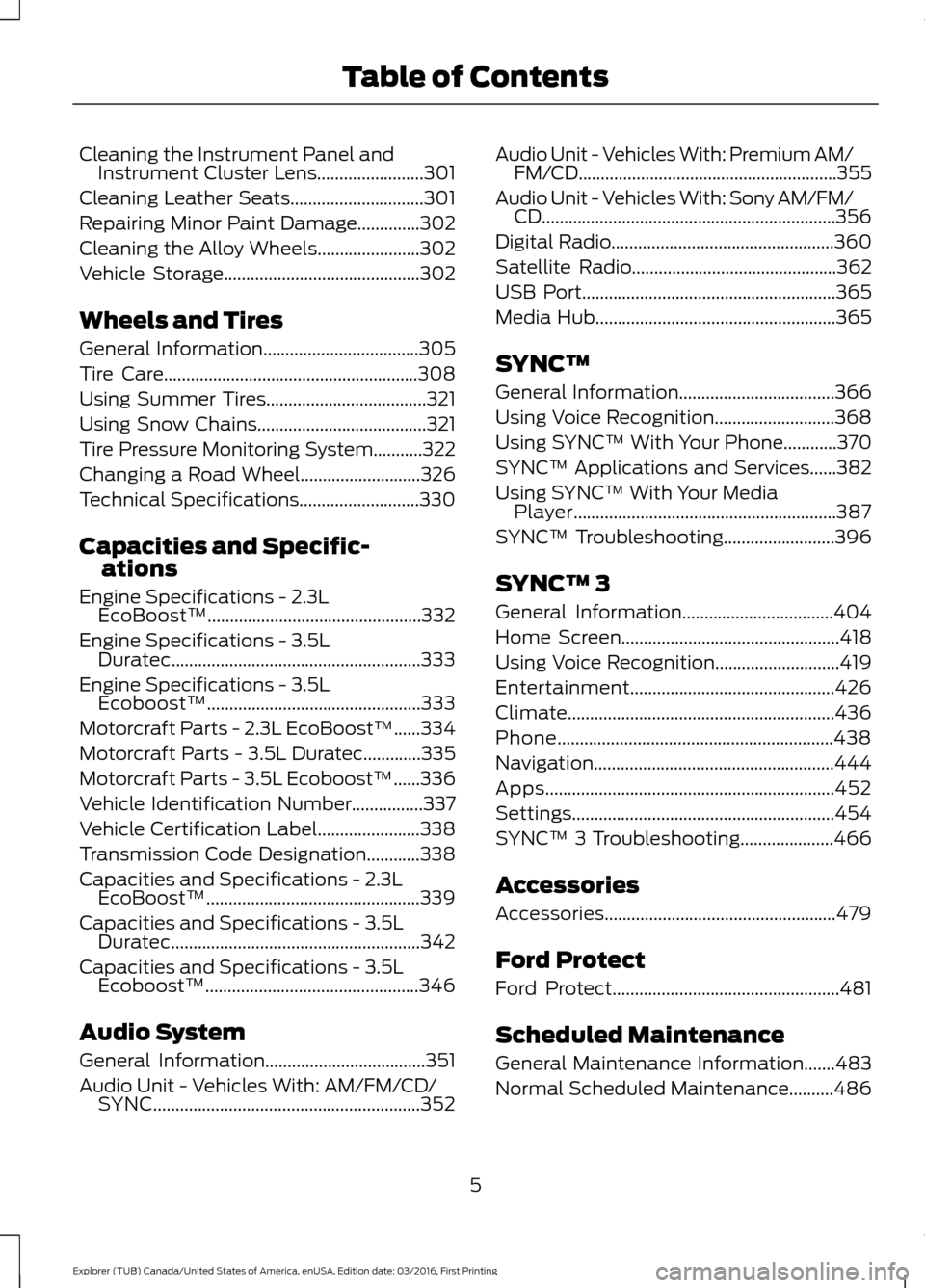
Cleaning the Instrument Panel and
Instrument Cluster Lens........................301
Cleaning Leather Seats..............................301
Repairing Minor Paint Damage..............302
Cleaning the Alloy Wheels.......................302
Vehicle Storage............................................302
Wheels and Tires
General Information
...................................305
Tire Care
.........................................................308
Using Summer Tires....................................321
Using Snow Chains
......................................321
Tire Pressure Monitoring System...........322
Changing a Road Wheel...........................326
Technical Specifications...........................330
Capacities and Specific- ations
Engine Specifications - 2.3L EcoBoost™................................................332
Engine Specifications - 3.5L Duratec........................................................333
Engine Specifications - 3.5L Ecoboost™................................................333
Motorcraft Parts - 2.3L EcoBoost™......334
Motorcraft Parts - 3.5L Duratec.............335
Motorcraft Parts - 3.5L Ecoboost™......336
Vehicle Identification Number
................337
Vehicle Certification Label.......................338
Transmission Code Designation............338
Capacities and Specifications - 2.3L EcoBoost™................................................339
Capacities and Specifications - 3.5L Duratec........................................................342
Capacities and Specifications - 3.5L Ecoboost™................................................346
Audio System
General Information....................................351
Audio Unit - Vehicles With: AM/FM/CD/ SYNC............................................................352 Audio Unit - Vehicles With: Premium AM/
FM/CD
..........................................................355
Audio Unit - Vehicles With: Sony AM/FM/ CD..................................................................356
Digital Radio
..................................................360
Satellite Radio
..............................................362
USB Port.........................................................365
Media Hub
......................................................365
SYNC™
General Information
...................................366
Using Voice Recognition...........................368
Using SYNC™ With Your Phone............370
SYNC™ Applications and Services......382
Using SYNC™ With Your Media Player...........................................................387
SYNC™ Troubleshooting
.........................396
SYNC™ 3
General Information..................................404
Home Screen
.................................................418
Using Voice Recognition............................419
Entertainment..............................................426
Climate............................................................436
Phone
..............................................................438
Navigation......................................................444
Apps.................................................................452
Settings...........................................................454
SYNC™ 3 Troubleshooting.....................466
Accessories
Accessories....................................................479
Ford Protect
Ford Protect
...................................................481
Scheduled Maintenance
General Maintenance Information
.......483
Normal Scheduled Maintenance..........486
5
Explorer (TUB) Canada/United States of America, enUSA, Edition date: 03/2016, First Printing Table of Contents
Page 164 of 541
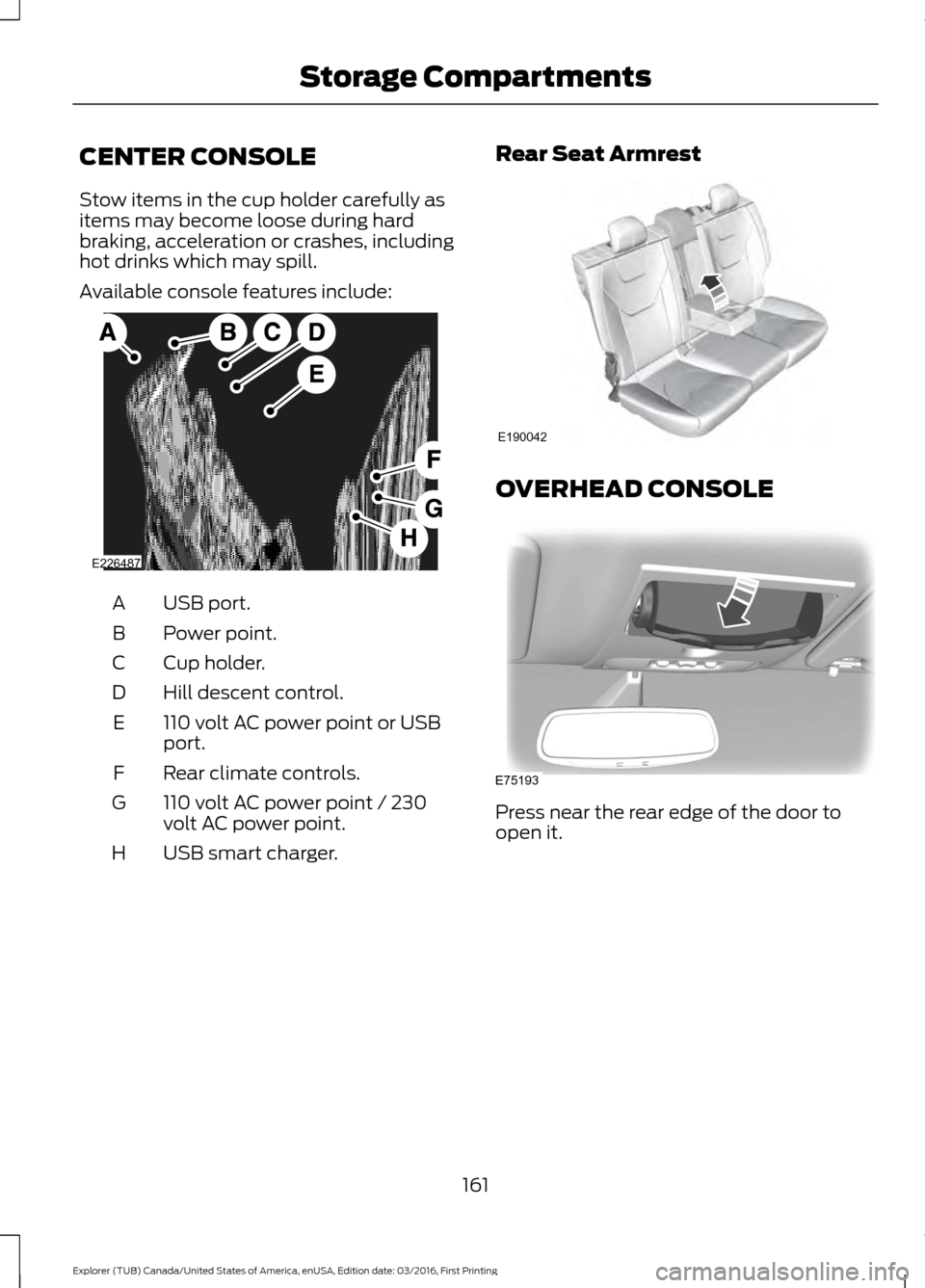
CENTER CONSOLE
Stow items in the cup holder carefully as
items may become loose during hard
braking, acceleration or crashes, including
hot drinks which may spill.
Available console features include:
USB port.
A
Power point.
B
Cup holder.
C
Hill descent control.
D
110 volt AC power point or USB
port.
E
Rear climate controls.
F
110 volt AC power point / 230
volt AC power point.
G
USB smart charger.
H Rear Seat Armrest OVERHEAD CONSOLE
Press near the rear edge of the door to
open it.
161
Explorer (TUB) Canada/United States of America, enUSA, Edition date: 03/2016, First Printing Storage CompartmentsE226487 E190042 E75193
Page 268 of 541
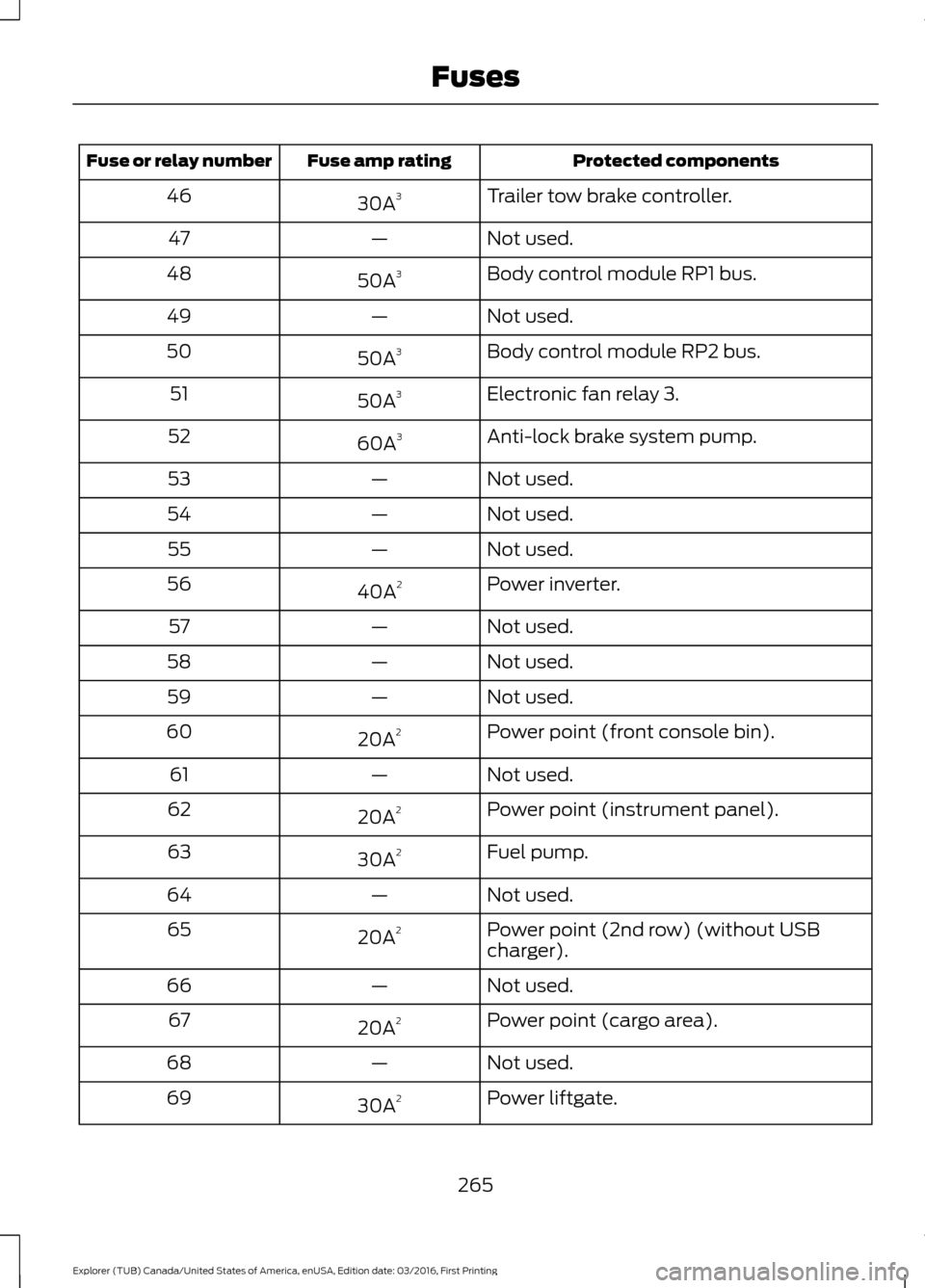
Protected components
Fuse amp rating
Fuse or relay number
Trailer tow brake controller.
30A 3
46
Not used.
—
47
Body control module RP1 bus.
50A 3
48
Not used.
—
49
Body control module RP2 bus.
50A 3
50
Electronic fan relay 3.
50A 3
51
Anti-lock brake system pump.
60A 3
52
Not used.
—
53
Not used.
—
54
Not used.
—
55
Power inverter.
40A 2
56
Not used.
—
57
Not used.
—
58
Not used.
—
59
Power point (front console bin).
20A 2
60
Not used.
—
61
Power point (instrument panel).
20A 2
62
Fuel pump.
30A 2
63
Not used.
—
64
Power point (2nd row) (without USB
charger).
20A
2
65
Not used.
—
66
Power point (cargo area).
20A 2
67
Not used.
—
68
Power liftgate.
30A 2
69
265
Explorer (TUB) Canada/United States of America, enUSA, Edition date: 03/2016, First Printing Fuses
Page 269 of 541
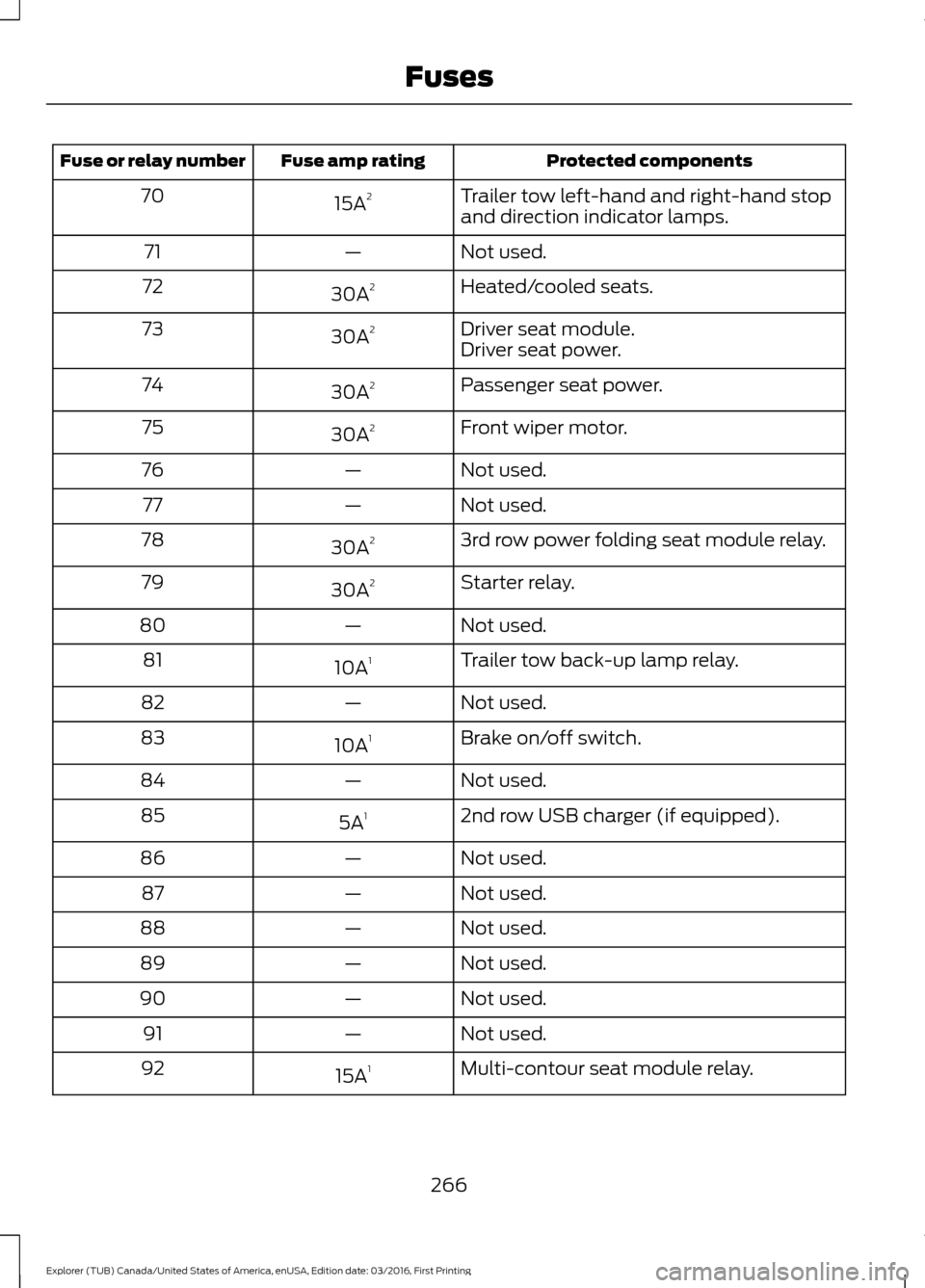
Protected components
Fuse amp rating
Fuse or relay number
Trailer tow left-hand and right-hand stop
and direction indicator lamps.
15A
2
70
Not used.
—
71
Heated/cooled seats.
30A 2
72
Driver seat module.
30A 2
73
Driver seat power.
Passenger seat power.
30A 2
74
Front wiper motor.
30A 2
75
Not used.
—
76
Not used.
—
77
3rd row power folding seat module relay.
30A 2
78
Starter relay.
30A 2
79
Not used.
—
80
Trailer tow back-up lamp relay.
10A 1
81
Not used.
—
82
Brake on/off switch.
10A 1
83
Not used.
—
84
2nd row USB charger (if equipped).
5A 1
85
Not used.
—
86
Not used.
—
87
Not used.
—
88
Not used.
—
89
Not used.
—
90
Not used.
—
91
Multi-contour seat module relay.
15A 1
92
266
Explorer (TUB) Canada/United States of America, enUSA, Edition date: 03/2016, First Printing Fuses
Page 368 of 541
USB PORT (If Equipped)
WARNING
Driving while distracted can result in
loss of vehicle control, crash and
injury. We strongly recommend that
you use extreme caution when using any
device that may take your focus off the
road. Your primary responsibility is the safe
operation of your vehicle. We recommend
against the use of any hand-held device
while driving and encourage the use of
voice-operated systems when possible.
Make sure you are aware of all applicable
local laws that may affect the use of
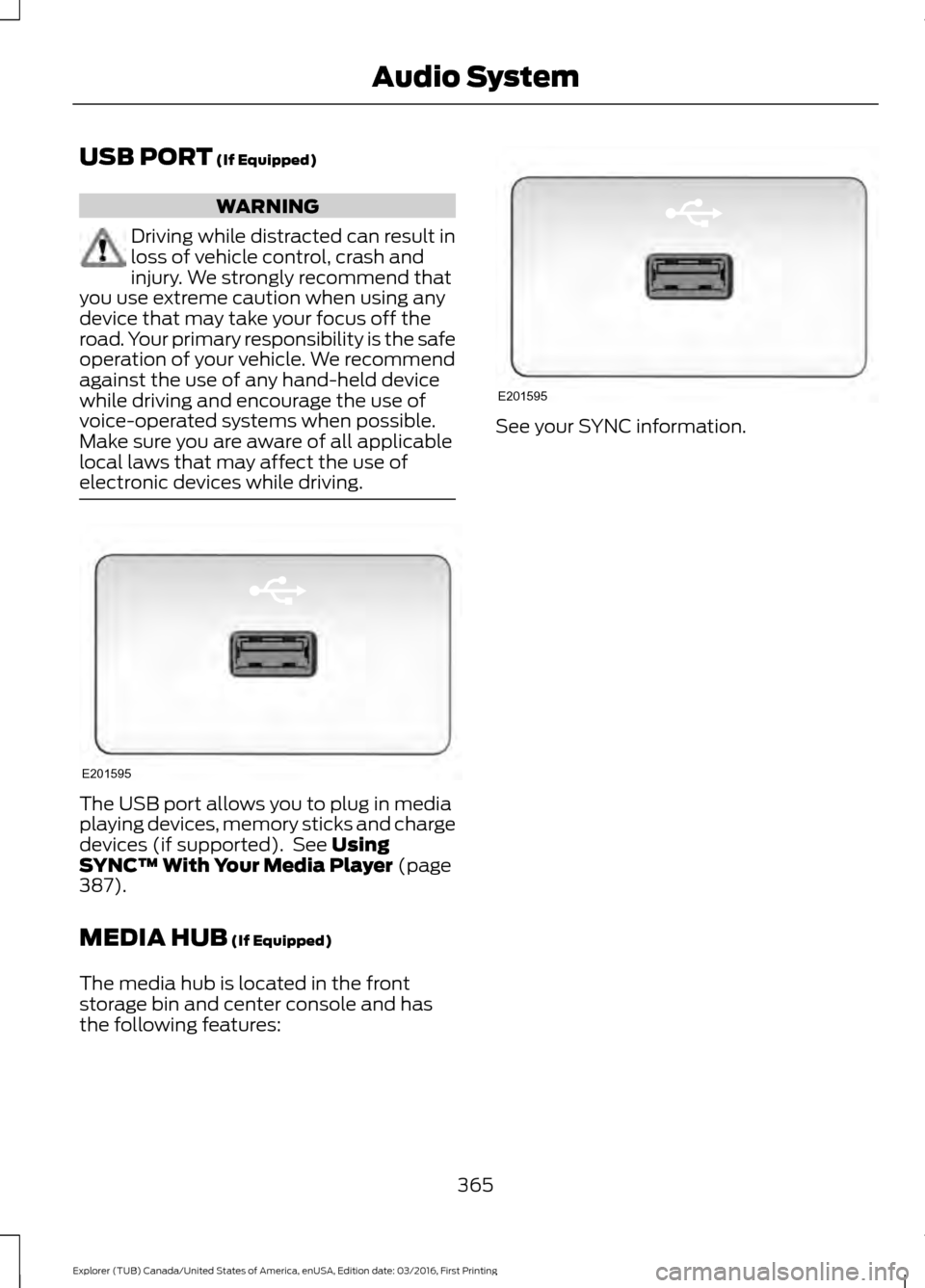
electronic devices while driving. The USB port allows you to plug in media
playing devices, memory sticks and charge
devices (if supported). See
Using
SYNC™ With Your Media Player (page
387).
MEDIA HUB
(If Equipped)
The media hub is located in the front
storage bin and center console and has
the following features: See your SYNC information.
365
Explorer (TUB) Canada/United States of America, enUSA, Edition date: 03/2016, First Printing Audio SystemE201595 E201595
Page 369 of 541
GENERAL INFORMATION
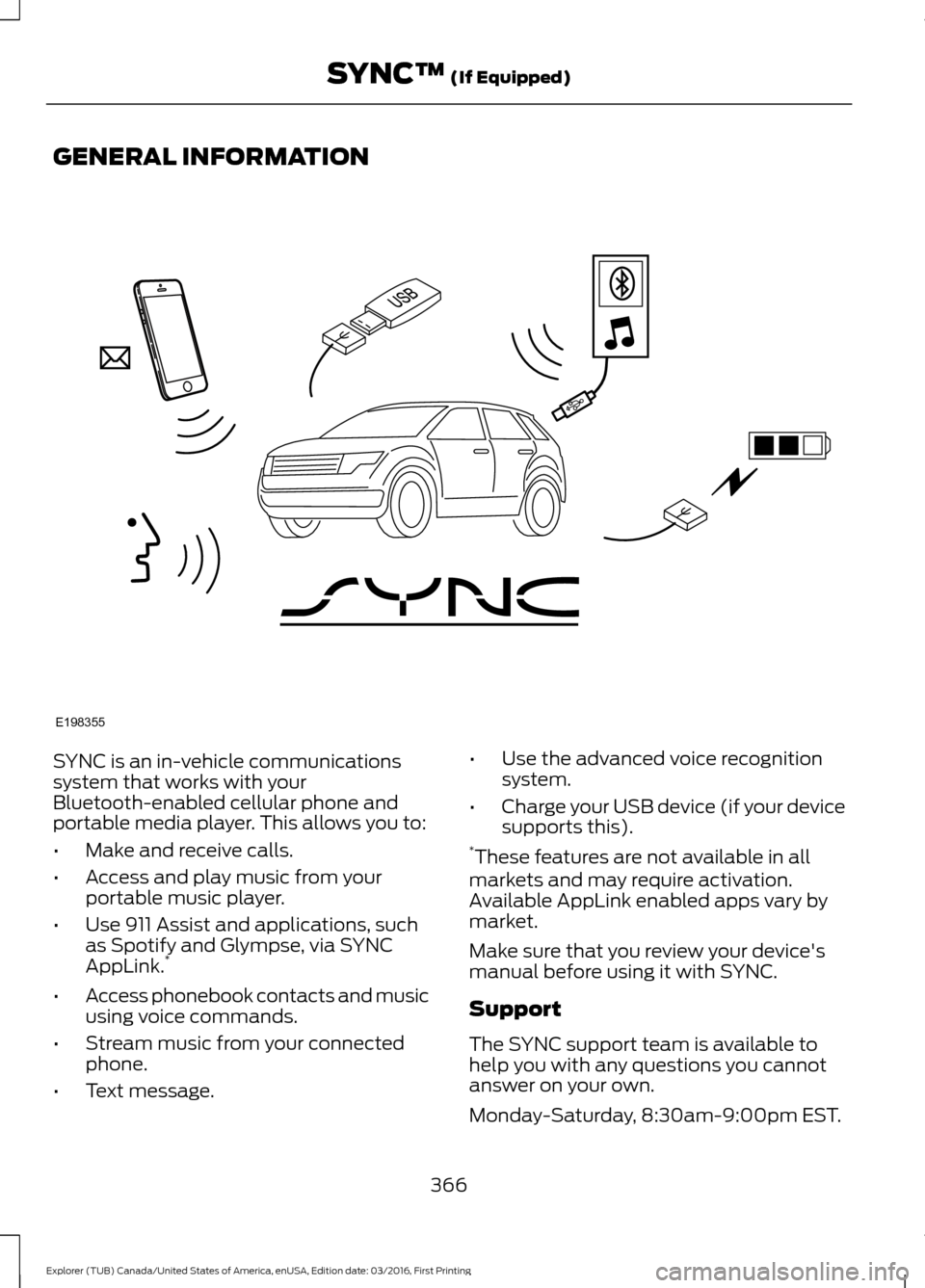
SYNC is an in-vehicle communications
system that works with your
Bluetooth-enabled cellular phone and
portable media player. This allows you to:
•
Make and receive calls.
• Access and play music from your
portable music player.
• Use 911 Assist and applications, such
as Spotify and Glympse, via SYNC
AppLink. *
• Access phonebook contacts and music
using voice commands.
• Stream music from your connected
phone.
• Text message. •
Use the advanced voice recognition
system.
• Charge your USB device (if your device
supports this).
* These features are not available in all
markets and may require activation.
Available AppLink enabled apps vary by
market.
Make sure that you review your device's
manual before using it with SYNC.
Support
The SYNC support team is available to
help you with any questions you cannot
answer on your own.
Monday-Saturday, 8:30am-9:00pm EST.
366
Explorer (TUB) Canada/United States of America, enUSA, Edition date: 03/2016, First Printing SYNC™ (If Equipped)E198355
Page 376 of 541
![FORD EXPLORER 2017 5.G Owners Manual Voice Commands
Plus
Pound (#) Star (*)
Note: To exit dial mode, press and hold the
phone button or press any button on the
audio system.
To access text messages say: Voice Command
[text] (messages | m](/img/11/4951/w960_4951-375.png "FORD EXPLORER 2017 5.G Owners Manual Voice Commands
Plus
Pound (#) Star (*)
Note: To exit dial mode, press and hold the
phone button or press any button on the
audio system.
To access text messages say: Voice Command
[text] (messages | m")
Voice Commands
Plus
Pound (#) Star (*)
Note: To exit dial mode, press and hold the
phone button or press any button on the
audio system.
To access text messages say: Voice Command
[text] (messages | message)
Then say any of the following:
(listen to | read) ([text] message)
forward (text | [text] message)
reply to (text | [text] message)
call [sender]
Phonebook Hints
To hear how the SYNC system speaks a
name browse phonebook, select a contact
and press: Menu Item
Hear it
Changing Devices Using Voice
Commands
Using SYNC, you can easily access multiple
phones, ipods, or USB devices. to switch
devices say: Voice Command
You can state the name of
the desired device, such as“My iPhone ”,“My Galaxy ”
or “My iPod ”. SYNC may
ask you to confirm the type of device (Phone, USB, or Bluetooth Audio).
(connect |
device) ___
Making Calls Press the voice button. When
prompted, say:
Voice Command
call [[a] name] SYNC prompts you to say
the numbers that you wish
to dial. After you say the
numbers, the system
confirms it. You can then
say:
dial [[a]
number]
When the system has stated the
number, you say any of the following: Voice Command
This initiates the call.
(dial | send)
This erases the spoken
digits.
(delete |
correct)
To end the call, press the end call button
on the steering wheel or select the end call
option in the audio display.
373
Explorer (TUB) Canada/United States of America, enUSA, Edition date: 03/2016, First Printing SYNC™ (If Equipped)E142599
Page 384 of 541
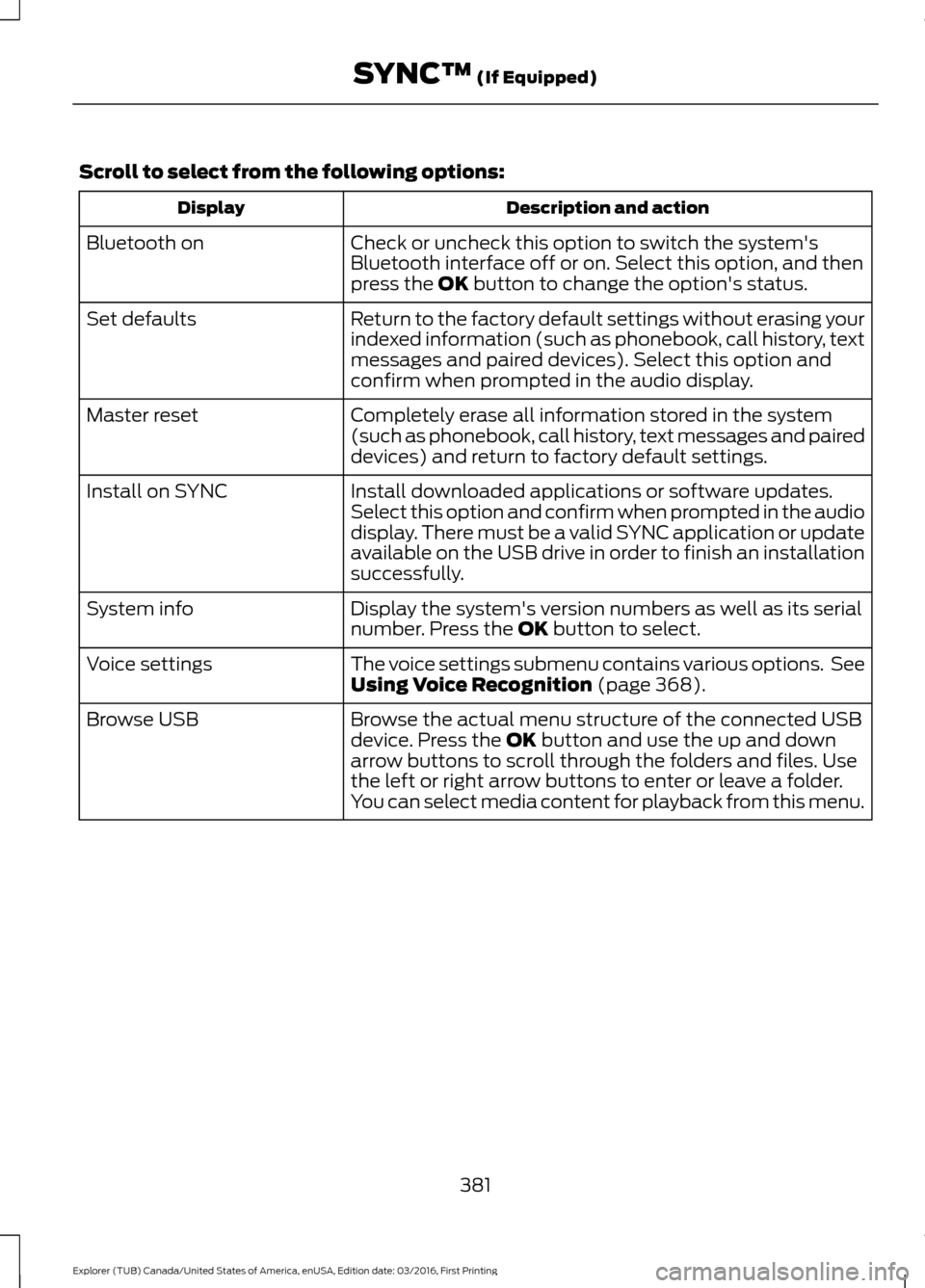
Scroll to select from the following options:
Description and action
Display
Check or uncheck this option to switch the system's
Bluetooth interface off or on. Select this option, and then
press the OK button to change the option's status.
Bluetooth on
Return to the factory default settings without erasing your
indexed information (such as phonebook, call history, text
messages and paired devices). Select this option and
confirm when prompted in the audio display.
Set defaults
Completely erase all information stored in the system
(such as phonebook, call history, text messages and paired
devices) and return to factory default settings.
Master reset
Install downloaded applications or software updates.
Select this option and confirm when prompted in the audio
display. There must be a valid SYNC application or update
available on the USB drive in order to finish an installation
successfully.
Install on SYNC
Display the system's version numbers as well as its serial
number. Press the
OK button to select.
System info
The voice settings submenu contains various options. See
Using Voice Recognition
(page 368).
Voice settings
Browse the actual menu structure of the connected USB
device. Press the
OK button and use the up and down
arrow buttons to scroll through the folders and files. Use
the left or right arrow buttons to enter or leave a folder.
You can select media content for playback from this menu.
Browse USB
381
Explorer (TUB) Canada/United States of America, enUSA, Edition date: 03/2016, First Printing SYNC™
(If Equipped)
Page 387 of 541
911 Assist Privacy Notice
When you switch on 911 Assist, it may
disclose to emergency services that your
vehicle has been in a crash involving the
deployment of an airbag or activation of
the fuel pump shut-off. Certain versions or
updates to 911 Assist may also be capable
of electronically or verbally disclosing to
911 operators your vehicle location or other
details about your vehicle or crash to assist
911 operators to provide the most
appropriate emergency services. If you do
not want to disclose this information, do
not switch the feature on.
SYNC Mobile Apps
The system enables voice and steering
wheel control of SYNC AppLink enabled
smartphone apps. When an app is running
through AppLink, you can control main
features of the app through voice
commands and steering wheel controls.
Note:
You must pair and connect your
smartphone to SYNC to access AppLink.
Note: iPhone users need to connect the
phone to the USB port.
Note: Android users need to connect the
phone to SYNC using Bluetooth.
Note: For information on available apps,
supported smartphone devices and
troubleshooting tips please visit the Ford
website.
Availability of SYNC AppLink enabled Apps
will vary by region. Note:
Make sure you have an active account
for the app that you have downloaded.
Some apps work automatically with no
setup. Other apps want you to configure
your personal settings and personalize your
experience by creating stations or favorites.
We recommend you do this at home or
outside of your vehicle.
Note: AppLink is not available if your
vehicle is equipped with the MyFordTouch
system.
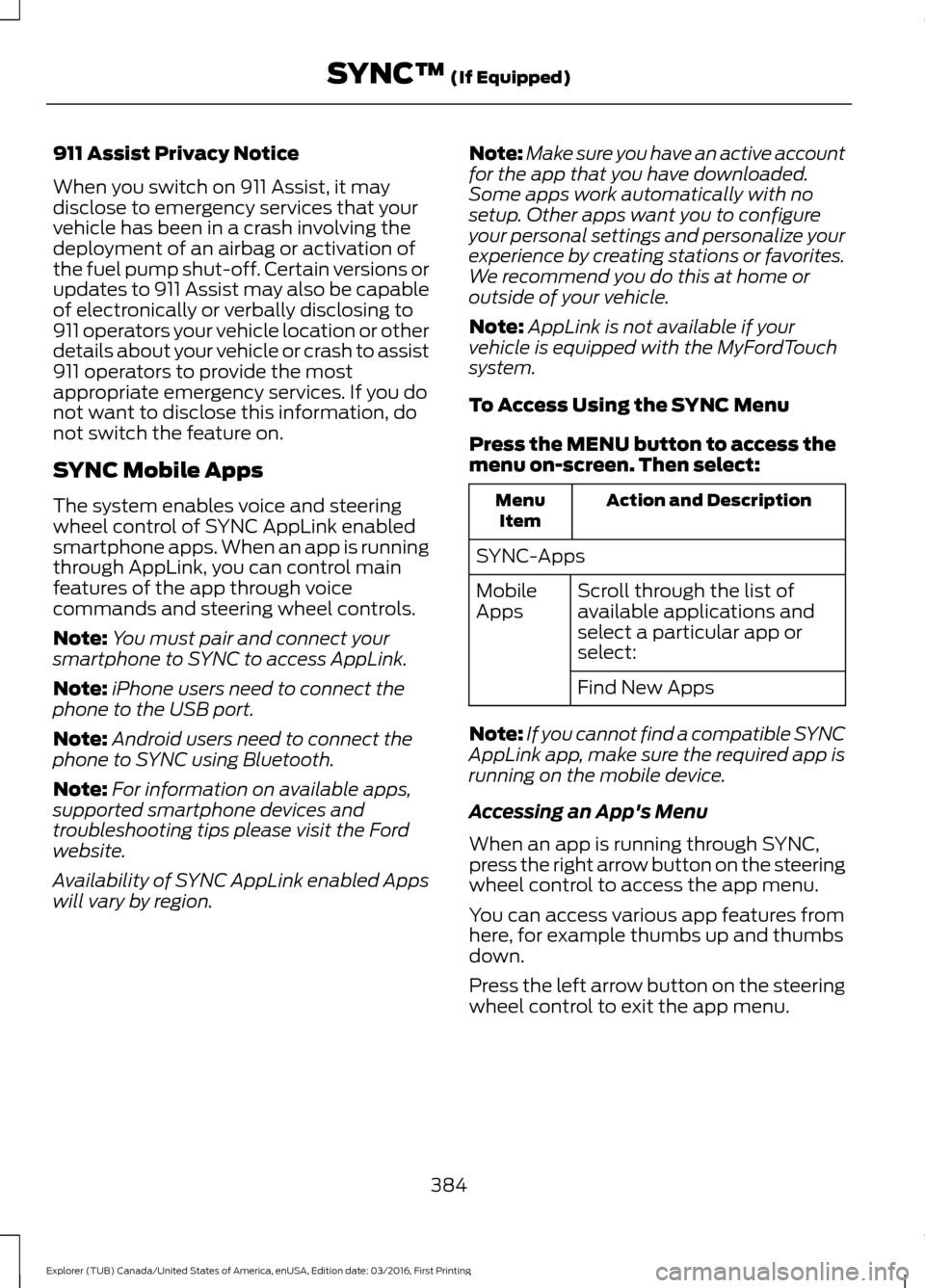
To Access Using the SYNC Menu
Press the MENU button to access the
menu on-screen. Then select: Action and Description
Menu
Item
SYNC-Apps Scroll through the list of
available applications and
select a particular app or
select:
Mobile
Apps
Find New Apps
Note: If you cannot find a compatible SYNC
AppLink app, make sure the required app is
running on the mobile device.
Accessing an App's Menu
When an app is running through SYNC,
press the right arrow button on the steering
wheel control to access the app menu.
You can access various app features from
here, for example thumbs up and thumbs
down.
Press the left arrow button on the steering
wheel control to exit the app menu.
384
Explorer (TUB) Canada/United States of America, enUSA, Edition date: 03/2016, First Printing SYNC™
(If Equipped)
Page 390 of 541
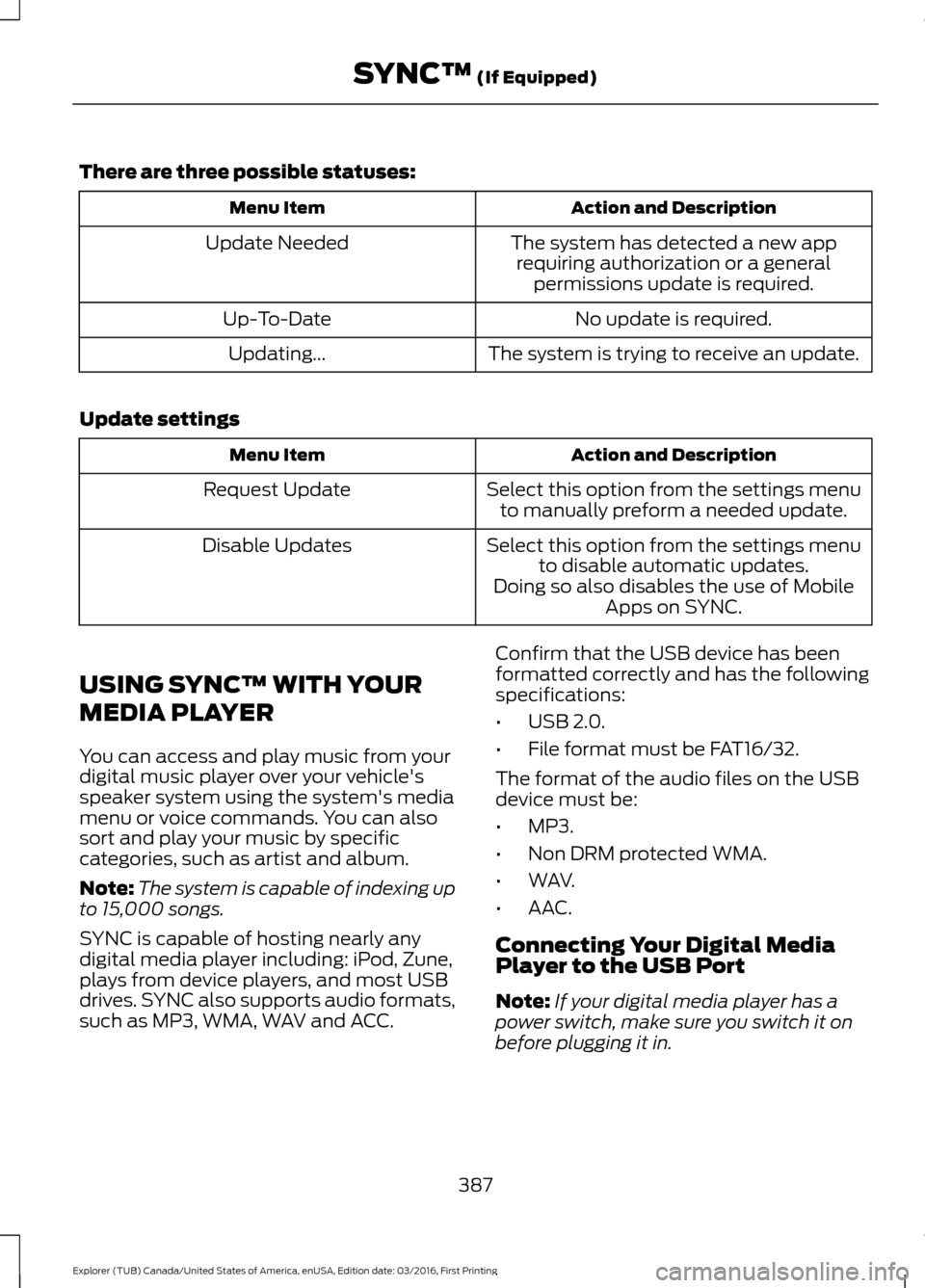
There are three possible statuses:
Action and Description
Menu Item
The system has detected a new apprequiring authorization or a general permissions update is required.
Update Needed
No update is required.
Up-To-Date
The system is trying to receive an update.
Updating...
Update settings Action and Description
Menu Item
Select this option from the settings menuto manually preform a needed update.
Request Update
Select this option from the settings menuto disable automatic updates.
Disable Updates
Doing so also disables the use of MobileApps on SYNC.
USING SYNC™ WITH YOUR
MEDIA PLAYER
You can access and play music from your
digital music player over your vehicle's
speaker system using the system's media
menu or voice commands. You can also
sort and play your music by specific
categories, such as artist and album.
Note: The system is capable of indexing up
to 15,000 songs.
SYNC is capable of hosting nearly any
digital media player including: iPod, Zune,
plays from device players, and most USB
drives. SYNC also supports audio formats,
such as MP3, WMA, WAV and ACC. Confirm that the USB device has been
formatted correctly and has the following
specifications:
•
USB 2.0.
• File format must be FAT16/32.
The format of the audio files on the USB
device must be:
• MP3.
• Non DRM protected WMA.
• WAV.
• AAC.
Connecting Your Digital Media
Player to the USB Port
Note: If your digital media player has a
power switch, make sure you switch it on
before plugging it in.
387
Explorer (TUB) Canada/United States of America, enUSA, Edition date: 03/2016, First Printing SYNC™ (If Equipped)