warning light FORD EXPLORER 2018 Service Manual
[x] Cancel search | Manufacturer: FORD, Model Year: 2018, Model line: EXPLORER, Model: FORD EXPLORER 2018Pages: 571, PDF Size: 7.3 MB
Page 225 of 571
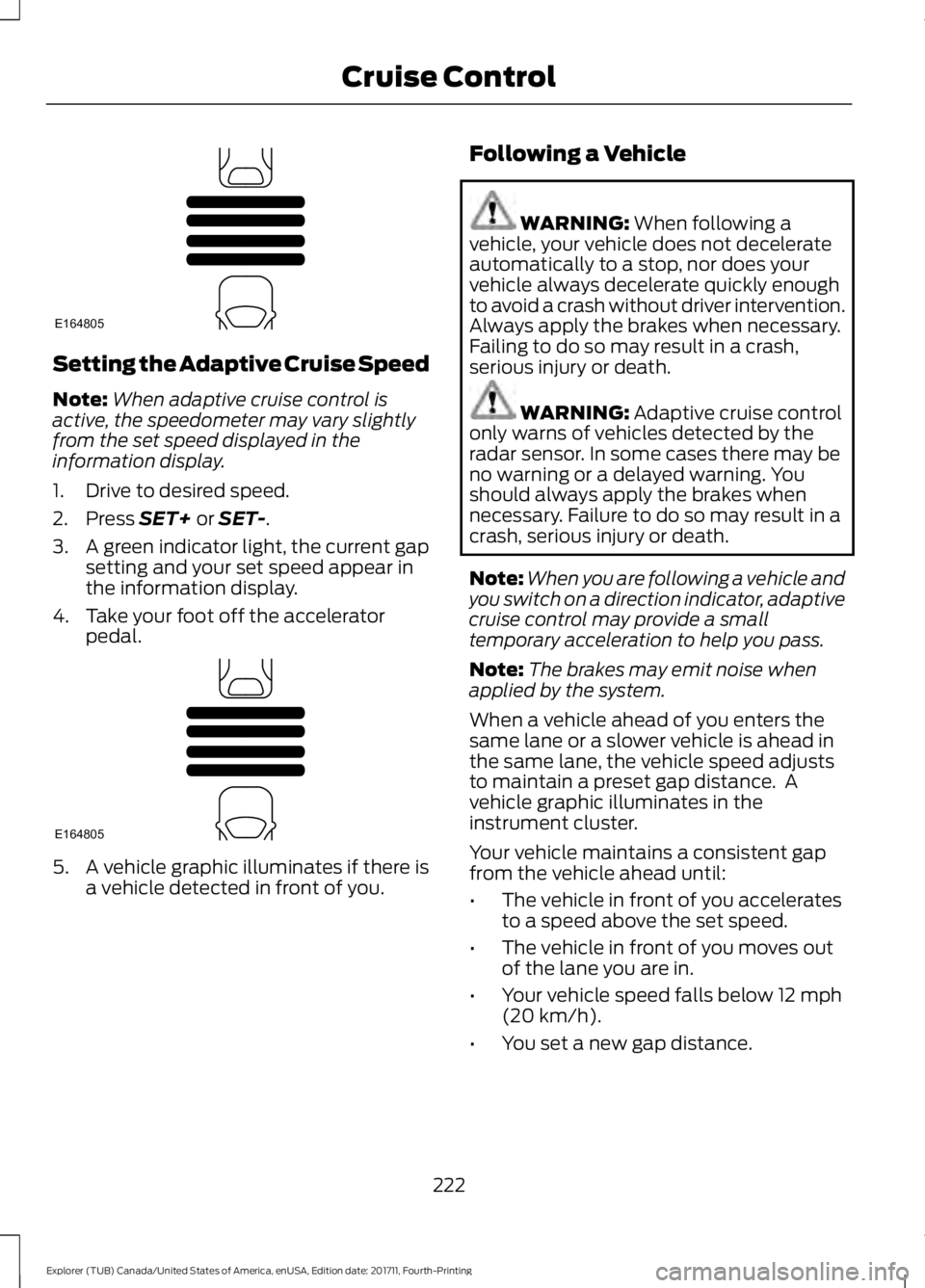
Setting the Adaptive Cruise Speed
Note:
When adaptive cruise control is
active, the speedometer may vary slightly
from the set speed displayed in the
information display.
1. Drive to desired speed.
2. Press SET+ or SET-.
3. A green indicator light, the current gap
setting and your set speed appear in
the information display.
4. Take your foot off the accelerator pedal. 5. A vehicle graphic illuminates if there is
a vehicle detected in front of you. Following a Vehicle WARNING:
When following a
vehicle, your vehicle does not decelerate
automatically to a stop, nor does your
vehicle always decelerate quickly enough
to avoid a crash without driver intervention.
Always apply the brakes when necessary.
Failing to do so may result in a crash,
serious injury or death. WARNING:
Adaptive cruise control
only warns of vehicles detected by the
radar sensor. In some cases there may be
no warning or a delayed warning. You
should always apply the brakes when
necessary. Failure to do so may result in a
crash, serious injury or death.
Note: When you are following a vehicle and
you switch on a direction indicator, adaptive
cruise control may provide a small
temporary acceleration to help you pass.
Note: The brakes may emit noise when
applied by the system.
When a vehicle ahead of you enters the
same lane or a slower vehicle is ahead in
the same lane, the vehicle speed adjusts
to maintain a preset gap distance. A
vehicle graphic illuminates in the
instrument cluster.
Your vehicle maintains a consistent gap
from the vehicle ahead until:
• The vehicle in front of you accelerates
to a speed above the set speed.
• The vehicle in front of you moves out
of the lane you are in.
• Your vehicle speed falls below
12 mph
(20 km/h).
• You set a new gap distance.
222
Explorer (TUB) Canada/United States of America, enUSA, Edition date: 201711, Fourth-Printing Cruise ControlE164805 E164805
Page 226 of 571
The system applies the brakes to slow your
vehicle to maintain a safe gap distance
from the vehicle in front. The system only
applies limited braking. You can override
the system by applying the brakes.
If the system determines that its maximum
braking level will not be sufficient, an
audible warning sounds when the system
continues to brake. A red warning bar
displays on the windshield and you must
take immediate action.
Setting the Gap Distance
Note:
The gap setting is time dependent
and therefore the distance automatically
adjusts with your vehicle speed.
Note: It is your responsibility to select a gap
appropriate to the driving conditions.
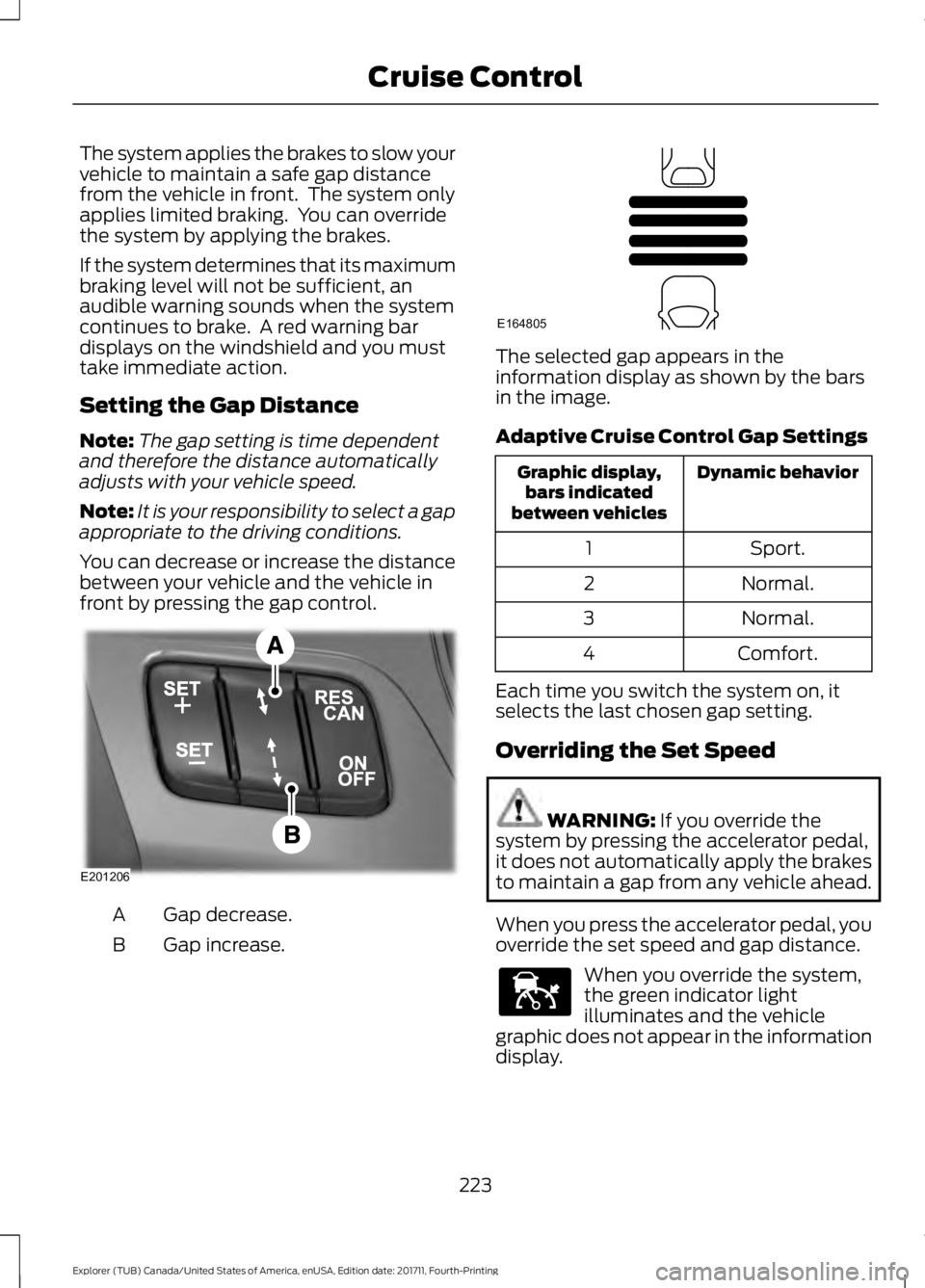
You can decrease or increase the distance
between your vehicle and the vehicle in
front by pressing the gap control. Gap decrease.
A
Gap increase.
B The selected gap appears in the
information display as shown by the bars
in the image.
Adaptive Cruise Control Gap Settings
Dynamic behavior
Graphic display,
bars indicated
between vehicles
Sport.
1
Normal.
2
Normal.
3
Comfort.
4
Each time you switch the system on, it
selects the last chosen gap setting.
Overriding the Set Speed WARNING: If you override the
system by pressing the accelerator pedal,
it does not automatically apply the brakes
to maintain a gap from any vehicle ahead.
When you press the accelerator pedal, you
override the set speed and gap distance. When you override the system,
the green indicator light
illuminates and the vehicle
graphic does not appear in the information
display.
223
Explorer (TUB) Canada/United States of America, enUSA, Edition date: 201711, Fourth-Printing Cruise ControlE201206 E164805 E144529
Page 229 of 571
Possible Causes and Actions for This Message Displaying:
Action
Cause
Clean the grille surface in front of the radar
or remove the object causing the obstruc-
tion.
The surface of the radar is dirty or
obstructed.
Wait a short time. It may take several
minutes for the radar to detect that it is free
from obstruction.
The surface of the radar is clean but the
message remains in the display.
Do not use the system in these conditions
because it may not detect any vehicles
ahead.
Heavy rain or snow is interfering with the
radar signals.
Do not use the system in these conditions
because it may not detect any vehicles
ahead.
Water, snow or ice on the surface of the
road may interfere with the radar signals.
Wait a short time or switch to normal cruise
control.
You are in a desert or remote area with no
other vehicles and no roadside objects.
Due to the nature of radar technology, it is possible to get a blockage warning with no
actual block. This happens, for example, when driving in sparse rural or desert
environments. A false blocked condition either self clears, or clears after you restart your
vehicle.
Switching to Normal Cruise
Control WARNING: Normal cruise control
will not brake when your vehicle is
approaching slower vehicles. Always be
aware of which mode you have selected
and apply the brakes when necessary.
You can manually change from adaptive
cruise control to normal cruise control
through the information display. The cruise control indicator light
replaces the adaptive cruise
control indicator light if you
select normal cruise control. The gap
setting does not display, and the system
does not automatically respond to lead
vehicles. Automatic braking remains active
to maintain set speed.
226
Explorer (TUB) Canada/United States of America, enUSA, Edition date: 201711, Fourth-Printing Cruise ControlE71340
Page 232 of 571
Note:
The system works above 40 mph
(64 km/h).
Note: The system works as long as the
camera can detect one lane marking.
Note: When you select aid or alert and aid
mode and the system detects no steering
activity for a short period, the system alerts
you to put your hands on the steering wheel.
The system may detect a light grip or touch
on the steering wheel as hands off driving.
Note: The system may not function if the
camera is blocked, or if the windshield is
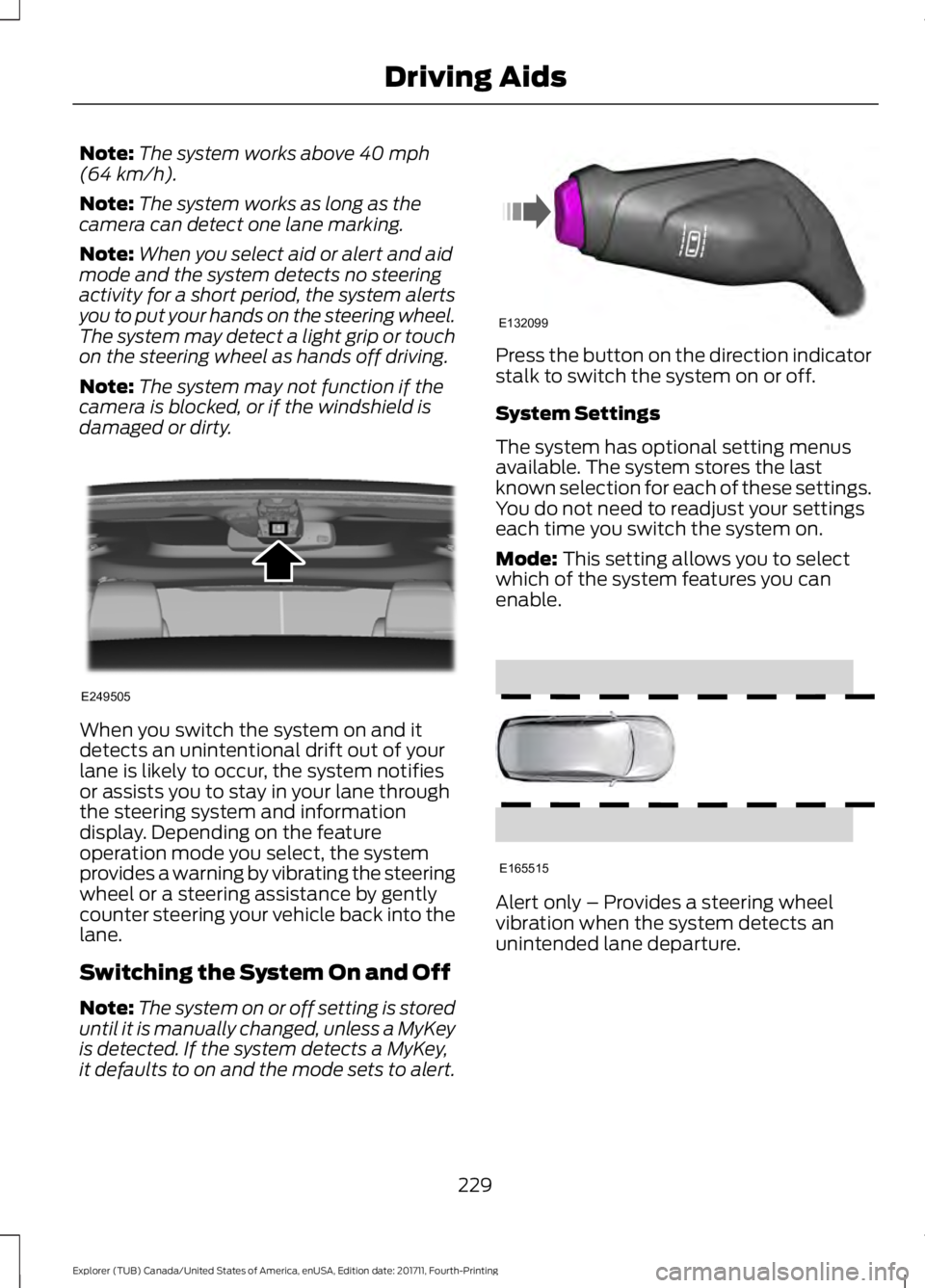
damaged or dirty. When you switch the system on and it
detects an unintentional drift out of your
lane is likely to occur, the system notifies
or assists you to stay in your lane through
the steering system and information
display. Depending on the feature
operation mode you select, the system
provides a warning by vibrating the steering
wheel or a steering assistance by gently
counter steering your vehicle back into the
lane.
Switching the System On and Off
Note:
The system on or off setting is stored
until it is manually changed, unless a MyKey
is detected. If the system detects a MyKey,
it defaults to on and the mode sets to alert. Press the button on the direction indicator
stalk to switch the system on or off.
System Settings
The system has optional setting menus
available. The system stores the last
known selection for each of these settings.
You do not need to readjust your settings
each time you switch the system on.
Mode:
This setting allows you to select
which of the system features you can
enable. Alert only – Provides a steering wheel
vibration when the system detects an
unintended lane departure.
229
Explorer (TUB) Canada/United States of America, enUSA, Edition date: 201711, Fourth-Printing Driving AidsE249505 E132099 E165515
Page 234 of 571
•
The road has no or poor lane markings
in the camera field-of-view.
• The camera is obscured or unable to
detect the lane markings due to
environmental, traffic or vehicle
conditions. For example, significant sun
angles, shadows, snow, heavy rain or
fog, following a large vehicle that is
blocking or shadowing the lane or poor
headlamp illumination.
See Troubleshooting for additional
information.
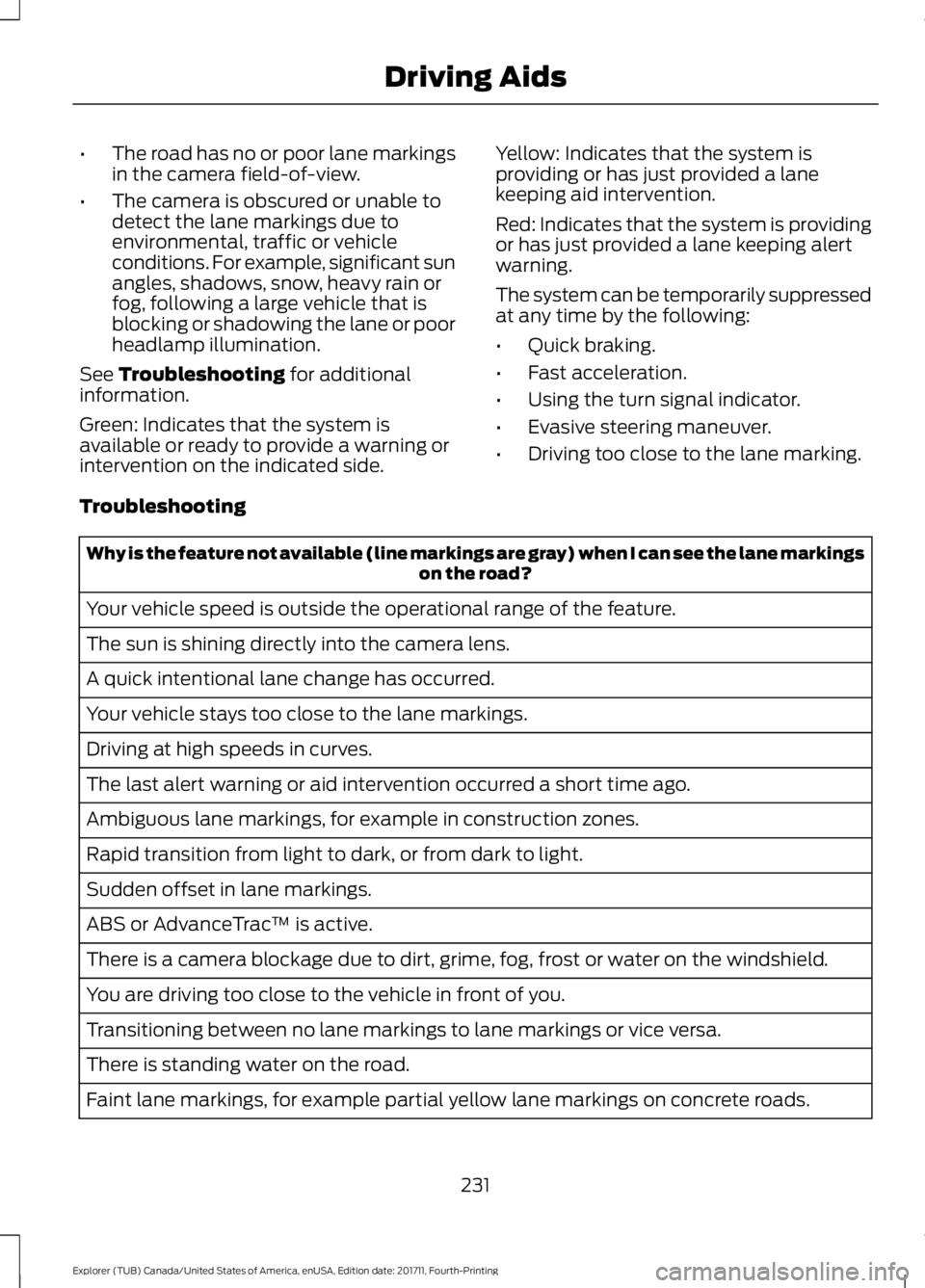
Green: Indicates that the system is
available or ready to provide a warning or
intervention on the indicated side. Yellow: Indicates that the system is
providing or has just provided a lane
keeping aid intervention.
Red: Indicates that the system is providing
or has just provided a lane keeping alert
warning.
The system can be temporarily suppressed
at any time by the following:
•
Quick braking.
• Fast acceleration.
• Using the turn signal indicator.
• Evasive steering maneuver.
• Driving too close to the lane marking.
Troubleshooting Why is the feature not available (line markings are gray) when I can see the lane markings
on the road?
Your vehicle speed is outside the operational range of the feature.
The sun is shining directly into the camera lens.
A quick intentional lane change has occurred.
Your vehicle stays too close to the lane markings.
Driving at high speeds in curves.
The last alert warning or aid intervention occurred a short time ago.
Ambiguous lane markings, for example in construction zones.
Rapid transition from light to dark, or from dark to light.
Sudden offset in lane markings.
ABS or AdvanceTrac ™ is active.
There is a camera blockage due to dirt, grime, fog, frost or water on the windshield.
You are driving too close to the vehicle in front of you.
Transitioning between no lane markings to lane markings or vice versa.
There is standing water on the road.
Faint lane markings, for example partial yellow lane markings on concrete roads.
231
Explorer (TUB) Canada/United States of America, enUSA, Edition date: 201711, Fourth-Printing Driving Aids
Page 241 of 571
PRE-COLLISION ASSIST (If
Equipped) WARNING:
You are responsible for
controlling your vehicle at all times. The
system is designed to be an aid and does
not relieve you of your responsibility to
drive with due care and attention. Failure
to follow this instruction could result in the
loss of control of your vehicle, personal
injury or death. WARNING:
The system does not
detect vehicles that are driving in a
different direction, pedestrians at night,
cyclists or animals. Failure to take care
may result in the loss of control of your
vehicle, serious personal injury or death. WARNING:
The system does not
operate during hard acceleration or
steering. Failure to take care may lead to
a crash or personal injury. WARNING:
The system may fail or
operate with reduced function during cold
and severe weather conditions. Snow, ice,
rain, spray and fog can adversely affect the
system. Keep the front camera and radar
free of snow and ice. Failure to take care
may result in the loss of control of your
vehicle, serious personal injury or death. WARNING:
In situations where the
vehicle camera has limited detection
capability, this may reduce system
performance. These situations include but
are not limited to direct or low sunlight,
vehicles at night without tail lights,
unconventional vehicle types, pedestrians
with complex backgrounds, running pedestrians, partly obscured pedestrians,
or pedestrians that the system cannot
distinguish from a group. Failure to take
care may result in the loss of control of
your vehicle, serious personal injury or
death.
WARNING:
The pre-collision assist
system's brake support reduces collision
speed only if you brake your vehicle before
any collision. You must press your brake
pedal as you would in any typical braking
situation. WARNING: The system cannot help
prevent all crashes. Do not rely on this
system to replace driver judgment and the
need to maintain a safe distance and
speed.
Note: The system does not detect, warn or
respond to potential collisions with vehicles
to the rear or sides of your vehicle.
Using the Pre-Collision Assist
System
The system is active at speeds above
approximately
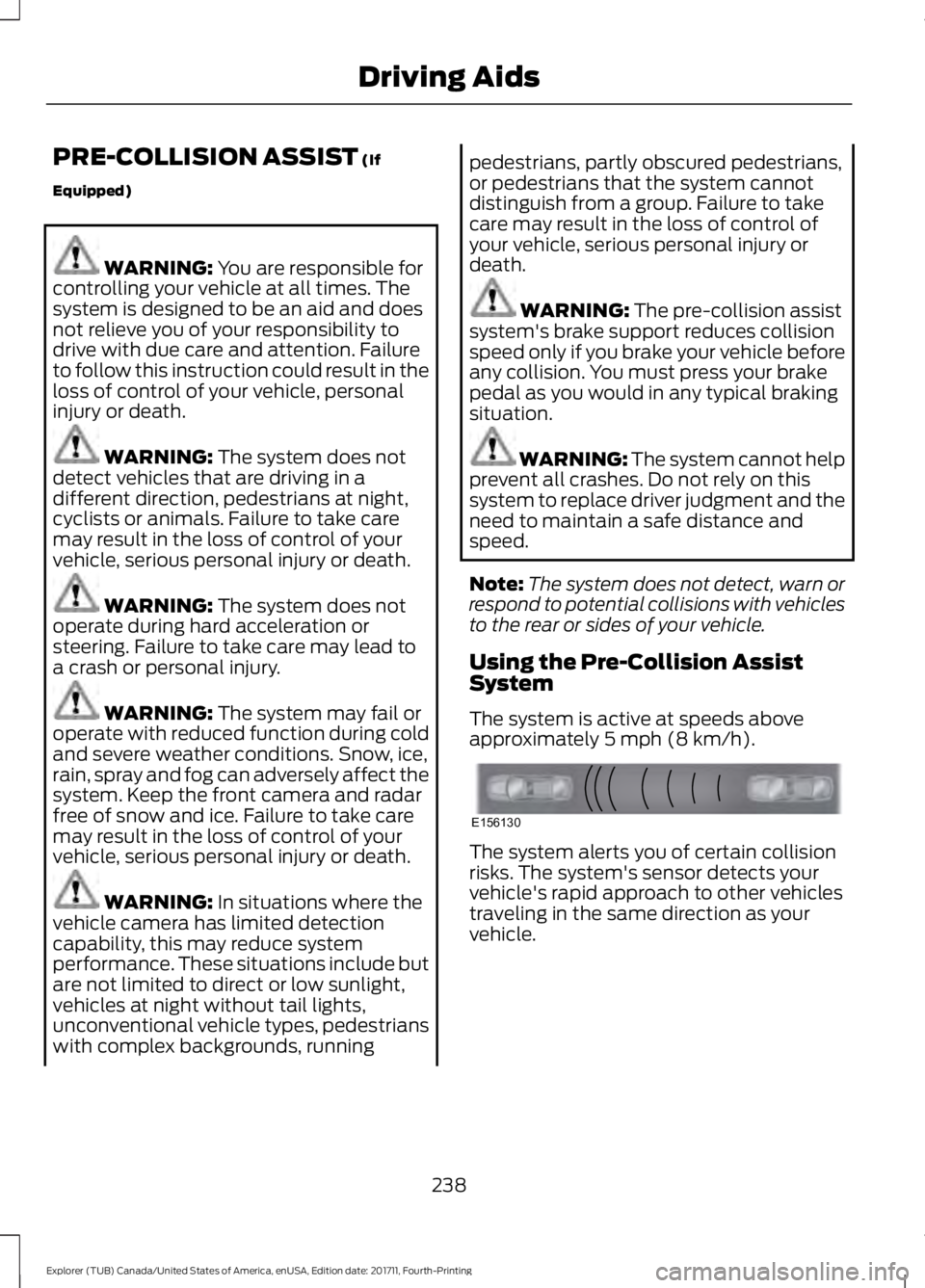
5 mph (8 km/h). The system alerts you of certain collision
risks. The system's sensor detects your
vehicle's rapid approach to other vehicles
traveling in the same direction as your
vehicle.
238
Explorer (TUB) Canada/United States of America, enUSA, Edition date: 201711, Fourth-Printing Driving AidsE156130
Page 242 of 571
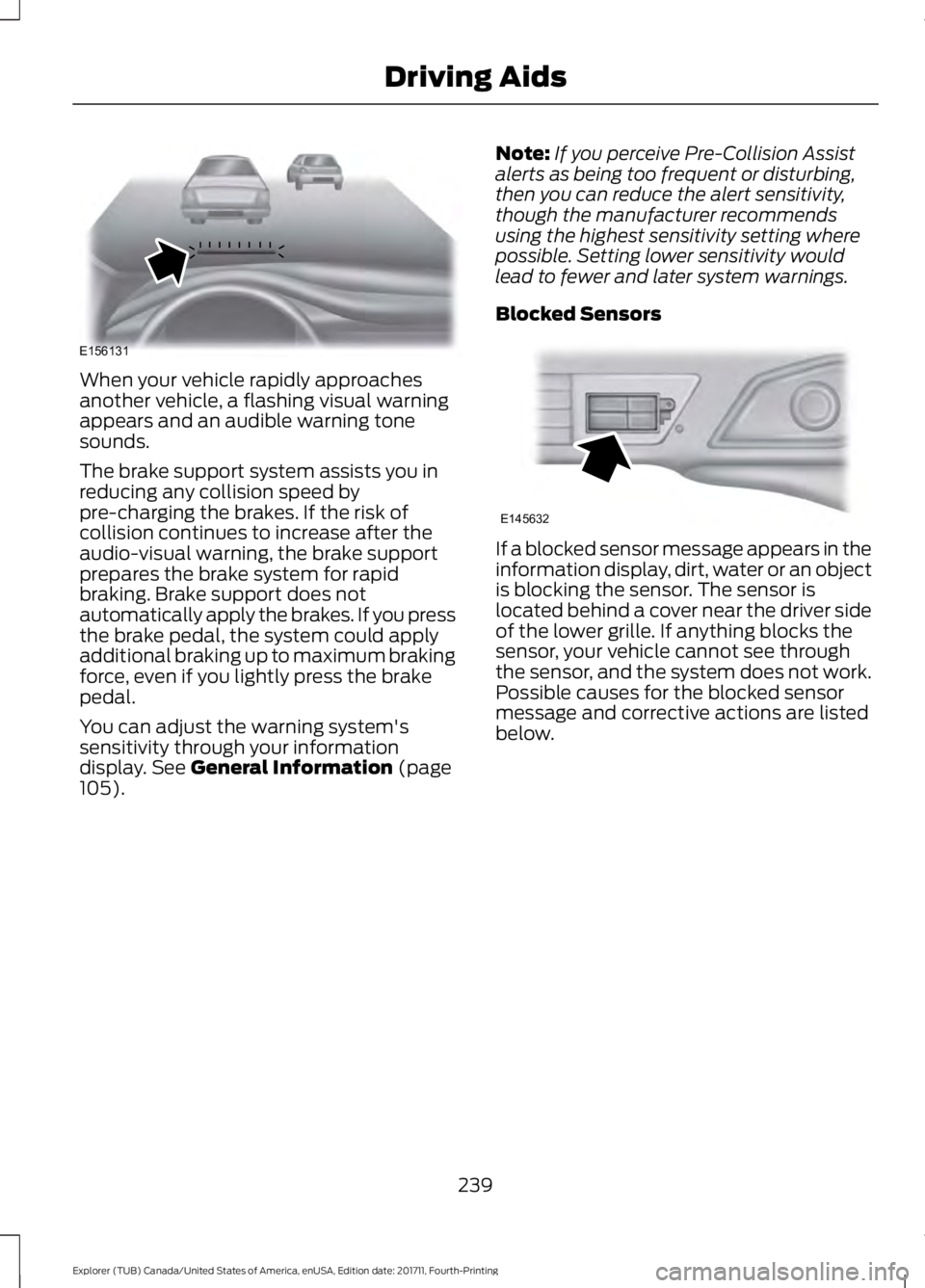
When your vehicle rapidly approaches
another vehicle, a flashing visual warning
appears and an audible warning tone
sounds.
The brake support system assists you in
reducing any collision speed by
pre-charging the brakes. If the risk of
collision continues to increase after the
audio-visual warning, the brake support
prepares the brake system for rapid
braking. Brake support does not
automatically apply the brakes. If you press
the brake pedal, the system could apply
additional braking up to maximum braking
force, even if you lightly press the brake
pedal.
You can adjust the warning system's
sensitivity through your information
display. See General Information (page
105). Note:
If you perceive Pre-Collision Assist
alerts as being too frequent or disturbing,
then you can reduce the alert sensitivity,
though the manufacturer recommends
using the highest sensitivity setting where
possible. Setting lower sensitivity would
lead to fewer and later system warnings.
Blocked Sensors If a blocked sensor message appears in the
information display, dirt, water or an object
is blocking the sensor. The sensor is
located behind a cover near the driver side
of the lower grille. If anything blocks the
sensor, your vehicle cannot see through
the sensor, and the system does not work.
Possible causes for the blocked sensor
message and corrective actions are listed
below.
239
Explorer (TUB) Canada/United States of America, enUSA, Edition date: 201711, Fourth-Printing Driving AidsE156131 E145632
Page 244 of 571
REAR UNDER FLOOR
STORAGE
Cargo Management System (If
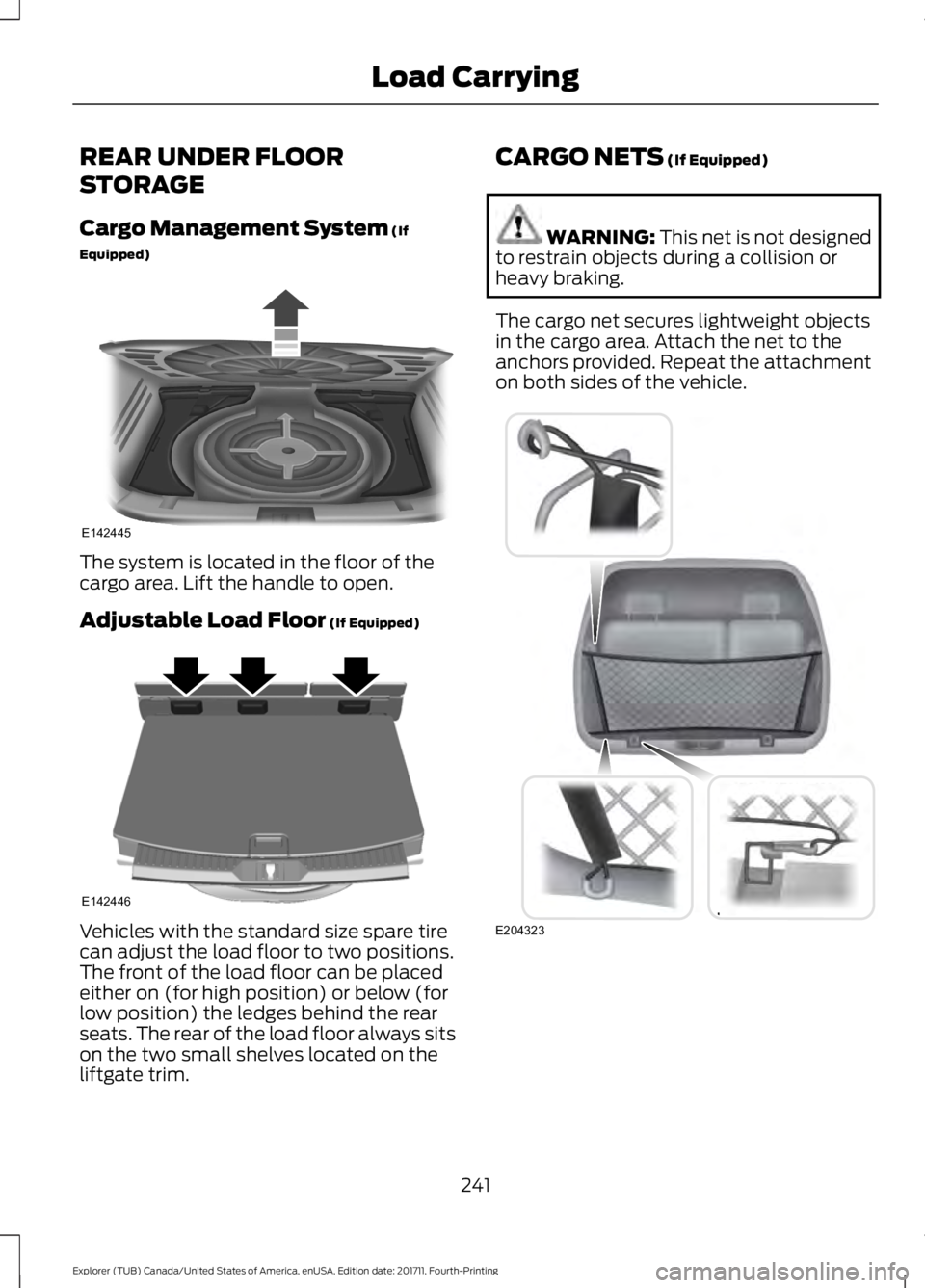
Equipped) The system is located in the floor of the
cargo area. Lift the handle to open.
Adjustable Load Floor
(If Equipped)
Vehicles with the standard size spare tire
can adjust the load floor to two positions.
The front of the load floor can be placed
either on (for high position) or below (for
low position) the ledges behind the rear
seats. The rear of the load floor always sits
on the two small shelves located on the
liftgate trim. CARGO NETS
(If Equipped) WARNING:
This net is not designed
to restrain objects during a collision or
heavy braking.
The cargo net secures lightweight objects
in the cargo area. Attach the net to the
anchors provided. Repeat the attachment
on both sides of the vehicle. 241
Explorer (TUB) Canada/United States of America, enUSA, Edition date: 201711, Fourth-Printing Load CarryingE142445 E142446 E204323
Page 252 of 571
TOWING A TRAILER
WARNING: Towing trailers
beyond the maximum
recommended gross trailer weight
exceeds the limit of your vehicle
and could result in engine
damage, transmission damage,
structural damage, loss of vehicle
control, vehicle rollover and
personal injury. WARNING:
Do not exceed
the GVWR or the GAWR specified
on the certification label.
Note: See
Recommended
Towing Weights (page 250).
Your vehicle may have electrical
items, such as fuses or relays,
related to towing. See
Fuses
(page 273).
Your vehicle's load capacity
designation is by weight, not by
volume, so you cannot necessarily
use all available space when
loading a vehicle or trailer.
Towing a trailer places an extra
load on your vehicle's engine,
transmission, axle, brakes, tires
and suspension. Inspect these
components periodically during,
and after, any towing operation. Load Placement
To help minimize how trailer
movement affects your vehicle
when driving:
•
Load the heaviest items closest
to the trailer floor.
• Load the heaviest items
centered between the left and
right side trailer tires.
• Load the heaviest items above
the trailer axles or just slightly
forward toward the trailer
tongue. Do not allow the final
trailer tongue weight to go
above or below 10-15% of the
loaded trailer weight.
• Select a ball mount with the
correct rise or drop and load
capacity. When both the
loaded vehicle and trailer are
connected, the trailer frame
should be level, or slightly
angled down toward your
vehicle, when viewed from the
side.
When driving with a trailer or
payload, a slight takeoff vibration
or shudder may be present due to
the increased payload weight.
Additional information regarding
proper trailer loading and setting
your vehicle up for towing is
located in another chapter of this
manual. See
Load Limit (page
243).
You can also find information in
the
RV & Trailer Towing Guide
available at your authorized
dealer, or online.
249
Explorer (TUB) Canada/United States of America, enUSA, Edition date: 201711, Fourth-Printing Towing
Page 255 of 571
ESSENTIAL TOWING CHECKS
Follow these guidelines for safe towing:
•
Do not tow a trailer until you drive your
vehicle at least 1,000 mi (1,600 km).
• Consult your local motor vehicle laws
for towing a trailer.
• See the instructions included with
towing accessories for the proper
installation and adjustment
specifications.
• Service your vehicle more frequently if
you tow a trailer. See your scheduled
maintenance information.
• If you use a rental trailer, follow the
instructions the rental agency gives
you.
You can find information on load
specification terms found on the tire label
and Safety Compliance label as well as
instructions on calculating your vehicle's
load in the Load Carrying chapter. See
Load Limit
(page 243).
Remember to account for the trailer
tongue weight as part of your vehicle load
when calculating the total vehicle weight.
Hitches
Do not use a hitch that either clamps onto
the bumper or attaches to the axle.
Distribute the trailer load so 10-15% of the
total trailer weight is on the tongue.
Weight-distributing Hitches WARNING:
Do not adjust the spring
bars so that your vehicle's rear bumper is
higher than before attaching the trailer.
Doing so will defeat the function of the
weight-distributing hitch, which may cause
unpredictable handling, and could result
in serious personal injury. When hooking-up a trailer using a
weight-distributing hitch, always use the
following procedure:
1. Park the loaded vehicle, without the
trailer, on a level surface.
2. Measure the height to the top of your vehicle's front wheel opening on the
fender. This is H1.
3. Attach the loaded trailer to your vehicle
without the weight-distributing bars
connected.
4. Measure the height to the top of your vehicle's front wheel opening on the
fender a second time. This is H2.
5. Install and adjust the tension in the weight-distributing bars so that the
height of your vehicle's front wheel
opening on the fender is approximately
half the way down from H2, toward H1.
6. Check that the trailer is level or slightly
nose down toward your vehicle. If not,
adjust the ball height accordingly and
repeat Steps 2-6.
When the trailer is level or slightly nose
down toward the vehicle:
• Lock the bar tension adjuster in place.
• Check that the trailer tongue securely
attaches and locks onto the hitch.
• Install safety chains, lighting, and trailer
brake controls as required by law or the
trailer manufacturer.
Safety Chains
Note: Never attach safety chains to the
bumper.
Always connect the safety chains to the
hook retainers of your vehicle hitch.
To connect the trailer ’s safety chains, cross
them under the trailer tongue and allow
enough slack for turning tight corners. Do
not allow the chains to drag on the ground.
252
Explorer (TUB) Canada/United States of America, enUSA, Edition date: 201711, Fourth-Printing Towing