wheel FORD EXPLORER 2020 Service Manual
[x] Cancel search | Manufacturer: FORD, Model Year: 2020, Model line: EXPLORER, Model: FORD EXPLORER 2020Pages: 555, PDF Size: 8.16 MB
Page 239 of 555
WARNING: You are responsible for
controlling your vehicle at all times. The
system is designed to be an aid and does
not relieve you of your responsibility to
drive with due care and attention. Failure
to follow this instruction could result in
the loss of control of your vehicle,
personal injury or death.
The system assists parking into and out of
parking spaces. Sensors are used to detect
parking spaces. The system then steers,
accelerates, brakes and shifts gear as
required to maneuver into or out of a
parking space.
Using Active Park Assist The parking button is near the
transmission selector on the
center console.
Press the parking button to bring up full
screen notifications. Press either the
parking button or the soft keys on the
display screen to switch between Parallel
Park In, Perpendicular Park In or Parallel
Park Out parking modes.
Driving into a Parking Space
Note: The system detects other vehicles
and curbs to find a parking space.
Note: The system does not recognize
parking space lines and centers your vehicle
between objects.
Note: When parking perpendicularly, the
system backs your vehicle into parking
spaces.
1. Press the active park assist button.
Note: The system searches for parallel
parking spaces on the passenger side. Press
the active park assist button again to make
the system search for perpendicular spaces. 2. Use the direction indicator lever to
search for a parking space on the driver
or passenger side of your vehicle.
3. Drive your vehicle approximately 3 ft
(1 m) away from and parallel to the
other parked vehicles when searching
for a parking space.
Note: A tone sounds and a message
appears in the information display when
active park assist finds a suitable parking
space.
4. Press and hold the brake pedal.
5. Release the steering wheel and shift into neutral (N).
6. Press and hold the active park assist button.
7. Release the brake pedal to allow the vehicle to park.
Note: When parallel parking between
objects, the system parks closer to the
object in front of your vehicle to allow easier
access to your luggage compartment.
Note: When perpendicular parking, the
system aligns the front end of your vehicle
with the object next to it.
Note: When perpendicular parking, if the
system detects only one object, it allows
enough distance to open the door on either
side.
Note: You can slow down your vehicle at
any time by pressing the brake pedal.
Note: When parking is complete the vehicle
shifts into park (P).
Leaving a Parking Space
The system assists leaving only parallel
parking spaces.
1. Press the active park assist button.
2. Use the direction indicator lever to choose the direction to leave.
3. Press and hold the brake pedal.
236
Explorer (CTW) Canada/United States of America, enUSA, Edition date: 201902, Third-Printing- Parking AidsE146186
Page 240 of 555
4. Release the steering wheel and shift
into neutral (N).
5. Release the parking brake.
6. Press and hold the active park assist button.
7. Release the brake pedal to allow the vehicle to move.
Note: You can slow down your vehicle at
any time by pressing the brake pedal.
Note: After the system drives your vehicle
to a position where you can exit the parking
space in a forward movement, a message
appears instructing you to take full control
of your vehicle. Canceling Active Park Assist
To cancel parking assistance at any time,
shift out of neutral (N).
Note:
If you turn the steering wheel or open
the driver door the parking assistance also
cancels.
Pausing Active Park Assist
To pause parking assistance at any time,
release the active park assist button.
The vehicle stops moving until you press
and hold the active park assist button
again.
Note: If you open the passenger or rear
doors the parking assistance also pauses.
Active Park Assist Troubleshooting Possible Cause
Symptom
The system is unable to detect a vehicle, curb or object
to park next to, or in-between.
The system does not correctly
operate.
You may have switched traction control off.
The system does not search for
a parking space.
The transmission is in reverse (R). Your vehicle must
be moving forward to be able to detect a parking space.
The sensors may be blocked. For example, snow, ice
or large accumulations of dirt. Blocked sensors can
affect how the system functions.
The system does not offer a
parking space.
The sensors in the front or rear bumper could be
damaged.
There is not enough room in the parking space for your
vehicle to safely park.
There is not enough space for the parking maneuver on
the opposite side of the parking space.
The parking space is more than 5 ft (1.5 m) or less than
2 ft (0.5 m) away.
The vehicle speed is greater than
22 mph (35 km/h)
for parallel parking or greater than 19 mph (30 km/h)
for perpendicular parking.
237
Explorer (CTW) Canada/United States of America, enUSA, Edition date: 201902, Third-Printing- Parking Aids
Page 243 of 555
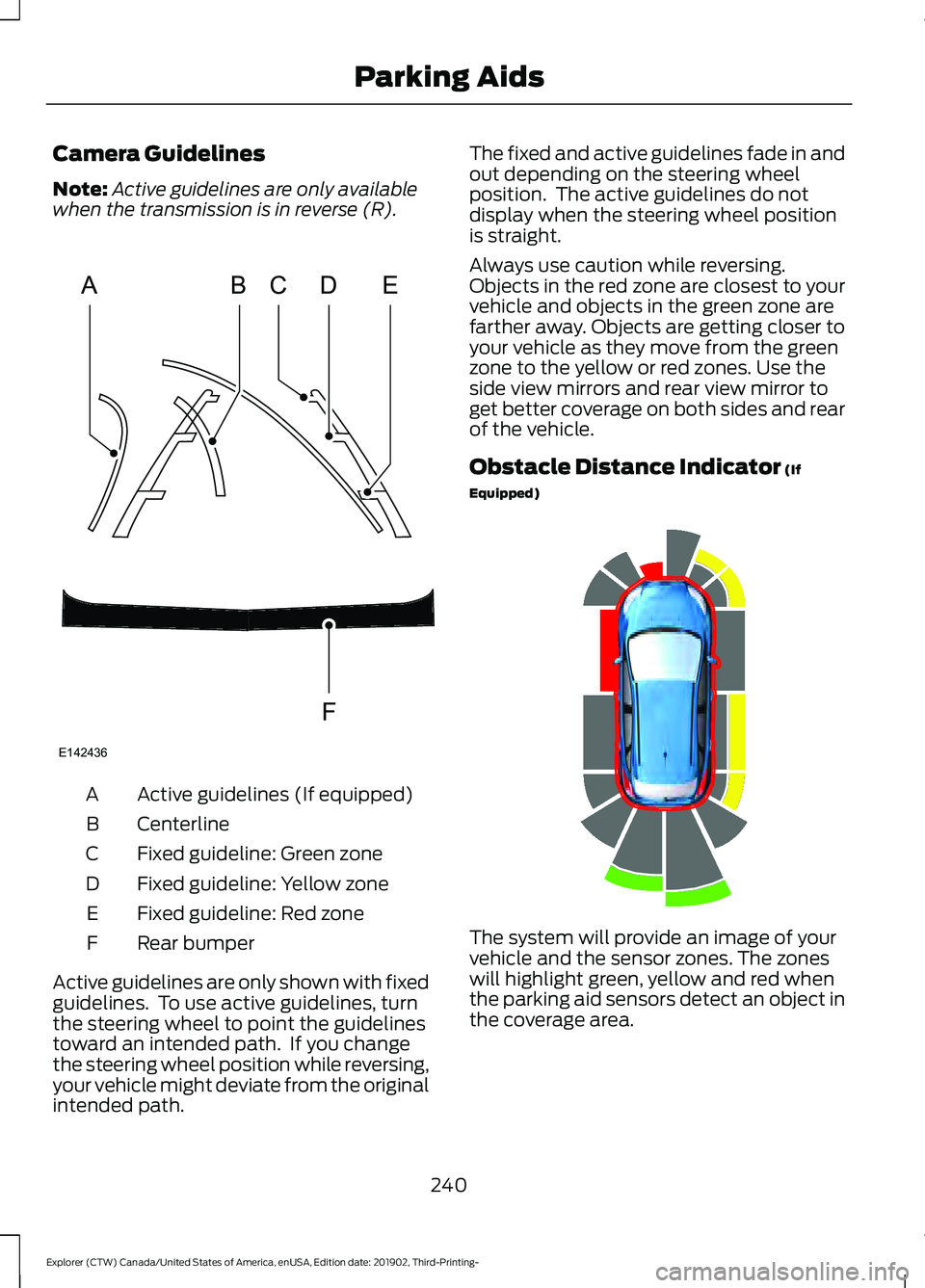
Camera Guidelines
Note:
Active guidelines are only available
when the transmission is in reverse (R). Active guidelines (If equipped)
A
Centerline
B
Fixed guideline: Green zone
C
Fixed guideline: Yellow zone
D
Fixed guideline: Red zone
E
Rear bumper
F
Active guidelines are only shown with fixed
guidelines. To use active guidelines, turn
the steering wheel to point the guidelines
toward an intended path. If you change
the steering wheel position while reversing,
your vehicle might deviate from the original
intended path. The fixed and active guidelines fade in and
out depending on the steering wheel
position. The active guidelines do not
display when the steering wheel position
is straight.
Always use caution while reversing.
Objects in the red zone are closest to your
vehicle and objects in the green zone are
farther away. Objects are getting closer to
your vehicle as they move from the green
zone to the yellow or red zones. Use the
side view mirrors and rear view mirror to
get better coverage on both sides and rear
of the vehicle.
Obstacle Distance Indicator (If
Equipped) The system will provide an image of your
vehicle and the sensor zones. The zones
will highlight green, yellow and red when
the parking aid sensors detect an object in
the coverage area.
240
Explorer (CTW) Canada/United States of America, enUSA, Edition date: 201902, Third-Printing- Parking AidsABCD
F
E
E142436 E190459
Page 247 of 555
WHAT IS CRUISE CONTROL
Cruise control lets you maintain a set
speed without keeping your foot on the
accelerator pedal. You can use cruise
control when your vehicle speed is greater
than 20 mph (30 km/h).
SWITCHING CRUISE CONTROL
ON AND OFF WARNING:
Do not use cruise
control on winding roads, in heavy traffic
or when the road surface is slippery. This
could result in loss of vehicle control,
serious injury or death.
The cruise controls are on the steering
wheel. See
Cruise Control (page 83).
Switching Cruise Control On Press to set the system in
standby mode.
Switching Cruise Control Off Press the button when the
system is in standby mode.
The system also turns off when you switch
the ignition off.
Note: The set speed erases when you
switch the system off. SETTING THE CRUISE
CONTROL SPEED WARNING:
When you are going
downhill, your vehicle speed could
increase above the set speed. The
system does not apply the brakes.
Drive to the speed you prefer. Press the toggle button upward
or downward to set the current
speed.
Take your foot off the accelerator pedal.
Note: The indicator changes color in the
information display.
Changing the Set Speed Press and release the toggle
button upward to increase the
set speed in small increments.
Press and hold the toggle button upward
to accelerate. Release the button when
you have reached your preferred speed. Press and release the toggle
button downward to decrease
the set speed in small
increments.
Press and hold the toggle button
downward to decelerate. Release the
button when you have reached your
preferred speed.
Note: If you accelerate by pressing the
accelerator pedal, the set speed does not
change. When you release the accelerator
pedal, your vehicle returns to the speed that
you previously set.
244
Explorer (CTW) Canada/United States of America, enUSA, Edition date: 201902, Third-Printing- Cruise ControlE71340 E71340
Page 249 of 555
HOW DOES ADAPTIVE CRUISE
CONTROL WITH STOP AND GO
WORK
Adaptive cruise control with stop and go
uses radar and camera sensors to adjust
the speed of your vehicle to maintain a set
gap from the vehicle in front of you in the
same lane while following it to a complete
stop. You can also engage the system to
follow a vehicle in front of you and adjust
set speed while stopped.
WHAT IS ADAPTIVE CRUISE
CONTROL WITH LANE
CENTERING
Adaptive cruise control with lane centering
uses radar and camera sensors to help
keep your vehicle in the lane by applying
continuous assistance steering torque
input toward the lane center on highways.
Note:
The adaptive cruise control gap
setting operates normally.
WHAT IS INTELLIGENT
ADAPTIVE CRUISE CONTROL
Intelligent adaptive cruise control
combines speed sign recognition with
adaptive cruise control to adjust the cruise
set speed to the speed limit detected by
the speed sign recognition system. For
example, if the speed sign recognition
system detects a 50 mph (80 km/h)
speed limit, the cruise set speed is updated
to
50 mph (80 km/h).
Note: The adaptive cruise control gap
setting operates normally. ADAPTIVE CRUISE CONTROL
PRECAUTIONS - VEHICLES
WITH: ADAPTIVE CRUISE
CONTROL WITH LANE
CENTERING
Adaptive cruise control precautions apply
to lane centering unless stated otherwise
or contradicted by a lane centering
precaution. See Adaptive Cruise Control
Precautions
(page 246).
WARNING:
Do not use the system
when towing a trailer. Failure to follow
this instruction could result in the loss of
control of your vehicle, personal injury or
death. WARNING:
Do not use the system
if any changes or modifications to the
steering wheel have been made. Any
changes or modifications to the steering
wheel could affect the functionality or
performance of the system. Failure to
follow this instruction could result in the
loss of control of your vehicle, personal
injury or death.
ADAPTIVE CRUISE CONTROL
PRECAUTIONS - VEHICLES
WITH: ADAPTIVE CRUISE
CONTROL WITH STOP AND GO WARNING: You are responsible for
controlling your vehicle at all times. The
system is designed to be an aid and does
not relieve you of your responsibility to
drive with due care and attention. Failure
to follow this instruction could result in
the loss of control of your vehicle,
personal injury or death.
246
Explorer (CTW) Canada/United States of America, enUSA, Edition date: 201902, Third-Printing- Adaptive Cruise Control
(If Equipped)
Page 253 of 555
Optimal system performance requires a
clear view of the road by the
windshield-mounted camera.
Optimal performance may not occur if:
•
The camera is blocked.
• There is poor visibility or lighting
conditions.
• There are bad weather conditions.
SWITCHING ADAPTIVE
CRUISE CONTROL ON AND OFF
The cruise controls are on the steering
wheel. See Cruise Control (page 83).
Switching Adaptive Cruise Control
On Press to set the system in
standby mode.
The indicator, current gap setting and set
speed appear in the information display.
Switching Adaptive Cruise Control
Off Press when the system is in
standby mode, or switch the
ignition off.
Note: You erase the set speed and gap
setting when you switch the system off.
Automatic Cancellation or
Deactivation
The system may cancel if:
• The tires lose traction.
• You apply the parking brake. The system may cancel and set the parking
brake if:
•
You unbuckle the seatbelt and open
the driver door after you stop your
vehicle.
• Your vehicle is held at a stop
continuously for more than three
minutes.
The system may deactivate or prevent
activating when requested if:
• A sensor is blocked.
• The brake temperature is too high.
• There is a failure in the system or a
related system.
SETTING THE ADAPTIVE
CRUISE CONTROL SPEED
Drive to the speed you prefer. Press the toggle button upward
or downward to set the current
speed.
Take your foot off the accelerator pedal.
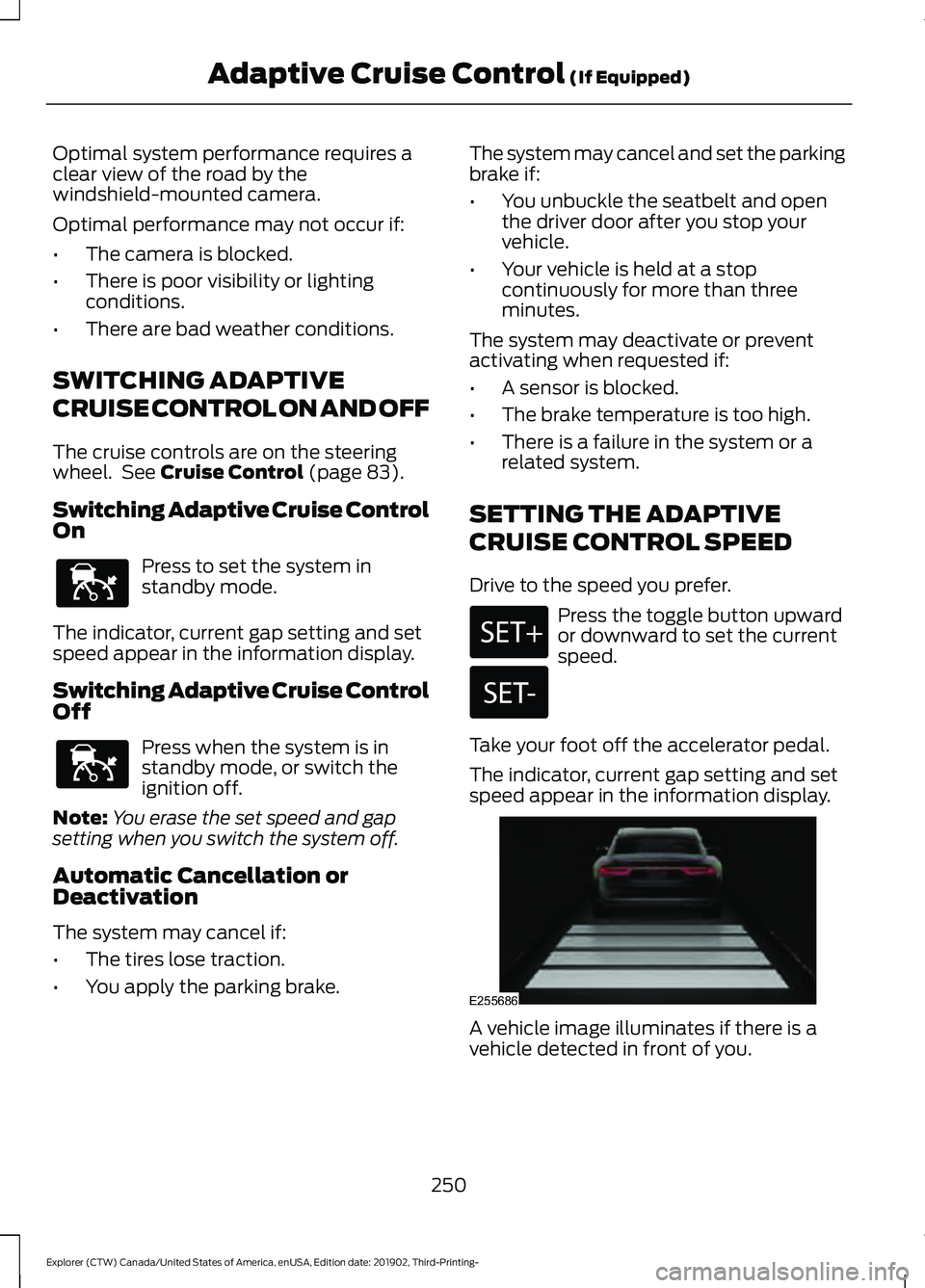
The indicator, current gap setting and set
speed appear in the information display. A vehicle image illuminates if there is a
vehicle detected in front of you.
250
Explorer (CTW) Canada/United States of America, enUSA, Edition date: 201902, Third-Printing- Adaptive Cruise Control
(If Equipped)E144529 E144529 E255686
Page 257 of 555
1. Select Settings.
2. Select
Driver Assist..
3. Select
Cruise Control.
4. Select
Normal. The cruise control indicator
replaces the adaptive cruise
control indicator if you select
normal cruise control. The gap setting does
not display, and the system does not
respond to lead vehicles. Automatic
braking remains active to maintain set
speed. The system remembers the last
setting when you start your vehicle.
SWITCHING LANE CENTERING
ON AND OFF
The cruise controls are on the steering
wheel. See
Cruise Control (page 82). Press the button.
The indicator appears in the information
display. When the system is on, the color
of the indicator changes to indicate the
system status. See
Adaptive Cruise
Control Indicators (page 253).
Note: Adaptive cruise control must be on
before you can switch lane centering on.
Activating Lane Centering
The system only activates when all of the
following occur:
• You have adaptive cruise control with
stop-and-go on.
• Your hands are on the steering wheel.
• The system detects both lane
markings.
Note: If it does not detect valid lane
markings, the system stays inactive until
valid markings are available. You can override the system at any time
by steering your vehicle.
System Alerts and Automatic
Cancellation
You must keep your hands on the steering
wheel at all times.
When the system is active and detects no
steering activity for a certain period of time,
the system alerts you to put your hands on
the steering wheel. If you do not react to
the warnings the system cancels and slows
your vehicle down to idle speeds while
maintaining steering control.
The system also alerts you if your vehicle
crosses lane markings without detected
steering activity.
Note:
The system may detect a light grip
or touch on the steering wheel as hands-off
driving.
When an external condition cancels the
system, for example, no lane markings
available, a tone sounds and a message
appears in the information display. If your vehicle starts to slow
down, you must provide steering
input to the wheel and press and
release the button to regain full system
performance.
Automatic cancellation can also occur if:
• The lane becomes too wide or too
narrow.
• The system cannot detect valid lane
markings.
• Lane markings are crossed.
Note: The system disables until the next
key cycle if your vehicle slows down due to
driver inactivity twice within a key cycle.
254
Explorer (CTW) Canada/United States of America, enUSA, Edition date: 201902, Third-Printing- Adaptive Cruise Control
(If Equipped)E71340 E262175
Page 259 of 555
ADAPTIVE CRUISE CONTROL
– TROUBLESHOOTING
Adaptive Cruise Control –
Information Messages - Vehicles
With: Adaptive Cruise Control With
Lane Centering
Note:
Depending on your vehicle options
and instrument cluster type, not all
messages display or are available.
Note: Certain messages may be
abbreviated or shortened depending upon
which cluster type you have. Action
Message
Make sure you return your hands to the steering wheel andprovide steering input.
Keep Hands on Steering
Wheel
Conditions exist preventing the system from being available.
Lane Centering Assist
Not Available
Adaptive cruise control must be on before lane centering can be switched on.
For Lane Centering
Assist to work Turn On Adaptive Cruise
256
Explorer (CTW) Canada/United States of America, enUSA, Edition date: 201902, Third-Printing- Adaptive Cruise Control (If Equipped)
Page 263 of 555
Note:
If you receive a warning you should
consider resting, even if the current
assessment is within the typical range.
The warning system has two stages. At
first, the system issues a temporary
warning that you need to take a rest. This
message only appears for a short time. If
the system detects further reduction in
driving alertness, it may issue another
warning that remains in the information
display for a longer time. You can press OK
on the steering wheel control to clear the
warning.
Resetting the System
You can reset the system by either:
• Switching the ignition off and on.
• Stopping the vehicle and then opening
and closing the driver ’s door.
LANE KEEPING SYSTEM WARNING: You are responsible for
controlling your vehicle at all times. The
system is designed to be an aid and does
not relieve you of your responsibility to
drive with due care and attention. Failure
to follow this instruction could result in
the loss of control of your vehicle,
personal injury or death. WARNING: Always drive with due
care and attention when using and
operating the controls and features on
your vehicle. WARNING:
In cold and severe
weather conditions the system may not
function. Rain, snow and spray can all
limit sensor performance. WARNING:
Large contrasts in
outside lighting can limit sensor
performance. WARNING:
The system will not
operate if the sensor cannot track the
road lane markings. WARNING:
The sensor may
incorrectly track lane markings as other
structures or objects. This can result in
a false or missed warning. WARNING:
The system may not
operate properly if the sensor is blocked.
Keep the windshield free from
obstruction. WARNING:
If damage occurs in the
immediate area surrounding the sensor,
have your vehicle checked as soon as
possible. WARNING:
The system may not
correctly operate if your vehicle is fitted
with a suspension kit not approved by
us.
Note: The system works above
40 mph
(64 km/h).
Note: The system works as long as the
camera can detect one lane marking.
Note: When you select aid or alert and aid
mode and the system detects no steering
activity for a short period, the system alerts
you to put your hands on the steering wheel.
The system may detect a light grip or
touch on the steering wheel as hands off
driving.
Note: The system may not function if the
camera is blocked, or if the windshield is
damaged or dirty.
260
Explorer (CTW) Canada/United States of America, enUSA, Edition date: 201902, Third-Printing- Driving Aids
Page 264 of 555
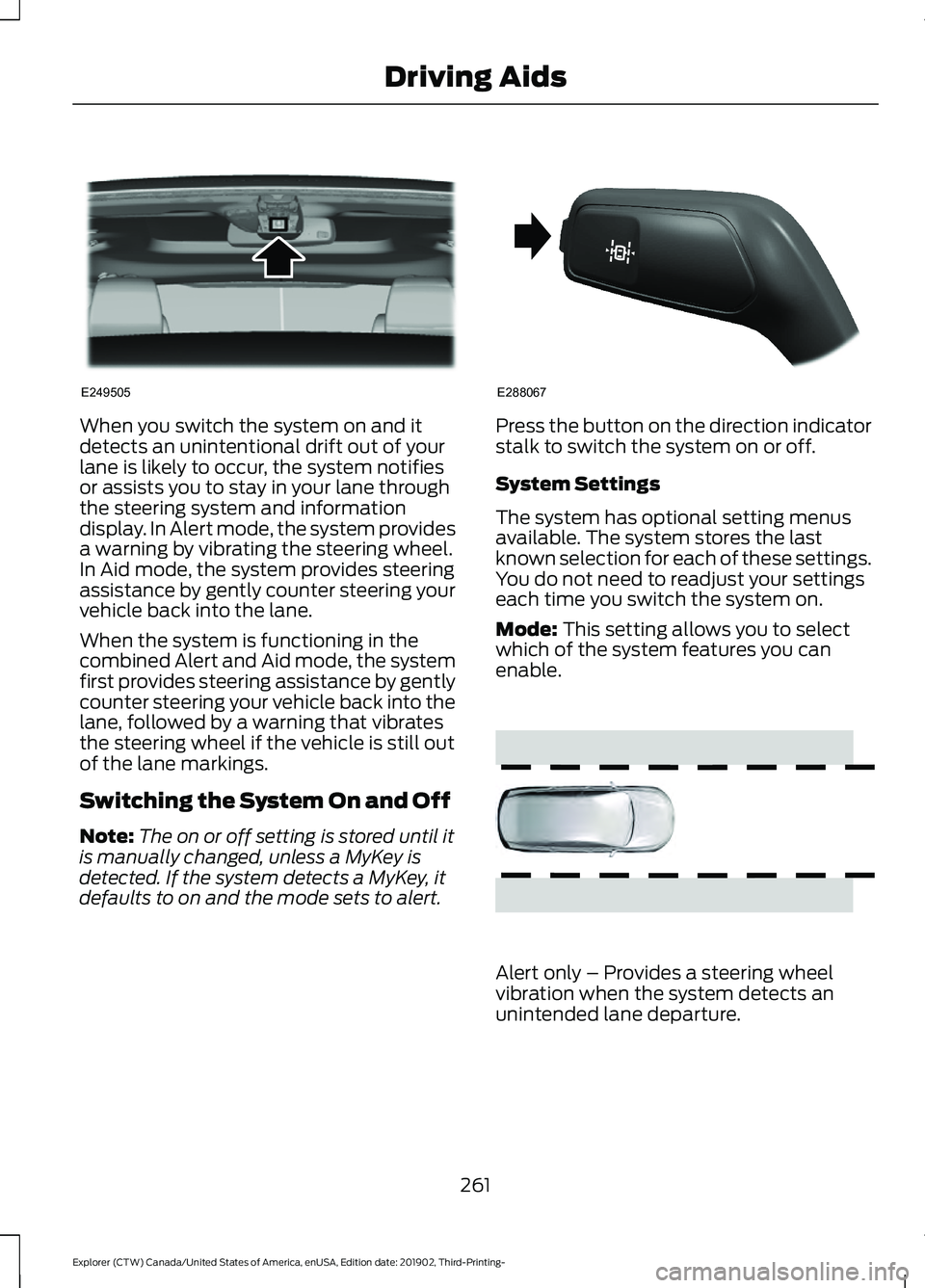
When you switch the system on and it
detects an unintentional drift out of your
lane is likely to occur, the system notifies
or assists you to stay in your lane through
the steering system and information
display. In Alert mode, the system provides
a warning by vibrating the steering wheel.
In Aid mode, the system provides steering
assistance by gently counter steering your
vehicle back into the lane.
When the system is functioning in the
combined Alert and Aid mode, the system
first provides steering assistance by gently
counter steering your vehicle back into the
lane, followed by a warning that vibrates
the steering wheel if the vehicle is still out
of the lane markings.
Switching the System On and Off
Note:
The on or off setting is stored until it
is manually changed, unless a MyKey is
detected. If the system detects a MyKey, it
defaults to on and the mode sets to alert. Press the button on the direction indicator
stalk to switch the system on or off.
System Settings
The system has optional setting menus
available. The system stores the last
known selection for each of these settings.
You do not need to readjust your settings
each time you switch the system on.
Mode: This setting allows you to select
which of the system features you can
enable. Alert only – Provides a steering wheel
vibration when the system detects an
unintended lane departure.
261
Explorer (CTW) Canada/United States of America, enUSA, Edition date: 201902, Third-Printing- Driving AidsE249505 E288067 E165515