brake FORD EXPLORER 2020 Manual PDF
[x] Cancel search | Manufacturer: FORD, Model Year: 2020, Model line: EXPLORER, Model: FORD EXPLORER 2020Pages: 555, PDF Size: 8.16 MB
Page 252 of 555
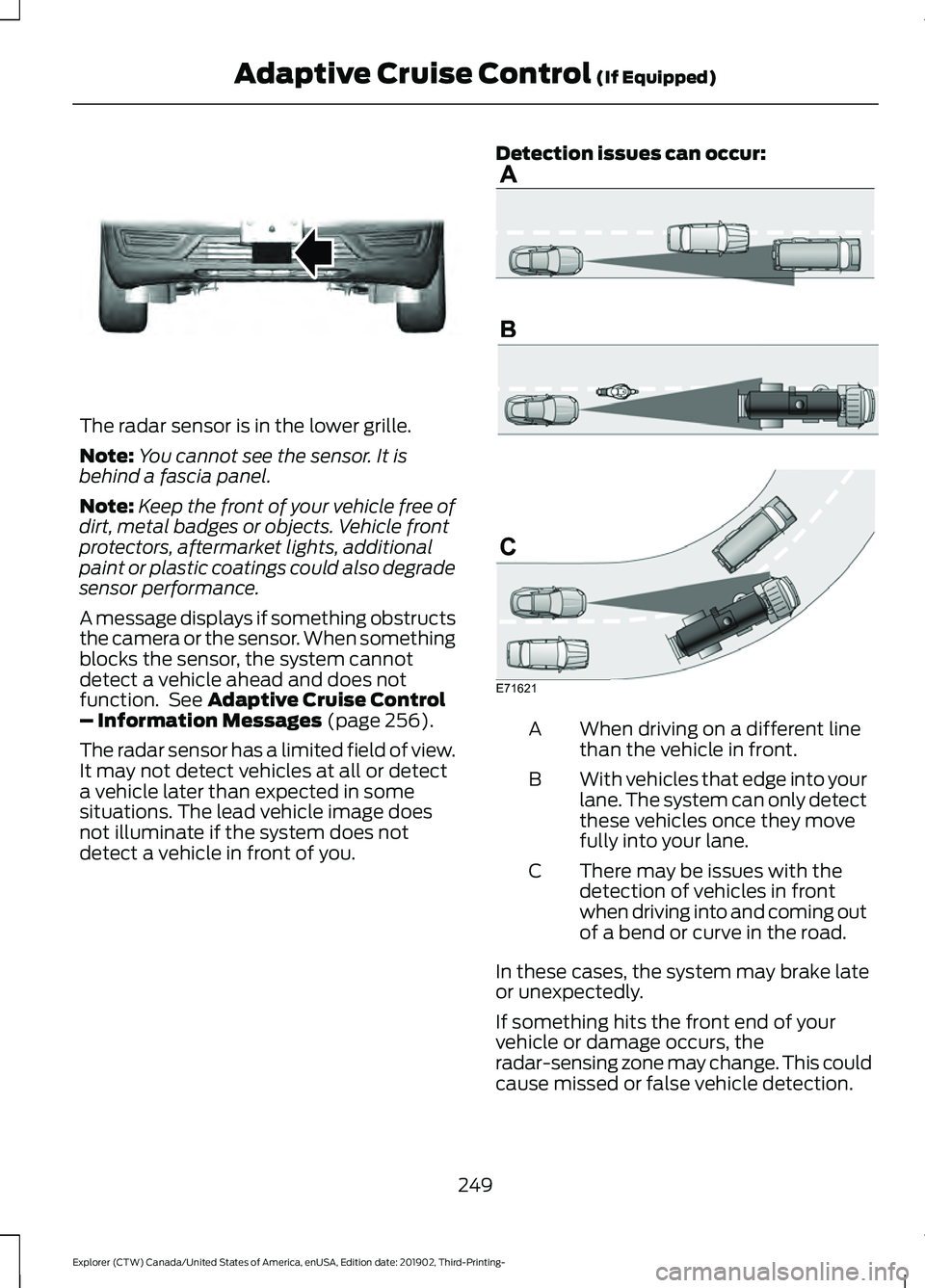
The radar sensor is in the lower grille.
Note:
You cannot see the sensor. It is
behind a fascia panel.
Note: Keep the front of your vehicle free of
dirt, metal badges or objects. Vehicle front
protectors, aftermarket lights, additional
paint or plastic coatings could also degrade
sensor performance.
A message displays if something obstructs
the camera or the sensor. When something
blocks the sensor, the system cannot
detect a vehicle ahead and does not
function. See Adaptive Cruise Control
– Information Messages (page 256).
The radar sensor has a limited field of view.
It may not detect vehicles at all or detect
a vehicle later than expected in some
situations. The lead vehicle image does
not illuminate if the system does not
detect a vehicle in front of you. Detection issues can occur:
When driving on a different line
than the vehicle in front.
A
With vehicles that edge into your
lane. The system can only detect
these vehicles once they move
fully into your lane.
B
There may be issues with the
detection of vehicles in front
when driving into and coming out
of a bend or curve in the road.
C
In these cases, the system may brake late
or unexpectedly.
If something hits the front end of your
vehicle or damage occurs, the
radar-sensing zone may change. This could
cause missed or false vehicle detection.
249
Explorer (CTW) Canada/United States of America, enUSA, Edition date: 201902, Third-Printing- Adaptive Cruise Control
(If Equipped)E307892 E71621
Page 253 of 555
Optimal system performance requires a
clear view of the road by the
windshield-mounted camera.
Optimal performance may not occur if:
•
The camera is blocked.
• There is poor visibility or lighting
conditions.
• There are bad weather conditions.
SWITCHING ADAPTIVE
CRUISE CONTROL ON AND OFF
The cruise controls are on the steering
wheel. See Cruise Control (page 83).
Switching Adaptive Cruise Control
On Press to set the system in
standby mode.
The indicator, current gap setting and set
speed appear in the information display.
Switching Adaptive Cruise Control
Off Press when the system is in
standby mode, or switch the
ignition off.
Note: You erase the set speed and gap
setting when you switch the system off.
Automatic Cancellation or
Deactivation
The system may cancel if:
• The tires lose traction.
• You apply the parking brake. The system may cancel and set the parking
brake if:
•
You unbuckle the seatbelt and open
the driver door after you stop your
vehicle.
• Your vehicle is held at a stop
continuously for more than three
minutes.
The system may deactivate or prevent
activating when requested if:
• A sensor is blocked.
• The brake temperature is too high.
• There is a failure in the system or a
related system.
SETTING THE ADAPTIVE
CRUISE CONTROL SPEED
Drive to the speed you prefer. Press the toggle button upward
or downward to set the current
speed.
Take your foot off the accelerator pedal.
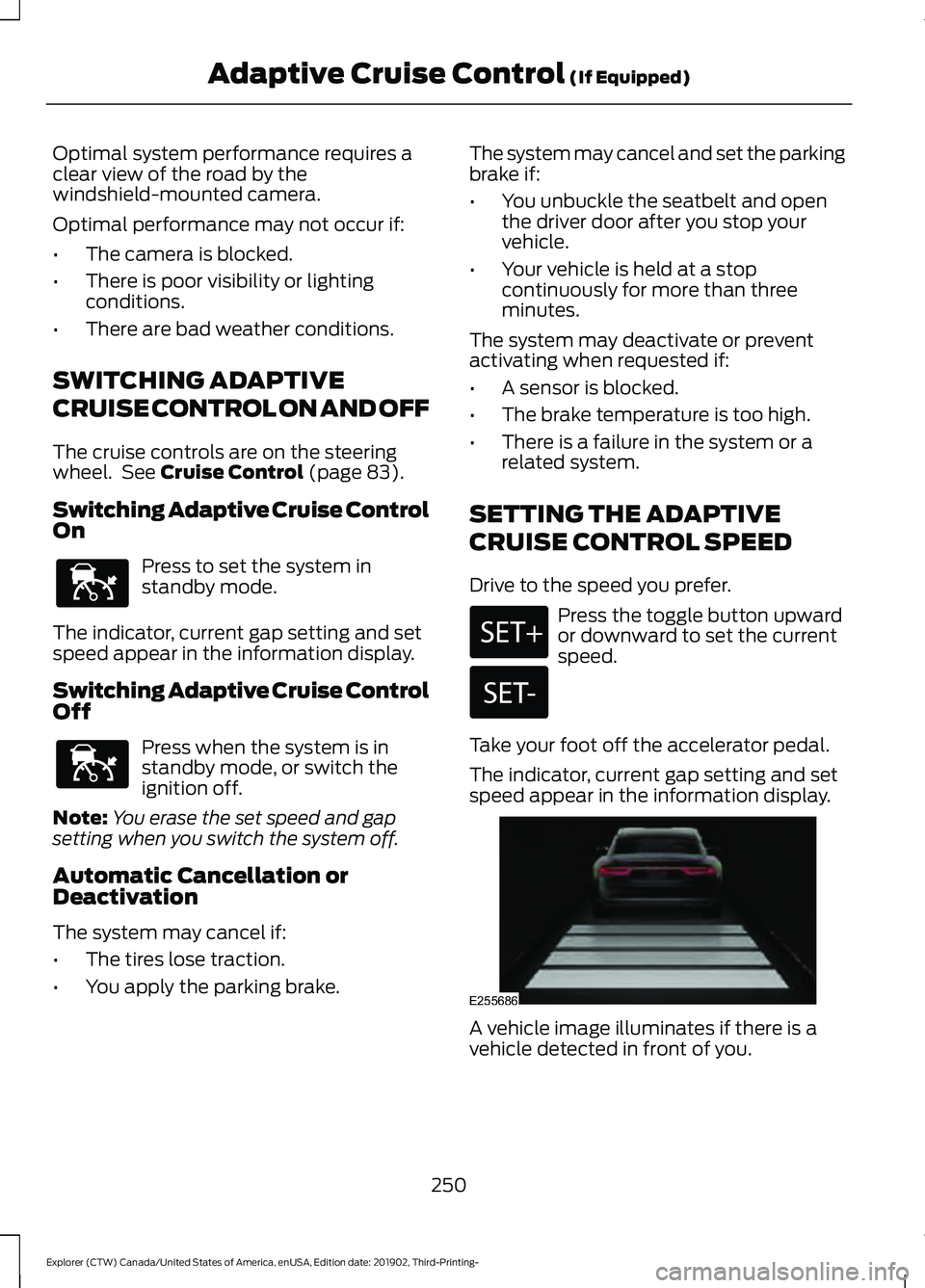
The indicator, current gap setting and set
speed appear in the information display. A vehicle image illuminates if there is a
vehicle detected in front of you.
250
Explorer (CTW) Canada/United States of America, enUSA, Edition date: 201902, Third-Printing- Adaptive Cruise Control
(If Equipped)E144529 E144529 E255686
Page 254 of 555
Note:
When adaptive cruise control is
active, the speedometer may vary slightly
from the set speed displayed in the
information display.
Setting the Adaptive Cruise Speed
from a Complete Stop Press the toggle button upward
or downward while keeping the
brake pedal fully pressed.
The set speed adjusts to 20 mph
(30 km/h).
The indicator, current gap setting and set
speed appear in the information display.
Manually Changing the Set Speed Press and release the toggle
button upward to increase the
set speed in small increments.
Press and hold the toggle button upward
to increase the set speed in large
increments. Release the button when you
reach the speed you prefer. Press and release the toggle
button downward to decrease
the set speed in small
increments.
Press and hold the toggle button
downward to decrease the set speed in
large increments. Release the button when
you reach the speed you prefer.
Press the accelerator or brake pedal until
you reach the speed you prefer. Press the
toggle button upward or downward to
select the current speed as the set speed.
The system may apply the brakes to slow
the vehicle to the new set speed. The set
speed displays continuously in the
information display when the system is
active. SETTING THE ADAPTIVE
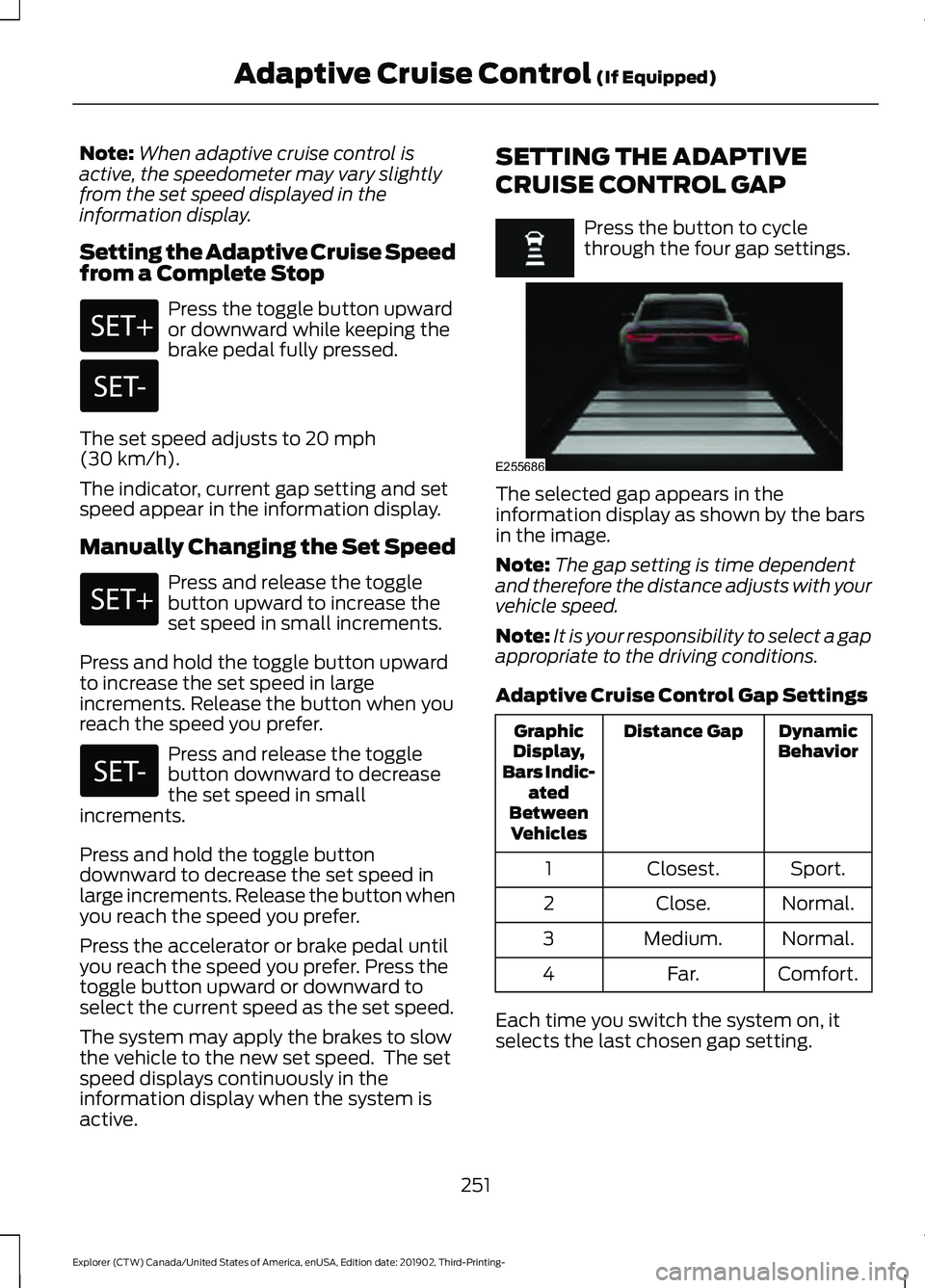
CRUISE CONTROL GAP Press the button to cycle
through the four gap settings.
The selected gap appears in the
information display as shown by the bars
in the image.
Note:
The gap setting is time dependent
and therefore the distance adjusts with your
vehicle speed.
Note: It is your responsibility to select a gap
appropriate to the driving conditions.
Adaptive Cruise Control Gap Settings Dynamic
Behavior
Distance Gap
Graphic
Display,
Bars Indic- ated
Between Vehicles
Sport.
Closest.
1
Normal.
Close.
2
Normal.
Medium.
3
Comfort.
Far.
4
Each time you switch the system on, it
selects the last chosen gap setting.
251
Explorer (CTW) Canada/United States of America, enUSA, Edition date: 201902, Third-Printing- Adaptive Cruise Control
(If Equipped) E255686
Page 255 of 555
Following a Vehicle
When a vehicle ahead of you enters the
same lane or a slower vehicle is ahead in
the same lane, the vehicle speed adjusts
to maintain the gap setting.
Note:
When you are following a vehicle and
you switch on a direction indicator, adaptive
cruise control may provide a small
temporary acceleration to help you pass.
Your vehicle maintains a consistent gap
from the vehicle ahead until:
• The vehicle in front of you accelerates
to a speed above the set speed.
• The vehicle in front of you moves out
of the lane you are in.
• You set a new gap distance.
The system applies the brakes to slow your
vehicle to maintain a safe gap distance
from the vehicle in front. The system only
applies limited braking. You can override
the system by applying the brakes.
Note: The brakes may emit noise when
applied by the system.
If the system determines that its maximum
braking level is not sufficient, an audible
warning sounds, a message appears in the
information display and an indicator
flashes when the system continues to
brake. Take immediate action.
CANCELING THE SET SPEED Press the button or tap the brake
pedal.
The set speed does not erase.
RESUMING THE SET SPEED Press the button. Your vehicle speed returns to the
previously set speed and gap setting. The
set speed displays continuously in the
information display when the system is
active.
Note:
Only use resume if you are aware of
the set speed and intend to return to it.
Resuming the Set Speed from a
Complete Stop
If your vehicle follows a vehicle to a
complete stop and remains stationary for
less than three seconds, your vehicle
accelerates from a stationary position to
follow the vehicle ahead. If your vehicle follows a vehicle
to a complete stop and remains
stationary for more than three
seconds, press and release the button or
press the accelerator pedal to follow the
vehicle ahead.
OVERRIDING THE SET SPEED WARNING: If you override the
system by pressing the accelerator
pedal, it does not automatically apply
the brakes to maintain a gap from any
vehicle ahead.
When you press the accelerator pedal, you
override the set speed and gap distance.
Use the accelerator pedal to intentionally
exceed the set speed limit.
When you override the system, the green
indicator illuminates and the vehicle icon
does not appear in the information display.
The system resumes operation when you
release the accelerator pedal. The vehicle
speed decreases to the set speed, or a
lower speed if following a slower vehicle.
252
Explorer (CTW) Canada/United States of America, enUSA, Edition date: 201902, Third-Printing- Adaptive Cruise Control
(If Equipped)E280804
Page 256 of 555
ADAPTIVE CRUISE CONTROL
INDICATORS - VEHICLES
WITH: ADAPTIVE CRUISE
CONTROL WITH LANE
CENTERING
Illuminates when you switch
lane centering on. The color of
the indicator changes to indicate
the system status.
Gray indicates the system is on but
inactive.
Green indicates the system is active and
applying assistance steering torque input
to keep your vehicle in the center of the
lane.
Amber with an audible tone and then gray
indicates a system auto-cancellation.
ADAPTIVE CRUISE CONTROL
INDICATORS - VEHICLES
WITH: ADAPTIVE CRUISE
CONTROL WITH STOP AND GO Illuminates when you switch
adaptive cruise control on. The
color of the indicator changes to
indicate the system status.
White indicates the system is on but
inactive.
Green indicates that you set the speed and
the system is active. ADAPTIVE CRUISE CONTROL
INDICATORS - VEHICLES
WITH: INTELLIGENT ADAPTIVE
CRUISE CONTROL
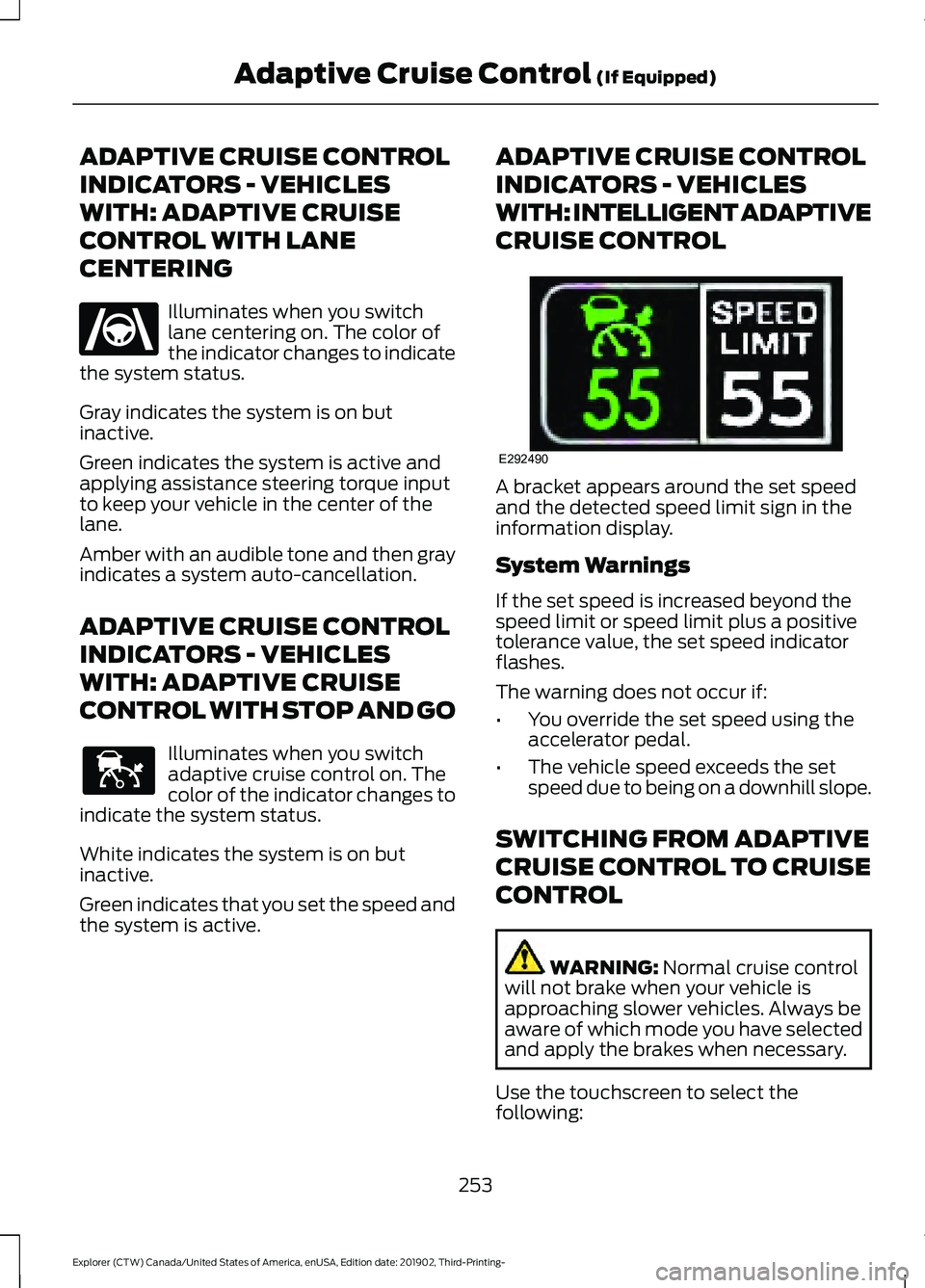
A bracket appears around the set speed
and the detected speed limit sign in the
information display.
System Warnings
If the set speed is increased beyond the
speed limit or speed limit plus a positive
tolerance value, the set speed indicator
flashes.
The warning does not occur if:
•
You override the set speed using the
accelerator pedal.
• The vehicle speed exceeds the set
speed due to being on a downhill slope.
SWITCHING FROM ADAPTIVE
CRUISE CONTROL TO CRUISE
CONTROL WARNING: Normal cruise control
will not brake when your vehicle is
approaching slower vehicles. Always be
aware of which mode you have selected
and apply the brakes when necessary.
Use the touchscreen to select the
following:
253
Explorer (CTW) Canada/United States of America, enUSA, Edition date: 201902, Third-Printing- Adaptive Cruise Control
(If Equipped)E262175 E144529 E292490
Page 260 of 555
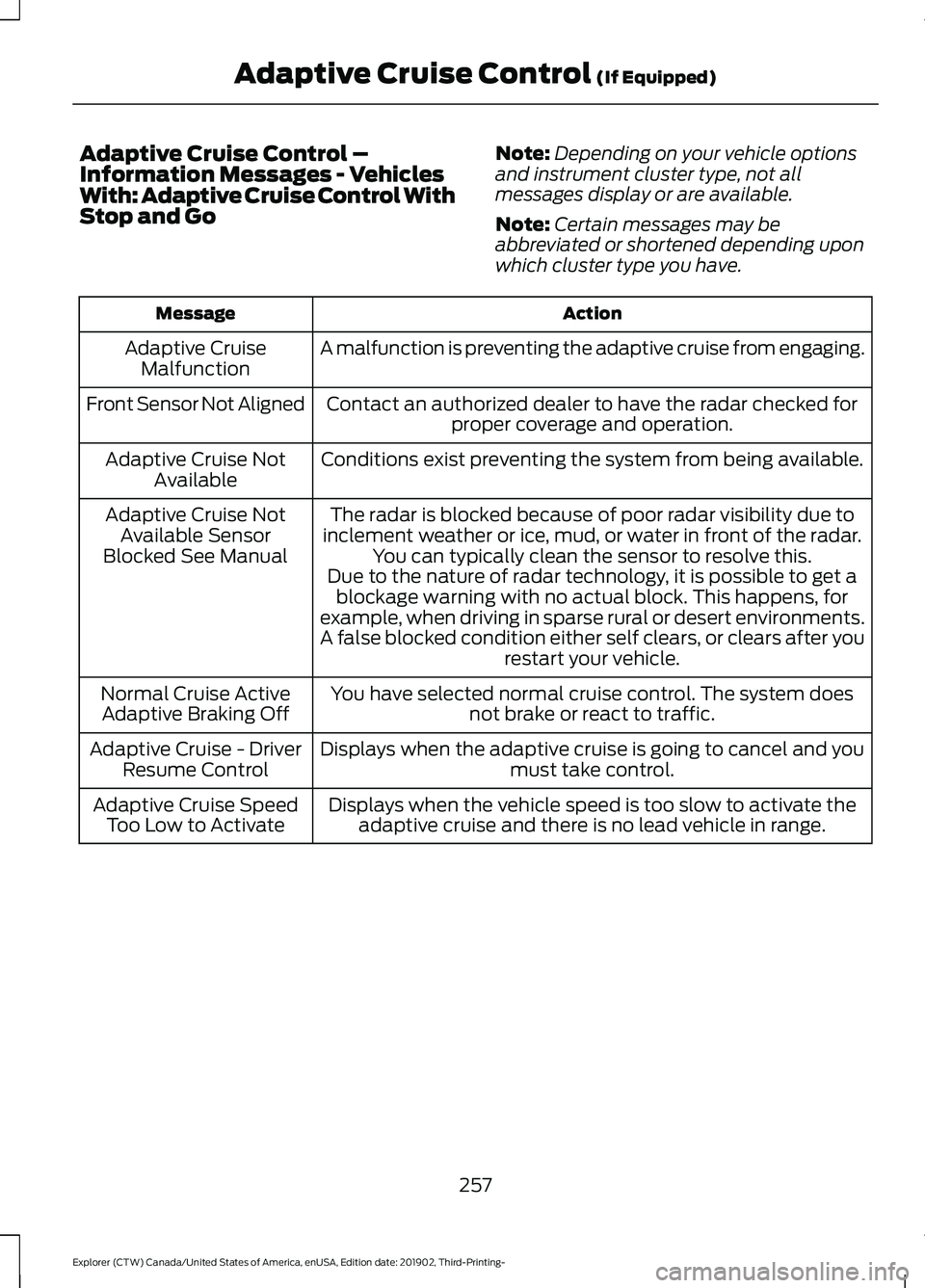
Adaptive Cruise Control –
Information Messages - Vehicles
With: Adaptive Cruise Control With
Stop and Go
Note:
Depending on your vehicle options
and instrument cluster type, not all
messages display or are available.
Note: Certain messages may be
abbreviated or shortened depending upon
which cluster type you have. Action
Message
A malfunction is preventing the adaptive cruise from engaging.
Adaptive Cruise
Malfunction
Front Sensor Not Aligned Contact an authorized dealer to have the radar checked for
proper coverage and operation.
Conditions exist preventing the system from being available.
Adaptive Cruise Not
Available
The radar is blocked because of poor radar visibility due to
inclement weather or ice, mud, or water in front of the radar. You can typically clean the sensor to resolve this.
Adaptive Cruise Not
Available Sensor
Blocked See Manual Due to the nature of radar technology, it is possible to get ablockage warning with no actual block. This happens, for
example, when driving in sparse rural or desert environments.
A false blocked condition either self clears, or clears after you restart your vehicle.
You have selected normal cruise control. The system does not brake or react to traffic.
Normal Cruise Active
Adaptive Braking Off
Displays when the adaptive cruise is going to cancel and youmust take control.
Adaptive Cruise - Driver
Resume Control
Displays when the vehicle speed is too slow to activate theadaptive cruise and there is no lead vehicle in range.
Adaptive Cruise Speed
Too Low to Activate
257
Explorer (CTW) Canada/United States of America, enUSA, Edition date: 201902, Third-Printing- Adaptive Cruise Control (If Equipped)
Page 276 of 555
3. After a predetermined distance they
are greyed out.
4. After another predetermined distance they are deleted.
If the system detects a supplementary
traffic sign, it displays below the respective
traffic sign. For example, when passing a
reduced speed limit in wet road conditions
sign.
If your vehicle has a navigation system,
stored traffic sign data may influence the
indicated speed limit value.
Switching the System On and Off
You can switch the system on and off using
the information display. See General
Information (page 112).
Note: The system remembers the last
setting when you start your vehicle.
STEERING
Electric Power Steering WARNING:
The electric power
steering system has diagnostic checks
that continuously monitor the system. If
a fault is detected, a message displays
in the information display. Stop your
vehicle as soon as it is safe to do so.
Switch the ignition off. After at least 10
seconds, switch the ignition on and
watch the information display for a
steering system warning message. If a
steering system warning message
returns, have the system checked as
soon as possible. WARNING:
If the system detects
an error, you may not feel a difference in
the steering, however a serious condition
may exist. Have your vehicle checked as
soon as possible. Failure to do so may
result in loss of steering control. Your vehicle has an electric power steering
system, there is no fluid reservoir, no
maintenance is required.
If your vehicle loses electrical power while
you are driving, electric power steering
assistance is lost. The steering system still
operates and you can steer your vehicle
manually. Manually steering your vehicle
requires more effort.
Extreme continuous steering may increase
the effort required for you to steer your
vehicle, this increased effort prevents
overheating and permanent damage to
the steering system. You do not lose the
ability to steer your vehicle manually.
Typical steering and driving maneuvers
allow the system to cool and return to
normal operation.
Steering Tips
If the steering wanders or pulls, check for:
•
Correct tire pressures.
• Uneven tire wear.
• Loose or worn suspension
components.
• Loose or worn steering components.
• Improper vehicle alignment.
Note: A high crown in the road or high
crosswinds may also make the steering
seem to wander or pull.
Adaptive Learning
(If Equipped)
The electronic power steering system
adaptive learning helps correct road
irregularities and improves overall handling
and steering feel. It communicates with
the brake system to help operate
advanced stability control and accident
avoidance systems. Additionally, whenever
the battery is disconnected or a new
battery installed, you must drive your
vehicle a short distance before the system
relearns the strategy and reactivates all
systems.
273
Explorer (CTW) Canada/United States of America, enUSA, Edition date: 201902, Third-Printing- Driving Aids
Page 277 of 555
PRE-COLLISION ASSIST
WARNING: You are responsible for
controlling your vehicle at all times. The
system is designed to be an aid and does
not relieve you of your responsibility to
drive with due care and attention. Failure
to follow this instruction could result in
the loss of control of your vehicle,
personal injury or death. WARNING: The system does not
detect vehicles that are driving in a
different direction, cyclists or animals.
Apply the brakes when necessary. Failure
to follow this instruction could result in
the loss of control of your vehicle,
personal injury or death. WARNING:
The system does not
operate during hard acceleration or
steering. Failure to take care may lead
to a crash or personal injury. WARNING: The system may fail or
operate with reduced function during
cold and severe weather conditions.
Snow, ice, rain, spray and fog can
adversely affect the system. Keep the
front camera and radar free of snow and
ice. Failure to take care may result in the
loss of control of your vehicle, serious
personal injury or death. WARNING:
Some situations and
objects prevent hazard detection. For
example low or direct sunlight, inclement
weather, unconventional vehicle types,
and pedestrians. Apply the brakes when
necessary. Failure to follow this
instruction could result in the loss of
control of your vehicle, personal injury or
death. WARNING:
The system cannot
help prevent all crashes. Do not rely on
this system to replace driver judgment
and the need to maintain a safe distance
and speed.
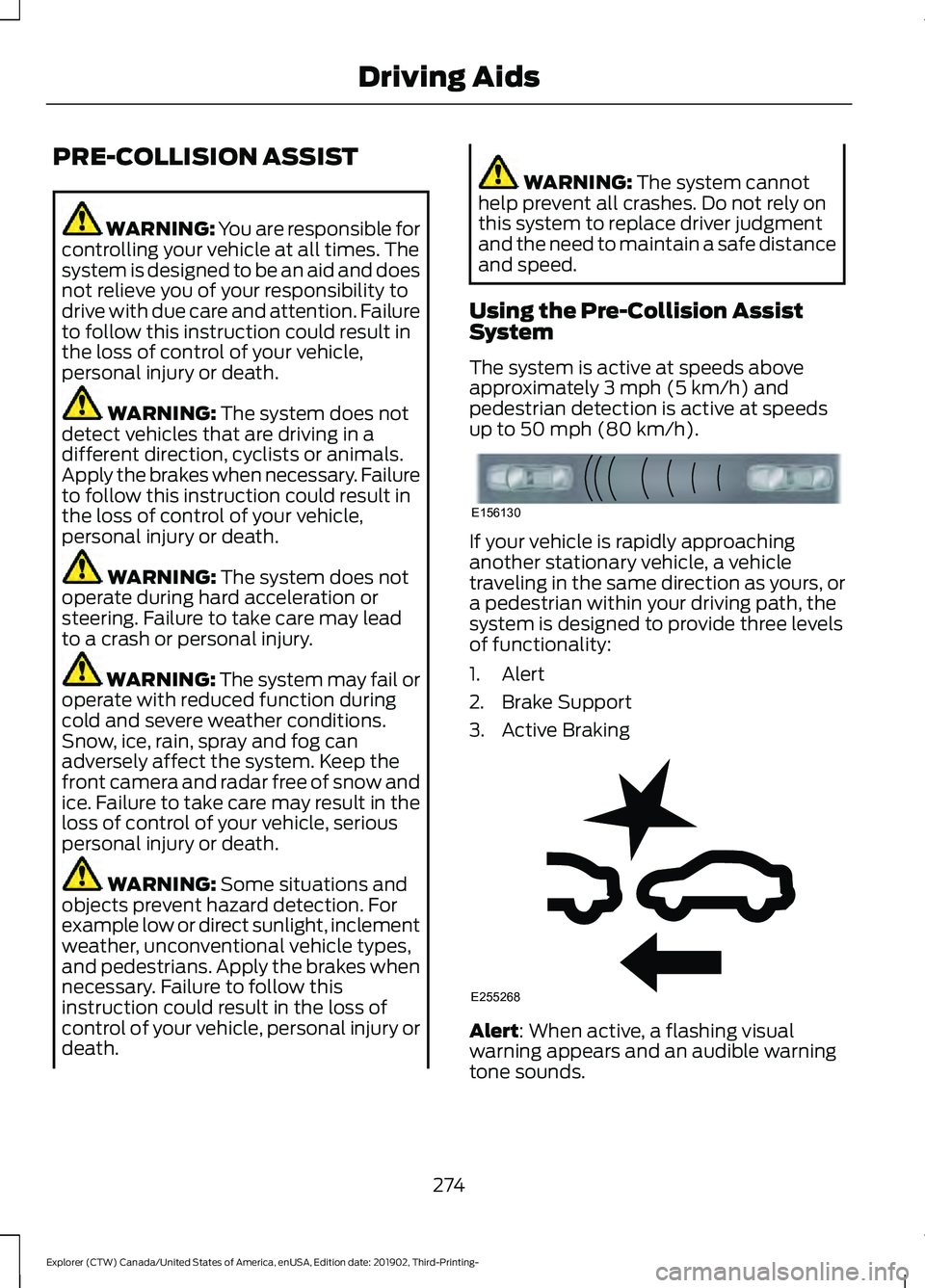
Using the Pre-Collision Assist
System
The system is active at speeds above
approximately
3 mph (5 km/h) and
pedestrian detection is active at speeds
up to
50 mph (80 km/h). If your vehicle is rapidly approaching
another stationary vehicle, a vehicle
traveling in the same direction as yours, or
a pedestrian within your driving path, the
system is designed to provide three levels
of functionality:
1. Alert
2. Brake Support
3. Active Braking
Alert
: When active, a flashing visual
warning appears and an audible warning
tone sounds.
274
Explorer (CTW) Canada/United States of America, enUSA, Edition date: 201902, Third-Printing- Driving AidsE156130 E255268
Page 278 of 555
Brake Support: The system is designed
to help reduce the impact speed by
preparing the brakes for rapid braking.
Brake support does not automatically
apply the brakes. If you press the brake
pedal, the system could apply additional
braking up to maximum braking force, even
if you lightly press the brake pedal.
Active Braking
: Active braking may
activate if the system determines that a
collision is imminent. The system may help
the driver reduce impact damage or avoid
the crash completely.
Note: Brake Support and Active Braking are
active at speeds up to
75 mph (120 km/h).
If your vehicle has a radar sensor included
with Adaptive Cruise Control, then Brake
Support and Active Braking are active up to
the maximum speed of the vehicle.
Note: If you perceive Pre-Collision Assist
alerts as being too frequent or disturbing,
then you can reduce the alert sensitivity,
though the manufacturer recommends
using the highest sensitivity setting where
possible. Setting lower sensitivity would
lead to fewer and later system warnings.
Note: Pre-Collision Assist turns off when
you manually disable AdvanceTrac or when
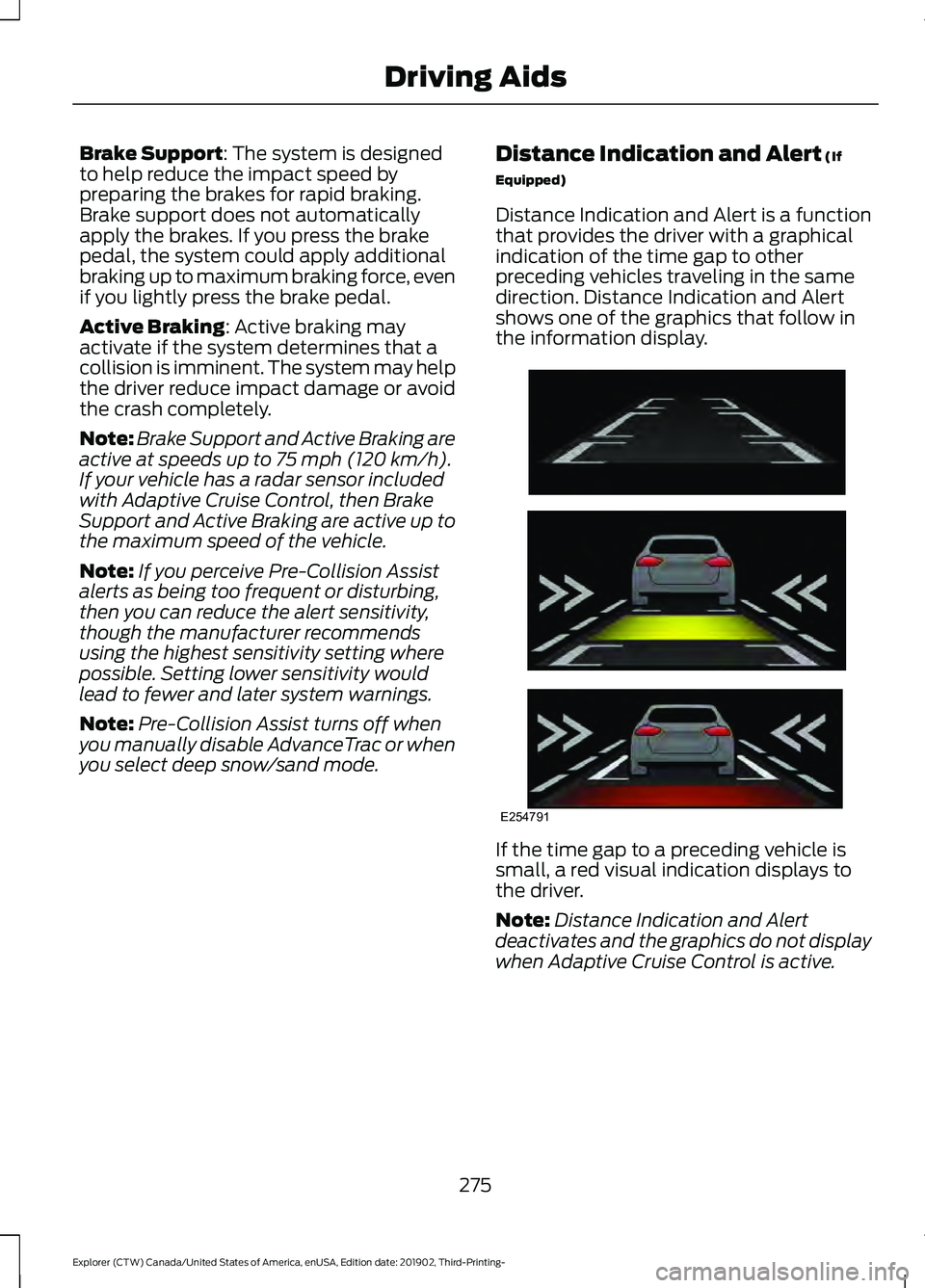
you select deep snow/sand mode. Distance Indication and Alert
(If
Equipped)
Distance Indication and Alert is a function
that provides the driver with a graphical
indication of the time gap to other
preceding vehicles traveling in the same
direction. Distance Indication and Alert
shows one of the graphics that follow in
the information display. If the time gap to a preceding vehicle is
small, a red visual indication displays to
the driver.
Note:
Distance Indication and Alert
deactivates and the graphics do not display
when Adaptive Cruise Control is active.
275
Explorer (CTW) Canada/United States of America, enUSA, Edition date: 201902, Third-Printing- Driving AidsE254791
Page 283 of 555
Note:
Using deep snow/sand mode on dry,
hard surfaces could produce some vibration,
driveline bind up, and potential excessive
tire wear. This mode is for slippery and loose
surfaces.
Eco For efficient driving. This mode
helps deliver maximum fuel
efficiency and helps to increase
driving range.
Normal For everyday driving. This mode
is a perfect balance of
excitement, comfort and
convenience. This is the default mode after
each ignition cycle.
Slippery For less than ideal road
conditions, such as snow or ice
covered roads. Use this mode for
crossing terrain with a firm surface covered
with loose, wet or slippery material.
Slippery mode lowers throttle response
and, if provided with an automatic
transmission, optimizes shifting for slippery
surfaces.
Note: Using slippery mode on dry, hard
surfaces could produce some vibration,
driveline bind up, and potential excessive
tire wear. This mode is for slippery surfaces. Sport For sporty driving with improved
performance handling, and
response. This mode increases
throttle response and provides a sportier
steering feel. If equipped with automatic
transmission, the powertrain system
provides improved gear holding, helping
your vehicle accelerate faster.
Tow/Haul For improved transmission
operation when towing a trailer
or a heavy load. This mode
moves upshifts to higher engine speeds to
reduce the frequency of transmission
shifting. This mode also provide engine
braking in all forward gears, which slows
your vehicle and assists you in controlling
your vehicle when descending a grade. The
amount of downshift braking provided
varies based on the amount you press the
brake pedal.
Trail For muddy, rutted, soft or uneven
terrain.
280
Explorer (CTW) Canada/United States of America, enUSA, Edition date: 201902, Third-Printing- Drive Mode ControlE295413 E225310 E295414 E246593 E246592 E295419