android auto FORD EXPLORER 2020 Owners Manual
[x] Cancel search | Manufacturer: FORD, Model Year: 2020, Model line: EXPLORER, Model: FORD EXPLORER 2020Pages: 555, PDF Size: 8.16 MB
Page 442 of 555
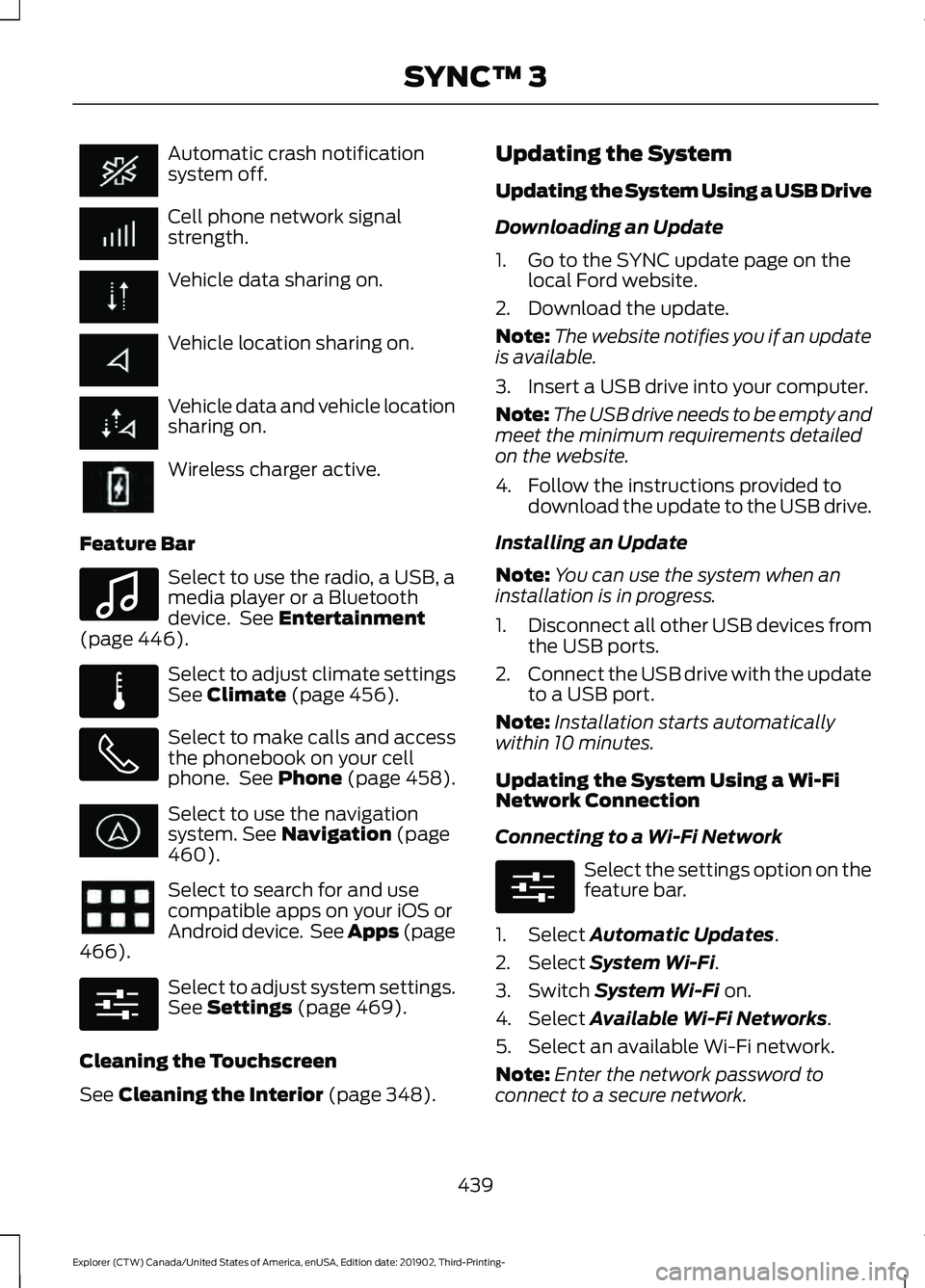
Automatic crash notification
system off.
Cell phone network signal
strength.
Vehicle data sharing on.
Vehicle location sharing on.
Vehicle data and vehicle location
sharing on.
Wireless charger active.
Feature Bar Select to use the radio, a USB, a
media player or a Bluetooth
device. See Entertainment
(page 446). Select to adjust climate settings
See
Climate (page 456).
Select to make calls and access
the phonebook on your cell
phone. See
Phone (page 458).
Select to use the navigation
system.
See Navigation (page
460). Select to search for and use
compatible apps on your iOS or
Android device. See Apps (page
466
). Select to adjust system settings.
See
Settings (page 469).
Cleaning the Touchscreen
See
Cleaning the Interior (page 348). Updating the System
Updating the System Using a USB Drive
Downloading an Update
1. Go to the SYNC update page on the
local Ford website.
2. Download the update.
Note: The website notifies you if an update
is available.
3. Insert a USB drive into your computer.
Note: The USB drive needs to be empty and
meet the minimum requirements detailed
on the website.
4. Follow the instructions provided to download the update to the USB drive.
Installing an Update
Note: You can use the system when an
installation is in progress.
1. Disconnect all other USB devices from
the USB ports.
2. Connect the USB drive with the update
to a USB port.
Note: Installation starts automatically
within 10 minutes.
Updating the System Using a Wi-Fi
Network Connection
Connecting to a Wi-Fi Network Select the settings option on the
feature bar.
1. Select
Automatic Updates.
2. Select
System Wi-Fi.
3. Switch
System Wi-Fi on.
4. Select
Available Wi-Fi Networks.
5. Select an available Wi-Fi network.
Note: Enter the network password to
connect to a secure network.
439
Explorer (CTW) Canada/United States of America, enUSA, Edition date: 201902, Third-Printing- SYNC™ 3 E100027 E283811 E280315 E280315
Page 463 of 555
Using Text Messaging
Description
Menu Item
Hear the text message.
Hear It
View the text message.
View
Call the sender.
Call
Reply to the text message with a standard text message.
Reply
Apple CarPlay (If Equipped)
1. Connect your device to a USB port.
2. Follow the instructions on the touchscreen.
Note: Certain features of the system are
not available when you are using Apple
CarPlay.
Switching Apple CarPlay Off Select the settings option on the
feature bar.
1. Select
Apple CarPlay Preferences.
2. Switch
Apple CarPlay off.
Android Auto
(If Equipped)
1. Connect your device to a USB port.
2. Follow the instructions on the touchscreen.
Note: You might need to enable Android
Auto from the settings menu.
Note: Certain features of the system are
not available when you are using Android
Auto.
Switching Android Auto Off Select the settings option on the
feature bar.
1. Select
Android Auto. 2. Switch
Android Auto off.
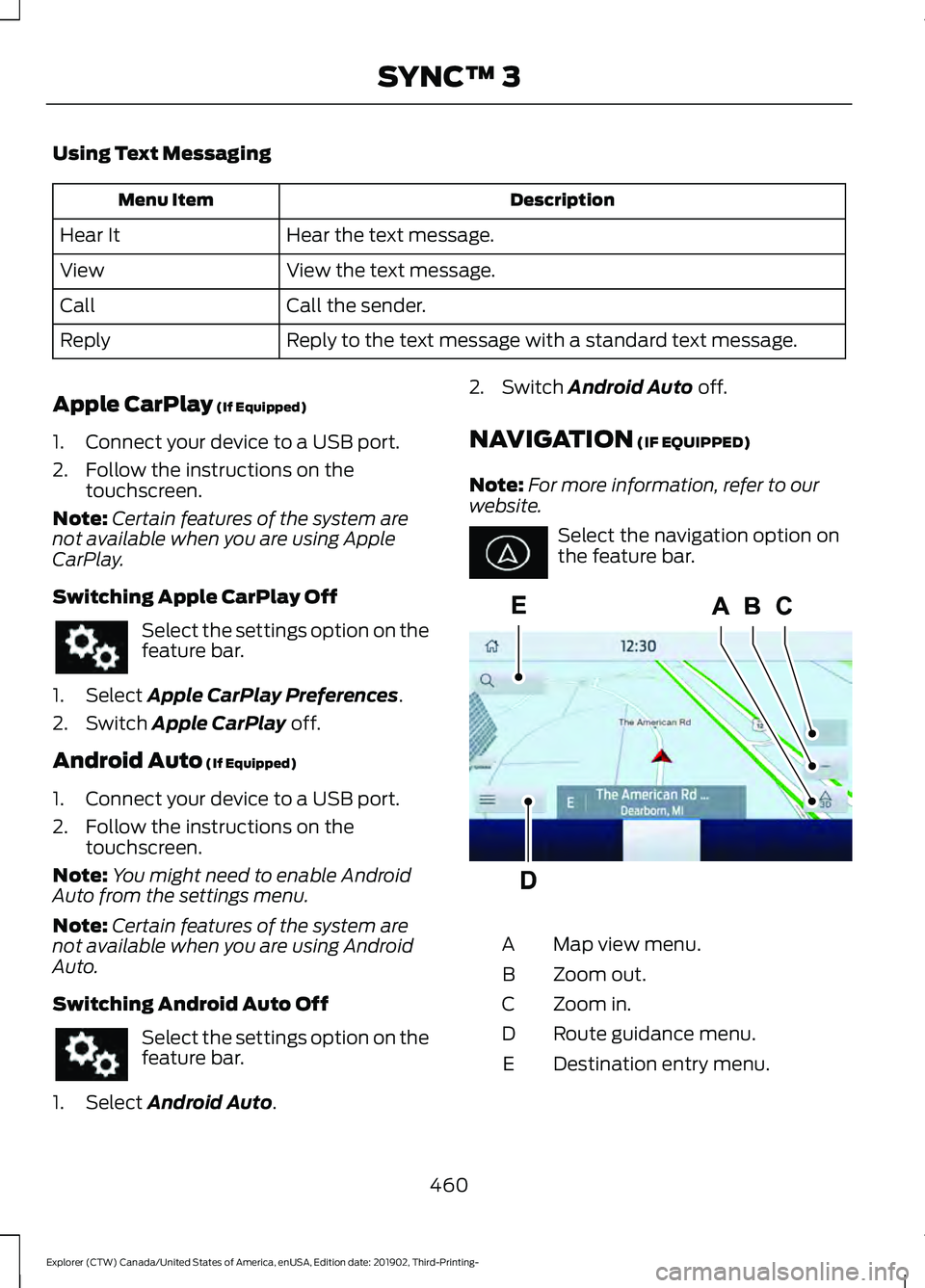
NAVIGATION
(IF EQUIPPED)
Note: For more information, refer to our
website. Select the navigation option on
the feature bar.
Map view menu.
A
Zoom out.
B
Zoom in.
C
Route guidance menu.
D
Destination entry menu.
E
460
Explorer (CTW) Canada/United States of America, enUSA, Edition date: 201902, Third-Printing- SYNC™ 3 E297557
Page 470 of 555
When you start an app through the system
for the first time, you could be asked to
grant certain permissions. You can review
and change the permissions that you have
granted at any time when your vehicle is
not moving. We recommend that you
check your data plan before using your
apps through the system. Using them
could result in additional charges. We also
recommend that you check the app
provider's terms and conditions and
privacy policy before using their app. Make
sure that you have an active account for
apps that you want to use through the
system. Some apps will work with no
setup. Others require you to configure
some personal settings before you can use
them.
Note:
For more information about available
apps, visit catalog.ford.com.
Using Apps on an iOS Device Select the apps option on the
feature bar.
1. If your device is connected via USB, switch Apple CarPlay off. See Phone
(page 458).
2. Connect your device to a USB port or pair and connect using Bluetooth.
3. If prompted to enable CarPlay, select Disable
.
4. Start the apps on your device that you want to use through SYNC.
Note: If you close the apps on your device,
you will not be able to use them through the
system.
5. Select the app that you want to use on
the touchscreen.
Note: Connect your device to a USB port if
you want to use a navigation app. When
using a navigation app, keep your device
unlocked and the app open. Using Apps on an Android Device Select the apps option on the
feature bar.
1. If your device is connected via USB, switch Android Auto off. See
Phone
(page 458).
2. Pair your device. See Phone (page 458).
3. Start the apps on your device that you want to use through SYNC.
Note: If you close the apps on your device,
you will not be able to use them through the
system.
4. Select
Find Mobile Apps.
Note: The system searches and connects
to compatible apps that are running on your
device.
5. Select the app that you want to use on
the touchscreen.
Note: Mobile Apps on your device use the
USB port to establish a connection with
SYNC. Some devices may lose the ability to
play music over USB when Mobile Apps are
enabled.
Using Mobile Navigation on an
Android Device
1. Connect your device to a USB port.
2. Switch Android Auto off. See
Phone
(page 458).
3. Switch on
Enable Mobile Apps via
USB in the Mobile Apps Settings tile.
4. Select the apps option on the feature bar.
5. Select the navigation app that you want to use on the touchscreen.
Note: When using a navigation app, keep
your device unlocked and the app open.
467
Explorer (CTW) Canada/United States of America, enUSA, Edition date: 201902, Third-Printing- SYNC™ 3
Page 541 of 555
Changing the Color..............................................
94
Switching Ambient Lighting Off..................... 94
Switching Ambient Lighting On...................... 93
Ambient Lighting - Vehicles With: 8 Inch Information and Entertainment Display
Screen.............................................................93
Adjusting the Brightness................................... 93
Changing the Color.............................................. 93
Switching Ambient Lighting Off..................... 93
Switching Ambient Lighting On...................... 93
Anti-Theft Alarm............................................78 Arming the Alarm................................................. 79
Disarming the Alarm........................................... 79
Appendices...................................................506
Apps.................................................................466 SiriusXM Traffic and Travel Link.................. 468
Using Apps on an Android Device...............467
Using Apps on an iOS Device........................ 467
Using Mobile Navigation on an Android Device................................................................ 467
At a Glance.......................................................20
At a Glance - ST.............................................20
Audible Warnings and Indicators..............111
Headlamps On Warning Chime...................... 111
Key in Ignition Warning Chime......................... 111
Keyless Warning Alert......................................... 111
Parking Brake On Warning Chime.................. 111
Audio Control...................................................82 You can operate the following functions
with the control:............................................... 82
Audio System
...............................................430
General Information......................................... 430
Audio Unit
......................................................430
Adjusting the Volume........................................ 431
Changing Radio Stations................................. 431
Switching the Audio Unit On and Off.........431
Using Seek, Fast Forward and Reverse.............................................................. 431
Auto Hold
.........................................................218
Auto Hold Indicator............................................ 218
Switching Auto Hold On and Off.................. 218
Using Auto Hold.................................................. 218
Autolamps........................................................89 Windshield Wiper Activated
Headlamps........................................................ 89
Automatic Climate Control
.......................137
Accessing Rear Climate Controls.................. 137Accessing the Air Distribution
Controls.............................................................. 137
Accessing the Menu........................................... 137
Setting the Blower Motor Speed................... 137
Setting the Temperature................................. 138
Switching Auto Mode On and Off................138
Switching Maximum Air Conditioning On and Off............................................................... 139
Switching Maximum Defrost On and Off....................................................................... 139
Switching Recirculated Air On and Off....................................................................... 139
Switching the Air Conditioning On and Off....................................................................... 139
Switching the Climate Control On and Off....................................................................... 139
Automatic High Beam Control.................95
Automatic High Beam Control Indicators.......................................................95
Automatic Transmission
...........................202
Automatic Return to Park............................... 203
If Your Vehicle Gets Stuck in Mud or Snow.................................................................. 207
Manual Park Release (MPR)......................... 205
SelectShift Automatic ™
Transmission.................................................. 205
Stay in Neutral Mode....................................... 204
Tow Mode ............................................................ 204
Understanding Your Transmission Selector Positions.......................................................... 202
Automatic Transmission Fluid Check............................................................336
Auto-Start-Stop...........................................180 Disabling Auto-Start-Stop.............................. 181
Enabling Auto-Start-Stop.............................. 180
Autowipers.......................................................85 Autowipers Settings........................................... 86
Auxiliary Power Points
................................167
110 Volt AC Power Point.................................... 167
12 Volt DC Power Point...................................... 167
USB Port and Power Point Locations.........167
B
Battery See: Changing the 12V Battery..................... 338
538
Explorer (CTW) Canada/United States of America, enUSA, Edition date: 201902, Third-Printing- Index
Page 549 of 555
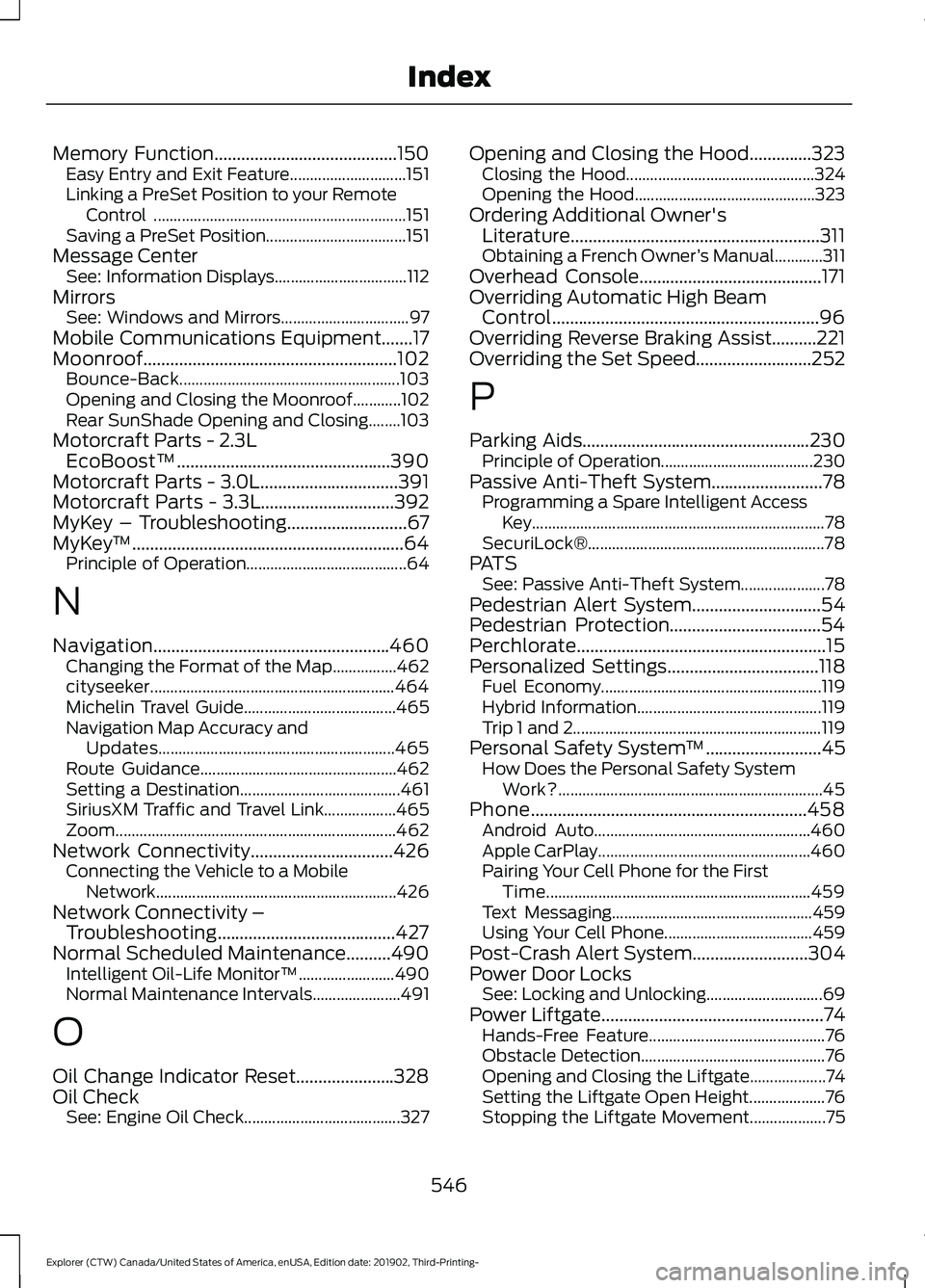
Memory Function.........................................150
Easy Entry and Exit Feature............................. 151
Linking a PreSet Position to your Remote Control ............................................................... 151
Saving a PreSet Position................................... 151
Message Center See: Information Displays................................. 112
Mirrors See: Windows and Mirrors................................ 97
Mobile Communications Equipment.......17
Moonroof.........................................................102 Bounce-Back....................................................... 103
Opening and Closing the Moonroof............102
Rear SunShade Opening and Closing........103
Motorcraft Parts - 2.3L EcoBoost™................................................390
Motorcraft Parts - 3.0L...............................391
Motorcraft Parts - 3.3L..............................392
MyKey – Troubleshooting...........................67
MyKey ™.............................................................64
Principle of Operation........................................ 64
N
Navigation.....................................................460 Changing the Format of the Map................462
cityseeker............................................................. 464
Michelin Travel Guide...................................... 465
Navigation Map Accuracy and Updates........................................................... 465
Route Guidance................................................. 462
Setting a Destination........................................ 461
SiriusXM Traffic and Travel Link.................. 465
Zoom...................................................................... 462
Network Connectivity
................................426
Connecting the Vehicle to a Mobile
Network............................................................ 426
Network Connectivity – Troubleshooting........................................427
Normal Scheduled Maintenance..........490 Intelligent Oil-Life Monitor™........................ 490
Normal Maintenance Intervals...................... 491
O
Oil Change Indicator Reset......................328
Oil Check See: Engine Oil Check....................................... 327Opening and Closing the Hood..............323
Closing the Hood............................................... 324
Opening the Hood............................................. 323
Ordering Additional Owner's Literature........................................................311
Obtaining a French Owner ’s Manual............311
Overhead Console.........................................171
Overriding Automatic High Beam Control............................................................96
Overriding Reverse Braking Assist..........221
Overriding the Set Speed..........................252
P
Parking Aids
...................................................230
Principle of Operation...................................... 230
Passive Anti-Theft System.........................78 Programming a Spare Intelligent Access
Key........................................................................\
. 78
SecuriLock®........................................................... 78
PATS See: Passive Anti-Theft System..................... 78
Pedestrian Alert System
.............................54
Pedestrian Protection..................................54
Perchlorate........................................................15
Personalized Settings
..................................118
Fuel Economy....................................................... 119
Hybrid Information.............................................. 119
Trip 1 and 2.............................................................. 119
Personal Safety System ™
..........................45
How Does the Personal Safety System
Work?.................................................................. 45
Phone..............................................................458 Android Auto...................................................... 460
Apple CarPlay..................................................... 460
Pairing Your Cell Phone for the First Time.................................................................. 459
Text Messaging.................................................. 459
Using Your Cell Phone..................................... 459
Post-Crash Alert System
..........................304
Power Door Locks See: Locking and Unlocking............................. 69
Power Liftgate
..................................................74
Hands-Free Feature............................................ 76
Obstacle Detection.............................................. 76
Opening and Closing the Liftgate................... 74
Setting the Liftgate Open Height................... 76
Stopping the Liftgate Movement................... 75
546
Explorer (CTW) Canada/United States of America, enUSA, Edition date: 201902, Third-Printing- Index