audio FORD EXPLORER 2021 User Guide
[x] Cancel search | Manufacturer: FORD, Model Year: 2021, Model line: EXPLORER, Model: FORD EXPLORER 2021Pages: 577, PDF Size: 9.79 MB
Page 121 of 577
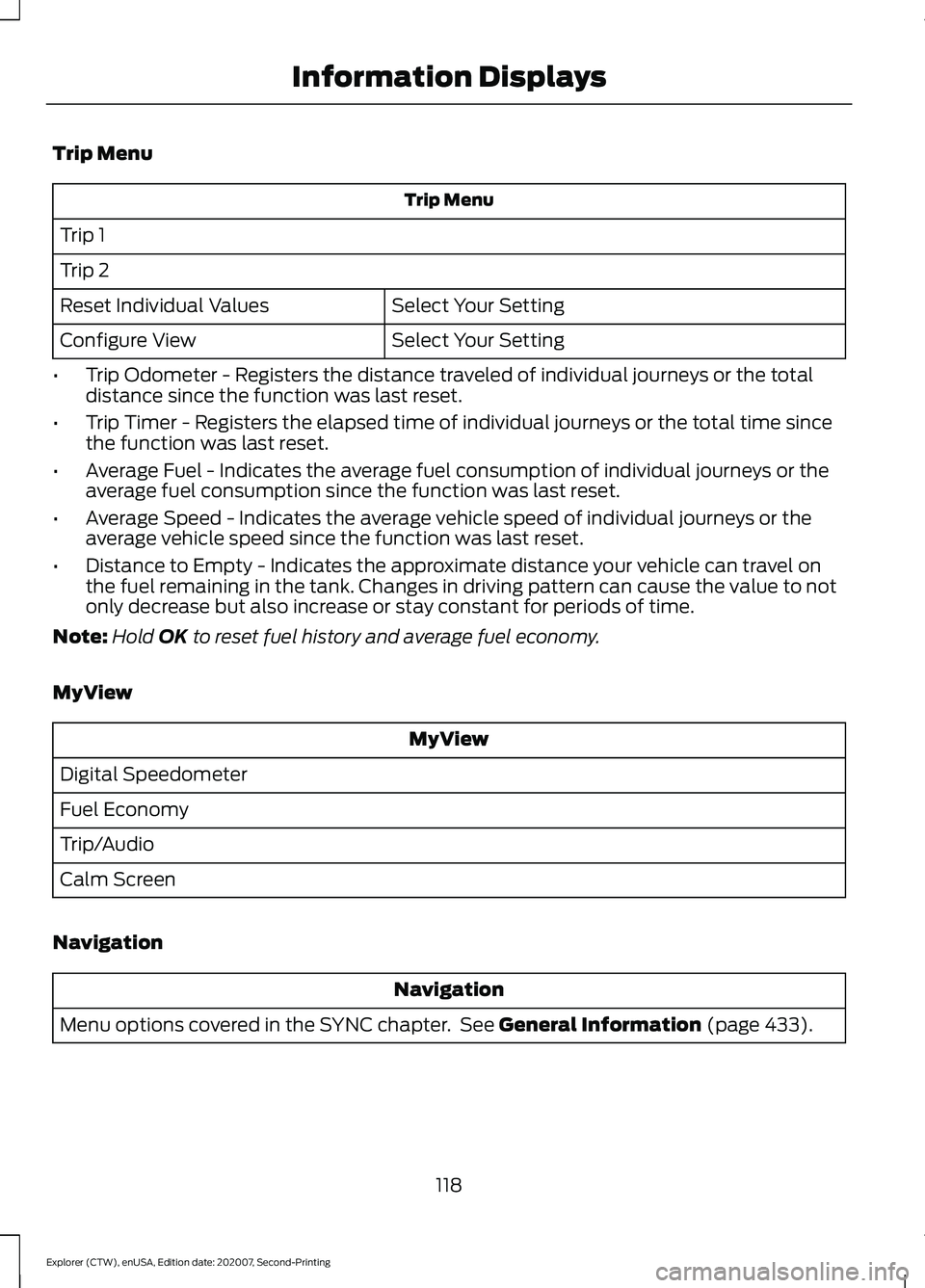
Trip Menu
Trip Menu
Trip 1
Trip 2 Select Your Setting
Reset Individual Values
Select Your Setting
Configure View
• Trip Odometer - Registers the distance traveled of individual journeys or the total
distance since the function was last reset.
• Trip Timer - Registers the elapsed time of individual journeys or the total time since
the function was last reset.
• Average Fuel - Indicates the average fuel consumption of individual journeys or the
average fuel consumption since the function was last reset.
• Average Speed - Indicates the average vehicle speed of individual journeys or the
average vehicle speed since the function was last reset.
• Distance to Empty - Indicates the approximate distance your vehicle can travel on
the fuel remaining in the tank. Changes in driving pattern can cause the value to not
only decrease but also increase or stay constant for periods of time.
Note: Hold OK to reset fuel history and average fuel economy.
MyView MyView
Digital Speedometer
Fuel Economy
Trip/Audio
Calm Screen
Navigation Navigation
Menu options covered in the SYNC chapter. See
General Information (page 433).
118
Explorer (CTW), enUSA, Edition date: 202007, Second-Printing Information Displays
Page 122 of 577
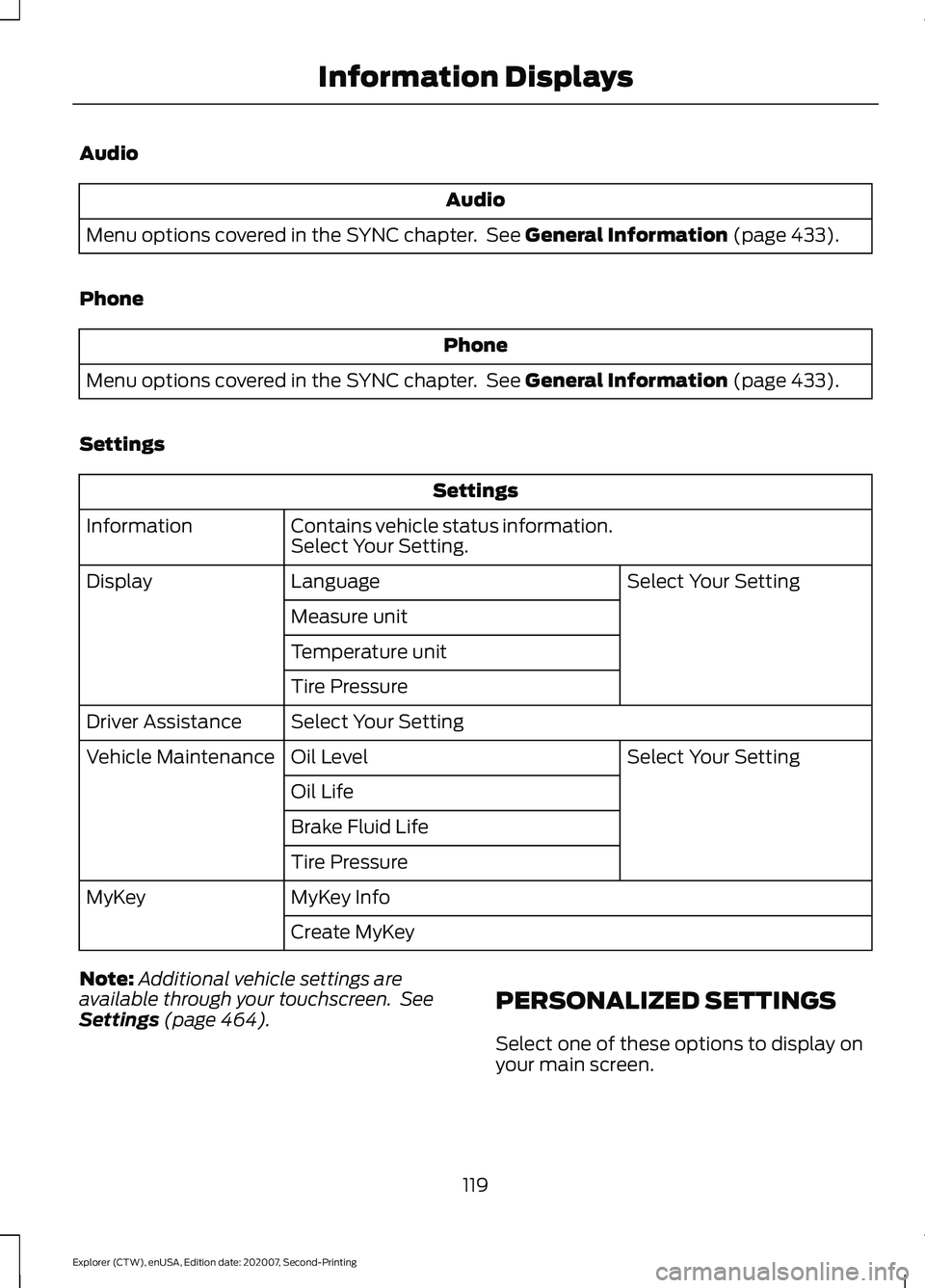
Audio
Audio
Menu options covered in the SYNC chapter. See General Information (page 433).
Phone Phone
Menu options covered in the SYNC chapter. See
General Information (page 433).
Settings Settings
Contains vehicle status information.
Select Your Setting.
Information
Select Your Setting
Language
Display
Measure unit
Temperature unit
Tire Pressure
Select Your Setting
Driver Assistance
Select Your Setting
Oil Level
Vehicle Maintenance
Oil Life
Brake Fluid Life
Tire Pressure
MyKey Info
MyKey
Create MyKey
Note: Additional vehicle settings are
available through your touchscreen. See
Settings
(page 464). PERSONALIZED SETTINGS
Select one of these options to display on
your main screen.
119
Explorer (CTW), enUSA, Edition date: 202007, Second-Printing Information Displays
Page 133 of 577
Action
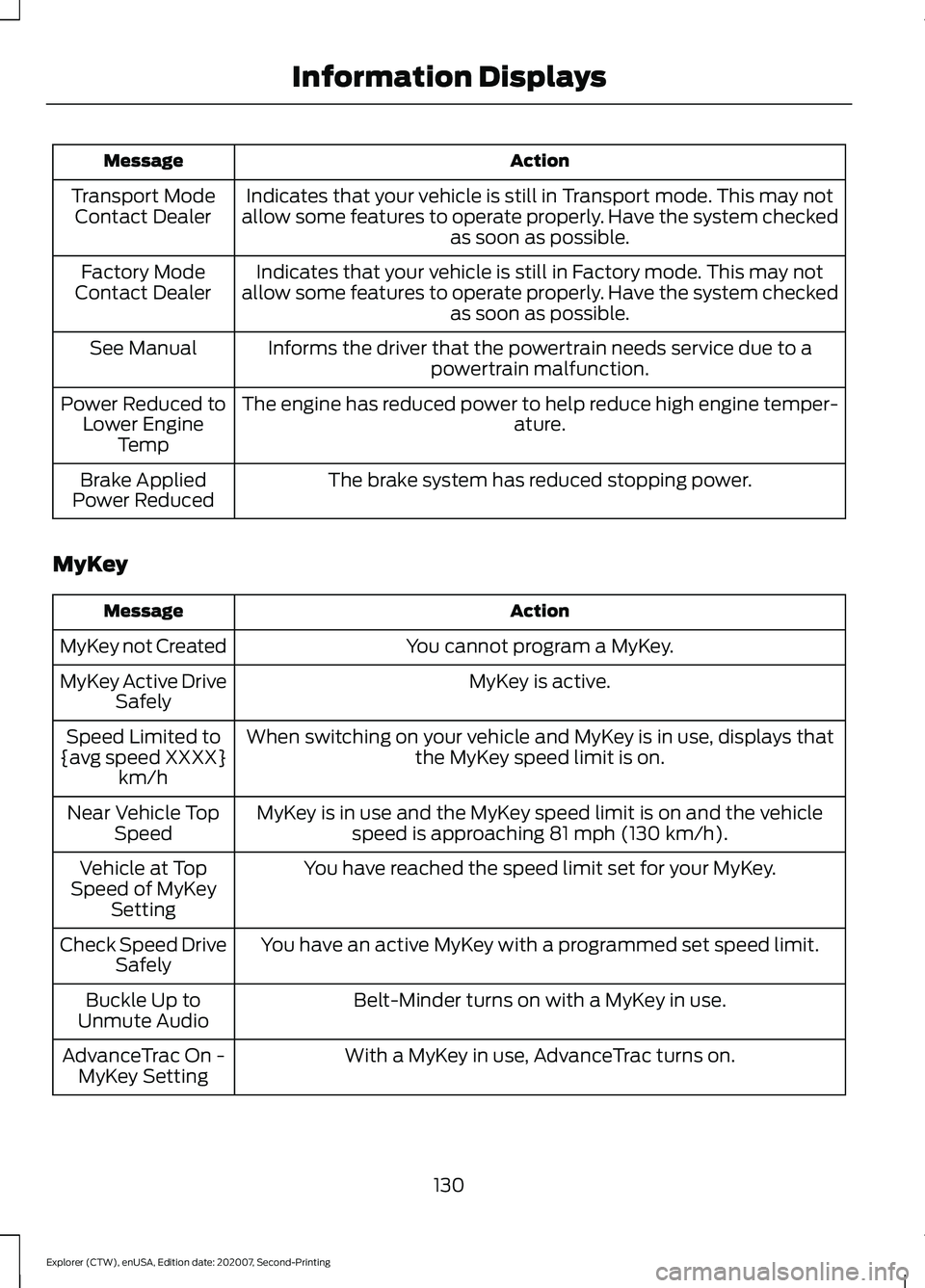
Message
Indicates that your vehicle is still in Transport mode. This may not
allow some features to operate properly. Have the system checked as soon as possible.
Transport Mode
Contact Dealer
Indicates that your vehicle is still in Factory mode. This may not
allow some features to operate properly. Have the system checked as soon as possible.
Factory Mode
Contact Dealer
Informs the driver that the powertrain needs service due to apowertrain malfunction.
See Manual
The engine has reduced power to help reduce high engine temper- ature.
Power Reduced to
Lower Engine Temp
The brake system has reduced stopping power.
Brake Applied
Power Reduced
MyKey Action
Message
You cannot program a MyKey.
MyKey not Created
MyKey is active.
MyKey Active Drive
Safely
When switching on your vehicle and MyKey is in use, displays that the MyKey speed limit is on.
Speed Limited to
{avg speed XXXX} km/h
MyKey is in use and the MyKey speed limit is on and the vehiclespeed is approaching 81 mph (130 km/h).
Near Vehicle Top
Speed
You have reached the speed limit set for your MyKey.
Vehicle at Top
Speed of MyKey Setting
You have an active MyKey with a programmed set speed limit.
Check Speed Drive
Safely
Belt-Minder turns on with a MyKey in use.
Buckle Up to
Unmute Audio
With a MyKey in use, AdvanceTrac turns on.
AdvanceTrac On -
MyKey Setting
130
Explorer (CTW), enUSA, Edition date: 202007, Second-Printing Information Displays
Page 234 of 577
WARNING: To help avoid personal
injury, always use caution when in
reverse (R) and when using the sensing
system. WARNING:
The parking aid system
can only assist you to detect objects
when your vehicle is moving at parking
speeds. To help avoid personal injury you
must take care when using the parking
aid system.
Note: Keep the sensors free from snow, ice
and large accumulations of dirt.
Note: Do not cover up the sensors.
Note: Do not clean the sensors with sharp
objects.
Note: If your vehicle sustains damage
leaving the sensors misaligned, this may
cause inaccurate measurements or false
alerts.
Note: Some accessories, for example large
trailer hitches or bike or surfboard racks can
cause reduced performance or false alerts.
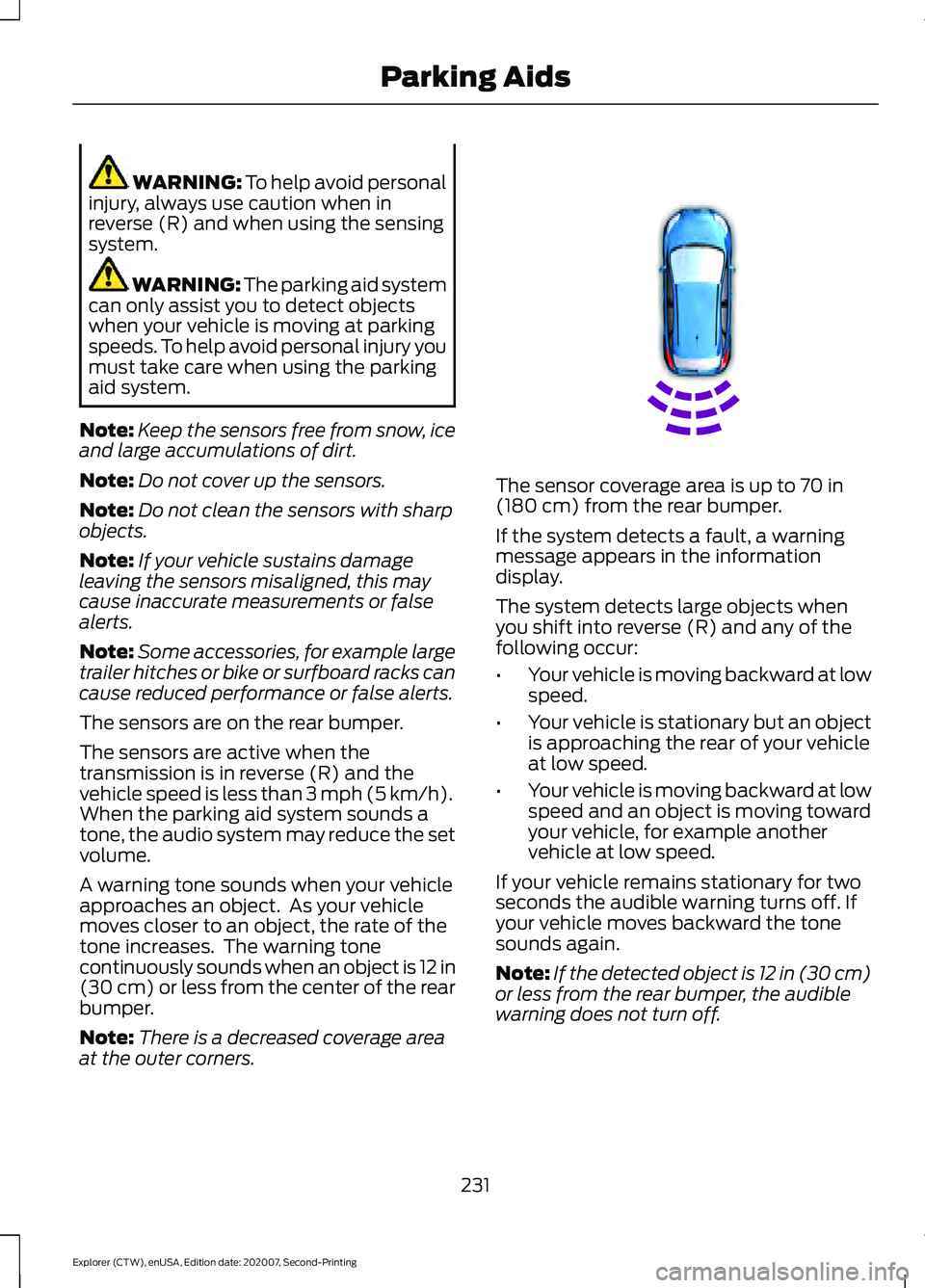
The sensors are on the rear bumper.
The sensors are active when the
transmission is in reverse (R) and the
vehicle speed is less than 3 mph (5 km/h).
When the parking aid system sounds a
tone, the audio system may reduce the set
volume.
A warning tone sounds when your vehicle
approaches an object. As your vehicle
moves closer to an object, the rate of the
tone increases. The warning tone
continuously sounds when an object is 12 in
(30 cm)
or less from the center of the rear
bumper.
Note: There is a decreased coverage area
at the outer corners. The sensor coverage area is up to
70 in
(180 cm) from the rear bumper.
If the system detects a fault, a warning
message appears in the information
display.
The system detects large objects when
you shift into reverse (R) and any of the
following occur:
• Your vehicle is moving backward at low
speed.
• Your vehicle is stationary but an object
is approaching the rear of your vehicle
at low speed.
• Your vehicle is moving backward at low
speed and an object is moving toward
your vehicle, for example another
vehicle at low speed.
If your vehicle remains stationary for two
seconds the audible warning turns off. If
your vehicle moves backward the tone
sounds again.
Note: If the detected object is 12 in (30 cm)
or less from the rear bumper, the audible
warning does not turn off.
231
Explorer (CTW), enUSA, Edition date: 202007, Second-Printing Parking AidsE130178
Page 235 of 577
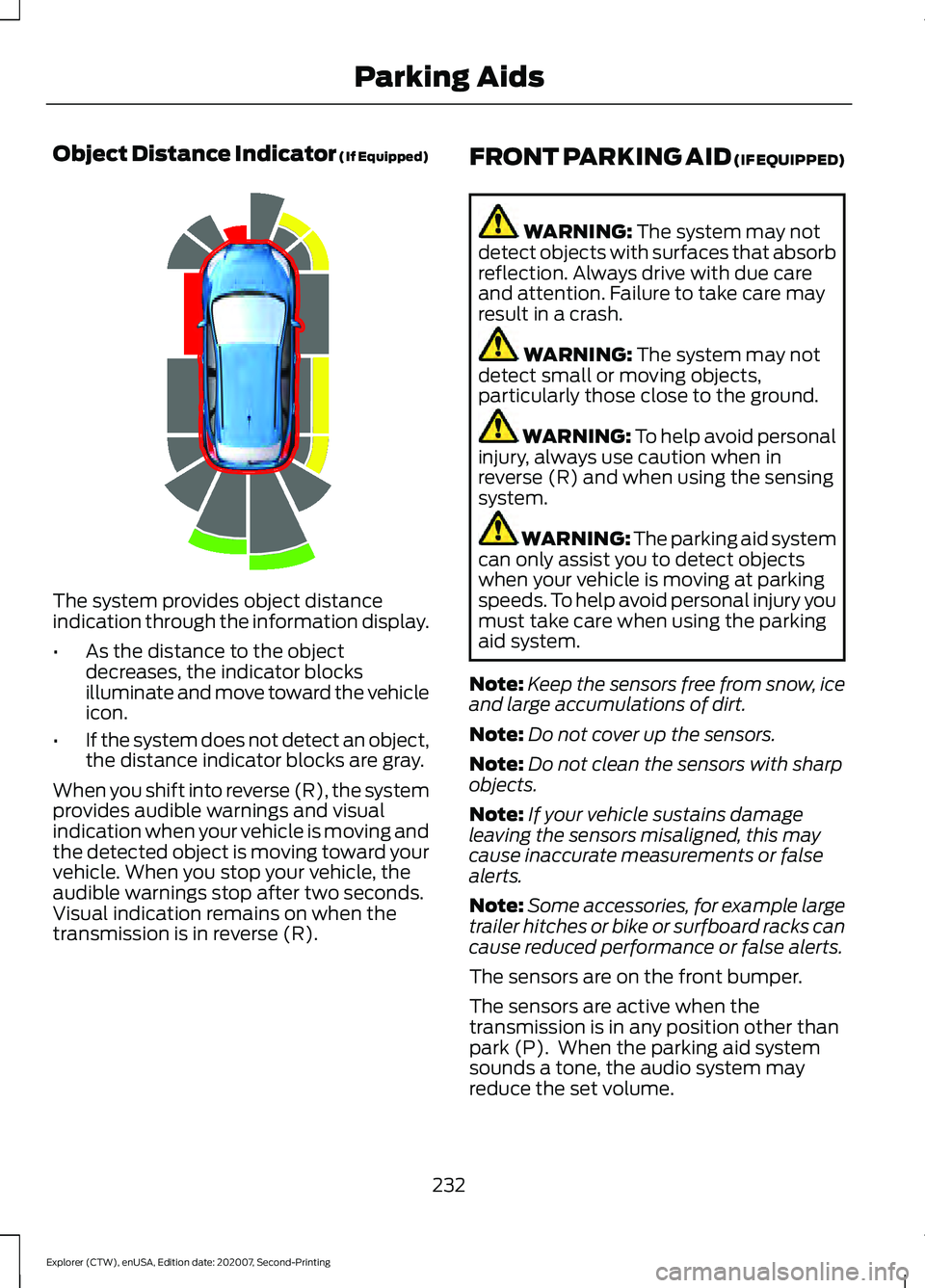
Object Distance Indicator (If Equipped)
The system provides object distance
indication through the information display.
•
As the distance to the object
decreases, the indicator blocks
illuminate and move toward the vehicle
icon.
• If the system does not detect an object,
the distance indicator blocks are gray.
When you shift into reverse (R), the system
provides audible warnings and visual
indication when your vehicle is moving and
the detected object is moving toward your
vehicle. When you stop your vehicle, the
audible warnings stop after two seconds.
Visual indication remains on when the
transmission is in reverse (R). FRONT PARKING AID (IF EQUIPPED) WARNING: The system may not
detect objects with surfaces that absorb
reflection. Always drive with due care
and attention. Failure to take care may
result in a crash. WARNING:
The system may not
detect small or moving objects,
particularly those close to the ground. WARNING:
To help avoid personal
injury, always use caution when in
reverse (R) and when using the sensing
system. WARNING:
The parking aid system
can only assist you to detect objects
when your vehicle is moving at parking
speeds. To help avoid personal injury you
must take care when using the parking
aid system.
Note: Keep the sensors free from snow, ice
and large accumulations of dirt.
Note: Do not cover up the sensors.
Note: Do not clean the sensors with sharp
objects.
Note: If your vehicle sustains damage
leaving the sensors misaligned, this may
cause inaccurate measurements or false
alerts.
Note: Some accessories, for example large
trailer hitches or bike or surfboard racks can
cause reduced performance or false alerts.
The sensors are on the front bumper.
The sensors are active when the
transmission is in any position other than
park (P). When the parking aid system
sounds a tone, the audio system may
reduce the set volume.
232
Explorer (CTW), enUSA, Edition date: 202007, Second-Printing Parking AidsE190459
Page 323 of 577
Protected Component
Fuse Rating
Fuse or Relay
Number
Terrain management switch.
10A
31
Selectable drive mode switch.
Transceiver module.
Audio control module.
20A
32
Not used.
—
33
Run/start relay.
30A
34
Not used (spare).
5A
35
Park assist module.
15A
36
Image processing module A.
Not used (spare).
20A
37
Left-hand rear power window.
30A
38
Right-hand rear power window.
Note: Spare fuse amperage may vary.
CHANGING A FUSE
Fuses WARNING: Always replace a fuse
with one that has the specified
amperage rating. Using a fuse with a
higher amperage rating can cause severe
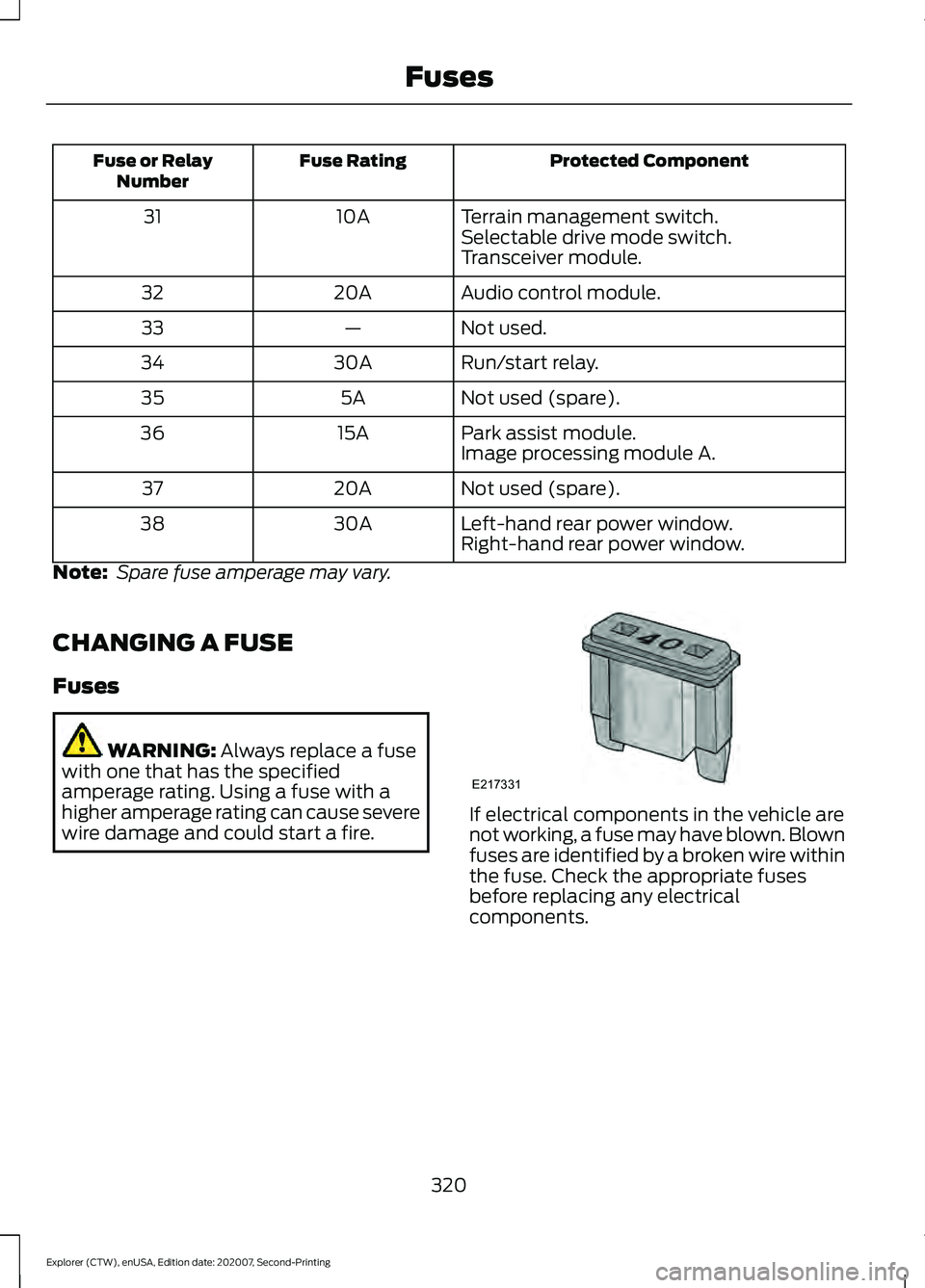
wire damage and could start a fire. If electrical components in the vehicle are
not working, a fuse may have blown. Blown
fuses are identified by a broken wire within
the fuse. Check the appropriate fuses
before replacing any electrical
components.
320
Explorer (CTW), enUSA, Edition date: 202007, Second-Printing FusesE217331
Page 340 of 577
WARNING: Battery posts,
terminals and related accessories
contain lead and lead compounds,
chemicals known to the State of
California to cause cancer and
reproductive harm. Wash your hands
after handling
. WARNING:
This vehicle may have
more than one battery. Removing the
battery cables from only one battery
does not disconnect your vehicle
electrical system. Make sure you
disconnect the battery cables from all
batteries when disconnecting power.
Failure to do so may cause serious
personal injury or property damage. WARNING:
For vehicles with
Auto-Start-Stop the battery requirement
is different. You must replace the battery
with one of exactly the same
specification.
The battery is in the engine compartment.
See
Under Hood Overview (page 323).
Your vehicle has a maintenance-free
battery. It does not require additional
water during service.
If the vehicle battery has a cover and vent
hose, make sure you correctly install it after
cleaning or replacing the battery.
For longer, trouble-free operation, keep the
top of the battery clean and dry and the
battery cables tightly fastened to the
battery terminals. If any corrosion is
present on the battery or terminals, remove
the cables from the terminals and clean
with a wire brush. You can neutralize the
acid with a solution of baking soda and
water.
We recommend that you disconnect the
negative battery cable terminal from the
battery if you plan to store your vehicle for
an extended period. Note:
If you only disconnect the negative
battery cable terminal, make sure it is
isolated or placed away from the battery
terminal to avoid unintended connection or
arcing.
If you replace the battery make sure it
matches the electrical requirements of
your vehicle.
If you disconnect or replace the battery
and your vehicle has an automatic
transmission, it must relearn its adaptive
strategy. Because of this, the transmission
may shift firmly when first driven. This is
normal operation while the transmission
fully updates its operation to optimum
shift feel.
Battery Management System
(If
Equipped)
The battery management system monitors
battery conditions and takes actions to
extend battery life. If excessive battery
drain is detected, the system temporarily
disables some electrical systems to
protect the battery.
Systems included are:
• Heated rear window.
• Heated seats.
• Climate control.
• Heated steering wheel.
• Audio unit.
• Navigation system.
A message may appear in the information
displays to alert you that battery
protection actions are active. These
messages are only for notification that an
action is taking place, and not intended to
indicate an electrical problem or that the
battery requires replacement.
337
Explorer (CTW), enUSA, Edition date: 202007, Second-Printing Maintenance
Page 429 of 577
GENERAL INFORMATION
WARNING: Driving while distracted
can result in loss of vehicle control, crash
and injury. We strongly recommend that
you use extreme caution when using any
device that may take your focus off the
road. Your primary responsibility is the
safe operation of your vehicle. We
recommend against the use of any hand-held device while driving and
encourage the use of voice-operated
systems when possible. Make sure you
are aware of all applicable local laws
that may affect the use of electronic
devices while driving.
Radio Frequencies and Reception
Factors
Note: Listening to loud audio for long
periods of time could damage your hearing. Radio Reception Factors
The further you travel from an AM or FM station, the
weaker the signal and the weaker the reception.
Distance and strength
Hills, mountains, tall buildings, bridges, tunnels, freeway
overpasses, parking garages, dense tree foliage and
thunderstorms can interfere with the reception.
Terrain
When you pass a ground-based broadcast repeating
tower, a stronger signal may overtake a weaker one and
result in the audio system muting.
Station overload
AUDIO UNIT Note:
Depending on your vehicle option
package, the controls may look different
from what you see here.
Note: Some features, such as satellite
radio, may not be available in your location.
Check with an authorized dealer.
Note: The touchscreen system controls
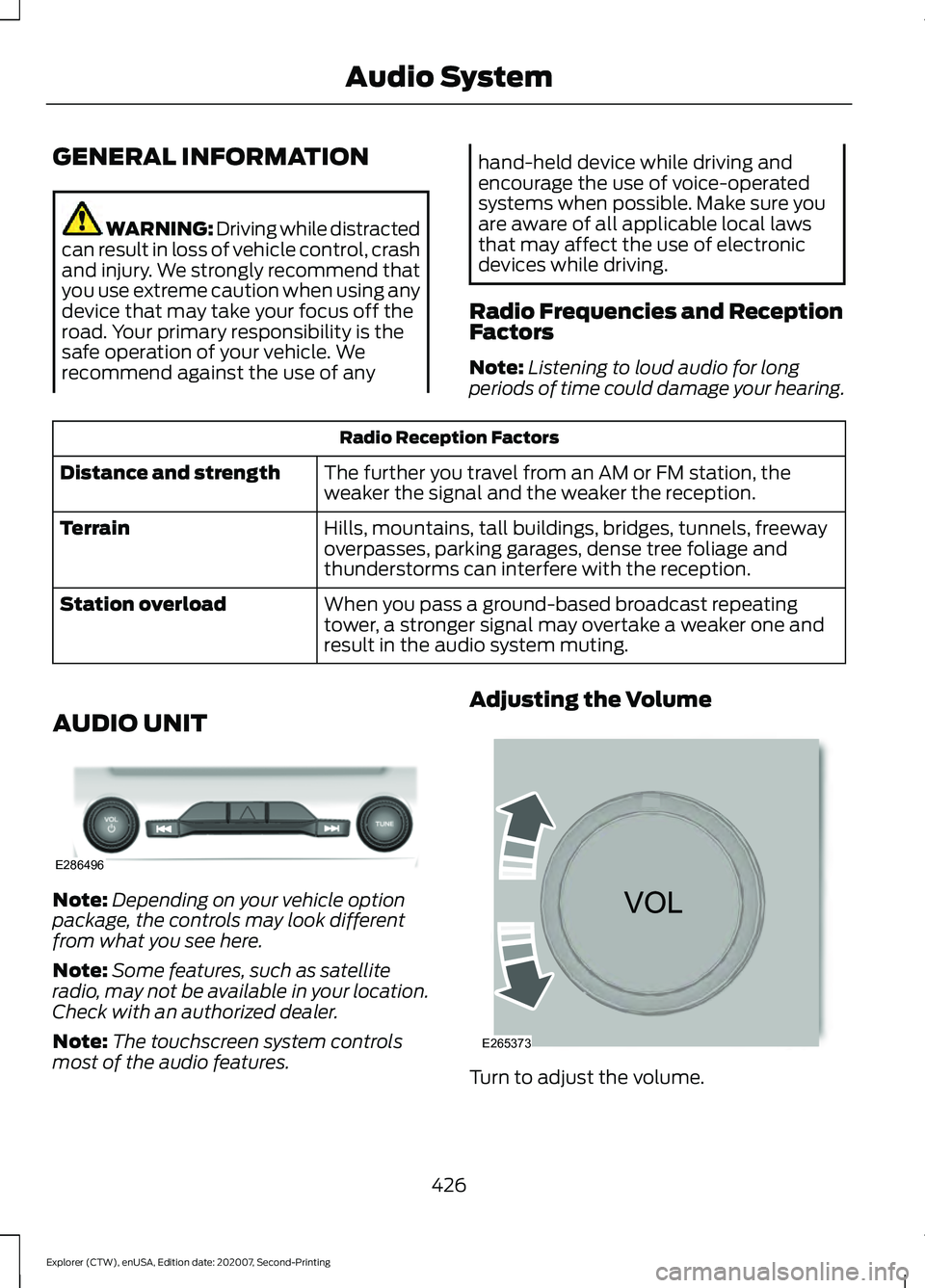
most of the audio features. Adjusting the Volume
Turn to adjust the volume.
426
Explorer (CTW), enUSA, Edition date: 202007, Second-Printing Audio SystemE286496 E265373
Page 430 of 577
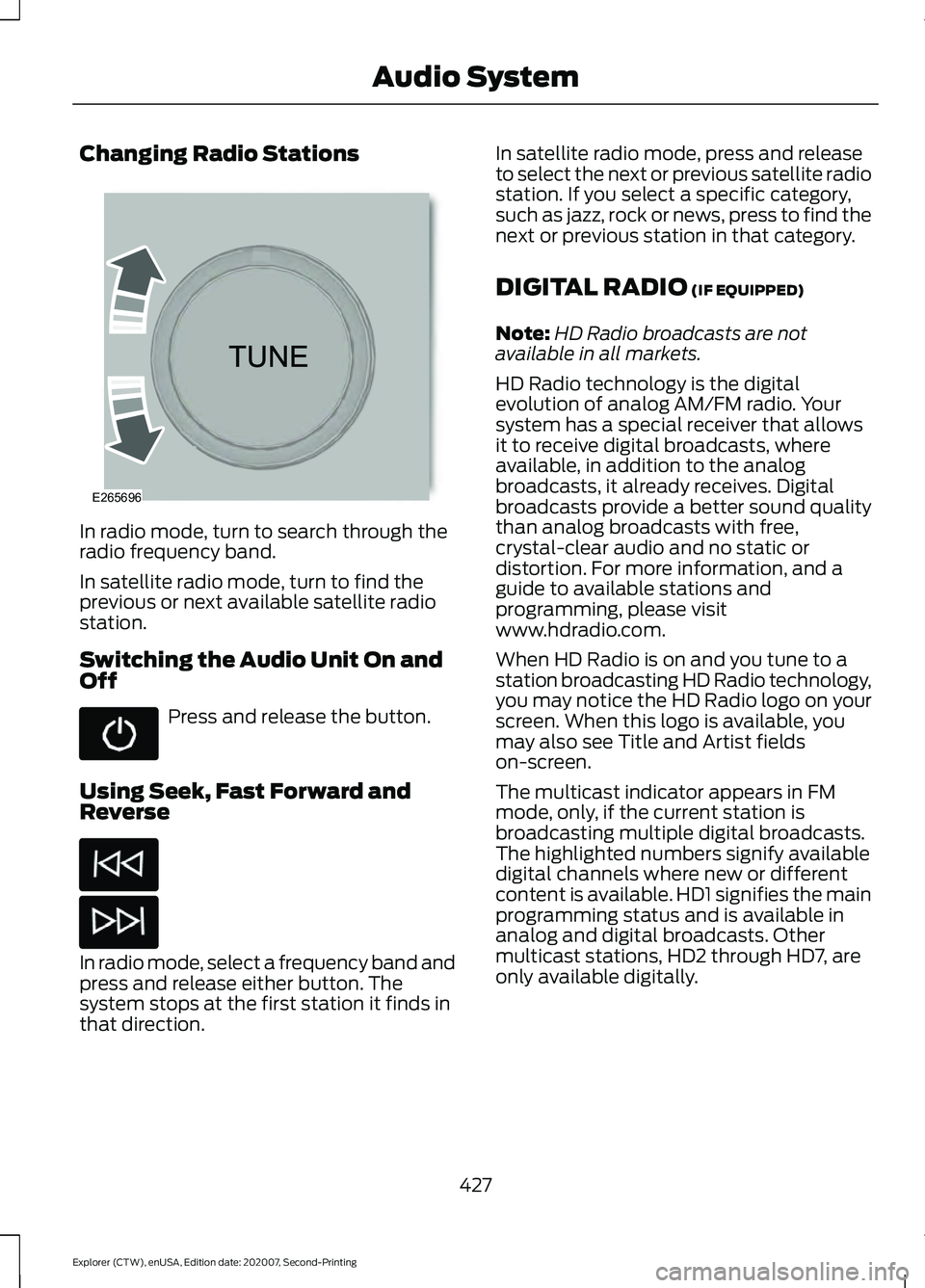
Changing Radio Stations
In radio mode, turn to search through the
radio frequency band.
In satellite radio mode, turn to find the
previous or next available satellite radio
station.
Switching the Audio Unit On and
Off
Press and release the button.
Using Seek, Fast Forward and
Reverse In radio mode, select a frequency band and
press and release either button. The
system stops at the first station it finds in
that direction. In satellite radio mode, press and release
to select the next or previous satellite radio
station. If you select a specific category,
such as jazz, rock or news, press to find the
next or previous station in that category.
DIGITAL RADIO (IF EQUIPPED)
Note: HD Radio broadcasts are not
available in all markets.
HD Radio technology is the digital
evolution of analog AM/FM radio. Your
system has a special receiver that allows
it to receive digital broadcasts, where
available, in addition to the analog
broadcasts, it already receives. Digital
broadcasts provide a better sound quality
than analog broadcasts with free,
crystal-clear audio and no static or
distortion. For more information, and a
guide to available stations and
programming, please visit
www.hdradio.com.
When HD Radio is on and you tune to a
station broadcasting HD Radio technology,
you may notice the HD Radio logo on your
screen. When this logo is available, you
may also see Title and Artist fields
on-screen.
The multicast indicator appears in FM
mode, only, if the current station is
broadcasting multiple digital broadcasts.
The highlighted numbers signify available
digital channels where new or different
content is available. HD1 signifies the main
programming status and is available in
analog and digital broadcasts. Other
multicast stations, HD2 through HD7, are
only available digitally.
427
Explorer (CTW), enUSA, Edition date: 202007, Second-Printing Audio SystemE265696
Page 431 of 577
When HD Radio broadcasts are active, you
can access the following functions:
•
Memory presets allow you to save an
active channel as a memory preset.
Touch and hold a memory preset slot
until the sound returns. There is a brief
mute while the radio saves the station.
Sound returns when finished. When switching to an HD2 or HD3 memory
preset, the sound mutes before the
digital audio plays, because the system
has to reacquire the digital signal.
Note: As with any saved radio station, you
cannot access the saved station if your
vehicle is outside the station ’s reception
area.
HD Radio Reception and Station Troubleshooting Potential reception issues
If you are listening to a multicast station and you are on
the fringe of the reception area, the station may mute due
to weak signal strength.
Reception area
If you are listening to HD1, the system switches back to
the analog broadcast until the digital broadcast is available
again. However, if you are listening to any of the possible
HD2-HD7 multicast channels, the station mutes and stays
muted unless it is able to connect to the digital signal
again.
When the system first receives a station, aside from HD2-
HD7 multicast stations, it first plays the station in the
analog version. Once the receiver verifies the station is an
HD Radio station, it shifts to the digital version. Depending
on the station quality, you may hear a slight sound change
when the station changes from analog to digital. Blending
is the shift from analog to digital sound or digital back to
analog sound.
Station blending
In order to provide the best possible
experience, use the contact form to report
any station issues found while listening to
a station broadcasting with HD Radio
technology. Independent entities own and
operate each station. These stations are
responsible for the accuracy of all audio
streams and data fields. 428
Explorer (CTW), enUSA, Edition date: 202007, Second-Printing Audio System