ECO mode FORD EXPLORER 2021 Repair Manual
[x] Cancel search | Manufacturer: FORD, Model Year: 2021, Model line: EXPLORER, Model: FORD EXPLORER 2021Pages: 577, PDF Size: 9.79 MB
Page 247 of 577
WHAT IS CRUISE CONTROL
Cruise control lets you maintain a set
speed without keeping your foot on the
accelerator pedal.
Requirements
Use cruise control when the vehicle speed
is greater than 20 mph (30 km/h).
SWITCHING CRUISE CONTROL
ON AND OFF WARNING:
Do not use cruise
control on winding roads, in heavy traffic
or when the road surface is slippery. This
could result in loss of vehicle control,
serious injury or death.
The cruise controls are on the steering
wheel.
Switching Cruise Control On Press the button to put the
system in standby mode.
Switching Cruise Control Off Press the button when in
standby mode or switch the
ignition off.
Note: When you switch cruise control off
the set speed clears. SETTING THE CRUISE
CONTROL SPEED WARNING:
When you are going
downhill, your vehicle speed could
increase above the set speed. The
system does not apply the brakes.
Drive to the speed you prefer. Press the toggle button upward
or downward to set the current
speed.
Take your foot off the accelerator pedal.
Note: The indicator changes color in the
information display.
Changing the Set Speed Press and release the toggle
button upward to increase the
set speed in small increments.
Press and hold the toggle button upward
to accelerate. Release the button when
you have reached your preferred speed. Press and release the toggle
button downward to decrease
the set speed in small
increments.
Press and hold the toggle button
downward to decelerate. Release the
button when you have reached your
preferred speed.
Note: If you accelerate by pressing the
accelerator pedal, the set speed does not
change. When you release the accelerator
pedal, your vehicle returns to the speed that
you previously set.
244
Explorer (CTW), enUSA, Edition date: 202007, Second-Printing Cruise ControlE71340 E71340
Page 253 of 577
Optimal system performance requires a
clear view of the road by the
windshield-mounted camera.
Optimal performance may not occur if:
•
The camera is blocked.
• There is poor visibility or lighting
conditions.
• There are bad weather conditions.
SWITCHING ADAPTIVE
CRUISE CONTROL ON AND OFF
The cruise controls are on the steering
wheel. See Cruise Control (page 82).
Switching Adaptive Cruise Control
On Press the button to set the
system in standby mode.
The indicator, current gap setting and set
speed appear in the information display.
Switching Adaptive Cruise Control
Off Press the button when the
system is in standby mode, or
switch the ignition off.
Note: You erase the set speed when you
switch the system off.
Automatic Cancellation or
Deactivation
The system may cancel if:
• The tires lose traction.
• You apply the parking brake. The system may cancel and set the parking
brake if:
•
You unbuckle the seatbelt and open
the driver door after you stop your
vehicle.
• Your vehicle is at a stop continuously
for more than three minutes.
The system may deactivate or prevent
activating when requested if:
• The vehicle has a blocked sensor.
• The brake temperature is too high.
• There is a failure in the system or a
related system.
SETTING THE ADAPTIVE
CRUISE CONTROL SPEED
Drive to the speed you prefer. Press the toggle button upward
or downward to set the current
speed.
Take your foot off the accelerator pedal.
The indicator, current gap setting and set
speed appear in the information display. A vehicle image illuminates if there is a
vehicle detected in front of you.
Note:
When adaptive cruise control is
active, the speedometer may vary slightly
from the set speed displayed in the
information display.
250
Explorer (CTW), enUSA, Edition date: 202007, Second-Printing Adaptive Cruise Control
(If Equipped)E144529 E144529 E255686
Page 256 of 577
ADAPTIVE CRUISE CONTROL
INDICATORS - VEHICLES
WITH: ADAPTIVE CRUISE
CONTROL WITH LANE
CENTERING
Illuminates when you switch
lane centering on. The color of
the indicator changes to indicate
the system status.
Gray indicates the system is on but
inactive.
Green indicates the system is active and
applying assistance steering torque input
to keep your vehicle in the center of the
lane.
Amber with an audible tone and then gray
indicates a system auto-cancellation.
ADAPTIVE CRUISE CONTROL
INDICATORS - VEHICLES
WITH: ADAPTIVE CRUISE
CONTROL WITH STOP AND GO Illuminates when you switch
adaptive cruise control on. The
color of the indicator changes to
indicate the system status.
White indicates the system is on but
inactive.
Green indicates that you set the speed and
the system is active. ADAPTIVE CRUISE CONTROL
INDICATORS - VEHICLES
WITH: INTELLIGENT ADAPTIVE
CRUISE CONTROL
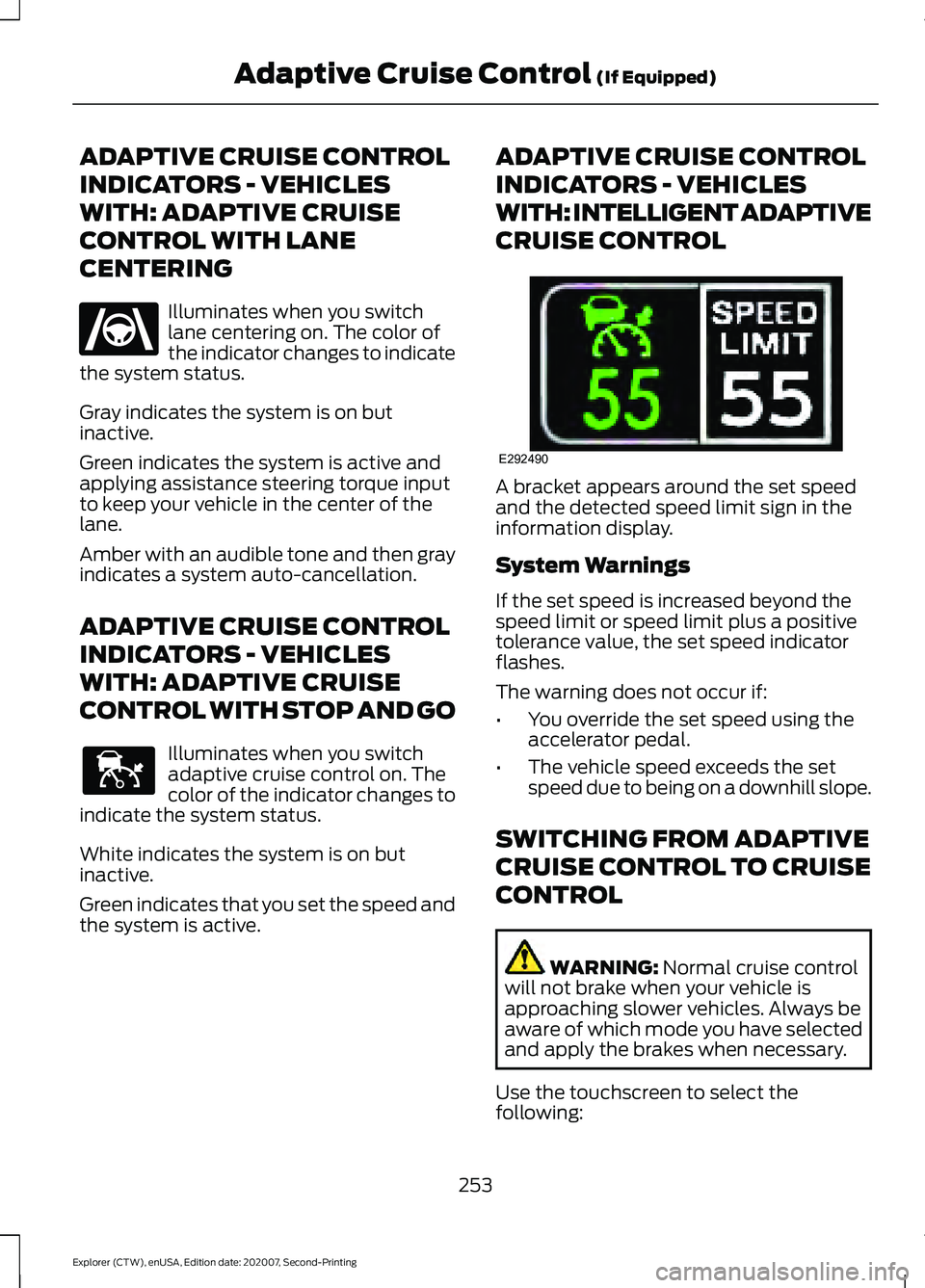
A bracket appears around the set speed
and the detected speed limit sign in the
information display.
System Warnings
If the set speed is increased beyond the
speed limit or speed limit plus a positive
tolerance value, the set speed indicator
flashes.
The warning does not occur if:
•
You override the set speed using the
accelerator pedal.
• The vehicle speed exceeds the set
speed due to being on a downhill slope.
SWITCHING FROM ADAPTIVE
CRUISE CONTROL TO CRUISE
CONTROL WARNING: Normal cruise control
will not brake when your vehicle is
approaching slower vehicles. Always be
aware of which mode you have selected
and apply the brakes when necessary.
Use the touchscreen to select the
following:
253
Explorer (CTW), enUSA, Edition date: 202007, Second-Printing Adaptive Cruise Control
(If Equipped)E262175 E144529 E292490
Page 258 of 577
SWITCHING INTELLIGENT
MODE ON AND OFF
WARNING: You are responsible for
controlling your vehicle at all times. The
system is designed to be an aid and does
not relieve you of your responsibility to
drive with due care and attention. Failure
to follow this instruction could result in
the loss of control of your vehicle,
personal injury or death.
Use the touchscreen to select the
following:
1. Select Settings. See Settings (page
464).
2. Select
Driver Assist..
3. Select
Cruise Control.
Changing the Set Speed with
Intelligent Adaptive Cruise Control
When intelligent mode is on, the system
adjusts the set speed to the speed limit
detected by the camera and the speed
limit information provided by the
navigation system.
Note: The set speed adjusts when the
system detects a different maximum speed
limit.
Note: The speed limit information provided
by the navigation map data may be
inaccurate or out of date. See
Navigation
(page 455).
Note: The system alerts you if the set speed
increases beyond the speed limit. See
Adaptive Cruise Control Indicators (page
253
).
If the system does not detect a speed limit,
the vehicle speed remains at the current
set speed. You can override the set speed at any time.
You may need to override or cancel the
system in certain situations such as
inclement weather or if an incorrect speed
is set.
Note:
The system may not detect and read
speed limit signs with conditional
information, for example, when a sign is
flashing, during specific time ranges, or
when children are present.
Note: Under certain conditions, the system
may not adjust the vehicle speed until after
your vehicle passes the speed limit sign.
ADJUSTING THE SET SPEED
TOLERANCE
You can set a permanent speed tolerance
that is above or below the detected speed
limit.
Use the touchscreen to select the
following:
1. Select
Settings. See Settings (page
464).
2. Select
Driver Assist.
3. Select
Cruise Control.
4. Select
Tolerance.
5. Use
+ and - to set the tolerance.
Note: You cannot set the tolerance more
than
20 mph (30 km/h) above or below the
recognized speed.
255
Explorer (CTW), enUSA, Edition date: 202007, Second-Printing Adaptive Cruise Control
(If Equipped)
Page 263 of 577
Note:
If you receive a warning you should
consider resting, even if the current
assessment is within the typical range.
The warning system has two stages. At
first, the system issues a temporary
warning that you need to take a rest. This
message only appears for a short time. If
the system detects further reduction in
driving alertness, it may issue another
warning that remains in the information
display for a longer time. You can press OK
on the steering wheel control to clear the
warning.
Resetting the System
You can reset the system by either:
• Switching the ignition off and on.
• Stopping the vehicle and then opening
and closing the driver ’s door.
LANE KEEPING SYSTEM WARNING: You are responsible for
controlling your vehicle at all times. The
system is designed to be an aid and does
not relieve you of your responsibility to
drive with due care and attention. Failure
to follow this instruction could result in
the loss of control of your vehicle,
personal injury or death. WARNING: Always drive with due
care and attention when using and
operating the controls and features on
your vehicle. WARNING:
In cold and severe
weather conditions the system may not
function. Rain, snow and spray can all
limit sensor performance. WARNING:
Large contrasts in
outside lighting can limit sensor
performance. WARNING:
The system will not
operate if the sensor cannot track the
road lane markings. WARNING:
The sensor may
incorrectly track lane markings as other
structures or objects. This can result in
a false or missed warning. WARNING:
The system may not
operate properly if the sensor is blocked.
Keep the windshield free from
obstruction. WARNING:
If damage occurs in the
immediate area surrounding the sensor,
have your vehicle checked as soon as
possible. WARNING:
The system may not
correctly operate if your vehicle is fitted
with a suspension kit not approved by
us.
Note: The system works above
40 mph
(64 km/h).
Note: The system works as long as the
camera can detect one lane marking.
Note: When you select aid or alert and aid
mode and the system detects no steering
activity for a short period, the system alerts
you to put your hands on the steering wheel.
The system may detect a light grip or
touch on the steering wheel as hands off
driving.
Note: The system may not function if the
camera is blocked, or if the windshield is
damaged or dirty.
260
Explorer (CTW), enUSA, Edition date: 202007, Second-Printing Driving Aids
Page 264 of 577
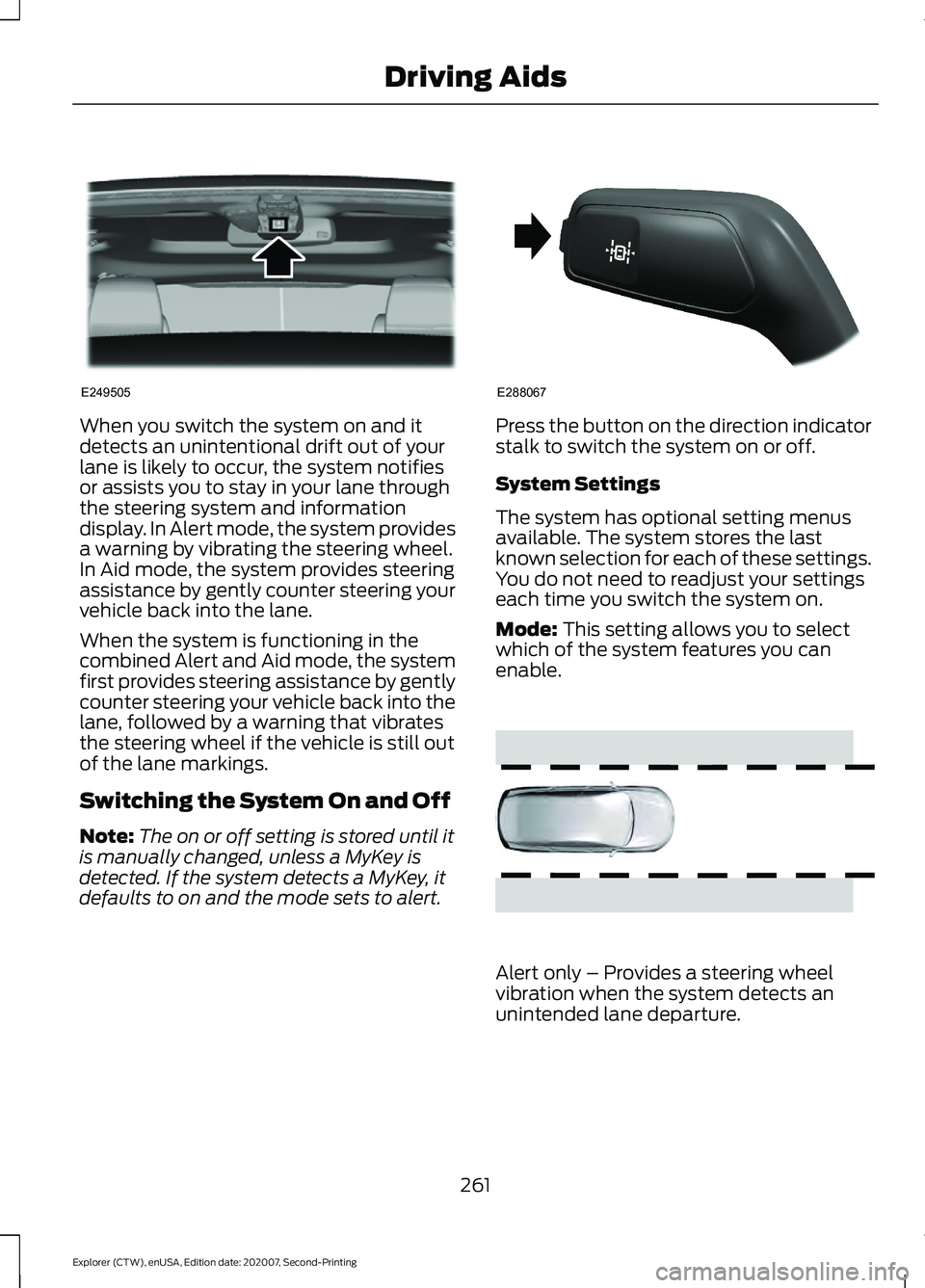
When you switch the system on and it
detects an unintentional drift out of your
lane is likely to occur, the system notifies
or assists you to stay in your lane through
the steering system and information
display. In Alert mode, the system provides
a warning by vibrating the steering wheel.
In Aid mode, the system provides steering
assistance by gently counter steering your
vehicle back into the lane.
When the system is functioning in the
combined Alert and Aid mode, the system
first provides steering assistance by gently
counter steering your vehicle back into the
lane, followed by a warning that vibrates
the steering wheel if the vehicle is still out
of the lane markings.
Switching the System On and Off
Note:
The on or off setting is stored until it
is manually changed, unless a MyKey is
detected. If the system detects a MyKey, it
defaults to on and the mode sets to alert. Press the button on the direction indicator
stalk to switch the system on or off.
System Settings
The system has optional setting menus
available. The system stores the last
known selection for each of these settings.
You do not need to readjust your settings
each time you switch the system on.
Mode: This setting allows you to select
which of the system features you can
enable. Alert only – Provides a steering wheel
vibration when the system detects an
unintended lane departure.
261
Explorer (CTW), enUSA, Edition date: 202007, Second-Printing Driving AidsE249505 E288067 E165515
Page 265 of 577
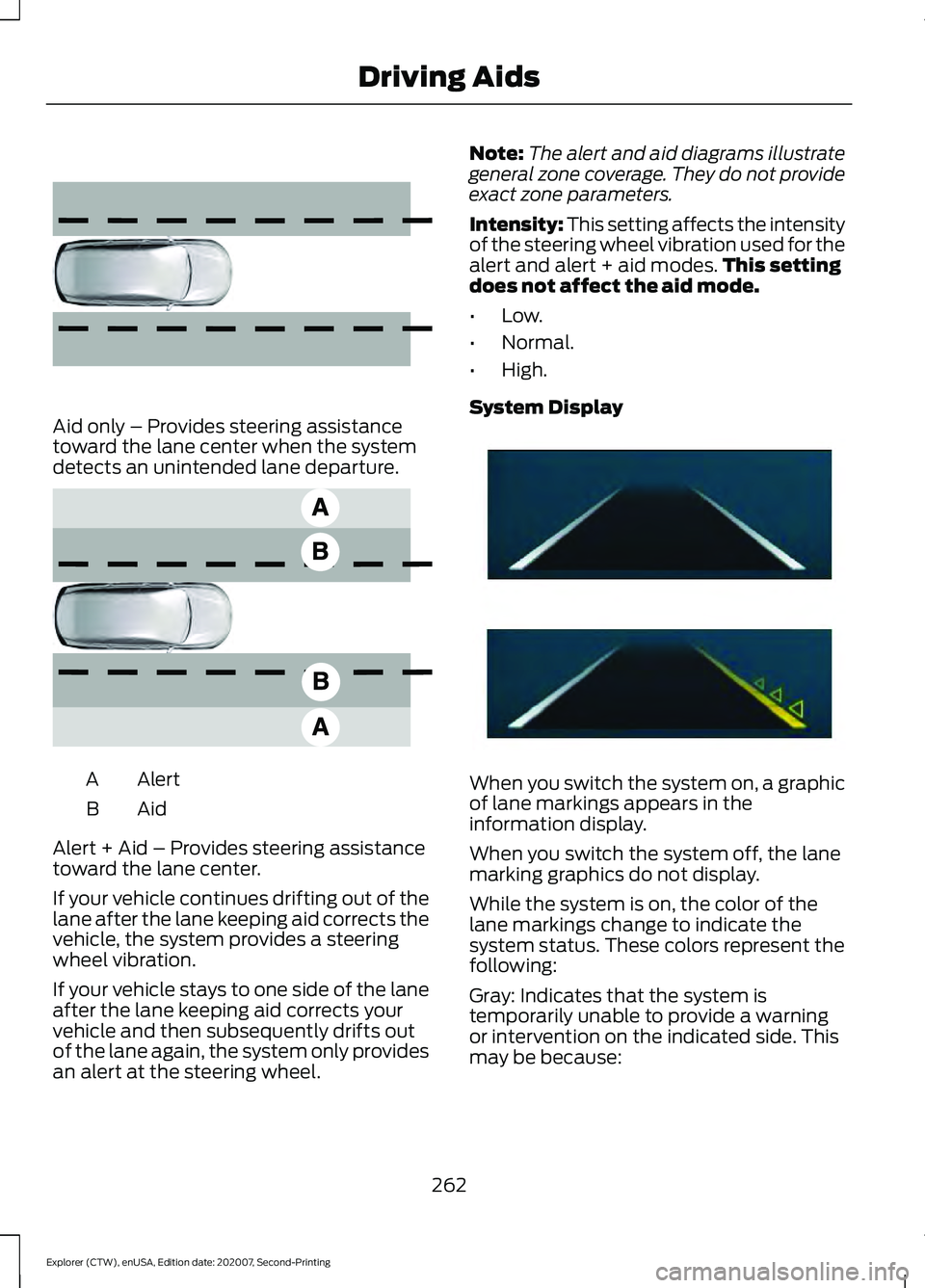
Aid only – Provides steering assistance
toward the lane center when the system
detects an unintended lane departure.
Alert
A
AidB
Alert + Aid – Provides steering assistance
toward the lane center.
If your vehicle continues drifting out of the
lane after the lane keeping aid corrects the
vehicle, the system provides a steering
wheel vibration.
If your vehicle stays to one side of the lane
after the lane keeping aid corrects your
vehicle and then subsequently drifts out
of the lane again, the system only provides
an alert at the steering wheel. Note:
The alert and aid diagrams illustrate
general zone coverage. They do not provide
exact zone parameters.
Intensity: This setting affects the intensity
of the steering wheel vibration used for the
alert and alert + aid modes. This setting
does not affect the aid mode.
• Low.
• Normal.
• High.
System Display When you switch the system on, a graphic
of lane markings appears in the
information display.
When you switch the system off, the lane
marking graphics do not display.
While the system is on, the color of the
lane markings change to indicate the
system status. These colors represent the
following:
Gray: Indicates that the system is
temporarily unable to provide a warning
or intervention on the indicated side. This
may be because:
262
Explorer (CTW), enUSA, Edition date: 202007, Second-Printing Driving Aids E165516 E165517 E294544
Page 267 of 577
Why is the feature not available (line markings are gray) when I can see the lane markings
on the road?
Transitioning between no lane markings to lane markings or vice versa.
There is standing water on the road.
Faint lane markings, for example partial yellow lane markings on concrete roads.
Lane width is too narrow or too wide.
The camera has not been calibrated after a windshield replacement.
Driving on tight roads or on uneven roads. Why does the vehicle not come back toward the middle of the lane, as expected, in the
Aid or Aid + Alert mode?
High cross winds are present.
There is a large road crown.
Rough roads, grooves or shoulder drop-offs.
Heavy uneven loading of the vehicle or improper tire inflation pressure.
The tires have been changed, or the suspension has been modified.
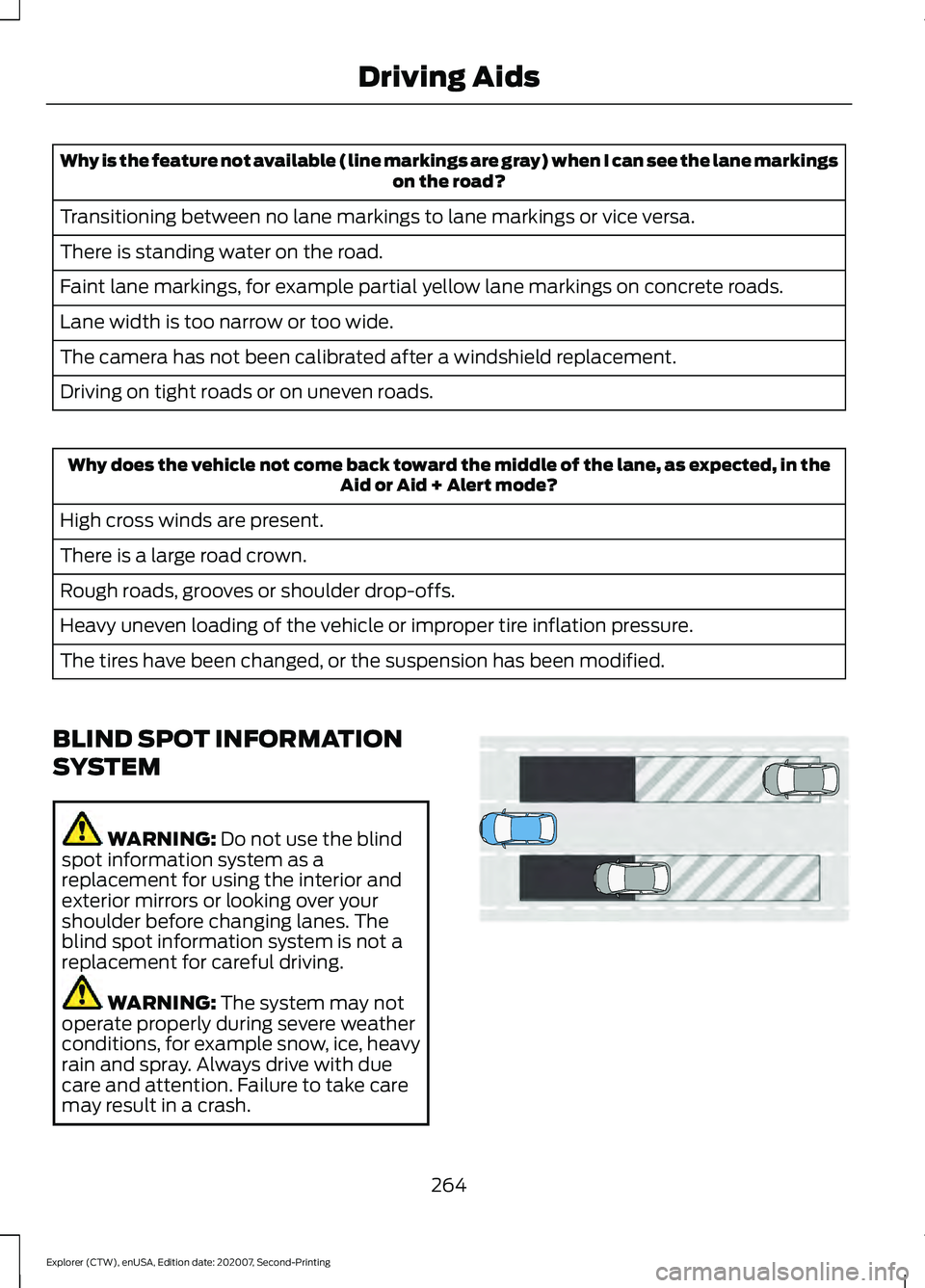
BLIND SPOT INFORMATION
SYSTEM WARNING: Do not use the blind
spot information system as a
replacement for using the interior and
exterior mirrors or looking over your
shoulder before changing lanes. The
blind spot information system is not a
replacement for careful driving. WARNING:
The system may not
operate properly during severe weather
conditions, for example snow, ice, heavy
rain and spray. Always drive with due
care and attention. Failure to take care
may result in a crash. 264
Explorer (CTW), enUSA, Edition date: 202007, Second-Printing Driving AidsE255695
Page 278 of 577
Note:
Brake Support and Active Braking are
active at speeds up to 75 mph (120 km/h).
If your vehicle has a radar sensor included
with Adaptive Cruise Control, then Brake
Support and Active Braking are active up to
the maximum speed of the vehicle.
Note: If you perceive Pre-Collision Assist
alerts as being too frequent or disturbing,
then you can reduce the alert sensitivity,
though the manufacturer recommends
using the highest sensitivity setting where
possible. Setting lower sensitivity would
lead to fewer and later system warnings.
Note: Pre-Collision Assist turns off when
you manually disable AdvanceTrac or when
you select deep snow/sand mode.
Distance Indication and Alert
(If
Equipped)
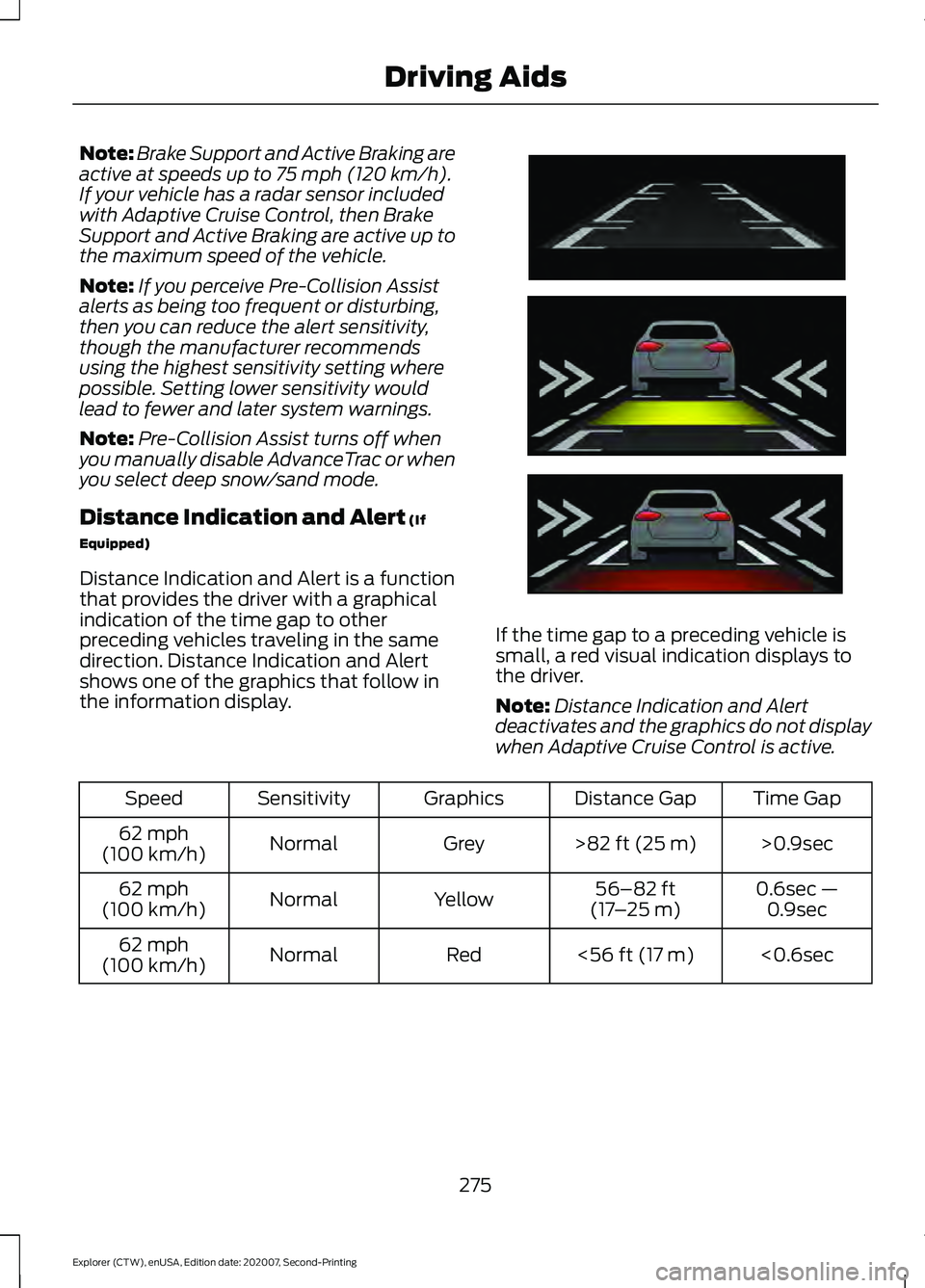
Distance Indication and Alert is a function
that provides the driver with a graphical
indication of the time gap to other
preceding vehicles traveling in the same
direction. Distance Indication and Alert
shows one of the graphics that follow in
the information display. If the time gap to a preceding vehicle is
small, a red visual indication displays to
the driver.
Note:
Distance Indication and Alert
deactivates and the graphics do not display
when Adaptive Cruise Control is active. Time Gap
Distance Gap
Graphics
Sensitivity
Speed
>0.9sec
>
82 ft (25 m)
Grey
Normal
62 mph
(100 km/h)
0.6sec —0.9sec
56–82 ft
(17 –25 m)
Yellow
Normal
62 mph
(100 km/h)
<0.6sec
<
56 ft (17 m)
Red
Normal
62 mph
(100 km/h)
275
Explorer (CTW), enUSA, Edition date: 202007, Second-Printing Driving AidsE254791
Page 281 of 577
WHAT IS DRIVE MODE
CONTROL
The system delivers a driving experience
through a suite of sophisticated electronic
vehicle systems. These systems optimize
steering, handling and powertrain
response. This provides a single location
to control multiple systems performance
settings.
Changing the drive mode changes the
functionality of the following systems:
•
Electric power-assisted steering
system adjusts steering effort and feel
based on the mode you select. See
Steering (page 273).
• Electronic stability control and traction
control maintain your vehicle control
in adverse conditions or high
performance driving. See
Stability
Control (page 225).
• Electronic throttle control enhances
the powertrain response to your driving
inputs.
• Transmission controls become
optimized with shift schedules tuned
to each mode.
• Four-wheel drive settings are optimized
and tuned to each mode.
• Electric vehicle mode selections may
be limited. See
Hybrid Vehicle
Operation (page 182).
The system tailors your vehicle
configuration for each mode you select.
Note: Not all settings may be available.
Note: The system has diagnostic checks
that continuously monitor the system for
proper operation. If a mode is unavailable
due to a system fault or change in gear
shifter position, the mode defaults to
Normal. SELECTING A DRIVE MODE
Note:
Drive mode changes may not be
available when the ignition is off or when
the engine is not running.
Note: Button icons shown may vary from
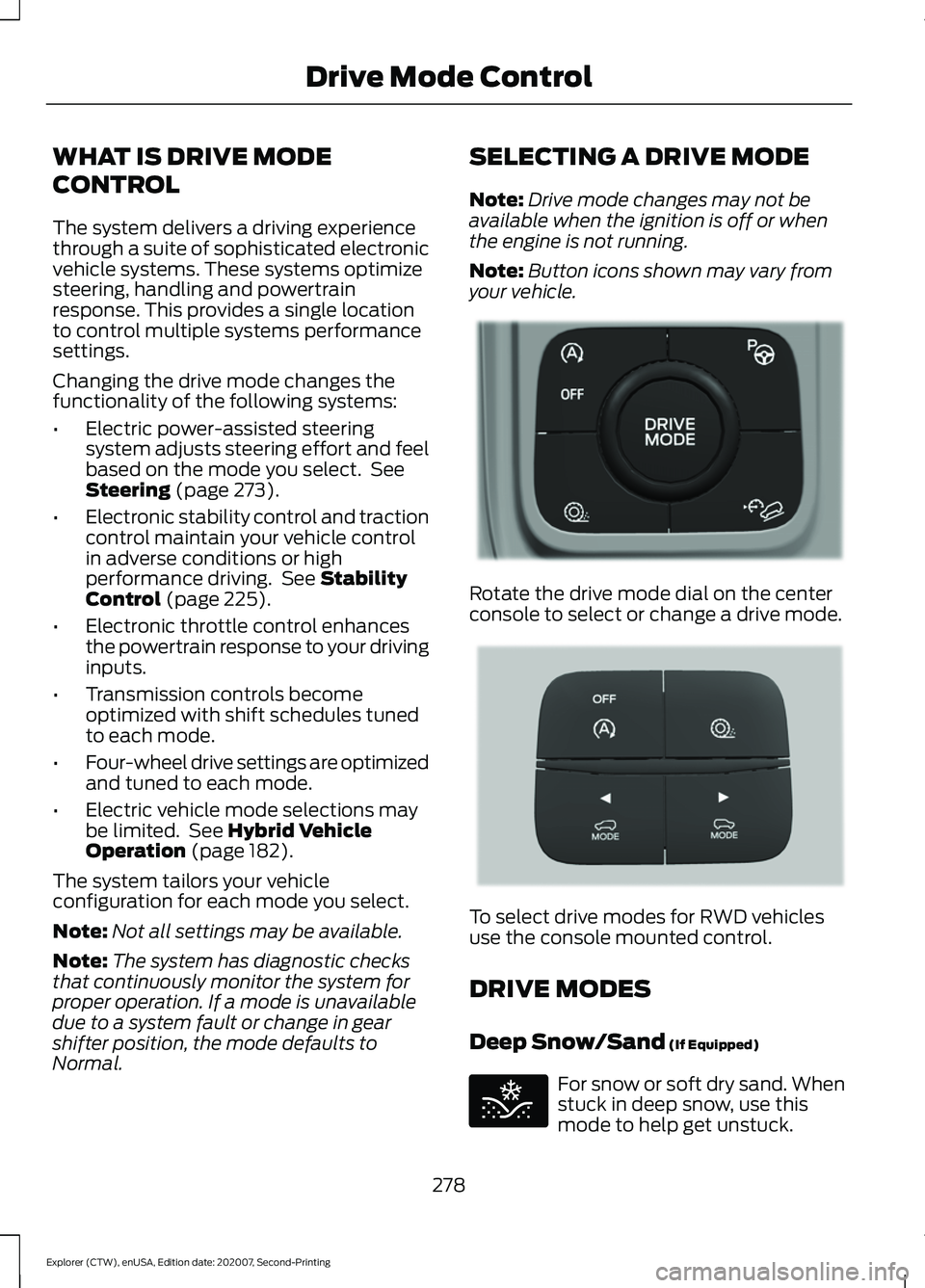
your vehicle. Rotate the drive mode dial on the center
console to select or change a drive mode.
To select drive modes for RWD vehicles
use the console mounted control.
DRIVE MODES
Deep Snow/Sand
(If Equipped)
For snow or soft dry sand. When
stuck in deep snow, use this
mode to help get unstuck.
278
Explorer (CTW), enUSA, Edition date: 202007, Second-Printing Drive Mode ControlE298238 E297643 E295420