reset FORD EXPLORER SPORT TRAC 2008 User Guide
[x] Cancel search | Manufacturer: FORD, Model Year: 2008, Model line: EXPLORER SPORT TRAC, Model: FORD EXPLORER SPORT TRAC 2008Pages: 368, PDF Size: 3.27 MB
Page 40 of 368
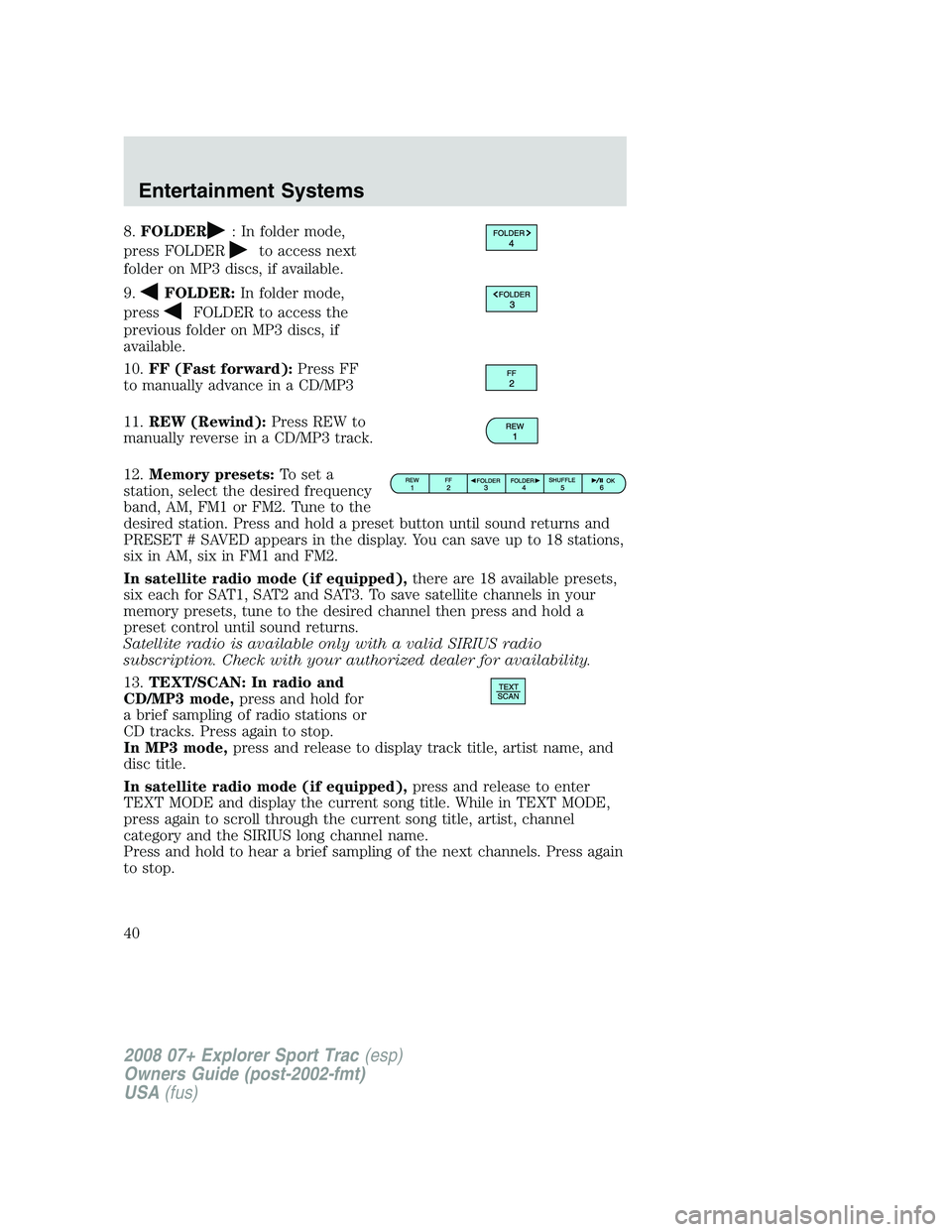
8.FOLDER: In folder mode,
press FOLDER
to access next
folder on MP3 discs, if available.
9.
FOLDER:In folder mode,
press
FOLDER to access the
previous folder on MP3 discs, if
available.
10.FF (Fast forward):Press FF
to manually advance in a CD/MP3
11.REW (Rewind):Press REW to
manually reverse in a CD/MP3 track.
12.Memory presets:To set a
station, select the desired frequency
band, AM, FM1 or FM2. Tune to the
desired station. Press and hold a preset button until sound returns and
PRESET # SAVED appears in the display. You can save up to 18 stations,
six in AM, six in FM1 and FM2.
In satellite radio mode (if equipped),there are 18 available presets,
six each for SAT1, SAT2 and SAT3. To save satellite channels in your
memory presets, tune to the desired channel then press and hold a
preset control until sound returns.
Satellite radio is available only with a valid SIRIUS radio
subscription. Check with your authorized dealer for availability.
13.TEXT/SCAN: In radio and
CD/MP3 mode,press and hold for
a brief sampling of radio stations or
CD tracks. Press again to stop.
In MP3 mode,press and release to display track title, artist name, and
disc title.
In satellite radio mode (if equipped),press and release to enter
TEXT MODE and display the current song title. While in TEXT MODE,
press again to scroll through the current song title, artist, channel
category and the SIRIUS long channel name.
Press and hold to hear a brief sampling of the next channels. Press again
to stop.
2008 07+ Explorer Sport Trac(esp)
Owners Guide (post-2002-fmt)
USA(fus)
Entertainment Systems
40
Page 41 of 368
In CATEGORY MODE,press SCAN to hear a brief sampling of the
channels in the selected category. Press again to stop.
Satellite radio is available only with a valid SIRIUS radio
subscription. Check with your authorized dealer for availability.
In TEXT MODEsometimes the display requires additional text to be
displayed. When the “>” indicator is active, press SEEK
to view the
additional display text. When the “<” indicator is active, press
SEEK
to view the previous display text.
14.AM/FM:Press to select
AM/FM1/FM2 frequency band.
15.ON/OFF/Volume:Press to turn
ON/OFF. Turn to increase/decrease
volume.
Note:If the volume is set above a
certain level and the ignition is
turned off, the volume will come back on at a “nominal” listening level
when the ignition switch is turned back on.
16.CD:Press to enter CD/MP3
mode. If a disc is already loaded
into the system, CD/MP3 play will
begin where it ended last. If no CD is loaded, NO DISC will appear in the
display.
17.LOAD:To load a disc into the
system, press LOAD. Select a slot
number using memory presets 1–6.
When the display reads LOAD CD#,
load the desired disc, label side up.
If you do not choose a slot within 5 seconds, the system will choose for
you. Once loaded, the first track will begin to play.
To auto load up to 6 discs,press and hold LOAD until the display
reads AUTOLOAD#. Load the desired disc, label side up. The system will
prompt you to load discs for the remaining available slots. Insert the
discs, one at a time, label side up, when prompted. Once loaded, the last
loaded disc will begin to play.
Note:An MP3 disc with folders will show F001 (folder #) T001 (track #)
in the display. An MP3 disc without folders will show T001 (track#) in
the display. Refer toMP3 folder structurelater in this chapter for
further information.
2008 07+ Explorer Sport Trac(esp)
Owners Guide (post-2002-fmt)
USA(fus)
Entertainment Systems
41
Page 42 of 368
18.(CD eject):To eject a disc
from the system, press
. Select
the correct slot number using
memory presets 1–6. When ready, the system will eject the disc and the
display will read REMOVE CD. If the disc is not removed in 15 seconds,
the system will reload the disc.
If there is only one disc present in the system, press
.
To auto eject up to 6 CDs,press and hold
until the system begins
ejecting a loaded disc. Remove the disc and the next slot will be ejected.
If the ejected disc is not removed from the slot, the system will reload
the disc and cancel the auto eject function.
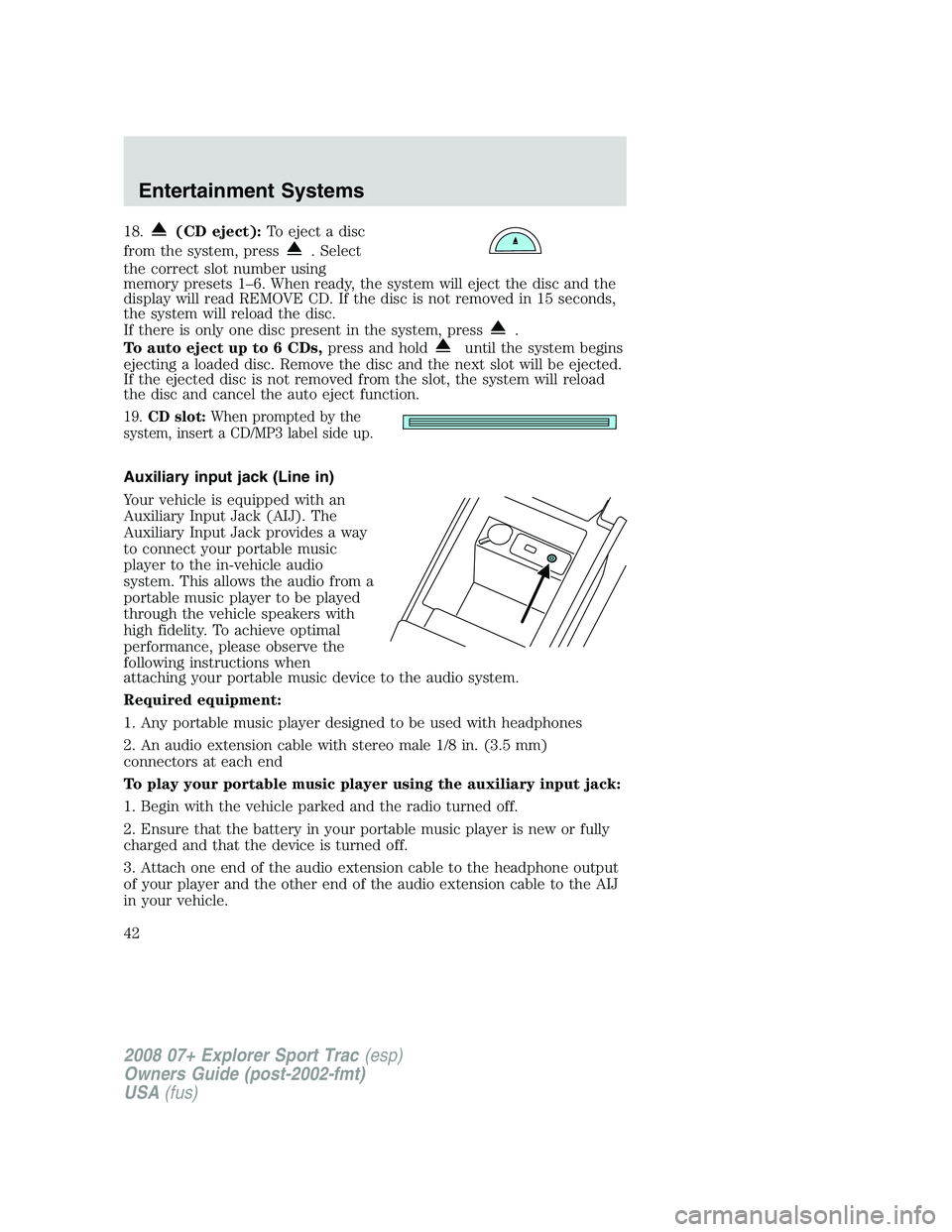
19.CD slot:When prompted by the
system, insert a CD/MP3 label side up.
Auxiliary input jack (Line in)
Your vehicle is equipped with an
Auxiliary Input Jack (AIJ). The
Auxiliary Input Jack provides a way
to connect your portable music
player to the in-vehicle audio
system. This allows the audio from a
portable music player to be played
through the vehicle speakers with
high fidelity. To achieve optimal
performance, please observe the
following instructions when
attaching your portable music device to the audio system.
Required equipment:
1. Any portable music player designed to be used with headphones
2. An audio extension cable with stereo male 1/8 in. (3.5 mm)
connectors at each end
To play your portable music player using the auxiliary input jack:
1. Begin with the vehicle parked and the radio turned off.
2. Ensure that the battery in your portable music player is new or fully
charged and that the device is turned off.
3. Attach one end of the audio extension cable to the headphone output
of your player and the other end of the audio extension cable to the AIJ
in your vehicle.
2008 07+ Explorer Sport Trac(esp)
Owners Guide (post-2002-fmt)
USA(fus)
Entertainment Systems
42
Page 48 of 368
•Terrain: Hills, mountains, tall buildings, bridges, tunnels, freeway
overpasses, parking garages, dense tree foliage and thunderstorms can
interfere with your reception.
•Station overload: When you pass a ground based broadcast repeating
tower, a stronger signal may overtake a weaker one and result in an
audio mute.
Unlike AM/FM audible static, you will hear an audio mute when there is
a satellite radio signal interference. Your radio display may display NO
SIGNAL to indicate the interference.
SIRIUS satellite radio service:SIRIUS Satellite Radio is a subscription
based satellite radio service that broadcasts music, sports, news and
entertainment programming. A service fee is required in order to receive
SIRIUS service. Vehicles that are equipped with a factory installed
SIRIUS Satellite Radio system include:
•Hardware and limited subscription term, which begins on the date of
sale or lease of the vehicle.
•Online media player providing access to all 65 SIRIUS music channels
over the internet (U.S. customers only).
For information on extended subscription terms, contact SIRIUS at
1–888–539–7474.
Note:SIRIUS reserves the unrestricted right to change, rearrange, add
or delete programming including canceling, moving or adding particular
channels, and its prices, at any time, with or without notice to you. Ford
Motor Company shall not be responsible for any such programming
changes.
Satellite Radio Electronic Serial Number (ESN):This 12–digit
Satellite Serial Number is needed to activate, modify or track your
satellite radio account. You will need this number when communicating
with SIRIUS. While in Satellite Radio mode, you can view this number on
the radio display by pressing AUX and Preset 1 control simultaneously.
2008 07+ Explorer Sport Trac(esp)
Owners Guide (post-2002-fmt)
USA(fus)
Entertainment Systems
48
Page 49 of 368
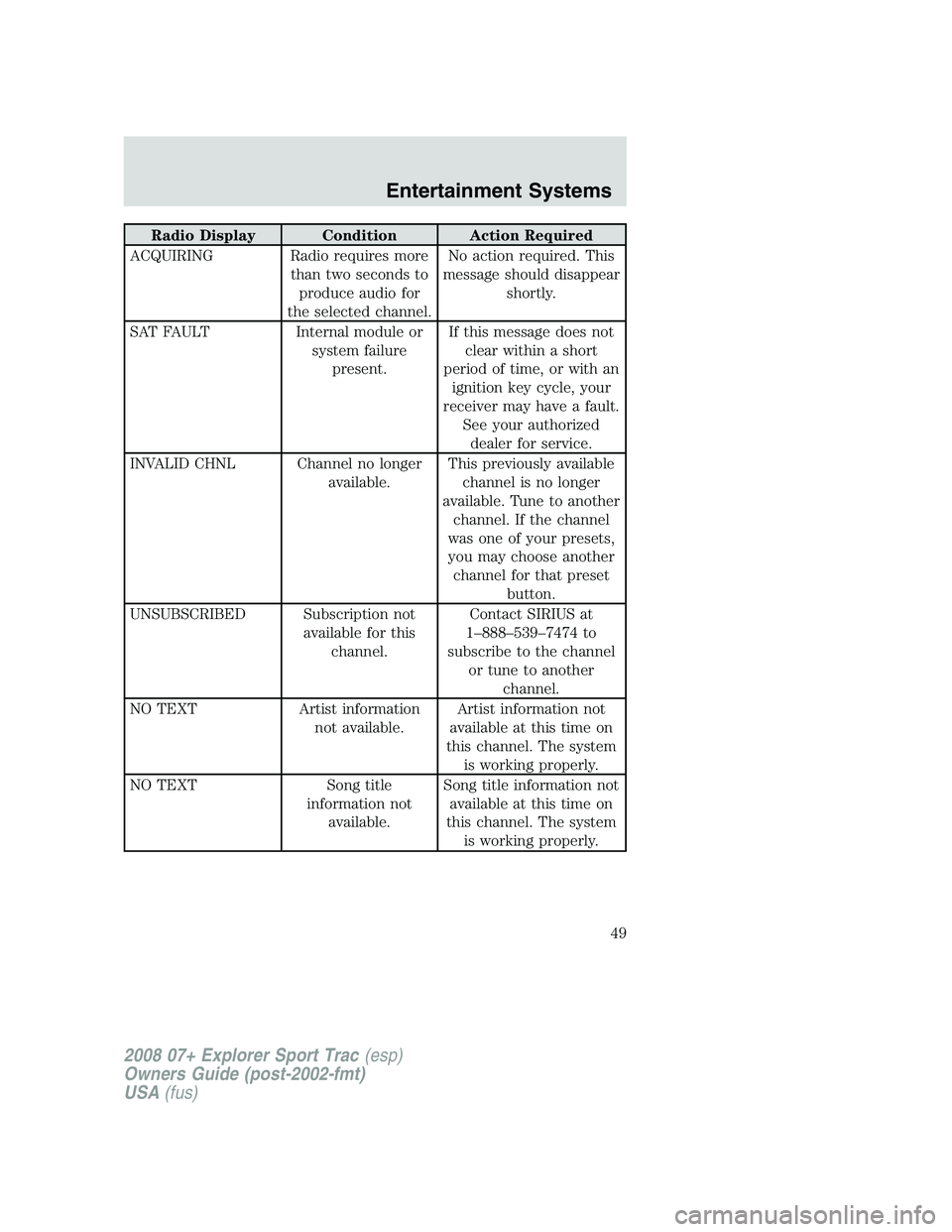
Radio Display Condition Action Required
ACQUIRING Radio requires more
than two seconds to
produce audio for
the selected channel.No action required. This
message should disappear
shortly.
SAT FAULT Internal module or
system failure
present.If this message does not
clear within a short
period of time, or with an
ignition key cycle, your
receiver may have a fault.
See your authorized
dealer for service.
INVALID CHNL Channel no longer
available.This previously available
channel is no longer
available. Tune to another
channel. If the channel
was one of your presets,
you may choose another
channel for that preset
button.
UNSUBSCRIBED Subscription not
available for this
channel.Contact SIRIUS at
1–888–539–7474 to
subscribe to the channel
or tune to another
channel.
NO TEXT Artist information
not available.Artist information not
available at this time on
this channel. The system
is working properly.
NO TEXT Song title
information not
available.Song title information not
available at this time on
this channel. The system
is working properly.
2008 07+ Explorer Sport Trac(esp)
Owners Guide (post-2002-fmt)
USA(fus)
Entertainment Systems
49
Page 54 of 368
To listen to audio over the headphones (Dual play mode):
1. You may listen to channels A and B over wired or wireless
headphones. Refer toUsing the infrared wireless headphonesand
Using wired headphonesfor further information.
•Black (4) — wired headphone output (wired headphones not
included)
2. Press the headphone/speaker
button on the DVD player or press
the 2 and 4 memory presets on the
audio system at the same time.
A green light will illuminate next to either the A or B Headphone Control
Button to indicate which channel is active (able to be controlled).
3. Press MEDIA to change the audio source of the active channel (A or
B). The audio source will be shown on the display. You may change the
active channel by pressing the A or B headphone control button.
Note:Channel A can access any possible media source (AM, FM1, FM2,
SAT (if equipped), CD, DVD, AUX). Channel B can only access DVD and
AUX sources.
Note:Refer toSingle play/Dual playfor more information.
Using the infrared (IR) wireless headphones:
1. Press the power control on the earpiece to turn the headphones ON.
2. Select Channel A or B for each set of wireless headphones by using
the A/B control on the ear piece.
3. Adjust the headphone volume using the rotary dial on the earpiece.
Using wired headphones (not included):
Do not leave children unattended in the vehicle and do not let
children operate the system while unsupervised. If wired
headphones or auxiliary systems are used, children may become
entangled in the cords and seriously injure themselves.
1. Connect the wired headphones in to the headphone jacks on either
side of the DVD system. Each side is labeled
AorB. Headphones
plugged into jack A will listen to Channel A and headphones plugged into
jack B will listen to Channel B.
2008 07+ Explorer Sport Trac(esp)
Owners Guide (post-2002-fmt)
USA(fus)
Entertainment Systems
54
Page 57 of 368
9.LCD screen:The eight inch diagonal screen rotates down to view and
up into housing to store when not in use. Ensure that the screen is
latched into the housing when being stored.
10.Volume:When in Single Play,
press to increase (
) or decrease
(
) the volume over all speakers.
When in Dual Play, press to increase
(
) or decrease () the volume
for the wired headphones. (Wireless headphone volume is controlled
with the rotary dial on the right ear piece.)
11.
/(Headphones/Speakers): Press once for Dual Play
(Headphone mode- the rear speakers are muted) and press again for
Single Play (same media playing through all speakers). You can also
press the 2 and 4 memory preset buttons on the audio system at the
same time to perform the same function. For further interaction
information, refer toSingle Play/Dual play.
12.MEDIA:Press repeatedly to
select from the various possible
playing media sources (AM, FM1,
FM2, SAT (if equipped), CD, DVD, DVD-AUX). The media will show in the
status display on the top of the screen when in Dual Play mode. When in
Single Play mode, the media source will be displayed on the radio.
Note:Channel A can access any possible media source (AM, FM1, FM2,
SAT (if equipped), CD, DVD, DVD-AUX). Channel B can only access DVD
and DVD-AUX sources.
13.RETURN:Press to return to the
playing media or to resume
playback.
14.MENU:When playing a DVD,
press MENU once to enter the DVD
disc menu (if available) and press
twice to enter the system set-up menu. From the set-up menu, you may
select from Angle, Aspect Ratio, Language, Subtitles, Disc resume,
Compression, Restore Defaults and Back. For more detailed information,
refer toMenu mode.
15.ENTER:Press to select/confirm
the current selection.
2008 07+ Explorer Sport Trac(esp)
Owners Guide (post-2002-fmt)
USA(fus)
Entertainment Systems
57
Page 59 of 368
4.RETURN:Press to return to the previous menu screen.
5.ANGLE(DVD dependent): Press to select the angle to view the
scene.
6.Channel A/B:Press to select either A or B headphones and then use
the MEDIA control to select the desired playing media for the
headphones.
7.VOL (Volume):When in Single Play, press to increase (
)or
decrease (
) the volume over all speakers. When in Dual Play, press to
increase (
) or decrease () the volume for the wired headphones.
(Wireless headphone volume is controlled with the rotary dial on the
right ear piece.)
8.Fast Forward/Next:In DVD mode, press and hold for a quick
advance within the DVD. Press and release to advance to the next
chapter. In CD/MP3 mode, press to access the next track.
9.Play/Pause:Press to play or pause a DVD.
10.SHUFFLE:Press to play all tracks on the current CD/MP3 disc in
random order.
11.STOP:Press to stop the current DVD or CD/MP3.
12.
/Speaker/Headphone(Single/Dual Play): Press to toggle
between Single Play (same media playing through all speakers) and Dual
Play (headphone mode — the rear speakers are muted). You can also
press the 2 and 4 memory presets on the audio system at the same time
to perform the same function.
13.Keypad:Use the numeric controls to enter in a specific CD/MP3
track or DVD chapter to be played.
14.C (Cancel):Press to cancel/clear the numeric input (i.e. chapter
number).
15.MEDIA:Press to cycle through the possible media sources: AM,
FM1, FM2, SAT (if equipped), CD, DVD, LINE IN (if equipped),
DVD-AUX.
Channel B can only access DVD and AUX sources.
16.VIDEO:Press to cycle through video states: DVD-DISC, DVD-AUX,
NON-DVD, Off.
17.EJECT:Press to eject a disc from the FES.
18.Fast reverse/Previous:When a DVD is playing, press and hold for a
quick reverse within the DVD. Press and release for the previous
2008 07+ Explorer Sport Trac(esp)
Owners Guide (post-2002-fmt)
USA(fus)
Entertainment Systems
59
Page 72 of 368
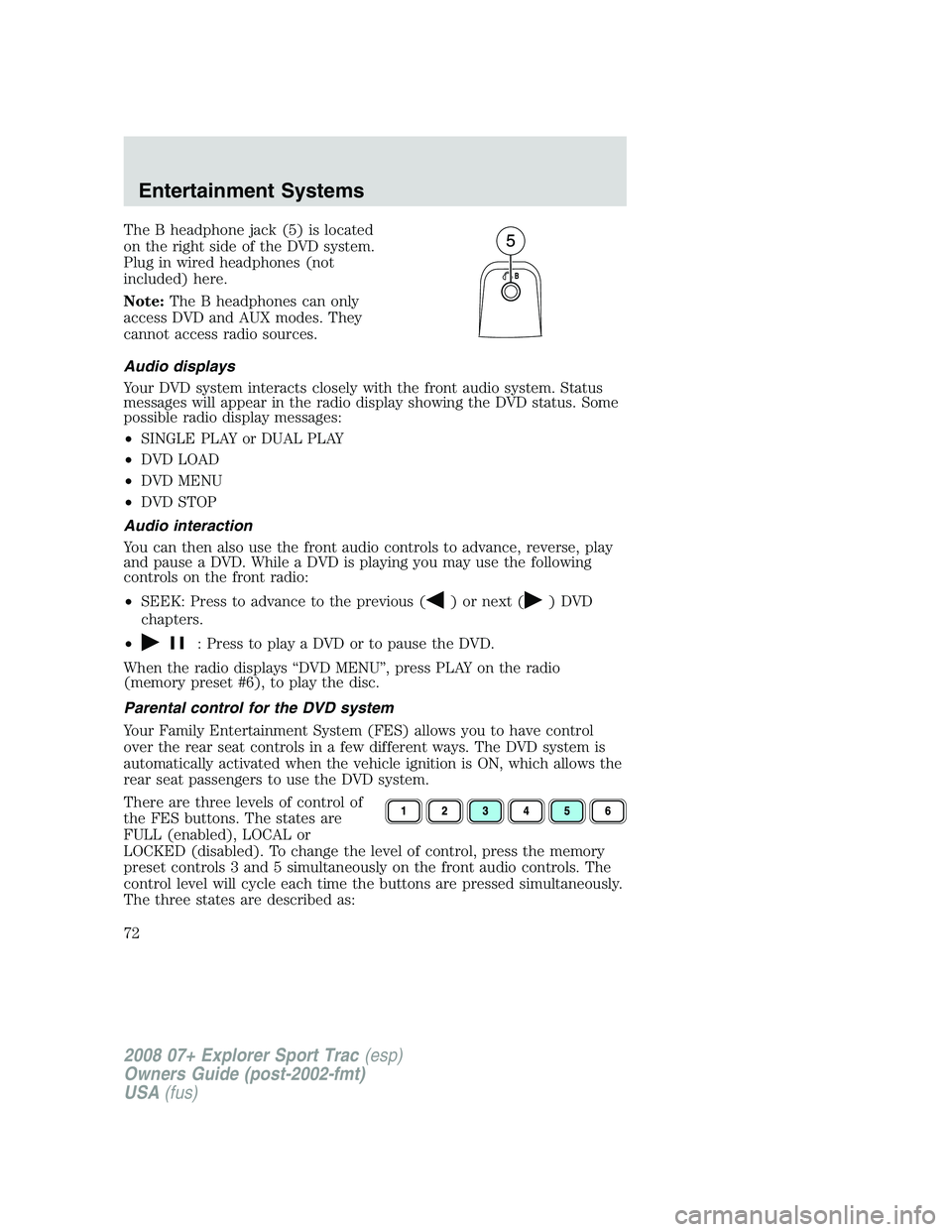
The B headphone jack (5) is located
on the right side of the DVD system.
Plug in wired headphones (not
included) here.
Note:The B headphones can only
access DVD and AUX modes. They
cannot access radio sources.
Audio displays
Your DVD system interacts closely with the front audio system. Status
messages will appear in the radio display showing the DVD status. Some
possible radio display messages:
•SINGLE PLAY or DUAL PLAY
•DVD LOAD
•DVD MENU
•DVD STOP
Audio interaction
You can then also use the front audio controls to advance, reverse, play
and pause a DVD. While a DVD is playing you may use the following
controls on the front radio:
•SEEK: Press to advance to the previous (
) or next () DVD
chapters.
•
: Press to play a DVD or to pause the DVD.
When the radio displays “DVD MENU”, press PLAY on the radio
(memory preset #6), to play the disc.
Parental control for the DVD system
Your Family Entertainment System (FES) allows you to have control
over the rear seat controls in a few different ways. The DVD system is
automatically activated when the vehicle ignition is ON, which allows the
rear seat passengers to use the DVD system.
There are three levels of control of
the FES buttons. The states are
FULL (enabled), LOCAL or
LOCKED (disabled). To change the level of control, press the memory
preset controls 3 and 5 simultaneously on the front audio controls. The
control level will cycle each time the buttons are pressed simultaneously.
The three states are described as:
2008 07+ Explorer Sport Trac(esp)
Owners Guide (post-2002-fmt)
USA(fus)
Entertainment Systems
72
Page 73 of 368
FULL(enabled): The FES has control over the primary (speaker) and
secondary (headphone) audio sources.
LOCAL: The FES has control over the secondary source (headphones)
only. The radio will ignore button presses that affect the primary
(speaker) audio source.
LOCKED(disabled): The FES buttons are locked and all FES button
presses are ignored by the radio and the FES except for load and eject.
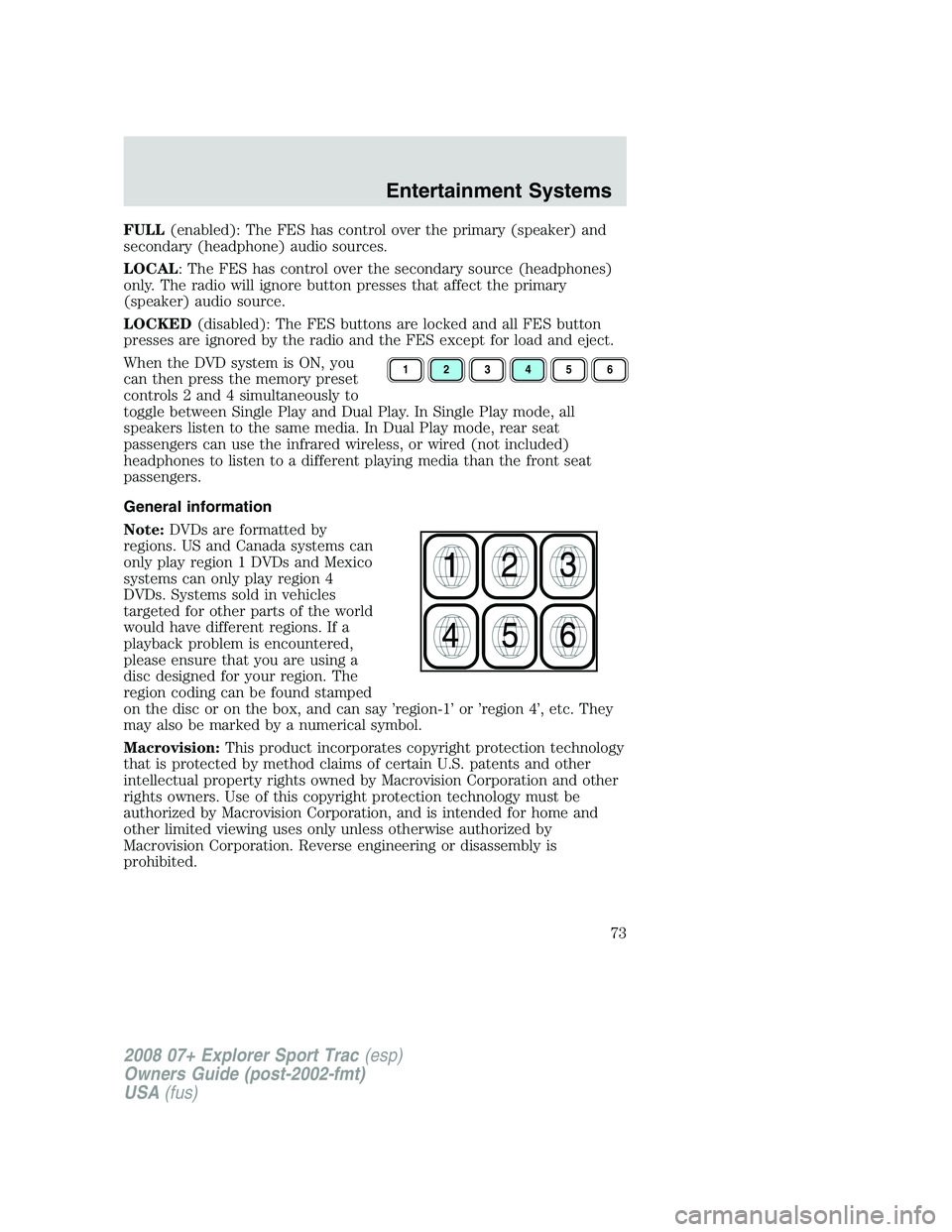
When the DVD system is ON, you
can then press the memory preset
controls 2 and 4 simultaneously to
toggle between Single Play and Dual Play. In Single Play mode, all
speakers listen to the same media. In Dual Play mode, rear seat
passengers can use the infrared wireless, or wired (not included)
headphones to listen to a different playing media than the front seat
passengers.
General information
Note:DVDs are formatted by
regions. US and Canada systems can
only play region 1 DVDs and Mexico
systems can only play region 4
DVDs. Systems sold in vehicles
targeted for other parts of the world
would have different regions. If a
playback problem is encountered,
please ensure that you are using a
disc designed for your region. The
region coding can be found stamped
on the disc or on the box, and can say ’region-1’ or ’region 4’, etc. They
may also be marked by a numerical symbol.
Macrovision:This product incorporates copyright protection technology
that is protected by method claims of certain U.S. patents and other
intellectual property rights owned by Macrovision Corporation and other
rights owners. Use of this copyright protection technology must be
authorized by Macrovision Corporation, and is intended for home and
other limited viewing uses only unless otherwise authorized by
Macrovision Corporation. Reverse engineering or disassembly is
prohibited.
123456
2008 07+ Explorer Sport Trac(esp)
Owners Guide (post-2002-fmt)
USA(fus)
Entertainment Systems
73