display FORD F-150 2018 Owners Manual
[x] Cancel search | Manufacturer: FORD, Model Year: 2018, Model line: F-150, Model: FORD F-150 2018Pages: 641, PDF Size: 8.37 MB
Page 238 of 641
If you are uncomfortable with the proximity
to any vehicle or object, you may choose
to override the system by grabbing the
steering wheel or pushing the active park
assist button.
The system may not operate correctly in
any of the following conditions:
•
You use a spare tire or a tire
significantly worn more than the other
tires.
• One or more tires are improperly
inflated.
• You try to park on a tight curve.
• Something passes between the front
bumper and the parking space. For
example, a pedestrian or cyclist.
• The edge of the neighboring parking
vehicle is high off the ground. For
example, a bus, tow truck or flatbed
truck.
• The weather conditions are poor. For
example, during heavy rain, snow or
fog.
Note: Keep the sensors, located on the
fascia, free from now, ice and large
accumulations of dirt. Covered sensors can
affect the systems accuracy. Do not clean
the sensors with sharp objects.
Note: The sensors may not detect objects
with surfaces that absorb ultrasonic waves
or cause ultrasonic interference. For
example, motorcycle exhaust, truck air
brakes or horns. Note:
Following a change in tire size, the
system must recalibrate and operation may
be impaired for a short time.
Do not use the system if:
• You have attached a bike rack, trailer
or other object near the sensors on the
front or rear of your vehicle.
• You have attached an overhanging
object to the roof. For example, a
surfboard.
• A foreign object damages or obstructs
the sensors.
• The correct tire size is not in use. For
example, when using a mini-spare tire.
Using Active Park Assist Press the button to turn the
system on or off.
When driving at a speed less than 22 mph
(35 km/h), the system automatically scans
both sides of your vehicle for an available
parking space. The system displays a
message and a corresponding graphic to
indicate it is searching for a parking space.
Use the direction indicator to select
searching either to the left hand side or
right hand side of your vehicle. If the
direction indicator is not used, the system
defaults to the passenger side of your
vehicle.
235
F-150 (TFC) Canada/United States of America, enUSA, Edition date: 201709, Fifth-Printing Parking AidsE146186
Page 239 of 641
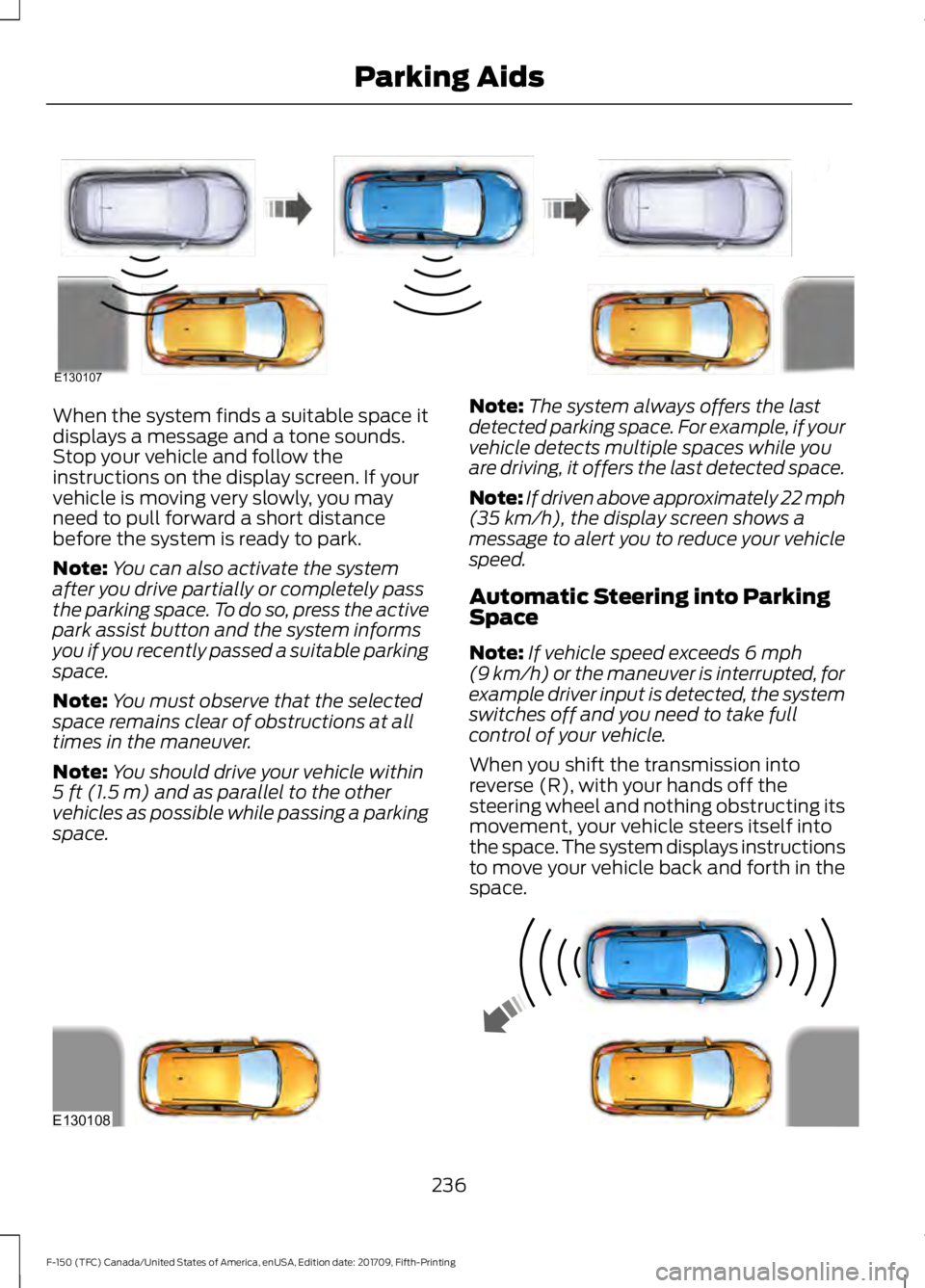
When the system finds a suitable space it
displays a message and a tone sounds.
Stop your vehicle and follow the
instructions on the display screen. If your
vehicle is moving very slowly, you may
need to pull forward a short distance
before the system is ready to park.
Note:
You can also activate the system
after you drive partially or completely pass
the parking space. To do so, press the active
park assist button and the system informs
you if you recently passed a suitable parking
space.
Note: You must observe that the selected
space remains clear of obstructions at all
times in the maneuver.
Note: You should drive your vehicle within
5 ft (1.5 m) and as parallel to the other
vehicles as possible while passing a parking
space. Note:
The system always offers the last
detected parking space. For example, if your
vehicle detects multiple spaces while you
are driving, it offers the last detected space.
Note: If driven above approximately 22 mph
(35 km/h)
, the display screen shows a
message to alert you to reduce your vehicle
speed.
Automatic Steering into Parking
Space
Note: If vehicle speed exceeds
6 mph
(9 km/h) or the maneuver is interrupted, for
example driver input is detected, the system
switches off and you need to take full
control of your vehicle.
When you shift the transmission into
reverse (R), with your hands off the
steering wheel and nothing obstructing its
movement, your vehicle steers itself into
the space. The system displays instructions
to move your vehicle back and forth in the
space. 236
F-150 (TFC) Canada/United States of America, enUSA, Edition date: 201709, Fifth-Printing Parking AidsE130107 E130108
Page 240 of 641
When you think your vehicle has enough
space in front and behind it, or you hear a
solid tone from the parking aid
(accompanied by a touchscreen display
message and a chime), bring your vehicle
to a complete stop.
When automatic steering is complete, the
system displays a message and a chime
sounds, indicating that the active park
assist process is finished. You are
responsible for checking the parking job
and making any necessary corrections
before leaving your vehicle.
Deactivating the Park Assist
Feature
Manually deactivate the system by:
•
Pressing the active park assist button
during an active maneuver.
• Grabbing the steering wheel during an
active maneuver. •
Driving above approximately 22 mph
(35 km/h) for 30 seconds during an
active park search.
• Driving above
6 mph (9 km/h) during
automatic steering.
• Switching off the traction control
system.
Certain vehicle conditions can also
deactivate the system, such as:
• Traction control has activated.
• There is an anti-lock brake system
activation or failure.
If a problem occurs with the system, a
warning message displays accompanied
by a tone. Occasional system messages
may occur in normal operation. For
recurring or frequent system faults, contact
an authorized dealer to have your vehicle
serviced.
Troubleshooting the System The system does not look for a space
The traction control system may be off.
The transmission is in reverse (R). Your vehicle must be moving forward to detect a
parking space. The system does not offer a particular space
The sensors may be covered. For example, with snow, ice or dirt. Covered sensors can
affect the system's functionality
There is not enough room in the parking space for your vehicle to safely park.
There is not enough space for the parking maneuver on the opposite side of the parking
space.
237
F-150 (TFC) Canada/United States of America, enUSA, Edition date: 201709, Fifth-Printing Parking Aids
Page 242 of 641
WARNING: Use caution when the
rear cargo door is ajar. If the rear cargo
door is ajar, the camera will be out of
position and the video image may be
incorrect. All guidelines disappear when
the rear cargo door is ajar. Some vehicles
may not come equipped with guidelines. WARNING:
Use caution when
turning camera features on or off when
the transmission is not in park (P). Make
sure your vehicle is not moving.
The rear view camera system provides a
video image of the area behind your
vehicle.
During operation, lines appear in the
display which represent your vehicle ’s path
and proximity to objects behind your
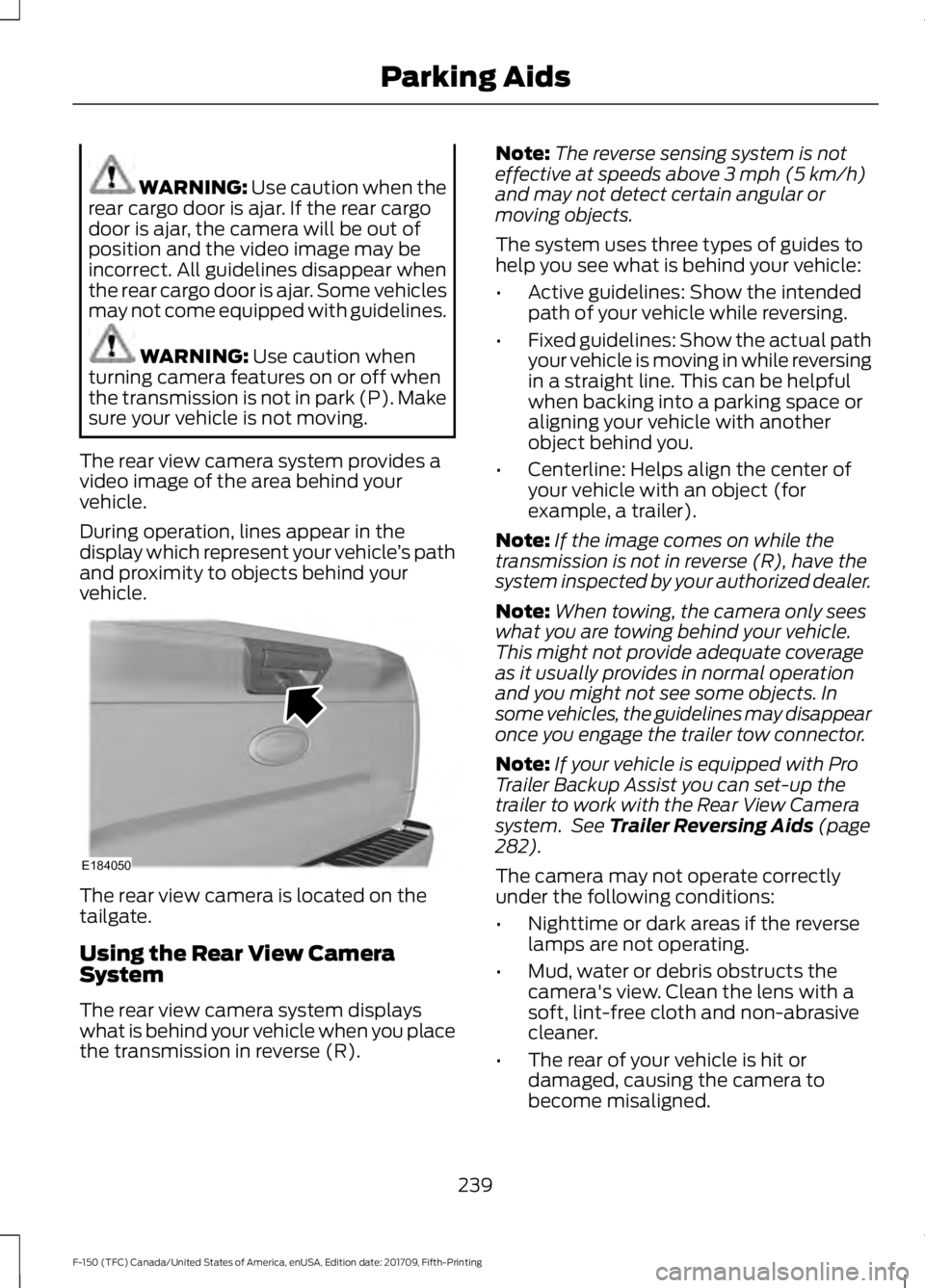
vehicle. The rear view camera is located on the
tailgate.
Using the Rear View Camera
System
The rear view camera system displays
what is behind your vehicle when you place
the transmission in reverse (R). Note:
The reverse sensing system is not
effective at speeds above
3 mph (5 km/h)
and may not detect certain angular or
moving objects.
The system uses three types of guides to
help you see what is behind your vehicle:
• Active guidelines: Show the intended
path of your vehicle while reversing.
• Fixed guidelines: Show the actual path
your vehicle is moving in while reversing
in a straight line. This can be helpful
when backing into a parking space or
aligning your vehicle with another
object behind you.
• Centerline: Helps align the center of
your vehicle with an object (for
example, a trailer).
Note: If the image comes on while the
transmission is not in reverse (R), have the
system inspected by your authorized dealer.
Note: When towing, the camera only sees
what you are towing behind your vehicle.
This might not provide adequate coverage
as it usually provides in normal operation
and you might not see some objects. In
some vehicles, the guidelines may disappear
once you engage the trailer tow connector.
Note: If your vehicle is equipped with Pro
Trailer Backup Assist you can set-up the
trailer to work with the Rear View Camera
system. See
Trailer Reversing Aids (page
282).
The camera may not operate correctly
under the following conditions:
• Nighttime or dark areas if the reverse
lamps are not operating.
• Mud, water or debris obstructs the
camera's view. Clean the lens with a
soft, lint-free cloth and non-abrasive
cleaner.
• The rear of your vehicle is hit or
damaged, causing the camera to
become misaligned.
239
F-150 (TFC) Canada/United States of America, enUSA, Edition date: 201709, Fifth-Printing Parking AidsE184050
Page 243 of 641
Camera System Settings
You can access the rear view camera
system settings in the display screen. See
General Information (page 113).
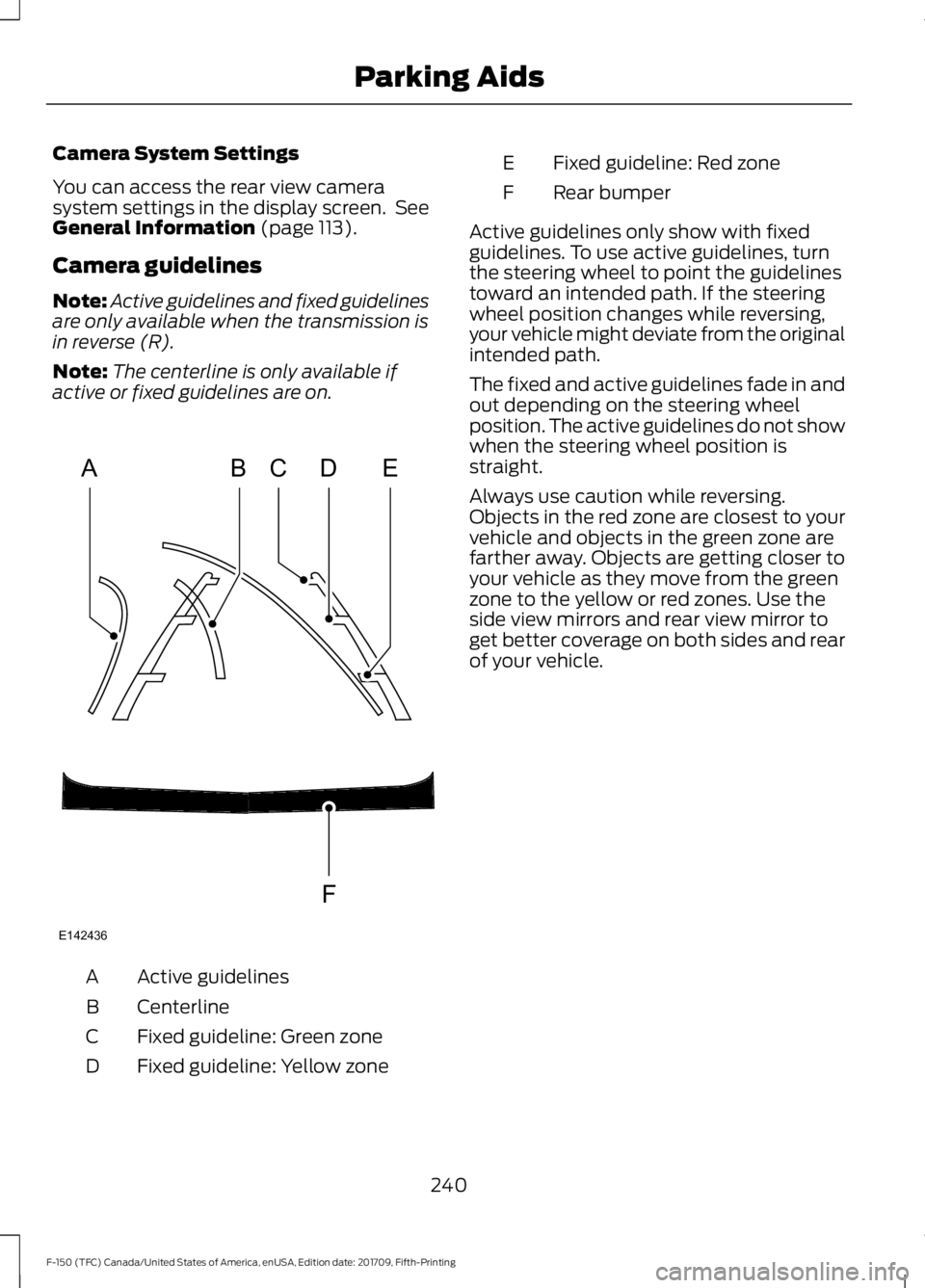
Camera guidelines
Note: Active guidelines and fixed guidelines
are only available when the transmission is
in reverse (R).
Note: The centerline is only available if
active or fixed guidelines are on. Active guidelines
A
Centerline
B
Fixed guideline: Green zone
C
Fixed guideline: Yellow zone
D Fixed guideline: Red zone
E
Rear bumper
F
Active guidelines only show with fixed
guidelines. To use active guidelines, turn
the steering wheel to point the guidelines
toward an intended path. If the steering
wheel position changes while reversing,
your vehicle might deviate from the original
intended path.
The fixed and active guidelines fade in and
out depending on the steering wheel
position. The active guidelines do not show
when the steering wheel position is
straight.
Always use caution while reversing.
Objects in the red zone are closest to your
vehicle and objects in the green zone are
farther away. Objects are getting closer to
your vehicle as they move from the green
zone to the yellow or red zones. Use the
side view mirrors and rear view mirror to
get better coverage on both sides and rear
of your vehicle.
240
F-150 (TFC) Canada/United States of America, enUSA, Edition date: 201709, Fifth-Printing Parking AidsABCD
F
E
E142436
Page 244 of 641
Obstacle Distance Indicator (If
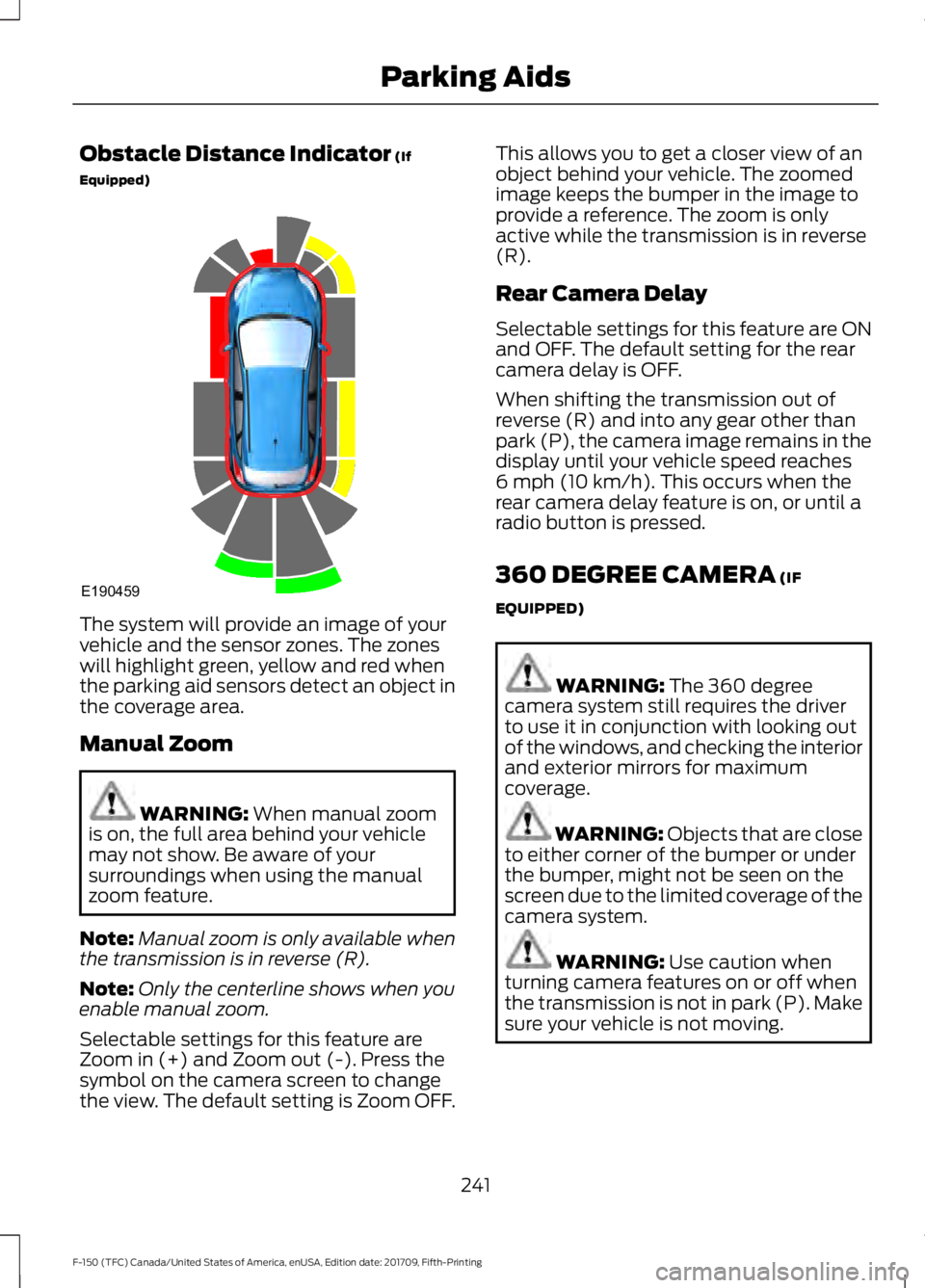
Equipped) The system will provide an image of your
vehicle and the sensor zones. The zones
will highlight green, yellow and red when
the parking aid sensors detect an object in
the coverage area.
Manual Zoom
WARNING:
When manual zoom
is on, the full area behind your vehicle
may not show. Be aware of your
surroundings when using the manual
zoom feature.
Note: Manual zoom is only available when
the transmission is in reverse (R).
Note: Only the centerline shows when you
enable manual zoom.
Selectable settings for this feature are
Zoom in (+) and Zoom out (-). Press the
symbol on the camera screen to change
the view. The default setting is Zoom OFF. This allows you to get a closer view of an
object behind your vehicle. The zoomed
image keeps the bumper in the image to
provide a reference. The zoom is only
active while the transmission is in reverse
(R).
Rear Camera Delay
Selectable settings for this feature are ON
and OFF. The default setting for the rear
camera delay is OFF.
When shifting the transmission out of
reverse (R) and into any gear other than
park (P), the camera image remains in the
display until your vehicle speed reaches
6 mph (10 km/h)
. This occurs when the
rear camera delay feature is on, or until a
radio button is pressed.
360 DEGREE CAMERA
(IF
EQUIPPED) WARNING:
The 360 degree
camera system still requires the driver
to use it in conjunction with looking out
of the windows, and checking the interior
and exterior mirrors for maximum
coverage. WARNING: Objects that are close
to either corner of the bumper or under
the bumper, might not be seen on the
screen due to the limited coverage of the
camera system. WARNING:
Use caution when
turning camera features on or off when
the transmission is not in park (P). Make
sure your vehicle is not moving.
241
F-150 (TFC) Canada/United States of America, enUSA, Edition date: 201709, Fifth-Printing Parking AidsE190459
Page 245 of 641
The 360 degree camera system consists
of front, side and rear cameras. The
system:
•
Allows you to see what is directly in
front or behind your vehicle.
• Provides cross traffic view in front and
behind your vehicle.
• Allows you to see a top-down view of
the area outside your vehicle, including
the blind spots.
• Provides visibility around your vehicle
to you in parking maneuvers such as:
•Centering in a parking space.
• Obstacles near vehicle.
• Parallel parking. The 360 degree camera system
button is located on the
instrument panel and allows you
to toggle through different camera views.
The front and rear cameras have multiple
screens which consist of: Normal view with
360, Normal view, and split view. When in
park (P), neutral (N) or drive (D), only the
front images will be displayed when the
button is pressed. When in reverse (R), only
the rear images will be displayed when the
button is pressed.
Note: The 360 degree camera system will
turn OFF when your vehicle is in motion at
low speed, except when in reverse (R).
Camera Views
The small vehicle icon displayed on the
top left corner of the image illustrates the
camera view being displayed. Camera
views are laid out in the order the screens
will appear once the button is pressed.
Note: The front video image will be
disabled when your vehicle is in motion at
low speed, except when in reverse (R). •
Front 360 + Normal: Contains the
normal front camera view next to a
360 degree camera view. This view will
appear on the screen when the button
is pressed in any gear other than
reverse (R).
• Front Normal View:
Provides an
image of what is directly in front of your
vehicle. Access this view by pressing
the camera button from the Front 360
+ Normal View screen.
• Front Split View:
Provides an
extended view of what is in front of
your vehicle. Access this view by
pressing the camera button from the
Front Normal View screen.
• Rear 360 + Normal:
Contains the
normal rear camera view next to a 360
degree camera view. This view can be
accessed by putting your vehicle in
reverse (R), or by pressing the camera
button from the Rear Split View screen.
• Rear Normal View: Provides an image
of what is directly behind your vehicle.
Access this view by pressing the
camera button from the Rear 360 +
Normal screen.
• Rear Split View:
Provides an
extended view of what is behind your
vehicle. Access this view by pressing
the camera button from the Rear
Normal View screen.
242
F-150 (TFC) Canada/United States of America, enUSA, Edition date: 201709, Fifth-Printing Parking AidsE183663
Page 246 of 641
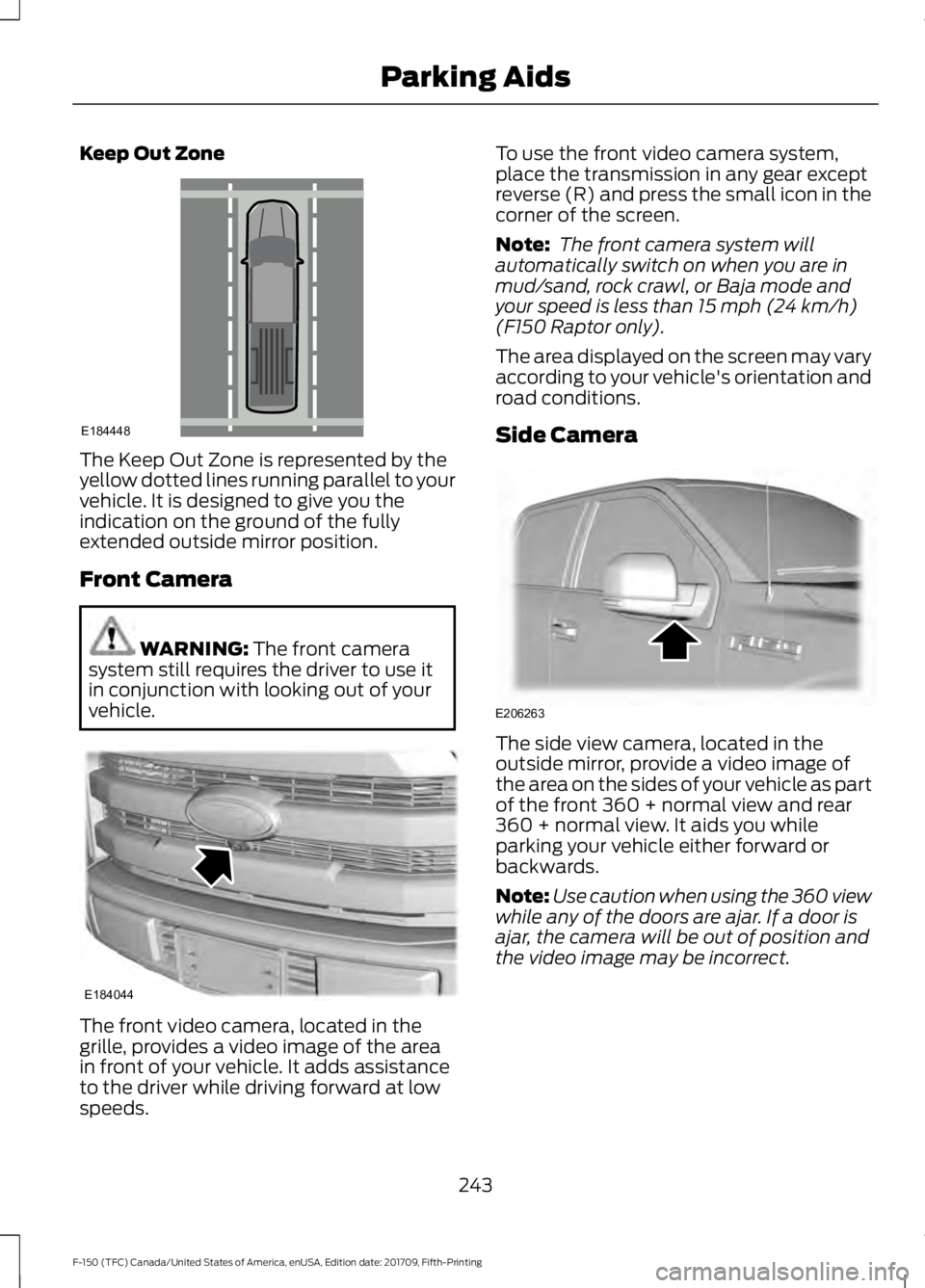
Keep Out Zone
The Keep Out Zone is represented by the
yellow dotted lines running parallel to your
vehicle. It is designed to give you the
indication on the ground of the fully
extended outside mirror position.
Front Camera
WARNING: The front camera
system still requires the driver to use it
in conjunction with looking out of your
vehicle. The front video camera, located in the
grille, provides a video image of the area
in front of your vehicle. It adds assistance
to the driver while driving forward at low
speeds. To use the front video camera system,
place the transmission in any gear except
reverse (R) and press the small icon in the
corner of the screen.
Note:
The front camera system will
automatically switch on when you are in
mud/sand, rock crawl, or Baja mode and
your speed is less than
15 mph (24 km/h)
(F150 Raptor only).
The area displayed on the screen may vary
according to your vehicle's orientation and
road conditions.
Side Camera The side view camera, located in the
outside mirror, provide a video image of
the area on the sides of your vehicle as part
of the front 360 + normal view and rear
360 + normal view. It aids you while
parking your vehicle either forward or
backwards.
Note:
Use caution when using the 360 view
while any of the doors are ajar. If a door is
ajar, the camera will be out of position and
the video image may be incorrect.
243
F-150 (TFC) Canada/United States of America, enUSA, Edition date: 201709, Fifth-Printing Parking AidsE184448 E184044 E206263
Page 247 of 641
PRINCIPLE OF OPERATION
Cruise control lets you maintain a set
speed without keeping your foot on the
accelerator pedal. You can use cruise
control when your vehicle speed is greater
than 20 mph (30 km/h).
USING CRUISE CONTROL
(IF
EQUIPPED) WARNING:
Do not use cruise
control on winding roads, in heavy traffic
or when the road surface is slippery. This
could result in loss of vehicle control,
serious injury or death. WARNING:
When you are going
downhill, your vehicle speed could
increase above the set speed. The
system does not apply the brakes.
Note: Cruise control disengages if the
vehicle speed decreases more than 10 mph
(16 km/h) below the set speed when driving
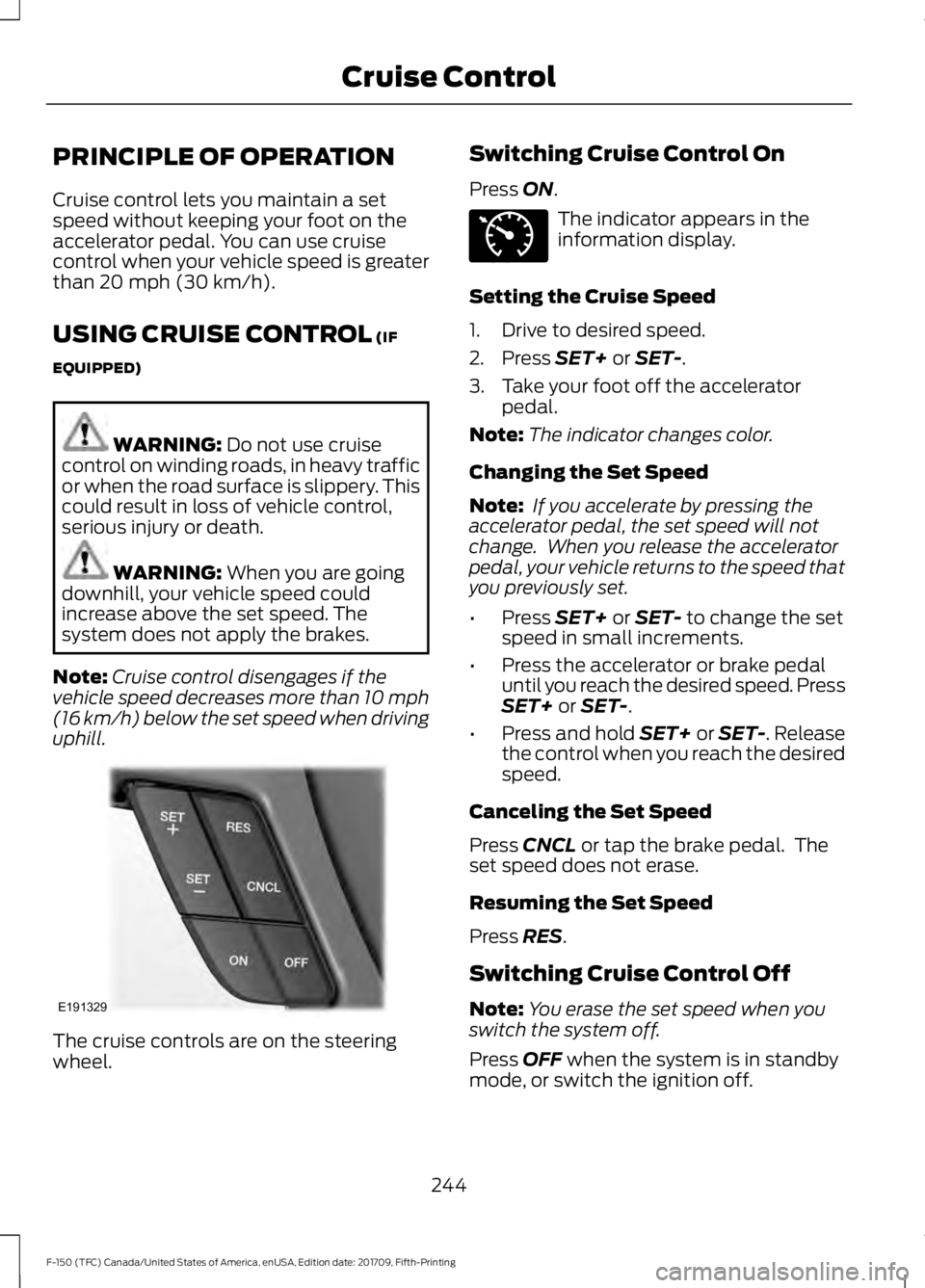
uphill. The cruise controls are on the steering
wheel. Switching Cruise Control On
Press
ON. The indicator appears in the
information display.
Setting the Cruise Speed
1. Drive to desired speed.
2. Press
SET+ or SET-.
3. Take your foot off the accelerator pedal.
Note: The indicator changes color.
Changing the Set Speed
Note: If you accelerate by pressing the
accelerator pedal, the set speed will not
change. When you release the accelerator
pedal, your vehicle returns to the speed that
you previously set.
• Press
SET+ or SET- to change the set
speed in small increments.
• Press the accelerator or brake pedal
until you reach the desired speed. Press
SET+
or SET-.
• Press and hold SET+ or SET-. Release
the control when you reach the desired
speed.
Canceling the Set Speed
Press
CNCL or tap the brake pedal. The
set speed does not erase.
Resuming the Set Speed
Press
RES.
Switching Cruise Control Off
Note: You erase the set speed when you
switch the system off.
Press
OFF when the system is in standby
mode, or switch the ignition off.
244
F-150 (TFC) Canada/United States of America, enUSA, Edition date: 201709, Fifth-Printing Cruise ControlE191329 E71340
Page 248 of 641
USING ADAPTIVE CRUISE
CONTROL (IF EQUIPPED)
WARNING:
Always pay close
attention to changing road conditions
when using adaptive cruise control. The
system does not replace attentive
driving. Failing to pay attention to the
road may result in a crash, serious injury
or death. WARNING:
Do not use the
adaptive cruise control when entering or
leaving a highway, on roads with
intersections or roundabouts or
non-vehicular traffic or roads that are
winding, slippery, unpaved, or steep
slopes. WARNING:
Do not use the system
in poor visibility, for example fog, heavy
rain, spray or snow. WARNING:
Do not use the system
when towing a trailer that has
aftermarket electronic trailer brake
controls. Failure to follow this instruction
could result in the loss of control of your
vehicle, personal injury or death. WARNING:
Do not use tire sizes
other than those recommended because
this can affect the normal operation of
the system. Failure to do so may result
in a loss of vehicle control, which could
result in serious injury. WARNING: Adaptive cruise control
may not detect stationary or slow
moving vehicles below 6 mph (10 km/h). WARNING: Adaptive cruise control
does not detect pedestrians or objects
in the road. WARNING: Adaptive cruise control
does not detect oncoming vehicles in the
same lane. WARNING: Adaptive cruise control
is not a crash warning or avoidance
system. WARNING:
Do not use adaptive
cruise control with a snow plow blade
installed.
The system adjusts your vehicle speed to
maintain the set gap between you and the
vehicle in front of you in the same lane.
You can select four gap settings.
The system uses a radar sensor that
projects a beam directly in front of your
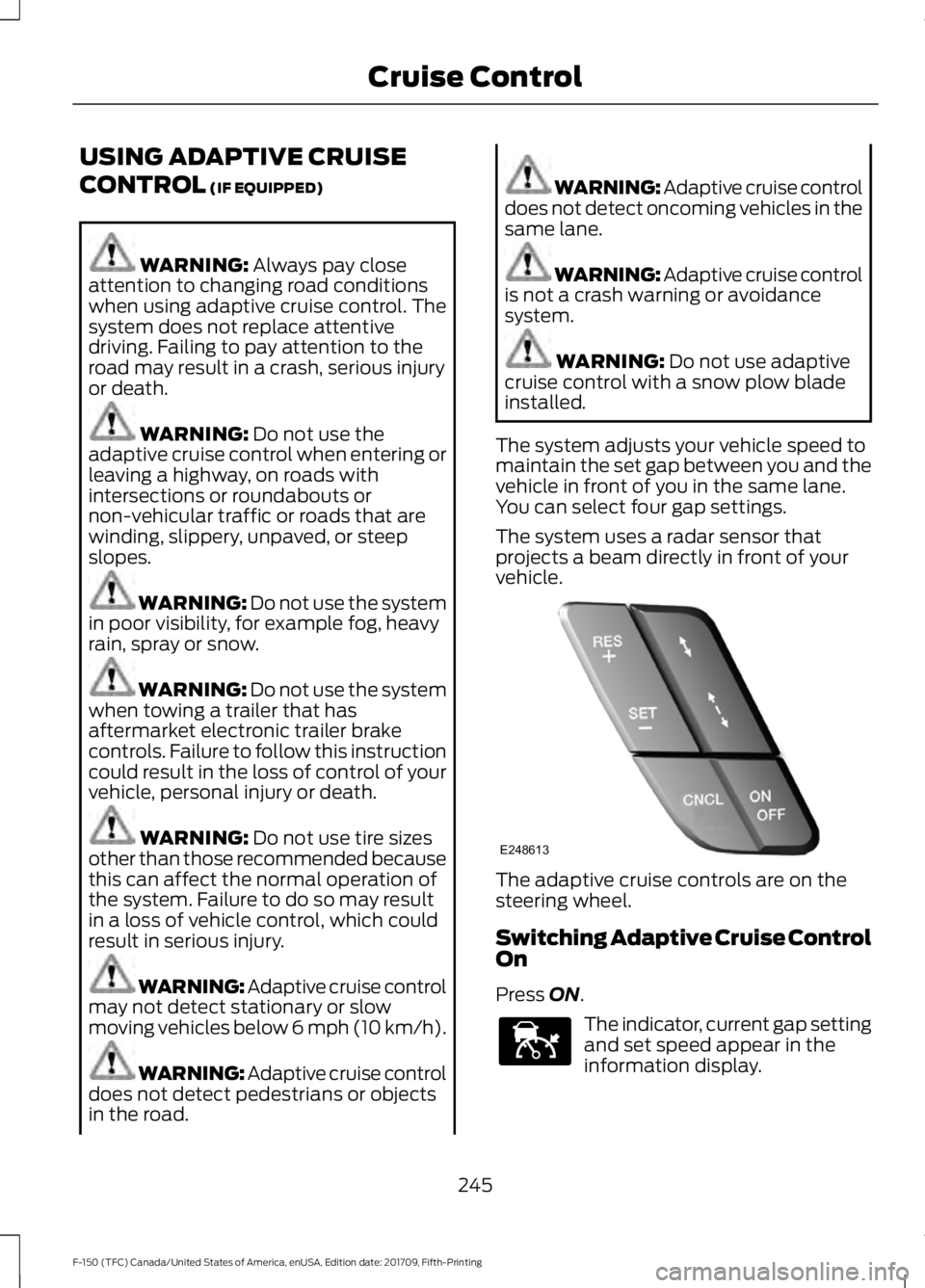
vehicle. The adaptive cruise controls are on the
steering wheel.
Switching Adaptive Cruise Control
On
Press
ON.
The indicator, current gap setting
and set speed appear in the
information display.
245
F-150 (TFC) Canada/United States of America, enUSA, Edition date: 201709, Fifth-Printing Cruise ControlE248613 E144529