buttons FORD F-150 2018 Owner's Manual
[x] Cancel search | Manufacturer: FORD, Model Year: 2018, Model line: F-150, Model: FORD F-150 2018Pages: 641, PDF Size: 8.37 MB
Page 176 of 641
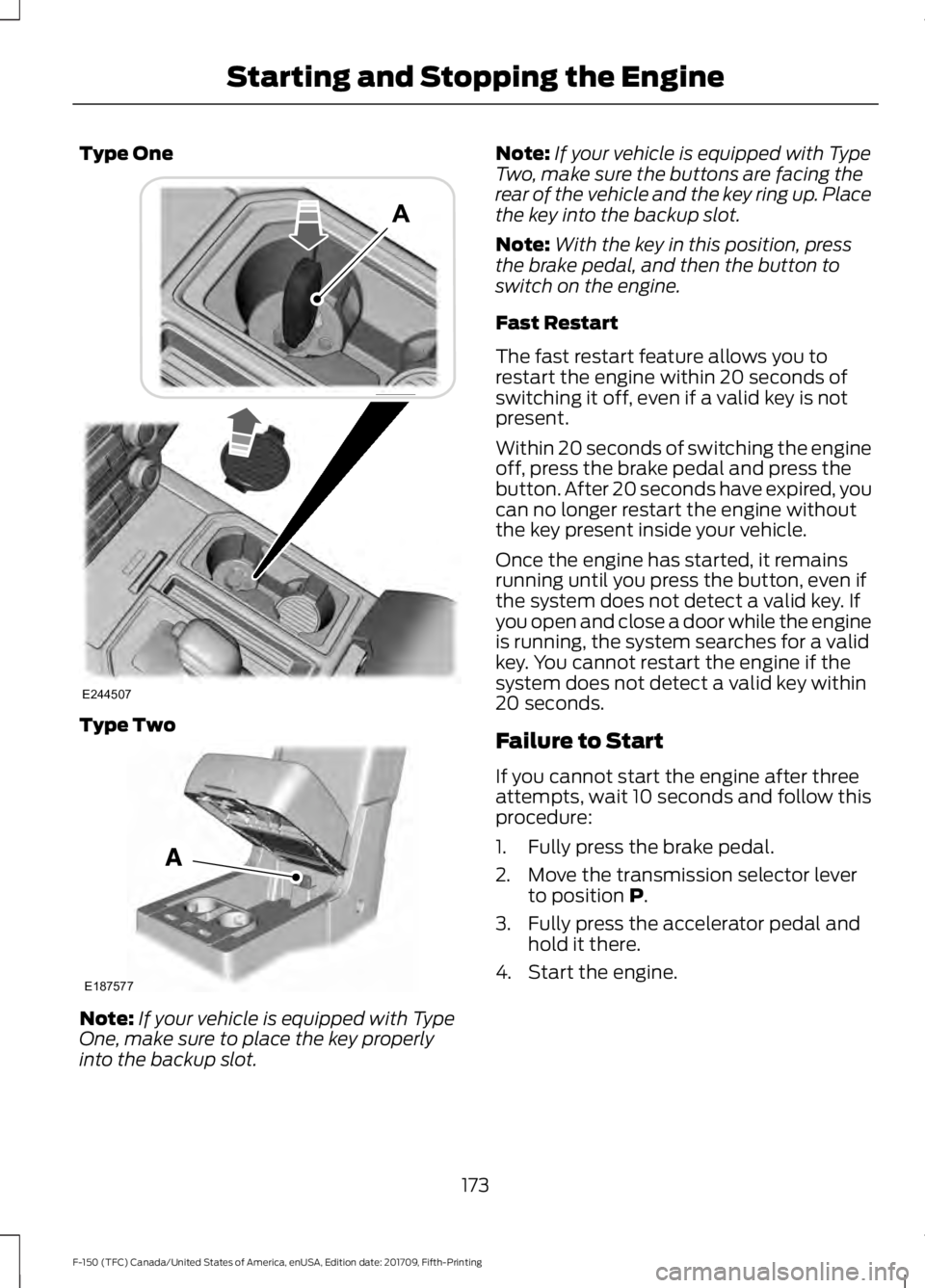
Type One
Type Two
Note:
If your vehicle is equipped with Type
One, make sure to place the key properly
into the backup slot. Note:
If your vehicle is equipped with Type
Two, make sure the buttons are facing the
rear of the vehicle and the key ring up. Place
the key into the backup slot.
Note: With the key in this position, press
the brake pedal, and then the button to
switch on the engine.
Fast Restart
The fast restart feature allows you to
restart the engine within 20 seconds of
switching it off, even if a valid key is not
present.
Within 20 seconds of switching the engine
off, press the brake pedal and press the
button. After 20 seconds have expired, you
can no longer restart the engine without
the key present inside your vehicle.
Once the engine has started, it remains
running until you press the button, even if
the system does not detect a valid key. If
you open and close a door while the engine
is running, the system searches for a valid
key. You cannot restart the engine if the
system does not detect a valid key within
20 seconds.
Failure to Start
If you cannot start the engine after three
attempts, wait 10 seconds and follow this
procedure:
1. Fully press the brake pedal.
2. Move the transmission selector lever to position P.
3. Fully press the accelerator pedal and hold it there.
4. Start the engine.
173
F-150 (TFC) Canada/United States of America, enUSA, Edition date: 201709, Fifth-Printing Starting and Stopping the EngineE244507 E187577
Page 211 of 641
Drive (D)
Drive (D) is the normal driving position for
the best fuel economy, and allows
automatic upshifts and downshifts through
all available gears.
Manual (M) with Floor-shifter
With the gearshift lever in manual (M), the
driver can change gears up or down as
desired. By moving the gearshift lever from
drive position drive (D) to manual (M) you
now have control of selecting the gear you
desire using buttons on the shift lever. See
Understanding your SelectShift
Automatic
™ transmission later in this
section.
To return to normal drive (D) position,
move the gearshift lever back to drive (D).
The transmission operates in all available
gears.
Third (3) with Column-shifter - 6-speed
Transmission operates in third (3) gear
only. Use third (3) gear for improved
traction on slippery roads.
Second (2) - 6-speed
Transmission operates in second (2) gear
only. Use second (2) gear to start-up on
slippery roads.
First (1) - 6-speed
• Transmission operates in first (1) gear
only.
• Provides maximum engine braking.
• Allows upshifts by moving gearshift
lever.
• Does not downshift into first (1) gear
at high speeds; allows for first (1) gear
when vehicle reaches slower speeds. Tow Mode To activate tow mode, press the
button on the gearshift lever
until tow mode is selected. The
indicator light illuminates in the instrument
cluster when the system becomes active.
The tow mode feature:
• Moves upshifts to higher engine speeds
to reduce the frequency of
transmission shifting.
• Provides engine braking in all forward
gears, which slows your vehicle and
assists you in controlling your vehicle
when descending a grade.
• Depending on driving conditions and
load conditions, may downshift the
transmission, slow your vehicle and
control your vehicle speed when
descending a hill, without pressing the
accelerator pedal. The amount of
downshift braking provided varies
based upon the amount you press the
brake pedal.
The tow mode feature improves
transmission operation when towing a
trailer or a heavy load. All transmission
gear ranges are available when using tow
mode.
To deactivate the tow mode feature and
return to normal driving mode, press the
button on the gearshift lever twice. The
indicator light deactivates when the
system turns off. Tow mode also
deactivates when you power down your
vehicle.
Sport Mode To activate Sport Mode, press
the button on the gearshift lever
until sport mode is selected. The
SPORT or
S indicator light illuminates in
the instrument display when the system
becomes active.
208
F-150 (TFC) Canada/United States of America, enUSA, Edition date: 201709, Fifth-Printing TransmissionE161509 E176099
Page 212 of 641
The sport mode feature:
•
Provides additional slope, engine
braking and extends lower gear
operation to enhance performance for
uphill climbs, hilly terrain or
mountainous areas. This increases
engine RPM during engine braking.
• Provides additional lower gear
operation through the automatic
transmission shift strategy.
• Selects gears more quickly and at
higher engine speeds.
To deactivate the sport mode feature and
return to normal driving mode, press the
button on the gearshift lever again. The
SPORT or S indicator light deactivates
when the system turns off. The sport mode
feature also deactivates when you power
down your vehicle.
Automatic Transmission Adaptive
Learning
This feature increases durability and
provides consistent shift feel over the life
of your vehicle. A new vehicle or
transmission may have firm shifts, soft
shifts or both. This operation is normal and
does not affect function or durability of the
transmission. Over time, the adaptive
learning process fully updates transmission
operation.
Forced Downshifts
• Allowed in drive (D) with the tow mode
feature on or off.
• Press the accelerator to the floor.
• Allows transmission to select an
appropriate gear. Understanding your SelectShift™
Automatic Transmission
Your vehicle is equipped with a SelectShift
Automatic transmission gearshift lever.
The SelectShift Automatic transmission
gives you the ability to change gears up or
down (without a clutch) as desired.
In order to prevent the engine from running
at too low an RPM, which may cause it to
stall, SelectShift still automatically makes
some downshifts if it has determined that
you have not downshifted in time.
Although SelectShift makes some
downshifts for you, it still allows you to
downshift at any time as long as
SelectShift determines that damage to
the engine from over-revving does not
occur.
SelectShift does not automatically upshift,
even if the engine is approaching the RPM
limit. It must be shifted manually by
pressing the
+ button.
Note: Engine damage may occur if you
maintain excessive engine revving without
shifting.
The SelectShift Automatic transmission
feature has two modes: PRS and M mode.
Manual (M) with Floor-shifter
Moving the gearshift lever to the manual
(M) position allows you to manually select
the gear you desire. Only the current gear
displays. Use the buttons on the gearshift
lever or steering wheel to manually select
gears. Press the
+ button to upshift or the
– button to downshift. Return the
transmission to a different gearshift
position to deactivate manual control.
209
F-150 (TFC) Canada/United States of America, enUSA, Edition date: 201709, Fifth-Printing Transmission
Page 263 of 641
Note:
You do not need to enter an exact
trailer width measurement. You only need
to confirm that the width of the trailer is
8.5 ft (2.6 m) or less.
• Trailer length measurement:
The trailer length is the distance between
the trailer hitch ball and the rear of the
trailer. The maximum length that the
system can support is
33 ft (10.1 m).
• Enter length of trailer:
The default setting is
18 ft (5.5 m).
Toggling up or down using the menu
buttons increases or decreases the
measurement by
3 ft (1 m). Select a length
that is equal to or within 3 ft (1 m) of the
actual measured length. For example, if
the actual measured length is 25 ft (7.6 m),
toggle the length in the menu to
27 ft
(8.2 m). When you enter the length of the
trailer, the system setup is saved.
Note: If the trailer is actually a bike rack or
cargo rack with electrical lighting, enter a
length of
3 ft (1 m). Cross Traffic Alert
remains on for trailers with a length of 3 ft
(1 m) or less.
Note: Proper measurement and
measurement entry is required for the
system to function as designed.
System Operation
When you connect a trailer to your vehicle,
the trailer set up menu appears in the
information display. This menu allows you
to set up a new trailer or choose from a
previously set up trailer. A warning
message appears and the system turns off
if you do not choose or add a new trailer.
Note: The warning message may not
appear until your vehicle speed reaches
22 mph (35 km/h)
. If you select a trailer in the information
display before connecting a trailer to your
vehicle, the system loads the configuration
for the selected trailer. When you connect
a trailer, a warning message appears.
Note:
A second warning message may
appear stating that the Cross Traffic Alert
system has turned off. The Blind Spot
Information System with Trailer Tow
continues to function normally in this
situation.
Note: The system remembers the last
selected trailer set up when you start your
vehicle.
Trailer Considerations
The system is designed to work with a
trailer with a front width of
8.5 ft (2.6 m)
or less, and a total length from the trailer
hitch ball to the rear of the trailer of
33 ft
(10.1 m) or less.
Some trailers may cause a slight change
in system performance:
• Large box trailers may cause false
alerts to occur when driving next to
infrastructures or near parked cars. A
false alert may also occur while making
a 90-degree turn.
• Trailers that have a width greater than
8.5 ft (2.6 m)
at the front and have a
total length greater than 20 ft (6 m)
may cause delayed alerts when a
vehicle is passing at high speed.
• Box trailers that have a width greater
than
8.5 ft (2.6 m) at the front may
cause early alerts when you pass a
vehicle.
• Clam shell or V-Nose box trailers with
a width greater than
8.5 ft (2.6 m) at
the front may cause delayed alerts
when a vehicle traveling the same
speed as your vehicle merges lanes.
260
F-150 (TFC) Canada/United States of America, enUSA, Edition date: 201709, Fifth-Printing Driving Aids
Page 310 of 641
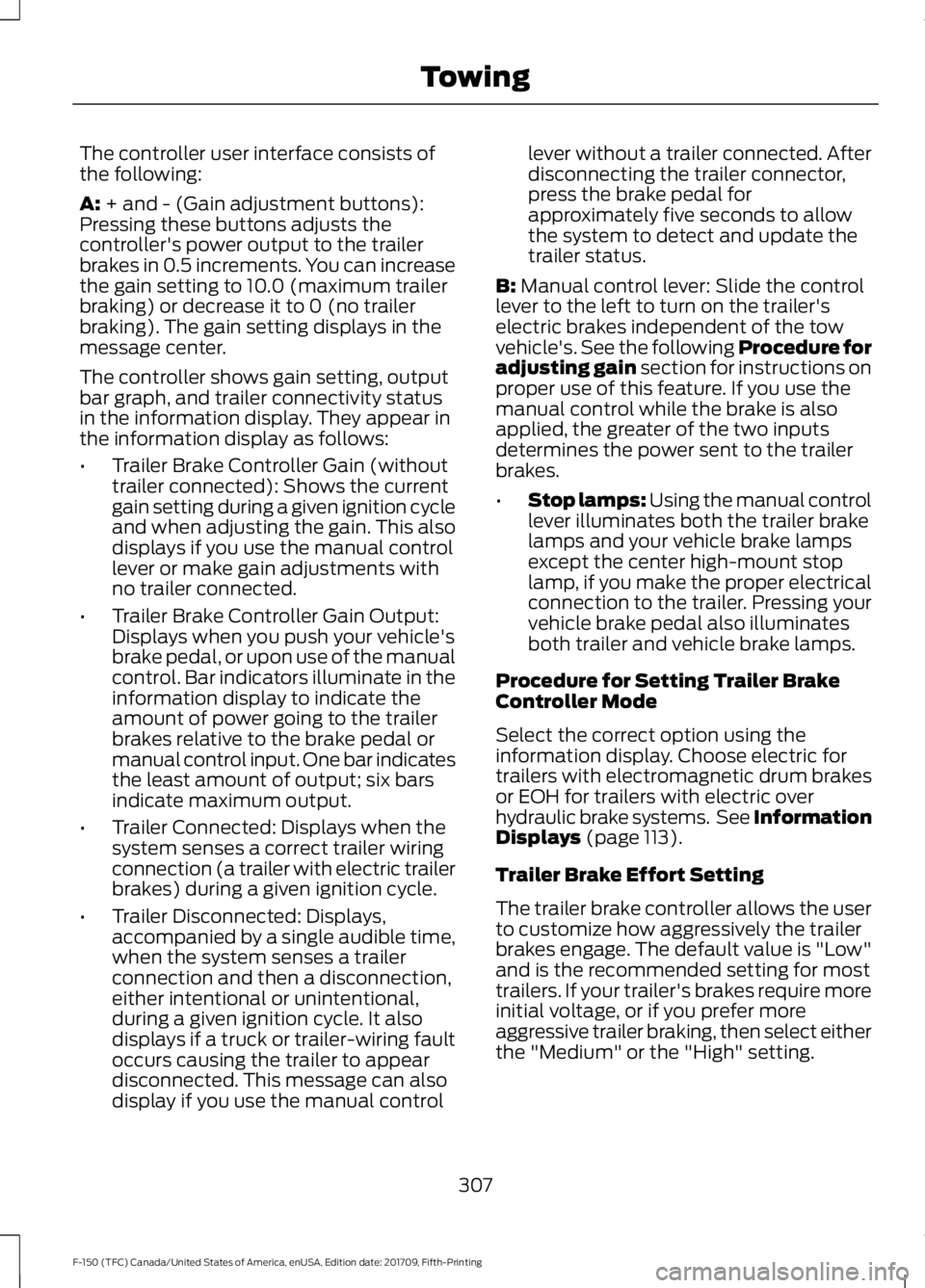
The controller user interface consists of
the following:
A: + and - (Gain adjustment buttons):
Pressing these buttons adjusts the
controller's power output to the trailer
brakes in 0.5 increments. You can increase
the gain setting to 10.0 (maximum trailer
braking) or decrease it to 0 (no trailer
braking). The gain setting displays in the
message center.
The controller shows gain setting, output
bar graph, and trailer connectivity status
in the information display. They appear in
the information display as follows:
• Trailer Brake Controller Gain (without
trailer connected): Shows the current
gain setting during a given ignition cycle
and when adjusting the gain. This also
displays if you use the manual control
lever or make gain adjustments with
no trailer connected.
• Trailer Brake Controller Gain Output:
Displays when you push your vehicle's
brake pedal, or upon use of the manual
control. Bar indicators illuminate in the
information display to indicate the
amount of power going to the trailer
brakes relative to the brake pedal or
manual control input. One bar indicates
the least amount of output; six bars
indicate maximum output.
• Trailer Connected: Displays when the
system senses a correct trailer wiring
connection (a trailer with electric trailer
brakes) during a given ignition cycle.
• Trailer Disconnected: Displays,
accompanied by a single audible time,
when the system senses a trailer
connection and then a disconnection,
either intentional or unintentional,
during a given ignition cycle. It also
displays if a truck or trailer-wiring fault
occurs causing the trailer to appear
disconnected. This message can also
display if you use the manual control lever without a trailer connected. After
disconnecting the trailer connector,
press the brake pedal for
approximately five seconds to allow
the system to detect and update the
trailer status.
B:
Manual control lever: Slide the control
lever to the left to turn on the trailer's
electric brakes independent of the tow
vehicle's. See the following Procedure for
adjusting gain section for instructions on
proper use of this feature. If you use the
manual control while the brake is also
applied, the greater of the two inputs
determines the power sent to the trailer
brakes.
• Stop lamps: Using the manual control
lever illuminates both the trailer brake
lamps and your vehicle brake lamps
except the center high-mount stop
lamp, if you make the proper electrical
connection to the trailer. Pressing your
vehicle brake pedal also illuminates
both trailer and vehicle brake lamps.
Procedure for Setting Trailer Brake
Controller Mode
Select the correct option using the
information display. Choose electric for
trailers with electromagnetic drum brakes
or EOH for trailers with electric over
hydraulic brake systems. See Information
Displays
(page 113).
Trailer Brake Effort Setting
The trailer brake controller allows the user
to customize how aggressively the trailer
brakes engage. The default value is "Low"
and is the recommended setting for most
trailers. If your trailer's brakes require more
initial voltage, or if you prefer more
aggressive trailer braking, then select either
the "Medium" or the "High" setting.
307
F-150 (TFC) Canada/United States of America, enUSA, Edition date: 201709, Fifth-Printing Towing
Page 311 of 641
Procedure for Adjusting Gain
Note:
Only perform this procedure in a
traffic-free environment at speeds of
approximately 20– 25 mph (30–40 km/h).
The gain setting sets the trailer brake
controller for the specific towing condition.
You should change the setting as towing
conditions change. Changes to towing
conditions include trailer load, vehicle load,
road conditions and weather.
The gain should be set to provide the
maximum trailer braking assistance while
making sure the trailer wheels do not lock
when using the brakes. Locked trailer
wheels may lead to trailer instability.
1. Make sure the trailer brakes are in good
working condition, functioning normally
and properly adjusted. See your trailer
dealer if necessary.
2. Hook up the trailer and make the electrical connections according to the
trailer manufacturer's instructions.
3. When you plug in a trailer with electric or electric-over-hydraulic brakes, a
message confirming connection
appears in the information display.
4. Use the gain adjustment (+ and -) buttons to increase or decrease the
gain setting to the desired starting
point. A gain setting of 6.0 is a good
starting point for heavier loads.
5. In a traffic-free environment, tow the trailer on a dry, level surface at a speed
of
20– 25 mph (30–40 km/h) and
squeeze the manual control lever
completely. 6. If the trailer wheels lock up, indicated
by squealing tires, reduce the gain
setting. If the trailer wheels turn freely,
increase the gain setting. Repeat Steps
5 and 6 until the gain setting is at a
point just below trailer wheel lock-up.
If towing a heavier trailer, trailer wheel
lock-up may not be attainable even
with the maximum gain setting of 10.
Explanation of Information Display
Warning Messages
Note: An authorized dealer can diagnose
the trailer brake controller to determine
exactly which trailer fault has occurred.
However, your Ford warranty does not cover
this diagnosis if the fault is with the trailer.
A message indicating a trailer brake
module fault may display in response to
faults sensed by the trailer brake controller,
accompanied by a single tone. If this
message appears, contact an authorized
dealer as soon as possible for diagnosis
and repair. The controller may still
function, but performance may be
degraded.
A message indicating a trailer wiring fault
may display when there is a short circuit
on the electric brake output wire. If this
message displays, accompanied by a
single tone, with no trailer connected, the
problem is with your vehicle wiring
between the trailer brake controller and
the 7-pin connector at the bumper. If the
message only displays with a trailer
connected, the problem is with the trailer
wiring. Consult your trailer dealer for
assistance. This can be a short to ground
(such as a chaffed wire), short to voltage
(such as a pulled pin on trailer emergency
breakaway battery) or the trailer brakes
may be drawing too much current.
308
F-150 (TFC) Canada/United States of America, enUSA, Edition date: 201709, Fifth-Printing Towing
Page 453 of 641
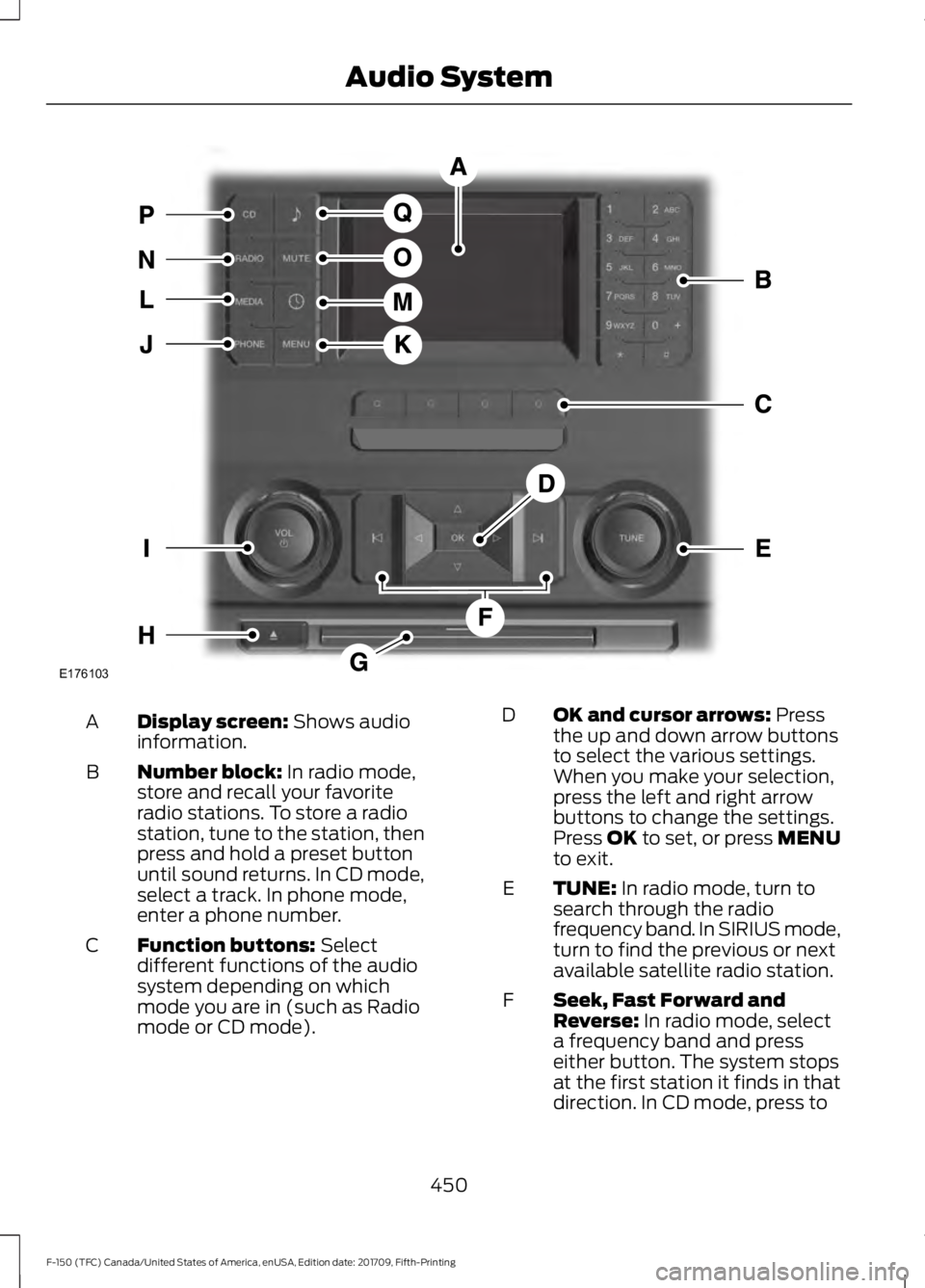
Display screen: Shows audio
information.
A
Number block:
In radio mode,
store and recall your favorite
radio stations. To store a radio
station, tune to the station, then
press and hold a preset button
until sound returns. In CD mode,
select a track. In phone mode,
enter a phone number.
B
Function buttons:
Select
different functions of the audio
system depending on which
mode you are in (such as Radio
mode or CD mode).
C OK and cursor arrows:
Press
the up and down arrow buttons
to select the various settings.
When you make your selection,
press the left and right arrow
buttons to change the settings.
Press OK to set, or press MENU
to exit.
D
TUNE:
In radio mode, turn to
search through the radio
frequency band. In SIRIUS mode,
turn to find the previous or next
available satellite radio station.
E
Seek, Fast Forward and
Reverse:
In radio mode, select
a frequency band and press
either button. The system stops
at the first station it finds in that
direction. In CD mode, press to
F
450
F-150 (TFC) Canada/United States of America, enUSA, Edition date: 201709, Fifth-Printing Audio SystemE176103
Page 454 of 641
select the next or previous track.
Press and hold to move quickly
forward or backward through the
current track. In satellite mode,
press to select the next or
previous satellite radio station.
If you select a specific category
(such as jazz, rock or news),
press to find the next or previous
station in the category you
select.
CD slot: Insert a CD.
G
Eject:
Press to eject a CD.
H
Vol and Power:
Turn to adjust
the volume. Press to switch the
system on and off.
I
PHONE:
Press to access the
phone features.
J
MENU: Press to access different
audio system features. See
Menu Structure
.
K
MEDIA
Press to open the media
source menu. You can press this
multiple times to change to CD
or scroll through the media
sources using the arrow buttons.
Press
OK to select a source.
L
CLOCK
Press to access the
clock setting. Use the center
arrow controls to change the
hours and minutes. You can also
set the clock by pressing MENU
and scrolling to Clock Settings.
M RADIO
Press to listen to the
radio or change radio stations.
Press the function buttons
below the radio screen to select
different radio functions. Press
and hold to select the autostore
function. Press to return to the
main screen of the active radio
band.
N
MUTE
Press to mute the playing
audio.
O
CD
Press to listen to a CD. Press
the function buttons below the
radio screen to select on-screen
options of Repeat or Shuffle.
P
SOUND:
Press to access
settings for Treble, Midrange,
Bass, Fade and Balance. Use the
up and down arrow buttons to
select the various settings. When
you make your selection, press
Q
the left and right arrow buttons
to change the settings. Press OK
to set or press
MENU to exit.
Sound settings can be set for
each audio source
independently.
Menu Structure
Note: Depending on your system, some
options may appear slightly different.
Press
MENU.
Press the up and down arrow buttons to
scroll through the options.
Press the right arrow to enter a menu.
Press the left arrow to exit a menu.
Press
OK to confirm a selection.
451
F-150 (TFC) Canada/United States of America, enUSA, Edition date: 201709, Fifth-Printing Audio System
Page 470 of 641
7. When prompted on your cell phone
’s
display, confirm that the PIN provided
by SYNC matches the PIN displayed
on your cell phone. Your phone is now
paired and the display indicates that
the pairing was successful. If you are
prompted to enter a PIN on your device,
enter the PIN displayed on the screen.
The display indicates when the pairing
is successful.
Depending on your phone's capability and
your market, the system may prompt you
with questions, such as setting the current
phone as the primary phone and
downloading your phonebook.
Using Voice Commands Make sure to switch on your
phone's Bluetooth feature
before starting the search. See
your device's manual if necessary.
Press the voice button and when
prompted say: Action and Descrip-
tion
Voice Command
Follow the instruc-
tions on the audio
display.
Pair Phone
Phone Voice Commands Press the voice button. You can
do things like place a phone call
and access text messages.
When prompted, say a command. See the
following table for example commands. Voice Command
___ List of Commands
Help
Call ___
Dial ___
Text Messages
__ is a dynamic listing, meaning that it
could be the name of anything, such as a
contact or phone number.
Phone Controls
Use the phone buttons on your steering
wheel to answer, reject, or hang up a call.
Accessing Features through the
Phone Menu
You can access your call history,
phonebook, sent text messages, as well
as access phone and system settings.
1. Press the PHONE button to enter the
phone menu.
2. Scroll through the menu to view contacts, text messages, and the
phone dialer.
SYNC™ APPLICATIONS AND
SERVICES
• 911 Assist: Can alert 911 in the event of
an emergency.
• SYNC AppLink: Allows you to connect
to and use certain applications (if your
phone is compatible).
These features may require activation.
Available AppLink enabled apps vary by
market.
467
F-150 (TFC) Canada/United States of America, enUSA, Edition date: 201709, Fifth-Printing SYNC™
(If Equipped)E142599 E142599
Page 478 of 641
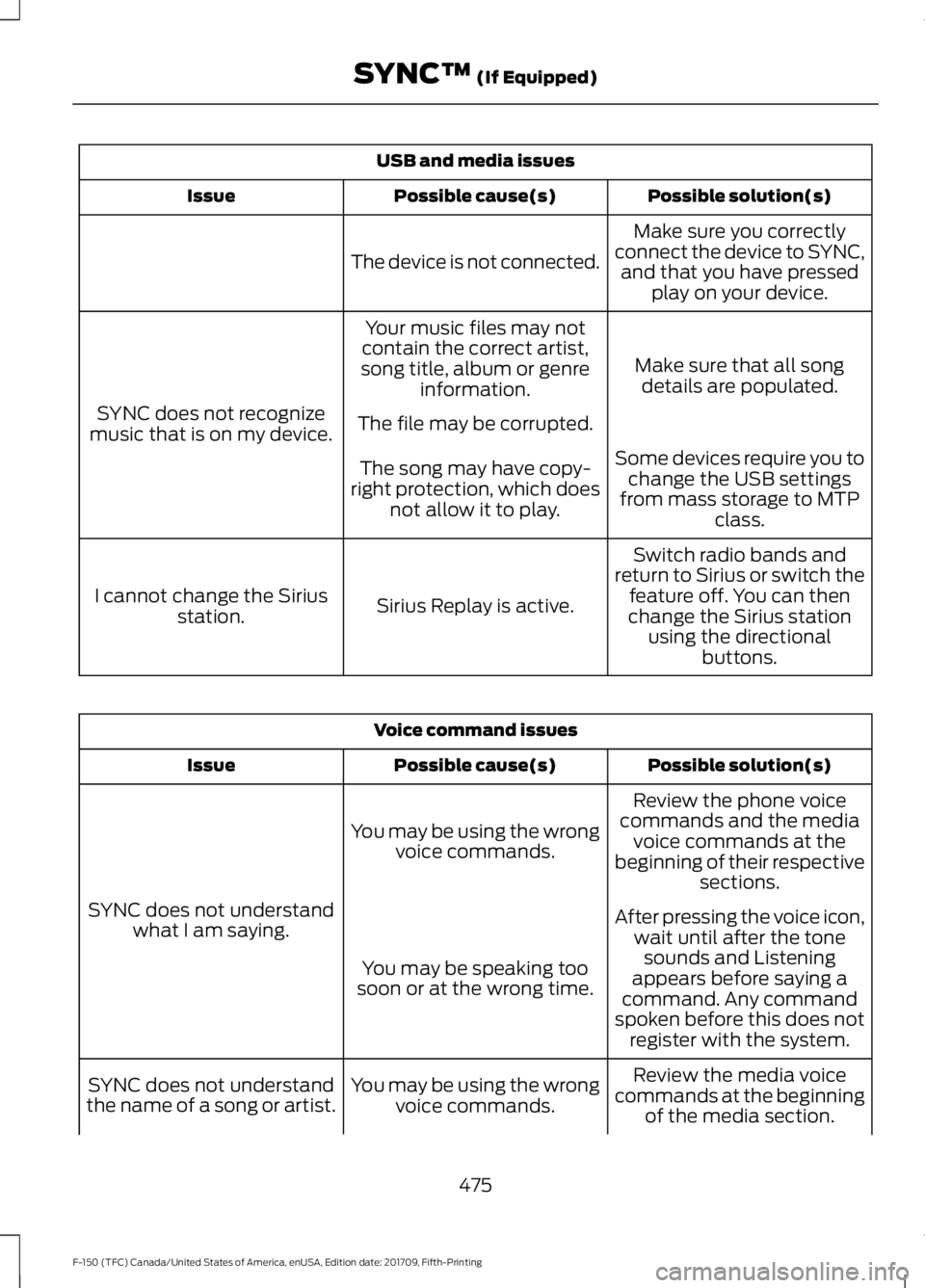
USB and media issues
Possible solution(s)
Possible cause(s)
Issue
Make sure you correctly
connect the device to SYNC, and that you have pressed play on your device.
The device is not connected.
Make sure that all songdetails are populated.
Your music files may not
contain the correct artist,
song title, album or genre information.
SYNC does not recognize
music that is on my device. The file may be corrupted.
Some devices require you tochange the USB settings
from mass storage to MTP class.
The song may have copy-
right protection, which does not allow it to play.
Switch radio bands and
return to Sirius or switch the feature off. You can then
change the Sirius station using the directional buttons.
Sirius Replay is active.
I cannot change the Sirius
station. Voice command issues
Possible solution(s)
Possible cause(s)
Issue
Review the phone voice
commands and the media voice commands at the
beginning of their respective sections.
You may be using the wrong
voice commands.
SYNC does not understand what I am saying. After pressing the voice icon,
wait until after the tonesounds and Listening
appears before saying a
command. Any command
spoken before this does not register with the system.
You may be speaking too
soon or at the wrong time.
Review the media voice
commands at the beginning of the media section.
You may be using the wrong
voice commands.
SYNC does not understand
the name of a song or artist.
475
F-150 (TFC) Canada/United States of America, enUSA, Edition date: 201709, Fifth-Printing SYNC™ (If Equipped)