instrument cluster FORD F-150 2018 Owner's Manual
[x] Cancel search | Manufacturer: FORD, Model Year: 2018, Model line: F-150, Model: FORD F-150 2018Pages: 641, PDF Size: 8.37 MB
Page 230 of 641
PRINCIPLE OF OPERATION
The traction control system helps avoid
drive wheel spin and loss of traction.
If your vehicle begins to slide, the system
applies the brakes to individual wheels
and, when needed, reduces engine power
at the same time. If the wheels spin when
accelerating on slippery or loose surfaces,
the system reduces engine power in order
to increase traction.
USING TRACTION CONTROL
WARNING: The stability and
traction control light illuminates steadily
if the system detects a failure. Make sure
you did not manually disable the traction
control system using the switch. If the
stability control and traction control light
is still illuminating steadily, have the
system serviced by an authorized dealer
immediately. Operating your vehicle with
traction control disabled could lead to
an increased risk of loss of vehicle
control, vehicle rollover, personal injury
and death.
The system automatically turns on each
time you switch the ignition on.
If your vehicle is stuck in mud or snow,
switching traction control off may be
beneficial as this allows the wheels to spin.
Note: When you switch traction control off,
stability control remains fully active. Switching the System Off The switch for the stability and traction
control system is on the instrument panel.
When you switch the system off, a
message and an illuminated icon appear
on the instrument cluster.
Use the switch again to return the traction
control system to normal operation.
Your vehicle may have MyKey restrictions
regarding this feature. See
Principle of
Operation (page 63).
System Indicator Lights and
Messages The stability and traction control
light temporarily illuminates on
engine start-up and flashes:
• When a driving condition activates
either of the systems.
• If a problem occurs in either of the
systems. The stability and traction control
off light temporarily illuminates
on engine start-up and stays on:
• When you switch the traction control
system off.
• When you select an alternative stability
control mode.
227
F-150 (TFC) Canada/United States of America, enUSA, Edition date: 201709, Fifth-Printing Traction ControlE166706 E138639 E130458
Page 234 of 641
PRINCIPLE OF OPERATION
WARNING: Hill descent control
cannot control descent in all surface
conditions and circumstances, such as
ice or extremely steep grades. Hill
descent control is a driver assist system
and cannot substitute for good judgment
by the driver. Failure to do so may result
in loss of vehicle control, crash or serious
injury. WARNING:
Hill descent control
does not provide hill hold at zero miles
per hour (0 kilometers per hour). When
stopped, you must apply the parking
brake or place the vehicle in P (Park), or
it may roll away.
Hill descent control allows you to set and
maintain vehicle speed while descending
steep grades in various surface conditions.
Hill descent control can maintain vehicle
speeds on downhill grades between 2 mph
(3 km/h) and 12 mph (20 km/h). Above 20
mph (32 km/h), the system remains
armed, but you cannot use the system to
set or maintain the descent speed.
Hill descent control requires a cooling
down interval after a period of sustained
use. The amount of time that the feature
can remain active before cooling varies
with conditions. The system provides a
warning in the message center and a tone
sounds when the system is about to
disengage for cooling. At this time,
manually apply the brakes as needed to
maintain descent speed. USING HILL DESCENT
CONTROL Press and release the hill
descent button on the
instrument panel. A light in the
cluster illuminates and a tone sounds
when you switch this on.
To increase descent speed, press the
accelerator pedal until you reach the speed
you desire. To decrease descent speed,
press the brake pedal until you reach the
speed you desire.
When accelerating or decelerating, once
you reach the descent speed you desire,
remove your feet from the pedals and the
hill descent control maintains the vehicle
speed you chose.
Note: You may observe a noise from the
ABS pump motor during hill descent control
operation. This is a normal characteristic of
the ABS and is no reason for concern.
Note: Refer to the Raptor Supplement for
further information on Trail Control.
Hill descent modes
• At speeds between
2 mph (3 km/h)
and 20 mph (32 km/h): When you
press this button, the light flashes
indicating this feature is active. Your
vehicle maintains the speed you desire
when in this mode.
• At speeds between
20 mph (32 km/h)
and 40 mph (64 km/h): When you
press this button, the light is solid and
a message appears in the information
display indicating this feature is active.
Your vehicle does not maintain the
speed you desire and you cannot set
your descent speed.
231
F-150 (TFC) Canada/United States of America, enUSA, Edition date: 201709, Fifth-Printing Hill Descent Control
(If Equipped)E163957
Page 249 of 641
Setting the Adaptive Cruise Speed
Note:
When adaptive cruise control is
active, the speedometer may vary slightly
from the set speed displayed in the
information display.
1. Drive to desired speed.
2. Press SET-.
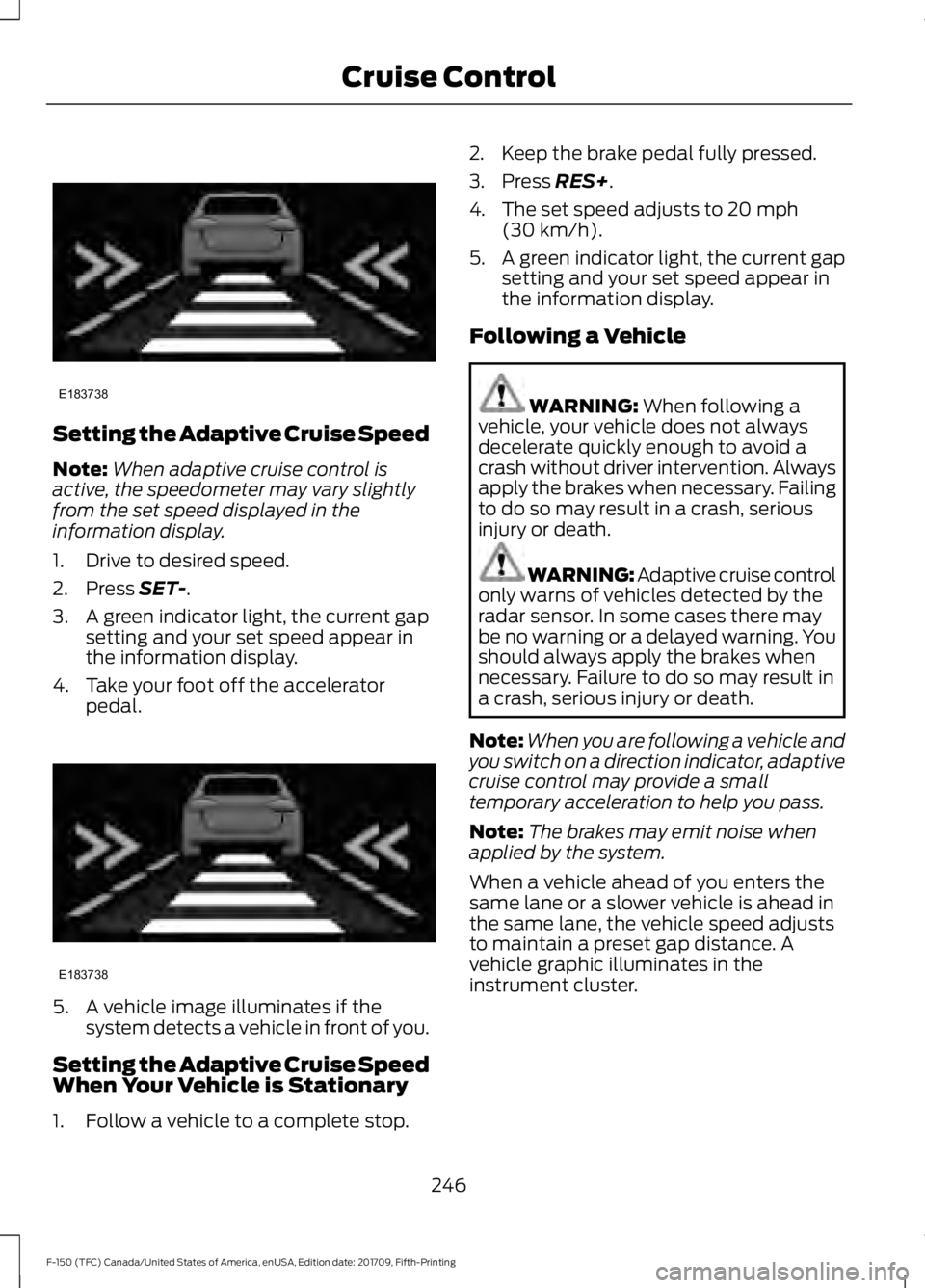
3. A green indicator light, the current gap
setting and your set speed appear in
the information display.
4. Take your foot off the accelerator pedal. 5. A vehicle image illuminates if the
system detects a vehicle in front of you.
Setting the Adaptive Cruise Speed
When Your Vehicle is Stationary
1. Follow a vehicle to a complete stop. 2. Keep the brake pedal fully pressed.
3. Press
RES+.
4. The set speed adjusts to
20 mph
(30 km/h).
5. A green indicator light, the current gap
setting and your set speed appear in
the information display.
Following a Vehicle WARNING:
When following a
vehicle, your vehicle does not always
decelerate quickly enough to avoid a
crash without driver intervention. Always
apply the brakes when necessary. Failing
to do so may result in a crash, serious
injury or death. WARNING: Adaptive cruise control
only warns of vehicles detected by the
radar sensor. In some cases there may
be no warning or a delayed warning. You
should always apply the brakes when
necessary. Failure to do so may result in
a crash, serious injury or death.
Note: When you are following a vehicle and
you switch on a direction indicator, adaptive
cruise control may provide a small
temporary acceleration to help you pass.
Note: The brakes may emit noise when
applied by the system.
When a vehicle ahead of you enters the
same lane or a slower vehicle is ahead in
the same lane, the vehicle speed adjusts
to maintain a preset gap distance. A
vehicle graphic illuminates in the
instrument cluster.
246
F-150 (TFC) Canada/United States of America, enUSA, Edition date: 201709, Fifth-Printing Cruise ControlE183738 E183738
Page 272 of 641
DRIVE CONTROL
Selectable Drive Modes
The system delivers a driving experience
through a suite of sophisticated electronic
vehicle systems. These systems optimize
steering, handling and powertrain
response. This provides a single location
to control multiple systems performance
settings.
Changing the drive mode automatically
changes the functionality of the following
systems:
•
Electronic stability control and traction
control maintains your vehicle control
in adverse conditions or high
performance driving. See Stability
Control (page 228).
• Electronic throttle control enhances
the powertrain response to your inputs.
• Transmission controls are optimized
with shift schedules tuned to each
terrain.
Using the System
The system automatically tailors your
vehicle configuration for each mode you
select.
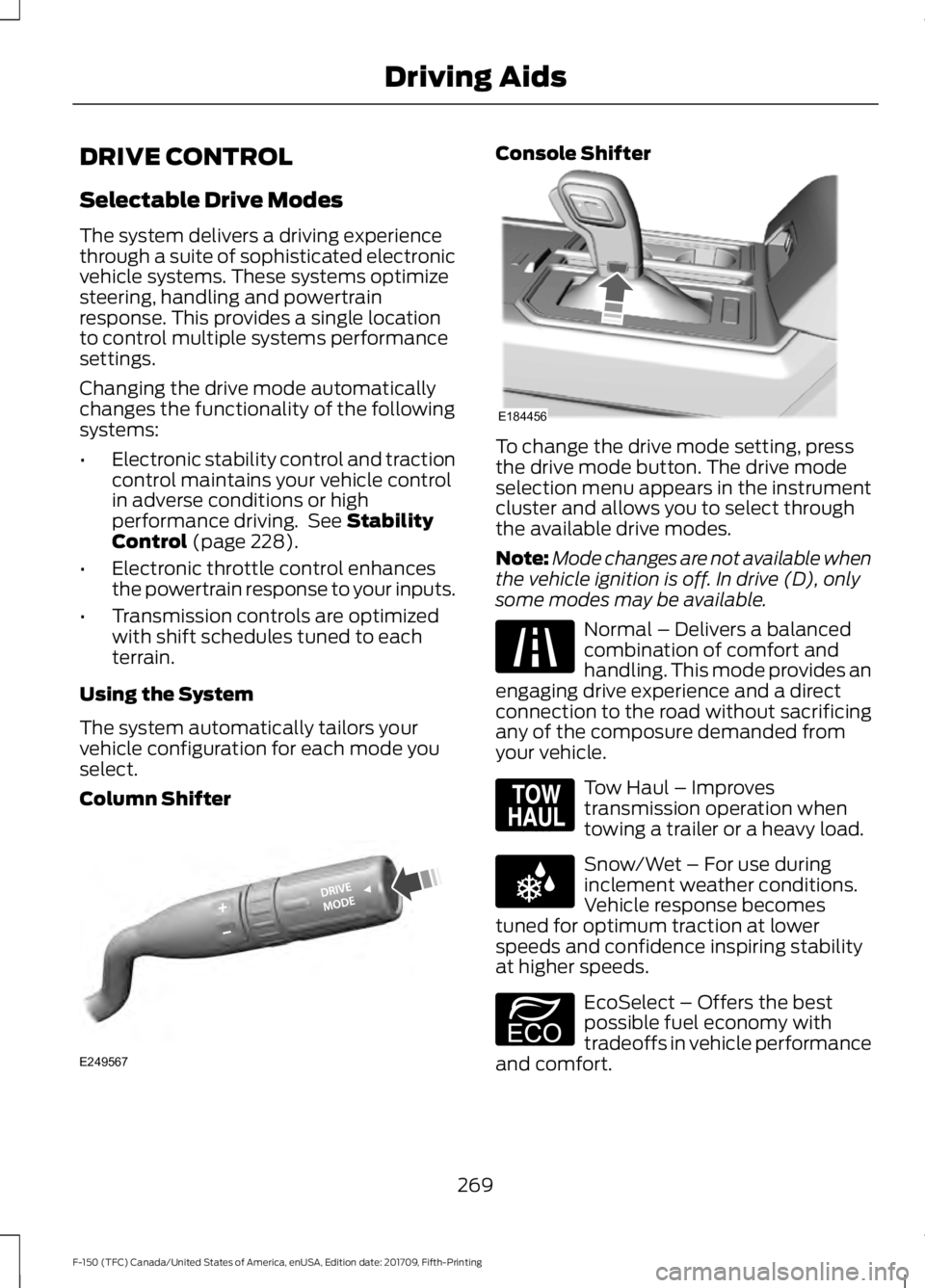
Column Shifter Console Shifter
To change the drive mode setting, press
the drive mode button. The drive mode
selection menu appears in the instrument
cluster and allows you to select through
the available drive modes.
Note:
Mode changes are not available when
the vehicle ignition is off. In drive (D), only
some modes may be available. Normal – Delivers a balanced
combination of comfort and
handling. This mode provides an
engaging drive experience and a direct
connection to the road without sacrificing
any of the composure demanded from
your vehicle. Tow Haul – Improves
transmission operation when
towing a trailer or a heavy load.
Snow/Wet – For use during
inclement weather conditions.
Vehicle response becomes
tuned for optimum traction at lower
speeds and confidence inspiring stability
at higher speeds. EcoSelect – Offers the best
possible fuel economy with
tradeoffs in vehicle performance
and comfort.
269
F-150 (TFC) Canada/United States of America, enUSA, Edition date: 201709, Fifth-Printing Driving AidsE249567 E184456 E225310 E161509 E225312 E194390
Page 273 of 641
Sport – Use for spirted and
aggressive off road driving
situations. Vehicle response
becomes tuned for max off road
performance.
Note: Your vehicle may only be equipped
with some of the drive modes listed above.
Note: The system has diagnostic checks
that continuously monitor the system for
proper operation. Certain drive modes are
not available based on the gearshift
position. If a mode is unavailable due to a
system fault or change in gearshift position,
the mode defaults to Normal. Some drive modes reduce
traction and stability control
performance and the warning
indicator illuminates in the instrument
cluster. See Using Stability Control
(page 229).
270
F-150 (TFC) Canada/United States of America, enUSA, Edition date: 201709, Fifth-Printing Driving AidsE176099 E130458
Page 290 of 641
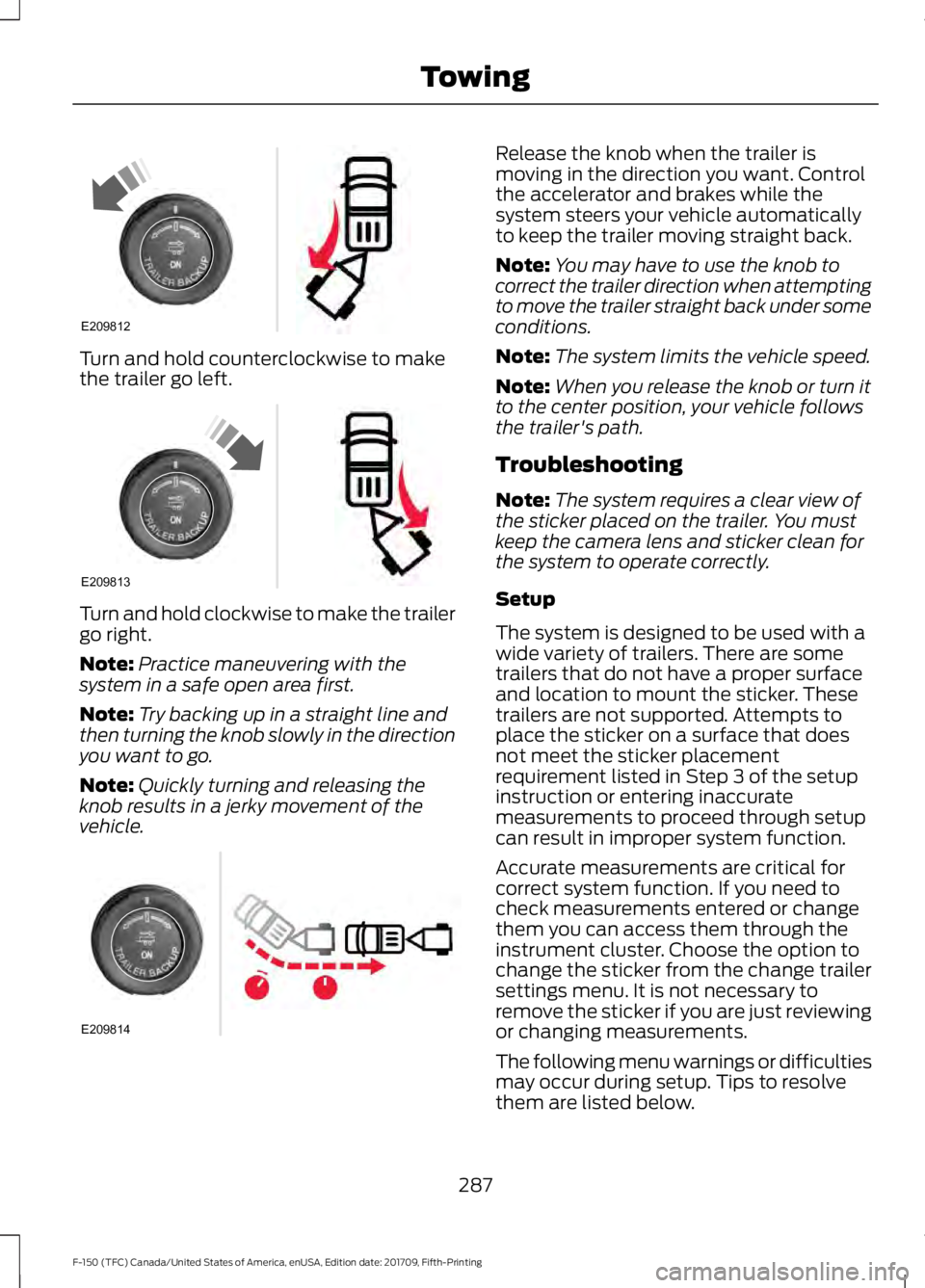
Turn and hold counterclockwise to make
the trailer go left.
Turn and hold clockwise to make the trailer
go right.
Note:
Practice maneuvering with the
system in a safe open area first.
Note: Try backing up in a straight line and
then turning the knob slowly in the direction
you want to go.
Note: Quickly turning and releasing the
knob results in a jerky movement of the
vehicle. Release the knob when the trailer is
moving in the direction you want. Control
the accelerator and brakes while the
system steers your vehicle automatically
to keep the trailer moving straight back.
Note:
You may have to use the knob to
correct the trailer direction when attempting
to move the trailer straight back under some
conditions.
Note: The system limits the vehicle speed.
Note: When you release the knob or turn it
to the center position, your vehicle follows
the trailer's path.
Troubleshooting
Note: The system requires a clear view of
the sticker placed on the trailer. You must
keep the camera lens and sticker clean for
the system to operate correctly.
Setup
The system is designed to be used with a
wide variety of trailers. There are some
trailers that do not have a proper surface
and location to mount the sticker. These
trailers are not supported. Attempts to
place the sticker on a surface that does
not meet the sticker placement
requirement listed in Step 3 of the setup
instruction or entering inaccurate
measurements to proceed through setup
can result in improper system function.
Accurate measurements are critical for
correct system function. If you need to
check measurements entered or change
them you can access them through the
instrument cluster. Choose the option to
change the sticker from the change trailer
settings menu. It is not necessary to
remove the sticker if you are just reviewing
or changing measurements.
The following menu warnings or difficulties
may occur during setup. Tips to resolve
them are listed below.
287
F-150 (TFC) Canada/United States of America, enUSA, Edition date: 201709, Fifth-Printing TowingE209812 E209813 E209814
Page 316 of 641
1.
With your vehicle still properly secured
to the tow vehicle, put the ignition in
the on position, but do not start the
engine. If your vehicle has an ignition
key, turn the key to on. If your vehicle
has intelligent access, press the engine
START/STOP button once without
pressing the brake pedal.
2. Press and hold the brake pedal.
3. Place the transmission back into park (P).
4. Release the brake pedal.
Note: If completed successfully, the
instrument cluster displays
4X2, and
Neutral Tow Disabled.
Note: If the indicator light and message do
not display, you must perform the procedure
again from the beginning.
Note: You may hear an audible noise as the
transfer case shifts out of its neutral
position, this is normal.
Note: If
Shift Delayed Pull Forward
displays in the instrument cluster, transfer
case gear tooth blockage is present. See the
instructions following this section.
5. Apply the parking brake, then disconnect your vehicle from the tow
vehicle.
6. Release the parking brake, start the engine, and shift the transmission into
drive (D) to make sure the transfer
case is out of the neutral tow position.
7. If the transfer case does not successfully shift out of neutral (N),
set the parking brake until you can have
your vehicle serviced.
Resolving the
Shift Delayed Pull Forward
Message
If the instrument cluster displays
Shift
Delayed Pull Forward, perform the
following:
1. Press and hold the brake pedal. 2. Put the transmission into neutral (N),
then start the engine.
3. With the engine running, shift the transmission into drive (D) and let the
vehicle roll forward, up to
3 ft (1 m).
You may hear an audible noise as the
transfer case shifts out of its neutral
position. This is normal.
4. Make sure the instrument cluster displays
Neutral Tow Disabled.
313
F-150 (TFC) Canada/United States of America, enUSA, Edition date: 201709, Fifth-Printing Towing
Page 356 of 641
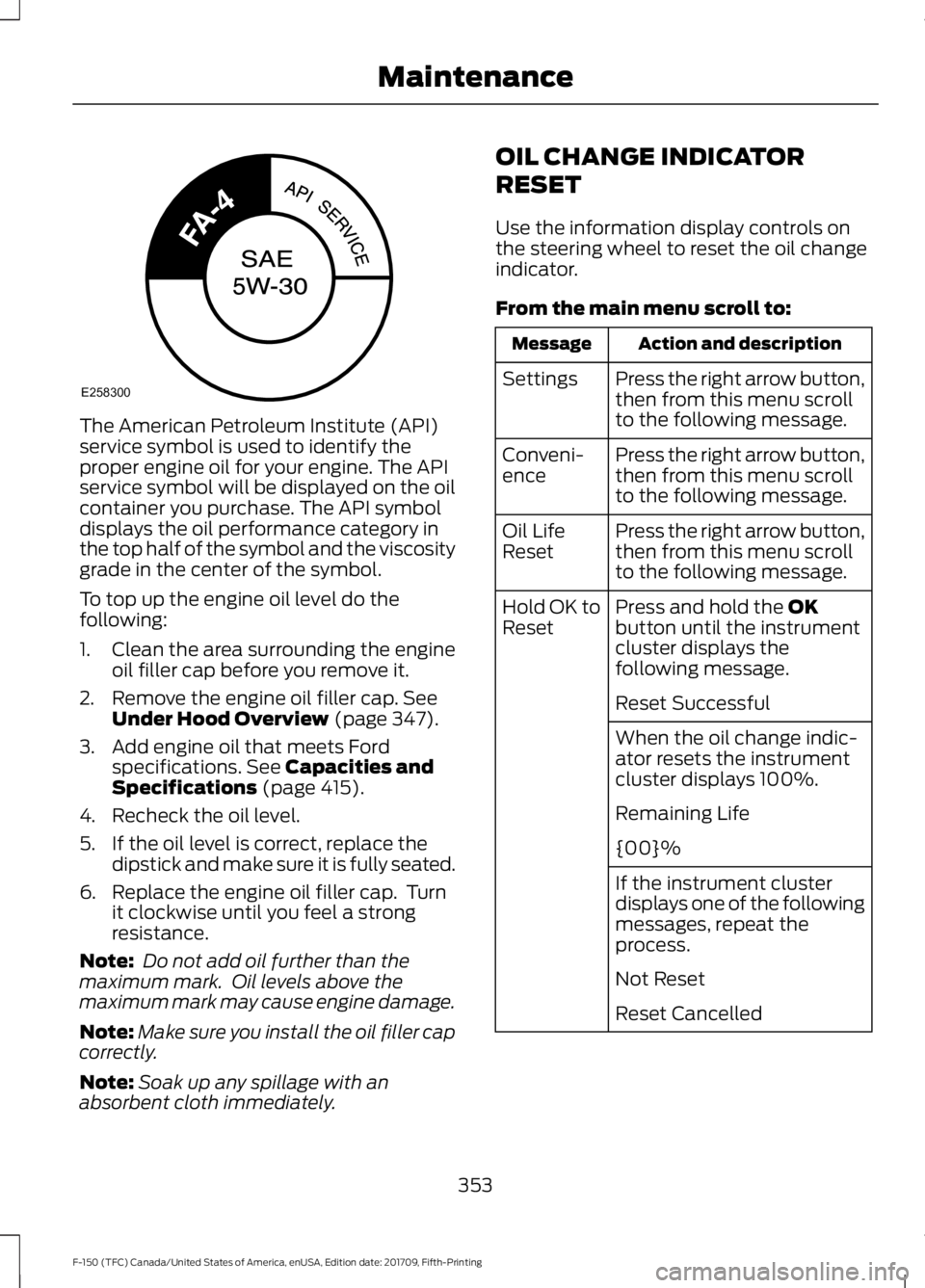
The American Petroleum Institute (API)
service symbol is used to identify the
proper engine oil for your engine. The API
service symbol will be displayed on the oil
container you purchase. The API symbol
displays the oil performance category in
the top half of the symbol and the viscosity
grade in the center of the symbol.
To top up the engine oil level do the
following:
1. Clean the area surrounding the engine
oil filler cap before you remove it.
2. Remove the engine oil filler cap. See
Under Hood Overview (page 347).
3. Add engine oil that meets Ford specifications.
See Capacities and
Specifications (page 415).
4. Recheck the oil level.
5. If the oil level is correct, replace the dipstick and make sure it is fully seated.
6. Replace the engine oil filler cap. Turn it clockwise until you feel a strong
resistance.
Note: Do not add oil further than the
maximum mark. Oil levels above the
maximum mark may cause engine damage.
Note: Make sure you install the oil filler cap
correctly.
Note: Soak up any spillage with an
absorbent cloth immediately. OIL CHANGE INDICATOR
RESET
Use the information display controls on
the steering wheel to reset the oil change
indicator.
From the main menu scroll to:
Action and description
Message
Press the right arrow button,
then from this menu scroll
to the following message.
Settings
Press the right arrow button,
then from this menu scroll
to the following message.
Conveni-
ence
Press the right arrow button,
then from this menu scroll
to the following message.
Oil Life
Reset
Press and hold the
OK
button until the instrument
cluster displays the
following message.
Hold OK to
Reset
Reset Successful
When the oil change indic-
ator resets the instrument
cluster displays 100%.
Remaining Life
{00}%
If the instrument cluster
displays one of the following
messages, repeat the
process.
Not Reset
Reset Cancelled
353
F-150 (TFC) Canada/United States of America, enUSA, Edition date: 201709, Fifth-Printing MaintenanceE258300
Page 380 of 641
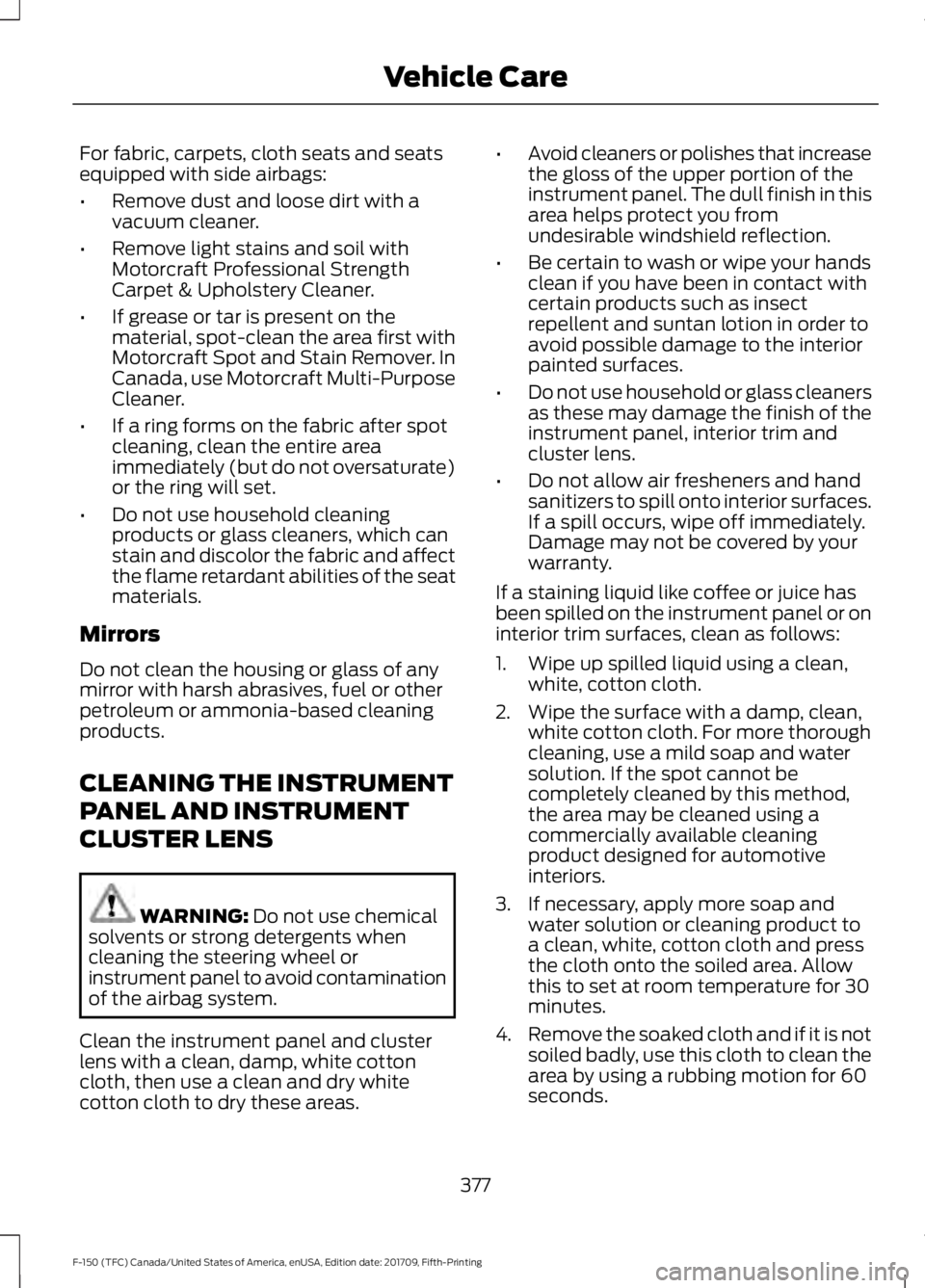
For fabric, carpets, cloth seats and seats
equipped with side airbags:
•
Remove dust and loose dirt with a
vacuum cleaner.
• Remove light stains and soil with
Motorcraft Professional Strength
Carpet & Upholstery Cleaner.
• If grease or tar is present on the
material, spot-clean the area first with
Motorcraft Spot and Stain Remover. In
Canada, use Motorcraft Multi-Purpose
Cleaner.
• If a ring forms on the fabric after spot
cleaning, clean the entire area
immediately (but do not oversaturate)
or the ring will set.
• Do not use household cleaning
products or glass cleaners, which can
stain and discolor the fabric and affect
the flame retardant abilities of the seat
materials.
Mirrors
Do not clean the housing or glass of any
mirror with harsh abrasives, fuel or other
petroleum or ammonia-based cleaning
products.
CLEANING THE INSTRUMENT
PANEL AND INSTRUMENT
CLUSTER LENS WARNING: Do not use chemical
solvents or strong detergents when
cleaning the steering wheel or
instrument panel to avoid contamination
of the airbag system.
Clean the instrument panel and cluster
lens with a clean, damp, white cotton
cloth, then use a clean and dry white
cotton cloth to dry these areas. •
Avoid cleaners or polishes that increase
the gloss of the upper portion of the
instrument panel. The dull finish in this
area helps protect you from
undesirable windshield reflection.
• Be certain to wash or wipe your hands
clean if you have been in contact with
certain products such as insect
repellent and suntan lotion in order to
avoid possible damage to the interior
painted surfaces.
• Do not use household or glass cleaners
as these may damage the finish of the
instrument panel, interior trim and
cluster lens.
• Do not allow air fresheners and hand
sanitizers to spill onto interior surfaces.
If a spill occurs, wipe off immediately.
Damage may not be covered by your
warranty.
If a staining liquid like coffee or juice has
been spilled on the instrument panel or on
interior trim surfaces, clean as follows:
1. Wipe up spilled liquid using a clean, white, cotton cloth.
2. Wipe the surface with a damp, clean, white cotton cloth. For more thorough
cleaning, use a mild soap and water
solution. If the spot cannot be
completely cleaned by this method,
the area may be cleaned using a
commercially available cleaning
product designed for automotive
interiors.
3. If necessary, apply more soap and water solution or cleaning product to
a clean, white, cotton cloth and press
the cloth onto the soiled area. Allow
this to set at room temperature for 30
minutes.
4. Remove the soaked cloth and if it is not
soiled badly, use this cloth to clean the
area by using a rubbing motion for 60
seconds.
377
F-150 (TFC) Canada/United States of America, enUSA, Edition date: 201709, Fifth-Printing Vehicle Care
Page 558 of 641
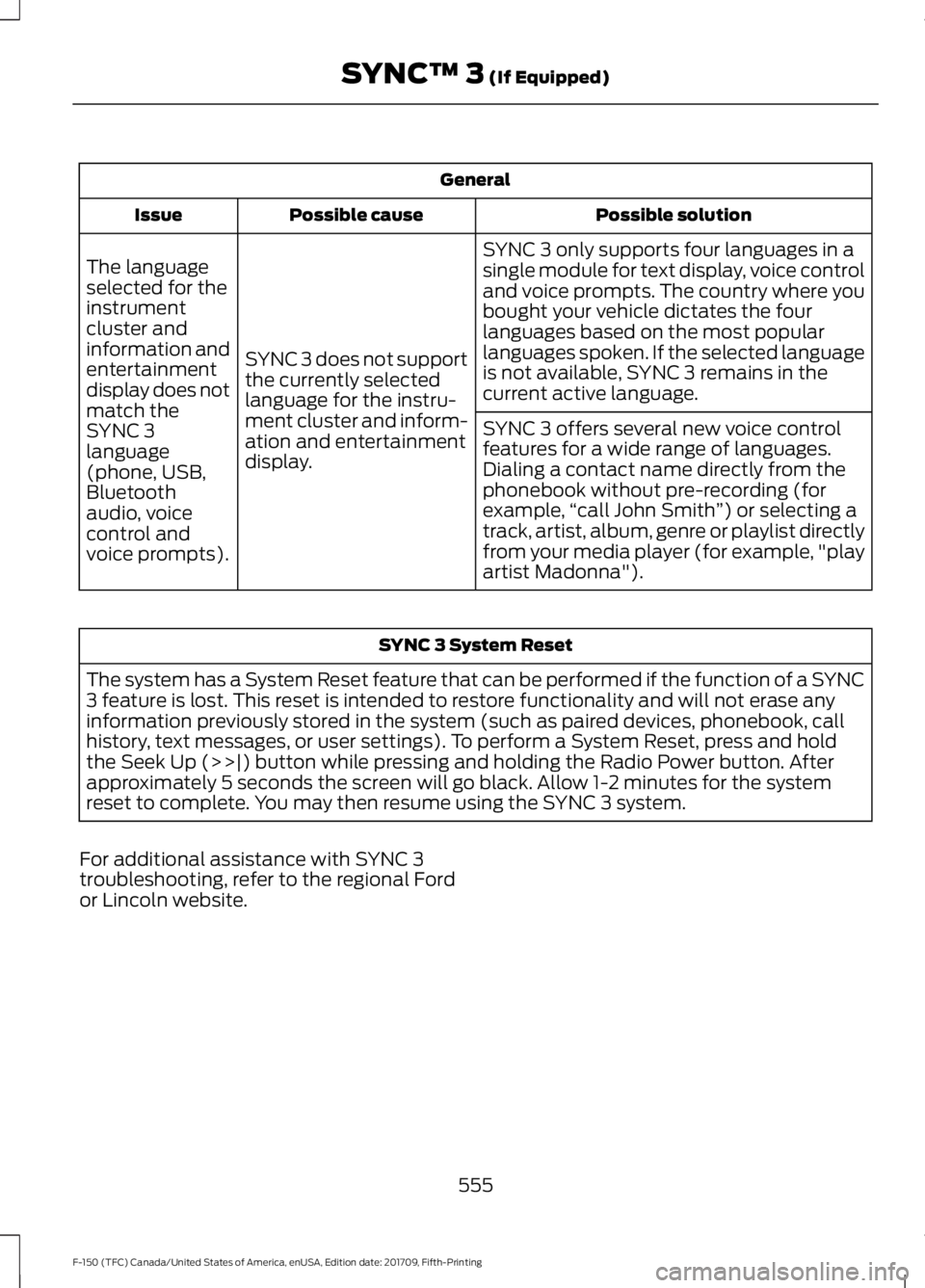
General
Possible solution
Possible cause
Issue
SYNC 3 only supports four languages in a
single module for text display, voice control
and voice prompts. The country where you
bought your vehicle dictates the four
languages based on the most popular
languages spoken. If the selected language
is not available, SYNC 3 remains in the
current active language.
SYNC 3 does not support
the currently selected
language for the instru-
ment cluster and inform-
ation and entertainment
display.
The language
selected for the
instrument
cluster and
information and
entertainment
display does not
match the
SYNC 3
SYNC 3 offers several new voice control
features for a wide range of languages.
Dialing a contact name directly from the
phonebook without pre-recording (for
example,
“call John Smith ”) or selecting a
track, artist, album, genre or playlist directly
from your media player (for example, "play
artist Madonna").
language
(phone, USB,
Bluetooth
audio, voice
control and
voice prompts). SYNC 3 System Reset
The system has a System Reset feature that can be performed if the function of a SYNC
3 feature is lost. This reset is intended to restore functionality and will not erase any
information previously stored in the system (such as paired devices, phonebook, call
history, text messages, or user settings). To perform a System Reset, press and hold
the Seek Up (>>|) button while pressing and holding the Radio Power button. After
approximately 5 seconds the screen will go black. Allow 1-2 minutes for the system
reset to complete. You may then resume using the SYNC 3 system.
For additional assistance with SYNC 3
troubleshooting, refer to the regional Ford
or Lincoln website.
555
F-150 (TFC) Canada/United States of America, enUSA, Edition date: 201709, Fifth-Printing SYNC™ 3 (If Equipped)