steering FORD F-150 2018 Workshop Manual
[x] Cancel search | Manufacturer: FORD, Model Year: 2018, Model line: F-150, Model: FORD F-150 2018Pages: 641, PDF Size: 8.37 MB
Page 257 of 641
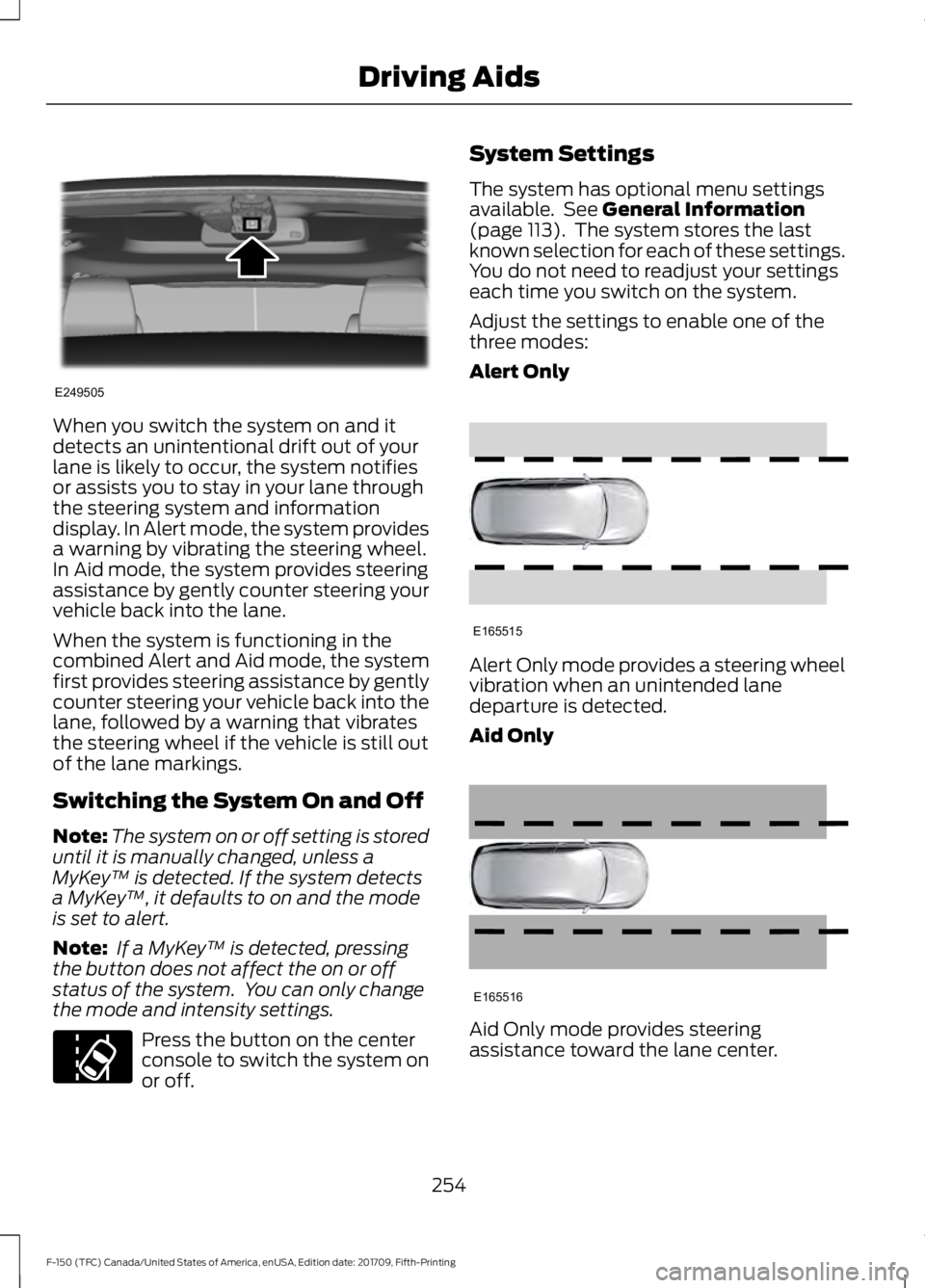
When you switch the system on and it
detects an unintentional drift out of your
lane is likely to occur, the system notifies
or assists you to stay in your lane through
the steering system and information
display. In Alert mode, the system provides
a warning by vibrating the steering wheel.
In Aid mode, the system provides steering
assistance by gently counter steering your
vehicle back into the lane.
When the system is functioning in the
combined Alert and Aid mode, the system
first provides steering assistance by gently
counter steering your vehicle back into the
lane, followed by a warning that vibrates
the steering wheel if the vehicle is still out
of the lane markings.
Switching the System On and Off
Note:
The system on or off setting is stored
until it is manually changed, unless a
MyKey ™ is detected. If the system detects
a MyKey ™, it defaults to on and the mode
is set to alert.
Note: If a MyKey ™ is detected, pressing
the button does not affect the on or off
status of the system. You can only change
the mode and intensity settings. Press the button on the center
console to switch the system on
or off. System Settings
The system has optional menu settings
available. See General Information
(page 113). The system stores the last
known selection for each of these settings.
You do not need to readjust your settings
each time you switch on the system.
Adjust the settings to enable one of the
three modes:
Alert Only Alert Only mode provides a steering wheel
vibration when an unintended lane
departure is detected.
Aid Only
Aid Only mode provides steering
assistance toward the lane center.
254
F-150 (TFC) Canada/United States of America, enUSA, Edition date: 201709, Fifth-Printing Driving AidsE249505 E173233 E165515 E165516
Page 258 of 641
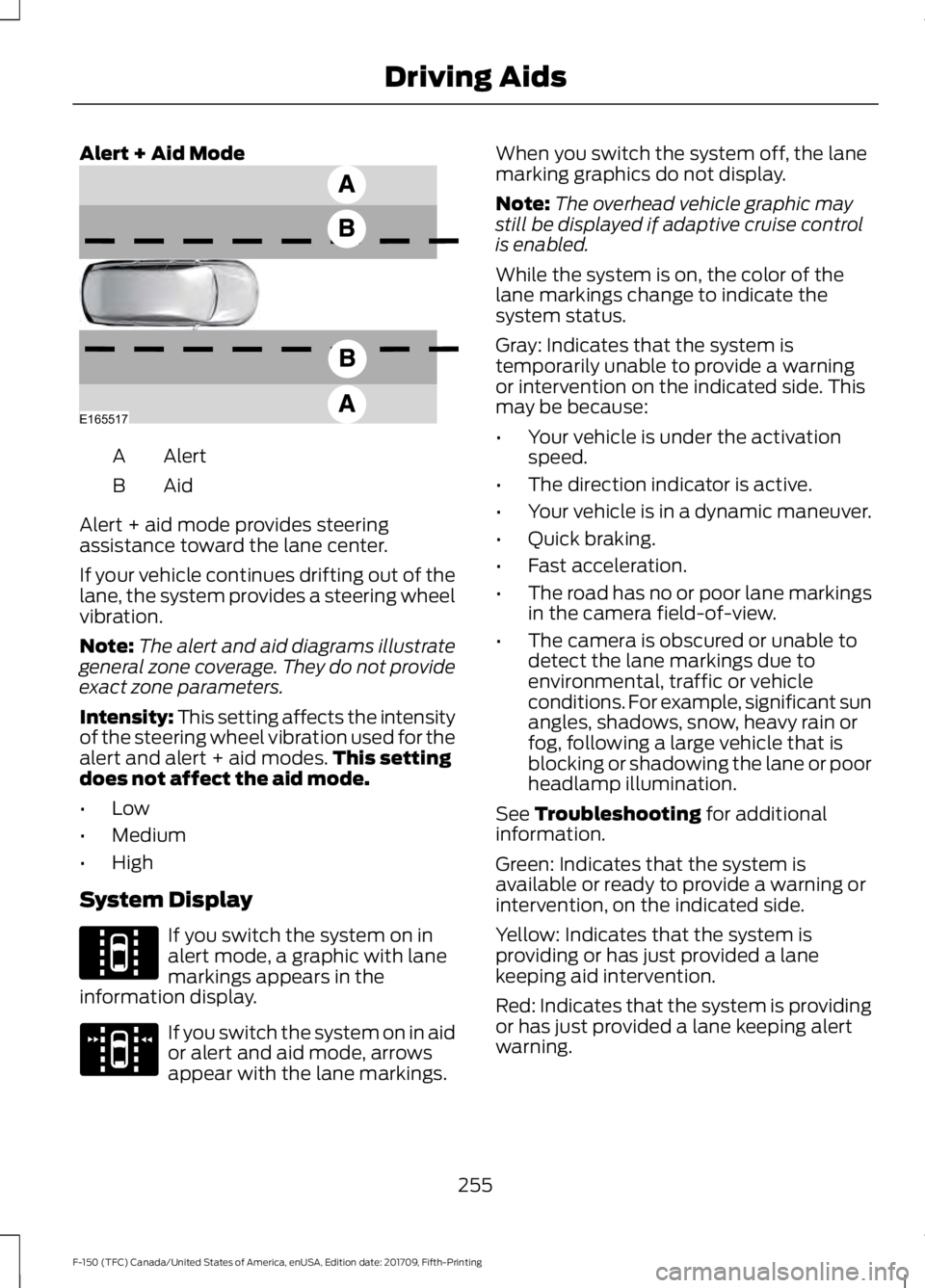
Alert + Aid Mode
Alert
A
AidB
Alert + aid mode provides steering
assistance toward the lane center.
If your vehicle continues drifting out of the
lane, the system provides a steering wheel
vibration.
Note: The alert and aid diagrams illustrate
general zone coverage. They do not provide
exact zone parameters.
Intensity: This setting affects the intensity
of the steering wheel vibration used for the
alert and alert + aid modes. This setting
does not affect the aid mode.
• Low
• Medium
• High
System Display If you switch the system on in
alert mode, a graphic with lane
markings appears in the
information display. If you switch the system on in aid
or alert and aid mode, arrows
appear with the lane markings. When you switch the system off, the lane
marking graphics do not display.
Note:
The overhead vehicle graphic may
still be displayed if adaptive cruise control
is enabled.
While the system is on, the color of the
lane markings change to indicate the
system status.
Gray: Indicates that the system is
temporarily unable to provide a warning
or intervention on the indicated side. This
may be because:
• Your vehicle is under the activation
speed.
• The direction indicator is active.
• Your vehicle is in a dynamic maneuver.
• Quick braking.
• Fast acceleration.
• The road has no or poor lane markings
in the camera field-of-view.
• The camera is obscured or unable to
detect the lane markings due to
environmental, traffic or vehicle
conditions. For example, significant sun
angles, shadows, snow, heavy rain or
fog, following a large vehicle that is
blocking or shadowing the lane or poor
headlamp illumination.
See Troubleshooting for additional
information.
Green: Indicates that the system is
available or ready to provide a warning or
intervention, on the indicated side.
Yellow: Indicates that the system is
providing or has just provided a lane
keeping aid intervention.
Red: Indicates that the system is providing
or has just provided a lane keeping alert
warning.
255
F-150 (TFC) Canada/United States of America, enUSA, Edition date: 201709, Fifth-Printing Driving AidsE165517 E144813 E173234
Page 259 of 641
The system can be temporarily suppressed
at any time by the following:
•
Quick braking.
• Fast acceleration. •
Using the direction indicator.
• Evasive steering maneuver.
• Driving too close to the lane markings.
Troubleshooting Why is the feature not available (line markings are gray) when I can see the lane markings
on the road?
Your vehicle speed is outside the operational range of the feature.
The sun is shining directly into the camera lens.
A quick intentional lane change has occurred.
Your vehicle stays too close to the lane markings.
Driving at high speeds in curves.
The last alert warning or aid intervention occurred a short time ago.
Ambiguous lane markings, for example in construction zones.
Rapid transition from light to dark, or from dark to light.
Sudden offset in lane markings.
ABS or AdvanceTrac ™ is active.
There is a camera blockage due to dirt, grime, fog, frost or water on the windshield.
You are driving too close to the vehicle in front of you.
Transitioning between no lane markings to lane markings or vice versa.
There is standing water on the road.
Faint lane markings, for example partial yellow lane markings on concrete roads.
Lane width is too narrow or too wide.
The camera has not been calibrated after a windshield replacement.
Driving on tight roads or on uneven roads.
256
F-150 (TFC) Canada/United States of America, enUSA, Edition date: 201709, Fifth-Printing Driving Aids
Page 267 of 641
Note:
The system may not correctly operate
when towing a trailer. For vehicles with an
approved trailer tow module and tow bar,
the system turns off when you attach a
trailer. For vehicles with an aftermarket
trailer tow module or tow bar, we
recommend that you switch the system off
when you attach a trailer.
To permanently switch the system off,
contact an authorized dealer.
STEERING
Electric Power Steering WARNING: The electric power
steering system has diagnostic checks
that continuously monitor the system. If
a fault is detected, a message displays
in the information display. Stop your
vehicle as soon as it is safe to do so.
Switch the ignition off. After at least 10
seconds, switch the ignition on and
watch the information display for a
steering system warning message. If a
steering system warning message
returns, have the system checked by an
authorized dealer. WARNING:
If the system detects
an error, you may not feel a difference in
the steering, however a serious condition
may exist. Obtain immediate service
from an authorized dealer, failure to do
so may result in loss of steering control.
Your vehicle has an electric power steering
system. There is no fluid reservoir. No
maintenance is required.
If your vehicle loses electrical power while
you are driving, electric power steering
assistance is lost. The steering system still
operates and you can steer your vehicle
manually. Manually steering your vehicle
requires more effort. Extreme continuous steering may increase
the effort required for you to steer your
vehicle. This increased effort prevents
overheating and permanent damage to
the steering system. You do not lose the
ability to steer your vehicle manually.
Typical steering and driving maneuvers
allow the system to cool and return to
normal operation.
Steering Tips
If the steering wanders or pulls, check for:
•
Correct tire pressures.
• Uneven tire wear.
• Loose or worn suspension
components.
• Loose or worn steering components.
• Improper vehicle alignment.
Note: A high crown in the road or high
crosswinds may also make the steering
seem to wander or pull.
Adaptive Learning
The electronic power steering system
adaptive learning helps correct road
irregularities and improves overall handling
and steering feel. It communicates with
the brake system to help operate
advanced stability control and accident
avoidance systems. Additionally, whenever
the battery is disconnected or a new
battery installed, you must drive your
vehicle a short distance before the system
relearns the strategy and reactivates all
systems.
264
F-150 (TFC) Canada/United States of America, enUSA, Edition date: 201709, Fifth-Printing Driving Aids
Page 268 of 641
PRE-COLLISION ASSIST (IF
EQUIPPED) WARNING:
At all times, you are
responsible for controlling your vehicle,
supervising the system and intervening,
if required. Failure to take care may result
in the loss of control of your vehicle,
serious personal injury or death. WARNING:
The system does not
detect vehicles that are driving in a
different direction, cyclists or animals.
Failure to take care may result in the loss
of control of your vehicle, serious
personal injury or death. WARNING:
The system does not
operate during hard acceleration or
steering. Failure to take care may lead
to a crash or personal injury. WARNING:
The system may fail
or operate with reduced function during
cold and severe weather conditions.
Snow, ice, rain, spray and fog can
adversely affect the system. Keep the
front camera and radar free of snow and
ice. Failure to take care may result in the
loss of control of your vehicle, serious
personal injury or death. WARNING: In situations where the
vehicle camera has limited detection
capability, this may reduce system
performance. These situations include
but are not limited to direct or low
sunlight, vehicles at night without tail
lights, unconventional vehicle types,
pedestrians with complex backgrounds, running pedestrians, partly obscured
pedestrians, or pedestrians that the
system cannot distinguish from a group.
Failure to take care may result in the loss
of control of your vehicle, serious
personal injury or death.
WARNING:
The system cannot
help prevent all crashes. Do not rely on
this system to replace driver judgment
and the need to maintain a safe distance
and speed.
Using the Pre-Collision Assist
System
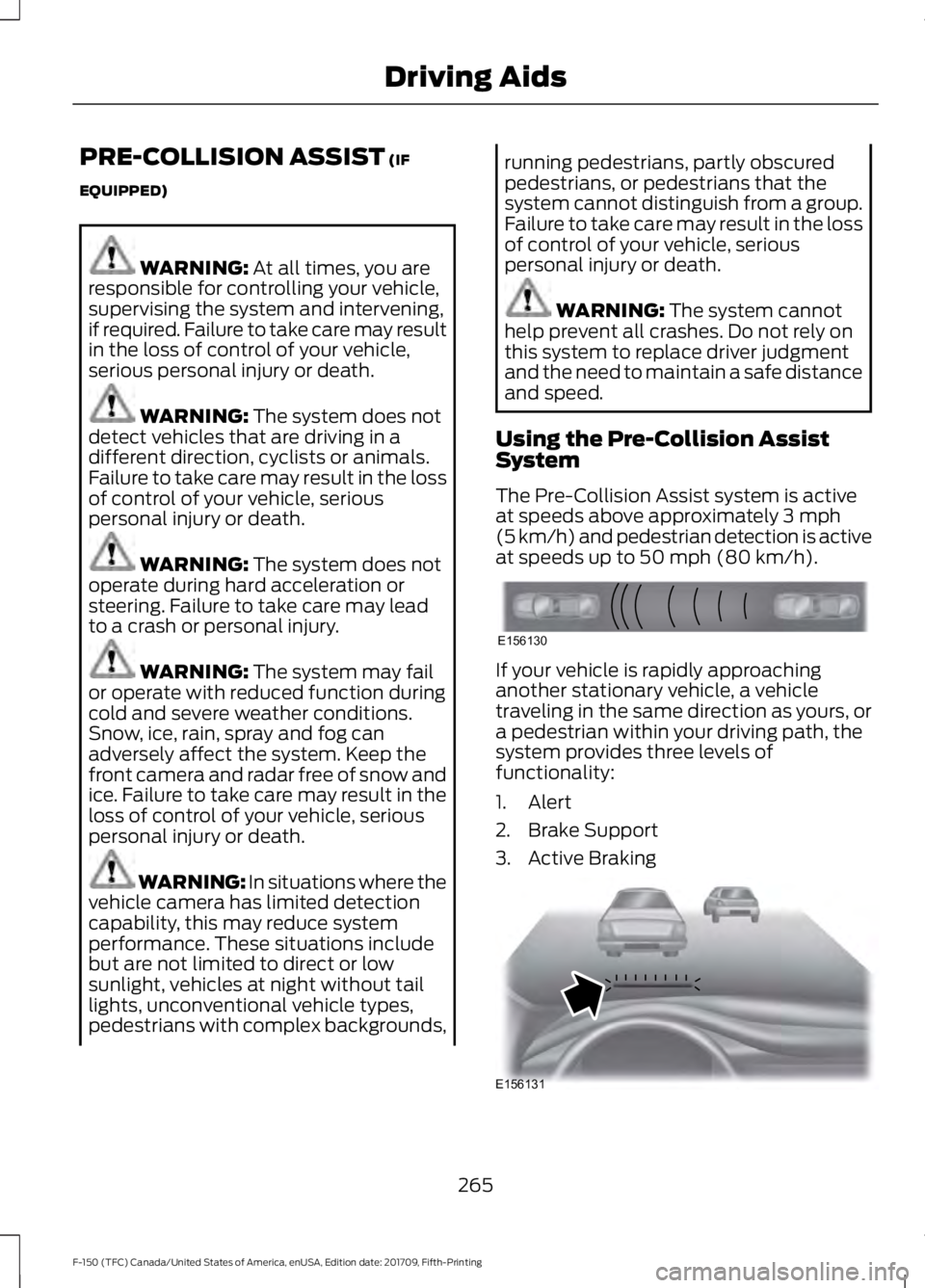
The Pre-Collision Assist system is active
at speeds above approximately
3 mph
(5 km/h) and pedestrian detection is active
at speeds up to
50 mph (80 km/h). If your vehicle is rapidly approaching
another stationary vehicle, a vehicle
traveling in the same direction as yours, or
a pedestrian within your driving path, the
system provides three levels of
functionality:
1. Alert
2. Brake Support
3. Active Braking
265
F-150 (TFC) Canada/United States of America, enUSA, Edition date: 201709, Fifth-Printing Driving AidsE156130 E156131
Page 272 of 641
DRIVE CONTROL
Selectable Drive Modes
The system delivers a driving experience
through a suite of sophisticated electronic
vehicle systems. These systems optimize
steering, handling and powertrain
response. This provides a single location
to control multiple systems performance
settings.
Changing the drive mode automatically
changes the functionality of the following
systems:
•
Electronic stability control and traction
control maintains your vehicle control
in adverse conditions or high
performance driving. See Stability
Control (page 228).
• Electronic throttle control enhances
the powertrain response to your inputs.
• Transmission controls are optimized
with shift schedules tuned to each
terrain.
Using the System
The system automatically tailors your
vehicle configuration for each mode you
select.
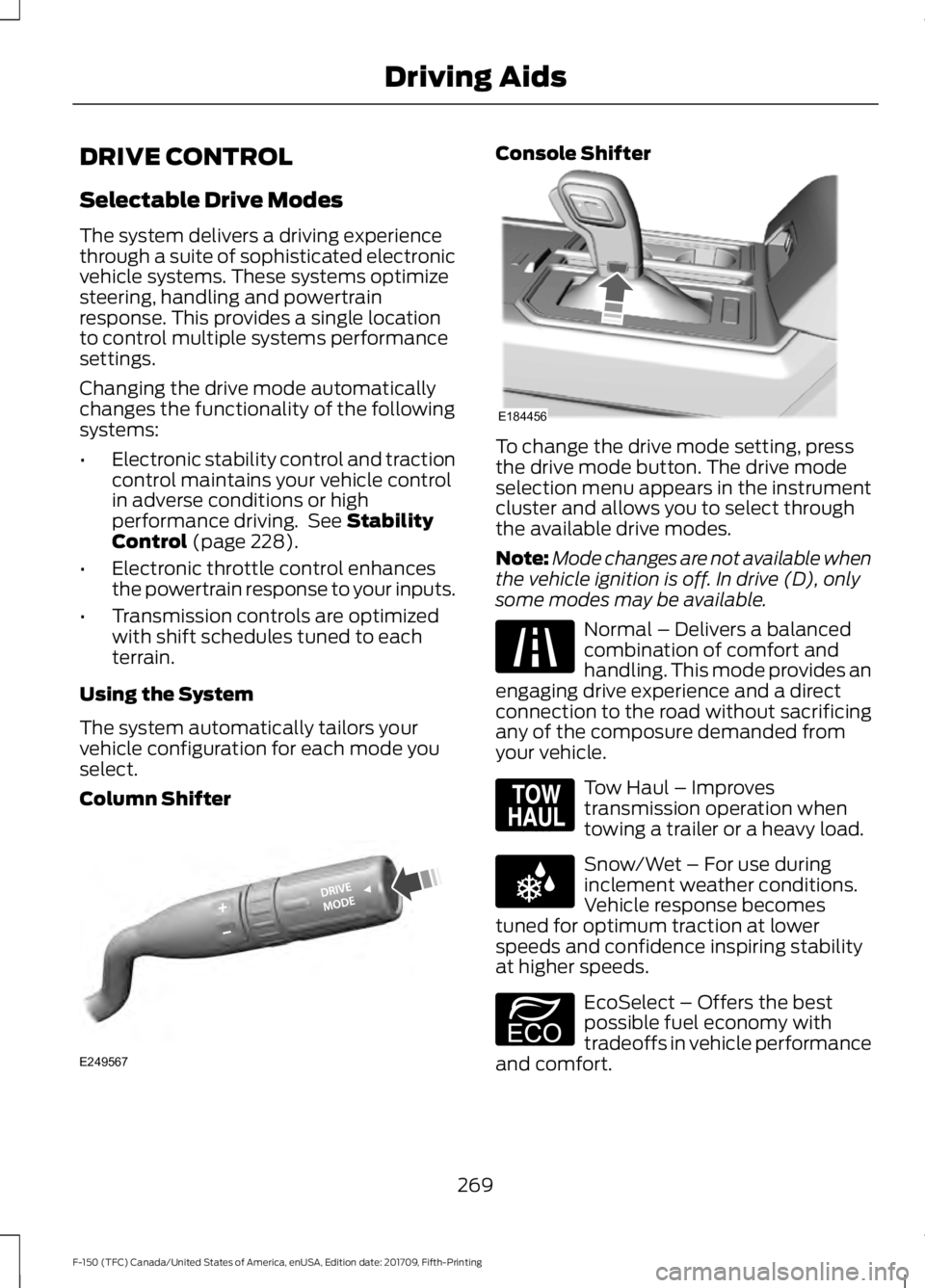
Column Shifter Console Shifter
To change the drive mode setting, press
the drive mode button. The drive mode
selection menu appears in the instrument
cluster and allows you to select through
the available drive modes.
Note:
Mode changes are not available when
the vehicle ignition is off. In drive (D), only
some modes may be available. Normal – Delivers a balanced
combination of comfort and
handling. This mode provides an
engaging drive experience and a direct
connection to the road without sacrificing
any of the composure demanded from
your vehicle. Tow Haul – Improves
transmission operation when
towing a trailer or a heavy load.
Snow/Wet – For use during
inclement weather conditions.
Vehicle response becomes
tuned for optimum traction at lower
speeds and confidence inspiring stability
at higher speeds. EcoSelect – Offers the best
possible fuel economy with
tradeoffs in vehicle performance
and comfort.
269
F-150 (TFC) Canada/United States of America, enUSA, Edition date: 201709, Fifth-Printing Driving AidsE249567 E184456 E225310 E161509 E225312 E194390
Page 285 of 641
TRAILER REVERSING AIDS (IF
EQUIPPED)
Pro Trailer Backup Assist™ WARNING:
Driving while
distracted can result in loss of vehicle
control, crash and injury. We strongly
recommend that you use extreme
caution when using any device that may
take your focus off the road. Your
primary responsibility is the safe
operation of your vehicle. We
recommend against the use of any
hand-held device while driving and
encourage the use of voice-operated
systems when possible. Make sure you
are aware of all applicable local laws
that may affect the use of electronic
devices while driving. WARNING: This system is an extra
driving aid. It does not replace your
attention and judgment, or the need to
apply the brakes. This system does NOT
automatically brake your vehicle. If you
fail to press the brake pedal when
necessary, you may collide with another
vehicle.
Note: The system is not a substitute for
safe driving practices.
Note: You must always be aware of the
vehicle and trailer combination, and the
surrounding environment.
Note: The system does not detect or
prevent your vehicle or trailer from making
contact with obstacles in the surrounding
environment.
Note: Keep in mind that the front end of
your vehicle swings out when changing the
direction of the trailer. Note:
The system relies on user
measurements to determine sticker
placement and system limits. It is critical to
take the key measurements correctly.
Incorrect measurements can result in the
improper function of the system up to and
including contact between the vehicle and
trailer.
Note: The system limits vehicle speed when
backing up. The system is not a replacement
for proper use of the throttle and brake
pedals.
Principle of Operation
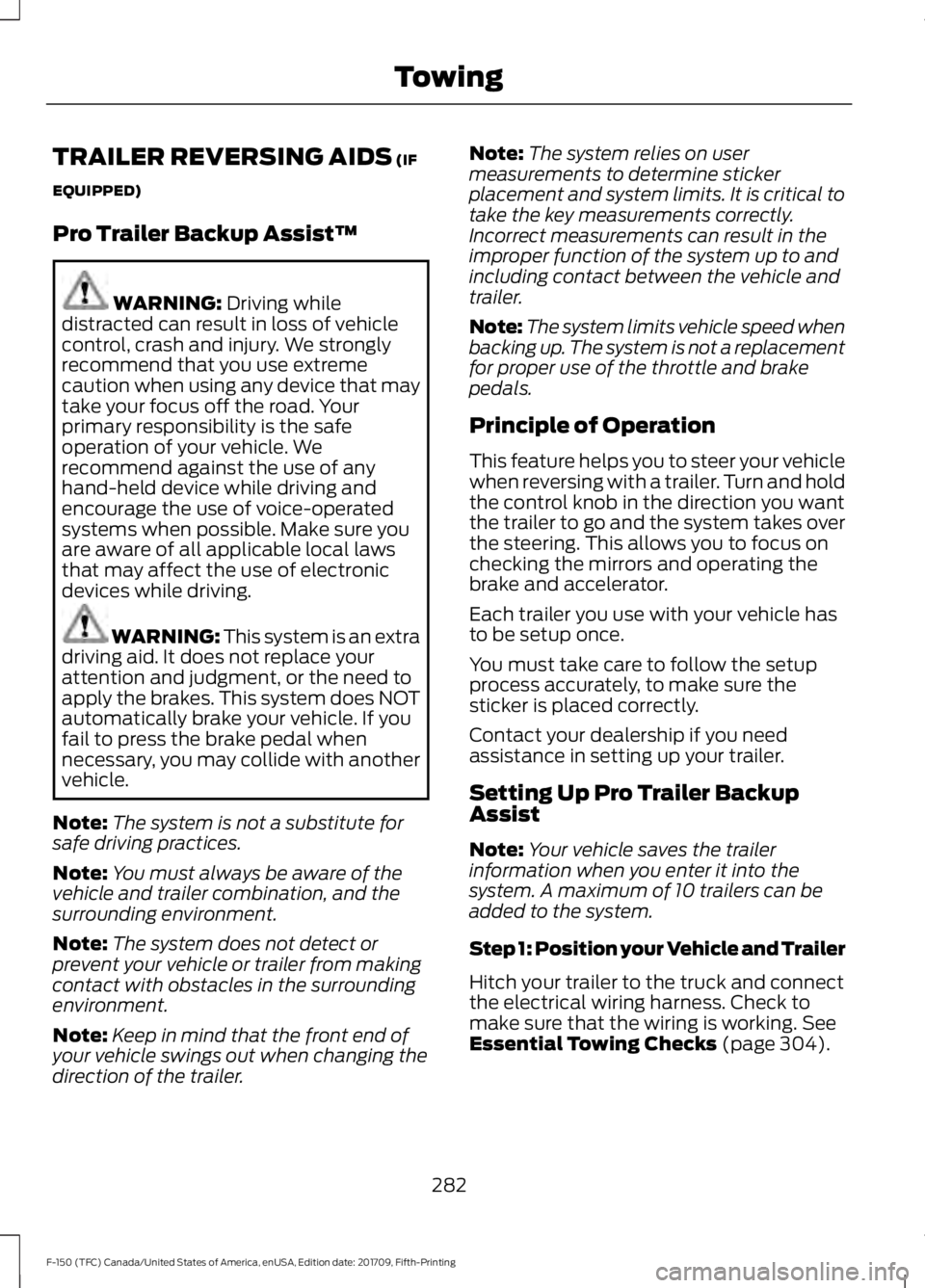
This feature helps you to steer your vehicle
when reversing with a trailer. Turn and hold
the control knob in the direction you want
the trailer to go and the system takes over
the steering. This allows you to focus on
checking the mirrors and operating the
brake and accelerator.
Each trailer you use with your vehicle has
to be setup once.
You must take care to follow the setup
process accurately, to make sure the
sticker is placed correctly.
Contact your dealership if you need
assistance in setting up your trailer.
Setting Up Pro Trailer Backup
Assist
Note: Your vehicle saves the trailer
information when you enter it into the
system. A maximum of 10 trailers can be
added to the system.
Step 1: Position your Vehicle and Trailer
Hitch your trailer to the truck and connect
the electrical wiring harness. Check to
make sure that the wiring is working.
See
Essential Towing Checks (page 304).
282
F-150 (TFC) Canada/United States of America, enUSA, Edition date: 201709, Fifth-Printing Towing
Page 286 of 641
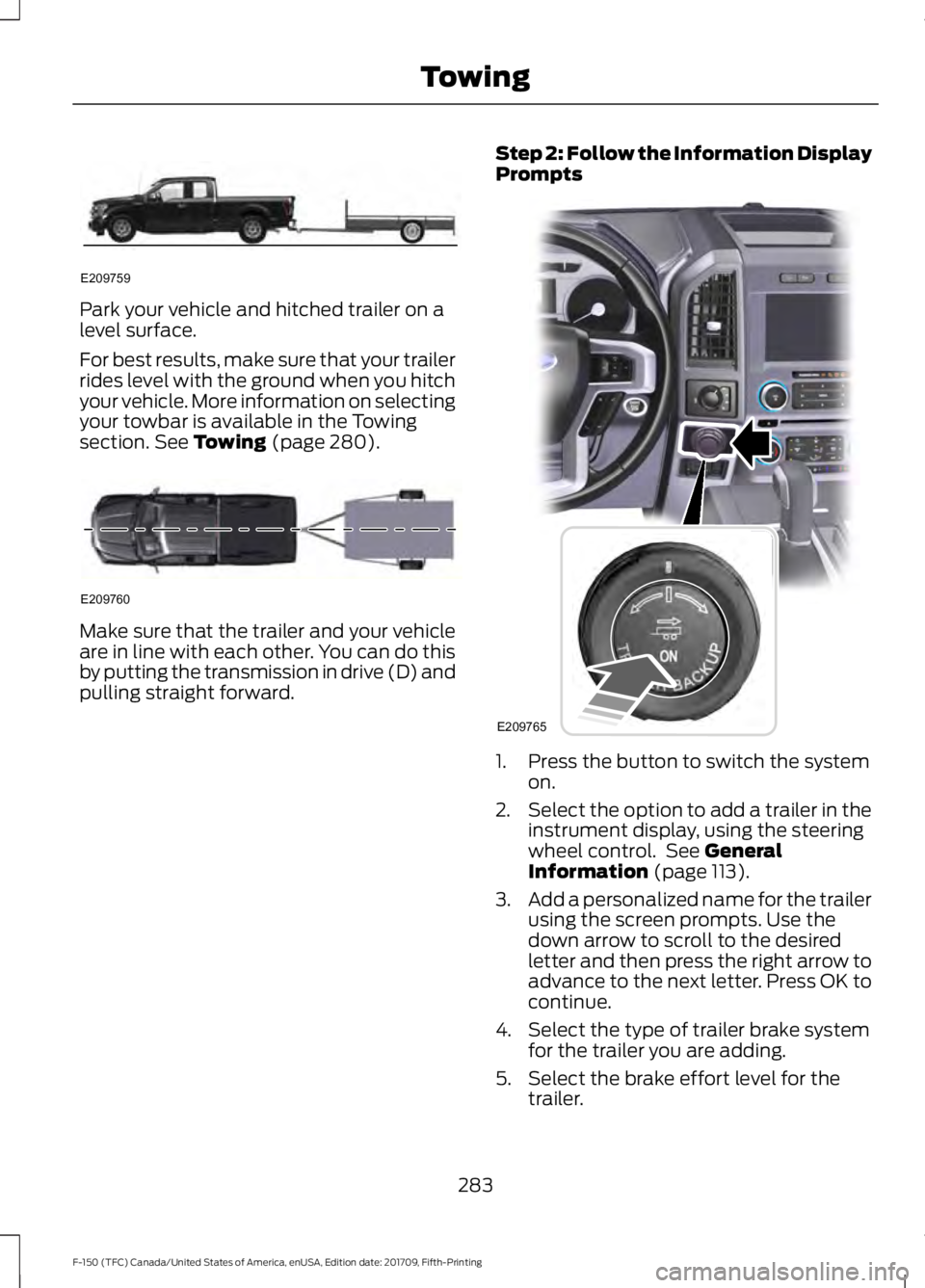
Park your vehicle and hitched trailer on a
level surface.
For best results, make sure that your trailer
rides level with the ground when you hitch
your vehicle. More information on selecting
your towbar is available in the Towing
section. See Towing (page 280).
Make sure that the trailer and your vehicle
are in line with each other. You can do this
by putting the transmission in drive (D) and
pulling straight forward.
Step 2: Follow the Information Display
Prompts
1. Press the button to switch the system
on.
2. Select the option to add a trailer in the
instrument display, using the steering
wheel control. See
General
Information (page 113).
3. Add a personalized name for the trailer
using the screen prompts. Use the
down arrow to scroll to the desired
letter and then press the right arrow to
advance to the next letter. Press OK to
continue.
4. Select the type of trailer brake system for the trailer you are adding.
5. Select the brake effort level for the trailer.
283
F-150 (TFC) Canada/United States of America, enUSA, Edition date: 201709, Fifth-Printing TowingE209759 E209760 E209765
Page 289 of 641
Calibrating the System
To complete setup, drive your vehicle
straight forward between 4–
24 mph
(6– 39 km/h), as directed by the
information display.
The information display shows a message
during calibration and after calibration is
complete
Note: Keep the steering wheel straight
during the calibration process. If the steering
wheel is in a turned position, the calibration
pauses. The information display prompts
you to drive straight forward to complete
the calibration.
Note: For best results, do not calibrate the
system at night.
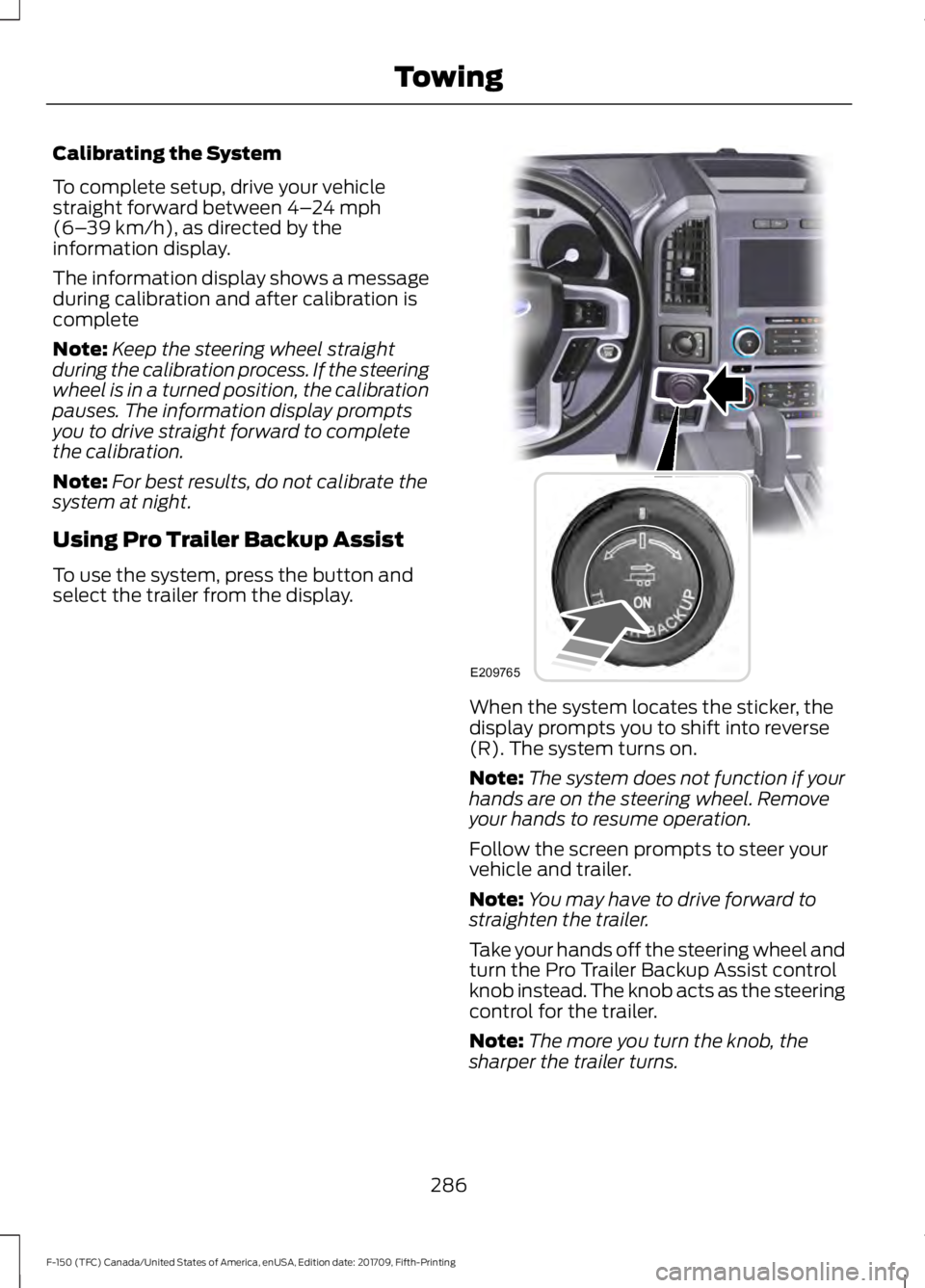
Using Pro Trailer Backup Assist
To use the system, press the button and
select the trailer from the display. When the system locates the sticker, the
display prompts you to shift into reverse
(R). The system turns on.
Note:
The system does not function if your
hands are on the steering wheel. Remove
your hands to resume operation.
Follow the screen prompts to steer your
vehicle and trailer.
Note: You may have to drive forward to
straighten the trailer.
Take your hands off the steering wheel and
turn the Pro Trailer Backup Assist control
knob instead. The knob acts as the steering
control for the trailer.
Note: The more you turn the knob, the
sharper the trailer turns.
286
F-150 (TFC) Canada/United States of America, enUSA, Edition date: 201709, Fifth-Printing TowingE209765
Page 292 of 641
System is circling something beside the
sticker or system cannot find the sticker:
•
Make sure the rear camera is clean and
the sticker is clearly visible in the
camera image. Clean the camera and
sticker if necessary.
• The camera system uses the entered
measurements to help locate the
sticker. Inaccurate sticker
measurements degrade the system ’s
ability to locate the sticker. Verify the
measurements you enter into the
system are accurate.
• Remove the incorrectly circled label or
decal if possible.
• If you cannot resolve the issue, try a
new sticker location. The sticker
location must still meet the
requirements noted in step 3 of the
setup instructions. Only one sticker can
be placed on the trailer for correct
system function. The previous sticker
must be removed or covered so only
one sticker is visible to the camera.
Calibration
The system monitors various vehicle
parameters to ensure your vehicle is being
driven straight and the trailer is straight
behind your vehicle. Any steering input or
trailer movement pauses the calibration.
For best results:
• Use a long, straight, smooth and level
road when attempting to calibrate.
• Drive straight forward.
• Drive between 4–24 mph
(6– 39 km/h).
System Operation
The following warnings or difficulties may
occur during feature operation. Tips to
resolve them are listed below. The system is not available:
•
The system relies on many
sub-systems in your vehicle to operate
correctly. If those sub-systems are not
operating correctly, the system may
not be available.
• Low battery voltage is a condition
which prevents the system from
operating. Please make sure the
battery is correctly charged if the
system is not available.
• You may need to drive your vehicle
straight forward above
25 mph
(40 km/h) before the system is
available again.
• If the message continues to display,
see your authorized dealer for service.
Sticker lost:
• If the system cannot initially find the
sticker, it may be necessary for you to
change the lighting conditions by
moving the vehicle and trailer or
waiting until conditions change.
• Check for the following if you receive
the lost sticker message while using
the system.
• Stop your vehicle as soon as the
message displays.
• Make sure the sticker is visible and the
pattern is discernable in the rear view
camera image.
• Clean the sticker and camera to make
sure they are unobstructed.
• Clean the lens with a soft, lint-free
cloth and water.
• Clean the sticker with isopropyl rubbing
alcohol sprayed directly onto the
sticker, and then wipe clean with a soft
cloth.
289
F-150 (TFC) Canada/United States of America, enUSA, Edition date: 201709, Fifth-Printing Towing