wheel FORD F-150 2018 Workshop Manual
[x] Cancel search | Manufacturer: FORD, Model Year: 2018, Model line: F-150, Model: FORD F-150 2018Pages: 641, PDF Size: 8.37 MB
Page 238 of 641
If you are uncomfortable with the proximity
to any vehicle or object, you may choose
to override the system by grabbing the
steering wheel or pushing the active park
assist button.
The system may not operate correctly in
any of the following conditions:
•
You use a spare tire or a tire
significantly worn more than the other
tires.
• One or more tires are improperly
inflated.
• You try to park on a tight curve.
• Something passes between the front
bumper and the parking space. For
example, a pedestrian or cyclist.
• The edge of the neighboring parking
vehicle is high off the ground. For
example, a bus, tow truck or flatbed
truck.
• The weather conditions are poor. For
example, during heavy rain, snow or
fog.
Note: Keep the sensors, located on the
fascia, free from now, ice and large
accumulations of dirt. Covered sensors can
affect the systems accuracy. Do not clean
the sensors with sharp objects.
Note: The sensors may not detect objects
with surfaces that absorb ultrasonic waves
or cause ultrasonic interference. For
example, motorcycle exhaust, truck air
brakes or horns. Note:
Following a change in tire size, the
system must recalibrate and operation may
be impaired for a short time.
Do not use the system if:
• You have attached a bike rack, trailer
or other object near the sensors on the
front or rear of your vehicle.
• You have attached an overhanging
object to the roof. For example, a
surfboard.
• A foreign object damages or obstructs
the sensors.
• The correct tire size is not in use. For
example, when using a mini-spare tire.
Using Active Park Assist Press the button to turn the
system on or off.
When driving at a speed less than 22 mph
(35 km/h), the system automatically scans
both sides of your vehicle for an available
parking space. The system displays a
message and a corresponding graphic to
indicate it is searching for a parking space.
Use the direction indicator to select
searching either to the left hand side or
right hand side of your vehicle. If the
direction indicator is not used, the system
defaults to the passenger side of your
vehicle.
235
F-150 (TFC) Canada/United States of America, enUSA, Edition date: 201709, Fifth-Printing Parking AidsE146186
Page 239 of 641
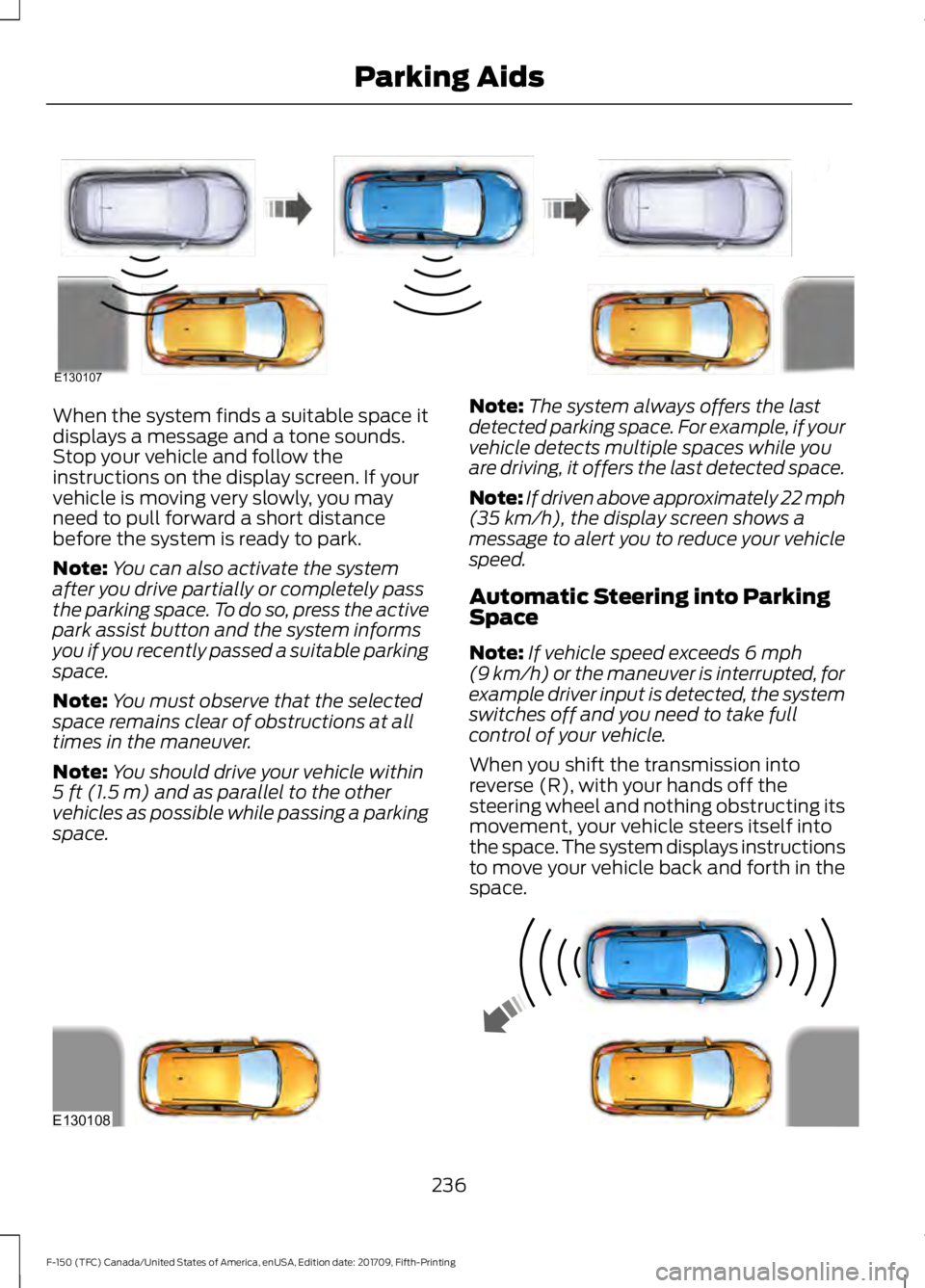
When the system finds a suitable space it
displays a message and a tone sounds.
Stop your vehicle and follow the
instructions on the display screen. If your
vehicle is moving very slowly, you may
need to pull forward a short distance
before the system is ready to park.
Note:
You can also activate the system
after you drive partially or completely pass
the parking space. To do so, press the active
park assist button and the system informs
you if you recently passed a suitable parking
space.
Note: You must observe that the selected
space remains clear of obstructions at all
times in the maneuver.
Note: You should drive your vehicle within
5 ft (1.5 m) and as parallel to the other
vehicles as possible while passing a parking
space. Note:
The system always offers the last
detected parking space. For example, if your
vehicle detects multiple spaces while you
are driving, it offers the last detected space.
Note: If driven above approximately 22 mph
(35 km/h)
, the display screen shows a
message to alert you to reduce your vehicle
speed.
Automatic Steering into Parking
Space
Note: If vehicle speed exceeds
6 mph
(9 km/h) or the maneuver is interrupted, for
example driver input is detected, the system
switches off and you need to take full
control of your vehicle.
When you shift the transmission into
reverse (R), with your hands off the
steering wheel and nothing obstructing its
movement, your vehicle steers itself into
the space. The system displays instructions
to move your vehicle back and forth in the
space. 236
F-150 (TFC) Canada/United States of America, enUSA, Edition date: 201709, Fifth-Printing Parking AidsE130107 E130108
Page 240 of 641
When you think your vehicle has enough
space in front and behind it, or you hear a
solid tone from the parking aid
(accompanied by a touchscreen display
message and a chime), bring your vehicle
to a complete stop.
When automatic steering is complete, the
system displays a message and a chime
sounds, indicating that the active park
assist process is finished. You are
responsible for checking the parking job
and making any necessary corrections
before leaving your vehicle.
Deactivating the Park Assist
Feature
Manually deactivate the system by:
•
Pressing the active park assist button
during an active maneuver.
• Grabbing the steering wheel during an
active maneuver. •
Driving above approximately 22 mph
(35 km/h) for 30 seconds during an
active park search.
• Driving above
6 mph (9 km/h) during
automatic steering.
• Switching off the traction control
system.
Certain vehicle conditions can also
deactivate the system, such as:
• Traction control has activated.
• There is an anti-lock brake system
activation or failure.
If a problem occurs with the system, a
warning message displays accompanied
by a tone. Occasional system messages
may occur in normal operation. For
recurring or frequent system faults, contact
an authorized dealer to have your vehicle
serviced.
Troubleshooting the System The system does not look for a space
The traction control system may be off.
The transmission is in reverse (R). Your vehicle must be moving forward to detect a
parking space. The system does not offer a particular space
The sensors may be covered. For example, with snow, ice or dirt. Covered sensors can
affect the system's functionality
There is not enough room in the parking space for your vehicle to safely park.
There is not enough space for the parking maneuver on the opposite side of the parking
space.
237
F-150 (TFC) Canada/United States of America, enUSA, Edition date: 201709, Fifth-Printing Parking Aids
Page 243 of 641
Camera System Settings
You can access the rear view camera
system settings in the display screen. See
General Information (page 113).
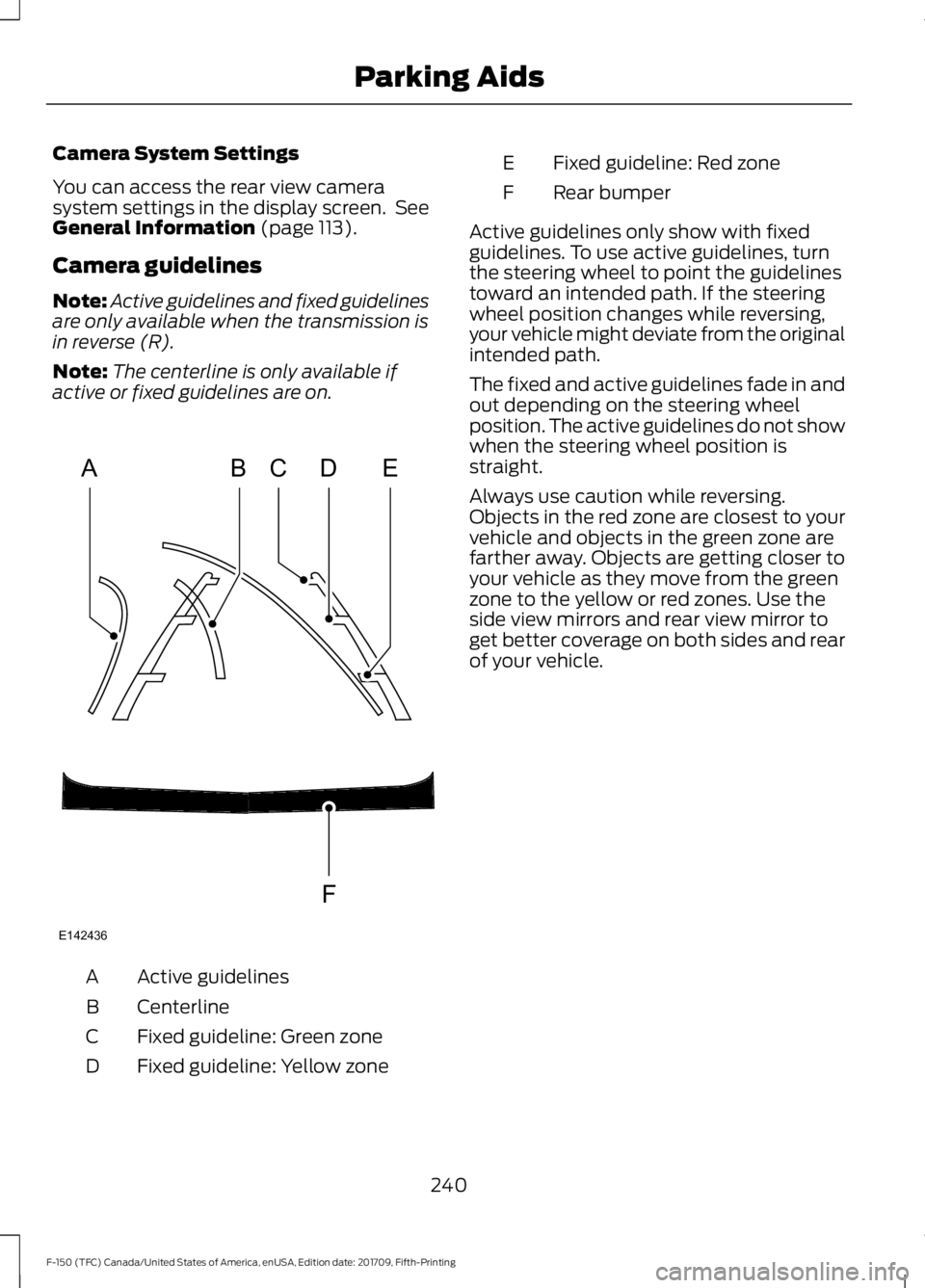
Camera guidelines
Note: Active guidelines and fixed guidelines
are only available when the transmission is
in reverse (R).
Note: The centerline is only available if
active or fixed guidelines are on. Active guidelines
A
Centerline
B
Fixed guideline: Green zone
C
Fixed guideline: Yellow zone
D Fixed guideline: Red zone
E
Rear bumper
F
Active guidelines only show with fixed
guidelines. To use active guidelines, turn
the steering wheel to point the guidelines
toward an intended path. If the steering
wheel position changes while reversing,
your vehicle might deviate from the original
intended path.
The fixed and active guidelines fade in and
out depending on the steering wheel
position. The active guidelines do not show
when the steering wheel position is
straight.
Always use caution while reversing.
Objects in the red zone are closest to your
vehicle and objects in the green zone are
farther away. Objects are getting closer to
your vehicle as they move from the green
zone to the yellow or red zones. Use the
side view mirrors and rear view mirror to
get better coverage on both sides and rear
of your vehicle.
240
F-150 (TFC) Canada/United States of America, enUSA, Edition date: 201709, Fifth-Printing Parking AidsABCD
F
E
E142436
Page 247 of 641
PRINCIPLE OF OPERATION
Cruise control lets you maintain a set
speed without keeping your foot on the
accelerator pedal. You can use cruise
control when your vehicle speed is greater
than 20 mph (30 km/h).
USING CRUISE CONTROL
(IF
EQUIPPED) WARNING:
Do not use cruise
control on winding roads, in heavy traffic
or when the road surface is slippery. This
could result in loss of vehicle control,
serious injury or death. WARNING:
When you are going
downhill, your vehicle speed could
increase above the set speed. The
system does not apply the brakes.
Note: Cruise control disengages if the
vehicle speed decreases more than 10 mph
(16 km/h) below the set speed when driving
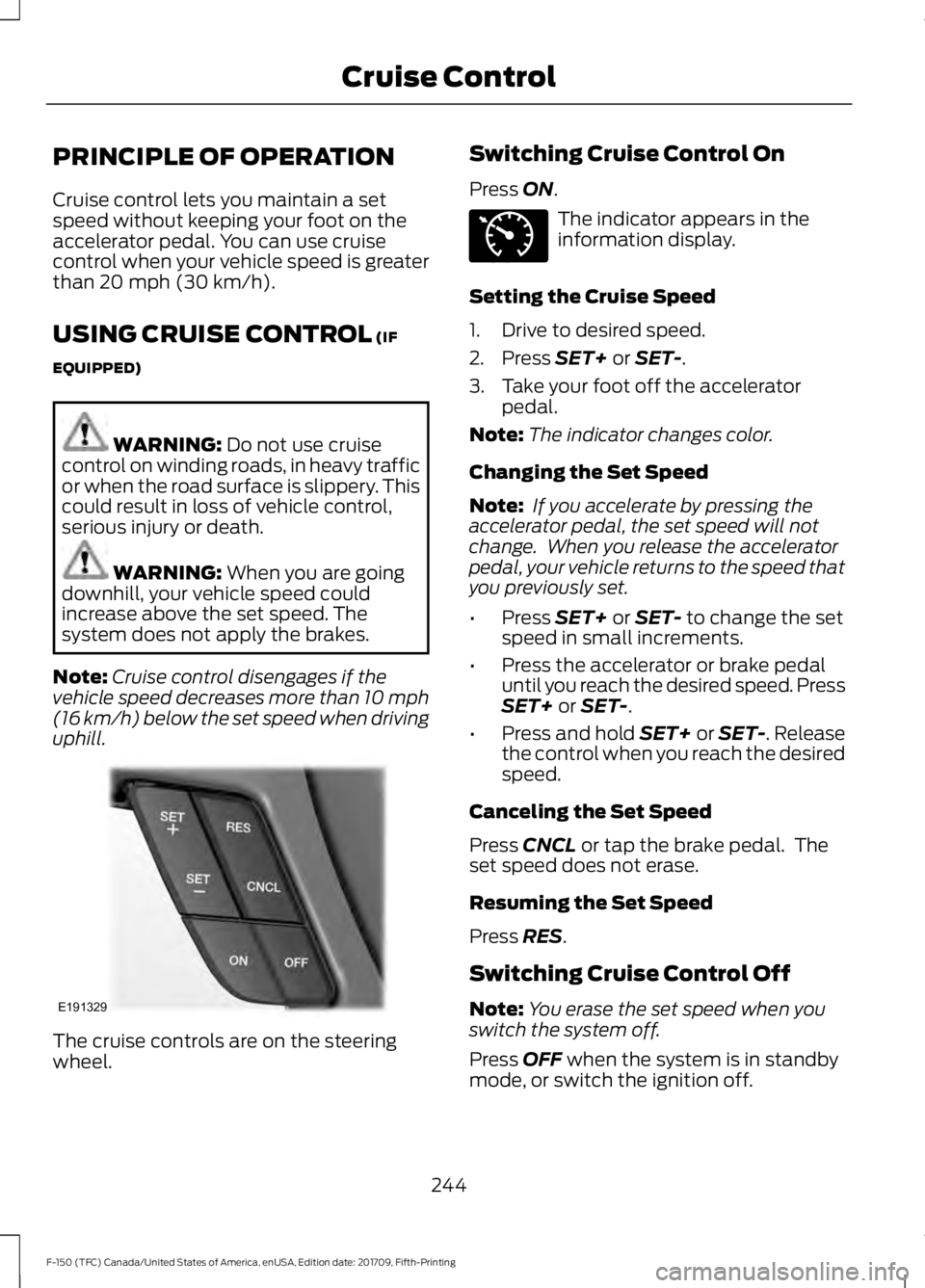
uphill. The cruise controls are on the steering
wheel. Switching Cruise Control On
Press
ON. The indicator appears in the
information display.
Setting the Cruise Speed
1. Drive to desired speed.
2. Press
SET+ or SET-.
3. Take your foot off the accelerator pedal.
Note: The indicator changes color.
Changing the Set Speed
Note: If you accelerate by pressing the
accelerator pedal, the set speed will not
change. When you release the accelerator
pedal, your vehicle returns to the speed that
you previously set.
• Press
SET+ or SET- to change the set
speed in small increments.
• Press the accelerator or brake pedal
until you reach the desired speed. Press
SET+
or SET-.
• Press and hold SET+ or SET-. Release
the control when you reach the desired
speed.
Canceling the Set Speed
Press
CNCL or tap the brake pedal. The
set speed does not erase.
Resuming the Set Speed
Press
RES.
Switching Cruise Control Off
Note: You erase the set speed when you
switch the system off.
Press
OFF when the system is in standby
mode, or switch the ignition off.
244
F-150 (TFC) Canada/United States of America, enUSA, Edition date: 201709, Fifth-Printing Cruise ControlE191329 E71340
Page 248 of 641
USING ADAPTIVE CRUISE
CONTROL (IF EQUIPPED)
WARNING:
Always pay close
attention to changing road conditions
when using adaptive cruise control. The
system does not replace attentive
driving. Failing to pay attention to the
road may result in a crash, serious injury
or death. WARNING:
Do not use the
adaptive cruise control when entering or
leaving a highway, on roads with
intersections or roundabouts or
non-vehicular traffic or roads that are
winding, slippery, unpaved, or steep
slopes. WARNING:
Do not use the system
in poor visibility, for example fog, heavy
rain, spray or snow. WARNING:
Do not use the system
when towing a trailer that has
aftermarket electronic trailer brake
controls. Failure to follow this instruction
could result in the loss of control of your
vehicle, personal injury or death. WARNING:
Do not use tire sizes
other than those recommended because
this can affect the normal operation of
the system. Failure to do so may result
in a loss of vehicle control, which could
result in serious injury. WARNING: Adaptive cruise control
may not detect stationary or slow
moving vehicles below 6 mph (10 km/h). WARNING: Adaptive cruise control
does not detect pedestrians or objects
in the road. WARNING: Adaptive cruise control
does not detect oncoming vehicles in the
same lane. WARNING: Adaptive cruise control
is not a crash warning or avoidance
system. WARNING:
Do not use adaptive
cruise control with a snow plow blade
installed.
The system adjusts your vehicle speed to
maintain the set gap between you and the
vehicle in front of you in the same lane.
You can select four gap settings.
The system uses a radar sensor that
projects a beam directly in front of your
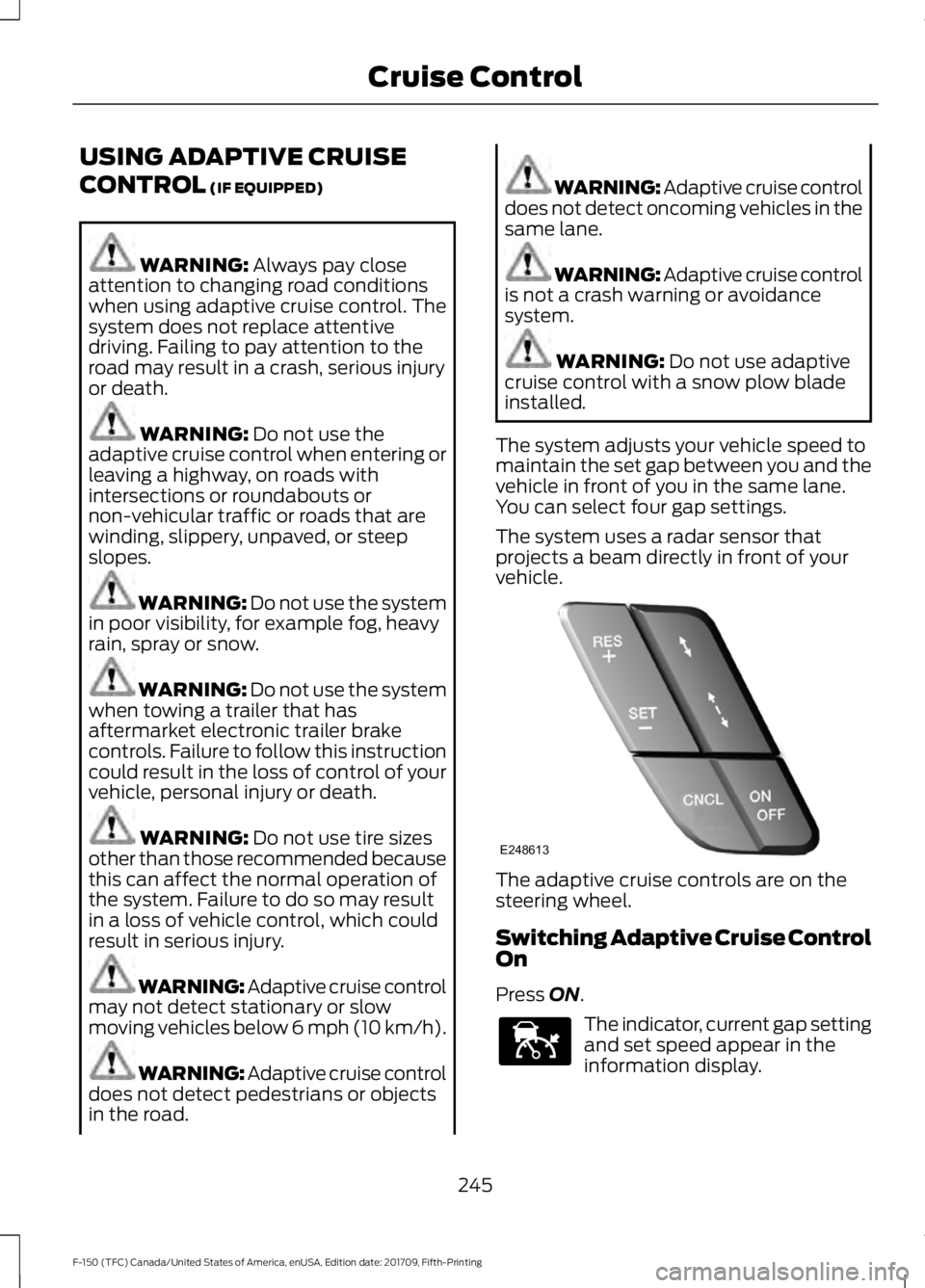
vehicle. The adaptive cruise controls are on the
steering wheel.
Switching Adaptive Cruise Control
On
Press
ON.
The indicator, current gap setting
and set speed appear in the
information display.
245
F-150 (TFC) Canada/United States of America, enUSA, Edition date: 201709, Fifth-Printing Cruise ControlE248613 E144529
Page 256 of 641
System Warnings
Note:
The system will not issue warnings
below approximately 40 mph (64 km/h).
The warning system is in two stages. At
first the system issues a temporary warning
that you need to take a rest. This message
will only appear for a short time. If the
system detects further reduction in driving
alertness, another warning may be issued
which will remain in the information display
for a longer time. Press OK on the steering
wheel control to clear the warning. When
active the system will run automatically in
the background and only issue a warning
if required.
Resetting the System
You can reset the system by either:
• Switching the ignition off and on.
• Stopping the vehicle and then opening
and closing the driver ’s door.
LANE KEEPING SYSTEM
(IF
EQUIPPED) WARNING:
You are responsible
for controlling your vehicle at all times.
The system is designed to be an aid and
does not relieve you of your responsibility
to drive with due care and attention.
Failure to follow this instruction could
result in the loss of control of your
vehicle, personal injury or death. WARNING:
Always drive with due
care and attention when using and
operating the controls and features on
your vehicle. WARNING:
In cold and severe
weather conditions the system may not
function. Rain, snow and spray can all
limit sensor performance. WARNING:
The system will not
operate if the sensor cannot track the
road lane markings. WARNING:
The sensor may
incorrectly track lane markings as other
structures or objects. This can result in
a false or missed warning. WARNING:
The system may not
operate properly if the sensor is blocked.
Keep the windshield free from
obstruction. WARNING:
If damage occurs in
the immediate area surrounding the
sensor, have your vehicle checked as
soon as possible. WARNING:
The system may not
correctly operate if your vehicle is fitted
with a suspension kit not approved by
us.
Note: The system works as long as the
camera can detect one lane marking.
Note: When you select aid or alert and aid
mode and the system detects no steering
activity for a short period, the system alerts
you to put your hands on the steering wheel.
The system may detect a light grip or
touch on the steering wheel as hands off
driving.
Note: The system works above
40 mph
(64 km/h).
Note: The system may not function if the
camera is blocked, or if the windshield is
damaged or dirty.
253
F-150 (TFC) Canada/United States of America, enUSA, Edition date: 201709, Fifth-Printing Driving Aids
Page 257 of 641
When you switch the system on and it
detects an unintentional drift out of your
lane is likely to occur, the system notifies
or assists you to stay in your lane through
the steering system and information
display. In Alert mode, the system provides
a warning by vibrating the steering wheel.
In Aid mode, the system provides steering
assistance by gently counter steering your
vehicle back into the lane.
When the system is functioning in the
combined Alert and Aid mode, the system
first provides steering assistance by gently
counter steering your vehicle back into the
lane, followed by a warning that vibrates
the steering wheel if the vehicle is still out
of the lane markings.
Switching the System On and Off
Note:
The system on or off setting is stored
until it is manually changed, unless a
MyKey ™ is detected. If the system detects
a MyKey ™, it defaults to on and the mode
is set to alert.
Note: If a MyKey ™ is detected, pressing
the button does not affect the on or off
status of the system. You can only change
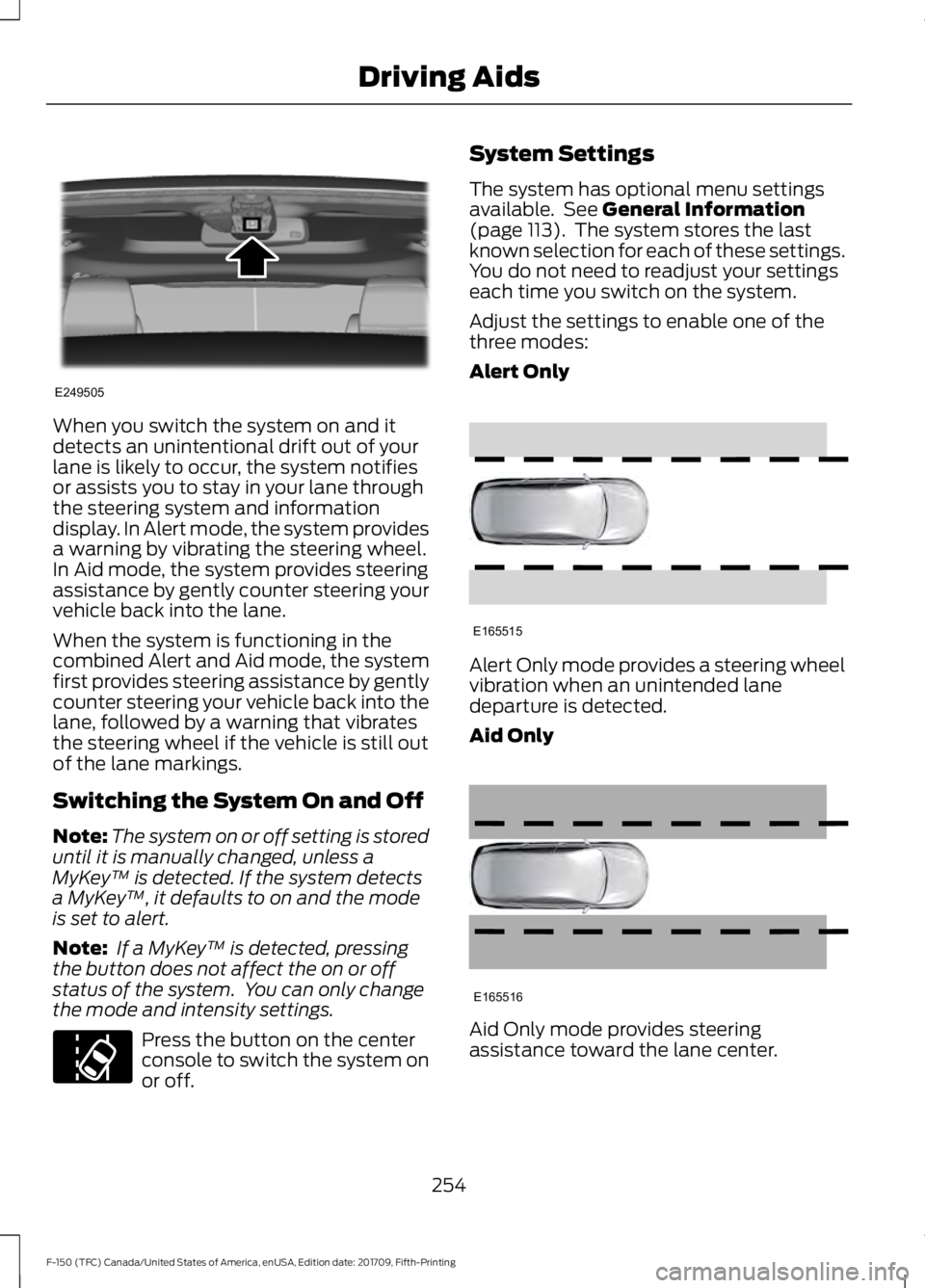
the mode and intensity settings. Press the button on the center
console to switch the system on
or off. System Settings
The system has optional menu settings
available. See General Information
(page 113). The system stores the last
known selection for each of these settings.
You do not need to readjust your settings
each time you switch on the system.
Adjust the settings to enable one of the
three modes:
Alert Only Alert Only mode provides a steering wheel
vibration when an unintended lane
departure is detected.
Aid Only
Aid Only mode provides steering
assistance toward the lane center.
254
F-150 (TFC) Canada/United States of America, enUSA, Edition date: 201709, Fifth-Printing Driving AidsE249505 E173233 E165515 E165516
Page 258 of 641
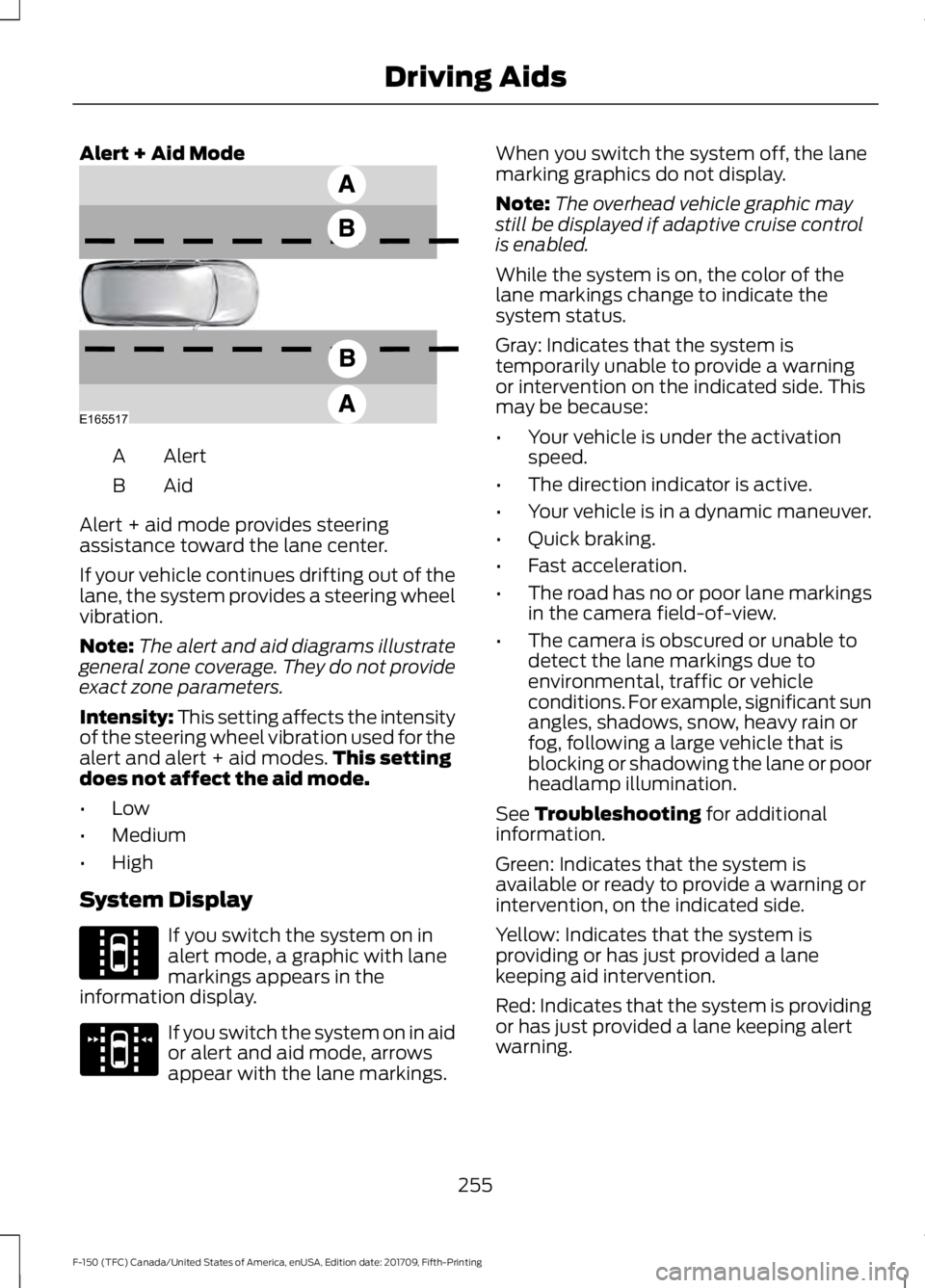
Alert + Aid Mode
Alert
A
AidB
Alert + aid mode provides steering
assistance toward the lane center.
If your vehicle continues drifting out of the
lane, the system provides a steering wheel
vibration.
Note: The alert and aid diagrams illustrate
general zone coverage. They do not provide
exact zone parameters.
Intensity: This setting affects the intensity
of the steering wheel vibration used for the
alert and alert + aid modes. This setting
does not affect the aid mode.
• Low
• Medium
• High
System Display If you switch the system on in
alert mode, a graphic with lane
markings appears in the
information display. If you switch the system on in aid
or alert and aid mode, arrows
appear with the lane markings. When you switch the system off, the lane
marking graphics do not display.
Note:
The overhead vehicle graphic may
still be displayed if adaptive cruise control
is enabled.
While the system is on, the color of the
lane markings change to indicate the
system status.
Gray: Indicates that the system is
temporarily unable to provide a warning
or intervention on the indicated side. This
may be because:
• Your vehicle is under the activation
speed.
• The direction indicator is active.
• Your vehicle is in a dynamic maneuver.
• Quick braking.
• Fast acceleration.
• The road has no or poor lane markings
in the camera field-of-view.
• The camera is obscured or unable to
detect the lane markings due to
environmental, traffic or vehicle
conditions. For example, significant sun
angles, shadows, snow, heavy rain or
fog, following a large vehicle that is
blocking or shadowing the lane or poor
headlamp illumination.
See Troubleshooting for additional
information.
Green: Indicates that the system is
available or ready to provide a warning or
intervention, on the indicated side.
Yellow: Indicates that the system is
providing or has just provided a lane
keeping aid intervention.
Red: Indicates that the system is providing
or has just provided a lane keeping alert
warning.
255
F-150 (TFC) Canada/United States of America, enUSA, Edition date: 201709, Fifth-Printing Driving AidsE165517 E144813 E173234
Page 262 of 641
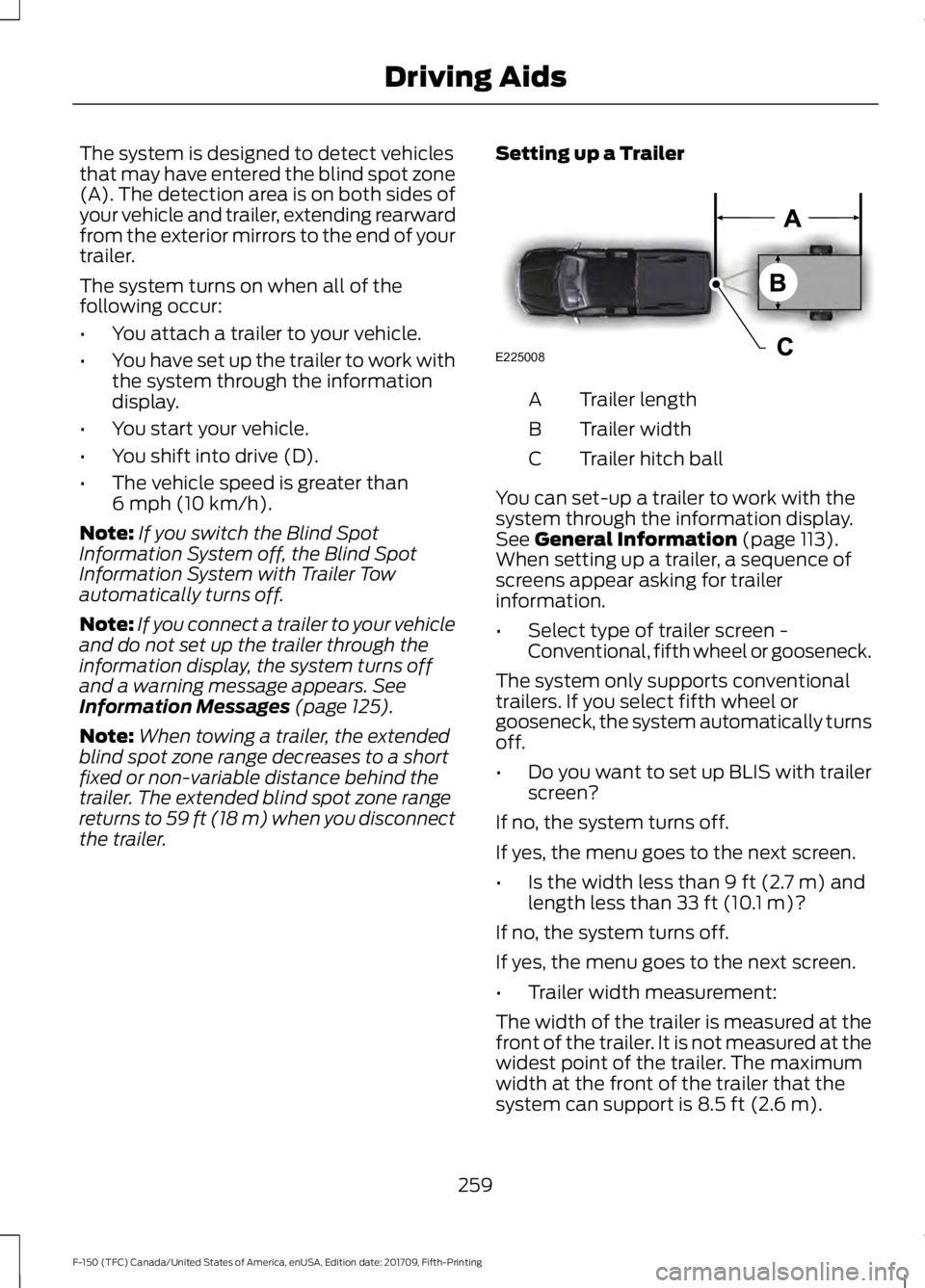
The system is designed to detect vehicles
that may have entered the blind spot zone
(A). The detection area is on both sides of
your vehicle and trailer, extending rearward
from the exterior mirrors to the end of your
trailer.
The system turns on when all of the
following occur:
•
You attach a trailer to your vehicle.
• You have set up the trailer to work with
the system through the information
display.
• You start your vehicle.
• You shift into drive (D).
• The vehicle speed is greater than
6 mph (10 km/h).
Note: If you switch the Blind Spot
Information System off, the Blind Spot
Information System with Trailer Tow
automatically turns off.
Note: If you connect a trailer to your vehicle
and do not set up the trailer through the
information display, the system turns off
and a warning message appears.
See
Information Messages (page 125).
Note: When towing a trailer, the extended
blind spot zone range decreases to a short
fixed or non-variable distance behind the
trailer. The extended blind spot zone range
returns to 59 ft (18 m) when you disconnect
the trailer. Setting up a Trailer Trailer length
A
Trailer width
B
Trailer hitch ball
C
You can set-up a trailer to work with the
system through the information display.
See
General Information (page 113).
When setting up a trailer, a sequence of
screens appear asking for trailer
information.
• Select type of trailer screen -
Conventional, fifth wheel or gooseneck.
The system only supports conventional
trailers. If you select fifth wheel or
gooseneck, the system automatically turns
off.
• Do you want to set up BLIS with trailer
screen?
If no, the system turns off.
If yes, the menu goes to the next screen.
• Is the width less than
9 ft (2.7 m) and
length less than 33 ft (10.1 m)?
If no, the system turns off.
If yes, the menu goes to the next screen.
• Trailer width measurement:
The width of the trailer is measured at the
front of the trailer. It is not measured at the
widest point of the trailer. The maximum
width at the front of the trailer that the
system can support is
8.5 ft (2.6 m).
259
F-150 (TFC) Canada/United States of America, enUSA, Edition date: 201709, Fifth-Printing Driving AidsE225008