odometer FORD F-150 2018 Owners Manual
[x] Cancel search | Manufacturer: FORD, Model Year: 2018, Model line: F-150, Model: FORD F-150 2018Pages: 641, PDF Size: 8.37 MB
Page 110 of 641
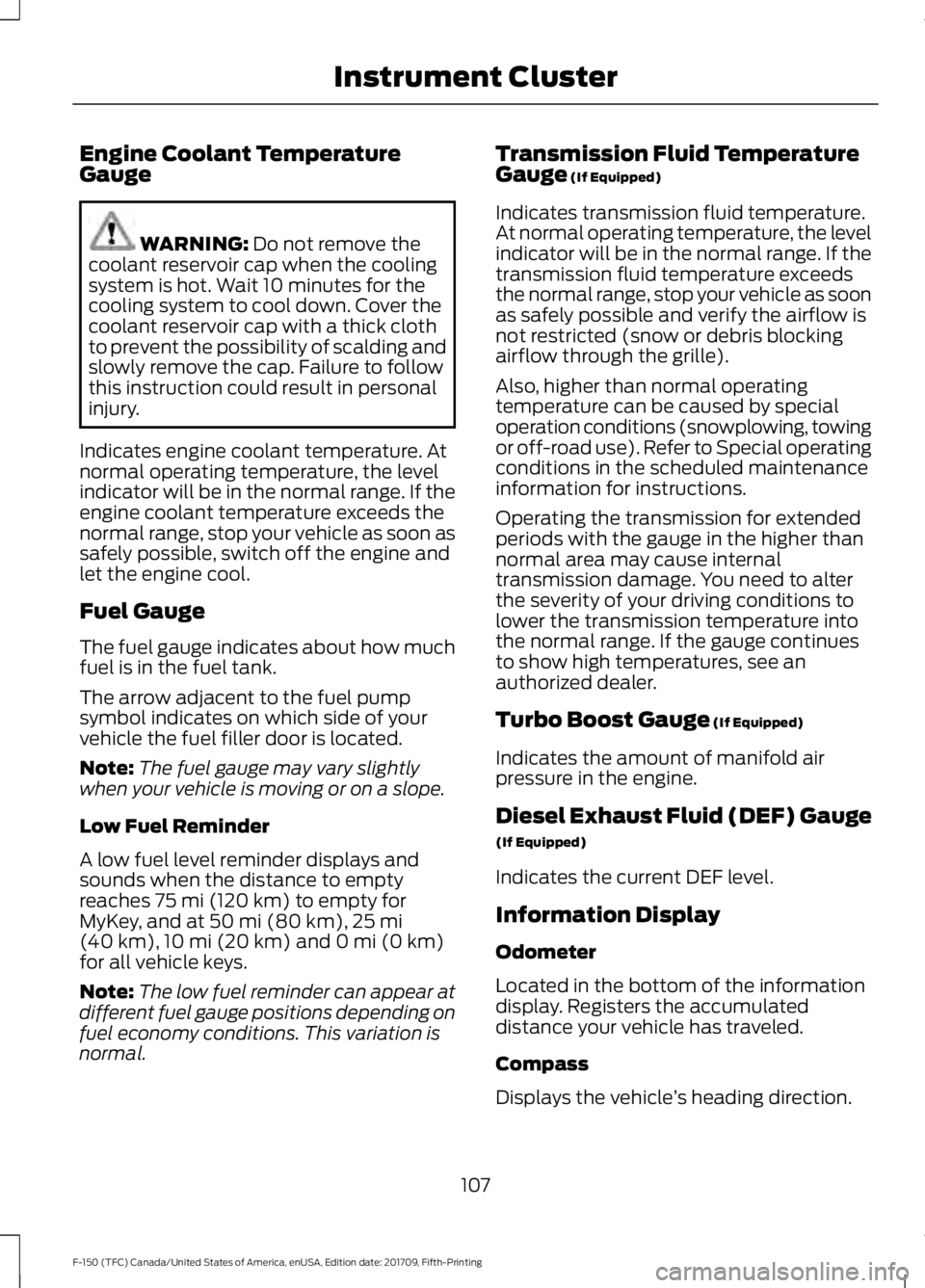
Engine Coolant Temperature
Gauge
WARNING: Do not remove the
coolant reservoir cap when the cooling
system is hot. Wait 10 minutes for the
cooling system to cool down. Cover the
coolant reservoir cap with a thick cloth
to prevent the possibility of scalding and
slowly remove the cap. Failure to follow
this instruction could result in personal
injury.
Indicates engine coolant temperature. At
normal operating temperature, the level
indicator will be in the normal range. If the
engine coolant temperature exceeds the
normal range, stop your vehicle as soon as
safely possible, switch off the engine and
let the engine cool.
Fuel Gauge
The fuel gauge indicates about how much
fuel is in the fuel tank.
The arrow adjacent to the fuel pump
symbol indicates on which side of your
vehicle the fuel filler door is located.
Note: The fuel gauge may vary slightly
when your vehicle is moving or on a slope.
Low Fuel Reminder
A low fuel level reminder displays and
sounds when the distance to empty
reaches
75 mi (120 km) to empty for
MyKey, and at 50 mi (80 km), 25 mi
(40 km), 10 mi (20 km) and 0 mi (0 km)
for all vehicle keys.
Note: The low fuel reminder can appear at
different fuel gauge positions depending on
fuel economy conditions. This variation is
normal. Transmission Fluid Temperature
Gauge
(If Equipped)
Indicates transmission fluid temperature.
At normal operating temperature, the level
indicator will be in the normal range. If the
transmission fluid temperature exceeds
the normal range, stop your vehicle as soon
as safely possible and verify the airflow is
not restricted (snow or debris blocking
airflow through the grille).
Also, higher than normal operating
temperature can be caused by special
operation conditions (snowplowing, towing
or off-road use). Refer to Special operating
conditions in the scheduled maintenance
information for instructions.
Operating the transmission for extended
periods with the gauge in the higher than
normal area may cause internal
transmission damage. You need to alter
the severity of your driving conditions to
lower the transmission temperature into
the normal range. If the gauge continues
to show high temperatures, see an
authorized dealer.
Turbo Boost Gauge
(If Equipped)
Indicates the amount of manifold air
pressure in the engine.
Diesel Exhaust Fluid (DEF) Gauge
(If Equipped)
Indicates the current DEF level.
Information Display
Odometer
Located in the bottom of the information
display. Registers the accumulated
distance your vehicle has traveled.
Compass
Displays the vehicle ’s heading direction.
107
F-150 (TFC) Canada/United States of America, enUSA, Edition date: 201709, Fifth-Printing Instrument Cluster
Page 117 of 641
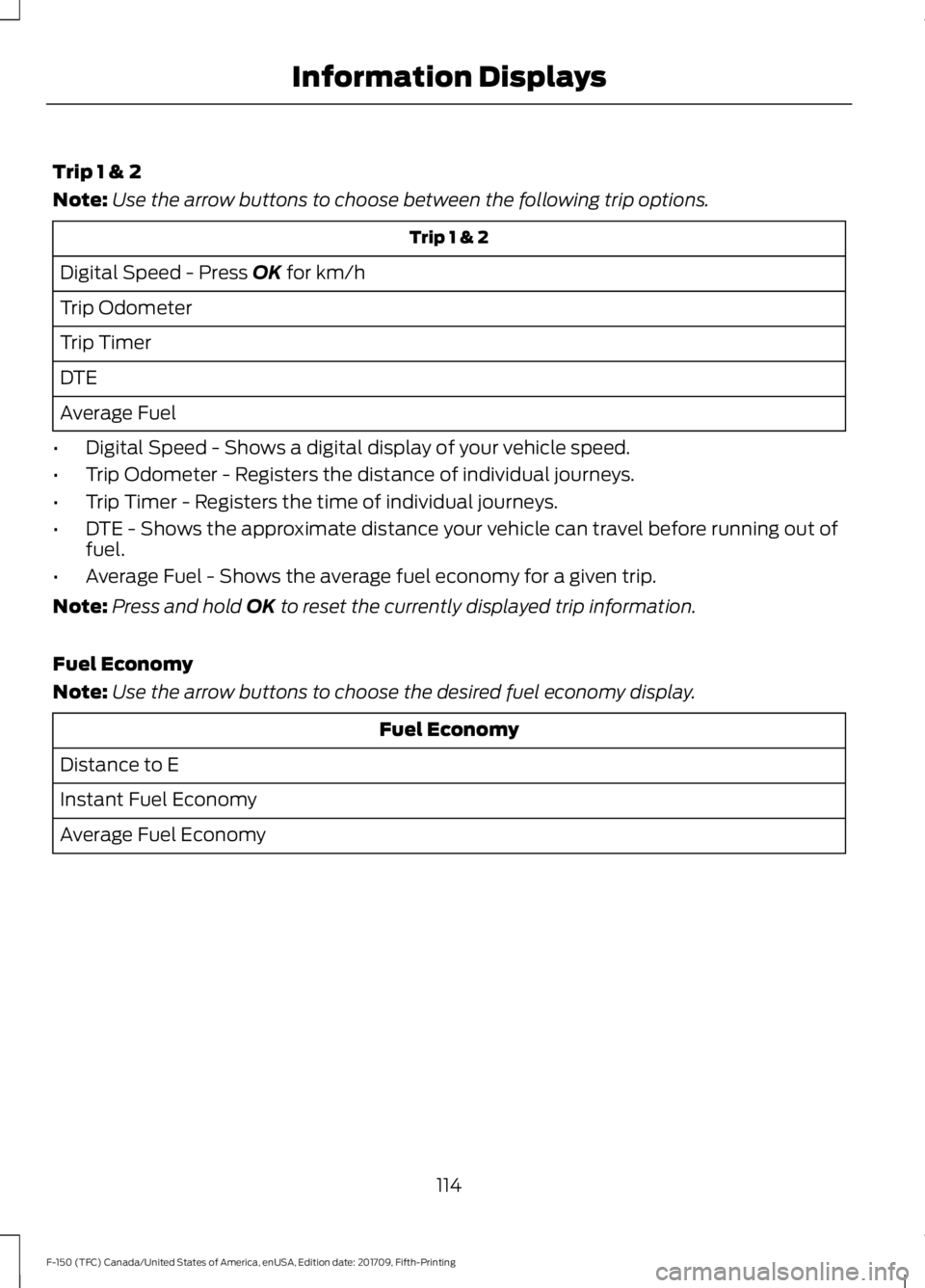
Trip 1 & 2
Note:
Use the arrow buttons to choose between the following trip options. Trip 1 & 2
Digital Speed - Press OK for km/h
Trip Odometer
Trip Timer
DTE
Average Fuel
• Digital Speed - Shows a digital display of your vehicle speed.
• Trip Odometer - Registers the distance of individual journeys.
• Trip Timer - Registers the time of individual journeys.
• DTE - Shows the approximate distance your vehicle can travel before running out of
fuel.
• Average Fuel - Shows the average fuel economy for a given trip.
Note: Press and hold
OK to reset the currently displayed trip information.
Fuel Economy
Note: Use the arrow buttons to choose the desired fuel economy display. Fuel Economy
Distance to E
Instant Fuel Economy
Average Fuel Economy
114
F-150 (TFC) Canada/United States of America, enUSA, Edition date: 201709, Fifth-Printing Information Displays
Page 120 of 641
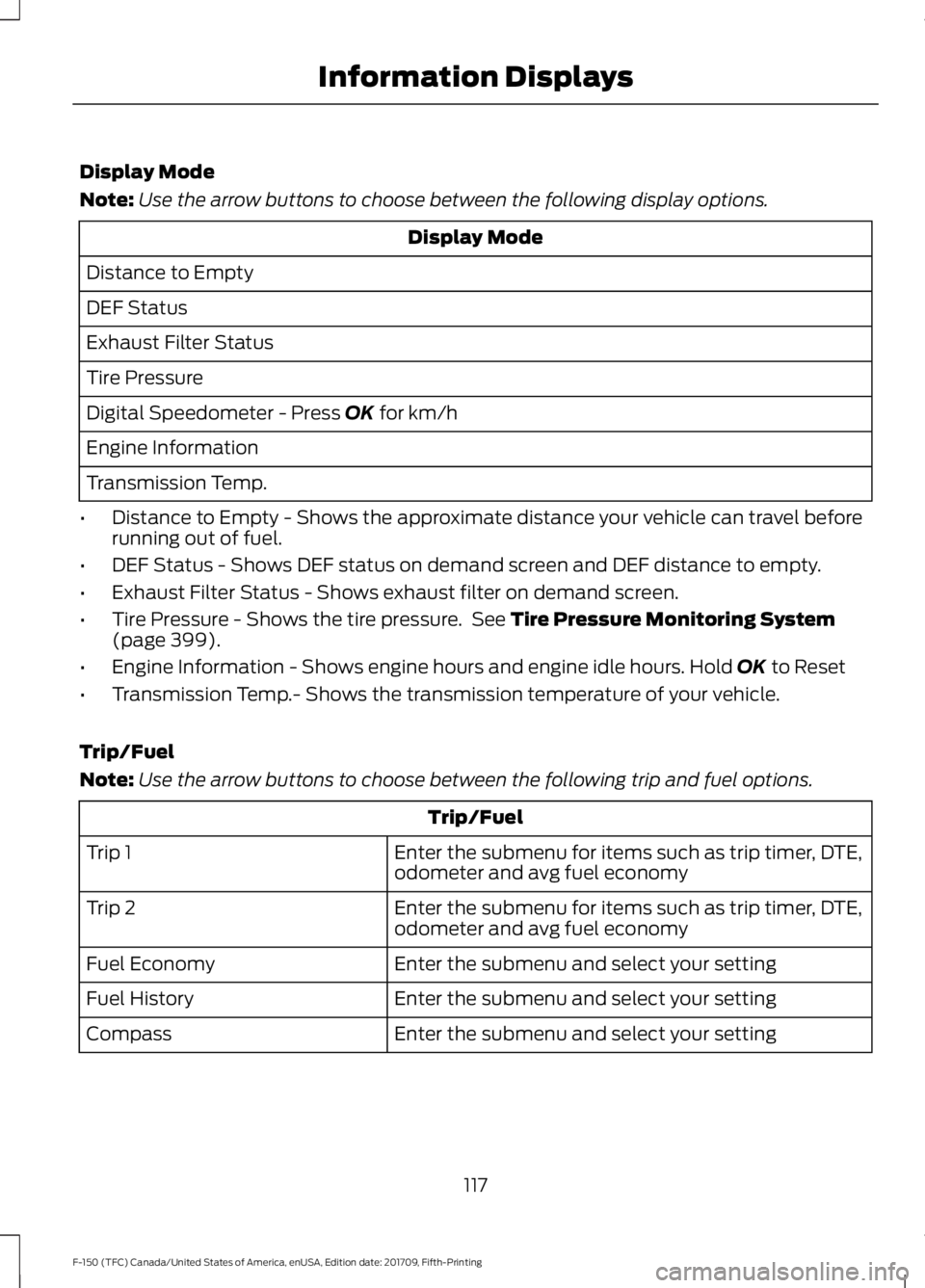
Display Mode
Note:
Use the arrow buttons to choose between the following display options. Display Mode
Distance to Empty
DEF Status
Exhaust Filter Status
Tire Pressure
Digital Speedometer - Press OK for km/h
Engine Information
Transmission Temp.
• Distance to Empty - Shows the approximate distance your vehicle can travel before
running out of fuel.
• DEF Status - Shows DEF status on demand screen and DEF distance to empty.
• Exhaust Filter Status - Shows exhaust filter on demand screen.
• Tire Pressure - Shows the tire pressure. See
Tire Pressure Monitoring System
(page 399).
• Engine Information - Shows engine hours and engine idle hours. Hold
OK to Reset
• Transmission Temp.- Shows the transmission temperature of your vehicle.
Trip/Fuel
Note: Use the arrow buttons to choose between the following trip and fuel options. Trip/Fuel
Enter the submenu for items such as trip timer, DTE,
odometer and avg fuel economy
Trip 1
Enter the submenu for items such as trip timer, DTE,
odometer and avg fuel economy
Trip 2
Enter the submenu and select your setting
Fuel Economy
Enter the submenu and select your setting
Fuel History
Enter the submenu and select your setting
Compass
117
F-150 (TFC) Canada/United States of America, enUSA, Edition date: 201709, Fifth-Printing Information Displays
Page 121 of 641
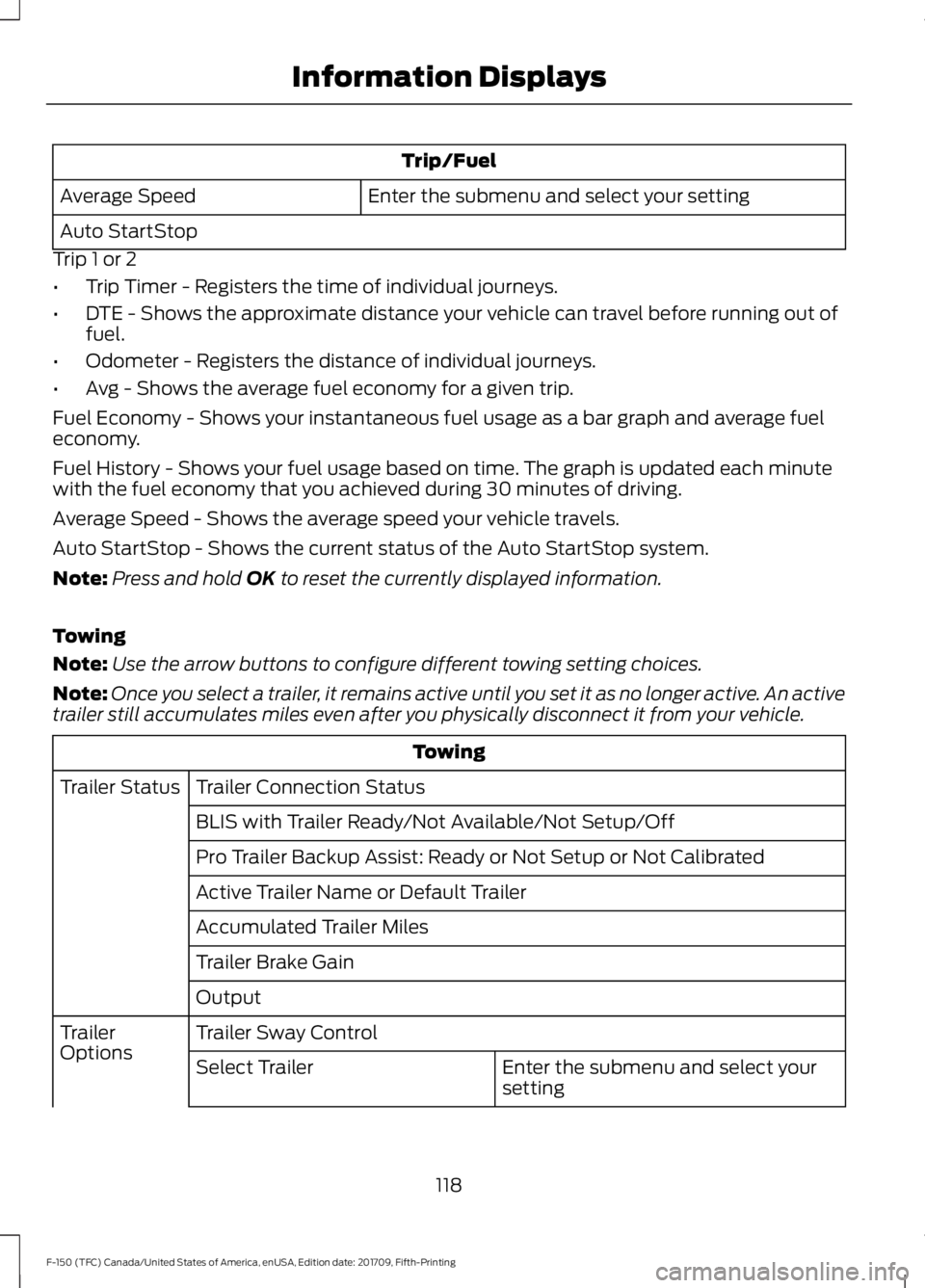
Trip/Fuel
Enter the submenu and select your setting
Average Speed
Auto StartStop
Trip 1 or 2
• Trip Timer - Registers the time of individual journeys.
• DTE - Shows the approximate distance your vehicle can travel before running out of
fuel.
• Odometer - Registers the distance of individual journeys.
• Avg - Shows the average fuel economy for a given trip.
Fuel Economy - Shows your instantaneous fuel usage as a bar graph and average fuel
economy.
Fuel History - Shows your fuel usage based on time. The graph is updated each minute
with the fuel economy that you achieved during 30 minutes of driving.
Average Speed - Shows the average speed your vehicle travels.
Auto StartStop - Shows the current status of the Auto StartStop system.
Note: Press and hold OK to reset the currently displayed information.
Towing
Note: Use the arrow buttons to configure different towing setting choices.
Note: Once you select a trailer, it remains active until you set it as no longer active. An active
trailer still accumulates miles even after you physically disconnect it from your vehicle. Towing
Trailer Connection Status
Trailer Status
BLIS with Trailer Ready/Not Available/Not Setup/Off
Pro Trailer Backup Assist: Ready or Not Setup or Not Calibrated
Active Trailer Name or Default Trailer
Accumulated Trailer Miles
Trailer Brake Gain
Output
Trailer Sway Control
Trailer
Options
Enter the submenu and select your
setting
Select Trailer
118
F-150 (TFC) Canada/United States of America, enUSA, Edition date: 201709, Fifth-Printing Information Displays
Page 124 of 641
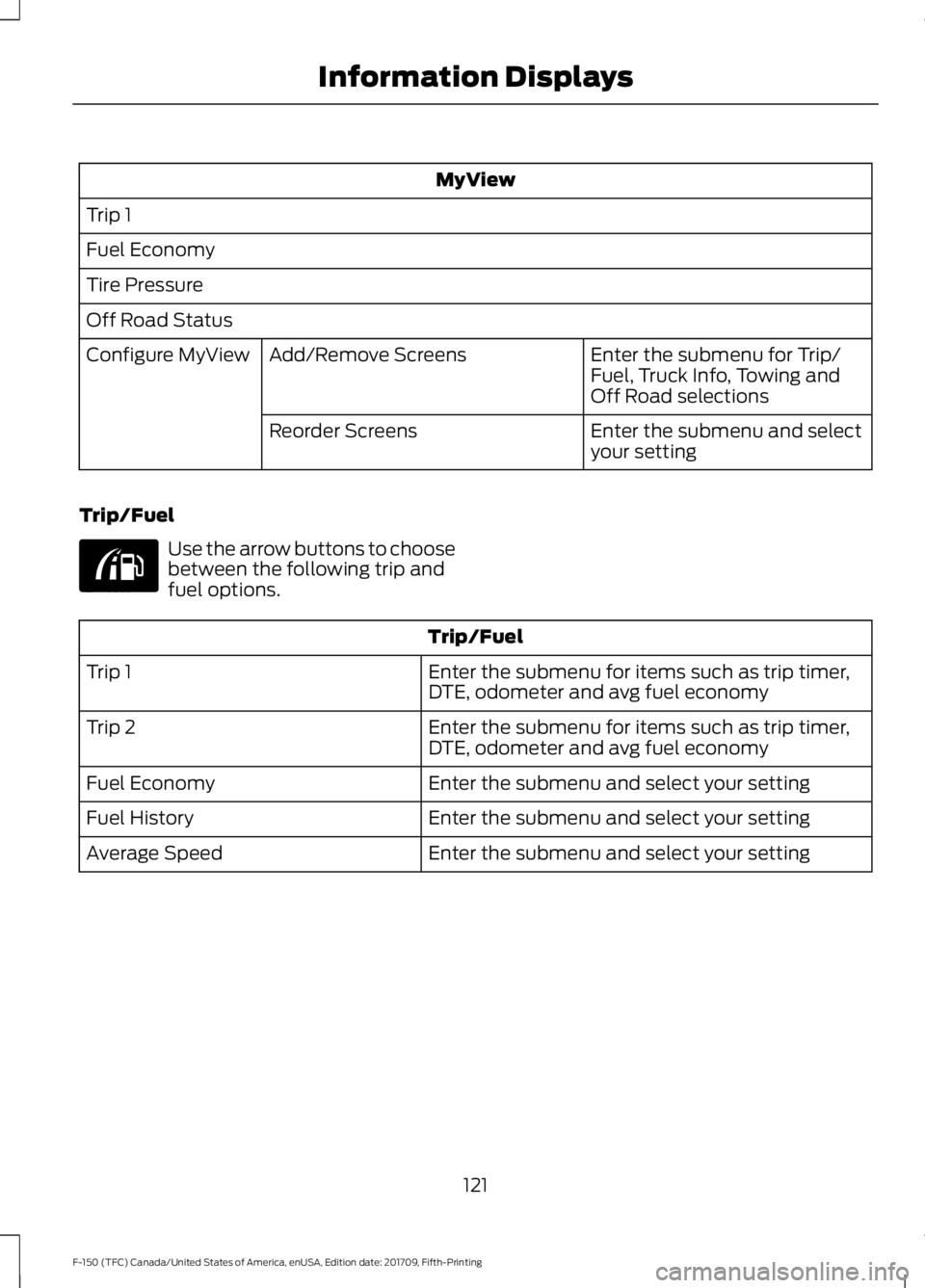
MyView
Trip 1
Fuel Economy
Tire Pressure
Off Road Status Enter the submenu for Trip/
Fuel, Truck Info, Towing and
Off Road selections
Add/Remove Screens
Configure MyView
Enter the submenu and select
your setting
Reorder Screens
Trip/Fuel Use the arrow buttons to choose
between the following trip and
fuel options.
Trip/Fuel
Enter the submenu for items such as trip timer,
DTE, odometer and avg fuel economy
Trip 1
Enter the submenu for items such as trip timer,
DTE, odometer and avg fuel economy
Trip 2
Enter the submenu and select your setting
Fuel Economy
Enter the submenu and select your setting
Fuel History
Enter the submenu and select your setting
Average Speed
121
F-150 (TFC) Canada/United States of America, enUSA, Edition date: 201709, Fifth-Printing Information DisplaysE176095
Page 125 of 641
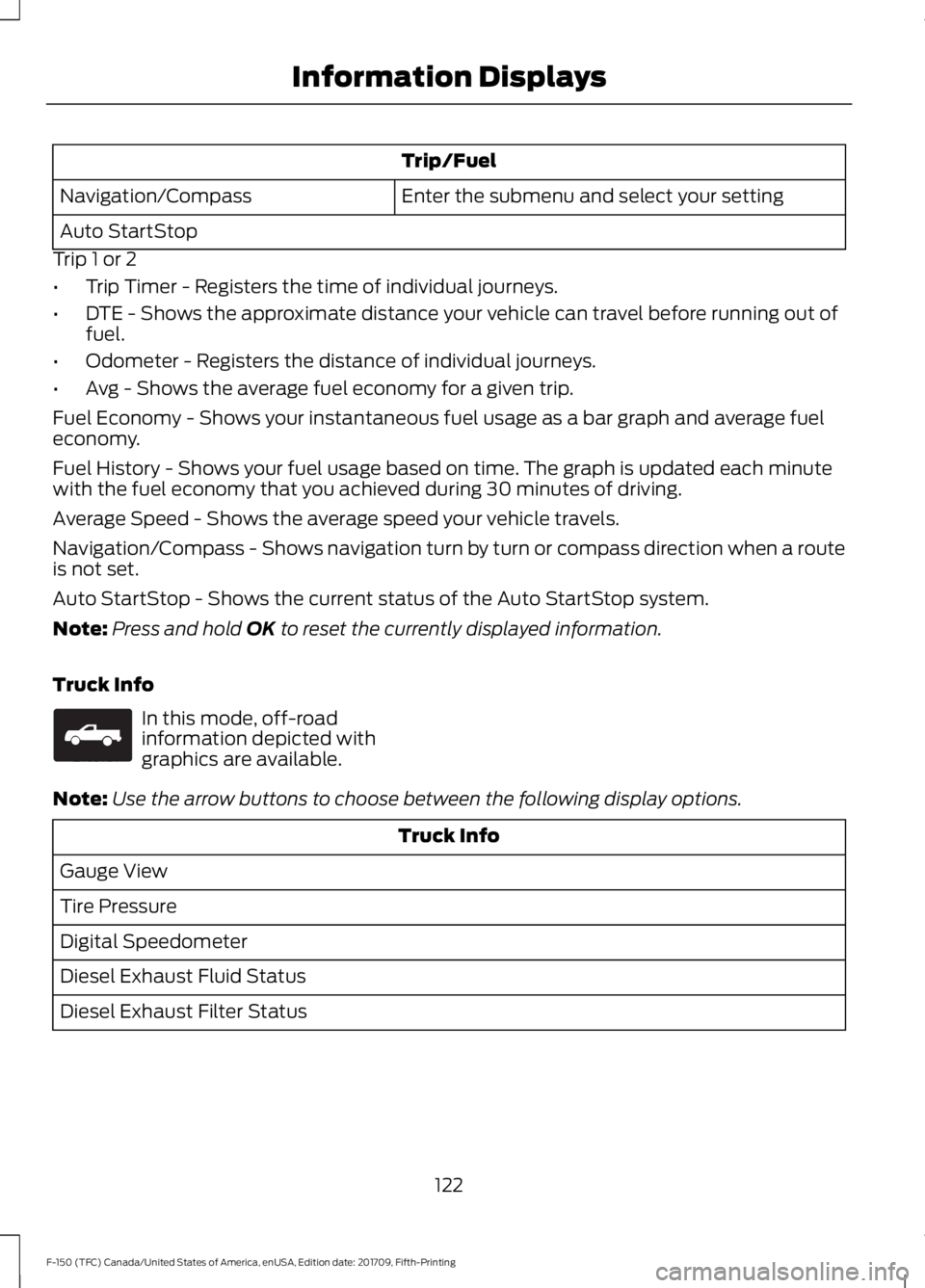
Trip/Fuel
Enter the submenu and select your setting
Navigation/Compass
Auto StartStop
Trip 1 or 2
• Trip Timer - Registers the time of individual journeys.
• DTE - Shows the approximate distance your vehicle can travel before running out of
fuel.
• Odometer - Registers the distance of individual journeys.
• Avg - Shows the average fuel economy for a given trip.
Fuel Economy - Shows your instantaneous fuel usage as a bar graph and average fuel
economy.
Fuel History - Shows your fuel usage based on time. The graph is updated each minute
with the fuel economy that you achieved during 30 minutes of driving.
Average Speed - Shows the average speed your vehicle travels.
Navigation/Compass - Shows navigation turn by turn or compass direction when a route
is not set.
Auto StartStop - Shows the current status of the Auto StartStop system.
Note: Press and hold OK to reset the currently displayed information.
Truck Info In this mode, off-road
information depicted with
graphics are available.
Note: Use the arrow buttons to choose between the following display options. Truck Info
Gauge View
Tire Pressure
Digital Speedometer
Diesel Exhaust Fluid Status
Diesel Exhaust Filter Status
122
F-150 (TFC) Canada/United States of America, enUSA, Edition date: 201709, Fifth-Printing Information DisplaysE163181
Page 332 of 641
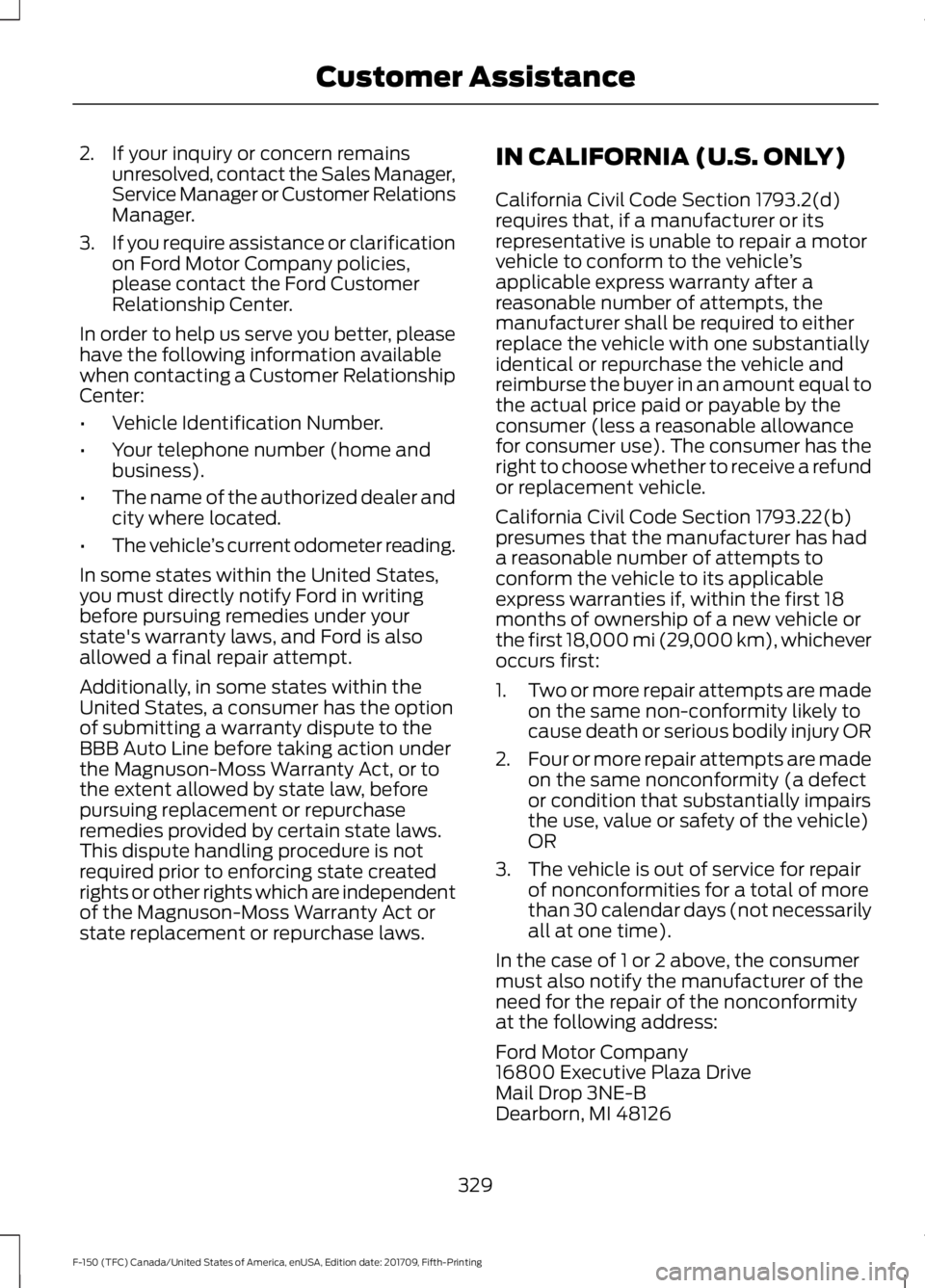
2. If your inquiry or concern remains
unresolved, contact the Sales Manager,
Service Manager or Customer Relations
Manager.
3. If you require assistance or clarification
on Ford Motor Company policies,
please contact the Ford Customer
Relationship Center.
In order to help us serve you better, please
have the following information available
when contacting a Customer Relationship
Center:
• Vehicle Identification Number.
• Your telephone number (home and
business).
• The name of the authorized dealer and
city where located.
• The vehicle ’s current odometer reading.
In some states within the United States,
you must directly notify Ford in writing
before pursuing remedies under your
state's warranty laws, and Ford is also
allowed a final repair attempt.
Additionally, in some states within the
United States, a consumer has the option
of submitting a warranty dispute to the
BBB Auto Line before taking action under
the Magnuson-Moss Warranty Act, or to
the extent allowed by state law, before
pursuing replacement or repurchase
remedies provided by certain state laws.
This dispute handling procedure is not
required prior to enforcing state created
rights or other rights which are independent
of the Magnuson-Moss Warranty Act or
state replacement or repurchase laws. IN CALIFORNIA (U.S. ONLY)
California Civil Code Section 1793.2(d)
requires that, if a manufacturer or its
representative is unable to repair a motor
vehicle to conform to the vehicle
’s
applicable express warranty after a
reasonable number of attempts, the
manufacturer shall be required to either
replace the vehicle with one substantially
identical or repurchase the vehicle and
reimburse the buyer in an amount equal to
the actual price paid or payable by the
consumer (less a reasonable allowance
for consumer use). The consumer has the
right to choose whether to receive a refund
or replacement vehicle.
California Civil Code Section 1793.22(b)
presumes that the manufacturer has had
a reasonable number of attempts to
conform the vehicle to its applicable
express warranties if, within the first 18
months of ownership of a new vehicle or
the first 18,000 mi (29,000 km), whichever
occurs first:
1. Two or more repair attempts are made
on the same non-conformity likely to
cause death or serious bodily injury OR
2. Four or more repair attempts are made
on the same nonconformity (a defect
or condition that substantially impairs
the use, value or safety of the vehicle)
OR
3. The vehicle is out of service for repair of nonconformities for a total of more
than 30 calendar days (not necessarily
all at one time).
In the case of 1 or 2 above, the consumer
must also notify the manufacturer of the
need for the repair of the nonconformity
at the following address:
Ford Motor Company
16800 Executive Plaza Drive
Mail Drop 3NE-B
Dearborn, MI 48126
329
F-150 (TFC) Canada/United States of America, enUSA, Edition date: 201709, Fifth-Printing Customer Assistance
Page 473 of 641
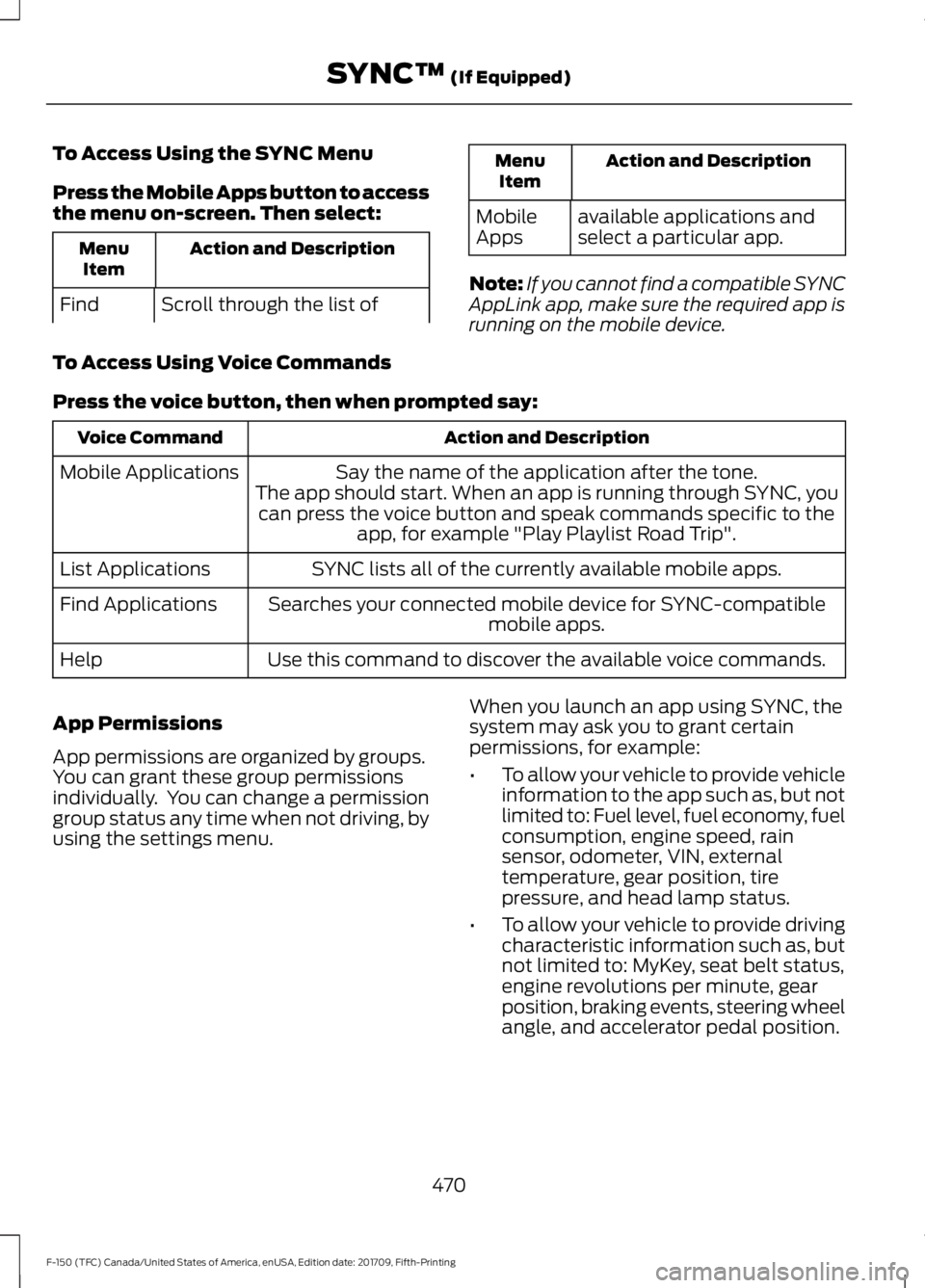
To Access Using the SYNC Menu
Press the Mobile Apps button to access
the menu on-screen. Then select:
Action and Description
Menu
Item
Scroll through the list of
Find Action and Description
Menu
Item
available applications and
select a particular app.
Mobile
Apps
Note: If you cannot find a compatible SYNC
AppLink app, make sure the required app is
running on the mobile device.
To Access Using Voice Commands
Press the voice button, then when prompted say: Action and Description
Voice Command
Say the name of the application after the tone.
The app should start. When an app is running through SYNC, you can press the voice button and speak commands specific to the app, for example "Play Playlist Road Trip".
Mobile Applications
SYNC lists all of the currently available mobile apps.
List Applications
Searches your connected mobile device for SYNC-compatible mobile apps.
Find Applications
Use this command to discover the available voice commands.
Help
App Permissions
App permissions are organized by groups.
You can grant these group permissions
individually. You can change a permission
group status any time when not driving, by
using the settings menu. When you launch an app using SYNC, the
system may ask you to grant certain
permissions, for example:
•
To allow your vehicle to provide vehicle
information to the app such as, but not
limited to: Fuel level, fuel economy, fuel
consumption, engine speed, rain
sensor, odometer, VIN, external
temperature, gear position, tire
pressure, and head lamp status.
• To allow your vehicle to provide driving
characteristic information such as, but
not limited to: MyKey, seat belt status,
engine revolutions per minute, gear
position, braking events, steering wheel
angle, and accelerator pedal position.
470
F-150 (TFC) Canada/United States of America, enUSA, Edition date: 201709, Fifth-Printing SYNC™ (If Equipped)
Page 529 of 641
Note:
Available AppLink enabled apps will
vary by market.
Note: You must pair and connect your
smartphone via Bluetooth to SYNC 3 to
access AppLink.
Note: iPhone users need to connect the
phone to the USB port.
Note: For information on available apps,
supported smartphone devices and
troubleshooting tips please visit: Websites
owner.ford.com
www.syncmyride.ca
www.syncmaroute.ca
Note: Make sure you have an active account
for the app that you have downloaded.
Some apps will work automatically with no
setup. Other apps will want you to configure
your personal settings and personalize your
experience by creating stations or
favorites.We recommend you do this at
home or outside of your vehicle.
Note: We encourage you to review the
smartphone app ’s terms of service and
privacy policies because Ford is not
responsible for your app or its use of data.
Note: AppLink is a native SYNC system
feature. Accessing mobile apps through
AppLink is only possible when Android Auto
or Apple CarPlay are disabled. Some apps
may only be accessible in the car through
AppLink and others only through Android
Auto or Apple CarPlay. Please refer to the
Smartphone Connectivity information to
disable Android Auto or Apple CarPlay.
Note: In order to use an app with SYNC 3,
the app needs to be running in the
background of your phone. If you shut down
the app on your phone, it shuts down the
app on SYNC 3 as well. Note:
If a SYNC 3 AppLink compatible app
is not shown in the Apps Domain, make sure
the required app is running on the mobile
device. Action and Descrip-
tion
Menu Item
SYNC 3 will search
and connect to
compatible app(s)
running on your
mobile device.
Find Mobile Apps
Enabling SYNC 3 Mobile Apps
In order to enable mobile apps, SYNC 3
requires user consent to send and receive
app authorization information and updates
using the data plan associated with the
connected device.
The connected device sends data to Ford
in the United States. The information is
encrypted and includes your VIN, SYNC 3
module number, odometer, usage
statistics and debugging information. We
retain this data for only as long as
necessary to provide this service,
troubleshoot, and improve products and
services and to offer you products and
services that may interest you where
allowed by law.
Note: You must enable mobile apps for
each connected device the first time you
select a mobile app using the system.
Note: Ford reserves the right to limit
functionality or deactivate mobile apps at
any time.
Note: Standard data rates apply. Ford is
not responsible for any additional charges
you may receive from your service provider,
when your vehicle sends or receives data
through the connected device. This includes
any additional charges incurred due to
driving in areas when roaming out of a home
network.
526
F-150 (TFC) Canada/United States of America, enUSA, Edition date: 201709, Fifth-Printing SYNC™ 3 (If Equipped)
Page 570 of 641
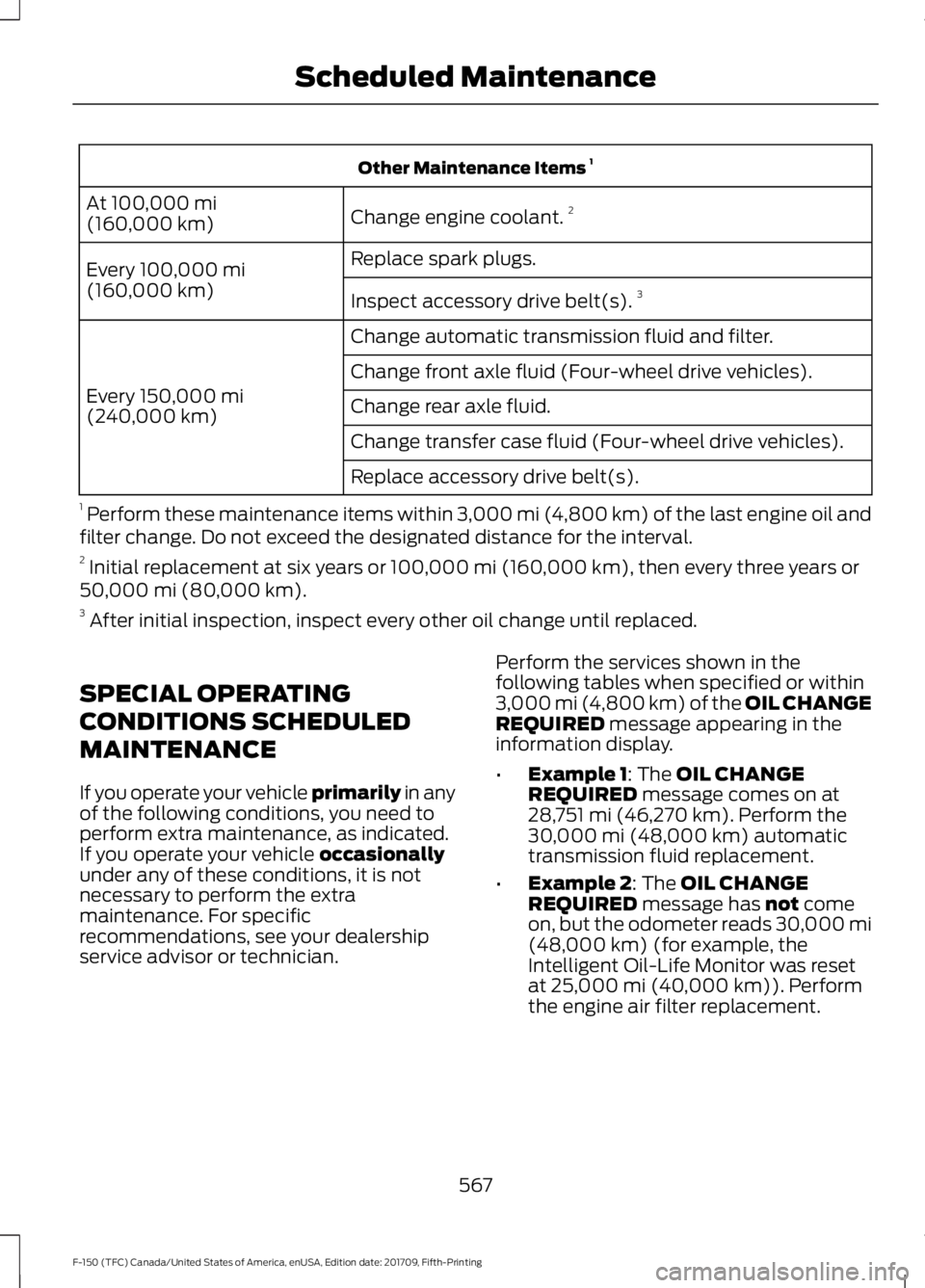
Other Maintenance Items
1
Change engine coolant. 2
At 100,000 mi
(160,000 km)
Replace spark plugs.
Every
100,000 mi
(160,000 km) Inspect accessory drive belt(s). 3
Change automatic transmission fluid and filter.
Every
150,000 mi
(240,000 km) Change front axle fluid (Four-wheel drive vehicles).
Change rear axle fluid.
Change transfer case fluid (Four-wheel drive vehicles).
Replace accessory drive belt(s).
1 Perform these maintenance items within 3,000 mi (4,800 km) of the last engine oil and
filter change. Do not exceed the designated distance for the interval.
2 Initial replacement at six years or
100,000 mi (160,000 km), then every three years or
50,000 mi (80,000 km).
3 After initial inspection, inspect every other oil change until replaced.
SPECIAL OPERATING
CONDITIONS SCHEDULED
MAINTENANCE
If you operate your vehicle primarily
in any
of the following conditions, you need to
perform extra maintenance, as indicated.
If you operate your vehicle
occasionally
under any of these conditions, it is not
necessary to perform the extra
maintenance. For specific
recommendations, see your dealership
service advisor or technician. Perform the services shown in the
following tables when specified or within
3,000 mi (4,800 km) of the OIL CHANGE
REQUIRED
message appearing in the
information display.
• Example 1
: The OIL CHANGE
REQUIRED message comes on at
28,751 mi (46,270 km). Perform the
30,000 mi (48,000 km) automatic
transmission fluid replacement.
• Example 2
: The OIL CHANGE
REQUIRED message has not come
on, but the odometer reads 30,000 mi
(48,000 km)
(for example, the
Intelligent Oil-Life Monitor was reset
at
25,000 mi (40,000 km)). Perform
the engine air filter replacement.
567
F-150 (TFC) Canada/United States of America, enUSA, Edition date: 201709, Fifth-Printing Scheduled Maintenance