display FORD F-150 2019 Owners Manual
[x] Cancel search | Manufacturer: FORD, Model Year: 2019, Model line: F-150, Model: FORD F-150 2019Pages: 644, PDF Size: 14.81 MB
Page 5 of 644
Anti-Theft Alarm
...........................................83
Power Running Boards
Using Power Running Boards ...................
84
Steering Wheel
Adjusting the Steering Wheel - Vehicles With: Manual Adjustable Steering
Column .........................................................
86
Adjusting the Steering Wheel - Vehicles With: Power Adjustable Steering
Column .........................................................
86
Audio Control ..................................................
87
Voice Control ..................................................
88
Cruise Control ................................................
88
Information Display Control .....................
89
Heated Steering Wheel ..............................
89
Adjustable Pedals
Adjusting the Pedals ...................................
90
Wipers and Washers
Windshield Wipers .........................................
91
Autowipers .......................................................
91
Windshield Washers ....................................
92
Lighting
General Information .....................................
93
Lighting Control .............................................
93
Autolamps .......................................................
94
Instrument Lighting Dimmer ....................
94
Daytime Running Lamps ...........................
95
Automatic High Beam Control ................
95
Front Fog Lamps ...........................................
96
Direction Indicators .......................................
97
Spot Lamps .....................................................
97
Interior Lamps ................................................
97
Ambient Lighting ..........................................
98
Cargo Lamps ..................................................
98Windows and Mirrors
Power Windows
..........................................
100
Exterior Mirrors ..............................................
101
Interior Mirror ................................................
104
Sliding Windows ..........................................
105
Sun Visors ......................................................
105
Moonroof ........................................................
106
Instrument Cluster
Gauges .............................................................
107
Warning Lamps and Indicators ...............
110
Audible Warnings and Indicators ...........
114
Information Displays
General Information ....................................
116
Information Messages ...............................
128
Climate Control
Manual Climate Control ............................
147
Automatic Climate Control .....................
148
Hints on Controlling the Interior Climate ........................................................................\
.
150
Heated Windshield ......................................
153
Heated Rear Window .................................
153
Heated Exterior Mirrors ..............................
153
Cabin Air Filter ...............................................
153
Remote Start .................................................
153
Seats
Sitting in the Correct Position .................
155
Head Restraints ............................................
155
Manual Seats .................................................
157
Power Seats ..................................................
158
Memory Function .........................................
161
Rear Seats ......................................................
162
Heated Seats ................................................
163
Ventilated Seats ..........................................
164
Front Seat Armrest .....................................
164
2
F-150 (TFC) Canada/United States of America, enUSA, Edition date: 201808, Third-Printing- Table of Contents
Page 9 of 644
Audio System
General Information
..................................453
Audio Unit - Vehicles Without: Touchscreen Display .............................
453
Audio Unit - Vehicles With: Touchscreen Display ........................................................
455
Digital Radio .................................................
457
Satellite Radio .............................................
459
USB Port ........................................................
462
Media Hub .....................................................
462
SYNC™
General Information ..................................
463
Using Voice Recognition ..........................
464
Using SYNC™ With Your Phone ..........
466
SYNC™ Applications and Services ......
467
Using SYNC™ With Your Media Player ........................................................................\
.
471
SYNC™ Troubleshooting ..........................
471
SYNC™ 3
General Information .................................
480
Home Screen ...............................................
492
Using Voice Recognition ..........................
493
Entertainment .............................................
500
Climate ............................................................
510
Phone ...............................................................
512
Navigation ......................................................
518
Apps ................................................................
526
Settings ..........................................................
529
SYNC™ 3 Troubleshooting .....................
543
Accessories
Accessories ...................................................
557
Ford Protect
Ford Protect .................................................
560
Scheduled Maintenance
General Maintenance Information ......
562Normal Scheduled Maintenance
.........
565
Special Operating Conditions Scheduled Maintenance ............................................
568
Scheduled Maintenance Record ...........
575
Appendices
Electromagnetic Compatibility .............
586
End User License Agreement ................
588
Type Approvals ............................................
614
6
F-150 (TFC) Canada/United States of America, enUSA, Edition date: 201808, Third-Printing- Table of Contents
Page 15 of 644
Entertainment Data
Data recorded includes, for example:
•
Music, videos or album art.
• Contacts and corresponding address
book entries.
• Navigation destinations.
Services That We Provide
If you use our services, we collect and use
data, for example account information,
vehicle location and driving characteristics,
that could identify you. We transmit this
data through a dedicated, protected
connection. We only collect and use data
to enable your use of our services to which
you have subscribed, with your consent or
where permitted by law. For additional
information, see the terms and conditions
of the services to which you have
subscribed.
Services That Third Parties
Provide
We recommend that you review the terms
and conditions and data privacy
information for any services to which you
subscribe. We take no responsibility for
services that third parties provide.
Vehicles With a Modem
The modem has a SIM. The modem
periodically sends messages to stay
connected to the cell phone network.
These messages could include information
that identifies your vehicle, the SIM and the
electronic serial number of the modem.
Cell phone network service providers could
have access to additional information, for
example cell phone network tower
identification. Note:
The modem continues to send this
information unless you have all added value
services deactivated. Contact the Ford
Customer Relationship Center. Refer to the
regional Ford website for contact
information.
Note: The service can be unavailable or
interrupted for a number of reasons, for
example environmental or topographical
conditions and data plan coverage.
Vehicles With SYNC
Mobile Device Data
If you connect a mobile device to your
vehicle, you can display data from your
device on the touchscreen for example,
music and album art. You can share your
vehicle data with mobile apps on your
device through the system. See Apps
(page 526).
The mobile apps function operates by your
connected device sending data to us in the
United States. The data is encrypted and
includes the vehicle identification number
of your vehicle, the SYNC module serial
number, odometer, enabled apps, usage
statistics and debugging information. We
retain it only as long as necessary to
provide the service, to troubleshoot, for
continuous improvement and to offer you
products and services that may be of
interest to you according to your
preferences and where allowed by law.
If you connect a cell phone to the system,
the system creates a profile that links to
that cell phone. The cell phone profile
enables more mobile features and efficient
operation. The profile contains, for
example data from your phonebook, read
and unread text messages and call history,
including history of calls when your cell
phone was not connected to the system.
12
F-150 (TFC) Canada/United States of America, enUSA, Edition date: 201808, Third-Printing- Introduction
Page 21 of 644
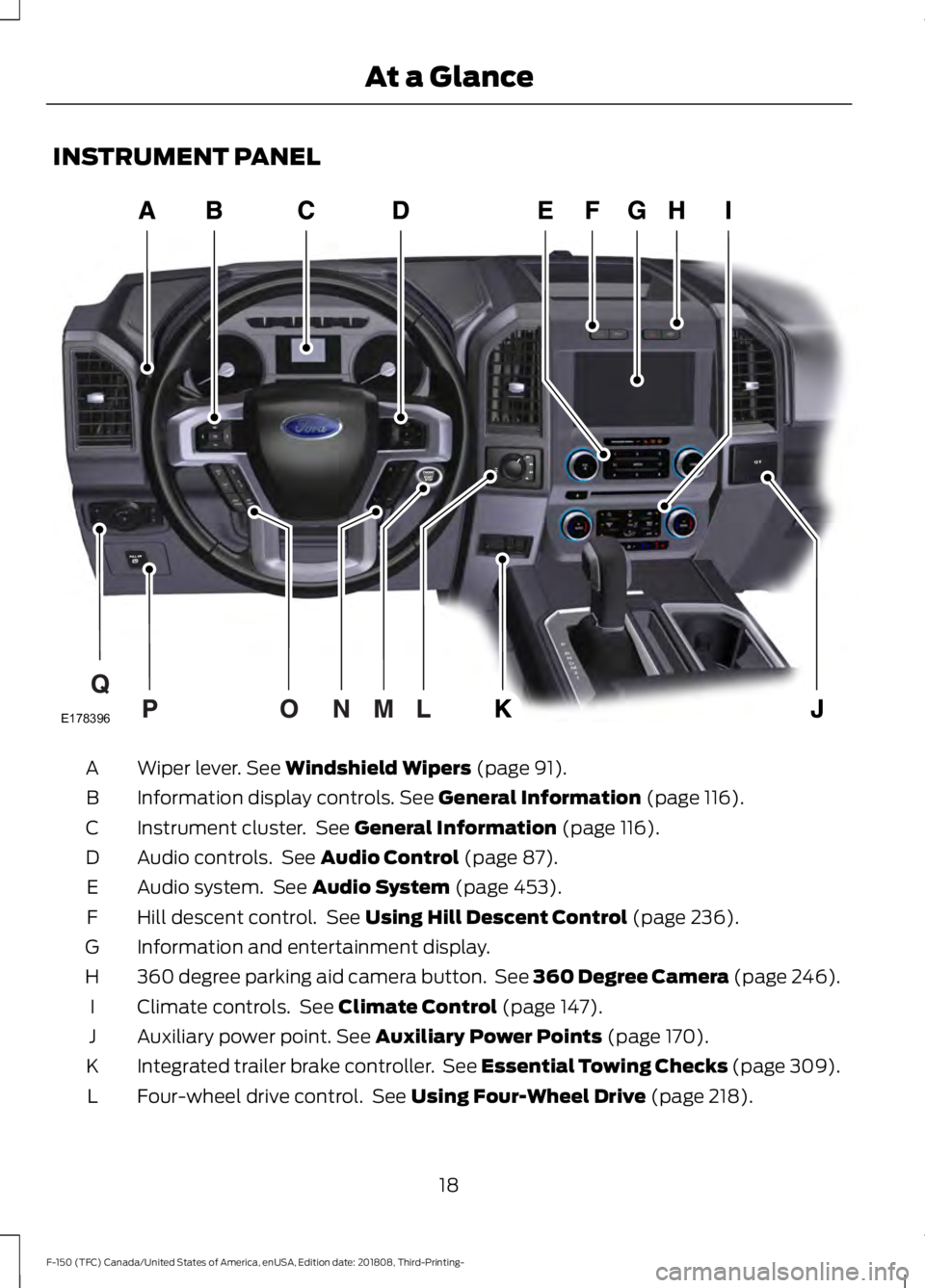
INSTRUMENT PANEL
Wiper lever. See Windshield Wipers (page 91).
A
Information display controls.
See General Information (page 116).
B
Instrument cluster. See
General Information (page 116).
C
Audio controls. See
Audio Control (page 87).
D
Audio system. See
Audio System (page 453).
E
Hill descent control. See
Using Hill Descent Control (page 236).
F
Information and entertainment display.
G
360 degree parking aid camera button. See 360 Degree Camera (page 246).
H
Climate controls. See
Climate Control (page 147).
I
Auxiliary power point.
See Auxiliary Power Points (page 170).
J
Integrated trailer brake controller. See Essential Towing Checks (page 309).
K
Four-wheel drive control. See
Using Four-Wheel Drive (page 218).
L
18
F-150 (TFC) Canada/United States of America, enUSA, Edition date: 201808, Third-Printing- At a GlanceE178396
Page 63 of 644
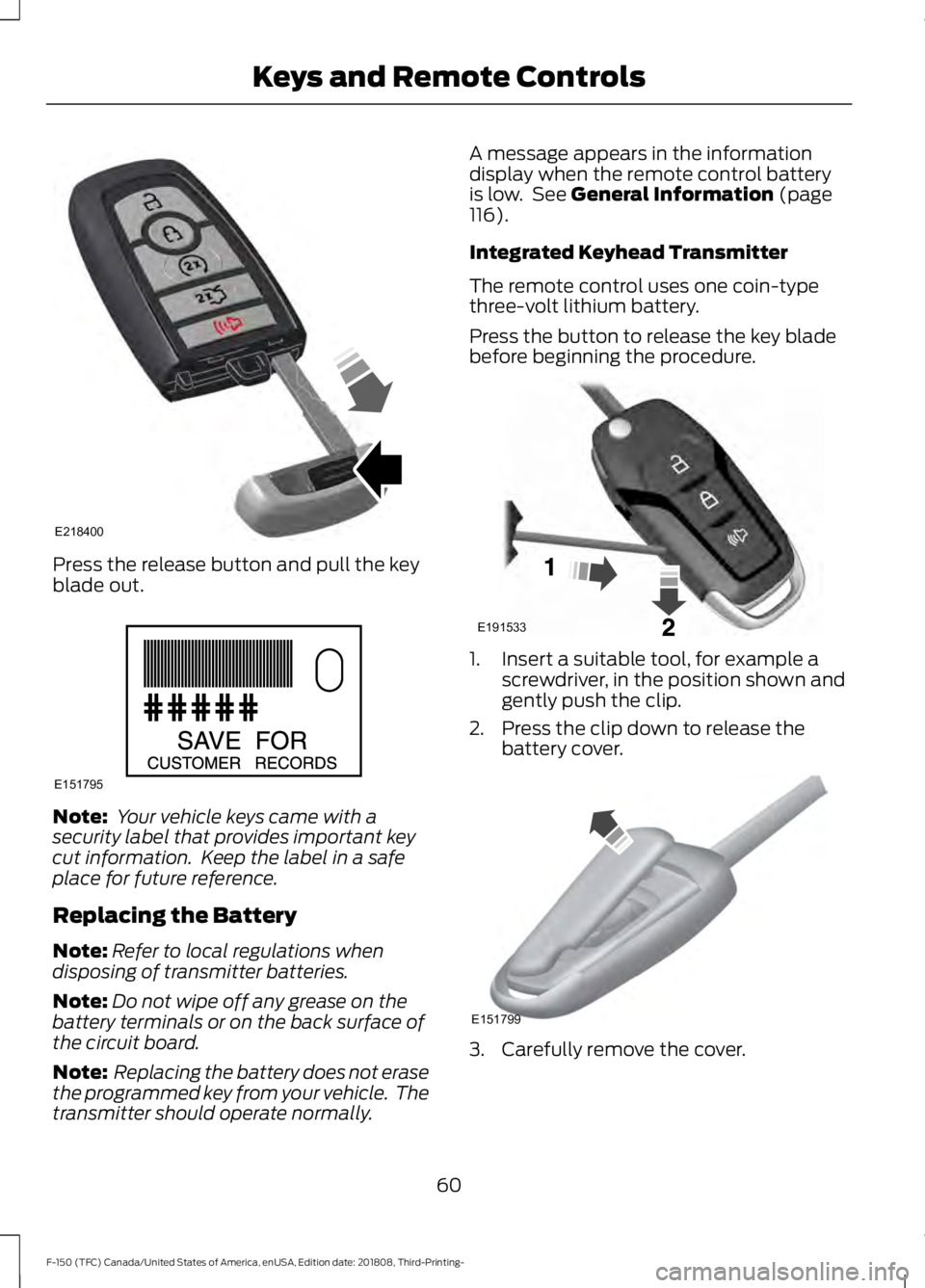
Press the release button and pull the key
blade out.
Note:
Your vehicle keys came with a
security label that provides important key
cut information. Keep the label in a safe
place for future reference.
Replacing the Battery
Note: Refer to local regulations when
disposing of transmitter batteries.
Note: Do not wipe off any grease on the
battery terminals or on the back surface of
the circuit board.
Note: Replacing the battery does not erase
the programmed key from your vehicle. The
transmitter should operate normally. A message appears in the information
display when the remote control battery
is low. See General Information (page
116).
Integrated Keyhead Transmitter
The remote control uses one coin-type
three-volt lithium battery.
Press the button to release the key blade
before beginning the procedure. 1. Insert a suitable tool, for example a
screwdriver, in the position shown and
gently push the clip.
2. Press the clip down to release the battery cover. 3. Carefully remove the cover.
60
F-150 (TFC) Canada/United States of America, enUSA, Edition date: 201808, Third-Printing- Keys and Remote ControlsE218400 E151795 E191533 E151799
Page 67 of 644
The parking lamps remain on and your
vehicle will run for 5, 10 or 15 minutes,
depending on the setting.
Extending the Engine Running Time
To extend the engine running time duration
of your vehicle during remote start, repeat
steps 1 and 2 while the engine is running.
If the duration is set to 15 minutes, the
duration extends by another 15 minutes.
For example, if your vehicle had been
running from the first remote start for 10
minutes, your vehicle continues to run now
for a total of 30 minutes. You can extend
the engine running time duration to a
maximum of 30 minutes.
Wait at least five seconds before remote
starting after the engine stops running.
Turning Your Vehicle Off After Remote
Starting
Press the button once. Your
vehicle and the parking lamps
turn off.
You may have to be closer to your vehicle
than when starting due to ground reflection
and the added noise of your running
vehicle.
You can switch this feature on or off in the
information display.
Memory Feature
You can program your intelligent access
key to recall memory positions. See
Memory Function (page 161).
REPLACING A LOST KEY OR
REMOTE CONTROL
Replacement keys or remote controls can
be purchased from an authorized dealer.
Authorized dealers can program remote
controls for your vehicle. See
Passive
Anti-Theft System (page 80).
64
F-150 (TFC) Canada/United States of America, enUSA, Edition date: 201808, Third-Printing- Keys and Remote ControlsE138625
Page 68 of 644
PRINCIPLE OF OPERATION
MyKey allows you to program keys with
restricted driving modes to promote good
driving habits. You can program the
restrictions to all keys except one. Any keys
that you did not program are administrator
keys or admin keys.
You can use admin keys to:
•
Create a MyKey with certain vehicle
restrictions.
• Program certain MyKey settings.
• Clear all MyKey restrictions.
After you program a MyKey, you can view
the following information through the
information display:
• The total number of admin keys and
MyKeys for your vehicle.
• The total distance a MyKey driver
traveled with your vehicle.
Note: Every MyKey receives the same
restrictions and settings. You cannot
program them individually.
Note: For vehicles equipped with a
push-button start switch: When both a
MyKey and an admin key are present when
you start your vehicle, the system recognizes
the admin key only. Standard Settings
Not every vehicle includes the features
listed below. If your vehicle has this
equipment, then you cannot change the
following settings when using a MyKey:
•
Seatbelt reminder or Belt-Minder™.
MyKey mutes the audio system until
drivers, and in some instances,
passengers, fasten their seatbelts.
Note: If your vehicle includes an
AM/FM radio or a very basic audio
system, then the radio may not mute.
• Earlier low-fuel warning. The low-fuel
warning activates earlier for MyKey
drivers, giving them more time to refuel.
• Certain driver alerts, stability systems
or parking aids turn on automatically
when you use the MyKey system. For
example, Blind Spot Information
System (BLIS), cross traffic alert, lane
departure warning or forward collision
warning. Note:
MyKey drivers may be
able to turn the lane departure warning
feature off, but this feature turns back
on automatically with every new key
cycle.
• Restricted touchscreen operation in
some markets. For example, MyKey
may prevent manual navigation
destination input while the vehicle is in
any gear other than park (P) or when
the vehicle reaches a certain rate of
speed.
• Satellite radio adult content
restrictions, if this feature is available
in your market.
Optional Settings
You can configure certain vehicle feature
settings when you first create a MyKey. You
can also change the settings afterward
with an admin key.
65
F-150 (TFC) Canada/United States of America, enUSA, Edition date: 201808, Third-Printing- MyKey
™
(If Equipped)
Page 69 of 644
Note:
Not every feature applies to every
vehicle in every market. When they are
available for your vehicle, then they appear
in your information display, providing
choices to switch them on or off, or to select
a more specific setting.
• Various vehicle speed limits so the
MyKey driver cannot exceed certain
speeds. The information display shows
warnings followed by an audible tone
when the MyKey driver reaches the set
speed. You cannot override the set
speed by fully depressing the
accelerator pedal. WARNING: Do not set MyKey
maximum speed limit to a limit that will
prevent the driver from maintaining a
safe speed considering posted speed
limits and prevailing road conditions. The
driver is always responsible to drive in
accordance with local laws and
prevailing conditions. Failure to do so
could result in accident or injury. •
Various vehicle speed reminders so
MyKey drivers know when their vehicle
speed approaches the limits. Warnings
appear in your information display and
a tone sounds when the MyKey drivers
exceed the set vehicle speed.
• The audio system's maximum volume
limits to 45% so MyKey drivers can
concentrate on the road. A message
appears in the information display
when MyKey drivers attempt to exceed
the limited volume. MyKey also
disables the automatic volume control.
Note:
If your vehicle includes an
AM/FM radio or a very basic audio
system, then the radio may not limit.
• Always on setting. This setting forces
certain features to remain on and
active for MyKey drivers. For example,
E911 or emergency assistance and the
do not disturb features stay on even if
a MyKey driver uses the feature's
control to switch it off. When selected,
you will not be able to turn off Advance
Trac or traction control (if your vehicle
has this feature).
CREATING A MYKEY
Use the information display to create a
MyKey:
1. Insert the key you want to program into
the ignition. If your vehicle is equipped
with a push-button start, place the
remote control into the backup slot.
See
Passive Anti-Theft System
(page 80).
2. Switch the ignition on.
3. Access the main menu in the information display and then scroll
through the menus to change the
settings of your MyKey. From the
MyKey menu select the option Create
MyKey. See
Information Displays
(page 116).
66
F-150 (TFC) Canada/United States of America, enUSA, Edition date: 201808, Third-Printing- MyKey
™
(If Equipped)
Page 70 of 644

4. When prompted, hold the OK button
until you see a message informing you
to label this key as a MyKey. The
programmed restrictions apply when
you key off, open and close the driver
door and restart your vehicle with the
programmed key or transmitter.
MyKey is successfully created. Make sure
you label it so you can distinguish it from
the admin keys.
You can also program configurable
settings for the key(s). See
Programming
and Changing Configurable Settings.
Programming and Changing
Configurable Settings
Use the information display to access your
configurable MyKey settings.
1. Switch the ignition on using an admin key or transmitter you want to program.
2. Access the main menu in the information display and then scroll
through the menus to change the
settings of your MyKey. See
Information Displays
(page 116).
3. Follow the instructions in the display. The programmed restrictions apply
when you switch the vehicle off, open
and close the driver door and restart
your vehicle with the programmed key
or transmitter.
Note: You can clear or change your MyKey
settings at any time during the same key
cycle as you created the MyKey. Once you
have switched the vehicle off, however, you
will need an admin key to change or clear
your MyKey settings. When you make any
changes to your MyKey settings, you change
the settings for every MyKey. You cannot
make individual changes to apply to certain
MyKeys. CLEARING ALL MYKEYS
When you clear your MyKeys, you remove
all restrictions and return all MyKeys to
their original admin key status at once. To
clear all MyKeys of all MyKey settings, use
the information display.
1. Switch the ignition on using an admin
key.
2. Access the main menu in the information display and then scroll
through the menus to begin clearing
your MyKey programming. See
Information Displays
(page 116).
3. Follow the instructions in the display.
4. A confirmation message appears in the
display after you finish clearing your
MyKeys.
Note: When you clear your MyKeys, you
remove all restrictions and return all MyKeys
to their original admin key status. You
cannot remove the MyKey restrictions
individually.
CHECKING MYKEY SYSTEM
STATUS
You can find information about your
programmed MyKeys by using the
information display. See
Information
Displays (page 116).
MyKey Distance
Tracks the distance when drivers use a
MyKey. The only way to delete the
accumulated distance is by using an admin
key to clear all MyKeys. If the distance does
not accumulate as expected, then the
intended user is not using the MyKey, or an
admin key user recently cleared and then
recreated a MyKey.
67
F-150 (TFC) Canada/United States of America, enUSA, Edition date: 201808, Third-Printing- MyKey
™
(If Equipped)
Page 75 of 644
When you lock your vehicle using the
power door lock control (with the door
open, vehicle in park and ignition off), your
vehicle searches for an intelligent access
key in the passenger compartment after
you close the door. If your vehicle finds a
key, all of the doors immediately unlock.
In order to override the smart unlock
feature and intentionally lock the
intelligent access key inside your vehicle,
you can lock your vehicle after all doors
are closed by using the keyless entry
keypad, pressing the lock button on
another intelligent access key or touching
the locking area on the handle with another
intelligent access key in your hand.
When you open one of the front doors and
lock your vehicle using the power door lock
control, all doors lock then unlock if the
ignition is on.
Autolock (If Equipped)
Autolock locks all the doors when:
• All doors are closed.
• The ignition is on.
• You shift into any gear putting your
vehicle in motion.
• Your vehicle reaches a speed greater
than
12 mph (20 km/h).
Autolock repeats when:
• You open then close any door while the
ignition is on and your vehicle speed is
9 mph (15 km/h)
or lower.
• Your vehicle reaches a speed greater
than
12 mph (20 km/h). Autounlock
Autounlock unlocks all the doors when:
•
Your vehicle comes to a stop and you
switch the ignition off or to the
accessory position.
• You open the driver door within 10
minutes of switching the ignition off or
to accessory.
Note: The doors do not autounlock if you
electronically lock your vehicle after you
switch the ignition off and before you open
the driver door.
Enabling or Disabling Autounlock
You can enable or disable the autounlock
feature in the information display or an
authorized dealer can do it for you. See
General Information
(page 116).
Illuminated Entry
The interior lamps and select exterior
lamps illuminate when you unlock the
doors with the remote entry system.
The illuminated entry system turns off the
lights if:
• The ignition is on.
• You press the remote control lock
button.
• After 25 seconds of illumination.
The dome lamp does not turn on if the
control is set to the off position.
The lights do not turn off if:
• You switch them on with the dimmer
control.
• Any door is open.
72
F-150 (TFC) Canada/United States of America, enUSA, Edition date: 201808, Third-Printing- Doors and Locks