ECU FORD F-150 2022 Workshop Manual
[x] Cancel search | Manufacturer: FORD, Model Year: 2022, Model line: F-150, Model: FORD F-150 2022Pages: 750, PDF Size: 12.96 MB
Page 554 of 750
If you have a dissimilar spare wheel and
tire, the intent of the spare wheel is for
temporary use only. This means that if you
need to use it, replace it as soon as
possible with a road wheel and tire
assembly that is the same size and type
as the road tires and wheels originally
provided by Ford.
We define a dissimilar spare wheel and tire
assembly as a spare wheel and tire
assembly that is different in brand, size or
appearance from the road tires and
wheels.
Full-size dissimilar spare
When driving with the full-size dissimilar
spare wheel and tire assembly, do not:
•
Exceed 70 mph (113 km/h).
• Use more than one dissimilar spare
wheel and tire assembly at a time.
• Use snow chains on the end of the
vehicle with the dissimilar spare wheel
and tire assembly.
Engage any four-wheel drive mode. See
Four-Wheel Drive Limitations (page 270).
The usage of a full-size dissimilar spare
wheel and tire assembly can lead to
impairment of the following:
• Handling, stability and braking
performance.
• Comfort and noise.
• Ground clearance and parking at curbs.
• Winter weather driving capability.
• Wet weather driving capability.
• Four-wheel drive capability. When driving with the full-size dissimilar
spare wheel and tire assembly, give
additional caution to:
•
Towing a trailer.
• Driving vehicles that come with a
camper body.
• Driving vehicles with a load on the
cargo rack.
Drive cautiously when using a full-size
dissimilar spare wheel and tire assembly
and seek service as soon as possible.
Tire Change Procedure WARNING:
To help prevent your
vehicle from moving when changing a
wheel, shift the transmission into park
(P), set the parking brake and use an
appropriate block or wheel chock to
secure the wheel diagonally opposite to
the wheel being changed. For example,
when changing the front left wheel,
place an appropriate block or wheel
chock on the right rear wheel. WARNING:
The jack supplied with
this vehicle is only intended for changing
a flat tire in an emergency. Do not
attempt to do any other work on your
vehicle when it is supported by the jack,
as your vehicle could slip off the jack.
Failure to follow this instruction could
result in personal injury or death. WARNING:
Do not attempt to
change a tire on the side of the vehicle
close to moving traffic. Pull far enough
off the road to not obstruct the flow of
traffic and avoid the danger of being hit
when operating the jack or changing the
wheel. WARNING:
Only use the jack
provided as original equipment with your
vehicle.
550
2022 F-150 (TFD) Canada/United States of America, enUSA, Edition date: 202109, First-Printing Changing a Road Wheel
Page 555 of 750
WARNING: Do not get under a
vehicle that is supported by a jack. WARNING:
The jack supplied with
this vehicle is only intended for changing
a flat tire in an emergency. Do not
attempt to do any other work on your
vehicle when it is supported by the jack,
as your vehicle could slip off the jack.
Failure to follow this instruction could
result in personal injury or death. WARNING:
The jack should be
used on level firm ground wherever
possible. WARNING:
Never place anything
between the vehicle jack and the ground. WARNING:
Never place anything
between the vehicle jack and your
vehicle. WARNING: It is recommended that
the wheels of the vehicle be chocked,
and that no person should remain in a
vehicle that is being jacked. WARNING:
Switch off the running
boards before jacking or placing any
object under your vehicle. Never place
your hand between the extended running
board and your vehicle. A moving running
board may cause injury.
Park on a level surface, activate the hazard
flashers and set the parking brake. Then,
place the transmission in park (P) and turn
the engine off.
Note: Only use the spare tire carrier to stow
the tire and wheel combination provided
with your vehicle. Other tire and wheel
combinations can cause the tire carrier to
fail. Note:
Do not use impact tools or power
tools operating at over 200 RPM on the
spare tire carrier, this could cause a winch
malfunction and prevent a secure fit.
Note: Passengers should not remain in the
vehicle when the vehicle is being jacked.
Removing the Vehicle Jack and
Tool Bag
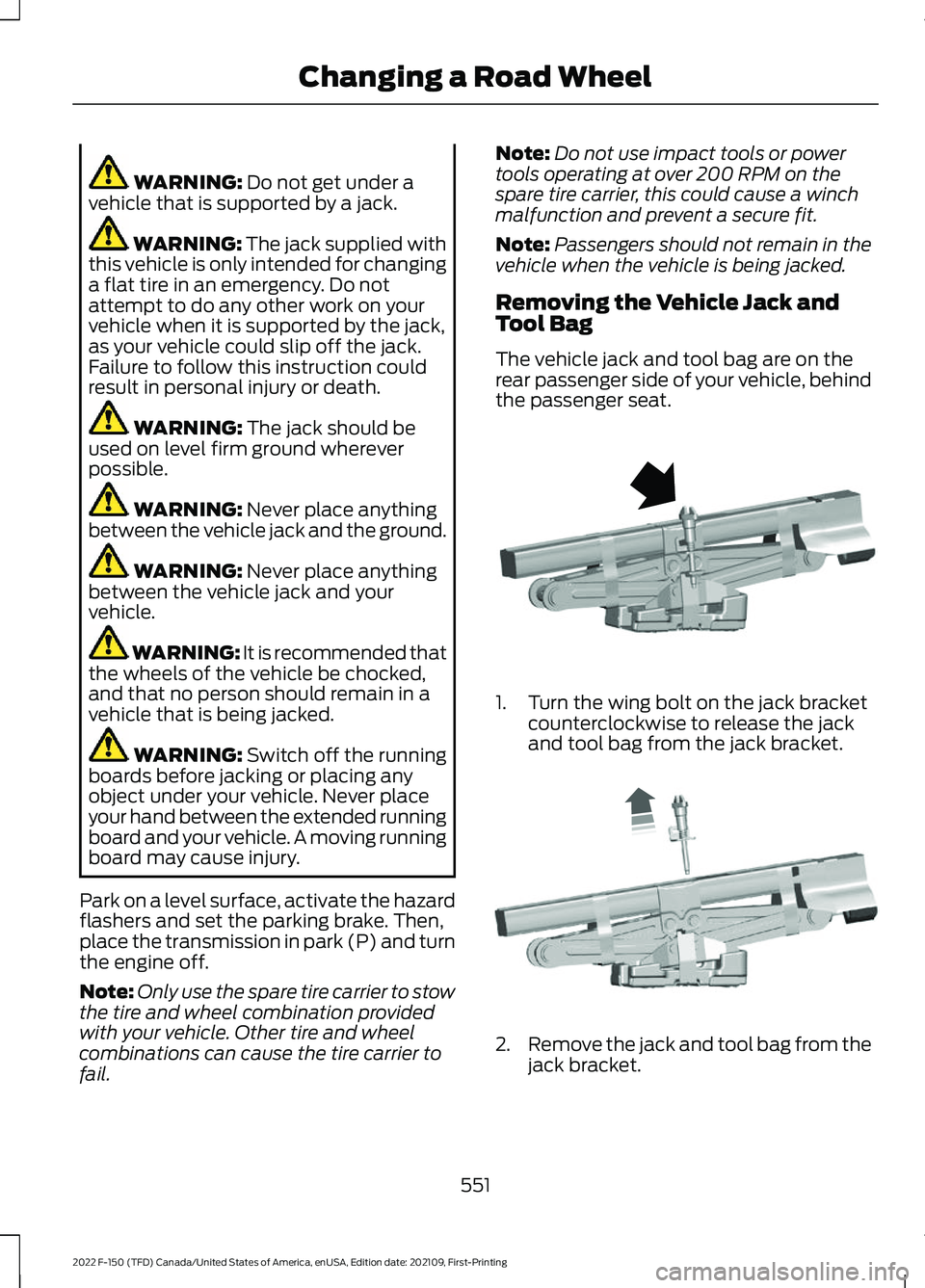
The vehicle jack and tool bag are on the
rear passenger side of your vehicle, behind
the passenger seat. 1. Turn the wing bolt on the jack bracket
counterclockwise to release the jack
and tool bag from the jack bracket. 2.
Remove the jack and tool bag from the
jack bracket.
551
2022 F-150 (TFD) Canada/United States of America, enUSA, Edition date: 202109, First-Printing Changing a Road WheelE323384 E327650
Page 558 of 750
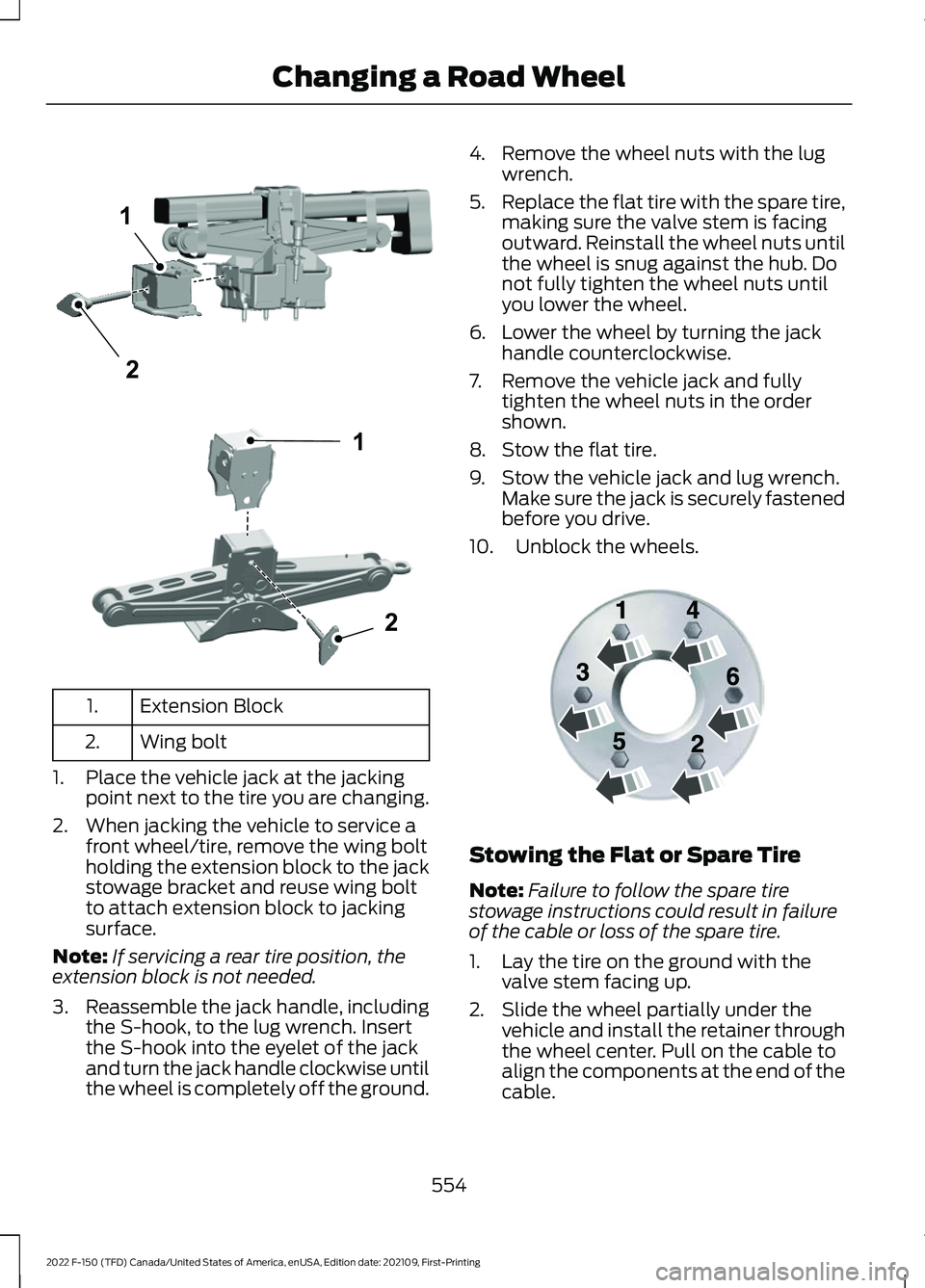
Extension Block
1.
Wing bolt
2.
1. Place the vehicle jack at the jacking point next to the tire you are changing.
2. When jacking the vehicle to service a front wheel/tire, remove the wing bolt
holding the extension block to the jack
stowage bracket and reuse wing bolt
to attach extension block to jacking
surface.
Note: If servicing a rear tire position, the
extension block is not needed.
3. Reassemble the jack handle, including
the S-hook, to the lug wrench. Insert
the S-hook into the eyelet of the jack
and turn the jack handle clockwise until
the wheel is completely off the ground. 4. Remove the wheel nuts with the lug
wrench.
5. Replace the flat tire with the spare tire,
making sure the valve stem is facing
outward. Reinstall the wheel nuts until
the wheel is snug against the hub. Do
not fully tighten the wheel nuts until
you lower the wheel.
6. Lower the wheel by turning the jack handle counterclockwise.
7. Remove the vehicle jack and fully tighten the wheel nuts in the order
shown.
8. Stow the flat tire.
9. Stow the vehicle jack and lug wrench. Make sure the jack is securely fastened
before you drive.
10. Unblock the wheels. Stowing the Flat or Spare Tire
Note:
Failure to follow the spare tire
stowage instructions could result in failure
of the cable or loss of the spare tire.
1. Lay the tire on the ground with the valve stem facing up.
2. Slide the wheel partially under the vehicle and install the retainer through
the wheel center. Pull on the cable to
align the components at the end of the
cable.
554
2022 F-150 (TFD) Canada/United States of America, enUSA, Edition date: 202109, First-Printing Changing a Road Wheel1
2E363809 1
2E363808 E166719
Page 560 of 750
3.
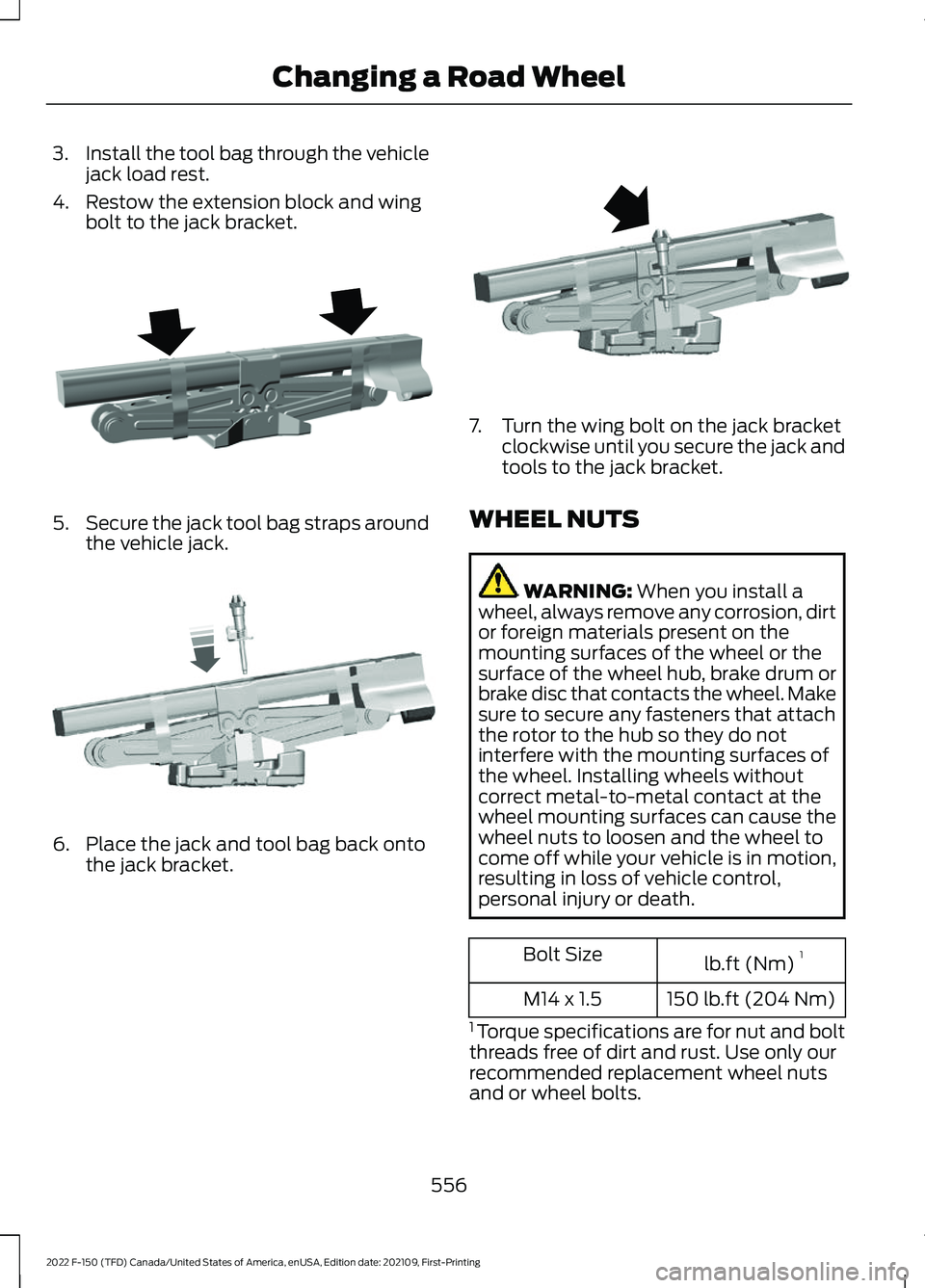
Install the tool bag through the vehicle
jack load rest.
4. Restow the extension block and wing bolt to the jack bracket. 5.
Secure the jack tool bag straps around
the vehicle jack. 6. Place the jack and tool bag back onto
the jack bracket. 7. Turn the wing bolt on the jack bracket
clockwise until you secure the jack and
tools to the jack bracket.
WHEEL NUTS WARNING: When you install a
wheel, always remove any corrosion, dirt
or foreign materials present on the
mounting surfaces of the wheel or the
surface of the wheel hub, brake drum or
brake disc that contacts the wheel. Make
sure to secure any fasteners that attach
the rotor to the hub so they do not
interfere with the mounting surfaces of
the wheel. Installing wheels without
correct metal-to-metal contact at the
wheel mounting surfaces can cause the
wheel nuts to loosen and the wheel to
come off while your vehicle is in motion,
resulting in loss of vehicle control,
personal injury or death. lb.ft (Nm)
1
Bolt Size
150 lb.ft (204 Nm)
M14 x 1.5
1 Torque specifications are for nut and bolt
threads free of dirt and rust. Use only our
recommended replacement wheel nuts
and or wheel bolts.
556
2022 F-150 (TFD) Canada/United States of America, enUSA, Edition date: 202109, First-Printing Changing a Road WheelE323386 E327654 E323384
Page 601 of 750
WHAT IS A CONNECTED
VEHICLE
A connected vehicle has technology that
allows your vehicle to connect to a mobile
network and for you to access a range of
features. When used in conjunction with
the FordPass app, it could allow you to
monitor and control your vehicle further,
for example checking the tire pressures,
the fuel level and the vehicle location. For
additional information, refer to the local
Ford website.
CONNECTED VEHICLE
REQUIREMENTS
Connected service and related feature
functionality requires a compatible vehicle
network.
Some remote features require additional
service activation. Log in to your Ford
account for details. Some restrictions, third
party terms and message or data rates
may apply.
CONNECTED VEHICLE
LIMITATIONS
Evolving technology, cellular networks, or
regulations could affect functionality and
availability, or continued provision of some
features. These changes could even stop
some features from functioning.
CONNECTING THE VEHICLE TO
A MOBILE NETWORK
WHAT IS THE MODEM
The modem allows access to a
range of features built into your
vehicle. ENABLING AND DISABLING THE
MODEM
1. Press Settings.
2. Press
Connectivity.
3. Press
Connected Vehicle Features.
4. Switch vehicle connectivity on or off.
CONNECTING FORDPASS TO THE
MODEM
1. Make sure that the modem is enabled using the vehicle settings menu.
2. Open the FordPass app on your device
and log in.
3. Add your vehicle or select your vehicle if already added.
4. Select the option to activate your vehicle.
5. Make sure that the name on the screen
matches the name shown in your
FordPass account.
6. Confirm that FordPass account is connected to the modem.
CONNECTING THE VEHICLE TO
A WI-FI NETWORK Select the settings option on the
feature bar.
1. Press
Connectivity.
2. Press
Manage Wi-Fi Networks.
3. Switch
Wi-Fi on.
4. Press
View Available Networks.
5. Select an available Wi-Fi network.
Note: Enter the network password to
connect to a secure network.
597
2022 F-150 (TFD) Canada/United States of America, enUSA, Edition date: 202109, First-Printing Connected Vehicle E280315
Page 603 of 750
CONNECTED VEHICLE –
FREQUENTLY ASKED QUESTIONS
- VEHICLES WITH: SYNC 4
Why can I not confirm the
connection of my FordPass
account to the modem?
•
The modem is not enabled. Switch
vehicle connectivity on.
• The network signal is weak. Move your
vehicle closer to a place where the
network signal is not obstructed.
Why can I not connect to a Wi-Fi
network?
• You entered the wrong network
password. Enter the correct password.
• The network signal is weak. Move your
vehicle closer to the Wi-Fi router or to
a place where the network signal is not
obstructed.
• There are multiple access points in
range with the same network name.
Choose a unique name for your
network. Do not use the default name
unless it contains a unique identifier,
for example as part of the MAC
address.
Why does the Wi-Fi connection
disconnect after successful
connection?
• The network signal is weak. Move your
vehicle closer to the Wi-Fi router or to
a place where the network signal is not
obstructed.
What can I do if I am close to a Wi-
Fi router but the network signal
strength is weak?
• If your vehicle has a heated windshield,
position your vehicle so that the
windshield is not facing the Wi-Fi
router. •
If your vehicle has metallic tinting on
the windows but not on the windshield,
position your vehicle so that the
windshield is facing the Wi-Fi router or
open the windows that are facing the
router.
• If your vehicle has metallic tinting on
the windows and the windshield, open
the windows that are facing the router.
• If your vehicle is in a garage and you
have the garage door closed, open the
garage door as it could block the signal.
Why can I not see a network I
expect to see in the list of available
networks?
• The network is hidden. Make the
network visible and try again, or
manually add a network in the Wi-Fi
settings menu.
• Some network security types are not
supported, for example WEP.
Why do software downloads take
too long?
• The network signal is weak. Move your
vehicle closer to the Wi-Fi router or to
a place where the network signal is not
obstructed.
• Wi-Fi network is in high demand or has
a slow Internet connection. Use a more
reliable Wi-Fi network.
599
2022 F-150 (TFD) Canada/United States of America, enUSA, Edition date: 202109, First-Printing Connected Vehicle
Page 605 of 750
CREATING A VEHICLE WI-FI
HOTSPOT
You can create a Wi-Fi hotspot in your
vehicle and allow devices to connect to it
for access to the Internet.
Select the settings option on the
feature bar.
1. Press Vehicle Hotspot.
Note: The vehicle hotspot default setting
is on.
2. Press
Settings.
3. Press
Edit.
4. Press
Hotspot visibility.
Note: The hotspot visibility default setting
is on.
Finding the Wi-Fi Hotspot Name
and Password Select the settings option on the
feature bar.
1. Press
Vehicle Hotspot.
2. Press
Settings.
Note: The network name is the hotspot
name.
3. Press
View Password.
Connecting a Device to the Wi-Fi
Hotspot
1. On your device, switch Wi-Fi on and select the hotspot from the list of
available Wi-Fi networks.
2. When prompted, enter the password.
Purchasing a Data Plan
1. Connect a device to the hotspot.
Note: The vehicle network carrier ’s portal
opens on your device. 2. If the portal does not open on your
device, open a website and it redirects
to the vehicle network carrier ’s portal.
Note: Secure websites do not redirect.
3. Follow the instructions on the carrier portal to purchase a plan.
Note: If you have an active plan, the system
does not redirect to the vehicle network
carrier ’s portal when you connect a device.
Visit the vehicle network carrier ’s website
to purchase more data.
Note: If data usage information is available
in the vehicle hotspot menu, it is
approximate.
Note: If you carry out a master reset, the
system does not remove your vehicle from
your vehicle network carrier ’s account. To
remove your vehicle from the account,
contact your vehicle network carrier.
Note: The vehicle network carrier provides
Vehicle Hotspot services, subject to your
vehicle network carrier agreement, coverage
and availability.
CHANGING THE VEHICLE WI-
FI HOTSPOT NAME OR
PASSWORD Select the settings option on the
feature bar.
1. Press
Vehicle Hotspot.
2. Press
Settings.
3. Press
Edit.
4. Press
Change Network Name.
5. Enter your required network name.
6. Press
Done.
7. Press
Change Password.
8. Enter your required password.
9. Press
Done.
601
2022 F-150 (TFD) Canada/United States of America, enUSA, Edition date: 202109, First-Printing Vehicle Wi-Fi HotspotE280315 E280315 E280315
Page 637 of 750
UPDATING THE VEHICLE
SYSTEMS WIRELESSLY
Over the air system updates
allow you to update your vehicle
system software wirelessly. To
make sure you receive all updates, set a
recurring schedule and connect to Wi-Fi.
Updates may take longer if not connected
to Wi-Fi, or may not download at all. See
Connected Vehicle (page 597).
Over the Air System Update
Requirements
Before updating, reference this list to make
sure your vehicle is ready be updated. If
these requirements are not met during a
scheduled update, the update will be
canceled and you can reschedule.
• Your vehicle is not running.
• Your vehicle is stopped.
• Your vehicle is parked.
• The hazard indicators are switched off.
• The alarm is not sounding.
• The doors are closed.
• The parking lights are switched off.
• You are not pressing the brake pedal.
• An emergency call is not in progress.
• Your vehicle is not in limp mode.
Enabling Over the Air Updates
1. Press
Settings on the touchscreen.
2. Press
Software Update.
3. Switch
Automatic Updates on or off.
Note: Over the air updates are enabled by
default.
Note: If you do not want to receive over the
air updates you can turn them off. You will
not be notified of new updates. Scheduling an Update
Scheduling an update allows you to set a
convenient time for the update to
complete. We recommend updating
overnight when your vehicle is not in use.
Ensure Vehicle Connectivity and Automatic
Updates are enabled. Once you complete
these steps, your schedule will be saved
for future updates. As long as an update is
not in process you can adjust your
schedule.
Note:
Some updates may be applied
outside of your set schedule. Information
about the unscheduled update appears on
the touchscreen after it is applied.
Using the Settings Menu
1. Press
Settings on the touchscreen.
2. Press
Software Update.
3. Press
Schedule Updates.
4. Use the controls to set the time and day of the update.
5. Save the schedule.
Note: You can set the updates to occur at
any time.
Using the Status Bar Icon When an update is available, tap
the notification icon and follow
the prompts on the screen.
Applying an Over the Air Update
You can see the progress of the update on
the touchscreen. An update cannot be
canceled once it has been started.
633
2022 F-150 (TFD) Canada/United States of America, enUSA, Edition date: 202109, First-Printing Vehicle System UpdatesE327789 E327785
Page 645 of 750
Less Cost to Properly Maintain Your
Vehicle
The Ford Protect extended service plan
also offers a Premium Maintenance Plan
that covers all scheduled maintenance,
and selected wear items. The coverage is
prepaid, so you never have to worry about
the cost of your vehicle
’s maintenance.
Covered maintenance includes:
• Windshield wiper blades.
• Spark plugs.
• The clutch disc (if equipped).
• Brake pads and linings.
• Shock absorbers.
• Struts.
• Engine belts.
• Engine coolant hoses, clamps and
o-rings.
• Diesel exhaust fluid replenishment (if
equipped).
• Cabin air filter replacement every
20,000 mi (32,000 km) for electric
vehicles only.
Interest Free Finance Options
Just a 5% down payment provides you
with an affordable, no interest, no fee
payment program allowing you all the
security and benefits Ford Protect
extended service plan has to offer while
paying over time. You are pre-approved
with no credit check or hassles. To learn
more, call our Ford Protect extended
service plan specialists at 800-367-3377.
Ford Protect Extended Service Plan
P.O. Box 321067
Detroit, MI 48232 Ford Protect Extended Service
Plan (Canada Only)
You can get more protection for your
vehicle by purchasing a Ford Protect
extended service plan. Ford Protect
extended service plan is the only service
contract backed by Ford Motor Company
of Canada, Limited. Depending on the plan
you purchase, Ford Protect extended
service plan provides benefits such as:
•
Rental reimbursement.
• Coverage for certain maintenance and
wear items.
• Protection against repair costs after
your New Vehicle Limited Warranty
Coverage expires.
• Roadside Assistance benefits.
There are several Ford Protect extended
service plans available in various time,
distance and deductible combinations.
Each plan is tailored to fit your own driving
needs, including reimbursement for towing
and rental. When you purchase Ford
Protect extended service plan, you receive
added peace-of-mind protection
throughout Canada, the United States and
Mexico, provided by a network of
participating authorized Ford Motor
Company dealers.
Note: Repairs performed outside of Canada
and the United States are not eligible for
Ford Protect extended service plan
coverage.
This information is subject to change. Visit
your local Ford of Canada dealer or
www.ford.ca to find the Ford Protect
extended service plan that is right for you.
641
2022 F-150 (TFD) Canada/United States of America, enUSA, Edition date: 202109, First-Printing Ford Protect
Page 692 of 750
REPLACEMENT PARTS
RECOMMENDATION
We have built your vehicle to the highest
standards using quality parts. We
recommend that you demand the use of
genuine Ford and Motorcraft parts
whenever your vehicle requires scheduled
maintenance or repair. You can clearly
identify genuine Ford and Motorcraft parts
by looking for the Ford, FoMoCo or
Motorcraft branding on the parts or their
packaging.
Scheduled Maintenance and
Mechanical Repairs
One of the best ways for you to make sure
that your vehicle provides years of service
is to have it maintained in line with our
recommendations using parts that
conform to the specifications detailed in
this Owner
’s Manual.
Genuine Ford and Motorcraft parts meet
or exceed these specifications.
Collision Repairs
We hope that you never experience a
collision, but accidents happen sometimes.
Genuine Ford replacement collision parts
meet our stringent requirements for fit,
finish, structural integrity, corrosion
protection and dent resistance. During
vehicle development we validate that
these parts deliver the intended level of
protection as a whole system. A great way
to know for sure you are getting this level
of protection is to use genuine Ford
replacement collision parts.
Warranty on Replacement Parts
Genuine Ford and Motorcraft replacement
parts are the only replacement parts that
benefit from a Ford Warranty. The Ford Warranty may not cover damage
caused to your vehicle as a result of failed
non-Ford parts.
For additional information, refer to the
terms and conditions of the Ford Warranty.
MOBILE COMMUNICATIONS
EQUIPMENT
WARNING: Driving while distracted
can result in loss of vehicle control, crash
and injury. We strongly recommend that
you use extreme caution when using any
device that may take your focus off the
road. Your primary responsibility is the
safe operation of your vehicle. We
recommend against the use of any
hand-held device while driving and
encourage the use of voice-operated
systems when possible. Make sure you
are aware of all applicable local laws
that may affect the use of electronic
devices while driving.
Using mobile communications equipment
is becoming increasingly important in the
conduct of business and personal affairs.
However, you must not compromise your
own or others’ safety when using such
equipment. Mobile communications can
enhance personal safety and security when
appropriately used, particularly in
emergency situations. Safety must be
paramount when using mobile
communications equipment to avoid
negating these benefits. Mobile
communication equipment includes, but
is not limited to, cellular phones, pagers,
portable email devices, text messaging
devices and portable two-way radios.
688
2022 F-150 (TFD) Canada/United States of America, enUSA, Edition date: 202109, First-Printing Customer Information