lights FORD F-250 2018 Owner's Manual
[x] Cancel search | Manufacturer: FORD, Model Year: 2018, Model line: F-250, Model: FORD F-250 2018Pages: 660, PDF Size: 11.64 MB
Page 475 of 660
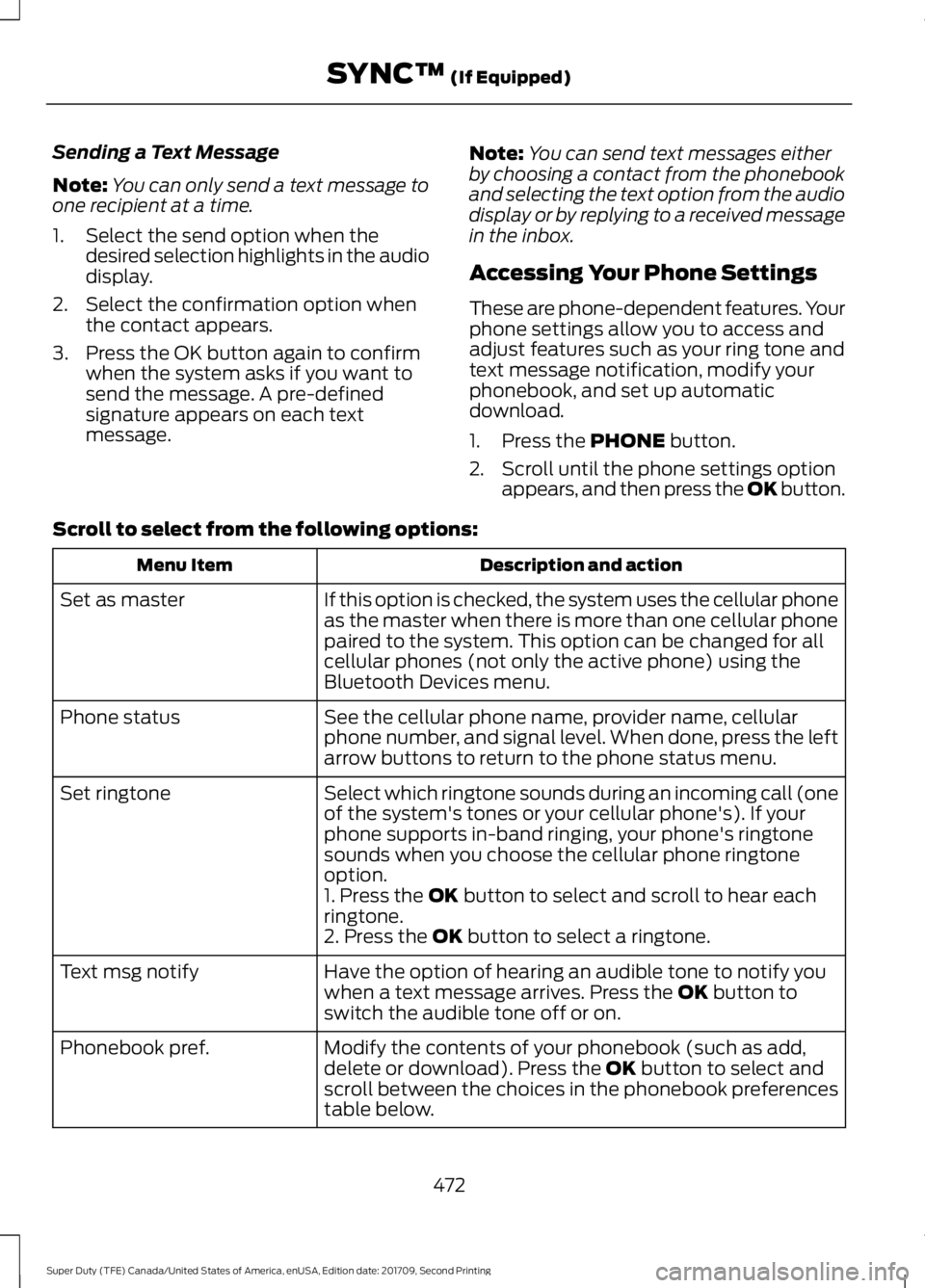
Sending a Text Message
Note:
You can only send a text message to
one recipient at a time.
1. Select the send option when the desired selection highlights in the audio
display.
2. Select the confirmation option when the contact appears.
3. Press the OK button again to confirm when the system asks if you want to
send the message. A pre-defined
signature appears on each text
message. Note:
You can send text messages either
by choosing a contact from the phonebook
and selecting the text option from the audio
display or by replying to a received message
in the inbox.
Accessing Your Phone Settings
These are phone-dependent features. Your
phone settings allow you to access and
adjust features such as your ring tone and
text message notification, modify your
phonebook, and set up automatic
download.
1. Press the PHONE button.
2. Scroll until the phone settings option appears, and then press the OK button.
Scroll to select from the following options: Description and action
Menu Item
If this option is checked, the system uses the cellular phone
as the master when there is more than one cellular phone
paired to the system. This option can be changed for all
cellular phones (not only the active phone) using the
Bluetooth Devices menu.
Set as master
See the cellular phone name, provider name, cellular
phone number, and signal level. When done, press the left
arrow buttons to return to the phone status menu.
Phone status
Select which ringtone sounds during an incoming call (one
of the system's tones or your cellular phone's). If your
phone supports in-band ringing, your phone's ringtone
sounds when you choose the cellular phone ringtone
option.
Set ringtone
1. Press the
OK button to select and scroll to hear each
ringtone.
2. Press the
OK button to select a ringtone.
Have the option of hearing an audible tone to notify you
when a text message arrives. Press the
OK button to
switch the audible tone off or on.
Text msg notify
Modify the contents of your phonebook (such as add,
delete or download). Press the
OK button to select and
scroll between the choices in the phonebook preferences
table below.
Phonebook pref.
472
Super Duty (TFE) Canada/United States of America, enUSA, Edition date: 201709, Second Printing SYNC™
(If Equipped)
Page 531 of 660
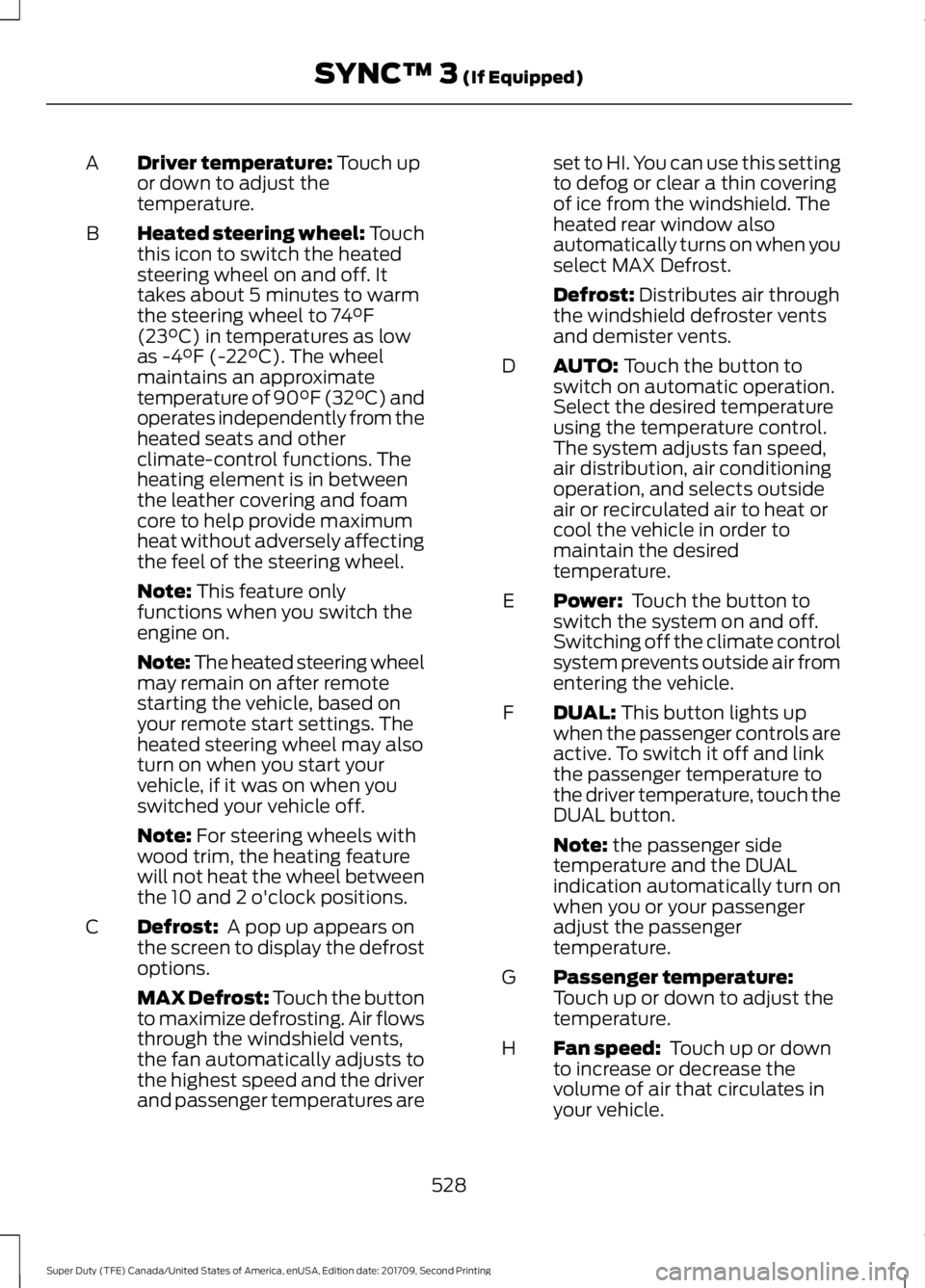
Driver temperature: Touch up
or down to adjust the
temperature.
A
Heated steering wheel: Touch
this icon to switch the heated
steering wheel on and off. It
takes about 5 minutes to warm
the steering wheel to 74°F
(23°C) in temperatures as low
B
as -4°F (-22°C). The wheel
maintains an approximate
temperature of 90°F (32°C) and
operates independently from the
heated seats and other
climate-control functions. The
heating element is in between
the leather covering and foam
core to help provide maximum
heat without adversely affecting
the feel of the steering wheel.
Note:
This feature only
functions when you switch the
engine on.
Note: The heated steering wheel
may remain on after remote
starting the vehicle, based on
your remote start settings. The
heated steering wheel may also
turn on when you start your
vehicle, if it was on when you
switched your vehicle off.
Note:
For steering wheels with
wood trim, the heating feature
will not heat the wheel between
the 10 and 2 o'clock positions.
Defrost:
A pop up appears on
the screen to display the defrost
options.
C
MAX Defrost: Touch the button
to maximize defrosting. Air flows
through the windshield vents,
the fan automatically adjusts to
the highest speed and the driver
and passenger temperatures are set to HI. You can use this setting
to defog or clear a thin covering
of ice from the windshield. The
heated rear window also
automatically turns on when you
select MAX Defrost.
Defrost:
Distributes air through
the windshield defroster vents
and demister vents.
AUTO:
Touch the button to
switch on automatic operation.
Select the desired temperature
using the temperature control.
The system adjusts fan speed,
air distribution, air conditioning
operation, and selects outside
air or recirculated air to heat or
cool the vehicle in order to
maintain the desired
temperature.
D
Power:
Touch the button to
switch the system on and off.
Switching off the climate control
system prevents outside air from
entering the vehicle.
E
DUAL:
This button lights up
when the passenger controls are
active. To switch it off and link
the passenger temperature to
the driver temperature, touch the
DUAL button.
F
Note:
the passenger side
temperature and the DUAL
indication automatically turn on
when you or your passenger
adjust the passenger
temperature.
Passenger temperature:
Touch up or down to adjust the
temperature.
G
Fan speed:
Touch up or down
to increase or decrease the
volume of air that circulates in
your vehicle.
H
528
Super Duty (TFE) Canada/United States of America, enUSA, Edition date: 201709, Second Printing SYNC™ 3
(If Equipped)
Page 540 of 660
If you have subscribed to SiriusXM Traffic
and Travel Link (where available), traffic
flow will be indicated on the map by green
(clear), yellow (slowing), and red
(stopped) road highlights. Traffic flow is
indicated where the information is
available and varies across the US.
You can choose to display traffic icons on
the map representing twelve different
types of incidents. See Settings (page
546).
You can set a destination by hovering
above a location and selecting: Button
Start
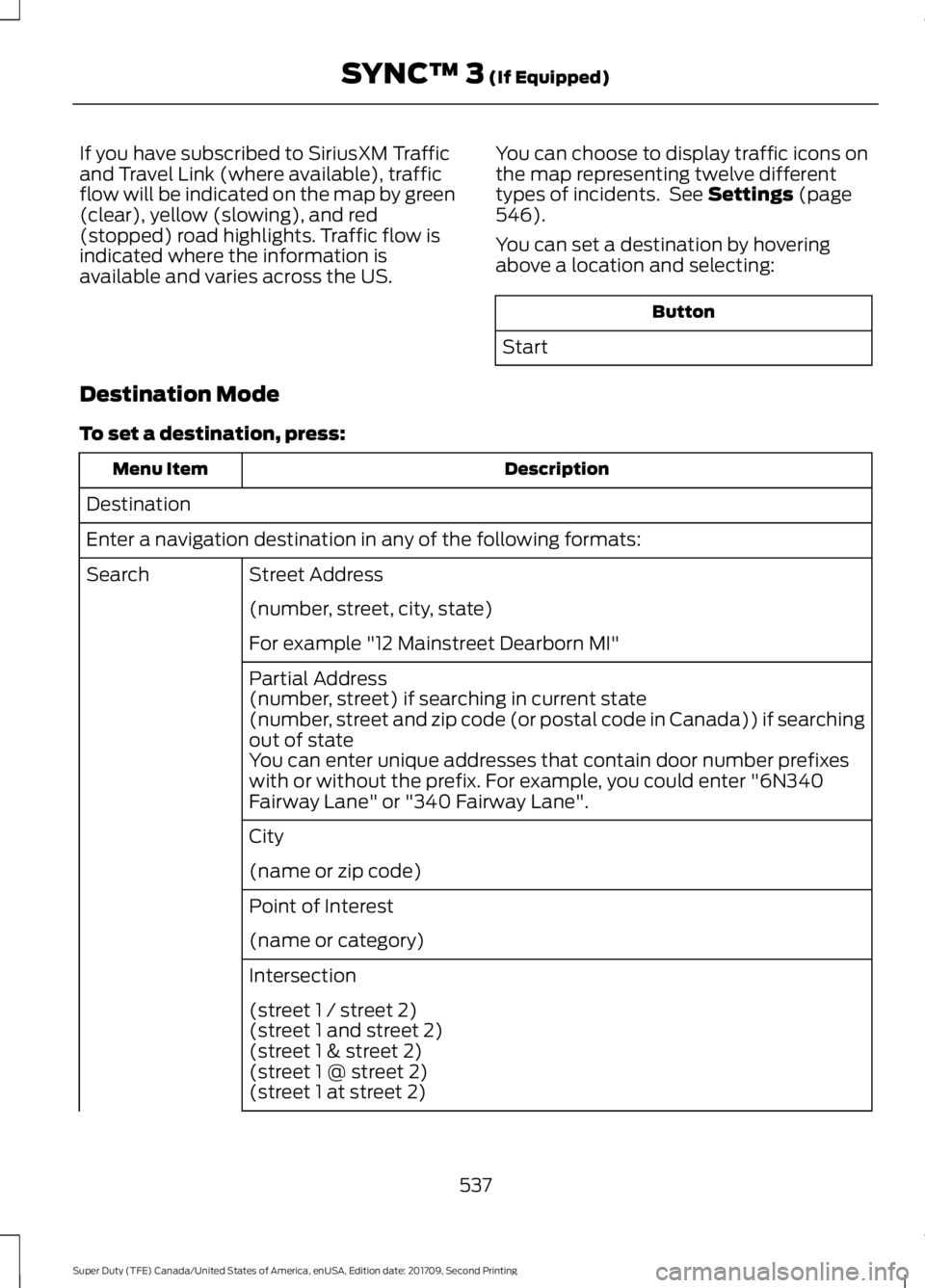
Destination Mode
To set a destination, press: Description
Menu Item
Destination
Enter a navigation destination in any of the following formats: Street Address
Search
(number, street, city, state)
For example "12 Mainstreet Dearborn MI"
Partial Address
(number, street) if searching in current state
(number, street and zip code (or postal code in Canada)) if searching
out of state
You can enter unique addresses that contain door number prefixes
with or without the prefix. For example, you could enter "6N340
Fairway Lane" or "340 Fairway Lane".
City
(name or zip code)
Point of Interest
(name or category)
Intersection
(street 1 / street 2)
(street 1 and street 2)
(street 1 & street 2)
(street 1 @ street 2)
(street 1 at street 2)
537
Super Duty (TFE) Canada/United States of America, enUSA, Edition date: 201709, Second Printing SYNC™ 3
(If Equipped)
Page 561 of 660
Note:
: Data, e.g. the Vehicle Identification
Number (VIN), SIM Card ID, and data plan
usage, is shared between Ford and the
vehicle network carrier to provide the
Vehicle Hotspot service in accordance with
your vehicle network carrier agreement,
coverage and availability, and may be used
to enable a seamless transition from an old
to new embedded modem and to confirm
any updates are successfully delivered.
Note: : For your convenience data usage
may be available for monitoring under
Settings but may not reflect actual or
current usage. The vehicle network carrier
is responsible for providing information
about your account. Please contact the
vehicle network carrier for more information.
Note: : Ford may need to update operating
system software on your vehicle, including
security updates and bug fixes, to keep
connected services current, like Vehicle
Hotspot, without prior notice to you.
Note: If you do not have an active vehicle
hotspot data plan, open your web browser
and go to a website using the HTTP protocol
to be automatically redirected to the vehicle
network carrier landing page where you can
purchase data. Websites using HTTPS will
not automatically redirect. Ambient Lighting (If Equipped)
Tap a color once to active ambient lighting.
This sets the color to the highest intensity.
You can drag the colors up and down to
increase or decrease the intensity.
To switch ambient lighting off, press the
active color once or drag the active color
all the way down to zero intensity.
Vehicle
Note: Your vehicle may not have all of
these features.
You can select the following features to
update their settings.
Door Keypad Code (If equipped)
Select this button to add or erase a
personal door keypad code. To add or
erase a personal code, you first need to
enter the five-digit factory set code. You
can find this code on the owner's wallet
card in the glove box or from your
authorized dealer.
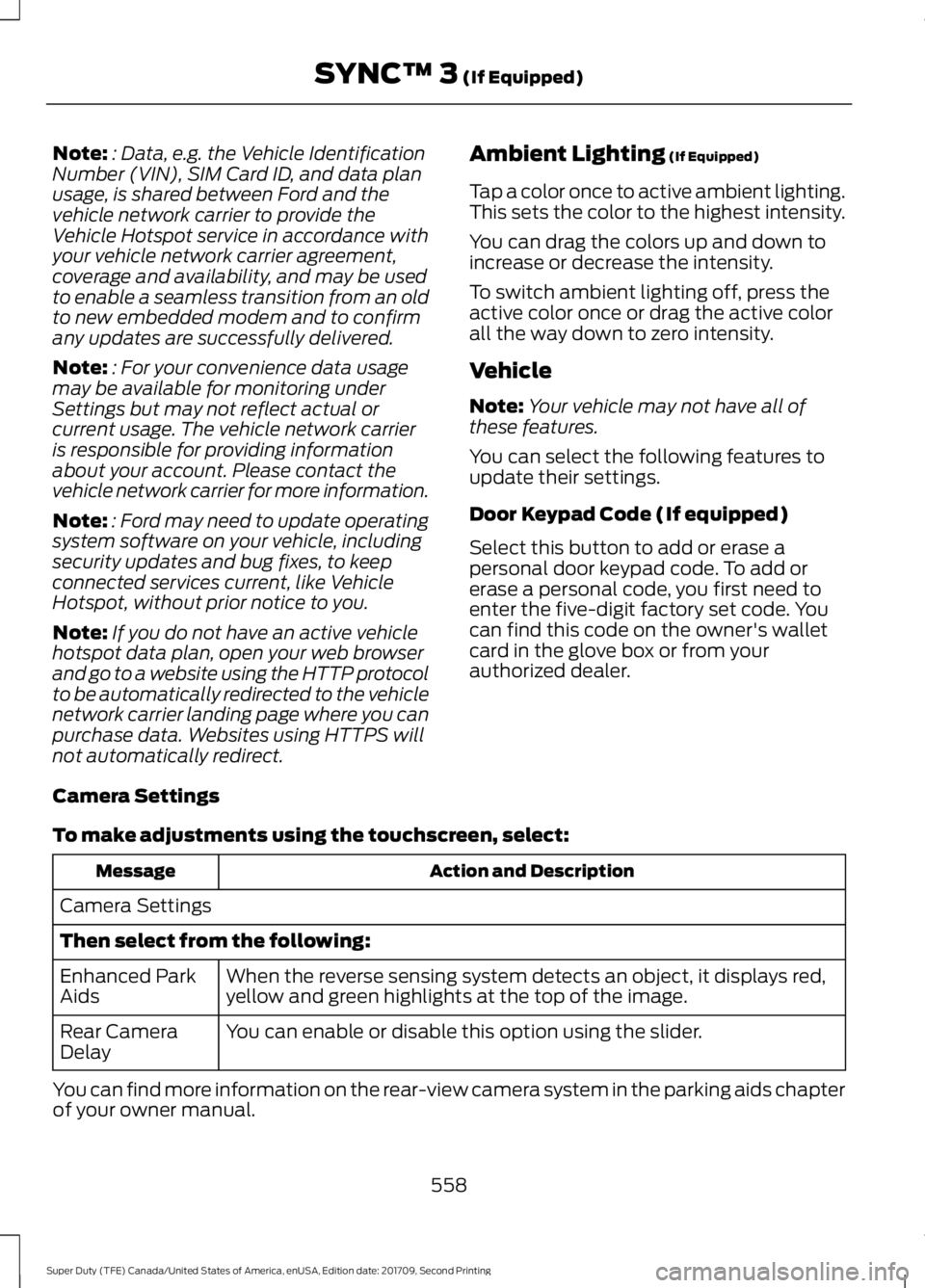
Camera Settings
To make adjustments using the touchscreen, select: Action and Description
Message
Camera Settings
Then select from the following: When the reverse sensing system detects an object, it displays red,
yellow and green highlights at the top of the image.
Enhanced Park
Aids
You can enable or disable this option using the slider.
Rear Camera
Delay
You can find more information on the rear-view camera system in the parking aids chapter
of your owner manual.
558
Super Duty (TFE) Canada/United States of America, enUSA, Edition date: 201709, Second Printing SYNC™ 3
(If Equipped)
Page 577 of 660
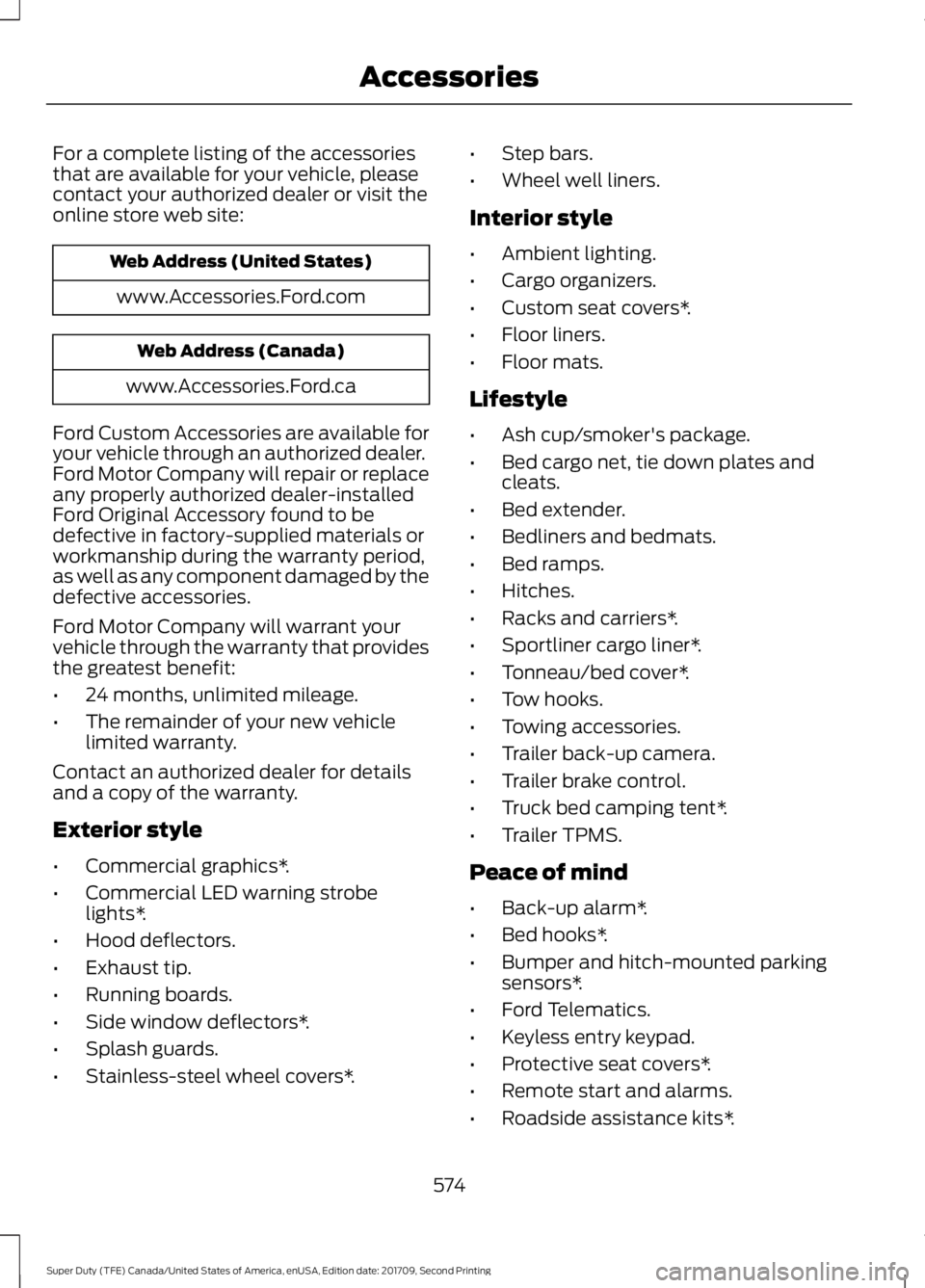
For a complete listing of the accessories
that are available for your vehicle, please
contact your authorized dealer or visit the
online store web site:
Web Address (United States)
www.Accessories.Ford.com Web Address (Canada)
www.Accessories.Ford.ca
Ford Custom Accessories are available for
your vehicle through an authorized dealer.
Ford Motor Company will repair or replace
any properly authorized dealer-installed
Ford Original Accessory found to be
defective in factory-supplied materials or
workmanship during the warranty period,
as well as any component damaged by the
defective accessories.
Ford Motor Company will warrant your
vehicle through the warranty that provides
the greatest benefit:
• 24 months, unlimited mileage.
• The remainder of your new vehicle
limited warranty.
Contact an authorized dealer for details
and a copy of the warranty.
Exterior style
• Commercial graphics*.
• Commercial LED warning strobe
lights*.
• Hood deflectors.
• Exhaust tip.
• Running boards.
• Side window deflectors*.
• Splash guards.
• Stainless-steel wheel covers*. •
Step bars.
• Wheel well liners.
Interior style
• Ambient lighting.
• Cargo organizers.
• Custom seat covers*.
• Floor liners.
• Floor mats.
Lifestyle
• Ash cup/smoker's package.
• Bed cargo net, tie down plates and
cleats.
• Bed extender.
• Bedliners and bedmats.
• Bed ramps.
• Hitches.
• Racks and carriers*.
• Sportliner cargo liner*.
• Tonneau/bed cover*.
• Tow hooks.
• Towing accessories.
• Trailer back-up camera.
• Trailer brake control.
• Truck bed camping tent*.
• Trailer TPMS.
Peace of mind
• Back-up alarm*.
• Bed hooks*.
• Bumper and hitch-mounted parking
sensors*.
• Ford Telematics.
• Keyless entry keypad.
• Protective seat covers*.
• Remote start and alarms.
• Roadside assistance kits*.
574
Super Duty (TFE) Canada/United States of America, enUSA, Edition date: 201709, Second Printing Accessories
Page 586 of 660
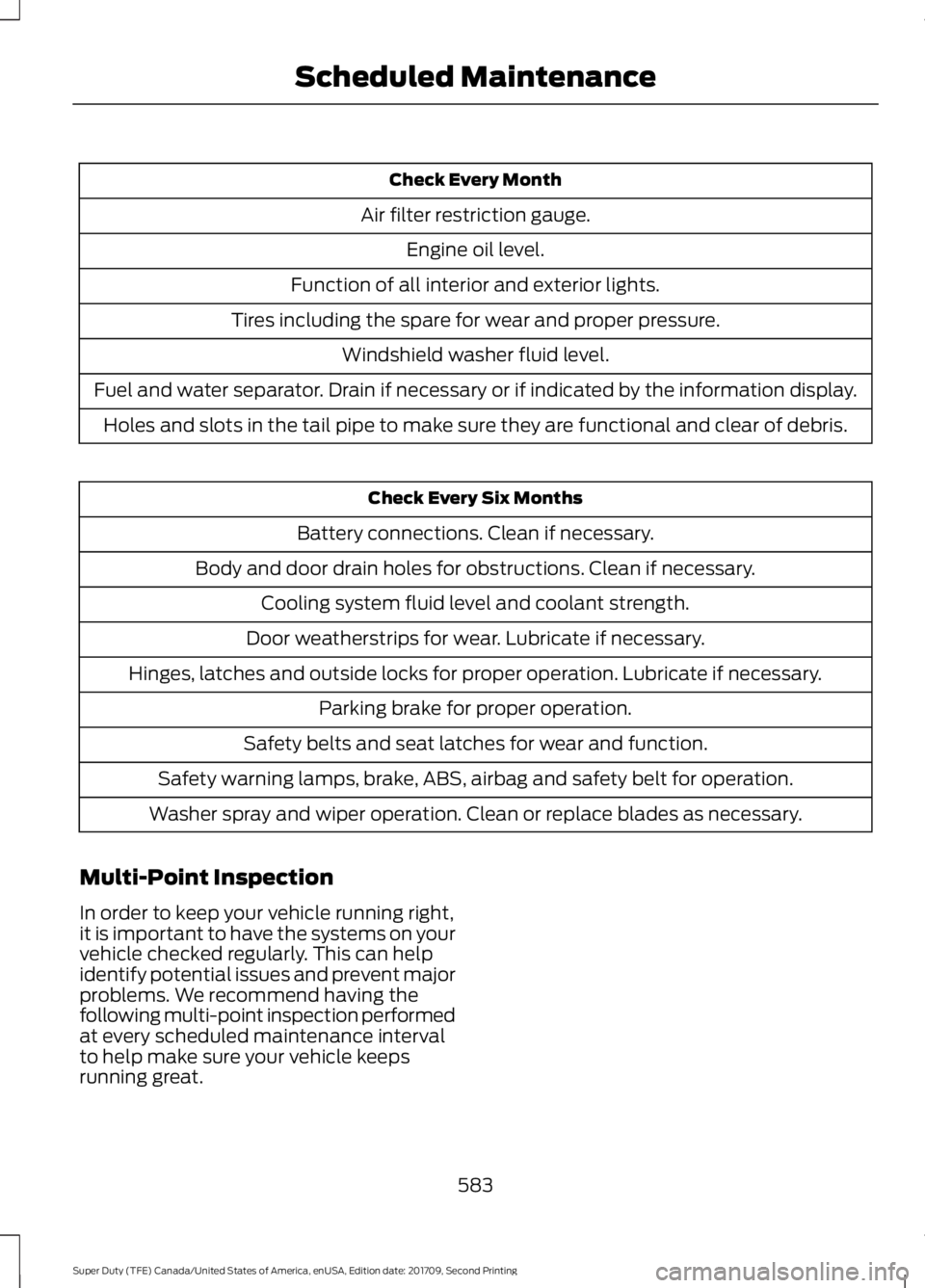
Check Every Month
Air filter restriction gauge. Engine oil level.
Function of all interior and exterior lights.
Tires including the spare for wear and proper pressure. Windshield washer fluid level.
Fuel and water separator. Drain if necessary or if indicated by the information display. Holes and slots in the tail pipe to make sure they are functional and clear of debris. Check Every Six Months
Battery connections. Clean if necessary.
Body and door drain holes for obstructions. Clean if necessary. Cooling system fluid level and coolant strength.
Door weatherstrips for wear. Lubricate if necessary.
Hinges, latches and outside locks for proper operation. Lubricate if necessary. Parking brake for proper operation.
Safety belts and seat latches for wear and function.
Safety warning lamps, brake, ABS, airbag and safety belt for operation.
Washer spray and wiper operation. Clean or replace blades as necessary.
Multi-Point Inspection
In order to keep your vehicle running right,
it is important to have the systems on your
vehicle checked regularly. This can help
identify potential issues and prevent major
problems. We recommend having the
following multi-point inspection performed
at every scheduled maintenance interval
to help make sure your vehicle keeps
running great.
583
Super Duty (TFE) Canada/United States of America, enUSA, Edition date: 201709, Second Printing Scheduled Maintenance
Page 650 of 660
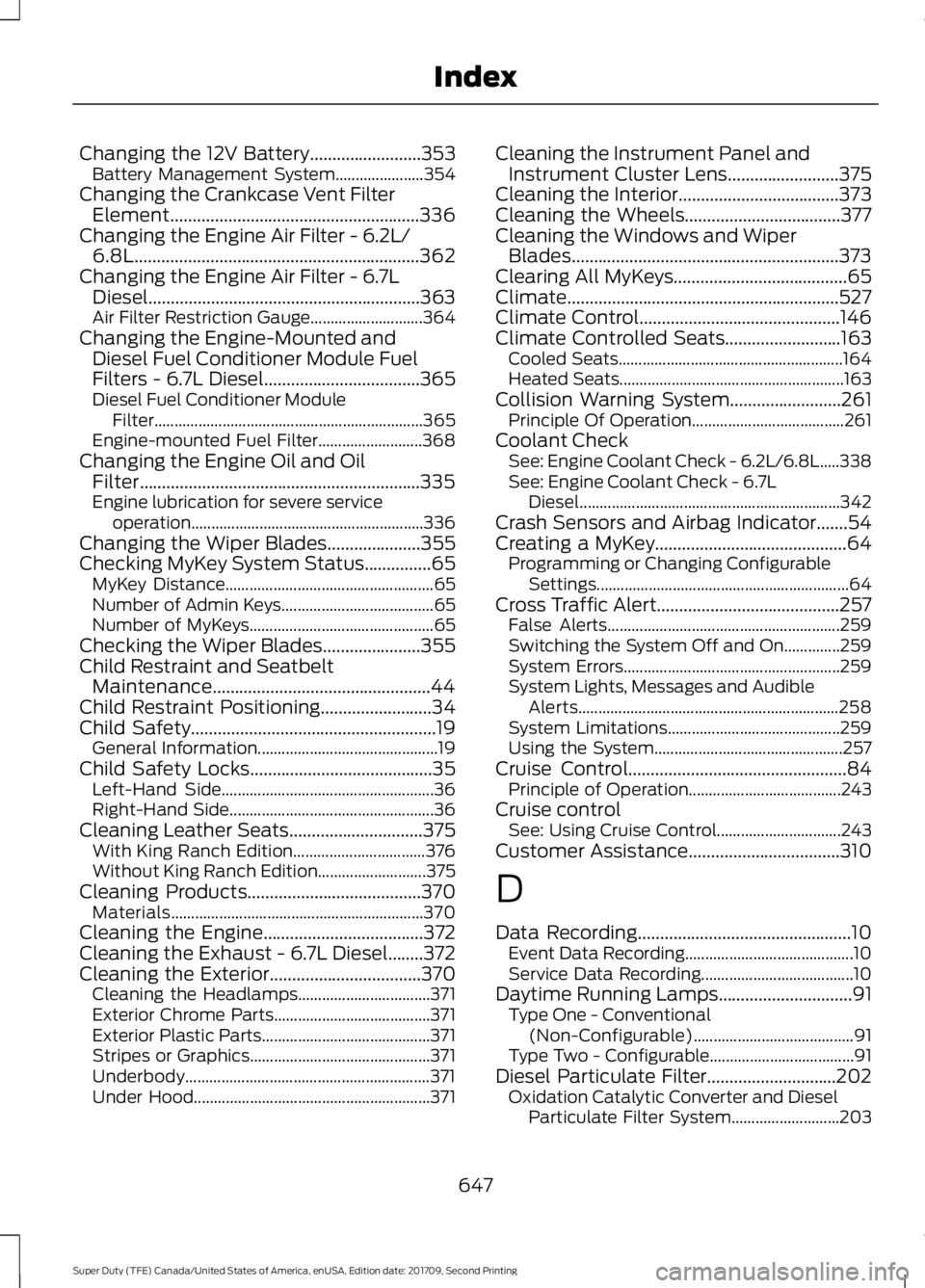
Changing the 12V Battery.........................353
Battery Management System...................... 354
Changing the Crankcase Vent Filter Element........................................................336
Changing the Engine Air Filter - 6.2L/ 6.8L
................................................................362
Changing the Engine Air Filter - 6.7L Diesel.............................................................363
Air Filter Restriction Gauge............................ 364
Changing the Engine-Mounted and Diesel Fuel Conditioner Module Fuel
Filters - 6.7L Diesel
...................................365
Diesel Fuel Conditioner Module
Filter................................................................... 365
Engine-mounted Fuel Filter.......................... 368
Changing the Engine Oil and Oil Filter...............................................................335
Engine lubrication for severe service operation..........................................................336
Changing the Wiper Blades
.....................355
Checking MyKey System Status...............65 MyKey Distance.................................................... 65
Number of Admin Keys...................................... 65
Number of MyKeys.............................................. 65
Checking the Wiper Blades
......................355
Child Restraint and Seatbelt Maintenance.................................................44
Child Restraint Positioning
.........................34
Child Safety.......................................................19
General Information............................................. 19
Child Safety Locks
.........................................35
Left-Hand Side..................................................... 36
Right-Hand Side................................................... 36
Cleaning Leather Seats
..............................375
With King Ranch Edition................................. 376
Without King Ranch Edition........................... 375
Cleaning Products
.......................................370
Materials............................................................... 370
Cleaning the Engine
....................................372
Cleaning the Exhaust - 6.7L Diesel........372
Cleaning the Exterior
..................................370
Cleaning the Headlamps................................. 371
Exterior Chrome Parts....................................... 371
Exterior Plastic Parts.......................................... 371
Stripes or Graphics............................................. 371
Underbody............................................................. 371
Under Hood........................................................... 371Cleaning the Instrument Panel and
Instrument Cluster Lens
.........................375
Cleaning the Interior....................................373
Cleaning the Wheels...................................377
Cleaning the Windows and Wiper Blades............................................................373
Clearing All MyKeys.......................................65
Climate.............................................................527
Climate Control
.............................................146
Climate Controlled Seats..........................163 Cooled Seats........................................................ 164
Heated Seats........................................................ 163
Collision Warning System.........................261 Principle Of Operation...................................... 261
Coolant Check See: Engine Coolant Check - 6.2L/6.8L.....338
See: Engine Coolant Check - 6.7L
Diesel................................................................. 342
Crash Sensors and Airbag Indicator.......54
Creating a MyKey...........................................64 Programming or Changing Configurable
Settings............................................................... 64
Cross Traffic Alert.........................................257 False Alerts.......................................................... 259
Switching the System Off and On..............259
System Errors...................................................... 259
System Lights, Messages and Audible Alerts................................................................. 258
System Limitations........................................... 259
Using the System............................................... 257
Cruise Control
.................................................84
Principle of Operation...................................... 243
Cruise control See: Using Cruise Control............................... 243
Customer Assistance
..................................310
D
Data Recording
................................................10
Event Data Recording.......................................... 10
Service Data Recording...................................... 10
Daytime Running Lamps..............................91 Type One - Conventional
(Non-Configurable)........................................ 91
Type Two - Configurable.................................... 91
Diesel Particulate Filter.............................202 Oxidation Catalytic Converter and Diesel
Particulate Filter System........................... 203
647
Super Duty (TFE) Canada/United States of America, enUSA, Edition date: 201709, Second Printing Index
Page 659 of 660
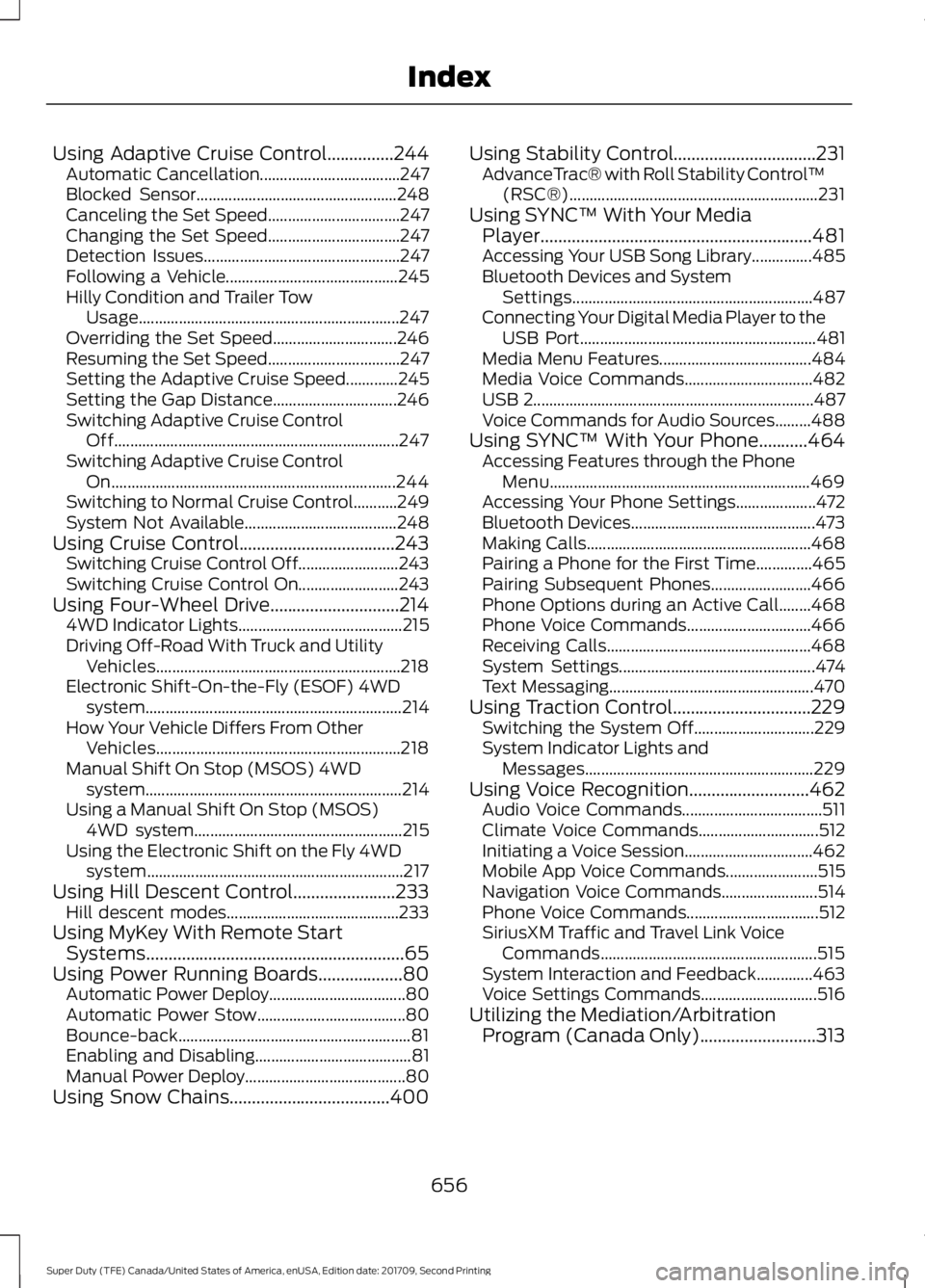
Using Adaptive Cruise Control...............244
Automatic Cancellation................................... 247
Blocked Sensor.................................................. 248
Canceling the Set Speed................................. 247
Changing the Set Speed................................. 247
Detection Issues................................................. 247
Following a Vehicle........................................... 245
Hilly Condition and Trailer Tow Usage................................................................. 247
Overriding the Set Speed............................... 246
Resuming the Set Speed................................. 247
Setting the Adaptive Cruise Speed.............245
Setting the Gap Distance............................... 246
Switching Adaptive Cruise Control Off....................................................................... 247
Switching Adaptive Cruise Control On....................................................................... 244
Switching to Normal Cruise Control...........249
System Not Available...................................... 248
Using Cruise Control...................................243 Switching Cruise Control Off......................... 243
Switching Cruise Control On......................... 243
Using Four-Wheel Drive.............................214 4WD Indicator Lights......................................... 215
Driving Off-Road With Truck and Utility Vehicles............................................................. 218
Electronic Shift-On-the-Fly (ESOF) 4WD system................................................................ 214
How Your Vehicle Differs From Other Vehicles............................................................. 218
Manual Shift On Stop (MSOS) 4WD system................................................................ 214
Using a Manual Shift On Stop (MSOS) 4WD system.................................................... 215
Using the Electronic Shift on the Fly 4WD system................................................................ 217
Using Hill Descent Control.......................233
Hill descent modes........................................... 233
Using MyKey With Remote Start Systems..........................................................65
Using Power Running Boards
...................80
Automatic Power Deploy.................................. 80
Automatic Power Stow..................................... 80
Bounce-back.......................................................... 81
Enabling and Disabling....................................... 81
Manual Power Deploy........................................ 80
Using Snow Chains....................................400 Using Stability Control................................231
AdvanceTrac® with Roll Stability Control ™
(RSC®).............................................................. 231
Using SYNC™ With Your Media Player.............................................................481
Accessing Your USB Song Library...............485
Bluetooth Devices and System Settings............................................................ 487
Connecting Your Digital Media Player to the USB Port........................................................... 481
Media Menu Features...................................... 484
Media Voice Commands................................ 482
USB 2...................................................................... 487
Voice Commands for Audio Sources.........488
Using SYNC™ With Your Phone...........464 Accessing Features through the Phone
Menu................................................................. 469
Accessing Your Phone Settings.................... 472
Bluetooth Devices.............................................. 473
Making Calls........................................................ 468
Pairing a Phone for the First Time..............465
Pairing Subsequent Phones......................... 466
Phone Options during an Active Call........468
Phone Voice Commands............................... 466
Receiving Calls................................................... 468
System Settings................................................. 474
Text Messaging................................................... 470
Using Traction Control
...............................229
Switching the System Off.............................. 229
System Indicator Lights and Messages......................................................... 229
Using Voice Recognition...........................462 Audio Voice Commands................................... 511
Climate Voice Commands.............................. 512
Initiating a Voice Session................................ 462
Mobile App Voice Commands....................... 515
Navigation Voice Commands........................ 514
Phone Voice Commands................................. 512
SiriusXM Traffic and Travel Link Voice Commands...................................................... 515
System Interaction and Feedback..............463
Voice Settings Commands............................. 516
Utilizing the Mediation/Arbitration Program (Canada Only)
..........................313
656
Super Duty (TFE) Canada/United States of America, enUSA, Edition date: 201709, Second Printing Index