change time FORD F-450 2021 Owner's Manual
[x] Cancel search | Manufacturer: FORD, Model Year: 2021, Model line: F-450, Model: FORD F-450 2021Pages: 666, PDF Size: 11.3 MB
Page 249 of 666
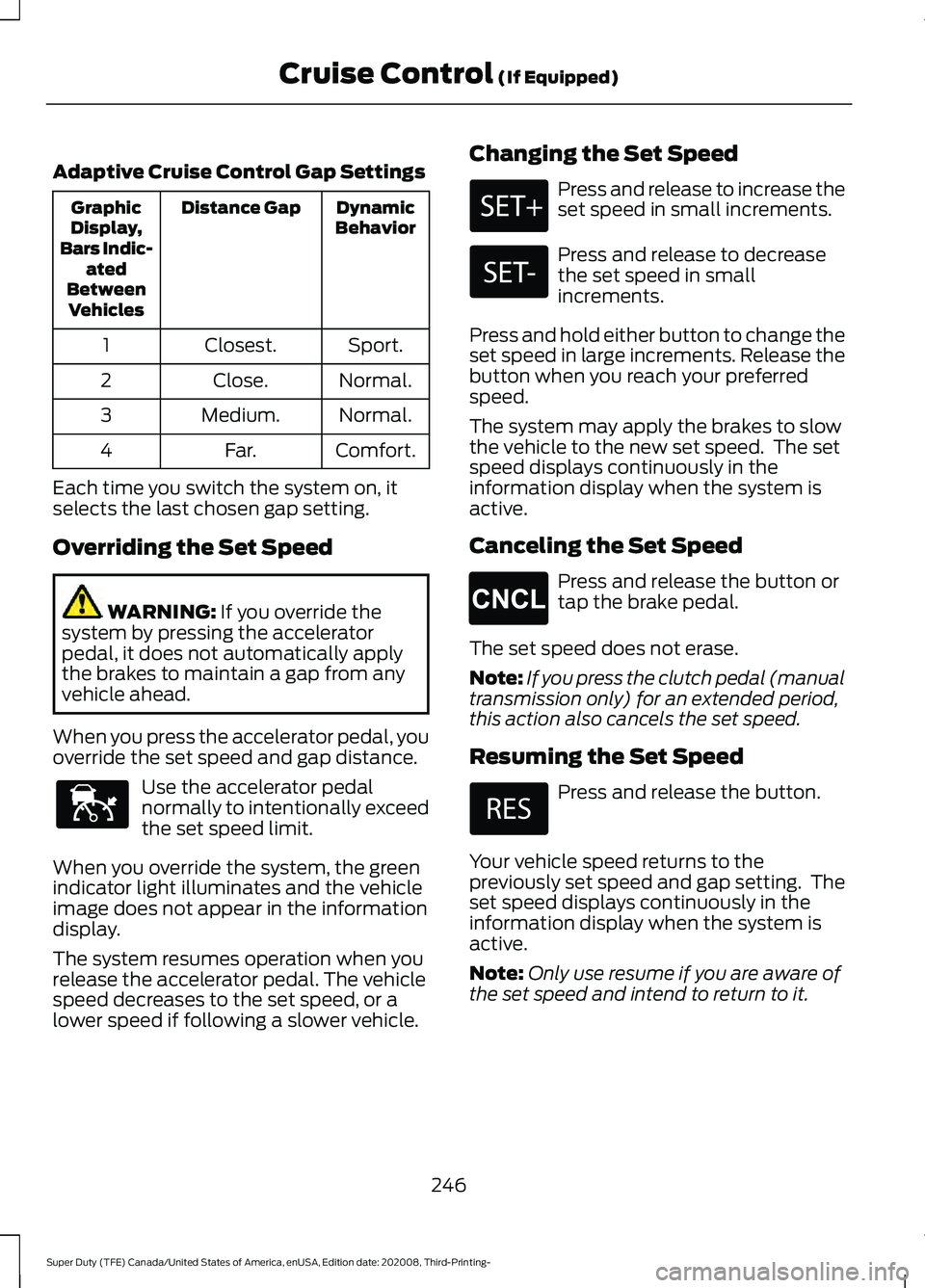
Adaptive Cruise Control Gap Settings
Dynamic
Behavior
Distance Gap
Graphic
Display,
Bars Indic- ated
Between Vehicles
Sport.
Closest.
1
Normal.
Close.
2
Normal.
Medium.
3
Comfort.
Far.
4
Each time you switch the system on, it
selects the last chosen gap setting.
Overriding the Set Speed WARNING: If you override the
system by pressing the accelerator
pedal, it does not automatically apply
the brakes to maintain a gap from any
vehicle ahead.
When you press the accelerator pedal, you
override the set speed and gap distance. Use the accelerator pedal
normally to intentionally exceed
the set speed limit.
When you override the system, the green
indicator light illuminates and the vehicle
image does not appear in the information
display.
The system resumes operation when you
release the accelerator pedal. The vehicle
speed decreases to the set speed, or a
lower speed if following a slower vehicle. Changing the Set Speed Press and release to increase the
set speed in small increments.
Press and release to decrease
the set speed in small
increments.
Press and hold either button to change the
set speed in large increments. Release the
button when you reach your preferred
speed.
The system may apply the brakes to slow
the vehicle to the new set speed. The set
speed displays continuously in the
information display when the system is
active.
Canceling the Set Speed Press and release the button or
tap the brake pedal.
The set speed does not erase.
Note: If you press the clutch pedal (manual
transmission only) for an extended period,
this action also cancels the set speed.
Resuming the Set Speed Press and release the button.
Your vehicle speed returns to the
previously set speed and gap setting. The
set speed displays continuously in the
information display when the system is
active.
Note: Only use resume if you are aware of
the set speed and intend to return to it.
246
Super Duty (TFE) Canada/United States of America, enUSA, Edition date: 202008, Third-Printing- Cruise Control
(If Equipped)E144529 E265298
Page 252 of 666
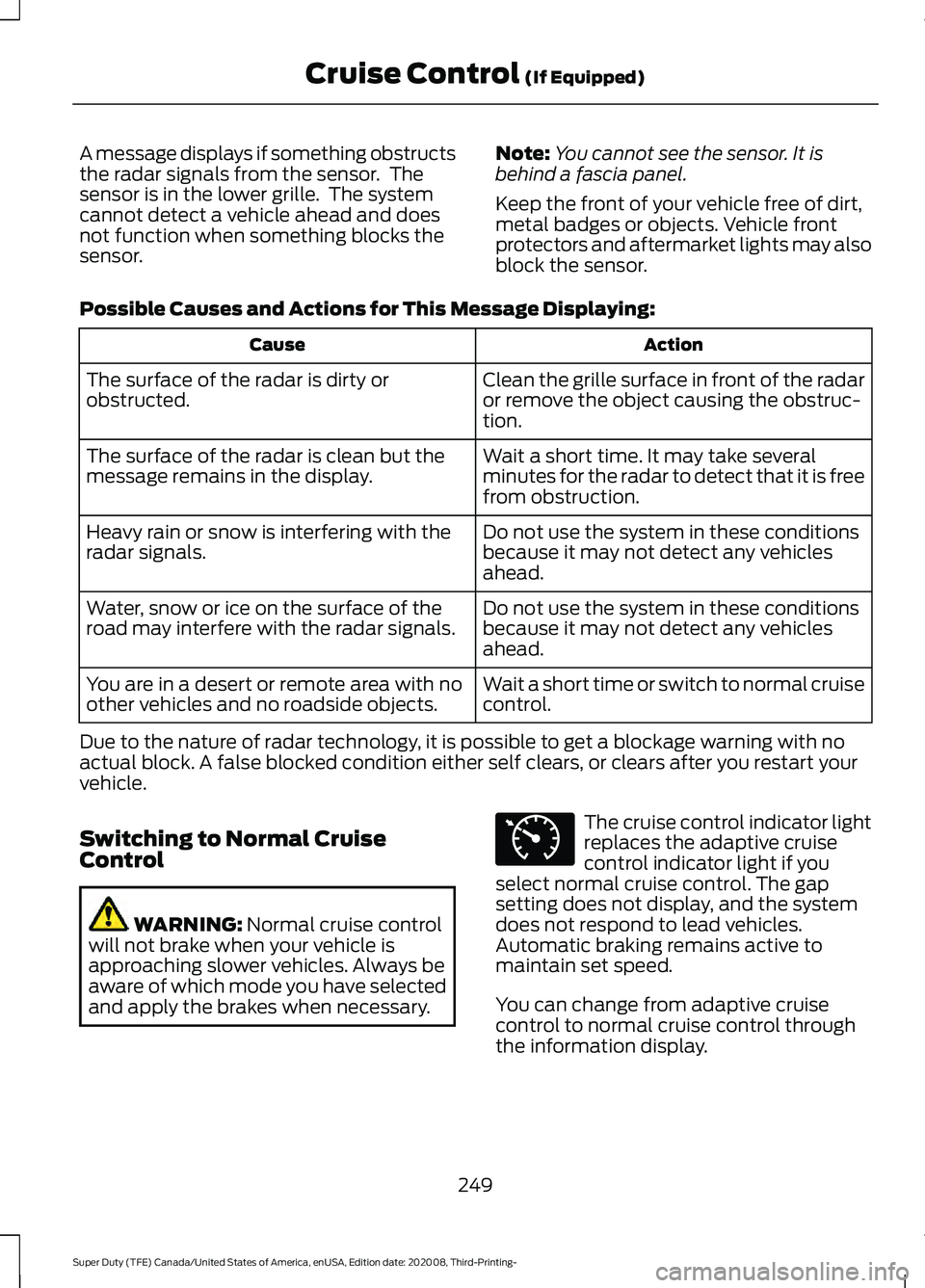
A message displays if something obstructs
the radar signals from the sensor. The
sensor is in the lower grille. The system
cannot detect a vehicle ahead and does
not function when something blocks the
sensor.
Note:
You cannot see the sensor. It is
behind a fascia panel.
Keep the front of your vehicle free of dirt,
metal badges or objects. Vehicle front
protectors and aftermarket lights may also
block the sensor.
Possible Causes and Actions for This Message Displaying: Action
Cause
Clean the grille surface in front of the radar
or remove the object causing the obstruc-
tion.
The surface of the radar is dirty or
obstructed.
Wait a short time. It may take several
minutes for the radar to detect that it is free
from obstruction.
The surface of the radar is clean but the
message remains in the display.
Do not use the system in these conditions
because it may not detect any vehicles
ahead.
Heavy rain or snow is interfering with the
radar signals.
Do not use the system in these conditions
because it may not detect any vehicles
ahead.
Water, snow or ice on the surface of the
road may interfere with the radar signals.
Wait a short time or switch to normal cruise
control.
You are in a desert or remote area with no
other vehicles and no roadside objects.
Due to the nature of radar technology, it is possible to get a blockage warning with no
actual block. A false blocked condition either self clears, or clears after you restart your
vehicle.
Switching to Normal Cruise
Control WARNING: Normal cruise control
will not brake when your vehicle is
approaching slower vehicles. Always be
aware of which mode you have selected
and apply the brakes when necessary. The cruise control indicator light
replaces the adaptive cruise
control indicator light if you
select normal cruise control. The gap
setting does not display, and the system
does not respond to lead vehicles.
Automatic braking remains active to
maintain set speed.
You can change from adaptive cruise
control to normal cruise control through
the information display.
249
Super Duty (TFE) Canada/United States of America, enUSA, Edition date: 202008, Third-Printing- Cruise Control
(If Equipped)E71340
Page 255 of 666
When you switch the system on and it
detects an unintentional drift out of your
lane is likely to occur, the system notifies
or assists you to stay in your lane through
the steering system and information
display. The system provides an audible
warning and by vibrating the steering
wheel.
Switching the System On and Off
Note:
The system on or off setting is stored
until it is manually changed, unless a MyKey
is detected. If the system detects a MyKey,
it defaults to on and the mode is set to alert.
Note: If a MyKey is detected, pressing the
button does not affect the on or off status
of the system. You can only change the
mode and intensity settings. Press the button to switch the
system on or off. The button is
above the audio unit or on the
center console.
System Settings
The system sensitivity and intensity can
be adjusted through the display screen.
See General Information (page 110). The
system remembers the last selection. You
do not need to readjust the setting each
time you turn on your vehicle.
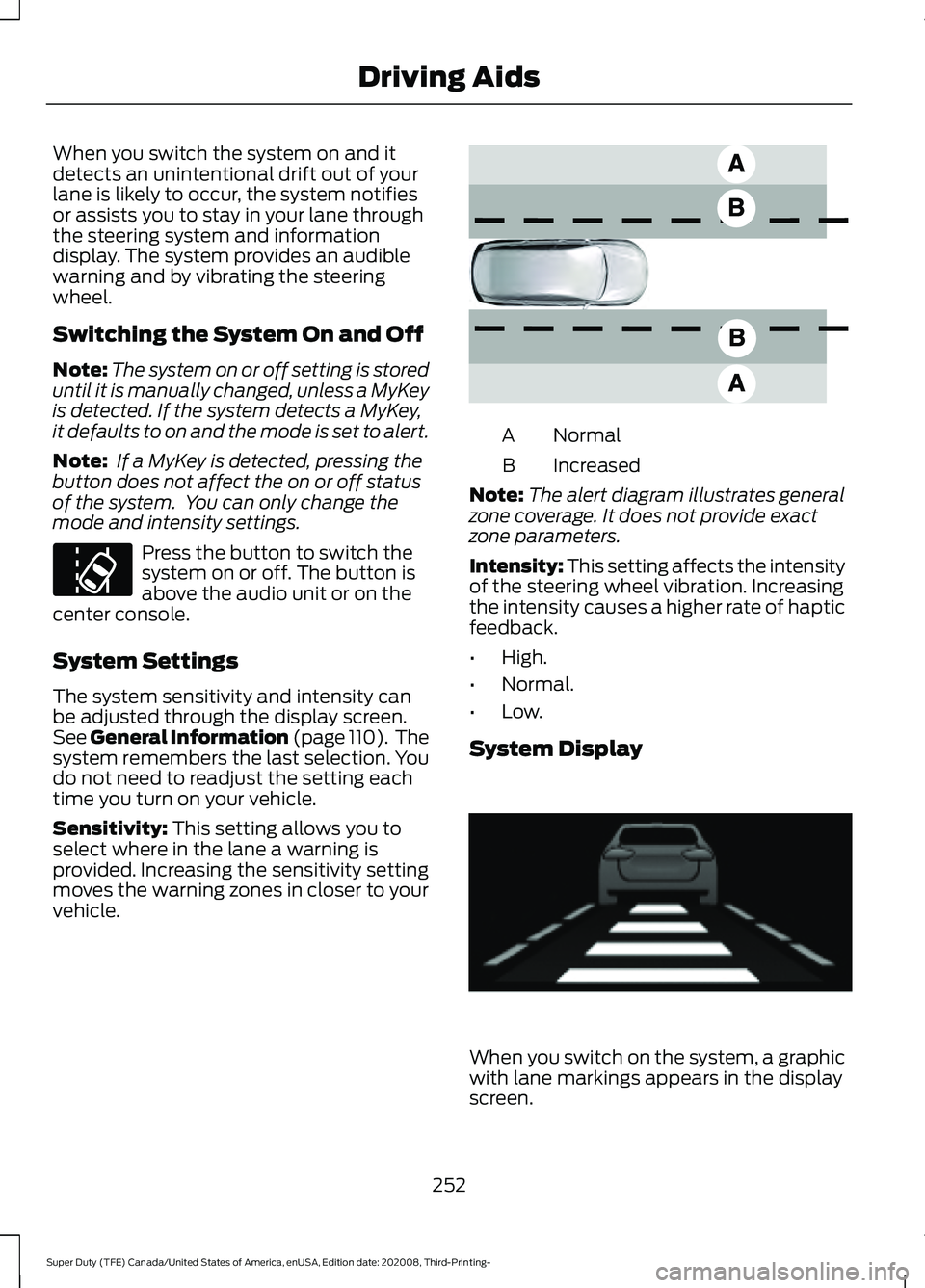
Sensitivity: This setting allows you to
select where in the lane a warning is
provided. Increasing the sensitivity setting
moves the warning zones in closer to your
vehicle. Normal
A
Increased
B
Note: The alert diagram illustrates general
zone coverage. It does not provide exact
zone parameters.
Intensity: This setting affects the intensity
of the steering wheel vibration. Increasing
the intensity causes a higher rate of haptic
feedback.
• High.
• Normal.
• Low.
System Display When you switch on the system, a graphic
with lane markings appears in the display
screen.
252
Super Duty (TFE) Canada/United States of America, enUSA, Edition date: 202008, Third-Printing- Driving AidsE173233 E165517 E233874
Page 256 of 666
Note:
The overhead vehicle graphic may
still display if adaptive cruise control is
enabled.
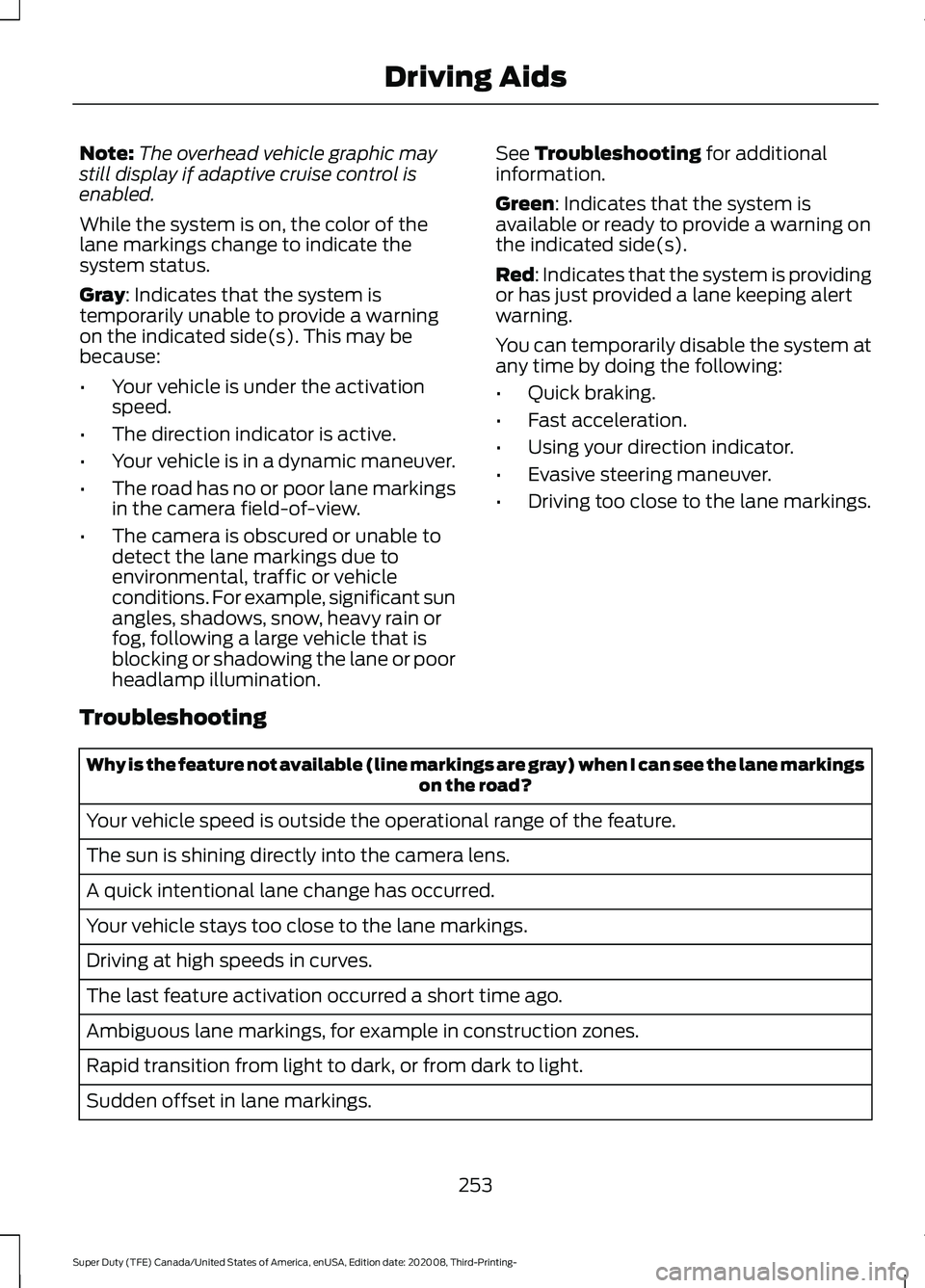
While the system is on, the color of the
lane markings change to indicate the
system status.
Gray: Indicates that the system is
temporarily unable to provide a warning
on the indicated side(s). This may be
because:
• Your vehicle is under the activation
speed.
• The direction indicator is active.
• Your vehicle is in a dynamic maneuver.
• The road has no or poor lane markings
in the camera field-of-view.
• The camera is obscured or unable to
detect the lane markings due to
environmental, traffic or vehicle
conditions. For example, significant sun
angles, shadows, snow, heavy rain or
fog, following a large vehicle that is
blocking or shadowing the lane or poor
headlamp illumination. See
Troubleshooting for additional
information.
Green
: Indicates that the system is
available or ready to provide a warning on
the indicated side(s).
Red
: Indicates that the system is providing
or has just provided a lane keeping alert
warning.
You can temporarily disable the system at
any time by doing the following:
• Quick braking.
• Fast acceleration.
• Using your direction indicator.
• Evasive steering maneuver.
• Driving too close to the lane markings.
Troubleshooting Why is the feature not available (line markings are gray) when I can see the lane markings
on the road?
Your vehicle speed is outside the operational range of the feature.
The sun is shining directly into the camera lens.
A quick intentional lane change has occurred.
Your vehicle stays too close to the lane markings.
Driving at high speeds in curves.
The last feature activation occurred a short time ago.
Ambiguous lane markings, for example in construction zones.
Rapid transition from light to dark, or from dark to light.
Sudden offset in lane markings.
253
Super Duty (TFE) Canada/United States of America, enUSA, Edition date: 202008, Third-Printing- Driving Aids
Page 266 of 666
The electronic torque overlay steering
system adds supplemental steering assist
to the hydraulic gear when needed,
dependent on vehicle conditions such as
vehicle speed, steering wheel angle, and
steering wheel torque. The hydraulic
steering system provides the majority of
steering assistance. The electronic torque
overlay enables features such as pro trailer
backup assistance and lane departure
warning.
If your vehicle loses electrical power while
you are driving, your vehicle loses electric
power steering assistance. The steering
system still operates, and you can steer
your vehicle with hydraulic assist. Steering
your vehicle with only hydraulic assist
requires more effort.
Extreme continuous steering may increase
the effort required for you to steer your
vehicle. This increased effort prevents
overheating and permanent damage to
the steering system. You do not lose the
ability to steer your vehicle manually.
Typical steering and driving maneuvers
allow the system to cool and return to
normal operation.
Adaptive Learning (If Equipped)
The electronic power steering system
adaptive learning helps correct road
irregularities and improves overall handling
and steering feel. It communicates with
the brake system to help operate
advanced stability control and accident
avoidance systems. Whenever the battery
is disconnected or a new battery installed,
you must drive your vehicle a short
distance before the system relearns the
strategy and reactivates all systems. Adaptive Steering
(If Equipped)
Note: The adaptive steering system has
diagnostic checks that continuously monitor
the system. If the system detects a fault, a
message displays in the information display.
If a red warning message displays, stop your
vehicle as soon as it is safe to do so. The
message may clear if the fault is no longer
present. If an adaptive steering system
warning message appears each time you
start your vehicle, have the system checked
as soon as possible.
The adaptive steering system continually
changes the steering ratio with changes to
vehicle speed, optimizing the steering
response in all conditions. The system also
changes when you switch on the
transmission tow/haul feature. When you
select the tow/haul button, the adaptive
steering system reduces vehicle sensitivity
to steering inputs at higher vehicle speeds,
while maintaining the ease of parking and
maneuverability at low speeds.
Note: The adaptive steering system is
designed with a locking device. With the
lock engaged, the adaptive steering system
remains mechanically locked at a fixed
steering ratio. You may also notice a click
when you switch the vehicle on or after you
switch it off, as the lock disengages or
engages.
Note: If your vehicle loses electrical power
or detects a fault when you are driving, the
system automatically shuts down and you
retain normal steering function with a fixed
steering ratio. During this time it is possible
that the steering wheel may not be straight
when the vehicle is driving straight ahead.
In addition, the driver may notice that the
steering wheel angle required to steer the
vehicle may be different.
263
Super Duty (TFE) Canada/United States of America, enUSA, Edition date: 202008, Third-Printing- Driving Aids
Page 269 of 666
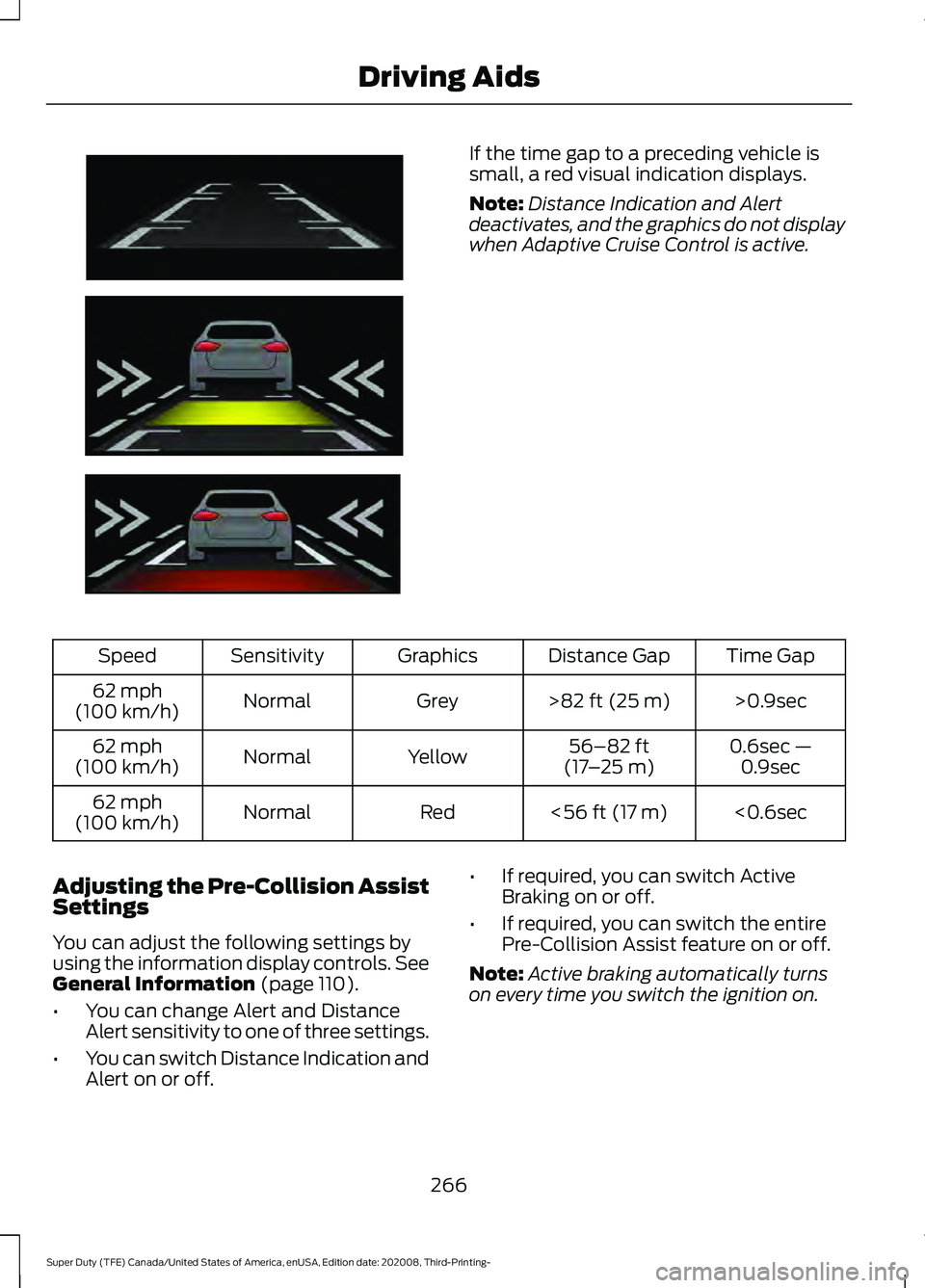
If the time gap to a preceding vehicle is
small, a red visual indication displays.
Note:
Distance Indication and Alert
deactivates, and the graphics do not display
when Adaptive Cruise Control is active. Time Gap
Distance Gap
Graphics
Sensitivity
Speed
>0.9sec
>82 ft (25 m)
Grey
Normal
62 mph
(100 km/h)
0.6sec —0.9sec
56–82 ft
(17 –25 m)
Yellow
Normal
62 mph
(100 km/h)
<0.6sec
<
56 ft (17 m)
Red
Normal
62 mph
(100 km/h)
Adjusting the Pre-Collision Assist
Settings
You can adjust the following settings by
using the information display controls.
See
General Information (page 110).
• You can change Alert and Distance
Alert sensitivity to one of three settings.
• You can switch Distance Indication and
Alert on or off. •
If required, you can switch Active
Braking on or off.
• If required, you can switch the entire
Pre-Collision Assist feature on or off.
Note: Active braking automatically turns
on every time you switch the ignition on.
266
Super Duty (TFE) Canada/United States of America, enUSA, Edition date: 202008, Third-Printing- Driving AidsE254791
Page 271 of 666
Radar Troubleshooting (If Equipped)
Action
Cause
Clean the grille surface in front of the radaror remove the object causing the obstruc- tion.
The surface of the radar in the grille is dirty
or obstructed in some way.
Wait a short time. It may take several
minutes for the radar to detect that there is no obstruction.
The surface of the radar in the grille is clean
but the message remains in the display screen.
Pre-Collision Assist disables itself. The
system automatically reactivates a short
time after the weather conditions improve.
Heavy rain, spray, snow or fog is interfering
with the radar signals.
Pre-Collision Assist disables itself. The
system automatically reactivates a short
time after the weather conditions improve.
Swirling water or snow or ice on the surface
of the road may interfere with the radar signals.
Contact an authorized dealer to have theradar checked for proper coverage and operation.
Radar is out of alignment due to a front end
impact.
Note: Proper system operation requires a
clear view of the road by the camera. Have
any windshield damage in the camera's field
of view repaired.
Note: If something hits the front end of your
vehicle or damage occurs and your vehicle
has a radar sensor, the radar sensing zone
may change. This could cause missed or
false vehicle detections. Contact an
authorized dealer to have the radar checked
for proper coverage and operation.
Note: If your vehicle detects excessive heat
at the camera or a potential misalignment
condition, a message may display in the
information display indicating temporary
sensor unavailability. When operational
conditions are correct, the message
deactivates. For example, when the ambient
temperature around the sensor decreases
or the sensor automatically recalibrates
successfully. DRIVE CONTROL (IF EQUIPPED)
Selectable Drive Modes
The system delivers a driving experience
through a suite of sophisticated electronic
vehicle systems. These systems optimize
steering, handling and powertrain
response. This provides a single location
to control multiple system's performance
settings.
Changing the drive mode automatically
changes the functionality of the following
systems:
268
Super Duty (TFE) Canada/United States of America, enUSA, Edition date: 202008, Third-Printing- Driving Aids
Page 294 of 666
4. When in this mode, you can see the
camera view on the side your trailer is
moving, or both sides when the trailer
is straight behind you. When the views
change with the trailer direction, it is
called auto mode. For example, if you
turn the trailer to the right, you see the
right side of your vehicle and trailer.
You can manually switch this view at
any time by using the arrow keys. To
return to auto mode, press the auto
button. Straight backup mode. Use this
view when you want to keep your
trailer completely in line with
your truck. In this mode, a steering wheel
graphic shows you which way to turn your
steering wheel to keep your trailer straight.
Note: It may be helpful to shift your vehicle
into drive (D), pull forward and straighten
out the vehicle and trailer before engaging
straight backup mode.
System Camera Views
Use the view that helps you the most when
reversing your vehicle and trailer. You can
use these views in either mode.
Left and right arrows let you see other
views regardless of your trailer angle in rear
split view camera and Trailer Reverse
Guidance view.
Auto mode is the default view if you have
set up Trailer Reverse Guidance. 360 camera. Shows a 360
degree view on the right-hand
side of the screen, with the keep
out zone on the left-hand side of the
screen. Rear view camera. Use this view
when you want to see your trailer
hitch or what is directly behind
your vehicle. Rear split view camera. Shows
a 180 degree view of behind your
vehicle.
Bed camera. Shows the truck
bed and can be used for a fifth
wheel or gooseneck trailer.
Trailer AUX camera. Shows a
rear view camera image of what
is behind your trailer. This
camera needs to be purchased and
separately installed. Trailer Reverse Guidance view.
Shows you a view of the sides of
your truck and your trailer. In
auto mode, this view moves as your trailer
moves so that you do not have to adjust
the camera as you turn. This takes you back to the
360-degree camera system and
out of the Trailer Reverse
Guidance feature. Auto. This feature returns you to
auto view.
Hitch Angle Graphic
After setting up a trailer, the display shows
a small top-view representation of your
truck and trailer.
This representation shows two,
different-colored lines. A black line shows
you where your trailer is in relation to your
vehicle. For Trailer Backup Assist, the white
line represents the amount the trailer can
turn based on knob input. For Trailer
Reverse Guidance, the white line
represents the amount the trailer can turn
based on steering wheel position.
291
Super Duty (TFE) Canada/United States of America, enUSA, Edition date: 202008, Third-Printing- TowingE224484 E310996 E310967 E310974 E310995 E311776 E310965 E224486 E315644
Page 299 of 666
System consistently shows Pro Trailer
Backup Assist™ Stop now Maximum trailer
angle Press Knob to Exit:
•
The system uses your measurements
to determine sticker position and
establish system limits. Accurate
sticker placement and trailer
measurements provide the best
system performance. If you are
consistently receiving this warning, it is
likely there is an issue with sticker
placement or the entered
measurements. Make sure that the
sticker is placed correctly based on
step 3 and the measurements were
made correctly according to step 4.
The troubleshooting guide for trailer
measurements can also be reviewed
for help in making measurements.
• To change sticker location or change
trailer measurements, go into the
information display menu, select trailer
options, select change trailer setting
and then select the change sticker
option.
• If the sticker location needs to be
changed, the previous sticker must be
removed and a new sticker needs to
be placed on the trailer. ONLY ONE
STICKER SHOULD BE PLACED ON THE
TRAILER FOR PROPER SYSTEM
FUNCTION.
• Disregard the prompt to remove this
sticker and continue to the next step if
you only plan to update the
measurements for the current sticker
location. System consistently shows Pro Trailer
Backup Assist™ Stop Now Take Control
of Steering Wheel:
•
The system displays this warning when
it can no longer steer the vehicle and
you must take over steering. There are
four reasons why this warning displays
and additional information regarding
the reason for the warning is available
on the center display.
• The steering wheel is touched when
under system control. Avoid touching
the wheel during system operation.
• The maximum speed for feature
operation is exceeded. System
performance is optimized at slower
speeds. Reverse slowly.
• The sticker was lost by the camera
system. Once your vehicle is stopped,
additional warnings indicate the sticker
was lost. Refer to sticker lost
troubleshooting tips.
• An internal condition for system
operation was not met which requires
your vehicle to return to manual control
of the steering. Using the system for an
extended period of time can cause the
steering system to heat up and turn off
Pro Trailer Backup Assist steering
control to protect itself. The system
may require a cool down time of up to
30 minutes. Keep the system off and
drive forward at a normal speed or
switch the vehicle off.
Note: The system is designed to be used
with the same trailer connection every time
the trailer is chosen from the selection
menu. When using a different drawbar or a
different pin hole on drawbars with more
than one, connecting the drawbar to your
vehicle affects the trailer measurements.
Take the measurements again and update
if required.
296
Super Duty (TFE) Canada/United States of America, enUSA, Edition date: 202008, Third-Printing- Towing
Page 317 of 666
•
Allow more distance for stopping with
a trailer attached. Anticipate stops and
brake gradually.
• Avoid parking on a grade. However, if
you must park on a grade:
1. Turn the steering wheel to point your vehicle tires away from traffic flow.
2. Set your vehicle parking brake.
3. Place the transmission in park (P).
4. Place wheel chocks in front and back of the trailer wheels. (Chocks not
included with vehicle.)
Your vehicle may be equipped with a
temporary or conventional spare tire. A
"temporary" spare tire is different in size
(diameter or width), tread-type
(All-Season or All Terrain) or is from a
different manufacturer than the road tires
on your vehicle. Consult information on the
tire label or Safety Compliance label for
limitations when using.
Launching or Retrieving a Boat or
Personal Watercraft (PWC)
Note: Disconnect the wiring to the trailer
before backing the trailer into the water.
Note: Reconnect the wiring to the trailer
after
you remove the trailer from the water.
When backing down a ramp during boat
launching or retrieval:
• Do not allow the static water level to
rise above the bottom edge of the rear
bumper.
• Do not allow waves to break higher
than
6 in (15 cm) above the bottom
edge of the rear bumper.
Exceeding these limits may allow water to
enter vehicle components:
• Causing internal damage to the
components.
• Affecting driveability, emissions, and
reliability. Replace the rear axle lubricant anytime
the rear axle has been submerged in water.
Water may have contaminated the rear
axle lubricant, which is not normally
checked or changed unless a leak is
suspected or other axle repair is required.
TOWING THE VEHICLE ON
FOUR WHEELS
WARNING:
If your vehicle has a
steering wheel lock make sure the
ignition is in the accessory or on position
when being towed.
Emergency Towing
If your vehicle becomes inoperable
(without access to wheel dollies,
car-hauling trailer, or flatbed transport
vehicle), it can be flat-towed (all wheels
on the ground, regardless of the powertrain
and transmission configuration) under the
following conditions:
• Your vehicle is facing forward for
towing in a forward direction.
• Place the transmission in neutral (N).
If you cannot move the transmission
into neutral (N), you may need to
override it. See
Transmission (page
207).
• Maximum speed is 35 mph (56 km/h).
• Maximum distance is
50 mi (80 km).
Recreational Towing
Note: Put your climate control system in
recirculated air mode to prevent exhaust
fumes from entering your vehicle.
See
Climate Control (page 143).
314
Super Duty (TFE) Canada/United States of America, enUSA, Edition date: 202008, Third-Printing- Towing