phone FORD F-450 2021 Workshop Manual
[x] Cancel search | Manufacturer: FORD, Model Year: 2021, Model line: F-450, Model: FORD F-450 2021Pages: 666, PDF Size: 11.3 MB
Page 546 of 666
Action and Description
Menu Item
Select to choose from a listing of
weather locations.
Area
Touch this button to view scores and schedules from a variety
of sports. You can also save up to 10 favorite teams for easier
access. The score automatically refreshes when a game is in
progress.
Sports Info
Touch this button to view ski conditions for a specific area.
Ski Conditions
SETTINGS Press the button to enter the
settings menu.
Once you select a tile, press the
button next to a menu item to
view an explanation of the
feature or setting.
Sound
Select this tile to adjust the sound settings.
Clock
Select this tile to adjust the clock settings.
Bluetooth®
Select this tile to switch Bluetooth® on
and off and adjust the settings.
Phone
Select this tile to connect, disconnect, and
manage the connected device settings.
Audio
Select this tile to adjust the audio settings. Driver Assist
(If Equipped)
Select this tile to adjust Driver Assist
features like Parking Aids, Lane Keeping
System, Pedestrian Detection, and
Auto-Start-Stop.
Vehicle
Select this tile to adjust vehicle settings
like windows, alarm, lighting, and MyKey
settings.
FordPass
Select this tile to adjust the FordPass
settings.
General
Select this tile to adjust settings like
language, measurement units, or to reset
the system.
911 Assist
(If Equipped)
Select this tile to switch 911 Assist on and
off.
Automatic Updates
Select this tile to adjust the automatic
update settings.
Mobile Apps
Select this tile to adjust permissions,
enable, disable, and update mobile apps.
543
Super Duty (TFE) Canada/United States of America, enUSA, Edition date: 202008, Third-Printing- SYNC™ 3
(If Equipped)E280315 E268570
Page 548 of 666
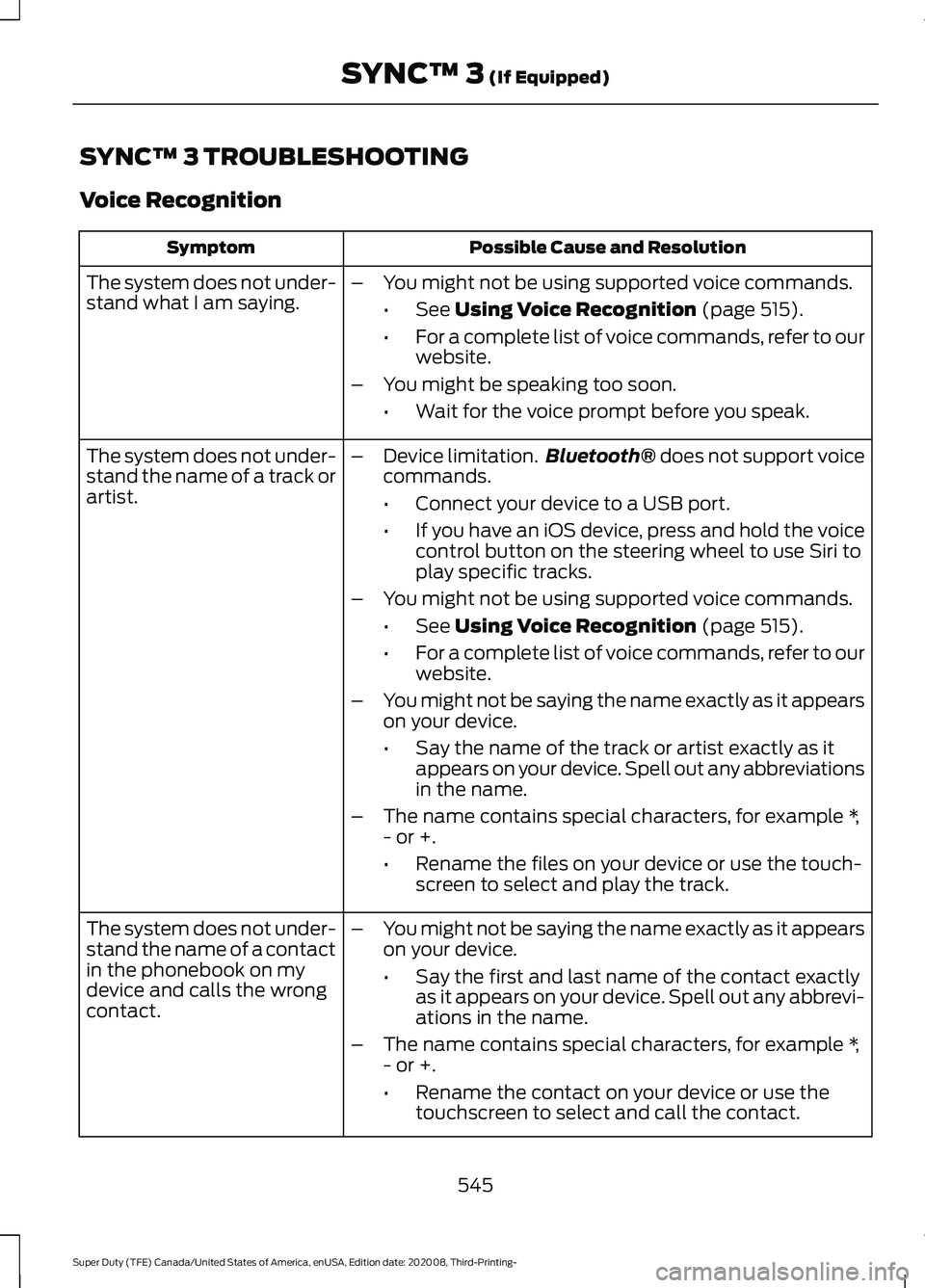
SYNC™ 3 TROUBLESHOOTING
Voice Recognition
Possible Cause and Resolution
Symptom
The system does not under-
stand what I am saying. –
You might not be using supported voice commands.
•See Using Voice Recognition (page 515).
• For a complete list of voice commands, refer to our
website.
– You might be speaking too soon.
•Wait for the voice prompt before you speak.
The system does not under-
stand the name of a track or
artist. –
Device limitation. Bluetooth®
does not support voice
commands.
• Connect your device to a USB port.
• If you have an iOS device, press and hold the voice
control button on the steering wheel to use Siri to
play specific tracks.
– You might not be using supported voice commands.
•See
Using Voice Recognition (page 515).
• For a complete list of voice commands, refer to our
website.
– You might not be saying the name exactly as it appears
on your device.
•Say the name of the track or artist exactly as it
appears on your device. Spell out any abbreviations
in the name.
– The name contains special characters, for example *,
- or +.
•Rename the files on your device or use the touch-
screen to select and play the track.
The system does not under-
stand the name of a contact
in the phonebook on my
device and calls the wrong
contact. –
You might not be saying the name exactly as it appears
on your device.
•Say the first and last name of the contact exactly
as it appears on your device. Spell out any abbrevi-
ations in the name.
– The name contains special characters, for example *,
- or +.
•Rename the contact on your device or use the
touchscreen to select and call the contact.
545
Super Duty (TFE) Canada/United States of America, enUSA, Edition date: 202008, Third-Printing- SYNC™ 3
(If Equipped)
Page 549 of 666
Possible Cause and Resolution
Symptom
–You might not be saying the name exactly as it appears
on your device.
•Say the first and last name of the contact exactly
as it appears on your device. The system applies
phonetic pronunciation rules of the selected
language to the names of contacts in the phone-
book on your device. Select the name of the
contact on the touchscreen and use the Hear it
option to get an idea of how the system expects
you to pronounce it.
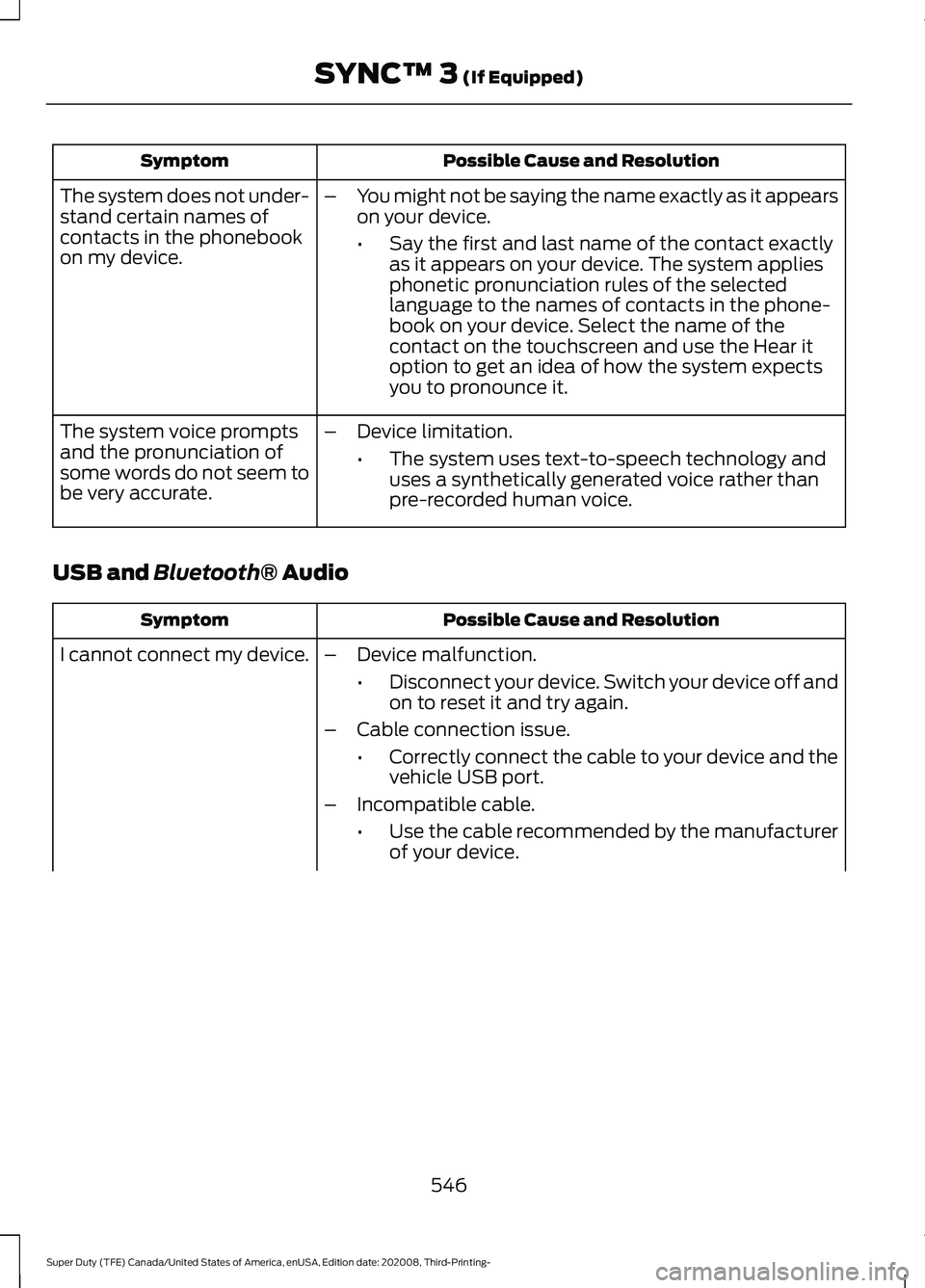
The system does not under-
stand certain names of
contacts in the phonebook
on my device.
–Device limitation.
•The system uses text-to-speech technology and
uses a synthetically generated voice rather than
pre-recorded human voice.
The system voice prompts
and the pronunciation of
some words do not seem to
be very accurate.
USB and Bluetooth® Audio Possible Cause and Resolution
Symptom
I cannot connect my device. –Device malfunction.
•Disconnect your device. Switch your device off and
on to reset it and try again.
– Cable connection issue.
•Correctly connect the cable to your device and the
vehicle USB port.
– Incompatible cable.
•Use the cable recommended by the manufacturer
of your device.
546
Super Duty (TFE) Canada/United States of America, enUSA, Edition date: 202008, Third-Printing- SYNC™ 3
(If Equipped)
Page 550 of 666
Possible Cause and Resolution
Symptom
–Incorrect device settings.
•Make sure that your device does not have an auto-
install program or active security settings.
• Check that your device is not set only to charge.
– Device lock screen enabled.
•Unlock your device before connecting it.
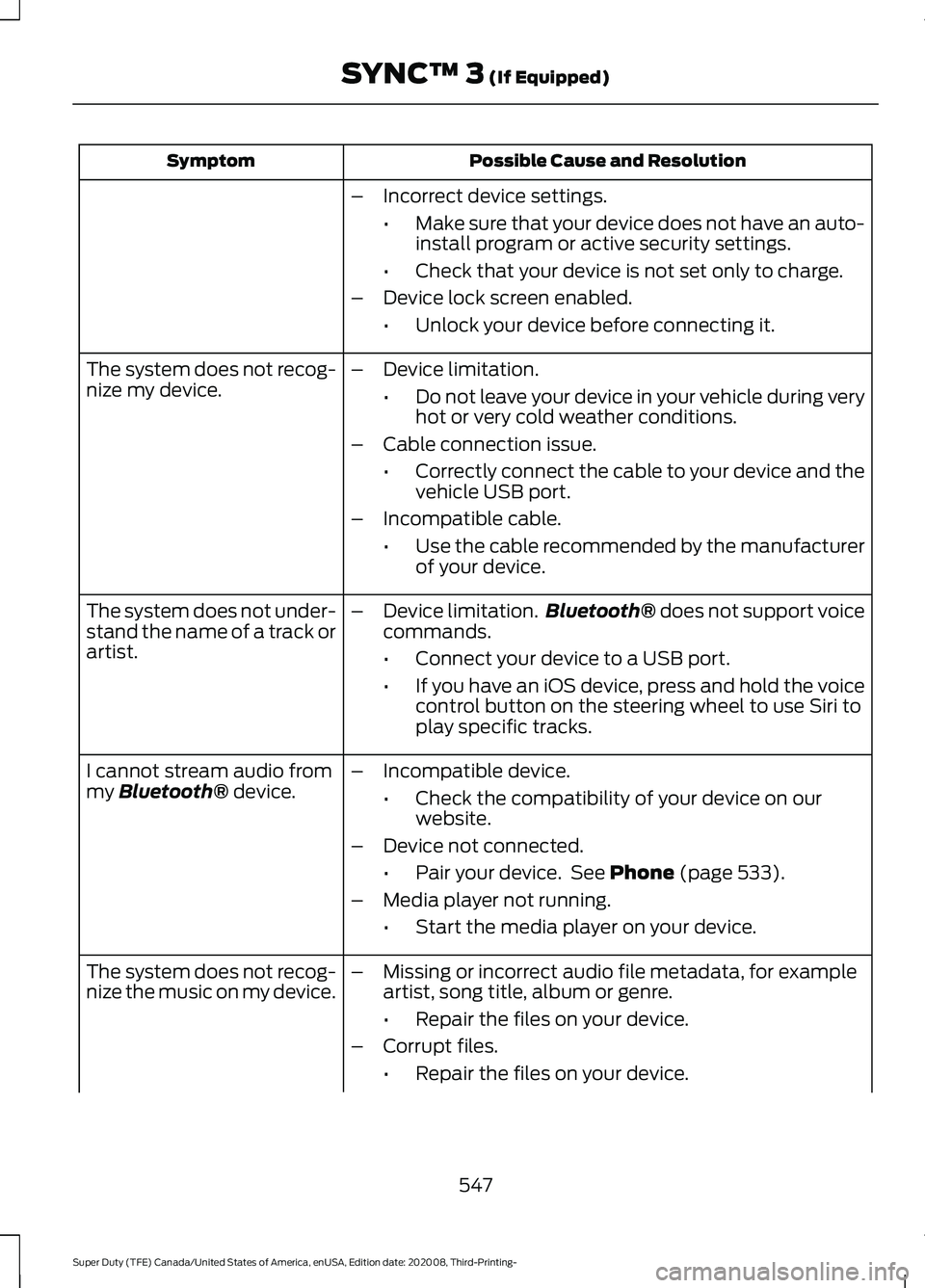
The system does not recog-
nize my device. –
Device limitation.
•Do not leave your device in your vehicle during very
hot or very cold weather conditions.
– Cable connection issue.
•Correctly connect the cable to your device and the
vehicle USB port.
– Incompatible cable.
•Use the cable recommended by the manufacturer
of your device.
The system does not under-
stand the name of a track or
artist. –
Device limitation. Bluetooth® does not support voice
commands.
• Connect your device to a USB port.
• If you have an iOS device, press and hold the voice
control button on the steering wheel to use Siri to
play specific tracks.
I cannot stream audio from
my
Bluetooth® device. –
Incompatible device.
•Check the compatibility of your device on our
website.
– Device not connected.
•Pair your device. See
Phone (page 533).
– Media player not running.
•Start the media player on your device.
The system does not recog-
nize the music on my device. –
Missing or incorrect audio file metadata, for example
artist, song title, album or genre.
•Repair the files on your device.
– Corrupt files.
•Repair the files on your device.
547
Super Duty (TFE) Canada/United States of America, enUSA, Edition date: 202008, Third-Printing- SYNC™ 3
(If Equipped)
Page 552 of 666
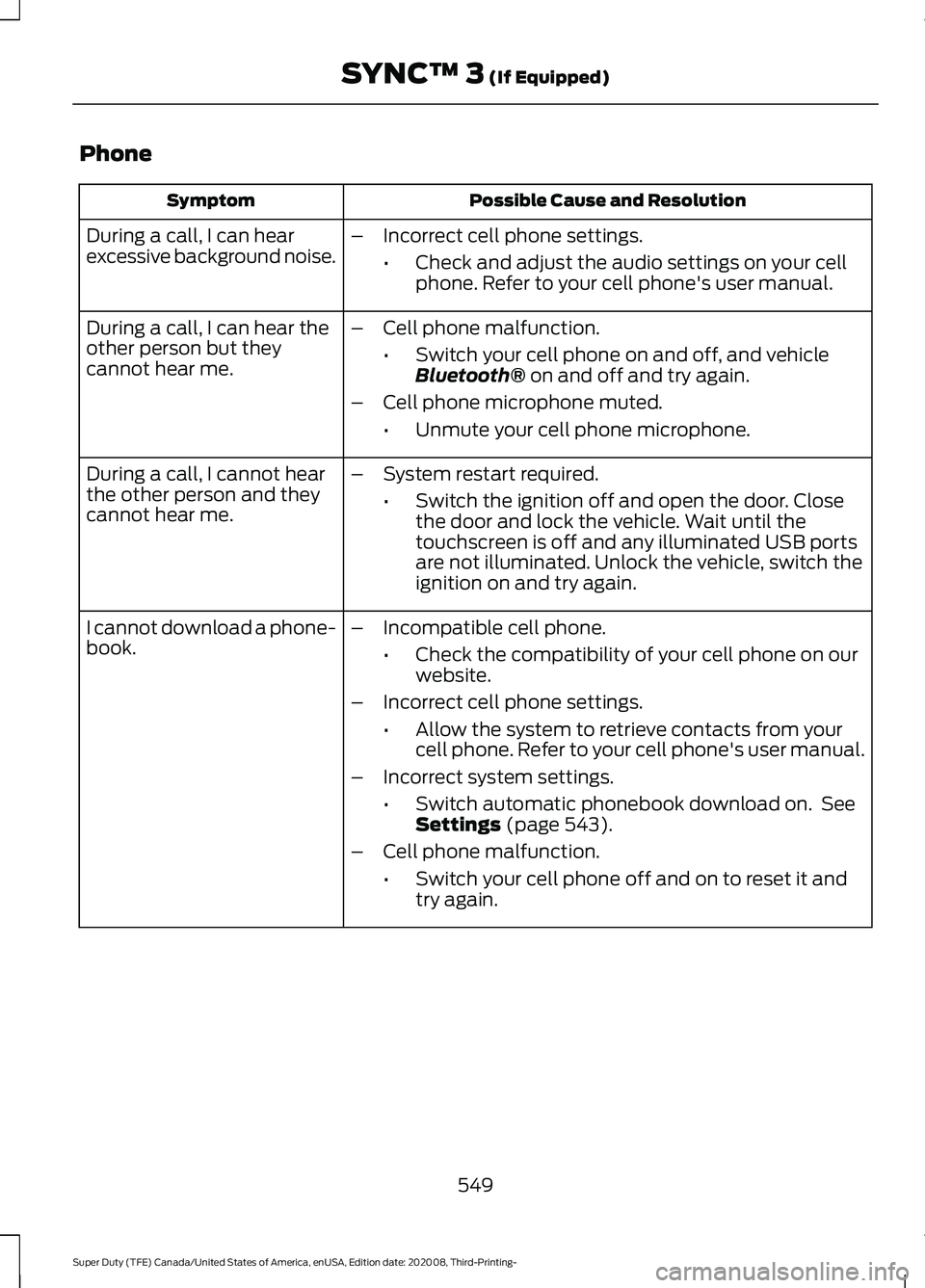
Phone
Possible Cause and Resolution
Symptom
During a call, I can hear
excessive background noise. –
Incorrect cell phone settings.
•Check and adjust the audio settings on your cell
phone. Refer to your cell phone's user manual.
– Cell phone malfunction.
•Switch your cell phone on and off, and vehicle
Bluetooth® on and off and try again.
– Cell phone microphone muted.
•Unmute your cell phone microphone.
During a call, I can hear the
other person but they
cannot hear me.
During a call, I cannot hear
the other person and they
cannot hear me.
–
System restart required.
•Switch the ignition off and open the door. Close
the door and lock the vehicle. Wait until the
touchscreen is off and any illuminated USB ports
are not illuminated. Unlock the vehicle, switch the
ignition on and try again.
I cannot download a phone-
book. –
Incompatible cell phone.
•Check the compatibility of your cell phone on our
website.
– Incorrect cell phone settings.
•Allow the system to retrieve contacts from your
cell phone. Refer to your cell phone's user manual.
– Incorrect system settings.
•Switch automatic phonebook download on. See
Settings
(page 543).
– Cell phone malfunction.
•Switch your cell phone off and on to reset it and
try again.
549
Super Duty (TFE) Canada/United States of America, enUSA, Edition date: 202008, Third-Printing- SYNC™ 3
(If Equipped)
Page 553 of 666
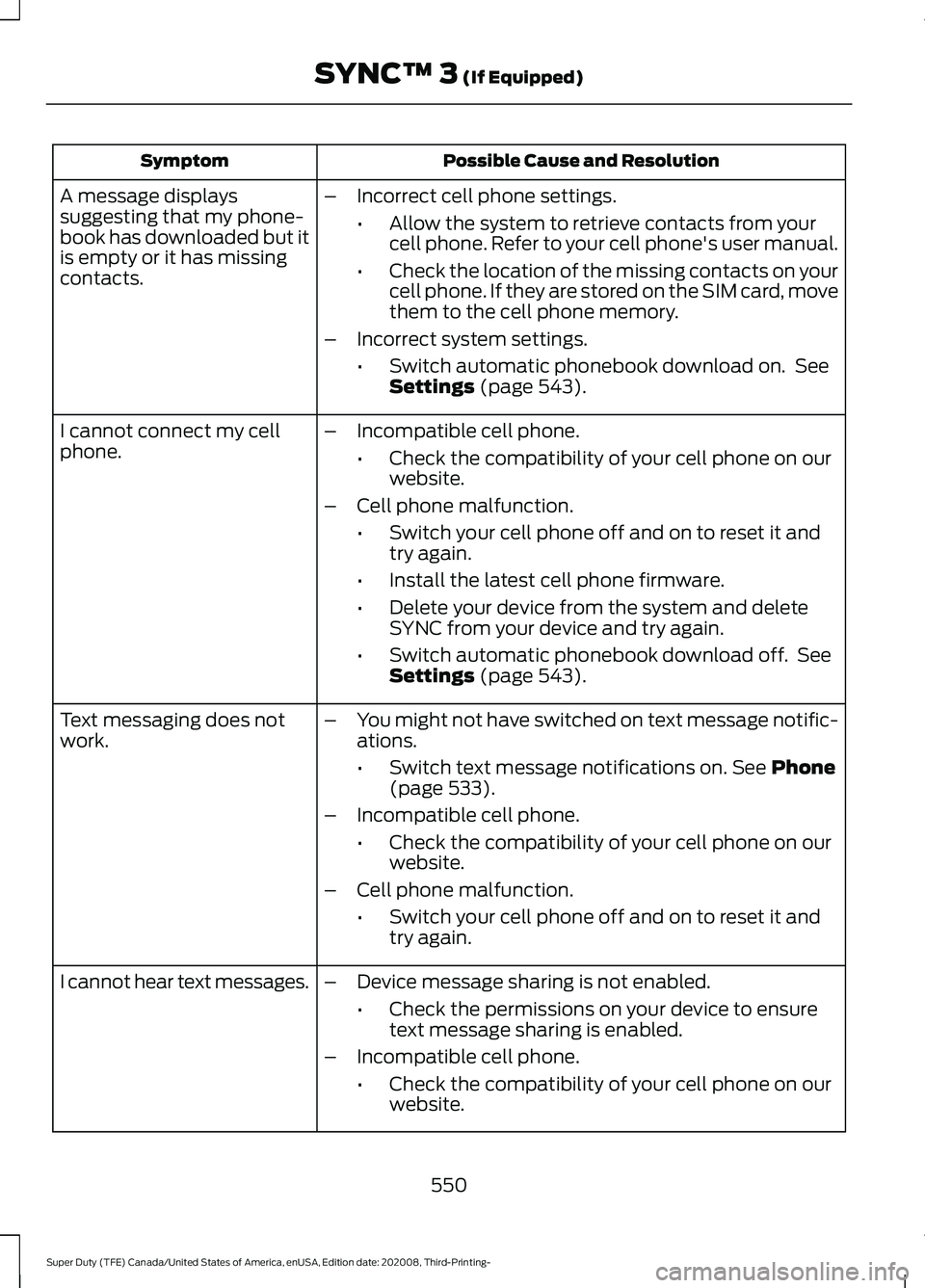
Possible Cause and Resolution
Symptom
–Incorrect cell phone settings.
•Allow the system to retrieve contacts from your
cell phone. Refer to your cell phone's user manual.
• Check the location of the missing contacts on your
cell phone. If they are stored on the SIM card, move
them to the cell phone memory.
– Incorrect system settings.
•Switch automatic phonebook download on. See
Settings (page 543).
A message displays
suggesting that my phone-
book has downloaded but it
is empty or it has missing
contacts.
–Incompatible cell phone.
•Check the compatibility of your cell phone on our
website.
– Cell phone malfunction.
•Switch your cell phone off and on to reset it and
try again.
• Install the latest cell phone firmware.
• Delete your device from the system and delete
SYNC from your device and try again.
• Switch automatic phonebook download off. See
Settings
(page 543).
I cannot connect my cell
phone.
Text messaging does not
work.
–
You might not have switched on text message notific-
ations.
•Switch text message notifications on.
See Phone
(page 533).
– Incompatible cell phone.
•Check the compatibility of your cell phone on our
website.
– Cell phone malfunction.
•Switch your cell phone off and on to reset it and
try again.
– Device message sharing is not enabled.
•Check the permissions on your device to ensure
text message sharing is enabled.
– Incompatible cell phone.
•Check the compatibility of your cell phone on our
website.
I cannot hear text messages.
550
Super Duty (TFE) Canada/United States of America, enUSA, Edition date: 202008, Third-Printing- SYNC™ 3
(If Equipped)
Page 558 of 666
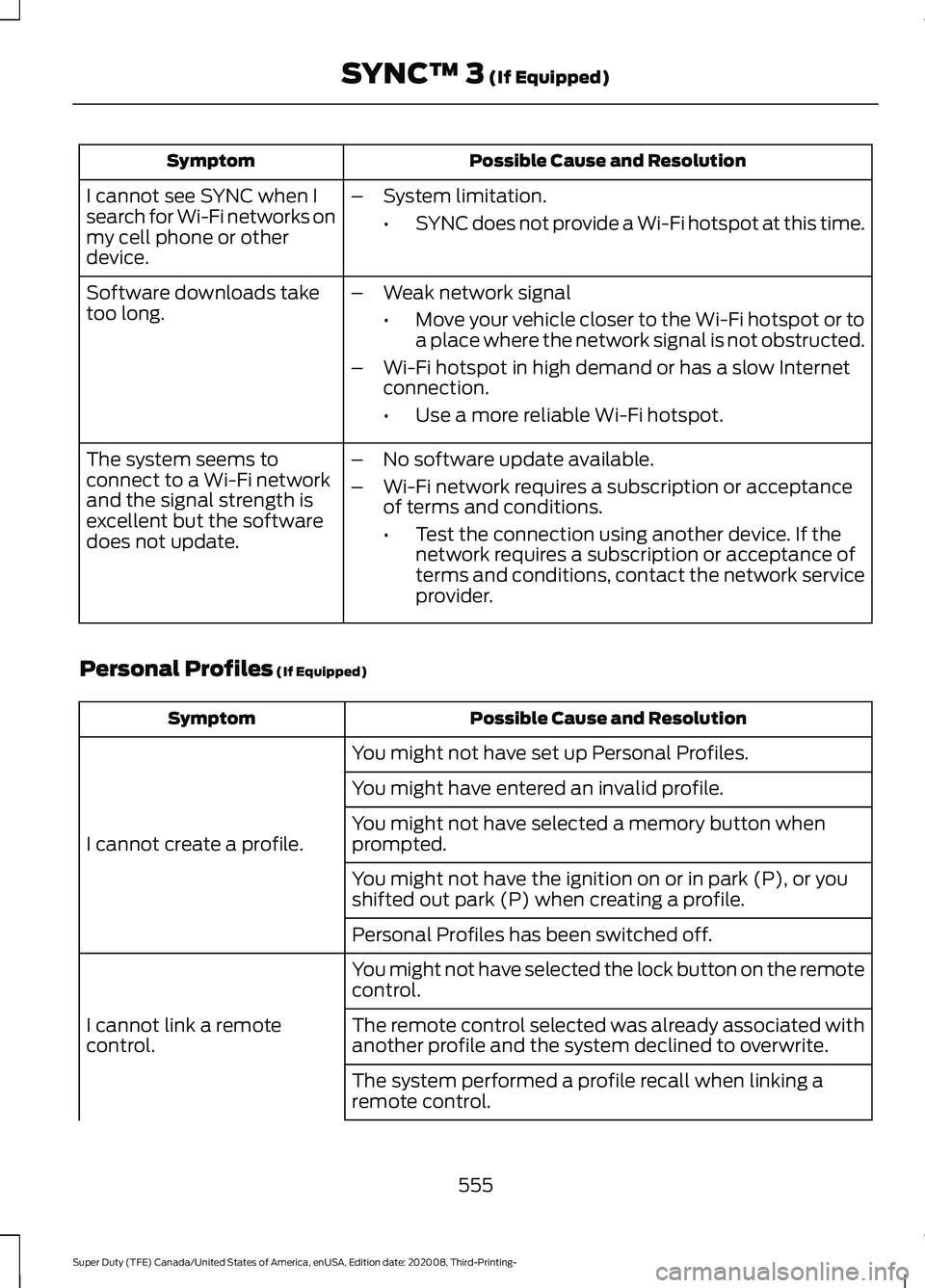
Possible Cause and Resolution
Symptom
I cannot see SYNC when I
search for Wi-Fi networks on
my cell phone or other
device. –
System limitation.
•SYNC does not provide a Wi-Fi hotspot at this time.
– Weak network signal
•Move your vehicle closer to the Wi-Fi hotspot or to
a place where the network signal is not obstructed.
– Wi-Fi hotspot in high demand or has a slow Internet
connection.
•Use a more reliable Wi-Fi hotspot.
Software downloads take
too long.
–No software update available.
– Wi-Fi network requires a subscription or acceptance
of terms and conditions.
•Test the connection using another device. If the
network requires a subscription or acceptance of
terms and conditions, contact the network service
provider.
The system seems to
connect to a Wi-Fi network
and the signal strength is
excellent but the software
does not update.
Personal Profiles (If Equipped) Possible Cause and Resolution
Symptom
You might not have set up Personal Profiles.
I cannot create a profile. You might have entered an invalid profile.
You might not have selected a memory button when
prompted.
You might not have the ignition on or in park (P), or you
shifted out park (P) when creating a profile.
Personal Profiles has been switched off.
You might not have selected the lock button on the remote
control.
I cannot link a remote
control. The remote control selected was already associated with
another profile and the system declined to overwrite.
The system performed a profile recall when linking a
remote control.
555
Super Duty (TFE) Canada/United States of America, enUSA, Edition date: 202008, Third-Printing- SYNC™ 3
(If Equipped)
Page 561 of 666
For a complete listing of the accessories
that are available for your vehicle, please
contact your authorized dealer or visit the
online store web site:
Web Address (United States)
www.Accessories.Ford.com Web Address (Canada)
www.Accessories.Ford.ca
We will repair or replace any properly
authorized dealer-installed Ford Original
Accessory found to be defective in
factory-supplied materials or workmanship
during the warranty period, as well as any
component damaged by the defective
accessories.
We will warrant your Ford Original
Accessory through the warranty that
provides the greatest benefit:
• 24 months, unlimited mileage.
• The remainder of your new vehicle
limited warranty.
Contact an authorized dealer for details
and a copy of the warranty.
Ford Licensed Accessories are the
accessory manufacturer's designs. The
manufacturer develops and therefore
warrants Ford Licensed Accessories, and
does not design or test these accessories
to Ford Motor Company engineering
requirements. Contact an authorized Ford
dealer for the manufacturer ’s limited
warranty details, and request a copy of the
Ford Licensed Accessories product limited
warranty from the accessory manufacturer. For maximum vehicle performance, keep
the following information in mind when
adding accessories or equipment to your
vehicle:
•
When adding accessories, equipment,
passengers and luggage to your
vehicle, do not exceed the total weight
capacity of the vehicle or of the front
or rear axle (GVWR or GAWR as
indicated on the Safety Compliance
Certification label). Ask an authorized
dealer for specific weight information.
• The Federal Communications
Commission (FCC) and Canadian
Radio Telecommunications
Commission (CRTC) regulate the use
of mobile communications systems
that are equipped with radio
transmitters, for example two-way
radios, telephones and theft alarms.
Any such equipment installed in your
vehicle should comply with Federal
Communications Commission (FCC)
and Canadian Radio
Telecommunications Commission
(CRTC) regulations and should be
installed only by an authorized dealer.
• An authorized dealer needs to install
mobile communications systems.
Improper installation may harm the
operation of your vehicle, particularly
if the manufacturer did not design the
mobile communication system
specifically for automotive use.
• If you or an authorized Ford dealer add
any non-Ford electrical or electronic
accessories or components to your
vehicle, you may adversely affect
battery performance and durability. In
addition, you may also adversely affect
the performance of other electrical
systems in the vehicle.
558
Super Duty (TFE) Canada/United States of America, enUSA, Edition date: 202008, Third-Printing- Accessories
Page 562 of 666
AUXILIARY SWITCHES (IF
EQUIPPED)
For maximum vehicle performance, keep
the following information in mind when
adding accessories or equipment to your
vehicle:
• When adding accessories, equipment,
passengers and luggage to your
vehicle, do not exceed the total weight
capacity of the vehicle or of the front
or rear axle (GVWR or GAWR as
indicated on the Safety Compliance
Certification label). Ask an authorized
dealer for specific weight information.
• The Federal Communications
Commission (FCC) and Canadian
Radio Telecommunications
Commission (CRTC) regulate the use
of mobile communications systems
equipped with radio transmitters, for
example, two-way radios, telephones
and theft alarms. Any such equipment
installed in your vehicle should comply
with Federal Communications
Commission (FCC) and Canadian
Radio Telecommunications
Commission (CRTC) regulations, and
should be installed by an authorized
dealer.
• An authorized dealer needs to install
mobile communications systems.
Improper installation may harm the
operation of your vehicle, particularly
if the manufacturer did not design the
mobile communication system
specifically for automotive use.
• If you or an authorized Ford dealer add
any non-Ford electrical or electronic
accessories or components to your
vehicle, you may adversely affect
battery performance and durability. In
addition, you may also adversely affect
the performance of other electrical
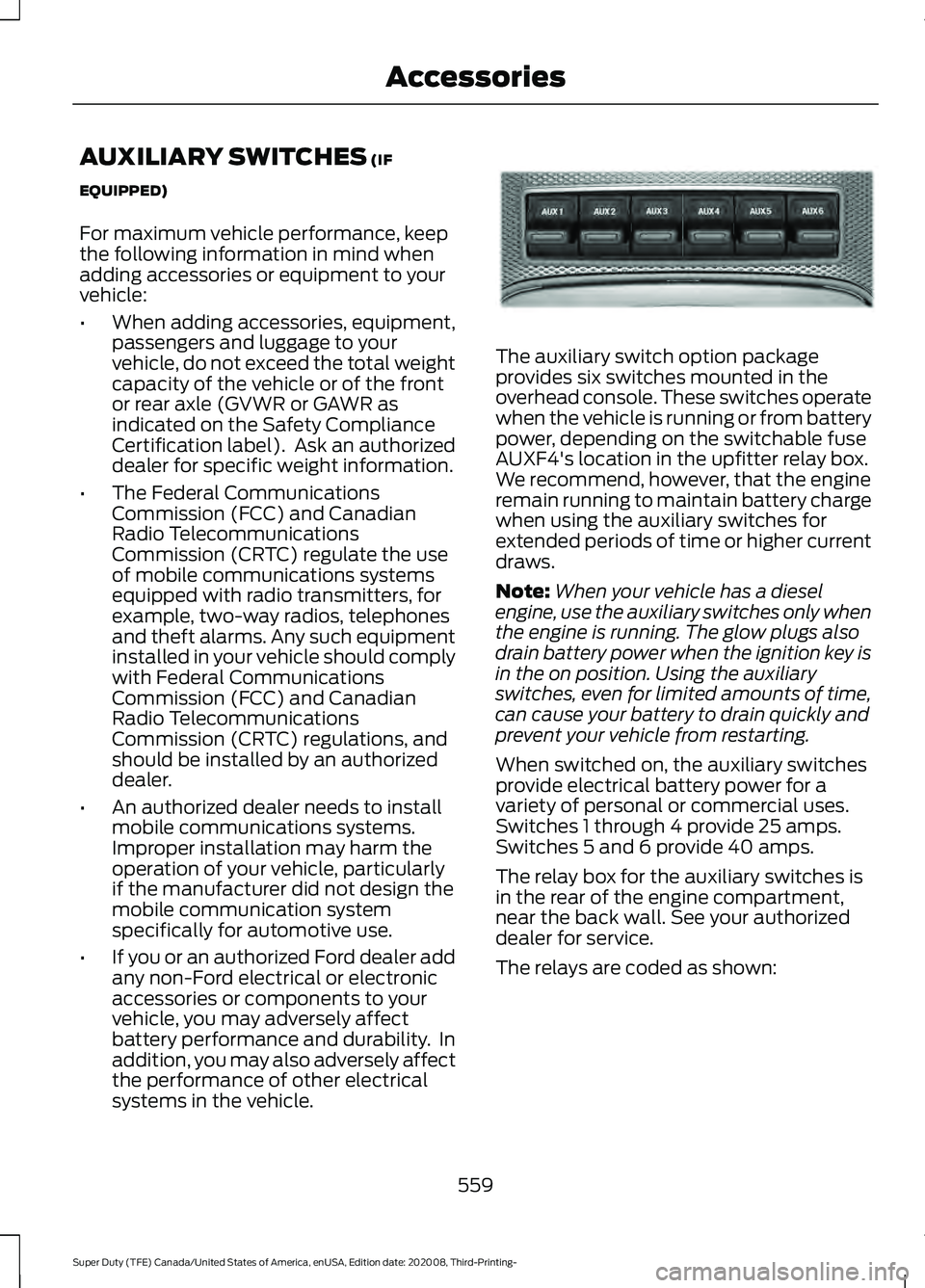
systems in the vehicle. The auxiliary switch option package
provides six switches mounted in the
overhead console. These switches operate
when the vehicle is running or from battery
power, depending on the switchable fuse
AUXF4's location in the upfitter relay box.
We recommend, however, that the engine
remain running to maintain battery charge
when using the auxiliary switches for
extended periods of time or higher current
draws.
Note:
When your vehicle has a diesel
engine, use the auxiliary switches only when
the engine is running. The glow plugs also
drain battery power when the ignition key is
in the on position. Using the auxiliary
switches, even for limited amounts of time,
can cause your battery to drain quickly and
prevent your vehicle from restarting.
When switched on, the auxiliary switches
provide electrical battery power for a
variety of personal or commercial uses.
Switches 1 through 4 provide 25 amps.
Switches 5 and 6 provide 40 amps.
The relay box for the auxiliary switches is
in the rear of the engine compartment,
near the back wall. See your authorized
dealer for service.
The relays are coded as shown:
559
Super Duty (TFE) Canada/United States of America, enUSA, Edition date: 202008, Third-Printing- AccessoriesE220728
Page 621 of 666
ELECTROMAGNETIC
COMPATIBILITY
WARNING: Do not place objects
or mount equipment on or near the
airbag cover, on the side of the front or
rear seatbacks, or in areas that may
come into contact with a deploying
airbag. Failure to follow these
instructions may increase the risk of
personal injury in the event of a crash. WARNING: Do not fasten antenna
cables to vehicle wiring, fuel pipes and
brake pipes. WARNING:
Keep antenna and
power cables at least 4 in (10 cm) from
any electronic modules and airbags. Note:
We test and certify your vehicle to
meet electromagnetic compatibility
legislation. It is your responsibility to make
sure that any equipment an authorized
dealer installs on your vehicle complies with
applicable local legislation and other
requirements. Installation of some
aftermarket electronic devices could
degrade the performance of vehicle
functions, which use radio frequency signals
such as broadcast radio receiver, tire
pressure monitoring system, push button
start, Bluetooth®
connectivity or satellite
navigation.
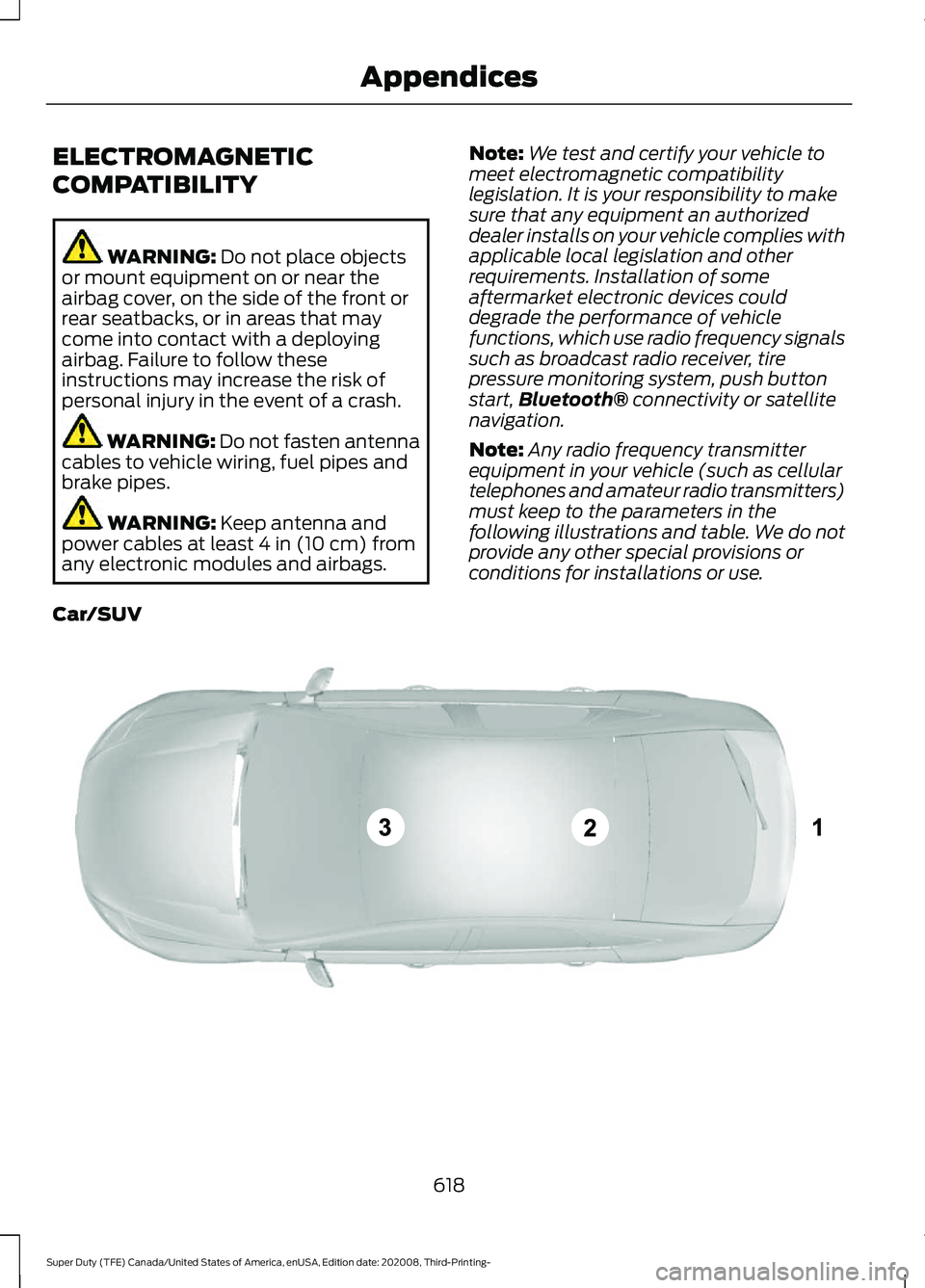
Note: Any radio frequency transmitter
equipment in your vehicle (such as cellular
telephones and amateur radio transmitters)
must keep to the parameters in the
following illustrations and table. We do not
provide any other special provisions or
conditions for installations or use.
Car/SUV 618
Super Duty (TFE) Canada/United States of America, enUSA, Edition date: 202008, Third-Printing- AppendicesE239120