reverse FORD F-550 2018 Owner's Manual
[x] Cancel search | Manufacturer: FORD, Model Year: 2018, Model line: F-550, Model: FORD F-550 2018Pages: 660, PDF Size: 11.64 MB
Page 244 of 660
The front video camera, located in the
grille, provides a video image of the area
in front of your vehicle. It adds assistance
to the driver while driving forward at low
speeds. To use the front video camera
system, place the transmission in any gear
except reverse (R). An image will display
once the camera enable button is pressed.
The area displayed on the screen may vary
according to your vehicle's orientation
and/or road condition.
Side Camera
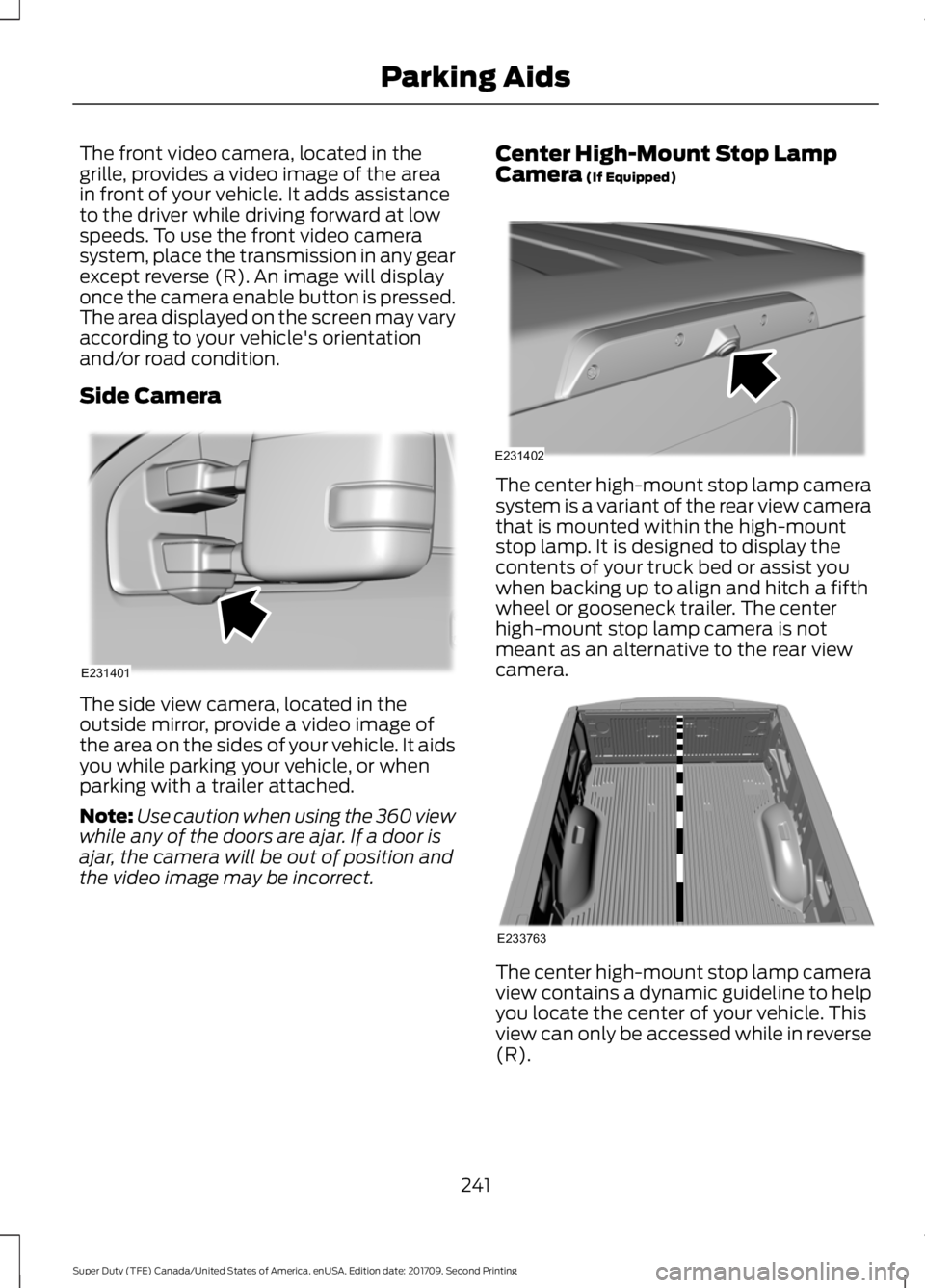
The side view camera, located in the
outside mirror, provide a video image of
the area on the sides of your vehicle. It aids
you while parking your vehicle, or when
parking with a trailer attached.
Note:
Use caution when using the 360 view
while any of the doors are ajar. If a door is
ajar, the camera will be out of position and
the video image may be incorrect. Center High-Mount Stop Lamp
Camera (If Equipped) The center high-mount stop lamp camera
system is a variant of the rear view camera
that is mounted within the high-mount
stop lamp. It is designed to display the
contents of your truck bed or assist you
when backing up to align and hitch a fifth
wheel or gooseneck trailer. The center
high-mount stop lamp camera is not
meant as an alternative to the rear view
camera.
The center high-mount stop lamp camera
view contains a dynamic guideline to help
you locate the center of your vehicle. This
view can only be accessed while in reverse
(R).
241
Super Duty (TFE) Canada/United States of America, enUSA, Edition date: 201709, Second Printing Parking AidsE231401 E231402 E233763
Page 245 of 660
Auxiliary Camera (If Equipped)
Note: The auxiliary camera works with
trailers up to
50 ft (15 m) in length. Access the auxiliary camera view
by pressing the button on the
display screen when in reverse
(R).
The auxiliary camera system is a variant
of the rear view camera. It is designed to
display a rear view image from the back of
a trailer while reversing. The auxiliary
camera is not meant as an alternative to
the rear view camera.
242
Super Duty (TFE) Canada/United States of America, enUSA, Edition date: 201709, Second Printing Parking AidsE233727
Page 256 of 660
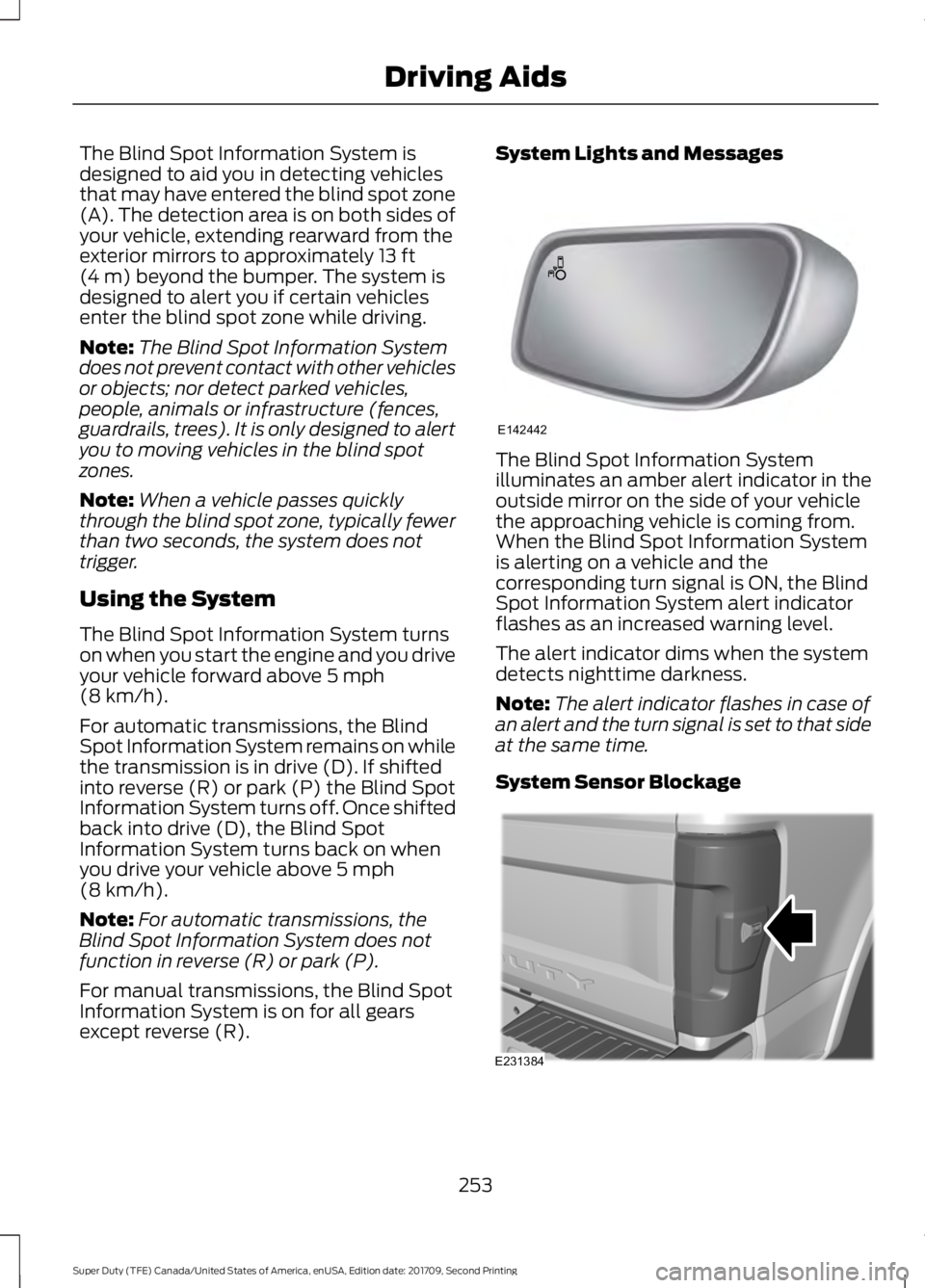
The Blind Spot Information System is
designed to aid you in detecting vehicles
that may have entered the blind spot zone
(A). The detection area is on both sides of
your vehicle, extending rearward from the
exterior mirrors to approximately 13 ft
(4 m) beyond the bumper. The system is
designed to alert you if certain vehicles
enter the blind spot zone while driving.
Note: The Blind Spot Information System
does not prevent contact with other vehicles
or objects; nor detect parked vehicles,
people, animals or infrastructure (fences,
guardrails, trees). It is only designed to alert
you to moving vehicles in the blind spot
zones.
Note: When a vehicle passes quickly
through the blind spot zone, typically fewer
than two seconds, the system does not
trigger.
Using the System
The Blind Spot Information System turns
on when you start the engine and you drive
your vehicle forward above
5 mph
(8 km/h).
For automatic transmissions, the Blind
Spot Information System remains on while
the transmission is in drive (D). If shifted
into reverse (R) or park (P) the Blind Spot
Information System turns off. Once shifted
back into drive (D), the Blind Spot
Information System turns back on when
you drive your vehicle above
5 mph
(8 km/h).
Note: For automatic transmissions, the
Blind Spot Information System does not
function in reverse (R) or park (P).
For manual transmissions, the Blind Spot
Information System is on for all gears
except reverse (R). System Lights and Messages
The Blind Spot Information System
illuminates an amber alert indicator in the
outside mirror on the side of your vehicle
the approaching vehicle is coming from.
When the Blind Spot Information System
is alerting on a vehicle and the
corresponding turn signal is ON, the Blind
Spot Information System alert indicator
flashes as an increased warning level.
The alert indicator dims when the system
detects nighttime darkness.
Note:
The alert indicator flashes in case of
an alert and the turn signal is set to that side
at the same time.
System Sensor Blockage 253
Super Duty (TFE) Canada/United States of America, enUSA, Edition date: 201709, Second Printing Driving AidsE142442 E231384
Page 260 of 660
CROSS TRAFFIC ALERT (If
Equipped) WARNING
Do not use the cross traffic alert
system as a replacement for using
the interior and exterior mirrors or
looking over your shoulder before reversing
out of a parking space. The cross traffic
alert system is not a replacement for
careful driving. Note:
When a trailer is detected, Cross
Traffic Alert automatically turns off.
Cross Traffic Alert is designed to warn you
of vehicles approaching from the sides
when the transmission is in reverse (R). Using the System
Cross Traffic Alert turns on when you start
the engine and you shift into reverse (R).
Once shifted out of reverse (R), Cross
Traffic Alert turns off.
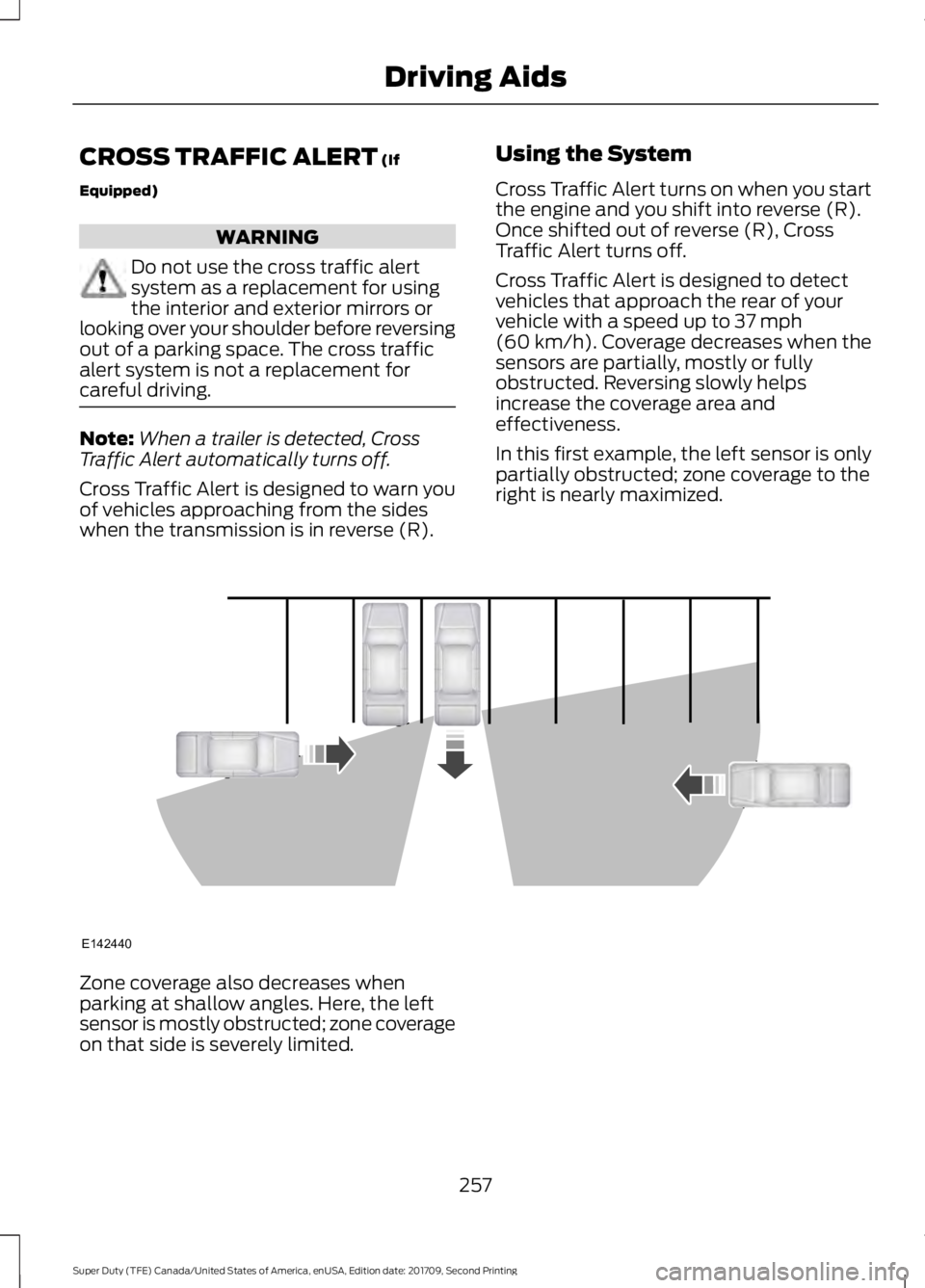
Cross Traffic Alert is designed to detect
vehicles that approach the rear of your
vehicle with a speed up to
37 mph
(60 km/h). Coverage decreases when the
sensors are partially, mostly or fully
obstructed. Reversing slowly helps
increase the coverage area and
effectiveness.
In this first example, the left sensor is only
partially obstructed; zone coverage to the
right is nearly maximized. Zone coverage also decreases when
parking at shallow angles. Here, the left
sensor is mostly obstructed; zone coverage
on that side is severely limited.
257
Super Duty (TFE) Canada/United States of America, enUSA, Edition date: 201709, Second Printing Driving AidsE142440
Page 261 of 660
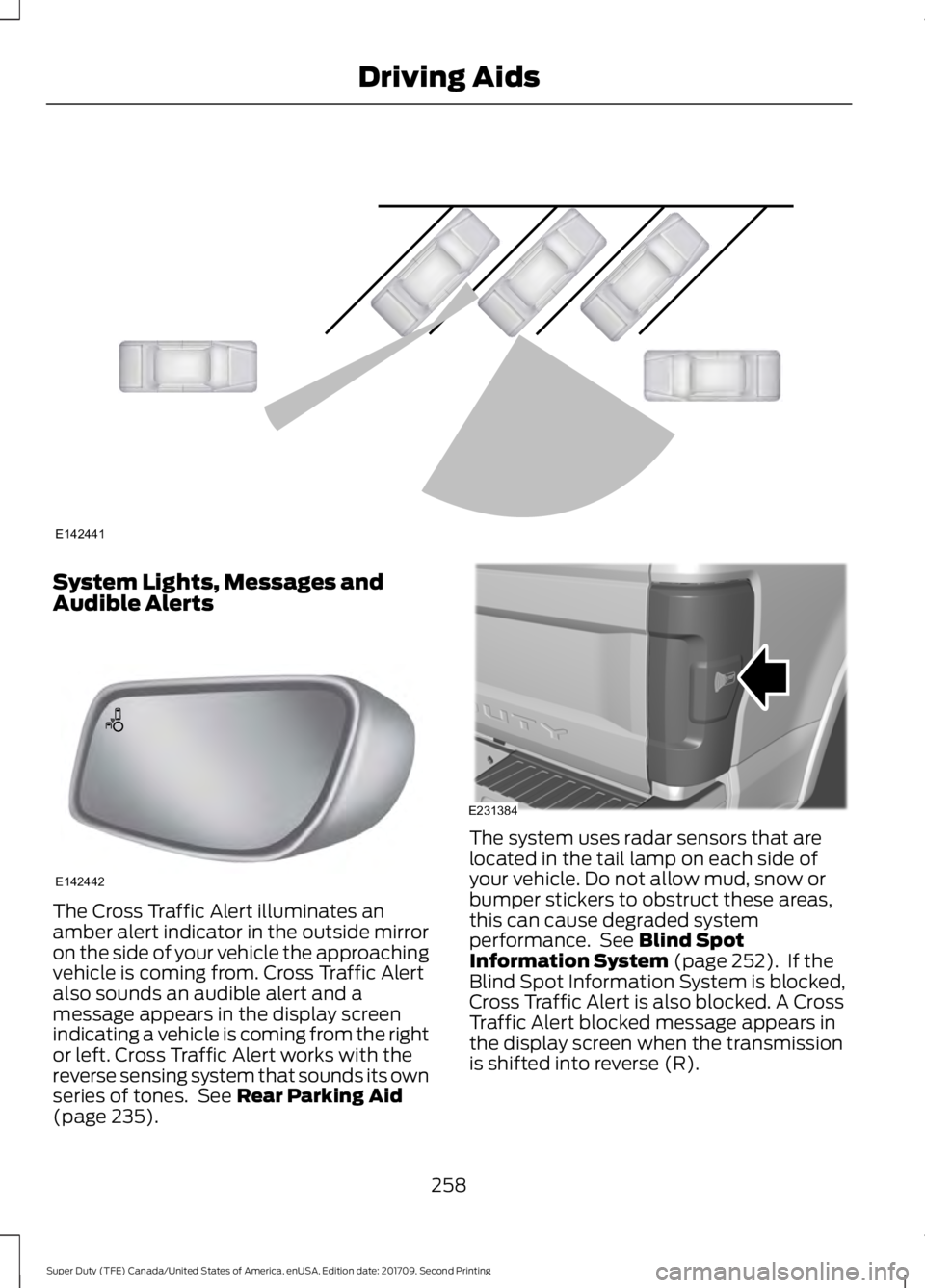
System Lights, Messages and
Audible Alerts
The Cross Traffic Alert illuminates an
amber alert indicator in the outside mirror
on the side of your vehicle the approaching
vehicle is coming from. Cross Traffic Alert
also sounds an audible alert and a
message appears in the display screen
indicating a vehicle is coming from the right
or left. Cross Traffic Alert works with the
reverse sensing system that sounds its own
series of tones. See Rear Parking Aid
(page 235). The system uses radar sensors that are
located in the tail lamp on each side of
your vehicle. Do not allow mud, snow or
bumper stickers to obstruct these areas,
this can cause degraded system
performance. See
Blind Spot
Information System (page 252). If the
Blind Spot Information System is blocked,
Cross Traffic Alert is also blocked. A Cross
Traffic Alert blocked message appears in
the display screen when the transmission
is shifted into reverse (R).
258
Super Duty (TFE) Canada/United States of America, enUSA, Edition date: 201709, Second Printing Driving AidsE142441 E142442 E231384
Page 262 of 660
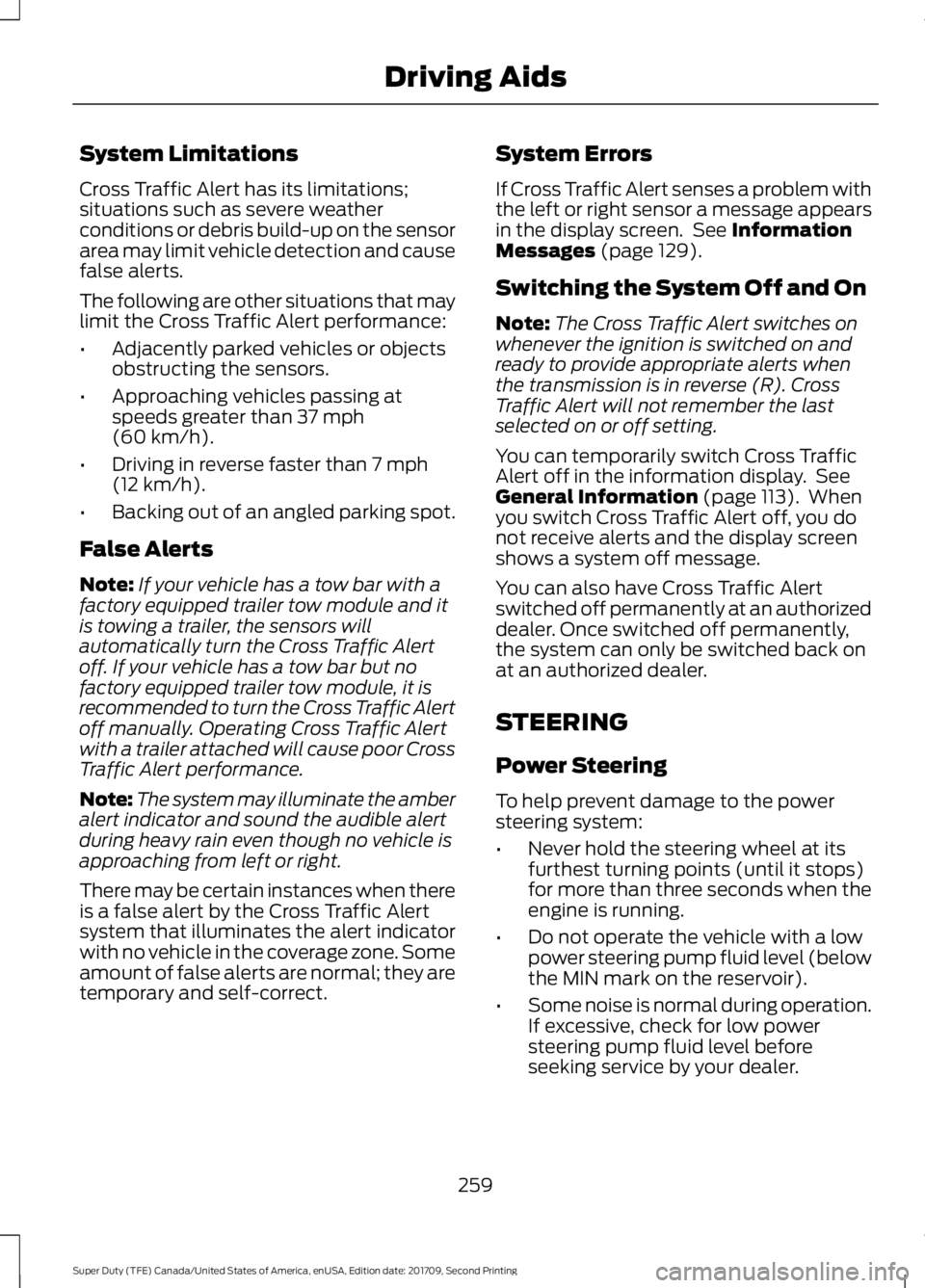
System Limitations
Cross Traffic Alert has its limitations;
situations such as severe weather
conditions or debris build-up on the sensor
area may limit vehicle detection and cause
false alerts.
The following are other situations that may
limit the Cross Traffic Alert performance:
•
Adjacently parked vehicles or objects
obstructing the sensors.
• Approaching vehicles passing at
speeds greater than 37 mph
(60 km/h).
• Driving in reverse faster than
7 mph
(12 km/h).
• Backing out of an angled parking spot.
False Alerts
Note: If your vehicle has a tow bar with a
factory equipped trailer tow module and it
is towing a trailer, the sensors will
automatically turn the Cross Traffic Alert
off. If your vehicle has a tow bar but no
factory equipped trailer tow module, it is
recommended to turn the Cross Traffic Alert
off manually. Operating Cross Traffic Alert
with a trailer attached will cause poor Cross
Traffic Alert performance.
Note: The system may illuminate the amber
alert indicator and sound the audible alert
during heavy rain even though no vehicle is
approaching from left or right.
There may be certain instances when there
is a false alert by the Cross Traffic Alert
system that illuminates the alert indicator
with no vehicle in the coverage zone. Some
amount of false alerts are normal; they are
temporary and self-correct. System Errors
If Cross Traffic Alert senses a problem with
the left or right sensor a message appears
in the display screen. See
Information
Messages (page 129).
Switching the System Off and On
Note: The Cross Traffic Alert switches on
whenever the ignition is switched on and
ready to provide appropriate alerts when
the transmission is in reverse (R). Cross
Traffic Alert will not remember the last
selected on or off setting.
You can temporarily switch Cross Traffic
Alert off in the information display. See
General Information
(page 113). When
you switch Cross Traffic Alert off, you do
not receive alerts and the display screen
shows a system off message.
You can also have Cross Traffic Alert
switched off permanently at an authorized
dealer. Once switched off permanently,
the system can only be switched back on
at an authorized dealer.
STEERING
Power Steering
To help prevent damage to the power
steering system:
• Never hold the steering wheel at its
furthest turning points (until it stops)
for more than three seconds when the
engine is running.
• Do not operate the vehicle with a low
power steering pump fluid level (below
the MIN mark on the reservoir).
• Some noise is normal during operation.
If excessive, check for low power
steering pump fluid level before
seeking service by your dealer.
259
Super Duty (TFE) Canada/United States of America, enUSA, Edition date: 201709, Second Printing Driving Aids
Page 277 of 660
TRAILER REVERSING AIDS
Trailer Reverse Guidance
WARNING
Driving while distracted can result in
loss of vehicle control, crash and
injury. We strongly recommend that
you use extreme caution when using any
device that may take your focus off the
road. Your primary responsibility is the safe
operation of your vehicle. We recommend
against the use of any hand-held device
while driving and encourage the use of
voice-operated systems when possible.
Make sure you are aware of all applicable
local laws that may affect the use of
electronic devices while driving. Note:
You must always be aware of the
vehicle and trailer combination and the
surrounding environment.
Note: The system does not detect or
prevent the vehicle or trailer from making
contact with obstacles in the surrounding
environment.
Note: Keep in mind that the front end of
the vehicle swings out when changing the
direction of the trailer.
Note: The system relies on user
measurements to determine sticker
placement and system limits. It is critical to
take the key measurements correctly.
Incorrect measurements can result in the
improper function of the system up to and
including contact between the vehicle and
trailer.
Note: The system limits vehicle speed when
backing up. The system is not a replacement
for proper use of the throttle and brake
pedals.
Note: Some features associated with this
system do not work until you set it up. Principle of Operation
Trailer reverse guidance is a driver
assistance feature that helps take the
guesswork out of getting your trailer
positioned where you want it, quickly and
easily, when driving in reverse (R).
Each trailer you use with your vehicle has
to be setup once. Sticker placement is
extremely important and there are specific
placement rules.
Setting Up Trailer Reverse
Guidance
Note:
Your vehicle saves the trailer
information when you enter it into the
system. A maximum of 10 trailers can be
added to the system.
Step 1: Position your Vehicle and Trailer
Hitch your trailer to the truck and connect
the electrical wiring harness. Check to
make sure that the wiring is working. See
Essential Towing Checks (page 286).
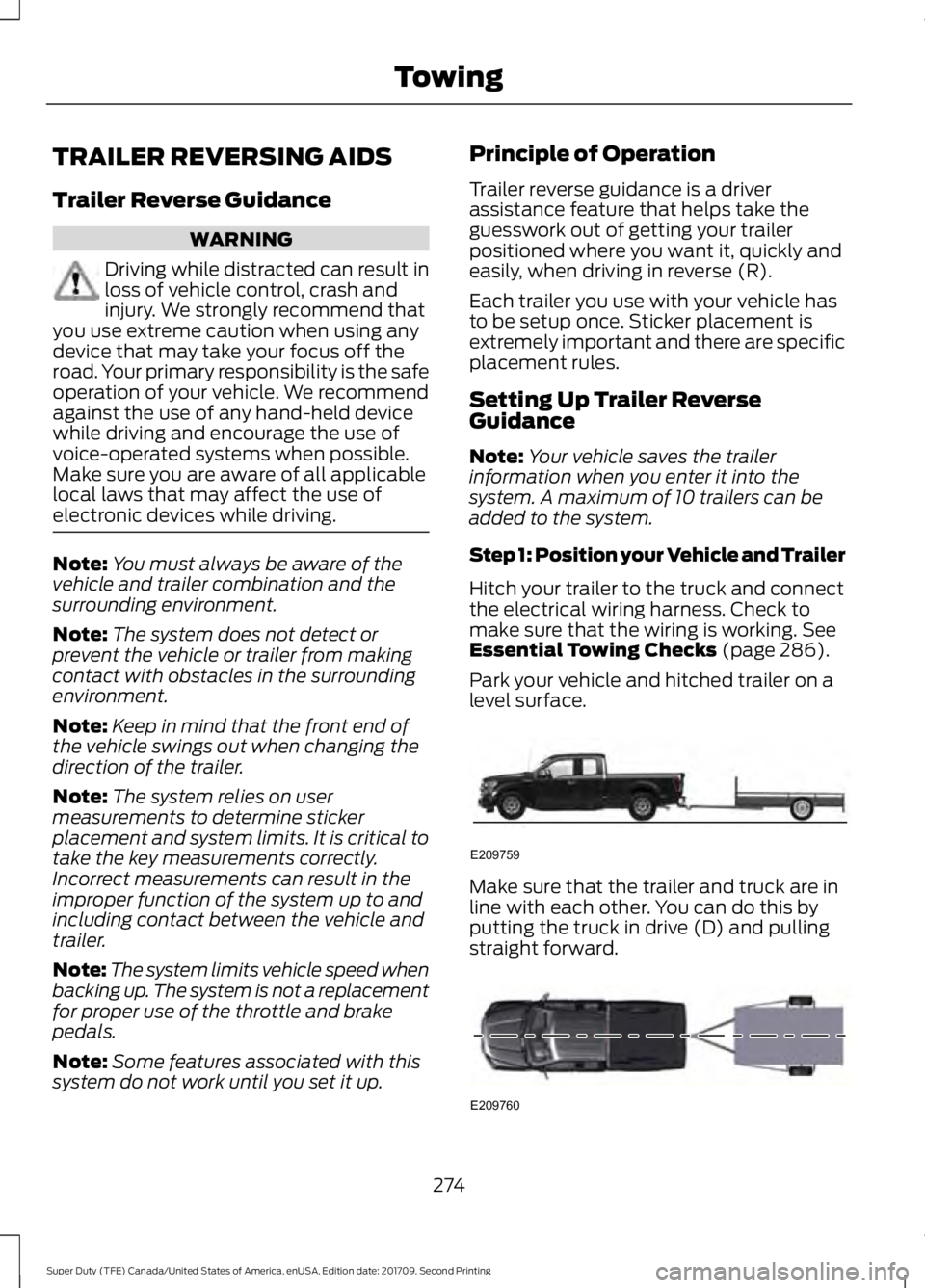
Park your vehicle and hitched trailer on a
level surface. Make sure that the trailer and truck are in
line with each other. You can do this by
putting the truck in drive (D) and pulling
straight forward.
274
Super Duty (TFE) Canada/United States of America, enUSA, Edition date: 201709, Second Printing TowingE209759 E209760
Page 278 of 660
Step 2: Follow the Information Display
Prompts
1. Use the steering wheel controls to
navigate to the towing menu.
2. Select Trailer Setup from the available
options.
3. Select Add a Trailer and press OK to confirm.
4. The system asks you to name the trailer. Use the steering wheel controls
to choose from the alphanumeric
characters. Press the right arrow to
advance to the next character. When
you finish naming the trailer, press OK
to confirm.
5. Select the type of brake system for your trailer. Select DEFAULT if your
trailer has electric, surge or no brakes.
Press OK to select and advance to the
next screen
Note: The default option is low. This is
recommended for most trailers. If the
trailer's brakes require more initial voltage,
or if you prefer more aggressive braking, then
select the other options as required.
6. The system asks you to select your trailer type. You can use the system
with conventional, fifth wheel and
goose neck trailers. For fifth wheel and
goose neck trailers, set up and sticker
placement are not required, however
some of the features do not operate
automatically with these trailer types.
Use the steering wheel controls to
select your trailer type.
Note: You can still manually control the
camera views on the touchscreen to help
you reverse goose neck and fifth wheel
trailers.
7. If your vehicle includes a blind spot information system, the system
prompts you to setup the trailer blind
spot feature. See Blind Spot
Information System (page 252). 8. A message appears in the information
display asking if you want to add trailer
reverse guidance. Select Yes to
continue.
9. Straighten out the trailer, if necessary.
10. The information display directs you to the quick start guide for how to
proceed. The steps are also shown
here.
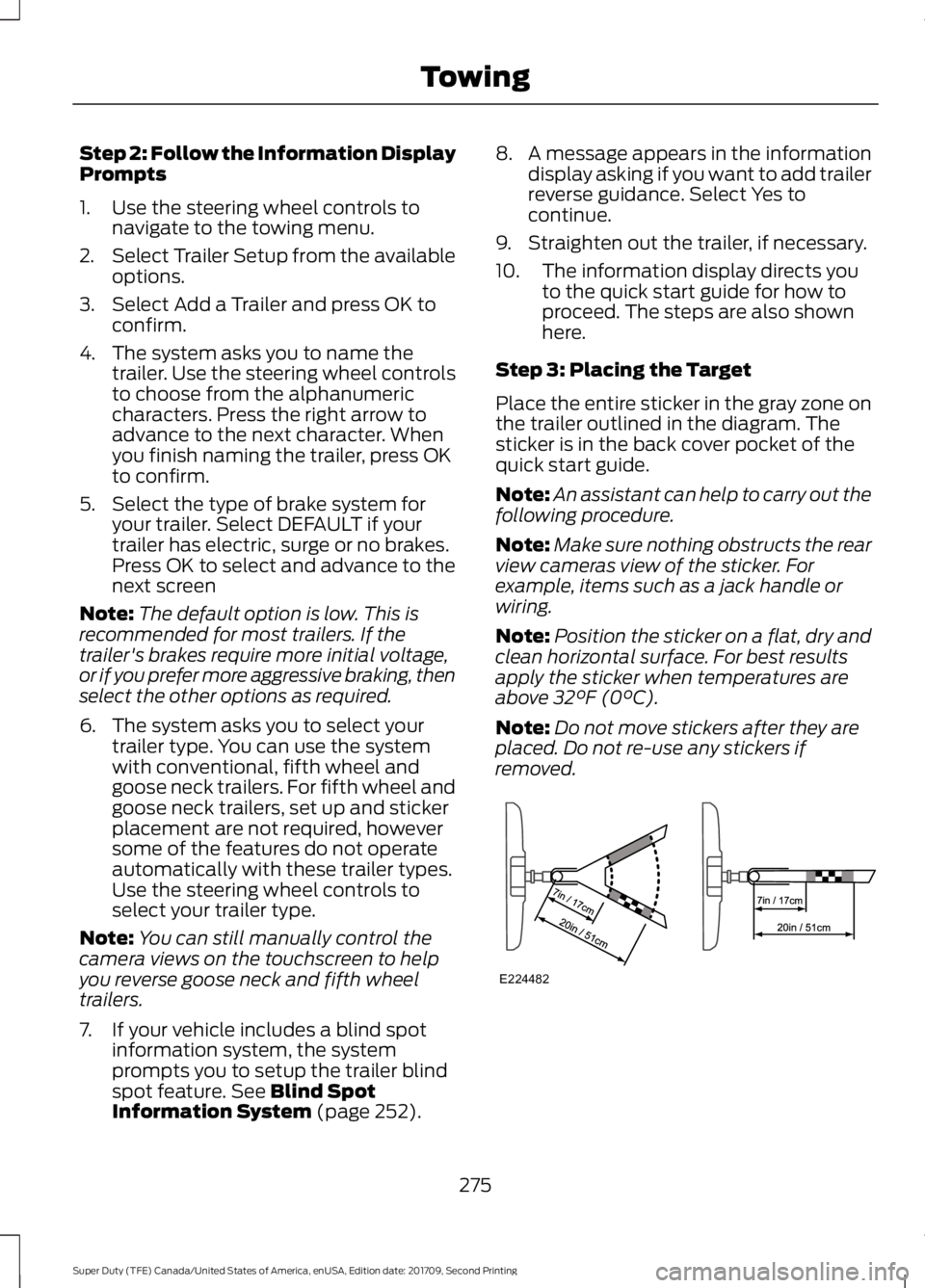
Step 3: Placing the Target
Place the entire sticker in the gray zone on
the trailer outlined in the diagram. The
sticker is in the back cover pocket of the
quick start guide.
Note: An assistant can help to carry out the
following procedure.
Note: Make sure nothing obstructs the rear
view cameras view of the sticker. For
example, items such as a jack handle or
wiring.
Note: Position the sticker on a flat, dry and
clean horizontal surface. For best results
apply the sticker when temperatures are
above
32°F (0°C).
Note: Do not move stickers after they are
placed. Do not re-use any stickers if
removed. 275
Super Duty (TFE) Canada/United States of America, enUSA, Edition date: 201709, Second Printing TowingE224482
Page 280 of 660
Step 5: Enter Measurements Using the
Information Display
Using the measurements you recorded,
enter the required data into the system.
Follow the on screen prompts to enter
each of the measurements taken in step
4. Use the up and down arrows to increase
or decrease the numbers as necessary.
Press OK to confirm each measurement.
Once you add the last measurement, the
information display shows all of the
entered measurements. You can choose
to confirm or change the measurements.
Step 6: Confirming the Sticker Location
Check the rear view camera display to see
if the system identifies the sticker. The
system marks the sticker with a red circle.
Confirm that the red circle shows over the
sticker image in the rear view camera
display.
Note:
If the system cannot locate the
sticker, try cleaning the camera lens. Make
sure the sticker is within the zone as
indicated in step 3.
The information display shows a
confirmation message when you
successfully confirm the target.
Calibrating the System
To complete setup, drive your vehicle
straight forward between 4– 24 mph
(6– 39 km/h), as directed by the
information display.
Note: Keep the steering wheel straight
during the calibration process. If the steering
wheel is in a turned position, the calibration
pauses. The information display prompts
you to drive straight forward to complete
the calibration.
The information display shows a message
during calibration and after calibration is
complete Note:
For best results, do not calibrate the
system at night.
Using Trailer Reverse Guidance
1. Shift into reverse (R). Press the rear camera button to expand the menu.
2. Press the trailer icon.
3. Select the applicable trailer in the information display.
4. When in trailer reverse guidance mode,
you can see the camera view on the
side your trailer is moving, or both sides
when the trailer is straight behind you.
When the views change with the trailer
direction, it is called auto mode. For
example, if you turn the trailer to the
right, you see the right side of your
vehicle and trailer. You can switch this
view manually at any time by using the
arrow keys. To return to auto mode,
press the auto button.
Note: Auto mode is the default setting.
Use the view that helps you the most when
reversing your vehicle and trailer. Normal rear view camera view.
Use this feature when you want
to see your trailer hitch or what
is directly behind your vehicle. Straight back-up mode. Use this
feature when you want to keep
your trailer completely in line
with your truck. In this mode, a steering
wheel graphic shows you which way to turn
your steering wheel to keep your trailer
straight.
Note: It may be helpful to shift your vehicle
into drive (D), pull forward and straighten
out the vehicle and trailer before engaging
straight back-up mode.
Left and right arrows let you see other
views regardless of your trailer angle. Use
them to switch views manually.
277
Super Duty (TFE) Canada/United States of America, enUSA, Edition date: 201709, Second Printing TowingE263194 E224484
Page 281 of 660
Note:
If you're using a fifth wheel or goose
neck trailer, or if you have not set up the
trailer reverse guidance system, auto view
is not available.
To change your view, use the arrows. You
can see the following views:
• Full driver.
• Partial driver.
• 50/50.
• Partial passenger.
• Full passenger. Zoom. Use this feature to zoom
in the camera view.
Return. Ths feature takes you
back to the 360-degree camera
system and out of the trailer
reverse guidance feature. Auto. Ths feature returns you to
auto view.
In addition to multiple view options, your
touchscreen adds some features to give
you more information. For example, after
setting up a conventional trailer, the
display shows a small top-view
representation of your truck and trailer.
This representation shows two,
different-colored lines: A black line shows
you where your trailer is in relation to your
vehicle. A white line gives you a projection
of where your trailer may go based on your
current steering wheel position
Note: When you move the steering wheel,
the white line indicates where the trailer
may go based on your steering wheel input.
When you turn your steering wheel to the
left, the trailer moves to the right. When you
turn your steering wheel to the right, the
trailer moves to the left. When you turn the steering wheel, a small
representation shows you two zones to
warn you of a possible jackknife condition.
The view shows your truck and trailer
position and provides visual feedback to
help avoid a jackknife condition entirely.
The yellow zone warns you of a potential
jackknife position. When you enter into this
zone, it is recommended to put your vehicle
back into drive (D) and pull forward.
Moving forward helps put the truck and
trailer back into an in-line position.
The red zone indicates that you need to
put the truck into drive (D) and pull
forward immediately.
Troubleshooting
Note:
The system requires a clear view of
the sticker placed on the trailer. You must
keep the camera lens and sticker clean for
the system to operate correctly.
Setup
The system is designed to be used with a
wide variety of trailers. However, there are
some trailers that do not have a proper
surface and location to mount the sticker.
These trailers are not supported. Attempts
to place the sticker on a surface that does
not meet the sticker placement
requirement listed in Step 3 of the setup
instruction, or entering inaccurate
measurements to proceed through setup
can result in improper system function.
Accurate measurements are critical to
correct system function. If you need to
check measurements or change them, you
can access them through the trailer menus
in the information display. Choose the
option to change the sticker from the
change trailer settings menu. It is not
necessary to remove the sticker if you are
just reviewing or changing measurements.
278
Super Duty (TFE) Canada/United States of America, enUSA, Edition date: 201709, Second Printing TowingE224485 E224486 E224487